
User Guide
Learn all the features of the BlueGrays app step by step.
Getting Started
Download the App and Sign Up
Download the BlueGrays app for free from the App Store or Google Play Store.
Sign Up: Create an account with your email address. Registration is completed with GDPR and Terms of Service approval.
Sign In: Sign in with your registered email and password. If you forget your password, you can reset it with 'Forgot Password'.
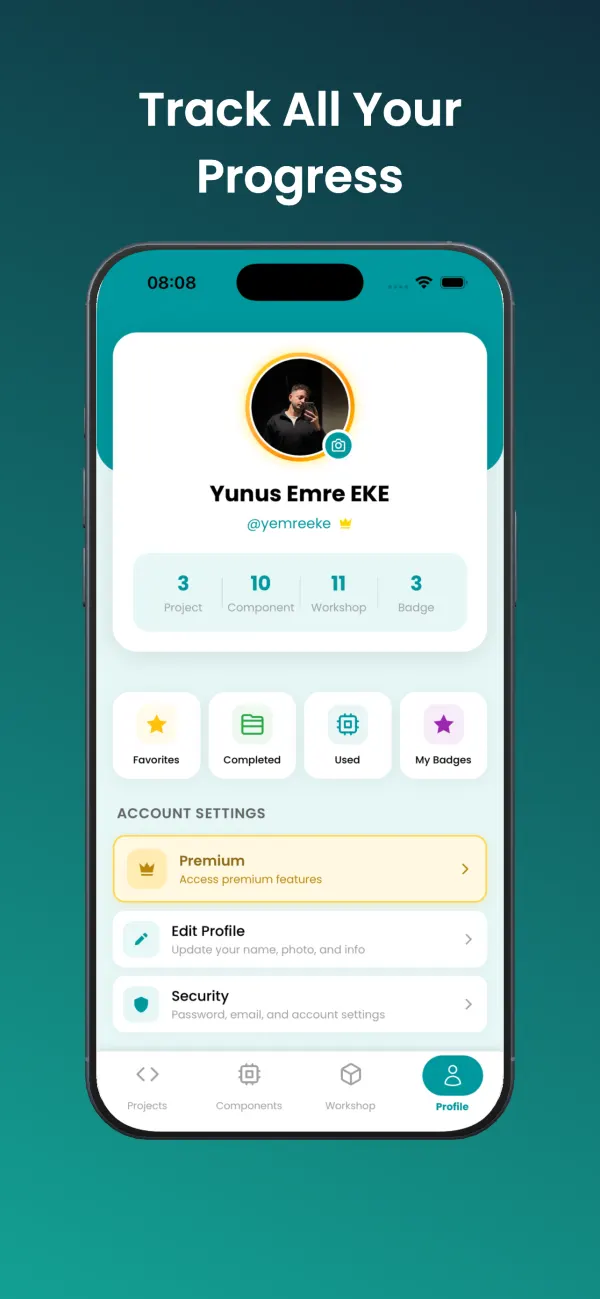
Create Your Profile
Photo: Take a profile photo with your camera or choose one from your gallery.
Information: Set your first name, last name, and username. You can update them anytime from your profile page.
Language: Choose from 6 languages in Profile > Language menu: Turkish, English, German, Spanish, French, Italian.
Projects
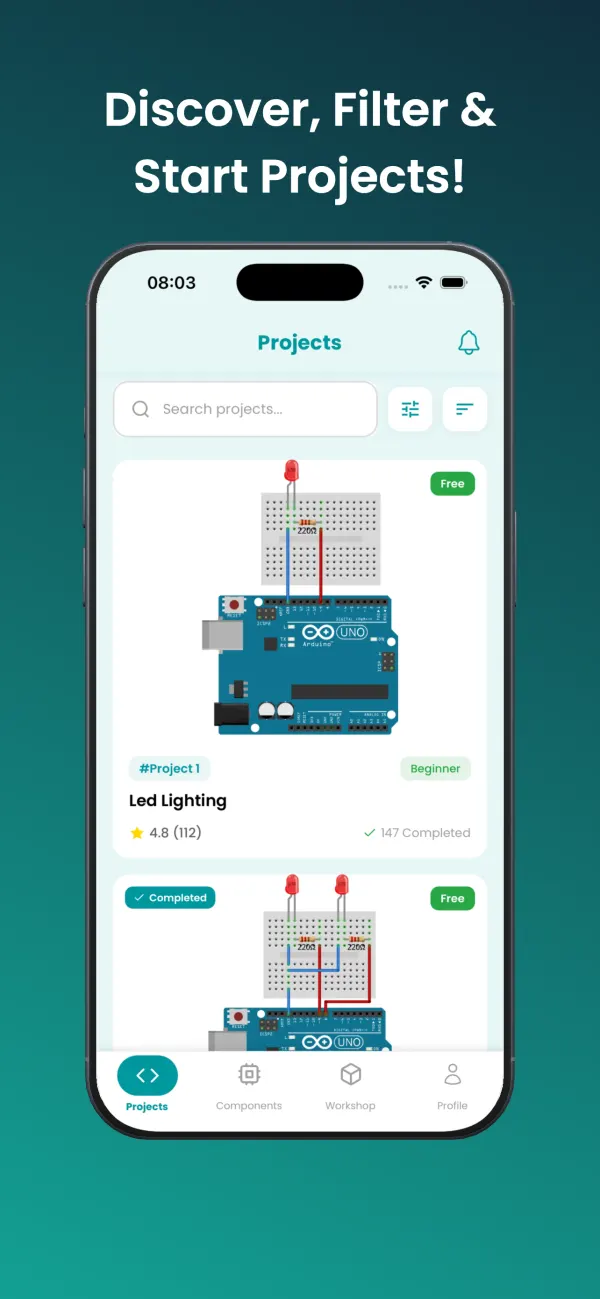
Explore and Filter Projects
Browse Arduino projects from beginner to advanced in the Projects tab.
Free access: You can access the first 10 projects on the free plan. All projects are unlocked with premium.
Filtering: Filter by difficulty level (Beginner / Intermediate / Advanced), cost (Free / Paid), and workshop compatibility.
Sorting: Sort by newest, oldest, project number, name, most completed, or highest rated.
Project details: View circuit diagrams, videos, source code, and the required component list.
Mark Project as Completed
When you complete a project in real life, record it in the app.
How to do it: Open the project detail page → Tap the "I Built This Project" button → Confirm on the confirmation screen.
Completed projects: Projects you mark are listed on your My Profile and Completed Projects screens. You can track your total, beginner, intermediate, and advanced level statistics.
Undo: You can remove the mark by tapping the "Completed" label again in the project details.
Badge: Your badge progress in related categories is automatically updated as you complete projects.
Rate a Project
Guide other users by rating projects from 1 to 5 stars.
How to do it: Tap the star icons on the project detail page to select your rating. The rating is saved instantly.
Update: You can change your rating at any time. Your new rating is reflected in the average.
Remove: You can remove your rating by tapping your current rating again.
Average: The average rating and total number of reviews are displayed on project cards.
Add Project to Favorites
Add projects you're interested in to favorites for quick access.
How to do it: Tap the heart icon on the project card or detail page. When the icon is filled, it has been added to favorites.
Favorites screen: Go to the Favorites tab from the bottom menu → Select the Projects tab. All your favorite projects are listed here.
Remove: You can remove a favorite project by tapping the heart icon again.
Components
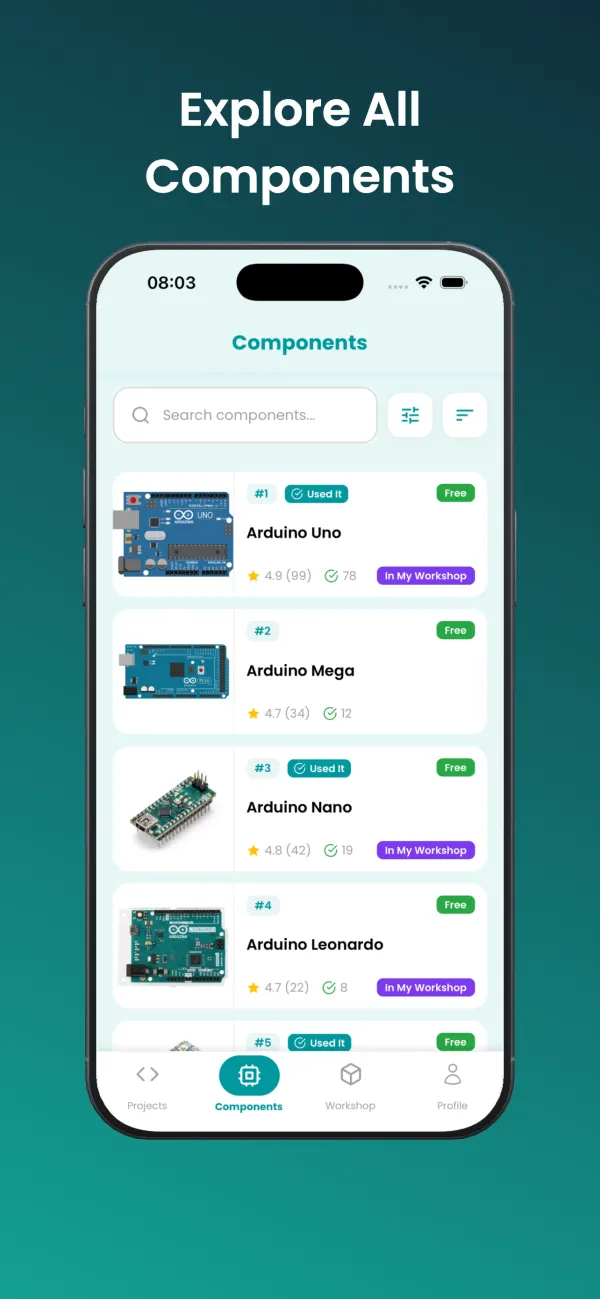
Explore and Filter Components
Browse and view details of electronic parts in the Components tab.
Free access: You can access the first 15-20 component details on the free plan. All components are unlocked with premium.
Filtering: Filter by status: All, "I Have" (in your workshop), "I Don't Have".
Sorting: Sort by newest, oldest, name, highest rated, most used, or by ID.
Search: Quickly find components by name using the search bar.
Mark Component as Used
Record when you use a component in a real project.
How to do it: Open the component detail page → Tap the "I Used This Component" button.
Tracking: Components you've used appear on your profile and in your statistics.
Badge: Component usage affects your badge progress. The more components you use, the more badges you earn.
Undo: You can remove the mark from the component detail page.
Rate a Component
Contribute to the community by rating the components you've used.
How to do it: Tap the star icons on the component detail page to give a rating from 1 to 5.
Update / Remove: You can change or remove your rating at any time.
Average: The average rating and number of reviews are displayed on component cards.
Add Component to Favorites
Add frequently used or interesting components to your favorites.
How to do it: Tap the heart icon on the component card or detail page.
Favorites screen: Go to Favorites → Components tab from the bottom menu. All your favorite components are listed here.
Remove: You can remove from favorites by tapping the heart icon again.
My Workshop — Inventory Management
PremiumAdd Component to Workshop
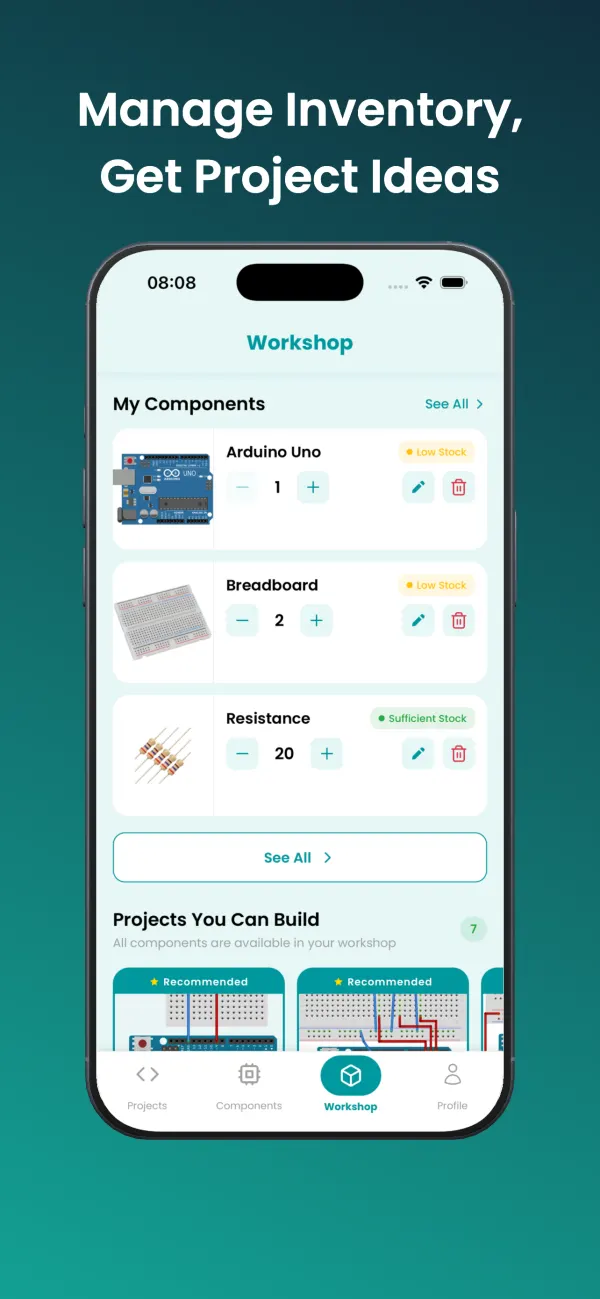
Build your inventory by adding the electronic components you own to your workshop.
How to do it: Go to the My Workshop tab → Tap the "+" button in the top right → Select a component from the list.
Quantity: Specify how many you own. You can update later with the + / - buttons.
Custom name: You can add a custom name to distinguish different variants of the same component. E.g., "Red LED", "10K Ohm Resistor".
Note: You can add notes specific to the component (supplier, price, usage notes, etc.).
Edit Workshop
Update or delete information about components in your workshop.
Editing: Long press the component card or tap the edit icon → Update the custom name, quantity, and note → Save.
Stock update: Quickly update the quantity with the + and - buttons on the component card. Low stock (less than 3) is shown with a yellow label, sufficient stock with a green label.
Delete: You can delete a component with the 'Remove from Workshop' option in the edit screen.
List and Filter Workshop
View and manage all components in your workshop.
Listing: All components you own are listed in card view in the My Workshop tab.
Filtering: Filter by stock status: All, Low Stock (less than 3), Sufficient Stock.
Search: You can search by component name or custom name.
I Have label: Components in your workshop are marked with an "I Have" label in the Components list.
Smart Project Suggestions
The system automatically offers project suggestions based on the components in your workshop.
Projects You Can Build: Projects where all required components are available in your workshop. You can start building right away.
Projects with Missing Components: Projects you can complete by purchasing a few more components. Missing components are listed.
How to view: Open the 'Project Suggestions' section in the My Workshop tab or enable the Workshop filter in the Projects list.
Badge System
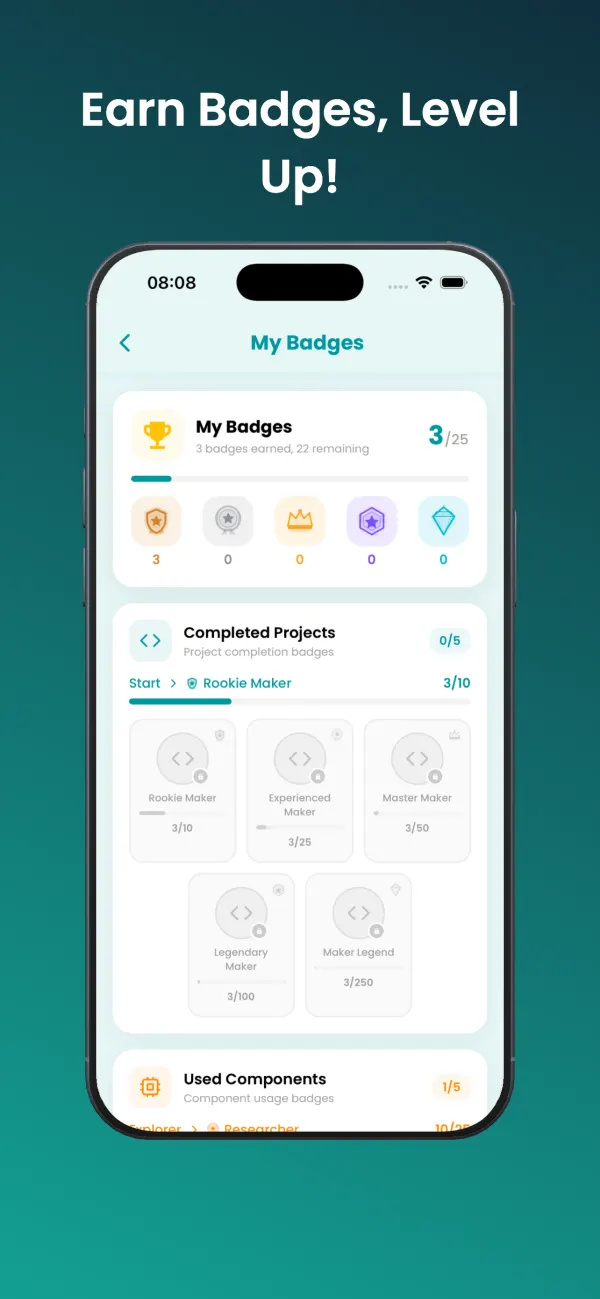
View Badges
Track the badges you've earned and continue to earn.
How to view: Go to the Badges tab from the bottom menu. All badge categories and your progress are displayed here.
Categories: Badges are divided into different categories: Project Completion, Component Usage, Exploration, and more.
Levels: Each badge has 5 levels: Bronze → Silver → Gold → Platinum → Diamond. Each level has a specific target.
Progress: Each badge card shows your current level, the target for the next level, and a progress bar.
Earning Badges
You automatically earn badges as you use the app. No extra action is required.
Project completion: The more projects you complete, the more you progress in Project Completion badges.
Component usage: You make progress in Component badges as you mark components as used.
Notification: The app notifies you when you earn a new badge level.
Free: The badge system is fully available on the free plan as well.
Other Features
Notifications
Viewing: View all your notifications by tapping the bell icon in the top menu or going to the Notifications tab.
Content: New projects, badge achievements, updates, and important announcements are delivered as notifications.
Read mark: You can mark notifications as read by tapping on them.
Profile and Account Settings
Edit profile: Update your photo, first name, last name, and username from the profile page.
Change password: You can change your password from Settings > Security.
Change language: You can change the app language at any time from Settings > Language.
Delete account: You can permanently delete your account from Settings > Account.
Get Started Now
Don't wait any longer to step into the world of electronics. Explore Arduino projects with BlueGrays.