
Raspberry Pi Pico से बोर्ड का LED ब्लिंक (Pico और Pico W)
Raspberry Pi Pico सीरीज़ का पहला प्रोजेक्ट! Pico के हरे बिल्ट-इन LED को ब्लिंक करके पक्का किया जाता है कि बोर्ड काम करता है; यह क्लासिक "Hello World" वाला पहला प्रयोग है। कोई बाहरी पार्ट नहीं चाहिए, बस Pico और एक USB केबल। कोड MicroPython में लिखा है, जिसे Raspberry Pi Foundation आधिकारिक रूप से सपोर्ट करती है।
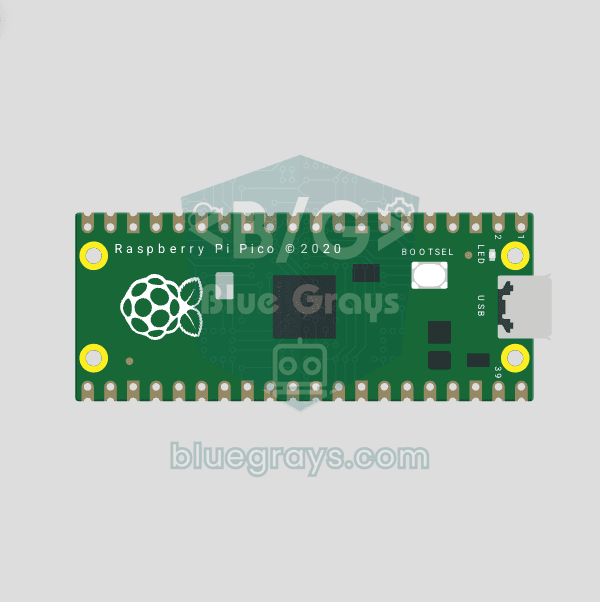
वीडियो
सर्किट डायग्राम
सोर्स कोड
1# ─────────────────────────────────────────
2#   BlueGrays · bluegrays.com
3#   Raspberry Pi Pico Onboard LED Blink (Pico and Pico W)
4# ─────────────────────────────────────────
5# Blinks the onboard LED of the Pico every 0.5 s; the classic "Hello
6# World" project. No external parts, just the Pico and a USB cable. The
7# code works on both the Pico and the Pico W.
8#
9# Pins:
10#   LED  -> Onboard LED (on the board)
11
12from machine import Pin
13import time
14
15# ============ PIN / PIN ============
16# The name "LED" instead of a pin number: it finds the onboard LED on both the Pico and the Pico W
17# (on the Pico W this LED is wired to the Wi-Fi chip, not a GP pin).
18LED_PIN = "LED"                 # Onboard LED
19led = Pin(LED_PIN, Pin.OUT)
20
21print("== BlueGrays: Pico Onboard LED Blink ==")
22print("LED pin: LED (Pico / Pico W)")
23print("LED toggles every 500ms")
24
25# ============ MAIN LOOP ============
26while True:
27    led.on()                    # Turn the LED on
28    print("[LED] ON")
29    time.sleep(0.5)
30
31    led.off()                   # Turn the LED off
32    print("[LED] OFF")
33    time.sleep(0.5)
34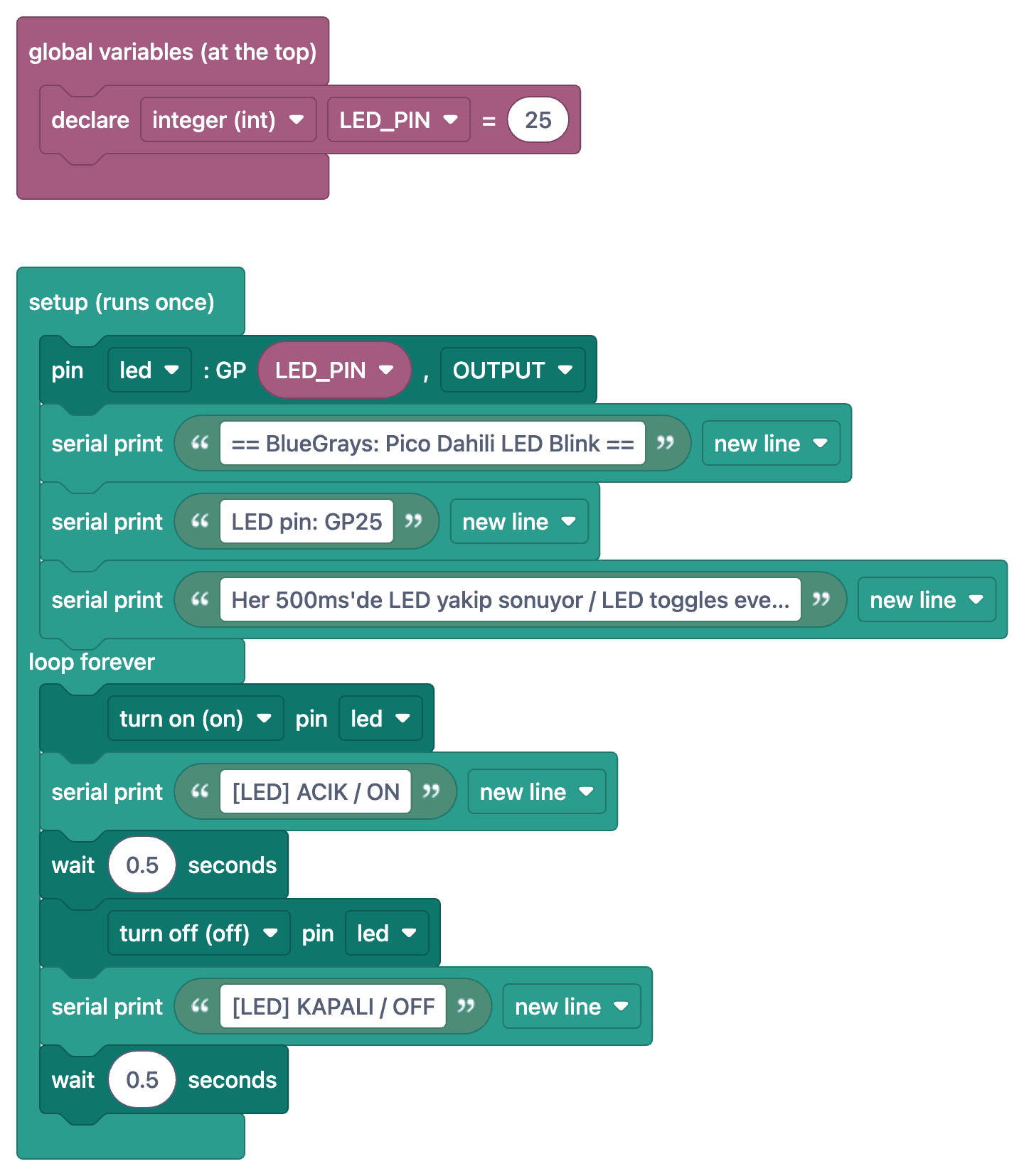
FAQ
क्या यह कोड Pico W पर भी चलता है?
हाँ। Pico W पर बोर्ड का LED किसी GP पिन से नहीं, Wi-Fi चिप से जुड़ा है। इसीलिए कोड पिन नंबर की जगह Pin('LED', Pin.OUT) इस्तेमाल करता है; यह नाम Pico और Pico W, दोनों पर बोर्ड का LED ढूँढ लेता है। Pico W पर LED न जले, तो पक्का करें कि आपने Pico W के लिए बना MicroPython फ़र्मवेयर इंस्टॉल किया है।
Pico पर MicroPython कैसे इंस्टॉल करें?
BOOTSEL बटन दबाए रखते हुए Pico को USB पोर्ट में लगाएँ; आपके कंप्यूटर पर "RPI-RP2" नाम की ड्राइव दिखेगी। Raspberry Pi वेबसाइट से डाउनलोड की गई MicroPython .uf2 फ़ाइल को इस ड्राइव पर खींचकर छोड़ें। Thonny IDE भी यह काम अपने-आप कर सकता है।
कोड को Pico पर कैसे सेव करें, ताकि हर बार चालू होने पर चले?
Thonny में फ़ाइल को Pico पर "main.py" नाम से सेव करें। Pico को पावर मिलते ही वह main.py फ़ाइल अपने-आप चलाता है।
Thonny को Pico नहीं दिख रहा, क्या करें?
नीचे दाएँ कोने में इंटरप्रेटर चुनने वाली जगह से "MicroPython (Raspberry Pi Pico)" चुना होना चाहिए। पक्का करें कि USB केबल डेटा केबल है और MicroPython इंस्टॉल है।