
How to Use an I2C LCD Display (16x2) with Arduino, ESP32 and Pico
How do you connect a 16x2 I2C LCD to Arduino? 4-wire wiring, finding the I2C address (0x27, 0x3F), the LiquidCrystal_I2C library, contrast adjustment, custom characters and scrolling text.
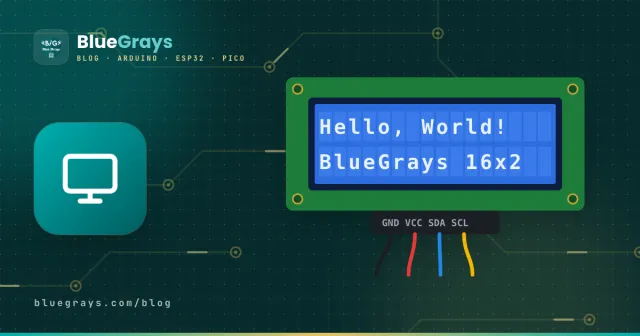
The 16x2 LCD, which shows 2 rows of 16 characters, is the most common display in the Arduino world. It's used to show readings such as temperature and distance, menus, clocks and game scores. The display itself has 16 pins and needs at least 6 digital pins on its own; the small I2C module soldered to its back brings that down to just 2 data wires. In this post you'll see, step by step, how to connect an I2C LCD, find its address and print whatever you want on it.
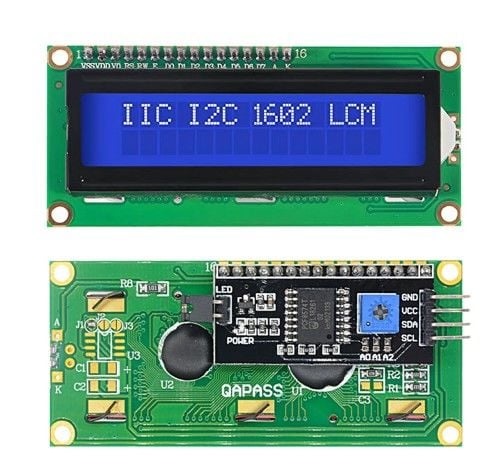
How does an LCD display work?
These displays run on a driver chip called the HD44780. Each character is drawn in a small 5x8-pixel box, and the chip contains a built-in character table of letters, digits and some symbols. The Arduino only sends a command like "write this letter at this position"; turning the letter into pixels is the display's job. The LED backlight makes the text readable in the dark, while the liquid crystal layer forms the text by darkening pixels.
What is I2C and why does it make things easier?
I2C is a way for several devices to talk over two wires: SDA carries the data and SCL carries the clock signal. Every device has its own address, and the Arduino calls the device it wants by that address. LCD modules usually use address 0x27 or 0x3F. A clock module, an OLED display and sensors such as the BME280 can share the same two wires; as long as their addresses differ, they all work together.
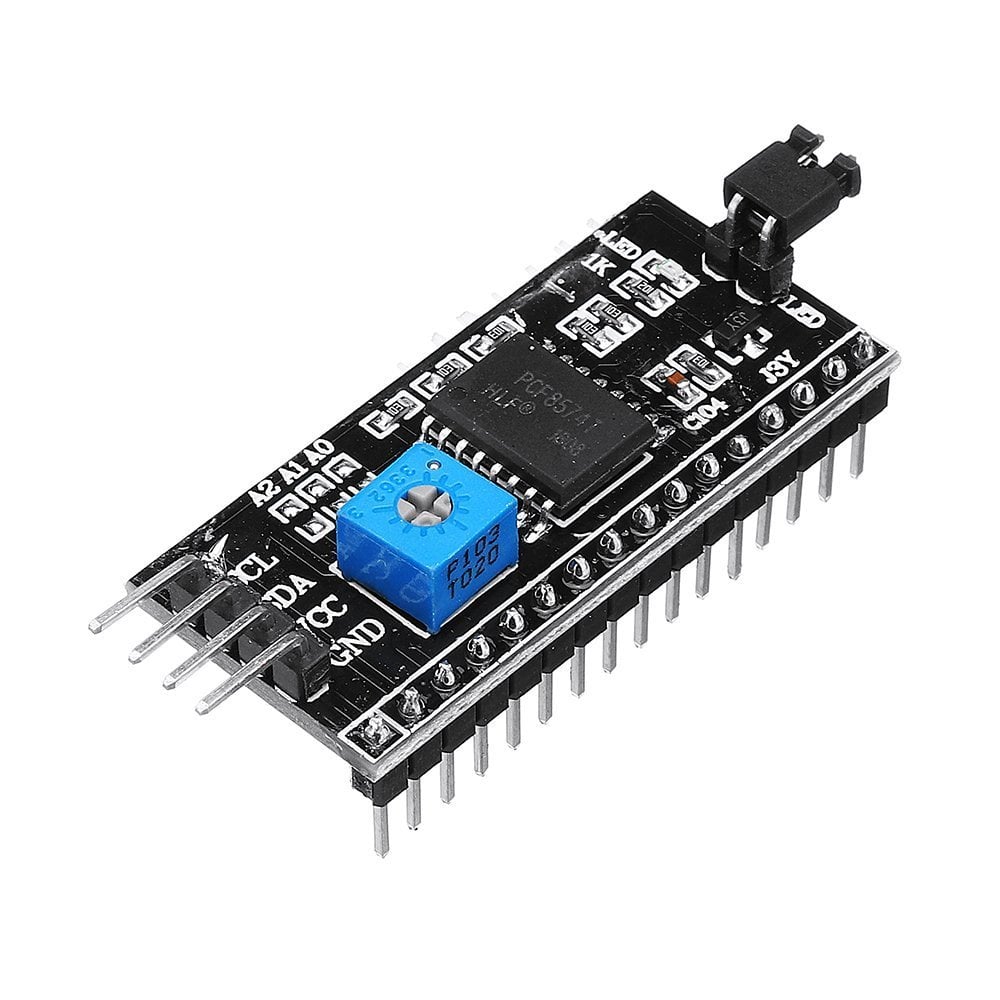
The PCF8574 chip on the module converts commands arriving over I2C into the 8 parallel signals the display expects. You can use the display without an I2C module, but then you need 6 pins, a potentiometer and lots of wires. The module saves pins and keeps your circuit tidy.
Specifications
| Feature | Value |
|---|---|
| Display | 16 columns × 2 rows of characters |
| Character size | 5 × 8 pixels |
| Driver chip | HD44780 (or compatible) |
| I2C adapter | PCF8574 / PCF8574A |
| Default address | 0x27 (PCF8574) or 0x3F (PCF8574A) |
| Supply | 5 V, about 20–30 mA with the backlight on |
| Connections | GND, VCC, SDA, SCL |
I2C LCD wiring: Arduino, ESP32 and Pico
The wiring is the same four wires on every board; the only thing that changes is which pins SDA and SCL are on. To see your board's I2C pins, check the Pinout tool.
| LCD pin | Arduino Uno / Nano | Arduino Mega | ESP32 | Raspberry Pi Pico |
|---|---|---|---|---|
| GND | GND | GND | GND | GND |
| VCC | 5V | 5V | VIN (5V) | VBUS (5V) |
| SDA | A4 | 20 | GPIO 21 | GP4 |
| SCL | A5 | 21 | GPIO 22 | GP5 |
Finding the I2C address: scanner sketch
If you're not sure of your display's address, upload the code below. It tries every address from 1 to 126 and prints the address of each device that answers to the Serial Monitor. You'll use this address when you set up the display.
1#include <Wire.h>
2
3void setup() {
4  Wire.begin();
5  Serial.begin(9600);
6  Serial.println("I2C taranıyor / scanning...");
7  for (byte addr = 1; addr < 127; addr++) {
8    Wire.beginTransmission(addr);
9    if (Wire.endTransmission() == 0) {   // cihaz cevap verdi / device answered
10      Serial.print("Bulundu / found: 0x");
11      Serial.println(addr, HEX);
12    }
13  }
14}
15
16void loop() {
17}
Installing the library and printing text
In the Library Manager, search for LiquidCrystal I2C and install the library by Frank de Brabander. The code below writes a greeting on the first row and, on the second row, the number of seconds since the Arduino started.
1#include <Wire.h>
2#include <LiquidCrystal_I2C.h>
3
4LiquidCrystal_I2C lcd(0x27, 16, 2);  // adres, sütun, satır / address, columns, rows
5
6void setup() {
7  lcd.init();
8  lcd.backlight();               // arka ışığı aç / backlight on
9  lcd.setCursor(0, 0);           // sütun 0, satır 0 / column 0, row 0
10  lcd.print("Merhaba Dunya!");
11}
12
13void loop() {
14  lcd.setCursor(0, 1);           // ikinci satır / second row
15  lcd.print("Sure: ");
16  lcd.print(millis() / 1000);    // saniye / seconds
17  lcd.print(" sn   ");           // eski rakamları sil / clear old digits
18  delay(200);
19}The most useful LCD commands
| Command | What it does |
|---|---|
| lcd.init() | Initialises the display; call it once in setup(). |
| lcd.backlight() / lcd.noBacklight() | Turns the backlight on or off. |
| lcd.setCursor(column, row) | Picks where the text starts; counting begins at 0. |
| lcd.print(value) | Prints text or a number. |
| lcd.clear() | Clears the whole display and moves the cursor home. |
| lcd.scrollDisplayLeft() | Shifts the whole display one character to the left. |
| lcd.blink() / lcd.cursor() | Shows a blinking or underline cursor. |
| lcd.createChar(slot, array) | Stores a custom character in slots 0–7. |
Scrolling text
To show text longer than 16 characters, you can scroll the display. The code below prints the text and shifts it left every 300 milliseconds, so a long message flows across the screen like a sign.
1#include <Wire.h>
2#include <LiquidCrystal_I2C.h>
3
4LiquidCrystal_I2C lcd(0x27, 16, 2);
5
6void setup() {
7  lcd.init();
8  lcd.backlight();
9  lcd.print("BlueGrays ile elektronik ogren");  // 16 karakterden uzun / longer than 16 chars
10}
11
12void loop() {
13  lcd.scrollDisplayLeft();   // bir adım sola / one step left
14  delay(300);
15}
Custom characters and special letters
The HD44780 character table has no accented letters such as ş, ğ, ı, ö, ü, ç (or é and ñ); if you try to print them you'll see meaningless symbols. The solution is to define up to 8 custom 5x8-pixel characters. Each row is written as one byte, and the bits set to 1 are the lit pixels. The example below draws a heart; you can draw any accented letter the same way.
1byte heart[8] = {
2  0b00000,
3  0b01010,
4  0b11111,
5  0b11111,
6  0b01110,
7  0b00100,
8  0b00000,
9  0b00000
10};
11
12// setup() içinde / inside setup()
13lcd.createChar(0, heart);   // 0. yuvaya kaydet / store in slot 0
14lcd.setCursor(15, 0);
15lcd.write(byte(0));         // kalbi göster / show the heart
I2C LCD with the ESP32 and Raspberry Pi Pico
On the ESP32 the same Arduino code and library work; Wire.begin() uses GPIO 21 (SDA) and GPIO 22 (SCL) by default. If you want different pins, write Wire.begin(SDA, SCL). On the Raspberry Pi Pico with MicroPython, copy two small files called lcd_api.py and pico_i2c_lcd.py to the Pico and use them like this:
1from machine import I2C, Pin
2from pico_i2c_lcd import I2cLcd   # Pico'ya kopyalanan dosya / file copied to the Pico
3
4i2c = I2C(0, sda=Pin(4), scl=Pin(5), freq=400000)
5addr = i2c.scan()[0]              # ilk bulunan adres / first found address
6lcd = I2cLcd(i2c, addr, 2, 16)    # 2 satır, 16 sütun / 2 rows, 16 columns
7
8lcd.putstr("Merhaba Pico!")
9lcd.move_to(0, 1)                 # sütun 0, satır 1 / column 0, row 1
10lcd.putstr("BlueGrays")
I2C LCD project ideas
- Digital thermometer: show temperature and humidity on the display; for the sensor side see DHT11 Temperature and Humidity Sensor.
- Distance display: show the distance measured with an HC-SR04 in centimetres; details in HC-SR04 Distance Sensor.
- Digital voltmeter: show the voltage you read from an analog pin.
- Code lock: show the code typed on a keypad as asterisks.
- Menu system: move through options on the display with a potentiometer or two buttons.
- Mini game: make a runner drawn with custom characters dodge obstacles.
Common mistakes and how to fix them
- Display lit but no text: the contrast isn't set; turn the trimpot.
- Solid blocks on the top row: the display has power but hasn't been initialised; the address may be wrong, SDA and SCL may be swapped, or lcd.init() wasn't called.
- Wrong address: the code says 0x27 but the display is 0x3F; find the real address with the scanner sketch.
- Old digits left behind: a number dropping from 100 to 99 shows up as 990; print a few spaces after the number. lcd.clear() also works but is slow, and the display flickers if you call it often in the loop.
- Garbled accented letters: they aren't in the display's table; define custom characters or avoid them.
- Text randomly corrupted: long, loose wires or noisy parts such as motors can disturb the I2C bus; keep wires short and power motors from a separate supply.
Pairing the display with a sensor is the quickest way to build your first real project. In the BlueGrays app you'll find dozens of I2C LCD projects with circuit diagrams and ready-to-use code, and to change values with a knob, What Is a Potentiometer? will come in handy.
Frequently asked questions
Why does my LCD only show blocks?
Solid blocks on the top row mean the display has power but hasn't been initialised. The address may be wrong, SDA and SCL may be swapped, or the contrast is too high. First confirm the address with the I2C scanner sketch, then adjust the trimpot.
Is my I2C LCD address 0x27 or 0x3F?
Modules with a PCF8574 chip usually use 0x27, and those with a PCF8574A use 0x3F. The easiest way to find out is the I2C scanner sketch; then just change the code to LiquidCrystal_I2C lcd(0x3F, 16, 2).
Can I connect two LCDs to one Arduino?
Yes. Bridging the A0, A1 and A2 solder pads on the module changes its address, so up to 8 LCDs can share the same two wires. In the code you define a separate object for each display with its own address.
Does the same code work for a 20x4 LCD?
Yes. Just change the declaration to LiquidCrystal_I2C lcd(0x27, 20, 4); rows then run from 0 to 3 and columns from 0 to 19.
How do I print accented or special characters on an LCD?
The display's built-in table doesn't include letters such as é, ñ, ş or ğ. Draw each one as a custom 5x8-pixel character with lcd.createChar() and print it with lcd.write(). Remember you can define at most 8 custom characters at a time.
Should I use an LCD or an OLED display?
An LCD is cheap, readable in sunlight and ideal for text and numbers. An OLED is smaller, has high contrast and can draw graphics and icons, but it can show burn-in if it displays the same image for a long time. Choose an LCD for text and an OLED for graphics.
Projects to build after reading this
See all projects
Using LCD Screen with I2C
The project that prints messages by controlling the LCD screen with only 2 cables (SDA, SCL) thanks to the I2C module. Teaches how to save pins with I2C protocol.

Print Message on 2x16 LCD Screen
Project that prints character by character on a 2x16 LCD screen and displays a looping message by clearing the screen. The LCD library teaches how to use the setCursor and print functions.

Writing Left and Right Multiplier with LCD
A project that creates an animation effect of the text moving left and right on the LCD screen and hitting the walls. Teaches dynamic setCursor positioning and text animation logic.

ESP32 I2C LCD Display (16x2)
In this project, we display text by connecting a 16x2 character LCD screen to the ESP32 via the I2C protocol. Thanks to I2C, we can control the screen using just two data pins (SDA and SCL), eliminating the waste of 6+ pins associated with a classic parallel connection. The code prints a fixed message on the first line and a counter that increments every second on the second line. Additionally, we run an I2C scanner at the start to print the display’s address to the Serial Monitor (typically 0x2

Temperature and Humidity with DHT11
Project that measures the ambient temperature and humidity value with the DHT11 sensor and displays it on the I2C LCD screen. Teaches the use of digital temperature/humidity sensor.

Digital Voltmeter with LCD Display
Digital voltmeter project that measures voltage in the range of 0-55V with voltage divider circuit and displays the result on I2C LCD screen. Teaches voltage divider formula and analog measurement cal

4x4 Keypad LCD Display Password App
Security project that opens the door with servo if it is correct by entering a password with a 4x4 keypad and turns on a red LED if it is wrong. Teaches password comparison and servo-LCD-keypad integr

Arduino LCD Runner Game
Side scrolling endless runner game running on 6x2 character LCD screen. Hero runs automatically, player jumps over obstacles by pressing the button. Random obstacles appear on the top and bottom row. Passive buzzer plays opening melody, jumping sound, 50 point celebration sound and end of game melody. "BlueGrays - Arduino Projects" splash screen is shown on startup. The score is updated instantly in the upper right corner of the screen.
More articles
Learn to connect a 16x2 LCD with an I2C module using just 4 wires, find its address, print text and numbers, scroll messages and draw your own symbols.