
DHT11 Temperature and Humidity Sensor: Arduino, ESP32 and Pico Guide
What is the DHT11 temperature and humidity sensor and how does it work? Arduino wiring, the DHT library, example code, DHT11 vs DHT22, ESP32 and Pico usage, and common mistakes.
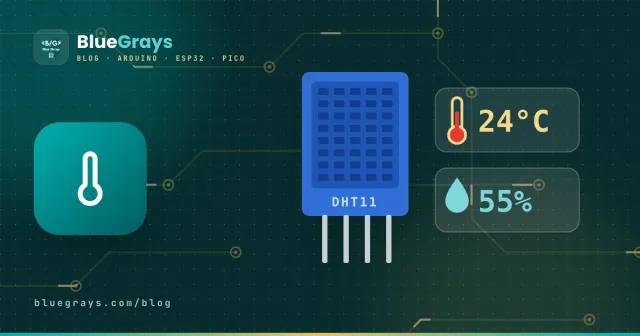
The DHT11 is a cheap digital sensor in a blue plastic case that reads both temperature and relative humidity over a single data wire. You'll find it in almost every Arduino weather station, greenhouse and plant monitor, nursery thermometer and smart home project that switches on a fan when humidity rises. Unlike an analog sensor, you don't measure a voltage and fiddle with formulas: the sensor sends its reading as a ready-made number.
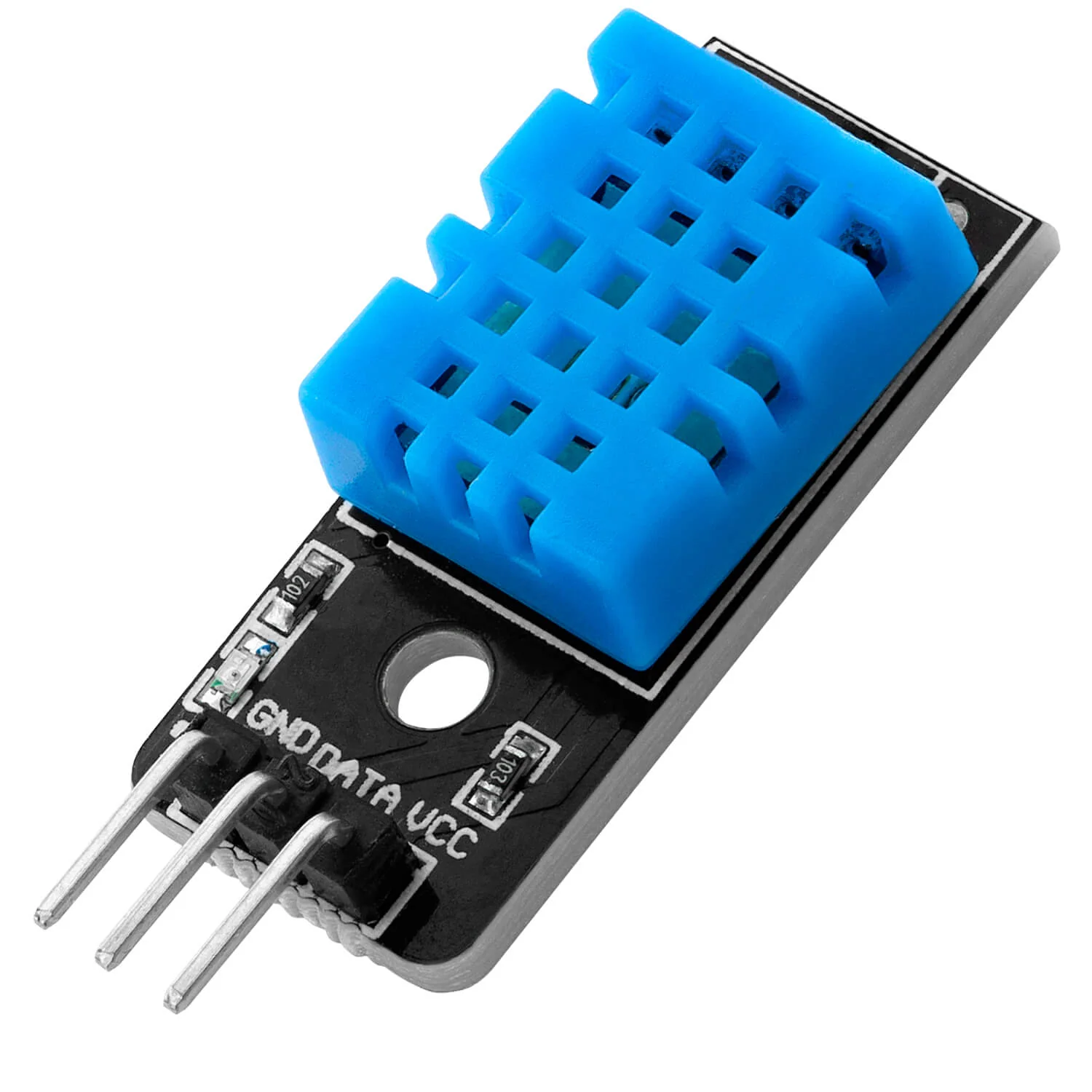
What is the DHT11 and where is it used?
The humidity it measures is relative humidity: the percentage of the maximum water vapour the air can hold at that temperature. 40–60% is considered comfortable; above 70% means damp and mould, below 30% means dry air. The DHT11 measures this value and the ambient temperature about once per second.
- Home weather station: show temperature and humidity on an LCD or OLED display.
- Greenhouse and plant monitoring: warn when humidity drops, and water together with a soil moisture sensor.
- Damp and mould alert: sound an alarm when a bathroom, basement or wardrobe goes above 70% humidity.
- Automatic fan or dehumidifier: switch the device on with a relay when a humidity threshold is crossed.
- Data logger: write readings to an SD card and plot a daily chart.
- Remote monitoring: use an ESP32 to publish the values on a web page you can open on your phone.
How does the DHT11 work?
There are two sensing elements inside the case. The humidity element is a moisture-absorbing material between two electrodes; as the humidity in the air rises, its resistance drops. Temperature is measured with an NTC thermistor: a small resistor whose resistance falls as it gets warmer. A tiny microcontroller inside the sensor measures both resistances, corrects them with calibration values stored at the factory and sends the result digitally.
Communication happens over a single wire. The Arduino wakes the sensor by holding the data line LOW for at least 18 milliseconds, and the sensor replies with a 40-bit packet: 16 bits of humidity, 16 bits of temperature and an 8-bit checksum to catch bad readings. You don't have to write this timing yourself; the library we'll install below handles all of it.
Specifications: DHT11 vs DHT22
| Feature | DHT11 | DHT22 (AM2302) |
|---|---|---|
| Supply voltage | 3–5.5 V | 3.3–6 V |
| Current while measuring | 0.5–2.5 mA | 1–1.5 mA |
| Temperature range | 0–50 °C | −40–80 °C |
| Temperature accuracy | ±2 °C | ±0.5 °C |
| Humidity range | 20–90% | 0–100% |
| Humidity accuracy | ±5% | ±2% (max ±5%) |
| Resolution | 1 °C / 1% | 0.1 °C / 0.1% |
| Sampling rate | Once per second | Once every 2 seconds |
| Case colour | Blue | White |
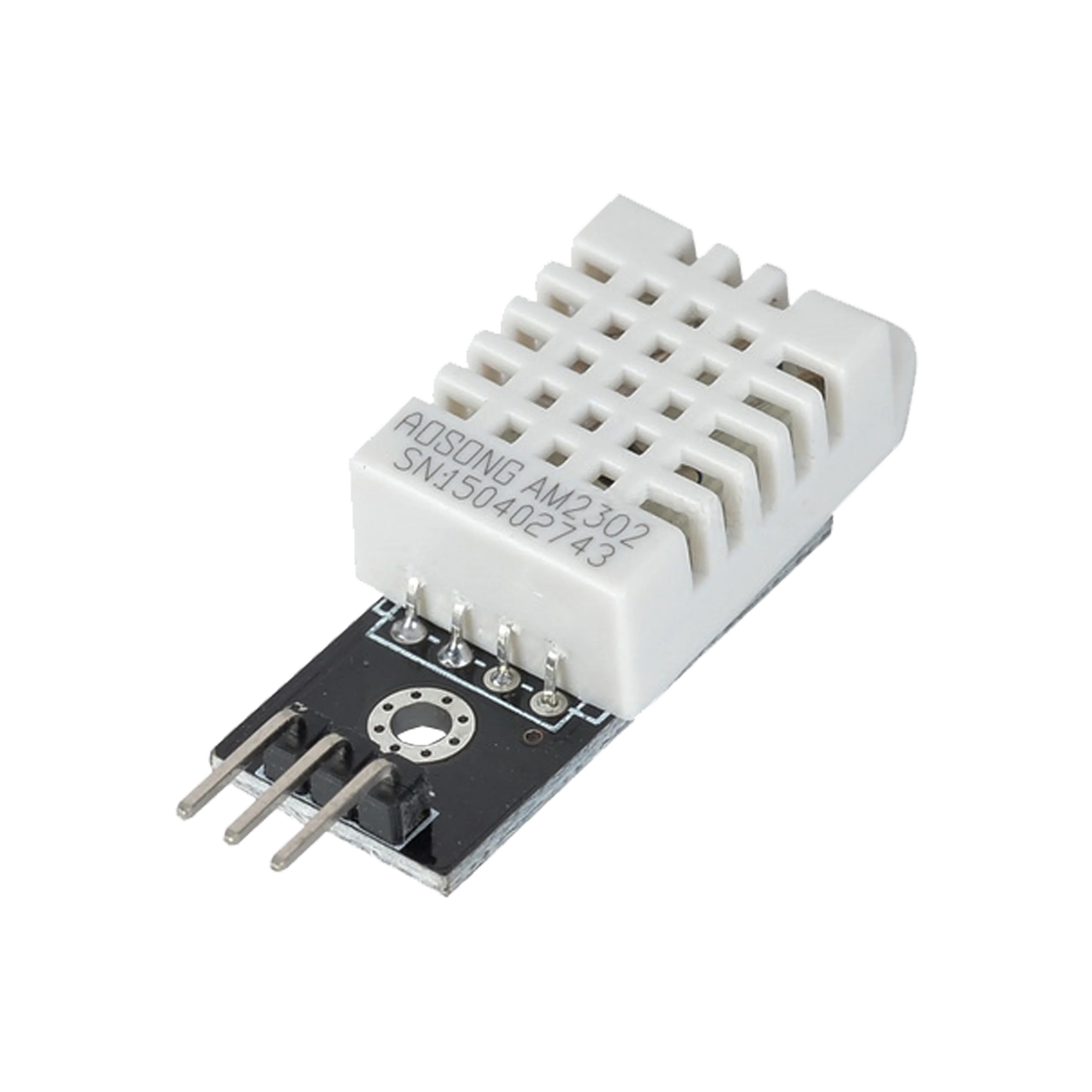
In short: if you want a rough reading of indoor temperature and humidity, the DHT11 is enough and cheaper. Outdoors, below freezing, or wherever half a degree matters, choose the DHT22. Both are wired and coded the same way; you only change the sensor type in the code.
DHT11 pinout and wiring
The DHT11 is sold in two forms: a 3-pin module with a resistor and LED on the board, or a 4-leg bare sensor. On the bare sensor, count the legs from left to right with the grilled face towards you.
| Signal | 3-pin module | 4-leg sensor | Connect to |
|---|---|---|---|
| Power | VCC (+) | Leg 1 | 5V (3V3 on ESP32 and Pico) |
| Data | DATA / OUT / S | Leg 2 | A digital pin (D2 on the Uno) |
| Unused | — | Leg 3 | Not connected |
| Ground | GND (−) | Leg 4 | GND |
Installing the DHT library
- Open the Library Manager in the Arduino IDE (the book icon in the left sidebar of Arduino IDE 2).
- Type DHT sensor library in the search box and install the library by Adafruit.
- When it asks about dependencies, choose Install all so that Adafruit Unified Sensor is installed too.
- If you like, try the ready-made example under File > Examples > DHT sensor library > DHTtester.
Arduino example code: temperature, humidity and heat index
The code below takes a reading every two seconds, reports when a reading fails and combines temperature and humidity to calculate the heat index (how hot it feels). Open the Serial Monitor at 9600 baud to see the results.
1#include <DHT.h>
2
3#define DHT_PIN 2          // veri pini / data pin
4#define DHT_TYPE DHT11     // DHT22 kullanıyorsan DHT22 yaz / write DHT22 for a DHT22
5
6DHT dht(DHT_PIN, DHT_TYPE);
7
8void setup() {
9  Serial.begin(9600);
10  dht.begin();
11}
12
13void loop() {
14  delay(2000);                                // ölçümler arası bekleme / wait between readings
15
16  float humidity = dht.readHumidity();        // % bağıl nem / % relative humidity
17  float temperature = dht.readTemperature();  // °C
18
19  if (isnan(humidity) || isnan(temperature)) {
20    Serial.println("Okuma hatası / read error");
21    return;
22  }
23
24  // hissedilen sıcaklık / heat index (°C)
25  float heatIndex = dht.computeHeatIndex(temperature, humidity, false);
26
27  Serial.print("Sicaklik / Temp: ");
28  Serial.print(temperature);
29  Serial.print(" C  Nem / Humidity: %");
30  Serial.print(humidity);
31  Serial.print("  Hissedilen / Feels like: ");
32  Serial.print(heatIndex);
33  Serial.println(" C");
34}Using the DHT11 with the ESP32
The same code runs on the ESP32; just set DHT_PIN to, for example, 4. Power the sensor from the ESP32's 3V3 pin so the data line also stays at 3.3 V; the DHT11 works comfortably at this voltage. GPIO 34–39 are input-only, so they're not suitable for a DHT, because the data line is bidirectional. When picking a pin, check which ESP32 pins are safe in the Pinout tool. You can show the readings on a web page over Wi-Fi and monitor them from your phone.
DHT11 with the Raspberry Pi Pico (MicroPython)
MicroPython has a built-in dht module for DHT sensors, so there's no library to install. Connect the sensor to the Pico's 3V3 pin, GND and pin GP15:
1import dht
2from machine import Pin
3import time
4
5sensor = dht.DHT11(Pin(15))   # GP15 veri pini / data pin (DHT22 için dht.DHT22)
6
7while True:
8    try:
9        sensor.measure()
10        t = sensor.temperature()   # °C
11        h = sensor.humidity()      # %
12        print("Sicaklik:", t, "C  Nem: %", h)
13    except OSError:
14        print("Okuma hatası / read error")
15    time.sleep(2)
DHT11 project ideas
- Digital thermometer with an LCD: write the values to a 16x2 display; see how in Using an I2C LCD Display.
- Humidity-controlled fan: run a fan through a relay when humidity passes 65%; for the wiring see What Is a Relay Module?
- Damp alarm: sound a buzzer when the threshold is crossed; What Is a Buzzer? covers audible alerts.
- Temperature logger: save a reading every 10 minutes with a clock module and an SD card.
- Wi-Fi weather station: publish the readings with an ESP32 on a page any device on your home network can open.
Common mistakes and how to fix them
- Constant NaN or "Failed to read": the data wire may be on a different pin from the one in the code, the pull-up resistor may be missing, or the code may use the wrong sensor type (DHT22 instead of DHT11).
- Reading too often: a sensor read at intervals shorter than 2 seconds returns the old value or an error.
- Temperature higher than it should be: the sensor may be too close to the Arduino's voltage regulator or in the sun; place it a few centimetres away from the board.
- Dropped readings on long cables: the signal weakens after a few metres; lower the pull-up to 4.7 kΩ, power the sensor at 5 V and use good-quality cable.
- Unstable on the ESP32: if the sensor is powered at 5 V, the data line is pulled up to 5 V; power it from 3V3 and use a GPIO that can be both input and output (for example 4).
- Expecting an instant response: it takes a few seconds to register a change in humidity; the DHT11 is designed for monitoring a room, not for fast measurements.
If you're wondering what other sensors you can use, take a look at the Arduino Sensors Guide, and to measure distance, see HC-SR04 Distance Sensor. In the BlueGrays app you'll find step-by-step DHT11 and DHT22 projects with circuit diagrams and code.
Frequently asked questions
Should I buy a DHT11 or a DHT22?
For a rough reading of indoor temperature and humidity, the DHT11 is enough and cheaper. Get a DHT22 for outdoor use, temperatures below zero or ±0.5 °C accuracy. The only change in the code is setting the sensor type to DHT22.
Why does my DHT11 return NaN or "Failed to read from DHT sensor"?
The most common causes are the wrong data pin, a missing pull-up resistor, the wrong sensor type in the code and reading too often. Check the wiring, add a 10 kΩ resistor on a bare sensor and wait 2 seconds between readings.
My DHT11 shows the wrong temperature. How do I calibrate it?
A ±2 °C error is normal for the DHT11. Put the sensor next to a thermometer you trust, note the difference and add or subtract that fixed offset from the reading in your code. Make sure the sensor is away from parts that heat up.
Does the DHT11 work at 3.3 V?
Yes, the DHT11 works from 3 to 5.5 V. On 3.3 V boards such as the ESP32 and Raspberry Pi Pico, powering it from the 3V3 pin is best, so the data line never sees 5 V.
Can the DHT11 be used outdoors or around water?
The DHT11 isn't waterproof; rain, condensation and direct sun damage it or make it read wrong. Outdoors, keep it in a ventilated box in the shade; for water temperature, a waterproof DS18B20 is a better fit.
Can I connect more than one DHT11 to an Arduino?
Yes, but each sensor needs its own data pin; they can't share a data line. In the code you define a separate DHT object for each one, for example DHT dht1(2, DHT11) and DHT dht2(3, DHT11).
Projects to build after reading this
See all projects
Temperature and Humidity with DHT11
Project that measures the ambient temperature and humidity value with the DHT11 sensor and displays it on the I2C LCD screen. Teaches the use of digital temperature/humidity sensor.

ESP32 DHT22 Temperature and Humidity (with LCD Display)
This project measures ambient temperature and humidity using a DHT22 sensor and displays the data in real time on a 16x2 I2C LCD. Data is read from the sensor using the one-wire protocol via the Adafruit DHT library. This project serves as the foundation for IoT weather stations, smart home automation, or environmental monitoring systems in greenhouses. Communication with the DHT22 is established via the ESP32's GPIO 4 pin.

ESP32 Temperature Data Logger (DHT22 + DS1307 RTC + microSD + OLED)
Build a timestamped temperature logger with ESP32! Read DHT22 temperature/humidity every 10 seconds, get real-world time from DS1307 RTC, and log to microSD card as CSV. The OLED displays live temperature (large font), humidity percentage, timestamp, and log counter. The `/temp_log.csv` file on the SD card opens in Excel, Google Sheets, or Python pandas for analysis — perfect for greenhouse monitoring, home/room temperature tracking, laboratory data collection, food storage conditions, or beehiv

Dot Matrix Clock, Calendar and Weather Station (MAX7219, DS1307)
DS1307 RTC module and DHT22 temperature-humidity sensor is a project that displays real-time data on MAX7219 8x32 dot matrix LED display. The display shows the temperature in Celsius and Fahrenheit, h

Temperature Measurement with NTC and 2x16 Lcd Display
Project that measures the ambient temperature with NTC thermistor and displays it in Celsius on I2C LCD screen. It teaches how to calculate temperature from analog value with Steinhart-Hart equation.

ESP32 HTTPClient + Weather API (with LCD Screen)
In this project, we use the ESP32 to make a REST API call to a weather API (wttr.in) over the internet using `HTTPClient.h`. We parse the returned JSON response using ArduinoJson v7 and display the city, temperature, humidity, weather, and wind information on an I2C LCD screen in both Turkish and English. wttr.in is free and does not require an API key—you can simply enter any city name to retrieve that city’s current weather conditions. It automatically updates every 30 minutes, provides differ

Smart Irrigation Station
Autonomous plant irrigation system that works 24/7 with two 18650 batteries and LM2596 regulator without tiring Arduino. It automatically manages the water motor by continuously measuring soil moistur

ESP 32 Smart Plant Watering System
In this project, an automatic plant watering system was developed using an ESP32 and a soil moisture sensor. The sensor continuously measures the soil’s moisture level. When the moisture level drops below a specified threshold, the ESP32 activates the relay to turn on the water pump and water the plant. When the soil is sufficiently moist, the pump automatically stops. Thanks to this project, plants can be watered regularly, and water can be conserved. _______________________________ Connections
More articles
Learn to wire the DHT11 to Arduino, read temperature, humidity and heat index with the DHT library, use it on the ESP32 and Pico, and know when the DHT22 is the better choice.