
How to Use a 7-Segment Display: Showing Numbers with Arduino, Common Anode vs Cathode
How does a 7-segment display work? Segment letters (a–g, dp), common cathode vs common anode, pinout and resistors, code to count 0–9, 4-digit displays and multiplexing, the TM1637 module, ESP32 and Pico.
A 7-segment display is a simple indicator made of seven bar-shaped LEDs arranged like the number "8", plus a small dot. Digital clocks, microwave timers, scoreboards and petrol pumps all use it. It's cheap, very bright and easy to read even from a distance. In Arduino projects it's one of the classic outputs for building counters, dice, stopwatches and clocks.
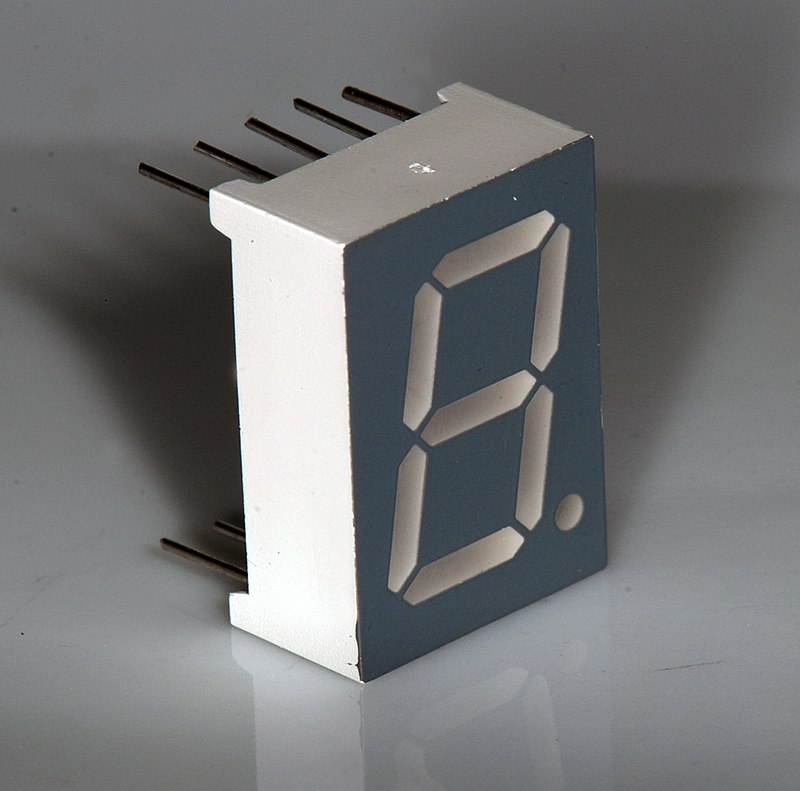
How does a 7-segment display work?
The segments are named with letters: starting from a at the top and going clockwise come b (top right), c (bottom right), d (bottom), e (bottom left) and f (top left); the middle bar is g and the dot is dp. Each segment is really a separate LED, and different digits are formed depending on which ones are lit. For "1", for example, only b and c light up, while "8" lights all seven.
| Digit | Segments lit |
|---|---|
| 0 | a, b, c, d, e, f |
| 1 | b, c |
| 2 | a, b, d, e, g |
| 3 | a, b, c, d, g |
| 4 | b, c, f, g |
| 5 | a, c, d, f, g |
| 6 | a, c, d, e, f, g |
| 7 | a, b, c |
| 8 | a, b, c, d, e, f, g |
| 9 | a, b, c, d, f, g |
Common cathode or common anode?
Just like an RGB LED, one end of every segment is joined at a common pin. On a common-cathode display the common pin goes to GND and a segment lights when you give it HIGH. On a common-anode display the common pin goes to 5V and a segment lights when you give it LOW. They look the same from the outside; to find out which one you have, connect the common pin to GND and touch a segment pin to 5V through a 220 Ω resistor. If the segment lights, it's common cathode; if not, reverse the connection and try again.
| Feature | Common cathode (CC) | Common anode (CA) |
|---|---|---|
| Common pin (3 and 8) | GND | 5V |
| To light a segment | HIGH | LOW |
| In code | digitalWrite(pin, on) | digitalWrite(pin, !on) |
Pinout and Arduino wiring
On common 10-pin single-digit displays, the pins are numbered anticlockwise starting from the bottom left, with the front of the display facing you. The two middle pins (3 and 8) are the common terminal and are connected together inside. The table below shows both the display pins and the Arduino pins used by the code in this post:
| Display pin | Segment | Arduino pin |
|---|---|---|
| 7 | a | D2 |
| 6 | b | D3 |
| 4 | c | D4 |
| 2 | d | D5 |
| 1 | e | D6 |
| 9 | f | D7 |
| 10 | g | D8 |
| 5 | dp | D9 |
| 3 and 8 | Common | GND (common cathode) or 5V (common anode) |
Counting from 0 to 9 with Arduino
Storing which segments each digit lights as bits in an array keeps the code short. In the example below, the leftmost bit of each byte is segment a and the rightmost bit is segment g. The showDigit() function reads these bits one by one and writes them to the pins; if you're using a common-anode display, just set COMMON_ANODE to true.
1const int SEG_PINS[7] = {2, 3, 4, 5, 6, 7, 8};   // a, b, c, d, e, f, g
2const bool COMMON_ANODE = false;                 // ortak anotsa true / true for common anode
3
4// her rakam için a–g segmentleri (1 = yanar) / a–g segments per digit (1 = on)
5const byte DIGITS[10] = {
6  0b1111110, // 0
7  0b0110000, // 1
8  0b1101101, // 2
9  0b1111001, // 3
10  0b0110011, // 4
11  0b1011011, // 5
12  0b1011111, // 6
13  0b1110000, // 7
14  0b1111111, // 8
15  0b1111011  // 9
16};
17
18void showDigit(int n) {
19  for (int i = 0; i < 7; i++) {
20    bool on = DIGITS[n] & (1 << (6 - i));       // a en soldaki bit / a is the leftmost bit
21    digitalWrite(SEG_PINS[i], COMMON_ANODE ? !on : on);
22  }
23}
24
25void setup() {
26  for (int i = 0; i < 7; i++) pinMode(SEG_PINS[i], OUTPUT);
27}
28
29void loop() {
30  for (int n = 0; n <= 9; n++) {
31    showDigit(n);
32    delay(1000);
33  }
34}4-digit displays and multiplexing
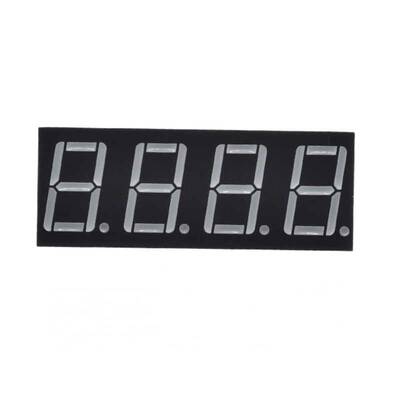
A four-digit display doesn't have 32 separate segment pins; it has only 12 pins: 8 segment lines (a–g and dp) shared by every digit, and 4 pins that choose which digit lights. Because the segment lines are shared, you can't show different numbers on different digits at the same moment. The solution is multiplexing: you light only the 1st digit for a few milliseconds, then the 2nd, the 3rd and the 4th. When this cycle repeats faster than 50 times a second, the eye sees all four digits lit at once. Rather than writing this scanning by hand, it's much easier to use the SevSeg library:
1#include "SevSeg.h"
2
3SevSeg sevseg;
4
5void setup() {
6  byte digitPins[] = {2, 3, 4, 5};                    // hane seçme pinleri / digit select pins
7  byte segmentPins[] = {6, 7, 8, 9, 10, 11, 12, 13};  // a, b, c, d, e, f, g, dp
8  sevseg.begin(COMMON_CATHODE, 4, digitPins, segmentPins, true);  // dirençler segmentlerde / resistors on segments
9  sevseg.setBrightness(90);
10}
11
12void loop() {
13  sevseg.setNumber(millis() / 1000);   // geçen saniye / elapsed seconds
14  sevseg.refreshDisplay();             // sürekli çağrılmalı / must be called continuously
15}The TM1637 module: 4 digits over just 2 wires
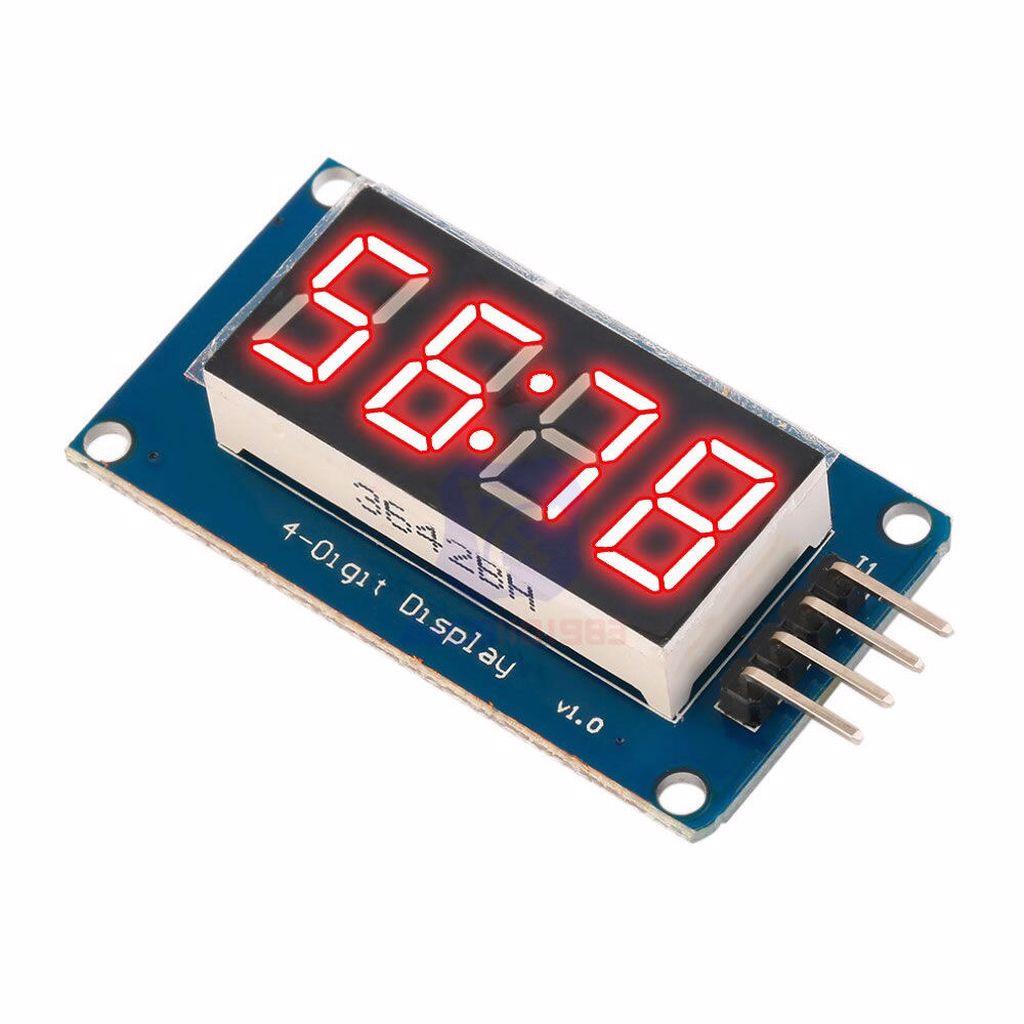
If 12 wires and constant scanning sound like hard work, the TM1637 module is for you. Its driver chip does the multiplexing itself; the Arduino just tells it which number to show over the CLK and DIO pins. Most versions also have a colon (:) in the middle for making clocks. Install the TM1637 library by Avishay Orpaz from the Library Manager; the code below shows minutes and seconds with the colon:
1#include <TM1637Display.h>
2
3TM1637Display display(2, 3);   // CLK, DIO
4
5void setup() {
6  display.setBrightness(5);    // 0–7
7}
8
9void loop() {
10  int minutes = (millis() / 60000) % 60;
11  int seconds = (millis() / 1000) % 60;
12  // ortadaki iki noktayla dakika:saniye / minutes:seconds with the colon
13  display.showNumberDecEx(minutes * 100 + seconds, 0b01000000, true);
14  delay(200);
15}
7-segment displays with the ESP32 and Raspberry Pi Pico
You can connect a single-digit display directly to an ESP32 or Pico; because the pins output 3.3 V the segments are a little dimmer, so use smaller resistors such as 100–150 Ω. The TM1637 module also works at 3.3 V and is used on the ESP32 with the same Arduino library. On the Pico with MicroPython, just copy the tm1637.py file (mcauser's library) to the Pico:
1import tm1637
2from machine import Pin
3import time
4
5tm = tm1637.TM1637(clk=Pin(16), dio=Pin(17))   # tm1637.py Pico'da olmalı / tm1637.py must be on the Pico
6tm.brightness(4)                               # 0–7
7
8count = 0
9while True:
10    tm.number(count)        # -999 … 9999
11    count += 1
12    time.sleep(1)
7-segment, LCD or OLED?
| Feature | 7-segment | 16x2 LCD | OLED |
|---|---|---|---|
| What it can show | Digits and a few letters | Letters, digits, custom characters | Text, graphics, icons |
| Readability | Very bright, readable from afar | Good with the backlight | High contrast but small |
| Pins needed | 8 or more (2 with a TM1637) | 2 (I2C) | 2 (I2C) |
| Best for | Clocks, counters, scoreboards | Menus, measurement text | Graphics, icons, small gadgets |
If you only need to show numbers and readability from a distance matters, the 7-segment display is unbeatable. If you need text, units and menus, take a look at Using an I2C LCD Display.
7-segment display project ideas
- Electronic die: show a random number from 1 to 6 when a button is pressed.
- Button counter: make a counter that goes up with one button and resets with another.
- Digital clock: a clock with a TM1637 and an RTC module that keeps the time even during a power cut.
- Countdown: an adjustable timer for board games or experiments.
- Temperature display: show the temperature measured with a DHT11 in big digits.
- Reaction test: show in milliseconds how fast you press the button after an LED lights up.
Common mistakes and how to fix them
- No segment lights at all: the common pin is in the wrong place; you may have connected a common-anode display to GND.
- Digits look scrambled: the mapping between segments and Arduino pins is wrong; check by lighting each segment one at a time.
- Some digits are dim: a single resistor is fitted on the common pin; use a separate resistor for each segment.
- Only one digit lights or flickers on a 4-digit display: there's a delay() in loop(), or scanning isn't happening often enough.
- The segments that should be on are off and the rest are on: common anode and cathode are mixed up; change COMMON_ANODE.
- Running out of pins: cut the pin count with a TM1637 module, a MAX7219 driver or a 74HC595 shift register.
Knowing that every segment is really an LED is the key to understanding 7-segment displays; for the basics, take a look at What Is an LED? In the BlueGrays app you'll find 0–9 counting, button counter, dice, 4-digit digital clock and bomb animation projects step by step with circuit diagrams and code.
Frequently asked questions
What resistor should I use with a 7-segment display?
At 5 V, 220–330 Ω per segment is suitable; 220 Ω gives a brighter light and 330 Ω draws less current. On 3.3 V boards such as the ESP32 and Pico you can use 100–150 Ω. Fit the resistors on each segment line separately, not on the common pin.
How do I know if my 7-segment display is common anode or common cathode?
Connect the common pin (3 or 8) to GND and touch a segment pin to 5V through a 220 Ω resistor; if the segment lights, it's common cathode. If not, connect the common pin to 5V and the segment pin to GND through the resistor; if it lights now, it's common anode. The part number usually includes CC or CA as well.
How many pins does a 7-segment display have?
Single-digit displays have 10 pins: 7 segments, 1 dot and 2 common pins. Four-digit displays have 12 pins: 8 shared segment lines and 4 digit-select pins. Modules such as the TM1637 connect with only 4 pins (CLK, DIO, VCC, GND).
Why does only one digit light up on my 4-digit display?
Four-digit displays work by multiplexing, so the digits must be scanned one after another all the time. If you use delay() in loop(), scanning stops and only the last digit stays lit. Use a library such as SevSeg, call refreshDisplay() continuously and do your timing with millis().
Can a 7-segment display show letters?
Some letters, yes: A, b, C, d, E, F, H, L, P, U and o can be shown recognisably. Letters such as K, M, W and X can't be drawn properly with seven segments. If you need to show text, an LCD or OLED display is a better fit.
How can I drive a 7-segment display with fewer pins?
The easiest way is a module with a driver chip: the TM1637 drives four digits over 2 wires and the MAX7219 drives eight digits over 3. If you want to build your own circuit, a 74HC595 shift register lets you control 8 segments from just 3 Arduino pins.
Projects to build after reading this
See all projects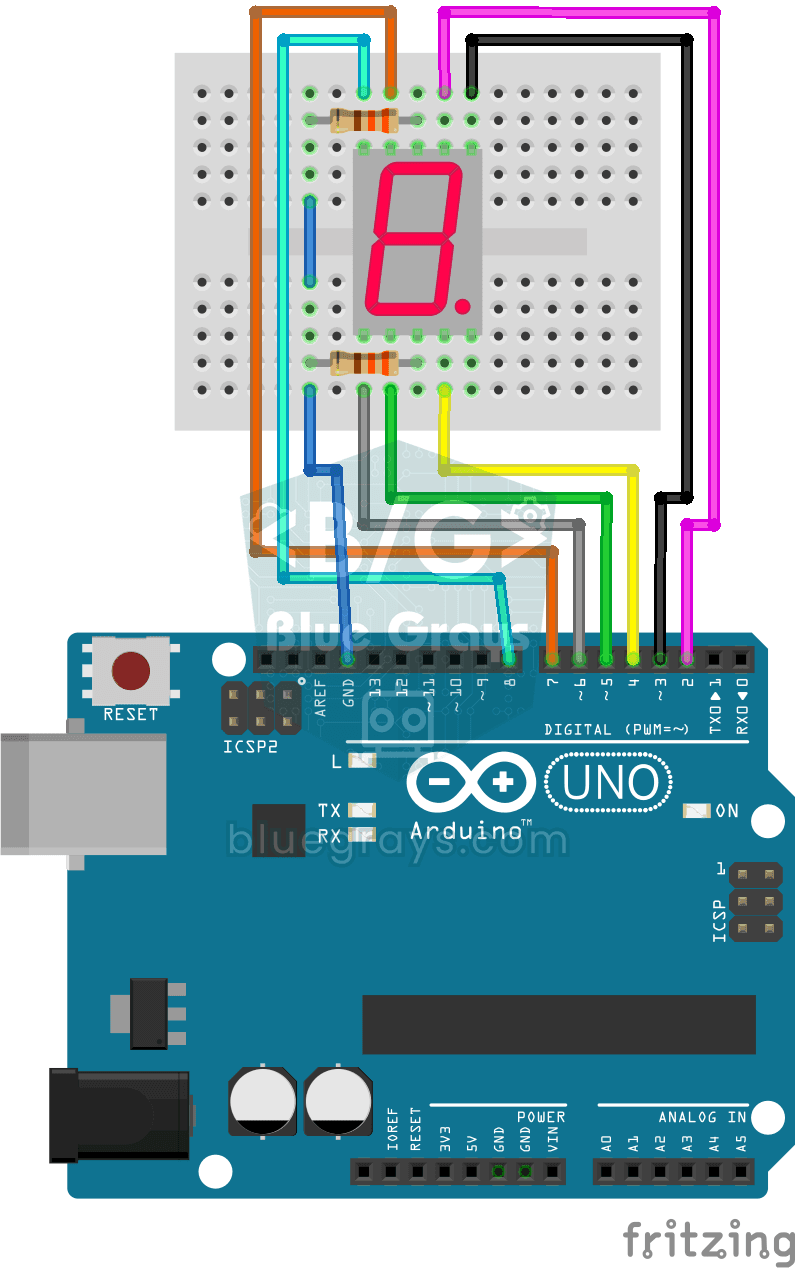
0-9 Number Printing with 7 Segment Display
Project showing numbers from 0 to 9 in sequence on a 7 segment display. It teaches the logic of creating numbers by controlling the segment pins.
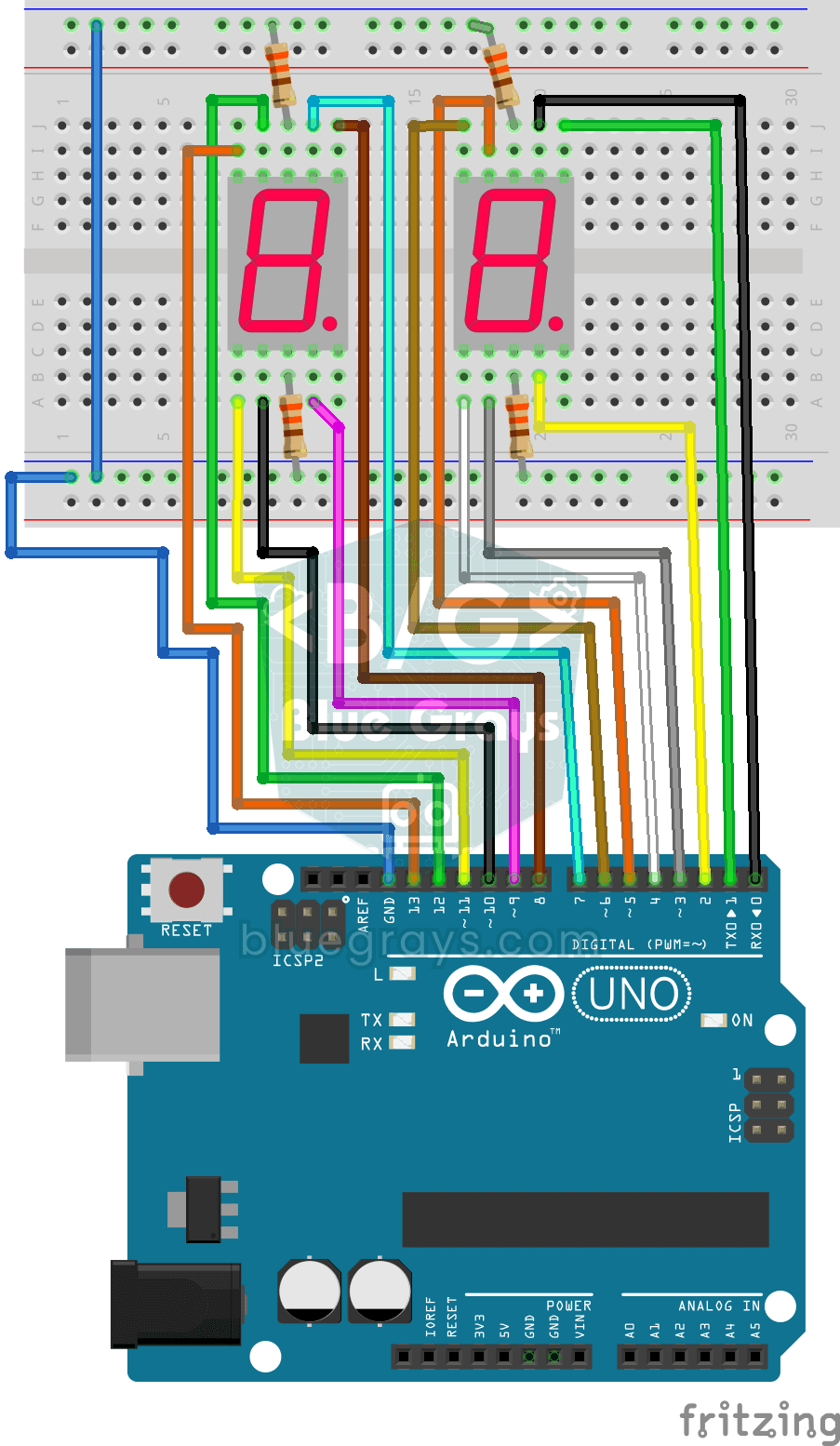
0-99 Number Printing with 7 Segment Display
Project showing numbers from 0 to 99 with a double digit 7 segment display. Teaches bit operations (bitRead) and one-digit-by-ten digit parsing logic.
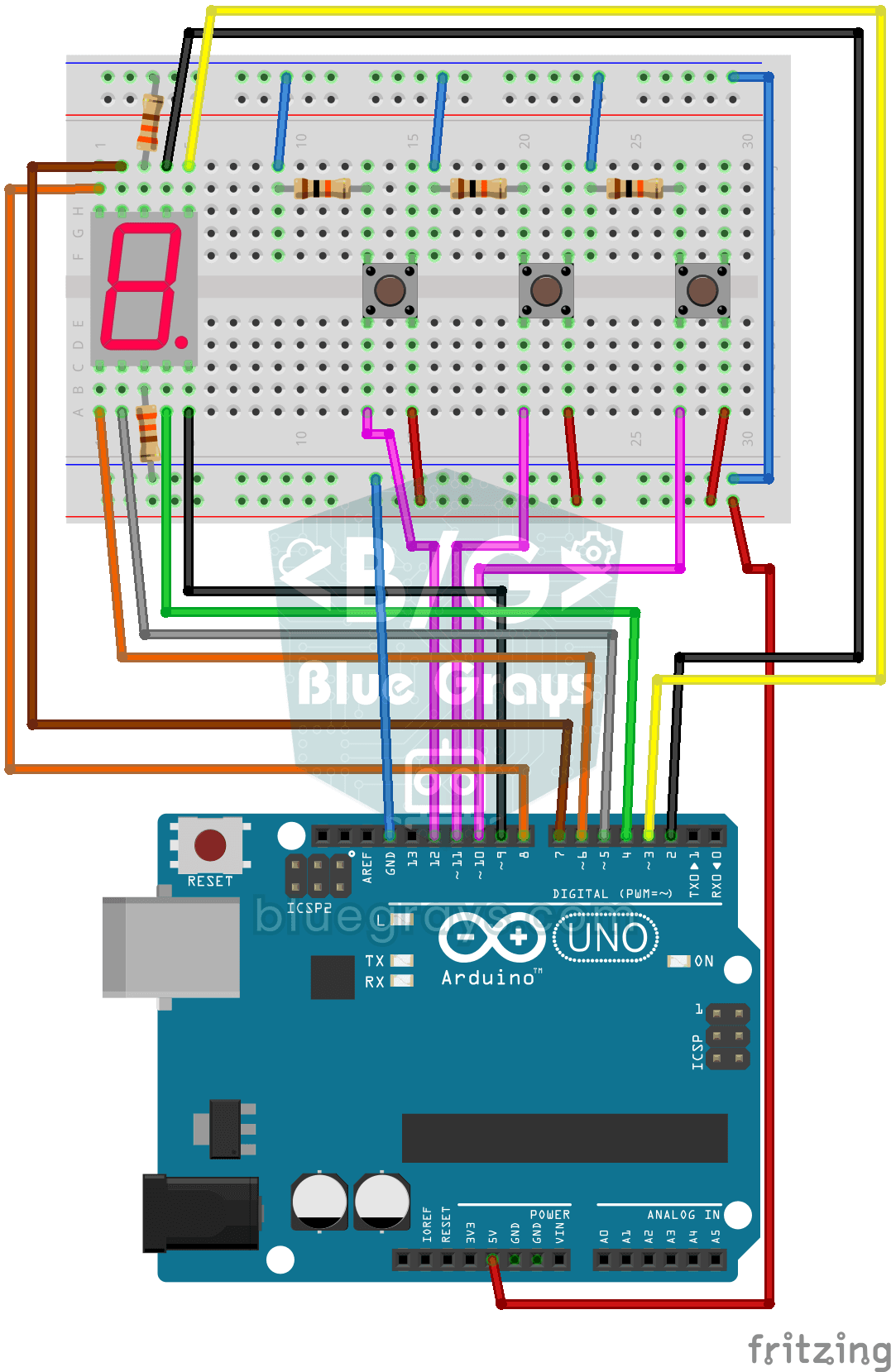
7 Segment Display and Counter with Button
Counter project that increases, decreases and resets the number on the 7 segment display with 3 buttons. Teaches boundary control and user interactive counter logic.

Dice Project
A dice project that generates a random number between 1-6 at each button press and displays it on a 7 segment screen. Thanks to the debounce mechanism, a single result is produced in a single press.
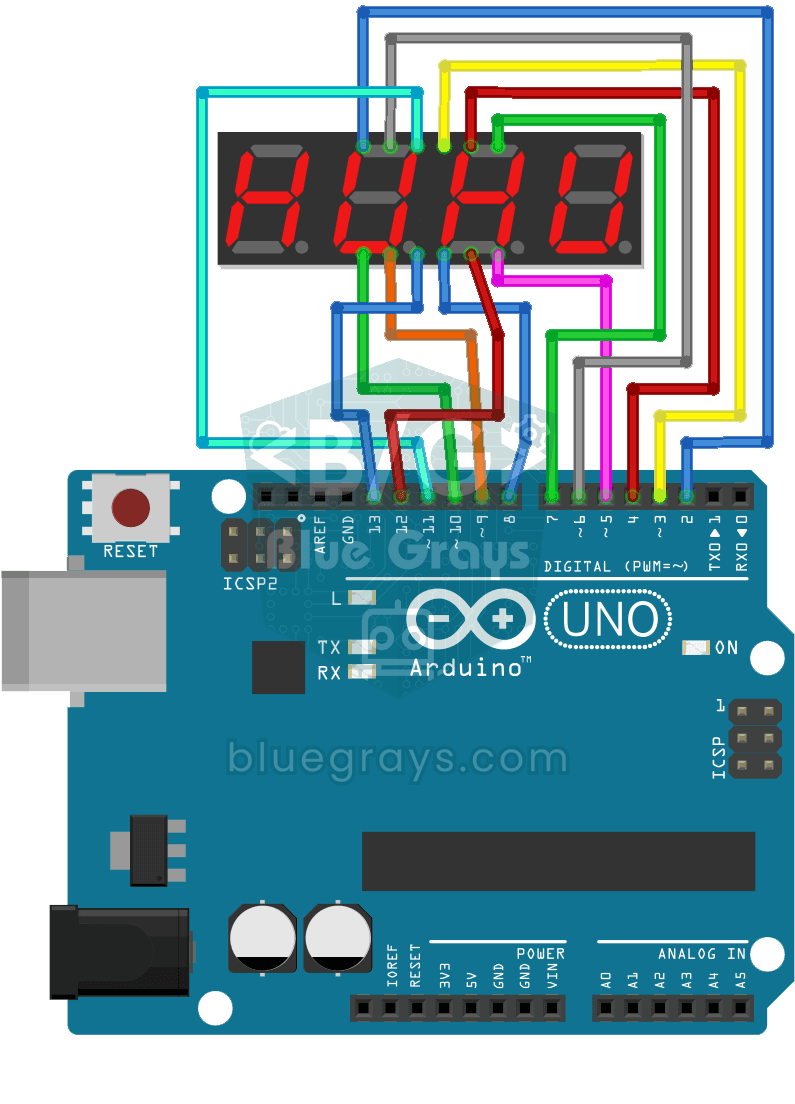
Printing 0-9999 Numbers on a 4-panel 7 Segment Display
Project that shows numbers from 0 to 9999 on a 4-segment 7-segment display with SevSeg library. It teaches multi-digit display logic with multiplexing (scanning) method.
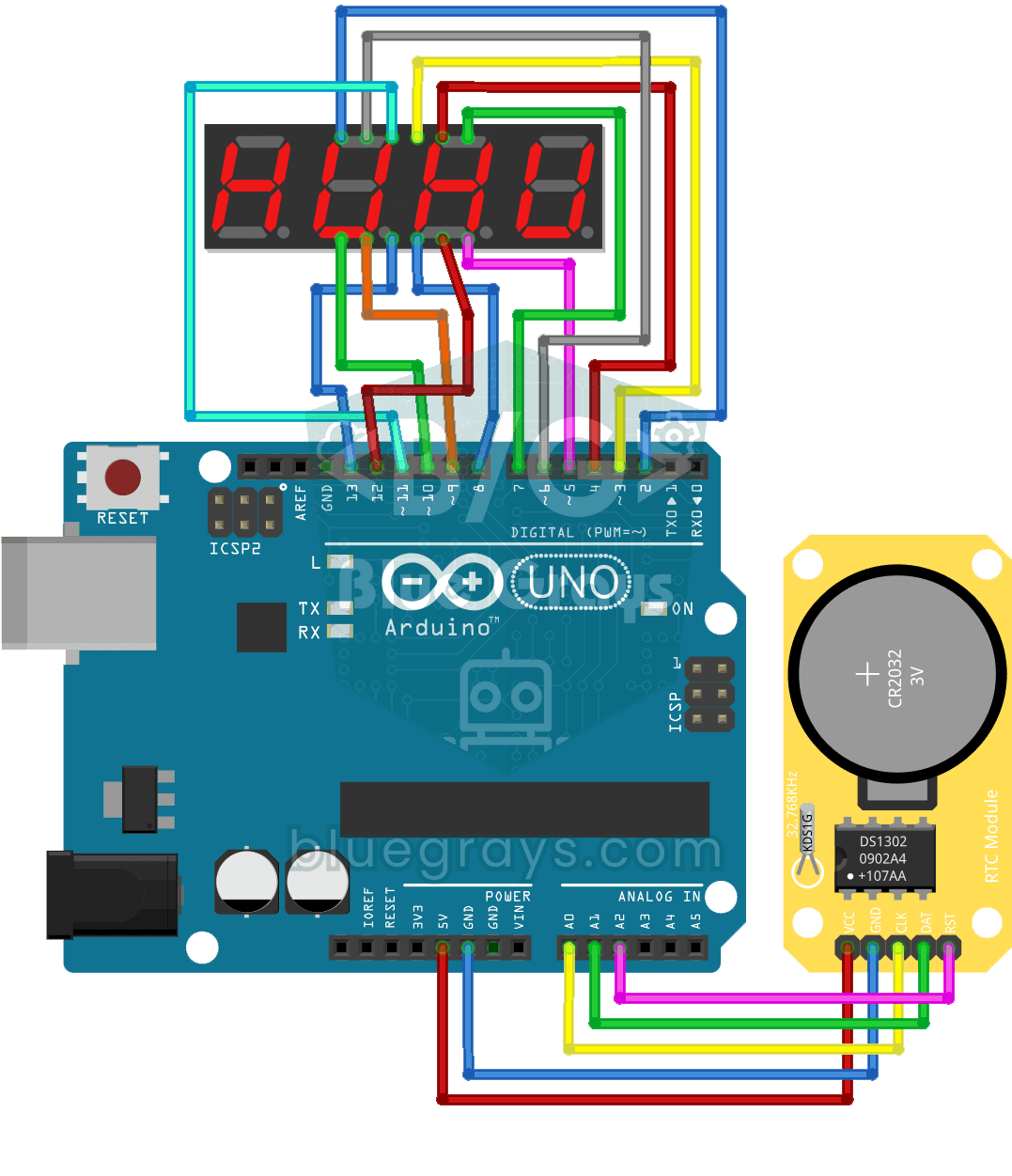
Digital Clock with 4 7 Segment Display
Digital clock project showing hours and minutes with DS1302 RTC module and 4-segment 7-segment display. It combines real-time clock data and segment display.
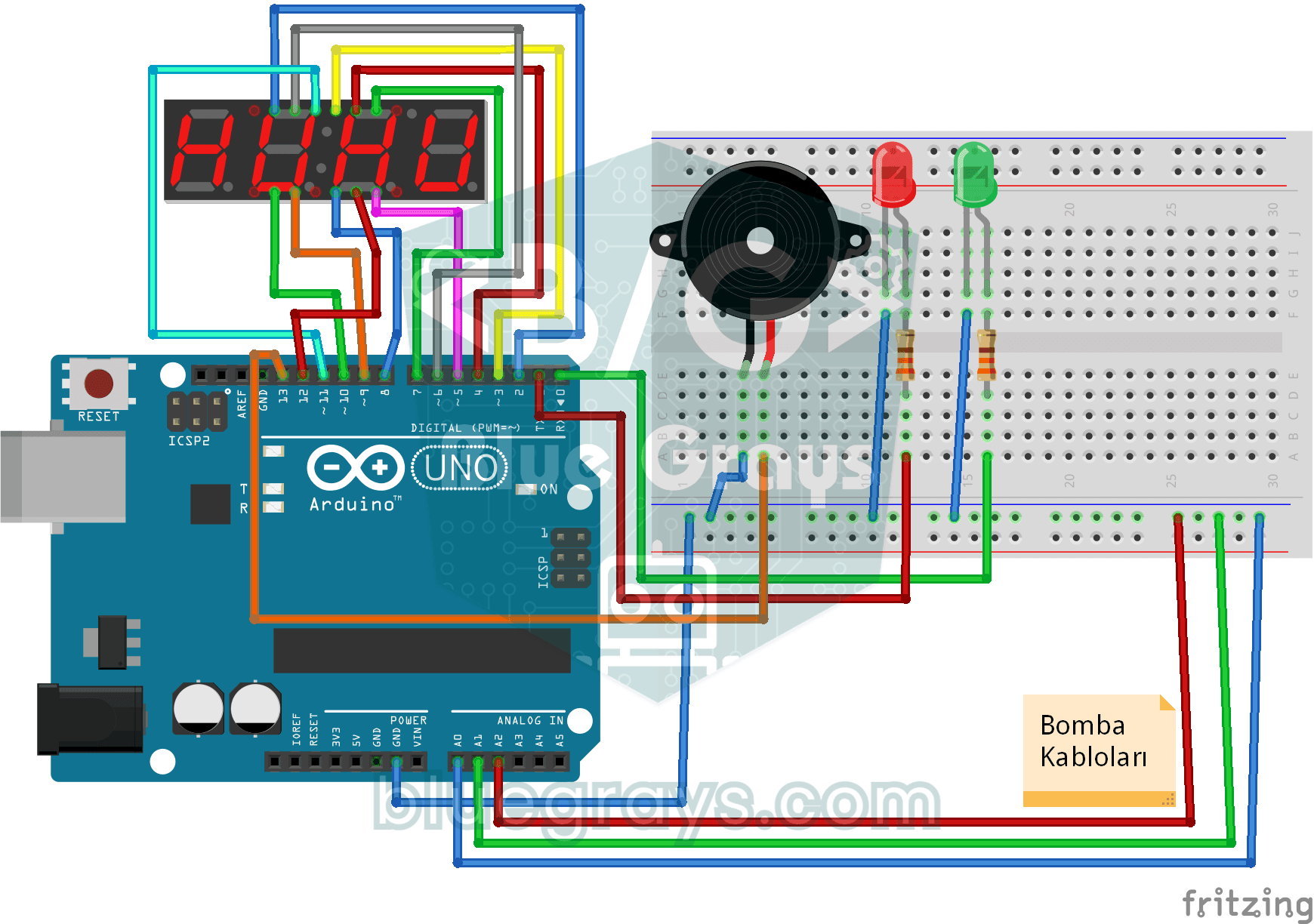
Bomb Animation with 4 7 Segment Display
Bomb animation project that counts down on 4 7 segment display, can be accelerated with potentiometer and canceled with buttons. Teaches the use of timer, multiple input control and millis().

ESP32 TM1637 4-Digit 7-Segment Display
We are controlling a 4-digit 7-segment display module with a TM1637 driver using an ESP32. Using just 2 GPIO pins (CLK and DIO), we run a counter from 0 to 9999, adjust the brightness level, and display the colon (`:`) character in clock format. Thanks to the TM1637Display library, controlling numbers, hex values, segments, and strings is very easy.
More articles
Learn the segments and pinout of a 7-segment display, how to tell common anode from cathode, count 0–9 with Arduino, multiplex a 4-digit display and build a two-wire clock with a TM1637 module.