
Arduino Not Uploading? Fix avrdude, COM Port and Driver Errors
Arduino code won't upload? Fix avrdude not in sync errors, a missing COM port, CH340 drivers, Nano Old Bootloader, the ESP32 BOOT button and Pico BOOTSEL.
Arduino code not uploading and a red avrdude error in the output window? Don't worry: almost none of these problems mean a broken board. They come from a charge-only USB cable, a missing CH340 driver, the wrong board or port, a module wired to pins 0 and 1, or another program holding the port. Check things in the right order and you will usually fix it in a few minutes; and even if the board really is faulty, there is a simple way to prove it.
In this guide you will first see what happens behind the scenes during an upload and how to read the error message. Then we narrow the problem down step by step with a diagnostic table of symptom, cause and fix. We also cover the ATmega328P (Old Bootloader) setting on the Arduino Nano, the Serial Monitor and other programs locking the port, the ESP32 Failed to connect error and the BOOT button, and the BOOTSEL and UF2 method on the Raspberry Pi Pico. Each section has a short test sketch so you can check your board once the problem is solved.
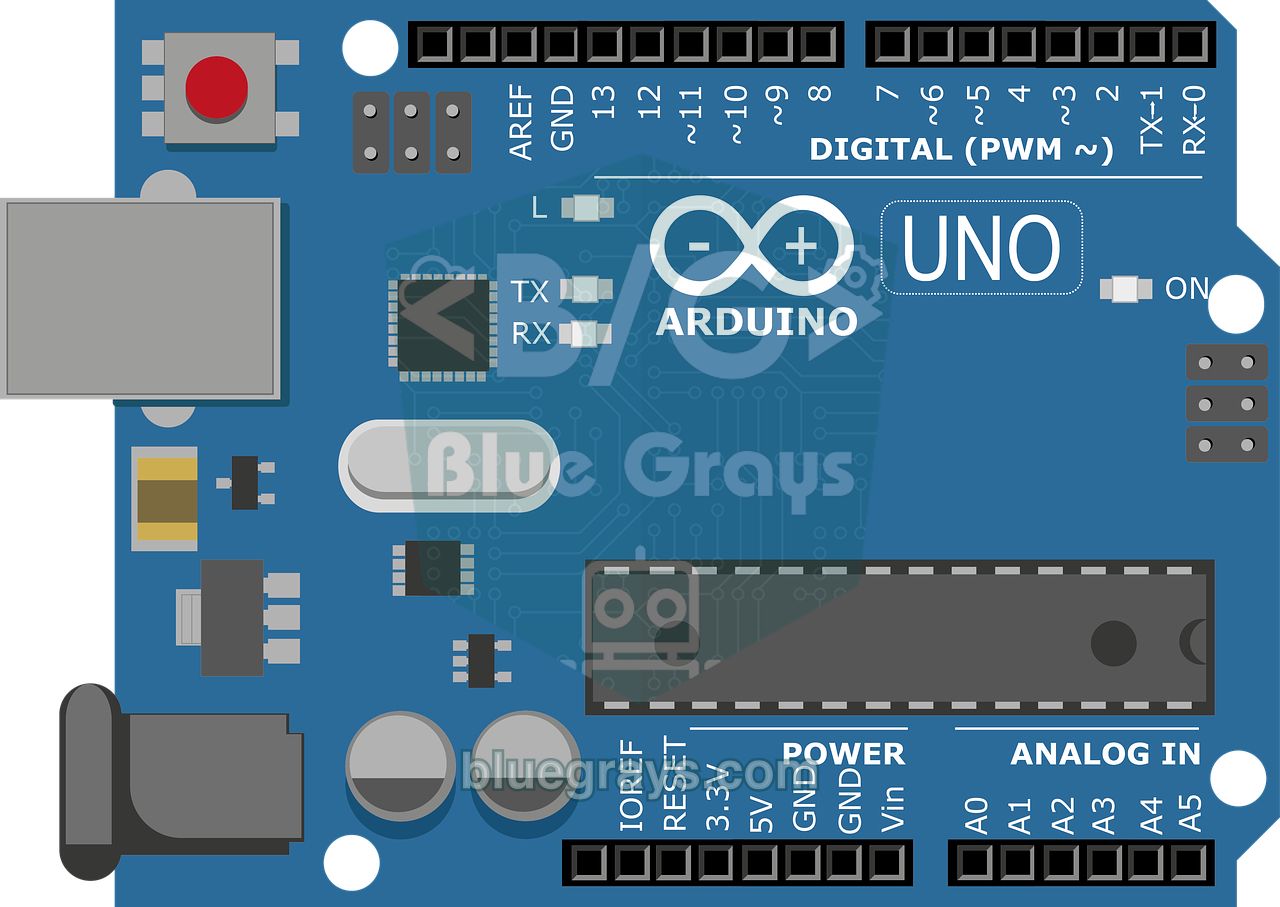
How uploading works: compile error or upload error?
When you press Upload, two separate things happen. First the IDE compiles your code; if that works, the output window shows a line telling you how many bytes the sketch uses (Sketch uses 924 bytes). Then a program called avrdude opens the port you selected, restarts the board with the DTR signal and shakes hands with the small loader program inside the board, the bootloader. After a reset the bootloader listens for only about one second; if no data arrives, the old program on the board keeps running. The error message tells you which link in this chain broke. If the red text appears while compiling, the problem is in your code and has nothing to do with the board or the cable.
| Stage | What happens | Message you see if it fails |
|---|---|---|
| 1. Compile | The code is translated into machine code for the processor | Compilation error: 'x' was not declared in this scope (a code error, not an upload problem) |
| 2. Open the port | The IDE opens the selected COM port | no upload port provided, can't open device, Access is denied |
| 3. Reset | The DTR signal restarts the board | programmer is not responding |
| 4. Handshake | avrdude and the bootloader get in sync | stk500_getsync(): not in sync: resp=0x00 |
| 5. Write and verify | The program is written to flash, read back and compared | verification error, first mismatch at byte |
The most common avrdude errors and what they mean
| Error message (key part) | What it means | Where to look first |
|---|---|---|
| stk500_recv(): programmer is not responding | The port opened but the board never answered | Port selection, cable, pins 0 and 1, Old Bootloader on a Nano |
| stk500_getsync() attempt 1 of 10: not in sync: resp=0x00 | No data on the line, the bootloader never joined the handshake | Processor setting, auto-reset, bootloader |
| not in sync: a value other than resp=0x00 (e.g. 0xfe) | Something answers, but not the bootloader | Module on pin 0, serial output of the running sketch, baud rate mismatch |
| ser_open(): can't open device "\\.\COM3": Access is denied. | Another program is using the port | Serial Monitor, a second IDE window, PuTTY, Cura and similar programs |
| ser_open(): can't open device ... The system cannot find the file specified. | The selected port no longer exists | Board unplugged or port number changed; select the port again |
| Failed uploading: no upload port provided | No port selected at all | Tools > Port or the board selector at the top |
| Device signature = 0x1e950f ... Expected signature for ATmega2560 | The chip of the selected board differs from the one fitted | Select the target board correctly in the board menu (0x1e950f is the ATmega328P's ID); this line mostly appears when burning a bootloader over ISP |
| stk500v2_ReceiveMessage(): timeout | Mega 2560 selected but the board does not answer | Is it really a Mega, and is the port right? |
| verification error, first mismatch at byte 0x0000 | What was written differs from what was read back | Cable, USB hub, weak power supply, worn-out flash |
Step-by-step diagnostic table: symptom, cause, fix
Read the table from top to bottom; the first rows are the most common problems and the easiest to fix. Try the upload again after every change. If you change several things at once, you will never know which one solved it, and the same error will catch you out again next time.
| Symptom | Likely cause | Fix |
|---|---|---|
| No LED lights up when the board is plugged in | The USB port or cable gives no power, or there is a short on the board | Try another port and cable, remove all modules, measure between 5V and GND |
| The power LED is on but Tools > Port is greyed out or empty | Charge-only cable or missing driver | Use a data cable; if Device Manager shows USB2.0-Serial with a yellow mark, install the CH340 driver |
| Several COM ports in the list | Virtual ports from Bluetooth and the system | Unplug and replug the board, pick the port that disappears and comes back |
| Failed uploading: no upload port provided | No port selected | Select the port in the board selector at the top or under Tools > Port |
| Access is denied, port busy | The port is open in another program | Close the second IDE window, Serial Plotter, PuTTY, Cura and Python scripts, then replug the board |
| not in sync: resp=0x00 on a Nano | The board has the old bootloader | Tools > Processor > ATmega328P (Old Bootloader) |
| Same error with a module on D0 or D1 | The module talks on the serial line and breaks the handshake | Unplug the D0 and D1 wires while uploading, move the module to other pins with SoftwareSerial |
| Same error with nothing connected | Wrong board or port, broken auto-reset, erased bootloader | Check the settings, try a manual reset, run the loopback test, burn the bootloader if needed |
| Unexpected ID on the Device signature line | Wrong model selected in the board menu | Select the board that matches the text printed on the chip |
| Upload stops halfway, verification error | Poor cable, USB hub, current drawn by a motor or servo | Short good-quality cable, a port directly on the computer, external power for motors |
| The computer shuts down the USB port when the board is plugged in | Short circuit or overcurrent in the circuit | Remove all wires, test the board on its own, add the circuit back piece by piece |
| ESP32: Connecting... then Failed to connect | The board could not enter download mode | Hold the BOOT button when Connecting appears |
| Pico: no port or No drive to deploy | The board is not in BOOTSEL mode | Hold BOOTSEL while plugging in the USB cable |
Quick checklist and upload test sketch
- Remove everything from the board: shields, modules and the wires on pins 0 and 1. Leave only the USB cable connected.
- Plug the board directly into a USB port on the back of the computer; avoid hubs, extension cables and front-panel sockets.
- Open Tools > Port and look at the list. Unplug and replug the board and note which port disappears and comes back. If the list never changes, the problem is the cable or the driver.
- Select your exact board model under Tools > Board; on a Nano also pick the right bootloader under Tools > Processor.
- Make sure no other program or second IDE window is using the port; if in doubt, close them all.
- Turn on verbose upload output and upload the small test sketch below. Testing with code you know is error-free rules out compile problems.
- Still failing? Press the reset button: if the L LED blinks quickly once or a few times, the bootloader is alive. Then move on to the loopback test below.
- Try another computer or another board. If the problem follows the board, it is in the board; if it stays with the computer, it is in the driver or the operating system settings.
1// Yükleme testi: LED yanıp söner, sayaç yazılır / Upload test: blinks the LED, prints a counter
2unsigned long sayac = 0;   // çalışma sayacı / run counter
3
4void setup() {
5  pinMode(LED_BUILTIN, OUTPUT);   // Uno ve Nano'da pin 13 / pin 13 on Uno and Nano
6  Serial.begin(9600);
7  Serial.println("Yukleme basarili / Upload OK");
8}
9
10void loop() {
11  digitalWrite(LED_BUILTIN, HIGH);
12  delay(200);                     // yanma süresi: değiştirip tekrar yükle / on time: change it and re-upload
13  digitalWrite(LED_BUILTIN, LOW);
14  delay(800);
15  Serial.println(sayac++);        // Seri Monitör 9600 baud / Serial Monitor at 9600 baud
16}
If the upload worked, the L LED blinks briefly and stays off longer, and the counter goes up when you open the Serial Monitor at 9600 baud. To be sure the new code really reached the board, change delay(200) to delay(50) and upload again: if the blinking rhythm does not change, the old program is still running. If you see garbage characters in the Serial Monitor, the Serial Monitor's baud rate setting does not match the code; that is not an upload error.
COM port not showing: USB cable and CH340, CP2102 drivers
If the port menu is greyed out or empty, the cable is the first suspect. Many thin cables that come with phone chargers only have the two power wires; the D+ and D- data wires are missing completely. With such a cable the board's power LED lights up, which is misleading, but the computer sees no device and does not even play the connect sound. Test your cable by transferring files to a phone or with another board you know works. The thick type B cable of the Uno rarely has this problem; it is very common with the Nano's mini USB and with the micro USB or USB-C cables of ESP32 and Pico boards.
If the cable is fine, the driver is the second suspect. Read the text on the chip next to the USB socket: genuine Arduino Uno and Mega boards use an ATmega16U2, clone Uno and Nano boards mostly a CH340G or CH340C, and ESP32 development boards usually a CP2102 or CH340. On Windows, open Device Manager: if the board is recognised, it appears under Ports (COM & LPT). If you see USB2.0-Serial with a yellow exclamation mark under Other devices, the CH340 driver is missing.
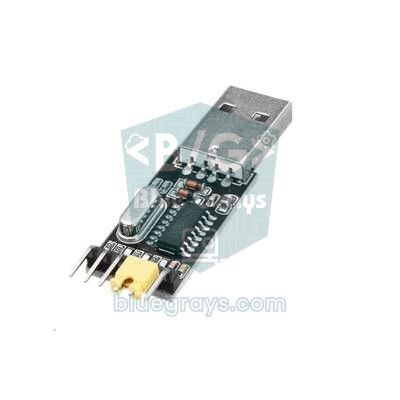
| USB chip | Found on | Name in Windows | Port name on macOS and Linux |
|---|---|---|---|
| ATmega16U2 | Genuine Uno R3, Mega 2560 | Arduino Uno (COMx) | /dev/cu.usbmodem…, /dev/ttyACM0 |
| CH340G, CH340C | Clone Uno, Nano, Mega, some ESP32 boards | USB-SERIAL CH340 (COMx) | /dev/cu.usbserial-…, /dev/ttyUSB0 |
| CP2102, CP2104 | ESP32 DevKit, NodeMCU | Silicon Labs CP210x USB to UART Bridge (COMx) | /dev/cu.SLAB_USBtoUART or /dev/cu.usbserial-…, /dev/ttyUSB0 |
| FT232RL | Older genuine Nano, FTDI adapters | USB Serial Port (COMx) | /dev/cu.usbserial-…, /dev/ttyUSB0 |
| CH9102 | Newer ESP32 development boards | USB-Enhanced-SERIAL CH9102 (COMx) | /dev/cu.wchusbserial… or /dev/cu.usbmodem…, /dev/ttyACM0 |
| Native USB (RP2040, ATmega32U4) | Raspberry Pi Pico, Leonardo, Micro | USB Serial Device or the board name (COMx) | /dev/cu.usbmodem…, /dev/ttyACM0 |
Windows 10 and 11 usually install the CH340 and CP2102 drivers themselves through Windows Update. If not, download the CH341SER driver for the CH340 or the CP210x VCP driver for the CP2102 from the chip maker's website, install it, then unplug and replug the board. Current macOS versions include drivers for both chips; stacking old drivers from different sources usually makes things worse. On Linux the drivers are already in the kernel, but to use the port you must add your user to the dialout group (sudo usermod -a -G dialout $USER) and log out and back in; otherwise you get a Permission denied error. If the port disappears right after plugging in a CH340 board on Ubuntu 22.04 or later, the culprit is usually the screen reader package brltty; if you don't use it, remove it with sudo apt remove brltty.
Wrong board, processor or port selected
In Arduino IDE 2 you select the board and port from the drop-down in the top bar or from the Tools > Board and Tools > Port menus. On Windows you may see COM1 or a few virtual Bluetooth ports in the list; the easiest way to find the right one is to unplug the board and see which port disappears. If the wrong model is selected in the board menu, such as Mega instead of Uno or Leonardo instead of Nano, avrdude either gets no answer at all or sees an unexpected chip ID on the Device signature line. One more thing: use Ctrl+U for a normal upload. Sketch > Upload Using Programmer expects an external ISP programmer and, if it succeeds, erases the bootloader on the board; after that the board no longer accepts uploads over USB.
Arduino Nano not uploading: ATmega328P (Old Bootloader)
Most low-cost Nano boards on the market are CH340-based clones, and many of them still carry the old bootloader. At the start of 2018 Arduino replaced the Nano's bootloader with the smaller and faster Optiboot used on the Uno, and since then the IDE's default ATmega328P option talks at 115200 baud. The old bootloader expects 57600 baud. When the speeds don't match, the board seems not to answer at all and the not in sync: resp=0x00 error repeats for ten attempts. The fix is a single menu setting: Tools > Processor > ATmega328P (Old Bootloader). If you are not sure which one is right, try the options one after another; a wrong choice does the board no harm.
| Processor option | Bootloader | Upload speed | When to choose it |
|---|---|---|---|
| ATmega328P | Optiboot (new) | 115200 baud | Genuine Nano and boards with an updated bootloader |
| ATmega328P (Old Bootloader) | ATmegaBOOT (old) | 57600 baud | Most CH340 clone Nanos |
| ATmega168 | ATmegaBOOT (old) | 19200 baud | Older boards with ATmega168 printed on the chip |
Modules on pins 0 and 1 block the upload
On the Uno and Nano the USB-to-serial chip is connected to the ATmega328P through 1 kΩ resistors on pins D0 (RX) and D1 (TX). During an upload this line belongs to the computer. If a serial module such as an HC-05 Bluetooth module, a GPS, an ESP-01 or a fingerprint sensor is connected to these pins, it either sends its own data onto the line or holds the line at a fixed level, and breaks the bootloader's handshake. The result is again programmer is not responding or not in sync. The quickest fix is to unplug the D0 and D1 wires while uploading; the permanent fix is to move the module to other pins with SoftwareSerial:
1#include <SoftwareSerial.h>
2
3// HC-05 TX -> D10, HC-05 RX <- D11 (gerilim bölücüyle / through a voltage divider)
4SoftwareSerial bt(10, 11);   // RX, TX pinleri / RX, TX pins
5
6void setup() {
7  Serial.begin(9600);        // USB: Seri Monitör / USB: Serial Monitor
8  bt.begin(9600);            // HC-05 veri modu hızı / HC-05 data mode baud rate
9  Serial.println("Hazir / Ready");
10}
11
12void loop() {
13  if (bt.available()) Serial.write(bt.read());      // telefondan bilgisayara / phone to PC
14  if (Serial.available()) bt.write(Serial.read());  // bilgisayardan telefona / PC to phone
15}
In this sketch the HC-05's TX goes to D10 and its RX to D11. The HC-05's RX input works at 3.3 V, so put a voltage divider made of 1 kΩ and 2 kΩ resistors between it and D11. Now you can upload with the module connected and send whatever you type in the Serial Monitor to your phone. For the full wiring and AT command mode, see the HC-05 Bluetooth module guide. On a Mega you don't need SoftwareSerial: the board has extra hardware serial ports such as Serial1 (TX1 = D18, RX1 = D19).
The Serial Monitor and programs that keep the port busy
A serial port can only be opened by one program at a time. That is why Windows shows Access is denied and macOS and Linux show Resource busy. The Arduino IDE usually pauses its own Serial Monitor during an upload, but this does not work perfectly in every version and with every board, especially the ESP32; if you get the error, close the Serial Monitor tab first. More often the port is held by something else: a second IDE window, an open Serial Plotter, PuTTY, 3D printer software such as Cura, the PlatformIO monitor in VS Code or a Python script running in the background. Close them, unplug and replug the board and try again. On Linux you can see which program holds the port with sudo lsof /dev/ttyUSB0.
Is the board broken? Loopback test and burning the bootloader
If you have tried everything above and it still won't upload, you need to find out whether the problem is on the USB side or in the main processor. The classic method for the Uno and Nano is the loopback test: you hold the main processor in reset and let the USB-to-serial chip talk to itself. You don't need to upload any code for this test.
- Remove all wires from the board and leave only the USB cable connected.
- Use a jumper wire to connect the RESET pin to GND; this keeps the ATmega328P in reset so it stays off the line.
- Use a second wire to connect pins D0 and D1 together.
- Select the board's port in the IDE and open the Serial Monitor; the baud rate does not matter for this test.
- Type a few characters into the box and send them. If your text comes straight back, the cable, driver and USB-to-serial chip are fine and the problem is in the main processor or the bootloader. If nothing comes back, the problem is on the USB side.
- Don't forget to remove both wires when you are done.
If the loopback test passes but uploads still fail, and the L LED does not blink briefly when you press reset, the bootloader may have been erased or the chip replaced. You can burn the bootloader again with a second Uno. Upload File > Examples > 11.ArduinoISP > ArduinoISP to the Uno that will act as the programmer. Then connect the programmer's D10 to the target's RESET pin, D11, D12 and D13 to the target's pins with the same numbers, and 5V and GND to each other. Put a 10 µF capacitor between RESET and GND on the programmer Uno; this stops it from resetting itself. Finally select Tools > Programmer > Arduino as ISP, choose the target board in the board menu and run Tools > Burn Bootloader. You can also use this method to give a clone Nano the new Optiboot.
ESP32 not uploading: Failed to connect and the BOOT button
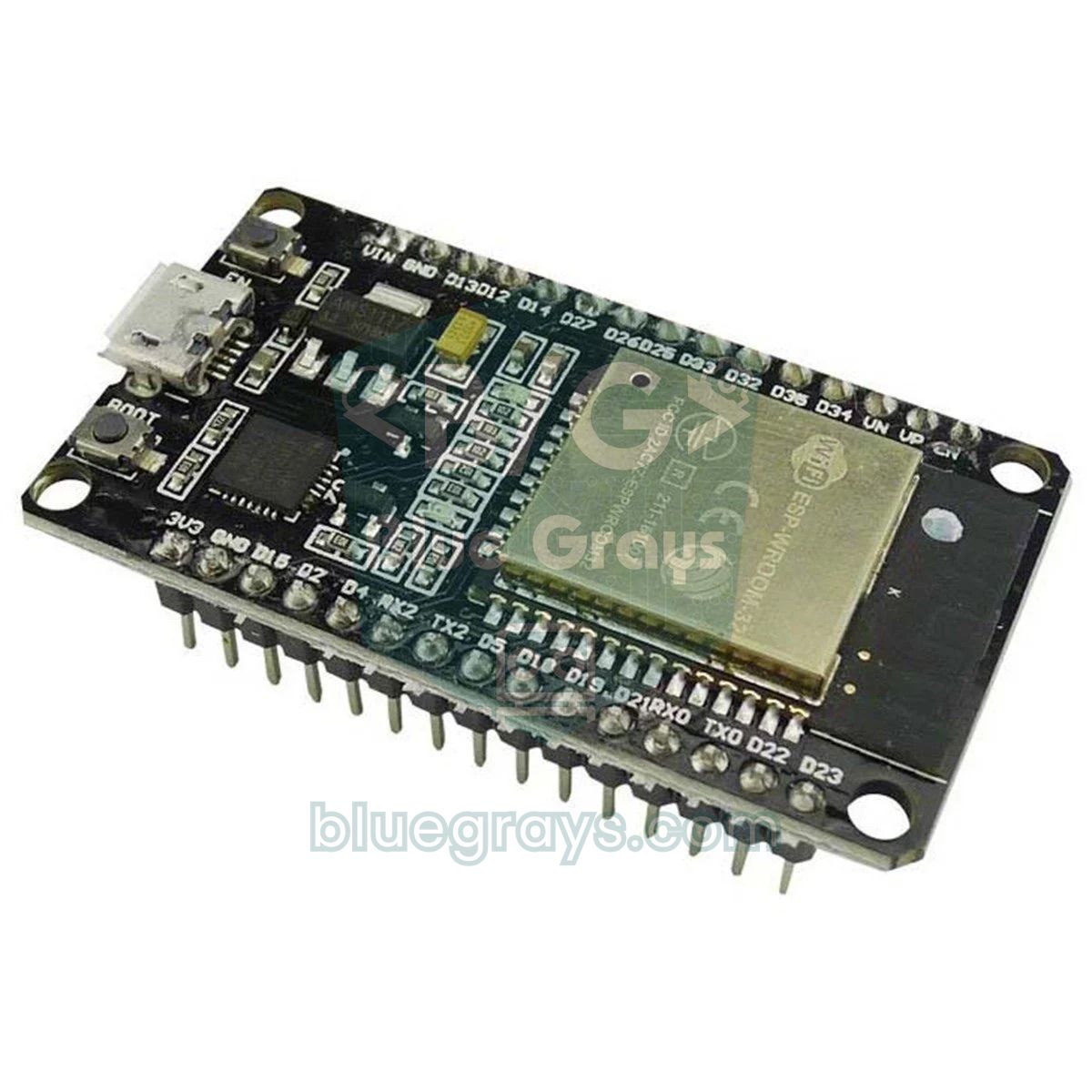
On the ESP32 the upload is done by esptool, not avrdude. The output first shows a Connecting........_____..... line while esptool tries to put the board into download mode. If it fails, you get an error starting with A fatal error occurred: Failed to connect to ESP32. In current esptool versions, if the board booted normally, the message continues with Wrong boot mode detected (0x13)! The chip needs to be in download mode.; 0x13 means the board started in its normal boot mode instead of download mode. If the board does not answer at all, the message ends with No serial data received; older versions report this as Timed out waiting for packet header. If the board cannot enter download mode on its own, you do it by hand.
- Click Upload in the IDE and watch the output window.
- As soon as Connecting... appears, press and hold the BOOT button on the board.
- If it still doesn't connect, briefly press and release EN once while holding BOOT.
- Release BOOT when lines starting with Writing at and the upload percentage start scrolling in the output.
- The upload ends with Hard resetting via RTS pin.... If the program doesn't start, press EN once.
Why does this happen? To enter download mode, the ESP32's GPIO0 pin must be LOW at the moment it boots. The two-transistor auto-reset circuit on development boards does this automatically with the DTR and RTS signals of the USB chip; on cheap boards the circuit can miss the timing. If you are tired of pressing BOOT every time, there is a permanent fix: connect a 10 µF electrolytic capacitor between the board's EN pin and GND (negative leg to GND). The capacitor slows down the rise of the EN line and gives the auto-reset circuit time to hold GPIO0 LOW.
| ESP32 error message | Likely cause | Fix |
|---|---|---|
| Wrong boot mode detected (0x13) | The auto-reset circuit could not put the board into download mode | BOOT button; for a permanent fix, 10 µF between EN and GND |
| No serial data received or Timed out waiting for packet header | No data at all from the board: a charge-only cable, the wrong port or a board that never entered download mode | Data cable, the right port under Tools > Port, the BOOT button |
| This chip is ESP32-S3 not ESP32. Wrong --chip argument? | A different ESP32 model is selected under Tools > Board than the one on your board | Select the model that matches the module on the board (ESP32, ESP32-S3 and ESP32-C3 are different boards) |
| Could not open COM3, the port is busy or doesn't exist | The Serial Monitor or another program holds the port | Close the Serial Monitor and other programs, unplug and replug the board |
| Invalid head of packet: Possible serial noise or corruption | Long or poor cable, weak power supply, high upload speed | Lower Tools > Upload Speed from 921600 to 115200 |
| Upload succeeds but boot shows flash read err, 1000 | GPIO12 pulled HIGH at boot, so the wrong flash voltage is selected | Move the module on GPIO12 to another pin |
| Port disappears after upload (ESP32-S3, ESP32-C3) | On a board with native USB the program crashed or turned USB off | Plug in USB while holding BOOT; Tools > USB CDC On Boot: Enabled |
1// ESP32 yükleme testi / ESP32 upload test
2const int LED_PIN = 2;   // birçok DevKit kartında dahili LED / onboard LED on many DevKit boards
3
4void setup() {
5  pinMode(LED_PIN, OUTPUT);
6  Serial.begin(115200);   // Seri Monitör 115200 baud / Serial Monitor at 115200 baud
7  delay(500);
8  Serial.print("Model: ");
9  Serial.println(ESP.getChipModel());                 // ör. ESP32-D0WD-V3 / e.g. ESP32-D0WD-V3
10  Serial.print("Flash (MB): ");
11  Serial.println(ESP.getFlashChipSize() / (1024 * 1024));
12  Serial.print("CPU (MHz): ");
13  Serial.println(getCpuFrequencyMhz());
14}
15
16void loop() {
17  digitalWrite(LED_PIN, !digitalRead(LED_PIN));   // LED'i tersle / toggle the LED
18  delay(500);
19}
Raspberry Pi Pico: uploading with BOOTSEL and UF2
The Pico has no separate USB-to-serial chip; the RP2040 has its own USB controller, and the bootloader lives in the chip's ROM, which cannot be erased. That makes it almost impossible to brick a Pico with software. If you hold the BOOTSEL button while plugging in the USB cable, the Pico appears on your computer as a flash drive called RPI-RP2 (on the Pico 2 the drive is called RP2350). Any .uf2 file you drag onto this drive is written to the board, which then restarts by itself; this is also how you install MicroPython.
If you program the Pico with the Arduino IDE, there is no COM port yet for the first upload; plug the board in with BOOTSEL held and click Upload. After the first sketch the board opens a serial port and later uploads don't need BOOTSEL. If your code crashes or turns off USB, the port disappears again and you get the No drive to deploy error; then go back to the BOOTSEL method. If you use MicroPython, MicroPython (Raspberry Pi Pico) must be selected as the interpreter in the bottom right corner of Thonny. For the Pico's pins and setup, see the What Is the Raspberry Pi Pico? guide.
| Symptom | Likely cause | Fix |
|---|---|---|
| The RPI-RP2 drive never appears | Charge-only cable, or BOOTSEL pressed after the cable was plugged in | Use a data cable; press BOOTSEL first, then plug in the cable, release when the drive appears |
| Arduino IDE: No drive to deploy | The board is not in BOOTSEL mode and there is no serial port | Replug with BOOTSEL held, then click Upload |
| Thonny: Couldn't find the device automatically | MicroPython is not installed or the board is still in BOOTSEL mode | Install the UF2 with Thonny's Install or update MicroPython option |
| Thonny: Device is busy or does not respond | main.py is stuck in a busy loop and ignores commands | Press the Stop button or Ctrl+C; if that fails, unplug and replug the board |
| The code ran but the board doesn't start it on its own | The file was not saved to the Pico as main.py | Save the file to the Raspberry Pi Pico location as main.py |
| The board keeps hanging and nothing uploads | A corrupt file or faulty program in flash | Wipe the flash with flash_nuke.uf2, then reinstall MicroPython |
1import time
2from machine import Pin
3
4time.sleep(3)   # açılışta 3 sn bekle, Thonny durdurabilsin / wait 3 s so Thonny can stop the script
5
6led = Pin("LED", Pin.OUT)   # Pico ve Pico W dahili LED / onboard LED on Pico and Pico W
7sayac = 0
8while True:
9    led.toggle()
10    print("Calisiyor / running", sayac)
11    sayac += 1
12    time.sleep(0.5)
Small but sneaky causes that are easy to miss
- Leonardo, Micro and Uno R4: On these boards with native USB the port can change briefly during an upload. If the upload hangs, click Upload and press the reset button once as soon as compiling finishes and the upload stage begins (twice quickly on the Uno R4); the board waits in the bootloader for a while and the code is uploaded then.
- Broken auto-reset: If auto-reset doesn't work on an Uno or Nano, hold the reset button, click Upload and release it as soon as the line with the sketch size appears in the output.
- Shields and external circuits: A motor driver shield or a circuit that loads the 5V line can make the supply voltage drop during an upload and cut the write off halfway.
- Wrong port on macOS: /dev/cu.Bluetooth-Incoming-Port and /dev/cu.debug-console in the port list are not your board but system ports. Your board's port name contains usbmodem, usbserial or wchusbserial; if you are not sure, unplug and replug the board and see which one disappears.
- Non-ASCII characters in the user name: If your Windows user folder contains accented or non-Latin letters, the compile and upload tools of some board packages, especially the ESP32 one, may fail to find files. Move your sketchbook to a path without such characters in Preferences; if the problem remains, create a new Windows user.
- Sketch too big: The Sketch too big warning is not an upload error; it says your code doesn't fit into the roughly 31.5 KB of flash the Uno has left after the bootloader. Trim libraries and long strings or move to a bigger board.
- Port stuck after sleep: After the computer wakes from sleep the port can get stuck; restarting the IDE or plugging the board into another USB port usually does the trick.
Upload works: what next?
- First circuit: Build your own Blink circuit with an LED and a resistor, then add a button for your first interactive project.
- Serial communication: Now that you know how pins 0 and 1 affect uploading, try switching an LED from your phone with the HC-05 Bluetooth module.
- Reading sensors: Use the Arduino sensors guide to pick your first projects that measure temperature, distance and light.
- Going wireless: Build a project with the ESP32 that joins Wi-Fi and is controlled from your phone; thanks to OTA you can later upload code wirelessly too.
- Choosing the right board: If you can't decide between Uno, Nano and Mega, read Which Arduino Should I Buy?.
Upload errors are annoying the first time you meet them, but each one has a logical cause, and almost all of them are found in the same order: cable, driver, port, board settings, serial line and finally the bootloader. Keep that order in mind and you will solve the next error in minutes. Once your board accepts code, the BlueGrays app has plenty of projects for Arduino, ESP32 and Raspberry Pi Pico, from blinking an LED to Wi-Fi and wireless OTA updates, each with a step-by-step circuit diagram and ready-to-use code, so you can put your board to work straight away.
Frequently asked questions
Why won't my code upload to Arduino?
The most common causes are a charge-only USB cable, a missing CH340 driver, the wrong board or port, and modules connected to pins 0 and 1. On clone Nano boards the Processor setting also has to be ATmega328P (Old Bootloader). Check these in order and your board will almost always turn out to be fine.
How do I fix avrdude stk500_getsync not in sync resp=0x00?
This error means the computer cannot complete the handshake with the bootloader on the board. First select the correct port and board, try the Old Bootloader option under Processor if you use a Nano, and unplug any wires on D0 and D1. If it persists, check the USB side with the loopback test and burn the bootloader again if needed.
Why is my Arduino not showing up on my computer?
If Tools > Port is empty, the cable does not carry data or the driver for the USB-to-serial chip is not installed. Try another data cable and check in Windows Device Manager whether the board appears under Ports (COM & LPT). If you see USB2.0-Serial with a yellow mark under Other devices, install the CH340 driver.
How do I install the CH340 driver?
Windows 10 and 11 usually install it automatically; if not, download and run the CH341SER package from the maker WCH and replug the board. Current macOS versions include the driver, and on Linux it ships with the kernel. On Linux you only need to add your user to the dialout group.
When do I press the BOOT button to upload to an ESP32?
Hold BOOT as soon as Connecting... appears in the output and release it when the upload percentages start scrolling. This puts the ESP32 into download mode. If you need it for every upload, a 10 µF capacitor between EN and GND usually fixes the problem for good.
What should I do if my Raspberry Pi Pico is not recognised?
Hold the BOOTSEL button and plug the Pico into your computer with a data cable; it should appear as a drive called RPI-RP2. In this mode you can drag and drop the MicroPython UF2 file or upload code from the Arduino IDE. If no drive appears, the cable does not carry data; the Pico's bootloader is in ROM, so software cannot break it.
Projects to build after reading this
See all projects
Led Lighting
Basic input project that turns a single LED on and off at regular intervals with Arduino. Teaches the use of digitalWrite and delay functions.

LED Blink with ESP32
Teaches basic GPIO output usage with ESP32. We achieve a blinking effect by turning an LED on and off from a digital pin. ESP32 version of the classic blink project on Arduino UNO; the pin map and syntax remain the same, the only difference is in the pin numbers.

ESP32 Built-in LED Blink
Blinking the built-in blue LED on the ESP32 DevKit V1. No external components required! The first project you should try when you buy an ESP32. GPIO 2 is connected to the built-in LED.
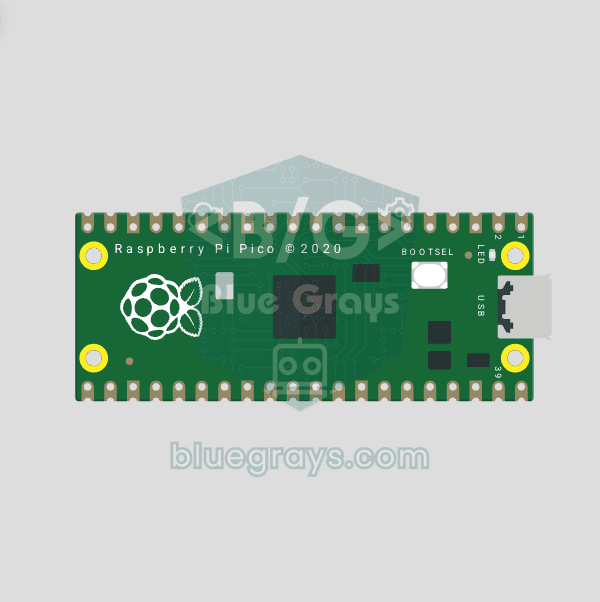
Raspberry Pi Pico Onboard LED Blink (GP25 Built-in LED)
The opening project of the Raspberry Pi Pico series! We blink the onboard LED (green LED connected to GP25) to verify the board works — a classic "Hello World" first experiment. NO external components, just Pico and USB cable. Code is written in **MicroPython** (the official language backed by Raspberry Pi Foundation). Learn `machine.Pin` class, `Pin.OUT` mode, `led.on()/off()` methods, and `time.sleep()` in Thonny IDE. Follow every toggle live in the Serial (REPL) output. Also perfect to verify
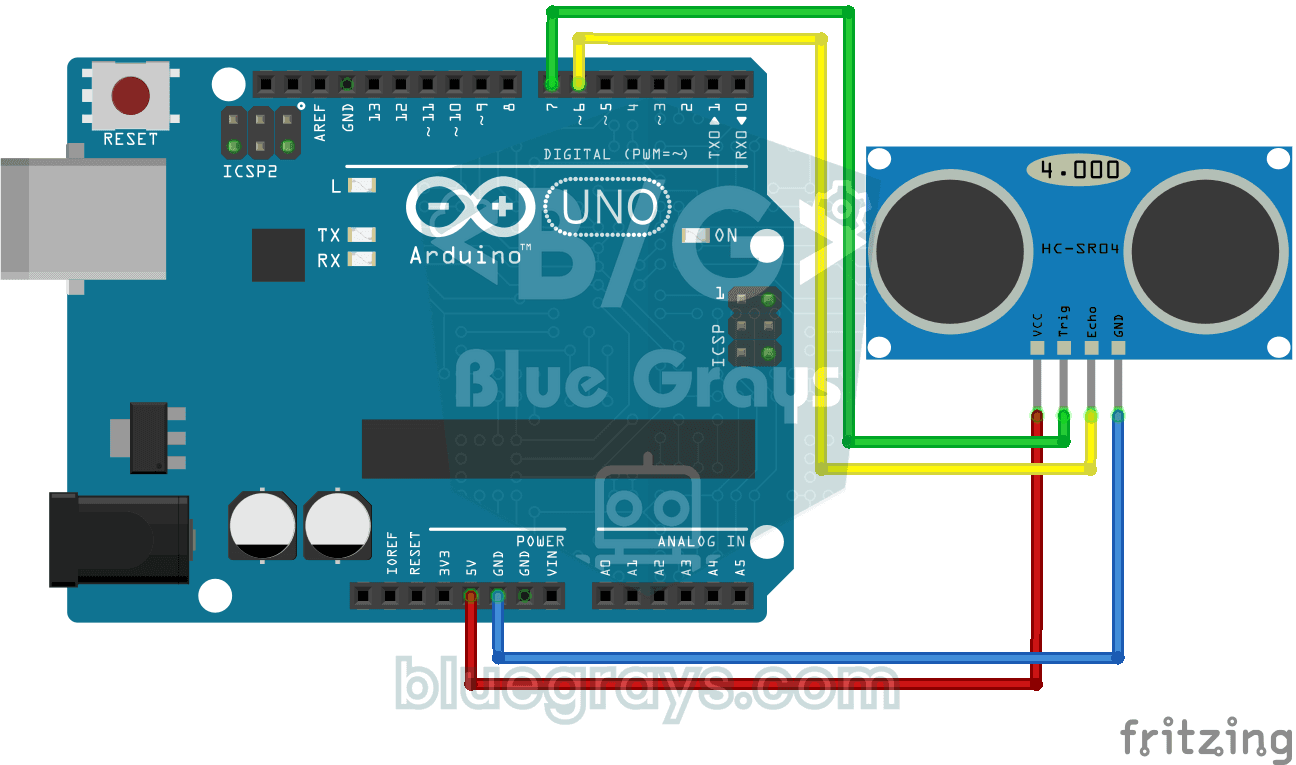
HC-SR04 Distance Measurement (Serial Display)
Project that measures distance with HC-SR04 ultrasonic sensor and displays the result in cm on Serial Monitor. It teaches the principle of distance calculation with sound wave.
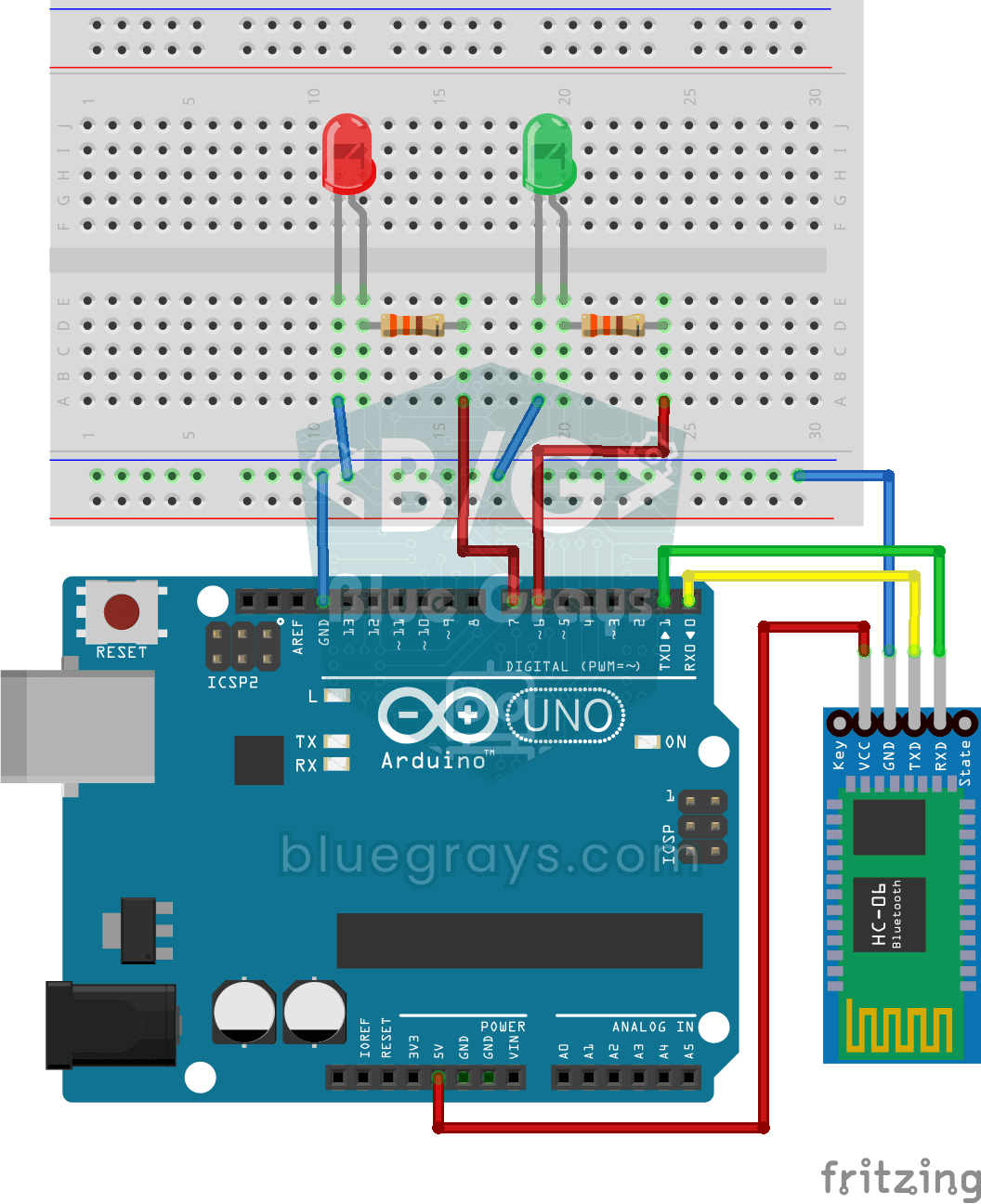
Lighting Led from Phone via Bluetooth
Wireless control project that turns LEDs on and off with commands sent from the phone with HC-06 Bluetooth module. Teaches Bluetooth data exchange over serial communication.
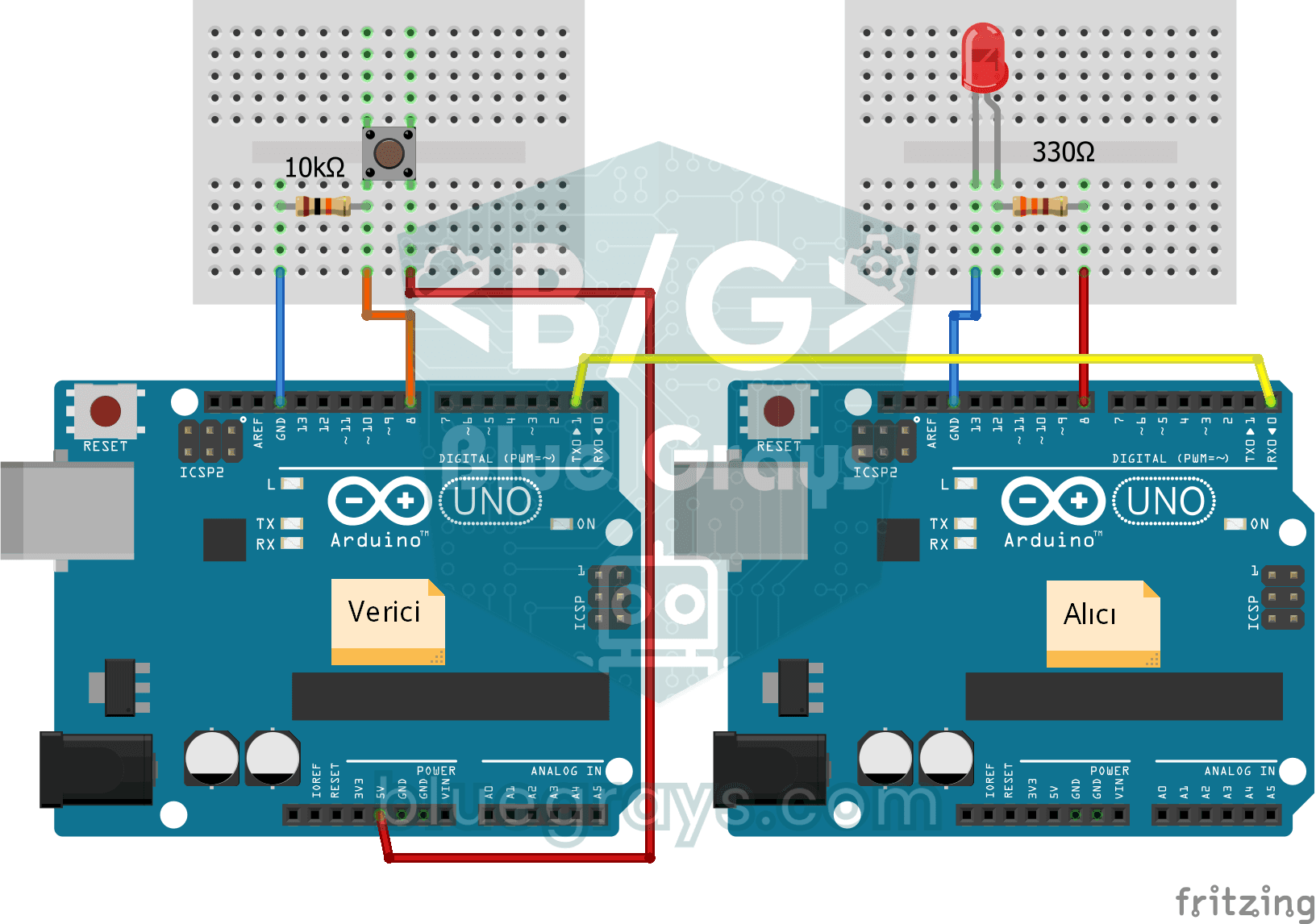
2 Arduino One-Way Communication
A project for one-way data transfer between two Arduinos via serial communication. It detects the button press on the transmitter side and teaches to control the LED on the receiver side.

ESP32 OTA Update — Wireless Firmware Installation (With LCD Screen)
In this project, you’ll learn how to upload new firmware to the ESP32 over Wi-Fi without a USB cable. Using the `ArduinoOTA` library, the ESP32 becomes visible on the network and is automatically listed as `bluegrays-ota` in the "Network port" tab of the Arduino IDE. The initial upload is done via USB, and all subsequent updates are wireless—a critical feature for field devices. The I2C LCD screen displays the Wi-Fi status, IP address, hostname, OTA upload percentage, and error messages in both
More articles
Learn to read the upload error, find the cause with a symptom table and fix cable, driver, port and bootloader problems on Arduino, ESP32 and Raspberry Pi Pico step by step.