
IR Receiver and Remote Control: Remote-Controlled Projects with Arduino
How does an infrared (IR) receiver work? VS1838B wiring, reading button codes with the IRremote library, the NEC protocol, controlling LEDs and relays with a remote, sending IR with an IR LED, and ESP32 and Pico usage.
Remote controls for TVs, air conditioners and stereos work with infrared (IR) light. Add an IR receiver that costs next to nothing to an Arduino and you can read the buttons of almost any remote in your home and use them to control lamps, LEDs, motors or music. No pairing, app or internet needed; you just point the remote at the board and press a button. It's the easiest and cheapest route to your first remote-controlled project.
How does an infrared remote work?
The IR LED at the tip of the remote emits light at about 940 nm, which the eye can't see. The light isn't on constantly; it rides on a carrier signal that flashes 38,000 times a second. The circuit inside the receiver only pays attention to light flickering at that frequency, so sunlight and lamps can't disturb the signal. The receiver turns the flicker into clean digital pulses and pulls its output LOW while the signal is present.
Which button was pressed is encoded in the lengths of the pulses and the gaps between them. There are different "languages" for this, called protocols: the most common is NEC (an address byte and a command byte), and Sony, RC5 (Philips) and Samsung protocols are also common. Luckily the library does the decoding; you just read the button's code.
Specifications (VS1838B)
| Feature | Value |
|---|---|
| Carrier frequency | 38 kHz |
| Wavelength | About 940 nm |
| Supply | 2.7–5.5 V |
| Range | 8–10 m (depends on the remote's battery and the angle) |
| Viewing angle | About ±35° |
| Output | LOW while a signal is present (active LOW) |
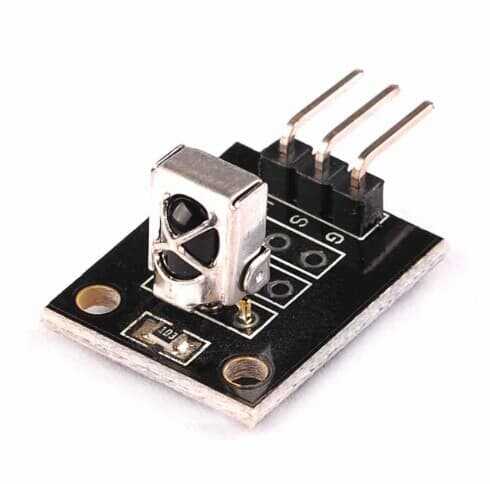
| Pins | OUT, GND, VCC |
IR receiver wiring
| Receiver pin | Arduino Uno | ESP32 | Raspberry Pi Pico |
|---|---|---|---|
| OUT (S) | D2 | GPIO 15 | GP16 |
| GND (–) | GND | GND | GND |
| VCC (+) | 5V | 3V3 | 3V3 |
Reading button codes with the IRremote library
In the Library Manager, search for IRremote and install the library by Armin Joachimsmeyer. The code below works with version 4.x; every time you press a button it prints the protocol, address and command code to the Serial Monitor. If you see commands such as IRrecv and decode(&results) in older examples online, they belong to an old version.
1#include <IRremote.hpp>
2
3const int IR_PIN = 2;
4
5void setup() {
6  Serial.begin(9600);
7  IrReceiver.begin(IR_PIN, ENABLE_LED_FEEDBACK);   // sinyal gelince dahili LED yanar / onboard LED blinks on signal
8}
9
10void loop() {
11  if (IrReceiver.decode()) {
12    Serial.print("Komut / command: 0x");
13    Serial.println(IrReceiver.decodedIRData.command, HEX);
14    IrReceiver.printIRResultShort(&Serial);        // protokol ve adres / protocol and address
15    IrReceiver.resume();                           // sonraki tuşa hazırlan / ready for the next key
16  }
17}
Press the buttons on your remote one by one and note the codes. The small 21-key remotes included in kits usually use the NEC protocol, and their codes are mostly as shown below; still, confirm them by reading your own remote's codes:
| Button | Command (NEC) |
|---|---|
| CH- | 0x45 |
| CH | 0x46 |
| CH+ | 0x47 |
| PREV | 0x44 |
| NEXT | 0x40 |
| PLAY/PAUSE | 0x43 |
| VOL- | 0x07 |
| VOL+ | 0x15 |
| 0 | 0x16 |
| 1 | 0x0C |
| 2 | 0x18 |
| 3 | 0x5E |
Controlling an LED and a relay with a remote
Once you know the codes, you can give each button a job. In the example below, the "1" button toggles a relay, and VOL+ and VOL- set an LED's brightness with PWM. When a button is held down, the remote sends repeat signals; for on-off jobs you need to ignore these repeats, otherwise the relay flicks on and off. For relay wiring, see What Is a Relay Module?
1#include <IRremote.hpp>
2
3const int IR_PIN = 2;
4const int LED_PIN = 9;       // PWM pini / PWM pin
5const int RELAY_PIN = 7;     // aktif LOW röle / active-LOW relay
6
7bool relayOn = false;
8int brightness = 128;
9
10void setup() {
11  pinMode(LED_PIN, OUTPUT);
12  pinMode(RELAY_PIN, OUTPUT);
13  digitalWrite(RELAY_PIN, HIGH);
14  IrReceiver.begin(IR_PIN);
15}
16
17void loop() {
18  if (!IrReceiver.decode()) return;
19  bool repeat = IrReceiver.decodedIRData.flags & IRDATA_FLAGS_IS_REPEAT;   // tuş basılı tutuluyor / key held down
20  switch (IrReceiver.decodedIRData.command) {
21    case 0x0C:                               // "1": röleyi aç-kapa / toggle the relay
22      if (!repeat) {
23        relayOn = !relayOn;
24        digitalWrite(RELAY_PIN, relayOn ? LOW : HIGH);
25      }
26      break;
27    case 0x15:                               // VOL+: daha parlak / brighter
28      brightness = min(brightness + 15, 255);
29      break;
30    case 0x07:                               // VOL-: daha sönük / dimmer
31      brightness = max(brightness - 15, 0);
32      break;
33  }
34  analogWrite(LED_PIN, brightness);
35  IrReceiver.resume();                       // sonraki tuşa hazırlan / ready for the next key
36}Sending IR signals with Arduino
An Arduino can do more than listen to remotes; it can be a remote itself. Connect an IR LED (940 nm) to pin 3 of the Uno through a 100 Ω resistor; to increase the range, you can drive the LED through a transistor. First read the remote of the device you want to control with the code above to learn its address and command, then send the same code from the Arduino:
1#include <IRremote.hpp>
2
3const int IR_SEND_PIN = 3;    // IR LED, 100 Ω direnç ile / IR LED with a 100 Ω resistor
4
5void setup() {
6  IrSender.begin(IR_SEND_PIN);
7}
8
9void loop() {
10  IrSender.sendNEC(0x00, 0x46, 0);   // adres, komut, tekrar sayısı / address, command, repeats
11  delay(5000);
12}
IR with the ESP32 and Raspberry Pi Pico
The VS1838B works fine at 3.3 V, so it connects directly to the ESP32 and Pico. The IRremote library supports the ESP32; you can connect the receiver to any input pin, such as GPIO 15. With an ESP32 you can forward remote button presses to other devices over Wi-Fi, or build a "smart remote" that sends commands from your phone to the TV with an IR LED. On the Pico with MicroPython, Peter Hinch's micropython_ir library is used:
1from machine import Pin
2from ir_rx.nec import NEC_8          # micropython_ir kütüphanesi / library (Peter Hinch)
3import time
4
5def on_key(command, address, ctrl):
6    if command >= 0:                 # negatif değerler tekrar ya da hata / negatives mean repeat or error
7        print("Komut / command: 0x{:02X}".format(command))
8
9ir = NEC_8(Pin(16, Pin.IN), on_key)  # GP16 → OUT
10
11while True:
12    time.sleep(1)
IR receiver and remote project ideas
- Remote-controlled lamp: switch a mains lamp on through a relay with a spare button on your TV remote.
- Colour remote: change the colour of an RGB LED with the number buttons.
- Remote-controlled robot car: a car whose two motors you steer with the arrow buttons.
- Melody box: assign a different tune to each number button; for the sound part see What Is a Buzzer?
- Learning remote: record the codes of other remotes and send them from a single Arduino.
- Code lock: open a lock with a servo when the right button sequence is entered.
Common mistakes and how to fix them
- No codes arrive at all: the OUT wire is on a different pin from the code, the receiver's legs are reversed, or the remote's battery is flat; check the remote with your phone camera.
- The example code won't compile: old examples online are for IRremote 2.x; version 4.x uses IrReceiver.begin() and IrReceiver.decode().
- Random codes appear: the receiver may be facing direct sunlight or a fluorescent lamp; move it into the shade.
- The on-off button works twice: repeat signals aren't being ignored; check the IRDATA_FLAGS_IS_REPEAT flag.
- tone() or PWM on pins 3 and 11 misbehaves: on the Uno they share the same timer (Timer2) as IRremote.
- Very short range when sending with an IR LED: drive the LED at a higher current through a transistor and point it at the device.
An IR receiver is the simplest and cheapest way to go wireless; even old remotes lying around the house get a second life in your new projects. In the BlueGrays app you'll find projects for reading remote codes, switching LEDs, playing melodies from a remote, controlling a mains lamp and building an ESP32 universal remote, with circuit diagrams and code.
Frequently asked questions
How far can an IR receiver pick up a signal?
Receivers such as the VS1838B can pick up a signal up to 8–10 metres away with a good remote and a clear line of sight. The range shortens as the remote's battery weakens, the angle increases and the surroundings get brighter.
Does every remote work with Arduino?
Almost all infrared remotes that use 38 kHz work, and IRremote decodes most common protocols. With remotes that use 36, 40 or 56 kHz the range may be shorter. Remotes that work by radio (such as 433 MHz) can't be read with an IR receiver.
Does an IR receiver work in sunlight?
The filter inside the receiver blocks steady light to a large extent, but direct sunlight can saturate the receiver and greatly reduce the range. Outdoors, keep the receiver in the shade or inside a small protective tube.
Does an IR remote work through a wall?
No. Infrared light can't pass through walls; there needs to be a line of sight between the remote and the receiver, or a surface the light can bounce off. To control a device in another room, use RF modules or Wi-Fi.
Which version of IRremote should I use?
Use the current 4.x version, which uses IrReceiver.begin(), IrReceiver.decode() and decodedIRData.command. The IRrecv irrecv(pin) and decode(&results) commands seen in older examples online belong to version 2.x and aren't compatible with the new version.
Can I use my phone as a remote?
Some Android phones have a built-in IR transmitter and can act as a remote with the right app. If your phone has no IR, you can set up a web page on an ESP32 and send the commands from your phone to the device through an IR LED.
Projects to build after reading this
See all projects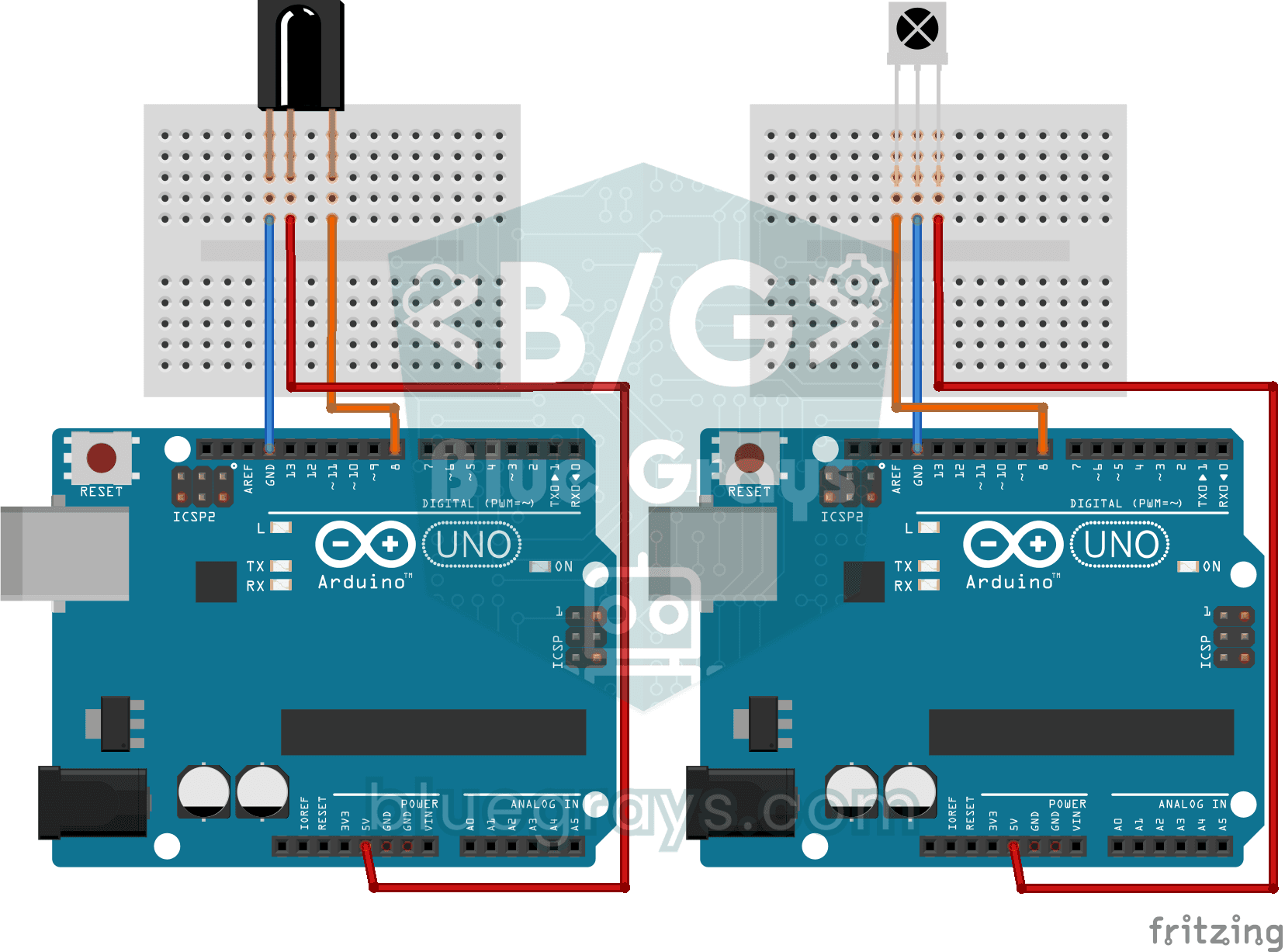
Reading IR Remote Control Codes
Project that reads the HEX values of infrared signals coming from the remote control with IR receiver module in Serial Monitor. Teaches the use of IRremote library.
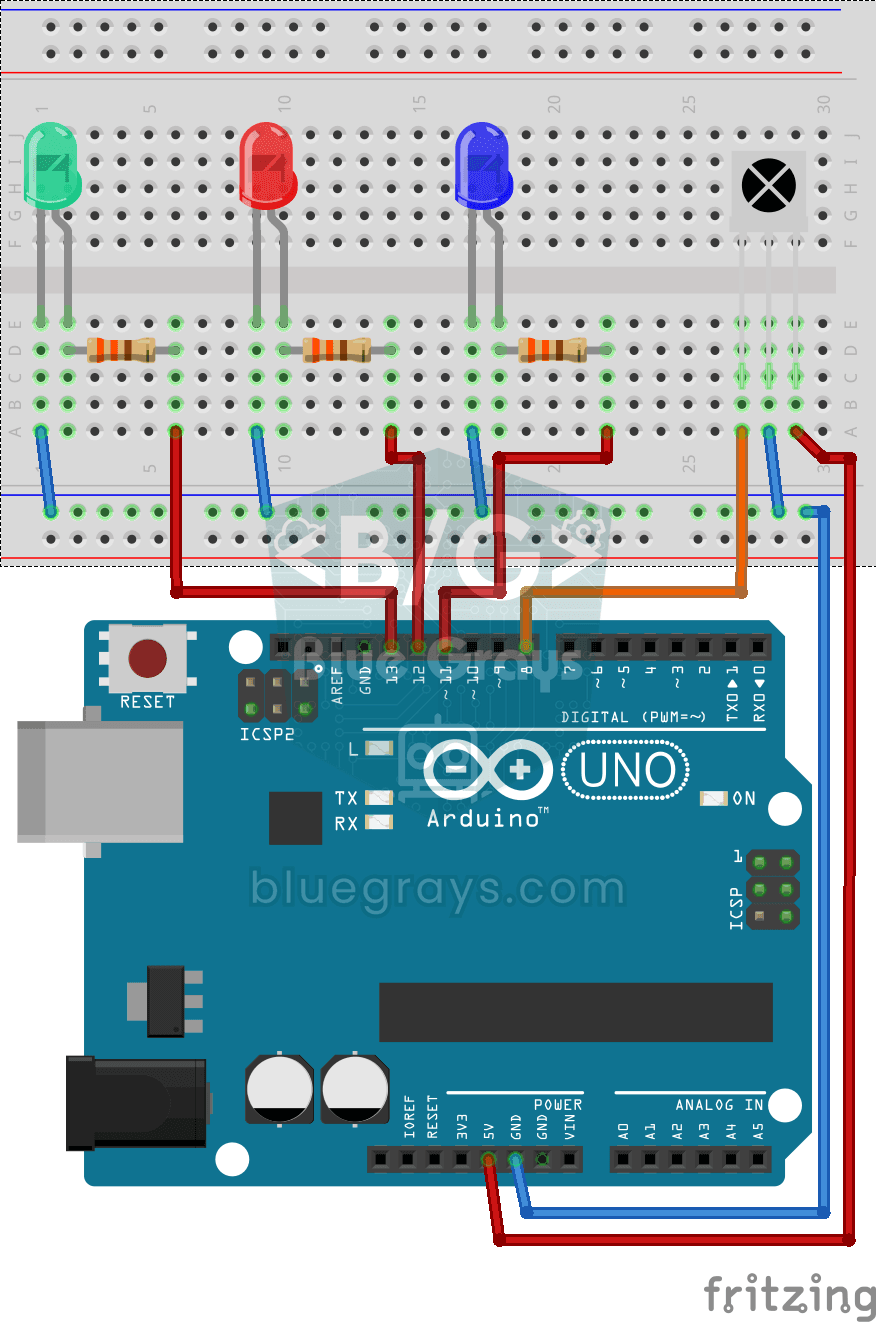
Led On/Off with IR Receiver and Remote Control
IR control project that can independently turn on/off 3 LEDs with different keys of the remote control. Teaches how to match remote control codes and control multiple outputs.
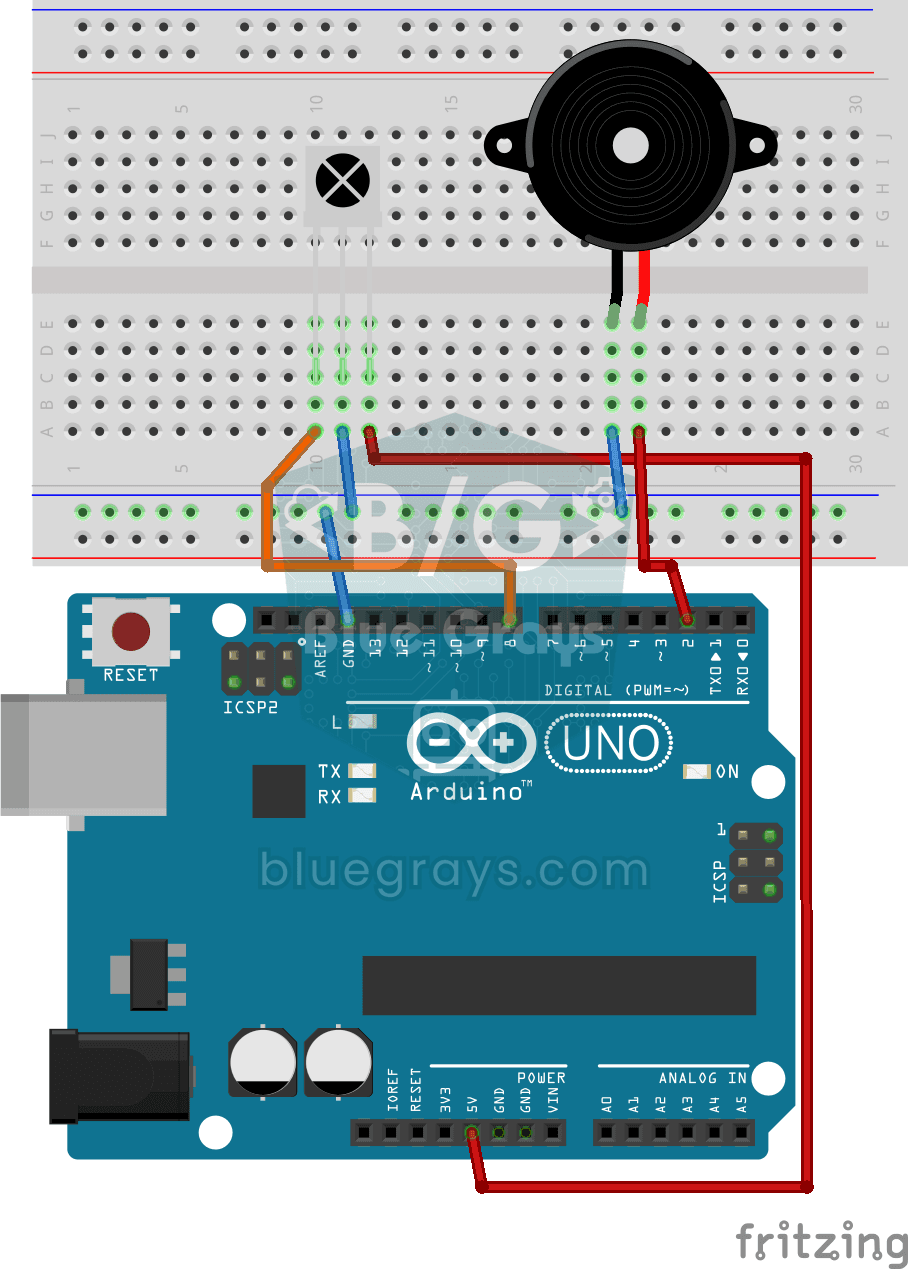
Playing Melodies with an IR Remote and Buzzer
Project that plays Mario, Mother's Day and Christmas melodies with a buzzer by pressing different keys of the IR controller. It combines function triggering and melody programming with the controller.
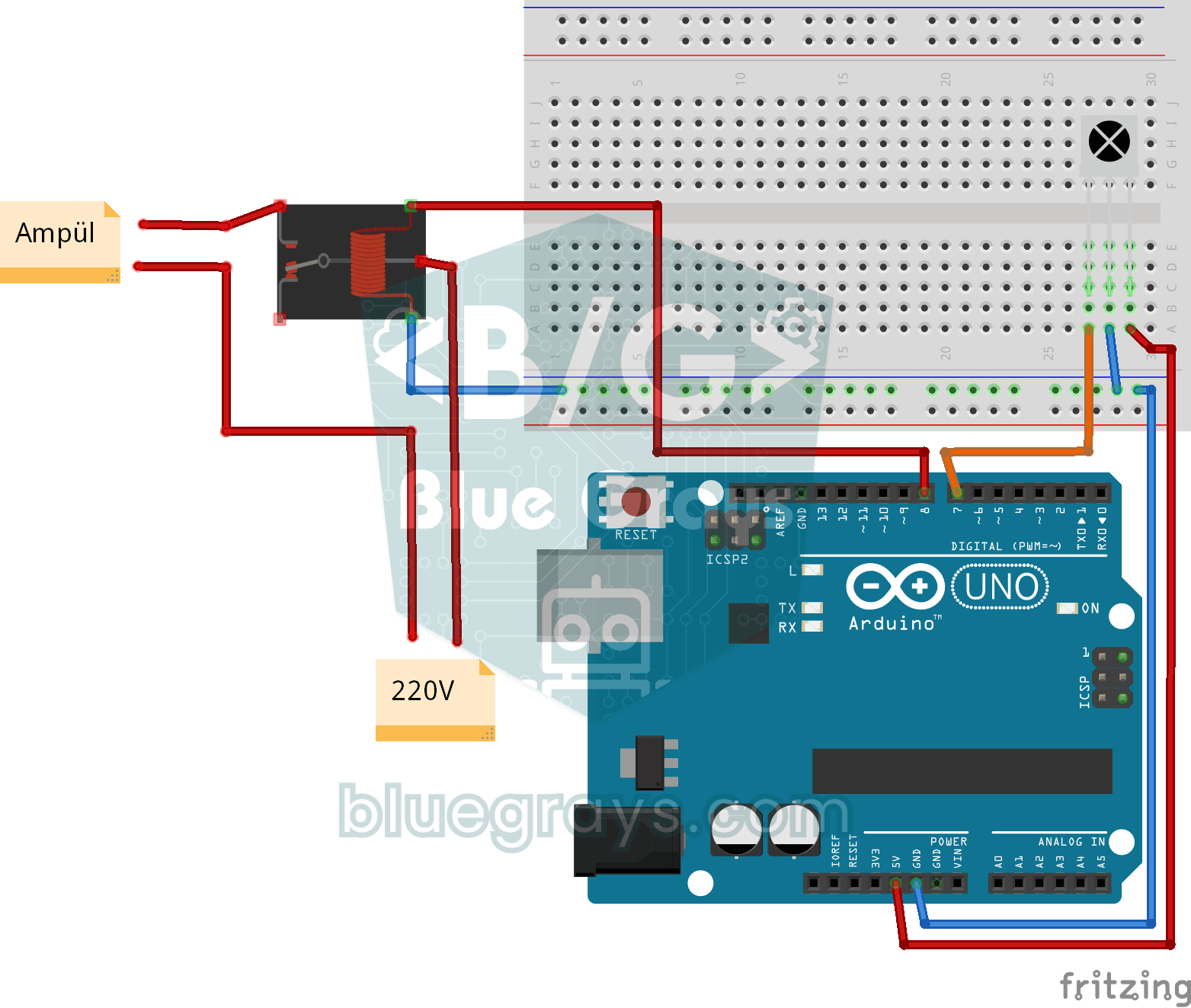
Lighting 220V Bulb with Remote Control
Project that turns 220V light bulb on and off via relay with power and mute buttons of IR remote control. Combines infrared control with high voltage switching.
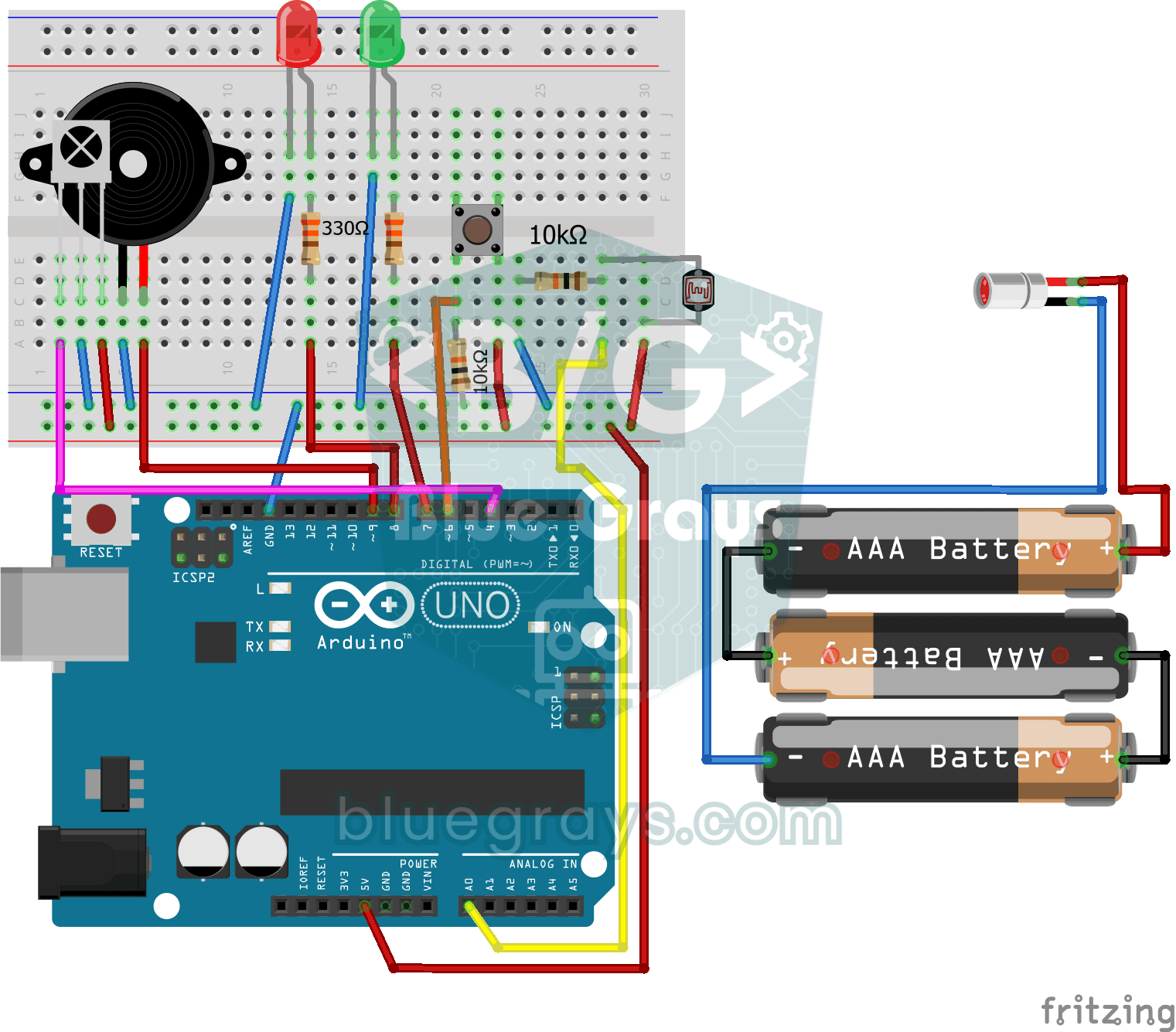
Laser Security System
Advanced security system that activates the alarm when the laser beam is interrupted and can be reset by push button or IR control. Teaches multiple input source and state management.

Remote Control with ESP32 IR Receiver (with LCD Screen)
In this project, we use the TSOP4838 IR receiver module to capture signals from a TV, air conditioner, or any other infrared remote control using the ESP32. With the IRremote v4 library, we display and log the unique code for each button on the I2C LCD screen. We then use these codes to turn an LED on and off with the remote and adjust its brightness. This is a great starting point for converting old remotes into smart home controls.

ESP32 IR Universal Remote (IR Receiver + Remote Control + 3 LEDs + Buzzer + OLED)
With the ESP32, you can read a standard IR remote control and use it to control your own device! In this project, we use an infrared receiver (NEC protocol, 38 kHz) to capture the signals from a 20-button IR remote. We’ve defined different actions for each button: buttons 1, 2, and 3 toggle three separate LEDs; the PWR button turns them all off; and the numbers 4–9 display special characters on the OLED. The SSD1306 OLED display shows the last button pressed in large font, along with a descripti
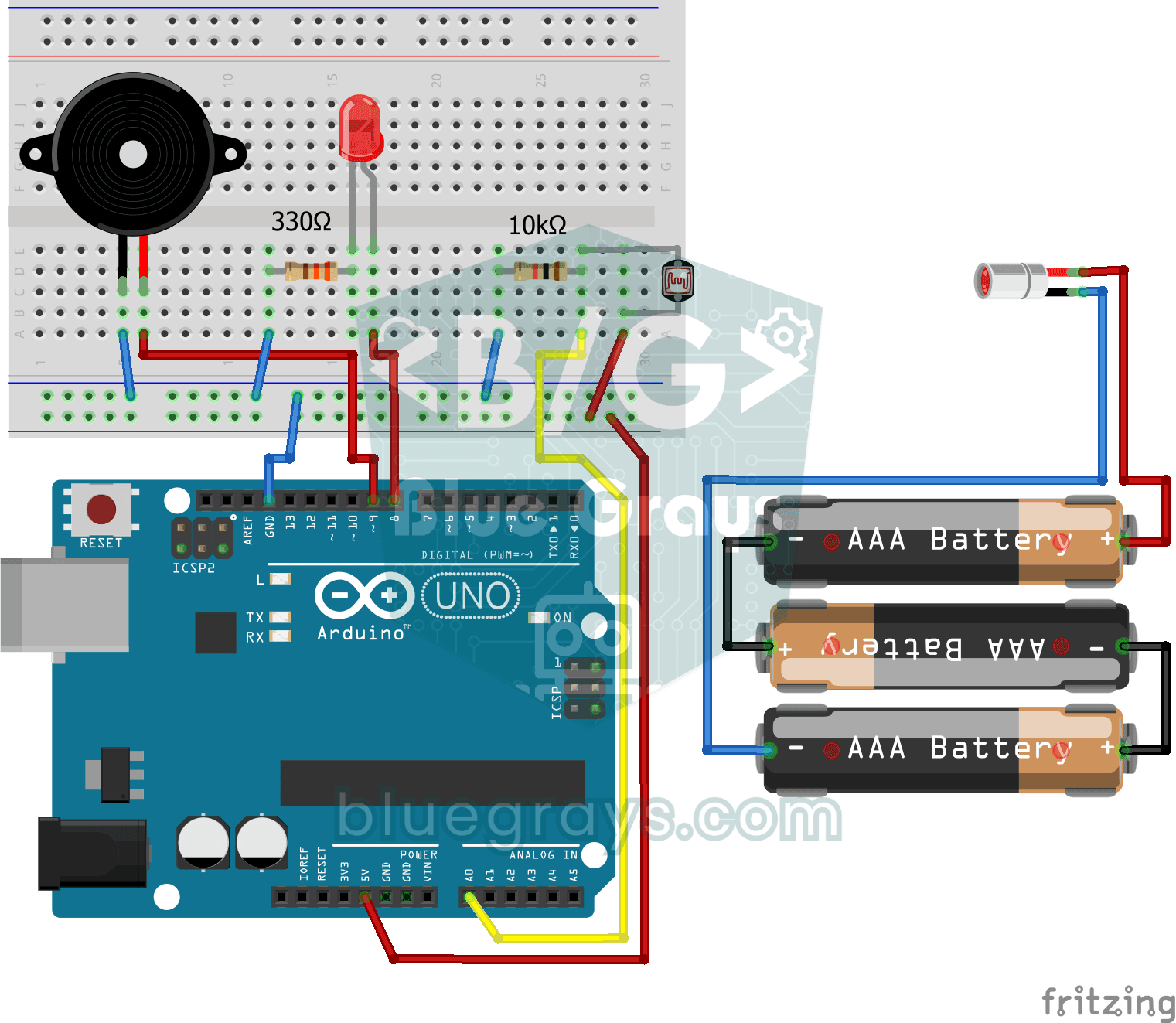
Laser Warning System
Security project that detects when the laser beam is interrupted via LDR and warns with buzzer and LED. Teaches the logic of light interruption detection with laser-LDR pair.
More articles
Learn how a TV remote works, how to connect an IR receiver to Arduino, read button codes, control lamps and LEDs with a remote, and send IR signals from your Arduino.