
How to Use an RGB LED: Color Mixing with Arduino, Common Anode vs Cathode
How does an RGB LED work and how do you tell common cathode from common anode? Arduino wiring, resistor values for each color, color mixing with analogWrite, a rainbow fade, ESP32 and Pico code.
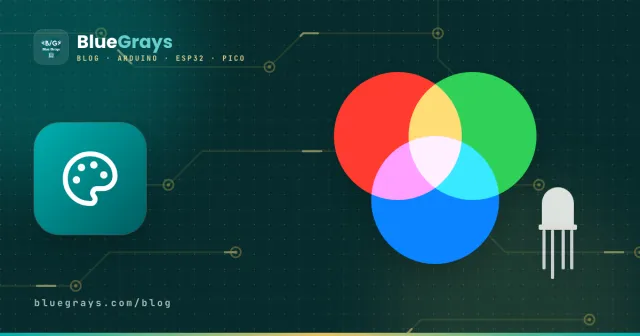
An RGB LED is three separate LEDs in a single package: red, green and blue. By setting the brightness of each one independently, you can make almost any color you like, from yellow to cyan and from purple to orange. Every pixel on a computer screen works on the same principle. It's one of the most fun Arduino parts for status lights, mood lamps and colourful notification indicators.
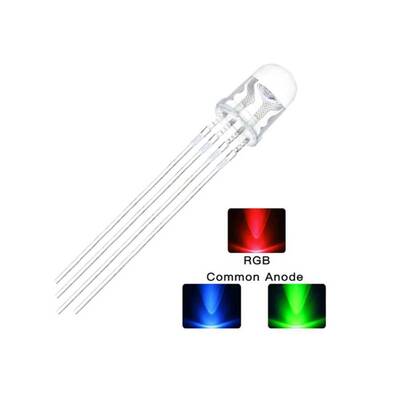
How does an RGB LED work?
Colours of light mix additively: red and green together look yellow, green and blue give cyan, red and blue give purple (magenta), and all three together make white. The Arduino sets each channel's brightness from 0 to 255 using PWM. That gives, in theory, 256 × 256 × 256 ≈ 16.7 million combinations. PWM switches the LED on and off hundreds of times per second; your eye can't see the flicker and only perceives the average brightness.
| Color | Red | Green | Blue |
|---|---|---|---|
| Red | 255 | 0 | 0 |
| Green | 0 | 255 | 0 |
| Blue | 0 | 0 | 255 |
| Yellow | 255 | 255 | 0 |
| Cyan | 0 | 255 | 255 |
| Magenta | 255 | 0 | 255 |
| Orange | 255 | 80 | 0 |
| White | 255 | 255 | 255 |
Common cathode or common anode?
The longest of the RGB LED's four legs is the common pin shared by the three LEDs. If it joins the LEDs' cathodes, the LED is common cathode; if it joins their anodes, it's common anode. They look identical from the outside, but their wiring and code are opposite:
| Feature | Common cathode (CC) | Common anode (CA) |
|---|---|---|
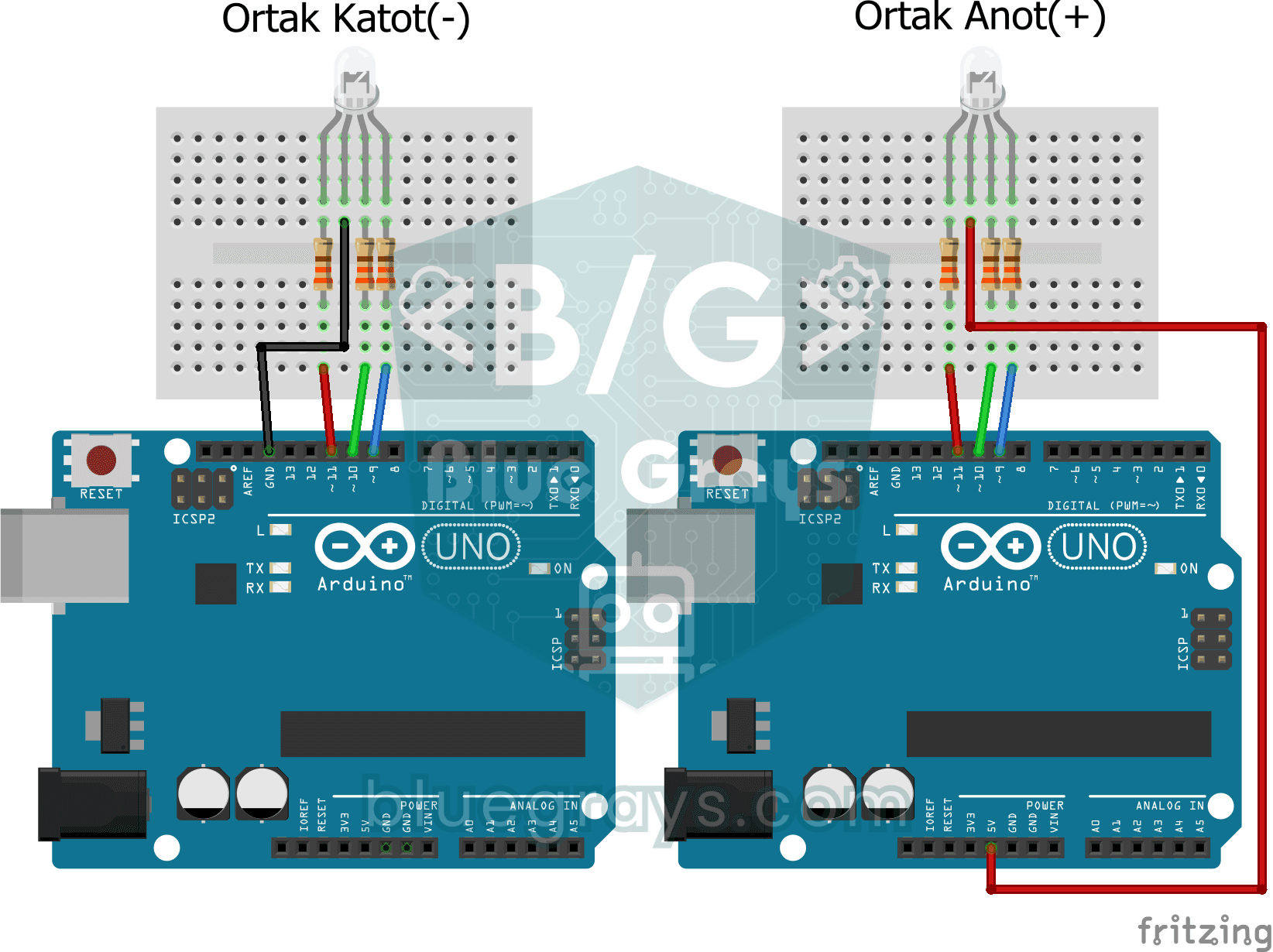
| Long leg goes to | GND | 5V |
| To light a color | Set the pin HIGH (255) | Set the pin LOW (0) |
| Value in code | analogWrite(pin, value) | analogWrite(pin, 255 - value) |
| Fully off | 0 | 255 |
Pin order and Arduino wiring
On common 5 mm RGB LEDs the pin order is red, common (longest), green, blue, but because it can vary between manufacturers, testing each leg is the safest bet. Each color connects through its own resistor to a PWM pin. On the Arduino Uno the PWM pins are the ones marked with ~: 3, 5, 6, 9, 10 and 11.
| Leg | Connection | Arduino Uno pin |
|---|---|---|
| Red (R) | Through a resistor | D9 |
| Common (longest) | GND for common cathode, 5V for common anode | — |
| Green (G) | Through a resistor | D10 |
| Blue (B) | Through a resistor | D11 |
Resistor values: a separate resistor for each color
Each color needs a different voltage to light up (its forward voltage): about 2.0 V for red and 3.0–3.2 V for green and blue. Aiming for 20 mA at 5 V, red needs (5 − 2.0) / 0.020 = 150 Ω and green and blue need (5 − 3.2) / 0.020 ≈ 100 Ω. In practice, fitting 220 Ω on all three is safe and still bright enough; you can balance the colors in code. To calculate your own values, use the LED resistor calculator, and for each color's forward voltage, the LED voltages table.
Mixing colors with Arduino
The code below wraps the three channels in a single setColor() function and shows seven colors in turn. If your LED is common anode, just set COMMON_ANODE to true; the function inverts the values for you.
1const int R_PIN = 9;
2const int G_PIN = 10;
3const int B_PIN = 11;
4const bool COMMON_ANODE = false;   // ortak anotsa true yap / set true for common anode
5
6void setColor(int r, int g, int b) {
7  if (COMMON_ANODE) { r = 255 - r; g = 255 - g; b = 255 - b; }
8  analogWrite(R_PIN, r);
9  analogWrite(G_PIN, g);
10  analogWrite(B_PIN, b);
11}
12
13void setup() {
14  pinMode(R_PIN, OUTPUT);
15  pinMode(G_PIN, OUTPUT);
16  pinMode(B_PIN, OUTPUT);
17}
18
19void loop() {
20  setColor(255, 0, 0);     delay(1000);  // kırmızı / red
21  setColor(0, 255, 0);     delay(1000);  // yeşil / green
22  setColor(0, 0, 255);     delay(1000);  // mavi / blue
23  setColor(255, 255, 0);   delay(1000);  // sarı / yellow
24  setColor(0, 255, 255);   delay(1000);  // turkuaz / cyan
25  setColor(255, 0, 255);   delay(1000);  // mor / magenta
26  setColor(255, 255, 255); delay(1000);  // beyaz / white
27}
Smooth color transitions: a rainbow effect
Instead of jumping between colors, if you decrease one channel while increasing another, the light flows smoothly from red to green, green to blue and back to red. The loop below uses the same setColor() function; change the delay value to adjust the speed.
1// setColor() ve pin tanımları yukarıdaki gibi / setColor() and pins as above
2void loop() {
3  for (int i = 0; i < 256; i++) { setColor(255 - i, i, 0); delay(8); }  // kırmızı → yeşil / red → green
4  for (int i = 0; i < 256; i++) { setColor(0, 255 - i, i); delay(8); }  // yeşil → mavi / green → blue
5  for (int i = 0; i < 256; i++) { setColor(i, 0, 255 - i); delay(8); }  // mavi → kırmızı / blue → red
6}Choosing a color with potentiometers
If you connect three potentiometers to A0, A1 and A2, you can use each one as the knob for one color channel. analogRead() returns a value from 0 to 1023; dividing it by 4 gives the 0–255 range PWM expects. Wiring a potentiometer is explained in What Is a Potentiometer?
1// A0, A1, A2'de üç potansiyometre; setColor() yukarıdaki gibi
2// three pots on A0, A1, A2; setColor() as above
3void loop() {
4  int r = analogRead(A0) / 4;   // 0–1023 → 0–255
5  int g = analogRead(A1) / 4;
6  int b = analogRead(A2) / 4;
7  setColor(r, g, b);
8}
RGB LEDs with the ESP32 and Raspberry Pi Pico
On the ESP32 with the current Arduino core (3.x), analogWrite() works on any output pin, so the code above runs as-is once you change the pin numbers. The one thing to watch is voltage: the pins output 3.3 V, so the green and blue channels, whose forward voltage is close to 3 V, are dimmer. At 3.3 V use small resistors such as 47–100 Ω, or drive the LED from 5 V through a transistor if you want it really bright. On the Pico, MicroPython's PWM class takes values from 0 to 65535:
1from machine import Pin, PWM
2import time
3
4pins = [PWM(Pin(n)) for n in (11, 12, 13)]   # GP11 R, GP12 G, GP13 B
5for p in pins:
6    p.freq(1000)
7
8def set_color(r, g, b):                       # 0–255
9    for p, v in zip(pins, (r, g, b)):
10        p.duty_u16(v * 257)                   # 0–65535 (ortak anotta 65535 - v * 257)
11
12while True:
13    set_color(255, 0, 0); time.sleep(1)       # kırmızı / red
14    set_color(0, 255, 0); time.sleep(1)       # yeşil / green
15    set_color(0, 0, 255); time.sleep(1)       # mavi / blue
Regular RGB LED or addressable LED (WS2812B)?
| Feature | Regular RGB LED | WS2812B (NeoPixel) |
|---|---|---|
| Pins needed | 3 PWM pins per LED | 1 data pin for the whole strip |
| Color control | With the Arduino's PWM outputs | With a tiny chip inside each LED |
| Library | Not needed | Adafruit NeoPixel or FastLED |
| Best for | 1–2 LEDs, status indicators | Strips, rings, matrices, ambient lighting |
For one or two colored lights, a regular RGB LED is the simplest and cheapest solution. If you want to color dozens of LEDs individually, the Uno's 6 PWM pins aren't enough; that's when you move to WS2812B strips, which control hundreds of LEDs over a single wire.
RGB LED project ideas
- Mood lamp: put the rainbow fade inside a frosted jar for a soft night light.
- Temperature indicator: combine it with a DHT11 for a lamp that glows blue when it's cold, green when it's mild and red when it's hot.
- Color mixer: create any color by hand with three potentiometers.
- Pick a color from your phone: change the lamp's color from a color picker on a web page served by an ESP32.
- Notification light: flash the LED in a particular color when a new email or message arrives.
- Keypad colors: show a different color depending on the number typed on a keypad.
Common mistakes and how to fix them
- The colors work backwards: you're driving a common-anode LED as if it were common cathode; set COMMON_ANODE to true.
- One color never lights: the pin order may differ from what you expected; test each leg one by one with a resistor.
- Fades are stepped, with no in-between shades: the LED is on a non-PWM pin; on the Uno those pins can only be fully on or off.
- Colors glitch while a buzzer plays: on the Uno, tone() uses Timer2 and breaks PWM on pins 3 and 11; move the RGB LED to pins such as 5, 6, 9 and 10.
- Leaving out the resistors: too much current eventually damages both the LED and the Arduino pin.
- Very dim on the ESP32: at 3.3 V green and blue are at their limit; use smaller resistors or a transistor.
If you want to understand LED basics and why they need resistors, take a look at What Is an LED? and What Is a Resistor? In the BlueGrays app you'll find RGB LED color-fade, keypad-controlled lamp and color-mixer projects with circuit diagrams and code.
Frequently asked questions
How do I know if my RGB LED is common anode or common cathode?
Connect the long leg to GND and touch another leg to 5V through a 220 Ω resistor; if it lights, it's common cathode. If not, connect the long leg to 5V and the other leg to GND through the resistor; if it lights now, it's common anode. A multimeter's diode-test mode does the same job.
What resistor should I use with an RGB LED?
At 5 V, about 150 Ω for red and about 100 Ω for green and blue is ideal. For simplicity, 220 Ω on all three is safe and still gives a bright enough light. A separate resistor for each color is a must.
How many colors can an RGB LED make?
Each channel can take 256 brightness levels from 0 to 255, so in theory there are 16.7 million combinations. In practice your eye can tell fewer colors apart, and the brightness differences between the LEDs bring some shades closer together.
Why does my RGB LED look bluish instead of white?
The three LEDs differ in brightness and your eye is more sensitive to some colors than others; blue and green usually dominate. Lower those two channels a little in code, or use larger resistors on them, for a more neutral white.
What happens if I connect an RGB LED to a non-PWM pin?
That channel will only work fully on or fully off; analogWrite treats 128 and above as on and anything lower as off. If all three channels are like that, you only get 8 basic colors and no smooth transitions.
How many RGB LEDs can an Arduino Uno control?
The Uno has 6 PWM pins, so you can drive at most 2 RGB LEDs with independent colors. For more, use a 16-channel PWM driver such as the PCA9685, or WS2812B strips that control hundreds of LEDs from a single pin.
Projects to build after reading this
See all projects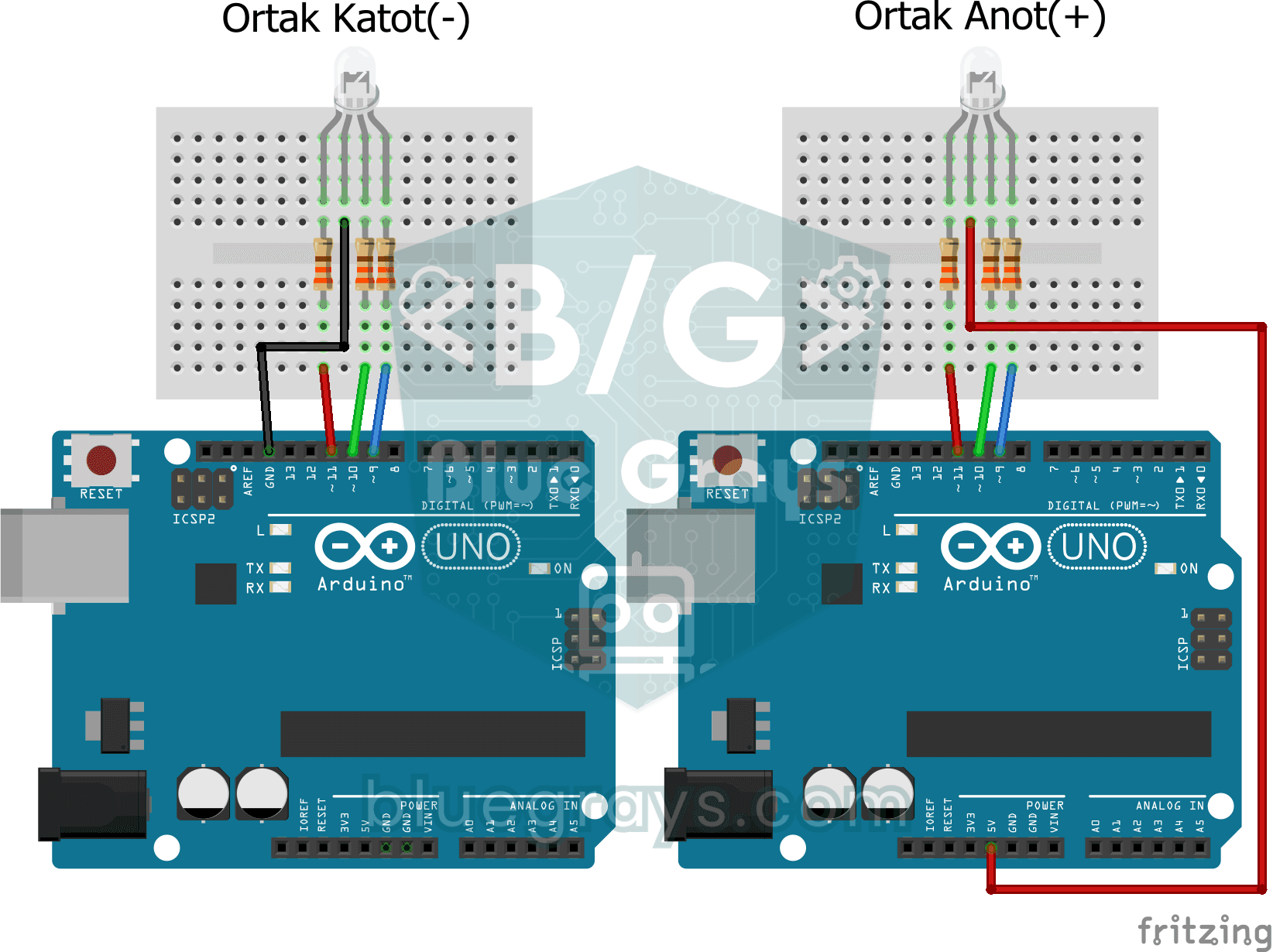
RGB Led Usage
Basic usage project that sequentially turns on and off the red, green and blue colors of the RGB LED. Teaches common cathode RGB LED control.
Smooth Color Transition with RGB Led
A project that creates a soft rainbow effect by gradually transitioning the colors of an RGB LED with analogWrite. Teaches the logic of color mixing and transition animation with PWM.

RGB Led Control with Keypad
This project allows you to manage the RGB LED between modes and colors via the 4x4 Keypad. Thanks to the millis() structure, commands are processed without delay. 🎮 User Guide: Key A: Fixed speed Fade effect. B Key: Smooth transition with adjustable speed. C / D: Increases / Decreases the effect speed. 1 - 9: Quick Master Color selection. * / #: Special Intermediate Colors (Pink, Light Green, etc.). 0 Key: Turns off the system.

ESP32 RGB LED Control
Unlimited color generation with a single RGB LED instead of 3 separate LEDs. As in Arduino, we make a rainbow transition by setting the R/G/B values with analogWrite(). Color theory (such as red+green=yellow) is seen practically.

ESP32 Color Mixer Light (3 Potentiometers + RGB LED + OLED)
A smart color-mixing lamp that lets you mix any color you want by turning three potentiometers with the ESP32! As you turn the red, green, and blue potentiometers, the common-cathode RGB LED changes color in real time. The SSD1306 OLED display shows real-time values for each color in the 0–255 range, visual fill bars, and the HEX web color code (such as #FF8040). A mini professional color studio—teaches RGB color theory, ADC analog reading, brightness control via PWM, and I2C display design all
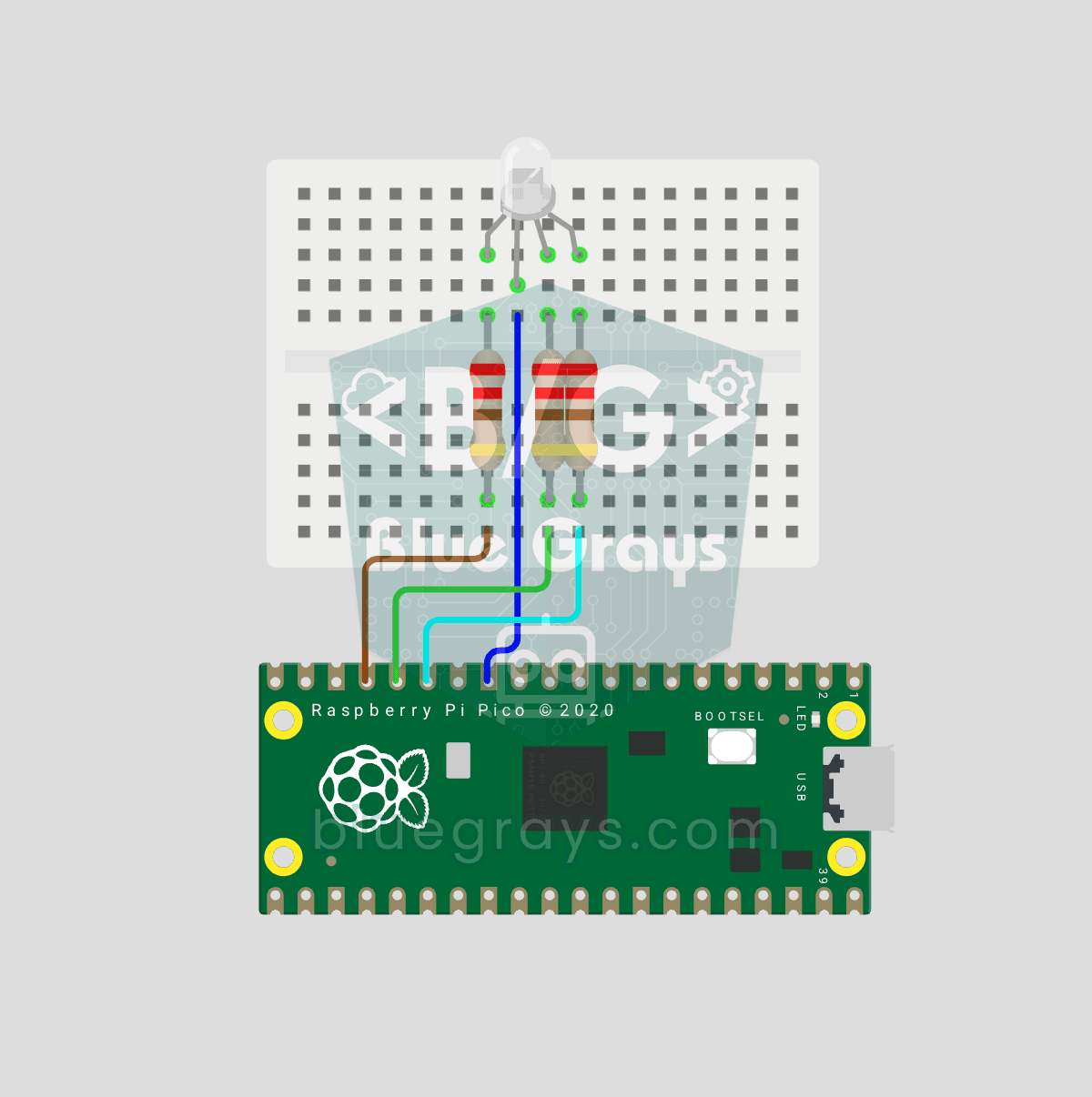
Raspberry Pi Pico RGB LED Color Cycle (3-Channel PWM, GP11-13)
One LED, millions of colors! 🌈 An RGB LED actually contains 3 LEDs: **red, green and blue**. Driving each with its own Pico **PWM** channel mixes the colors: red + green = yellow, green + blue = cyan, all three = white. Here the LED cycles through 8 colors. Learn **multiple PWM channels**, **defining functions** (`def renk(...)`), **RGB color mixing** (how screens and smart bulbs work), **8-bit → 16-bit conversion** (`x257` maps 0–255 to 0–65535), **common cathode vs common anode** LEDs and **st

ESP32 WS2812B NeoPixel Strip Control
WS2812B (NeoPixel) addressable LEDs are smart RGB LEDs that can be controlled in a daisy-chain configuration via a single data pin. In this project, we will control an 8-LED WS2812B strip using the Adafruit_NeoPixel library to create a smooth rainbow animation. While the ESP32’s 3.3V logic level works seamlessly with most WS2812B components, we’ll demonstrate a solution using a 470Ω series resistor and a 1000µF capacitor in case of instability. The animation is achieved by shifting the hue value
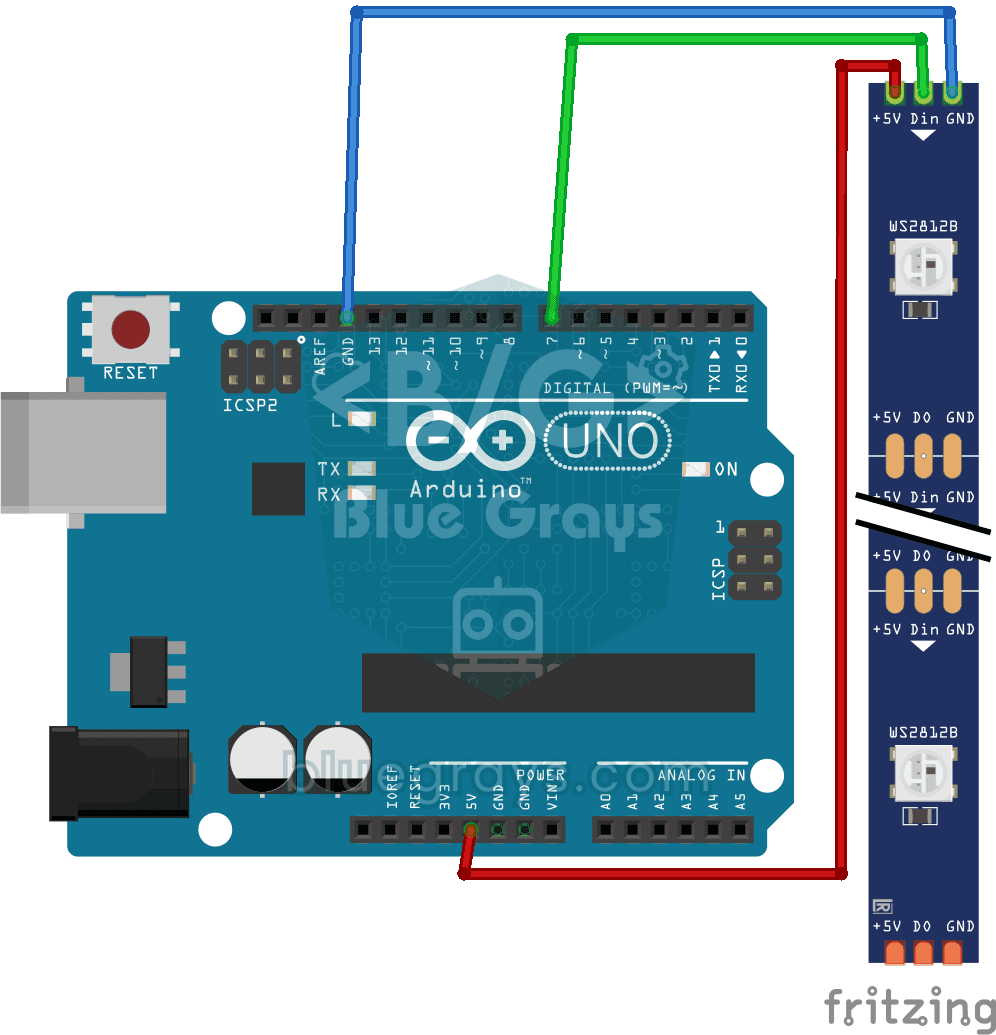
WS2812B Usage
Project demonstrating the basic use of the WS2812B addressable LED strip by adjusting the color of each LED independently. Teaches pixel-based color control with the FastLED library.
More articles
Learn how an RGB LED produces millions of colors from three LEDs in one package, how to tell common anode from cathode, pick the right resistors and blend colors smoothly with Arduino.