
15 projects
Raspberry Pi Pico Projects
The Raspberry Pi Pico is a small, low-cost microcontroller board built around the RP2040 chip. It has a dual-core 133 MHz processor, 264 KB of RAM and 26 GPIO pins. Unlike a Raspberry Pi computer it runs no operating system: it runs the one program you write and starts instantly. The Pico W adds Wi-Fi for wireless projects.
The Raspberry Pi Pico projects on this page are written in MicroPython. Python is easy to read, which makes the Pico ideal for coding beginners, students and Python users who want to move into hardware. The projects start with the onboard LED and work up to buttons, PWM, interrupts (IRQ), sensors and state machines, each with a circuit diagram and commented code.
How to get started: hold the BOOTSEL button while plugging the Pico into your computer, then drag the MicroPython UF2 file onto the drive that appears, or install it from the Thonny editor. When you press Run in Thonny the code goes straight to the board with no compiling. Then work through the first 10 projects in order. Pico pins are 3.3 V, so never connect sensors that output 5 V directly.
The first 10 projects for beginners
Follow them in this order and each project adds one new skill on top of the last.
- 1
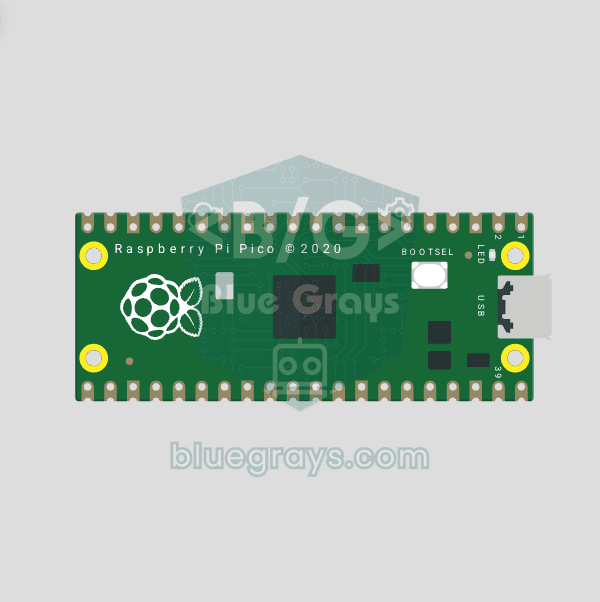 Raspberry Pi Pico Onboard LED Blink (GP25 Built-in LED)The opening project of the Raspberry Pi Pico series! We blink the onboard LED (green LED connected to GP25) to verify the board works — a classic "Hello World" first experiment. NO external components, just Pico and USB cable. Code is written in **MicroPython** (the official language backed by Raspberry Pi Foundation). Learn `machine.Pin` class, `Pin.OUT` mode, `led.on()/off()` methods, and `time.sleep()` in Thonny IDE. Follow every toggle live in the Serial (REPL) output. Also perfect to verifyBeginner
 - 2
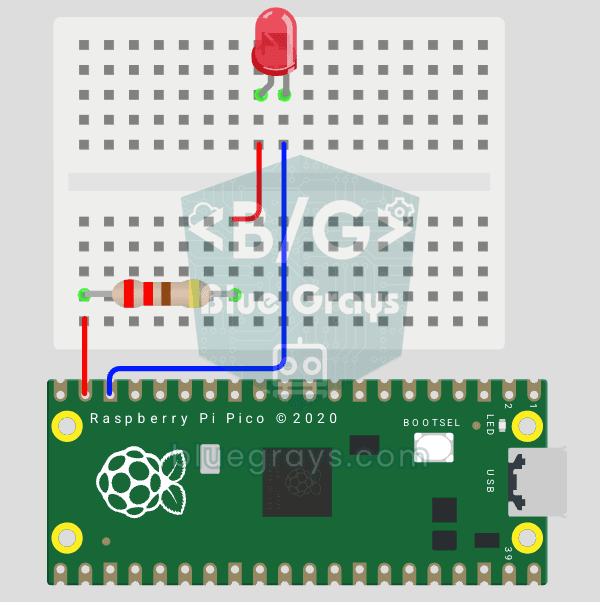 Raspberry Pi Pico: Controlling an External LED (GP14 + Breadboard)The next step after Pico’s built-in LED: connecting an external LED to the breadboard and controlling it via the GP14 pin. In this project, you’ll learn how to use any of the Pico’s general-purpose GPIO pins as an output, the LED’s polarity (long leg = anode/+, short leg = cathode/–), and why a current-limiting resistor (220Ω) is required. If you don’t include the resistor, excessive current will flow through the LED and it may burn out. The circuit is very simple: Pico GP14 → 220Ω resistor → LEBeginner
 - 3
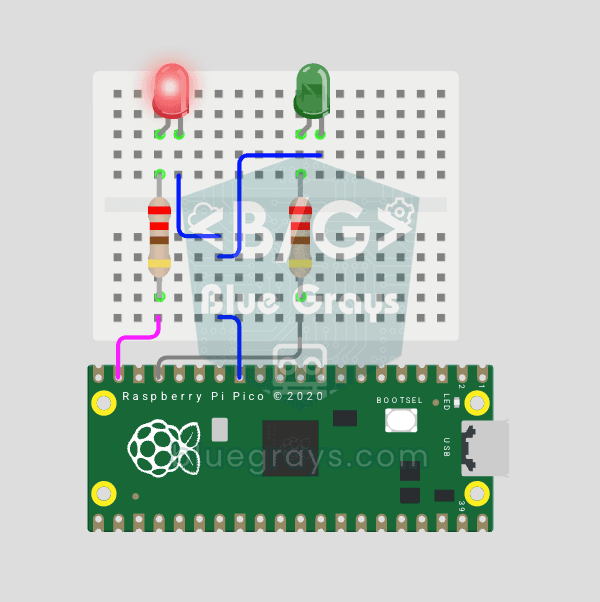 Raspberry Pi Pico Alternating Two LEDs (Blink-Flip Pattern, GP14 + GP13)The next step after single LED on Pico: two LEDs blink alternately in a classic flip-flop pattern. When one turns off, the other lights up — the most basic example of multi-GPIO coordination. In this project two different color LEDs (red on GP14, green on GP13) swap states every 500ms. MicroPython's `Pin.toggle()` method makes the code short and clear. The same core logic is the foundation of traffic lights, police strobes, chasing LEDs and all multi-LED animations. Very simple circuit: 220Ω resBeginner
 - 4
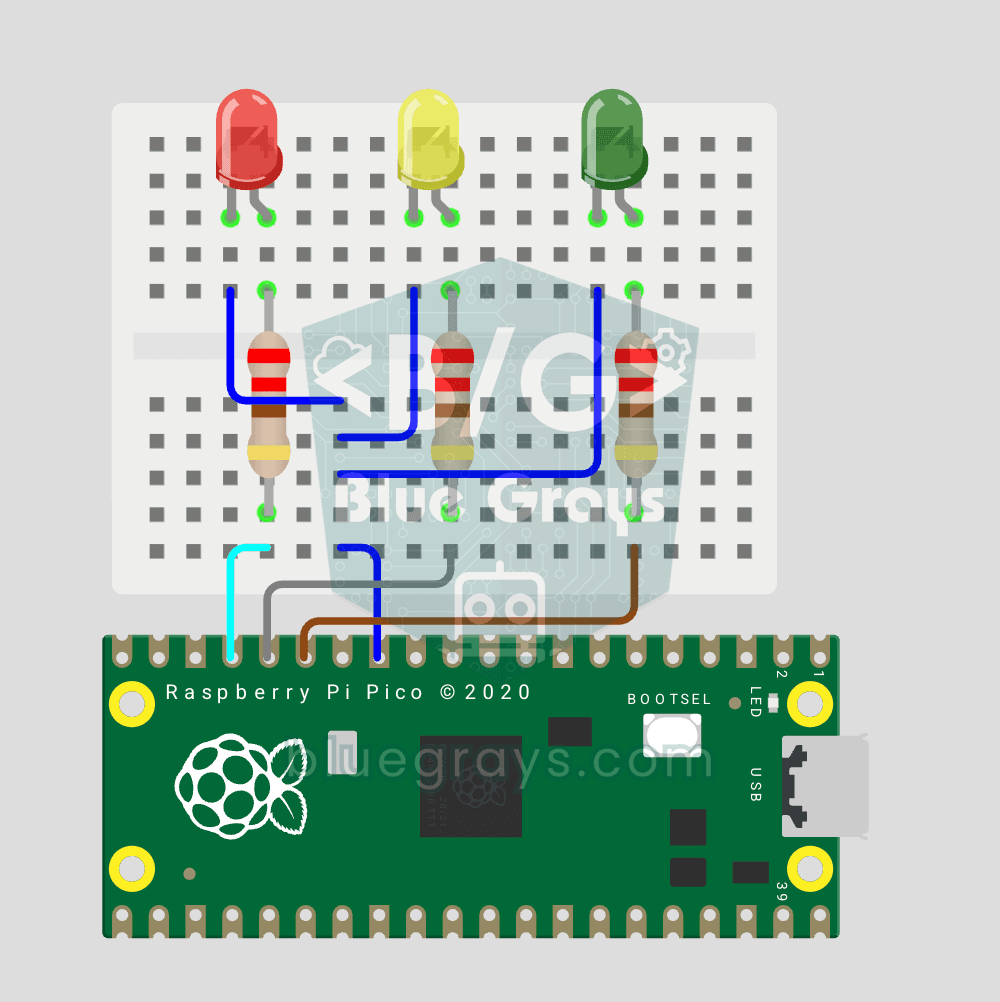 Raspberry Pi Pico Traffic Light Simulator (3 LEDs Sequential, GP11/GP12/GP13)We simulate a real traffic light with red, yellow and green LEDs — the first 3-LED project of the Pico series! Green 4 sec "go", yellow 1.5 sec "ready", red 3 sec "stop" and red+yellow 1 sec "starting" (European traffic light pattern). Learn **function definition** (`def all_off()`), **state machine logic** (sequence) and **multi-GPIO synchronization**. Very simple circuit: 3 LEDs on GP11 (Green), GP12 (Yellow), GP13 (Red), each with a 220Ω current-limiting resistor. GP11-GP12-GP13 are adBeginner
 - 5
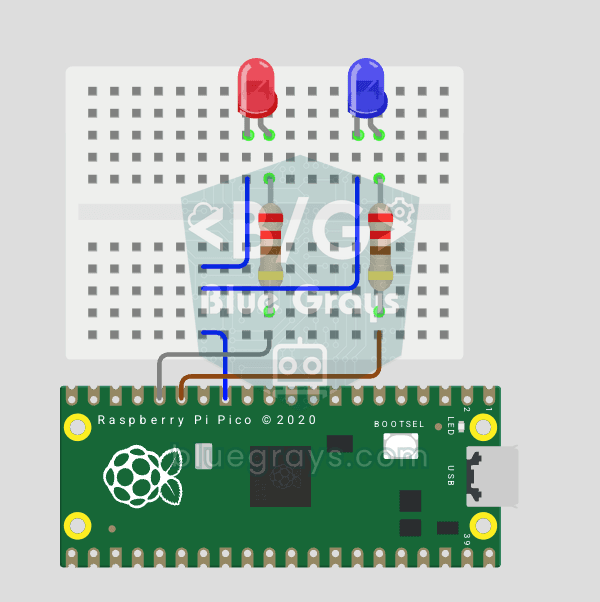 Raspberry Pi Pico Police Strobe Light Effect (Red + Blue, GP11 + GP12)We simulate a police car's light bar with a Raspberry Pi Pico in its simplest form! 🚨 The red and blue LEDs take turns (flip-flop): while red is on, blue is off, and they swap every 0.3 seconds, forever. The code writes the two steps directly in a single `while True` loop; the speed is set with the `WAIT_MS` constant.Beginner
 - 6Raspberry Pi Pico 3-Burst Police Flip-Flop (2 LED GP11 + GP12)Rhythmic variation of the police strobe project — 3-burst flip-flop! 🚨 Same 2 LED circuit as #151 (GP11 red + GP12 blue), but different pattern: red LED flashes 3 times rapidly, then blue flashes 3 times, forever. This "burst + switch" pattern is the most recognizable rhythm of real police siren lights. Learn parametrized function `def burst(led, count, duration_ms)`, rhythm design, and generating different visual effects with code on same circuit.Beginner
- 7
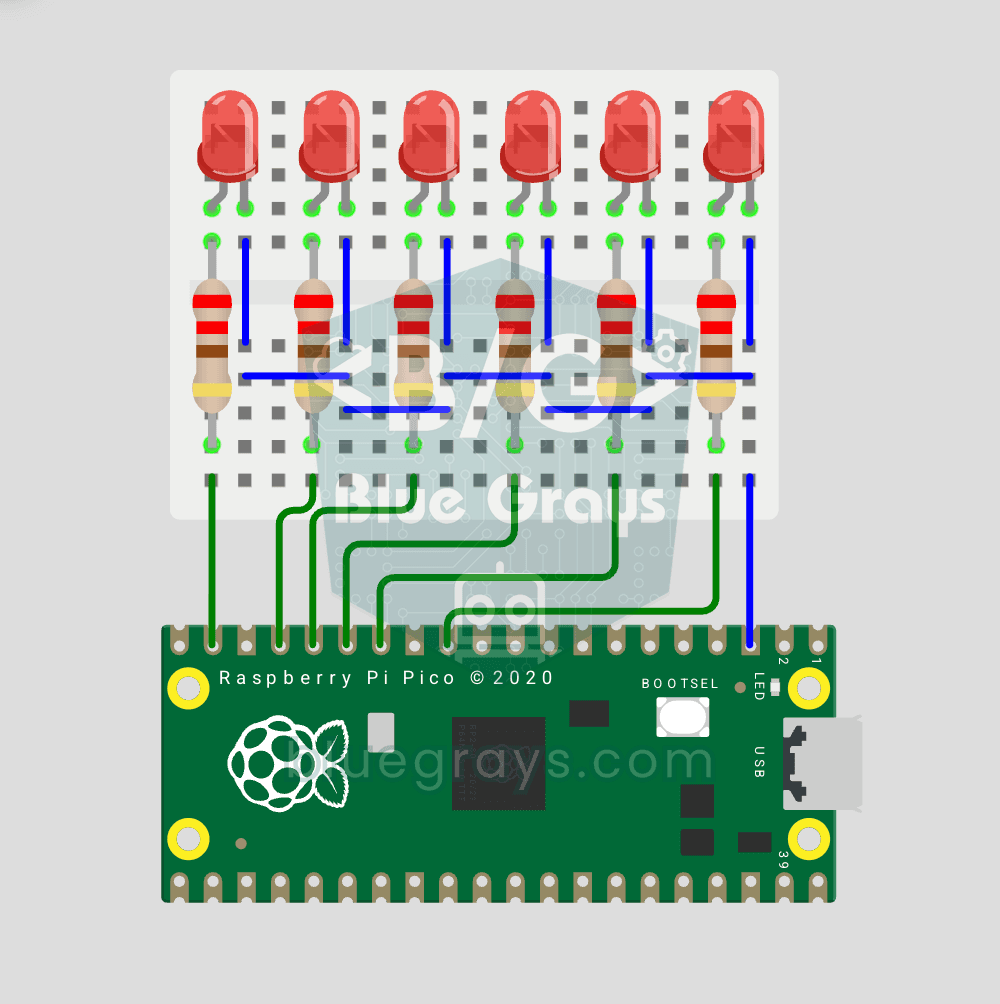 Raspberry Pi Pico Chasing LED (6 LEDs, GP14 → GP9)Classic "chasing LED" animation with Pico — 6 LED version! 🌊 6 LEDs light up left-to-right sequentially — like light walking down the row. Learn Python list, list comprehension ([Pin(p, Pin.OUT) for p in LED_PINS]), for loop with pin control and enumerate(). 6 LEDs on GP9-GP14, each with 220Ω current-limiting resistor. Very clean code: instead of defining 6 LEDs one by one, we use a list — even 100 LEDs would keep the code the same. Simulate on Wokwi or build in 5-7 minutes on breadboard. ChangeBeginner
 - 8
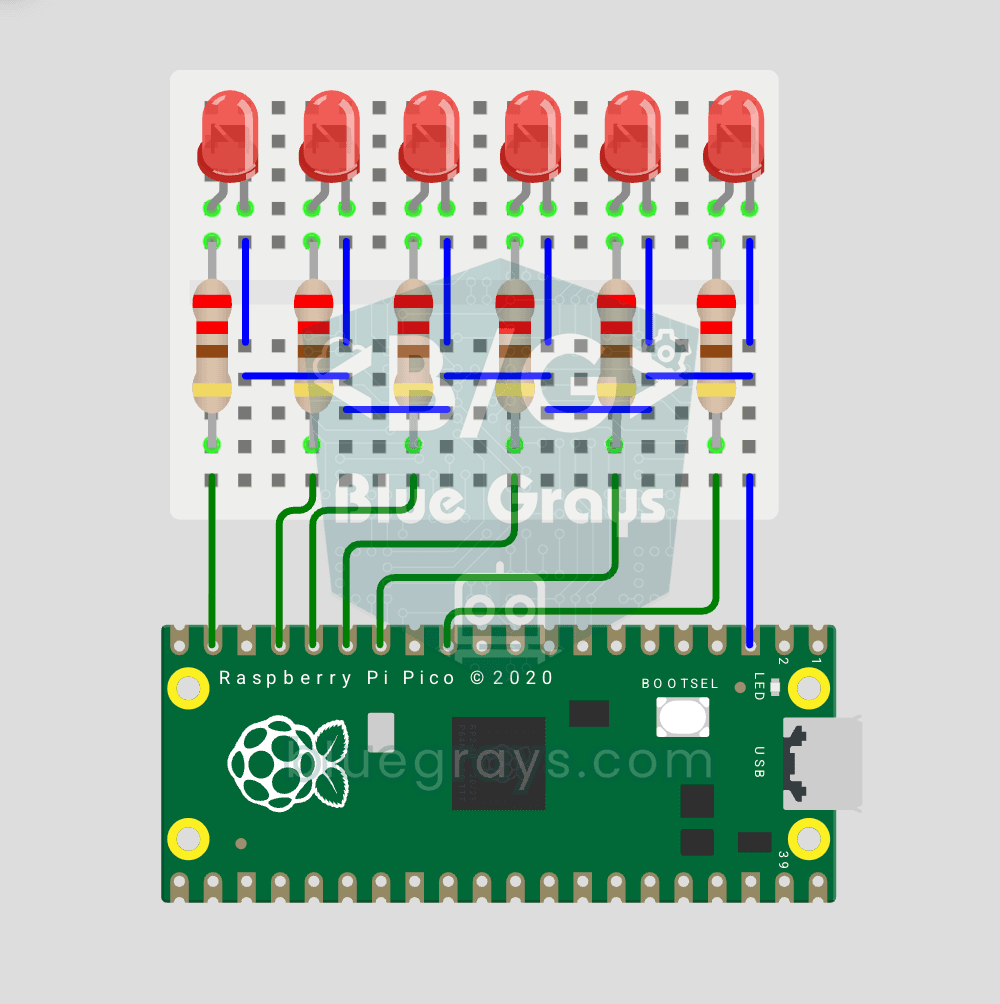 Raspberry Pi Pico Knight Rider LED Scanner (6 LED Back-Forth, GP9 ↔ GP14)Classic "Knight Rider" LED scanner effect with Pico! 🚗 6 LEDs go left-to-right, then right-to-left, forever. Like the front grille of KITT car from the iconic 80s TV series. This project is an upgrade of #153 Chasing LED — same 6 LED circuit (GP9-GP14), different code pattern. Learn `reversed()` function for list reversal, two separate `for` loops for back-and-forth pattern, and generating **multiple animations on same circuit**. Same hardware (6 LEDs, 6 × 220Ω resistors), completely different vBeginner
 - 9
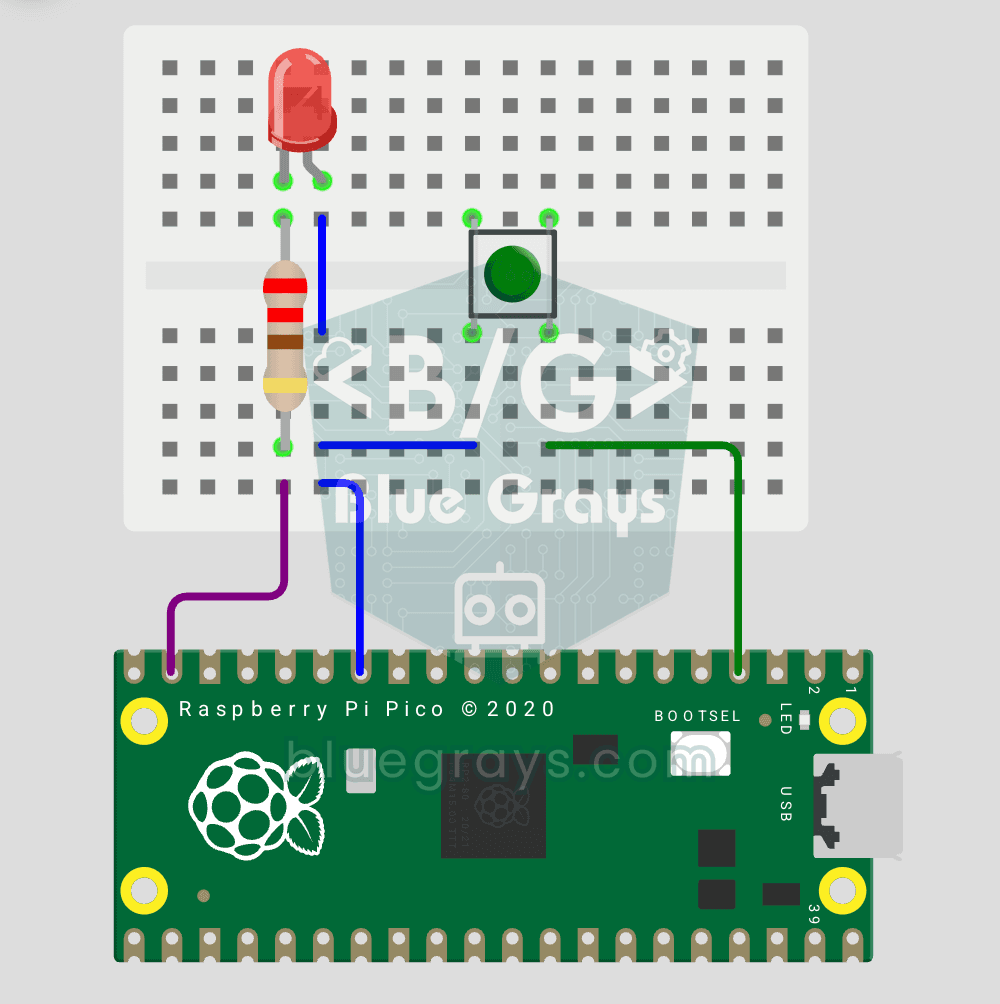 Raspberry Pi Pico Button Controlled LED (Push, GP14 + GP2)First **input** project with Pico — button read! 🔘 LED lights while button is pressed, off when released. This is the big step after LED animations: **signal input from the world to Pico**. Learn `Pin.IN` (input mode), `Pin.PULL_UP` (internal pull-up resistor — standard for buttons), `button.value()` reading. GP14 LED, GP2 button (internal PULL_UP). Pressed = LOW (0), released = HIGH (1) — reverse logic seems confusing at first but is industry standard.Beginner
 - 10
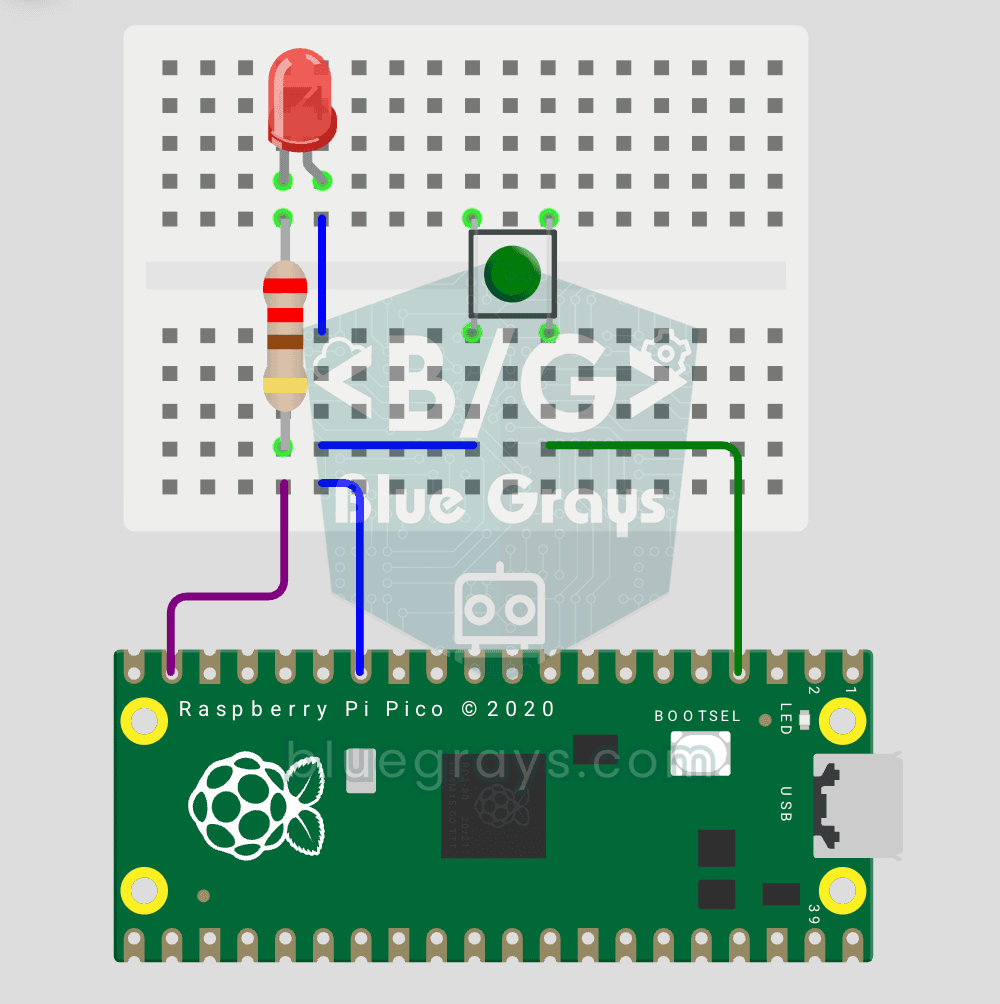 Raspberry Pi Pico Button Toggle LED (GP14 + GP2)Button + LED — next level! 🔁 Unlike #155, no need to hold the button. Press and release → LED on. Press and release again → LED off (toggle). Same circuit as #155 (LED GP14, Button GP2), but big code difference. Learn **edge detection** (capturing the 1→0 falling moment), **state tracking**, **debounce** (mechanical bounce filter). MicroPython's `led.toggle()` swaps state in one line. Foundation of all interactive button projects (mode switcher, IRQ, double-click).Beginner
Projects by difficulty
Beginner13 projects
Raspberry Pi Pico Onboard LED Blink (GP25 Built-in LED)
The opening project of the Raspberry Pi Pico series! We blink the onboard LED (green LED connected to GP25) to verify the board works — a classic "Hello World" first experiment. NO external components, just Pico and USB cable. Code is written in **MicroPython** (the official language backed by Raspberry Pi Foundation). Learn `machine.Pin` class, `Pin.OUT` mode, `led.on()/off()` methods, and `time.sleep()` in Thonny IDE. Follow every toggle live in the Serial (REPL) output. Also perfect to verify
Raspberry Pi Pico: Controlling an External LED (GP14 + Breadboard)
The next step after Pico’s built-in LED: connecting an external LED to the breadboard and controlling it via the GP14 pin. In this project, you’ll learn how to use any of the Pico’s general-purpose GPIO pins as an output, the LED’s polarity (long leg = anode/+, short leg = cathode/–), and why a current-limiting resistor (220Ω) is required. If you don’t include the resistor, excessive current will flow through the LED and it may burn out. The circuit is very simple: Pico GP14 → 220Ω resistor → LE
Raspberry Pi Pico Alternating Two LEDs (Blink-Flip Pattern, GP14 + GP13)
The next step after single LED on Pico: two LEDs blink alternately in a classic flip-flop pattern. When one turns off, the other lights up — the most basic example of multi-GPIO coordination. In this project two different color LEDs (red on GP14, green on GP13) swap states every 500ms. MicroPython's `Pin.toggle()` method makes the code short and clear. The same core logic is the foundation of traffic lights, police strobes, chasing LEDs and all multi-LED animations. Very simple circuit: 220Ω res
Raspberry Pi Pico Traffic Light Simulator (3 LEDs Sequential, GP11/GP12/GP13)
We simulate a real traffic light with red, yellow and green LEDs — the first 3-LED project of the Pico series! Green 4 sec "go", yellow 1.5 sec "ready", red 3 sec "stop" and red+yellow 1 sec "starting" (European traffic light pattern). Learn **function definition** (`def all_off()`), **state machine logic** (sequence) and **multi-GPIO synchronization**. Very simple circuit: 3 LEDs on GP11 (Green), GP12 (Yellow), GP13 (Red), each with a 220Ω current-limiting resistor. GP11-GP12-GP13 are ad
Raspberry Pi Pico Police Strobe Light Effect (Red + Blue, GP11 + GP12)
We simulate a police car's light bar with a Raspberry Pi Pico in its simplest form! 🚨 The red and blue LEDs take turns (flip-flop): while red is on, blue is off, and they swap every 0.3 seconds, forever. The code writes the two steps directly in a single `while True` loop; the speed is set with the `WAIT_MS` constant.
Raspberry Pi Pico 3-Burst Police Flip-Flop (2 LED GP11 + GP12)
Rhythmic variation of the police strobe project — 3-burst flip-flop! 🚨 Same 2 LED circuit as #151 (GP11 red + GP12 blue), but different pattern: red LED flashes 3 times rapidly, then blue flashes 3 times, forever. This "burst + switch" pattern is the most recognizable rhythm of real police siren lights. Learn parametrized function `def burst(led, count, duration_ms)`, rhythm design, and generating different visual effects with code on same circuit.
Raspberry Pi Pico Chasing LED (6 LEDs, GP14 → GP9)
Classic "chasing LED" animation with Pico — 6 LED version! 🌊 6 LEDs light up left-to-right sequentially — like light walking down the row. Learn Python list, list comprehension ([Pin(p, Pin.OUT) for p in LED_PINS]), for loop with pin control and enumerate(). 6 LEDs on GP9-GP14, each with 220Ω current-limiting resistor. Very clean code: instead of defining 6 LEDs one by one, we use a list — even 100 LEDs would keep the code the same. Simulate on Wokwi or build in 5-7 minutes on breadboard. Change
Raspberry Pi Pico Knight Rider LED Scanner (6 LED Back-Forth, GP9 ↔ GP14)
Classic "Knight Rider" LED scanner effect with Pico! 🚗 6 LEDs go left-to-right, then right-to-left, forever. Like the front grille of KITT car from the iconic 80s TV series. This project is an upgrade of #153 Chasing LED — same 6 LED circuit (GP9-GP14), different code pattern. Learn `reversed()` function for list reversal, two separate `for` loops for back-and-forth pattern, and generating **multiple animations on same circuit**. Same hardware (6 LEDs, 6 × 220Ω resistors), completely different v
Raspberry Pi Pico Button Controlled LED (Push, GP14 + GP2)
First **input** project with Pico — button read! 🔘 LED lights while button is pressed, off when released. This is the big step after LED animations: **signal input from the world to Pico**. Learn `Pin.IN` (input mode), `Pin.PULL_UP` (internal pull-up resistor — standard for buttons), `button.value()` reading. GP14 LED, GP2 button (internal PULL_UP). Pressed = LOW (0), released = HIGH (1) — reverse logic seems confusing at first but is industry standard.
Raspberry Pi Pico Button Toggle LED (GP14 + GP2)
Button + LED — next level! 🔁 Unlike #155, no need to hold the button. Press and release → LED on. Press and release again → LED off (toggle). Same circuit as #155 (LED GP14, Button GP2), but big code difference. Learn **edge detection** (capturing the 1→0 falling moment), **state tracking**, **debounce** (mechanical bounce filter). MicroPython's `led.toggle()` swaps state in one line. Foundation of all interactive button projects (mode switcher, IRQ, double-click).
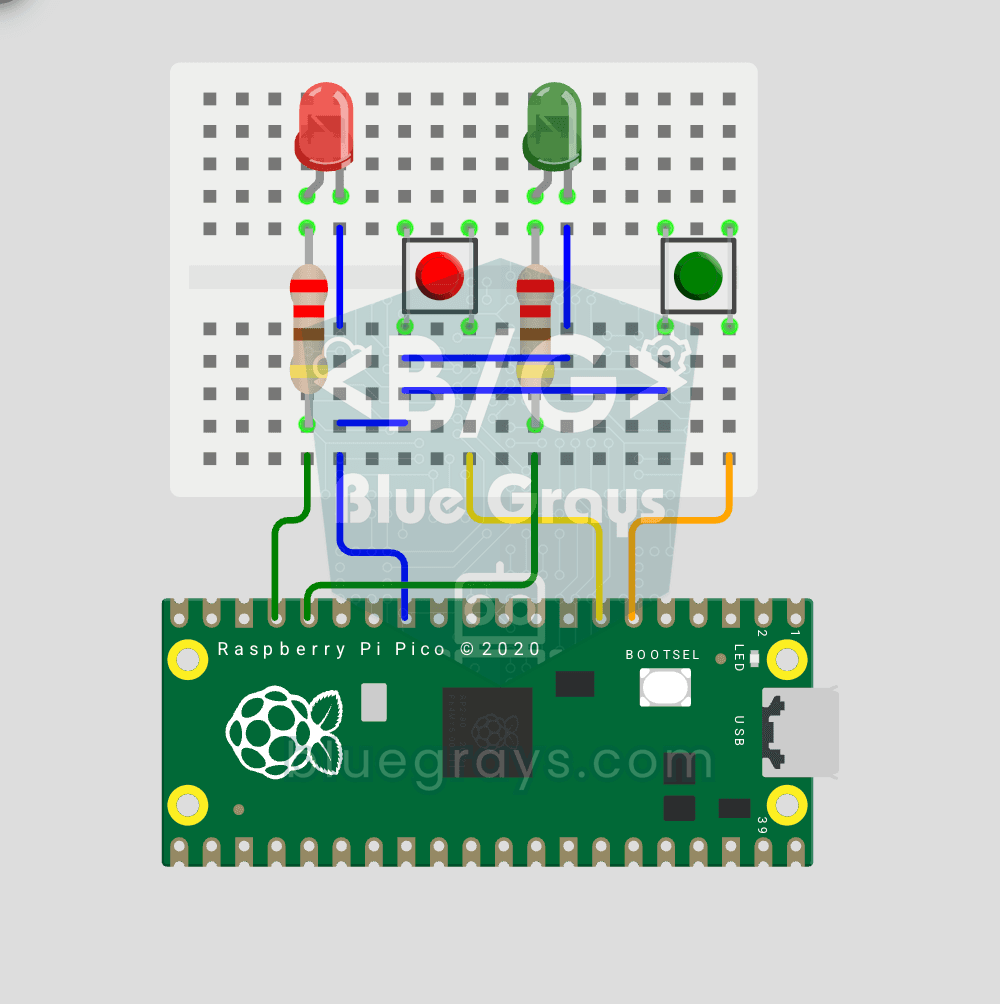
Raspberry Pi Pico: Independent Control of 2 LEDs Using 2 Buttons (GP12-13 + GP4-5)
2 buttons, 2 LEDs — completely independent of each other! 🔴🟢 Each button controls its own LED: When BTN1 is pressed, the red LED turns on; when BTN2 is pressed, the green LED turns on. If you press both at the same time, both LEDs turn on (parallel operation). Learning: **multi-pin object management** (simultaneous handling of multiple inputs/outputs), **ternary operator** (`1 if x else 0` — Python’s compact if-else), **independent I/O control** (parallel operation logic), **GPIO map** (classic
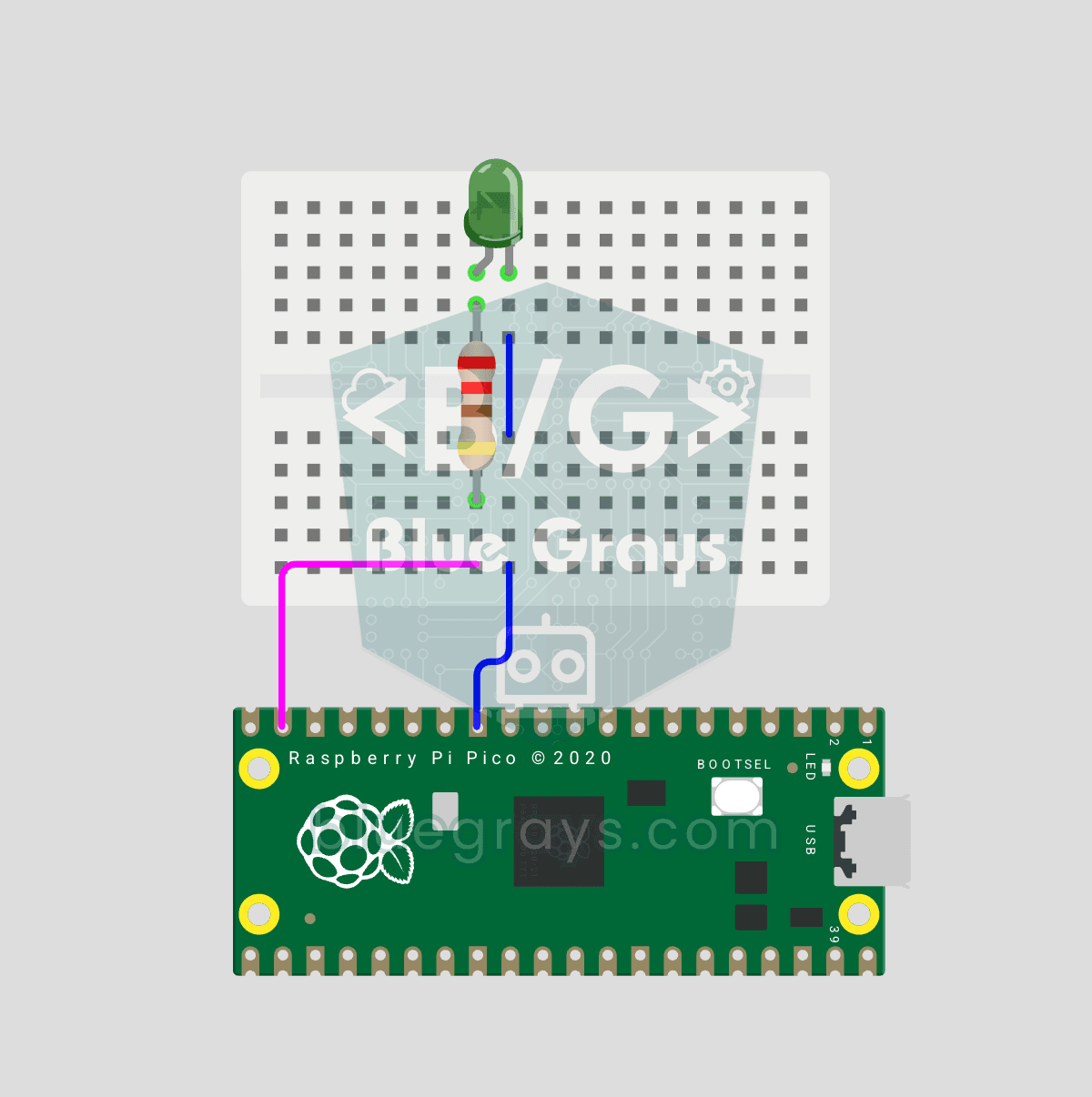
Raspberry Pi Pico PWM LED Fade (Breathing Effect, GP14)
The LED no longer just blinks — it breathes! 🌬️ Using the Raspberry Pi Pico's **PWM** (Pulse Width Modulation), the LED brightness slowly rises and then slowly falls, like a sleeping MacBook's light. Learn the **machine.PWM class**, **duty_u16()** (16-bit brightness 0–65535), **PWM frequency** (`freq(1000)` — 1000 on/off cycles per second, no visible flicker), **range() step loops** (up and down) and **analog-like output** from a digital pin. PWM is a core embedded tool — RGB color mixing, motor
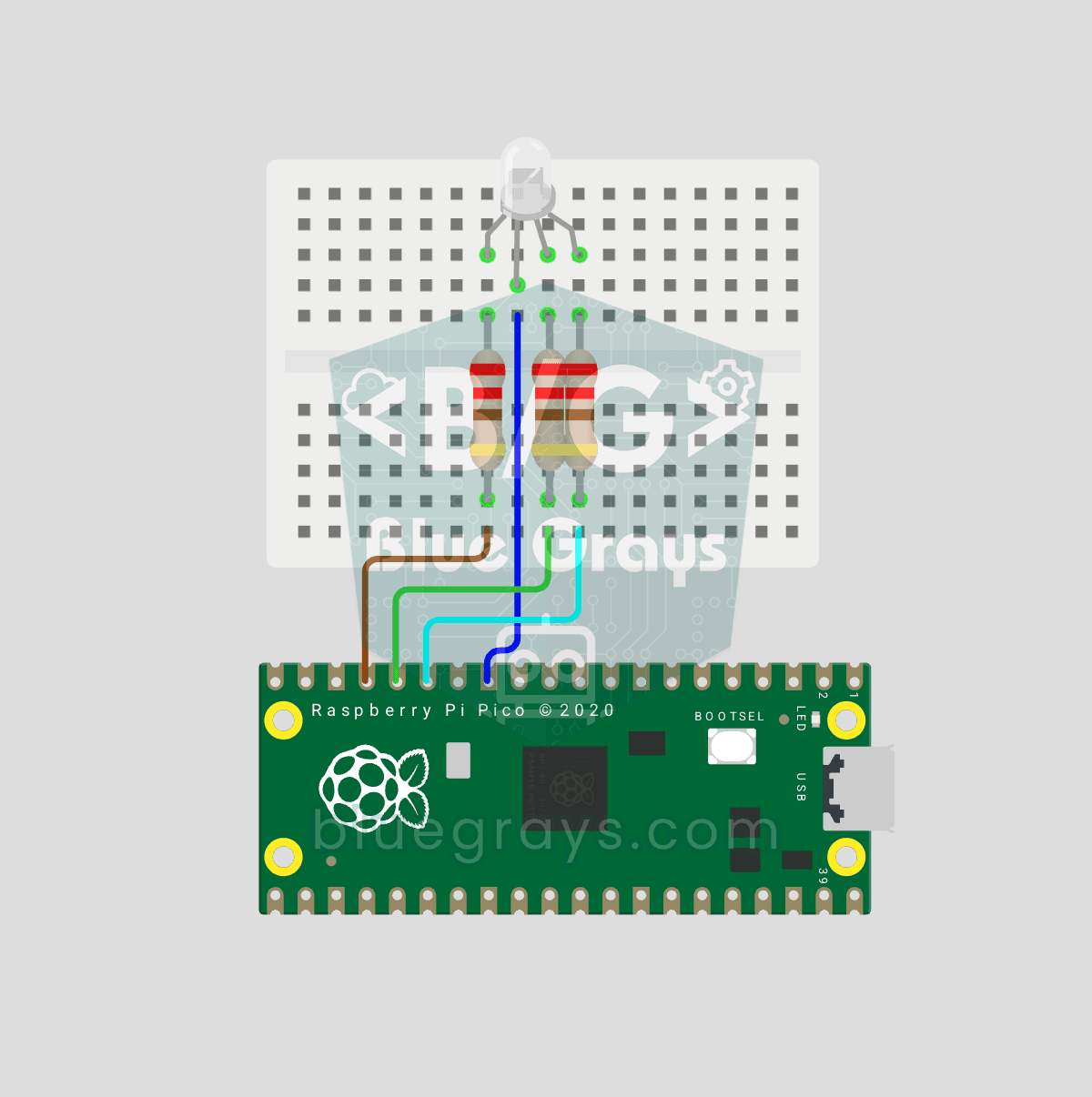
Raspberry Pi Pico RGB LED Color Cycle (3-Channel PWM, GP11-13)
One LED, millions of colors! 🌈 An RGB LED actually contains 3 LEDs: **red, green and blue**. Driving each with its own Pico **PWM** channel mixes the colors: red + green = yellow, green + blue = cyan, all three = white. Here the LED cycles through 8 colors. Learn **multiple PWM channels**, **defining functions** (`def set_color(...)`), **RGB color mixing** (how screens and smart bulbs work), **8-bit → 16-bit conversion** (`x257` maps 0–255 to 0–65535), **common cathode vs common anode** LEDs
Intermediate2 projects
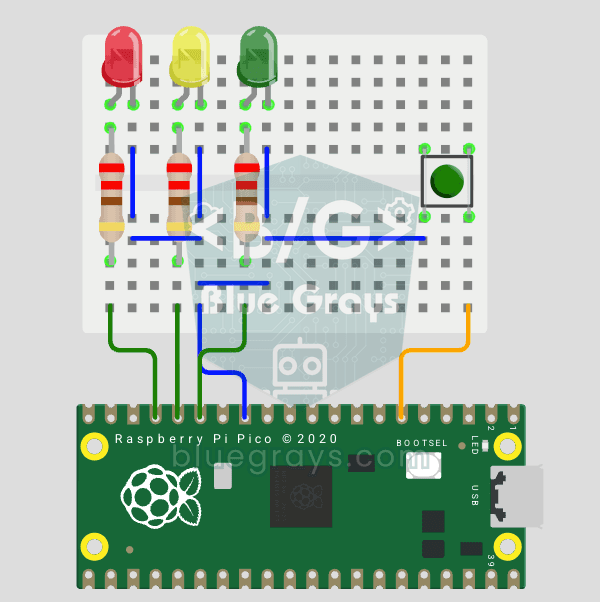
Raspberry Pi Pico Traffic Light with 4-Mode Button Selector (State Machine, GP11-13 + GP4)
4 different traffic light modes with just 1 button! 🚦 The mode changes with each press of the button: **Normal cycle** (red → yellow → green in sequence), **Red Only** (stop signal), **Yellow Flash** (caution/night mode), **Off** (maintenance). Concepts: **state machine** (the `mode` variable determines which behavior runs), **modulo mode cycling** (`(mode + 1) % 4` → 0→1→2→3→0 infinite loop), **non-blocking timing** (`time.ticks_ms()` + `ticks_diff()` instead of `time.sleep()` — the code does n
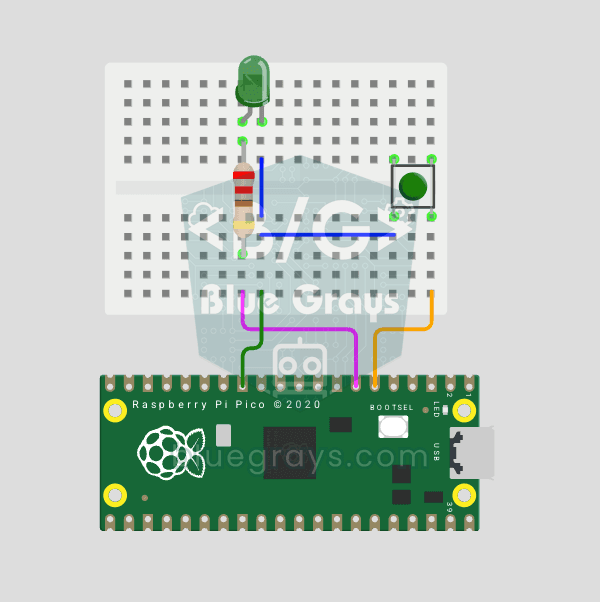
Raspberry Pi Pico Button Debounce: IRQ vs Software Polling (GP5 + GP4)
Press a button once, code counts 3-4? That is **contact bounce** — metal contacts oscillate for microseconds! 🔁 Compare 2 counting methods side-by-side in Serial: **RAW polling** (catches bounce, over-counts) vs **IRQ + software debounce** (accurate). Learn contact bounce physics, software debounce (`ticks_diff() > 50ms`), **Pin.irq()** interrupt registration, **IRQ_FALLING** trigger, ISR handlers, `global` + ISR safety. LED toggles via IRQ (visual feedback). Serial shows both counters per press
Projects by category
LED and light projects(15)
- Raspberry Pi Pico Onboard LED Blink (GP25 Built-in LED)
- Raspberry Pi Pico: Controlling an External LED (GP14 + Breadboard)
- Raspberry Pi Pico Alternating Two LEDs (Blink-Flip Pattern, GP14 + GP13)
- Raspberry Pi Pico Traffic Light Simulator (3 LEDs Sequential, GP11/GP12/GP13)
- Raspberry Pi Pico Police Strobe Light Effect (Red + Blue, GP11 + GP12)
- Raspberry Pi Pico 3-Burst Police Flip-Flop (2 LED GP11 + GP12)
- Raspberry Pi Pico Chasing LED (6 LEDs, GP14 → GP9)
- Raspberry Pi Pico Knight Rider LED Scanner (6 LED Back-Forth, GP9 ↔ GP14)
- Raspberry Pi Pico Button Controlled LED (Push, GP14 + GP2)
- Raspberry Pi Pico Button Toggle LED (GP14 + GP2)
- Raspberry Pi Pico: Independent Control of 2 LEDs Using 2 Buttons (GP12-13 + GP4-5)
- Raspberry Pi Pico Traffic Light with 4-Mode Button Selector (State Machine, GP11-13 + GP4)
- Raspberry Pi Pico Button Debounce: IRQ vs Software Polling (GP5 + GP4)
- Raspberry Pi Pico PWM LED Fade (Breathing Effect, GP14)
- Raspberry Pi Pico RGB LED Color Cycle (3-Channel PWM, GP11-13)
Parts and tools
The parts used most often in these projects, calculators that help while you build, and step-by-step guides.
Common components
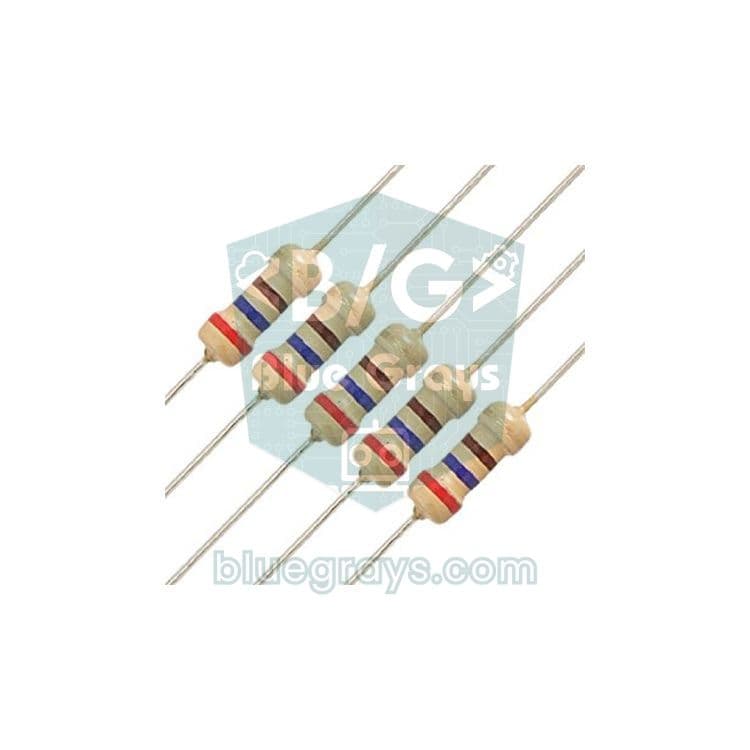
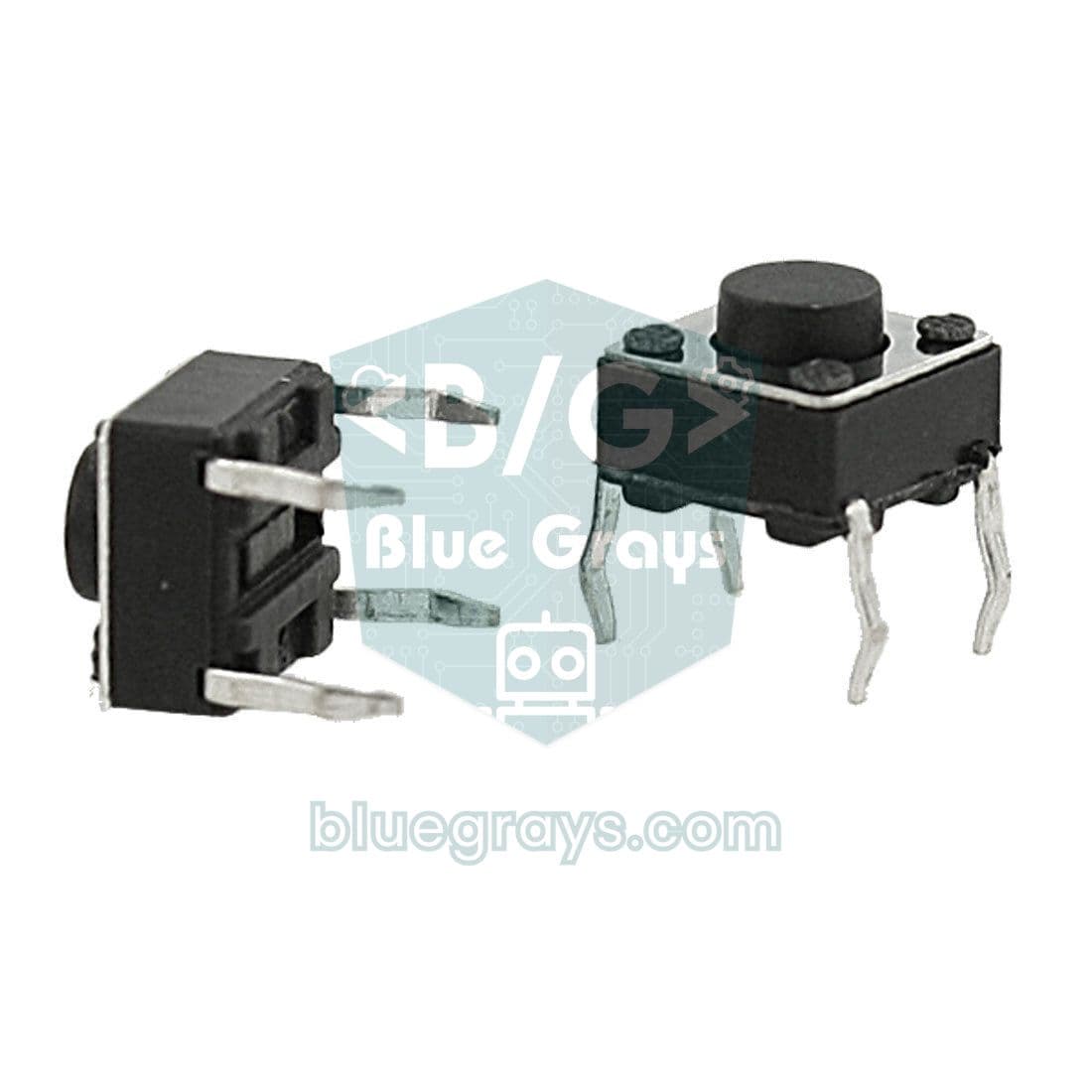
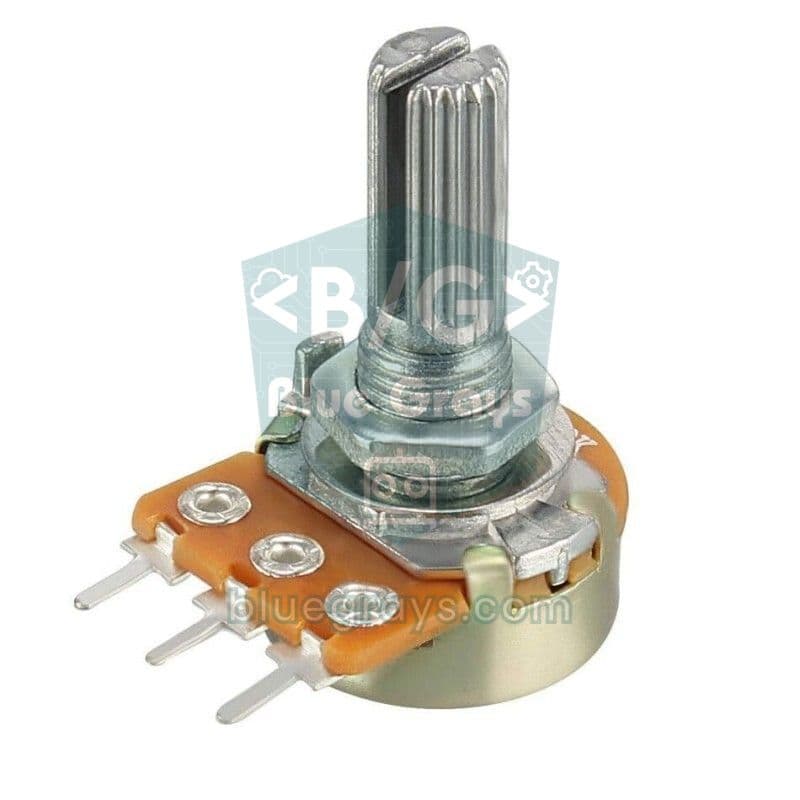
Guides
- What Is the Raspberry Pi Pico? MicroPython Setup, Pinout and First Projects
- What Is PWM? A Guide to analogWrite, Duty Cycle and Frequency on Arduino
- How to Connect a Push Button to Arduino: Pull-up, Pull-down and Debounce
- What Is a Potentiometer? Analog Reading and Control with Arduino
- What Is a Resistor? Color Codes, Ohm's Law and Using Resistors with Arduino
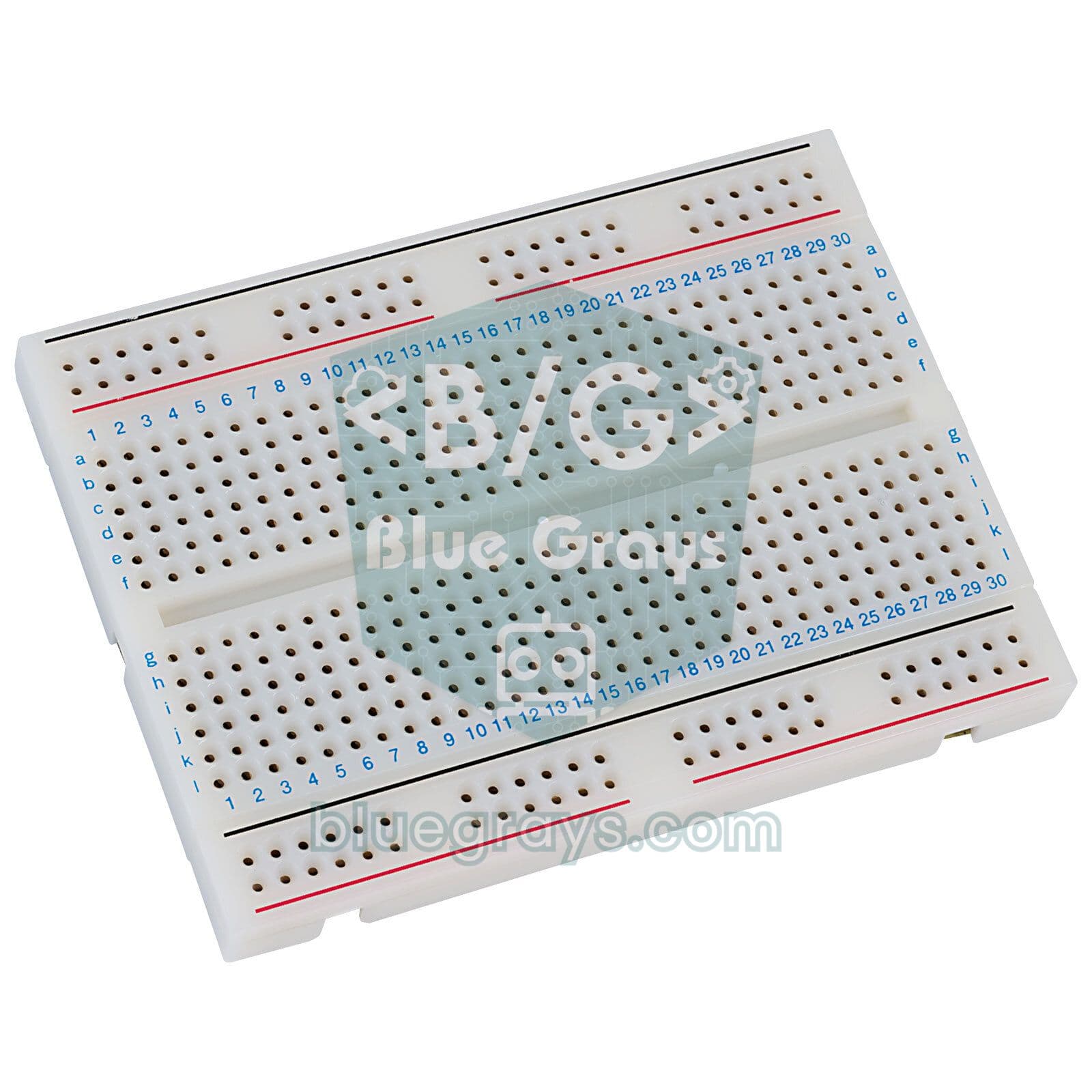
- What Is a Breadboard? Internal Connections and How to Use It Properly
Frequently asked questions
What is the difference between a Raspberry Pi Pico and a Raspberry Pi?
A Raspberry Pi 4 or 5 is a small computer running Linux. The Pico is a microcontroller with no operating system: it runs a single program, starts instantly and uses very little power. For reading sensors and controlling LEDs and motors, the Pico is the better fit.
How do I install MicroPython on a Raspberry Pi Pico?
Hold the BOOTSEL button and plug the Pico into USB; a drive called RPI-RP2 appears. Drag the MicroPython UF2 file onto it, or install MicroPython from the interpreter settings in Thonny. The board restarts and is ready for code.
What is the difference between the Pico and the Pico W?
The Pico W has the same RP2040 chip plus Wi-Fi and Bluetooth. The pinout is the same. The one practical difference is the onboard LED: on the Pico it is on GP25, on the Pico W you use it as “LED” in code.
Can the Raspberry Pi Pico be programmed with the Arduino IDE?
Yes, after adding an RP2040 board package to the Arduino IDE you can program it in C/C++. The projects on this page use MicroPython because the code runs without compiling and is easier for beginners to read.
Does the Pico work with 5 V sensors?
Pico GPIO pins are 3.3 V and are not 5 V tolerant. You can power a 5 V sensor from the VBUS pin, but bring its output signal down to 3.3 V with a voltage divider or a level shifter.
Which project should I start with on the Raspberry Pi Pico?
Blinking the onboard LED needs no extra parts and is the best start. Then continue with reading a button, dimming an LED with PWM and reading the built-in temperature sensor.