
How to Use a Joystick Module: Reading the X-Y Axes and Button with Arduino
How does an analog joystick module (KY-023) work? VRx, VRy and SW pins, Arduino wiring, dead zone and calibration, direction detection, servo control with a joystick, ESP32 and Pico code.
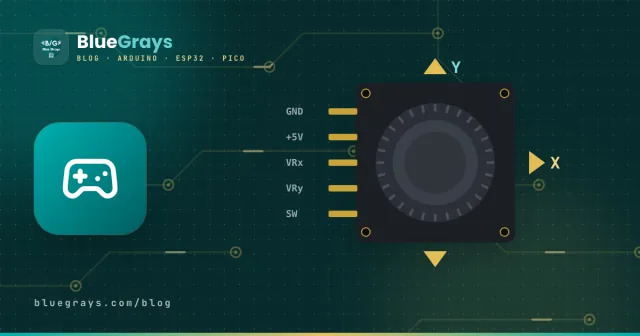
A joystick module is the Arduino-friendly version of the thumbsticks you see on game controllers. As you move the stick left-right and forward-back, it reports its position on two axes, and when you press down on the stick a button inside it is triggered. It's the most practical input for robot car remotes, pan-tilt camera mounts, LED matrix games and display menus. The most common model is also known as the KY-023.
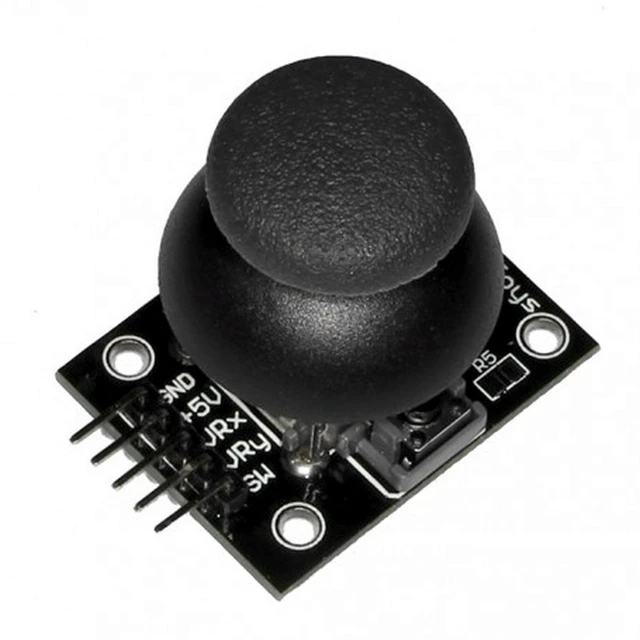
How does a joystick module work?
Under the stick there are two 10 kΩ potentiometers set at right angles to each other: one senses movement on the X axis, the other on the Y axis. Each potentiometer acts as a voltage divider; with the stick centred, its wiper gives about 2.5 V and analogRead() reads about 512. Push the stick to one end and the value approaches 0; push it to the other and it approaches 1023. Press down on the stick and a small button connects the SW pin to GND.
| Stick position | VRx (X) | VRy (Y) |
|---|---|---|
| Centre (released) | ~512 | ~512 |
| Fully left | ~0 | ~512 |
| Fully right | ~1023 | ~512 |
| Fully up | ~512 | ~0 |
| Fully down | ~512 | ~1023 |
Which direction gives 0 and which gives 1023 depends on how you hold the module. If the directions differ from this table when the pins face you, don't worry; you can easily flip an axis in code by subtracting the value from 1023.
Joystick pinout and wiring
| Pin | Function | Arduino Uno | ESP32 | Raspberry Pi Pico |
|---|---|---|---|---|
| GND | Ground | GND | GND | GND |
| +5V | Power | 5V | 3V3 | 3V3 |
| VRx | X axis (analog) | A0 | GPIO 34 | GP26 |
| VRy | Y axis (analog) | A1 | GPIO 35 | GP27 |
| SW | Button (to GND when pressed) | D2 | GPIO 25 | GP15 |
Reading a joystick with Arduino
The code below reads both axes and the button and prints them to the Serial Monitor. Because the button connects to GND when pressed and most modules have no pull-up resistor, the SW pin must be set as INPUT_PULLUP; that way it reads HIGH when released and LOW when pressed.
1const int X_PIN = A0;
2const int Y_PIN = A1;
3const int SW_PIN = 2;
4
5void setup() {
6  pinMode(SW_PIN, INPUT_PULLUP);   // basınca LOW / LOW when pressed
7  Serial.begin(9600);
8}
9
10void loop() {
11  int x = analogRead(X_PIN);       // 0–1023, ortada ~512 / ~512 at center
12  int y = analogRead(Y_PIN);
13  bool pressed = digitalRead(SW_PIN) == LOW;
14
15  Serial.print("X: ");  Serial.print(x);
16  Serial.print("  Y: "); Serial.print(y);
17  Serial.print("  Buton / button: ");
18  Serial.println(pressed ? "basılı / pressed" : "-");
19  delay(100);
20}Dead zone and calibration
In real life the value isn't exactly 512 when the stick is released; it reads something like 495 or 525 and jitters by a few units. If you don't correct this, your robot car creeps forward or the servo twitches even though you aren't touching the joystick. The fix has two steps: measure and store the centre value at startup (calibration) and ignore small deviations close to the centre (a dead zone). The function below turns each axis into a clean value from -100 to +100 with the centre at exactly 0:
1int centerX, centerY;
2const int DEAD_ZONE = 40;
3
4int readAxis(int pin, int center) {
5  int v = analogRead(pin) - center;
6  if (abs(v) < DEAD_ZONE) return 0;                              // ölü bölge / dead zone
7  if (v > 0) return map(v, DEAD_ZONE, 1023 - center, 0, 100);    // sağ ya da aşağı / right or down
8  return map(v, -center, -DEAD_ZONE, -100, 0);                   // sol ya da yukarı / left or up
9}
10
11void setup() {
12  Serial.begin(9600);
13  centerX = analogRead(A0);   // açılışta joystick'e dokunma / don't touch it at startup
14  centerY = analogRead(A1);
15}
16
17void loop() {
18  Serial.print(readAxis(A0, centerX));
19  Serial.print(", ");
20  Serial.println(readAxis(A1, centerY));
21  delay(50);
22}
Detecting directions: up, down, left, right
In games and menus you often need only the direction, not the exact position. By comparing the values against two thresholds you can turn the joystick into a four-way direction pad. For menu navigation you want each push to count as a single step, so the code uses a short delay, or ignores new steps until the stick returns to the centre.
1void loop() {
2  int x = analogRead(A0);
3  int y = analogRead(A1);
4  if (x < 300)      Serial.println("Sol / left");
5  else if (x > 700) Serial.println("Sağ / right");
6  else if (y < 300) Serial.println("Yukarı / up");
7  else if (y > 700) Serial.println("Aşağı / down");
8  delay(150);
9}
Controlling a servo motor with a joystick
By mapping one joystick axis to 0–180 degrees you can steer a servo motor by hand; with two axes and two servos you get a pan-tilt mount that turns a camera left-right and up-down. For servo wiring and power warnings, see What Is a Servo Motor?
1#include <Servo.h>
2
3Servo panServo;
4
5void setup() {
6  panServo.attach(9);
7}
8
9void loop() {
10  int x = analogRead(A0);
11  int angle = map(x, 0, 1023, 0, 180);   // joystick → açı / joystick → angle
12  panServo.write(angle);
13  delay(15);
14}
Joysticks with the ESP32 and Raspberry Pi Pico
The ESP32's ADC is 12-bit and gives values from 0 to 4095, but because the ADC isn't linear, the centre value often comes out around 1800–1950 rather than 2048. That makes the calibration method above even more important on the ESP32. If you'll use Wi-Fi, connect the axes to ADC1 pins (GPIO 32–39). On the Pico the analog inputs are GP26–GP28, and read_u16() returns values from 0 to 65535:
1from machine import ADC, Pin
2import time
3
4x_axis = ADC(26)                        # GP26 → VRx
5y_axis = ADC(27)                        # GP27 → VRy
6button = Pin(15, Pin.IN, Pin.PULL_UP)   # SW, basınca 0 / 0 when pressed
7
8while True:
9    x = x_axis.read_u16()               # 0–65535, ortada ~32768 / ~32768 at center
10    y = y_axis.read_u16()
11    print(x, y, "BASILI / PRESSED" if button.value() == 0 else "")
12    time.sleep(0.1)
Joystick project ideas
- Robot car remote: connect the joystick to a transmitter board and send commands to the car over an nRF24L01 or Bluetooth.
- Pan-tilt camera: point a camera in any direction with two servos and one joystick.
- Snake on an LED matrix: steer the snake on an 8x8 matrix with the joystick.
- Display menu: move through options with up and down and select with the button; for the display side see Using an I2C LCD Display.
- Color picker: control an RGB LED by setting the color with the X axis and the brightness with the Y axis.
- Computer mouse: turn the joystick into a real USB mouse with an Arduino Leonardo or Pro Micro.
Common mistakes and how to fix them
- The button looks pressed when it isn't: the SW pin isn't INPUT_PULLUP; the pin is floating, so it reads random values.
- The value isn't 512 at rest and jitters: this is normal; calibrate at startup and add a dead zone.
- The axes are reversed or swapped: it comes down to the module's orientation; subtract the value from 1023 or swap the VRx and VRy wires.
- The centre isn't 2048 on the ESP32: the ESP32's ADC isn't linear; measure the centre at startup and calculate from that.
- The servo jitters or the Arduino resets: the servo is overloading the Arduino's 5 V; power the servo from a separate 5 V supply and connect the grounds together.
A joystick is really just two potentiometers and a button, so What Is a Potentiometer? and How to Connect a Push Button to Arduino reinforce what you've learned here. In the BlueGrays app you'll find joystick LED and servo control projects and an LED matrix snake game, with circuit diagrams and code.
Frequently asked questions
What do the joystick module's pins do?
GND and +5V are the power pins. VRx and VRy give the position on the X and Y axes as an analog voltage and connect to analog pins. SW is the button output, which connects to GND when you press the stick, and goes to a digital pin set as INPUT_PULLUP.
Why doesn't my joystick read exactly 512 when centred?
Potentiometers and mechanical parts aren't perfect; at rest the value usually sits somewhere between 490 and 530 and jitters by a few units. Measuring and storing the centre value at startup and using a dead zone of ±30–50 solves the problem.
Why does the SW pin randomly flip between LOW and HIGH?
Most joystick modules have no pull-up resistor for the button, so the pin floats as if it were disconnected. Enable the Arduino's internal pull-up with pinMode(SW_PIN, INPUT_PULLUP) and you'll read HIGH when released and LOW when pressed.
How many servos can I control with one joystick?
A joystick has two axes, so you can control two servos independently, which is ideal for a pan-tilt camera. For more servos you add a second joystick; the Arduino Uno's 6 analog pins are enough for up to three joysticks.
Can I use a joystick as a wireless remote?
Yes. Connect the joystick to one Arduino and send its values to another board with an nRF24L01 radio module, an HC-05 Bluetooth module, or ESP-NOW between two ESP32s. Most robot car and remote-control projects are built this way.
Does the joystick module work with the ESP32 and Raspberry Pi Pico?
Yes, but you should power it from the 3V3 pin. Values range from 0 to 4095 on the ESP32 and from 0 to 65535 on the Pico. On the ESP32 use ADC1 pins (GPIO 32–39), which work while Wi-Fi is on, and calibrate the centre value at startup.
Projects to build after reading this
See all projects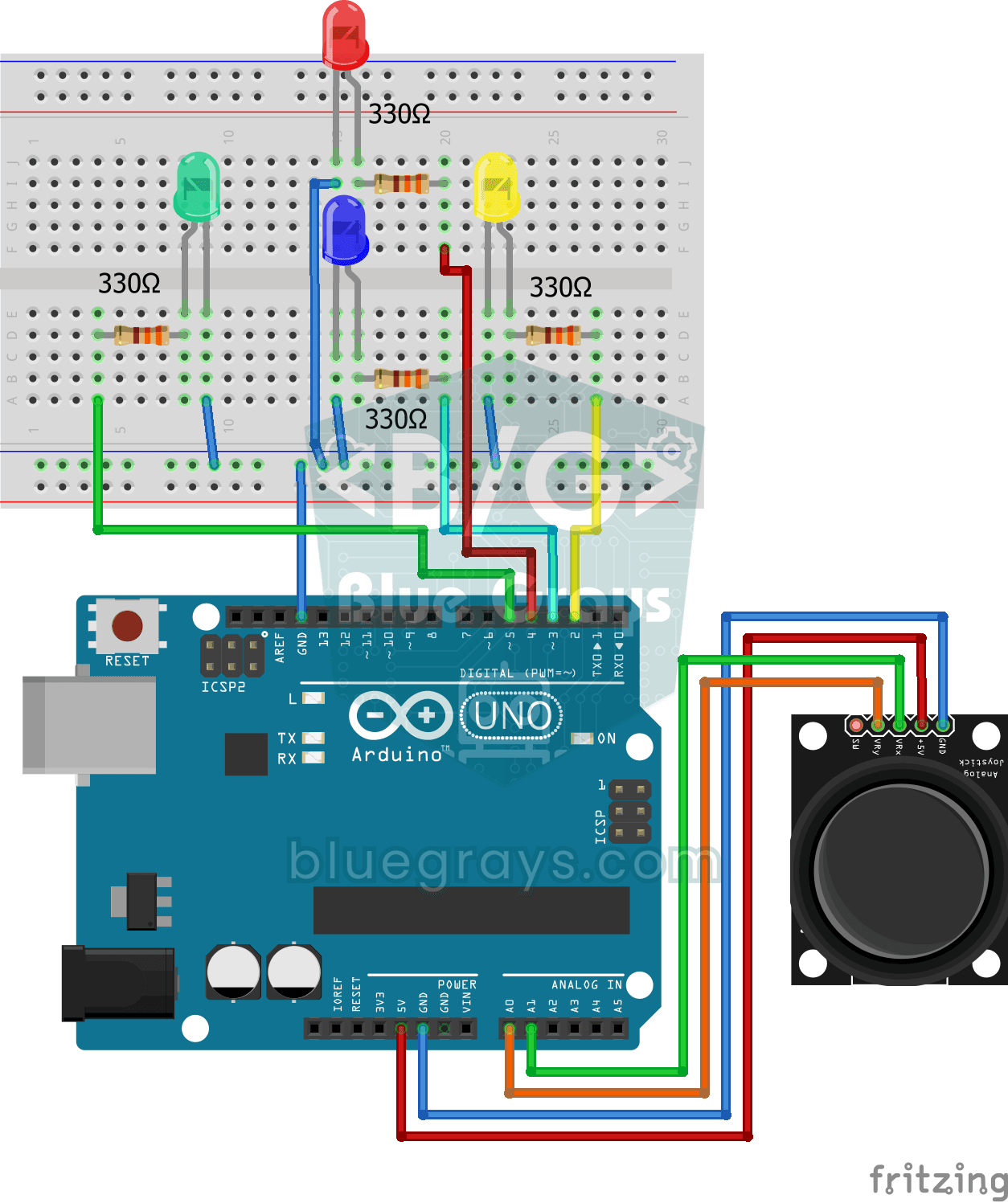
Led Control with Joystick
Control project that lights LEDs in 4 different directions according to the X and Y axis values of the joystick module. Teaches analog joystick reading and direction detection logic.
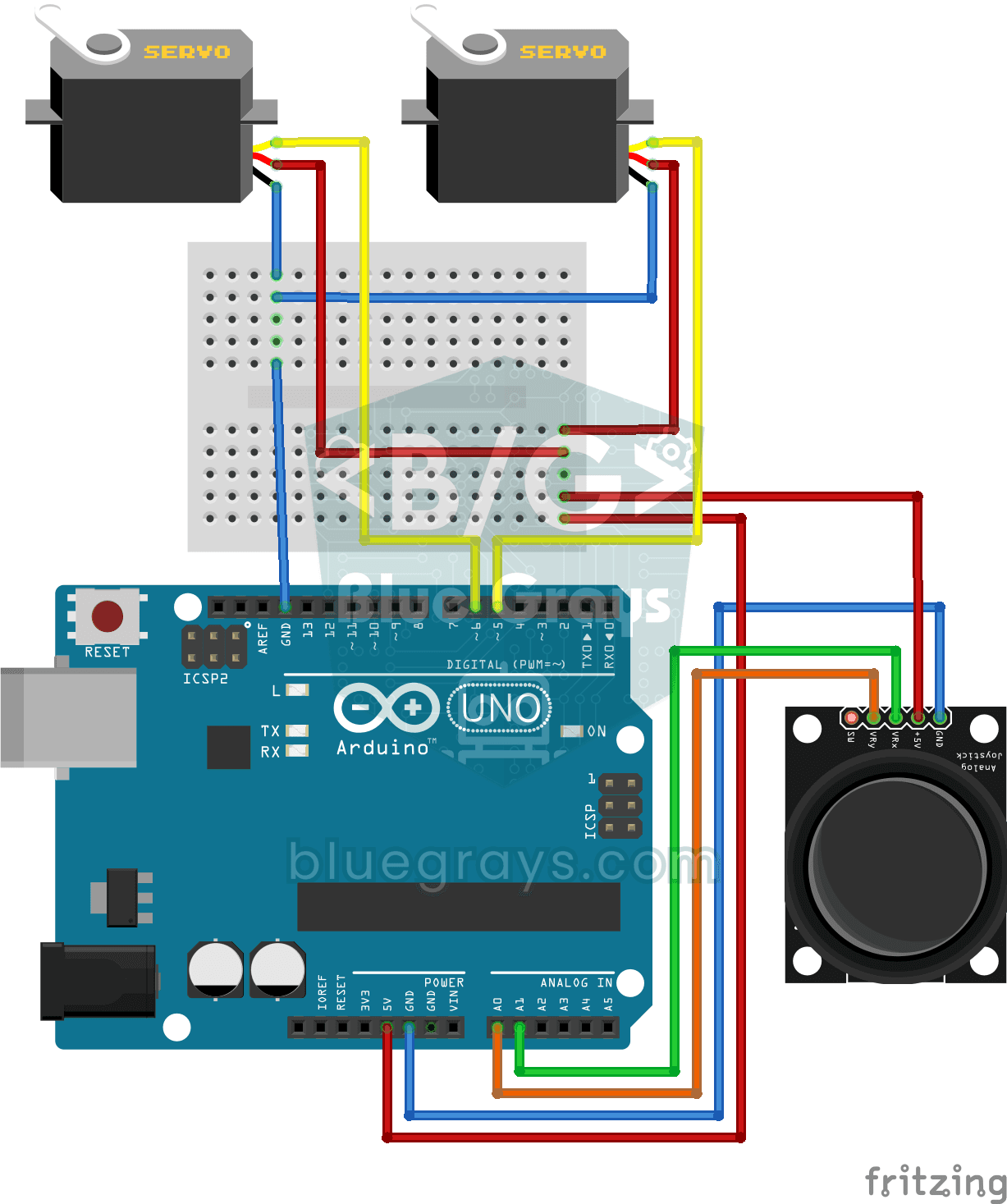
Servo Control with Joystick
Pan-tilt project that independently controls two servo motors in X and Y axes with joystick module. Teaches the logic of joystick-servo integration and position tracking.

Pixel Snake 8x8 Matrix
Arduino-based hardware snake game using an 8x8 WS2812B NeoPixel LED matrix and analog joystick. It includes a dynamic speed algorithm and mathematical collision controls specially calibrated for the l

Matrix Snake 16x16
It is a 256-pixel extended hardware port of the classic snake game running on a 16x16 WS2812B NeoPixel matrix. In this project controlled by Arduino and analog joystick, X/Y plane management is provid

ESP32 Servo Motor (Potentiometer Control)
In this project, we control an SG90 servo motor using a potentiometer. We adjust the servo angle by mapping the analog value read from the potentiometer to the 0–180-degree range. Thanks to the ESP32Servo library, any GPIO pin on the ESP32 can generate a PWM signal. This is a fundamental control method for robotic arms, camera gimbals, and automatic door mechanisms.

Pong Game - SSD1306
The classic Pong game built using Arduino and SSD1306 OLED display, equipped with an autonomous artificial intelligence (CPU) opponent that instantly tracks the ball's movements and reacts according t

OLED T-Rex Run: Arduino Dinosaur Game 🦖
We brought the legendary "No Internet" dinosaur game to hardware! Turn the excitement of retro gaming into a physical mini console with this project we developed using Arduino, OLED display (SH1106/SS

Arduino LCD Runner Game
Side scrolling endless runner game running on 6x2 character LCD screen. Hero runs automatically, player jumps over obstacles by pressing the button. Random obstacles appear on the top and bottom row. Passive buzzer plays opening melody, jumping sound, 50 point celebration sound and end of game melody. "BlueGrays - Arduino Projects" splash screen is shown on startup. The score is updated instantly in the upper right corner of the screen.
More articles
Learn to read the two potentiometers and the button inside a joystick, fix centre drift with a dead zone, detect directions and control a servo motor with a joystick.