
How to Use an OLED Display (SSD1306): Text, Shapes and Graphics with Arduino
How do you use a 0.96-inch I2C OLED display (SSD1306)? Wiring and I2C address (0x3C), the Adafruit SSD1306 and GFX libraries, drawing text, shapes, sensor values and bitmaps, plus ESP32 and Pico MicroPython code.
Although it's barely bigger than a fingertip, the 0.96-inch OLED display shows a sharp 128×64-pixel image and is one of the most popular displays for Arduino projects. Unlike character LCDs, it can draw not only letters but lines, circles, icons, graphs and even small games. It's ideal for smartwatches, weather stations, remotes and portable measuring devices. Almost all of these displays use a driver chip called the SSD1306 and connect with just two data wires (I2C).
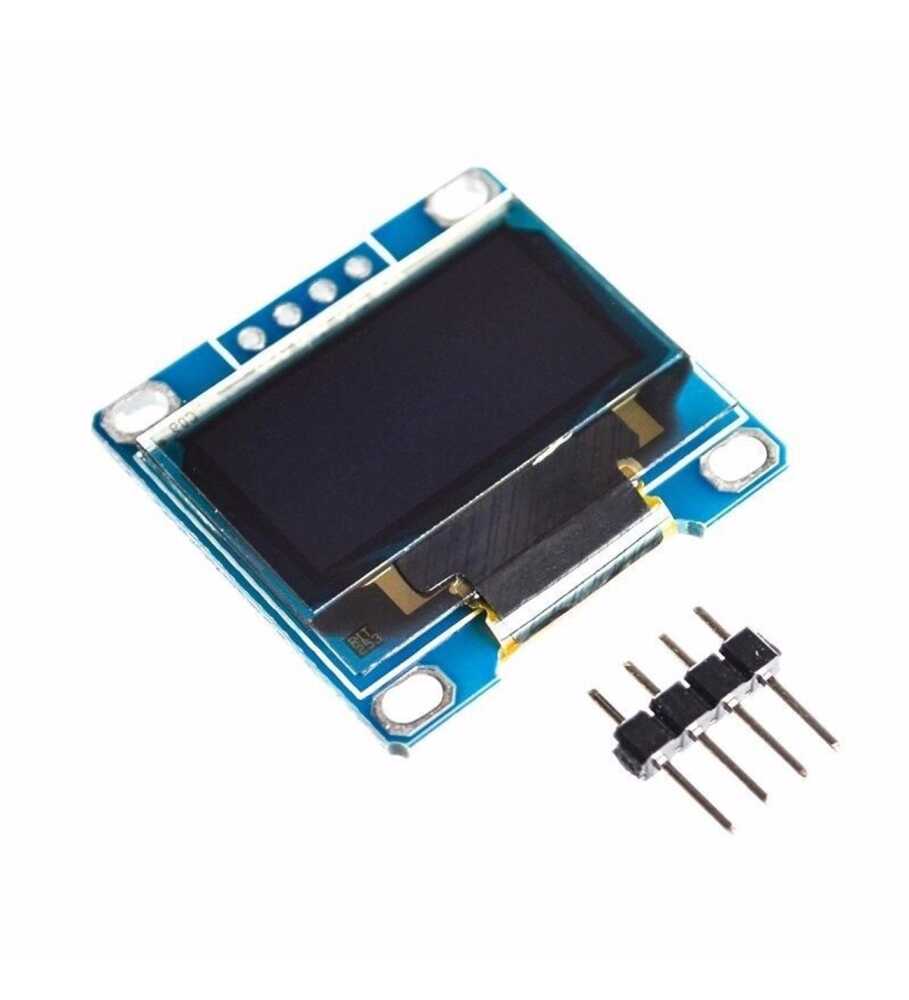
What is an OLED, and how is it different from an LCD?
In an OLED (Organic Light Emitting Diode) display, every pixel produces its own light; there's no backlight. That's why black areas are truly black, contrast is very high, the screen looks sharp from every angle, and it uses very little power when most of the image is dark. Its 128×64 pixels make graphics, icons and drawings possible that character-based LCDs can't show.
| Feature | 0.96" OLED | 0.91" OLED | 16x2 LCD |
|---|---|---|---|
| Resolution | 128×64 pixels | 128×32 pixels | 16×2 characters |
| Graphics and icons | Yes | Yes | No (characters only) |
| Backlight | Not needed | Not needed | Needed |
| Connection | I2C (SPI versions also exist) | I2C | 4 wires with an I2C module |
| In sunlight | Hard to read | Hard to read | Easier to read |
Specifications
| Feature | Value |
|---|---|
| Driver chip | SSD1306 |
| Screen | 0.96" 128×64 (the 0.91" version is 128×32) |
| Colour | Monochrome: white, blue, or yellow at the top and blue below |
| Supply | 3.3–5 V (there's a regulator on the board) |
| Current | About 10–25 mA (depends on how many pixels are lit) |
| I2C address | 0x3C (0x3D on some models) |
| Pins | GND, VCC, SCL, SDA |
OLED display wiring
| OLED pin | Arduino Uno | ESP32 | Raspberry Pi Pico |
|---|---|---|---|
| GND | GND | GND | GND |
| VCC | 5V or 3.3V | 3V3 | 3V3 |
| SCL | A5 | GPIO 22 | GP5 |
| SDA | A4 | GPIO 21 | GP4 |
On two-colour models the top 16 rows of the screen glow yellow and the rest blue; these colours can't be changed in software, so it looks good to design the top part like a title bar. If you're not sure of the display's address, use the I2C scanner sketch from Using an I2C LCD Display.
Installing the libraries
- Open the Library Manager in the Arduino IDE and search for Adafruit SSD1306.
- When it asks about dependencies during installation, choose Install all so that Adafruit GFX and Adafruit BusIO are installed too.
- If you like, open File > Examples > Adafruit SSD1306 > ssd1306_128x64_i2c and try it with the display address set to 0x3C.
First program: writing text on the screen
1#include <Wire.h>
2#include <Adafruit_GFX.h>
3#include <Adafruit_SSD1306.h>
4
5Adafruit_SSD1306 display(128, 64, &Wire, -1);   // genişlik, yükseklik, I2C, reset pini yok / width, height, I2C, no reset pin
6
7void setup() {
8  if (!display.begin(SSD1306_SWITCHCAPVCC, 0x3C)) {   // I2C adresi / I2C address
9    for (;;);                                         // ekran bulunamadı / display not found
10  }
11  display.clearDisplay();
12  display.setTextColor(SSD1306_WHITE);
13  display.setTextSize(2);                   // 2 kat büyük / double size
14  display.setCursor(0, 0);
15  display.println(F("BlueGrays"));
16  display.setTextSize(1);
17  display.setCursor(0, 24);
18  display.println(F("OLED 128x64 hazir!"));
19  display.display();                        // tamponu ekrana gönder / push the buffer to the screen
20}
21
22void loop() {
23}Drawing shapes: Adafruit GFX functions
| Function | What it draws |
|---|---|
| drawPixel(x, y, color) | A single pixel |
| drawLine(x0, y0, x1, y1, color) | A line |
| drawRect / fillRect(x, y, width, height, color) | A rectangle or filled rectangle |
| drawCircle / fillCircle(x, y, radius, color) | A circle or filled circle |
| drawRoundRect(x, y, width, height, corner, color) | A rectangle with rounded corners |
| drawTriangle(x0, y0, x1, y1, x2, y2, color) | A triangle |
| drawBitmap(x, y, array, width, height, color) | A ready-made image (bitmap) |
The top-left corner of the screen is (0, 0) and the bottom-right corner is (127, 63). For the colour you use SSD1306_WHITE (on), SSD1306_BLACK (off) or SSD1306_INVERSE (invert).
Showing a sensor value: a live thermometer
The OLED's strength is showing readings with big digits and graphics. The code below writes the temperature read from a DHT11 in a large font and shows the humidity as a bar graph underneath. For the sensor wiring, see DHT11 Temperature and Humidity Sensor.
1#include <Wire.h>
2#include <Adafruit_GFX.h>
3#include <Adafruit_SSD1306.h>
4#include <DHT.h>
5
6Adafruit_SSD1306 display(128, 64, &Wire, -1);
7DHT dht(2, DHT11);
8
9void setup() {
10  display.begin(SSD1306_SWITCHCAPVCC, 0x3C);
11  display.setTextColor(SSD1306_WHITE);
12  dht.begin();
13}
14
15void loop() {
16  float t = dht.readTemperature();
17  float h = dht.readHumidity();
18  display.clearDisplay();
19  display.setTextSize(1);
20  display.setCursor(0, 0);
21  display.print(F("Sicaklik / Temp"));
22  display.setTextSize(3);
23  display.setCursor(0, 16);
24  display.print(t, 1);
25  display.print(F("C"));
26  display.drawRect(0, 52, 128, 10, SSD1306_WHITE);                    // nem çubuğu çerçevesi / humidity bar frame
27  display.fillRect(2, 54, (int)(h / 100.0 * 124), 6, SSD1306_WHITE);  // nem oranı kadar dolu / filled by humidity
28  display.display();
29  delay(2000);
30}
Drawing your own icon: bitmaps
To show a logo or icon you turn the image into a byte array: each bit is one pixel. Conversion tools such as image2cpp turn a black-and-white image straight into an Arduino array. You can also write small icons by hand; the 8×8 array below draws a heart:
1const unsigned char PROGMEM heart[] = {
2  0b01100110,
3  0b11111111,
4  0b11111111,
5  0b11111111,
6  0b01111110,
7  0b00111100,
8  0b00011000,
9  0b00000000
10};
11
12// setup() ya da loop() içinde / inside setup() or loop()
13display.drawBitmap(60, 28, heart, 8, 8, SSD1306_WHITE);
14display.display();
OLED with the ESP32 and Raspberry Pi Pico
The same Arduino code and libraries run on the ESP32; the I2C pins are GPIO 21 (SDA) and 22 (SCL). Because the ESP32 has plenty of memory, animations and fast-refreshing graphics are much smoother. On the Pico with MicroPython, just copy the ssd1306.py driver file (from micropython-lib) to the Pico:
1from machine import Pin, I2C
2import ssd1306                                 # ssd1306.py Pico'da olmalı / must be on the Pico
3
4i2c = I2C(0, sda=Pin(4), scl=Pin(5), freq=400000)
5oled = ssd1306.SSD1306_I2C(128, 64, i2c)       # adres varsayılan 0x3C / default address 0x3C
6
7oled.fill(0)                                   # ekranı temizle / clear the screen
8oled.text("BlueGrays", 0, 0)
9oled.text("Pico + OLED", 0, 16)
10oled.rect(0, 40, 128, 20, 1)                   # çerçeve / frame
11oled.fill_rect(2, 42, 80, 16, 1)               # dolu çubuk / filled bar
12oled.show()                                    # ekrana gönder / push to the screen
Display lifetime and burn-in
OLED pixels lose brightness as they're used. If the same image stays on the screen unchanged for months, a faint ghost can form on frequently lit pixels. To prevent this, switch the display off when it's not in use (display.ssd1306_command(SSD1306_DISPLAYOFF)), lower the brightness (display.dim(true)), shift static content by a few pixels now and then, or use a PIR sensor to switch the display on only when someone is nearby.
OLED display project ideas
- Mini weather station: show temperature, humidity and pressure with icons.
- Pocket games: play games like Pong or the T-Rex runner with buttons or a joystick.
- Weather display: show the weather you fetch from the internet with an ESP32, complete with icons.
- Parking sensor display: show the distance measured by an HC-SR04 as a number and a bar.
- Signal plotter: draw analogRead values as a scrolling graph on the screen.
- Desk clock: bring together the internet time, the date and the day's weather on one screen.
Common mistakes and how to fix them
- The screen stays blank: display.display() isn't called, the address is wrong (0x3D instead of 0x3C), or SDA and SCL are swapped.
- "SSD1306 allocation failed": the Uno is out of RAM; a 128×64 display's buffer takes 1 KB. Write text with F(), move large arrays to PROGMEM, or use the RAM-friendly U8g2 library.
- The image is garbled or only half shown: a 128×32 display has been declared as 128×64 (or vice versa); use the correct size in the code.
- The image is upside down: rotate it 180 degrees with display.setRotation(2).
- Connecting VCC and GND the wrong way round: this destroys the display permanently; read the pin labels before connecting.
- Random freezes: long, loose I2C wires; keep wires short and lower the I2C speed if needed.
An OLED display is the cheapest way to give your project a professional look. If you only need to show numbers, a 7-segment display is a good choice, and for text that must be readable in sunlight, an I2C LCD. In the BlueGrays app you'll find OLED Pong and T-Rex games, an ESP32 weather display, a parking sensor and a temperature logger, with circuit diagrams and code.
Frequently asked questions
Is my OLED display's address 0x3C or 0x3D?
Most 128×64 OLED modules use address 0x3C; some become 0x3D with a resistor setting on the back of the board. If the back says "0x78", that's the 8-bit notation and corresponds to 0x3C in code. To be sure, run the I2C scanner sketch.
Does the OLED display work at 5 V?
Most SSD1306 modules have a regulator on board, so they can be powered from 3.3 V or 5 V and connected straight to an Arduino Uno. On the ESP32 and Pico, powering the module from the 3V3 pin keeps the I2C lines at 3.3 V too.
Why do I get the "SSD1306 allocation failed" error?
The library wants to reserve a 1 KB frame buffer for a 128×64 display; if the Arduino Uno's 2 KB of RAM is filled with other variables, there's no room for it. Write fixed text with the F() macro, move large arrays to PROGMEM, or use the U8g2 library, which draws page by page.
Can an OLED display show accented or special characters?
The default Adafruit GFX font doesn't include letters such as ş, ğ or é. The U8g2 library can show them with UTF-8 support and fonts with large character sets; with Adafruit GFX you need to create a custom font or draw the letters as bitmaps.
Are there colour OLED displays?
SSD1306 displays are monochrome; even on two-colour models the colours are fixed. For colour images, use colour OLEDs with SSD1331 or SSD1351 drivers, or colour TFT displays such as the ST7789 and ILI9341.
Can I connect two OLED displays to one Arduino?
Yes. If you change one display's address to 0x3D by moving the resistor on the back, the two can share the same I2C bus. If the address can't be changed, you can use a second I2C bus on the ESP32 and Pico, or add an I2C multiplexer such as the TCA9548A.
Projects to build after reading this
See all projects
Pong Game - SSD1306
The classic Pong game built using Arduino and SSD1306 OLED display, equipped with an autonomous artificial intelligence (CPU) opponent that instantly tracks the ball's movements and reacts according t

OLED T-Rex Run: Arduino Dinosaur Game 🦖
We brought the legendary "No Internet" dinosaur game to hardware! Turn the excitement of retro gaming into a physical mini console with this project we developed using Arduino, OLED display (SH1106/SS

ESP32 HTTPClient + Weather API (with SSD1306 OLED Display)
In this project, we use the ESP32 to make a REST API call to a weather API (wttr.in) over the internet using `HTTPClient.h`. Unlike the previous I2C LCD version, we’re using an SSD1306 OLED (128×64) display here—which allows for large fonts, vector icons, and rich visual presentation on a single screen. Seven different vector icons for weather conditions (sunny, partly cloudy, cloudy, rainy, snowy, stormy, foggy) are drawn at runtime (no bitmap files required). The temperature is displayed in th

ESP32 Deep Sleep — Battery Saving (OLED + RTC RAM Counter)
The ESP32's Deep Sleep mode reduces current consumption to ~10 µA by shutting down the CPU and most peripherals, making it critical for battery-powered IoT devices. In this project, we use three different wake-up sources: a timer (15 seconds), an external pin (EXT0 — button GPIO 33), and touch (T0/GPIO 4). Variables marked with `RTC_DATA_ATTR` are preserved during deep sleep—the boot counter, timer wake counter, and button wake counter are continuously tracked. On each wake-up, the SSD1306 OLED

ESP32 Prayer Rakat Counter (HC-SR04 + SSD1306 OLED + 2 Buttons)
Do you sometimes forget how many rak’ahs you’ve prayed while performing salat? This project creates a rak’ah counter that is placed next to your prayer mat and counts your prostrations when you bring your hand close to it. The HC-SR04 ultrasonic distance sensor detects hand proximity, the SSD1306 OLED display shows the rak’ah count, and you can select 2, 3, or 4 rak’ahs and reset the count using two buttons. It features a smart state machine with a 2.5-second debounce and a “hand-away” algorithm

ESP32 Color Mixer Light (3 Potentiometers + RGB LED + OLED)
A smart color-mixing lamp that lets you mix any color you want by turning three potentiometers with the ESP32! As you turn the red, green, and blue potentiometers, the common-cathode RGB LED changes color in real time. The SSD1306 OLED display shows real-time values for each color in the 0–255 range, visual fill bars, and the HEX web color code (such as #FF8040). A mini professional color studio—teaches RGB color theory, ADC analog reading, brightness control via PWM, and I2C display design all

ESP32 Smart Lighting (PIR + LDR + Relay + OLED)
Turn your hallway, bathroom, or pantry into smart lighting with ESP32! Using a PIR motion sensor, LDR light sensor, and a relay module, we build the classic "light turns on when motion is detected in the dark" scenario — if the environment is already bright, motion does NOT trigger the light, saving energy during the day. The light stays on for 30 seconds; if motion continues, the timer resets and the light stays on longer. The SSD1306 OLED shows large-font status (ON / DAYTIME / WAITING), a cou
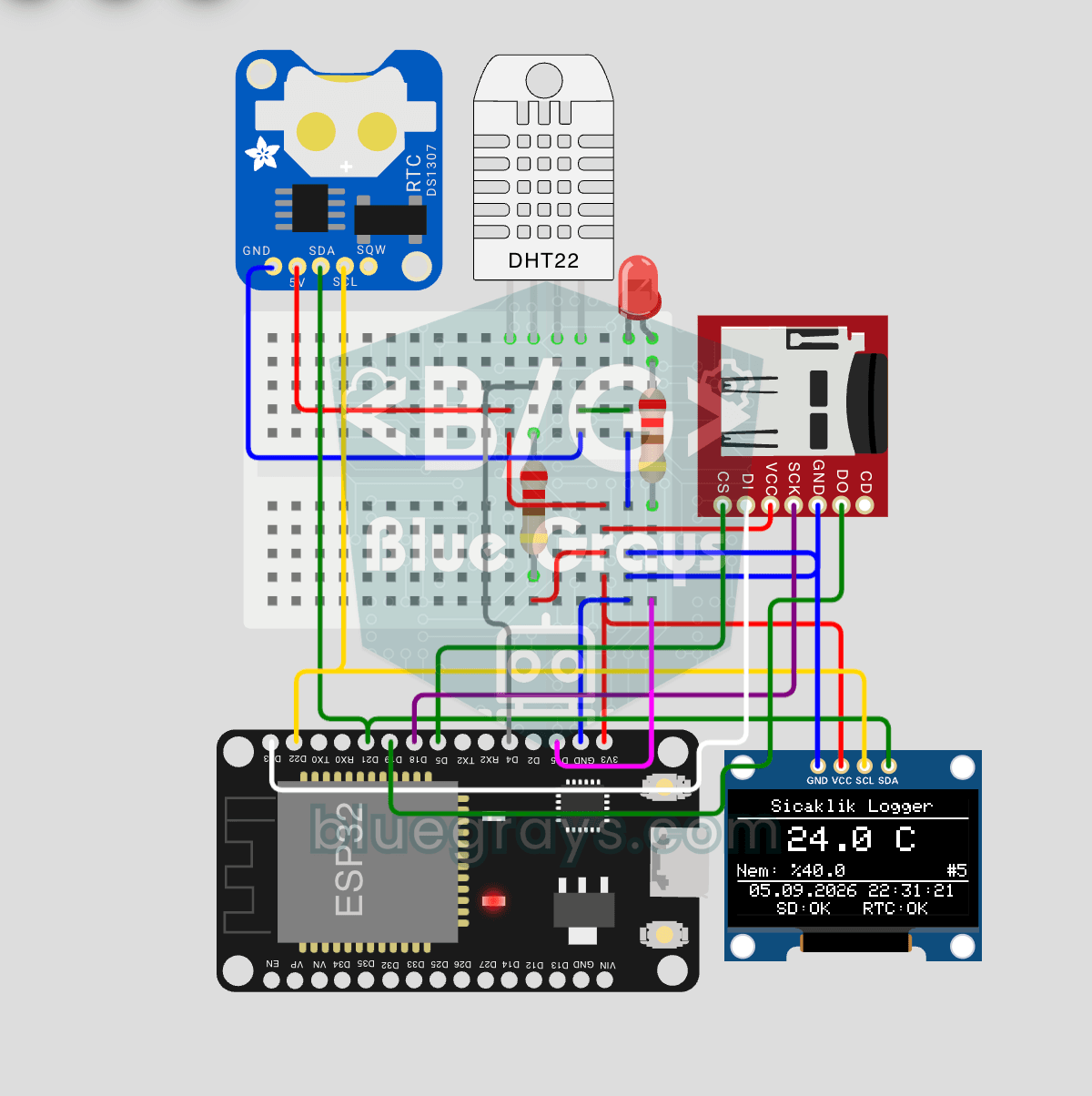
ESP32 Temperature Data Logger (DHT22 + DS1307 RTC + microSD + OLED)
Build a timestamped temperature logger with ESP32! Read DHT22 temperature/humidity every 10 seconds, get real-world time from DS1307 RTC, and log to microSD card as CSV. The OLED displays live temperature (large font), humidity percentage, timestamp, and log counter. The `/temp_log.csv` file on the SD card opens in Excel, Google Sheets, or Python pandas for analysis — perfect for greenhouse monitoring, home/room temperature tracking, laboratory data collection, food storage conditions, or beehiv
More articles
Learn to connect a small but sharp OLED display to Arduino, draw text and shapes, show sensor readings with a bar graph, add your own icons and make the display last longer.