
What Is the ESP32? Features, Arduino IDE Setup and Your First Wi-Fi Project
What is the ESP32 and how is it different from Arduino? Wi-Fi and Bluetooth, safe pins, Arduino IDE setup, a first Blink sketch, connecting to Wi-Fi, controlling an LED from your phone, ESP32 variants and common mistakes.
The ESP32 is a very cheap, dual-core microcontroller made by Espressif with Wi-Fi and Bluetooth built in. On its own it can do many things an Arduino Uno can't: join your home network, serve a web page you open on your phone, fetch the time and weather from the internet, and talk to your phone over Bluetooth. On top of that, it's programmed in the Arduino IDE with the Arduino commands you already know. Today it's the most popular board for getting started with Internet of Things (IoT) projects.
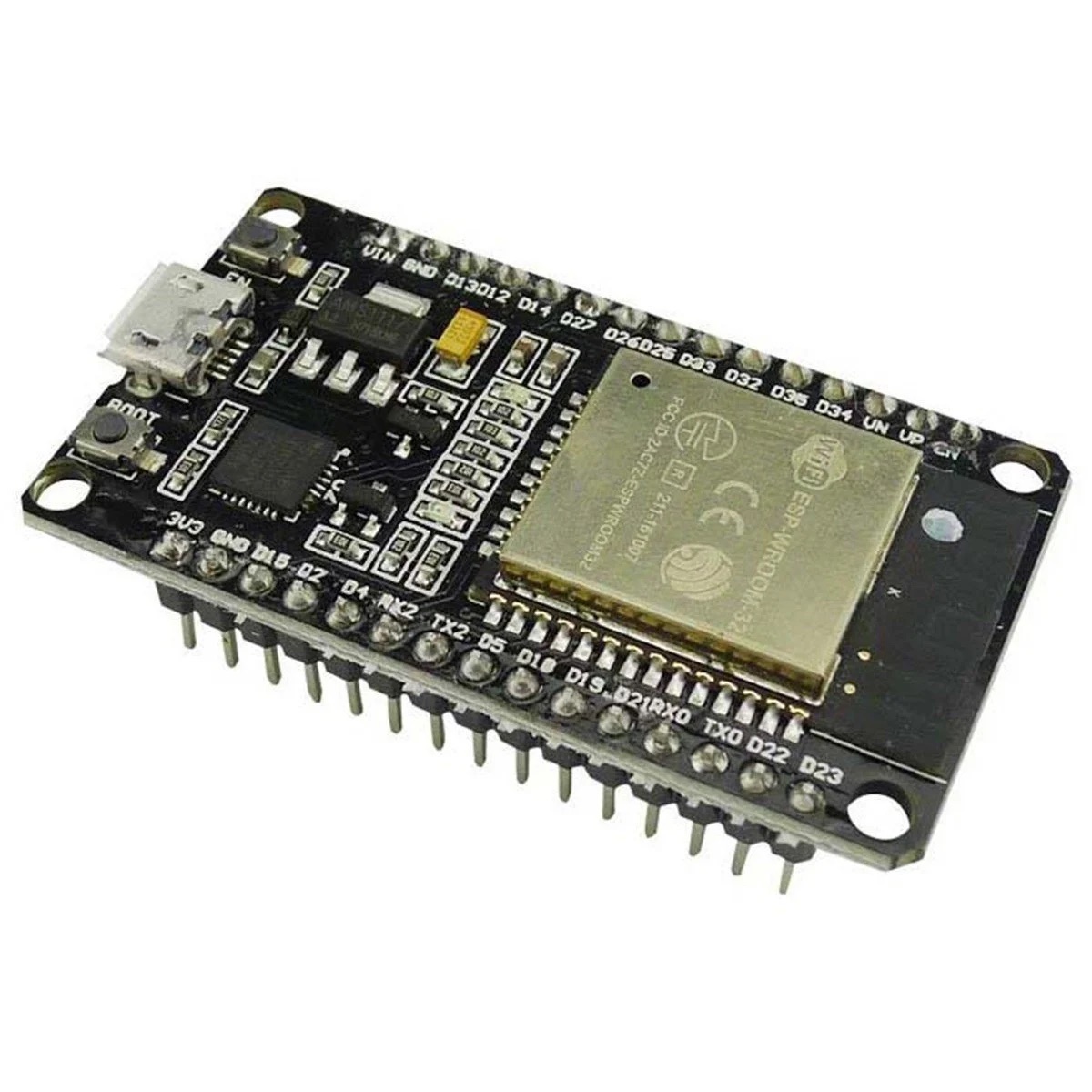
What is the ESP32 and what is it used for?
Strictly speaking, "ESP32" is the name of the chip under the metal cover. The board you hold is a development board carrying that chip (such as the ESP32 DevKit or NodeMCU-32S): it has a USB-serial converter to talk to your computer, a regulator that drops 5 V to 3.3 V, and reset (EN) and programming (BOOT) buttons. Here are some of the things you can do with an ESP32:
- Wi-Fi weather station: show temperature and humidity on a page you open on your phone.
- Control from your phone: operate a lamp, socket or door with a button on a web page.
- Fetch data from the internet: show the real time (NTP), the weather or exchange rates on a display.
- Send notifications: alert you over Telegram or email when motion is detected.
- Bluetooth devices: build a remote that pairs with your phone, or a device your computer sees as a keyboard.
- Sensors that run for months on batteries: wake up from deep sleep only to take a measurement.
ESP32 vs Arduino Uno
| Feature | Arduino Uno R3 | ESP32 (WROOM-32) |
|---|---|---|
| Processor | ATmega328P, 8-bit, 16 MHz | Xtensa LX6, dual-core, 32-bit, 240 MHz |
| RAM | 2 KB | 520 KB |
| Program memory (flash) | 32 KB | Usually 4 MB |
| Wireless | None | Wi-Fi + Bluetooth (Classic and BLE) |
| Operating voltage | 5 V | 3.3 V |
| Usable GPIO | 20 | About 34 (some input-only) |
| Analog input (ADC) | 6 channels, 10-bit | 18 channels, 12-bit |
| Analog output (DAC) | None | 2 channels, 8-bit |
Looking at this table, the ESP32 seems better in every way, but the Uno has its advantages too: because it runs at 5 V it's directly compatible with most older sensors and modules, its pins are tougher, and it holds fewer surprises for beginners. If you don't need wireless, the Uno is still a great place to start; to decide which to pick, take a look at Which Arduino Should I Buy?
ESP32 pins: which ones are safe to use?
The ESP32's pins aren't all "the same" the way they are on an Arduino. Some are connected to the flash memory, some only work as inputs, and the level of others affects how the board boots. You can see your board's full pin map in the Pinout tool; here's a summary:
| Pins | Status | Note |
|---|---|---|
| GPIO 6–11 | Don't use | Connected to the internal flash; using them crashes the board |
| GPIO 34–39 | Input only | Can't output and have no internal pull-up |
| GPIO 0, 2, 12, 15 | Use with care | Their level during boot matters |
| GPIO 1 and 3 | Use with care | TX and RX of the USB serial connection |
| ADC2 pins (0, 2, 4, 12–15, 25–27) | No analog reads while Wi-Fi is on | Use ADC1 (GPIO 32–39) for analog readings |
| GPIO 4, 5, 13, 14, 16–19, 21–23, 25–27, 32, 33 | Safe | General-purpose input and output |
Setting up the ESP32 in the Arduino IDE
- In the Arduino IDE open File > Preferences and add https://espressif.github.io/arduino-esp32/package_esp32_index.json to the "Additional boards manager URLs" field.
- In the Boards Manager, search for esp32 and install the package by Espressif Systems.
- Choose ESP32 Dev Module from Tools > Board.
- Connect the ESP32 with a USB cable and pick the right port from Tools > Port. If no port appears, install the driver for your board's USB-serial chip (CP2102 or CH340).
- If "Connecting..." stays on screen for a long time while uploading, hold down the BOOT button on the board and release it once the upload starts.
First program: blinking the built-in LED
Most ESP32 DevKit boards have a blue LED connected to GPIO 2. The code below blinks it every half second; as you can see, the commands are exactly the same as on Arduino:
1const int LED_PIN = 2;   // çoğu DevKit'te dahili mavi LED / onboard blue LED on most DevKits
2
3void setup() {
4  pinMode(LED_PIN, OUTPUT);
5}
6
7void loop() {
8  digitalWrite(LED_PIN, HIGH);
9  delay(500);
10  digitalWrite(LED_PIN, LOW);
11  delay(500);
12}
Connecting to Wi-Fi
The ESP32's real strength is Wi-Fi. The code below joins your home network and prints the IP address your router gives the ESP32 to the Serial Monitor. Replace the network name and password with your own and open the Serial Monitor at 115200 baud:
1#include <WiFi.h>
2
3const char* ssid = "AgAdi";        // Wi-Fi adın / your Wi-Fi name
4const char* password = "Sifre123"; // Wi-Fi şifren / your Wi-Fi password
5
6void setup() {
7  Serial.begin(115200);
8  WiFi.begin(ssid, password);
9  Serial.print("Bağlanıyor / connecting");
10  while (WiFi.status() != WL_CONNECTED) {
11    delay(500);
12    Serial.print(".");
13  }
14  Serial.println();
15  Serial.print("IP adresi / IP address: ");
16  Serial.println(WiFi.localIP());
17}
18
19void loop() {
20}Controlling an LED from your phone: a simple web server
Now let's turn the ESP32 into a small web server. After uploading, open the IP address shown in the Serial Monitor in the browser of a phone on the same Wi-Fi; the two buttons on the page switch the board's LED on and off. Connect a relay instead of the LED and you can control a real lamp the same way; see What Is a Relay Module?
1#include <WiFi.h>
2#include <WebServer.h>
3
4const char* ssid = "AgAdi";
5const char* password = "Sifre123";
6const int LED_PIN = 2;
7
8WebServer server(80);
9
10void handleRoot() {
11  server.send(200, "text/html",
12    "<meta name='viewport' content='width=device-width'>"
13    "<h1>ESP32</h1>"
14    "<a href='/on'><button>LED AÇ / ON</button></a> "
15    "<a href='/off'><button>LED KAPAT / OFF</button></a>");
16}
17
18void setup() {
19  pinMode(LED_PIN, OUTPUT);
20  Serial.begin(115200);
21  WiFi.begin(ssid, password);
22  while (WiFi.status() != WL_CONNECTED) delay(500);
23  Serial.println(WiFi.localIP());   // bu adresi telefonda aç / open this address on your phone
24
25  server.on("/", handleRoot);
26  server.on("/on",  []() { digitalWrite(LED_PIN, HIGH); handleRoot(); });
27  server.on("/off", []() { digitalWrite(LED_PIN, LOW);  handleRoot(); });
28  server.begin();
29}
30
31void loop() {
32  server.handleClient();
33}
ESP32 variants: which one should you buy?
| Model | Key feature | When to choose it |
|---|---|---|
| ESP32 (WROOM-32 DevKit) | Wi-Fi, Bluetooth Classic and BLE, dual-core | General-purpose first board |
| ESP32-S3 | Native USB, more RAM, AI instructions | Camera, audio, USB keyboard and mouse projects |
| ESP32-C3 | Single-core RISC-V, Wi-Fi and BLE, small and cheap | Simple IoT sensors |
| ESP32-CAM | Camera and microSD slot | Streaming images, security cameras |
| ESP8266 (NodeMCU, Wemos D1) | Older, single-core, Wi-Fi only | Very simple Wi-Fi projects |
Power supply and running on batteries
When it switches Wi-Fi on, the ESP32 can briefly draw up to 250 mA. If a weak USB port or a thin cable can't handle this sudden load, the board restarts with the message "Brownout detector was triggered". Use a good cable and a 5 V adapter that supplies at least 1 A; if needed, add a 100–470 µF capacitor between 3V3 and GND. For battery projects, the ESP32's deep sleep mode cuts the chip's consumption to microamps; however, the regulator and LED on development boards keep drawing a few mA, so for long battery life a bare module or a low-power board is preferred.
The ESP32 with MicroPython
The ESP32 can be programmed not only in the Arduino language but also in MicroPython. Once you've flashed MicroPython to the board with Thonny, connecting to Wi-Fi takes just a few lines:
1import network, time
2from machine import Pin
3
4led = Pin(2, Pin.OUT)
5wlan = network.WLAN(network.STA_IF)
6wlan.active(True)
7wlan.connect("AgAdi", "Sifre123")     # Wi-Fi adı ve şifresi / Wi-Fi name and password
8
9while not wlan.isconnected():
10    time.sleep(0.5)
11print("IP:", wlan.ifconfig()[0])
12
13while True:
14    led.value(not led.value())        # LED'i yakıp söndür / toggle the LED
15    time.sleep(0.5)
ESP32 project ideas
- Wi-Fi weather station: monitor the temperature and humidity measured by a DHT11 from your phone.
- Smart socket: switch on a lamp with a relay from a web page or a voice assistant.
- Motion alarm: send a Telegram notification when a PIR sensor detects someone.
- Internet clock: get the time from an NTP server and show it on an LCD or 7-segment display.
- Bluetooth remote: drive a robot car with an app on your phone.
- Battery-friendly sensor: build a device that wakes up every 10 minutes, sends a reading and goes back to sleep.
Common mistakes and how to fix them
- No port appears: the cable may be charge-only, or the USB-serial driver isn't installed; use a data cable and install the CP2102 or CH340 driver.
- "Failed to connect... Timed out waiting for packet header": hold the BOOT button while the upload starts.
- The board keeps restarting: not enough power (brownout); use a better cable, adapter and a capacitor.
- It won't connect to Wi-Fi: the network may be 5 GHz, or there's a capitalisation mistake in the name or password.
- Using GPIO 6–11: these pins are connected to the flash; using them crashes the board.
- Analog values go wrong when Wi-Fi starts: the sensor is on an ADC2 pin; move it to one of the ADC1 pins between GPIO 32 and 39.
The ESP32 is the easiest way to take what you've learned on Arduino onto the internet. To brush up on Arduino basics, see What Is Arduino?; in the BlueGrays app you'll find dozens of ESP32 projects, including LEDs, web servers, WebSockets, an NTP clock, weather data and a Telegram alarm, with circuit diagrams and code.
Frequently asked questions
Is the ESP32 an Arduino?
No. The ESP32 is a separate microcontroller made by Espressif, while Arduino is the name of a board and software ecosystem. Thanks to the package Espressif provides, however, the ESP32 can be programmed in the Arduino IDE with Arduino commands, so most Arduino code runs on the ESP32 with small changes.
Does the ESP32 work with 5 V?
The development board can be powered with 5 V from USB or the VIN pin; the on-board regulator drops it to 3.3 V. The GPIO pins, however, run at 3.3 V and aren't 5 V tolerant, so you shouldn't connect 5 V signals directly to them.
Should I buy an ESP32 or an Arduino Uno?
For projects that need Wi-Fi, Bluetooth or the internet, get an ESP32. If you're new to electronics and want to work smoothly with 5 V sensors and modules and follow tutorials exactly, the Arduino Uno gets you started with fewer surprises.
Does the ESP32 connect to 5 GHz Wi-Fi?
The classic ESP32, ESP32-S3 and ESP32-C3 only support 2.4 GHz Wi-Fi and can't see 5 GHz networks. Make sure your router's 2.4 GHz band is switched on.
What's the difference between the ESP32 and the ESP8266?
The ESP8266 is an older, single-core chip that only supports Wi-Fi and has a single analog input. The ESP32 is dual-core and faster, supports Bluetooth too, and has far more pins, ADC channels and memory. The ESP32 is preferred for new projects.
Can the ESP32 be used without the internet?
Yes. The ESP32 can create its own Wi-Fi network (access point mode), several ESP32s can talk to each other without a router using ESP-NOW, and it can connect to a phone over Bluetooth. You can also use it as a powerful Arduino without any of its wireless features.
Projects to build after reading this
See all projects
LED Blink with ESP32
Teaches basic GPIO output usage with ESP32. We achieve a blinking effect by turning an LED on and off from a digital pin. ESP32 version of the classic blink project on Arduino UNO; the pin map and syntax remain the same, the only difference is in the pin numbers.

ESP32 Wi-Fi STA Connection (with LCD Screen)
In this project, we connect the ESP32 to the home Wi-Fi network in Station (STA) mode in a secure, fault-tolerant manner. We store the SSID and password in a separate `secrets.h` file to prevent leaking to Git, set up an auto-reconnect mechanism, and display the RSSI signal level and IP address on an I2C LCD screen. The internal LED works as a status indicator. It is a production-grade connection manager.

ESP32 Asynchronous Web Server (with IP Display on LCD)
In this project, we’re turning the ESP32 into an **asynchronous web server** that you can control from your phone or computer on the same Wi-Fi network. Thanks to the ESPAsyncWebServer library, the server can process multiple requests simultaneously (unlike the classic `WebServer.h`, which blocks on a single request). You’ll be able to connect to the ESP32’s IP address via a browser using `/control` and click buttons to turn the LED connected to GPIO 5 on and off. Since the HTML interface is emb

ESP32 WebSocket Counter (2 Buttons + LCD + Real-Time Web)
In this project, the ESP32 uses the WebSocket support of the ESPAsyncWebServer to push temperature and humidity values read from the DHT11 sensor to all connected browsers in real time. Instead of standard HTTP polling, bidirectional communication is established over a single persistent TCP connection, reducing latency to the millisecond level. On the browser side, a live line graph is drawn using pure JavaScript and Chart.js; the data is transmitted as a JSON payload. Thanks to the HTML/JS embe

ESP32 HTTPClient + Weather API (with LCD Screen)
In this project, we use the ESP32 to make a REST API call to a weather API (wttr.in) over the internet using `HTTPClient.h`. We parse the returned JSON response using ArduinoJson v7 and display the city, temperature, humidity, weather, and wind information on an I2C LCD screen in both Turkish and English. wttr.in is free and does not require an API key—you can simply enter any city name to retrieve that city’s current weather conditions. It automatically updates every 30 minutes, provides differ

Real-Time Clock from the Internet via ESP32 NTP
The ESP32 connects to Wi-Fi and retrieves real time with millisecond precision from NTP (Network Time Protocol) servers. Thanks to the `configTzTime()` function, the Turkey time zone (TRT, UTC+3) is automatically applied, and DST transitions in countries that observe daylight saving time are automatically managed using a POSIX TZ string. The time is displayed both on the Serial Monitor and on an optional I2C LCD. It synchronizes once at startup, then the internal RTC continues counting.

Automatic Lighting with the ESP32 PIR Motion Sensor
In this project, we will use the HC-SR501 PIR motion sensor to detect when someone enters the room and automatically turn on the LED. When motion is detected, the LED will stay on for a set period of time, and we will manage the timing using the `millis()` function and a counter, without needing to use `delay()`. This way, we’ll create a motion-sensor-based lighting system that doesn’t tie up the ESP32, allowing it to perform other tasks as well. In real-life applications, it can be used for sta
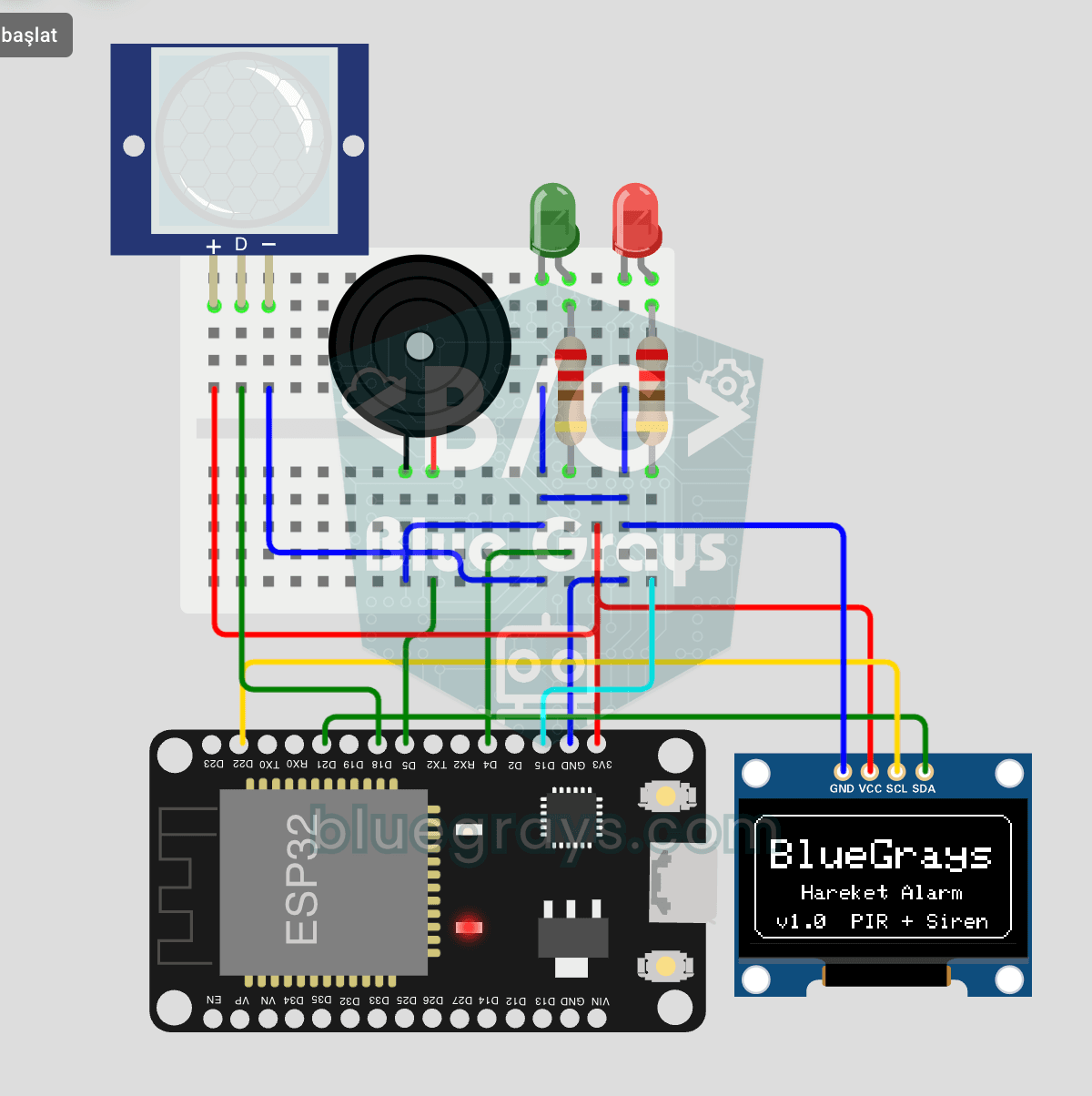
ESP32 Motion Alarm System (PIR + Buzzer + LED + Telegram)
A smart security alarm system that activates the buzzer and LED when the PIR sensor detects motion, while simultaneously sending an instant notification to the owner via Telegram. It includes a 30-second cooldown to prevent false alarms. Suitable for home security, garage monitoring, warehouses, or workrooms. With ESP32-CAM, photo notifications can be added; with the classic ESP32 DevKit V1, text notifications are sent.
More articles
Learn how the ESP32 differs from Arduino, which pins are safe to use, how to set it up in the Arduino IDE and build your first Wi-Fi project that lights an LED from your phone.