
ESP32 IoT Curtain Opener (SG90 Servo)
Tap + or − on your phone and the servo turns to that angle at the same moment: open and close a model curtain, a blind's tilt rod or a small lid from wherever you are. This project is the step-by-step guide to the Servo curtain IoT template in the app, built with an ESP32 and an SG90 servo using just 3 wires. Go to Workshop › Devices › Add a device; Ohmi prepares the code with your own device key. The code on this page is an example: the key and Wi-Fi details are placeholders.
Control this device from the app
Connect your ESP32 or Raspberry Pi Pico W to Wi-Fi, then switch it on and off and watch live readings from your phone. Ohmi prepares the code; you just enter your Wi-Fi details and upload it.
Template in the app: Servo curtain
- Where is it in the app?Add a new device from the Tools tab or Workshop › Devices and pick this template.
- Arduino libraryOpen the Library Manager in the Arduino IDE, search for BlueGraysIoT and install it.
The free plan includes 1 device, 1 chart and 24 hours of history. Premium adds more devices, more charts and longer history.
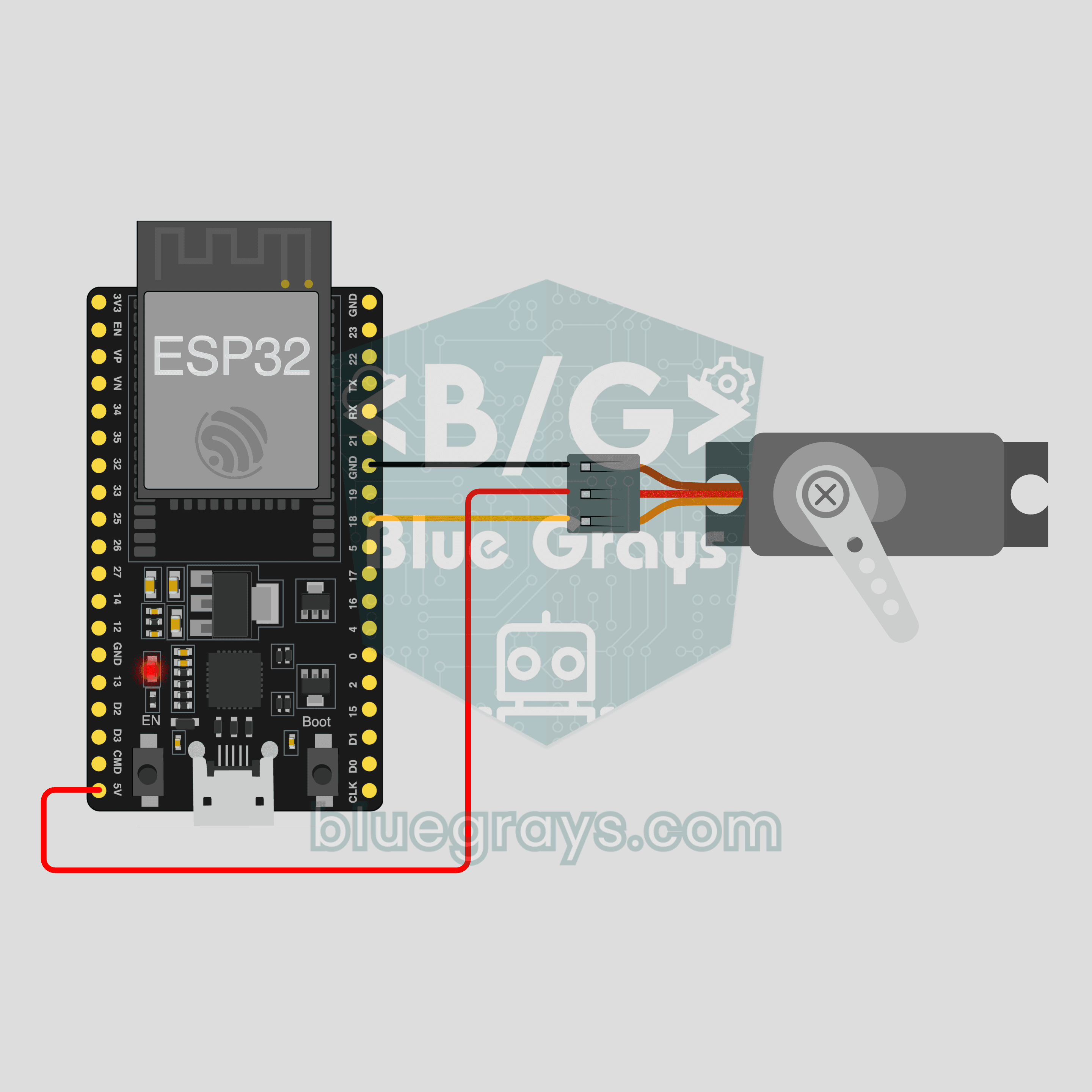
Circuit Diagram
Source Code
1// ─────────────────────────────────────────
2//   BlueGrays · bluegrays.com
3//   ESP32 IoT Curtain Opener (SG90 Servo)
4// ─────────────────────────────────────────
5// The "Servo curtain" IoT template from the BlueGrays app: the Curtain
6// angle setting in the app (+ and − buttons) turns the SG90 servo to any
7// angle between 0 and 180 degrees, so you can open and close a model
8// curtain, a blind's tilt rod or a small lid from your phone. Ohmi
9// prepares the real code in the app with your own device key (Workshop ›
10// Devices › Add a device); the code here is an example, the device key and
11// Wi-Fi details are placeholders. Library Manager: BlueGraysIoT (with its
12// dependencies) and ESP32Servo. The board only joins 2.4 GHz Wi-Fi
13// networks. The SG90 is a small servo; a real curtain needs a stronger
14// servo with its own 5 V supply, and keep your fingers away from the
15// moving arm.
16//
17// Pins:
18//   GPIO18 -> Servo signal (orange)
19//   5V, GND -> Servo V+ (red), GND (brown)
20//   Pico W: servo signal GP17
21
22/*
23 * Servo curtain · BlueGrays IoT
24 * BlueGrays · bluegrays.com
25 * Do not share this code: it contains your device key and Wi-Fi password.
26 */
27
28#include <BlueGraysIoT.h>
29#include <ESP32Servo.h>  // Library Manager: 'ESP32Servo'
30
31const char *DEVICE_KEY = "YOUR_DEVICE_KEY";
32const char *WIFI_NAME = "YOUR_WIFI_NAME";
33const char *WIFI_PASSWORD = "YOUR_WIFI_PASSWORD";
34
35BlueGraysIoT bg(DEVICE_KEY);
36
37const int SERVO_PIN = 18;
38Servo servo;
39
40void setup() {
41  Serial.begin(115200);
42  servo.attach(SERVO_PIN);
43  bg.onNumber("aci", [](float v) { servo.write((int)v); });
44  bg.setDebug(Serial);
45  bg.setLanguage(BG_LANG_EN);
46  bg.begin(WIFI_NAME, WIFI_PASSWORD);
47}
48
49void loop() {
50  bg.loop();  // avoid long delay() calls here
51}
52FAQ
Can I upload the code on this page straight to my board?
You can, but it will not connect: the device key and Wi-Fi details in it are placeholders. In the app go to Workshop › Devices › Add a device and pick the Servo curtain template; Ohmi prepares the code with your key, network name and password. Copy that code and upload it. You can see the full code later in Device › Code and key.
Does it work with a Pico W?
Yes. Pick Pico W as the board when you add the device; the code stays the same, the servo pin becomes GP17 and the code uses the Servo library that comes with the pico package instead of ESP32Servo, so there is nothing extra to install. Connect the servo's red wire to VBUS (5 V). In Arduino IDE install the "pico" package from Boards Manager. The circuit and photo on this page were made with an ESP32.
Can an SG90 pull a real curtain?
No. The SG90 is a small servo; it can turn a model curtain, a blind's tilt rod or a light lid. A real curtain needs a strong servo such as the MG996R or a geared motor. Power a strong servo from a separate 5 V adapter that gives at least 2 A, not from the board's 5V pin, and connect the adapter's GND to the board's GND. Keep your fingers away from the moving arm and leave no hard obstacle in its path.
Are my Wi-Fi password and device key safe?
Your Wi-Fi password stays on your phone and is never sent to our server; it is added to the code on the phone. The device key only travels in the header of the secure connection and is never printed to the serial monitor. Both are still inside the code, so do not share the code you copy from the app. If someone saw your key, get a new one with Renew key and upload the new code.