
111 block projects · Arduino · ESP32 · Pico
Block Coding for Arduino, ESP32 and Pico Projects
Follow colorful blocks instead of reading code line by line. 111 BlueGrays projects come with a block version, and every block maps to a line of the real code that runs on the board.
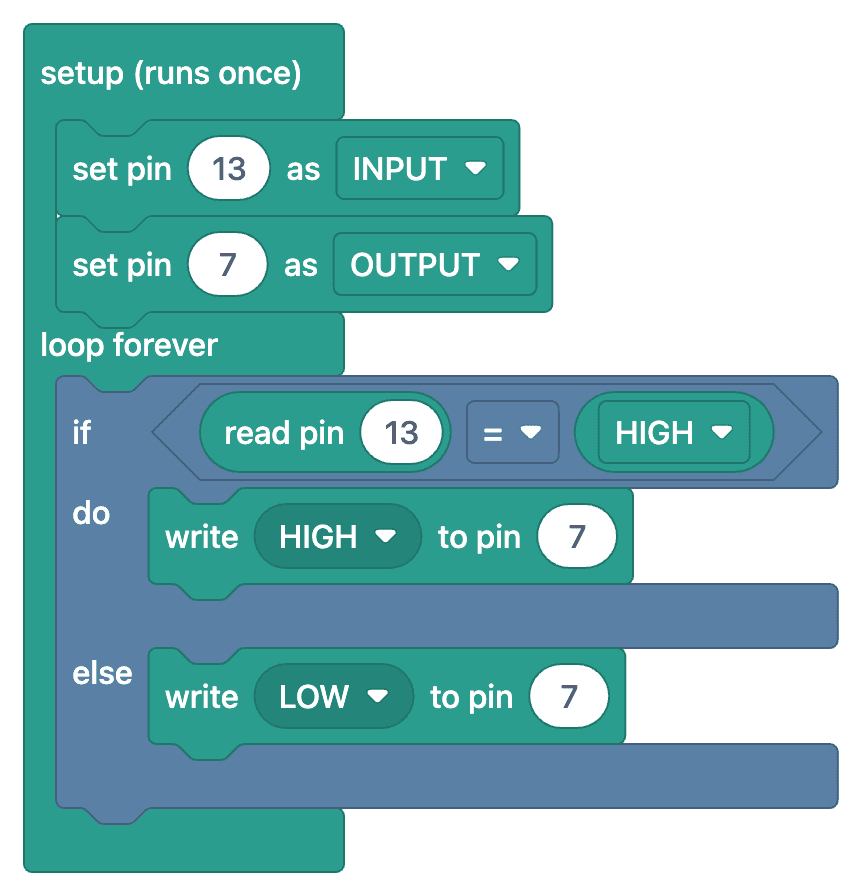
What is block coding?
Block coding means building a program out of puzzle-like blocks instead of typing it. "Set pin as output", "turn the LED on" and "wait 1 second" are each a block, and stacking them builds the program. No semicolons, brackets or typos to worry about, so you can focus on the logic.
BlueGrays uses its own block set, and the blocks speak your language: if the app is in English, the blocks say "repeat forever" and "write HIGH to pin". In Arduino and ESP32 projects the blocks map to C++ code; in Raspberry Pi Pico projects they map to MicroPython.
The goal is not to stay in blocks forever but to understand the code. Put a project's blocks next to its code and you can see what each line does. After a few projects you start reading the code without the blocks.
How block coding works in BlueGrays
In the app, the blocks live in the code section of every block project. Four steps:
- 01
Pick a block project
Projects with the block badge come with a block version. You can also filter the list to show only block projects.
- 02
Turn on "Show as blocks"
One switch in the code section turns the code into blocks. Tap the image to open it full screen and zoom in.
- 03
Understand the blocks
The "Understand the blocks" tab walks you through the program step by step, showing only the blocks for each step and what they do.
- 04
Move on to real code
Switch it off and the same program appears as code. Copy it into the Arduino IDE (or Thonny for the Pico) and upload it to your board.
One program: blocks and code
On the left, the project's blocks. On the right, the code that runs on the board. Every block has a matching line of code.
Blocks
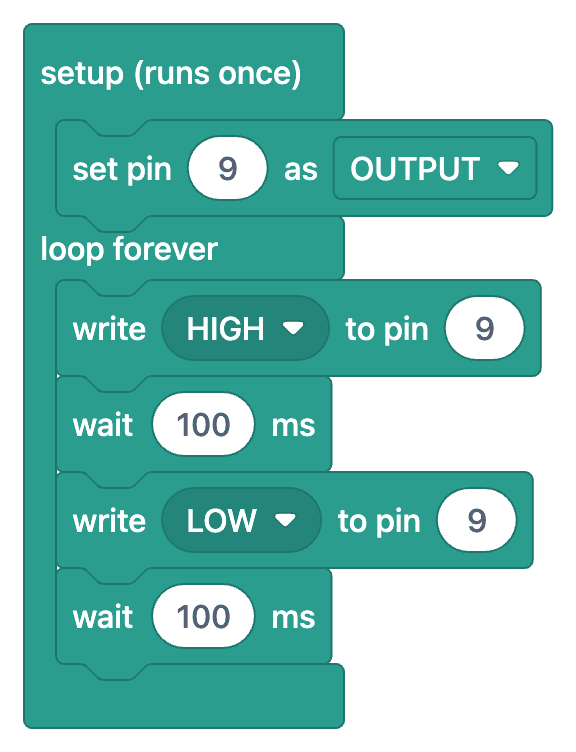
Code
1// ─────────────────────────────────────────
2//   BlueGrays · bluegrays.com
3//   LED Blink
4// ─────────────────────────────────────────
5// Blinks a single LED on and off every 100 ms. Shows the basic use of the
6// digitalWrite and delay functions.
7//
8// Pins:
9//   D9 -> LED (with a 220 ohm resistor)
10
11void setup() {
12  pinMode(9,OUTPUT);     // LED pin as output
13}
14
15void loop() {
16  digitalWrite(9,HIGH);  // Turn the LED on
17  delay(100);            // Wait 100 ms (1000 ms = 1 s)
18  digitalWrite(9,LOW);   // Turn the LED off
19  delay(100);
20}
21Block projects
Every project with a block version, by platform. Free projects come first: 31 of them are completely free, blocks and code included.
Arduino projects76 block projects

LED Blink
The very first hello of electronics: switching a single LED on and off. The Arduino turns the LED on and off at short intervals, so the light blinks quickly. You see in the simplest way how the board

Two LEDs Blinking Alternately
Two LEDs blink quickly in turn: when one lights up the other goes off, as if they were tossing a ball back and forth. The Arduino keeps each light on for a fifth of a second and then hands over to the

Traffic Light
A tiny copy of the traffic light you see on the road every day. Red stays on for two seconds, yellow flashes for a moment, green stays on for two seconds, then it goes back to red through yellow again

LED Police Lights
Just like the lights on a police car: the red LED flashes three times in quick succession, then the blue LED flashes three times, and the pattern keeps repeating without a break. All you need is two L

LED Chaser
Lights that switch on one after another, as if they were running. The Arduino lights six LEDs one at a time; each glows for a brief moment and goes out, so the light walks from start to end and then s

Knight Rider LED Effect
The classic scanner light: a dot of light slides from one end of six LEDs to the other and then comes back. The Arduino lights each LED for a tenth of a second before moving on, turns around at each e

LED Chaser with Adjustable Speed
Six LEDs light up one after another, so the light seems to run from one end to the other. Turn the potentiometer knob and the speed of that run changes instantly: one way and the light races along, th

Knight Rider LED Effect with Adjustable Speed
A light runs from one end of six LEDs to the other, turns around and runs back again. Turn the potentiometer knob and you change the speed of that run instantly: with the knob at one end the light alm
Arduino projects: all block projects
- #9LED Control with a Push Button (Push)Free
- #10Toggle an LED with a Button (On/Off)Free
- #11Measuring Light Intensity with an LDRFree
- #12Night Light with LdrFree
- #13Using a BuzzerFree
- #14Frequency Setting with BuzzerFree
- #27HC-SR04 Distance Measurement (Serial Display)Free
- #55Temperature and Humidity with DHT11Free
- #16Reading IR Remote Control Codes
- #17Led On/Off with IR Receiver and Remote Control
- #19Lighting 220V Bulb with Push Button
- #20Lighting 220V Bulb with Button (On-Off)
- #21Lighting 220V Bulb with Remote Control
- #22Laser Warning System
- #23Laser Security System
- #24Motion Detector with Motion Sensor
- #25Doorbell and Light with Motion Sensor
- #26Simple Piano with Buzzer and Button
- #28Parking Sensor with HC-SR04
- #29Print Message on 2x16 LCD Screen
- #30Bouncing Text Animation on LCD
- #31Measuring Distance Using LCD Display
- #32Using LCD Screen with I2C
- #33Height Measurement Project
- #34Control an LED from Your Phone via Bluetooth
- #35Using a Servo Motor
- #36Servo Motor Operation with Potentiometer
- #37Reading a Reed Switch
- #38Reed Switch Door Sensor
- #39Using an RGB LED
- #40Smooth Color Transition with RGB Led
- #42Displaying Numbers 0-99 on a 7-Segment Display
- #43Counter with 7-Segment Display and Buttons
- #44Temperature Measurement with NTC and 2x16 Lcd Display
- #45DS1302 RTC Clock Module Setup
- #46DS1302 RTC Clock with LCD Display
- #47Displaying 0-9999 on a 4-Digit 7-Segment Display
- #48Digital Clock with 4-Digit 7-Segment Display
- #49Bomb Animation with 4-Digit 7-Segment Display
- #50Using a Flame Sensor
- #51Using a Gas Sensor
- #52Flame and Gas Sensor Alarm
- #53RFID Value Reading
- #54RFID Authentication
- #56Digital Voltmeter with LCD Display
- #58Two-Way Communication Between 2 Arduinos
- #59Led Control with Joystick
- #60Servo Control with Joystick
- #613x4 Keypad Operation
- #62LED Control with a 3x4 Keypad
- #634x4 Keypad Operation
- #64Password Lock with 4x4 Keypad and LCD
- #67Using a Stepper Motor
- #68360-Degree Servo from a Stepper Motor
- #69Using a WS2812B LED Strip
- #70Police Lights with WS2812B
- #71WS2812B LED Chaser
- #72WS2812B LED Chaser (Fill Effect)
- #73WS2812B Knight Rider Effect
- #74WS2812B Black Thunder 3-pack
- #75WS2812B Animation 1
- #77Reading Reflection (Proximity) with TCRT5000
- #78TCRT5000 Black and White Surface Detection
- #82Smart Stair and Corridor Lighting
- #83Smart Irrigation Station
- #96Arduino Roulette Wheel
- #97Arduino Reaction Time Test with Sound Cue
- #99SG90 Servo Angle Control with Pot
ESP32 projects25 block projects

LED Blink with ESP32
Teaches basic GPIO output usage with ESP32. We achieve a blinking effect by turning an LED on and off from a digital pin. ESP32 version of the classic blink project on Arduino UNO; the basic blink commands in the Arduino environment are the same, but the ESP32's pin layout and 3.3 V GPIO levels differ from those of the Arduino UNO.

ESP32 LED Control with Push Button (Push)
The LED lights up when the button is pressed and turns off when released. Shows how the ESP32's digital input pin and internal pull-up resistor are used. The INPUT_PULLUP mode eliminates the need for an external resistor.

ESP32 LED Control with Pushbutton (Toggle)
Each time the button is pressed the state of the LED changes: if it is on it turns off, if it is off it turns on. Classic toggle pattern. With debounce we clean up the mechanical noise of the pushbutton to ensure a single toggle with a single press.

ESP32 Built-in LED Blink
Blinking the built-in blue LED on the ESP32 DevKit V1. No external components required! The first project you should try when you buy an ESP32. GPIO 2 is connected to the built-in LED.

ESP32 Traffic Light
Real traffic light simulation with 3 LEDs red-yellow-green. Timings close to real traffic logic: red long, yellow short, green long. Classic example of sequential GPIO control.

Reading Light Intensity with the ESP32 LDR Module
Real-time monitoring of the LDR module's raw ADC value and relative light percentage calculated from dark and light reference values in the Serial Monitor. This percentage is not a lux measurement. Teaches the module’s calibration logic. It is ideal to complete this before Project 10, as it is used to determine the threshold value.

ESP32 HC-SR04 Ultrasonic Distance Sensor
The HC-SR04 ultrasonic sensor calculates distance by measuring the time it takes for the sound wave it emits to bounce off an object and return (Time of Flight). In this project, we will send a 10-microsecond pulse from the ESP32 to the sensor's TRIG pin and read the echo duration from the ECHO pin using `pulseIn()`. We will display the calculated distance in centimeters on a 16x2 I2C LCD. Since the HC-SR04 operates at 5V, a **voltage divider** is required on the ECHO pin—otherwise, the ESP32’s

ESP32 DHT22 Temperature and Humidity (with LCD Display)
This project measures ambient temperature and humidity using a DHT22 sensor and displays the data in real time on a 16x2 I2C LCD. Data is read from the sensor using the one-wire protocol via the Adafruit DHT library. This project serves as the foundation for IoT weather stations, smart home automation, or environmental monitoring systems in greenhouses. Communication with the DHT22 is established via the ESP32's GPIO 4 pin.
ESP32 projects: all block projects
- #122ESP32 MQ-2 Gas/Smoke Detector AlarmFree
- #123ESP32 RFID RC522 Card Reader (with LCD)Free
- #108ESP32 Knight Rider LED
- #109ESP32 Police Strobe Light Effect
- #110ESP32 LED Fade with PWM
- #111ESP32 RGB LED Control
- #112ESP32 Night Light with LDR
- #114ESP32 Melody Playback with Buzzer
- #115ESP32 LED Brightness Control with a Potentiometer (Analog → PWM)
- #118ESP32 Servo Motor (Potentiometer Control)
- #119ESP32 I2C LCD Display (16x2)
- #120Digital Clock with ESP32 and DS1307 RTC (I2C + LCD)
- #121Automatic Lighting with the ESP32 PIR Motion Sensor
- #125ESP32 TM1637 4-Digit 7-Segment Display
- #126ESP32 WS2812B NeoPixel Strip Control
- #139ESP 32 Smart Plant Watering System
- #140ESP32 Motion Detection Alarm
Raspberry Pi Pico projects10 block projects
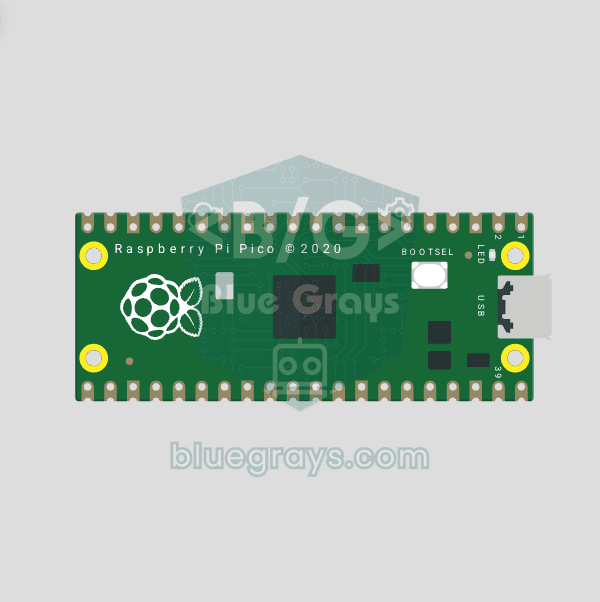
Raspberry Pi Pico Onboard LED Blink (GP25 Built-in LED)
The opening project of the Raspberry Pi Pico series! We blink the onboard LED (green LED connected to GP25) to verify the board works — a classic "Hello World" first experiment. NO external components, just Pico and USB cable. Code is written in **MicroPython** (the official language backed by Raspberry Pi Foundation). Learn `machine.Pin` class, `Pin.OUT` mode, `led.on()/off()` methods, and `time.sleep()` in Thonny IDE. Follow every toggle live in the Serial (REPL) output. Also perfect to verify
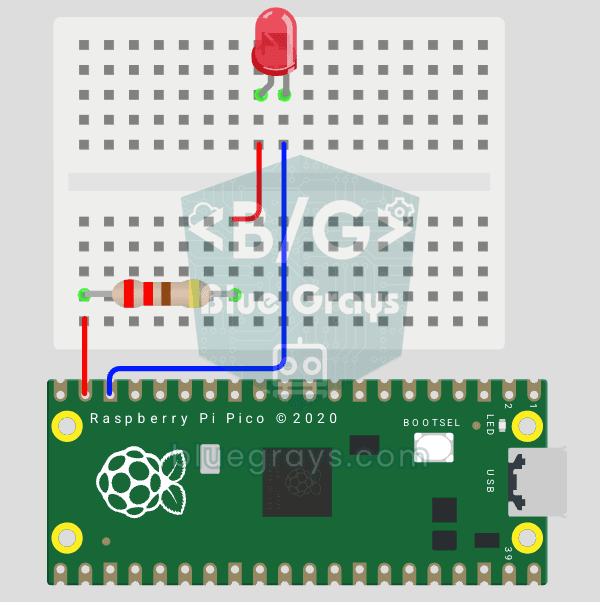
Raspberry Pi Pico: Controlling an External LED (GP14 + Breadboard)
The next step after Pico’s built-in LED: connecting an external LED to the breadboard and controlling it via the GP14 pin. In this project, you’ll learn how to use any of the Pico’s general-purpose GPIO pins as an output, the LED’s polarity (long leg = anode/+, short leg = cathode/–), and why a current-limiting resistor (220Ω) is required. If you don’t include the resistor, excessive current will flow through the LED and it may burn out. The circuit is very simple: Pico GP14 → 220Ω resistor → LE
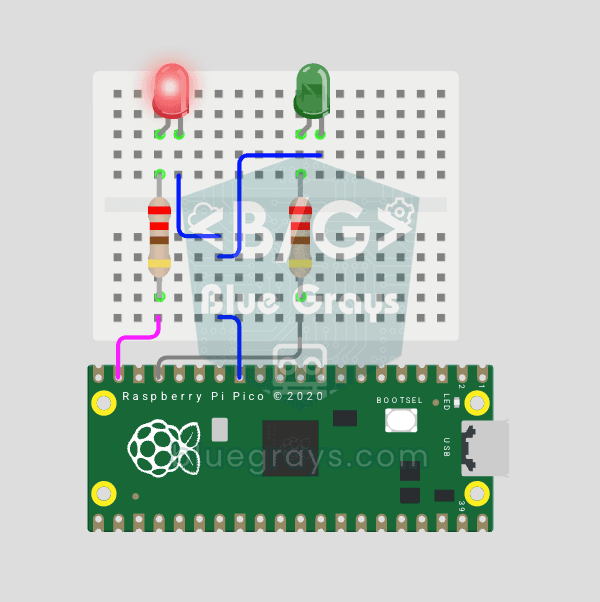
Raspberry Pi Pico Alternating Two LEDs (Blink-Flip Pattern, GP14 + GP13)
The next step after single LED on Pico: two LEDs blink alternately in a classic flip-flop pattern. When one turns off, the other lights up — the most basic example of multi-GPIO coordination. In this project two different color LEDs (red on GP14, green on GP13) swap states every 500ms. MicroPython's `Pin.toggle()` method makes the code short and clear. The same core logic is the foundation of traffic lights, police strobes, chasing LEDs and all multi-LED animations. Very simple circuit: 220Ω res
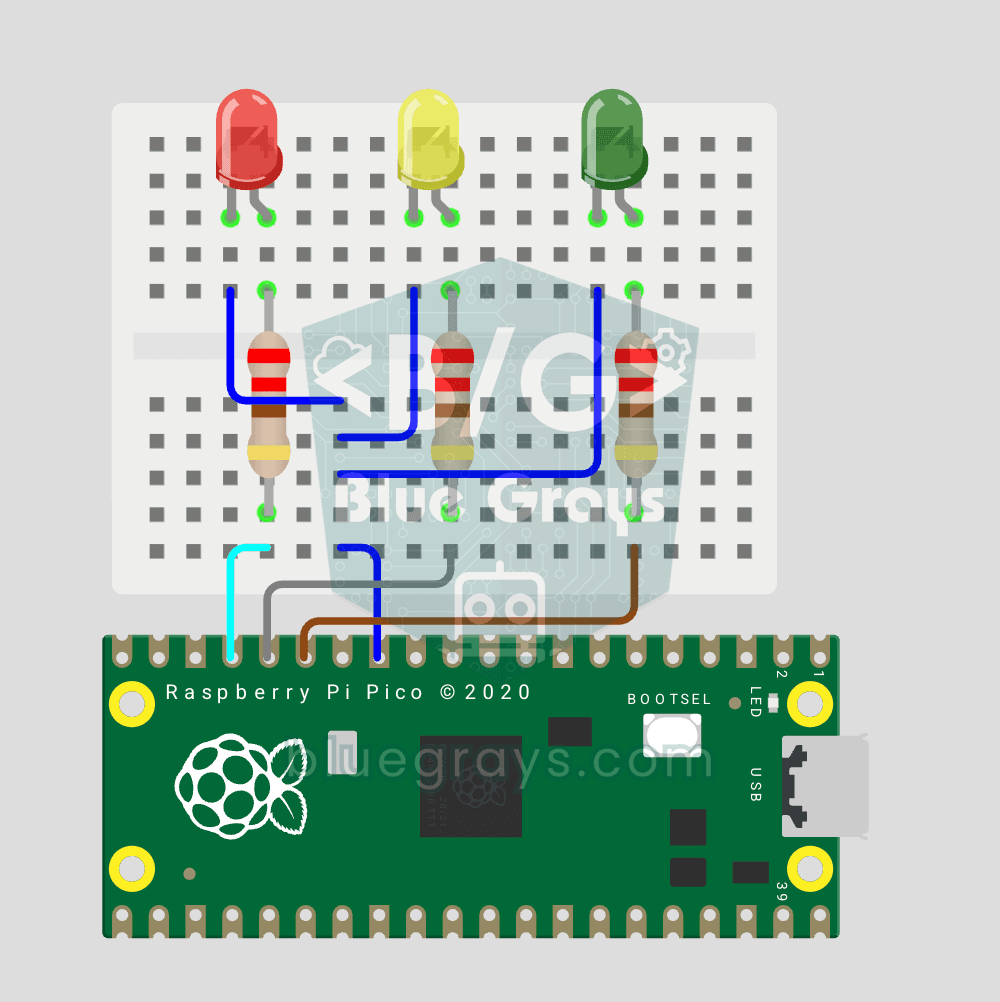
Raspberry Pi Pico Traffic Light Simulator (3 LEDs Sequential, GP11/GP12/GP13)
We simulate a real traffic light with red, yellow and green LEDs — the first 3-LED project of the Pico series! Green 4 sec "go", yellow 1.5 sec "ready", red 3 sec "stop" and red+yellow 1 sec "starting" (European traffic light pattern). Learn **function definition** (`def all_off()`), **state machine logic** (sequence) and **multi-GPIO synchronization**. Very simple circuit: 3 LEDs on GP11 (Green), GP12 (Yellow), GP13 (Red), each with a 220Ω current-limiting resistor. GP11-GP12-GP13 are ad
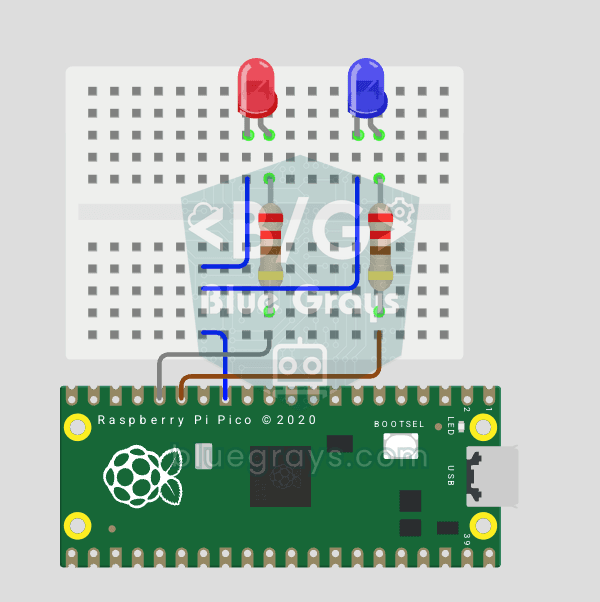
Raspberry Pi Pico Police Strobe Light Effect (Red + Blue, GP11 + GP12)
We simulate a police car's light bar with a Raspberry Pi Pico in its simplest form! 🚨 The red and blue LEDs take turns (flip-flop): while red is on, blue is off, and they swap every 0.3 seconds, forever. The code writes the two steps directly in a single `while True` loop; the speed is set with the `WAIT_MS` constant.
Raspberry Pi Pico 3-Burst Police Flip-Flop (2 LED GP11 + GP12)
Rhythmic variation of the police strobe project — 3-burst flip-flop! 🚨 Same 2 LED circuit as #151 (GP11 red + GP12 blue), but different pattern: red LED flashes 3 times rapidly, then blue flashes 3 times, forever. This "burst + switch" pattern is the most recognizable rhythm of real police siren lights. Learn parametrized function `def burst(led, count, duration_ms)`, rhythm design, and generating different visual effects with code on same circuit.
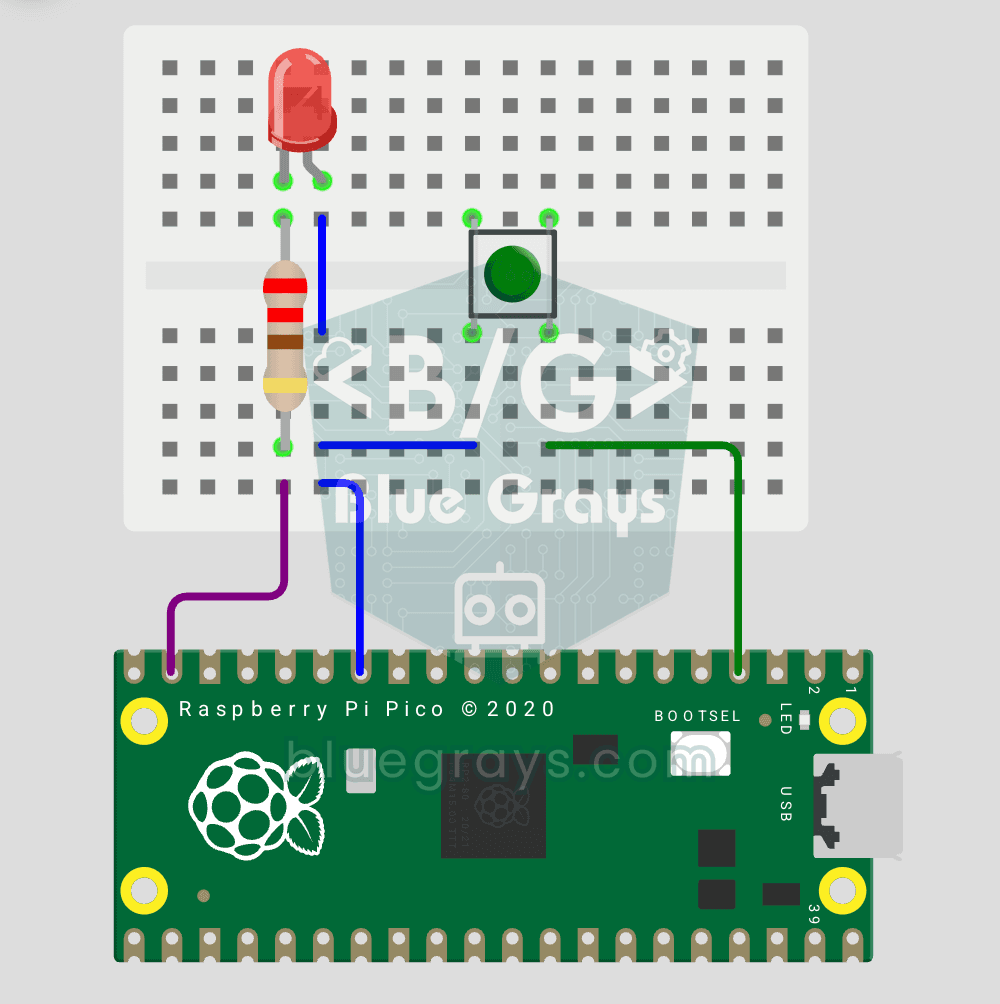
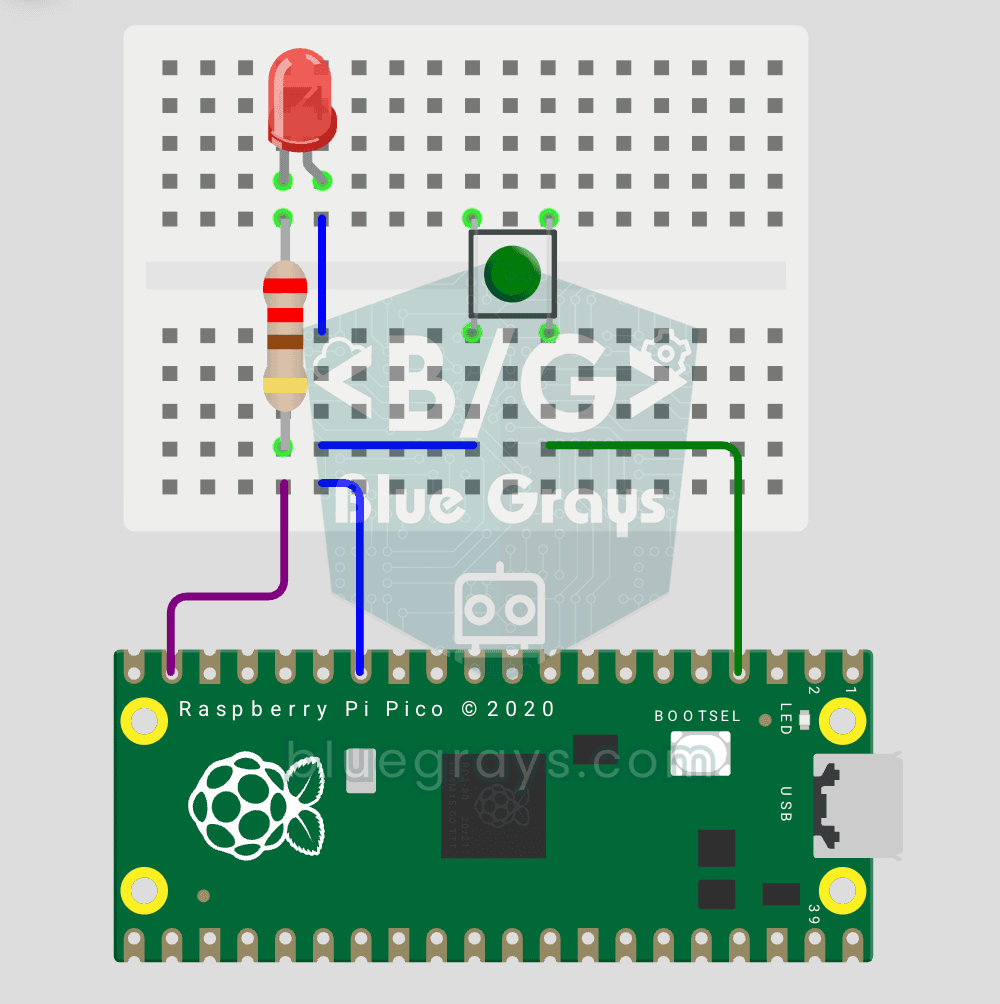
Raspberry Pi Pico Button Controlled LED (Push, GP14 + GP2)
First **input** project with Pico — button read! 🔘 LED lights while button is pressed, off when released. This is the big step after LED animations: **signal input from the world to Pico**. Learn `Pin.IN` (input mode), `Pin.PULL_UP` (internal pull-up resistor — standard for buttons), `button.value()` reading. GP14 LED, GP2 button (internal PULL_UP). Pressed = LOW (0), released = HIGH (1) — reverse logic seems confusing at first but is industry standard.
Raspberry Pi Pico Button Toggle LED (GP14 + GP2)
Button + LED — next level! 🔁 Unlike #155, no need to hold the button. Press and release → LED on. Press and release again → LED off (toggle). Same circuit as #155 (LED GP14, Button GP2), but big code difference. Learn **edge detection** (capturing the 1→0 falling moment), **state tracking**, **debounce** (mechanical bounce filter). MicroPython's `led.toggle()` swaps state in one line. Foundation of all interactive button projects (mode switcher, IRQ, double-click).
Raspberry Pi Pico projects: all block projects
Who is it for?
Kids and parents
Coding for kids sticks much better when it ends with an LED lighting up on the desk. The blocks make the program readable, and you build the circuit together.
Teachers and clubs
In a robotics or STEM class you can explain a project with blocks first, then move on to its code. Every project has a parts list and a circuit diagram ready.
Beginners
Arduino block coding is the fastest way to get the logic in your first few projects. Start with blocks and switch to code when you feel ready.
Frequently asked questions
What is block-based coding?
It is a way of programming where commands are shown as blocks that snap together like puzzle pieces instead of typed text. Since you cannot make typos, beginners and kids grasp the logic of a program more easily.
How many BlueGrays projects come with blocks?
Right now 111: 76 Arduino, 25 ESP32 and 10 Raspberry Pi Pico projects. The list grows as more projects are converted.
Is block coding free?
The app is free. The blocks and code of 31 block projects are open to everyone. In the other projects the blocks unlock with Premium, just like the code.
Can I upload the blocks straight to my board?
No. The blocks make the program easier to read and understand; what goes onto the board is always the project's real code. You copy it into the Arduino IDE, or Thonny for the Pico, and upload it.
Can I build my own programs with the blocks?
Not yet. We prepare the blocks for each project and match them to the code one to one, so the blocks you see always stand for a tested program that works.
How is this different from Scratch or mBlock?
In Scratch and mBlock you drag blocks around on a computer to write your own program. In BlueGrays every block project comes with a circuit diagram, a parts list and the real code, and the blocks are a readable version of that code. The two complement each other.
Is it suitable for kids? What age can they start?
Kids around 9 or 10 who read comfortably can start together with an adult. The first projects need no soldering: they are built on a breadboard with LEDs, buttons and a buzzer.
Which languages are the blocks in?
English, Turkish, German, Spanish, French and Italian. The blocks appear in whatever language you use the app in.
The BlueGrays app
Start block coding on your phone
Blocks, circuit diagram, parts list and real code on one screen. Free on iOS and Android.
Scan with your phone
Point your camera at the code and your phone's app store opens.