
HC-05 Bluetooth Module: Control Your Arduino from Your Phone
How do you wire the HC-05 Bluetooth module? Pins and voltage divider, pairing with a phone, LED and relay control, AT commands, HC-05 vs HC-06 vs HM-10, iPhone compatibility, ESP32 and Pico.
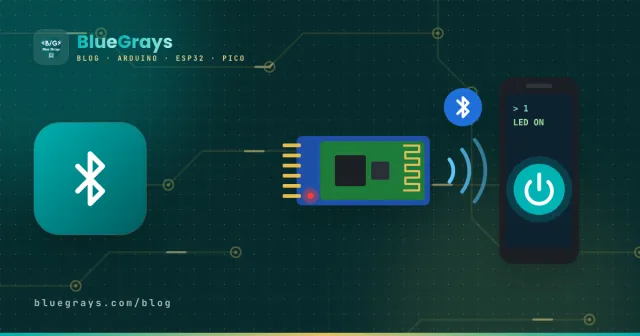
The HC-05 is a cheap and very common Bluetooth module that adds wireless serial communication to Arduino projects. With it you can turn on an LED from your phone, switch a lamp on and off with a relay, drive a remote-controlled car or send sensor data to your phone. In this article you'll see step by step how to wire the HC-05 correctly and safely, pair it with your phone, write your first code and use the AT commands that change the module's settings.
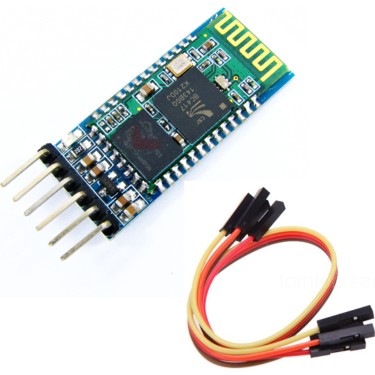
How does the HC-05 work?
The HC-05 uses classic Bluetooth's SPP (Serial Port Profile) and behaves like a "wireless serial cable". Once the phone is paired and connected, every character sent from the phone reaches the Arduino through the module's TXD pin, and everything the Arduino writes to the RXD pin goes to the phone. On the Arduino side you don't need to know anything about Bluetooth: you use Serial.print() and read() just as if you were talking to the Serial Monitor.
| Feature | Value |
|---|---|
| Bluetooth version | 2.0 + EDR (classic, SPP) |
| Range | ~10 m in open space |
| Supply voltage | 3.6–6 V (the module board has a regulator) |
| Logic level | 3.3 V |
| Default baud rate | 9600 baud (38400 in AT mode) |
| Default PIN | 1234 or 0000 |
| Role | Master and slave |
HC-05 vs HC-06 vs HM-10
| Module | Bluetooth | Role | Pins | iPhone |
|---|---|---|---|---|
| HC-05 | 2.0 classic | Master and slave | 6 | Doesn't work |
| HC-06 | 2.0 classic | Slave only | 4 | Doesn't work |
| HM-10 | 4.0 BLE | Master and slave | 6 | Works |
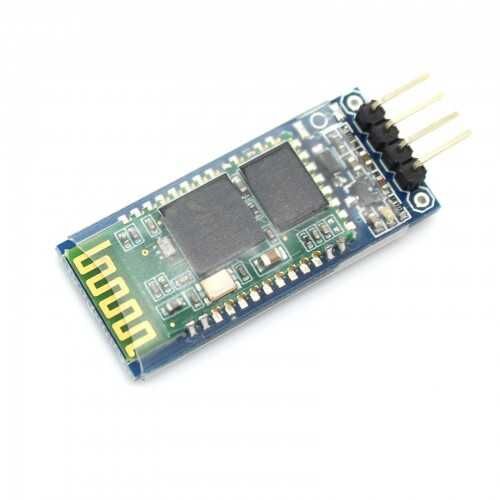
HC-05 pins and wiring
The module can be powered from 5V because there's a regulator on the board, but its data pins work at 3.3 V. The Arduino reads the 3.3 V signal from the HC-05's TXD pin without any trouble. In the other direction, instead of connecting the Arduino's 5 V TX signal straight to the module's RXD pin, use a voltage divider: Arduino TX → 1 kΩ → RXD, RXD → 2 kΩ → GND. That way about 3.3 V reaches RXD.
| HC-05 pin | Function | Arduino Uno |
|---|---|---|
| EN (KEY) | Enter AT mode | Not connected (3.3 V for AT mode) |
| VCC | Power | 5V |
| GND | Ground | GND |
| TXD | Module's data output | D10 (SoftwareSerial RX) |
| RXD | Module's data input (3.3 V) | D11, through a 1 kΩ / 2 kΩ divider |
| STATE | HIGH when connected | Not connected, or an input pin if you want |
LED states and pairing with your phone
When you power the module, its LED blinks rapidly: that means it's waiting for a connection. In your Android phone's Bluetooth settings, find the device called "HC-05" and pair it using 1234 (or 0000 if that doesn't work) as the PIN. Pairing alone doesn't open a connection; a Bluetooth serial terminal app does that. Once connected, the LED gives two short blinks every 2 seconds. If the LED is on for 2 seconds and off for 2 seconds, the module is in AT command mode.
First communication with your phone
The code below turns the Arduino into a bridge between your phone and your computer: every character from the phone goes to the Serial Monitor, and everything you type in the Serial Monitor goes to the phone. It's the best starting point for testing the connection:
1#include <SoftwareSerial.h>
2
3SoftwareSerial bt(10, 11);   // RX, TX → HC-05 TXD, RXD
4
5void setup() {
6  Serial.begin(9600);
7  bt.begin(9600);            // veri modu hızı / data mode baud rate
8}
9
10void loop() {
11  if (bt.available()) {
12    Serial.write(bt.read());   // telefondan bilgisayara / phone to PC
13  }
14  if (Serial.available()) {
15    bt.write(Serial.read());   // bilgisayardan telefona / PC to phone
16  }
17}
Upload the code and open the Serial Monitor at 9600 baud. On your phone, connect to the HC-05 with an app from Google Play such as Serial Bluetooth Terminal and type something: what you type will appear in the Serial Monitor. Text you type in the Serial Monitor also shows up on the phone. If this works, your connection, wiring and baud rate are all correct.
Controlling an LED and a relay from your phone
Now let's act on the characters coming from the phone: when 1 arrives the LED turns on, and when 0 arrives it turns off. The Arduino also sends a reply to the phone after each command:
1#include <SoftwareSerial.h>
2
3SoftwareSerial bt(10, 11);   // RX, TX
4const int LED = 13;
5
6void setup() {
7  pinMode(LED, OUTPUT);
8  bt.begin(9600);
9  bt.println("Ready");
10}
11
12void loop() {
13  if (bt.available()) {
14    char c = bt.read();
15    if (c == '1') {
16      digitalWrite(LED, HIGH);   // LED'i yak / turn the LED on
17      bt.println("LED ON");
18    } else if (c == '0') {
19      digitalWrite(LED, LOW);    // LED'i söndür / turn the LED off
20      bt.println("LED OFF");
21    }
22  }
23}
Many Bluetooth apps let you assign any character you like to a button, so you can build a small remote with "On" and "Off" buttons on your phone. If you connect a relay module instead of the LED, the same code controls a lamp or a fan from your phone. Routing the characters F, B, L and R for forward, back, left and right to an L298N motor driver is also the basis of a Bluetooth-controlled car.
Changing the module's settings with AT commands
You can change the HC-05's name, PIN and baud rate with AT commands. To enter AT mode, power the module while holding down the small button on it (or with the EN pin connected to 3.3 V); the LED starts blinking slowly, once every 2 seconds. In the bridge code, write bt.begin(38400), set the line ending in the Serial Monitor to Both NL & CR and send the commands:
| Command | Function |
|---|---|
| AT | Connection test, replies OK |
| AT+NAME=BlueGrays | Changes the module's visible name |
| AT+PSWD="4321" | Changes the PIN (without quotes on older versions) |
| AT+UART=9600,0,0 | Sets the baud rate in data mode |
| AT+ROLE=0 | Makes it a slave (1 makes it a master) |
| AT+VERSION? | Shows the firmware version |
| AT+ORGL | Restores the factory settings |
Bluetooth with the ESP32 and Raspberry Pi Pico
The classic ESP32 has both classic Bluetooth and BLE built in; with the BluetoothSerial library you can connect to your phone without an HC-05. The ESP32-S3 and ESP32-C3, however, only support BLE. The Raspberry Pi Pico W also has built-in Bluetooth. On the standard Raspberry Pi Pico without Bluetooth, you connect the HC-05 to the UART pins; because the Pico runs at 3.3 V, no voltage divider is needed this time. Power the module from the VBUS (5V) pin:
1from machine import UART, Pin
2
3bt = UART(0, baudrate=9600, tx=Pin(0), rx=Pin(1))   # GP0 → RXD, GP1 ← TXD
4led = Pin("LED", Pin.OUT)                           # kart üstü LED / onboard LED
5
6while True:
7    if bt.any():
8        c = bt.read(1)
9        if c == b'1':
10            led.on()
11            bt.write(b'LED ON\n')
12        elif c == b'0':
13            led.off()
14            bt.write(b'LED OFF\n')
HC-05 project ideas
- Bluetooth-controlled car: a robot driven from your phone with an L298N motor driver and two DC motors.
- Smart home switch: turn lamps and sockets on and off from your phone with a relay module.
- Colour picker lamp: set the colour of an RGB LED with values sent from your phone.
- Wireless sensor display: send the temperature and humidity read from a DHT11 to the terminal on your phone.
- Robot arm: control servo motors with sliders on your phone.
- Communication between two Arduinos: make one HC-05 the master and the other the slave to send data wirelessly.
Common mistakes and how to fix them
- The phone can't find the module: you're using an iPhone, the module is connected to another device, or it's stuck in AT mode.
- Garbled characters arrive: the baud rates don't match; data mode usually uses 9600 and AT mode 38400.
- No reply to AT commands: the module isn't in AT mode, the baud rate isn't 38400, or Both NL & CR isn't selected as the line ending.
- The code won't upload: the module is connected to pins 0 and 1; unplug it while uploading or use SoftwareSerial.
- The connection drops when the motors start: the motors disturb the power supply; power them from a separate source and add a capacitor to the module's supply.
- The module failed after a while: 5 V may have been fed to the RXD pin without a divider; always use a 1 kΩ / 2 kΩ divider.
The HC-05 is the easiest way to take your wired projects wireless; combine it with motor control and you're ready to build your first remote-controlled robot. In the BlueGrays app you'll find a Bluetooth-controlled car with the L298N and an obstacle-avoiding robot, with circuit diagrams and code.
Frequently asked questions
Does the HC-05 work with an iPhone?
No. iOS doesn't let ordinary apps open the classic Bluetooth serial connection used by the HC-05 and HC-06. For an iPhone you should use a BLE module such as the HM-10, or an ESP32 with BLE.
What's the range of the HC-05?
About 10 metres in open space. Walls, metal surfaces and other wireless devices shorten that distance. Indoors it works reliably within the same room or the next room.
What's the difference between the HC-05 and the HC-06?
Both use classic Bluetooth. The HC-05 can be a master or a slave and has 6 pins; the HC-06 is slave only and usually has 4 pins. Either is enough for talking to a phone; to link two Arduinos you need at least one HC-05.
What's the HC-05's default PIN?
It's 1234 on most modules and 0000 on some. You can change it in AT mode with the AT+PSWD command; if you don't want others controlling your project, changing the default PIN is a good idea.
Can I make two Arduinos talk to each other with HC-05s?
Yes. Make one HC-05 the master with AT+ROLE=1 and give it the other module's address with the AT+BIND command; the second module stays a slave. On power-up the master connects to the slave automatically and the two Arduinos talk over the serial port.
Is a voltage divider on the RXD pin really necessary?
It's recommended. The HC-05's data pins work at 3.3 V; many modules survive 5 V for a while, but they can fail over time. A simple divider made of 1 kΩ and 2 kΩ resistors removes that risk. The TXD pin doesn't need a divider.
Projects to build after reading this
See all projects
Bluetooth Controlled Car with L298N
2WD (two-motor, four-wheeled) robot car project that can be controlled from the phone with Arduino and HC-05 Bluetooth module. A total of four wheels are driven simultaneously by connecting two motors

Obstacle Avoidance Robot
How about building a smart vehicle that finds its own way? The Obstacle Avoidance Robot constantly scans its surroundings thanks to the ultrasonic sensor in front of it. When it encounters an obstacle
More articles
Learn step by step how to connect the HC-05 Bluetooth module to Arduino safely, pair it with your phone, control an LED and a relay from your phone, and change its name and PIN with AT commands.