
What Is the Raspberry Pi Pico? MicroPython Setup, Pinout and First Projects
What is the Raspberry Pi Pico and how is it different from a Raspberry Pi and an Arduino? RP2040 features, Pico W and Pico 2, the pinout, MicroPython setup with Thonny, and first LED, button, PWM and analog reading code.
The Raspberry Pi Pico is a very cheap, palm-sized microcontroller board built around the RP2040, a chip designed by the Raspberry Pi Foundation itself. Its standout feature is that it can be programmed in MicroPython, in other words in Python: you write your code, run it and see the result straight away, with no waiting for compilation. That makes it a great gateway for students learning Python and for electronics beginners. If you prefer, you can also program it in C/C++ or with the Arduino IDE.
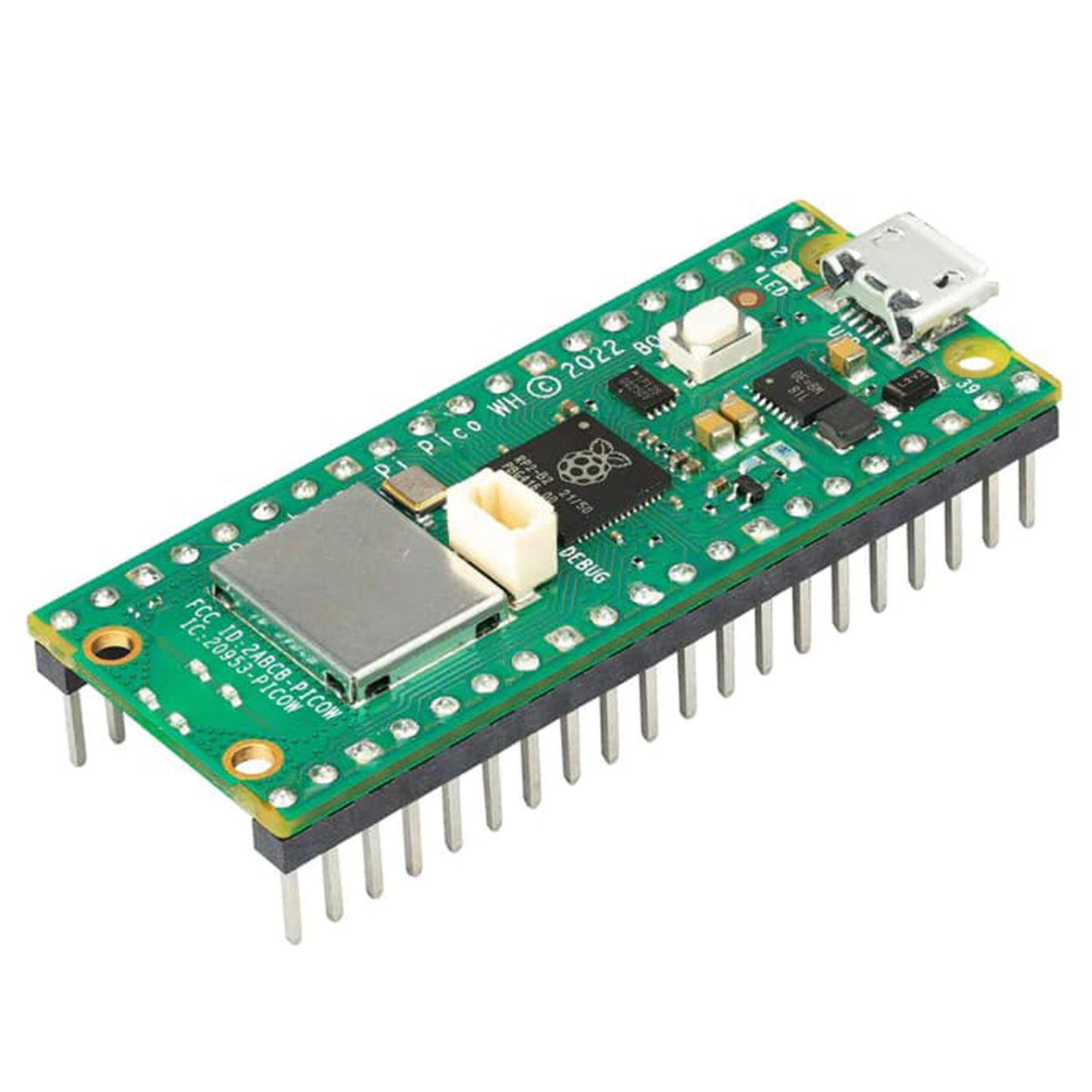
What is the Raspberry Pi Pico? How it differs from a Raspberry Pi
Despite the similar name, the Pico is not a computer like the Raspberry Pi 4 or 5. It has no operating system, no HDMI output and no desktop; like an Arduino, it's a microcontroller board that runs a single program. Your program starts the moment you power it up, it uses very little energy, and it handles jobs such as reading sensors, lighting LEDs and driving motors in real time.
| Feature | Raspberry Pi Pico | Arduino Uno R3 | Raspberry Pi 4 / 5 |
|---|---|---|---|
| Type | Microcontroller board | Microcontroller board | Single-board computer |
| Operating system | None | None | Linux |
| Programming language | MicroPython, C/C++, Arduino | C/C++ (Arduino) | Python and almost any language |
| Boot time | Instant | Instant | 20–30 seconds |
| Power consumption | About 25 mA | About 45 mA | A few watts |
| Typical use | Sensors, LEDs, motors, timing | Sensors, LEDs, motors | Cameras, servers, desktop computer |
Specifications: Pico, Pico W and Pico 2
| Feature | Pico | Pico W | Pico 2 |
|---|---|---|---|
| Chip | RP2040, dual-core Cortex-M0+, 133 MHz | RP2040, dual-core Cortex-M0+, 133 MHz | RP2350, dual-core Cortex-M33, 150 MHz |
| RAM | 264 KB | 264 KB | 520 KB |
| Flash | 2 MB | 2 MB | 4 MB |
| Wireless | None | Wi-Fi (2.4 GHz) + Bluetooth | None (included on the Pico 2 W) |
| Usable GPIO | 26 | 26 | 26 |
| Analog input (ADC) | 3 channels, 12-bit | 3 channels, 12-bit | 3 channels, 12-bit |
| Operating voltage | 3.3 V | 3.3 V | 3.3 V |
Pico pinout
The Pico has 40 pins in total along its two edges. Every one of the 26 GPIO pins from GP0 to GP28 can output PWM, and I2C, SPI and UART can be used on several alternative pins. Analog input is only available on GP26, GP27 and GP28. You can see the board's full pin map in the Pinout tool; the important power and special pins are:
| Pin | Function |
|---|---|
| VBUS | 5 V from USB |
| VSYS | External supply input (1.8–5.5 V) |
| 3V3(OUT) | 3.3 V output for sensors (up to about 300 mA) |
| GND | Ground (there are 8 on the board) |
| GP0–GP22 | Digital input/output, PWM, I2C, SPI, UART |
| GP26–GP28 | Analog input as well (ADC0–ADC2) |
| RUN | Resets the board when connected to GND |
Installing MicroPython (with Thonny)
- Download and install Thonny from thonny.org.
- Hold down the BOOTSEL button on the Pico while plugging the USB cable into your computer; the Pico shows up as a drive called RPI-RP2 (RP2350 on the Pico 2).
- In the interpreter menu at the bottom right of Thonny, choose MicroPython (Raspberry Pi Pico), then use "Install or update MicroPython" to install the right version for your board (Pico, Pico W or Pico 2). You can also download the .uf2 file from micropython.org and drag it onto the drive.
- When the installation finishes, the Pico restarts. If you see the >>> prompt in the Shell at the bottom of Thonny, you're ready.
- If you save your code to the Pico as main.py, it runs automatically every time the board powers up, even when it's not connected to a computer.
First program: blinking the built-in LED
1from machine import Pin
2import time
3
4led = Pin(25, Pin.OUT)      # Pico'da dahili LED; Pico W ve Pico 2 W'de Pin("LED") yaz
5                            # onboard LED on Pico; use Pin("LED") on Pico W / Pico 2 W
6
7while True:
8    led.toggle()            # durumu tersine çevir / flip the state
9    time.sleep(0.5)
Controlling an LED with a button
Connect an LED to GP15 through a 220 Ω resistor and a button to GP14. The other leg of the button goes to GND, and the Pico's internal pull-up resistor is enabled, so the button reads 1 when released and 0 when pressed:
1from machine import Pin
2
3led = Pin(15, Pin.OUT)
4button = Pin(14, Pin.IN, Pin.PULL_UP)   # butonun diğer ucu GND'de / other leg to GND
5
6while True:
7 led.value(not button.value()) # basılıyken yanar / on while pressedLED brightness with PWM
Every GPIO pin on the Pico can output PWM. In MicroPython the duty value ranges from 0 to 65535. The code below slowly brightens an LED and then starts again; you'll find the idea behind PWM explained in detail in What Is PWM?
1from machine import Pin, PWM
2import time
3
4led = PWM(Pin(15), freq=1000)
5
6while True:
7    for d in range(0, 65536, 1024):   # yavaşça yan / fade in
8        led.duty_u16(d)
9        time.sleep_ms(10)
Analog readings and the built-in temperature sensor
Connect a potentiometer's middle pin to GP26 and its outer pins to 3V3 and GND. read_u16() returns a value from 0 to 65535. The Pico also has a temperature sensor inside, connected to the ADC's 4th channel; it's only a rough reading, but it's a fun way to measure temperature without any extra parts:
1from machine import ADC
2import time
3
4pot = ADC(26)                    # GP26 (ADC0) / potansiyometre orta ucu / pot wiper
5sensor = ADC(4)                  # dahili sıcaklık sensörü / internal temperature sensor
6
7while True:
8    value = pot.read_u16()                       # 0–65535
9    volts = sensor.read_u16() * 3.3 / 65535
10    temp = 27 - (volts - 0.706) / 0.001721       # °C (yaklaşık / approximate)
11    print(value, round(temp, 1))
12    time.sleep(1)
Programming the Pico with the Arduino IDE
If you prefer C++ and Arduino libraries, you can also use the Pico with the Arduino IDE. Add https://github.com/earlephilhower/arduino-pico/releases/download/global/package_rp2040_index.json to the additional boards URLs field in File > Preferences, then install Earle Philhower's Raspberry Pi Pico/RP2040/RP2350 package from the Boards Manager. For the first upload, hold the BOOTSEL button while connecting the board; after that, uploads work normally. The Blink example with LED_BUILTIN and most Arduino libraries work without trouble.
Pico, ESP32 or Arduino?
| What you need | Recommended board |
|---|---|
| First project, 5 V sensors, the most examples and resources | Arduino Uno |
| Wi-Fi, Bluetooth, internet, phone control | ESP32 or Pico W |
| Learning to program in Python | Raspberry Pi Pico |
| Very low price, precise timing (PIO) | Raspberry Pi Pico |
| Camera and audio projects | ESP32-S3 or ESP32-CAM |
For projects that need wireless, get to know the ESP32 in What Is the ESP32? A strength unique to the Pico is its PIO (programmable input/output) blocks: they handle timing-critical jobs such as WS2812B LED strips or custom communication protocols without burdening the processor.
Raspberry Pi Pico project ideas
- Traffic light: a traffic light with three LEDs lighting in sequence.
- Knight Rider: a light effect running back and forth across six LEDs.
- Buttons and interrupts (IRQ): code that catches a button press without waiting for the main loop.
- RGB colour cycle: a rainbow effect on an RGB LED with three PWM channels.
- Pico W web server: control an LED or relay from a page opened on your phone.
- Mini thermometer: show the built-in temperature sensor's reading on an OLED display.
Common mistakes and how to fix them
- The RPI-RP2 drive doesn't appear: the board was plugged in without holding BOOTSEL, or the cable is charge-only; use a data cable.
- Thonny can't find the board: the wrong interpreter is selected, or MicroPython isn't installed on the board.
- The LED doesn't light on a Pico W: on the Pico W the built-in LED is connected to the wireless chip; use Pin("LED") instead of Pin(25).
- Connecting 5 V signals: the GPIOs are 3.3 V; 5 V signals can damage a pin.
- The code doesn't run when unplugged from the computer: it wasn't saved to the Pico as main.py.
- Too much voltage on VSYS: VSYS accepts at most 5.5 V; don't connect a 9 V or 12 V adapter directly.
With its low price and Python support, the Raspberry Pi Pico is one of the easiest ways to bring coding and electronics together. You'll find LED basics in What Is an LED?; in the BlueGrays app you'll find Pico projects for blinking LEDs, a traffic light, Knight Rider, button interrupts, a PWM breathing effect and an RGB colour cycle, step by step with circuit diagrams and MicroPython code.
Frequently asked questions
Is the Raspberry Pi Pico a Raspberry Pi computer?
No. The Pico is a microcontroller board made by the Raspberry Pi Foundation; it has no operating system, display output or desktop. Like an Arduino, it runs a single program. The Raspberry Pi 4 and 5 are full computers running Linux.
What language is the Raspberry Pi Pico programmed in?
The most common choice is MicroPython; it's easy to install with Thonny and anyone who knows Python can start right away. The official C/C++ SDK and the Arduino IDE (with Earle Philhower's package) can be used too. CircuitPython is also supported.
What's the difference between the Pico and the Pico W?
The Pico W adds a wireless chip that gives the Pico 2.4 GHz Wi-Fi and Bluetooth; everything else is the same. Because the built-in LED on the Pico W is connected to that chip, you use Pin("LED") in code instead of Pin(25).
Does the Raspberry Pi Pico work with 5 V?
The board can be powered from the 5 V of USB or with 1.8–5.5 V on the VSYS pin. The GPIO pins, however, run at 3.3 V and aren't 5 V tolerant, so you shouldn't connect 5 V signals directly to them.
How many analog inputs does the Pico have?
There are three user-accessible analog inputs: GP26 (ADC0), GP27 (ADC1) and GP28 (ADC2). The ADC's 4th channel is also connected to the temperature sensor inside the chip. In MicroPython, read_u16() returns a value from 0 to 65535.
Can I program the Raspberry Pi Pico with the Arduino IDE?
Yes. Once you install Earle Philhower's Raspberry Pi Pico/RP2040/RP2350 board package in the Arduino IDE, you can program the Pico with Arduino commands and use most Arduino libraries. For the first upload you need to hold the BOOTSEL button while connecting the board.
Projects to build after reading this
See all projects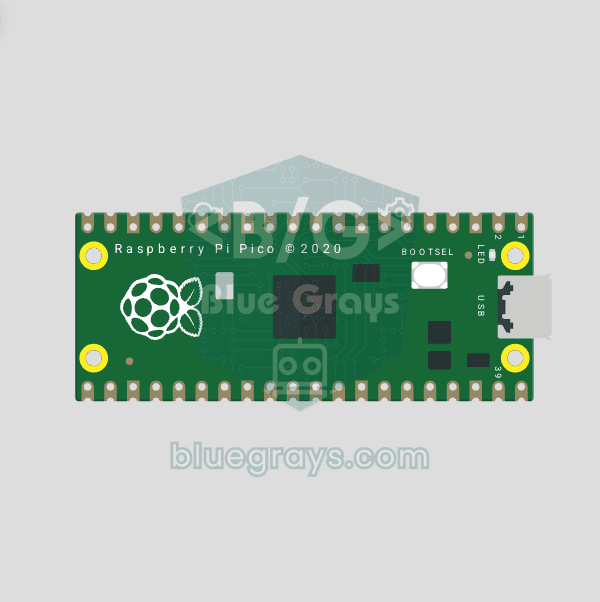
Raspberry Pi Pico Onboard LED Blink (GP25 Built-in LED)
The opening project of the Raspberry Pi Pico series! We blink the onboard LED (green LED connected to GP25) to verify the board works — a classic "Hello World" first experiment. NO external components, just Pico and USB cable. Code is written in **MicroPython** (the official language backed by Raspberry Pi Foundation). Learn `machine.Pin` class, `Pin.OUT` mode, `led.on()/off()` methods, and `time.sleep()` in Thonny IDE. Follow every toggle live in the Serial (REPL) output. Also perfect to verify
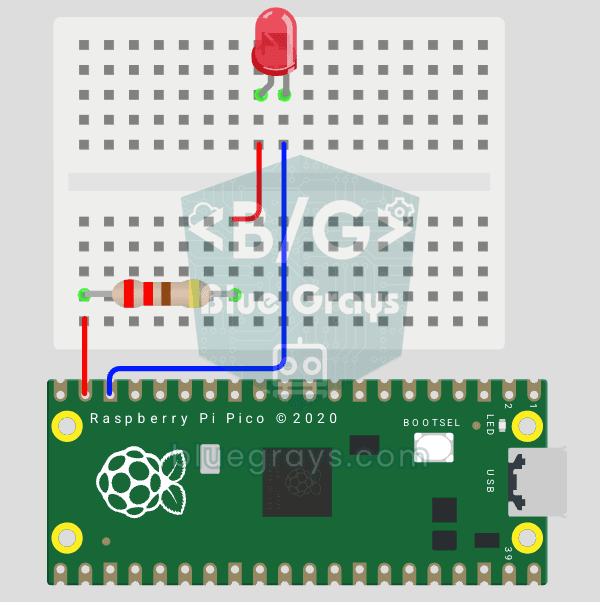
Raspberry Pi Pico: Controlling an External LED (GP14 + Breadboard)
The next step after Pico’s built-in LED: connecting an external LED to the breadboard and controlling it via the GP14 pin. In this project, you’ll learn how to use any of the Pico’s general-purpose GPIO pins as an output, the LED’s polarity (long leg = anode/+, short leg = cathode/–), and why a current-limiting resistor (220Ω) is required. If you don’t include the resistor, excessive current will flow through the LED and it may burn out. The circuit is very simple: Pico GP14 → 220Ω resistor → LE
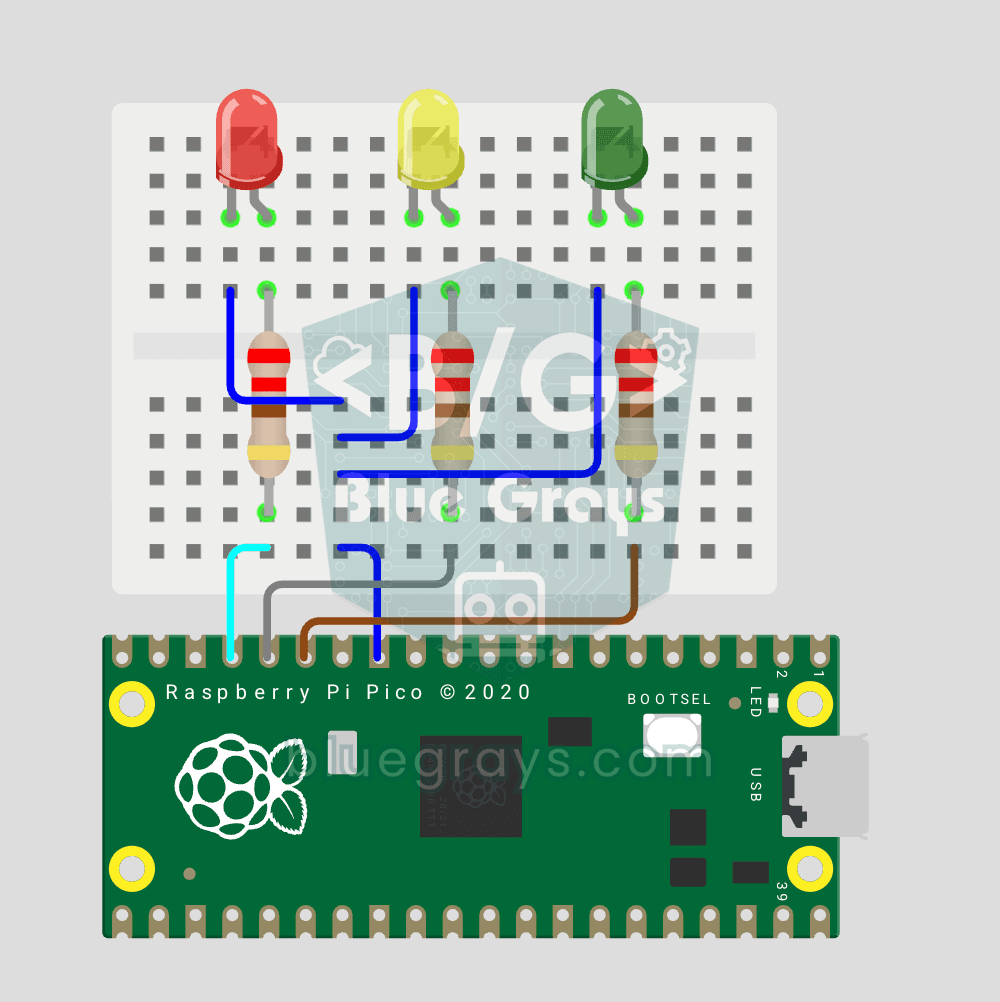
Raspberry Pi Pico Traffic Light Simulator (3 LEDs Sequential, GP11/GP12/GP13)
We simulate a real traffic light with red, yellow and green LEDs — the first 3-LED project of the Pico series! Green 4 sec "go", yellow 1.5 sec "ready", red 3 sec "stop" and red+yellow 1 sec "starting" (European traffic light pattern). Learn **function definition** (`def hepsini_sondur()`), **state machine logic** (sequence) and **multi-GPIO synchronization**. Very simple circuit: 3 LEDs on GP11 (Green), GP12 (Yellow), GP13 (Red), each with a 220Ω current-limiting resistor. GP11-GP12-GP13 are ad
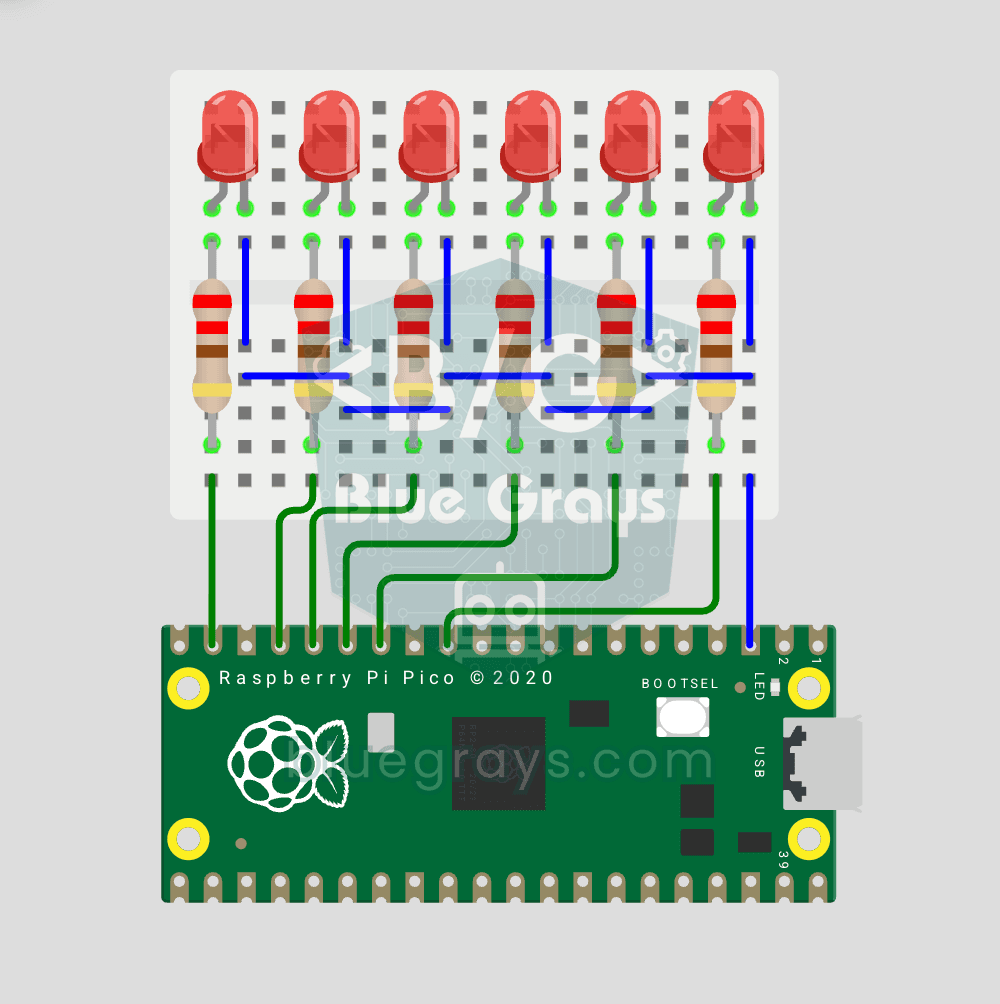
Raspberry Pi Pico Chasing LED (6 LEDs, GP14 → GP9)
Classic "chasing LED" animation with Pico — 6 LED version! 🌊 6 LEDs light up left-to-right sequentially — like light walking down the row. Learn Python list, list comprehension ([Pin(p, Pin.OUT) for p in LED_PINS]), for loop with pin control and enumerate(). 6 LEDs on GP9-GP14, each with 220Ω current-limiting resistor. Very clean code: instead of defining 6 LEDs one by one, we use a list — even 100 LEDs would keep the code the same. Simulate on Wokwi or build in 5-7 minutes on breadboard. Change
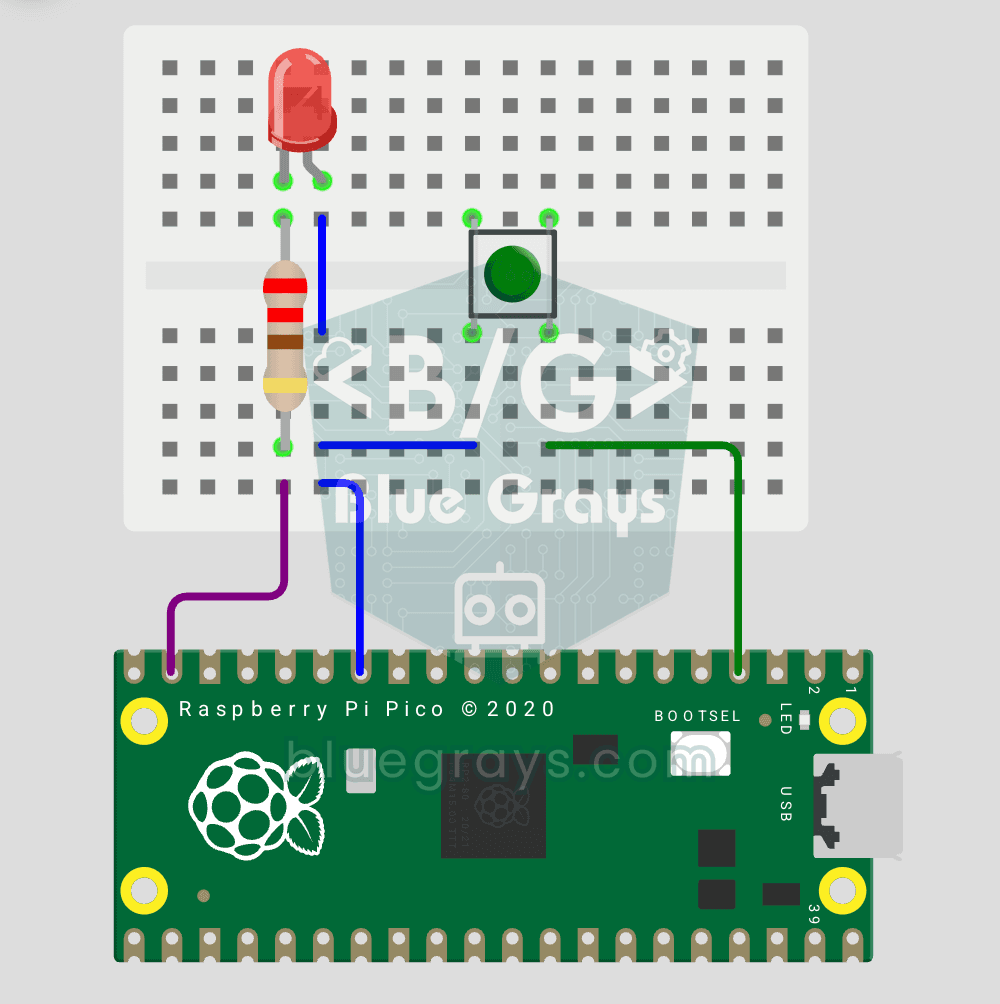
Raspberry Pi Pico Button Controlled LED (Push, GP14 + GP2)
First **input** project with Pico — button read! 🔘 LED lights while button is pressed, off when released. This is the big step after LED animations: **signal input from the world to Pico**. Learn `Pin.IN` (input mode), `Pin.PULL_UP` (internal pull-up resistor — standard for buttons), `buton.value()` reading. GP14 LED, GP2 button (internal PULL_UP). Pressed = LOW (0), released = HIGH (1) — reverse logic seems confusing at first but is industry standard. Very simple circuit: LED + 220Ω on GP14, b
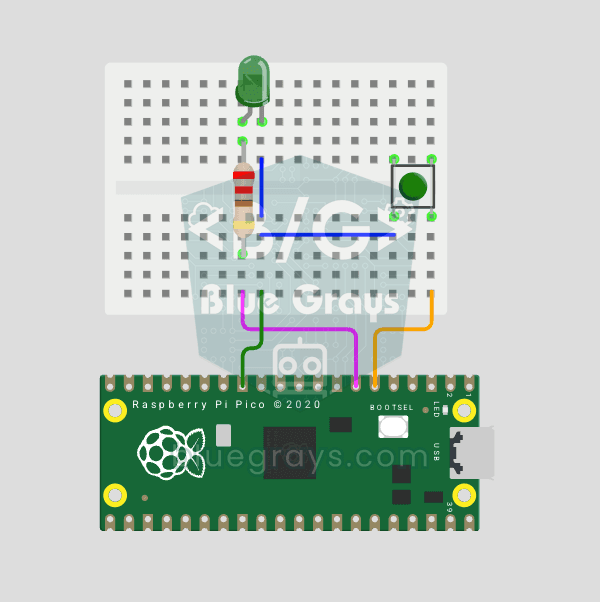
Raspberry Pi Pico Button Debounce: IRQ vs Software Polling (GP5 + GP4)
Press a button once, code counts 3-4? That is **contact bounce** — metal contacts oscillate for microseconds! 🔁 Compare 2 counting methods side-by-side in Serial: **RAW polling** (catches bounce, over-counts) vs **IRQ + software debounce** (accurate). Learn contact bounce physics, software debounce (`ticks_diff() > 50ms`), **Pin.irq()** interrupt registration, **IRQ_FALLING** trigger, ISR handlers, `global` + ISR safety. LED toggles via IRQ (visual feedback). Serial shows both counters per press
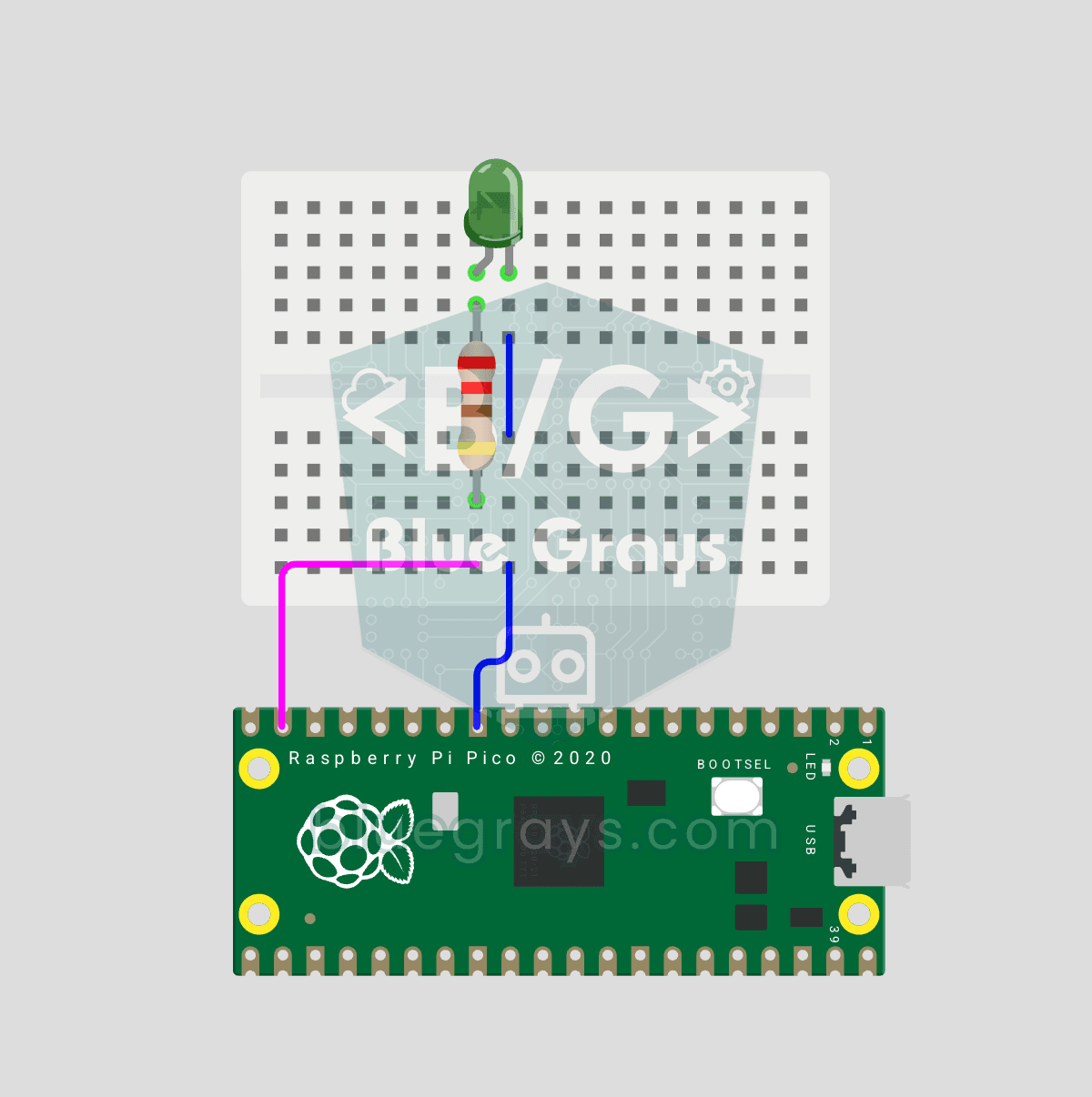
Raspberry Pi Pico PWM LED Fade (Breathing Effect, GP14)
The LED no longer just blinks — it breathes! 🌬️ Using the Raspberry Pi Pico's **PWM** (Pulse Width Modulation), the LED brightness slowly rises and then slowly falls, like a sleeping MacBook's light. Learn the **machine.PWM class**, **duty_u16()** (16-bit brightness 0–65535), **PWM frequency** (`freq(1000)` — 1000 on/off cycles per second, no visible flicker), **range() step loops** (up and down) and **analog-like output** from a digital pin. PWM is a core embedded tool — RGB color mixing, motor
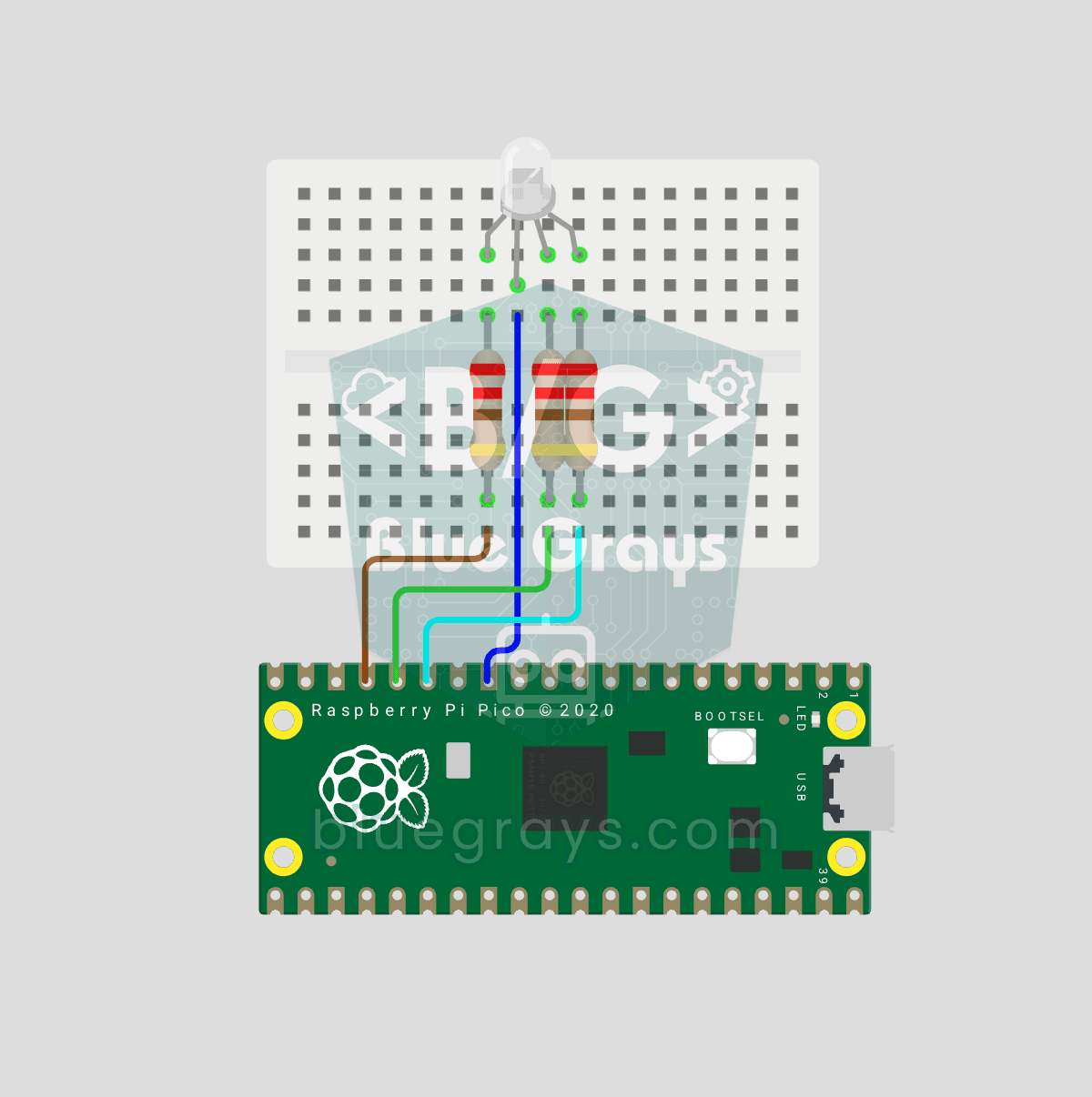
Raspberry Pi Pico RGB LED Color Cycle (3-Channel PWM, GP11-13)
One LED, millions of colors! 🌈 An RGB LED actually contains 3 LEDs: **red, green and blue**. Driving each with its own Pico **PWM** channel mixes the colors: red + green = yellow, green + blue = cyan, all three = white. Here the LED cycles through 8 colors. Learn **multiple PWM channels**, **defining functions** (`def renk(...)`), **RGB color mixing** (how screens and smart bulbs work), **8-bit → 16-bit conversion** (`x257` maps 0–255 to 0–65535), **common cathode vs common anode** LEDs and **st
More articles
Learn that the Raspberry Pi Pico is a microcontroller, not a computer, the difference between the Pico, Pico W and Pico 2, how to install MicroPython and your first projects with LEDs, buttons, PWM and analog readings.