
Pico W IoT Motion Counter (PIR)
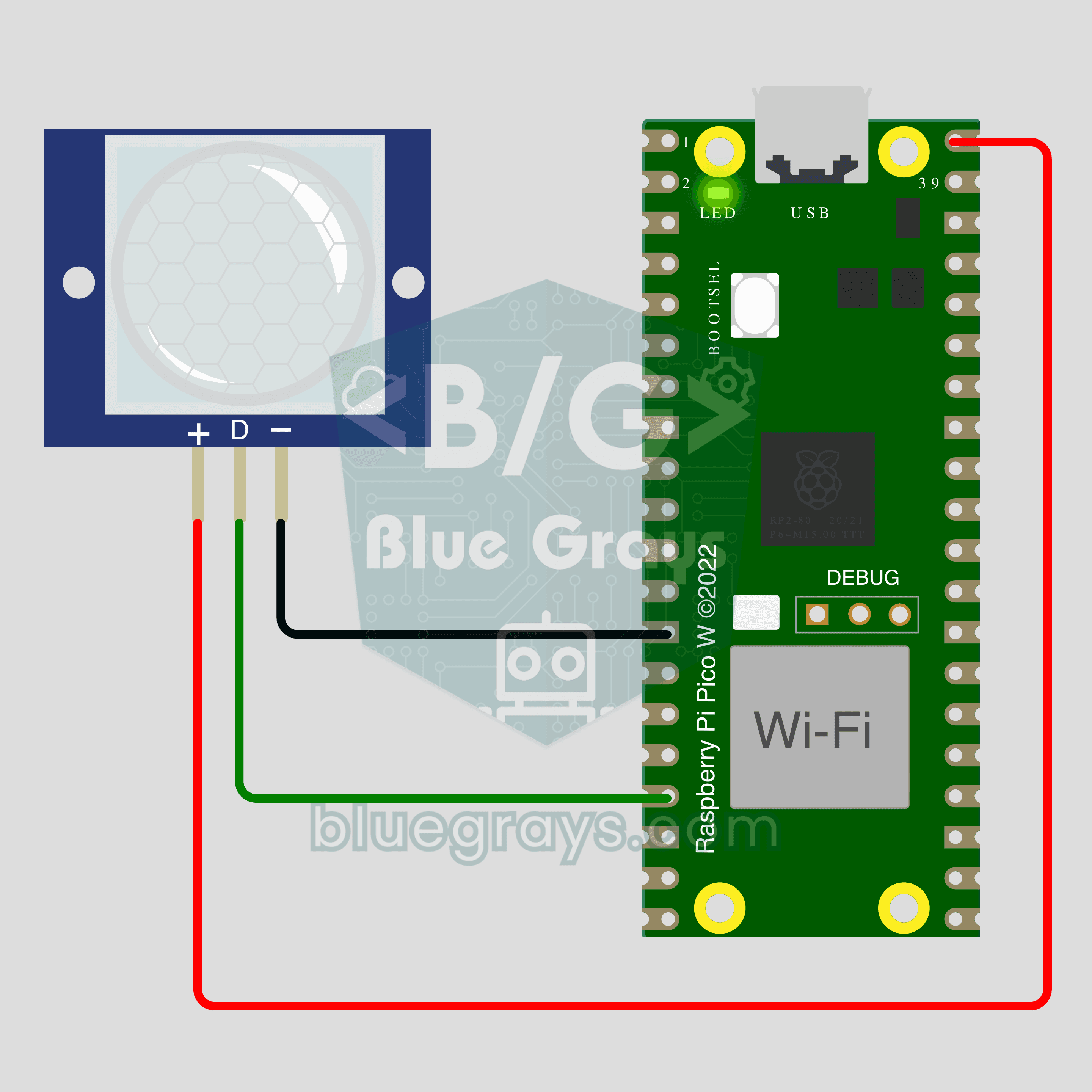
Count how many times someone walks through a door or hallway, and see the moment of motion live on your phone. This project is the step-by-step guide to the Motion detector IoT template in the app, built with a Raspberry Pi Pico W and a PIR motion sensor using just 3 wires. Go to Workshop › Devices › Add a device; Ohmi prepares the code with your own device key. The code on this page is an example: the key and Wi-Fi details are placeholders.
Control this device from the app
Connect your ESP32 or Raspberry Pi Pico W to Wi-Fi, then switch it on and off and watch live readings from your phone. Ohmi prepares the code; you just enter your Wi-Fi details and upload it.
Template in the app: Motion detector
- Where is it in the app?Add a new device from the Tools tab or Workshop › Devices and pick this template.
- Arduino libraryOpen the Library Manager in the Arduino IDE, search for BlueGraysIoT and install it.
The free plan includes 1 device, 1 chart and 24 hours of history. Premium adds more devices, more charts and longer history.
Circuit Diagram
Source Code
1// ─────────────────────────────────────────
2//   BlueGrays · bluegrays.com
3//   Pico W IoT Motion Counter (PIR)
4// ─────────────────────────────────────────
5// The "Motion detector" IoT template from the BlueGrays app: when the PIR
6// sensor sees movement the board tells the app at once, counts every new
7// movement, and the counter builds up in a chart in the app; the Reset
8// counter button sets it back to 0. Ohmi prepares the real code in the app
9// with your own device key (Workshop › Devices › Add a device); the code
10// here is an example, the device key and Wi-Fi details are placeholders.
11// Library Manager: BlueGraysIoT (with its dependencies). In Arduino IDE
12// pick Raspberry Pi Pico W as the board (pico package). The board only
13// joins 2.4 GHz Wi-Fi networks. The PIR sensor needs about 1 minute to
14// warm up after power-on; it may miscount during that time.
15//
16// Pins:
17//   GP13 -> PIR sensor OUT
18//   VBUS (5V), GND -> PIR sensor VCC, GND
19//   ESP32: PIR OUT GPIO33, VCC 5V
20
21/*
22 * Motion detector · BlueGrays IoT
23 * BlueGrays · bluegrays.com
24 * Do not share this code: it contains your device key and Wi-Fi password.
25 */
26
27#include <BlueGraysIoT.h>
28
29const char *DEVICE_KEY = "YOUR_DEVICE_KEY";
30const char *WIFI_NAME = "YOUR_WIFI_NAME";
31const char *WIFI_PASSWORD = "YOUR_WIFI_PASSWORD";
32
33BlueGraysIoT bg(DEVICE_KEY);
34
35const int PIR_PIN = 13;
36bool lastMotion = false; long counter = 0;
37
38void setup() {
39  Serial.begin(115200);
40  pinMode(PIR_PIN, INPUT);
41  bg.onSwitch("sifirla", [](bool on) { if (!on) return; counter = 0; bg.send("sifirla", false); });
42  bg.setDebug(Serial);
43  bg.setLanguage(BG_LANG_EN);
44  bg.begin(WIFI_NAME, WIFI_PASSWORD);
45}
46
47void loop() {
48  bg.loop();  // avoid long delay() calls here
49  bool motion = digitalRead(PIR_PIN) == HIGH;
50  if (motion && !lastMotion) counter++;
51  lastMotion = motion;
52  bg.send("hareket", motion);
53  bg.send("sayac", counter);
54}
55FAQ
Can I upload the code on this page straight to my board?
You can, but it will not connect: the device key and Wi-Fi details in it are placeholders. In the app go to Workshop › Devices › Add a device and pick the Motion detector template; Ohmi prepares the code with your key, network name and password. Copy that code and upload it. You can see the full code later in Device › Code and key.
Does it work with an ESP32?
Yes. Pick ESP32 as the board when you add the device; the code stays the same and only the sensor pin changes: PIR OUT goes to GPIO33 and VCC to the 5V pin. In Arduino IDE install the "esp32" package from Boards Manager. The circuit and photo on this page were made with a Pico W.
Does the counter reset after a power cut?
Yes. The counter lives in the board's memory, so it starts again from 0 when the board restarts. The chart in the app is stored on the server, so the past values are not lost; only the new count starts from 0. To reset the counter yourself, tap the Reset counter button in the app.
Are my Wi-Fi password and device key safe?
Your Wi-Fi password stays on your phone and is never sent to our server; it is added to the code on the phone. The device key only travels in the header of the secure connection and is never printed to the serial monitor. Both are still inside the code, so do not share the code you copy from the app. If someone saw your key, get a new one with Renew key and upload the new code.