
Projects using this component
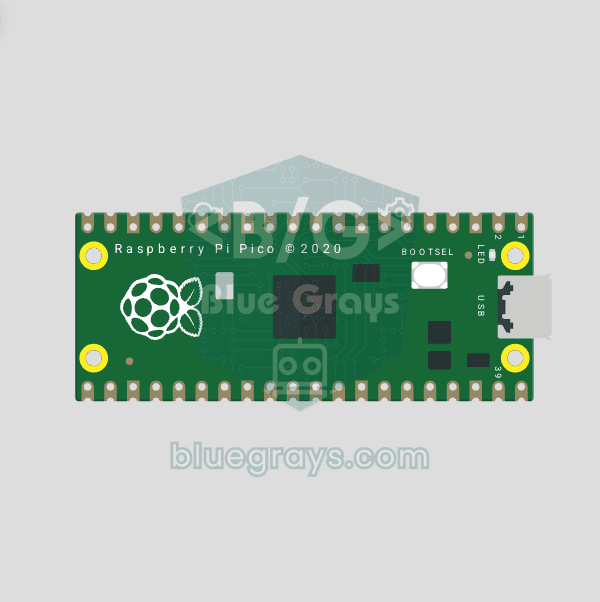
Raspberry Pi Pico Onboard LED Blink (GP25 Built-in LED)
The opening project of the Raspberry Pi Pico series! We blink the onboard LED (green LED connected to GP25) to verify the board works — a classic "Hello World" first experiment. NO external components, just Pico and USB cable. Code is written in **MicroPython** (the official language backed by Raspberry Pi Foundation). Learn `machine.Pin` class, `Pin.OUT` mode, `led.on()/off()` methods, and `time.sleep()` in Thonny IDE. Follow every toggle live in the Serial (REPL) output. Also perfect to verify
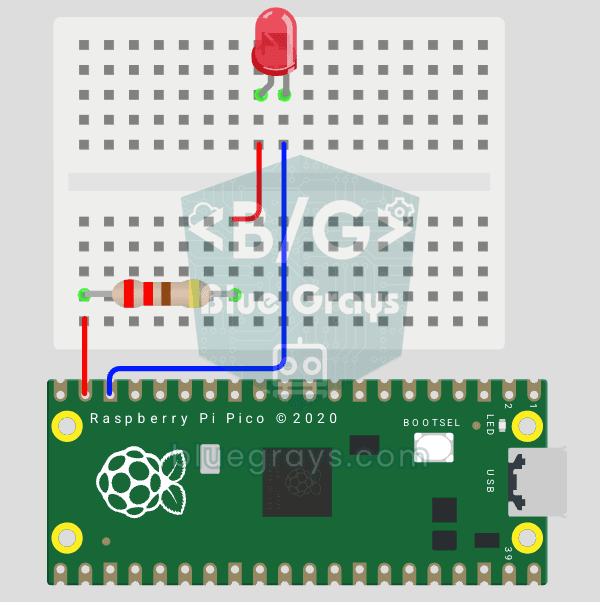
Raspberry Pi Pico: Controlling an External LED (GP14 + Breadboard)
The next step after Pico’s built-in LED: connecting an external LED to the breadboard and controlling it via the GP14 pin. In this project, you’ll learn how to use any of the Pico’s general-purpose GPIO pins as an output, the LED’s polarity (long leg = anode/+, short leg = cathode/–), and why a current-limiting resistor (220Ω) is required. If you don’t include the resistor, excessive current will flow through the LED and it may burn out. The circuit is very simple: Pico GP14 → 220Ω resistor → LE
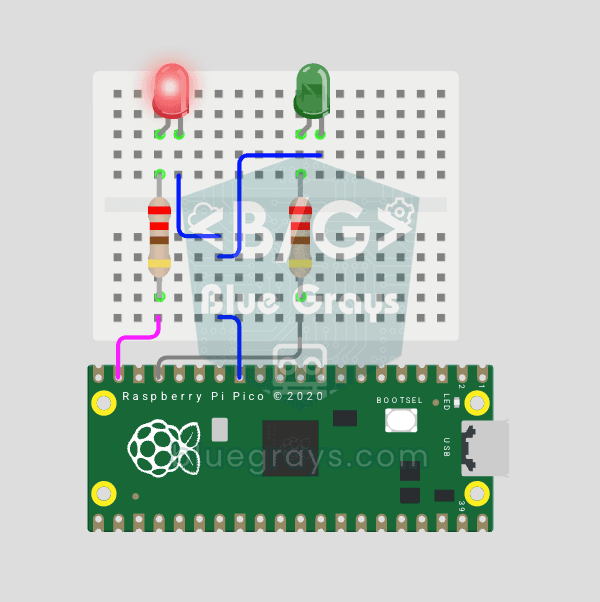
Raspberry Pi Pico Alternating Two LEDs (Blink-Flip Pattern, GP14 + GP13)
The next step after single LED on Pico: two LEDs blink alternately in a classic flip-flop pattern. When one turns off, the other lights up — the most basic example of multi-GPIO coordination. In this project two different color LEDs (red on GP14, green on GP13) swap states every 500ms. MicroPython's `Pin.toggle()` method makes the code short and clear. The same core logic is the foundation of traffic lights, police strobes, chasing LEDs and all multi-LED animations. Very simple circuit: 220Ω res
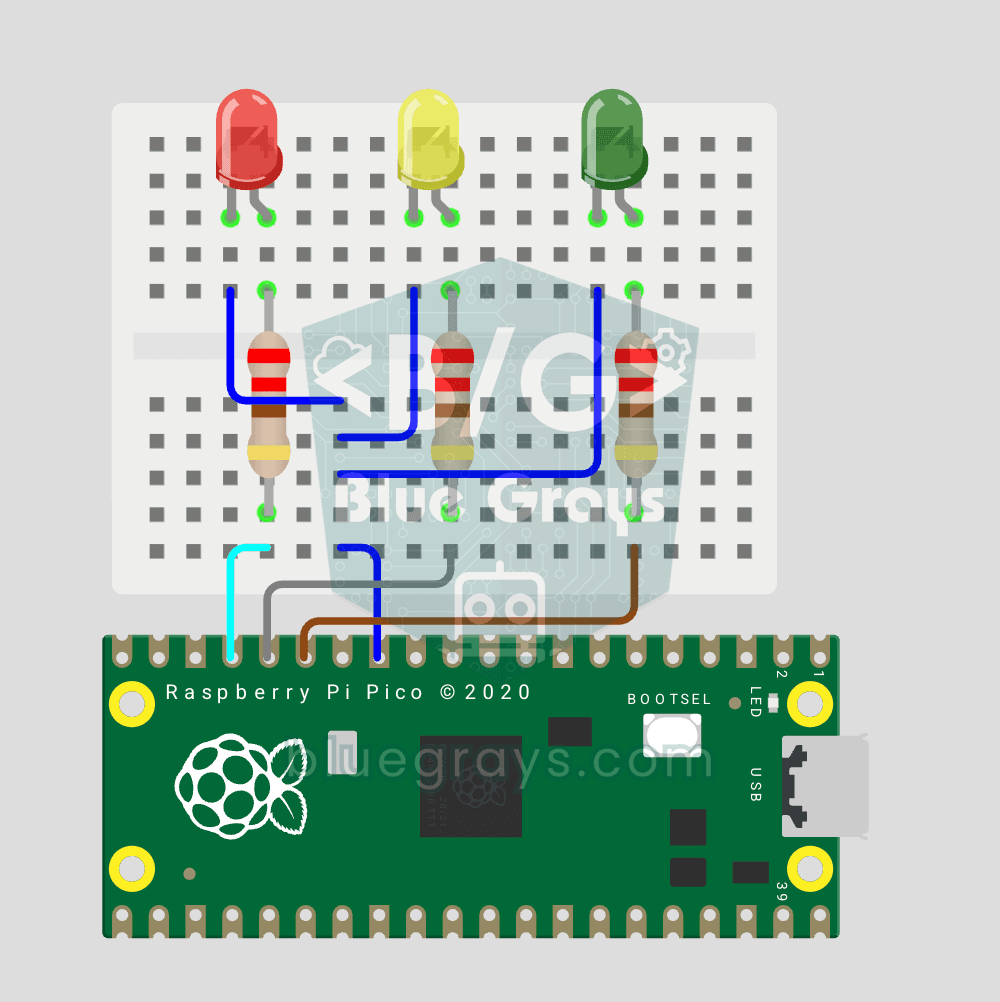
Raspberry Pi Pico Traffic Light Simulator (3 LEDs Sequential, GP11/GP12/GP13)
We simulate a real traffic light with red, yellow and green LEDs — the first 3-LED project of the Pico series! Green 4 sec "go", yellow 1.5 sec "ready", red 3 sec "stop" and red+yellow 1 sec "starting" (European traffic light pattern). Learn **function definition** (`def all_off()`), **state machine logic** (sequence) and **multi-GPIO synchronization**. Very simple circuit: 3 LEDs on GP11 (Green), GP12 (Yellow), GP13 (Red), each with a 220Ω current-limiting resistor. GP11-GP12-GP13 are ad
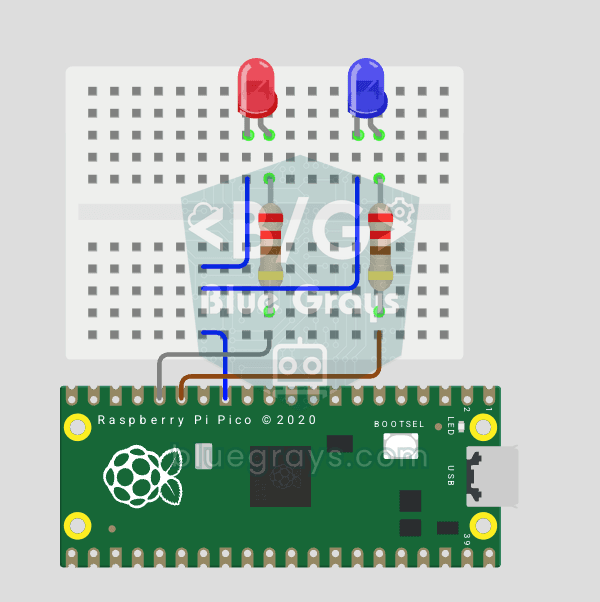
Raspberry Pi Pico Police Strobe Light Effect (Red + Blue, GP11 + GP12)
We simulate a police car's light bar with a Raspberry Pi Pico in its simplest form! 🚨 The red and blue LEDs take turns (flip-flop): while red is on, blue is off, and they swap every 0.3 seconds, forever. The code writes the two steps directly in a single `while True` loop; the speed is set with the `WAIT_MS` constant.
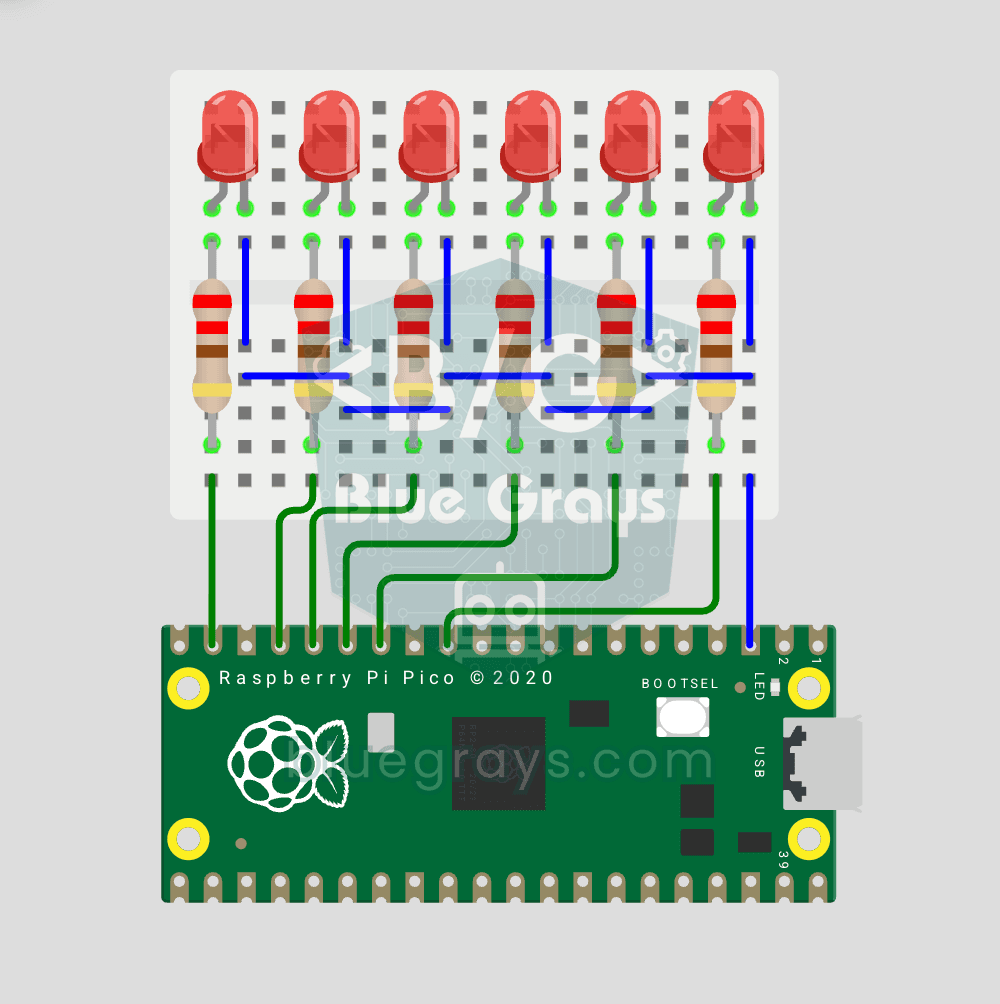
Raspberry Pi Pico Chasing LED (6 LEDs, GP14 → GP9)
Classic "chasing LED" animation with Pico — 6 LED version! 🌊 6 LEDs light up left-to-right sequentially — like light walking down the row. Learn Python list, list comprehension ([Pin(p, Pin.OUT) for p in LED_PINS]), for loop with pin control and enumerate(). 6 LEDs on GP9-GP14, each with 220Ω current-limiting resistor. Very clean code: instead of defining 6 LEDs one by one, we use a list — even 100 LEDs would keep the code the same. Simulate on Wokwi or build in 5-7 minutes on breadboard. Change
Raspberry Pi Pico 3-Burst Police Flip-Flop (2 LED GP11 + GP12)
Rhythmic variation of the police strobe project — 3-burst flip-flop! 🚨 Same 2 LED circuit as #151 (GP11 red + GP12 blue), but different pattern: red LED flashes 3 times rapidly, then blue flashes 3 times, forever. This "burst + switch" pattern is the most recognizable rhythm of real police siren lights. Learn parametrized function `def burst(led, count, duration_ms)`, rhythm design, and generating different visual effects with code on same circuit.
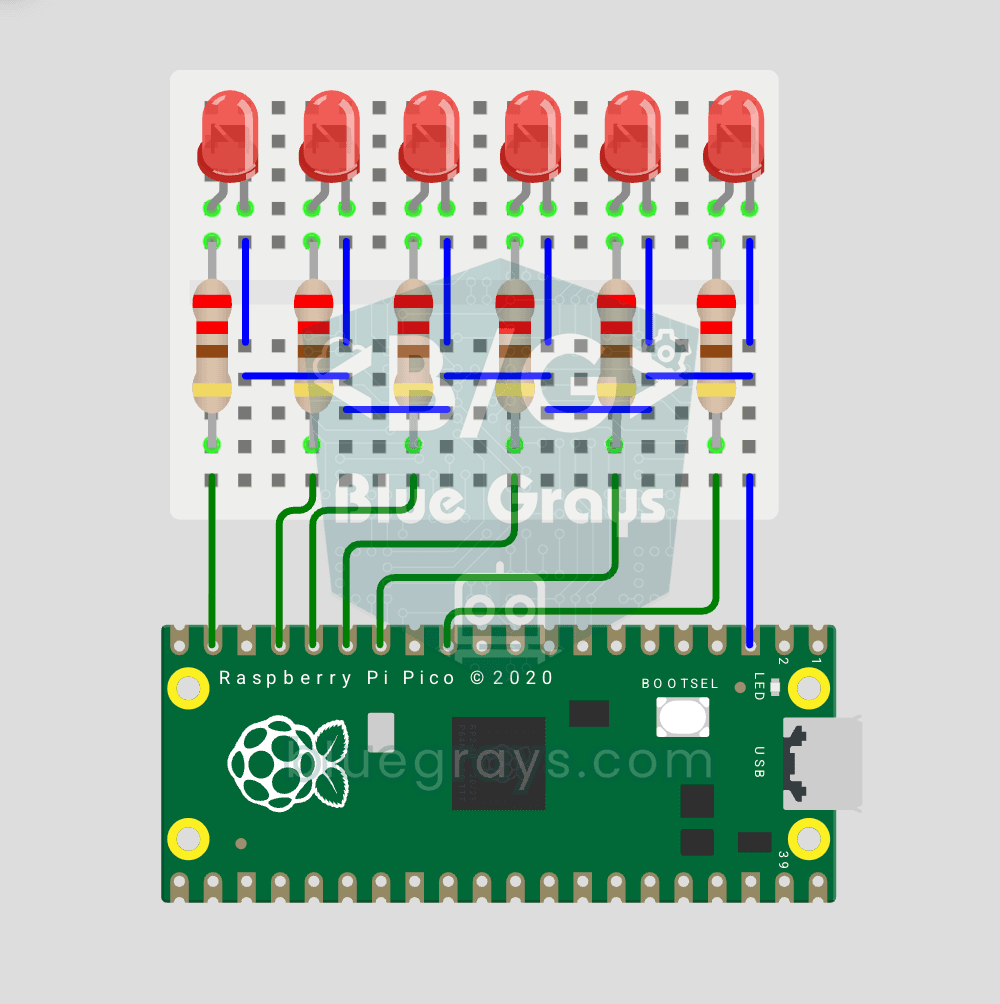
Raspberry Pi Pico Knight Rider LED Scanner (6 LED Back-Forth, GP9 ↔ GP14)
Classic "Knight Rider" LED scanner effect with Pico! 🚗 6 LEDs go left-to-right, then right-to-left, forever. Like the front grille of KITT car from the iconic 80s TV series. This project is an upgrade of #153 Chasing LED — same 6 LED circuit (GP9-GP14), different code pattern. Learn `reversed()` function for list reversal, two separate `for` loops for back-and-forth pattern, and generating **multiple animations on same circuit**. Same hardware (6 LEDs, 6 × 220Ω resistors), completely different v
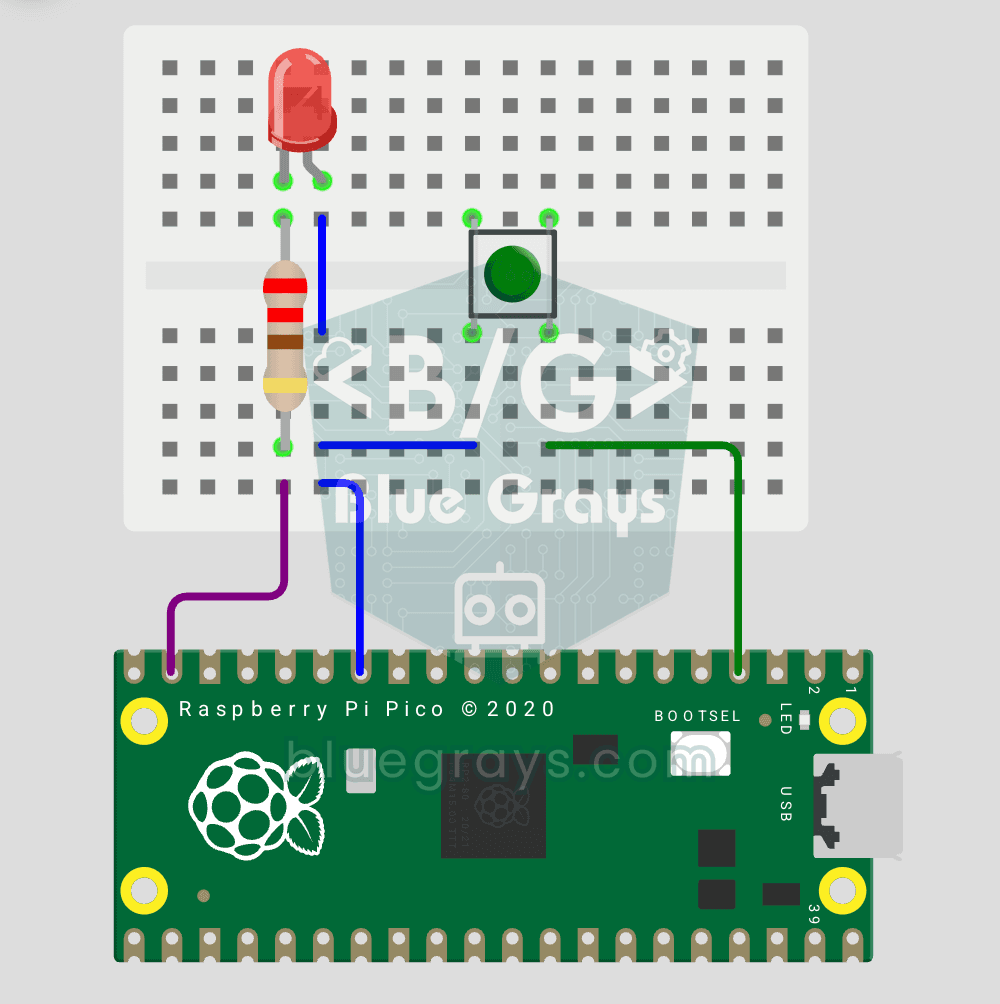
Raspberry Pi Pico Button Controlled LED (Push, GP14 + GP2)
First **input** project with Pico — button read! 🔘 LED lights while button is pressed, off when released. This is the big step after LED animations: **signal input from the world to Pico**. Learn `Pin.IN` (input mode), `Pin.PULL_UP` (internal pull-up resistor — standard for buttons), `button.value()` reading. GP14 LED, GP2 button (internal PULL_UP). Pressed = LOW (0), released = HIGH (1) — reverse logic seems confusing at first but is industry standard.
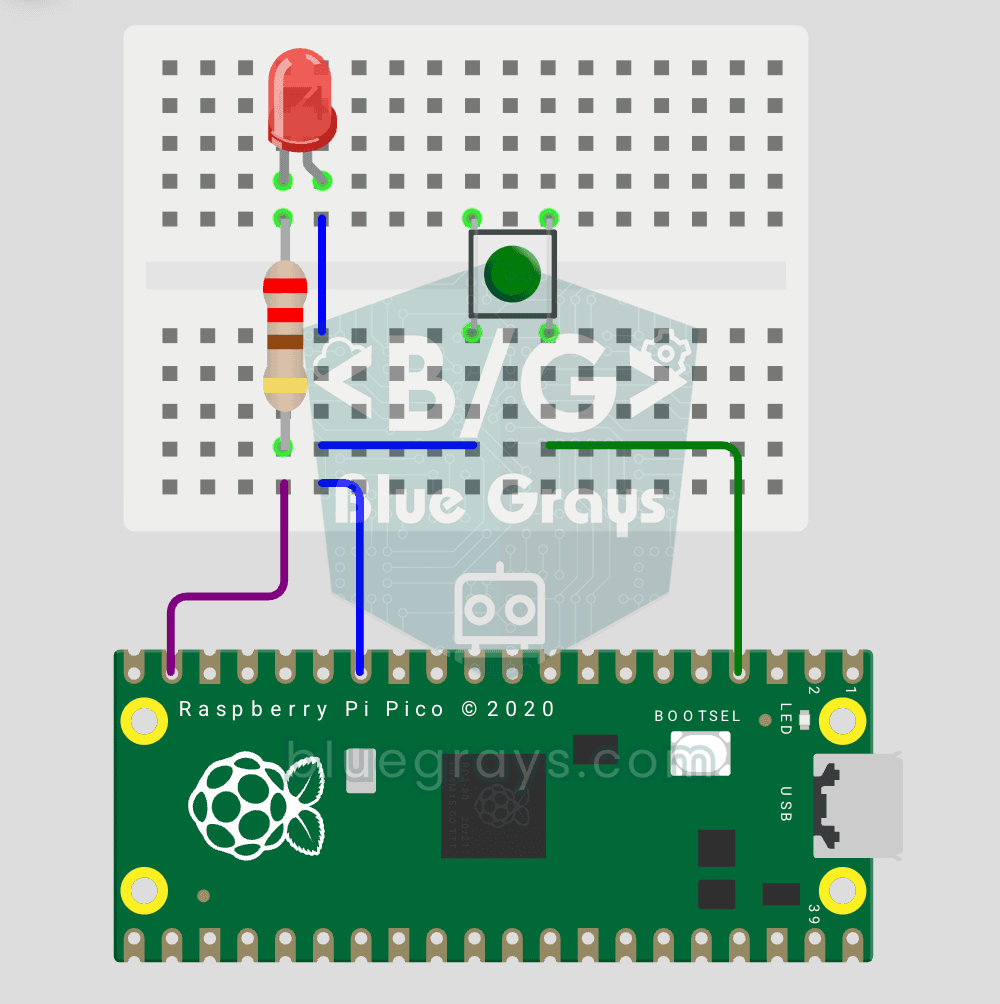
Raspberry Pi Pico Button Toggle LED (GP14 + GP2)
Button + LED — next level! 🔁 Unlike #155, no need to hold the button. Press and release → LED on. Press and release again → LED off (toggle). Same circuit as #155 (LED GP14, Button GP2), but big code difference. Learn **edge detection** (capturing the 1→0 falling moment), **state tracking**, **debounce** (mechanical bounce filter). MicroPython's `led.toggle()` swaps state in one line. Foundation of all interactive button projects (mode switcher, IRQ, double-click).
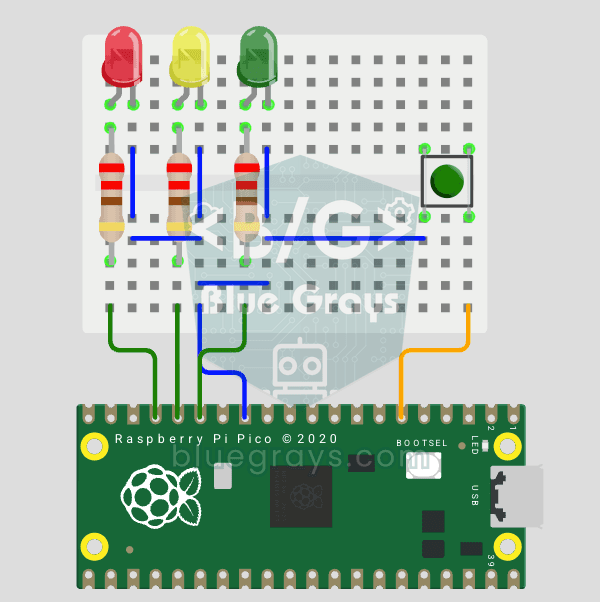
Raspberry Pi Pico Traffic Light with 4-Mode Button Selector (State Machine, GP11-13 + GP4)
4 different traffic light modes with just 1 button! 🚦 The mode changes with each press of the button: **Normal cycle** (red → yellow → green in sequence), **Red Only** (stop signal), **Yellow Flash** (caution/night mode), **Off** (maintenance). Concepts: **state machine** (the `mode` variable determines which behavior runs), **modulo mode cycling** (`(mode + 1) % 4` → 0→1→2→3→0 infinite loop), **non-blocking timing** (`time.ticks_ms()` + `ticks_diff()` instead of `time.sleep()` — the code does n
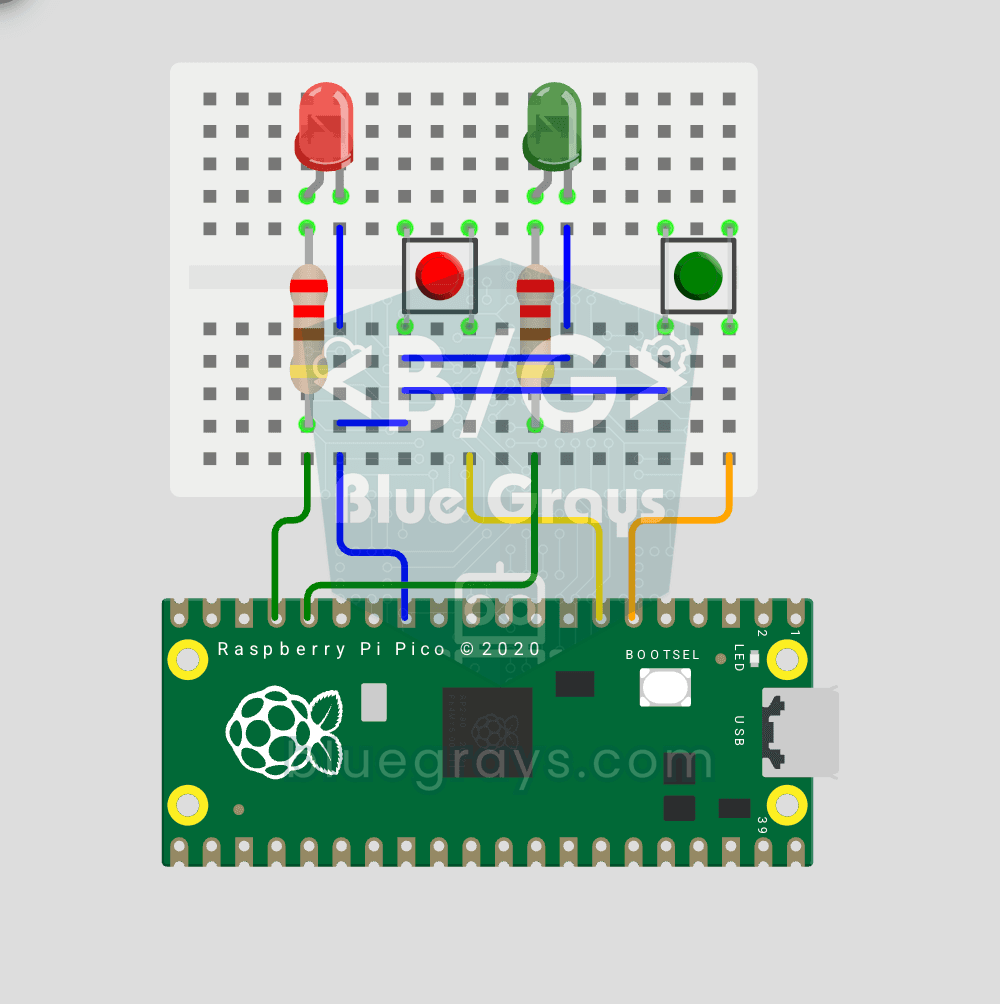
Raspberry Pi Pico: Independent Control of 2 LEDs Using 2 Buttons (GP12-13 + GP4-5)
2 buttons, 2 LEDs — completely independent of each other! 🔴🟢 Each button controls its own LED: When BTN1 is pressed, the red LED turns on; when BTN2 is pressed, the green LED turns on. If you press both at the same time, both LEDs turn on (parallel operation). Learning: **multi-pin object management** (simultaneous handling of multiple inputs/outputs), **ternary operator** (`1 if x else 0` — Python’s compact if-else), **independent I/O control** (parallel operation logic), **GPIO map** (classic