
ESP32-CAM Tutorial: Setup, Programming, Live Stream and SD Card
How to program the ESP32-CAM: AI-Thinker pinout, ESP32-CAM-MB and USB-TTL upload, CameraWebServer, PSRAM, 0x105 and brownout fixes, flash LED, SD photos.
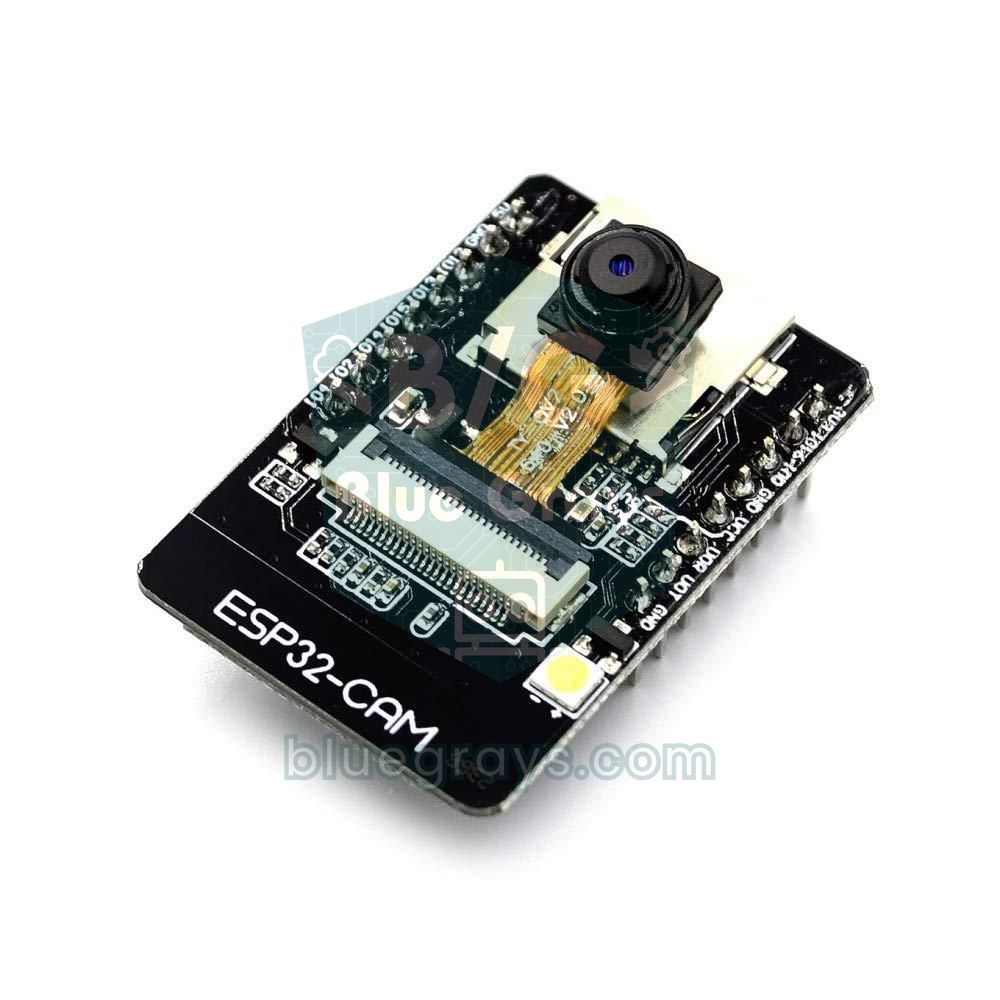
The ESP32-CAM is an affordable Wi-Fi camera board that, despite measuring just 27 × 40 mm, carries an ESP32 processor, a 2-megapixel OV2640 camera, a microSD card slot and a white flash LED. On its own it joins your home network, streams live video to a browser, takes photos and saves them to an SD card or sends them over the internet. It's the go-to board for security cameras, doorbell cameras, plant growth time-lapses and robot cars with video, but because it has no USB socket, getting started is a little different from the ESP32 boards you may be used to.
In this guide you'll learn the pinout of the AI-Thinker ESP32-CAM, how to program it with the ESP32-CAM-MB adapter or a USB-TTL adapter (including the IO0-GND connection), how to get a live picture in your browser with the ready-made CameraWebServer example, and which PSRAM and partition settings to use. Then you'll look at the causes of the most common Camera init failed with error 0x105 and brownout errors, control the flash LED and build a sketch that saves a photo to a microSD card when you press a button.
What is the ESP32-CAM and how does it work?
The heart of the board is the ESP32-S module, which carries the dual-core ESP32 chip with Wi-Fi and Bluetooth. The camera plugs into a 24-pin connector on the board with a thin ribbon cable (FPC). The ESP32 sends a 20 MHz clock signal (XCLK) to the camera on GPIO 0 and configures it over the I2C-like SCCB bus on GPIO 26 and 27. Because the OV2640 sensor can compress the image to JPEG itself, the ESP32 receives small JPEG frames instead of raw pixels. These frames travel over an 8-bit parallel data bus into the board's 4 MB of PSRAM, and Wi-Fi carries them on to a browser or a server.
| Feature | Value |
|---|---|
| Processor | ESP32 (ESP32-S module), dual-core, up to 240 MHz |
| Wireless | Wi-Fi 802.11 b/g/n (2.4 GHz only), Bluetooth 4.2 and BLE |
| Memory | 520 KB internal SRAM + 4 MB PSRAM, 4 MB flash |
| Camera | OV2640, 2 MP, up to 1600×1200 (UXGA), JPEG output |
| Storage | microSD slot (up to 4 GB in the official documentation) |
| Light | White flash LED (GPIO 4), red status LED on the back (GPIO 33) |
| Power | 5 V on the 5V pin (recommended) or 3.3 V on the 3V3 pin |
| Current (at 5 V) | About 180 mA with the flash off, about 310 mA with the flash at full brightness; Wi-Fi peaks are higher |
| Size | 27 × 40.5 × 4.5 mm |
AI-Thinker ESP32-CAM pinout: which pins are free?
There are 16 pins along the two edges of the board, but only a few of them are really free: the camera alone uses 15 GPIOs and the microSD slot shares six more. The table below summarises the edge pins and when you can use them. You can also explore the ESP32's general pin features in the Pinout tool.
| Pin | Function | Free to use? |
|---|---|---|
| 5V | Power input (recommended) | - |
| 3V3 | 3.3 V power input | - |
| GND (3 pins) | Ground | - |
| VCC | Power output (3.3 V by default) | Don't use it to power the board |
| U0R (GPIO 3) | Serial RX: programming and Serial Monitor | Only if you don't need the serial port |
| U0T (GPIO 1) | Serial TX: programming and Serial Monitor | Only if you don't need the serial port |
| GPIO 0 | Camera clock (XCLK) and boot mode | No; only tied to GND while uploading |
| GPIO 16 | Connected to PSRAM on many boards | No |
| GPIO 2 | SD DATA0 | If the SD card isn't used; strapping pin |
| GPIO 4 | SD DATA1 and flash LED | In SD 1-bit mode or without SD |
| GPIO 12 | SD DATA2 | In SD 1-bit mode or without SD; must be LOW at boot |
| GPIO 13 | SD DATA3 | In SD 1-bit mode or without SD; the safest free pin |
| GPIO 14 | SD CLK | If the SD card isn't used |
| GPIO 15 | SD CMD | If the SD card isn't used; strapping pin |
| GPIO 33 | Red LED (not on the header) | LED only; writing LOW turns it on |
How do you program the ESP32-CAM? Two ways
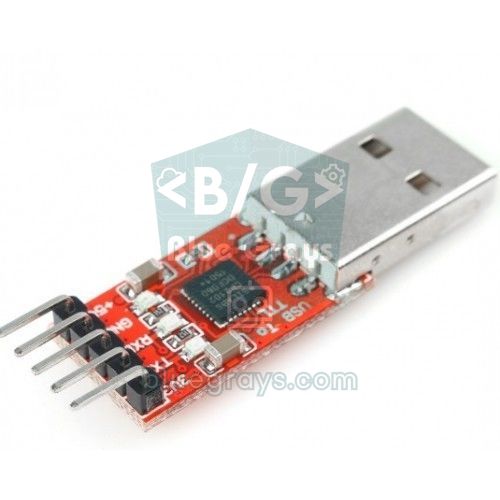
The USB-serial chip that lets ordinary ESP32 boards talk to your computer is missing on the ESP32-CAM. To upload code you have two options: the ESP32-CAM-MB adapter that plugs in underneath the board (a small base board with a CH340 chip and a micro USB socket), or a USB-TTL adapter you already own (FTDI, CH340, CP2102). Whichever you choose, the logic is the same: if GPIO 0 is LOW at boot, the ESP32 enters download mode and waits for code; if it's HIGH, it runs the program in flash. The IO0 button on the MB adapter and the IO0-GND wire you add with a USB-TTL adapter do exactly this.
| USB-TTL adapter | ESP32-CAM | Notes |
|---|---|---|
| GND | GND | Common ground |
| 5V | 5V | Powers the board; the adapter's 3.3 V output isn't enough |
| TX | U0R (GPIO 3) | Crossed over: transmitter to receiver |
| RX | U0T (GPIO 1) | Crossed over: receiver to transmitter |
| - | Between IO0 and GND | Only while uploading; a short wire between the two neighbouring pins |
If your adapter has a 3.3 V / 5 V selection jumper, set it to 3.3 V so that the TX line stays at a level that suits the ESP32's pins. Power the board from the adapter's 5V pin, though. The 3.3 V output on most adapters can only supply around 50–100 mA; the moment the ESP32-CAM switches on Wi-Fi, that supply collapses and the board restarts.
Arduino IDE settings: board, partition scheme and PSRAM
- Open the Boards Manager in the Arduino IDE and install the esp32 by Espressif Systems package; the Arduino IDE setup guide explains it in detail.
- Select the AI Thinker ESP32-CAM board from Tools > Board > esp32.
- Make sure Partition Scheme is set to Huge APP (3MB No OTA/1MB SPIFFS); the camera example needs at least 3 MB of app space.
- Connect the board to the adapter and pick the new port from Tools > Port (COMx on Windows, /dev/cu.usbserial... or /dev/cu.wchusbserial... on macOS).
- If no port appears at all, install the CH340 or CP2102 driver and use a USB cable that carries data.
| Setting | Recommended value | Why? |
|---|---|---|
| Board | AI Thinker ESP32-CAM | PSRAM, 4 MB flash and the right partition scheme come preset |
| Partition Scheme | Huge APP (3MB No OTA/1MB SPIFFS) | The 3 MB of app space CameraWebServer needs |
| PSRAM | Always on in this board definition | With ESP32 Dev Module set PSRAM: Enabled; ESP32 Wrover Module has it on already |
| CPU Frequency | 240MHz (WiFi/BT) | Highest speed for image transfer and Wi-Fi |
| Flash Mode / Flash Frequency | QIO / 80MHz | Try DIO / 40MHz if uploading or booting fails |
| Core Debug Level | None (Info when troubleshooting) | At Info, camera and FPS details are printed to the Serial Monitor |
| Upload Speed | 460800 (fixed on this board) | If uploads keep dropping, select ESP32 Wrover Module and try 115200 |
Your first upload, step by step
- Wire it up: plug the board into the MB adapter with the pins lined up, or connect the USB-TTL adapter as in the table above. If you're using a USB-TTL adapter, also add the short wire between IO0 and GND.
- Put the board into download mode: on the MB adapter, hold down the IO0 button, press and release RST, then let go of IO0. With a USB-TTL adapter, just press RST while the IO0-GND wire is in place. Some MB adapters with an auto-reset circuit upload without any button presses.
- Click Upload in the Arduino IDE. The output first shows Connecting..., followed by the write progress in percent.
- When the line Hard resetting via RTS pin... appears, the upload is done. If you're using a USB-TTL adapter, remove the IO0-GND wire now.
- Open the Serial Monitor at 115200 baud and press RST; the new program starts running.
1// ESP32-CAM ilk yükleme testi / ESP32-CAM first upload test
2const int KIRMIZI_LED = 33;   // arkadaki kırmızı LED, ters mantık / red LED on the back, inverted logic
3
4void setup() {
5  Serial.begin(115200);
6  pinMode(KIRMIZI_LED, OUTPUT);
7  delay(500);
8
9  // PSRAM kontrolü / PSRAM check
10  if (psramFound()) {
11    Serial.print("PSRAM bulundu / PSRAM found: ");
12    Serial.print(ESP.getPsramSize());
13    Serial.println(" bayt / bytes");
14  } else {
15    Serial.println("PSRAM yok / No PSRAM");
16  }
17}
18
19void loop() {
20  digitalWrite(KIRMIZI_LED, LOW);    // LOW = yanar / LOW = on
21  delay(500);
22  digitalWrite(KIRMIZI_LED, HIGH);   // HIGH = söner / HIGH = off
23  delay(500);
24}
If the upload worked, the small red LED on the back of the board blinks every half second. This LED uses inverted logic: writing LOW turns it on and HIGH turns it off. In the Serial Monitor you should see roughly 4 million bytes of PSRAM; if it says No PSRAM, check your board selection, and if that doesn't help, your board may not have a PSRAM chip. Running this short test before the camera example tells you right away whether a problem lies in the upload or in the camera.
The CameraWebServer example: a live picture in your browser
- Open File > Examples > ESP32 > Camera > CameraWebServer.
- Choose the camera model: in the list on the board_config.h tab (newer versions) or at the top of the main file (older versions), add // in front of the CAMERA_MODEL_ESP_EYE line and remove the // in front of the CAMERA_MODEL_AI_THINKER line.
- Enter the name and password of your 2.4 GHz Wi-Fi network in the ssid and password lines.
- Put the board into download mode and upload the sketch; then remove the IO0 connection and press RST.
- In the Serial Monitor you'll see a line like Camera Ready! Use 'http://192.168.1.45' to connect; open that address in the browser of a phone or computer on the same network.
- Start the live picture with the Start Stream button on the page, or take a single photo with Get Still.
1// board_config.h (eski sürümlerde CameraWebServer.ino) / (CameraWebServer.ino in older versions)
2//#define CAMERA_MODEL_ESP_EYE      // Has PSRAM  <- kapat / comment out
3#define CAMERA_MODEL_AI_THINKER     // Has PSRAM  <- aç / enable
4
5// CameraWebServer.ino
6const char *ssid = "AgAdi";          // Wi-Fi adı / Wi-Fi name
7const char *password = "Sifre123";   // Wi-Fi şifresi / Wi-Fi password
The interface runs on two separate servers: the settings page and the /capture address, which returns a single photo, are on port 80, while the live stream is at /stream on port 81 (e.g. http://192.168.1.45:81/stream). You can add this stream address to your own web page or to home automation software. In the left-hand menu you can change the resolution, JPEG quality, brightness, contrast and white balance, and if the picture is upside down, use the V-Flip and H-Mirror switches; newer versions also have an LED Intensity slider for the flash. The board usually serves only one live stream viewer at a time, so a stream opened in a second tab may freeze. If the page won't open at all, make sure your phone and the board are on the same network; for connection problems, see ESP32 won't connect to Wi-Fi.
ESP32-CAM resolution and FPS table
On paper the OV2640 sensor can deliver 15 frames per second at 1600×1200, 30 at 800×600 and 60 at CIF size. In practice the frame rate is mostly set by the Wi-Fi link and the JPEG frame size: as resolution and quality go up, each frame gets bigger and crosses the network more slowly. The values below are approximate ranges seen with CameraWebServer on a good Wi-Fi signal at JPEG quality 10–12. To measure your own board, set Core Debug Level to Info; while streaming, the Serial Monitor prints a line like MJPG: ... (x fps) for every frame.
| Resolution | Pixels | Approx. FPS (Wi-Fi stream) | Good for |
|---|---|---|---|
| QQVGA | 160×120 | 25–30 | Motion detection, very weak networks |
| QVGA | 320×240 | 20–30 | Robot cars, smooth live video |
| CIF | 400×296 | 15–25 | Smooth viewing on small screens |
| VGA | 640×480 | 10–20 | General-purpose live viewing |
| SVGA | 800×600 | 8–15 | Sharper viewing; the largest size usable without PSRAM |
| XGA | 1024×768 | 5–10 | Detailed images |
| HD | 1280×720 | 4–8 | Wide (16:9) framing |
| SXGA | 1280×1024 | 3–6 | Photos |
| UXGA | 1600×1200 | 2–5 | Photos at the highest resolution |
In your own code you can change the resolution, quality and orientation through the sensor object once the camera has started successfully. JPEG quality is a number from 0 to 63, and a lower number means higher quality; going below 10 makes frames larger and can lead to half-finished images.
1// esp_camera_init() başarılı olduktan sonra / after esp_camera_init() succeeds
2sensor_t *s = esp_camera_sensor_get();
3s->set_framesize(s, FRAMESIZE_VGA);   // 640x480 çözünürlük / resolution
4s->set_quality(s, 12);                // 0-63: küçük = daha kaliteli, 10 altı önerilmez / lower = better, below 10 not advised
5s->set_vflip(s, 1);                   // görüntüyü dikey çevir / flip vertically
6s->set_hmirror(s, 1);                 // yatay ayna / mirror horizontally
7s->set_brightness(s, 1);              // parlaklık -2..2 / brightness -2..2
Why does the ESP32-CAM PSRAM setting matter so much?
The ESP32's internal memory is 520 KB, and the Wi-Fi stack uses a large part of it. A single 1600×1200 JPEG frame, on the other hand, can take up 100–250 KB depending on the scene and quality. That's why the camera driver places its frame buffers in PSRAM. CameraWebServer checks for PSRAM with the psramFound() function: if it's there, it starts at the highest resolution with two frame buffers; if not, it limits the resolution to SVGA (800×600) and keeps a single buffer in internal memory.
If you ask for a high resolution while PSRAM isn't enabled, the Serial Monitor shows frame buffer malloc failed followed by Camera init failed with error 0xffffffff. The fix is to select AI Thinker ESP32-CAM as the board (with ESP32 Dev Module, set Tools > PSRAM: Enabled) or to lower the resolution and reduce the number of frame buffers to 1. Some cheap clones may have no PSRAM chip at all; the PSRAM line in the first test sketch reveals this immediately.
Camera init failed with error 0x105 and other camera errors
Most camera errors come down to one of three causes: the wrong camera model in the code, a ribbon cable that isn't seated properly in its connector, or an inadequate power supply. Reading the error code in the Serial Monitor narrows the cause down quickly:
| Serial Monitor message | Meaning | Fix |
|---|---|---|
| Camera probe failed with error 0x105(ESP_ERR_NOT_FOUND) | The ESP32 found no camera on the SCCB bus | Check that CAMERA_MODEL_AI_THINKER is selected, reseat the ribbon cable, power the board with 5 V / 2 A |
| Detected camera not supported and 0x106 | The same situation in newer driver versions: no camera found or recognised | Same steps as 0x105; if it persists, replace the camera module |
| frame buffer malloc failed and 0xffffffff | Memory for the frame buffer couldn't be allocated | Enable PSRAM, lower the resolution, set fb_count to 1 |
| cam_hal: EV-VSYNC-OVF or FB-OVF | A new frame arrived before the previous one was processed, so a frame was skipped | Harmless now and then; if frequent, lower the resolution and improve the Wi-Fi signal |
| NO-SOI (JPEG start marker missing) | Corrupt or incomplete JPEG frame | Check the power supply and ribbon cable, set xclk_freq_hz to 10000000 |
| Image half missing, green or striped | The frame didn't fit in the buffer, or the supply is noisy | Raise the JPEG quality value to 12 or more, improve the power supply |
Brownout error and the right power supply (5 V / 2 A)
If the Serial Monitor shows Brownout detector was triggered and the board keeps restarting, the ESP32's supply voltage has briefly dropped below a safe level. The ESP32-CAM draws short but high current peaks the moment it switches on its Wi-Fi transmitter and the camera starts capturing. A weak USB port, thin and long jumper wires or the adapter's 3.3 V output can't keep up with these peaks. Here are the permanent fixes:
- Use a power supply that delivers 5 V and at least 2 A and connect it to the board's 5V pin; the on-board regulator drops it to 3.3 V.
- Keep the power wires short and thick; breadboards and long jumper wires add to the voltage drop.
- Add a 470–1000 µF electrolytic capacitor between the board's 5V and GND pins, as close to the board as possible (positive lead to 5V).
- If you power it from a computer, plug it straight into a port on the back of the PC instead of a USB hub.
- For battery operation, use an 18650 cell with a 5 V boost module; this is much more stable than a string of AA batteries.
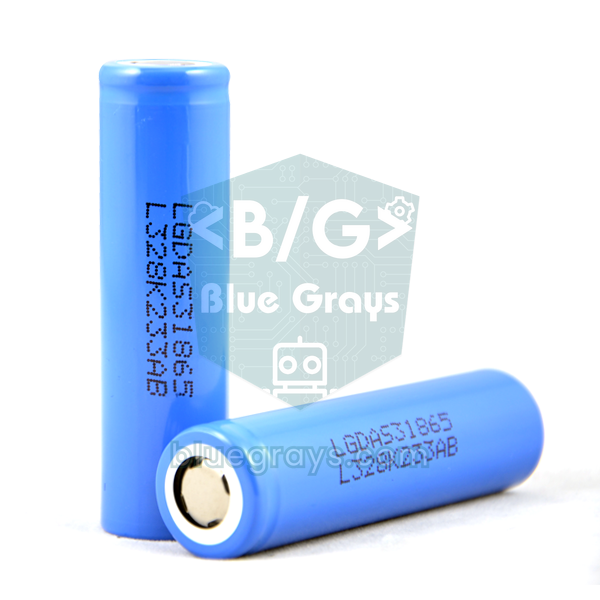
Online you'll often come across the line WRITE_PERI_REG(RTC_CNTL_BROWN_OUT_REG, 0), which switches the brownout detector off in code. It stops the restarts but doesn't solve the problem: the voltage keeps dropping, and the board may now freeze, produce corrupt frames or lose data while writing to flash. Use it only for a temporary test; the full list of restart messages is in the ESP32 brownout and Guru Meditation guide. When estimating battery life, assume the board draws an average of 180 mA while streaming continuously: a 2600 mAh 18650 with an 85% efficient boost converter gives about 1600 mAh on the 5 V side, which means roughly 9 hours of streaming. You can work out your own numbers with the Battery Life Calculator; remember that even in deep sleep the board draws about 6 mA because of the regulator and PSRAM.
Controlling the flash LED (GPIO 4)
The bright white LED on the front of the board is driven through a transistor connected to GPIO 4, so the pin only switches the transistor and the LED's high current comes from the supply rail. digitalWrite(4, HIGH) turns it on and LOW turns it off. The LED is very bright, and if it stays on for long, both the LED and the board heat up; it's best to light the flash for just a few hundred milliseconds while taking a photo. GPIO 4 is also the DATA1 line of the microSD card, so when the card runs in 4-bit mode the flash blinks by itself on every read and write. To prevent this, start the SD card in 1-bit mode (SD_MMC.begin("/sdcard", true)); on some boards the LED may still glow very faintly.
Saving photos to a microSD card with the ESP32-CAM
The sketch below lights the flash, takes a photo at 1600×1200 and saves it to the microSD card as foto1.jpg, foto2.jpg... every time you press a button on GPIO 13. Format the microSD card as FAT32 on your computer; although the official documentation mentions cards up to 4 GB, 16–32 GB FAT32 cards usually work fine in practice. Connect one leg of the button to GPIO 13 and the other to GND; the sketch enables the internal pull-up resistor, so no extra resistor is needed. For how button wiring works, see How to connect a button to Arduino.
1#include "esp_camera.h"
2#include "FS.h"
3#include "SD_MMC.h"
4
5// AI-Thinker ESP32-CAM kamera pinleri / AI-Thinker ESP32-CAM camera pins
6#define PWDN_GPIO_NUM     32
7#define RESET_GPIO_NUM    -1
8#define XCLK_GPIO_NUM      0
9#define SIOD_GPIO_NUM     26
10#define SIOC_GPIO_NUM     27
11#define Y9_GPIO_NUM       35
12#define Y8_GPIO_NUM       34
13#define Y7_GPIO_NUM       39
14#define Y6_GPIO_NUM       36
15#define Y5_GPIO_NUM       21
16#define Y4_GPIO_NUM       19
17#define Y3_GPIO_NUM       18
18#define Y2_GPIO_NUM        5
19#define VSYNC_GPIO_NUM    25
20#define HREF_GPIO_NUM     23
21#define PCLK_GPIO_NUM     22
22
23#define FLAS_LED  4    // beyaz flaş LED'i / white flash LED
24#define BUTON    13    // butonun diğer ucu GND'de / other button leg to GND
25
26int fotoNo = 1;        // sıradaki dosya numarası / next file number
27bool hazir = false;    // kamera ve SD hazır mı? / are camera and SD ready?
28
29bool kameraBaslat() {
30  camera_config_t config = {};
31  config.ledc_channel = LEDC_CHANNEL_0;
32  config.ledc_timer   = LEDC_TIMER_0;
33  config.pin_d0 = Y2_GPIO_NUM;
34  config.pin_d1 = Y3_GPIO_NUM;
35  config.pin_d2 = Y4_GPIO_NUM;
36  config.pin_d3 = Y5_GPIO_NUM;
37  config.pin_d4 = Y6_GPIO_NUM;
38  config.pin_d5 = Y7_GPIO_NUM;
39  config.pin_d6 = Y8_GPIO_NUM;
40  config.pin_d7 = Y9_GPIO_NUM;
41  config.pin_xclk     = XCLK_GPIO_NUM;
42  config.pin_pclk     = PCLK_GPIO_NUM;
43  config.pin_vsync    = VSYNC_GPIO_NUM;
44  config.pin_href     = HREF_GPIO_NUM;
45  config.pin_sccb_sda = SIOD_GPIO_NUM;
46  config.pin_sccb_scl = SIOC_GPIO_NUM;
47  config.pin_pwdn     = PWDN_GPIO_NUM;
48  config.pin_reset    = RESET_GPIO_NUM;
49  config.xclk_freq_hz = 20000000;           // 20 MHz kamera saati / 20 MHz camera clock
50  config.pixel_format = PIXFORMAT_JPEG;
51
52  if (psramFound()) {
53    config.frame_size   = FRAMESIZE_UXGA;   // 1600x1200
54    config.jpeg_quality = 10;               // küçük = daha kaliteli / lower = better quality
55    config.fb_count     = 2;
56    config.fb_location  = CAMERA_FB_IN_PSRAM;
57    config.grab_mode    = CAMERA_GRAB_LATEST;
58  } else {
59    config.frame_size   = FRAMESIZE_SVGA;   // PSRAM yoksa 800x600 / 800x600 without PSRAM
60    config.jpeg_quality = 12;
61    config.fb_count     = 1;
62    config.fb_location  = CAMERA_FB_IN_DRAM;
63    config.grab_mode    = CAMERA_GRAB_WHEN_EMPTY;
64  }
65
66  esp_err_t err = esp_camera_init(&config);
67  if (err != ESP_OK) {
68    Serial.printf("Camera init failed 0x%x (%s)\n", err, esp_err_to_name(err));
69    return false;
70  }
71  return true;
72}
73
74void fotoCek() {
75  digitalWrite(FLAS_LED, HIGH);              // flaşı yak / flash on
76  delay(150);                                // pozlama otursun / let exposure settle
77
78  camera_fb_t *fb = esp_camera_fb_get();     // eski kareyi at / discard the stale frame
79  if (fb) esp_camera_fb_return(fb);
80  fb = esp_camera_fb_get();                  // asıl fotoğraf / the real photo
81  digitalWrite(FLAS_LED, LOW);               // flaşı söndür / flash off
82
83  if (!fb) {
84    Serial.println("Kare alinamadi / Capture failed");
85    return;
86  }
87
88  String yol = "/foto" + String(fotoNo) + ".jpg";
89  File dosya = SD_MMC.open(yol, FILE_WRITE);
90  if (dosya) {
91    dosya.write(fb->buf, fb->len);           // JPEG verisini yaz / write the JPEG data
92    dosya.close();
93    Serial.printf("Kaydedildi / Saved: %s (%u bayt / bytes)\n", yol.c_str(), (unsigned)fb->len);
94    fotoNo++;
95  } else {
96    Serial.println("Dosya acilamadi / Could not open file");
97  }
98  esp_camera_fb_return(fb);                  // tamponu geri ver / return the buffer
99}
100
101void setup() {
102  Serial.begin(115200);
103  pinMode(BUTON, INPUT_PULLUP);
104
105  if (!kameraBaslat()) return;               // kamera yoksa dur / stop without a camera
106
107  // 1-bit mod: GPIO 4, 12 ve 13 boşta kalır / 1-bit mode keeps GPIO 4, 12 and 13 free
108  if (!SD_MMC.begin("/sdcard", true)) {
109    Serial.println("SD kart takilamadi / SD card mount failed");
110    return;
111  }
112  if (SD_MMC.cardType() == CARD_NONE) {
113    Serial.println("SD kart yok / No SD card");
114    return;
115  }
116
117  pinMode(FLAS_LED, OUTPUT);
118  digitalWrite(FLAS_LED, LOW);
119
120  // Var olan fotoğrafların üzerine yazma / don't overwrite existing photos
121  while (SD_MMC.exists("/foto" + String(fotoNo) + ".jpg")) fotoNo++;
122
123  hazir = true;
124  Serial.println("Hazir, butona bas / Ready, press the button");
125}
126
127void loop() {
128  if (!hazir) {                              // hata varsa bekle / wait if setup failed
129    delay(1000);
130    return;
131  }
132  if (digitalRead(BUTON) == LOW) {
133    delay(30);                               // buton sıçramasını (bounce) önle / debounce
134    if (digitalRead(BUTON) == LOW) {
135      fotoCek();
136      while (digitalRead(BUTON) == LOW) delay(10);   // bırakılmasını bekle / wait for release
137    }
138  }
139}
Because the sketch starts the SD card in 1-bit mode, it only uses GPIO 2, 14 and 15, which leaves GPIO 4 for the flash and GPIO 13 for the button. Before taking the photo, one frame is grabbed and handed straight back: the camera produces frames continuously, so the first frame in the buffer may have been captured before the flash came on, and auto exposure needs a short pause to adjust to the new light. The file number is found by looking at the files already on the card, so old photos aren't overwritten even after a restart. For the general rules of logging data to an SD card, have a look at the SD card module guide.
MicroPython and newer camera boards
You can also program the ESP32-CAM with MicroPython, but the official MicroPython build doesn't include a camera driver; you have to flash a community firmware with camera support added. That's why the Arduino IDE route is much smoother for beginners. If you'd rather not deal with a board that has no USB socket, also consider ESP32-S3-based camera boards with USB and more memory (e.g. the Seeed XIAO ESP32S3 Sense or the ESP32-S3-EYE); these boards appear in the CameraWebServer model list too.
ESP32-CAM project ideas
- Photo on motion: take a photo when a PIR sensor spots someone and send it to your phone; the step-by-step guide is in ESP32-CAM photos to Telegram.
- Time-lapse recording: let the board wake up every 10 minutes, take a photo, save it to the SD card and go back to deep sleep; watch a plant grow or the weather change.
- Doorbell camera: photograph your doorstep when the bell button is pressed and send a notification with a Telegram bot.
- Robot car with video: drive the car while watching a smooth QVGA live stream on your phone.
- Pet camera: watch the live stream on your home network and switch on the flash from the web page when needed.
- Your own control panel: embed the live stream in your own web page and add relay and sensor readouts next to it; the ESP32 WebSocket guide shows the way.
Common mistakes and how to fix them
| Symptom | Likely cause | Fix |
|---|---|---|
| Failed to connect to ESP32: No serial data received (Timed out waiting for packet header in older versions) | The board isn't in download mode, or TX and RX are wrong | Connect IO0 to GND or use the IO0 button, press RST; check that TX goes to U0R and RX to U0T |
| Wrong boot mode detected (0x13) | GPIO 0 wasn't LOW at boot | Always press RST after making the IO0-GND connection |
| waiting for download in the Serial Monitor | IO0 is still connected to GND | Remove the IO0 wire and press RST |
| Garbage characters in the Serial Monitor | Wrong baud rate | Set the Serial Monitor to 115200 baud |
| Board missing from the port list | Missing driver, or a charge-only cable | Install the CH340 or CP2102 driver, use a data cable |
| Upload fails with the SD card inserted | GPIO 2 is both an SD line and a strapping pin | Remove the microSD card while uploading |
| Very slow or frequently freezing picture | Weak Wi-Fi signal or high resolution | Drop to VGA or QVGA, move the board closer to the router, use an external antenna if needed |
| Flash glows faintly all the time | SD card in 4-bit mode, or GPIO 4 left floating | Start the SD card in 1-bit mode, set GPIO 4 to OUTPUT and write LOW |
The ESP32-CAM is the easiest way to build a Wi-Fi camera on an affordable board, and almost every difficulty you'll run into comes from the programming connection or the power supply. Once you get those two right, the board streams live video from its own web server, takes photos and saves them to an SD card. In the BlueGrays app you'll find ESP32 projects such as Wi-Fi connection, web server, mDNS, microSD data logging and a motion alarm with Telegram notifications, each with step-by-step circuit diagrams and ready-to-use code.
Frequently asked questions
How do you program the ESP32-CAM?
Because the ESP32-CAM has no USB socket, you need an ESP32-CAM-MB adapter or a USB-TTL adapter. In the Arduino IDE you select the AI Thinker ESP32-CAM board and put the board into download mode by pressing RST while GPIO 0 is connected to GND (or while the IO0 button on the MB is held down). After the upload, remove the IO0 connection and press RST again.
Can you program the ESP32-CAM with an Arduino Uno?
Yes; if you connect the Uno's RESET pin to GND, its USB chip works like a USB-serial bridge. In that case the wiring is straight, not crossed: the Uno's D0 (RX) goes to U0R, D1 (TX) goes to U0T, and IO0 is still tied to GND. Because the Uno's signals are 5 V, this pushes the ESP32 to its limits; for regular use, an MB adapter or a 3.3 V USB-TTL adapter is safer.
What voltage does the ESP32-CAM need?
Powering the board with 5 V on the 5V pin is recommended; the on-board regulator drops it to 3.3 V. You can also supply 3.3 V on the 3V3 pin, but if the source can't handle the Wi-Fi current peaks, the board will keep restarting. A power supply that can deliver at least 2 A prevents most brownout errors.
How do you fix the ESP32-CAM Camera init failed error?
Error code 0x105 or 0x106 means the camera wasn't found at all: first check that CAMERA_MODEL_AI_THINKER is selected in the code, then that the ribbon cable is fully seated, and power the board with 5 V / 2 A. If the problem persists, the camera module may be faulty. If you see 0xffffffff together with frame buffer malloc failed, enable PSRAM or lower the resolution.
Does the ESP32-CAM work without internet?
Yes. To watch the picture you only need a local network, not the internet; the ESP32-CAM can also create its own Wi-Fi network with WiFi.softAP() and is then reached in the browser at 192.168.4.1. You can even run it without any network as a camera that only saves photos to a microSD card.
Can the ESP32-CAM record video?
The ready-made examples stream live video as MJPEG and take individual photos; they don't record a video file directly. There are community projects that write consecutive JPEG frames to a microSD card to build an AVI file, but the frame rate is limited even at low resolutions. The board has no microphone, so it can't record sound either.
Projects to build after reading this
See all projects
LED Blink with ESP32
Teaches basic GPIO output usage with ESP32. We achieve a blinking effect by turning an LED on and off from a digital pin. ESP32 version of the classic blink project on Arduino UNO; the basic blink commands in the Arduino environment are the same, but the ESP32's pin layout and 3.3 V GPIO levels differ from those of the Arduino UNO.

ESP32 Built-in LED Blink
Blinking the built-in blue LED on the ESP32 DevKit V1. No external components required! The first project you should try when you buy an ESP32. GPIO 2 is connected to the built-in LED.

ESP32 Wi-Fi STA Connection (with LCD Screen)
In this project, we connect the ESP32 to the home Wi-Fi network in Station (STA) mode in a secure, fault-tolerant manner. We store the SSID and password in a separate `secrets.h` file to prevent leaking to Git, set up an auto-reconnect mechanism, and display the RSSI signal level and IP address on an I2C LCD screen. The internal LED works as a status indicator. It is a production-grade connection manager.

ESP32 Asynchronous Web Server (with IP Display on LCD)
In this project, we’re turning the ESP32 into an **asynchronous web server** that you can control from your phone or computer on the same Wi-Fi network. Thanks to the ESPAsyncWebServer library, the server can process multiple requests simultaneously (unlike the classic `WebServer.h`, which blocks on a single request). You’ll be able to open the ESP32’s IP address in a browser and click the ON/OFF buttons (the `/on` and `/off` routes) to turn the LED connected to GPIO 5 on and off.

ESP32 mDNS: Accessing the Device via bluegrays-esp.local (with LCD Screen)
In this project, we add an mDNS (Multicast DNS) service to the ESP32, allowing us to access the device using a human-readable hostname like `bluegrays-esp.local` instead of an IP address. Even if the IP address assigned by DHCP changes, you can always reach the device using the same name. We also run a small web server on the device to send LED control commands via a browser using the address `http://bluegrays-esp.local/`. The I2C LCD screen displays the hostname, IP address, and LED status in b
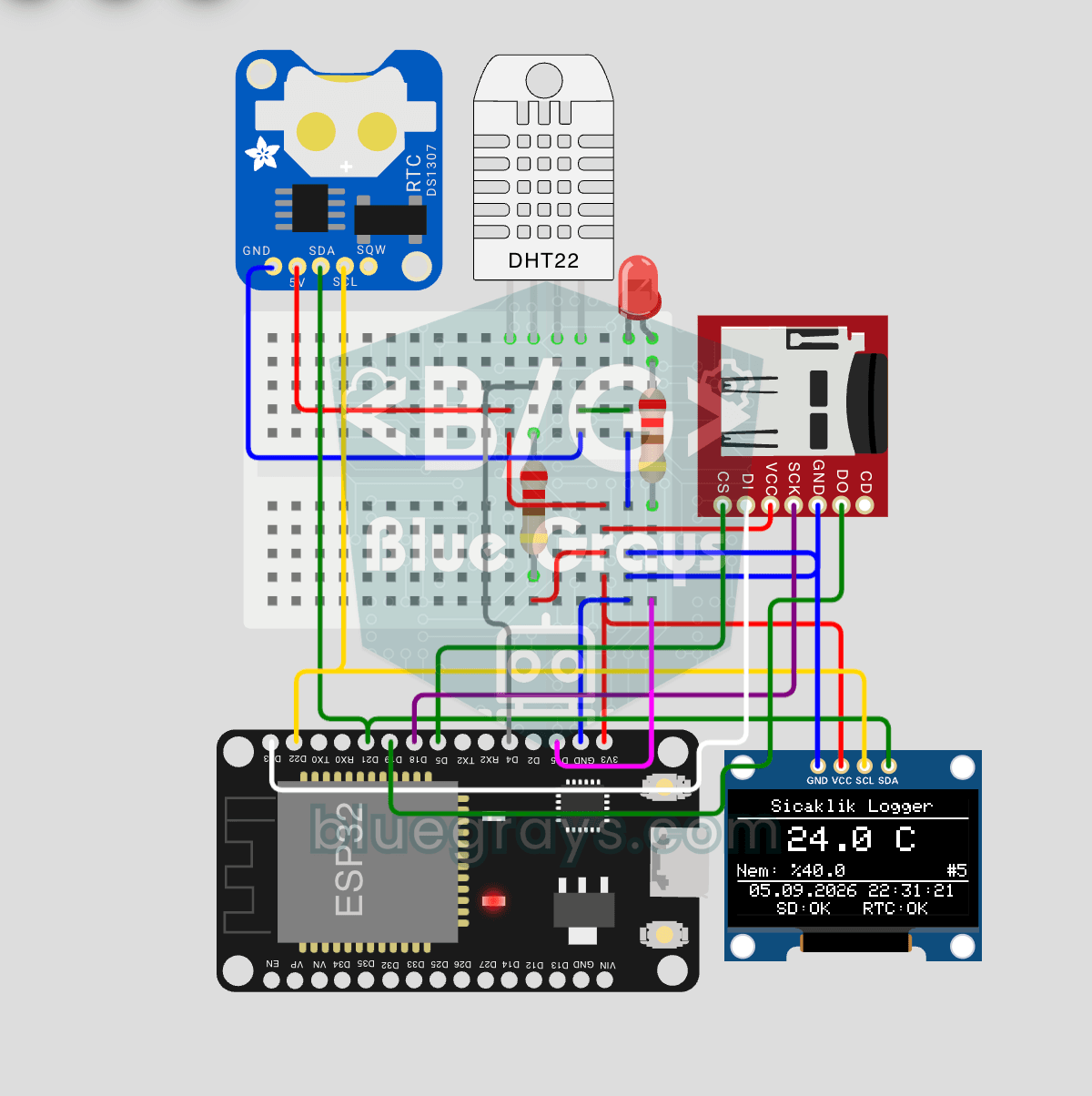
ESP32 Temperature Data Logger (DHT22 + DS1307 RTC + microSD + OLED)
Build a timestamped temperature logger with ESP32! Read DHT22 temperature/humidity every minute, get real-world time from DS1307 RTC, and log to microSD card as CSV. The OLED displays live temperature (large font), humidity percentage, timestamp, and log counter. The `/temp_log.csv` file on the SD card opens in Excel, Google Sheets, or Python pandas for analysis — perfect for greenhouse monitoring, home/room temperature tracking, laboratory data collection, food storage conditions, or beehiv
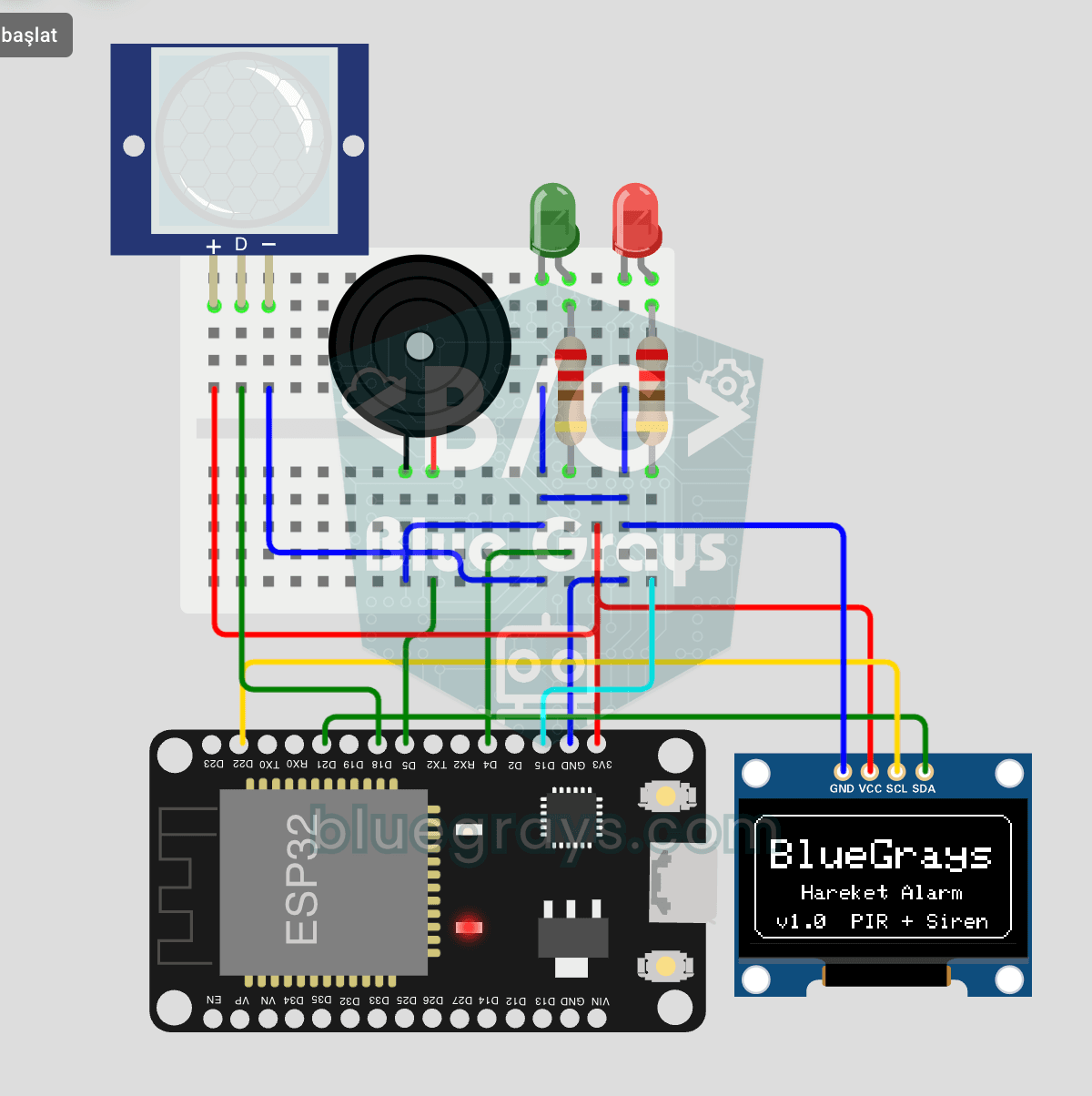
ESP32 Motion Alarm System (PIR + Buzzer + LED + Telegram)
A smart security alarm system that activates the buzzer and LED when the PIR sensor detects motion, while simultaneously sending an instant notification to the owner via Telegram. It includes a 30-second cooldown to limit the frequency of repeated alarms; this mechanism does not validate PIR detections or eliminate false triggers. Suitable for home security, garage monitoring, warehouses, or workrooms. With ESP32-CAM, photo notifications can be added; with the classic ESP32 DevKit V1, text notif

ESP32 Motion Detection Alarm
In this project, which uses an ESP32 and a PIR sensor, a buzzer sounds an audible alarm when motion is detected. It is a simple and low-cost security system application. (The images are for illustrative purposes only; please refer to the text for details.)