
ESP32 WiFi Not Connecting? WiFi.status() Codes and Real Fixes
ESP32 WiFi not connecting? Read WiFi.status() and reason codes, fix 2.4 GHz and password issues, brownouts, setTxPower, reconnects, static IP and eduroam.
ESP32 WiFi not connecting and the Serial Monitor just keeps printing dots? The cause is almost never a broken board. The usual suspects are: trying to join a 5 GHz network, a tiny typo in the network name or password, a weak power supply that collapses the moment WiFi switches on, the router's security and channel settings, or an enterprise network at school or work. The good news is that the ESP32 already tells you what went wrong. You just need to know how to read the WiFi.status() value and the reason code it reports when the connection drops.
In this guide you will first see the steps the ESP32 goes through to join a network and which status code it reports at each one. Then come a diagnostic sketch that prints the status and reason codes, a scanner that lists the networks around you, the 2.4 GHz requirement and dual-band routers, brownouts and the setTxPower fix, a reconnect sketch that recovers on its own, static IP, a WPA2-Enterprise connection for school networks, and the phone hotspot test that tells you in a few minutes whether the problem is the router or the board. The sketches work with versions 2.x and 3.x of the ESP32 core for the Arduino IDE, and at the end there is also a test script for the Raspberry Pi Pico W and MicroPython.
How does the ESP32 connect to a WiFi network?
When you call WiFi.begin(), the ESP32 runs four steps in the background. First it scans the channels for a network with the name (SSID) you gave it. If it finds one, it authenticates and associates with the router. On WPA2 networks this is followed by the 4-way handshake, the moment where it becomes clear whether the password is right. Finally it asks the router's DHCP server for an IP address. WiFi.status() only returns WL_CONNECTED once this last step is done too. If you know which step it is stuck at, you largely know the cause:
| Step | What happens? | Status and reason if it gets stuck |
|---|---|---|
| 1. Scan | The ESP32 looks for the network name on the 2.4 GHz channels | WL_NO_SSID_AVAIL (1), reason 201 |
| 2. Authentication and association | The router accepts or rejects the ESP32 | WL_CONNECT_FAILED (4) or WL_DISCONNECTED (6), reason 202 or 203 |
| 3. 4-way handshake | Keys derived from the password are compared | WL_DISCONNECTED (6) with reason 15; WL_CONNECTION_LOST (5) with reason 204 |
| 4. DHCP | The router gives the ESP32 an IP address | Stuck at WL_IDLE_STATUS (0) |
| After connecting | The router keeps sending beacon packets | If they stop: WL_CONNECTION_LOST (5), reason 200 |
What the WiFi.status() codes mean
WiFi.status() returns a value of type wl_status_t. If you print it straight to the Serial Monitor you only see a number. The table below shows what each number means in the ESP32 Arduino core. Be careful: values 0 to 6 have the same names as in the old Arduino WiFi library, but on the ESP32 they show up in slightly different situations. For example, right after WiFi.begin() the status is 6, not 0; it changes to 0 once the board has joined the router and is waiting for an IP, and to 3 when it gets one.
| Code | Constant | Meaning | Check first |
|---|---|---|---|
| 0 | WL_IDLE_STATUS | Joined the router but has no IP address yet | Normal for a few seconds; if it lasts, DHCP |
| 1 | WL_NO_SSID_AVAIL | No network with that name was found | Network name, 2.4 GHz band, distance |
| 2 | WL_SCAN_COMPLETED | A network scan has finished | Not related to the connection |
| 3 | WL_CONNECTED | Connected and has an IP address | All good |
| 4 | WL_CONNECT_FAILED | The router rejected the connection | Password, security mode, MAC filter |
| 5 | WL_CONNECTION_LOST | An established connection dropped | Signal strength, power supply, antenna |
| 6 | WL_DISCONNECTED | Not connected; still trying or the attempt failed | The reason code |
| 254 | WL_STOPPED | The WiFi station is stopped (3.x core) | Call WiFi.mode(WIFI_STA) |
| 255 | WL_NO_SHIELD | WiFi has not been started yet (2.x core) | Call WiFi.mode() or WiFi.begin() |
Diagnostic sketch: print the status and reason code to the Serial Monitor
The sketch below tries to connect for 20 seconds, prints the status code with its name whenever it changes, and shows the reason code from ESP-IDF every time the connection drops. If it connects, it prints the IP address, gateway, signal strength (RSSI) and channel; in every case it also shows the board's MAC address. Replace the network name and password with your own, upload the sketch and open the Serial Monitor at 115200 baud. If the sketch won't even upload, read the upload error guide first.
1#include <WiFi.h>
2
3const char* WIFI_ADI   = "EvAgi_2G";    // Wi-Fi adı, büyük-küçük harfe duyarlı / network name, case-sensitive
4const char* WIFI_SIFRE = "sifre1234";   // Wi-Fi şifresi / Wi-Fi password
5
6// Durum kodunu adına çevir / turn the status code into its name
7const char* durumAdi(wl_status_t durum) {
8  switch (durum) {
9    case WL_IDLE_STATUS:     return "WL_IDLE_STATUS";
10    case WL_NO_SSID_AVAIL:   return "WL_NO_SSID_AVAIL";
11    case WL_SCAN_COMPLETED:  return "WL_SCAN_COMPLETED";
12    case WL_CONNECTED:       return "WL_CONNECTED";
13    case WL_CONNECT_FAILED:  return "WL_CONNECT_FAILED";
14    case WL_CONNECTION_LOST: return "WL_CONNECTION_LOST";
15    case WL_DISCONNECTED:    return "WL_DISCONNECTED";
16    default:                 return "WL_NO_SHIELD / WL_STOPPED";
17  }
18}
19
20// Bağlantı her koptuğunda sebep kodunu yaz / print the reason code on every disconnect
21void koptugunda(arduino_event_id_t olay, arduino_event_info_t bilgi) {
22  Serial.printf("Koptu / Disconnected, reason: %d\n", (int)bilgi.wifi_sta_disconnected.reason);
23}
24
25void setup() {
26  Serial.begin(115200);
27  delay(1000);
28  WiFi.onEvent(koptugunda, ARDUINO_EVENT_WIFI_STA_DISCONNECTED);
29  WiFi.mode(WIFI_STA);                         // istasyon modu / station mode
30  WiFi.begin(WIFI_ADI, WIFI_SIFRE);            // begin() yalnızca bir kez / call begin() only once
31
32  wl_status_t onceki = WL_NO_SHIELD;
33  unsigned long baslangic = millis();
34  while (WiFi.status() != WL_CONNECTED && millis() - baslangic < 20000) {
35    wl_status_t simdi = WiFi.status();
36    if (simdi != onceki) {                     // yalnızca değişince yaz / print only when it changes
37      Serial.printf("Durum / Status: %d %s\n", (int)simdi, durumAdi(simdi));
38      onceki = simdi;
39    }
40    delay(500);
41  }
42
43  if (WiFi.status() == WL_CONNECTED) {
44    Serial.print("Bagli / Connected, IP: ");
45    Serial.println(WiFi.localIP());
46    Serial.print("Ag gecidi / Gateway: ");
47    Serial.println(WiFi.gatewayIP());
48    Serial.printf("RSSI: %d dBm, kanal / channel: %d\n", (int)WiFi.RSSI(), (int)WiFi.channel());
49  } else {
50    wl_status_t son = WiFi.status();
51    Serial.printf("Baglanamadi / Failed, son durum / last status: %d %s\n", (int)son, durumAdi(son));
52  }
53  Serial.print("MAC: ");
54  Serial.println(WiFi.macAddress());           // MAC filtresi için / for MAC filtering
55}
56
57void loop() {}
It is normal to see Durum / Status: 6 WL_DISCONNECTED first. If the connection succeeds, the status briefly changes to 0 and then to 3. If it stays at 1, the network was never found; if lines like Koptu / Disconnected, reason: 15 keep coming, the password is most likely wrong. For even more detail, set Tools > Core Debug Level in the Arduino IDE to Warn or Info: the core then also prints the name of the reason at every disconnect, for example Reason: 201 - NO_AP_FOUND. These are the reason codes you will meet most often:
| Reason | Name | What does it mean? | Fix |
|---|---|---|---|
| 2 | AUTH_EXPIRE | Authentication timed out | Weak signal or busy router; move closer, restart the router |
| 5 | ASSOC_TOOMANY | The router's client limit is full | Remove unused devices or raise the limit |
| 8 | ASSOC_LEAVE | The ESP32 left the network itself | Your code calls WiFi.disconnect(); this is normal |
| 15 | 4WAY_HANDSHAKE_TIMEOUT | The password handshake could not complete | Most often a wrong password; check it and the security mode |
| 200 | BEACON_TIMEOUT | Beacons from the router stopped arriving | Weak signal or voltage dip; antenna, power supply, setTxPower |
| 201 | NO_AP_FOUND | No network with this name was found | SSID spelling, 5 GHz network, distance, hidden network, channels 12 and 13 |
| 202 | AUTH_FAIL | Authentication was rejected | Password or an incompatible security mode such as Enterprise |
| 203 | ASSOC_FAIL | The router rejected the association | MAC filter or a wireless mode such as 802.11ax only |
| 204 | HANDSHAKE_TIMEOUT | The handshake timed out | Wrong password or a very weak signal |
| 210, 211 | NO_AP_FOUND_W_COMPATIBLE_SECURITY, NO_AP_FOUND_IN_AUTHMODE_THRESHOLD | Network found, but its security mode is incompatible or below the allowed minimum (3.x core) | Set the router to WPA2-Personal (AES) or lower the minimum with WiFi.setMinSecurity() |
The 2.4 GHz requirement: the ESP32 can't see 5 GHz networks
The classic ESP32, ESP32-S2, ESP32-S3, ESP32-C3 and ESP32-C6 only work on the 2.4 GHz band. They never see a network broadcasting on 5 GHz in a scan, and the result is always WL_NO_SSID_AVAIL. Most home routers broadcast on both bands. If your router uses a separate name for each band (for example MyWiFi and MyWiFi_5G), always give the ESP32 the name of the 2.4 GHz one. If both bands share the same name (Smart Connect, band steering or mesh systems), the ESP32 usually joins the 2.4 GHz side without trouble, because it never sees the 5 GHz signal anyway. Problems start when the 2.4 GHz band is switched off or when the router tries to push clients onto 5 GHz: the ESP32 connects, drops a few seconds later, and the cycle repeats. In that case, split the bands in the router's settings or create a guest network that only broadcasts on 2.4 GHz.
| Board | WiFi band | Note |
|---|---|---|
| ESP32 (WROOM-32, DevKit), ESP32-S2, ESP32-S3 | 2.4 GHz only | 802.11 b/g/n |
| ESP32-C3 | 2.4 GHz only | Cheap Super Mini boards may need a lower transmit power |
| ESP32-C6 | 2.4 GHz only | Supports Wi-Fi 6 (802.11ax), but still only on 2.4 GHz |
| ESP32-C5 | 2.4 GHz and 5 GHz | Espressif's first dual-band chip |
| ESP8266 (NodeMCU, Wemos D1 mini, ESP-01) | 2.4 GHz only | 802.11 b/g/n |
| Raspberry Pi Pico W and Pico 2 W | 2.4 GHz only | CYW43439 wireless chip |
| Arduino Uno R4 WiFi | 2.4 GHz only | The on-board ESP32-S3 handles WiFi |
If the band is right and the network still can't be found, check the router's channel and mode settings. With the ESP32's default region setting, channels 1 to 11 are scanned actively, while channels 12 and 13 are only listened to passively. Visible networks on those channels are usually still found, but a hidden network (SSID broadcast off) on channel 12 or 13 will not be found by the ESP32. The safest choice is to switch the channel from automatic to a fixed 1, 6 or 11. The classic ESP32, S2, S3 and C3 cannot join a router set to 802.11ax (Wi-Fi 6) only; switch the mode to b/g/n or mixed b/g/n/ax. For security, the most compatible options are WPA2-Personal (AES) or mixed WPA2/WPA3 mode. By default the Arduino core rejects anything weaker than WPA2 (WEP and old WPA-TKIP); if you really must join a very old network, add WiFi.setMinSecurity(WIFI_AUTH_WEP) before begin(). Before changing any settings, use this scanner to see what the ESP32 actually sees:
1#include <WiFi.h>
2
3// Güvenlik türünü yazıya çevir / turn the security type into text
4const char* guvenlikAdi(wifi_auth_mode_t tur) {
5  switch (tur) {
6    case WIFI_AUTH_OPEN:          return "Acik / Open";
7    case WIFI_AUTH_WEP:           return "WEP";
8    case WIFI_AUTH_WPA_PSK:       return "WPA";
9    case WIFI_AUTH_WPA2_PSK:      return "WPA2";
10    case WIFI_AUTH_WPA_WPA2_PSK:  return "WPA/WPA2";
11    case WIFI_AUTH_WPA3_PSK:      return "WPA3";
12    case WIFI_AUTH_WPA2_WPA3_PSK: return "WPA2/WPA3";
13    default:                      return "Diger / Other (Enterprise)";
14  }
15}
16
17void setup() {
18  Serial.begin(115200);
19  WiFi.mode(WIFI_STA);
20  WiFi.disconnect();                            // temiz tarama için bağlantıyı kes / disconnect for a clean scan
21  delay(100);
22}
23
24void loop() {
25  Serial.println("Taraniyor / Scanning...");
26  int adet = WiFi.scanNetworks();               // engelleyen tarama, 2-4 sn / blocking scan, 2-4 s
27  if (adet <= 0) {
28    Serial.println("Ag bulunamadi / No networks found");
29  }
30  for (int i = 0; i < adet; i++) {
31    Serial.printf("%2d | %-32s | %4d dBm | kanal/ch %2d | %s\n",
32                  i + 1, WiFi.SSID(i).c_str(), (int)WiFi.RSSI(i),
33                  (int)WiFi.channel(i), guvenlikAdi(WiFi.encryptionType(i)));
34  }
35  WiFi.scanDelete();                            // sonuçları bellekten sil / free the results
36  Serial.println();
37  delay(10000);                                 // 10 sn sonra yeniden tara / scan again in 10 s
38}
If your network's name is not on the list at all, the problem comes before your code: the network is 5 GHz, hidden, or the ESP32 is too far away. If the name is there, look at its RSSI: -30 to -60 dBm is excellent and -60 to -70 dBm is good; between -70 and -80 dBm it connects but may drop, and below -80 dBm don't expect a reliable connection. If the same name appears several times, your router or mesh system has more than one access point. With the default fast scan the ESP32 joins the first match it finds; if you want it to pick the strongest signal, add WiFi.setScanMethod(WIFI_ALL_CHANNEL_SCAN) before begin(). Copying the name exactly as it appears in the scan and pasting it into your sketch eliminates typos for good.
Network name (SSID) and password mistakes
If the diagnostic sketch reports reason 201 or 15, the problem is usually in two lines of your code. An SSID can be up to 32 bytes, a WPA2 password must be 8 to 63 characters, and both are case-sensitive. These are the mistakes people miss most often:
- Upper and lower case: You can't join a network shown as MyWiFi in the router by typing mywifi. The same rule applies to the password.
- Invisible spaces: A trailing space in the network name or password, or a hidden character picked up when copying it from somewhere, breaks the match.
- Special characters: Accented letters or symbols in the network name may be stored by the router in a different encoding. Renaming the network to plain English letters and digits is the surest fix.
- Curly apostrophe: On iPhones the hotspot name is the phone's name, and it often contains a curly ’ instead of the straight ' on your keyboard, so the name in your code doesn't match.
- Backslash and quotes: If the password contains \ or ", write them as \\ and \" in the C++ string; otherwise the compiler changes the password or the sketch won't compile.
- Open network: When joining a network without a password, leave the password out entirely; WiFi.begin(name) is enough. If you pass a password for an open network, the core looks for WPA2 and can't find the network.
- Hidden network: You can join networks with SSID broadcast turned off by typing the exact name, but they don't appear in scans; if you have trouble, turn broadcasting on while testing.
Power supply and brownout: why does the board reset when WiFi starts?
An ESP32 module draws around 80 mA on average, but while the WiFi transmitter is active the current briefly peaks at 250–400 mA. The biggest peaks usually happen during radio calibration at startup and during the first connection. That is why Espressif recommends a power supply that can deliver at least 500 mA. If the supply can't keep up with these peaks, the 3.3 V rail collapses for a moment, the chip's brownout detector kicks in, and the board restarts with the message Brownout detector was triggered in the Serial Monitor. The symptom is very familiar: the code runs fine until the WiFi line, the board resets at WiFi.begin(), and this turns into an endless loop. We cover this error in full detail in the article on ESP32 brownout and Guru Meditation errors.
| Power source | Suitable? | Why? |
|---|---|---|
| USB port on the back of the computer, short and thick cable | Usually yes | A USB 2.0 port supplies 500 mA; a short cable reduces voltage loss |
| Front-panel USB, USB hub or long thin cable | Can cause problems | Cable and contact resistance pull the voltage down during current peaks |
| 5 V phone charger rated at least 1 A | Yes | Leaves plenty of headroom for current peaks |
| Arduino Uno's 3.3V pin | No | This pin can only supply about 50 mA |
| 3.7 V Li-ion cell straight into the board's 5V pin | No | Because of the AMS1117 dropout, the output falls below 3 V |
| Li-ion cell with a 5 V boost converter or a low-dropout 3.3 V regulator | Yes | Provides a stable 3.3 V even as the battery drains |
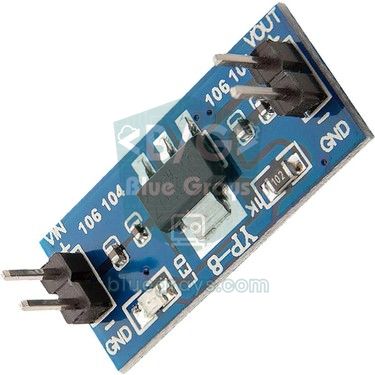
| 3.3 V output of an MB102 breadboard power module | Mostly yes | Feed it from an adapter with enough current and add a capacitor |
The setTxPower fix: lowering the transmit power
On some boards, even with a good power supply, the ESP32 sees the network but can't connect, or the connection keeps dropping. Especially on cheap ESP32-C3 Super Mini boards and some clone ESP32 boards, the antenna circuit and the regulator struggle at maximum transmit power. By default the ESP32 transmits at roughly 19.5–20 dBm. Lowering this with WiFi.setTxPower() reduces the current peaks and often fixes the connection on these boards instantly. Call it right after WiFi.begin(); it doesn't work if called before WiFi has started, that is, before WiFi.mode() or begin().
| Constant | Power | When to use it |
|---|---|---|
| WIFI_POWER_19_5dBm | 19.5 dBm | Close to the default; longest range |
| WIFI_POWER_15dBm | 15 dBm | First try for minor problems |
| WIFI_POWER_11dBm | 11 dBm | Usually enough if the router is in the same room |
| WIFI_POWER_8_5dBm | 8.5 dBm | The value most often recommended for the ESP32-C3 Super Mini |
| WIFI_POWER_5dBm | 5 dBm | For tests right next to the router |
Every 3 dB reduction halves the transmit power, so the range gets shorter too. Start with 15 dBm; if the problem persists, go down to 11 and then 8.5 dBm. If lowering the power fixes the connection, the real cause is usually the power supply or the antenna design, so in the long run add a better supply and a capacitor as well. You can read the board's current setting with WiFi.getTxPower(); the value is in units of 0.25 dBm, so 78 means 19.5 dBm.
Automatic reconnect sketch
The ESP32 loses its connection when the router restarts, when the power comes back after an outage, or when the signal fades for a while. In the ESP32 core, WiFi.setAutoReconnect(true) is on by default, and after most drops the board reconnects by itself. For some reasons, however, such as 202 AUTH_FAIL, the core gives up after a single retry and the board stays offline until you reset it. In a project that has to run for months, you should therefore add your own check. The sketch below avoids delay() and uses millis() to check the connection every 15 seconds, reconnects if it has dropped, and restarts the board if it can't connect for 5 minutes:
1#include <WiFi.h>
2
3const char* WIFI_ADI   = "EvAgi_2G";    // Wi-Fi adı / network name
4const char* WIFI_SIFRE = "sifre1234";   // Wi-Fi şifresi / Wi-Fi password
5
6const unsigned long KONTROL_ARALIGI = 15000;  // 15 sn'de bir kontrol / check every 15 s
7const int EN_FAZLA_DENEME = 20;               // 20 x 15 sn = 5 dk / 20 x 15 s = 5 min
8unsigned long sonKontrol = 0;
9int basarisizSayac = 0;                       // üst üste başarısız kontrol / consecutive failed checks
10
11void wifiBaslat() {
12  WiFi.mode(WIFI_STA);
13  WiFi.setAutoReconnect(true);                // çekirdeğin kendi yeniden bağlanması / core auto-reconnect
14  WiFi.begin(WIFI_ADI, WIFI_SIFRE);
15  WiFi.setTxPower(WIFI_POWER_15dBm);          // gerekirse 8_5dBm'e kadar düşür / lower to 8_5dBm if needed
16  WiFi.setSleep(false);                       // modem uykusunu kapat / disable modem sleep
17}
18
19void setup() {
20  Serial.begin(115200);
21  wifiBaslat();
22}
23
24void loop() {
25  if (millis() - sonKontrol >= KONTROL_ARALIGI) {
26    sonKontrol = millis();
27    if (WiFi.status() == WL_CONNECTED) {
28      basarisizSayac = 0;
29      Serial.printf("Bagli / Connected, IP: %s, RSSI: %d dBm\n",
30                    WiFi.localIP().toString().c_str(), (int)WiFi.RSSI());
31    } else {
32      basarisizSayac++;
33      Serial.printf("Bagli degil / Not connected (%d/%d), yeniden baglaniyor / reconnecting\n",
34                    basarisizSayac, EN_FAZLA_DENEME);
35      WiFi.disconnect();
36      WiFi.reconnect();
37      if (basarisizSayac >= EN_FAZLA_DENEME) {
38        Serial.println("Yeniden baslatiliyor / Restarting");
39        delay(100);
40        ESP.restart();                        // son çare: kartı yeniden başlat / last resort: restart the board
41      }
42    }
43  }
44
45  // Projenin kodu buraya; uzun delay() kullanma / your project code here; avoid long delay()
46}
The WiFi.setSleep(false) line turns off modem sleep, in which the ESP32 briefly switches its radio off at intervals while connected. This reduces drops with some routers and latency on a web server; in return the board draws a few tens of mA more. In battery projects you can remove this line and work out how long the battery will last with the Battery Life calculator. Keep the setTxPower line only if you have the problems from the previous section. When you add your project code to loop(), avoid long delay() calls, because the connection check only runs as loop() keeps cycling. If you'd rather enter WiFi credentials from your phone than hard-code them, have a look at the WiFiManager library.
ESP32 static IP setup
Normally the router assigns the ESP32 an address via DHCP that can change each time. If you are building a web server that you will always open at the same address from your phone, or if the router's DHCP is misbehaving (the status stays stuck at 0), a static IP makes life easier. Keep three rules in mind: WiFi.config() must be called before WiFi.begin(); the address you choose must be on the router's network but outside its DHCP pool (if the router hands out 192.168.1.2–100, use something like 192.168.1.200); and the gateway is the router's own address. To find your router's address, run the diagnostic sketch once with DHCP; it also prints the gateway.
1#include <WiFi.h>
2
3const char* WIFI_ADI   = "EvAgi_2G";      // Wi-Fi adı / network name
4const char* WIFI_SIFRE = "sifre1234";     // Wi-Fi şifresi / Wi-Fi password
5
6IPAddress sabitIP(192, 168, 1, 200);      // DHCP havuzunun dışında bir adres / an address outside the DHCP pool
7IPAddress agGecidi(192, 168, 1, 1);       // modemin adresi / router address
8IPAddress altAgMaskesi(255, 255, 255, 0); // alt ağ maskesi / subnet mask
9IPAddress dns1(1, 1, 1, 1);               // birinci DNS / primary DNS
10IPAddress dns2(8, 8, 8, 8);               // ikinci DNS / secondary DNS
11
12void setup() {
13  Serial.begin(115200);
14  WiFi.mode(WIFI_STA);
15  // config() mutlaka begin()'den önce / config() must come before begin()
16  if (!WiFi.config(sabitIP, agGecidi, altAgMaskesi, dns1, dns2)) {
17    Serial.println("Statik IP ayarlanamadi / Static IP config failed");
18  }
19  WiFi.begin(WIFI_ADI, WIFI_SIFRE);
20
21  unsigned long baslangic = millis();
22  while (WiFi.status() != WL_CONNECTED && millis() - baslangic < 15000) {
23    delay(500);
24    Serial.print('.');
25  }
26  Serial.println();
27  Serial.print("IP: ");
28  Serial.println(WiFi.localIP());             // 192.168.1.200 olmalı / should be 192.168.1.200
29}
30
31void loop() {}School and corporate networks: connecting to WPA2-Enterprise (eduroam)
eduroam at universities, company networks and some school networks use WPA2-Enterprise (802.1X), which gives each user their own username and password instead of one shared password. A normal WiFi.begin(name, password) always fails on these networks, and in the scanner their security type shows as Diger / Other (Enterprise). Versions 2.x and 3.x of the ESP32 Arduino core provide a ready-made form of begin() for PEAP, the most common method:
1#include <WiFi.h>
2
3const char* AG_ADI        = "eduroam";               // kurum ağının adı / enterprise network name
4const char* EAP_KIMLIK    = "[email protected]";   // kimlik, çoğu zaman kullanıcı adıyla aynı / identity, usually same as username
5const char* EAP_KULLANICI = "[email protected]";   // kullanıcı adı / username
6const char* EAP_SIFRE     = "kurum_sifren";          // kurum şifresi / enterprise password
7
8void setup() {
9  Serial.begin(115200);
10  WiFi.disconnect(true);                              // önceki bağlantıyı kapat / close any previous connection
11  WiFi.mode(WIFI_STA);
12  // PEAP (MSCHAPv2) ile bağlan, CA doğrulaması yok / connect with PEAP (MSCHAPv2), no CA check
13  WiFi.begin(AG_ADI, WPA2_AUTH_PEAP, EAP_KIMLIK, EAP_KULLANICI, EAP_SIFRE);
14
15  unsigned long baslangic = millis();
16  while (WiFi.status() != WL_CONNECTED && millis() - baslangic < 30000) {
17    delay(500);
18    Serial.print('.');
19  }
20  Serial.println();
21  if (WiFi.status() == WL_CONNECTED) {
22    Serial.print("Bagli / Connected, IP: ");
23    Serial.println(WiFi.localIP());
24  } else {
25    Serial.printf("Baglanamadi / Failed, durum / status: %d\n", (int)WiFi.status());
26  }
27}
28
29void loop() {}
At most institutions the identity is the same as the username; some ask for an anonymous outer identity such as [email protected]. This sketch does not validate the server certificate (CA): the connection works, but a fake access point could capture your password. So before putting your personal password on an ESP32, ask your IT department and, if possible, request an account or network meant for devices. If your institution requires a certificate, you can pass the CA file as the sixth parameter of begin(). Networks that open a login page in the browser (captive portals), as in hotels, dorms and cafés, are a separate problem, because the ESP32 can't fill in that page. Some schools also require device MAC addresses to be registered in advance; send IT the MAC address printed by the diagnostic sketch. On these networks the most practical solution is your phone's hotspot or a small pocket router.
Phone hotspot test: is it the router or the ESP32?
The fastest way to narrow down the cause is to connect the ESP32 to a network whose settings you control completely. Your phone's hotspot is perfect for this:
- Give the hotspot a short name made only of plain letters and digits (for example esptest), and set a simple password of at least 8 characters (for example test12345).
- On Android, set the band option in the mobile hotspot settings (called AP band or Speed and compatibility on some phones) to 2.4 GHz and choose WPA2-Personal as the security type.
- On iPhone, go to Settings > Personal Hotspot and turn on Allow Others to Join. On newer models, also turn on Maximize Compatibility; this switches the hotspot to 2.4 GHz. The hotspot name is the phone's name, so simplify it under Settings > General > About > Name, and keep the Personal Hotspot screen open until the ESP32 connects.
- Replace the network name and password in the diagnostic sketch with the hotspot's details, place the phone 1–2 metres from the ESP32 and upload the sketch.
- Read the status and reason codes in the Serial Monitor, then try the same sketch with your home router's details.
Interpret the result like this: if the ESP32 connects to the hotspot but not to your home router, your code, board and power supply are fine; the problem lies in the router's band, channel, security, MAC filter or client limit settings. If it can't connect to the hotspot either, the problem is on the ESP32 side: change the power supply and cable, lower the power with setTxPower, make sure there is no metal in front of the antenna and check the code again. The hotspot test is also the quickest way to prove that a project that won't connect at school actually works.
WiFi test with the Raspberry Pi Pico W and MicroPython
The Raspberry Pi Pico W and Pico 2 W also support only 2.4 GHz; all the band, password, power and hotspot advice in this article applies to these boards as well. In MicroPython, status codes are read using constants from the network module. The script below runs unchanged in Thonny on both the ESP32 and the Pico W. On the Pico W it stops waiting right away if the network isn't found or the password is wrong; on the ESP32, MicroPython keeps retrying after some errors, so the script prints the last status after 20 seconds:
1import network, time
2
3AG_ADI = "EvAgi_2G"       # Wi-Fi adı / network name
4SIFRE = "sifre1234"       # Wi-Fi şifresi / Wi-Fi password
5
6wlan = network.WLAN(network.STA_IF)
7wlan.active(True)
8if wlan.isconnected():
9    wlan.disconnect()     # eski bağlantıyı kapat / close the previous connection
10    time.sleep(1)
11wlan.connect(AG_ADI, SIFRE)
12
13durum = wlan.status()
14for saniye in range(20):  # en fazla 20 sn bekle / wait up to 20 s
15    durum = wlan.status()
16    print(saniye, "durum / status:", durum)
17    if durum in (network.STAT_GOT_IP, network.STAT_NO_AP_FOUND, network.STAT_WRONG_PASSWORD):
18        break             # sonuç belli, beklemeyi bırak / result is known, stop waiting
19    time.sleep(1)
20
21if durum == network.STAT_GOT_IP:
22    print("Bagli / Connected, IP:", wlan.ifconfig()[0])
23    print("RSSI:", wlan.status("rssi"), "dBm")
24elif durum == network.STAT_NO_AP_FOUND:
25    print("Ag bulunamadi / Network not found (SSID, 2.4 GHz)")
26elif durum == network.STAT_WRONG_PASSWORD:
27    print("Sifre yanlis / Wrong password")
28else:
29    print("Baglanamadi / Failed, durum / status:", durum)
On the Pico W the numeric status values are different: 3 means connected with an IP, 2 connected but waiting for an IP, -1 general failure, -2 network not found and -3 wrong password. On the ESP32 you will instead see 1001 while connecting, 1010 once it has an IP, and ESP-IDF reason codes such as 201 and 202 when something goes wrong. To avoid problems with channels 12 and 13 on the Pico W, set your country code before connecting (rp2.country('GB'), or network.country('GB') on newer firmware, using your own country); if the connection drops now and then, you can turn off power saving with wlan.config(pm=0xa11140). To build a web server with the Pico W, see the Pico W WiFi web server article, and if you are new to MicroPython, take a look at the MicroPython basics guide.
Common problems and fixes
| Symptom | Likely cause | Fix |
|---|---|---|
| Garbage characters in the Serial Monitor | Baud rate mismatch | Set the Serial Monitor to 115200 baud |
| Status 1, reason 201 | Wrong network name, 5 GHz network or too far away | Run the scanner and copy the 2.4 GHz network name exactly |
| Status 6, reason 15 over and over | Wrong password | Retype the password, paying attention to case and special characters |
| Status 4 or 6; reason 202, 210 or 211 | Incompatible security mode | Switch the router to WPA2-Personal (AES) or mixed WPA2/WPA3 |
| Stuck at status 0 | Joined the router but gets no IP from DHCP | Restart the router, enlarge the DHCP pool or use a static IP |
| Reset at WiFi.begin() with Brownout detector was triggered | The power supply can't handle the current peaks | Short cable, adapter rated at least 1 A, 470 µF between 3V3 and GND |
| Connects, then drops after a few minutes (reason 200) | Weak signal, modem sleep or a power problem | setSleep(false), setTxPower, reconnect sketch, move closer to the router |
| Works on the desk, won't connect inside the enclosure | Metal enclosure or a battery in front of the antenna | Place the antenna at the edge of the enclosure facing outwards, use a plastic case |
| Connected, but the web page won't open on the phone | The phone is on another network, or the guest network uses client isolation | Connect both to the same network and read the IP from the Serial Monitor |
| analogRead() values go wrong when WiFi is on | The sensor is on an ADC2 pin, and WiFi uses ADC2 | Move the sensor to the ADC1 pins, GPIO 32–39 |
| Range of a few centimetres on an ESP32-CAM or a board with an external antenna | Antenna selection is set to external but no antenna is fitted | Plug an antenna into the IPEX socket or check the 0 Ω antenna select resistor on the board |
Connected: what can you build now?
- Web server and live dashboard: Build an ESP32 web server with WebSocket that shows sensor values on your phone in real time.
- Internet clock: Get the time from an NTP server and show it on a display.
- Weather display: Fetch your city's temperature and humidity with a weather API.
- Phone notifications: Send a message with a Telegram bot when the door opens.
- Smart home: Connect the ESP32 to Home Assistant via MQTT.
- Router-free communication: Let two ESP32 boards talk with ESP-NOW without joining any network.
- Wireless uploads: Once the board is sealed in its enclosure, send new code over WiFi with an OTA update.
An ESP32 that won't connect to WiFi is confusing at first, but the status and reason codes always tell you which step the problem is in: 1 and 201 mean the network wasn't found, 15 and 202 point to the password or security mode, 0 to DHCP, and 200 or sudden resets to the signal or the power supply. If you are new to the ESP32, you will find the basics in What Is the ESP32?. In the BlueGrays app you can also explore projects such as an ESP32 WiFi connection, web server, mDNS, NTP clock, weather station, OTA update and Telegram alarm, each with step-by-step circuit diagrams and ready-to-use code.
Frequently asked questions
Why won't my ESP32 connect to WiFi?
The most common causes are trying to join a 5 GHz network, a typo in the network name or password, a weak power supply whose voltage collapses when WiFi starts, and the router's security settings. Print the WiFi.status() value and the reason code reported on disconnect and you'll see right away which one it is. If the network isn't found you'll see 1 and 201; with a wrong password you'll usually see 6 and 15.
Can the ESP32 connect to 5 GHz WiFi?
The classic ESP32, ESP32-S2, S3, C3 and C6 only support 2.4 GHz and never see 5 GHz networks in a scan. The dual-band model is the ESP32-C5. If your router broadcasts the two bands under separate names, give the ESP32 the name of the 2.4 GHz network.
What does WiFi.status() 6 mean on the ESP32?
6 means WL_DISCONNECTED: the board is not connected, and the connection attempt is either still running or has failed. On the ESP32 a wrong password often gives this value instead of 4 (WL_CONNECT_FAILED). To see the real cause, check the reason code in the ARDUINO_EVENT_WIFI_STA_DISCONNECTED event.
Why does my ESP32 keep disconnecting from WiFi?
The main causes of repeated drops are a weak signal, a power supply that can't handle WiFi current peaks, metal or a battery in front of the antenna, and the router's band steering settings. Move the board closer to the router, add a 100–470 µF capacitor between 3V3 and GND and turn off modem sleep with WiFi.setSleep(false). Also write your code so it recovers from a dropped connection by itself.
Can an ESP32 connect to a phone hotspot?
Yes, as long as the hotspot broadcasts on 2.4 GHz. On Android set the hotspot band to 2.4 GHz, on iPhone turn on Maximize Compatibility, and keep the hotspot name simple. The hotspot test is the fastest way to tell whether the problem is your home router or the ESP32.
Can an ESP32 connect to eduroam or a school network?
The ESP32 can join WPA2-Enterprise networks such as eduroam using the WiFi.begin(name, WPA2_AUTH_PEAP, identity, username, password) form in the ESP32 Arduino core. On networks that open a login page in the browser (captive portals), however, the ESP32 can't fill in that page. It is best to ask your IT department before using an institutional network and, if possible, request a separate account for devices.
Projects to build after reading this
See all projects
ESP32 Wi-Fi STA Connection (with LCD Screen)
In this project, we connect the ESP32 to the home Wi-Fi network in Station (STA) mode in a secure, fault-tolerant manner. We store the SSID and password in a separate `secrets.h` file to prevent leaking to Git, set up an auto-reconnect mechanism, and display the RSSI signal level and IP address on an I2C LCD screen. The internal LED works as a status indicator. It is a production-grade connection manager.

ESP32 Asynchronous Web Server (with IP Display on LCD)
In this project, we’re turning the ESP32 into an **asynchronous web server** that you can control from your phone or computer on the same Wi-Fi network. Thanks to the ESPAsyncWebServer library, the server can process multiple requests simultaneously (unlike the classic `WebServer.h`, which blocks on a single request). You’ll be able to open the ESP32’s IP address in a browser and click the ON/OFF buttons (the `/on` and `/off` routes) to turn the LED connected to GPIO 5 on and off.

ESP32 mDNS: Accessing the Device via bluegrays-esp.local (with LCD Screen)
In this project, we add an mDNS (Multicast DNS) service to the ESP32, allowing us to access the device using a human-readable hostname like `bluegrays-esp.local` instead of an IP address. Even if the IP address assigned by DHCP changes, you can always reach the device using the same name. We also run a small web server on the device to send LED control commands via a browser using the address `http://bluegrays-esp.local/`. The I2C LCD screen displays the hostname, IP address, and LED status in b

Real-Time Clock from the Internet via ESP32 NTP
The ESP32 connects to Wi-Fi and retrieves real time with millisecond precision from NTP (Network Time Protocol) servers. Thanks to the `configTzTime()` function, the Turkey time zone (TRT, UTC+3) is automatically applied, and DST transitions in countries that observe daylight saving time are automatically managed using a POSIX TZ string. The time is displayed both on the Serial Monitor and on an optional I2C LCD. `configTzTime()` starts the SNTP service; periodic resynchronization takes place wh

ESP32 HTTPClient + Weather API (with LCD Screen)
In this project, we use the ESP32 to make a REST API call to a weather API (wttr.in) over the internet using `HTTPClient.h`. We parse the returned JSON response using ArduinoJson v7 and display the city, temperature, humidity, weather, and wind information on an I2C LCD screen in both Turkish and English. wttr.in is free and does not require an API key—you can simply enter any city name to retrieve that city’s current weather conditions. It automatically updates every 30 minutes, provides differ

ESP32 OTA Update — Wireless Firmware Installation (With LCD Screen)
In this project, you’ll learn how to upload new firmware to the ESP32 over Wi-Fi without a USB cable. Using the `ArduinoOTA` library, the ESP32 becomes visible on the network and is automatically listed as `bluegrays-ota` in the "Network port" tab of the Arduino IDE. The initial upload is done via USB, and all subsequent updates are wireless—a critical feature for field devices. The I2C LCD screen displays the Wi-Fi status, IP address, hostname, OTA upload percentage, and error messages in both

ESP32 WebSocket Counter (2 Buttons + LCD + Real-Time Web)
In this project, two buttons wired to the ESP32 (GPIO 5 counts up, GPIO 4 counts down) change a counter. The value updates instantly both on a 16x2 I2C LCD and, through the WebSocket support of ESPAsyncWebServer, in every connected browser without reloading the page. Instead of HTTP polling a single persistent connection is used, and the ESP32 sends the new value to everyone with ws.textAll().
ESP32 Motion Alarm System (PIR + Buzzer + LED + Telegram)
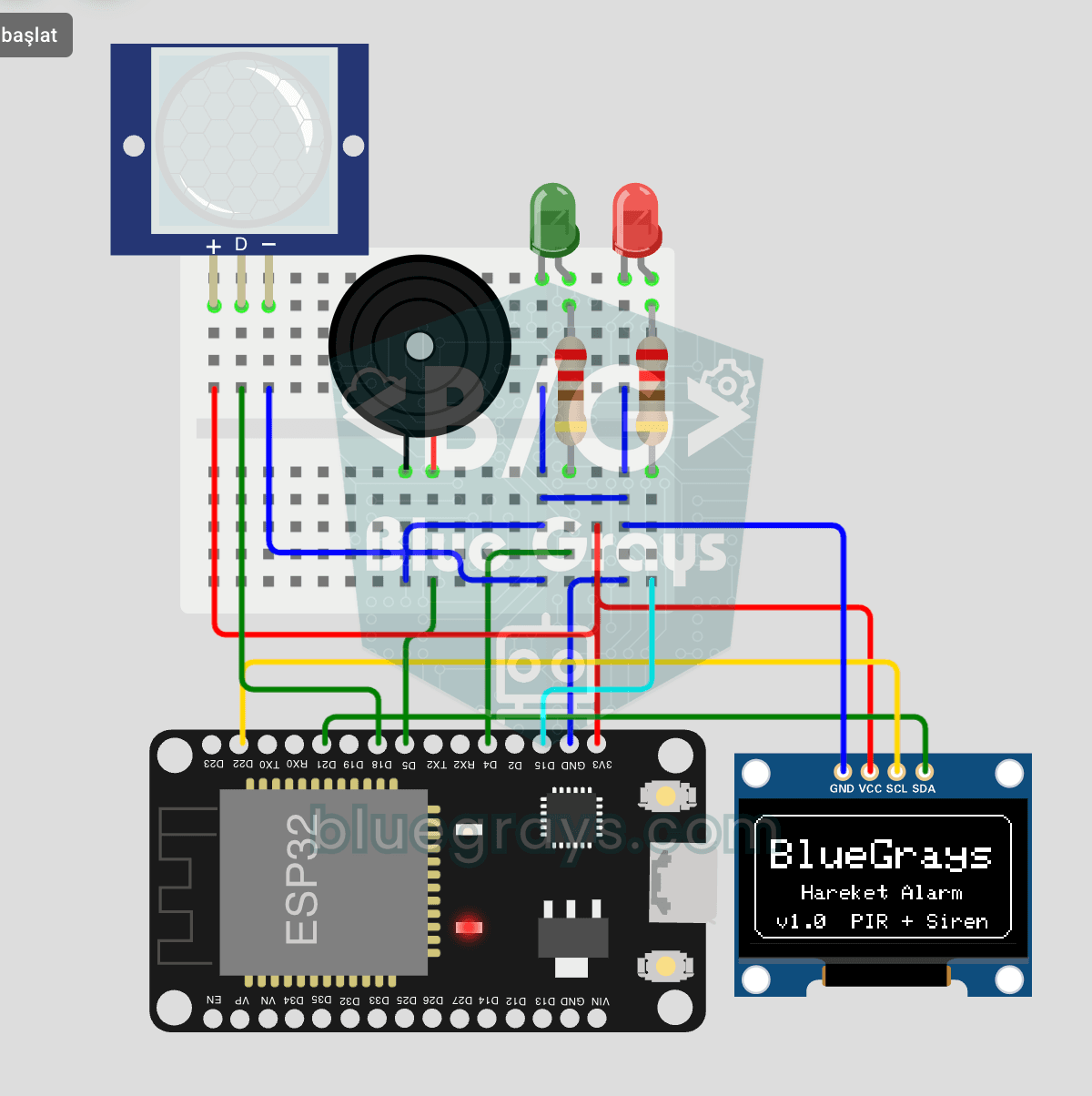
A smart security alarm system that activates the buzzer and LED when the PIR sensor detects motion, while simultaneously sending an instant notification to the owner via Telegram. It includes a 30-second cooldown to limit the frequency of repeated alarms; this mechanism does not validate PIR detections or eliminate false triggers. Suitable for home security, garage monitoring, warehouses, or workrooms. With ESP32-CAM, photo notifications can be added; with the classic ESP32 DevKit V1, text notif