
How to Install Arduino IDE 2 on Windows, Mac and Linux (Guide)
Install Arduino IDE 2 step by step on Windows, macOS and Linux: drivers, board and port selection, first Blink upload, ESP32 and Pico packages and common fixes.
Installing the Arduino IDE is the first step of every Arduino project, and done in the right order it takes 10–15 minutes: you download the program from the official Arduino website (arduino.cc/en/software), install it on your operating system, connect your board with a USB cable, select the board and port, and upload your first test sketch, Blink. When the tiny LED on the board starts blinking once a second, the setup is done. This guide is based on the current Arduino IDE 2 (version 2.3.10 as of October 2026); you'll also find a table comparing it with the old 1.8.19.
Below you'll find separate, step-by-step installation instructions for Windows, macOS and Linux. Then we walk through drivers and the COM port, the board selector, the Verify and Upload buttons, the Serial Monitor, the Library Manager and the Boards Manager one by one. Adding the ESP32 and Raspberry Pi Pico board packages, preferences such as language and font size, the install-free Arduino Cloud Editor and fixes for the most common setup errors are all covered in the same place.
What is the Arduino IDE and which version should you download?
The Arduino IDE (Integrated Development Environment) is the free, open-source program where you write your code, compile it, see its errors and upload it to the board over USB. Behind the scenes it runs the C++ compiler, the board packages and upload tools such as avrdude or esptool for you; all you do is press two buttons. The version under active development today is Arduino IDE 2: it offers autocompletion, a dark theme, a built-in debugger and a redesigned Serial Plotter. The old 1.8.19 can still be downloaded, but it only receives critical security fixes, so if you're just starting out, install IDE 2 straight away.
| Feature | Arduino IDE 2 | Arduino IDE 1.8.19 (Legacy) |
|---|---|---|
| Status | Actively developed, recommended version | Final release; critical security fixes only |
| Autocompletion | Yes (Ctrl+Space) | No |
| Debugger | Yes (on supported boards) | No |
| Themes | Light, Dark and two high-contrast themes | Light theme only |
| Board and port selection | Board selector in the toolbar | Tools menu |
| Serial Monitor | Bottom panel, in the same window as your code | Separate window |
| Cloud sync | Syncs sketches with an Arduino account | No |
| Linux ARM (Raspberry Pi) | No official build | 32-bit and 64-bit ARM builds available |
System requirements and choosing the right file
The download page offers several files for each operating system. Arduino IDE 2 only runs on 64-bit systems; if you use 32-bit Windows or a very old macOS, your only option is 1.8.19. You can check your Mac's processor under Apple menu > About This Mac: if it says Chip: Apple M…, pick Apple Silicon; if it says Processor: Intel, pick the Intel version.
| Operating system | Minimum version | File to download | Note |
|---|---|---|---|
| Windows | Windows 10, 64-bit | arduino-ide_2.3.10_Windows_64bit.exe | An MSI for mass deployment and a ZIP for use without installing are also available |
| macOS (Apple M1–M4) | macOS 11 Big Sur | arduino-ide_2.3.10_macOS_arm64.dmg | Native build; no Rosetta needed |
| macOS (Intel) | macOS 10.15 Catalina | arduino-ide_2.3.10_macOS_64bit.dmg | Also opens on Apple Silicon, but runs slower |
| Linux | 64-bit x86 distributions (Ubuntu, Debian, Mint, Fedora…) | arduino-ide_2.3.10_Linux_64bit.AppImage | A ZIP is also available; no IDE 2 for ARM Linux |
| Chromebook | - | Nothing to install | Arduino Cloud Editor or the Arduino Cloud for Chromebook app |
Installing the Arduino IDE on Windows
- Download the Windows .exe installer from the download page and double-click it. If a page asking for a donation appears, you can continue to the download without donating.
- Accept the license agreement with I Agree. Then choose whether to install for all users of the computer (Anyone who uses this computer) or only for yourself (Only for me); on a school or shared computer, the first option requires administrator rights.
- Leave the installation folder as it is and click Install. When it finishes, keep Run Arduino IDE ticked and click Finish.
- If Windows asks "Would you like to install this device software?" for the USB drivers of Arduino and compatible boards, click Install; these drivers let boards such as the original Uno, Mega and Leonardo be recognized. If the firewall asks for network access, allow that too.
- Once the IDE opens, you'll see notifications in the bottom-right corner showing that the Arduino AVR Boards package and the built-in libraries are being installed. Stay online and wait for them to finish; support for the Uno, Nano and Mega comes with this package.
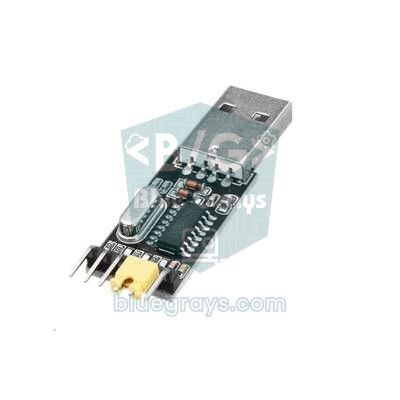
When you plug in your board, a new COM port should appear in Device Manager under Ports (COM & LPT). An original Uno shows up as Arduino Uno (COMx), while affordable clones with the CH340 chip appear as USB-SERIAL CH340 (COMx). If a clone sits under Other devices as USB2.0-Serial with a yellow exclamation mark, the CH340 driver is missing; Windows Update usually installs it on its own, and if it doesn't, install the CH341SER package from the chip maker WCH. The CP2102 chip found on many ESP32 boards needs the CP210x VCP driver from Silicon Labs. We cover detailed troubleshooting of port and driver problems in Arduino Won't Upload.
Installing the Arduino IDE on macOS
- Download the .dmg that matches your processor and double-click it. In the window that opens, drag the Arduino IDE icon into the Applications folder.
- Open the app from Launchpad or with Spotlight (Cmd + Space). When asked whether you're sure you want to open an app downloaded from the internet, click Open.
- The IDE may ask for access to the Documents/Arduino folder where it stores your sketches; allow it, otherwise your sketches can't be saved.
- The first time you plug a board into a MacBook with Apple Silicon, an "Allow accessory to connect?" prompt may appear. If you don't click Allow, the board never shows up in the port list.
- In the port list, an original Uno appears as /dev/cu.usbmodem…, while CH340 clones appear as /dev/cu.usbserial-… or /dev/cu.wchusbserial…. Recent versions of macOS include drivers for the CH340 and CP2102; installing old drivers on top usually makes things worse.
On Apple Silicon Macs, the tools of some board packages are still built for Intel processors. If you see a bad CPU type in executable error while compiling or uploading, open Terminal and install Rosetta 2 with softwareupdate --install-rosetta; Apple's translation layer lets those Intel tools run on M-series chips. If the error persists, update the board package in question to its latest version in the Boards Manager.
Installing the Arduino IDE on Linux (AppImage)
- Download the AppImage. An AppImage is a single-file application package that needs no installation; if you like, move it to a permanent place in your home folder.
- Make the file executable: right-click it and, under Properties > Permissions, tick Allow executing file as program. Running chmod +x arduino-ide_*_Linux_64bit.AppImage in a terminal does the same.
- Double-click the file to start the IDE. If you get dlopen(): error loading libfuse.so.2 or AppImages require FUSE to run, the FUSE 2 library is missing: run sudo apt install libfuse2 on Ubuntu 22.04, or sudo apt install libfuse2t64 on Ubuntu 24.04 and later.
- Add your user to the dialout group to access serial ports: sudo usermod -a -G dialout $USER. Restart the computer for the change to take effect; otherwise uploads fail with Permission denied.
- If the port of a board with a CH340 or CP2102 chip appears for a moment and then disappears, the preinstalled brltty service for Braille displays is grabbing it. If you don't use a Braille display, remove it with sudo apt remove brltty, then unplug and replug the board.
- If the IDE won't open at all on Ubuntu 24.04 and the terminal shows The SUID sandbox helper binary was found, but is not configured correctly, AppArmor is blocking the app's sandbox. As a temporary workaround, you can start the IDE from a terminal with the --no-sandbox option.
A tour of the Arduino IDE 2 interface
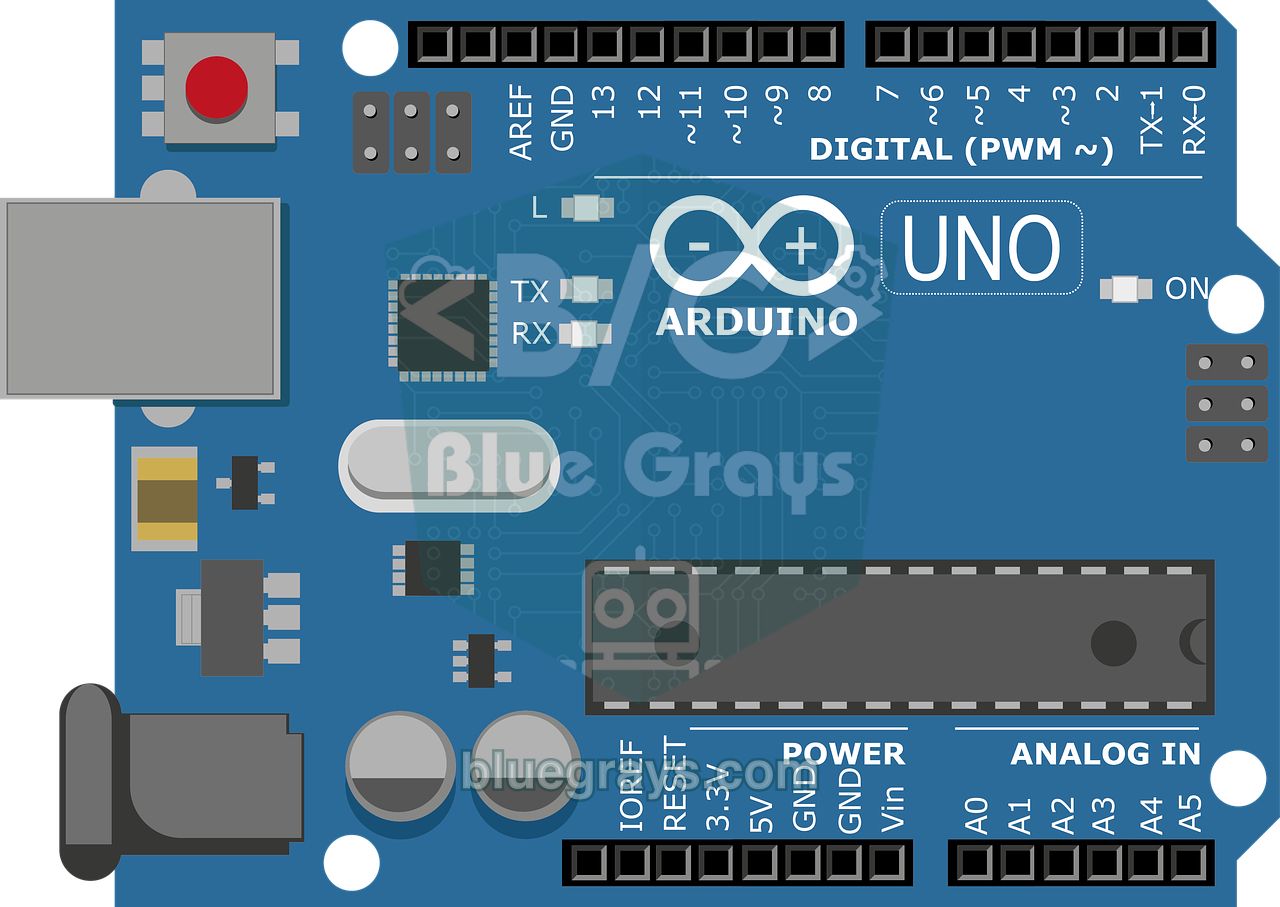
When you first open the IDE, you're greeted by an empty sketch: this skeleton made of the setup() and loop() functions is the basis of every Arduino program. In the Arduino world, programs are called sketches, and each sketch is stored as an .ino file inside a folder with the same name. The window is split into four areas: the toolbar and board selector at the top, the sidebar on the left, the code editor in the middle, and at the bottom the Output panel, where compiler messages scroll by, plus the Serial Monitor. The status bar at the very bottom shows the cursor's line number and the selected board and port.
| Item | Where | What it does | Shortcut |
|---|---|---|---|
| Verify | Toolbar, check-mark icon | Compiles the code and shows errors and memory usage; sends nothing to the board | Ctrl+R |
| Upload | Toolbar, right-arrow icon | Compiles the code and uploads it to the board on the selected port | Ctrl+U |
| Debug | Toolbar | Runs the code step by step; only enabled on supported boards | - |
| Board selector | Middle of the toolbar | Lists connected boards and ports and lets you pick them | - |
| Serial Plotter | Top-right corner | Draws numbers from the serial port as a live graph | - |
| Serial Monitor | Top-right corner | Exchanges text with the board | Ctrl+Shift+M |
| Sketchbook | Left sidebar | Lists the sketches you've saved | - |
| Boards Manager | Left sidebar | Installs and updates board packages such as ESP32 and Pico | Ctrl+Shift+B |
| Library Manager | Left sidebar | Installs sensor, display and module libraries | Ctrl+Shift+I |
| Auto Format | Tools menu | Fixes indentation and makes code readable | Ctrl+T |
| Preferences | File menu (Arduino IDE menu on macOS) | Language, font size, theme and additional board URLs | Ctrl+, |
Selecting the board and port
The board selection tells the IDE which processor to compile for and which tool to upload with; the port selection points to the physical board plugged into your computer. You can't upload unless both are right. After connecting the board, open the board selector at the top: an original Uno is listed by name and can be picked with one click. With CH340 clones, however, the IDE can't identify the board and the port shows up as Unknown. In that case, open Select other board and port, type "uno" in the search box, choose Arduino Uno on the left and the port on the right, then click OK. If you're not sure which port belongs to your board, unplug it, look at the list and plug it back in: the port that appears is yours.
| Your board | Board to select | Required package | Setting to watch |
|---|---|---|---|
| Arduino Uno R3 (original or clone) | Arduino Uno | Arduino AVR Boards (installed on first launch) | No extra setting |
| Arduino Nano (clone) | Arduino Nano | Arduino AVR Boards | Tools > Processor > ATmega328P (Old Bootloader) |
| Arduino Mega 2560 | Arduino Mega or Mega 2560 | Arduino AVR Boards | Processor: ATmega2560 (Mega 2560) |
| Arduino Uno R4 Minima / WiFi | Arduino UNO R4 Minima / WiFi | Arduino UNO R4 Boards | The IDE offers to install the package when you plug in the board |
| ESP32 DevKit (WROOM-32) | ESP32 Dev Module | esp32 (Espressif Systems) | If uploads fail, Upload Speed: 115200 |
| Raspberry Pi Pico / Pico W / Pico 2 | Raspberry Pi Pico (or Pico W, Pico 2) | Raspberry Pi Pico/RP2040/RP2350 | BOOTSEL and the UF2 Board port for the first upload |
Uploading your first sketch: Blink step by step
- Go to File > Examples > 01.Basics > Blink. The example opens in a new window; it's a ready-made sketch bundled with the IDE that blinks the onboard LED.
- Pick your board and port in the board selector; the status bar at the bottom should now show your board's name and port.
- First click Verify (Ctrl+R). If the Output panel shows Sketch uses 924 bytes (2%) of program storage space. Maximum is 32256 bytes., compilation succeeded.
- Then click Upload (Ctrl+U). The TX and RX LEDs on the board flicker briefly and a Done uploading notification appears in the bottom-right corner.
- The LED marked L should now be on for one second and off for one second. To make sure your new code really got uploaded, change both delay(1000) lines to delay(200) and upload again; if the blinking speeds up, everything works.
- When you try to save the modified example, the IDE asks for a new name and location, because examples live in the program's own folder. Your own sketches are saved by default in the Documents/Arduino folder, your Sketchbook.
Those lines in the output tell you about your board's memory. The bootloader takes 512 bytes of the 32 KB flash memory on the Uno's ATmega328P, which is why 32256 bytes are left for your code, and Blink uses just 2% of that. The Global variables use 9 bytes line right below it tells you how much of the 2048 bytes of RAM is reserved for global variables. As your projects grow, keeping an eye on these percentages often answers "why does my board freeze?" before you even have to ask. Now write your own first sketch: the code below adds a few lines to Blink that send messages to the Serial Monitor, so you test both uploading and data exchange over USB at the same time.
1// İlk test: dahili LED yanıp söner, Seri Port Ekranı'na yazı gelir
2// First test: blinks the onboard LED and prints to the Serial Monitor
3int sayac = 0;                        // kaç kez yanıp söndü / blink counter
4
5void setup() {
6  pinMode(LED_BUILTIN, OUTPUT);       // Uno'da pin 13 (L LED'i) / pin 13 (L LED) on the Uno
7  Serial.begin(9600);                 // Seri Port Ekranı hızı / Serial Monitor baud rate
8  Serial.println("Merhaba BlueGrays! / Hello BlueGrays!");
9}
10
11void loop() {
12  digitalWrite(LED_BUILTIN, HIGH);    // LED'i yak / turn the LED on
13  delay(1000);                        // 1 saniye bekle / wait 1 second
14  digitalWrite(LED_BUILTIN, LOW);     // LED'i söndür / turn the LED off
15  delay(1000);
16  sayac++;
17  Serial.print("Yanip sonme / Blink: ");
18  Serial.println(sayac);
19}
setup() runs once when the board powers up or resets: here we set pin 13 as an output and start serial communication at 9600 baud. loop() then repeats endlessly for as long as the board has power. LED_BUILTIN is the name of the pin the onboard LED is connected to; on the Uno, Nano and Mega it equals 13, so the same code runs on those boards unchanged. For a detailed explanation of the commands in this code, take a look at Arduino Commands.
Serial Monitor and Serial Plotter
After uploading, click the magnifying-glass icon in the top-right corner or press Ctrl+Shift+M. The Serial Monitor opens in the bottom panel and prints a new line every time the board blinks. The baud-rate menu at the top right of the panel must match the Serial.begin() value in the code, that is 9600 baud; if it doesn't, gibberish fills the screen. Type in the message box at the top and press Enter to send text to the board. The line-ending menu next to it offers No Line Ending, New Line, Carriage Return and Both NL & CR; pick the one your code expects.
The Serial Plotter shows numbers as a graph: if you send labeled lines such as Serial.print("light:"); Serial.println(value);, each label becomes a line in its own color. It's ideal for watching potentiometer or LDR values live. While uploading, make sure no other program (a second IDE window, PuTTY, a Python script) is holding the port, because a port can only be open in one program at a time. We've gathered all the finer points of these tools in Arduino Serial Monitor.
Library Manager and Boards Manager
Much of Arduino's power comes from ready-made libraries. Open the Library Manager with the books icon in the left sidebar (Ctrl+Shift+I), type the library name in the search box (for example "DHT sensor library") and click Install. If the library depends on other libraries, the IDE asks; choosing Install All prevents missing-file errors from the start. Installed libraries go into the libraries folder of your Sketchbook, and their examples are added to the File > Examples menu. ZIP files downloaded from the internet are installed with Sketch > Include Library > Add .ZIP Library...; details are in How to Add a Library in Arduino.
The Boards Manager (Ctrl+Shift+B), on the other hand, installs compilers and upload tools for different processor families. The package for the Uno, Nano and Mega arrives automatically on first launch; for boards such as the Uno R4, ESP32 or Pico, you install the relevant package once. Arduino's own boards appear in the list directly, while boards from other makers first need a package URL added in Preferences. Board packages aren't installed in your Sketchbook but in a separate folder called Arduino15: C:\Users\username\AppData\Local\Arduino15 on Windows, ~/Library/Arduino15 on macOS and ~/.arduino15 on Linux.
Adding the ESP32 board package
- Open File > Preferences (Ctrl+,) and paste this URL into the Additional boards manager URLs field: https://espressif.github.io/arduino-esp32/package_esp32_index.json. To add more than one URL, click the icon next to the field and put each URL on its own line.
- Click OK, then open the Boards Manager and type esp32 in the search box.
- Find esp32 by Espressif Systems and click Install. The package is hundreds of megabytes, so the download can take several minutes on a slow connection. The Arduino ESP32 Boards package that also shows up is only for the Arduino Nano ESP32; for generic ESP32 boards, install Espressif's package.
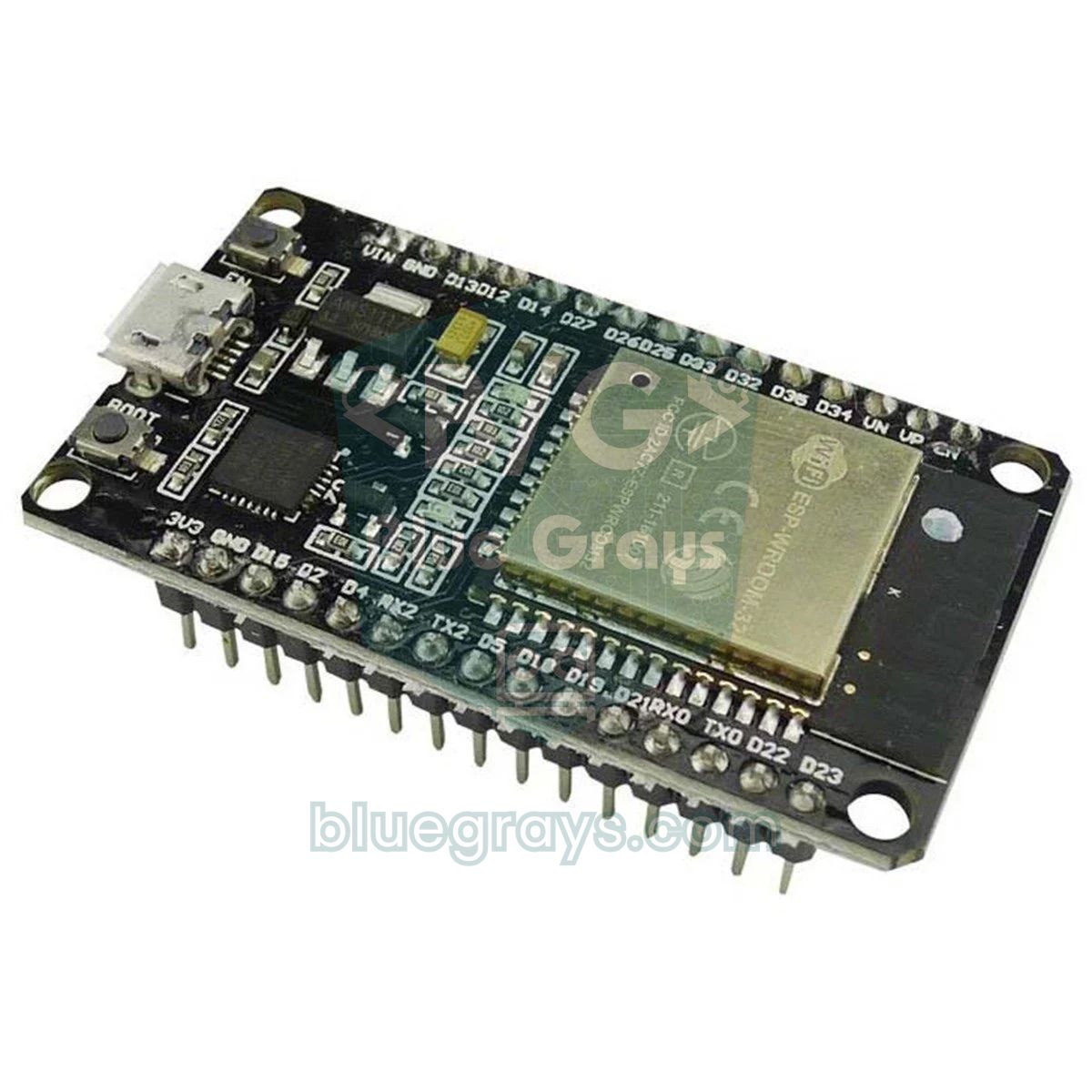
- Select ESP32 Dev Module as the board, plus your board's port. Because most ESP32 DevKits use a CP2102 or CH340 chip, the IDE shows the board as Unknown; that's normal.
- Upload the test sketch below and set the Serial Monitor to 115200 baud. If the output shows Connecting.... and keeps going, hold down the BOOT button on the board and release it once the upload percentages start scrolling.
1// ESP32 kurulum testi: yonga bilgisi + LED / ESP32 setup test: chip info + LED
2const int LED_PIN = 2;   // çoğu ESP32 DevKit'te dahili LED / onboard LED on most DevKits
3
4void setup() {
5  pinMode(LED_PIN, OUTPUT);
6  Serial.begin(115200);  // ESP32 için yaygın hız / common ESP32 baud rate
7  delay(1000);           // Seri Port Ekranı açılsın diye bekle / give the monitor time to open
8  Serial.print("Model: ");
9  Serial.println(ESP.getChipModel());                  // ör. ESP32-D0WD-V3 / e.g. ESP32-D0WD-V3
10  Serial.print("Cekirdek / Cores: ");
11  Serial.println(ESP.getChipCores());
12  Serial.print("CPU (MHz): ");
13  Serial.println(ESP.getCpuFreqMHz());
14  Serial.print("Flash (MB): ");
15  Serial.println(ESP.getFlashChipSize() / (1024 * 1024));
16  Serial.print("Bos RAM / Free heap (bayt / bytes): ");
17  Serial.println(ESP.getFreeHeap());
18}
19
20void loop() {
21  digitalWrite(LED_PIN, !digitalRead(LED_PIN));        // LED'i ters çevir / toggle the LED
22  delay(500);
23}
If the Serial Monitor shows the chip model, the number of cores, the 240 MHz CPU speed and the flash size, usually 4 MB, your ESP32 setup is complete; if your board has an onboard LED on GPIO 2, it also blinks every half second. We cover the ESP32's pins, connecting to Wi-Fi and a first project you control from your phone in What Is the ESP32?
Adding the Raspberry Pi Pico board package
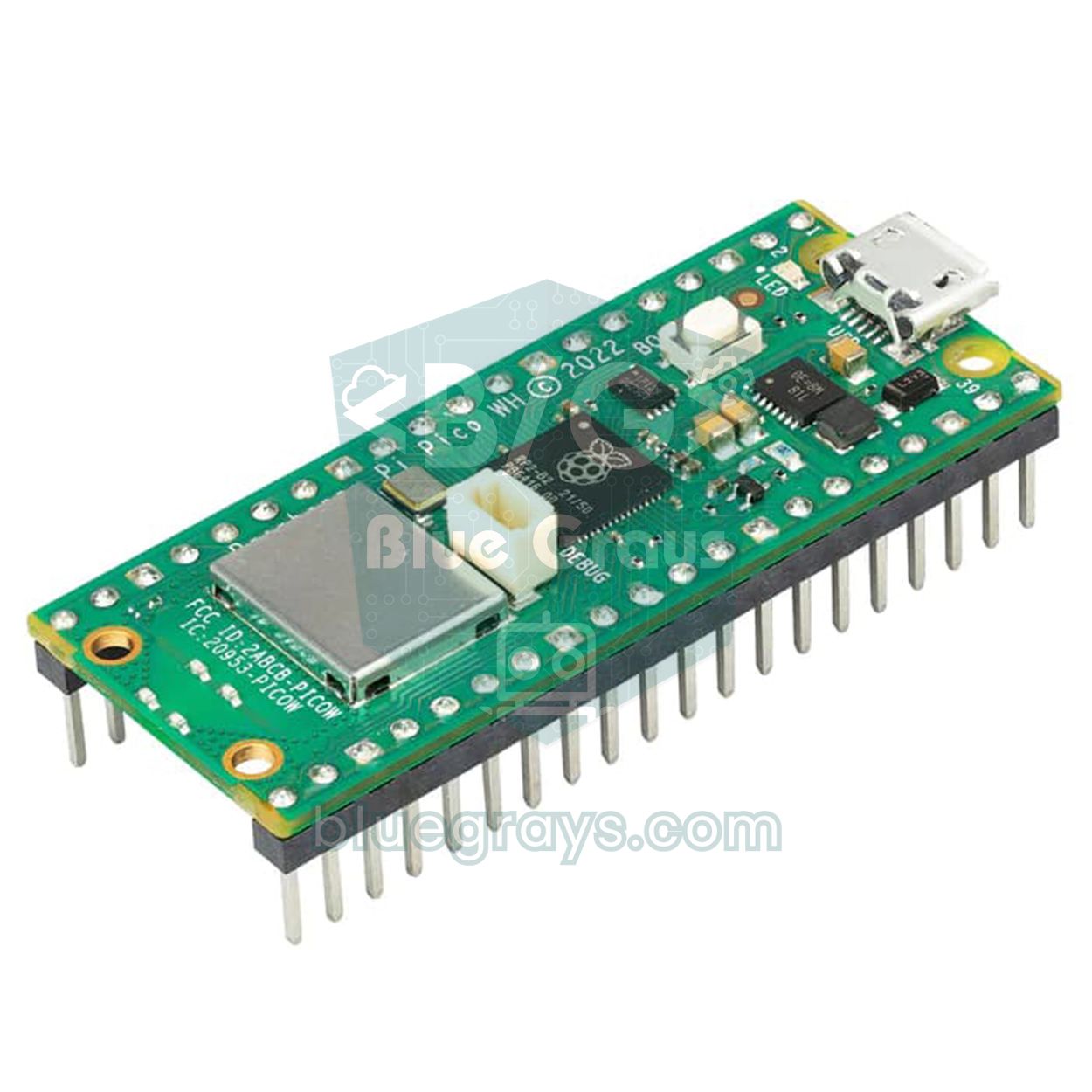
- In Preferences, add this as a separate line below the ESP32 URL in the Additional boards manager URLs list: https://github.com/earlephilhower/arduino-pico/releases/download/global/package_rp2040_index.json.
- Search for pico in the Boards Manager and install the Raspberry Pi Pico/RP2040/RP2350 package by Earle F. Philhower. This community package supports the Pico, Pico W, Pico 2 and Pico 2 W, and works with most Arduino libraries.
- Select Raspberry Pi Pico as the board, or the model you actually have (Pico W, Pico 2).
- For the first upload, hold down the BOOTSEL button on the Pico while plugging in the USB cable, then release it. The Pico appears on your computer as a drive named RPI-RP2 (RP2350 on the Pico 2) and UF2 Board shows up in the port list; select that port and click Upload.
- Once the code starts running, the Pico opens a regular serial port. Select this new port from the list; for later uploads you no longer need BOOTSEL, because the IDE resets the board by itself.
1// Pico kurulum testi: dahili LED + yonga sıcaklığı
2// Pico setup test: onboard LED + chip temperature
3void setup() {
4  pinMode(LED_BUILTIN, OUTPUT);   // Pico'da GP25; Pico W'de kablosuz yonga üzerinden / GP25 on Pico, via the wireless chip on Pico W
5  Serial.begin(115200);           // USB seri port / USB serial port
6}
7
8void loop() {
9  digitalWrite(LED_BUILTIN, HIGH);
10  delay(500);
11  digitalWrite(LED_BUILTIN, LOW);
12  delay(500);
13  Serial.print("Yonga sicakligi / Chip temperature (C): ");
14  Serial.println(analogReadTemp());   // dahili sensör, yaklaşık değer / internal sensor, approximate
15}
If you want to program the Pico in MicroPython, you use Thonny instead of the Arduino IDE; you'll find the differences between the two approaches and how to install MicroPython in What Is the Raspberry Pi Pico? Keep in mind that uploading from the Arduino IDE erases MicroPython from the board. To go back, simply reflash the MicroPython UF2 file using the BOOTSEL method.
Preferences: language, font size and other settings
Open the Preferences window from File > Preferences (on macOS, under the Arduino IDE app menu) or with Ctrl+,. To switch the interface to another language, pick it in the Language list and click OK; after a short reload, the IDE opens with translated menus. Compiler error messages stay in English. These are the most useful settings for beginners:
| Setting | What it does | Our recommendation |
|---|---|---|
| Language | Language of the menus and IDE messages; the IDE reloads when it changes | Your language; English gets more search results when you look up an error |
| Editor font size | Size of the code text | 14–16 for everyday use, 18–20 when projecting in class |
| Interface scale | Enlarges or shrinks the whole window, menus included | Untick Automatic and set the percentage yourself |
| Theme | Light, Dark, Dark High Contrast, Light High Contrast | Dark for long sessions |
| Show verbose output during: compile / upload | Prints every step of compiling and uploading | Tick upload; very handy when hunting errors |
| Compiler warnings | Warning level for suspicious lines | More |
| Verify code after upload | Reads the uploaded code back from the board and compares it | On; uploads take a few seconds longer but you can trust them |
| Auto save | Saves your changes automatically at short intervals | On by default; leave it that way |
| Sketchbook location | Folder for your sketches and libraries | A path without spaces or special characters |
| Additional boards manager URLs | URLs of third-party board packages such as ESP32 and Pico | One URL per line |
Arduino Cloud Editor: code in your browser without installing anything
If you can't install software on your computer (a school computer, a Chromebook or a laptop without admin rights), the Arduino Cloud Editor is a good alternative. You sign in at app.arduino.cc with a free Arduino account and create a new sketch in the Sketches section; your code is stored in the cloud and opens the same way on any computer. On Windows, macOS and Linux, you need to install a small background program called the Arduino Cloud Agent once to upload to a board over USB. On a Chromebook, the browser or the Arduino Cloud for Chromebook app is used instead of the agent, but there only the Uno R3, Uno R4 and a few other official Arduino boards are supported. You can also use both tools together: if you sign in with your Arduino account in IDE 2, the Cloud Sketchbook lets the IDE at home and the Cloud Editor at school see the same sketches.
| Topic | Arduino IDE 2 | Arduino Cloud Editor |
|---|---|---|
| Installation | Installed on your computer | Nothing to install; Cloud Agent for USB uploads |
| Internet | Only when downloading packages and libraries | Always required |
| Account | Not required | Free Arduino account required |
| Compile limit | None | 25 compilations per day on the free plan |
| Board support | Every board in the Boards Manager | All Arduino boards and many ESP32/ESP8266 boards; limited on Chromebook |
| Best for | Regular work, larger projects, ESP32 and Pico | School computers, Chromebooks, quick experiments |
Common setup problems and how to fix them
| Symptom or error | Cause | Fix |
|---|---|---|
| Port menu greyed out, board not visible | Charge-only cable or missing driver | Use a data cable; install the CH340 or CP210x driver |
| Port listed but board shows as Unknown | The clone's USB chip carries no board ID | Pick the board manually in Select other board and port |
| Failed uploading: no upload port provided | No port selected | Select the port in the board selector or under Tools > Port |
| Linux: Permission denied | User not in the dialout group | sudo usermod -a -G dialout $USER, then restart |
| Linux: dlopen(): error loading libfuse.so.2 | FUSE 2 missing for the AppImage | Install libfuse2 (libfuse2t64 on Ubuntu 24.04) |
| Linux: port appears for a moment and disappears | The brltty service grabs the port | sudo apt remove brltty |
| macOS: bad CPU type in executable | Tool built for Intel, Rosetta not installed | softwareupdate --install-rosetta |
| ESP32 package won't download: Client.Timeout or context cancellation while reading body | Download times out on a slow connection | Update the IDE; add connection_timeout: 300s under network in arduino-cli.yaml inside the .arduinoIDE folder |
| ESP32 doesn't appear in the Boards Manager | Package URL mistyped or not pasted completely | Paste the URL into Preferences without spaces and reopen the Boards Manager |
| Pico: No drive to deploy | Board not in BOOTSEL mode and no serial port | Replug while holding BOOTSEL and select the UF2 Board port |
| Windows: file path or linker errors when compiling | Non-English characters in the user name | Create a new Windows user with a plain English name |
| Gibberish in the Serial Monitor | Baud rate doesn't match the code | Set the panel's baud menu to the Serial.begin() value |
Setup done: what's next?
- Nail the basics: learn how the board, the pins and programming fit together in What Is Arduino?, and see the most-used commands in the Arduino Commands guide.
- Build your first circuit: instead of the onboard LED, make Blink with an LED and a resistor on a breadboard; find the right resistor with the LED resistor calculator and check where each pin is in the Pinout tool.
- Try it without a board: if you don't have a board yet, simulate in your browser with Tinkercad or Wokwi.
- Learn to fix errors: when you run into red messages, see the guides on upload errors and compile errors.
- Go wireless: if you installed the ESP32 package, build your first Wi-Fi project with What Is the ESP32?
- Pick the right board: if you haven't bought a board yet, take a look at Which Arduino Should I Buy? and Arduino Starter Kit.
Once the Arduino IDE is set up correctly, it runs smoothly for years; when you get a new board, all you have to do is install its package in the Boards Manager and select the right board and port. If Blink is working, you're ready: in the BlueGrays app you'll find dozens of projects for Arduino, ESP32 and Raspberry Pi Pico, from blinking LEDs and traffic lights to distance sensors and Wi-Fi projects, each with a circuit diagram, a parts list and step-by-step explained code that you can try right away in your freshly installed IDE.
Frequently asked questions
Is the Arduino IDE free?
Yes. The Arduino IDE is completely free and open source; even if a page asking for a donation appears while downloading, you can download it without donating. The browser-based Arduino Cloud Editor is free to use as well, but the free plan has a limit of 25 compilations per day.
Should I install Arduino IDE 2 or 1.8.19?
Install Arduino IDE 2; it's the actively developed version with autocompletion and a debugger. 1.8.19 only receives critical security fixes and is only worth choosing in special cases, such as 32-bit Windows, ARM Linux computers like the Raspberry Pi, or following an old book exactly.
How do I change the Arduino IDE language?
Open File > Preferences, choose your language from the Language list and click OK; the IDE reloads and the menus appear in that language. Compiler error messages stay in English, and searching for them in English usually returns more results.
Why is the port not showing up in the Arduino IDE?
The most common reason is a charge-only USB cable without data wires; the second is a missing CH340 or CP2102 driver. On Linux, not being in the dialout group or the brltty service can also hide the port, and on Apple Silicon Macs so can declining the accessory connection prompt.
Does the Arduino IDE work offline?
Yes. Once the Arduino AVR Boards package and the built-in libraries have been downloaded on first launch, writing, compiling and uploading code work without internet. You need to be online to install a new board package or library, and the Cloud Editor always needs internet.
Can I install the Arduino IDE on a Raspberry Pi or 32-bit Windows?
Arduino IDE 2 is only available for 64-bit Windows 10 and later, macOS and 64-bit x86 Linux. On ARM-based Linux computers such as the Raspberry Pi and on 32-bit Windows, you can use Arduino IDE 1.8.19 or the command-line Arduino CLI.
Projects to build after reading this
See all projects
LED Blink
Basic input project that turns a single LED on and off at regular intervals with Arduino. Teaches the use of digitalWrite and delay functions.

ESP32 Built-in LED Blink
Blinking the built-in blue LED on the ESP32 DevKit V1. No external components required! The first project you should try when you buy an ESP32. GPIO 2 is connected to the built-in LED.
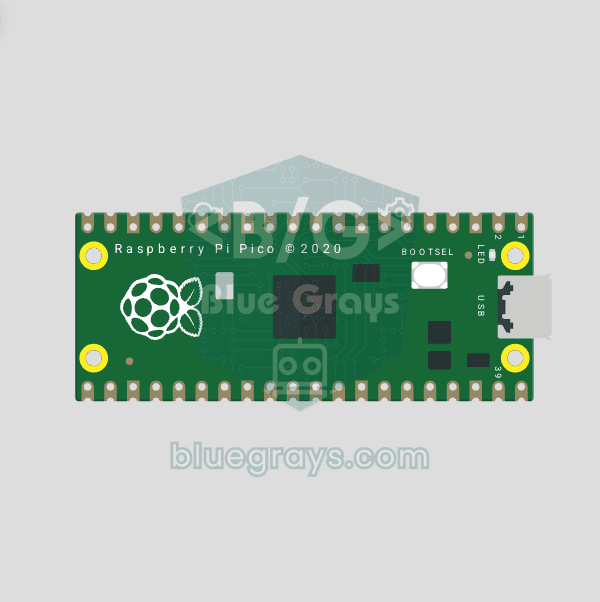
Raspberry Pi Pico Onboard LED Blink (GP25 Built-in LED)
The opening project of the Raspberry Pi Pico series! We blink the onboard LED (green LED connected to GP25) to verify the board works — a classic "Hello World" first experiment. NO external components, just Pico and USB cable. Code is written in **MicroPython** (the official language backed by Raspberry Pi Foundation). Learn `machine.Pin` class, `Pin.OUT` mode, `led.on()/off()` methods, and `time.sleep()` in Thonny IDE. Follow every toggle live in the Serial (REPL) output. Also perfect to verify

LED Control with a Push Button (Push)
Push control project that turns on the LED when the button is pressed and turns it off when it is released. Teaches button reading and conditional expression usage with digitalRead.
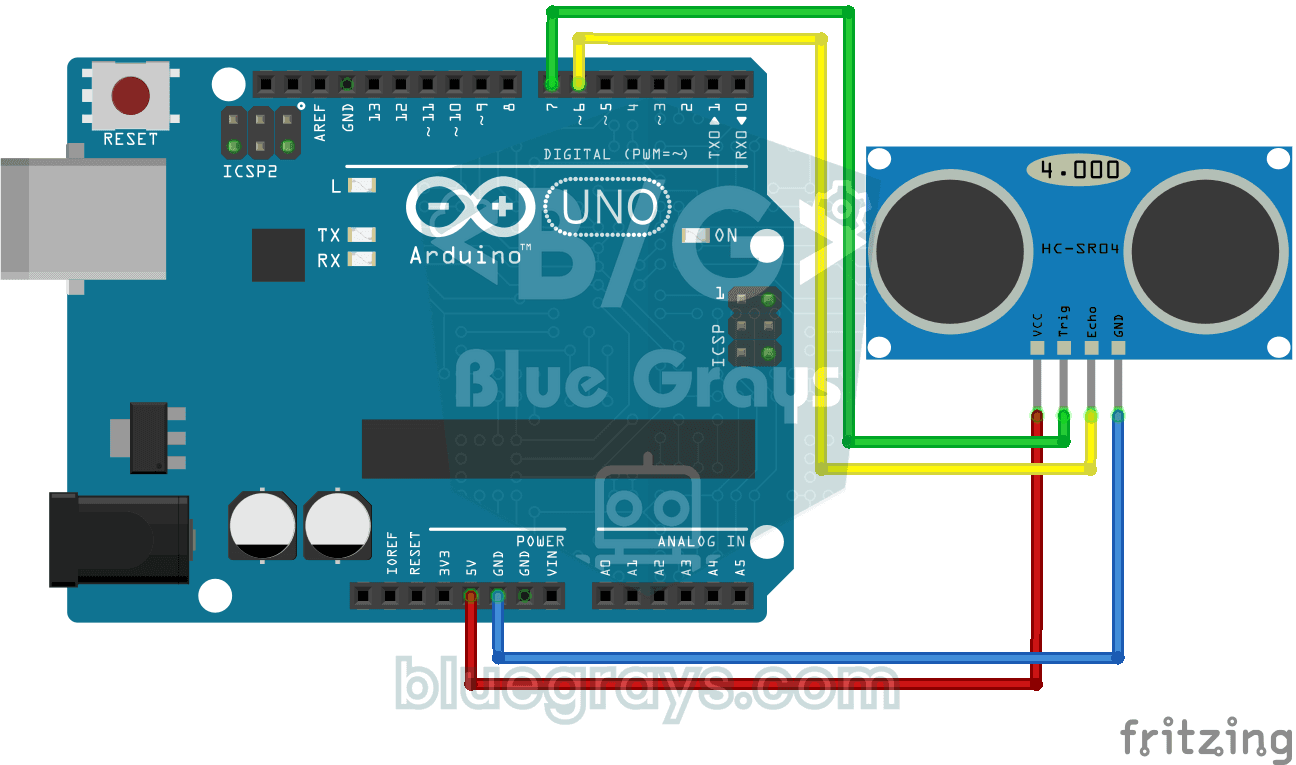
HC-SR04 Distance Measurement (Serial Display)
Project that measures distance with HC-SR04 ultrasonic sensor and displays the result in cm on Serial Monitor. It teaches the principle of distance calculation with sound wave.

Measuring Light Intensity with an LDR
Project that measures ambient light intensity with LDR sensor and displays it on Serial Monitor. Teaches the basics of analog sensor reading and serial communication.

LED Blink with ESP32
Teaches basic GPIO output usage with ESP32. We achieve a blinking effect by turning an LED on and off from a digital pin. ESP32 version of the classic blink project on Arduino UNO; the basic blink commands in the Arduino environment are the same, but the ESP32's pin layout and 3.3 V GPIO levels differ from those of the Arduino UNO.
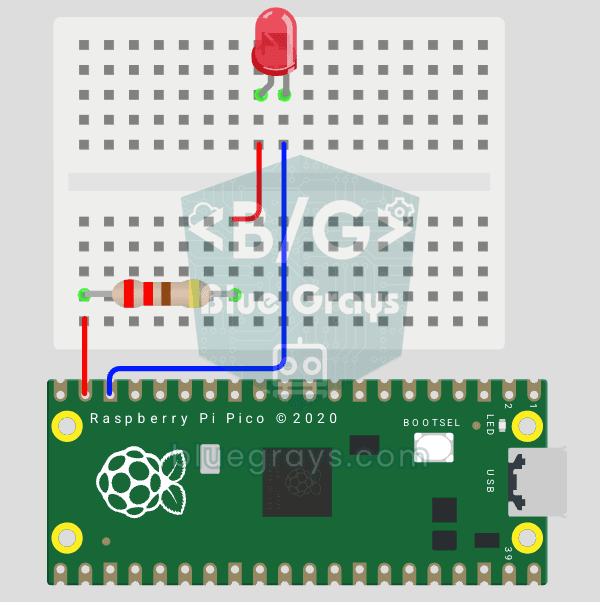
Raspberry Pi Pico: Controlling an External LED (GP14 + Breadboard)
The next step after Pico’s built-in LED: connecting an external LED to the breadboard and controlling it via the GP14 pin. In this project, you’ll learn how to use any of the Pico’s general-purpose GPIO pins as an output, the LED’s polarity (long leg = anode/+, short leg = cathode/–), and why a current-limiting resistor (220Ω) is required. If you don’t include the resistor, excessive current will flow through the LED and it may burn out. The circuit is very simple: Pico GP14 → 220Ω resistor → LE