
Arduino millis() vs delay(): Timing Without Blocking Your Code
Learn Arduino millis(): why delay() freezes your sketch, blink without delay, several tasks at once, overflow-safe 49-day timing, micros(), ESP32 and Pico.
The Arduino millis() function returns the time since the board started running, in milliseconds, and it's the standard way to time things without delay(). When you write delay(1000), the Arduino does nothing else for a whole second: a button press goes unnoticed, sensors aren't read and the display isn't updated. With millis() you ask "how much time has passed since the last job?" instead; you run the jobs that are due, skip the ones that aren't, and loop() never stops. That way a single Arduino can blink LEDs, read buttons, measure sensors and send reports to the serial port all at once.
In this guide you'll learn why delay() locks up your program, the famous blink without delay example, how to run several tasks at the same time, how to safely survive the overflow that happens after 49.7 days, the microsecond-counting micros() function and reusable timer patterns. In the last sections we'll see how the same logic is written on the ESP32 and on the Raspberry Pi Pico (MicroPython).
What is delay() and why does it stop your program?
delay(ms) keeps the processor spinning in a loop until the time you gave has passed. During that time the next line in loop() isn't reached; this is called a blocking wait. That's fine for blinking a single LED, but the trouble starts the moment you add a button to the project. The code below blinks an LED once a second and also checks whether a button is pressed:
1const int LED_PIN = 13;                   // dahili LED / built-in LED
2const int BUTON_PIN = 2;                  // buton, diğer ucu GND / button, other leg to GND
3
4void setup() {
5  pinMode(LED_PIN, OUTPUT);
6  pinMode(BUTON_PIN, INPUT_PULLUP);
7  Serial.begin(9600);
8}
9
10void loop() {
11  digitalWrite(LED_PIN, HIGH);
12  delay(1000);                            // 1 sn bekle, buton okunmaz / wait 1 s, button is not read
13  digitalWrite(LED_PIN, LOW);
14  delay(1000);
15  if (digitalRead(BUTON_PIN) == LOW) {    // 2 saniyede bir bakılır / checked once every 2 s
16    Serial.println(F("Butona basildi / Button pressed"));
17  }
18}
In this code the button is only noticed once every two seconds, and only if it happens to be held at exactly that moment; a short press gets lost between the two delay() calls. Interrupts keep running during delay(): millis() keeps counting and bytes arriving on the serial port are stored in the 64-byte buffer. But your code waits. As you add a display, sensors and a buzzer, every delay() holds up all the other work and the device feels sluggish. The fix is to stop waiting and start measuring time.
What is millis() and how does it work?
millis() returns the number of milliseconds since the board was powered on or reset, as an unsigned long (32-bit, unsigned). On the Arduino Uno this counter is updated in the background by the overflow interrupt of the Timer0 hardware timer. At 16 MHz Timer0 overflows every 1.024 ms; the core code accumulates the extra 0.024 ms and, roughly every 43 ms, bumps the counter by 2 instead of 1. So millis() skips some values entirely, which is why equality checks like millis() == 5000 are unreliable; always use >=. Also note that millis() doesn't advance while interrupts are disabled (for example inside an interrupt routine).
| Function | What it does | Resolution (Uno, 16 MHz) | Overflows after | Blocks the program? |
|---|---|---|---|---|
| delay(ms) | Waits for the given milliseconds | 1 ms | - | Yes |
| delayMicroseconds(us) | Short wait (accurate from 3 to 16383 µs) | About 1 µs | - | Yes |
| millis() | Milliseconds since startup | 1 ms (occasionally steps by 2) | About 49.7 days | No |
| micros() | Microseconds since startup | 4 µs | About 71.6 minutes | No |
Blink without delay: blinking an LED with millis()
- Create an unsigned long variable to remember when the job was last done (oncekiZaman).
- On every pass through loop(), read the current time with millis().
- Check whether enough time has passed with the condition simdi - oncekiZaman >= ARALIK.
- If the time is up, do the job (toggle the LED) and update oncekiZaman.
- If it isn't, do nothing and let loop() carry on; this is exactly when your other tasks run.
1const int LED_PIN = LED_BUILTIN;          // Uno'da 13 / pin 13 on the Uno
2const unsigned long ARALIK = 500;         // yanıp sönme aralığı (ms) / blink interval (ms)
3
4unsigned long oncekiZaman = 0;            // son değişim anı / time of the last toggle
5bool ledDurumu = false;
6
7void setup() {
8  pinMode(LED_PIN, OUTPUT);
9}
10
11void loop() {
12  unsigned long simdi = millis();         // şu anki zaman / current time
13  if (simdi - oncekiZaman >= ARALIK) {    // taşmaya karşı güvenli / overflow-safe
14    oncekiZaman += ARALIK;                // kaymayı önler / prevents drift
15    ledDurumu = !ledDurumu;
16    digitalWrite(LED_PIN, ledDurumu);
17  }
18  // burada başka işler beklemeden çalışır / other work runs here without waiting
19}
In the code we wrote oncekiZaman += ARALIK instead of oncekiZaman = simdi. The difference is small but important: if loop() is sometimes a few milliseconds late, the first method adds that delay every time and the LED drifts over the hours, while the second moves the target time forward in fixed steps so the average period stays exactly 500 ms. Use += for clocks, metronomes and regular measurements. If your program can be blocked for a long time (for example while waiting for Wi-Fi), += will try to catch up on the missed steps one after another; in that case = simdi is safer. If you also want to change the LED's brightness without stopping your code, take a look at the PWM and analogWrite article.
Doing several things at once: multitasking with millis()
The Arduino Uno has a single-core processor and can't really do two things at the same time. But because loop() can run tens of thousands of times per second, giving each task a few microseconds when its turn comes looks "simultaneous" from the outside. This is called cooperative multitasking. The rule is simple: every task has its own time variable and its own interval, and no task waits for long. In the example below four tasks run side by side:
1const int KIRMIZI_LED = 8;                // 300 ms'de bir yanıp söner / blinks every 300 ms
2const int YESIL_LED = 9;                  // 1000 ms'de bir yanıp söner / blinks every 1000 ms
3const int SARI_LED = 10;                  // butonla açılıp kapanır / toggled by the button
4const int BUTON = 2;                      // diğer ucu GND / other leg to GND
5
6unsigned long kirmiziZaman = 0, yesilZaman = 0, butonZaman = 0, seriZaman = 0;
7bool kirmizi = false, yesil = false, sari = false;
8int sonOkuma = HIGH;                      // son ham okuma / last raw reading
9int kararliDurum = HIGH;                  // titreşimsiz durum / debounced state
10
11void setup() {
12  pinMode(KIRMIZI_LED, OUTPUT);
13  pinMode(YESIL_LED, OUTPUT);
14  pinMode(SARI_LED, OUTPUT);
15  pinMode(BUTON, INPUT_PULLUP);
16  Serial.begin(9600);
17}
18
19void loop() {
20  unsigned long simdi = millis();
21
22  // Görev 1: kırmızı LED / Task 1: red LED
23  if (simdi - kirmiziZaman >= 300) {
24    kirmiziZaman = simdi;
25    kirmizi = !kirmizi;
26    digitalWrite(KIRMIZI_LED, kirmizi);
27  }
28
29  // Görev 2: yeşil LED / Task 2: green LED
30  if (simdi - yesilZaman >= 1000) {
31    yesilZaman = simdi;
32    yesil = !yesil;
33    digitalWrite(YESIL_LED, yesil);
34  }
35
36  // Görev 3: 50 ms debounce ile buton / Task 3: button with 50 ms debounce
37  int okuma = digitalRead(BUTON);
38  if (okuma != sonOkuma) {                // değişti, sayacı yeniden başlat / changed, restart the timer
39    butonZaman = simdi;
40    sonOkuma = okuma;
41  }
42  if (simdi - butonZaman >= 50 && okuma != kararliDurum) {
43    kararliDurum = okuma;
44    if (kararliDurum == LOW) {            // basıldı / pressed
45      sari = !sari;
46      digitalWrite(SARI_LED, sari);
47    }
48  }
49
50  // Görev 4: saniyede bir seri rapor / Task 4: serial report once per second
51  if (simdi - seriZaman >= 1000) {
52    seriZaman = simdi;
53    Serial.print(F("Calisma suresi (s) / Uptime (s): "));
54    Serial.println(simdi / 1000);
55  }
56}| Task | Pin | Interval | What it does |
|---|---|---|---|
| Red LED | 8 | 300 ms | Blinks fast |
| Green LED | 9 | 1000 ms | Blinks slowly |
| Button + yellow LED | 2 and 10 | 50 ms debounce | Toggles the yellow LED on every press |
| Serial report | - | 1000 ms | Prints the uptime in seconds |
The button logic is millis()-based too: every time the raw reading changes the timer restarts, and if the reading stays stable for 50 ms the press is accepted as real. That way the button's mechanical bouncing doesn't turn one press into dozens, and the code never waits. For details on wiring a button and the internal pull-up resistor, see How to Connect a Button to Arduino. A 220 Ω resistor is enough for the LEDs; for other colours and currents use the LED resistor calculator.
The 49.7-day overflow and overflow-safe comparisons
An unsigned long can hold at most 4,294,967,295. When millis() reaches that number, after about 49 days, 17 hours and 2 minutes, it starts counting from 0 again. If your board stays on for weeks (greenhouse control, an aquarium, an alarm system), that moment will come. The good news: code written with subtraction, in the form simdi - onceki >= aralik, isn't affected by the overflow. Unsigned subtraction is done modulo 2 to the power of 32. For example, if onceki = 4,294,967,000 and after the overflow simdi = 200, then simdi - onceki doesn't give a negative number; it gives the correct result, 496. So as long as the interval you're waiting for is shorter than 49.7 days, the comparison always works.
| Code | Result | Why? |
|---|---|---|
| if (millis() - onceki >= aralik) | Correct | Unsigned subtraction gives the right difference even across the overflow |
| if (millis() >= onceki + aralik) | Wrong | When onceki + aralik overflows it becomes a small number and the condition fires too early |
| if (millis() == hedef) | Wrong | millis() sometimes steps by 2, so the exact value may never appear |
| int onceki = millis(); | Wrong | On the Uno an int is 16-bit and holds wrong values after 32.7 seconds |
| long onceki = millis(); | Risky | A signed type goes negative after 24.8 days; use unsigned long to avoid confusion |
Measuring microseconds with micros()
micros() works the same way but returns the microseconds since startup. On 16 MHz boards such as the Arduino Uno and Nano its resolution is 4 µs (8 µs on 8 MHz boards), and it overflows about every 71.6 minutes; the subtraction rule applies here too. It's used for precise jobs such as measuring how long a piece of code takes, timing short pulses or generating sound. The example below measures how long an analogRead() call takes, twice a second; on the Uno you'll see about 110–120 µs:
1unsigned long raporZaman = 0;
2
3void setup() {
4  Serial.begin(9600);
5}
6
7void loop() {
8  if (millis() - raporZaman >= 500) {         // yarım saniyede bir ölç / measure every half second
9    raporZaman = millis();
10    unsigned long basla = micros();           // başlangıç (µs) / start (µs)
11    int deger = analogRead(A0);
12    unsigned long sure = micros() - basla;    // geçen süre (µs) / elapsed time (µs)
13    Serial.print(F("A0 = "));
14    Serial.print(deger);
15    Serial.print(F("  sure / time: "));
16    Serial.print(sure);
17    Serial.println(F(" us"));
18  }
19}
For longer intervals prefer millis() over micros(); a 71-minute overflow period is too short for long waits. delayMicroseconds() is only for short, unavoidable waits of a few microseconds, such as sending the 10 µs trigger pulse to the TRIG pin of the HC-SR04 distance sensor. Waits that short don't noticeably delay your other tasks.
Timer patterns: periodic, one-shot and state machine
- Periodic task: a job that repeats at a set interval, such as a blinking LED, reading a sensor every 2 seconds or refreshing a display every second. You've already seen the pattern above.
- One-shot timer (timeout): runs once, a set time after an event. A staircase light is a good example: switch the light on when there's motion, store the time, and switch it off if no new motion arrives for 30 seconds. Refreshing the time on new motion extends the period.
- Wait with a timeout: when waiting for a reply or a signal, you set an upper limit so you never get stuck forever; for example, show an error if no data arrives within 2 seconds.
- State machine: you keep the device's current step in a variable and move to the next step when each step's time is up. Traffic lights, washing machine programmes and game levels are written this way.
- Long-press detection: by measuring how long a button is held with millis(), you can give short and long presses different jobs.
1// Yeniden kullanılabilir zamanlayıcı / Reusable timer
2struct Zamanlayici {
3  unsigned long baslangic = 0;
4  unsigned long sure = 0;
5
6  void kur(unsigned long ms) {              // süreyi şimdiden başlat / start the period from now
7    baslangic = millis();
8    sure = ms;
9  }
10  bool doldu() const {                      // süre doldu mu? / has it expired?
11    return millis() - baslangic >= sure;
12  }
13};
14
15const int KIRMIZI = 11, SARI = 12, YESIL = 13;
16enum Durum { DUR, HAZIRLAN, GEC, YAVASLA }; // trafik lambası adımları / traffic light states
17Durum durum = DUR;
18Zamanlayici isik;
19
20void lambalar(bool k, bool s, bool y) {
21  digitalWrite(KIRMIZI, k);
22  digitalWrite(SARI, s);
23  digitalWrite(YESIL, y);
24}
25
26void setup() {
27  pinMode(KIRMIZI, OUTPUT);
28  pinMode(SARI, OUTPUT);
29  pinMode(YESIL, OUTPUT);
30  lambalar(true, false, false);
31  isik.kur(5000);                           // kırmızı 5 sn / red for 5 s
32}
33
34void loop() {
35  if (isik.doldu()) {
36    switch (durum) {
37      case DUR:      durum = HAZIRLAN; lambalar(true, true, false);  isik.kur(1500); break;
38      case HAZIRLAN: durum = GEC;      lambalar(false, false, true); isik.kur(5000); break;
39      case GEC:      durum = YAVASLA;  lambalar(false, true, false); isik.kur(2000); break;
40      case YAVASLA:  durum = DUR;      lambalar(true, false, false); isik.kur(5000); break;
41    }
42  }
43  // loop serbest: buton, sensör, ekran... / loop stays free: buttons, sensors, display...
44}
In this code a small structure (struct) called Zamanlayici reduces starting a period and asking whether it has expired to a single line. The traffic light is a state machine with four steps: in each step the lamps are set and the time of the next transition is started. Because loop() never waits, you can easily add a pedestrian button, an LDR light sensor for a night mode or a display showing the remaining time to the same board. If you need many timers, the ready-made timer libraries in the Library Manager work on the same principle.
millis(), delay() and Ticker on the ESP32
In the ESP32 Arduino core, millis() and micros() have the same names and the same 32-bit unsigned long type; their values are calculated from the 64-bit esp_timer_get_time() counter. That means the 49.7-day and 71.6-minute overflow periods apply on the ESP32 too, and you use the same subtraction rule. The important difference is in delay(): on the ESP32, delay() calls FreeRTOS's vTaskDelay(). The processor doesn't spin idly; other tasks such as Wi-Fi and Bluetooth run while you wait. Your loop() still waits, though, so jobs like a web server, MQTT or reading buttons get delayed. For periodic jobs the Ticker library that comes with the ESP32 core is handy too:
1#include <Ticker.h>
2
3const int LED1 = 2;                         // çoğu DevKit'te dahili LED / built-in LED on most DevKits
4const int LED2 = 4;
5
6Ticker ticker;
7bool led1Durum = false;
8bool led2Durum = false;
9unsigned long oncekiZaman = 0;
10
11void led1Degistir() {                       // kısa tut, uzun iş yapma / keep it short, no long work
12  led1Durum = !led1Durum;
13  digitalWrite(LED1, led1Durum);
14}
15
16void setup() {
17  Serial.begin(115200);
18  pinMode(LED1, OUTPUT);
19  pinMode(LED2, OUTPUT);
20  ticker.attach_ms(250, led1Degistir);      // her 250 ms'de çağır / call every 250 ms
21}
22
23void loop() {
24  unsigned long simdi = millis();
25  if (simdi - oncekiZaman >= 1000) {        // Arduino ile aynı desen / same pattern as on Arduino
26    oncekiZaman = simdi;
27    led2Durum = !led2Durum;
28    digitalWrite(LED2, led2Durum);
29    int64_t us = esp_timer_get_time();      // 64 bit, pratikte taşmaz / 64-bit, practically never overflows
30    Serial.printf("millis=%lu  esp_timer=%lld us\n", simdi, us);
31  }
32}
The function you give to Ticker is called by a timer task in the background; don't do anything slow in it (HTTP requests, long serial output, delay), just set a flag or change a pin. The 64-bit esp_timer_get_time() won't overflow for hundreds of thousands of years, so you can use it for measurements that need microsecond precision on a device that stays on for months. The built-in LED pin can differ from board to board; you can check your board's pin map in the Pinout tool. If you're new to the ESP32, the What Is the ESP32? article is a good start for setup and choosing pins.
Raspberry Pi Pico (MicroPython): ticks_ms() and ticks_diff()
In MicroPython you use time.sleep(), time.sleep_ms() and time.sleep_us() instead of delay(), and time.ticks_ms() instead of millis(). But watch out: tick values don't wrap at 2 to the power of 32 as on Arduino, but at a smaller limit that depends on the port. On the Pico that limit is 2 to the power of 30 ms, about 12.4 days (you can check it on your board with time.ticks_add(0, -1)). So never subtract or compare two tick values directly; get the difference with time.ticks_diff(new, old) and use time.ticks_add() to calculate a future time. The code below blinks the Pico's onboard LED without blocking while a button on GP14 toggles an LED on GP15:
1from machine import Pin
2import time
3
4led = Pin("LED", Pin.OUT)                       # dahili LED (Pico ve Pico W) / onboard LED (Pico and Pico W)
5dis_led = Pin(15, Pin.OUT)                      # GP15'e harici LED / external LED on GP15
6buton = Pin(14, Pin.IN, Pin.PULL_UP)            # GP14 buton, diğer ucu GND / GP14 button, other leg to GND
7
8ARALIK = 500                                    # ms
9onceki = time.ticks_ms()
10son_okuma = 1                                   # son ham okuma / last raw reading
11kararli = 1                                     # titreşimsiz durum / debounced state
12degisim = time.ticks_ms()                       # son değişim anı / time of the last change
13
14while True:
15    simdi = time.ticks_ms()
16    if time.ticks_diff(simdi, onceki) >= ARALIK:   # taşmaya karşı güvenli / wrap-safe
17        onceki = time.ticks_add(onceki, ARALIK)    # kaymasız / drift-free
18        led.toggle()
19    okuma = buton.value()
20    if okuma != son_okuma:                      # değişti, sayacı yeniden başlat / changed, restart the timer
21        degisim = simdi
22        son_okuma = okuma
23    if time.ticks_diff(simdi, degisim) >= 50 and okuma != kararli:   # 50 ms debounce
24        kararli = okuma
25        if kararli == 0:                        # basıldı / pressed
26            dis_led.toggle()
27
For periodic jobs MicroPython also has machine.Timer: the line Timer(period=500, mode=Timer.PERIODIC, callback=function) calls your function every 500 ms. Keep these callbacks short, just like with Ticker. If you program the Pico from the Arduino IDE (with the arduino-pico core), millis() and micros() work exactly as on Arduino. To install MicroPython on the Pico and get to know its pins, see the What Is the Raspberry Pi Pico? article.
Project ideas using millis()
- Reaction test: light an LED at a random moment, measure the time until the button is pressed with millis() and show the result in milliseconds.
- Staircase light: switch the light on when a PIR sensor detects motion and off 30 seconds after the last motion, while the code keeps doing other work.
- Speeding-up parking sensor: shorten the buzzer's beep interval as the distance measured by the HC-SR04 gets shorter.
- Non-blocking melody: sequence the notes on a buzzer with millis() instead of delay(), so the buttons keep working while the tune plays.
- Sensor and display together: read the DHT11 sensor every 2 seconds but refresh the display every 250 ms.
- Stopwatch: build a stopwatch with start, stop and reset buttons that shows the time on a 7-segment display.
Common mistakes and how to fix them
| Mistake | Symptom | Fix |
|---|---|---|
| Time variable declared as int | The program goes haywire after about 33 seconds | Make every time variable an unsigned long |
| Writing millis() >= onceki + aralik | Timing breaks after 49.7 days | Switch to the millis() - onceki >= aralik form |
| Checking millis() == hedef | The event sometimes never fires | Use >= instead of equality |
| Forgetting to update onceki | Once the time is up, the job repeats on every pass | Write onceki = simdi or onceki += aralik inside the condition |
| A delay() left inside the timer code | Other tasks are still delayed | Split long waits into a state machine |
| Waiting with millis() inside an interrupt | The board freezes | Never wait inside an ISR; just set a flag |
| An int product such as 60 * 1000 | The interval comes out negative or far too short | Write 60000UL or 60UL * 1000 |
Once you get the hang of millis(), your projects change completely: LEDs, buttons, sensors and displays work together without waiting for each other. For your next step you can pick a project that needs timing from the Arduino project ideas list. In the BlueGrays app you can explore projects such as Traffic Light, Police Strobe, Smart Staircase and Corridor Lighting and the Reaction Test with Sound Alert step by step, with a circuit diagram and ready-made code, and try them on your own board.
Frequently asked questions
What is millis() in Arduino?
millis() is a function that returns the time since the Arduino was powered on or reset, in milliseconds. Its value is an unsigned long and it starts again from zero after about 49.7 days. It's used to time things without stopping the program.
What is the difference between millis() and delay()?
delay() pauses the program for the given time, so nothing else, such as reading buttons or updating a display, can happen meanwhile. millis() only tells you how much time has passed and never waits. By checking the elapsed time and running whatever job is due, you can run several tasks at once.
Does my program break when millis() overflows after 49 days?
Not if you check time with subtraction in the form millis() - onceki >= aralik; unsigned subtraction gives the right difference even across the overflow. Problems only appear with comparisons written with addition, like millis() >= onceki + aralik, and with int variables.
Can you reset millis() on Arduino?
There's no official function to reset millis(), and changing the core's internal variable isn't recommended. You don't need to: store the moment you want to start from in a variable and calculate the elapsed time from there. Resetting the board naturally restarts millis() from 0.
Can an Arduino do two things at once?
Because the Uno has a single core it can't physically run two instructions at the same time, but if you split each job into short steps with millis(), loop() runs thousands of times per second and gives every job its turn. From the outside the LED, button, sensor and display all seem to work at once. The ESP32 also has two cores and FreeRTOS tasks.
Is millis() accurate enough to build a clock?
millis() depends on the board's oscillator; because of the ceramic resonator on the Arduino Uno it can drift by up to a few minutes a day. It's fine for measuring short intervals, but for a clock that has to stay correct for days, an RTC module such as the DS1307 or DS3231, or fetching the time over NTP on an ESP32, is more accurate.
Projects to build after reading this
See all projects
LED Blink
Basic input project that turns a single LED on and off at regular intervals with Arduino. Teaches the use of digitalWrite and delay functions.

Traffic Light
Project that simulates a real traffic light with red, yellow and green LEDs. Teaches timing and sequential control logic.

LED Police Lights
Project that creates a police strobe light effect by flashing two LEDs at fast intervals. Teaches for loop and timing control.

LED Chaser with Adjustable Speed
Project that can adjust the LED chaser speed in real time with the potentiometer. Teaches to dynamically control the delay time by reading the potentiometer value with analogRead.

Toggle an LED with a Button (On/Off)
A toggle project that changes the state of the LED (on/off) with each button press. Teaches state variable and debounce logic.

Smart Stair and Corridor Lighting
A stylish automation project with a bidirectional HC-SR04 distance sensor that alternately lights on and off in the direction of movement.

Arduino Reaction Time Test with Sound Cue
Arduino Reaction Test Station This project is a digital test setup developed to measure a user's reflex speed to visual and auditory stimuli with millisecond (ms) precision. The system consists of an Arduino controller, a three-stage LED notification group, a buzzer for audible warning and an I2C LCD display that shows the results instantaneously. Working Principle: When the test starts, the system prepares the user by lighting the red and yellow LEDs respectively. After a randomly determined p
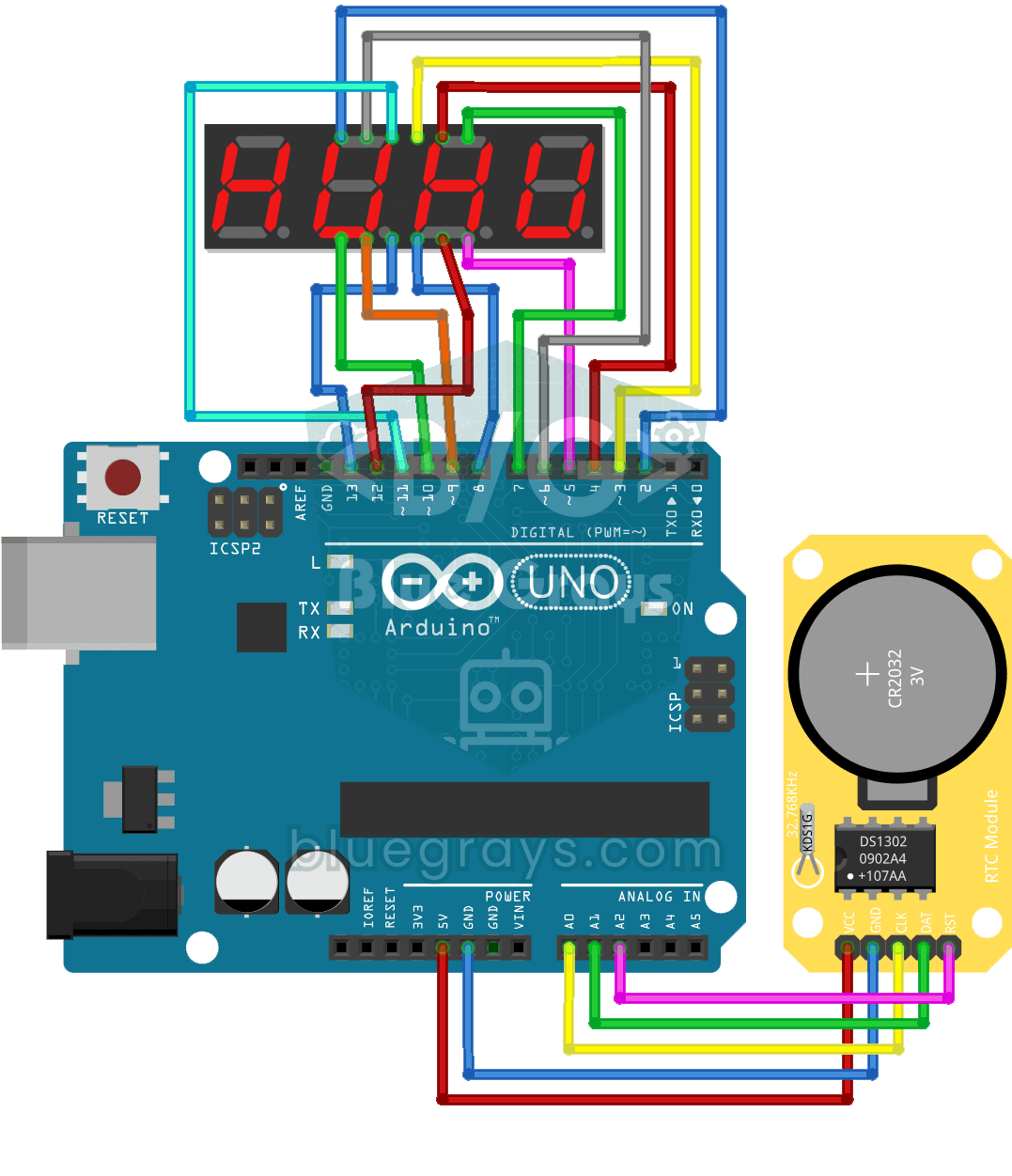
Digital Clock with 4-Digit 7-Segment Display
Digital clock project showing hours and minutes with DS1302 RTC module and a 4-digit 7-segment display. It combines real-time clock data and segment display.
More articles
Find out why a button reacts late when you use delay(), how to run LEDs, buttons and sensors at the same time with millis(), how to survive the 49.7-day overflow, and what the ESP32 and Pico equivalents are.