
How to Use a Keypad: a 4x4 Password Lock with Arduino
How does a matrix keypad work? Wiring 4x4 and 3x4 keypads, row-column scanning, the Keypad library, reading key presses, password entry and a servo password lock, using it with an LCD, plus ESP32 and Pico.
A keypad is a cheap input device, similar to the buttons on a phone, that lets you enter numbers or letters into your project. Password door locks, safes, calculators, alarm panels and menu systems are built with keypads. The most common models are thin membrane keypads with an adhesive back, in 4x4 (16 keys) and 3x4 (12 keys) layouts.
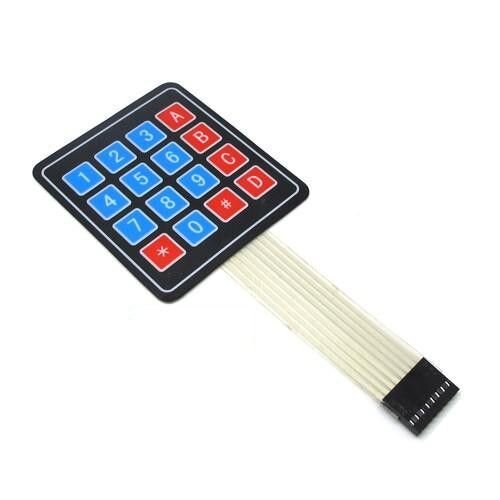
How does a keypad work? The row-column matrix
If each of the 16 keys had its own pin, you'd need 16 pins. Instead, a keypad arranges its keys in a matrix: there are 4 rows and 4 columns, each key sits where a row and a column cross, and pressing it connects that row to that column. The Arduino sets the rows LOW one at a time and reads the columns; whichever column reads LOW while a given row is LOW tells you which key is pressed. Because this scanning happens hundreds of times a second, 16 keys are read with just 8 pins.
| Type | Keys | Pins | Typical use |
|---|---|---|---|
| 4x4 membrane | 16 (0–9, A–D, *, #) | 8 | Passwords, menus, calculators |
| 3x4 membrane | 12 (0–9, *, #) | 7 | Number entry like a phone keypad |
| 1x4 membrane | 4 | 5 | Simple menus and selection keys |
Keypad pinout and wiring
With the keys facing you, the ribbon cable's pins are usually, from left to right, R1, R2, R3, R4, C1, C2, C3, C4: the first four are rows and the last four are columns. No extra resistors are needed; the library uses the Arduino's internal pull-up resistors for the columns.
| Keypad pin | Function | Arduino Uno |
|---|---|---|
| 1 | R1 (1, 2, 3, A) | D9 |
| 2 | R2 (4, 5, 6, B) | D8 |
| 3 | R3 (7, 8, 9, C) | D7 |
| 4 | R4 (*, 0, #, D) | D6 |
| 5 | C1 (1, 4, 7, *) | D5 |
| 6 | C2 (2, 5, 8, 0) | D4 |
| 7 | C3 (3, 6, 9, #) | D3 |
| 8 | C4 (A, B, C, D) | D2 |
Reading keys with the Keypad library
In the Library Manager, search for Keypad and install the library by Mark Stanley and Alexander Brevig. The code below prints every key you press to the Serial Monitor:
1#include <Keypad.h>
2
3const byte ROWS = 4, COLS = 4;
4char keys[ROWS][COLS] = {
5  {'1', '2', '3', 'A'},
6  {'4', '5', '6', 'B'},
7  {'7', '8', '9', 'C'},
8  {'*', '0', '#', 'D'}
9};
10byte rowPins[ROWS] = {9, 8, 7, 6};     // R1–R4
11byte colPins[COLS] = {5, 4, 3, 2};     // C1–C4
12Keypad keypad = Keypad(makeKeymap(keys), rowPins, colPins, ROWS, COLS);
13
14void setup() {
15  Serial.begin(9600);
16}
17
18void loop() {
19  char key = keypad.getKey();          // tuş yoksa 0 döner / returns 0 if no key
20  if (key) {
21    Serial.println(key);
22  }
23}
getKey() doesn't block your program: if no key is pressed at that moment it returns 0 straight away, so you can do other work in loop(). The library handles key bounce itself and reports each press only once. If you want to wait until a key is pressed, use waitForKey().
Building a password lock
Now let's collect the pressed keys in a string and compare them with a stored password. The * key clears the entry and the # key confirms it. If the password is correct, a servo motor opens the lock for 3 seconds. For servo wiring, see What Is a Servo Motor?
1#include <Keypad.h>
2#include <Servo.h>
3
4const byte ROWS = 4, COLS = 4;
5char keys[ROWS][COLS] = {
6  {'1', '2', '3', 'A'},
7  {'4', '5', '6', 'B'},
8  {'7', '8', '9', 'C'},
9  {'*', '0', '#', 'D'}
10};
11byte rowPins[ROWS] = {9, 8, 7, 6};
12byte colPins[COLS] = {5, 4, 3, 2};
13Keypad keypad = Keypad(makeKeymap(keys), rowPins, colPins, ROWS, COLS);
14
15Servo lock;
16const String PASSWORD = "1234";
17String input = "";
18
19void setup() {
20  Serial.begin(9600);
21  lock.attach(10);
22  lock.write(0);                        // kilitli / locked
23}
24
25void loop() {
26  char key = keypad.getKey();
27  if (!key) return;
28  if (key == '*') {                     // temizle / clear
29    input = "";
30  } else if (key == '#') {              // onayla / confirm
31    if (input == PASSWORD) {
32      Serial.println("Doğru, açılıyor / correct, opening");
33      lock.write(90);
34      delay(3000);
35      lock.write(0);
36    } else {
37      Serial.println("Yanlış şifre / wrong code");
38    }
39    input = "";
40  } else if (input.length() < 8) {
41    input += key;
42    Serial.print('*');                  // tuşu gizle / hide the key
43  }
44}Using it with an LCD
A display makes it much easier to see what you're doing while entering a password. An I2C LCD only uses pins A4 and A5, so it doesn't touch the keypad's 8 digital pins. Print a star on the LCD's bottom row with every key press, and show "Open" or "Wrong" on the top row after confirming. Display wiring and commands are covered in Using an I2C LCD Display.
Fewer pins: I2C and analog keypads
A keypad alone takes 8 of the Uno's 20 pins. When you run short of pins there are two solutions: a PCF8574-based I2C keypad adapter brings the keypad down to just two wires and shares the bus with an LCD. On analog keypads, each key creates a different resistance and the whole keypad is read from a single analog pin; it needs fewer wires but can't detect two keys pressed at once.
Keypads with the ESP32 and Raspberry Pi Pico
The Keypad library also works on the ESP32. Because the row pins are used as outputs and the column pins as inputs with pull-ups, avoid GPIO 34–39, which can't output and have no pull-up resistors; for example, choose 13, 12, 14 and 27 for the rows and 26, 25, 33 and 32 for the columns. On the Pico with MicroPython, you can write the scanning yourself in a few lines:
1from machine import Pin
2import time
3
4KEYS = ["123A", "456B", "789C", "*0#D"]
5rows = [Pin(n, Pin.OUT, value=1) for n in (2, 3, 4, 5)]        # R1–R4
6cols = [Pin(n, Pin.IN, Pin.PULL_UP) for n in (6, 7, 8, 9)]     # C1–C4
7
8def scan():
9    for r, row in enumerate(rows):
10        row.value(0)                         # bu satırı etkinleştir / activate this row
11        for c, col in enumerate(cols):
12            if col.value() == 0:             # tuş basılı / key pressed
13                row.value(1)
14                return KEYS[r][c]
15        row.value(1)
16    return None
17
18last = None
19while True:
20    key = scan()
21    if key and key != last:                  # her basışı bir kez yaz / print each press once
22        print(key)
23    last = key
24    time.sleep_ms(50)
Keypad project ideas
- Password safe: a box that opens when the code is entered, with a servo motor, an LCD and a buzzer.
- Calculator: use keys A–D as the four operations and show the result on an LCD.
- Colour picker: change the colour of an RGB LED based on the number entered.
- Alarm panel: arm and disarm an alarm with a PIR sensor using a code.
- Number guessing game: find the number the Arduino picked with "higher" and "lower" hints.
- Shortcut keyboard: turn each key into a computer shortcut with an Arduino Leonardo.
Common mistakes and how to fix them
- A different key is read from the one pressed: the row and column order is reversed; reverse the order of the rowPins and colPins arrays.
- No key is read at all: the ribbon cable is plugged in one pin off, or the row and column pins differ from those in the code.
- Some keys never work: a row or column wire has a bad contact; if all keys in one row or column fail, that's the sign.
- Using pins 0 and 1: these pins are for USB serial communication; uploading code with the keypad connected can fail.
- Some columns always look pressed on the ESP32: GPIO 34–39, which have no pull-ups, are being used; move to other pins.
- Expecting repeats on a long press: getKey() reports each press once; use the library's HOLD state to detect a key being held.
A keypad is really just buttons arranged in a matrix; you'll find the logic of buttons in How to Connect a Push Button to Arduino. In the BlueGrays app you'll find 3x4 and 4x4 keypad basics, an LCD password app, a smart electronic safe, an I2C calculator and keypad RGB LED control, with circuit diagrams and code.
Frequently asked questions
How many pins does a 4x4 keypad use?
A 4x4 keypad uses 8 pins: 4 rows and 4 columns. A 3x4 keypad uses 7 pins and a 1x4 keypad 5. If you run short of pins, you can get down to 2 wires with an I2C keypad adapter, or a single analog pin with an analog keypad.
Does a keypad need resistors?
No. The Keypad library enables the Arduino's internal pull-up resistors on the column pins, so you don't need to add any resistors. You can connect the keypad straight to digital pins.
Which pins should a keypad be connected to?
It can go to any 8 digital pins; analog pins can be used as digital too. On the Uno, avoid pins 0 and 1, which are used for USB serial communication. On the ESP32, don't use GPIO 34–39, which can't output and have no pull-up resistors.
Can I detect two keys pressed at the same time?
Yes, the Keypad library's getKeys() function detects up to 10 keys pressed at once. However, on membrane keypads without diodes, some three-key combinations can make a key look pressed when it isn't (ghosting).
If I change the password, will it be forgotten after a power cut?
A password kept in a variable goes back to the default value in the code when the Arduino restarts. If you want a new password to persist, save it to EEPROM and read it back from EEPROM at startup.
How durable is a membrane keypad?
Membrane keypads usually last for around 1 million presses per key, and because they're thin and light they stick easily onto a box or lid. They aren't fully protected against water and dust; outdoors, keypads with metal or silicone keys are preferred.
Projects to build after reading this
See all projects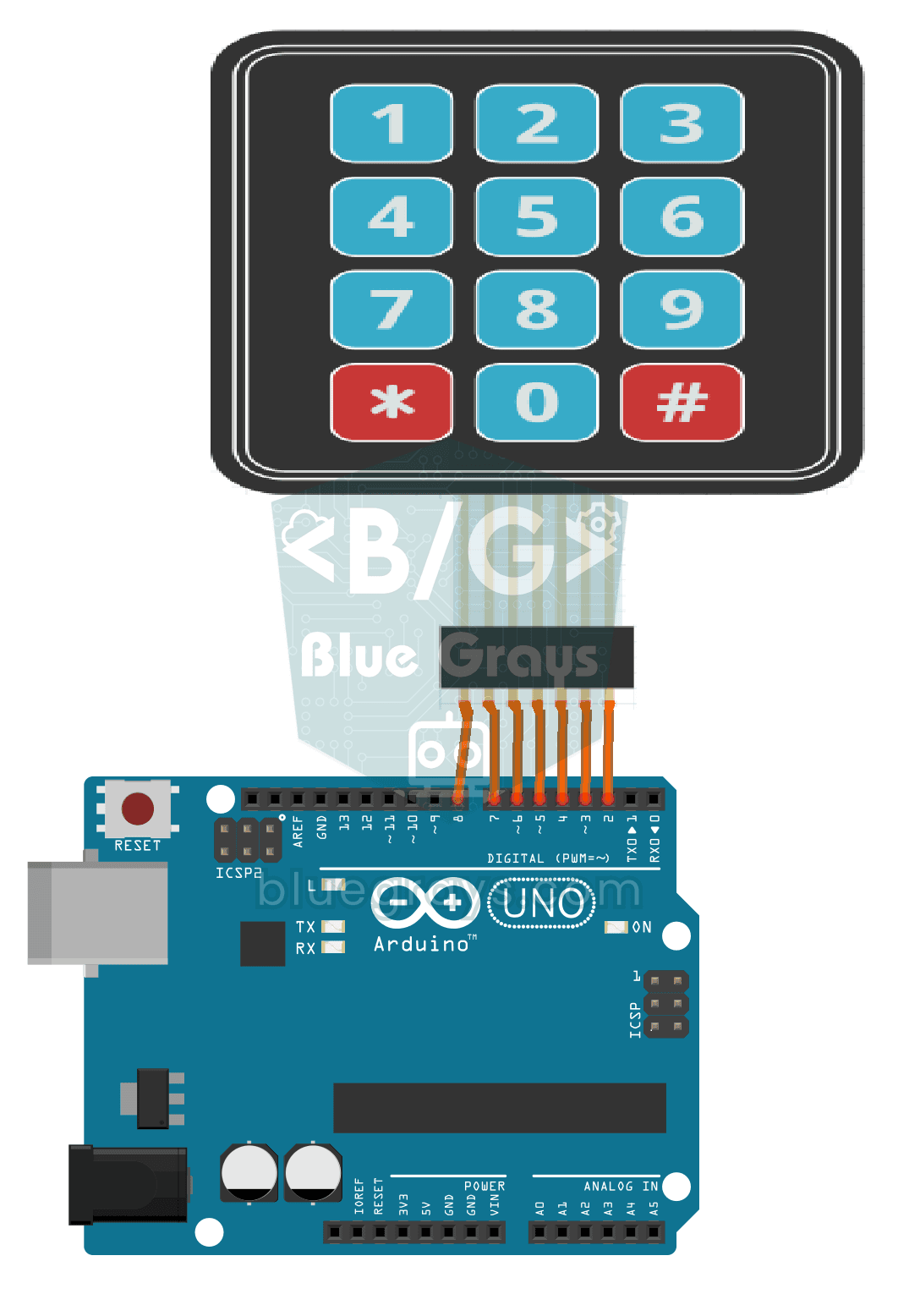
3x4 Keypad Operation
Basic project that reads the key pressed from the 3x4 keypad keypad and displays it on the Serial Monitor. Teaches the use of keypad library and matrix keypad.
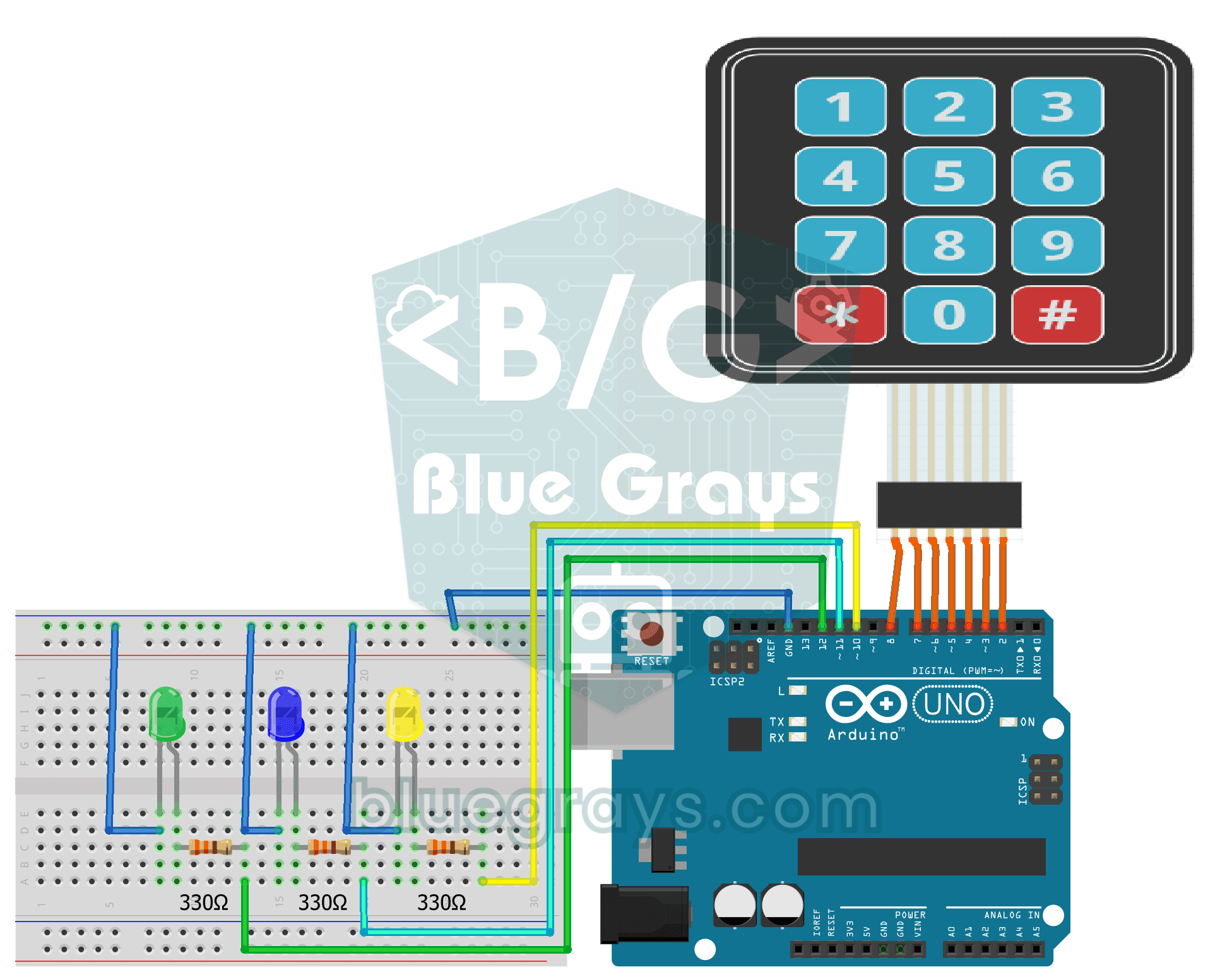
LED Control with a 3x4 Keypad
Project that can turn 3 LEDs on and off independently with 3x4 keypad keys and perform batch control. Teaches multiple output control with keypad.
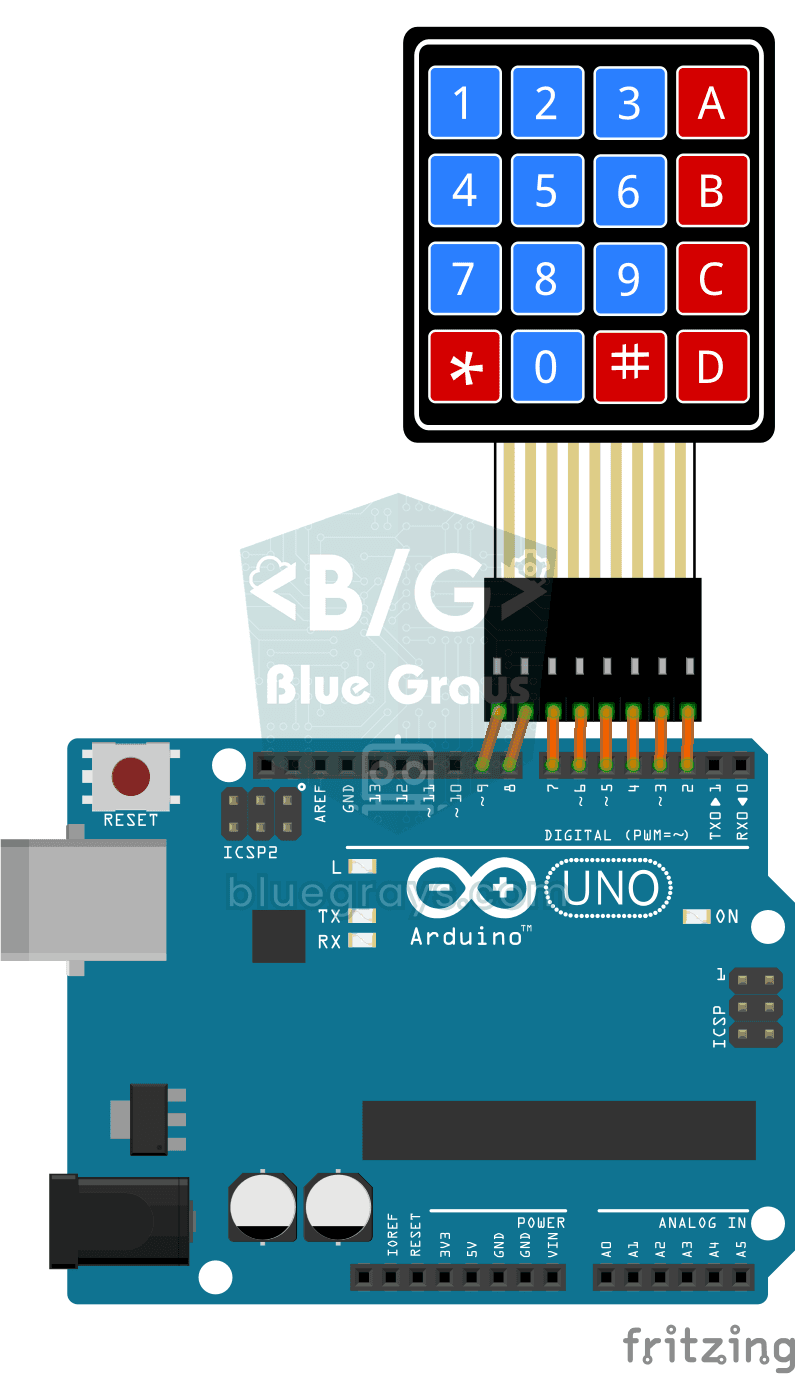
4x4 Keypad Operation
Basic project that reads the key pressed from a 4x4 keypad keypad and displays it on the Serial Monitor. Teaches 4-column extended keypad configuration.
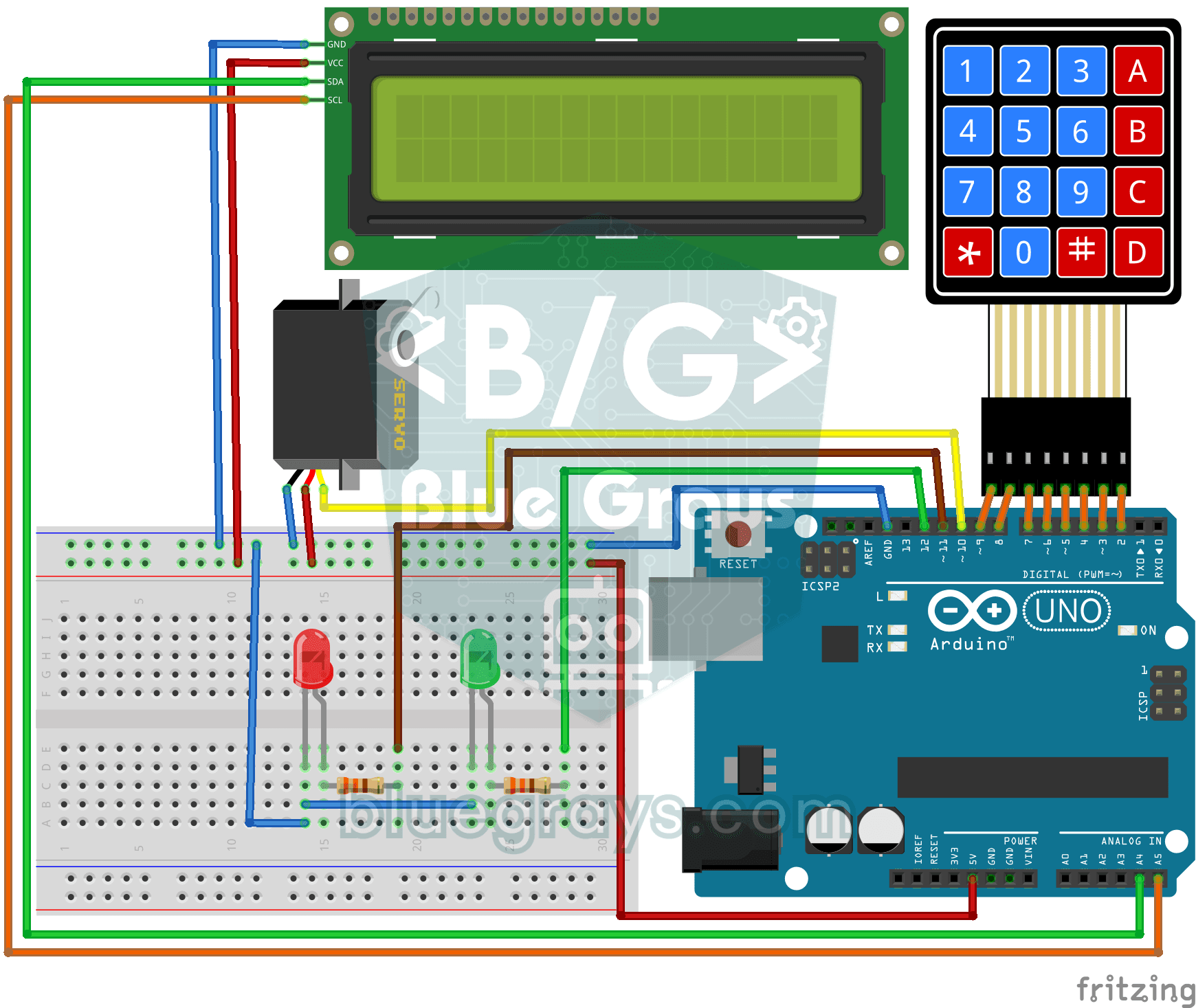
Password Lock with 4x4 Keypad and LCD
Security project that opens the door with servo if it is correct by entering a password with a 4x4 keypad and turns on a red LED if it is wrong. Teaches password comparison and servo-LCD-keypad integr
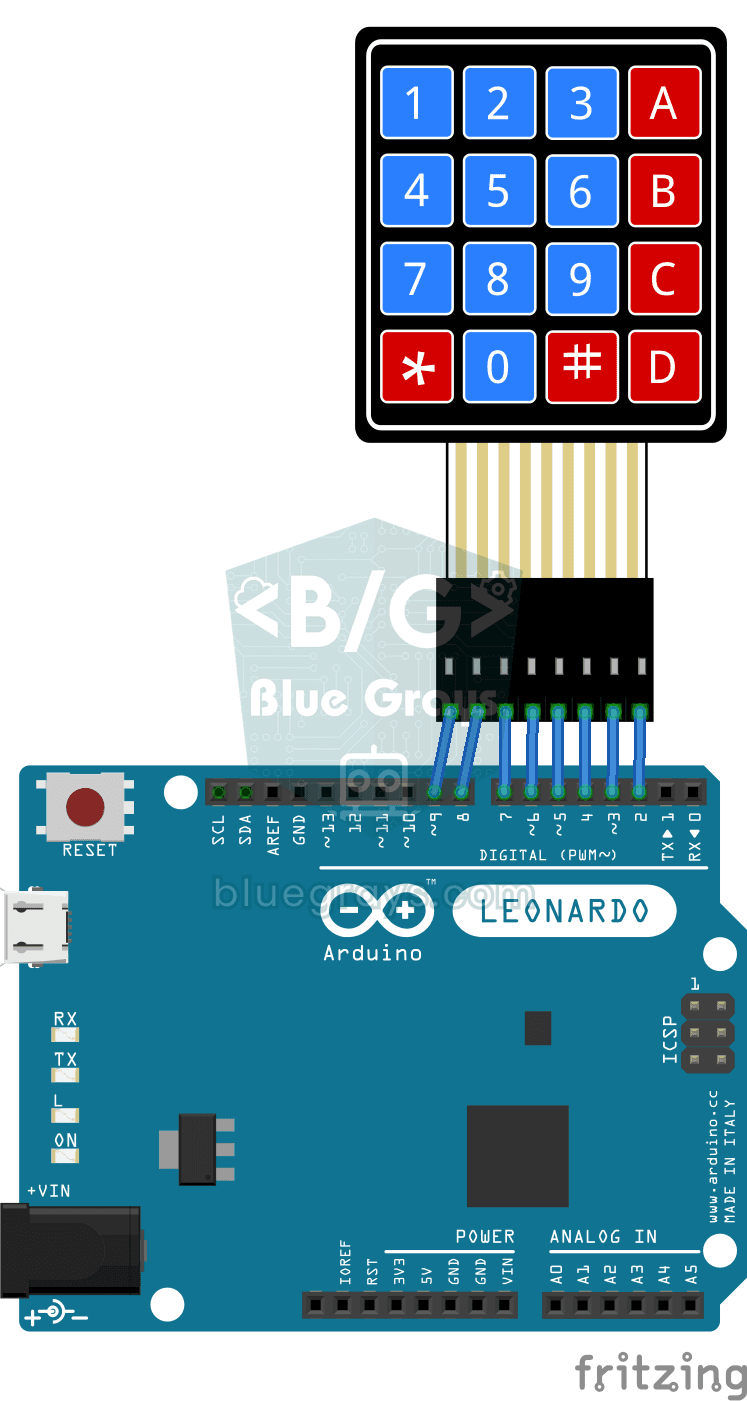
Arduino Developer Keyboard
Programmer keyboard project with Arduino Leonardo and 4x4 keypad that writes Arduino code blocks such as if, for, digitalWrite to the computer with a single key. Teaches HID keyboard emulation.

Smart Electronic Safe
Smart Electronic Safe is an Arduino based password protected security system. It opens and closes the servo motor controlled lock mechanism with a 4-digit password entered via the 4x4 keypad and trans

Arduino I2C Calculator
It is an Arduino-based calculator project that performs addition, subtraction, multiplication and division operations using a 4x4 membrane keypad and a 16x2 I2C LCD display. Thanks to I2C, the display connection is provided with only 2 cables, thus reducing cable clutter and keeping more pins open for use. There is also decimal number input and negative number support.

RGB Led Control with Keypad
This project allows you to manage the RGB LED between modes and colors via the 4x4 Keypad. Thanks to the millis() structure, commands are processed without delay. 🎮 User Guide: Key A: Fixed speed Fade effect. B Key: Smooth transition with adjustable speed. C / D: Increases / Decreases the effect speed. 1 - 9: Quick Master Color selection. * / #: Special Intermediate Colors (Pink, Light Green, etc.). 0 Key: Turns off the system.
More articles
Learn how 16 keys are read with just 8 pins, how to connect a keypad to Arduino, read key presses and build a password lock that opens with a servo motor, step by step.