
DS18B20 Temperature Sensor with Arduino, ESP32 and Pico
DS18B20 Arduino wiring: 1-Wire, 4.7 kΩ pull-up, waterproof probe, several sensors on one pin, OneWire and DallasTemperature code, plus ESP32 and Pico examples.
The DS18B20 is a digital temperature sensor and one of the most accurate and flexible ways to measure temperature with an Arduino. It measures from −55 °C to +125 °C, offers ±0.5 °C accuracy between −10 °C and +85 °C, and sends the result as a digital number rather than an analog voltage, so the reading doesn't degrade even over long cables. Its biggest trump card is 1-Wire communication: you can connect dozens of DS18B20s to a single data pin and read each one separately by its own unique address.
In this article you'll learn how the DS18B20 works, the logic of the 1-Wire bus, why it always needs a 4.7 kΩ pull-up resistor, the waterproof probe version and its wire colours. Then we'll go step by step through single-sensor and multi-sensor code with the OneWire and DallasTemperature libraries, non-blocking readings on the ESP32 and using it with MicroPython on the Raspberry Pi Pico. At the end you'll find the causes of, and fixes for, the common −127 °C and 85 °C errors.
What is the DS18B20 and how does it work?
Inside the DS18B20 there's a temperature sensing element, an analog-to-digital converter, a small memory (the scratchpad) and a unique 64-bit serial number written at the factory. When the microcontroller sends the convert command, the sensor measures the temperature, writes the result to its memory as a two-byte number and waits to be read. Because the sensor does the measuring itself, there are no errors from the Arduino's analog input, its reference voltage or the cable resistance. Unlike an NTC thermistor, you don't need a calibration table or formula either: the value you read is directly in degrees Celsius.
| Feature | Value |
|---|---|
| Measuring range | −55 °C … +125 °C |
| Accuracy | ±0.5 °C (between −10 °C and +85 °C) |
| Resolution | Selectable from 9 to 12 bits (0.5 °C … 0.0625 °C) |
| Supply voltage | 3.0–5.5 V (works with Arduino, ESP32 and Pico) |
| Current | About 1 mA while converting, under 1 µA in standby |
| Interface | 1-Wire (one data line + GND) |
| Address | 64-bit ROM code; family code 0x28 |
| Package | TO-92 (3 legs) or stainless steel waterproof probe |
You can choose the sensor's resolution in software. Higher resolution gives finer steps but a longer conversion time. The default is 12 bits, which is the right choice for most projects; if you need very fast readings you can drop to 9 or 10 bits.
| Resolution | Step | Maximum conversion time |
|---|---|---|
| 9 bit | 0.5 °C | 93.75 ms |
| 10 bit | 0.25 °C | 187.5 ms |
| 11 bit | 0.125 °C | 375 ms |
| 12 bit (default) | 0.0625 °C | 750 ms |
What is 1-Wire? Communication over a single wire
As the name suggests, 1-Wire is a protocol that carries data over a single line, with ground (GND) shared. On the bus there's one master (the Arduino) and one or more slave devices (DS18B20s). When the bus is idle, a pull-up resistor holds it HIGH. Whoever wants to talk pulls the line LOW for short periods; bits are encoded in the length of these LOW pulses, measured in microseconds. Every exchange starts with a reset pulse, and the sensors answer with an “I'm here” presence pulse.
Since no device ever forces the line HIGH (an open-drain design), you can put as many sensors on the same bus as you like without conflicts. The master first uses a search command to find every 64-bit address on the bus, then selects the sensor it wants by address and talks to it. That way, measuring temperature at five different points uses one pin instead of five.
DS18B20 vs DHT11 vs DHT22 vs NTC
| Feature | DS18B20 | DHT11 | DHT22 | NTC thermistor |
|---|---|---|---|---|
| Temperature range | −55 … +125 °C | 0 … 50 °C | −40 … +80 °C | About −40 … +125 °C (depends on model) |
| Accuracy | ±0.5 °C | ±2 °C | ±0.5 °C | Depends on calibration |
| Output | Digital (1-Wire) | Digital (single line) | Digital (single line) | Analog (changing resistance) |
| Humidity | No | Yes | Yes | No |
| Waterproof version | Yes (stainless probe) | No | No | Yes (probe) |
| Several sensors on one pin | Yes | No | No | No |
In short, if you also need humidity, the DHT11 or DHT22 is the right choice. If you're measuring the temperature of water, soil, a pipe or a freezer, want to monitor several points with one pin, or work with sub-zero temperatures, the DS18B20 is unbeatable.
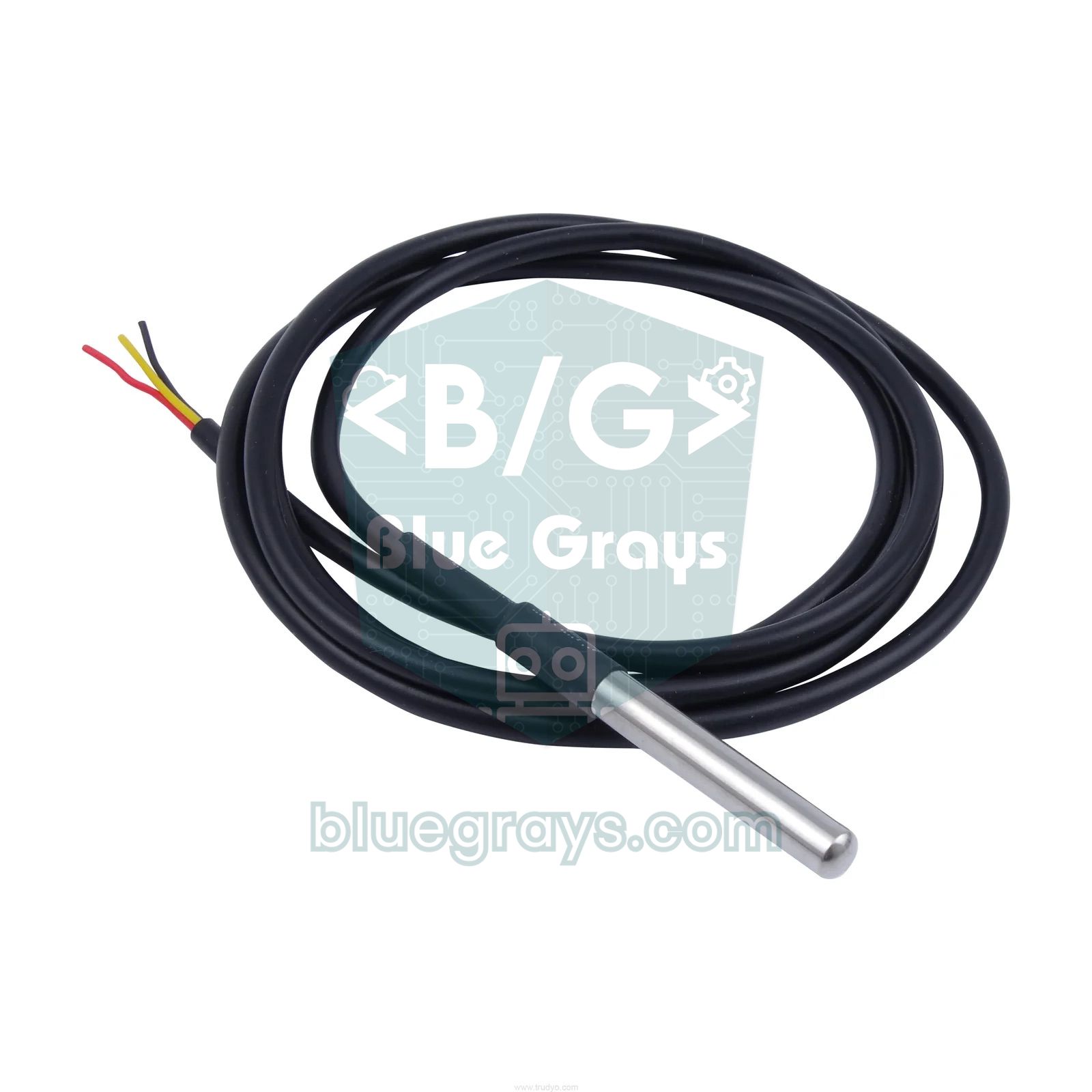
DS18B20 pinout and wire colours
| Pin | TO-92 (flat side facing you) | Waterproof probe wire | Function |
|---|---|---|---|
| GND | 1 (left) | Black | Ground |
| DQ | 2 (middle) | Yellow (white on some probes) | 1-Wire data line |
| VDD | 3 (right) | Red | 3.0–5.5 V supply |
DS18B20 wiring: Arduino Uno, ESP32 and Pico
| DS18B20 | Arduino Uno | ESP32 | Raspberry Pi Pico |
|---|---|---|---|
| VDD (red) | 5V | 3V3 | 3V3(OUT), pin 36 |
| GND (black) | GND | GND | GND, pin 38 |
| DQ (yellow) | D2 | GPIO 4 | GP22, pin 29 |
| 4.7 kΩ pull-up | Between DQ and 5V | Between DQ and 3V3 | Between DQ and 3V3 |
The pull-up resistor is essential in this circuit. Devices on a 1-Wire bus can only pull the line LOW; it's this resistor that brings it back HIGH. Without it, the line floats, the sensor isn't found and the library returns −127 °C. A 4.7 kΩ value pulls the line up fast enough while keeping the current low: when the line is LOW, Ohm's law gives I = 5 V / 4700 Ω ≈ 1.06 mA. The colours of a four-band 4.7 kΩ resistor are yellow, violet, red and gold; to be sure, use the colour code tool. Some DS18B20 modules (the sensor on a small board with a resistor and an LED) already have this resistor fitted, in which case you don't need to add one.
Installing the libraries
- In the Arduino IDE, open Tools > Manage Libraries.
- Type DallasTemperature in the search box and install the library by Miles Burton.
- When asked about dependencies, choose Install all so that Paul Stoffregen's OneWire library is installed too. If you aren't asked, search for OneWire and install it separately.
- If you like, open File > Examples > DallasTemperature > Simple, change the pin number to match your circuit and try it.
First sketch: reading one DS18B20
1#include <OneWire.h>
2#include <DallasTemperature.h>
3
4#define ONE_WIRE_BUS 2                    // DS18B20 veri pini (DQ) / data pin (DQ)
5
6OneWire oneWire(ONE_WIRE_BUS);            // 1-Wire hattı / 1-Wire bus
7DallasTemperature sensors(&oneWire);      // sensör kütüphanesi / sensor library
8
9void setup() {
10  Serial.begin(9600);
11  sensors.begin();                        // hattaki sensörleri bul / find sensors on the bus
12  Serial.print(F("Sensor sayisi / Sensor count: "));
13  Serial.println(sensors.getDeviceCount());
14}
15
16void loop() {
17  sensors.requestTemperatures();          // ölçümü başlat, bitmesini bekle / start conversion and wait
18  float tempC = sensors.getTempCByIndex(0);  // ilk sensörün sıcaklığı / first sensor's temperature
19
20  if (tempC == DEVICE_DISCONNECTED_C) {   // -127: sensör yanıt vermedi / sensor did not respond
21    Serial.println(F("Hata: sensor yok / Error: no sensor"));
22  } else {
23    Serial.print(F("Sicaklik / Temperature: "));
24    Serial.print(tempC, 2);
25    Serial.println(F(" C"));
26  }
27  delay(1000);
28}| Function | What it does |
|---|---|
| sensors.begin() | Scans the 1-Wire bus and registers the sensors it finds |
| sensors.getDeviceCount() | Returns the number of sensors on the bus |
| sensors.requestTemperatures() | Sends the convert command to every sensor on the bus and, by default, waits until it finishes |
| sensors.getTempCByIndex(0) | Returns the temperature of the first sensor in the list, in Celsius |
| sensors.getTempFByIndex(0) | Returns the same value in Fahrenheit |
| sensors.setResolution(12) | Sets the resolution between 9 and 12 bits |
| DEVICE_DISCONNECTED_C | The value returned when the sensor doesn't respond: −127 |
With the Serial Monitor set to 9600 baud you'll see a line like “Sicaklik / Temperature: 23.44 C” every second. You'll notice that the last digits change in multiples of 0.0625, the step size of 12-bit resolution. Hold the sensor between your fingers and the temperature should rise within a few seconds. If the Serial Monitor shows −127, the sensor isn't being found at all; if it shows 85, the sensor was found but read before the conversion finished. The fix for both is in the table at the end of this article.
Using several DS18B20s on the same pin
To connect several sensors, simply wire all their VDD, GND and DQ pins in parallel; the whole bus uses a single 4.7 kΩ pull-up resistor. Reading with getTempCByIndex() is easy, but the order is set by the sensors' addresses, not by the order in which you plugged them in. Replace one sensor and the order may change. That's why permanent projects should read each sensor by its own address. The sketch below finds every sensor on the bus, prints their addresses and reads each one's temperature by address:
1#include <OneWire.h>
2#include <DallasTemperature.h>
3
4#define ONE_WIRE_BUS 2                    // tüm sensörler aynı pinde / all sensors on the same pin
5
6OneWire oneWire(ONE_WIRE_BUS);
7DallasTemperature sensors(&oneWire);
8DeviceAddress addr;                       // 8 baytlık sensör adresi / 8-byte sensor address
9int count = 0;
10
11void printAddress(const DeviceAddress a) {
12  for (uint8_t i = 0; i < 8; i++) {
13    Serial.print(F("0x"));
14    if (a[i] < 0x10) Serial.print('0');   // tek haneyi sıfırla tamamla / pad single digit
15    Serial.print(a[i], HEX);
16    if (i < 7) Serial.print(F(", "));
17  }
18}
19
20void setup() {
21  Serial.begin(9600);
22  sensors.begin();
23  count = sensors.getDeviceCount();       // hatta kaç sensör var? / how many sensors on the bus?
24  Serial.print(F("Sensor sayisi / Sensor count: "));
25  Serial.println(count);
26  sensors.setResolution(12);              // hepsi 12 bit (0,0625 C) / all 12-bit (0.0625 C)
27}
28
29void loop() {
30  sensors.requestTemperatures();          // tüm sensörler aynı anda ölçer / all sensors convert at once
31  for (int i = 0; i < count; i++) {
32    if (!sensors.getAddress(addr, i)) continue;   // adresi al / get the address
33    Serial.print(F("Sensor "));
34    Serial.print(i);
35    Serial.print(F(" { "));
36    printAddress(addr);
37    Serial.print(F(" }: "));
38    Serial.print(sensors.getTempC(addr), 2);      // adrese göre oku / read by address
39    Serial.println(F(" C"));
40  }
41  Serial.println();
42  delay(2000);
43}
Run the sketch once and warm each sensor in turn (for example by holding it in your hand) to find out which address belongs to which spot. Then hard-code the address you saw on the Serial Monitor: add a line such as DeviceAddress waterSensor = {0x28, 0xFF, 0x64, 0x1E, 0x0F, 0x16, 0x03, 0x90}; and read it with sensors.getTempC(waterSensor). On a DS18B20 the first byte of the address is always 0x28, and the last byte is a CRC that checks the address is valid. That way, whatever order the sensors are in, the “water”, “outdoor” or “boiler” values always come from the right place.
DS18B20 with ESP32: non-blocking readings
The DS18B20 works on the ESP32 with the same OneWire and DallasTemperature libraries. GPIO 4 is a good choice for the data line. Don't use GPIO 34–39, because those pins are input-only and can't pull the 1-Wire line LOW; also avoid GPIO 0, 2, 12 and 15, whose level matters at boot. Always connect the sensor and the pull-up resistor to 3V3: if you tie the pull-up to 5 V, you're putting 5 V on an ESP32 pin.
By default, requestTemperatures() waits 750 ms at 12 bits. During that time the board can't do anything else; the web server, buttons or display freeze. The fix is to turn the wait off with setWaitForConversion(false) and read the result 750 ms later using millis(). In the ESP32 sketch below, the LED keeps blinking smoothly even while the temperature is being measured:
1#include <OneWire.h>
2#include <DallasTemperature.h>
3
4const int ONE_WIRE_PIN = 4;               // ESP32 GPIO 4 (DQ)
5const int LED_PIN = 2;                    // dahili LED (çoğu kartta) / onboard LED (most boards)
6
7OneWire oneWire(ONE_WIRE_PIN);
8DallasTemperature sensors(&oneWire);
9
10unsigned long requestTime = 0;
11unsigned long lastBlink = 0;
12bool converting = false;
13
14void setup() {
15  Serial.begin(115200);
16  pinMode(LED_PIN, OUTPUT);
17  sensors.begin();
18  sensors.setResolution(12);
19  sensors.setWaitForConversion(false);    // requestTemperatures() beklemesin / do not block
20}
21
22void loop() {
23  unsigned long now = millis();
24
25  if (!converting) {
26    sensors.requestTemperatures();        // ölçümü başlat, hemen dön / start and return at once
27    requestTime = now;
28    converting = true;
29  }
30
31  if (converting && now - requestTime >= 750) {   // 12 bit için 750 ms / 750 ms for 12-bit
32    float t = sensors.getTempCByIndex(0);
33    if (t == DEVICE_DISCONNECTED_C) {
34      Serial.println("Sensor yok / No sensor");
35    } else {
36      Serial.printf("Sicaklik / Temperature: %.2f C\n", t);
37    }
38    converting = false;                   // bir sonraki ölçüme geç / move to the next reading
39  }
40
41  if (now - lastBlink >= 250) {           // bu arada LED yanıp söner / meanwhile the LED blinks
42    lastBlink = now;
43    digitalWrite(LED_PIN, !digitalRead(LED_PIN));
44  }
45}
This pattern is especially important in Wi-Fi projects: the ESP32 can measure temperature while serving a web page, sending data to the internet or updating a display. If you're new to the ESP32, see What Is the ESP32? for pin choices and setup; you can also find your board's pin map in the Pinout tool.
DS18B20 with Raspberry Pi Pico and MicroPython
The onewire and ds18x20 modules come built into MicroPython on the Raspberry Pi Pico, so there's no extra file to upload. Connect the sensor to 3V3(OUT) and GND, the data line to GP22, and don't forget the 4.7 kΩ pull-up between DQ and 3V3. The Pico's internal pull-up resistors are too weak for 1-Wire.
1from machine import Pin
2import onewire, ds18x20, time, binascii
3
4ds_pin = Pin(22)                                   # DQ -> GP22 (fiziksel pin 29 / physical pin 29)
5sensor = ds18x20.DS18X20(onewire.OneWire(ds_pin))
6
7roms = sensor.scan()                               # hattaki sensör adresleri / sensor addresses on the bus
8print("Sensor sayisi / Sensor count:", len(roms))
9
10while True:
11    sensor.convert_temp()                          # hepsi aynı anda ölçer / all sensors convert at once
12    time.sleep_ms(750)                             # 12 bit dönüşüm süresi / 12-bit conversion time
13    for rom in roms:
14        t = sensor.read_temp(rom)                  # adrese göre oku / read by address
15        print(binascii.hexlify(rom).decode(), "{:.2f} C".format(t))
16    time.sleep(2)
scan() returns a list of the 8-byte addresses of every sensor on the bus. convert_temp() sends the convert command to all sensors at once, which is why you wait 750 ms afterwards. read_temp(rom) reads the temperature of the sensor with that address, in Celsius. If the list comes back empty, check the pull-up resistor and the pin number first. If you're new to the Pico, see What Is the Raspberry Pi Pico? for setting up MicroPython.
The waterproof DS18B20 probe
The most popular form of the DS18B20 is the waterproof probe, where the chip is placed inside a stainless steel tube and sealed with resin. It usually consists of a 6 mm diameter, 50 mm long tip and a 1-metre three-wire cable (2, 3 and 5-metre versions exist too). It's ideal for aquariums, water tanks, hot water boilers, soil, fridges and freezers. You can dip the steel tip into boiling water briefly, but because the cable is usually PVC, don't keep the cable and the joint above 85–100 °C for long. The probe housing slows the heat reaching the sensor, so after a sudden temperature change the reading can take from a few seconds to a few tens of seconds to settle.
There are many clone DS18B20s on the market. Some don't meet the specified accuracy or won't work in parasite power mode. Dipping two sensors into the same glass of water and comparing their readings is a simple way to tell whether yours can be trusted. If they differ by more than 0.5 °C, you can apply a small correction value (offset) in your code.
DS18B20 project ideas
- Aquarium thermostat: Switch a heater on and off with the waterproof probe and a relay module; use hysteresis to keep the water between 25 and 26 °C.
- Multi-point temperature monitoring: Connect five sensors to one pin and monitor the room, outdoors, the fridge and the boiler's flow and return water at the same time.
- OLED thermometer: Show the temperature in big digits on an OLED display, together with the day's minimum and maximum.
- LCD temperature display: Print the readings of two sensors on the two lines of an I2C LCD display.
- Wi-Fi temperature page: Watch the temperature measured by an ESP32 live on a web page opened from your phone.
- Greenhouse control: Measure soil temperature with a DS18B20 and soil moisture with a soil moisture sensor to decide when to water.
Common problems and fixes
| Symptom | Likely cause | Fix |
|---|---|---|
| Temperature is −127 °C | Sensor not found: no pull-up, broken wire, wrong pin or VDD and GND swapped | Check the 4.7 kΩ resistor and the wiring; see whether getDeviceCount() returns 0 |
| Temperature is always 85 °C | Read before the conversion finished, or insufficient power (85 °C is the power-on value) | Wait for the conversion time after requestTemperatures(); power VDD directly |
| Sensor count is 0 | No pull-up on DQ, or the wrong pin number in the code | Check the pin number and the resistor, keep the wires short |
| Sensor gets very hot | VDD and GND are swapped | Cut the power at once and fix the pin order |
| Reading occasionally drops to −127 | Long cable, weak pull-up or noise | Lower the pull-up to 2.2–3.3 kΩ, use twisted-pair cable, skip bad readings in code |
| The sensor order has changed | Index order is based on addresses, not on how they're mounted | Read each sensor by address: getTempC(address) |
| Program stalls, buttons respond late | requestTemperatures() blocks for 750 ms on every reading | Use setWaitForConversion(false) and millis() |
Thanks to its robustness, its waterproof probe and the ability to put many sensors on one pin, the DS18B20 is one of the most useful temperature sensors in hobby electronics. You can show the temperature on a display, drive a heater or fan with a relay, or take it online with an ESP32. In the BlueGrays app you'll find temperature projects with the DHT11 and NTC, I2C LCD displays, an ESP32 temperature logger and smart irrigation for Arduino and ESP32, with step-by-step circuit diagrams and code.
Frequently asked questions
What resistor does the DS18B20 need?
A 4.7 kΩ pull-up resistor goes between the DS18B20's data line (DQ) and the supply (VDD). A single resistor is enough however many sensors share the bus. If the cable is longer than about 10 metres, lowering it to 2.2–3.3 kΩ makes communication more reliable.
Why does my DS18B20 read −127 degrees?
−127 is the error value the DallasTemperature library returns when it gets no response from the sensor. The most common causes are a missing pull-up resistor, the wrong pin number, a broken or loose wire, and VDD and GND swapped. First check with getDeviceCount() whether the sensor is found at all.
Why does my DS18B20 read 85 degrees?
85 °C is the DS18B20's default memory value at power-up. It appears when the temperature is read before the conversion has finished, or when the sensor didn't get enough power during the conversion. Waiting for the conversion time after the convert command and powering the sensor directly from the VDD pin fixes it.
How many DS18B20 sensors can I connect to one Arduino pin?
Because every DS18B20 has a unique 64-bit address, in theory many sensors can share one pin. In practice up to 10–20 sensors work without trouble; beyond that, cable length, pull-up value and power supply need careful choice. All sensors share the same data line and a single pull-up resistor.
Is the DS18B20 waterproof?
The bare DS18B20 in a TO-92 package is not waterproof. The probe version inside a stainless steel tube, however, can be immersed in water and other liquids or buried in soil. Since the probe cable is usually PVC, take care that the cable and joint don't stay at high temperatures for long.
Which is better, DS18B20 or DHT22?
Both offer ±0.5 °C accuracy, but they're designed for different jobs. The DHT22 measures humidity as well as temperature and is ideal for room conditions. The DS18B20 doesn't measure humidity, but it goes down to −55 °C, comes as a waterproof probe and lets you connect several sensors to one pin.
Projects to build after reading this
See all projects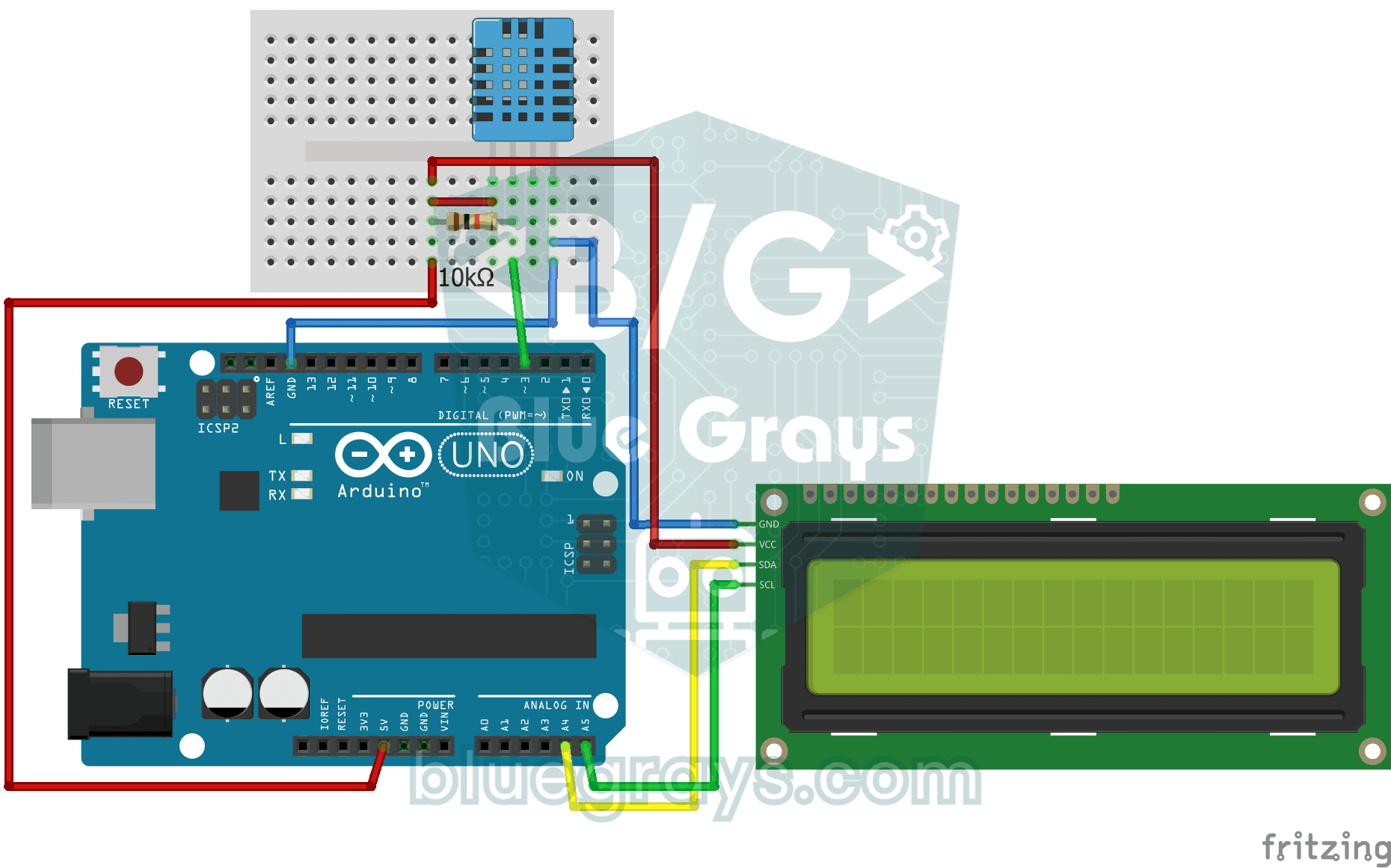
Temperature and Humidity with DHT11
Project that measures the ambient temperature and humidity value with the DHT11 sensor and displays it on the I2C LCD screen. Teaches the use of digital temperature/humidity sensor.
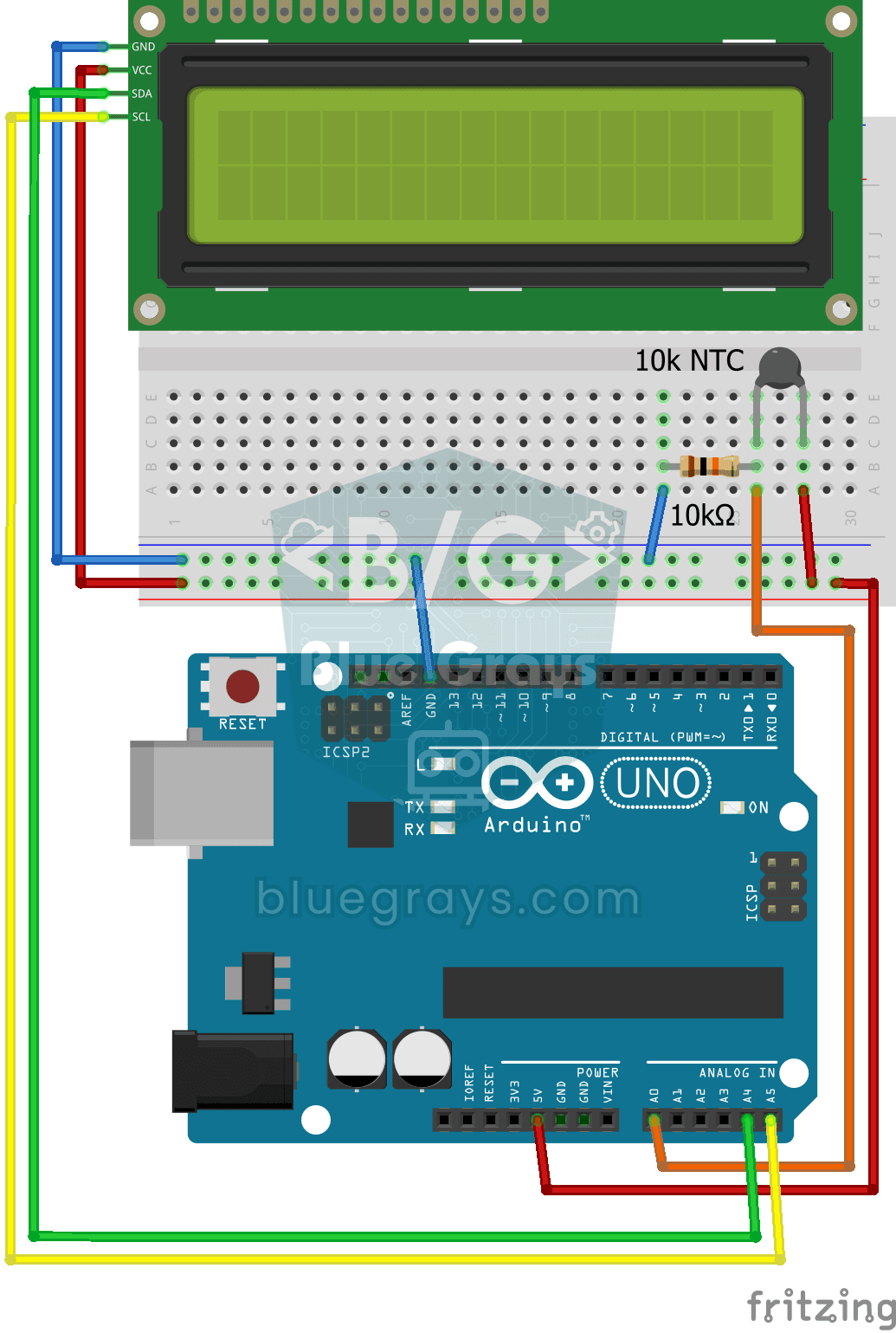
Temperature Measurement with NTC and 2x16 Lcd Display
Project that measures the ambient temperature with NTC thermistor and displays it in Celsius on I2C LCD screen. It teaches how to calculate temperature from analog value with Steinhart-Hart equation.

ESP32 DHT22 Temperature and Humidity (with LCD Display)
This project measures ambient temperature and humidity using a DHT22 sensor and displays the data in real time on a 16x2 I2C LCD. Data is read from the sensor using the one-wire protocol via the Adafruit DHT library. This project serves as the foundation for IoT weather stations, smart home automation, or environmental monitoring systems in greenhouses. Communication with the DHT22 is established via the ESP32's GPIO 4 pin.
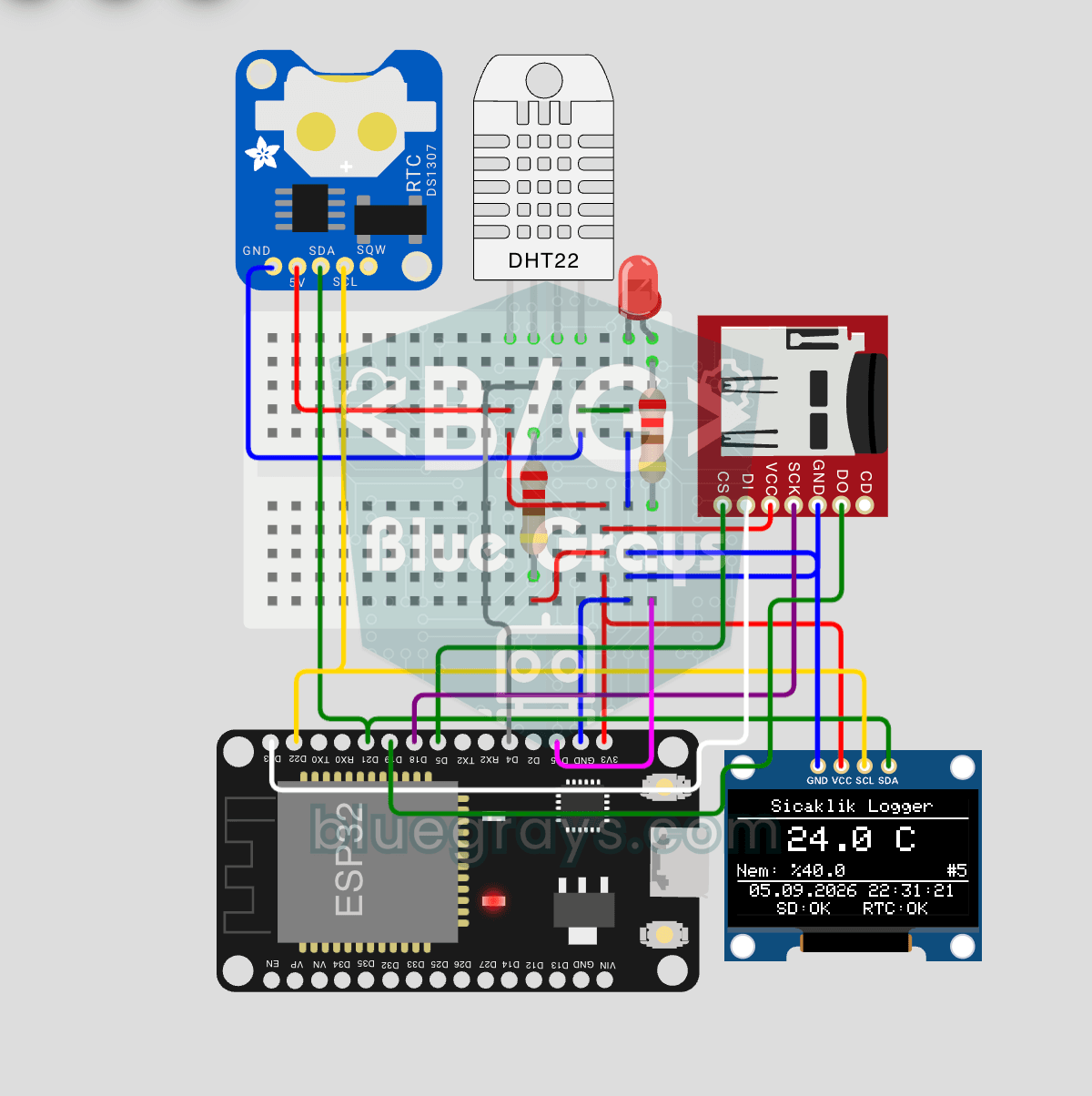
ESP32 Temperature Data Logger (DHT22 + DS1307 RTC + microSD + OLED)
Build a timestamped temperature logger with ESP32! Read DHT22 temperature/humidity every 10 seconds, get real-world time from DS1307 RTC, and log to microSD card as CSV. The OLED displays live temperature (large font), humidity percentage, timestamp, and log counter. The `/temp_log.csv` file on the SD card opens in Excel, Google Sheets, or Python pandas for analysis — perfect for greenhouse monitoring, home/room temperature tracking, laboratory data collection, food storage conditions, or beehiv
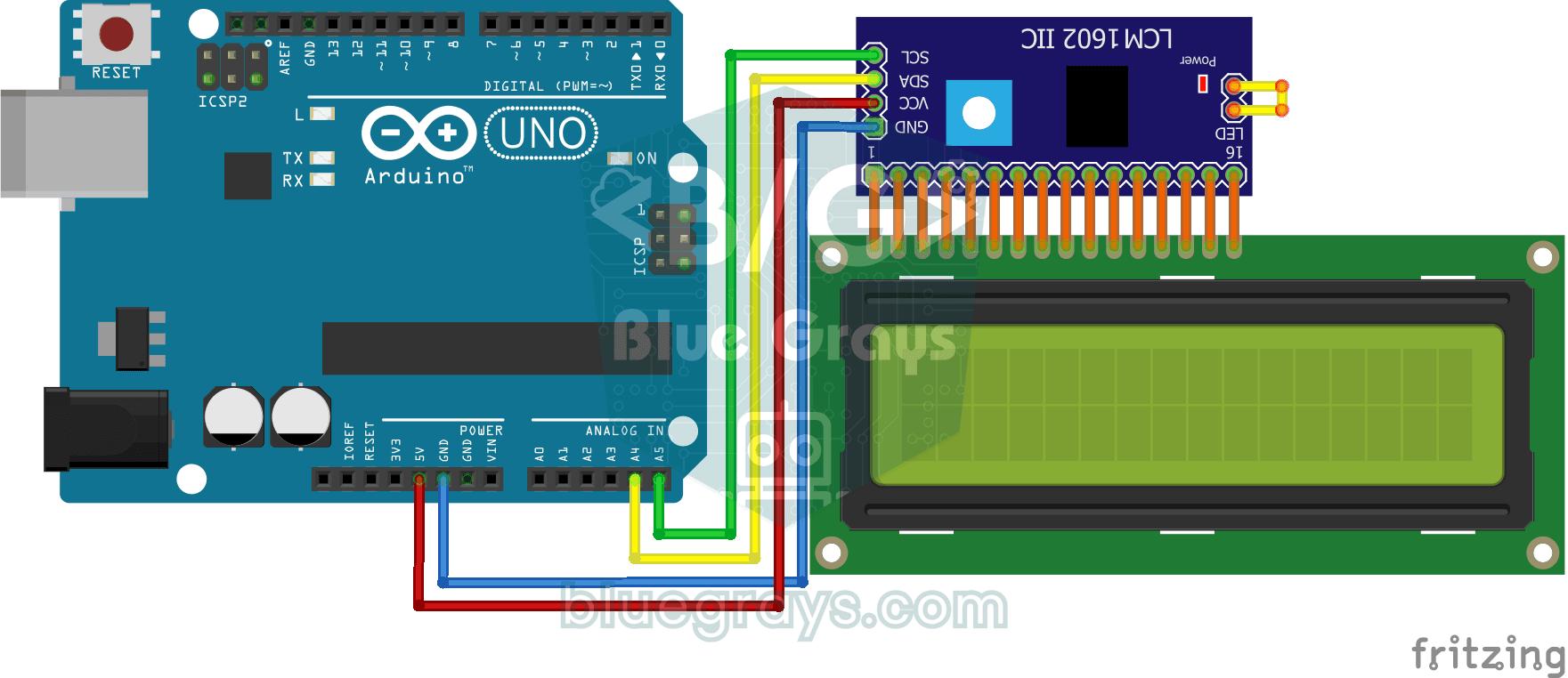
Using LCD Screen with I2C
The project that prints messages by controlling the LCD screen with only 2 cables (SDA, SCL) thanks to the I2C module. Teaches how to save pins with I2C protocol.

ESP32 I2C LCD Display (16x2)
In this project, we display text by connecting a 16x2 character LCD screen to the ESP32 via the I2C protocol. Thanks to I2C, we can control the screen using just two data pins (SDA and SCL), eliminating the waste of 6+ pins associated with a classic parallel connection. The code prints a fixed message on the first line and a counter that increments every second on the second line. Additionally, we run an I2C scanner at the start to print the display’s address to the Serial Monitor (typically 0x2

Dot Matrix Clock, Calendar and Weather Station (MAX7219, DS1307)
DS1307 RTC module and DHT22 temperature-humidity sensor is a project that displays real-time data on MAX7219 8x32 dot matrix LED display. The display shows the temperature in Celsius and Fahrenheit, h

ESP 32 Smart Plant Watering System
In this project, an automatic plant watering system was developed using an ESP32 and a soil moisture sensor. The sensor continuously measures the soil’s moisture level. When the moisture level drops below a specified threshold, the ESP32 activates the relay to turn on the water pump and water the plant. When the soil is sufficiently moist, the pump automatically stops. Thanks to this project, plants can be watered regularly, and water can be conserved. _______________________________ Connections
More articles
Learn step by step how to wire the DS18B20 digital temperature sensor with a 4.7 kΩ pull-up, use the waterproof probe, read several sensors on one pin, and run it on Arduino, ESP32 and Pico.