
What Is I2C? SDA, SCL, Pull-up Resistors and an Arduino Scanner
What is I2C and how does it work? SDA and SCL, 7-bit addresses, pull-up resistor maths, an I2C scanner sketch, address conflicts and Uno, ESP32, Pico pins.
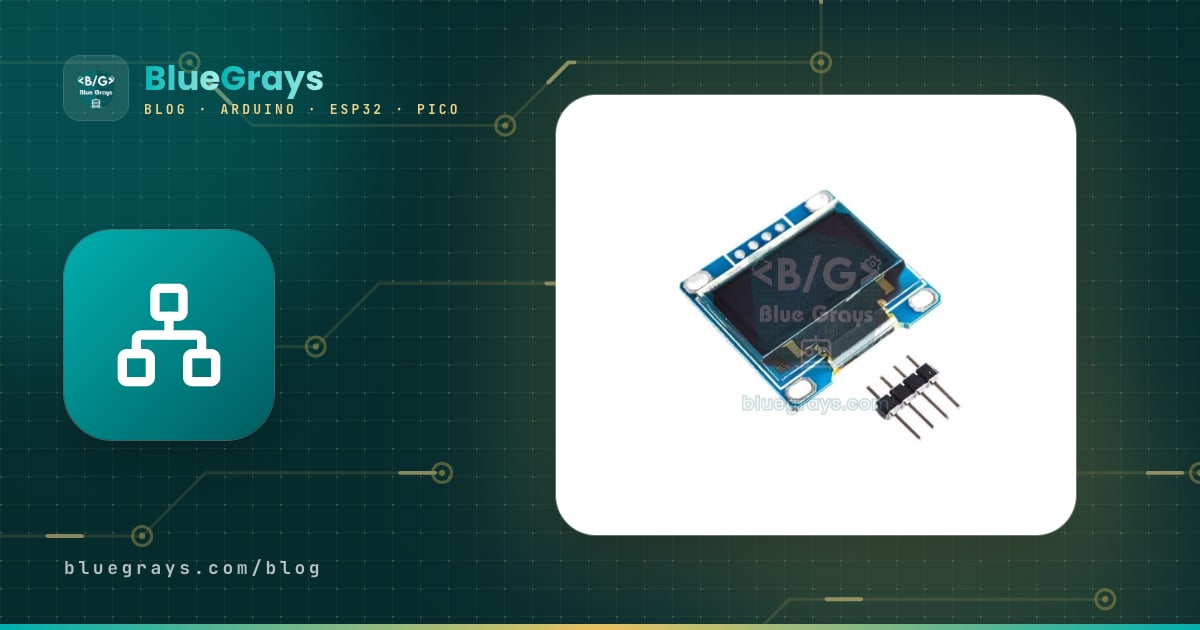
I2C (Inter-Integrated Circuit) is a serial communication protocol that lets a microcontroller talk to dozens of sensors, displays and modules over just two signal wires (SDA and SCL). It's pronounced "I-squared-C" and some datasheets call it IIC or TWI (Two Wire Interface). The I2C LCD, OLED display, MPU6050 accelerometer, BMP280 pressure sensor and DS1307 clock module you use in Arduino projects all speak this protocol; you can connect them all in parallel to the same two wires and reach each one by its own address.
In this guide you'll learn how I2C works electrically, what addresses mean, why pull-up resistors are essential and how to calculate their value. Then, step by step, you'll see a pin table for the Arduino Uno, ESP32 and Raspberry Pi Pico, an I2C scanner sketch that finds every device on the bus, a library-free register read example, and fixes for common problems such as address conflicts.
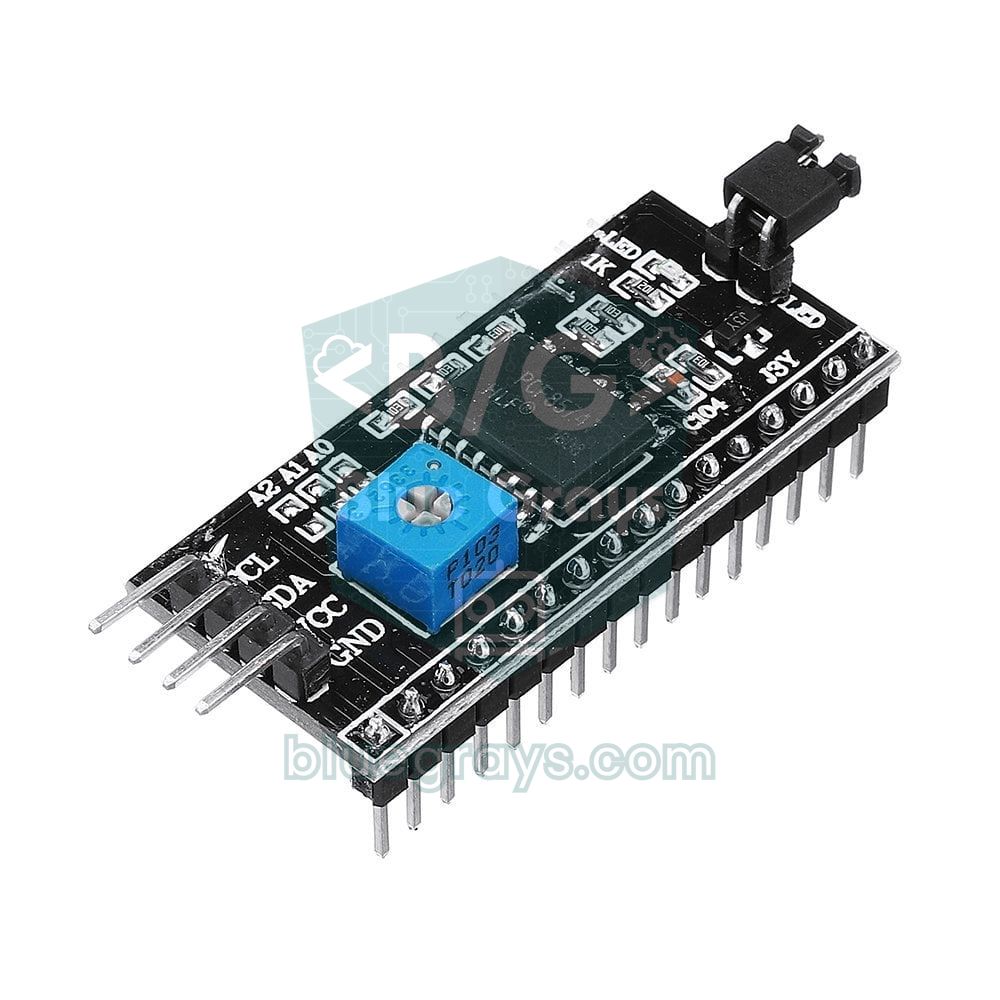
What is I2C and how does it work?
I2C was developed by Philips (today NXP) in 1982 so that chips on the same circuit board could communicate with few wires. There are two roles on the bus: the controller (formerly called master), which starts every transfer and generates the clock, and the targets (formerly slaves), which respond to it. In Arduino projects the controller is almost always the Arduino, ESP32 or Pico, while sensors and displays are targets.
- SDA (Serial Data): The line that carries data in both directions. The controller sends addresses and commands, and the sensor sends its readings back on the same line.
- SCL (Serial Clock): The clock line. One bit on SDA is read on every clock pulse, and the controller generates the clock.
- GND (common ground): The reference for the signals. Even modules with separate power supplies must share a common GND.
The lines are open-drain: no device ever drives a line high, it can only pull it low. What holds a line at 1 are the pull-up resistors that connect SDA and SCL to the supply voltage. That's why there's no short circuit even when two devices try to talk at the same time; if any device pulls the line low, everyone sees a 0. An I2C message goes like this:
- START: While SCL is high, the controller pulls SDA from 1 to 0, and every device on the bus starts listening.
- Address and direction bit: The 7-bit address is sent, followed by a read (1) or write (0) bit.
- ACK: The device that owns the address pulls SDA low during the 9th clock pulse to say "I'm here". If nobody does, that's called a NACK.
- Data bytes: Each byte is sent as 8 bits and the receiver answers each one with an ACK. On most sensors the first byte is the number of the register to read or write.
- STOP: While SCL is high, SDA rises from 0 to 1 and the bus is free again. For reads, a repeated START is used instead of a STOP so the direction can change without releasing the bus.
Comparing I2C with the two other common protocols in the Arduino world makes it clear when to choose it:
| Feature | I2C | SPI | UART (Serial) |
|---|---|---|---|
| Signal wires | 2 (SDA, SCL) | 3 shared (MOSI, MISO, SCK) + one CS per device | 2 (TX, RX) |
| Number of devices | Over 100 addresses on one bus | As many as free CS pins | Usually 2 devices |
| Typical speed | 100 kHz, 400 kHz, 1 MHz | 10 MHz and up | 9600 – 115200 baud |
| Device selection | By address | By CS pin | None, point to point |
| Typical use | Sensors, clocks, small displays, EEPROM | SD cards, TFT displays, RFID | GPS, Bluetooth, link to a computer |
I2C speeds and technical limits
| Mode | Maximum speed | Maximum rise time | Where is it used? |
|---|---|---|---|
| Standard mode (Sm) | 100 kHz | 1000 ns | Default, long wires |
| Fast mode (Fm) | 400 kHz | 300 ns | OLED, MPU6050, BMP280 |
| Fast mode plus (Fm+) | 1 MHz | 120 ns | Pico and some newer sensors |
| High-speed mode (Hs) | 3.4 MHz | 80 ns (400 pF), needs special drivers | Rare in hobby projects |
The Arduino Wire library starts at 100 kHz by default; most sensors also support 400 kHz, and you can switch to it with Wire.setClock(400000). A higher speed makes displays refresh more smoothly, but it also makes the bus more sensitive to wire length and pull-up value. According to the standard, the total bus capacitance (wires plus device pins) must not exceed 400 pF. Ordinary jumper and ribbon cables add 50–100 pF per metre and each device pin adds up to 10 pF, which is why I2C was designed for use on one board or with wires a few tens of centimetres long. Beyond 1 metre you need to lower the speed, use stronger pull-ups or add bus extenders such as the P82B715.
I2C addresses: 7-bit, 8-bit and reserved addresses
Every device on the bus has a 7-bit address, which in theory gives 128 addresses. Because the ranges 0x00–0x07 and 0x78–0x7F are reserved for special purposes, the usable addresses are the 112 addresses from 0x08 to 0x77. The address is usually fixed by the chip manufacturer, but on many modules you can change its last bits with solder jumpers or pins called A0, A1, A2 or AD0.
Here's the confusing part: some datasheets and the labels on the back of modules give the address as 8 bits, including the direction bit. For example, the back of an OLED board says "0x78", but the address in code is 0x3C; if an LCD module says 0x4E, the code address is 0x27. The rule is simple: divide the 8-bit value by 2 (shift it right by one bit) and you get the 7-bit address. The Arduino, ESP32 and MicroPython libraries all expect 7-bit addresses.
| Module | Chip | Default address | Can it be changed? |
|---|---|---|---|
| I2C LCD module (16x2, 20x4) | PCF8574 / PCF8574A | 0x27 / 0x3F | With A0–A2 jumpers: 0x20–0x27 or 0x38–0x3F |
| 0.96-inch OLED | SSD1306 | 0x3C | 0x3D via a resistor on the back |
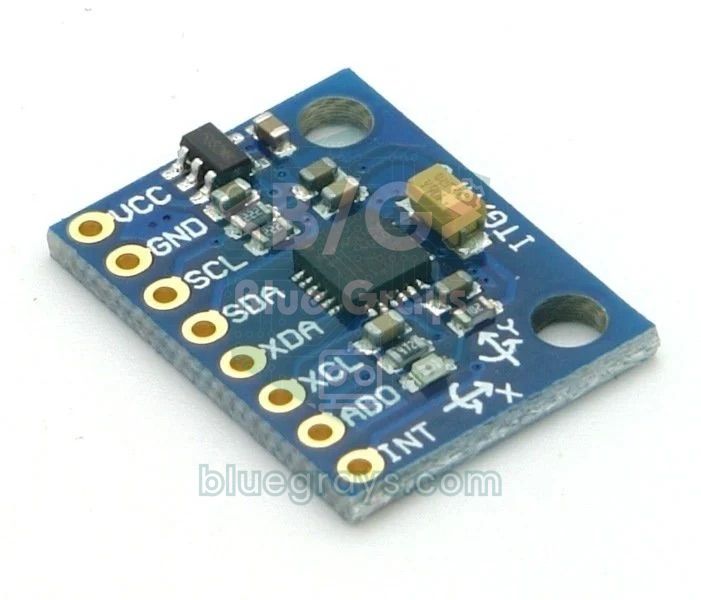
| Accelerometer and gyroscope | MPU6050 | 0x68 | 0x69 when AD0 = 1 |
| Real-time clock | DS1307 / DS3231 | 0x68 | No |
| Pressure and temperature | BMP280 / BME280 | 0x76 or 0x77 | Depends on the SDO pin |
| Light intensity | BH1750 | 0x23 | 0x5C when ADDR = 1 |
| 16-bit ADC | ADS1115 | 0x48 | 0x48–0x4B via the ADDR pin |
| 16-channel servo and PWM driver | PCA9685 | 0x40 | Dozens of addresses from 0x40 via A0–A5 jumpers |
| EEPROM memory | AT24C32 / AT24C256 | 0x50 | 0x50–0x57 via A0–A2 |
| I2C multiplexer | TCA9548A | 0x70 | 0x70–0x77 via A0–A2 |
Pull-up resistors: why you need them and how to choose the value
Since devices on an I2C bus can only pull the lines low, the pull-up resistors provide the high level. If the resistor is too large, the bus capacitance slows down the transition from 0 to 1, the edges of the signal get rounded and bits are misread at high speeds. If it's too small, the current a device must sink when pulling the line low goes up; the standard only requires a device to sink at least 3 mA at 0.4 V, so the pull-up must keep the current below that.
These formulas give the two limits: the minimum resistance is R(min) = (VCC − 0.4 V) / 3 mA, and the maximum is R(max) = t(rise) / (0.8473 × C(bus)). For 5 V, R(min) = 4.6 V / 0.003 A ≈ 1.53 kΩ, and for 3.3 V it's ≈ 0.97 kΩ. On a short bus with 100 pF of capacitance, R(max) ≈ 11.8 kΩ at 100 kHz and ≈ 3.5 kΩ at 400 kHz. That's why, in practice, 4.7 kΩ for 100 kHz and 2.2 kΩ for 400 kHz and busy buses are the most common values. You can use the Resistor Colour Code tool to read a resistor's bands and the RC Time Constant tool to see the delay created by resistance and capacitance.
| Situation | Recommended pull-up | Note |
|---|---|---|
| One module, short wires, 100 kHz | 4.7 kΩ – 10 kΩ | Most modules already have them |
| Several modules, 400 kHz | 2.2 kΩ – 4.7 kΩ | The resistors on the modules end up in parallel |
| Wires longer than 50 cm | 2.2 kΩ and 100 kHz | Don't twist SDA with SCL; twist each with GND |
| 3.3 V bus (ESP32, Pico) | 2.2 kΩ – 4.7 kΩ | Connect the resistors to 3.3 V, not 5 V |
On the Arduino Uno, calling Wire.begin() also turns on the ATmega328P's internal 20–50 kΩ pull-up resistors. With a single module and 10–20 cm of wire they often work, but they aren't reliable; external resistors are always better. If you're using a bare sensor board without pull-ups, don't forget to add a 4.7 kΩ resistor from both SDA and SCL to VCC.
I2C pins: Arduino Uno, Mega, ESP32, ESP8266 and Pico
| Board | SDA | SCL | Note |
|---|---|---|---|
| Arduino Uno / Nano | A4 | A5 | On the Uno R3, the SDA and SCL pins next to AREF are the same bus as A4/A5 |
| Arduino Mega 2560 | 20 | 21 | On the Mega, A4 and A5 are not I2C |
| Arduino Leonardo / Micro | D2 | D3 | These are digital pins |
| ESP32 (DevKit) | GPIO 21 | GPIO 22 | Other pins can be chosen with Wire.begin(SDA, SCL); the second bus is Wire1 |
| ESP8266 NodeMCU | D2 (GPIO 4) | D1 (GPIO 5) | Software I2C, pins can be changed |
| Raspberry Pi Pico | GP4 (I2C0) | GP5 (I2C0) | I2C0 and I2C1 are available on many pin pairs |
Step by step: finding addresses with an I2C scanner sketch
When you get a new module, the first job is to find out the addresses of the devices on the bus. An I2C scanner sends an empty message to every address from 0x08 to 0x77 and lists the ones that answer with an ACK. That way you learn both that the module is wired correctly and which address you need to put in your code.
- Connect the module's GND to the Arduino's GND and its VCC to 5V (to 3.3V for modules that only support 3.3 V).
- Connect SDA to A4 and SCL to A5. If you have several modules, join all their SDA and SCL pins on the breadboard.
- Upload the sketch below and open the Serial Monitor at 115200 baud.
- Note down the listed addresses. If nothing shows up, check the wiring, the common GND and the pull-up resistors.
- Unplug and reconnect the modules one by one to confirm which address belongs to which device; the scanner rescans every 5 seconds.
1#include <Wire.h>
2
3void printHex(byte addr) {
4  Serial.print(F("0x"));
5  if (addr < 16) Serial.print('0');    // tek haneliye sıfır ekle / pad single digit
6  Serial.print(addr, HEX);
7}
8
9void setup() {
10  Serial.begin(115200);
11  Wire.begin();                         // Uno: A4 = SDA, A5 = SCL
12#if defined(ARDUINO_ARCH_AVR)
13  Wire.setWireTimeout(3000, true);      // AVR (Uno, Nano, Mega): hat kilitlenirse 3 ms sonra kurtar / recover a stuck bus after 3 ms
14#endif
15  Serial.println(F("I2C tarayici / I2C scanner"));
16}
17
18void loop() {
19  byte found = 0;
20  for (byte addr = 0x08; addr <= 0x77; addr++) {   // geçerli 7 bit adresler / valid 7-bit addresses
21    Wire.beginTransmission(addr);
22    byte err = Wire.endTransmission();             // 0 = cihaz ACK verdi / device acknowledged
23    if (err == 0) {
24      Serial.print(F("Bulundu / found: "));
25      printHex(addr);
26      Serial.println();
27      found++;
28    } else if (err == 4 || err == 5) {
29      Serial.print(F("Hat hatasi / bus error at "));
30      printHex(addr);
31      Serial.println();
32    }
33  }
34  if (found == 0) {
35    Serial.println(F("Cihaz yok: kablolari ve pull-up'lari kontrol et / no devices: check wiring and pull-ups"));
36  } else {
37    Serial.print(found);
38    Serial.println(F(" cihaz bulundu / device(s) found"));
39  }
40  Serial.println();
41  delay(5000);                          // 5 sn sonra yeniden tara / rescan after 5 s
42}| endTransmission() result | Meaning | What to do |
|---|---|---|
| 0 | The device acknowledged its address (ACK) | Use this address in your code |
| 1 | Data too long for the buffer | Never seen in a scanner; don't write more than 32 bytes at once on the Uno |
| 2 | NACK on address | No device at that address, normal while scanning |
| 3 | NACK on data | The device rejected the command; check the register number |
| 4 | Other bus error | Short circuit, missing pull-ups or noise |
| 5 | Timeout | The bus is stuck; check the wiring and power supply |
The setWireTimeout line in the sketch matters: when SDA or SCL is shorted, or a device gets stuck holding the line low, the Uno's Wire library with default settings can wait forever and freeze your program. With the timeout enabled, the library gives up after 3 ms, resets the I2C hardware, and the scanner reports the problem with an error code. The line is wrapped in #if so it's only compiled on AVR boards (Uno, Nano, Mega); the ESP32 and ESP8266 Wire libraries already come with their own timeout protection, so the same sketch compiles and runs unchanged on all three platforms.
I2C without a library: reading and writing registers
Libraries make life easier, but under the hood they all do the same thing: they send the register number to the device, then read bytes from or write bytes to that register. Doing this yourself once means you can read the datasheet of a new sensor and use it even without a library. The example below wakes the MPU6050 sensor from sleep mode, reads its identity register (WHO_AM_I), and then calculates temperature and Z-axis acceleration from the raw values.
1#include <Wire.h>
2
3const byte MPU_ADDR = 0x68;             // AD0 GND'de; AD0 = 3.3V ise 0x69 / AD0 low; 0x69 if AD0 high
4
5void writeReg(byte reg, byte value) {
6  Wire.beginTransmission(MPU_ADDR);
7  Wire.write(reg);                      // önce yazmaç adresi / register address first
8  Wire.write(value);                    // sonra veri / then the data
9  Wire.endTransmission();               // STOP gönder / send STOP
10}
11
12int16_t readWord(byte reg) {
13  Wire.beginTransmission(MPU_ADDR);
14  Wire.write(reg);
15  Wire.endTransmission(false);          // STOP yok, tekrarlı START / no STOP, repeated START
16  Wire.requestFrom(MPU_ADDR, (byte)2);  // 2 bayt iste / request 2 bytes
17  uint8_t hi = Wire.read();
18  uint8_t lo = Wire.read();
19  return (int16_t)(((uint16_t)hi << 8) | lo);
20}
21
22void setup() {
23  Serial.begin(115200);
24  Wire.begin();
25  Wire.setClock(400000);                // hızlı mod 400 kHz / fast mode 400 kHz
26  writeReg(0x6B, 0x00);                 // PWR_MGMT_1: uykudan uyandır / wake up from sleep
27  Wire.beginTransmission(MPU_ADDR);
28  Wire.write(0x75);                     // WHO_AM_I yazmacı / WHO_AM_I register
29  Wire.endTransmission(false);
30  Wire.requestFrom(MPU_ADDR, (byte)1);
31  Serial.print(F("WHO_AM_I = 0x"));
32  Serial.println(Wire.read(), HEX);     // 68 beklenir / expect 68
33}
34
35void loop() {
36  int16_t raw = readWord(0x41);         // TEMP_OUT_H ve TEMP_OUT_L / TEMP_OUT_H and TEMP_OUT_L
37  float tempC = raw / 340.0 + 36.53;    // veri sayfasındaki formül / datasheet formula
38  int16_t az = readWord(0x3F);          // Z ekseni ivmesi / Z-axis acceleration
39  Serial.print(F("Sicaklik / temp: "));
40  Serial.print(tempC, 1);
41  Serial.print(F(" C   AccZ: "));
42  Serial.println(az / 16384.0, 2);      // +-2g aralığında 16384 = 1 g / 16384 = 1 g at +-2g
43  delay(500);
44}
Pay attention to the endTransmission(false) line in the read function: it changes direction with a repeated START instead of a STOP, so no other device can jump in and the sensor doesn't forget which register was requested. If WHO_AM_I reads 0x68, communication is perfect. On cheap clone modules the value may be 0x70 or another number; that means the chip is a compatible but different model such as the MPU6500, and it's the reason some ready-made libraries report "sensor not found". The temperature formula (raw value / 340 + 36.53) comes straight from the MPU6050 datasheet; for acceleration in the ±2 g range a raw value of 16384 equals 1 g, so a sensor lying flat on the table shows about 1.00 on the Z axis.
Several devices on one bus and address conflicts
The biggest advantage of I2C is that you can connect devices in parallel to the same two wires as long as their addresses differ. For example, an LCD (0x27), an OLED (0x3C), a BMP280 (0x76) and a DS3231 clock (0x68) can happily share the same A4 and A5 pins; each library talks to its own address while the other devices quietly listen. Trouble starts when two devices have the same address: both send an ACK, their data collides and usually neither works. Here are the ways to fix it:
- Change the address pin: If you connect the MPU6050's AD0 pin to 3.3 V, its address becomes 0x69 and the conflict with the DS3231 (0x68) is gone.
- Use the solder jumpers: The A0–A2 jumpers on LCD modules offer 8 addresses and the ADS1115's ADDR pin offers 4.
- Open a second I2C bus: Move the conflicting device to separate pins with Wire1 on the ESP32 or I2C1 on the Pico.
- Add an I2C multiplexer: The TCA9548A opens eight separate sub-buses from a single address (0x70); you could even connect eight OLEDs with the same address.
- Devices with a fixed address: Some chips, such as the DS1307 or HTU21D, have an address that can't be changed at all; for them, only a separate bus or a multiplexer will help.
I2C on the ESP32: any pins and two separate buses
On the ESP32, the I2C hardware can be routed flexibly to the pins. The default pins are GPIO 21 (SDA) and GPIO 22 (SCL), but with Wire.begin(SDA, SCL) you can pick almost any two GPIOs you like. The classic ESP32 and the ESP32-S3 have two I2C controllers, so you can run two sensors with the same address on two separate buses; the ESP32-C3 has only one controller. GPIO 34–39 are input-only and can't be used for I2C. For the board's full pin map, check the Pinout tool, and for a general introduction see What Is the ESP32?.
1#include <Wire.h>
2
3// Klasik ESP32'de iki I2C denetleyicisi vardır: Wire ve Wire1 / the classic ESP32 has two I2C controllers: Wire and Wire1
4
5void scan(TwoWire &bus, const char *name) {
6  Serial.printf("%s:\n", name);
7  for (uint8_t addr = 0x08; addr <= 0x77; addr++) {
8    bus.beginTransmission(addr);
9    if (bus.endTransmission() == 0) {
10      Serial.printf("  bulundu / found 0x%02X\n", addr);
11    }
12  }
13}
14
15void setup() {
16  Serial.begin(115200);
17  Wire.begin(21, 22);                   // SDA, SCL: varsayılan pinler / default pins
18  Wire1.begin(32, 33, 400000);          // SDA, SCL, hız: başka iki GPIO / SDA, SCL, speed: any two other GPIOs
19  scan(Wire, "Wire  (SDA 21, SCL 22)");
20  scan(Wire1, "Wire1 (SDA 32, SCL 33)");
21}
22
23void loop() {
24}
I2C on the Raspberry Pi Pico (MicroPython)
The Pico's RP2040 chip has two controllers called I2C0 and I2C1, and each one can be routed to several different pin pairs. For I2C0 you can use GP0/GP1, GP4/GP5, GP8/GP9, GP12/GP13, GP16/GP17 and GP20/GP21; for I2C1, GP2/GP3, GP6/GP7, GP10/GP11, GP14/GP15, GP18/GP19 and GP26/GP27. In each pair the even-numbered pin is SDA and the odd-numbered pin is SCL. In MicroPython the scanner is a single line: i2c.scan() returns a list of the addresses that answer with an ACK. Because the Pico runs at 3.3 V, powering modules from the 3V3(OUT) pin is the safest option; although the RP2040 also supports 1 MHz Fast mode plus, staying at 400 kHz on a breadboard gives fewer surprises. For your first steps with the Pico, see What Is the Raspberry Pi Pico?.
1from machine import Pin, I2C
2
3i2c = I2C(0, sda=Pin(4), scl=Pin(5), freq=400000)   # I2C0: GP4 = SDA, GP5 = SCL
4devices = i2c.scan()                                 # ACK veren adresler / addresses that ACK
5
6if devices:
7    for addr in devices:
8        print("Bulundu / found:", hex(addr))
9else:
10    print("Cihaz yok / no devices")
11
12# MPU6050 varsa WHO_AM_I yazmacını oku / if an MPU6050 is present, read WHO_AM_I
13if 0x68 in devices:
14    i2c.writeto_mem(0x68, 0x6B, b"\x00")             # uykudan uyandır / wake up
15    who = i2c.readfrom_mem(0x68, 0x75, 1)[0]
16    print("WHO_AM_I:", hex(who))                     # 0x68 beklenir / expect 0x68
Project ideas with I2C
- Mini weather station: Measure pressure and temperature with a BMP280 and show them on an OLED display; both modules share the same two wires.
- Digital clock: Read the time from a DS3231 clock module and print it on an I2C LCD display.
- Tilt indicator: Calculate the angle with an MPU6050 and draw the result on the OLED like a spirit level.
- Wi-Fi sensor node: Monitor a sensor connected to the D1 and D2 pins of an ESP8266 NodeMCU from your phone.
- 16-servo robot arm: Control 16 servos from just two pins with a PCA9685 driver.
- Data logger: Write a reading to an AT24C256 EEPROM every minute so the data survives a power cut.
Common mistakes and how to fix them
| Symptom | Likely cause | Fix |
|---|---|---|
| The scanner finds no devices | SDA and SCL swapped, no common GND or the module isn't powered | Check the wiring; on the Uno, A4 = SDA and A5 = SCL |
| The scanner freezes or reports errors at every address | Bus shorted or pull-ups missing | Add setWireTimeout; measure the supply voltage on idle SDA and SCL |
| The sketch compiles but the display stays blank | Wrong address in the code (0x27 instead of 0x3F) | Use the address the scanner found |
| The board says 0x78 on the back and the code doesn't work | The 8-bit address was used | Divide by 2: 0x78 → 0x3C |
| Two sensors don't work together | Address conflict | Change the address pin, use a second bus or a TCA9548A |
| Random freezes, glitches when a motor runs | Long wires, noise or a weak power supply | Shorten the wires, drop to 100 kHz, add 100 nF capacitors to the modules |
| An ESP32 or Pico pin got damaged | Pull-ups tied to 5 V connected to a 3.3 V pin | Power the module from 3.3 V or use a level shifter |
I2C is the most practical way to add displays, clocks, sensors and memory to your project with just two wires; once you understand addresses, pull-up resistors and the scanner sketch, you'll solve most problems in a few minutes. In the BlueGrays app you'll find projects that use I2C, such as the I2C LCD display, the Pong game on an OLED display, a digital clock with a DS1307 and an ESP32 weather display, each with step-by-step circuit diagrams and code.
Frequently asked questions
What is the difference between I2C and SPI?
I2C uses addressing to put more than a hundred devices on the same two wires, but it's typically limited to 100–400 kHz. SPI needs three shared wires plus a separate chip-select (CS) pin for every device; in return it reaches 10 MHz and more. I2C is preferred for sensors and small displays, SPI for SD cards and colour TFT displays.
How many devices can you connect to an I2C bus?
7-bit addressing gives 112 usable addresses. In practice the limit is set less by the number of addresses than by the bus capacitance (400 pF maximum) and the pull-up resistors in parallel; 5–10 devices work fine on a breadboard. For more, use a TCA9548A multiplexer or a second I2C bus.
What value should I2C pull-up resistors be?
4.7 kΩ for 100 kHz and short wires, and 2.2 kΩ for 400 kHz or buses with many devices, are the most common values. Don't go below 1.5 kΩ on a 5 V bus or 1 kΩ on a 3.3 V bus. Also remember that the resistors on your modules end up in parallel.
Which pins are I2C on the Arduino Uno?
On the Arduino Uno and Nano, SDA is pin A4 and SCL is pin A5. The Uno R3 has two more pins labelled SDA and SCL next to AREF, but they're connected to A4 and A5 on the board, not a separate bus. On the Mega, the I2C pins are 20 (SDA) and 21 (SCL).
What is the maximum I2C cable length?
I2C was designed for short distances on a circuit board; at 100 kHz and with suitable pull-ups it usually works up to about 1 metre. For longer distances you need to lower the speed, use twisted-pair cable or switch to bus drivers such as the P82B715. For several metres, RS-485 or a wireless link is the better choice.
What should I do if the I2C scanner can't find my device?
First check that SDA and SCL are on the right pins, that the common GND is connected and that the module is powered. Then confirm the pull-ups by measuring the supply voltage on idle SDA and SCL. If it still isn't found, try the module on its own with short wires at 100 kHz, and on the ESP32 make sure you passed the correct pins to Wire.begin.
Projects to build after reading this
See all projects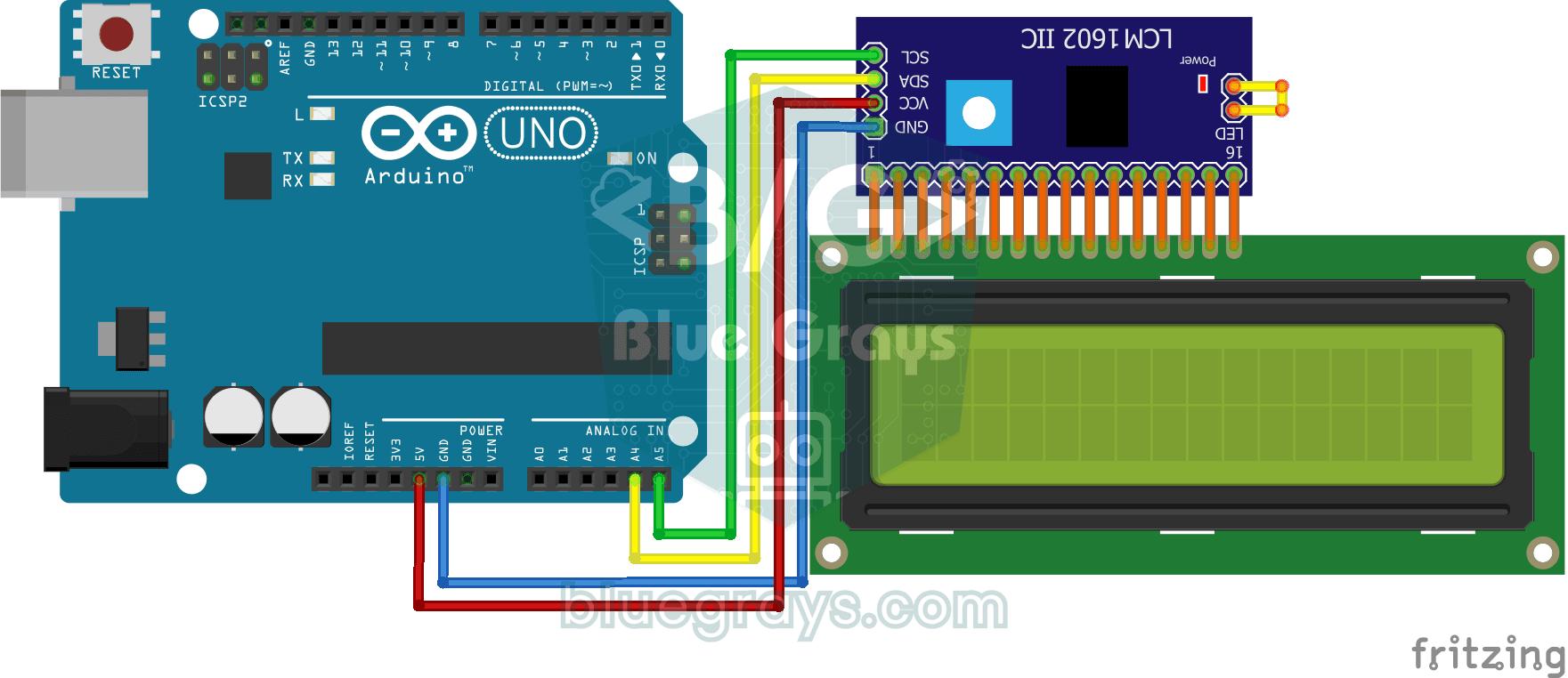
Using LCD Screen with I2C
The project that prints messages by controlling the LCD screen with only 2 cables (SDA, SCL) thanks to the I2C module. Teaches how to save pins with I2C protocol.

ESP32 I2C LCD Display (16x2)
In this project, we display text by connecting a 16x2 character LCD screen to the ESP32 via the I2C protocol. Thanks to I2C, we can control the screen using just two data pins (SDA and SCL), eliminating the waste of 6+ pins associated with a classic parallel connection. The code prints a fixed message on the first line and a counter that increments every second on the second line. Additionally, we run an I2C scanner at the start to print the display’s address to the Serial Monitor (typically 0x2

Digital Clock with ESP32 and DS1307 RTC (I2C + LCD)
In this project, we display the time and date on a 16x2 I2C LCD screen using the DS1307 real-time clock (RTC) module. The DS1307 is a battery-backed RTC that maintains the time even if the ESP32 is powered off. Both modules share the same I2C bus (SDA/SCL), allowing us to learn how to control multiple devices using just two signal wires. Through this project, you will gain practical knowledge of the I2C communication protocol, RTC module operation, and dynamic data display on an LCD screen.

Arduino I2C Calculator
It is an Arduino-based calculator project that performs addition, subtraction, multiplication and division operations using a 4x4 membrane keypad and a 16x2 I2C LCD display. Thanks to I2C, the display connection is provided with only 2 cables, thus reducing cable clutter and keeping more pins open for use. There is also decimal number input and negative number support.

Pong Game - SSD1306
The classic Pong game built using Arduino and SSD1306 OLED display, equipped with an autonomous artificial intelligence (CPU) opponent that instantly tracks the ball's movements and reacts according t

ESP32 HTTPClient + Weather API (with SSD1306 OLED Display)
In this project, we use the ESP32 to make a REST API call to a weather API (wttr.in) over the internet using `HTTPClient.h`. Unlike the previous I2C LCD version, we’re using an SSD1306 OLED (128×64) display here—which allows for large fonts, vector icons, and rich visual presentation on a single screen. Seven different vector icons for weather conditions (sunny, partly cloudy, cloudy, rainy, snowy, stormy, foggy) are drawn at runtime (no bitmap files required). The temperature is displayed in th

Dot Matrix Clock and Calendar (MAX7219, DS1307)
It is a project that displays real-time clock and calendar information on MAX7219 8x32 dot matrix LED display with DS1307 RTC module. In the clock display, two dots blink every second, reflecting the
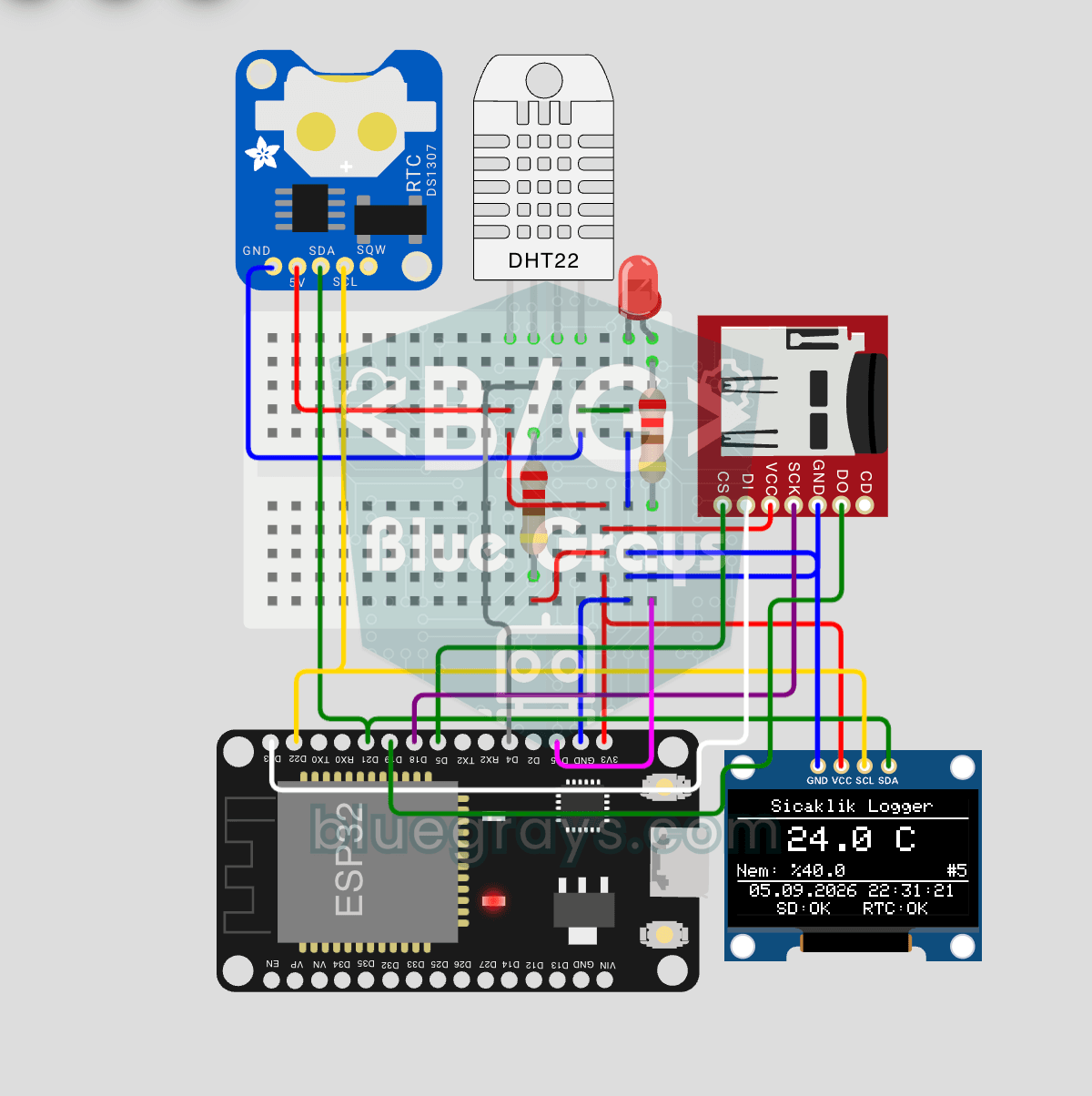
ESP32 Temperature Data Logger (DHT22 + DS1307 RTC + microSD + OLED)
Build a timestamped temperature logger with ESP32! Read DHT22 temperature/humidity every 10 seconds, get real-world time from DS1307 RTC, and log to microSD card as CSV. The OLED displays live temperature (large font), humidity percentage, timestamp, and log counter. The `/temp_log.csv` file on the SD card opens in Excel, Google Sheets, or Python pandas for analysis — perfect for greenhouse monitoring, home/room temperature tracking, laboratory data collection, food storage conditions, or beehiv
More articles
Learn the I2C protocol that lets you hang dozens of sensors and displays on just two wires: addresses, pull-up resistors, an I2C scanner sketch and fixes for the most common problems, with examples.