
NodeMCU ESP8266 Guide: Pinout, Arduino IDE Setup and Web Server
What is the NodeMCU ESP8266? D1–D8 to GPIO pin mapping, Arduino IDE setup, Wi-Fi, a web server that switches an LED, the 3.3 V limit and ESP32 differences.
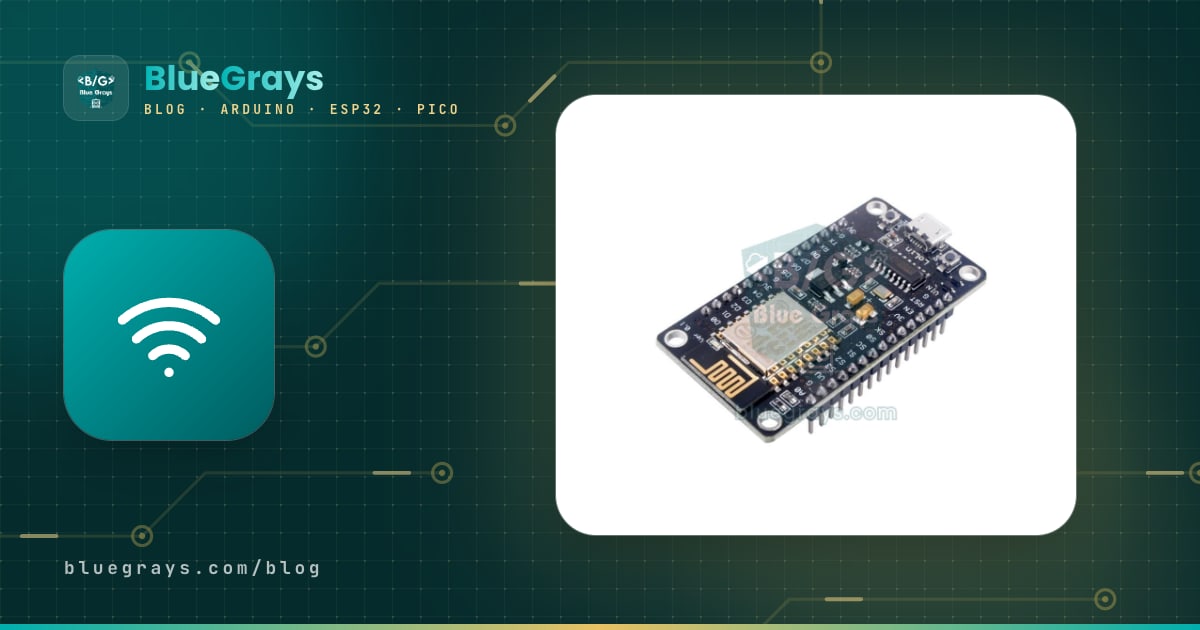
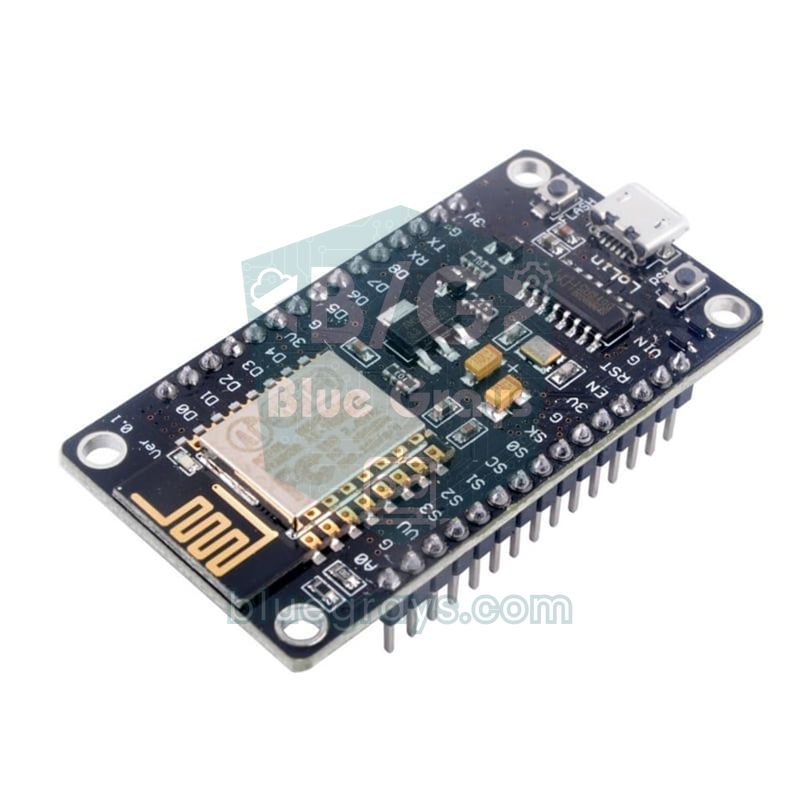
The NodeMCU is an affordable development board that combines the Wi-Fi-capable ESP8266 chip with a USB connection, a 3.3 V regulator and breadboard-friendly pins. You program it with the same commands you already know from the Arduino IDE, and on its own it can join your home network and serve a web page that you open on your phone. If you want to put a temperature sensor online, switch a relay from your phone or control an LED strip at home, the NodeMCU ESP8266 is one of the cheapest places to start.
In this guide you'll go step by step through the NodeMCU's specifications, the confusing D1–D8 to GPIO pin mapping, which pins affect how the board boots, the Arduino IDE setup, connecting to Wi-Fi and a web server that switches an LED from your phone. In the final sections you'll find the differences between the ESP8266 and the ESP32 and fixes for the most common mistakes.
What are the ESP8266 and the NodeMCU?
The ESP8266 is a 32-bit microcontroller with built-in Wi-Fi that Espressif released in 2014. Thanks to its very low price, it made Wi-Fi projects mainstream in the maker world. The name NodeMCU originally referred to a Lua-based firmware written for this chip and its open-source development board; today it's used as a general name for boards built around the ESP-12E module. You'll rarely program it in Lua, though; most people use the Arduino IDE or MicroPython.
| Feature | Value |
|---|---|
| Chip | ESP8266EX, Tensilica L106, 32-bit |
| Clock speed | 80 MHz (can be raised to 160 MHz) |
| RAM | About 80 KB of user RAM (40–50 KB left for your sketch with Wi-Fi connected) |
| Flash memory | 4 MB (ESP-12E module) |
| Wi-Fi | 802.11 b/g/n, 2.4 GHz only; station, access point or both |
| Bluetooth | None |
| Usable GPIO | Around 11 (D0–D8, RX, TX) |
| Analog input | 1 channel (A0), 10-bit, about 0–3.2 V on the board |
| PWM | Software-based, 1 kHz by default, range 0–255 |
| Operating voltage | 3.3 V (powered with 5 V via USB or VIN) |
| Current | 70–80 mA on average with Wi-Fi connected, up to 170 mA while transmitting |
There are two common NodeMCU versions on the market. The V2 (Amica) is narrow, uses a CP2102 USB-to-serial chip and leaves a row of free holes on each side when plugged into a breadboard. The V3 (LoLin) is wider, uses a CH340G chip and covers almost the whole of a standard breadboard, so placing two breadboards side by side makes working with a V3 much easier. Both versions have the same pinout and run the same code. If you want a smaller board, the Wemos D1 Mini carries the same chip and runs the same sketches.
NodeMCU pinout: D1–D8 and GPIO mapping
The most confusing thing about the NodeMCU is that the D labels printed on the board are not the chip's real GPIO numbers. For example, the pin labelled D1 is actually GPIO 5. When you select the NodeMCU board in the Arduino IDE you can write D1 in your code and the compiler turns it into 5 automatically; but if you write digitalWrite(1, HIGH), you're driving GPIO 1, which is the TX pin of the serial port. In MicroPython you always use the GPIO number.
| Board label | GPIO | Extra function | Usage note |
|---|---|---|---|
| D0 | GPIO 16 | Wake from deep sleep | No interrupt support; connected to RST for deep sleep |
| D1 | GPIO 5 | I2C SCL | Safe, general purpose |
| D2 | GPIO 4 | I2C SDA | Safe, general purpose |
| D3 | GPIO 0 | FLASH button | If LOW at boot, the board enters programming mode |
| D4 | GPIO 2 | Onboard LED (inverted logic), TX1 | Must be HIGH at boot |
| D5 | GPIO 14 | SPI SCK | Safe, general purpose |
| D6 | GPIO 12 | SPI MISO | Safe, general purpose |
| D7 | GPIO 13 | SPI MOSI | Safe, general purpose |
| D8 | GPIO 15 | SPI CS | Must be LOW at boot; the board has a pull-down resistor |
| RX | GPIO 3 | UART RX | Leave free while using the Serial Monitor |
| TX | GPIO 1 | UART TX | Sends boot messages at startup |
| A0 | ADC0 | Analog input | Analog reading only, about 0–3.2 V |
| SD2, SD3 | GPIO 9, 10 | Connected to the flash memory | Don't use |
According to this table, the pins you can use without worry in your first projects are D1, D2, D5, D6 and D7. D3, D4 and D8 are the pins that set the board's boot mode: when power is applied, the ESP8266 checks the levels of GPIO 0, GPIO 2 and GPIO 15, and for a normal start it expects GPIO 0 and GPIO 2 to be HIGH and GPIO 15 to be LOW. If a button, relay or sensor connected to these pins changes the level at startup, the board boots into upload mode instead of your program, or doesn't boot at all. D3 and D4 can still be used for buttons, because a button isn't pressed at boot, but keep modules whose output sits LOW away from these pins.
The A0 pin is a special case too: the ESP8266 chip's analog input only measures 0–1 V, but thanks to the 220 kΩ and 100 kΩ voltage divider on the NodeMCU board you can feed about 0–3.2 V into A0, and analogRead(A0) returns that range as 0–1023. Since there's only one analog input, you'll need an I2C ADC such as the ADS1115 if you want to use several analog sensors. Pins D1 and D2 are the default I2C bus; you'll find the basics of I2C in What Is I2C?.
Setting up the ESP8266 in the Arduino IDE
- In the Arduino IDE, open File > Preferences and add https://arduino.esp8266.com/stable/package_esp8266com_index.json to the "Additional boards manager URLs" field.
- Open Tools > Board > Boards Manager, search for esp8266 and install the ESP8266 Community package.
- In the Tools > Board menu, select NodeMCU 1.0 (ESP-12E Module). If you're using a Wemos D1 Mini, choose LOLIN(WEMOS) D1 R2 & mini instead.
- Connect the board with a data cable and select its port under Tools > Port. If no port appears, install the CH340 driver for V3 boards or the CP2102 driver for V2 boards.
- Leave Upload Speed at 115200; once uploads work reliably, you can raise it to 921600 to speed them up.
First sketch: blinking the onboard LED
On the NodeMCU there's a blue LED on the ESP-12E module connected to GPIO 2 (D4); V2 (Amica) boards have a second LED on D0. These LEDs use inverted logic: they light up when the pin is LOW and turn off when it's HIGH. In the Arduino core, the LED_BUILTIN constant is already defined as 2:
1// NodeMCU dahili LED'i: GPIO2 (D4), ters mantık / onboard LED: GPIO2 (D4), inverted logic
2
3void setup() {
4  pinMode(LED_BUILTIN, OUTPUT);
5}
6
7void loop() {
8  digitalWrite(LED_BUILTIN, LOW);    // LOW = yanar / LOW = on
9  delay(500);
10  digitalWrite(LED_BUILTIN, HIGH);   // HIGH = söner / HIGH = off
11  delay(500);
12}Connecting to Wi-Fi
Wi-Fi is the ESP8266's real strength. The sketch below connects the board to your home network in station mode and prints the IP address assigned by the router and the signal strength to the Serial Monitor. If it can't connect within 20 seconds, it stops waiting and prints a warning. Replace the network name and password with your own and open the Serial Monitor at 115200 baud:
1#include <ESP8266WiFi.h>
2
3const char* ssid = "AgAdi";          // Wi-Fi adın / your Wi-Fi name
4const char* password = "Sifre123";   // Wi-Fi şifren / your Wi-Fi password
5
6void setup() {
7  Serial.begin(115200);
8  Serial.println();
9  WiFi.mode(WIFI_STA);               // istemci modu / station mode
10  WiFi.begin(ssid, password);
11  Serial.print("Baglaniyor / connecting");
12  unsigned long start = millis();
13  while (WiFi.status() != WL_CONNECTED) {
14    delay(500);
15    Serial.print('.');
16    if (millis() - start > 20000) {  // 20 sn'de bağlanamazsa / give up after 20 s
17      Serial.println("\nBaglanamadi, ag adini ve sifreyi kontrol et / failed, check SSID and password");
18      return;
19    }
20  }
21  Serial.println();
22  Serial.print("IP: ");
23  Serial.println(WiFi.localIP());    // modemin verdiği adres / address given by the router
24  Serial.print("Sinyal / RSSI: ");
25  Serial.print(WiFi.RSSI());         // -50 iyi, -80 zayıf / -50 good, -80 weak
26  Serial.println(" dBm");
27}
28
29void loop() {
30}| RSSI value | Signal quality | What to expect |
|---|---|---|
| -30 to -50 dBm | Excellent | Stable, fast connection |
| -50 to -67 dBm | Good | Enough for a web server and sensor data |
| -67 to -80 dBm | Weak | Occasional drop-outs, slow page loads |
| Below -80 dBm | Very weak | May not connect at all; move the board closer to the router |
Controlling an LED from your phone: a simple web server
Now let's turn the NodeMCU into a small web server. Connect an LED to pin D1 (GPIO 5) through a 220 Ω resistor: the LED's long leg goes to D1 via the resistor and the short leg goes to GND. For a red LED this resistor gives a current of (3.3 V − 2 V) / 220 Ω ≈ 6 mA, comfortably below the pin's limit; to calculate the value for your own LED, use the LED Resistor Calculator. After uploading, open the address shown in the Serial Monitor in the browser of a phone connected to the same Wi-Fi.
1#include <ESP8266WiFi.h>
2#include <ESP8266WebServer.h>
3#include <ESP8266mDNS.h>
4
5const char* ssid = "AgAdi";          // Wi-Fi adın / your Wi-Fi name
6const char* password = "Sifre123";   // Wi-Fi şifren / your Wi-Fi password
7
8const int LED_PIN = D1;              // GPIO5, 220 ohm direnç ile LED / LED through a 220 ohm resistor
9bool ledOn = false;
10
11ESP8266WebServer server(80);
12
13void handleRoot() {
14  String html = "<!DOCTYPE html><html><head><meta charset='utf-8'>"
15                "<meta name='viewport' content='width=device-width,initial-scale=1'>"
16                "<title>NodeMCU</title></head>"
17                "<body style='font-family:sans-serif;text-align:center'>"
18                "<h1>NodeMCU LED</h1><p>LED: <b>";
19  html += ledOn ? "ACIK / ON" : "KAPALI / OFF";
20  html += "</b></p><p>A0: ";
21  html += analogRead(A0);            // 0-1023 arası analog değer / analog value 0-1023
22  html += "</p><p><a href='/on'><button>AC / ON</button></a> "
23          "<a href='/off'><button>KAPAT / OFF</button></a></p></body></html>";
24  server.send(200, "text/html", html);
25}
26
27void setLed(bool on) {
28  ledOn = on;
29  digitalWrite(LED_PIN, on ? HIGH : LOW);
30  server.sendHeader("Location", "/");   // ana sayfaya yönlendir / redirect to the main page
31  server.send(303, "text/plain", "");
32}
33
34void setup() {
35  pinMode(LED_PIN, OUTPUT);
36  digitalWrite(LED_PIN, LOW);
37  Serial.begin(115200);
38  WiFi.mode(WIFI_STA);
39  WiFi.begin(ssid, password);
40  while (WiFi.status() != WL_CONNECTED) {
41    delay(500);
42    Serial.print('.');
43  }
44  Serial.println();
45  Serial.print("Tarayicida ac / open in browser: http://");
46  Serial.println(WiFi.localIP());
47
48  if (MDNS.begin("nodemcu")) {       // http://nodemcu.local adresi / address http://nodemcu.local
49    MDNS.addService("http", "tcp", 80);
50  }
51
52  server.on("/", handleRoot);
53  server.on("/on", []() { setLed(true); });
54  server.on("/off", []() { setLed(false); });
55  server.onNotFound([]() { server.send(404, "text/plain", "Bulunamadi / not found"); });
56  server.begin();
57}
58
59void loop() {
60  server.handleClient();             // gelen istekleri işle / handle incoming requests
61  MDNS.update();
62}| Code part | What it does |
|---|---|
| ESP8266WebServer server(80) | Creates a server on port 80 (HTTP) |
| server.on("/on", ...) | Turns the LED on when the browser requests /on |
| sendHeader("Location", "/") and send(303) | Redirects the browser back to the main page after the action, so refreshing the page doesn't send the command again |
| analogRead(A0) | Shows the value on A0 on the page; you can connect an LDR or a potentiometer there |
| MDNS.begin("nodemcu") | Lets you reach the device by the name nodemcu.local instead of its IP |
| server.handleClient() | Must be called continuously in loop; it handles incoming requests |
If the page won't open, make sure your phone is connected to the same Wi-Fi network as the NodeMCU, not to a guest network or mobile data. The name nodemcu.local usually works on computers and iPhones; some Android phones lack mDNS support, so there you'll need the IP address. If you connect a relay module instead of the LED, the same code lets you control a real lamp; see What Is a Relay Module? for details.
Access point (AP) mode: connecting without a router
If there's no Wi-Fi around, the NodeMCU can create its own network. In access point mode you connect your phone directly to the NodeMCU-AP network, and the board usually answers at 192.168.4.1. This mode is ideal for a watering system in the garden or a measuring device used in the field. To combine the web server above with this mode, just use the softAP lines instead of the WiFi.begin lines; WIFI_AP_STA mode takes on both roles at once. The password must be at least 8 characters long, otherwise the network won't be created.
1#include <ESP8266WiFi.h>
2
3void setup() {
4  Serial.begin(115200);
5  WiFi.mode(WIFI_AP);                            // kendi ağını kur / create its own network
6  bool ok = WiFi.softAP("NodeMCU-AP", "12345678"); // ad ve en az 8 karakter şifre / name and 8+ char password
7  Serial.println(ok ? "AP hazir / AP ready" : "AP hatasi / AP error");
8  Serial.print("IP: ");
9  Serial.println(WiFi.softAPIP());               // genellikle 192.168.4.1 / usually 192.168.4.1
10}
11
12void loop() {
13  Serial.print("Bagli cihaz / stations: ");
14  Serial.println(WiFi.softAPgetStationNum());
15  delay(3000);
16}
ESP8266 with MicroPython
Besides the Arduino language, the NodeMCU can also be programmed in MicroPython. After flashing the MicroPython firmware to the board with esptool, you run Python code directly from an editor such as Thonny. Because the ESP8266's memory is limited, you may hit memory errors with large MicroPython programs, but for simple Wi-Fi and sensor projects it's very practical. Note that in MicroPython you write the GPIO number, not the D label, as the pin number:
1import network, time
2from machine import Pin
3
4led = Pin(2, Pin.OUT)                     # D4 = GPIO2, dahili LED / onboard LED
5wlan = network.WLAN(network.STA_IF)
6wlan.active(True)
7wlan.connect("AgAdi", "Sifre123")         # Wi-Fi adı ve şifresi / Wi-Fi name and password
8
9while not wlan.isconnected():
10    time.sleep(0.5)
11print("IP:", wlan.ifconfig()[0])
12
13while True:
14    led.value(not led.value())            # ters mantık: 0 = yanar / inverted: 0 = on
15    time.sleep(0.5)
ESP8266 or ESP32?
| Feature | ESP8266 (NodeMCU) | ESP32 (DevKit) |
|---|---|---|
| Processor | Single core, 80/160 MHz | Dual core, 240 MHz |
| RAM | About 80 KB of user RAM | 520 KB |
| Wi-Fi | 802.11 b/g/n, 2.4 GHz | 802.11 b/g/n, 2.4 GHz |
| Bluetooth | None | Classic and BLE |
| GPIO | About 11 | About 34 (some input-only) |
| Analog input | 1 channel, 10-bit | 18 channels, 12-bit |
| PWM | Software-based | 16-channel hardware PWM (LEDC) |
| I2C and UART | Software I2C, 1 full UART plus a TX-only UART1 | 2 hardware I2C, 3 UARTs |
| Touch pins and DAC | None | 10 touch pins, 2 DACs |
| Price | Cheaper | Slightly more expensive |
In short, the ESP8266 is still more than enough for jobs like sending one sensor's data to the internet, switching a relay from your phone or serving a simple web page, and it's cheaper. For new projects that need Bluetooth, lots of analog inputs, a camera, fast processing or many tasks at once, the ESP32 is the better choice. Code ports over easily: switching ESP8266WiFi.h to WiFi.h, ESP8266WebServer.h to WebServer.h and ESP8266mDNS.h to ESPmDNS.h, deleting the MDNS.update() line (the ESP32 doesn't have it) and using GPIO numbers instead of board labels such as D1 is often all it takes. For details, see What Is the ESP32? and Arduino or ESP32?.
Power supply and deep sleep
The NodeMCU is powered with 5 V from USB or the VIN pin, and the regulator on the board brings it down to 3.3 V. The 170 mA current spike during Wi-Fi transmission can cause a voltage drop on a weak USB port or a thin cable and make the board reset by itself, so use a good cable and an adapter that supplies at least 1 A. For battery-powered projects, ESP.deepSleep() puts the chip to sleep at about 20 µA; so it can wake up when the timer runs out, you need to connect pin D0 (GPIO 16) to the RST pin. However, the USB-to-serial chip and the regulator on the board keep drawing current while it sleeps, so for long battery life a bare ESP-12 module or a low-power board gives better results. To estimate battery life, use the Battery Life Calculator.
Project ideas with the NodeMCU
- Wi-Fi thermometer: Show the temperature and humidity measured by a DHT11 on a page you open on your phone.
- Smart plug: Switch a lamp on and off with a relay module and a button on a web page.
- Plant watering alert: Connect a soil moisture sensor to A0 and show a warning on the page when the soil dries out.
- Wi-Fi LED strip: Pick the colour and effect of a WS2812B strip from your phone.
- Internet clock: Get the time from an NTP server and show it on an I2C LCD display.
- Motion alarm: Send a Telegram message when a PIR sensor detects motion.
Common mistakes and how to fix them
| Symptom | Likely cause | Fix |
|---|---|---|
| No port appears | Charge-only cable or missing driver | Use a data cable; install the CH340 or CP2102 driver |
| "Failed to connect to ESP8266: Timed out waiting for packet header" | The board couldn't enter upload mode | Hold FLASH, press and release RST, release FLASH, then start the upload again |
| The board won't boot or keeps resetting | A circuit on D3, D4 or D8 upsets the boot levels | Move that circuit to safe pins such as D5, D6 or D7 |
| Garbage characters in the Serial Monitor | Baud rate mismatch | Select the same speed as in your code; boot messages are at 74880 baud |
| Can't connect to Wi-Fi | 5 GHz network, wrong password or weak signal | Use a 2.4 GHz network, check upper and lower case, look at the RSSI |
| LED stays off and the Serial Monitor goes silent | 1 written instead of D1 in the code (GPIO 1 = TX) | Use the D1 label or GPIO 5 in your code |
| "Soft WDT reset" error | A loop inside loop() that runs for too long | Add yield() or delay(1) inside long loops; both let the background Wi-Fi tasks and the watchdog run |
The NodeMCU ESP8266 is the most affordable way to take what you've learned with Arduino into the wireless world: with a few lines of code it joins your home network and lets you build devices you control from your phone. In the BlueGrays app you'll find wireless projects such as Wi-Fi connection, web server, WebSocket, NTP clock and mDNS on the ESP32, with step-by-step circuit diagrams and code, and you can easily adapt the same logic to your NodeMCU.
Frequently asked questions
Are the NodeMCU and the ESP8266 the same thing?
The ESP8266 is the name of the Wi-Fi chip made by Espressif. The NodeMCU is a development board that combines the ESP-12E module carrying that chip with a USB connection, a regulator and breadboard-friendly pins. In short, every NodeMCU is an ESP8266 board, but not every ESP8266 board is a NodeMCU; the ESP-01 and the Wemos D1 Mini use the same chip.
Does the NodeMCU work with 5 V?
The board can be powered with 5 V via USB or the VIN pin, and the regulator brings that down to 3.3 V. However, the GPIO pins work at 3.3 V and are not officially 5 V tolerant. You should connect 5 V signals through a voltage divider or a level shifter.
Which GPIO is D1 on the NodeMCU?
D1 is GPIO 5 and it's the default I2C SCL pin. Other common mappings are D2 = GPIO 4, D4 = GPIO 2, D5 = GPIO 14, D6 = GPIO 12, D7 = GPIO 13 and D8 = GPIO 15. In the Arduino IDE you can write D1 directly in your code; in MicroPython you must use the GPIO number.
Can the ESP8266 connect to 5 GHz Wi-Fi?
No, the ESP8266 only supports 802.11 b/g/n networks in the 2.4 GHz band. Make sure your router's 2.4 GHz band is enabled; if both bands share the same name, giving the 2.4 GHz band its own network name often solves connection problems.
What is the difference between NodeMCU V2 and V3?
The V2 (Amica) is a narrower board with a CP2102 USB-to-serial chip and leaves free holes on both sides of a breadboard. The V3 (LoLin) is wider and uses a CH340G chip. The pins, processor and code are identical; the only differences are the size and the USB driver you need to install.
Does the ESP8266 have Bluetooth?
No, the ESP8266 has no Bluetooth hardware; it only supports Wi-Fi. For projects that need Bluetooth or BLE, use an ESP32 or add a separate Bluetooth module such as the HC-05 to your board.
Projects to build after reading this
See all projects
LED Blink with ESP32
Teaches basic GPIO output usage with ESP32. We achieve a blinking effect by turning an LED on and off from a digital pin. ESP32 version of the classic blink project on Arduino UNO; the pin map and syntax remain the same, the only difference is in the pin numbers.

ESP32 Built-in LED Blink
Blinking the built-in blue LED on the ESP32 DevKit V1. No external components required! The first project you should try when you buy an ESP32. GPIO 2 is connected to the built-in LED.

ESP32 Wi-Fi STA Connection (with LCD Screen)
In this project, we connect the ESP32 to the home Wi-Fi network in Station (STA) mode in a secure, fault-tolerant manner. We store the SSID and password in a separate `secrets.h` file to prevent leaking to Git, set up an auto-reconnect mechanism, and display the RSSI signal level and IP address on an I2C LCD screen. The internal LED works as a status indicator. It is a production-grade connection manager.

ESP32 Asynchronous Web Server (with IP Display on LCD)
In this project, we’re turning the ESP32 into an **asynchronous web server** that you can control from your phone or computer on the same Wi-Fi network. Thanks to the ESPAsyncWebServer library, the server can process multiple requests simultaneously (unlike the classic `WebServer.h`, which blocks on a single request). You’ll be able to open the ESP32’s IP address in a browser and click the ON/OFF buttons (the `/on` and `/off` routes) to turn the LED connected to GPIO 5 on and off.

ESP32 WebSocket Counter (2 Buttons + LCD + Real-Time Web)
In this project, two buttons wired to the ESP32 (GPIO 5 counts up, GPIO 4 counts down) change a counter. The value updates instantly both on a 16x2 I2C LCD and, through the WebSocket support of ESPAsyncWebServer, in every connected browser without reloading the page. Instead of HTTP polling a single persistent connection is used, and the ESP32 sends the new value to everyone with ws.textAll().

ESP32 mDNS: Accessing the Device via bluegrays-esp.local (with LCD Screen)
In this project, we add an mDNS (Multicast DNS) service to the ESP32, allowing us to access the device using a human-readable hostname like `bluegrays-esp.local` instead of an IP address. Even if the IP address assigned by DHCP changes, you can always reach the device using the same name. We also run a small web server on the device to send LED control commands via a browser using the address `http://bluegrays-esp.local/`. The I2C LCD screen displays the hostname, IP address, and LED status in b

Real-Time Clock from the Internet via ESP32 NTP
The ESP32 connects to Wi-Fi and retrieves real time with millisecond precision from NTP (Network Time Protocol) servers. Thanks to the `configTzTime()` function, the Turkey time zone (TRT, UTC+3) is automatically applied, and DST transitions in countries that observe daylight saving time are automatically managed using a POSIX TZ string. The time is displayed both on the Serial Monitor and on an optional I2C LCD. It synchronizes once at startup, then the internal RTC continues counting.

ESP32 OTA Update — Wireless Firmware Installation (With LCD Screen)
In this project, you’ll learn how to upload new firmware to the ESP32 over Wi-Fi without a USB cable. Using the `ArduinoOTA` library, the ESP32 becomes visible on the network and is automatically listed as `bluegrays-ota` in the "Network port" tab of the Arduino IDE. The initial upload is done via USB, and all subsequent updates are wireless—a critical feature for field devices. The I2C LCD screen displays the Wi-Fi status, IP address, hostname, OTA upload percentage, and error messages in both
More articles
Learn the pinout of the cheap and popular NodeMCU ESP8266, set it up in the Arduino IDE, connect it to Wi-Fi and build a web server that switches an LED from your phone, step by step; then see how it differs from the ESP32.