
BME280 Arduino Guide: Temperature, Humidity, Pressure & Altitude
Connect a BME280 or BMP280 to Arduino: 0x76/0x77 I2C address, Adafruit library, altitude from sea-level pressure, 3.3 V warning, ESP32 weather station, Pico.
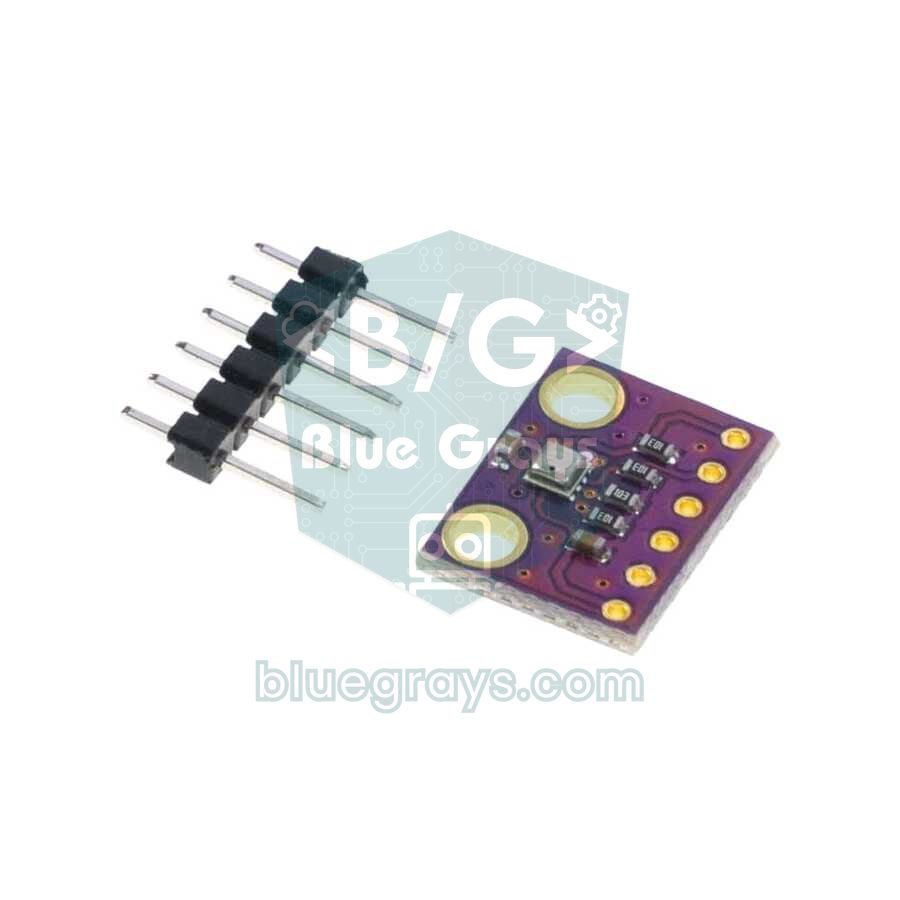
The BME280 is a digital environmental sensor made by Bosch that measures temperature, relative humidity and air pressure in one tiny chip. To use it with an Arduino you only need four wires (VCC, GND, SDA, SCL) and the Adafruit BME280 library; a few lines of code show °C, % and hPa readings in the Serial Monitor. Because it measures pressure, it can also work out your height above sea level, in other words your altitude. Its sibling, the BMP280, looks almost identical but doesn't measure humidity; it only gives temperature and pressure.
In this guide you'll learn the difference between the two sensors, why the I2C address is sometimes 0x76 and sometimes 0x77, how to wire them to an Arduino Uno, ESP32 and Raspberry Pi Pico, how the altitude formula works and how to pick the right sea-level pressure. Then you'll build an ESP32 mini weather station that opens on your phone, run a library-free MicroPython driver on the Pico and see how a single sketch exposes the very common "BMP280 sold as a BME280" problem.
What is the BME280 and how does it work?
The BME280 contains three sensing elements. The pressure sensor measures how much a thin silicon membrane flexes under the air pressing on it, using the piezoresistive effect. The humidity sensor is a polymer layer whose capacitance changes as it absorbs moisture from the air. The temperature sensor reports the ambient temperature and is also used to correct the other two measurements. Every chip is calibrated individually at the factory and the coefficients are stored in its internal memory; the library reads them at start-up and converts the raw numbers into real units with the formulas from the datasheet. The small hole in the metal lid lets air reach the sensor, so never cover it with tape or glue.
| Feature | BME280 | BMP280 |
|---|---|---|
| Measures | Temperature, humidity, pressure | Temperature, pressure |
| Temperature | -40…+85 °C, ±1 °C (±0.5 °C at 25 °C) | -40…+85 °C, ±1 °C (±0.5 °C at 25 °C) |
| Relative humidity | 0–100 %, ±3 % | None |
| Pressure range | 300–1100 hPa | 300–1100 hPa |
| Pressure accuracy | Absolute ±1 hPa, relative ±0.12 hPa (≈ ±1 m) | Absolute ±1 hPa, relative ±0.12 hPa (≈ ±1 m) |
| Chip supply voltage | 1.71–3.6 V | 1.71–3.6 V |
| Current (1 reading per second) | 3.6 µA (all three measurements) | 2.7 µA |
| Sleep current | 0.1 µA | 0.1 µA |
| Interface | I2C (up to 3.4 MHz) and SPI (up to 10 MHz) | I2C and SPI |
| Chip ID (register 0xD0) | 0x60 | 0x58 |
| Chip size | 2.5 × 2.5 mm (square) | 2.0 × 2.5 mm (rectangular) |
In short, the BMP280 is a slightly cheaper BME280 without the humidity sensor; its pressure and temperature readings are just as good. If you only need altitude or air pressure, a BMP280 is enough. For projects where humidity matters, such as a weather station, a greenhouse or room climate monitoring, choose the BME280. One step up the family, the BME680/BME688 adds a gas sensor that detects volatile organic compounds (VOCs) in the air, but it costs several times more.
BME280 or DHT11/DHT22?
| Feature | DHT11 | DHT22 | BME280 |
|---|---|---|---|
| Temperature range and accuracy | 0–50 °C, ±2 °C | -40…+80 °C, ±0.5 °C | -40…+85 °C, ±1 °C |
| Humidity accuracy | ±5 % | ±2–5 % | ±3 % |
| Pressure and altitude | No | No | Yes |
| Fastest reading | Once per second | Once every 2 seconds | Dozens per second |
| Connection | Single data wire | Single data wire | I2C or SPI |
| Current (while measuring) | ≈ 1 mA | ≈ 1.5 mA | Under 1 mA |
DHT sensors are cheap and simple, but they're slow, occasionally return read errors and can't measure pressure. The BME280 shares the same I2C bus with other devices such as a display, draws almost no current while asleep and is ideal for projects that run on batteries for months. For the details of the DHT11, see DHT11 Temperature and Humidity Sensor, and to see every option side by side, read the temperature sensor comparison.
Module types and the 3.3 V warning
The bare chip is so small that it's always used on a breakout board, and two types are common. 6-pin modules (usually purple and sold as GY-BME280-3.3 or GY-BMP280-3.3) have VCC, GND, SCL, SDA, CSB and SDO pins; most of them have no regulator, and the 3.3 in the name tells you exactly that: power them from 3.3 V only. 4-pin modules (VIN, GND, SCL, SDA) usually carry a small 3.3 V regulator and often level-shifting transistors for the I2C lines, so they can go on the Arduino Uno's 5V pin. If you're not sure which type you have, look for a tiny three-legged regulator chip on the board; if there isn't one, use 3.3 V.
BME280 wiring: Arduino Uno, ESP32 and Pico
| BME280 pin | Arduino Uno | ESP32 | Raspberry Pi Pico |
|---|---|---|---|
| VCC / VIN | 3.3V (6-pin) or 5V (4-pin, with regulator) | 3V3 | 3V3(OUT), pin 36 |
| GND | GND | GND | GND, pin 38 |
| SCL | A5 | GPIO 22 | GP5, pin 7 |
| SDA | A4 | GPIO 21 | GP4, pin 6 |
| CSB (6-pin) | 3.3V (selects I2C) | 3V3 | 3V3 |
| SDO (6-pin) | Open or GND: 0x76, 3.3V: 0x77 | Open or GND: 0x76, 3V3: 0x77 | Open or GND: 0x76, 3V3: 0x77 |
The address is where most people get stuck. If the chip's SDO pin is at GND the address is 0x76; if it's at 3.3 V it's 0x77. Most cheap modules pull SDO to GND with a resistor, so their address is 0x76, while Adafruit's own boards use 0x77, and the library tries 0x77 by default. That's why you should write the address explicitly in your code. If the CSB pin is at GND at power-up, the chip switches to SPI mode and won't answer on I2C; if you're using I2C, connect CSB to 3.3 V or make sure the module already pulls it up. You'll find your board's I2C pins in the Pinout tool and the logic of the I2C bus in What is I2C?.
If you want two sensors on the same bus, connect one sensor's SDO pin to 3.3 V to change its address to 0x77; on 4-pin modules this is usually done with a solder jumper on the back. For more than two sensors SPI is a better fit: SCL goes to SCK (13 on the Uno), SDA to MOSI (11), SDO to MISO (12), and each sensor's CSB pin goes to its own digital pin; in code you just declare the object as Adafruit_BME280 bme(10);. Because the 5 V Uno drives the SPI lines directly, you must put a level shifter between it and a 3.3 V module.
Installing the Adafruit BME280 library
- In the Arduino IDE, open Tools > Manage Libraries and search for Adafruit BME280.
- When you click Install, choose Install all in the window that asks about dependencies, so that Adafruit Unified Sensor and Adafruit BusIO are installed too.
- If your sensor is a BMP280, install the Adafruit BMP280 library the same way; the BME280 library doesn't recognise the BMP280.
- If you like, open File > Examples > Adafruit BME280 Library > bme280test, but don't forget to put the address (0x76) in the begin() line.
First sketch: reading temperature, humidity and pressure with the BME280
1#include <Wire.h>
2#include <Adafruit_Sensor.h>
3#include <Adafruit_BME280.h>
4
5#define DENIZ_SEVIYESI_HPA 1013.25   // bugünkü deniz seviyesi basıncı / today's sea-level pressure
6
7Adafruit_BME280 bme;
8
9void setup() {
10  Serial.begin(9600);
11  // Önce 0x76, olmazsa 0x77 dene / try 0x76 first, then 0x77
12  if (!bme.begin(0x76) && !bme.begin(0x77)) {
13    Serial.println(F("BME280 bulunamadi! Kablolari ve adresi kontrol et."));
14    Serial.print(F("Chip ID: 0x"));
15    Serial.println(bme.sensorID(), HEX);       // 0x58 ise bu bir BMP280 / 0x58 means BMP280
16    while (true) delay(10);
17  }
18  Serial.println(F("BME280 hazir"));
19}
20
21void loop() {
22  float sicaklik = bme.readTemperature();          // °C
23  float nem      = bme.readHumidity();             // % bağıl nem / % relative humidity
24  float basinc   = bme.readPressure() / 100.0F;    // Pa -> hPa
25  float irtifa   = bme.readAltitude(DENIZ_SEVIYESI_HPA);   // metre / meters
26
27  Serial.print(F("Sicaklik: ")); Serial.print(sicaklik, 1); Serial.println(F(" C"));
28  Serial.print(F("Nem:      ")); Serial.print(nem, 1);      Serial.println(F(" %"));
29  Serial.print(F("Basinc:   ")); Serial.print(basinc, 1);   Serial.println(F(" hPa"));
30  Serial.print(F("Irtifa:   ")); Serial.print(irtifa, 0);   Serial.println(F(" m"));
31  Serial.println();
32  delay(2000);
33}| Function | What it does |
|---|---|
| bme.begin(0x76) | Starts the sensor; returns true if a device answers at the address and its chip ID is 0x60 |
| readTemperature() | Temperature, °C |
| readHumidity() | Relative humidity, % |
| readPressure() | Pressure, Pa (divide by 100 for hPa) |
| readAltitude(P0) | Height relative to the sea-level pressure P0 (hPa), in metres |
| seaLevelForAltitude(altitude, P) | Sea-level pressure from a known altitude, hPa |
| sensorID() | The chip ID that was read: 0x60 BME280, 0x58 BMP280 |
| setTemperatureCompensation(x) | Adds x °C to every temperature reading; humidity and pressure are corrected accordingly |
When you upload the sketch and open the Serial Monitor at 9600 baud, you'll see values of roughly 23.4 °C, 45 % humidity and 1009.8 hPa at room conditions. Pressure changes slowly over hours; breathe on the sensor and you'll watch the humidity rise within seconds, touch it with a finger and the temperature climbs. By default the library measures continuously in normal mode with the highest oversampling (x16); that's ideal for a first test, but as you'll see below, a different setting gives more accurate results for long-term weather measurements.
Measurement modes: forced, normal and the right settings
The BME280 has three modes. In sleep mode it doesn't measure and draws 0.1 µA. In forced mode it takes a single measurement and goes back to sleep; for every new value you call takeForcedMeasurement(). In normal mode it keeps measuring by itself with the standby time you set. Oversampling measures the same value several times and averages it to reduce noise, and the IIR filter smooths out sudden pressure spikes (a slammed door, a gust of wind). In its datasheet, Bosch recommends these settings depending on the use case:
| Use case | Mode | Oversampling (pressure / temperature / humidity) | IIR filter | Average current |
|---|---|---|---|---|
| Weather monitoring | Forced, 1 reading per minute | x1 / x1 / x1 | Off | ≈ 0.16 µA |
| Humidity sensing | Forced, 1 reading per second | Skipped / x1 / x1 | Off | ≈ 2.9 µA |
| Indoor navigation (floors, lifts) | Normal, 0.5 ms standby | x16 / x2 / x1 | 16 | ≈ 633 µA |
Sea-level pressure and calculating altitude
Air pressure drops as you go higher, so altitude can be calculated from the measured pressure. The library uses this barometric formula: h = 44330 × (1 − (P / P0)^0.1903). Here P is the pressure you measure and P0 is the current sea-level pressure (both in hPa). The standard atmosphere assumes P0 = 1013.25 hPa, and near sea level a difference of 1 hPa corresponds to about 8.3 metres.
The catch is that P0 isn't fixed; it moves roughly between 990 and 1035 hPa with the weather. If the real value today is 1023 hPa and you leave 1013.25 in your code, the sensor will show an altitude about 80 metres too low. To get accurate results you need to keep P0 up to date: use the "sea-level pressure" value given by weather services, or the Q value in the METAR report of the nearest airport (for example Q1018, meaning 1018 hPa). You can also work the other way round: if you know the altitude of your location, calculate P0 with seaLevelForAltitude(altitude, pressure). For example, if the sensor reads 905 hPa in Ankara (about 938 m), the pressure reduced to sea level is about 1012.6 hPa, which is the number you see in weather apps.
For absolute altitude, the ±1 hPa absolute accuracy means an uncertainty of around ±8 metres. In relative measurements, though, the sensor is far better: ±0.12 hPa ≈ ±1 m. A storey in a building is about 3 metres, or 0.36 hPa, so the BME280 can easily tell which floor you're on or detect a lift moving. The sketch below takes the average of 20 readings at start-up as its reference, then prints the height relative to that point and the sea-level pressure calculated from a known altitude:
1#include <Wire.h>
2#include <Adafruit_Sensor.h>
3#include <Adafruit_BME280.h>
4
5#define BILINEN_IRTIFA 938.0   // bulunduğun yerin rakımı (m), örnek Ankara / your altitude (m), e.g. Ankara
6
7Adafruit_BME280 bme;
8float referansHpa;             // açılıştaki basınç / pressure at start-up
9
10void setup() {
11  Serial.begin(9600);
12  if (!bme.begin(0x76)) {
13    Serial.println(F("BME280 bulunamadi!"));
14    while (true) delay(10);
15  }
16  // İç mekan navigasyonu ayarı: düşük gürültü / indoor navigation preset: low noise
17  bme.setSampling(Adafruit_BME280::MODE_NORMAL,
18                  Adafruit_BME280::SAMPLING_X2,    // sıcaklık / temperature
19                  Adafruit_BME280::SAMPLING_X16,   // basınç / pressure
20                  Adafruit_BME280::SAMPLING_X1,    // nem / humidity
21                  Adafruit_BME280::FILTER_X16,     // IIR filtre / IIR filter
22                  Adafruit_BME280::STANDBY_MS_0_5);
23  delay(1000);                                      // filtre otursun / let the filter settle
24
25  float toplam = 0;
26  for (int i = 0; i < 20; i++) {                   // 20 ölçümün ortalaması / average of 20 readings
27    toplam += bme.readPressure() / 100.0F;
28    delay(50);
29  }
30  referansHpa = toplam / 20;
31}
32
33void loop() {
34  float basinc = bme.readPressure() / 100.0F;                               // istasyon basıncı / station pressure
35  float denizSeviyesi = bme.seaLevelForAltitude(BILINEN_IRTIFA, basinc);    // hPa
36  float bagilYukseklik = bme.readAltitude(referansHpa);                     // başlangıca göre / relative to start
37
38  Serial.print(F("Istasyon basinci: "));   Serial.print(basinc, 2);         Serial.println(F(" hPa"));
39  Serial.print(F("Deniz seviyesi (QNH): ")); Serial.print(denizSeviyesi, 1); Serial.println(F(" hPa"));
40  Serial.print(F("Baslangica gore: "));    Serial.print(bagilYukseklik, 2); Serial.println(F(" m"));
41  Serial.println();
42  delay(1000);
43}
If you pick the board up from the floor and lift it above your head, you'll see the "Baslangica gore" (relative to start) value rise by about 2 metres. Because air pressure changes by a few hPa during the day, this relative reading drifts after a few hours, so in long-term use you need to refresh the reference now and then. To calm the readings down even more, you can add the moving average from Filtering Sensor Data.
ESP32 mini weather station: a web page you open on your phone
Thanks to the ESP32's Wi-Fi, you can view the BME280 readings on a web page from any phone or computer on the same network. The sketch below uses the WebServer library that comes with the ESP32 core, so it needs no extra library. The main page loads once, then a small piece of JavaScript inside it fetches JSON from /veri every 5 seconds and updates the values without reloading the page. The sensor runs in forced mode, so it only takes a measurement when someone is looking at the page, and the pressure is shown reduced to sea level so you can compare it with weather forecasts. If this is your first time with the ESP32, start with What is the ESP32?.
- Wire the BME280 as in the table: VCC to 3V3, SDA to GPIO 21, SCL to GPIO 22.
- Enter your network details in the WIFI_ADI (network name) and WIFI_SIFRE (password) fields of the code, and the altitude of your location in RAKIM_M.
- Select ESP32 Dev Module as the board and upload the sketch.
- Open the Serial Monitor at 115200 baud; once connected, it prints the IP address.
- Type that address (for example 192.168.1.42) into the browser of a phone on the same Wi-Fi network; cards for temperature, humidity and pressure appear.
1#include <WiFi.h>
2#include <WebServer.h>
3#include <Wire.h>
4#include <Adafruit_Sensor.h>
5#include <Adafruit_BME280.h>
6
7const char* WIFI_ADI   = "WiFiAdin";      // kendi ağ adın / your network name
8const char* WIFI_SIFRE = "WiFiSifren";    // kendi şifren / your password
9const float RAKIM_M    = 938.0;           // bulunduğun yerin rakımı / your local altitude
10
11Adafruit_BME280 bme;
12WebServer server(80);
13
14// Telefonda açılan sayfa, 5 sn'de bir /veri'yi okur / phone page, reads /veri every 5 s
15const char SAYFA[] PROGMEM = R"rawliteral(
16<!DOCTYPE html><html><head><meta charset="utf-8">
17<meta name="viewport" content="width=device-width,initial-scale=1">
18<title>Mini Hava İstasyonu</title>
19<style>
20body{font-family:sans-serif;text-align:center;background:#0f172a;color:#e2e8f0;margin:0;padding:16px}
21.k{display:inline-block;min-width:140px;margin:8px;padding:16px;border-radius:14px;background:#1e293b}
22.d{font-size:2.2em;font-weight:bold;margin:6px 0}
23</style></head><body>
24<h2>Mini Hava İstasyonu</h2>
25<div class="k">Sıcaklık<div class="d" id="t">--</div>°C</div>
26<div class="k">Nem<div class="d" id="h">--</div>%</div>
27<div class="k">Basınç<div class="d" id="p">--</div>hPa</div>
28<script>
29async function guncelle() {
30  const v = await (await fetch('/veri')).json();
31  document.getElementById('t').textContent = v.t.toFixed(1);
32  document.getElementById('h').textContent = v.h.toFixed(0);
33  document.getElementById('p').textContent = v.p.toFixed(1);
34}
35guncelle();
36setInterval(guncelle, 5000);
37</script>
38</body></html>
39)rawliteral";
40
41void anaSayfa() {
42  server.send(200, "text/html", SAYFA);
43}
44
45void veriGonder() {
46  bme.takeForcedMeasurement();                     // tek ölçüm al, sonra uyu / one measurement, then sleep
47  float p = bme.readPressure() / 100.0F;
48  String json = "{\"t\":" + String(bme.readTemperature(), 2) +
49                ",\"h\":" + String(bme.readHumidity(), 1) +
50                ",\"p\":" + String(bme.seaLevelForAltitude(RAKIM_M, p), 1) + "}";
51  server.send(200, "application/json", json);
52}
53
54void setup() {
55  Serial.begin(115200);
56  Wire.begin(21, 22);                              // SDA, SCL
57  if (!bme.begin(0x76)) {
58    Serial.println("BME280 bulunamadi!");
59    while (true) delay(10);
60  }
61  // Hava durumu izleme ayarı: kendi kendini ısıtmayı azaltır / weather monitoring preset: less self-heating
62  bme.setSampling(Adafruit_BME280::MODE_FORCED,
63                  Adafruit_BME280::SAMPLING_X1,    // sıcaklık / temperature
64                  Adafruit_BME280::SAMPLING_X1,    // basınç / pressure
65                  Adafruit_BME280::SAMPLING_X1,    // nem / humidity
66                  Adafruit_BME280::FILTER_OFF);
67
68  WiFi.mode(WIFI_STA);
69  WiFi.begin(WIFI_ADI, WIFI_SIFRE);
70  while (WiFi.status() != WL_CONNECTED) {
71    delay(500);
72    Serial.print(".");
73  }
74  Serial.print("\nTarayicida ac / open in browser: http://");
75  Serial.println(WiFi.localIP());
76
77  server.on("/", anaSayfa);
78  server.on("/veri", veriGonder);
79  server.begin();
80}
81
82void loop() {
83  server.handleClient();
84}BME280 with the Raspberry Pi Pico (MicroPython)
MicroPython has no built-in module for the BME280. Instead of downloading a driver file, the code below carries a small driver inside it: it reads the calibration coefficients, has the sensor take a single measurement in forced mode and calculates the result with the datasheet formulas. Because it checks the chip ID, it also works with the BMP280 and skips the humidity line by itself. Connect the sensor to GP4 (SDA), GP5 (SCL) and 3V3(OUT), and save the code to the Pico in Thonny as main.py. If the Pico is new to you, What is the Raspberry Pi Pico? and MicroPython Basics will make things easier.
1from machine import Pin, I2C
2import struct, time
3
4i2c = I2C(0, sda=Pin(4), scl=Pin(5), freq=400000)
5ADR = 0x76                                   # olmazsa 0x77 dene / try 0x77 if it fails
6P0 = 1013.25                                 # deniz seviyesi basıncı (hPa) / sea-level pressure (hPa)
7
8def s8(x):                                   # işaretli 8 bit / signed 8-bit
9    return x - 256 if x > 127 else x
10
11chip = i2c.readfrom_mem(ADR, 0xD0, 1)[0]
12BME = chip == 0x60                           # 0x60 BME280, 0x58 BMP280
13print("Chip ID:", hex(chip), "BME280" if BME else "BMP280 (nem yok / no humidity)")
14
15# Fabrika kalibrasyon katsayıları / factory calibration coefficients
16T1, T2, T3, P1, P2, P3, P4, P5, P6, P7, P8, P9 = struct.unpack("<HhhHhhhhhhhh", i2c.readfrom_mem(ADR, 0x88, 24))
17if BME:
18    H1 = i2c.readfrom_mem(ADR, 0xA1, 1)[0]
19    e = i2c.readfrom_mem(ADR, 0xE1, 7)
20    H2 = struct.unpack("<h", e[0:2])[0]
21    H3 = e[2]
22    H4 = (s8(e[3]) << 4) | (e[4] & 0x0F)
23    H5 = (s8(e[5]) << 4) | (e[4] >> 4)
24    H6 = s8(e[6])
25    i2c.writeto_mem(ADR, 0xF2, b"\x01")      # nem x1 (ctrl_meas'tan önce) / humidity x1 (before ctrl_meas)
26
27def oku():
28    i2c.writeto_mem(ADR, 0xF4, b"\x25")      # sıcaklık x1, basınç x1, forced mod / temp x1, press x1, forced mode
29    time.sleep_ms(15)                        # ölçümün bitmesini bekle / wait for the measurement
30    d = i2c.readfrom_mem(ADR, 0xF7, 8 if BME else 6)
31    adc_p = (d[0] << 12) | (d[1] << 4) | (d[2] >> 4)
32    adc_t = (d[3] << 12) | (d[4] << 4) | (d[5] >> 4)
33
34    # Sıcaklık (datasheet formülü) / temperature (datasheet formula)
35    v1 = (adc_t / 16384 - T1 / 1024) * T2
36    v2 = (adc_t / 131072 - T1 / 8192) ** 2 * T3
37    t_fine = v1 + v2
38    t = t_fine / 5120
39
40    # Basınç, Pa / pressure, Pa
41    v1 = t_fine / 2 - 64000
42    v2 = v1 * v1 * P6 / 32768 + v1 * P5 * 2
43    v2 = v2 / 4 + P4 * 65536
44    v1 = (P3 * v1 * v1 / 524288 + P2 * v1) / 524288
45    v1 = (1 + v1 / 32768) * P1
46    p = 1048576 - adc_p
47    p = (p - v2 / 4096) * 6250 / v1
48    p = p + (P9 * p * p / 2147483648 + p * P8 / 32768 + P7) / 16
49
50    h = None
51    if BME:                                  # nem, % / humidity, %
52        adc_h = (d[6] << 8) | d[7]
53        x = t_fine - 76800
54        x = (adc_h - (H4 * 64 + H5 / 16384 * x)) * (H2 / 65536 * (1 + H6 / 67108864 * x * (1 + H3 / 67108864 * x)))
55        x = x * (1 - H1 * x / 524288)
56        h = min(max(x, 0), 100)
57    return t, p / 100, h                     # °C, hPa, %
58
59while True:
60    t, p, h = oku()
61    irtifa = 44330 * (1 - (p / P0) ** 0.1903)    # metre / meters
62    print("Sicaklik: %.1f C  Basinc: %.1f hPa  Irtifa: %.0f m" % (t, p, irtifa))
63    if h is not None:
64        print("Nem: %.1f %%" % h)
65    time.sleep(2)
A few details in the code are worth noting. The humidity setting (register 0xF2) only takes effect after a write to 0xF4, so the humidity setting is sent first and the measurement command second. The value 0x25 written to 0xF4 means "temperature x1, pressure x1, forced mode"; with these settings a measurement takes at most about 10 ms, so waiting 15 ms is enough. Tested with the sample calibration values from Bosch's BMP280 datasheet, the code returns 25.08 °C and 1006.5 hPa, so its calculations match Bosch's formulas exactly.
The BMP280 sold as a BME280: which sensor do you really have?
Because both chips fit the same board design, some sellers sell BMP280 modules as BME280s; sometimes the board just says "BME/BMP280". The symptom is always the same: the Adafruit BME280 library prints "Could not find a valid BME280 sensor, check wiring, address, sensor ID!" and right below it SensorID was: 0x58. Other libraries show no error but always report humidity as 0 or nan. There's nothing wrong with your wiring; the chip you have is a BMP280, which doesn't measure humidity.
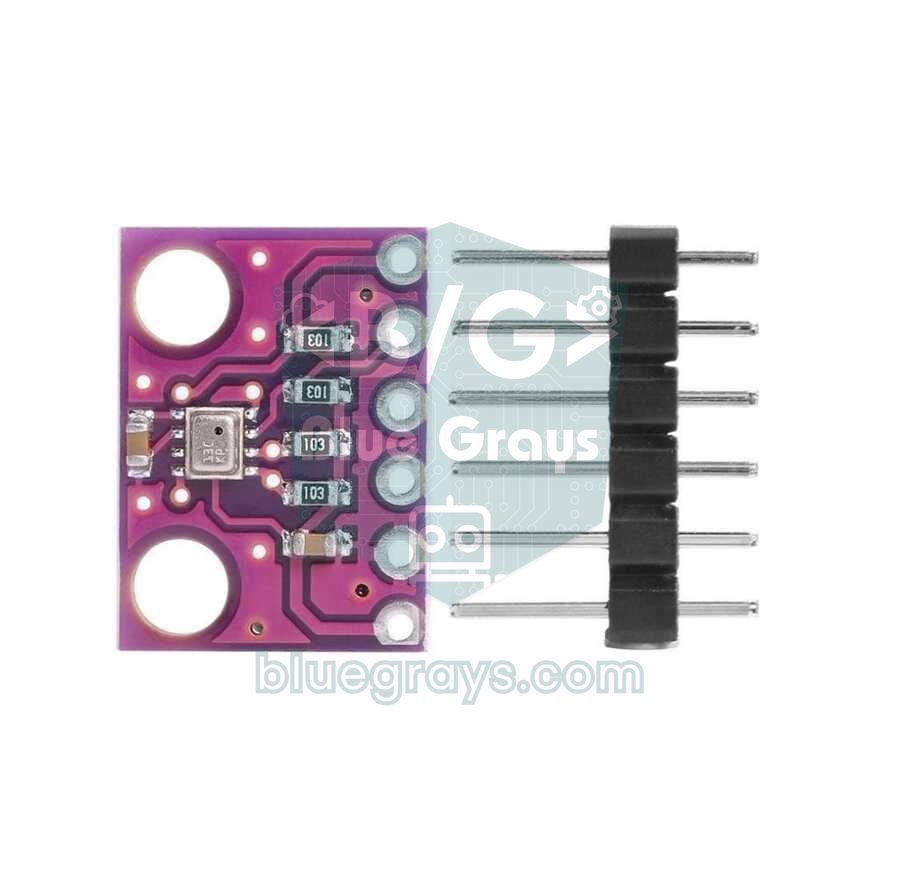
- Look at the shape of the chip: if the metal lid is square (2.5 × 2.5 mm) it's a BME280; if it's clearly rectangular (2.0 × 2.5 mm) it's a BMP280. Zoom in with your phone camera and the difference is easy to see.
- Read the chip ID: the most reliable method is the sketch below; it reads the ID in the chip's 0xD0 register and tells you which sensor it is.
- Watch the price: a genuine BME280 costs noticeably more than a BMP280, so be suspicious of "BME280" modules sold far below the market price.
1#include <Wire.h>
2
3void setup() {
4  Serial.begin(9600);
5  Wire.begin();
6  bool bulundu = false;
7
8  for (uint8_t adres = 0x76; adres <= 0x77; adres++) {
9    Wire.beginTransmission(adres);
10    if (Wire.endTransmission() != 0) continue;   // bu adreste cihaz yok / no device at this address
11
12    Wire.beginTransmission(adres);
13    Wire.write(0xD0);                             // chip ID register'ı / chip ID register
14    Wire.endTransmission();
15    Wire.requestFrom(adres, (uint8_t)1);
16    uint8_t id = Wire.read();
17    bulundu = true;
18
19    Serial.print(F("Adres 0x"));
20    Serial.print(adres, HEX);
21    Serial.print(F("  Chip ID 0x"));
22    Serial.print(id, HEX);
23    if (id == 0x60)                    Serial.println(F("  -> BME280 (sicaklik + nem + basinc)"));
24    else if (id >= 0x56 && id <= 0x58) Serial.println(F("  -> BMP280 (nem olcmez)"));
25    else if (id == 0x61)               Serial.println(F("  -> BME680 / BME688"));
26    else if (id == 0x55)               Serial.println(F("  -> BMP180"));
27    else                               Serial.println(F("  -> bilinmeyen yonga / unknown chip"));
28  }
29
30  if (!bulundu) Serial.println(F("0x76 ve 0x77'de sensor yok: kablolari kontrol et"));
31}
32
33void loop() {
34}
If the result is 0x58, don't worry: the BMP280's temperature and pressure readings are just as good as the BME280's. Install the Adafruit BMP280 library and use the sketch below; if you need humidity, add a separate DHT22 to the project or return the product. Occasionally you'll also come across BMP280 samples with ID 0x56 or 0x57; for those, write the begin line as bmp.begin(0x76, 0x56).
1#include <Wire.h>
2#include <Adafruit_BMP280.h>
3
4Adafruit_BMP280 bmp;
5
6void setup() {
7  Serial.begin(9600);
8  if (!bmp.begin(0x76) && !bmp.begin(0x77)) {
9    Serial.println(F("BMP280 bulunamadi! Kablolari ve adresi kontrol et."));
10    while (true) delay(10);
11  }
12  // Datasheet'in önerdiği varsayılan ayarlar / default settings from the datasheet
13  bmp.setSampling(Adafruit_BMP280::MODE_NORMAL,
14                  Adafruit_BMP280::SAMPLING_X2,     // sıcaklık / temperature
15                  Adafruit_BMP280::SAMPLING_X16,    // basınç / pressure
16                  Adafruit_BMP280::FILTER_X16,      // IIR filtre / IIR filter
17                  Adafruit_BMP280::STANDBY_MS_500); // bekleme süresi / standby time
18}
19
20void loop() {
21  Serial.print(F("Sicaklik: ")); Serial.print(bmp.readTemperature(), 1);       Serial.println(F(" C"));
22  Serial.print(F("Basinc:   ")); Serial.print(bmp.readPressure() / 100.0F, 1); Serial.println(F(" hPa"));
23  Serial.print(F("Irtifa:   ")); Serial.print(bmp.readAltitude(1013.25), 0);   Serial.println(F(" m"));
24  Serial.println();
25  delay(2000);
26}
BME280 project ideas
- Desktop weather station: show temperature, humidity and pressure on an OLED display or an I2C LCD sharing the same I2C bus.
- Barometric weather forecast: log the pressure every hour; a drop of more than 2 hPa in 3 hours usually signals worsening weather, while a steady rise points to clear skies.
- Dew point and mould warning: calculate the dew point with the Magnus formula (a = 17.62, b = 243.12 °C) and raise an alert when the wall temperature gets close to it.
- Smart greenhouse: run a fan or a misting pump based on humidity and temperature; details in the Arduino smart greenhouse project.
- Data logger: write the readings to an SD card module or, with an ESP32, to Google Sheets and plot a weekly chart.
- Smart home sensor: send the values from an ESP32 to Home Assistant over MQTT.
- Battery-powered outdoor station: wake the ESP32 from deep sleep every 10 minutes; the BME280 draws only 0.1 µA while asleep.
- Floor counter: use the relative altitude sketch to show which floor you've reached in a lift or on the stairs.
Common mistakes and how to fix them
| Symptom | Likely cause | Fix |
|---|---|---|
| "Could not find a valid BME280 sensor", SensorID 0x0 or 0xFF | Wrong address or a wiring fault | Use begin(0x76), check that SDA and SCL aren't swapped and that GND is connected, run an I2C scanner |
| Same error, SensorID 0x58 | The chip is actually a BMP280 | Use the Adafruit BMP280 library and add a separate sensor for humidity |
| fatal error: Adafruit_Sensor.h: No such file or directory | A dependency library isn't installed | Install the Adafruit Unified Sensor library |
| Readings are nan | No new measurement requested in forced mode, or begin() failed | Call takeForcedMeasurement() before each reading and check the result of begin() |
| Temperature 1–3 °C too high | Self-heating from continuous measurement, heat from a nearby ESP32 or regulator | Switch to forced mode, move the sensor away from the board, use setTemperatureCompensation() if needed |
| Pressure as low as 900 hPa | This is station pressure; it falls as altitude rises | Reduce it to sea level with seaLevelForAltitude() to compare with forecasts |
| Altitude off by tens of metres | Sea-level pressure left at 1013.25 | Enter the current P0 (QNH) or calibrate with a known altitude |
| Random freezes on long wires | The I2C bus is long and noisy | Keep the cable under 50 cm, lower the I2C speed or use SPI |
The BME280 handles every basic measurement of a weather station on one small board: first confirm the address and chip ID, then choose the measurement mode to suit your goal, and keep the sea-level pressure up to date for altitude. In the BlueGrays app you'll find projects you can combine with this guide, such as temperature and humidity measurement with the DHT11 and DHT22, ESP32 weather displays, a temperature logger and an ESP32 web server, each with step-by-step circuit diagrams and code.
Frequently asked questions
What is the difference between the BME280 and BMP280?
The BME280 measures temperature, relative humidity and pressure; the BMP280 only measures temperature and pressure and has no humidity sensor. Their pressure and temperature accuracy is the same. The chips also differ: the BME280 is square (2.5 × 2.5 mm), the BMP280 rectangular (2.0 × 2.5 mm), and their chip IDs are 0x60 and 0x58.
Is the BME280 I2C address 0x76 or 0x77?
It's 0x76 when the SDO pin is tied to GND and 0x77 when it's tied to 3.3 V. Most cheap modules use 0x76, while Adafruit boards use 0x77. The Adafruit library tries 0x77 by default, so you may need to write bme.begin(0x76) in your code; if you're unsure, run an I2C scanner sketch.
Does the BME280 work with 5V?
The chip itself runs on 3.6 V at most. Most 4-pin modules labelled VIN have a regulator, so they can be connected to 5V. Power 6-pin, regulator-less 3.3 V modules from 3.3 V only; 5 V can damage the sensor.
How do I fix "Could not find a valid BME280 sensor"?
First check the SensorID value printed under the error. If it's 0x58, your sensor is a BMP280 and you should use the Adafruit BMP280 library. If it's 0x0 or 0xFF, it's an address or wiring problem: try begin(0x76), make sure SDA and SCL aren't swapped and that the CSB pin is at 3.3 V.
How accurate is BME280 altitude measurement?
It measures changes in relative height to about ±1 m, which is enough to detect a change of floor. Absolute altitude depends on the sea-level pressure you enter; an error of 1 hPa shifts the result by about 8 m. If you enter the current QNH value or calibrate with a known altitude, you can get within a few metres.
Why does my BME280 read the temperature too high?
The most common causes are self-heating from continuous measurement and heat from nearby parts such as the ESP32 or a regulator. Switch to forced mode, take a few readings per minute and move the sensor away from the board on a cable. If a constant offset remains, compare it with a reliable thermometer and correct it with setTemperatureCompensation().
Projects to build after reading this
See all projects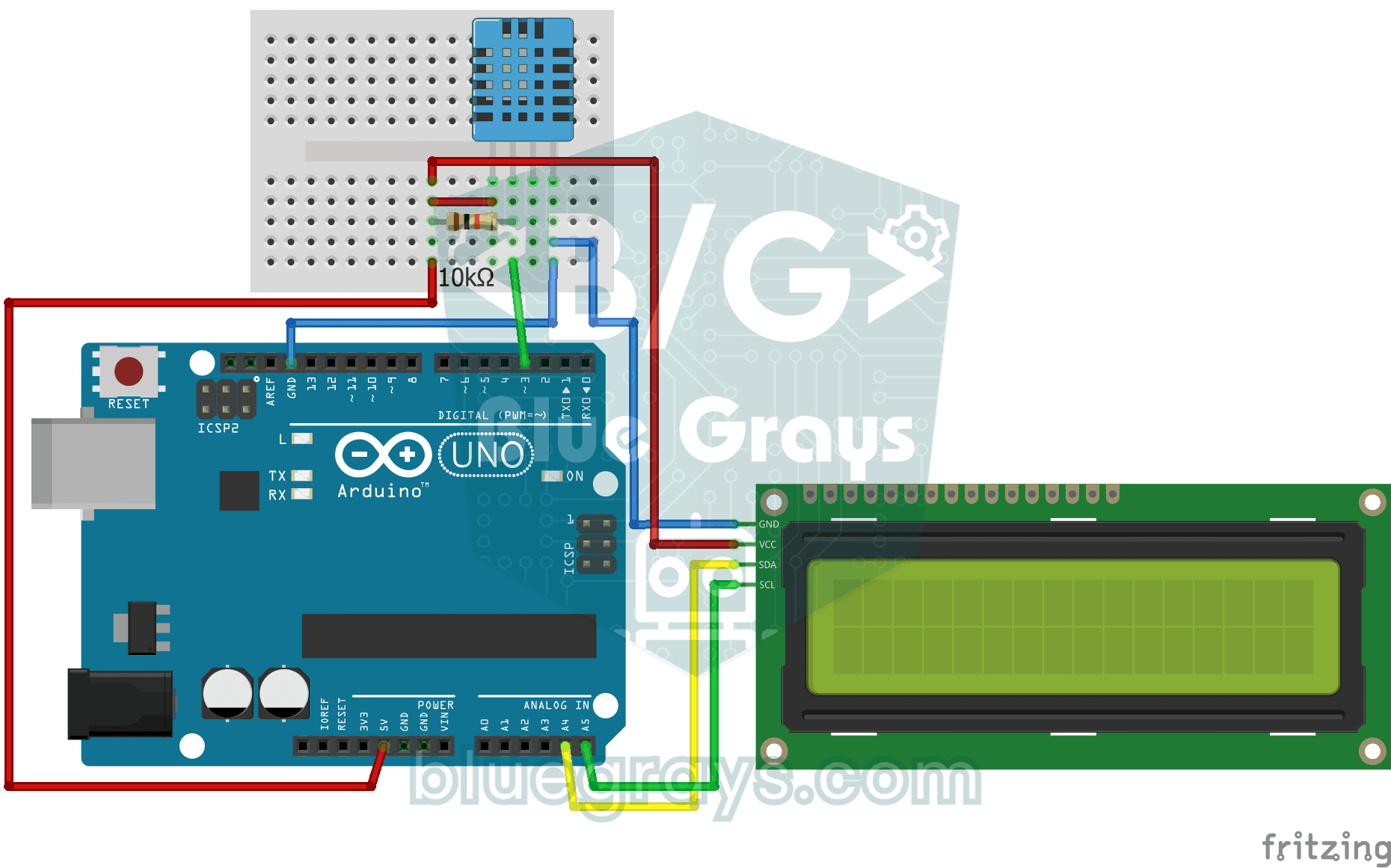
Temperature and Humidity with DHT11
How warm is your room, and is the air humid or dry? The DHT11 sensor measures temperature and humidity, and the Arduino writes the values on a two-line LCD screen, refreshing every couple of seconds.

ESP32 DHT22 Temperature and Humidity (with LCD Display)
This project measures ambient temperature and humidity using a DHT22 sensor and displays the data in real time on a 16x2 I2C LCD. Data is read from the sensor using the one-wire protocol via the Adafruit DHT library. This project serves as the foundation for IoT weather stations, smart home automation, or environmental monitoring systems in greenhouses. Communication with the DHT22 is established via the ESP32's GPIO 4 pin.

Dot Matrix Clock, Calendar and Weather Station (MAX7219, DS1307)
A scrolling-text board for your desk or wall that shows the time, the date and the room's weather in turn. On the 8x32 LED display you first see the temperature in both Celsius and Fahrenheit, then th
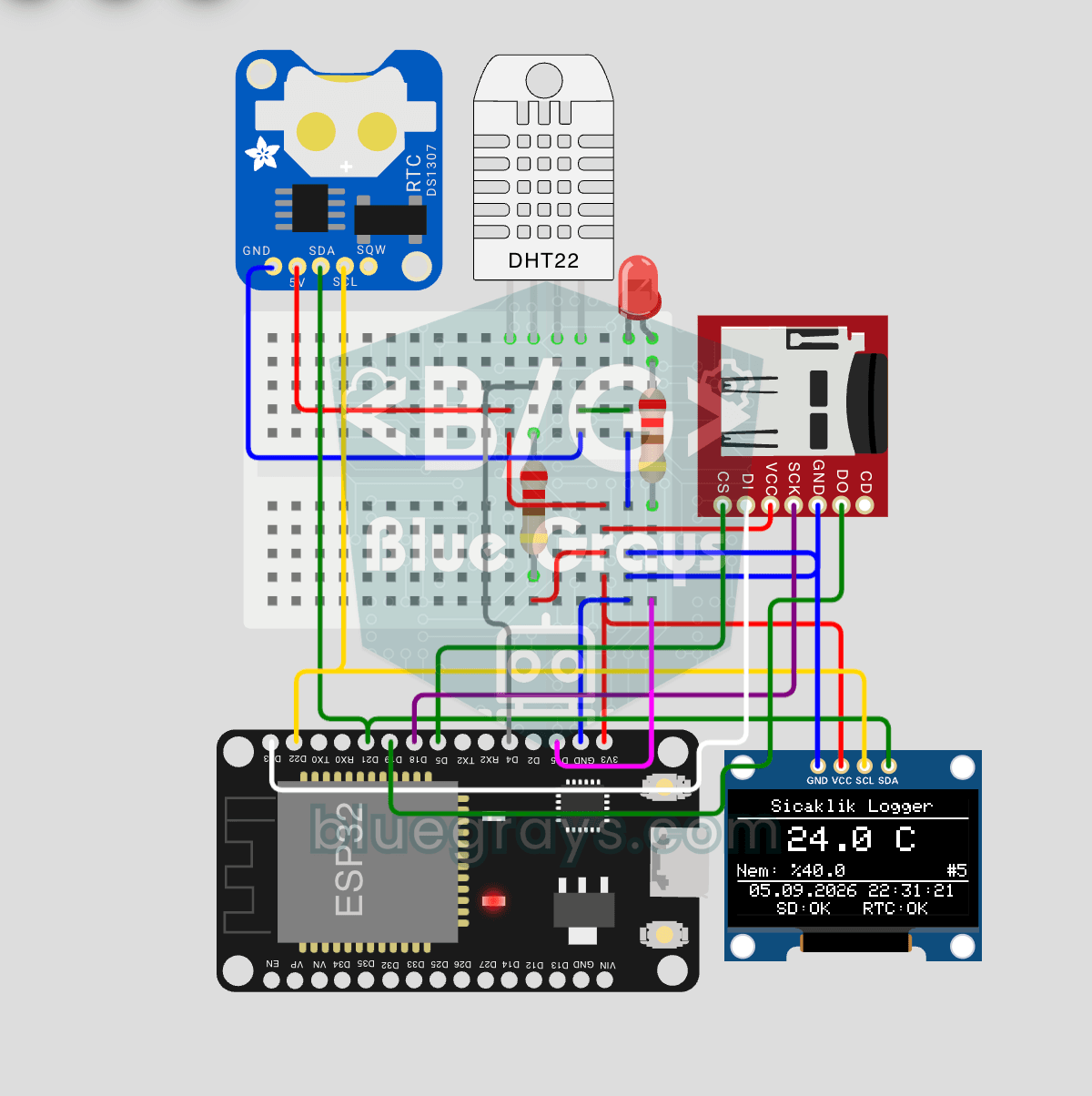
ESP32 Temperature Data Logger (DHT22 + DS1307 RTC + microSD + OLED)
Build a timestamped temperature logger with ESP32! Read DHT22 temperature/humidity every minute, get real-world time from DS1307 RTC, and log to microSD card as CSV. The OLED displays live temperature (large font), humidity percentage, timestamp, and log counter. The `/temp_log.csv` file on the SD card opens in Excel, Google Sheets, or Python pandas for analysis — perfect for greenhouse monitoring, home/room temperature tracking, laboratory data collection, food storage conditions, or beehiv

ESP32 HTTPClient + Weather API (with SSD1306 OLED Display)
In this project, we use the ESP32 to make a REST API call to a weather API (wttr.in) over the internet using `HTTPClient.h`. Unlike the previous I2C LCD version, we’re using an SSD1306 OLED (128×64) display here—which allows for large fonts, vector icons, and rich visual presentation on a single screen. Seven different vector icons for weather conditions (sunny, partly cloudy, cloudy, rainy, snowy, stormy, foggy) are drawn at runtime (no bitmap files required). The temperature is displayed in th

ESP32 Asynchronous Web Server (with IP Display on LCD)
In this project, we’re turning the ESP32 into an **asynchronous web server** that you can control from your phone or computer on the same Wi-Fi network. Thanks to the ESPAsyncWebServer library, the server can process multiple requests simultaneously (unlike the classic `WebServer.h`, which blocks on a single request). You’ll be able to open the ESP32’s IP address in a browser and click the ON/OFF buttons (the `/on` and `/off` routes) to turn the LED connected to GPIO 5 on and off.

ESP32 HTTPClient + Weather API (with LCD Screen)
In this project, we use the ESP32 to make a REST API call to a weather API (wttr.in) over the internet using `HTTPClient.h`. We parse the returned JSON response using ArduinoJson v7 and display the city, temperature, humidity, weather, and wind information on an I2C LCD screen in both Turkish and English. wttr.in is free and does not require an API key—you can simply enter any city name to retrieve that city’s current weather conditions. It automatically updates every 30 minutes, provides differ

ESP32 I2C LCD Display (16x2)
In this project, we display text by connecting a 16x2 character LCD screen to the ESP32 via the I2C protocol. Thanks to I2C, we can control the screen using just two data pins (SDA and SCL), eliminating the waste of 6+ pins associated with a classic parallel connection. The code prints a fixed message on the first line and a counter that increments every second on the second line. Additionally, we run an I2C scanner at the start to print the display’s address to the Serial Monitor (typically 0x2