
How to Redeem an Educator Code: Activate Premium with a BG Code
How to redeem an educator code in BlueGrays: Profile > Redeem Code, a link or the web. 30 or 365 days, no card needed, plus every error message and its fix.
How to redeem an educator code, in short: open the BlueGrays app, go to the Profile tab at the bottom, tap Redeem Code, type or paste the code your teacher gave you (it starts with BG) into the BG-XXXX-XXXX-XXXX field and tap the Redeem Code button. If your teacher sent the code as a link, it is even easier: tap the link, the Redeem Code screen opens with the code already filled in, and you only press the button. Once the code is accepted your account becomes BlueGrays Premium straight away; the 30 or 365 days start that day, no card is needed and nothing is charged when the time runs out.
This guide is written for students and parents. We go through what the code is, how to enter it in three ways (in the app, through a link and on the web), the three things to check before you enter it, the five error messages you might see and what to do about each, what Premium unlocks for you, how to make the most of your first week, which of your details your teacher can see, and what happens when the time is up. It takes about ten minutes to read; entering the code usually takes less than a minute.
What is an educator code and how does it work?
An educator code is a single-use Premium code that your teacher buys in bulk from the Educator Packages screen in BlueGrays. The teacher pays once from their own phone, through the App Store or Google Play and with their own account; the codes land on their My Codes screen and they give one to each student. You don't buy anything and you don't touch a card or your store account. The code always has the same format: BG at the start, followed by three groups of four characters separated by hyphens. The groups can contain capital letters and digits, for example BG-7K2Q-M0RA-4TZ1. The table below collects every rule you need to know about the code.
| Rule | What it means |
|---|---|
| Format | BG-XXXX-XXXX-XXXX: BG + 3 groups separated by hyphens, each with 4 letters or digits |
| Use | Each code works on one account, only once; after that it is tied to that account |
| Length | A code from a monthly package gives 30 days of Premium, one from a yearly package gives 365 days |
| Start | The time starts on the day you redeem the code, not on the day your teacher bought it |
| Renewal | It does not renew; when the time is up Premium switches off and nothing is charged |
| Payment | You are never asked to pay; you don't need to add a card to your Apple or Google account |
| Waiting | An unused code has no expiry date, so you don't have to enter it right away |
The row people mix up most is the start date. Say your teacher bought yearly codes at the start of September but you entered yours on 15 September 2026: your Premium lasts until 15 September 2027, and none of the days in between are lost. If you enter a monthly code on 2 November, Premium stays on until 2 December. That's why the best moment to enter the code is the week your teacher says the course begins; if you enter it much earlier, part of the time passes before the lessons start.
Step by step in the app: Profile > Redeem Code
- Open BlueGrays and sign in with the account your teacher asked you to use. If you don't have an account yet, sign up first; the code is always added to the account that is signed in at that moment.
- Go to the Profile tab in the bottom menu.
- Tap the Redeem Code row (it says "Activate a premium code" underneath). The Redeem Code banner on the subscription screen that presents Premium ("Enter the code from your educator to get premium") opens the same screen.
- Type the code into the BG-XXXX-XXXX-XXXX field. If your teacher sent it in a message, copying and pasting is the safest option; if you type it by hand, don't skip the hyphens.
- Tap the Redeem Code button.
- If you see "Code redeemed successfully! Your premium account is active.", you're done. To check, open a Premium project that was locked: the steps, the circuit diagram and the code should now be visible.
Don't worry about upper and lower case: the system turns the code into capitals automatically, so bg-7k2q-m0ra-4tz1 is read as the same code. Spaces at the start or end are removed as well. What really needs attention is characters that look alike; we cover them separately in the error table below. Once the code is accepted you never need to enter it again; when you sign in with the same account on another phone or tablet, Premium comes with you.
With a link: the code is filled in for you
Teachers often send the code with the share option on the My Codes screen. In that case the message contains both the code itself and a link that opens it in the app. Open the message on the phone where BlueGrays is installed and tap the link: the app opens and the Redeem Code screen appears with the code field already filled in. Check that the code matches the one in the message and tap Redeem Code. The link only carries the code, it doesn't choose your account, so make sure you are signed in with the right account before you tap it. The link is meant for you alone: if you forward it to a friend and they tap it first, the code is used on their account.
On the web: when your phone isn't with you
If your phone isn't with you, you're in the school computer lab or the link won't open on your phone, you can enter the code on the web too. Go to bluegrays.com in a browser, sign in with the same account you use in the app and open the Redeem Code page. Type the code the same way and tap Redeem Code; Premium is added to that same account, and the Premium projects unlock when you open the app with it. On the web you can only redeem codes, not buy anything, and you don't need to buy anything anyway. If you already entered the code on the web, there's no need to try again in the app; a second attempt shows an "already used" warning.
| Way | When it fits | How | Watch out |
|---|---|---|---|
| App | You have the code written down or in a message | Profile > Redeem Code > type the code > Redeem Code | Enter the hyphens and look-alike characters correctly |
| Link | Your teacher sent the code in a share message | Tap the link, then Redeem Code on the pre-filled screen | Sign in with the right account first; don't forward the link |
| Web | Your phone isn't with you or you're on a school computer | Sign in on bluegrays.com and enter the code on the Redeem Code page | Sign in with the same account as in the app |
Before you enter the code: a 3-minute checklist
Once a code is used it is tied to that account, and you can't move it to another account yourself. So checking these points one by one before you tap the button is much easier than writing to your teacher afterwards:
- The right account: Did you sign in with your school email or your personal one? If you have accounts with both, ask your teacher which one they want and check on the Profile tab which email you are signed in with. If you signed in with Google or Apple, check which account was picked.
- No active store subscription: If your account has a Premium subscription bought through the App Store or Google Play that is still running, you can't redeem a code. The subscription has to end first; details below.
- The code is yours: The code should have been given to you personally. Don't enter a code that was shared in the class group for someone else; that code is another student's Premium.
- Don't share the code: Don't forward the code or its link to friends, and don't post a screenshot of it anywhere public. The first account to enter the code gets it.
- A recognisable profile: When you redeem the code, your name and username become visible to your teacher. If you signed up with a nickname, use a name your teacher will recognise, or tell them which username is yours.
- Internet connection: The code is checked on the server; if the screen hangs on weak school Wi-Fi, try again with mobile data or another network.
Error messages and how to fix them
When something goes wrong, the app shows a short message under the code field. Almost all of them can be fixed in a minute; for the rest, all you need to do is write to your teacher with the right information. The table below lists the messages the app shows, what they mean and what you should do:
| Message | What it means | What to do |
|---|---|---|
| Premium code not found | The code you entered doesn't exist in the system; most of the time it's a typo. Because codes contain both letters and digits, 0 (zero) and O, 1 (one) and I, 5 and S, 8 and B are easy to confuse. A missing or extra hyphen, or a forgotten BG at the start, gives the same message. | Copy and paste the code from the message instead of typing it. If you're typing it from paper, compare the characters one by one. Don't worry about upper and lower case, the system converts it to capitals. If it still isn't found, ask your teacher to send the code again in writing. |
| Code already used | The code is currently active on an account. Either you entered it before (on the web, for example), you entered it with another account of yours, or the code went to someone else. | First open a Premium project: if it opens, you already have the code and there's nothing to do. If it doesn't, write to your teacher; on My Codes they can see who used the code and transfer it if needed. |
| Code cancelled | Your teacher cancelled this code with a transfer, or the payment for the package it came from was refunded. | This code won't work any more. Ask your teacher for a new one. |
| Code expired | The code was used on an account before and its 30 or 365 days are over. Since unused codes never expire, this message means the code was already used by someone. | You may have tried an old code or a message from last term. Ask your teacher for a new code for this term. |
| You already have an active subscription | Your account has a Premium subscription bought through the App Store or Google Play that is still running. | Enter the code once your subscription has fully ended; the code waits in the meantime and isn't lost. The detailed steps are in the next section. |
| General error or the screen hangs | Usually a problem with the internet connection or your session. | Check your connection, make sure you're signed in and try again. If it doesn't work in the app, try the Redeem Code page on the web with the same account. |
If you have an active subscription: switching from subscription to code
Some students have already bought a monthly or yearly individual Premium subscription with their own account. While that subscription is running, an educator code isn't accepted, because two Premiums can't run at once and the code's days would be wasted. The fix is simple: first turn off automatic renewal for the BlueGrays subscription in your phone's subscription settings (the App Store on iPhone, Google Play on Android). Cancelling doesn't waste the period you paid for; Premium stays on until the end of that period. Once the period is over and the subscription has fully ended, enter the code. The code waits in the meantime and isn't lost, because unused codes have no expiry date. Tell your teacher too, so they know why your code still shows as unused. If your Premium comes from an earlier educator code rather than a store subscription, things are different: you can enter the new code without waiting. In that case the times add up, and the new code's days are added on top of your current end date. For example, if you have 10 days left and enter a new 30-day code, you get 40 days in total.
What does the code unlock?
The moment the code is accepted, your account becomes BlueGrays Premium just as if you had subscribed yourself. The app has 200+ projects for the Arduino, ESP32 and Raspberry Pi Pico; 60 of them (20 per platform) are fully open to everyone, and the rest unlock with Premium. With BlueGrays IoT in Workshop › My devices you can control an ESP32 or Raspberry Pi Pico W board from your phone; your first device is free, and with Premium you can connect up to 10. The details are in the guide to controlling an ESP32 from your phone. The table shows the difference between a free account and a Premium one:
| Section | Free account | Premium with a code |
|---|---|---|
| Projects | 60 projects (20 per platform) fully open; the others appear in the list and preview | Steps, circuit diagrams, parts lists and source code for 200+ projects |
| Understand the code | Open on free projects | Also open on Premium projects: summary, step-by-step explanation, Try it yourself task |
| Troubleshooting | Locked on Premium projects | Steps to check in order when the circuit doesn't work, on more than 170 projects |
| Electronics Tools | 7 tools free; 9 Premium tools show a sample calculation | All 18 tools plus Saved calculations, kept across your devices |
| Workshop › Parts | Not available; opening it shows a Premium introduction | Available: log your parts and see Projects You Can Build |
| Workshop › Devices | You can connect 1 IoT device; charts for 1 value, 24 hours of history | Up to 10 devices; charts for 20 values, 30 days of history |
| Daily questions | Daily set, placement test and leaderboard are free | Retry the level-up exam without waiting and a higher limit in My mistakes |
| Other | Forum, Code guide and Project Finder are free | Video walkthroughs and priority support |
It's also worth knowing what the code doesn't change. Being Premium doesn't show your teacher which projects you finished or how many points you scored in the daily questions; there's no class dashboard like that in the app. Hand in your work the way your teacher asks (a photo of the working circuit, showing your screen at the end of the lesson and so on). When you finish a project, tap I made it on the project page: it's added to your Completed Projects list in Workshop, and you can show that list to your teacher on your own screen.
Your first week: a plan so Premium isn't wasted
Because the time starts the day you enter the code, it would be a shame to spend the first week clicking on random projects. The seven-day plan below assumes you have an Arduino Uno or Nano and a simple starter kit; if you use an ESP32 or a Pico, follow the same steps with the projects for your board.
| Day | What to do | Why |
|---|---|---|
| 1 | Answer the three questions in Project Finder: what you want to build, which board you have and your experience | It suggests your best match and a free warm-up project you can start with the same parts |
| 2 | Build LED Blink with Let's build it together mode | You get the board, port and upload steps right before moving on to Premium projects |
| 3 | Parking Sensor with HC-SR04 (Premium) and the Understand the code tab | In Step by step you see what each piece of code does, then practise with the Try it yourself task |
| 4 | Using a Servo Motor or Using LCD Screen with I2C | If you get stuck, go through the Troubleshooting steps on the project page in order |
| 5 | Daily questions: start with the 15-question Placement test | You start at the right level; after that a new set of about 3 minutes arrives every day |
| 6 | Calculate values for your own circuit with the Voltage divider and LED resistor tools | You can store the result in Saved calculations and open it again in class |
| 7 | Open the project links your teacher sent with Share and save them with Favorite | You can open them quickly from Workshop > Favorites before class; tap I made it for every project you finish |
The most useful part of the plan is Understand the code. Every project starts with a "What does this code do?" summary, then Step by step explains each part of the code separately, If you get stuck covers common mistakes, and at the end a Try it yourself task waits for you with a hint and a hidden solution. If you work through these four sections instead of just copying and uploading the code, you'll be able to answer when your teacher asks "what does this line do?" in class. The Daily questions refresh every night at 00:00; a few minutes every day sticks better than one long session a week.
Privacy: which of your details does your teacher see?
When you redeem an educator code, your name, username, email address and profile photo are shared with the teacher who gave you the code. On the My Codes screen the teacher sees who used which code, the day it was activated and when your Premium ends. The reason is simple: when a teacher hands out 20 or 30 codes, this is the only way to keep track of who is Premium, who hasn't entered their code yet and whether a code went to the wrong account. Your password, your messages, the projects you open and your scores in the daily questions are not part of that screen.
This sharing happens the moment you redeem the code, so it's important to know in advance. If you'd rather not have your profile photo and username visible to a teacher, you can change them before you enter the code. When you're asked to use an account created with your school email, this is usually the reason: the teacher can easily match the name on the list with the class register. As long as you only take codes from your own teacher, your details are shared with that teacher alone.
What happens when the time is up?
When the 30 or 365 days are over, the Premium features switch off on their own and you're not charged anything, because the code isn't a subscription. Your account isn't deleted; the free projects, the 7 free tools, the Daily questions, the Code guide and the forum stay open. The steps, diagrams and code of the Premium projects are locked again. If you want to carry on, you have two options: ask your teacher for a new code or start your own individual subscription. The table below sums up the most common situations:
| Situation | Result |
|---|---|
| You entered a 30-day code on 2 November | Premium lasts until 2 December, then switches off on its own |
| You entered a 365-day code on 15 September 2026 | Premium lasts until 15 September 2027 |
| You're Premium with a code, 10 days left, and you enter a new 30-day code | The times add up: your end date moves 30 days later, 40 days in total |
| You left the course and your teacher transferred your code | Your Premium ends right then; the remaining time moves to another student with a new code |
| The time ran out and you didn't enter a new code | Nothing is charged; your account goes back to free use |
A short note for parents
- No card needed: You don't need to add a payment method to your child's Apple or Google account. The teacher pays once from their own account.
- No automatic payments: The code isn't a subscription; after 30 or 365 days Premium switches off and you're never asked to pay.
- What the teacher sees: Your child's name, username, email and profile photo in BlueGrays, plus the code's activation and end dates. Project progress and quiz scores are not shown to the teacher.
- Existing subscription: If your child's account has a subscription bought earlier that is still running, the code can't be used; cancel the subscription in the store settings and wait for the period to end.
- The code is personal: Each code works once on one account; siblings can't share a code, each of them needs their own.
If you have your code, all that's left is to check you're signed in with the right account and enter it on the Profile > Redeem Code screen; a minute later the Premium projects are waiting for you. If the app isn't on your phone yet, download BlueGrays, sign in with the account your teacher asked for and start your first week with the plan above.
Frequently asked questions
Where do I enter an educator code?
In the BlueGrays app, tap Redeem Code on the Profile tab, type the code into the BG-XXXX-XXXX-XXXX field and tap Redeem Code. If your teacher sent a link, just tap it and the screen opens with the code filled in. If your phone isn't with you, sign in on bluegrays.com and use the Redeem Code page.
How long does an educator code last?
A code from a monthly package gives 30 days of Premium and one from a yearly package gives 365 days. The time starts on the day you redeem the code, not the day your teacher bought it. Unused codes have no expiry date.
Why does it say the premium code was not found?
Usually the code was mistyped: look-alike characters such as 0 and O or 1 and I got mixed up, or hyphens are missing. Upper and lower case don't matter, because the system converts the code to capitals. Copy and paste the code from the message; if that fails, ask your teacher to send it again in writing.
Can I redeem an educator code if I already have a Premium subscription?
No. While a subscription bought through the App Store or Google Play is running, the code isn't accepted. Turn off automatic renewal and enter the code once the period ends; the code waits and isn't lost. If your Premium comes from an earlier educator code, you can enter the new one right away and the times add up.
What does my teacher see when I redeem the code?
Your name, username, email address and profile photo are shared with the teacher who gave you the code, along with when the code was activated and when it ends. That's how the teacher keeps track of who is Premium. The projects you do and your quiz scores are not shown to the teacher.
Will I be charged when the educator code runs out?
No. An educator code isn't a subscription, it doesn't renew and it doesn't need a card. When the time is up, the Premium features switch off while the free projects and tools stay open. To carry on, you can ask your teacher for a new code.
Projects to build after reading this
See all projects
LED Blink
The very first hello of electronics: switching a single LED on and off. The Arduino turns the LED on and off at short intervals, so the light blinks quickly. You see in the simplest way how the board

Traffic Light
A tiny copy of the traffic light you see on the road every day. Red stays on for two seconds, yellow flashes for a moment, green stays on for two seconds, then it goes back to red through yellow again

LED Control with a Push Button (Push)
Just like a doorbell: the light stays on as long as you press, and goes off when you let go. The Arduino keeps listening to the button; while it's pressed the LED is on, and the moment you lift your f
HC-SR04 Distance Measurement (Serial Display)
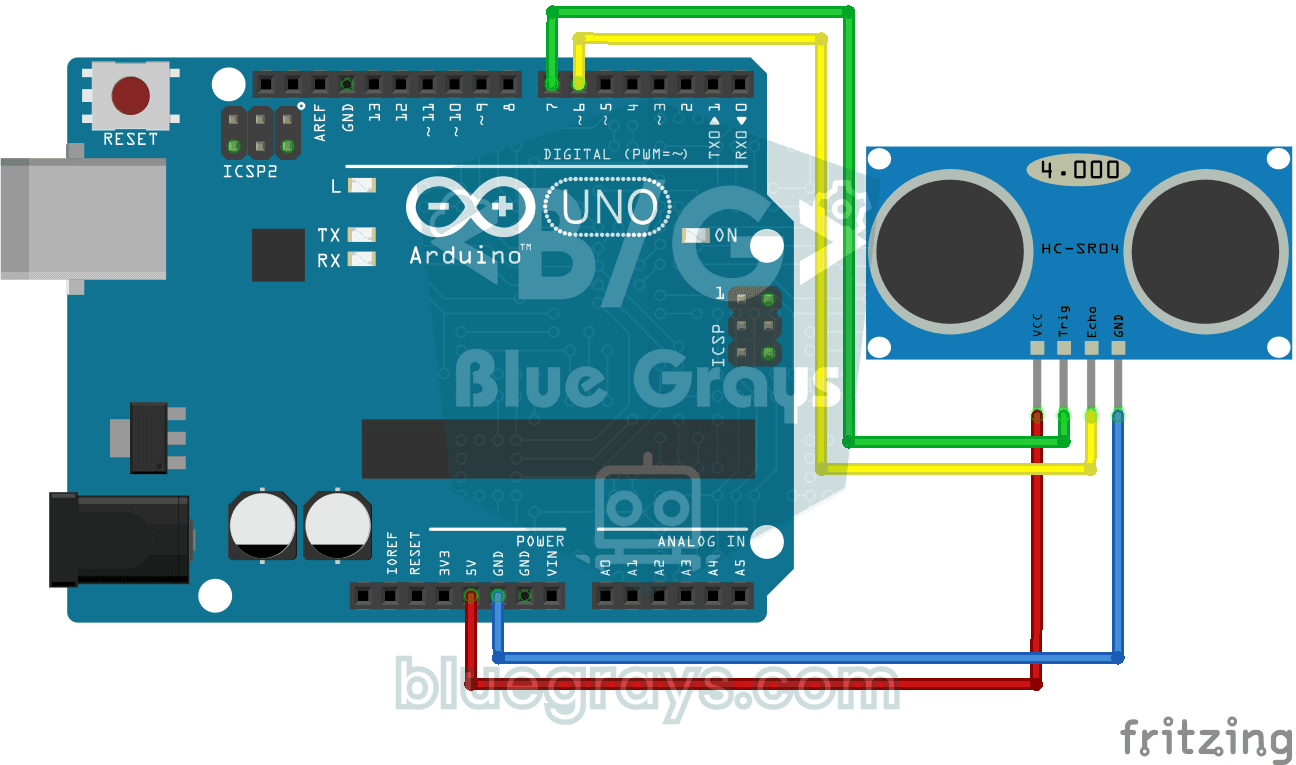
The HC-SR04 sensor works just like a bat finding its way in the dark: it sends out a sound you cannot hear, listens for the echo and measures how far away the object in front of it is. The Arduino wri
Parking Sensor with HC-SR04
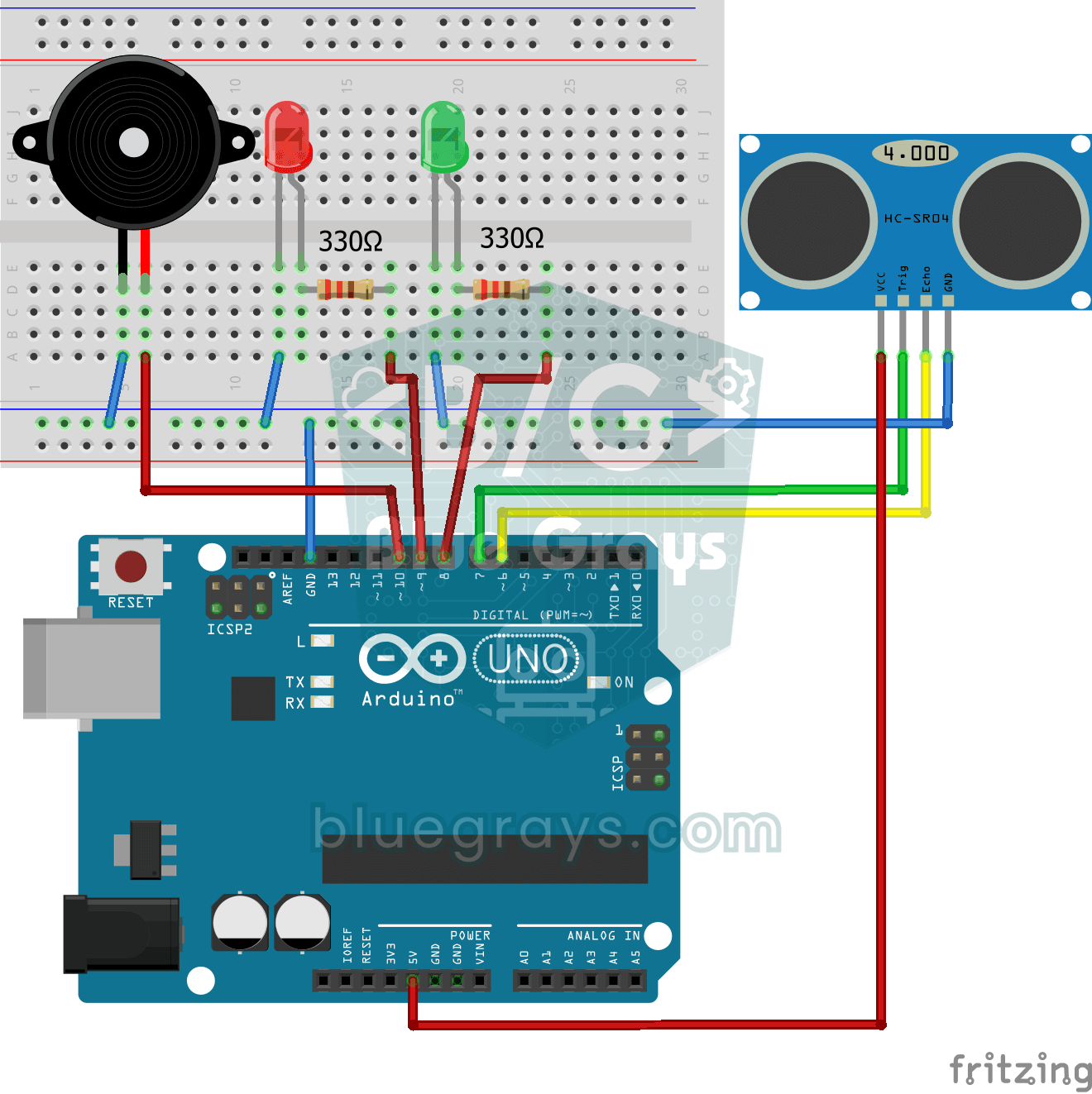
A mini version of a car's parking sensor: the closer something gets, the faster the beeps. The distance sensor measures the object in front of it; if it is more than 20 centimetres away the green LED
Using a Servo Motor
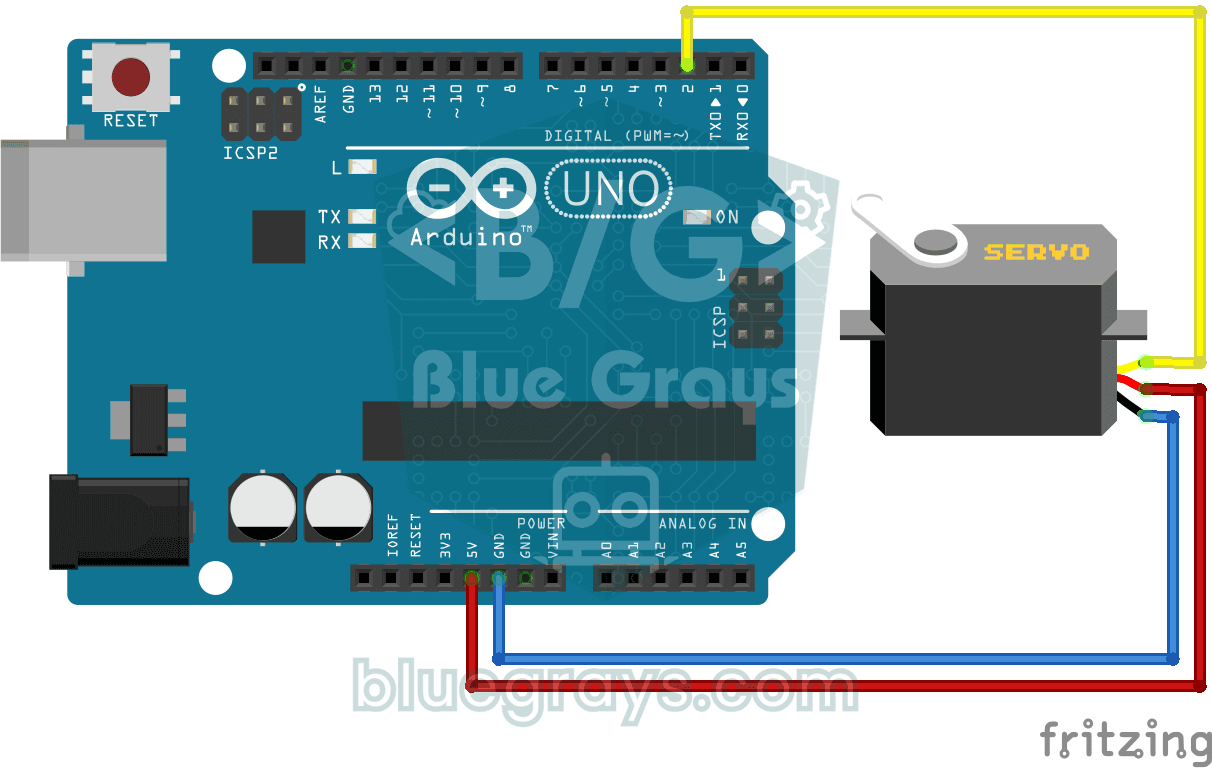
The arm of a small servo motor turns to three positions in turn: all the way to the start, right to the middle and all the way to the end, waiting two seconds at each stop. The Arduino tells the motor
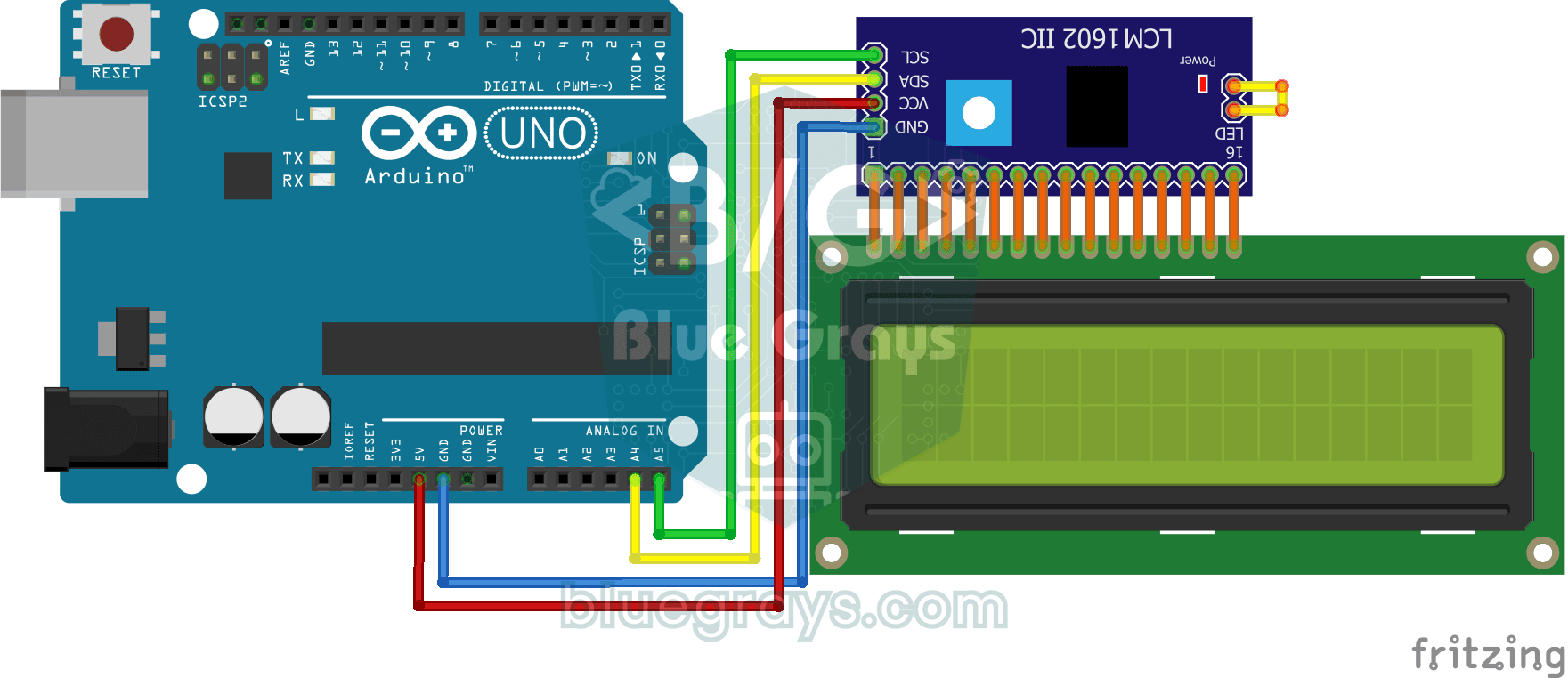
Using LCD Screen with I2C
Give your Arduino its own screen and make it write its first message. The two-line LCD screen hooks up with just a few wires; a greeting appears on the top line, then a second message on the bottom li

Smart Irrigation Station
A gardener that waters your plants on its own, so they don't dry out while you're on vacation. A soil moisture sensor measures how wet the soil is; when it gets dry, the Arduino runs the water pump fo