
Arduino App for the Classroom: Does Each Student Need Premium?
Arduino app for classroom use: 30 students don't need 30 subscriptions. The teacher buys 5 or 10-code packs and students get Premium without adding a card.
If you're looking for an Arduino app for classroom teaching, the first question is usually this: I teach Arduino to a class of 30, does every student need their own Premium subscription? No, they don't. In BlueGrays the teacher buys Premium codes in bulk from the Educator Packages screen, and each student enters a code on their own account to get Premium. Students don't add a card, parents don't start a subscription, and nobody has to remember to cancel when the course ends. Codes don't renew automatically, and unused codes have no expiry date.
In this post you'll see why individual subscriptions get messy in a classroom, how the educator package works step by step, a side-by-side comparison, pack combinations for classes of 12 to 36, what students get with a code and what isn't included, and how to hand out codes in 10 minutes at the start of term. Prices vary by country and store, so there are no figures here; you'll find the current price on the Educator Packages screen in the app.
Why individual subscriptions get messy in a classroom
An individual Premium subscription is designed for one person: they buy it on their own phone, pay from their own account, and renew or cancel it themselves. For someone learning Arduino at home, that works fine. Copy the same setup to 30 students, though, and every step happens 30 times, each tied to a different family, a different card and a different date. Say that in the first week of term you told the class "everyone get Premium". Over the next two weeks you'd run into roughly these problems:
- Cards: Most students have no payment method on their Apple or Google account. A parent's card has to be added for the subscription; some families aren't keen, and others put it off for weeks.
- Parental consent: You have to explain to 30 families what to buy, which plan and why. When a few don't agree, part of the class works with Premium projects and part only with free ones, and you end up running the same lesson at two speeds.
- Tracking renewals: Subscriptions renew automatically, and each student's renewal date depends on the day they bought it. If a payment fails, a student can lose access mid-lesson, and you only find out when they say "the project is locked".
- Forgetting to cancel: The eight-week course is over, but some families forget to cancel. When next month's charge arrives, the first person they ask is often the teacher.
- Not knowing who is active: An individual subscription lives on the student's own account. You can't see how many students are really Premium or whose time has run out, so you can't plan a lesson on the assumption that "everyone can open this project".
What is an educator package and how does it work?
None of this is the teacher's job, but all of it eats into lesson time. The educator package exists to take that load off you, and it isn't a subscription but a one-time purchase. The teacher pays from their own phone through the App Store or Google Play, with their own account; the payment is taken once and doesn't renew. After purchase, the codes in the pack are generated and appear on the My Codes screen. Each code has the format BG-XXXX-XXXX-XXXX, can be used once on one account, and adds 30 days (monthly pack) or 365 days (yearly pack) of Premium to that account. The time starts on the day the student redeems the code, not the day it was bought. The stores offer monthly and yearly packs of 5, 10 and 50 codes; the 5- and 10-code packs most classes need are these:
| Pack | Codes | Time per code | Transfers per code |
|---|---|---|---|
| 5 codes · 1-month Premium | 5 | 30 days | 1 |
| 10 codes · 1-month Premium | 10 | 30 days | 1 |
| 5 codes · 1-year Premium | 5 | 365 days | 6 |
| 10 codes · 1-year Premium | 10 | 365 days | 6 |
Prices vary by store and country; you'll see the current one on the Educator Packages screen. The general picture: in the 5-code pack, the cost per code is in line with the regular individual Premium price, and in the 10-code pack the cost per student is about 20% lower than in the 5-code pack. Individual subscriptions sometimes have discount campaigns, so it wouldn't be fair to say "always cheaper". The real gain is in management: no card needed, no renewals, seeing who used each code, and transfer rights. One more note: packs can only be bought in the mobile app, not on the website.
Step by step: buying and handing out codes
- In the app, open the Profile tab in the bottom menu and tap Educator Packages (it says "Buy bulk premium codes" underneath). The "Bulk Packages for Educators" banner on the subscription screen takes you to the same place.
- Choose Monthly or Yearly. For a four to six-week workshop or a one-month module, monthly works; for a course that runs a term or a whole school year, yearly is easier.
- Pick the 5-code or the 10-code pack. If your class has more than 10 students, start with 10-code packs and fill the gap with a 5-code pack; the combination table below is there for that.
- Tap Buy Now and confirm the payment in the App Store or Google Play.
- Shortly afterwards the codes appear under Profile > My Codes. There you see your packs, the total and used code counts, and each code's status: Unused, Active, Expired, Cancelled or Refunded.
- Copy a code with Copy Code or send it as a message with the share button. The share message includes the code itself and a link that opens it in the app.
On the student side it's even shorter, just four steps:
- The student signs in to BlueGrays with their own account.
- They tap Profile > Redeem Code ("Activate a premium code"). The "Redeem Code" banner on the subscription screen opens the same screen.
- They type or paste the code into the BG-XXXX-XXXX-XXXX field and tap Redeem Code.
- Once the code is accepted, the account is Premium and the 30 or 365 days start that day.
Individual subscription or educator code? A comparison
| Topic | Individual subscription | Educator code |
|---|---|---|
| Who pays? | Each student or parent separately | The teacher, once, from their own account |
| Does the student's account need a card? | Yes, a payment method on the Apple or Google account | No, the student gets Premium without adding a card |
| Renewal | Renews automatically and charges until cancelled | Doesn't renew; Premium ends when the time is up, no extra charge |
| Seeing who is active | The teacher can't | My Codes shows each code's status, who used it, start and end date |
| If a student leaves or changes | The subscription stays with that student | A transfer moves the remaining time to a new code |
| When does the time start? | On the day of purchase | On the day the student redeems the code |
| Unused access | None; time runs from the moment the subscription starts | Unused codes don't expire and carry over to the next term |
| Cost per student | The individual store price (seasonal discounts possible) | In line with the individual price in the 5-pack, about 20% lower in the 10-pack |
The row people overlook most is when the time starts. Buy the codes in August, hand them out in September, and each student's 365 days begin in September; not a single day is lost during August. With an individual subscription, buying and using happen at the same moment. The second key row is visibility: with educator codes you see on one screen which code belongs to whom and when each student's time runs out. Answering "who has no access?" mid-term takes a minute.
How many packs do you need? Combinations by class size
A class is rarely exactly 5 or 10 students, so for most classes you'll combine a few packs (there is also a 50-code pack for groups of 50). The rule is simple: get as close to your class size as you can with 10-code packs, then cover the gap with a single 5-code pack. One 10-code pack instead of two 5-code packs gives you the same 10 codes at about 20% less per student. The table applies equally to monthly and yearly packs; the only difference is whether each code gives 30 or 365 days.
| Students | Suggested combination | Total codes | Spare codes | Note |
|---|---|---|---|---|
| 12 | 1 × 10-pack + 1 × 5-pack | 15 | 3 | One spare could be for your own account |
| 18 | 2 × 10-pack | 20 | 2 | 10 + 5 + 5 also gives 20 codes but costs more per code |
| 24 | 2 × 10-pack + 1 × 5-pack | 25 | 1 | Expecting late joiners? 3 × 10-pack (6 spare) |
| 30 | 3 × 10-pack | 30 | 0 | Want spares? Add 1 × 5-pack (35 codes, 5 spare) |
| 36 | 4 × 10-pack | 40 | 4 | 3 × 10-pack + 1 × 5-pack gives 35 codes, not enough for 36 |
Spare codes may sound wasteful, but they pay off here because unused codes have no expiry date. Give one to the student who joins in week three, to the first student of next term, or to a new group; a yearly code redeemed in February starts its 365 days in February. You can also use one of the spares on your own account: you need Premium to preview the Premium projects your students will open. If the course runs longer than planned, give the same student a second code; on an account that already has Premium from a code, the new code's time is added on top, for example 30 + 30 = 60 days.
What does a student get with a code?
The student who redeems a code gets BlueGrays Premium on their account, just as if they had subscribed themselves. The app has 200+ projects for Arduino, ESP32 and Raspberry Pi Pico; 60 of them (20 per platform) are free anyway, and the rest open with Premium. With a code, the student gets:
- The steps, circuit diagrams, parts lists and source code of every project
- The Understand the code tab on Premium projects: a "What does this code do?" summary, a step-by-step explanation, an "If you get stuck" section and a "Try it yourself" task with hints
- Troubleshooting steps on more than 170 projects, a checklist to go through in order when the circuit doesn't work
- 11 Premium electronics tools (voltage divider, 555 timer, RC time constant, pinout, logic gates and more) plus Saved calculations kept on all devices
- Workshop › Parts (available only with Premium): the student logs the parts they have and sees the "Projects You Can Build" list
- Creating and sharing their own projects, video walkthroughs and priority support
- More devices in BlueGrays IoT: under Workshop › My devices › Add new device you control an ESP32 or Raspberry Pi Pico W from your phone. The free plan gives you 1 device, chart history for 1 value and 24 hours of history; Premium raises this to 10 devices, chart history for 20 values and 30 days. For details, see the guide to controlling an ESP32 from your phone.
In practice this means: in the first weeks everyone starts with the free LED Blink and Traffic Light projects, but when you move to Premium projects such as the Parking Sensor with HC-SR04 in week four and the Obstacle Avoidance Robot or the Smart Irrigation Station at the end of term, nobody hits a locked screen. Free tools like Ohm's law and the resistor colour code are open to everyone anyway; the Premium tools come in during the later weeks.
What isn't included: no class dashboard or progress tracking
To be honest: the educator package isn't a school management system. The app has no class creation, no dashboard showing the teacher which projects a student finished or what they scored in the quiz, no homework assignment and no bulk invoice in the school's name. What you see on My Codes is each code's status and who used it: their name, username, email, profile photo, start and end date. That answers "who is Premium and when does their time end", not "who is on which project". To track progress during lessons, you can turn the student-side features into a classroom routine:
| Method | What the student does | What you check |
|---|---|---|
| I made it | Taps I made it on the project page once the circuit works | At the end of the lesson the student shows the Completed Projects list in their Workshop |
| Photo hand-in | Takes a photo of the working circuit and, if needed, the Serial Monitor output | You check the photos sent to the school's homework or messaging channel |
| Try it yourself task | Solves the task in the Understand the code tab, for example changing a delay or a pin | You see the changed behaviour on the working circuit at their desk |
| Exit question | Writes answers to 1–2 short questions on paper at the end of the lesson | You check whether they can explain what the code does in their own words |
| Daily questions | Solves the daily questions at home and shows the My level screen | You glance at their levels once a week; use it for motivation, not grades |
If a student leaves or changes: transfer rights
Every code comes with transfer rights: 1 per code in monthly packs, 6 per code in yearly packs. A transfer cancels a used code and creates a new one with the remaining time. The previous student's Premium ends at that moment, and you give the new code to another student. The example in the app is exactly this: a student used a yearly code for 1 month and has 11 months left; cancelling it creates a new 11-month code. Say that in November two students in your class of 30 move to another group and two new students join. You open those two codes on My Codes, tap Transfer, and give the two new codes to the new students; no new pack needed. The same route works when a student redeems a code on the wrong account, or loses access to their old account and opens a new one.
A start-of-term plan
You don't need a whole lesson to hand out codes; with good preparation, 10 minutes of the first lesson are enough. Before the lesson, go through this checklist:
- Buy the packs and check on My Codes that the total number of codes covers your class.
- A week ahead, ask students to install the app and sign in with their own account, so creating accounts doesn't eat lesson time.
- Add a code column next to your class list and write down in advance which code goes to whom.
- Ask which students still have an active individual Premium subscription and note them down: an account with an active App Store or Google Play subscription can't redeem a code. That student's code waits until the subscription has ended.
- Decide how each code will reach its student individually (a direct message or a paper slip) and pick the Premium project you'll open on day one.
- Share the privacy note below with students, and with parents if needed, in advance.
| Minute | What happens | Your job |
|---|---|---|
| 0–2 | Everyone opens the app and checks they're signed in | Note who can't sign in and remind them of the Redeem Code page on the web |
| 2–4 | Codes reach the students | Share codes one by one from My Codes or hand out the prepared paper slips |
| 4–6 | Students enter the code under Profile > Redeem Code and tap Redeem Code | Help anyone who gets an error: was the code mistyped, is there an active subscription on the account? |
| 6–8 | Everyone sees their account is Premium | Check on My Codes that the codes have turned Active and the names match your list |
| 8–10 | They open the Premium project you chose and look at the Understand the code tab | Make sure nobody sees a locked screen, and mark unused codes as spares |
Privacy note: When a student redeems an educator code, their name, username, email and profile photo are shared with the educator who gave it. You need that information to see on My Codes which code belongs to whom. Before handing out codes, explain it to the class in one sentence: "When you use the code, I'll see your name, username, email and profile photo, so I can keep track of who has Premium." If your school has rules for informing parents, add the same sentence to that letter.
Common situations
| Situation | What to do |
|---|---|
| The student has an active individual subscription | They can't redeem a code. They enter it once the subscription ends; the code waits and isn't lost. |
| The student redeemed the code on the wrong account | Find the code on My Codes, transfer it, and give the new code with the remaining time to the right account. |
| The code got lost or the message was deleted | If it wasn't used, it still shows as Unused on My Codes; copy it and send it again. |
| A new student joins mid-term | Give them a spare code; if you have none, add a 5-code pack or transfer the code of a student who left. |
| The course runs longer and monthly time is ending | Give the same student a second monthly code; the time adds up. |
| A code shows as Expired | The student's 30 or 365 days are over; they need a new code to carry on. |
Keep going: posts that help in the classroom
Once codes are sorted, it's time for lesson content. For a ready week-by-week programme, see the 8-week robotics lesson plan with block coding, and for why to start with blocks, read what block coding is. When putting class kits together, the Arduino starter kit list helps; for weeks when hardware runs short, try Arduino simulation with Tinkercad, and for end-of-term assignments there are 30 Arduino project ideas. In short, a class of 30 doesn't need 30 subscriptions: three 10-code educator packs, one payment and a 10-minute handout at the start of term are enough. To see the pack that fits your class size and the current price in your country, take a look at Profile > Educator Packages in the BlueGrays app.
Frequently asked questions
Does every student need their own subscription in an Arduino classroom app?
No. In BlueGrays the teacher buys a 5 or 10-code bulk pack under Profile > Educator Packages, and students get Premium by entering a code on their own account. Students don't need to add a card or start a subscription.
How do I redeem a Premium code from my teacher?
Open Profile > Redeem Code in the app, enter the code in the BG-XXXX-XXXX-XXXX format and tap Redeem Code. If the code came as a share link, tapping the link opens the screen with the code filled in. You can also sign in on bluegrays.com and use the Redeem Code page.
Does the educator package renew automatically?
No, the educator package is a one-time purchase and doesn't renew. Each code starts on the day it's redeemed, and Premium ends after 30 days (monthly pack) or 365 days (yearly pack) with no further charge.
Do unused educator codes expire?
No, unused codes have no expiry date. You don't have to hand them all out at the start of term; spare codes can wait for late joiners or the next term.
What does the teacher see when a student redeems a code?
On My Codes the teacher sees the name, username, email and profile photo of the person who used the code, plus the start and end date. There is no class dashboard showing which projects a student finished or their quiz results.
Can a student with an active Premium subscription use an educator code?
No, an account with an active Premium subscription through the App Store or Google Play can't redeem a code. They can enter it once the subscription has ended; unused codes don't expire, so nothing is lost in the meantime.
Projects to build after reading this
See all projects
LED Blink
The very first hello of electronics: switching a single LED on and off. The Arduino turns the LED on and off at short intervals, so the light blinks quickly. You see in the simplest way how the board

Traffic Light
A tiny copy of the traffic light you see on the road every day. Red stays on for two seconds, yellow flashes for a moment, green stays on for two seconds, then it goes back to red through yellow again

LED Control with a Push Button (Push)
Just like a doorbell: the light stays on as long as you press, and goes off when you let go. The Arduino keeps listening to the button; while it's pressed the LED is on, and the moment you lift your f
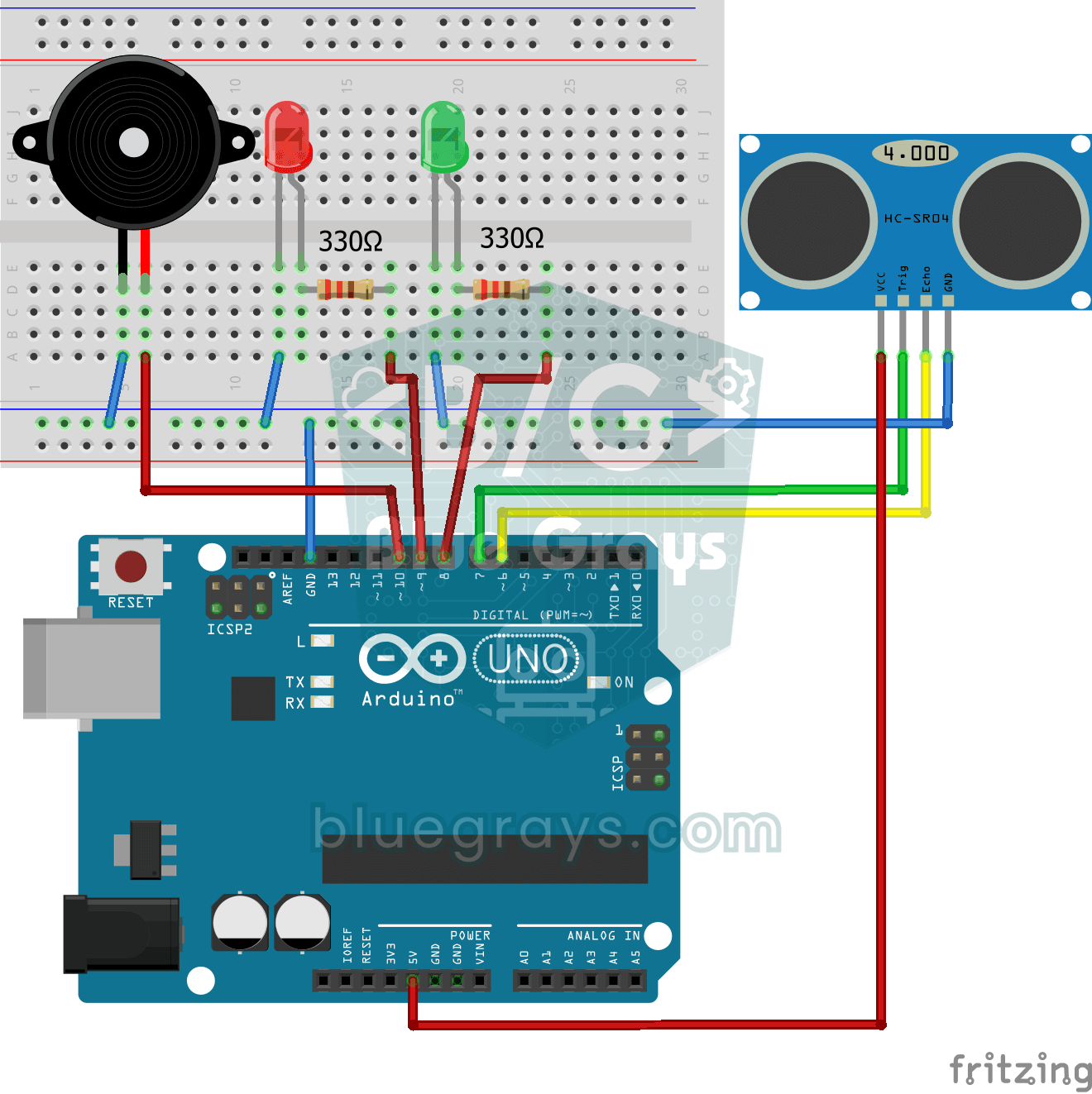
Parking Sensor with HC-SR04
A mini version of a car's parking sensor: the closer something gets, the faster the beeps. The distance sensor measures the object in front of it; if it is more than 20 centimetres away the green LED
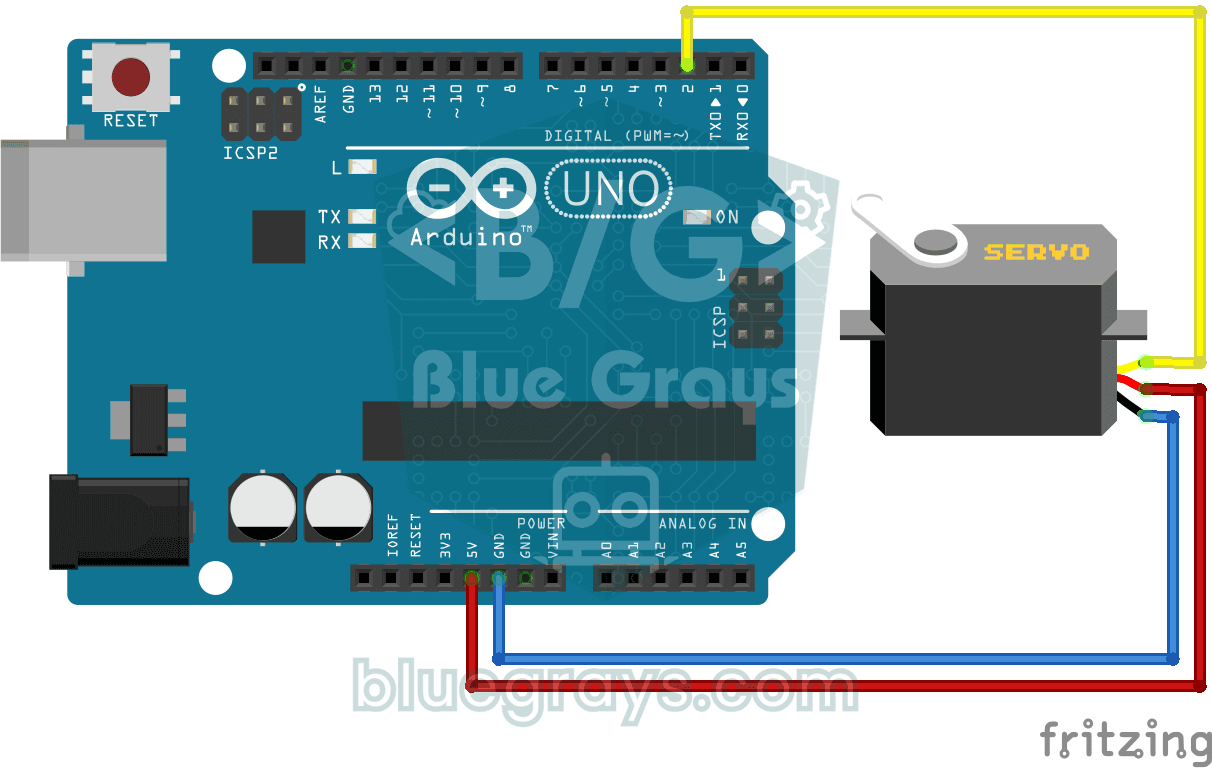
Using a Servo Motor
The arm of a small servo motor turns to three positions in turn: all the way to the start, right to the middle and all the way to the end, waiting two seconds at each stop. The Arduino tells the motor
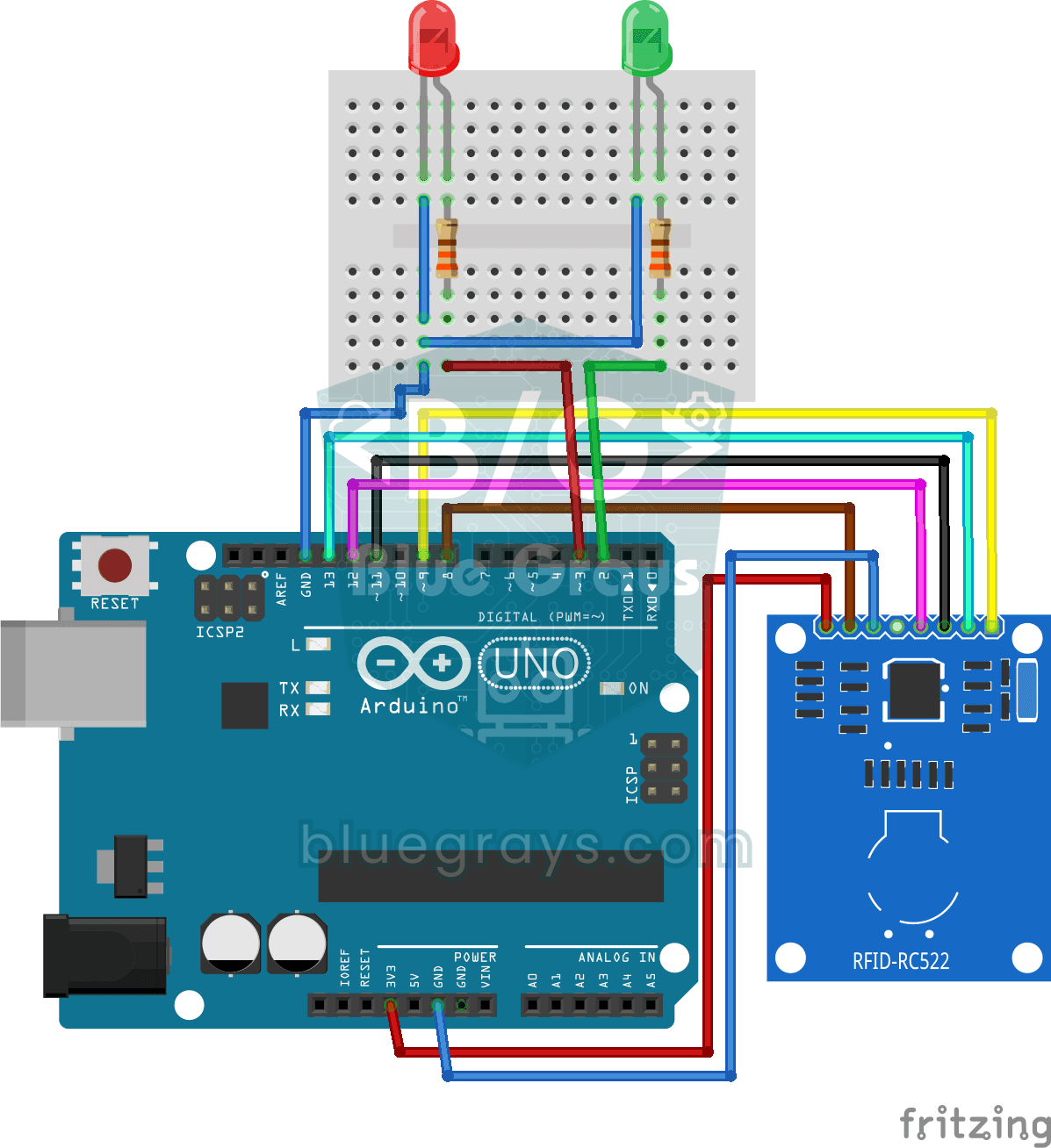
RFID Authentication
Just like the card entry at an apartment door: you hold your card near the RFID reader, and the Arduino compares its number with the one it has saved. The right card lights the green LED for three sec

Obstacle Avoidance Robot
How about building a smart vehicle that finds its own way? The Obstacle Avoidance Robot constantly scans its surroundings thanks to the ultrasonic sensor in front of it. When it encounters an obstacle

Smart Irrigation Station
A gardener that waters your plants on its own, so they don't dry out while you're on vacation. A soil moisture sensor measures how wet the soil is; when it gets dry, the Arduino runs the water pump fo