
Monthly or Yearly Educator Package? Course Length and Transfers
Monthly or yearly educator package? How to choose for 7 course types, from a 4-week workshop to a school year, with a break-even formula and transfer steps.
The short answer to monthly or yearly educator package lies in the length of your course. If the time from your first Premium lesson to your last one is no more than 4–5 weeks, the monthly package is enough: each code gives 30 days, which comfortably covers five weekly lessons. If the course runs longer than 2–3 months, or you want students to keep going at home after it ends, the yearly package makes more sense. For courses in between, around 6–10 weeks, giving the same student two monthly codes back to back (stacking) is usually the cleanest solution. And if a student leaves the course, the code is not wasted: with a transfer you move the remaining time to a new code and give it to someone else.
Prices vary by country and store, so you will not find numbers here; instead there is a break-even calculation you can do in two minutes with the prices on your own screen. After that you will see exactly how the time works, which package suits seven different course formats, when to hand out codes on the calendar, how to use a transfer step by step in three typical situations, and what the five code statuses on the My Codes screen mean. If you want to know how the packages are bought and how many you need for your class size, start with the post on an Arduino app for the classroom and bulk Premium codes; this one focuses only on choosing the duration and on transfers.
The decision rule and the break-even calculation
You need two numbers to decide. The first is the course length in days: do not count calendar weeks, count the days from the lesson where students first open Premium projects to the last lesson. A course with 6 weekly lessons looks like 6 weeks, but it lasts 35 days from the first lesson to the last; by the same logic a course with 5 lessons ends after 28 days and fits into a single monthly code. The second is the break-even month count: on the Educator Packages screen in the app, put the price of the yearly and the monthly package of the same size side by side and divide: yearly package price ÷ monthly package price = break-even months. If your course runs more 30-day blocks than that number, the yearly package is cheaper; if it runs fewer, stacking monthly codes costs less. Do not mix the 5-code and 10-code packages: always compare two packages with the same number of codes.
| First lesson to last lesson | 30-day blocks | Monthly codes per student | When is yearly cheaper? |
|---|---|---|---|
| Up to 30 days | 1 | 1 | Never; choose monthly |
| 31–60 days | 2 | 2 (stacked) | If your break-even number is below 2 |
| 61–90 days | 3 | 3 | If your break-even number is below 3 |
| 91–120 days | 4 | 4 | If your break-even number is below 4 |
| 4–9 months | 4–9 | 4–9 | If your break-even number is below the block count |
| 10–12 months | 10–12 | 10–12 | If your break-even number is below the block count; and it takes just one code |
How does the time work? Five rules
- The time starts on the day the code is redeemed. It is counted from the day the student enters the code on the Redeem Code screen, not the day you bought the package. Yearly codes bought in August and handed out in September start each student's 365 days in September.
- A monthly code gives 30 days, a yearly code 365. Days are counted, not calendar months; a monthly code redeemed in February also lasts 30 days and does not stop at the end of the month.
- If a new code is entered on an account that is Premium through a code, the times add up. If a second monthly code is entered on day 20 of a 30-day code, the new time is added on top of the first code's end date; no day is lost.
- Unused codes never expire. A code shown as Unused in My Codes gives the same time this term or next year.
- An account with an active store subscription cannot redeem a code. If the student has a running Premium subscription through the App Store or Google Play, they can only enter the code after the subscription ends; the code waits in the meantime.
Here is the practical side of stacking: say you are running the 8-week robotics coding plan with block coding and there are 49 days from the first lesson to the last. Each student needs two monthly codes, but you do not have to hand out both on day one. If you give the first code in lesson one and the second in lesson four, you gain two things. A student who leaves within the first three weeks leaves you a second code that was never used, and you give it to someone else without spending a transfer. For students who stay, the time adds up to 60 days; a second code entered a few days before the first one ends does not burn a single day. If you hand out both codes on the first day, the total is still 60 days, but a student who leaves keeps both codes on their account.
Which package for which course type?
The table below gives a starting recommendation for seven typical course formats. The reason column shows the duration the decision rests on, and the last column shows what to watch out for with that choice. How many packages you need for your class size is a separate calculation; here we only look at the duration.
| Course format | Recommended package | Reason | Risk and precaution |
|---|---|---|---|
| 4-week workshop (1–2 lessons a week) | Monthly | At most 28 days from first to last lesson, one code is enough | Give the code in the first Premium lesson; if you give it earlier, the last week may be left uncovered |
| 6-week weekend course | Monthly: 2 codes per student, or free projects for the first 2 weeks + 1 code | About 35 days from first to last lesson, slightly over 30 | Give the second code in week 4 so that a leaver's code is not wasted |
| 12–14 week term | Yearly if your break-even number is below 3–4, otherwise stacked monthly codes | 84–98 days, meaning 3 or 4 monthly codes | If you expect students to change during the term, go yearly: 6 transfers |
| 9-month school year | Yearly | One code lasts 365 days and covers the summer break too | Hand out codes in the first Premium lesson, not on the first day of school |
| 5-day summer camp | Monthly | The camp lasts 5 days, the student continues at home for the remaining 25 | If the camp runs entirely on free projects, you may not need codes at all |
| One-to-one private lessons, students change | Yearly | A yearly code can be transferred 6 times and moves from student to student like a seat | A transfer ends the previous student's Premium; tell them up front |
| Robotics club, lots of people joining and leaving all year | Yearly for committed members, no codes during trial weeks | 365 days for a committed member; a leaver's remaining time moves to a new member by transfer | Run the first two meetings with free projects and give codes to those who stay |
Two rows in the table need a bit more explanation. In one-to-one private lessons, think of a yearly code not as a right that belongs to one student but as a seat that circulates for a year. Say your first student took lessons for two months and stopped. You transfer the code and a new code of about 10 months is created; it waits as Unused until you give it to the new student, and the remaining days do not run in the meantime. If the new student stops after three months, you repeat the same step. Because a yearly code has 6 transfers along its whole chain, a single code can serve up to seven students without total use going beyond 365 days. The logic is similar in a robotics club: some members come and go in the first weeks, so instead of giving everyone a code on day one, you give codes to those who join for good; when a member leaves mid-term, their code passes to the newcomer by transfer.
When should you hand out the codes? A sample calendar
Since a code's time starts on the day it is redeemed, the day you hand it out matters more than the day you buy it. Say you are planning a school year from September to June with a class of 24 and you bought a combination of yearly packages with 25 codes, so you have one spare. If you spend the first two weeks on free projects and hand out codes in the third week, the year runs roughly like this:
| When | What happens? | What do you see in My Codes? | Your job |
|---|---|---|---|
| End of August | You buy the yearly packages | All codes Unused | No time is running; no need to rush |
| September, weeks 1–2 | First lessons with free projects | No change | Wait for the class list to settle and for enrolment changes |
| September, week 3 | Codes are handed out, Premium projects begin | Codes Active; the user's name and end date are shown | Send each student only their own code |
| November | A student leaves the course | Their code is Active, with the days left | Transfer: a new code of about 10 months waits as Unused |
| February | Two new students join the class | One transfer code and one spare code Unused | Give the transfer code to one and the spare to the other; the spare's 365 days start in February |
| June | Lessons end | Codes Active, ending next September | Do nothing; no renewal and no cancelling |
| Next September | The codes run out | Codes Expired | Buy a new package for the new class; unused spares are still valid |
The same logic applies to the monthly package, only the window is narrower. If in a 6-week course you spend the first two weeks on the free LED Blink, Traffic Light and LED Control with a Push Button (Push) projects, you hand out codes in the third lesson and the 30-day window covers weeks 3 to 6. That way you finish with one code per student instead of two. The main thing to watch is holidays: if a monthly code is redeemed right before a two-week break, half of its time passes on days without lessons. If a holiday is coming, hand out codes after the break, or run the lesson before the holiday with free projects as well.
What exactly does a transfer do?
A transfer cancels a used code and creates a new code with the remaining time. Each code has 1 transfer in monthly packages and 6 in yearly packages. The example in the app sums it up well: you gave a student a yearly code, they used it for 1 month and 11 months remain. When you transfer the code, that student's Premium from this code ends immediately, a new code for the remaining 11 months is created for you, and you give it to another student. A transfer does not delete the student's account; it only ends the Premium access that came from this code. Here are the details you should know:
- Only an Active code can be transferred. A code nobody has used yet needs no transfer; you simply give it to another student. An expired code has no time left to pass on.
- The new code starts as Unused. The remaining days are written onto the new code, and the clock only runs once the new student redeems it. Waiting two weeks for the new student takes nothing away from the remaining time.
- The transfers belong to the chain, not to a single code. The new code created by a transfer comes with one transfer fewer: on a yearly code 6 becomes 5, then 4. On a monthly code, once the single transfer is used, the new code has none left.
- The old code becomes Cancelled. The previous student cannot enter the same code again; in My Codes the old code shows as cancelled and the new code as a separate line.
- The previous student's Premium ends right away. Access closes the moment you confirm the transfer, with no grace period. So transfer only after you have talked to the student.
Three transfer scenarios step by step
| Scenario | When do you transfer? | Steps | Watch out |
|---|---|---|---|
| A student left the course | Once the student or a parent confirms they are stopping | Open the package in My Codes, find the code showing the student's name, tap Transfer and confirm; send the new code to the new student with Copy Code | Do not transfer for an absence of a week or two; if the student comes back, you have wasted the transfer |
| The code was redeemed on the wrong account | The day you notice | Check the wrong account by the user's name, username and email, tap Transfer, and ask the student to enter the new code on the correct account | The wrong account may be a sibling's or an old account; its Premium ends too |
| The student changed branch | When the student leaves your group and joins another educator's group | If the new educator will give their own code, transfer yours and keep the remaining time for your own new student | If the student keeps attending your lessons at another branch or time, do nothing; the code keeps working on their account |
- Open Profile > My Codes in the app; you can do the same on the My Codes page on the website.
- Find the package and pick the code whose status is Active. The user's name, username and end date confirm you picked the right code.
- Check the days left and the transfers left on the code. A code with only a few days left is not worth a transfer.
- Tap Transfer and confirm the warning in the Code Transfer window: "This code will be cancelled and a new code will be created with the remaining time."
- The old code becomes Cancelled, and the new code with the remaining time appears in the list as Unused.
- Copy the new code with Copy Code or send it to one person with the share button. For the student's side of the steps, you can pass on the post how to redeem an educator code.
What happens when the transfers run out?
A code with no transfers left keeps working as Active, it simply cannot be transferred anymore; the remaining time stays on that account. In a monthly package this happens right after the first transfer: once you move a monthly code, the new code has zero transfers. At that point you have three options. If the code is still with the same student, you wait for its time to end and it turns Expired by itself. If a new student has arrived, you give them one of your unused spare codes. If you have no spare left, you add a 5-code package; any codes you do not use carry over to the next term. In a yearly package, 6 transfers are more than enough for most classes. If you see your transfers running out quickly, the problem is most likely not the transfers but handing out codes too early.
Code statuses: what do the five statuses in My Codes mean?
| Status | What does it mean? | What should you do? |
|---|---|---|
| Unused | The code has not been redeemed on any account yet; no time is running and it never expires | Give it to a new student with Copy Code or keep it as a spare |
| Active | A student redeemed the code; the user's name, username, email, activation and end date are shown | Match it with your list; transfer it if the student leaves or the account is wrong |
| Expired | The 30 or 365 days are over; the code has no time left to pass on | If the student continues, give them a new code; this code cannot be transferred |
| Cancelled | The code was transferred; a new code with the remaining time was created in its place | Find the new code in the list as Unused and hand it out; the old code cannot be used again |
| Refunded | The package purchase was refunded through the store; the codes were cancelled and the Premium time of their users was taken back | Let the students know; if lessons continue, buy a new package |
Common mistakes and easy fixes
- Handing out all codes on day one. Some students leave in the first two weeks. For every student who takes a code on day one and then quits, you either spend a transfer or let the code's time run out. Teach the first lessons with free projects and hand out codes once the class list has settled.
- Redeeming a monthly code right before a holiday. The 30 days are calendar days and keep running during the break. A monthly code redeemed a week before a public holiday or the mid-year break loses half its time on days without lessons. Move the hand-out to after the break.
- Spending transfers needlessly. Do not transfer for a student who is ill, will miss two weeks or is in an exam period; when they come back they will need a code again. A code with only a few days left is not worth moving either, because the new code would also last only a few days.
- Thinking an unused code needs a transfer. A code shown as Unused in My Codes is already free; you do not need a transfer to give it to another student, just copy and send it.
- Sending a code to a student with an active subscription. A student whose App Store or Google Play subscription is still running cannot redeem the code. Ask first; give them the code when the subscription ends, and until then it waits as Unused.
- Choosing the duration out of habit instead of by course. In a 4-week workshop, 11 months of a yearly code stay with the student; that is not a loss, but if your goal is only the workshop, monthly is enough. In a 9-month course, stacking monthly codes means nine codes per student; do not settle on monthly before doing the break-even calculation.
Decision flow: the right package in six questions
- How many days are there from your first Premium lesson to your last? If 30 days or fewer, a monthly package with one code per student is enough. If more, keep going.
- Can you teach the first lessons with free projects? If yes, delay handing out codes and count the days again; most 5–6 week courses then fit into a single monthly code.
- Is the course still longer than 30 days? Divide the yearly package price by the monthly package price and compare the break-even number with the course's 30-day block count.
- Do you want students to keep going at home after the course ends? If yes, choose yearly; the remaining months stay with the student.
- Do you expect students to change during the course? If you expect more than one change, choose yearly, because each monthly code has only 1 transfer.
- How many codes and spares do you need? Work out the combination for your class size with the table in the post on bulk Premium codes for the classroom.
In short: monthly for short, stable groups, yearly for long or changing groups. For courses in between, stack monthly codes, hand them out at the first Premium lesson and save your transfers for students who really leave. If you want to run the break-even calculation with your own prices, just look at the monthly and yearly options on the Profile > Educator Packages screen in the BlueGrays app.
Frequently asked questions
Should I buy a monthly or yearly educator package?
If your course runs no more than 30 days from the first Premium lesson to the last, the monthly package is enough. For courses longer than 2–3 months, when students will continue at home, or when you expect changes in the group, the yearly package is more convenient. For courses in between, you can give the same student two monthly codes back to back.
When does an educator code start?
The time starts on the day the student enters the code on the Redeem Code screen, not the day the package was bought. A monthly code lasts 30 days, a yearly code 365 days. Unused codes never expire.
Can one student get two educator codes?
Yes. When a new code is entered on an account that is Premium through a code, the times add up and the new time is added on top of the current end date. For example, two monthly codes give 60 days.
What happens to an educator code if a student leaves the course?
Find the code on the My Codes screen and tap Transfer. The code is cancelled, a new code with the remaining time is created, and the previous student's Premium ends immediately. You can then give the new code to another student.
How many transfers does an educator package include?
Monthly packages include 1 transfer per code, yearly packages 6 transfers per code. The new code created by a transfer comes with one transfer fewer. When the transfers run out, the code keeps working for the current student until its time ends.
What does Cancelled mean on the My Codes screen?
Cancelled means the code was transferred and a new code with the remaining time was created in its place; the new code appears in the list as Unused. Refunded means the package purchase was refunded through the store and its codes were cancelled.
Projects to build after reading this
See all projects
LED Blink
The very first hello of electronics: switching a single LED on and off. The Arduino turns the LED on and off at short intervals, so the light blinks quickly. You see in the simplest way how the board

Traffic Light
A tiny copy of the traffic light you see on the road every day. Red stays on for two seconds, yellow flashes for a moment, green stays on for two seconds, then it goes back to red through yellow again

LED Control with a Push Button (Push)
Just like a doorbell: the light stays on as long as you press, and goes off when you let go. The Arduino keeps listening to the button; while it's pressed the LED is on, and the moment you lift your f
Parking Sensor with HC-SR04
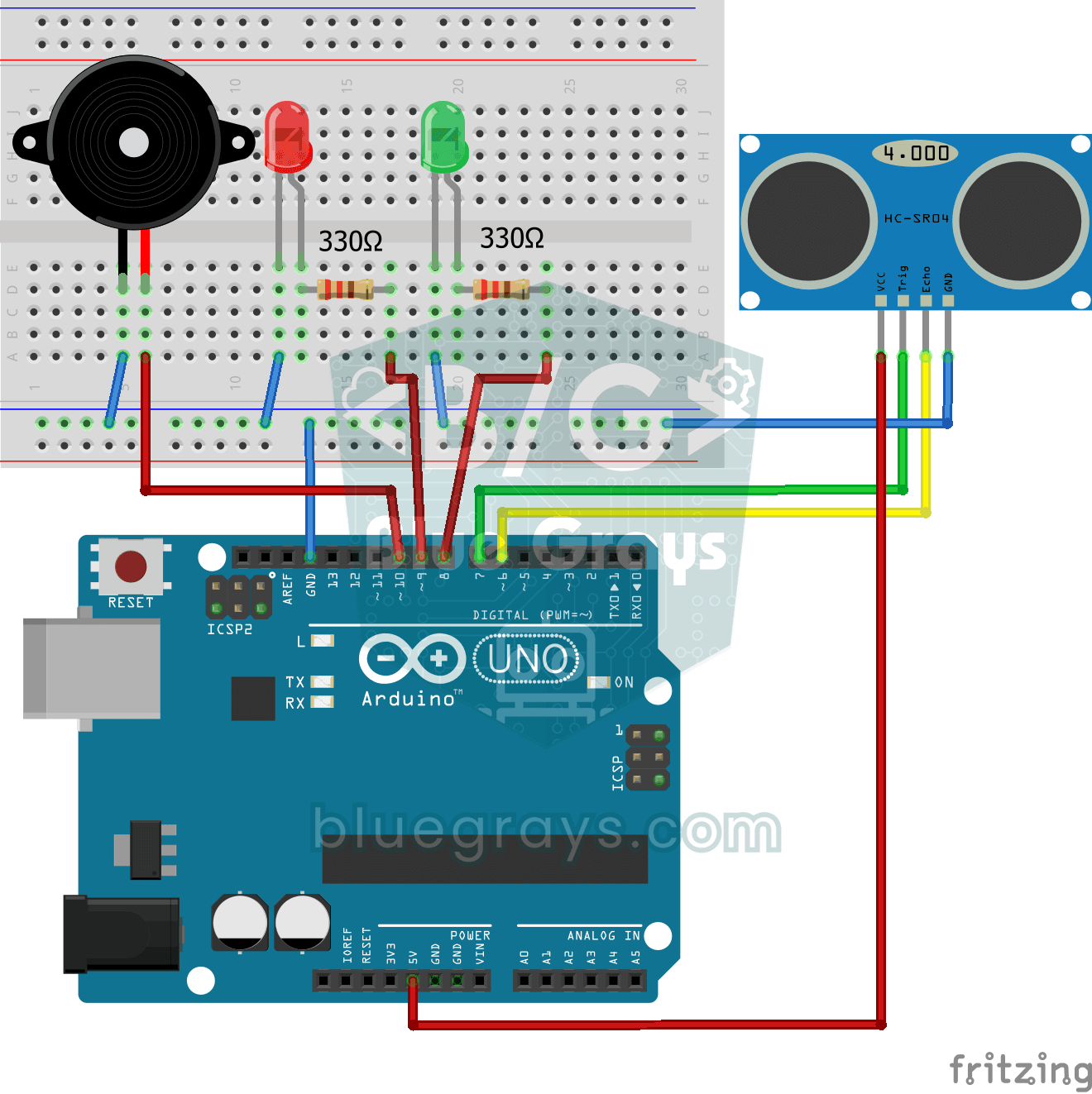
A mini version of a car's parking sensor: the closer something gets, the faster the beeps. The distance sensor measures the object in front of it; if it is more than 20 centimetres away the green LED
Using a Servo Motor
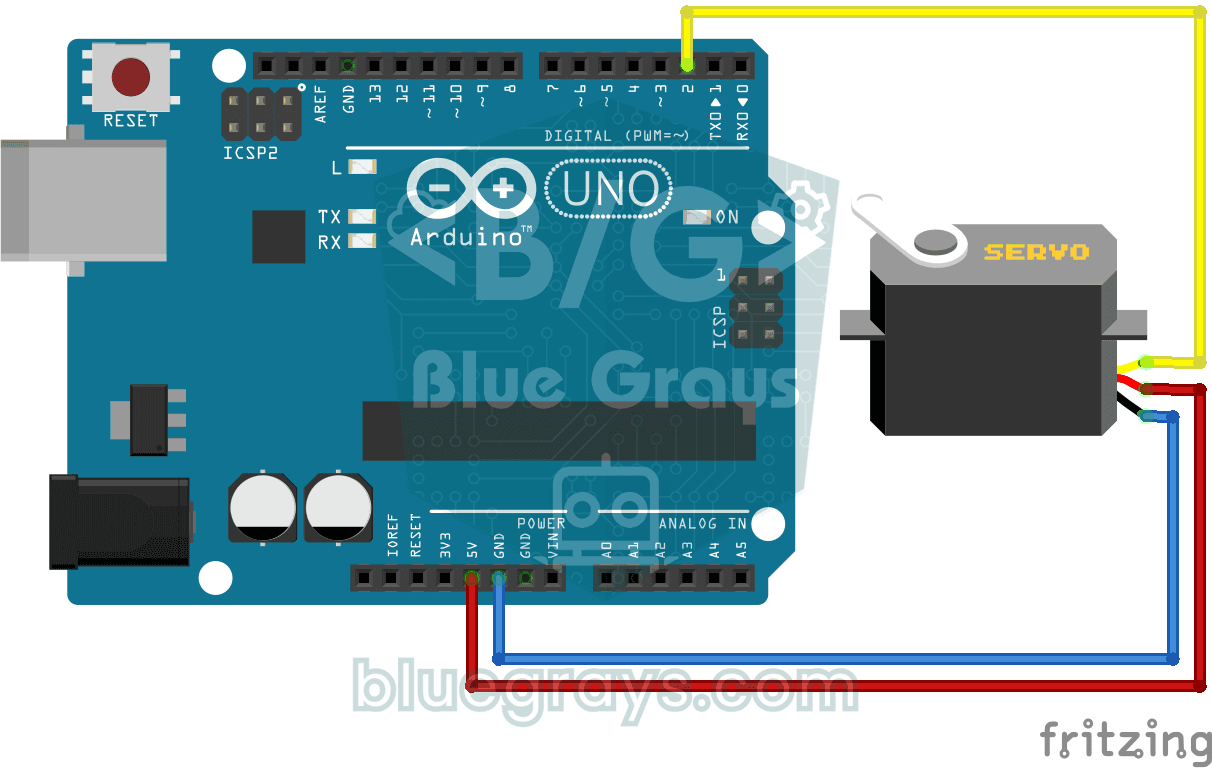
The arm of a small servo motor turns to three positions in turn: all the way to the start, right to the middle and all the way to the end, waiting two seconds at each stop. The Arduino tells the motor
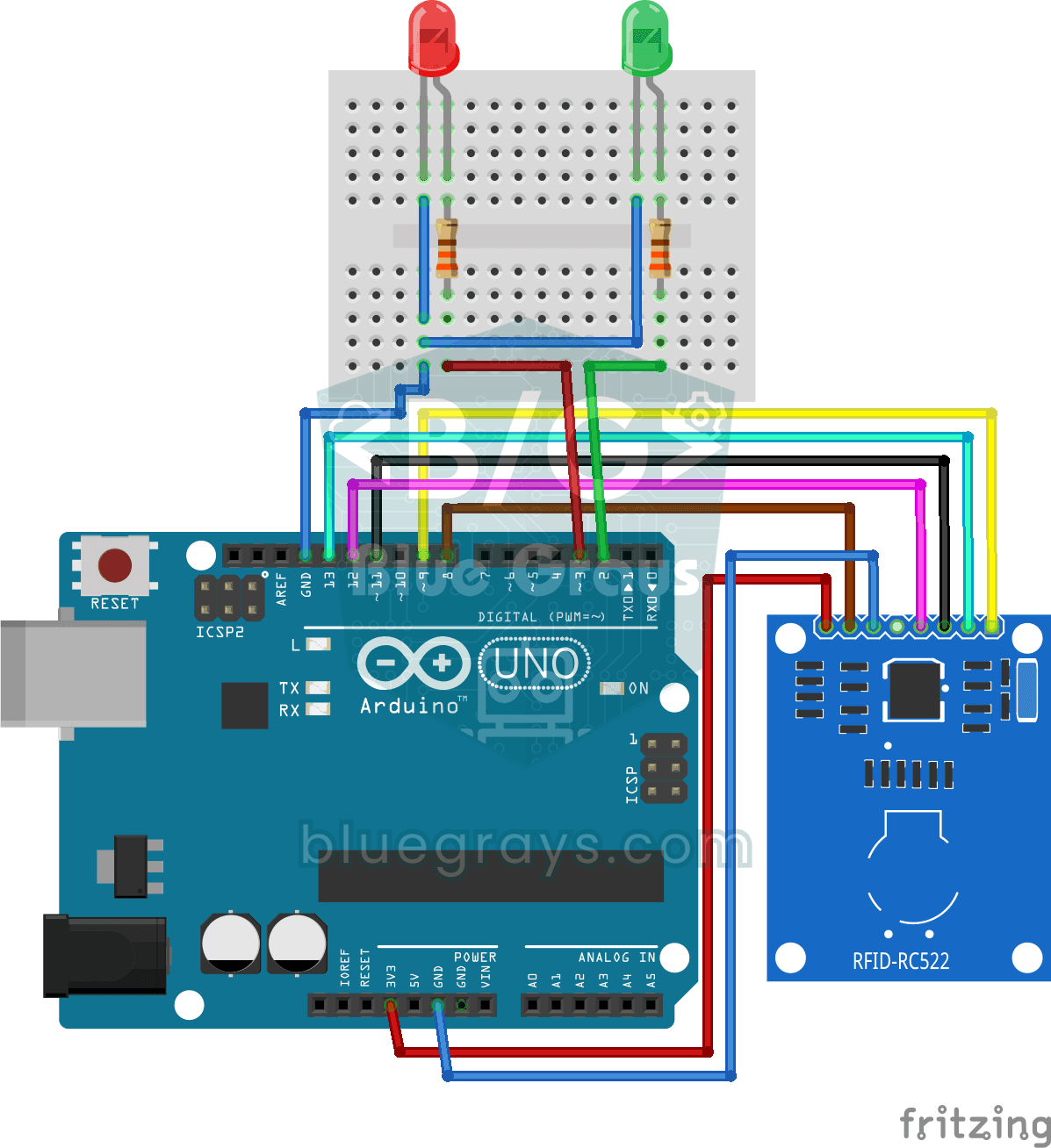
RFID Authentication
Just like the card entry at an apartment door: you hold your card near the RFID reader, and the Arduino compares its number with the one it has saved. The right card lights the green LED for three sec

Obstacle Avoidance Robot
How about building a smart vehicle that finds its own way? The Obstacle Avoidance Robot constantly scans its surroundings thanks to the ultrasonic sensor in front of it. When it encounters an obstacle

Smart Irrigation Station
A gardener that waters your plants on its own, so they don't dry out while you're on vacation. A soil moisture sensor measures how wet the soil is; when it gets dry, the Arduino runs the water pump fo