
Tinkercad Arduino Simulator: Circuits, Code and Multimeter Guide
Tinkercad Arduino simulation step by step: sign-up, breadboard LED and sensor circuits, block and text code, Serial Monitor, virtual multimeter and Wokwi.
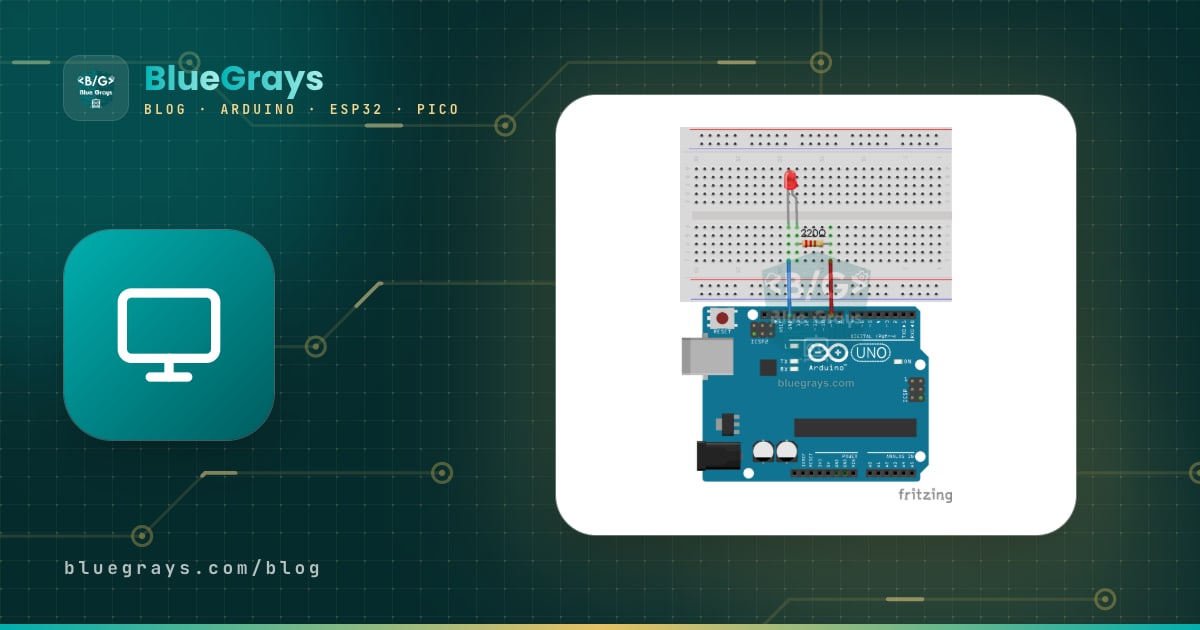
A Tinkercad Arduino simulation is the easiest way to build an Arduino circuit and run its code before you own a single part. In Autodesk's free, browser-based Tinkercad Circuits you wire an Arduino Uno to a virtual breadboard, add LEDs, resistors, buttons and sensors, write the code and press Start Simulation: the LED lights up, the servo turns and data flows into the Serial Monitor. No LED burns out and no board gets damaged by a wrong connection, because everything happens on screen. That's why so many school Arduino courses start with Tinkercad.
In this guide you'll start by creating an account, build your first circuit on a breadboard, see the difference between block code and text code, watch sensor data in the Serial Monitor and its graph, and measure voltage, current and resistance with the virtual multimeter. After that you'll learn about classroom accounts for teachers, which parts Tinkercad has and which it doesn't, where the simulation differs from a real circuit, and why you should switch to Wokwi for the ESP32 and Raspberry Pi Pico.
What is Tinkercad Circuits and how does it work?
Tinkercad is Autodesk's free web app that brings 3D design, electronics and coding tools together. Its electronics section, Circuits, is the successor to 123D Circuits, which was shut down in 2017, and it runs in any up-to-date browser without installing anything. Your designs are stored in the cloud, so you can continue at home a circuit you started on a school computer. Tinkercad doesn't just run your code, it also calculates the electrical behaviour of the circuit: the current through a resistor, the voltage across an LED, the voltage at any node. The programmable boards are the Arduino Uno R3, the ATtiny and the BBC micro:bit. Your Arduino code is compiled just like with the real Arduino compiler and executed on a virtual ATmega328P, which is why code that works in Tinkercad also works on a real board.
| Feature | Tinkercad Circuits |
|---|---|
| Price | Free (an Autodesk account is required) |
| Installation | None; it runs in the browser and designs are saved in the cloud |
| Programmable boards | Arduino Uno R3, ATtiny, BBC micro:bit |
| Coding | Blocks, Blocks + Text, Text (Arduino C++) |
| Built-in libraries | About 11: Servo, LiquidCrystal, Adafruit NeoPixel, IRremote, Keypad, Wire, SoftwareSerial, EEPROM and others |
| Instruments | Multimeter, oscilloscope, function generator, adjustable power supply |
| Ready-made examples | Starters: basic, Arduino and micro:bit circuits |
| Classroom management | Tinkercad Classrooms, up to 250 students per class |
| Moving to a real board | Download the code as an .ino file and upload it with the Arduino IDE |
How do you create a Tinkercad account?
- Go to tinkercad.com in your browser and click the Sign Up button in the top right corner.
- Pick the path that fits you: a personal account if you're learning on your own, a teacher (Educators) account if you teach, or Join Class if your teacher gave you a class code.
- For a personal account, continue with your email address or your Google account. A Tinkercad account is actually an Autodesk account, so you can use the same login for other Autodesk services.
- Once you're signed in, open the Circuits section from the menu on the left of your dashboard and start a new circuit with the Create button.
- Your design is saved automatically. Tinkercad gives it a random, funny name; click the name in the top left and type something meaningful like "LED and Button" so you can find it later.
For students under 13, the easiest route is to log in with the class code and nickname a teacher provides: no email or password is needed. The student clicks Join Class on tinkercad.com and types the code, then the nickname they were given. Younger users who want a personal account may be asked for parental consent during sign-up. You'll find the details of teacher accounts in a separate section below.
Get to know the interface: workspace, parts and shortcuts
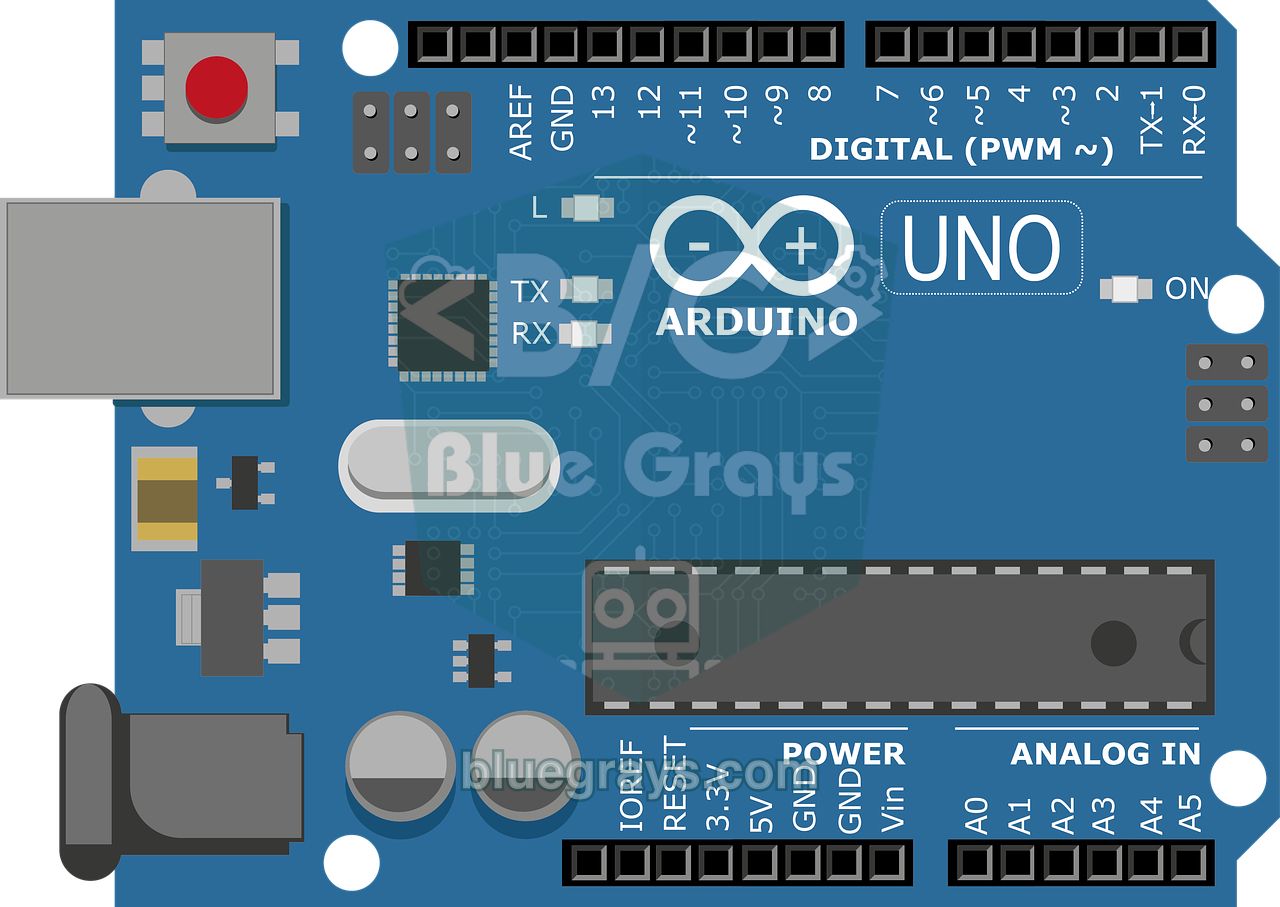
The circuit editor has a large workspace on the left and the components panel on the right. By default the panel shows the most popular basic parts (Basic Components); to see everything, pick All Components from the drop-down menu or type a name such as "servo" or "ultrasonic" into the search box. Further down the panel, the Starters section holds about two dozen ready-made Arduino circuits. Dragging one into the workspace, starting the simulation and reading its code is the fastest way to learn a new part. The buttons in the top bar let you switch between the circuit view, an automatically drawn schematic view and the component list.
| Shortcut | What it does |
|---|---|
| F | Fits the whole circuit on screen (Zoom to fit) |
| R | Rotates the selected part |
| N and Shift + N | Adds a note; hides or shows notes |
| Number keys 0–9 | Change the colour of the selected wire |
| Shift + click | Selects several parts at once |
| Mouse wheel | Zooms in and out |
| Delete | Deletes the selected part or wire |
First circuit: LED, resistor and button on a breadboard
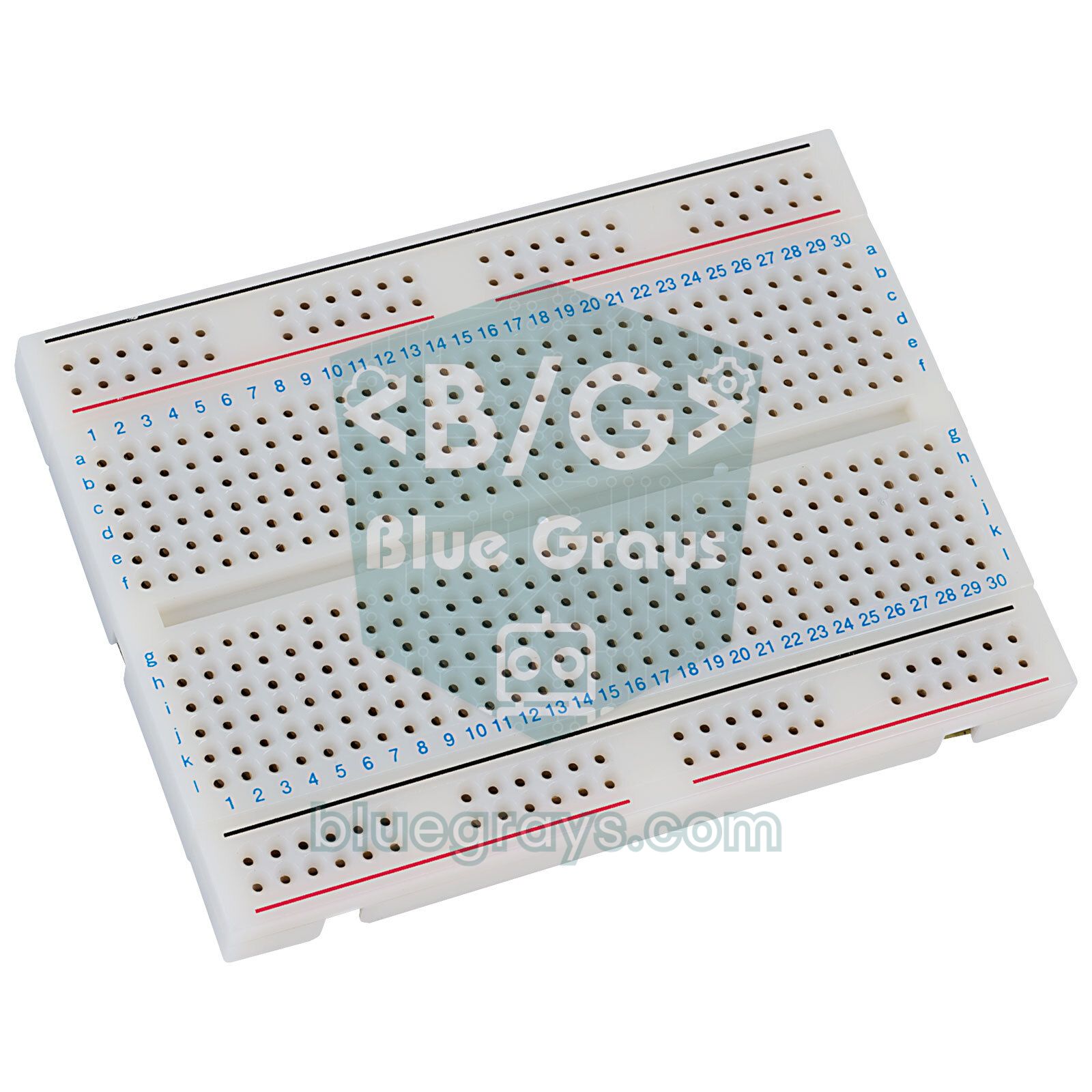
- Drag an Arduino Uno R3 and a breadboard from the components panel and place them side by side. If you don't know how a breadboard is connected inside, read What is a breadboard? first.
- Place an LED on the breadboard. On Tinkercad's LED the bent leg is the anode (+) and the straight leg is the cathode (−); hover over a leg and Tinkercad shows its name. With the LED selected you can change its colour in the panel that opens.
- Add a resistor and connect it in series with the LED's anode. With the resistor selected, set the value to 220 and the unit to Ω in the panel; the default is 1 kΩ. You can find the right value for your LED with the LED resistor calculator.
- Place a button (Pushbutton) across the gap in the middle of the breadboard so that the opposite legs stay separate.
- To draw a wire, click a pin or a hole, then click the destination; click empty spots on the way to bend the wire. Connect the free end of the resistor to D9, the LED's cathode to GND, one leg of the button to D2 and the diagonally opposite leg to GND.
- Colour your wires: making power red and ground black makes troubleshooting much easier. Then type the code below and press Start Simulation.
| Connection | Arduino Uno (Tinkercad) | ESP32 | Raspberry Pi Pico |
|---|---|---|---|
| LED anode (through 220 Ω) | D9 | GPIO 18 | GP14 |
| LED cathode | GND | GND | GND |
| Button (other leg to GND) | D2 | GPIO 4 | GP2 |
| Potentiometer wiper | A0 | GPIO 34 | GP26 (ADC0) |
| TMP36 middle pin (Vout) | A1 | GPIO 35 | GP27 (ADC1) |
| Potentiometer and TMP36 supply | 5V and GND | 3V3 and GND | 3V3(OUT) and GND |
Writing code: Blocks, Blocks + Text and Text mode
The Code button in the top right opens the code panel. The drop-down at the top of the panel offers three modes. In Blocks mode you drag and snap together colourful Scratch-style blocks, so a missing semicolon or a typo is impossible. In Blocks + Text mode the blocks stay on the left while the Arduino C++ code Tinkercad generates from them appears live on the right; change a block and the text changes instantly. This mode is the best bridge from blocks to real code. Text mode is where you write C++ directly, just like in the Arduino IDE. The blocks are grouped by colour into Output, Input, Notation, Control, Math and Variables.
| Block (what it does) | Equivalent in Text mode |
|---|---|
| Set a pin HIGH or LOW | digitalWrite(9, HIGH); |
| Wait for a given time | delay(1000); |
| Read a digital pin | digitalRead(2) |
| Read an analog pin | analogRead(A0) |
| Print to the serial monitor | Serial.println(value); |
| Rotate a servo to an angle | servo.write(90); (with the Servo library) |
| Repeat, if and else | for loop, if and else |
| Create and change a variable | int counter = 0; counter = counter + 1; |
First program in text code: button, LED and Serial Monitor
1// Tinkercad ilk program: buton, LED ve Seri Monitör / First Tinkercad sketch: button, LED and Serial Monitor
2const int LED_PIN = 9;      // LED + 220 ohm direnç / LED + 220 ohm resistor
3const int BUTON_PIN = 2;    // butonun diğer ucu GND'de / other button leg goes to GND
4
5int basmaSayisi = 0;        // basma sayacı / press counter
6int oncekiDurum = HIGH;     // önceki buton durumu / previous button state
7bool ledAcik = false;       // LED durumu / LED state
8
9void setup() {
10  pinMode(LED_PIN, OUTPUT);
11  pinMode(BUTON_PIN, INPUT_PULLUP);   // basılınca LOW okunur / reads LOW when pressed
12  Serial.begin(9600);
13  Serial.println("Hazir / Ready");
14}
15
16void loop() {
17  int durum = digitalRead(BUTON_PIN);
18  if (durum != oncekiDurum) {                       // durum değişti / state changed
19    if (durum == LOW) {                             // yeni basış / new press
20      basmaSayisi++;
21      ledAcik = !ledAcik;                           // LED'i tersine çevir / toggle the LED
22      digitalWrite(LED_PIN, ledAcik ? HIGH : LOW);
23      Serial.print("Basma / Presses: ");
24      Serial.println(basmaSayisi);
25    }
26    delay(50);                                      // basma ve bırakmada debounce / debounce on press and release
27    oncekiDurum = durum;
28  }
29}
The button is read with INPUT_PULLUP: a resistor of roughly 20–50 kΩ inside the Arduino holds the pin HIGH, and pressing the button pulls it to GND so it reads LOW, which means you don't need an extra resistor. The program only reacts to the change from HIGH to LOW, in other words a new press, and toggles the LED each time. After starting the simulation, click the Serial Monitor button at the bottom of the code panel, then click the button with your mouse: the counter goes up by one with every press. You'll find the details of building the same circuit on a real board in How to connect a button to Arduino.
Serial Monitor and graph: watching sensor data
The nicest thing about sensors in Tinkercad is that you can change their values with the mouse. While the simulation is running, click the TMP36 temperature sensor and a slider appears that lets you set the temperature between −40 and 125 °C. You change the light level on the photoresistor and the moisture on the soil moisture sensor the same way, while for the ultrasonic distance sensor and the PIR motion sensor you drag the target that appears in front of them to imitate distance or movement. The TMP36 outputs 0.5 V at 0 °C and rises by 10 mV per degree, so it gives 0.75 V at 25 °C. Connect the middle pin to A1 and the outer pins to 5V and GND; the code below reads that voltage and converts it to degrees Celsius:
1// TMP36 ile sıcaklık: Seri Monitör ve grafik / Temperature with TMP36: Serial Monitor and graph
2const int TMP36_PIN = A1;   // TMP36 orta ucu (Vout) / TMP36 middle pin (Vout)
3
4void setup() {
5  Serial.begin(9600);
6}
7
8void loop() {
9  int ham = analogRead(TMP36_PIN);         // 0-1023 arası ham değer / raw value 0-1023
10  float volt = ham * 5.0 / 1023.0;         // gerilime çevir / convert to volts
11  float sicaklik = (volt - 0.5) * 100.0;   // 0,5 V = 0 °C ve 10 mV/°C / 0.5 V = 0 °C and 10 mV/°C
12  Serial.println(sicaklik, 1);             // yalnız sayı: grafik için / number only: for the graph
13  delay(500);
14}
With the Serial Monitor open, press the graph button in the panel to see the incoming numbers as a line chart; move the sensor slider and watch the curve rise and fall. For a clean graph, print only the number on each line; if you add a label such as "Temp: 24.5", the graph may break or not be drawn at all. You can also type text into the box at the bottom of the monitor, send it and read it in your code with Serial.read(), so you could write a program that switches an LED on from the keyboard. For everything about serial communication, see Arduino Serial Monitor.
Measuring voltage, current and resistance with the virtual multimeter
Tinkercad's biggest difference from the Arduino IDE is that it calculates the circuit electrically, so you can take measurements just like with a real multimeter. Drag a Multimeter from the components panel; of the two terminals at the bottom, the black one is COM (−) and the red one is the measuring (+) terminal. Click the multimeter to pick the measurement mode in the panel that opens; the value appears on its display while the simulation runs:
- Voltage: Connect the probes in parallel across the two points you want to measure, for example the red one to the potentiometer's wiper and the black one to GND.
- Current: Break the circuit at one point and insert the multimeter in series, for example between D9 and the resistor. Connecting a multimeter in current mode in parallel with a part is a short circuit.
- Resistance: Disconnect the part you want to measure, or leave it unpowered, and connect the probes to its two legs. Resistors in Tinkercad are drawn with real colour bands; you can practise reading them with the resistor colour code tool.
1// Potansiyometre ile LED parlaklığı ve multimetre karşılaştırması
2// Potentiometer LED brightness and multimeter comparison
3const int POT_PIN = A0;   // potansiyometre orta ucu / potentiometer wiper
4const int LED_PIN = 9;    // PWM destekli pin / PWM-capable pin
5
6void setup() {
7  pinMode(LED_PIN, OUTPUT);
8  Serial.begin(9600);
9}
10
11void loop() {
12  int ham = analogRead(POT_PIN);                // 0-1023
13  float volt = ham * 5.0 / 1023.0;              // multimetreyle karşılaştır / compare with the multimeter
14  int parlaklik = map(ham, 0, 1023, 0, 255);    // PWM değeri / PWM value
15  analogWrite(LED_PIN, parlaklik);
16
17  Serial.print(ham);
18  Serial.print("  ");
19  Serial.print(volt, 2);
20  Serial.println(" V");
21  delay(300);
22}
For this experiment, add a potentiometer to the circuit: connect its outer pins to 5V and GND and its wiper to A0. With the knob exactly in the middle, the multimeter shows 2.50 V and the Serial Monitor shows a raw value around 511 and 2.50 V, because 2.5 / 5 × 10²³ ≈ 511. Seeing both values match is the best experiment for understanding how analogRead turns a voltage into a number. Now switch the multimeter to current mode, put it in series between D9 and the resistor and turn the potentiometer all the way up: with a red LED and 220 Ω you'll see roughly (5 − 2) / 220 ≈ 14 mA. You can do the same calculation with the Ohm's law calculator. At in-between settings D9 outputs a PWM signal that keeps switching on and off; to see it, add an oscilloscope and connect its red probe to D9 and its black probe to GND. On the Uno's pin 9 the PWM frequency is about 490 Hz, and analogWrite(128) draws a square wave that is high half the time. You'll find the idea behind PWM in What is PWM?.
Stepping through your code with the debugger
If your code doesn't compile, Tinkercad opens the error console below the code panel automatically and highlights the problem line; the messages are similar to those in the Arduino IDE. If the code compiles but behaves wrongly, use the debugger: in Text mode, click a line number to set a breakpoint and start the simulation. The program stops when it reaches that line, and hovering over a variable shows its current value. The buttons that appear above the code panel let you step to the next line or resume the program. It's much faster than adding Serial.print to every line when you need to find out why a button is counted twice or why an if condition is never entered. We've collected the meaning of common compiler messages in Arduino compilation errors.
Which parts does Tinkercad have, and which are missing?
| Group | Available in Tinkercad | Missing (what to use instead) |
|---|---|---|
| Boards | Arduino Uno R3, ATtiny, BBC micro:bit | Arduino Nano and Mega, ESP32, ESP8266, Raspberry Pi Pico (test with the Uno or use Wokwi) |
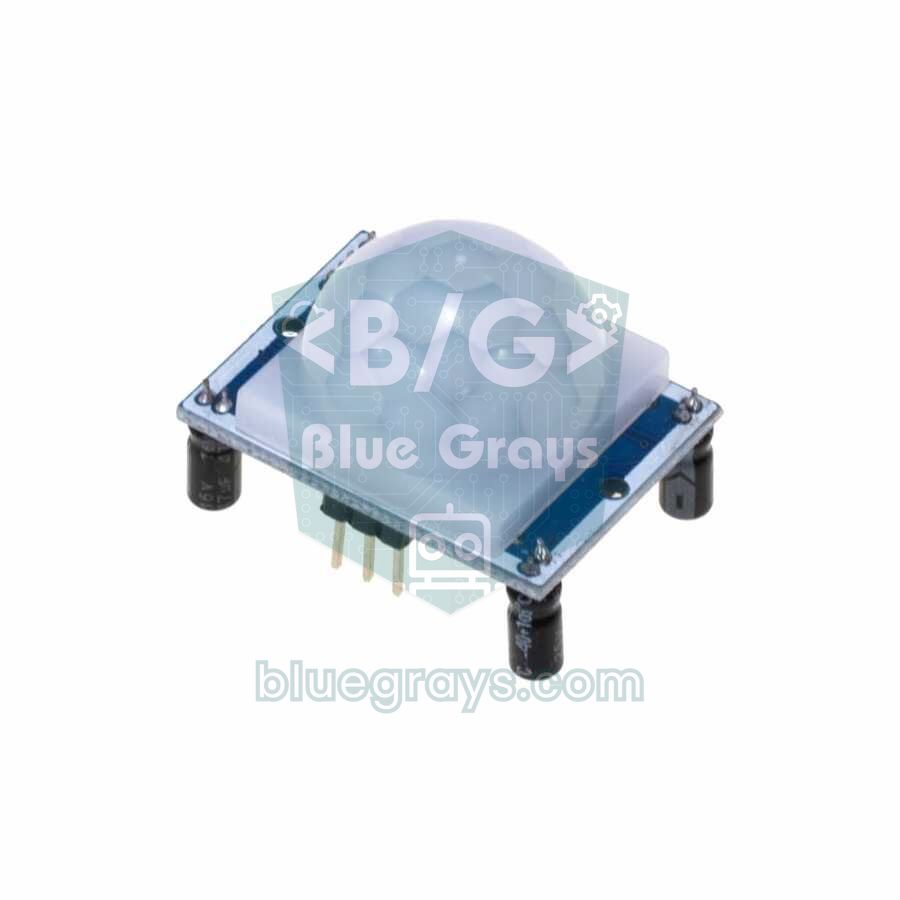
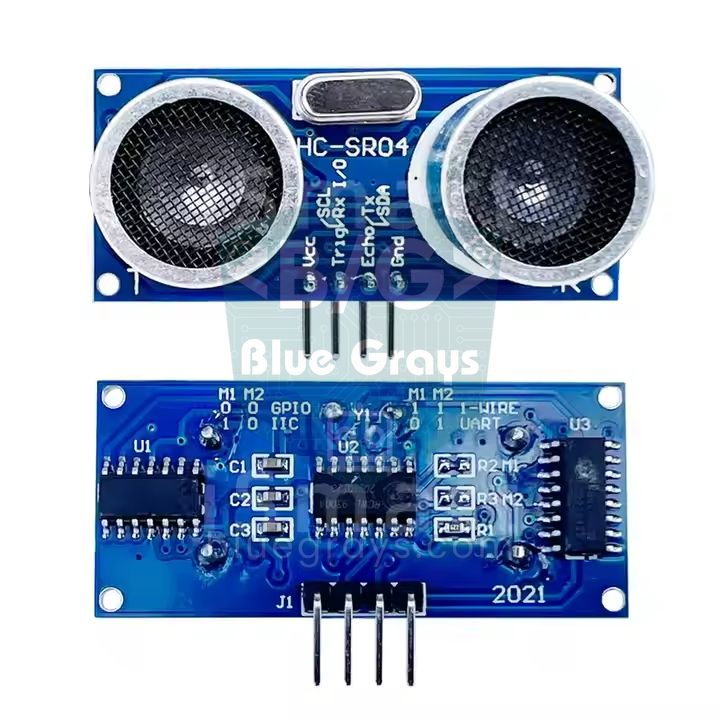
| Sensors | TMP36 temperature, photoresistor, ultrasonic distance (3- and 4-pin), PIR, soil moisture, gas, tilt, flex and force sensors, IR receiver | DHT11, DHT22 and MPU6050 (use the TMP36 for temperature) |
| Displays and light | LED, RGB LED, 16x2 LCD (parallel and I2C), 7-segment display, NeoPixel strip and ring | OLED (SSD1306) and TFT displays (try an LCD instead) |
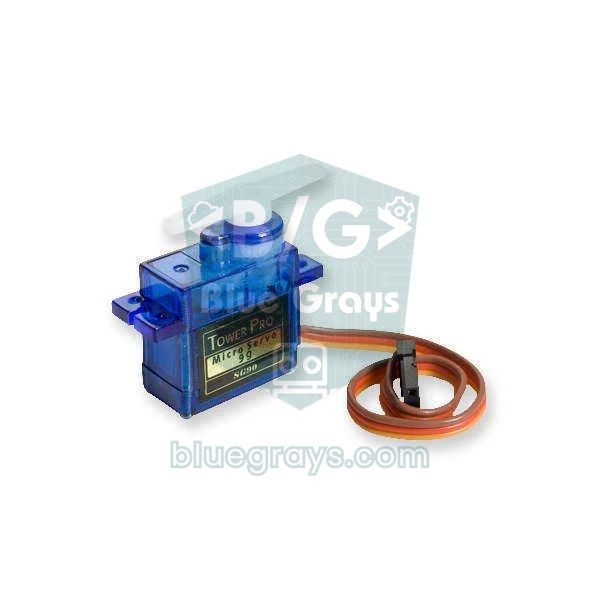
| Motors and outputs | DC motor, gear motor, micro servo, vibration motor, piezo buzzer, relay, L293D H-bridge | L298N motor driver module (use the L293D) |
| Input parts | Pushbutton, slide and DIP switches, potentiometer, 4x4 keypad, IR remote | RC522 RFID reader and fingerprint sensor |
| ICs and basic parts | Resistor, capacitor, inductor, diode, Zener, NPN and PNP transistors, MOSFET, 555, 74HC595, logic gates, LM741 op-amp, 7805 regulator | Almost all basic parts are there |
| Communication | Connecting several Unos over serial (TX/RX) and I2C | Wi-Fi, Bluetooth (HC-05), nRF24L01 and GSM modules |
| Measurement and power | Multimeter, oscilloscope, function generator, power supply, 9 V, AA and coin cell batteries | Batteries draining over time and parts heating up |
To add a library, press the library button (the file box icon) in the code panel; when you choose one of the roughly eleven libraries on the list, the #include line is added at the top of your code. If you type a library that isn't on the list, such as DHT.h, the compiler reports that it can't find the file; you can't upload external libraries to Tinkercad. With small libraries you can paste the contents of the .h and .cpp files directly into your code, but a library for hardware that Tinkercad doesn't have won't work even that way. One more important detail: in examples, Tinkercad's I2C LCD is driven by the Adafruit_LiquidCrystal library, whereas the PCF8574-based modules you buy usually work with the LiquidCrystal_I2C library and address 0x27 or 0x3F. You'll need to change those lines when moving to a real board; the details are in I2C LCD display.
Limits of the simulation: how it differs from a real circuit
- Timing: The simulation runs in your browser, so with a crowded circuit or a slow computer it can run slower than real time. In that case delay(1000) takes longer than a second on screen, while millis() counts the simulation's own clock.
- Ideal parts: Buttons in Tinkercad don't bounce, wires never come loose, and analog readings are not as noisy as in a real circuit. On a real board you need debouncing and averaging over several readings.
- Power limits: A motor or lots of LEDs that run fine in the simulation can make a real Arduino reset or its regulator overheat. Make it a rule to draw no more than about 20 mA from a pin and to power motors from a separate supply.
- Looking connected isn't being connected: If a leg isn't seated properly in a breadboard hole, the wire looks connected but the circuit doesn't work. Hover over the hole and check that the connected holes on the same strip are highlighted.
- One file, few libraries: Your code lives in a single tab and you can't add external libraries, which makes bigger projects harder to organise.
- Special characters: The Serial Monitor doesn't fully support UTF-8, so accented or non-English characters may appear garbled. Sticking to plain ASCII in serial output is the safest choice.
- No wireless: Wi-Fi, Bluetooth and the internet are not simulated, so Tinkercad isn't suitable for Internet of Things (IoT) projects.
Tinkercad Classrooms for teachers
- Set your role to teacher when you sign up or in your profile settings; the class features are available on teacher accounts.
- Go to the Classes page from the top menu and create a class with Create new class, entering the class name, the age or grade level and the subject.
- Use Add Students to type in your students' names; Tinkercad generates a nickname for each one that is unique within the class. Instead of typing long lists one by one you can paste them in; a class can hold up to 250 students.
- Show the class code and the class link with the Class Code button. Students join by opening the link and entering their nickname, or by entering the code through Join Class on tinkercad.com; no email or password is needed.
- Follow your students' work in the Designs tab on the class page; click a student's name to open and edit their designs.
Classes open in Safe Mode by default: students can't make their designs public, can't search the gallery and can't see comments. When preparing lessons you can use the interactive Arduino lessons in Tinkercad's Learn section and the Starters circuits. A common approach is for the teacher to share an example circuit and for students to copy it and modify it. If you have physical kits in class, building the circuit in Tinkercad first and then repeating it with real parts noticeably cuts down on reversed LEDs and wrongly powered boards.
Moving from Tinkercad to a real Arduino
- Save the code to your computer as an .ino file with the download button in the code panel, or copy the text.
- Open the file in the Arduino IDE; if the IDE offers to move it into a folder with the same name, accept. If you haven't installed the IDE yet, see the Arduino IDE installation guide.
- Choose Arduino Uno under Tools > Board and your board's port under Port, then click Upload. If the upload fails, follow the steps in Arduino code not uploading.
- Build the circuit with the same pins by following your Tinkercad drawing; keeping the schematic view open on a second screen makes this easier.
- Fix the differences the simulation doesn't show: add software debouncing to buttons, change the I2C LCD library and address, and if you use a different sensor instead of the TMP36, such as the DHT11, update the code accordingly.
ESP32 and Raspberry Pi Pico: Tinkercad or Wokwi?
Tinkercad has no ESP32 and no Raspberry Pi Pico, and it doesn't simulate Wi-Fi or MicroPython. For these boards you can use Wokwi, another simulator that runs in the browser. Besides the Arduino Uno, Mega and Nano, Wokwi supports the ESP32 family and the Pico, connects the ESP32 to a virtual Wi-Fi network and lets you use most libraries from the Arduino Library Manager. On the other hand, Wokwi doesn't calculate the circuit electrically: changing a resistor value doesn't affect the LED current, and instead of a multimeter that measures voltage and current it offers a logic analyzer for digital signals. In short, the most efficient approach is to learn electronics basics in Tinkercad and to try ESP32 and Pico code in Wokwi. For a detailed walkthrough, see Wokwi simulator.
| Feature | Tinkercad Circuits | Wokwi |
|---|---|---|
| Boards | Arduino Uno R3, ATtiny, micro:bit | Uno, Mega, Nano, ESP32 family, Raspberry Pi Pico, STM32 and more |
| Electrical simulation (current, voltage) | Yes; multimeter and oscilloscope | Very limited; logic analyzer available |
| Block coding | Yes | No |
| Libraries | About 11 built-in libraries | Most libraries from the Library Manager |
| Wi-Fi and internet | No | Yes, with the ESP32 and Pico W |
| MicroPython | No | Yes, on the Pico and ESP32 |
| Account | Required | Not needed to try it; sign in to save |
| Best for | Electronics basics, school lessons, first Arduino steps | ESP32, Pico, IoT and library-heavy projects |
Below is the MicroPython version of the button and LED program for the Raspberry Pi Pico. With the GP14 and GP2 connections from the pin table, you can run it in Wokwi or on a real Pico with Thonny. On the ESP32 you can use the Arduino code as it is and simply set LED_PIN to 18 and BUTON_PIN to 4. To get started with the Pico, read What is the Raspberry Pi Pico?, and for the ESP32 see What is the ESP32?.
1# Aynı program Raspberry Pi Pico'da (MicroPython) / The same program on Raspberry Pi Pico (MicroPython)
2from machine import Pin
3import time
4
5led = Pin(14, Pin.OUT)                  # LED + 220 ohm direnç / LED + 220 ohm resistor
6buton = Pin(2, Pin.IN, Pin.PULL_UP)     # butonun diğer ucu GND'de / other button leg goes to GND
7
8basma = 0                               # basma sayacı / press counter
9onceki = 1                              # önceki buton durumu / previous button state
10
11while True:
12    durum = buton.value()
13    if durum != onceki:                 # durum değişti / state changed
14        if durum == 0:                  # yeni basış / new press
15            basma += 1
16            led.toggle()                # LED'i tersine çevir / toggle the LED
17            print("Basma / Presses:", basma)
18        time.sleep_ms(50)               # basma ve bırakmada debounce / debounce on press and release
19        onceki = durum
20    time.sleep_ms(5)
Project ideas to try in Tinkercad
- Traffic light: A junction with three LEDs and a pedestrian button; the step-by-step build is in Arduino traffic light.
- Night light: An LED that turns on when it gets dark; using the photoresistor on a real board is covered in LDR light sensor.
- Parking sensor: An ultrasonic sensor and a piezo buzzer that beeps faster as you get closer; the measuring principle is explained in HC-SR04 distance sensor.
- Servo control: Set a servo's angle with a potentiometer; the code from servo motor also runs in Tinkercad.
- Code lock: A door lock with a 4x4 keypad, an LCD and a servo; the Keypad library used in the keypad article is available in Tinkercad too.
- Many LEDs from few pins: Drive 8 LEDs from 3 pins with a 74HC595 shift register; the details are in 74HC595.
- Two Arduinos talking: Cross-connect the TX and RX lines of two Unos and send messages from one to the other; Tinkercad simulates several boards at once.
- 555 flasher: Build a blinking LED without a microcontroller and measure the frequency with the oscilloscope; the maths is in 555 timer.
Common mistakes and how to fix them
| Symptom | Likely cause | Fix |
|---|---|---|
| LED doesn't light at all | LED reversed, or both legs in the same breadboard row | The bent leg (anode) goes to the resistor; put the legs in different rows |
| LED is very dim | Resistor set to 220 kΩ instead of 220 Ω, or left at the default 1 kΩ | Select the resistor and check the value and unit |
| Warning or explosion icon on the LED | No resistor, current above 20 mA | Add a 220–330 Ω resistor in series with the LED |
| Serial Monitor is empty | No Serial.begin(), or the monitor isn't open | Add Serial.begin(9600) to setup() and open the Serial Monitor while the simulation runs |
| Graph shows nothing | Text printed next to the number | Send only the number with Serial.println() |
| Compile error: library not found | A library Tinkercad doesn't have (such as DHT.h) was included | Use a library from the list or an equivalent part |
| Button works the wrong way round | With INPUT_PULLUP the pin reads LOW while pressed | Write the condition for LOW, or use an external pull-down resistor |
| Simulation is very slow | Lots of parts, a long NeoPixel strip or very frequent Serial.print | Simplify the circuit, add a short delay to the loop, close other tabs |
Tinkercad is the best place to start learning Arduino for free and without risk: you build the circuit, measure it, follow the code step by step and, when you're ready, upload the same code to a real board. Every circuit you get working virtually makes your first attempt on the desk easier too. In the BlueGrays app you'll find many projects with step-by-step circuit diagrams and code, from lighting an LED and a traffic light to button and LDR projects, distance measurement with the HC-SR04 and two Arduinos communicating, so you can repeat the circuits you built in Tinkercad with real parts. For more inspiration, have a look at our Arduino project ideas list.
Frequently asked questions
Is Tinkercad free?
Yes. All Tinkercad tools, including Tinkercad Circuits, are free; you only need an Autodesk account. Students can also join without an email address using a class code from their teacher. Nothing needs to be installed: an up-to-date browser and an internet connection are enough.
Does Tinkercad have the ESP32 or Raspberry Pi Pico?
No. The only programmable boards in Tinkercad are the Arduino Uno R3, the ATtiny and the BBC micro:bit. To simulate the ESP32, ESP8266 or Raspberry Pi Pico you can use Wokwi, which also supports the ESP32's Wi-Fi and MicroPython on the Pico.
Can you add libraries to Tinkercad, and can I use a DHT11?
You can't upload external libraries to Tinkercad; you can only use the roughly eleven libraries listed in the code panel, such as Servo, LiquidCrystal, Adafruit NeoPixel, IRremote and Keypad. The DHT11 and DHT22 sensors aren't in the parts list either. To measure temperature, use the TMP36 sensor with analogRead.
Does Tinkercad code work on a real Arduino?
Yes, because Tinkercad compiles standard Arduino C++ code. Download the .ino file from the code panel, open it in the Arduino IDE and upload it to your board. You may only need to replace Tinkercad-specific libraries (such as Adafruit_LiquidCrystal for the I2C LCD) with the one that matches your real module and add debouncing to buttons.
Which is better, Tinkercad or Wokwi?
Each is strong at different things. Tinkercad calculates the circuit electrically and offers a multimeter and block coding, so it's better for electronics basics and school lessons. Wokwi stands out for advanced and IoT projects thanks to the ESP32, the Pico, Wi-Fi and broad library support.
How do students log in to Tinkercad?
Your teacher gives you a class link, or a class code and a nickname. Open the link and type your nickname, or click Join Class on tinkercad.com and enter the code, then your nickname. No email or password is needed this way; if you already have your own account, sign in and join the class from your dashboard.
Projects to build after reading this
See all projects
LED Blink
Basic input project that turns a single LED on and off at regular intervals with Arduino. Teaches the use of digitalWrite and delay functions.

Traffic Light
Project that simulates a real traffic light with red, yellow and green LEDs. Teaches timing and sequential control logic.

LED Control with a Push Button (Push)
Push control project that turns on the LED when the button is pressed and turns it off when it is released. Teaches button reading and conditional expression usage with digitalRead.

Measuring Light Intensity with an LDR
Project that measures ambient light intensity with LDR sensor and displays it on Serial Monitor. Teaches the basics of analog sensor reading and serial communication.
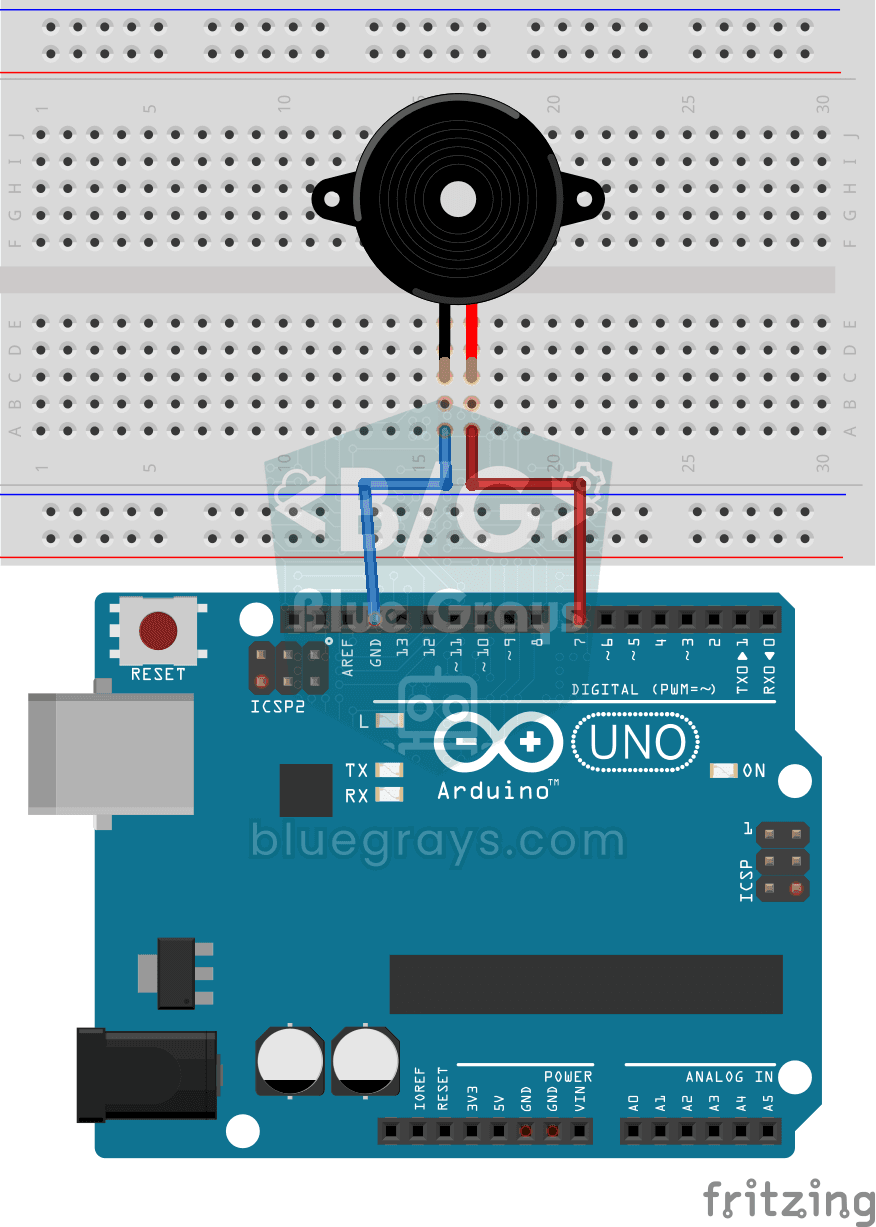
Using a Buzzer
Basic project that uses the buzzer to emit a sound at a specific frequency and interval. Teaches the use of tone() and noTone() functions.
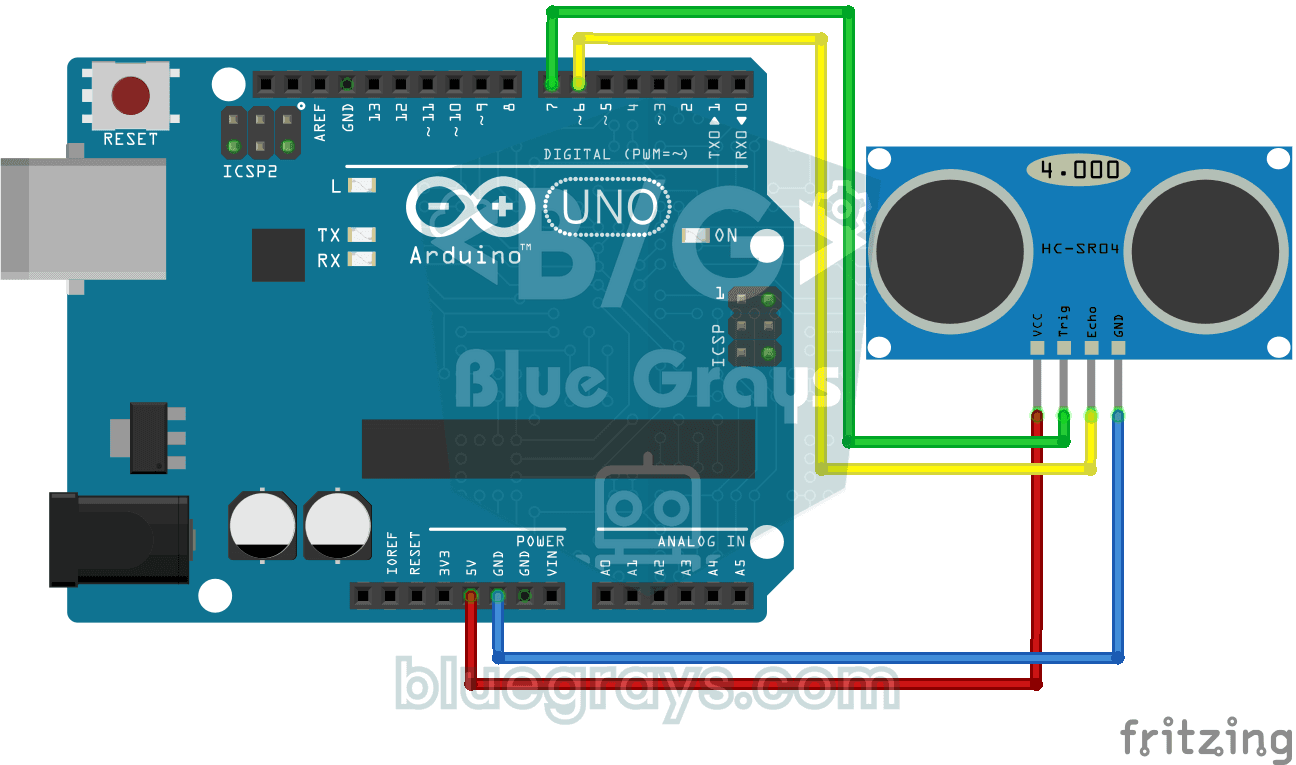
HC-SR04 Distance Measurement (Serial Display)
Project that measures distance with HC-SR04 ultrasonic sensor and displays the result in cm on Serial Monitor. It teaches the principle of distance calculation with sound wave.
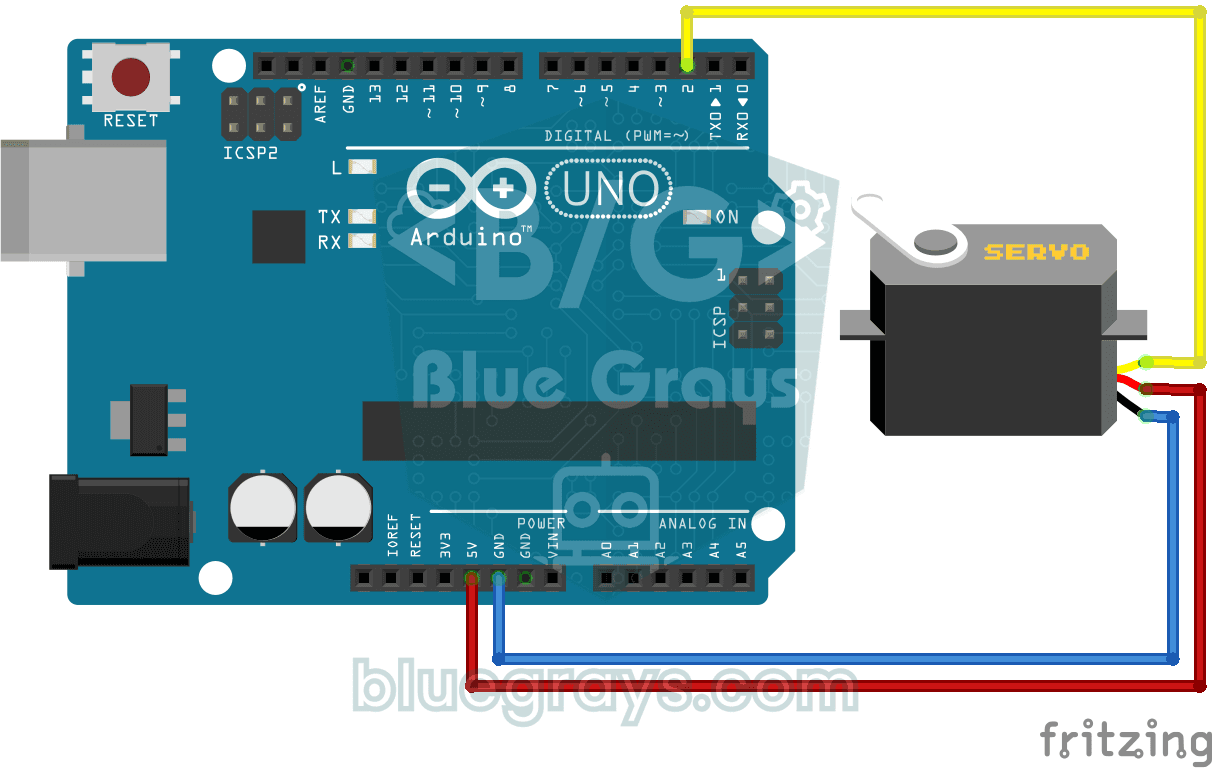
Using a Servo Motor
Basic usage project that positions the servo motor to 0°, 90° and 180° angles in sequence. Teaches servo library and angle control logic.
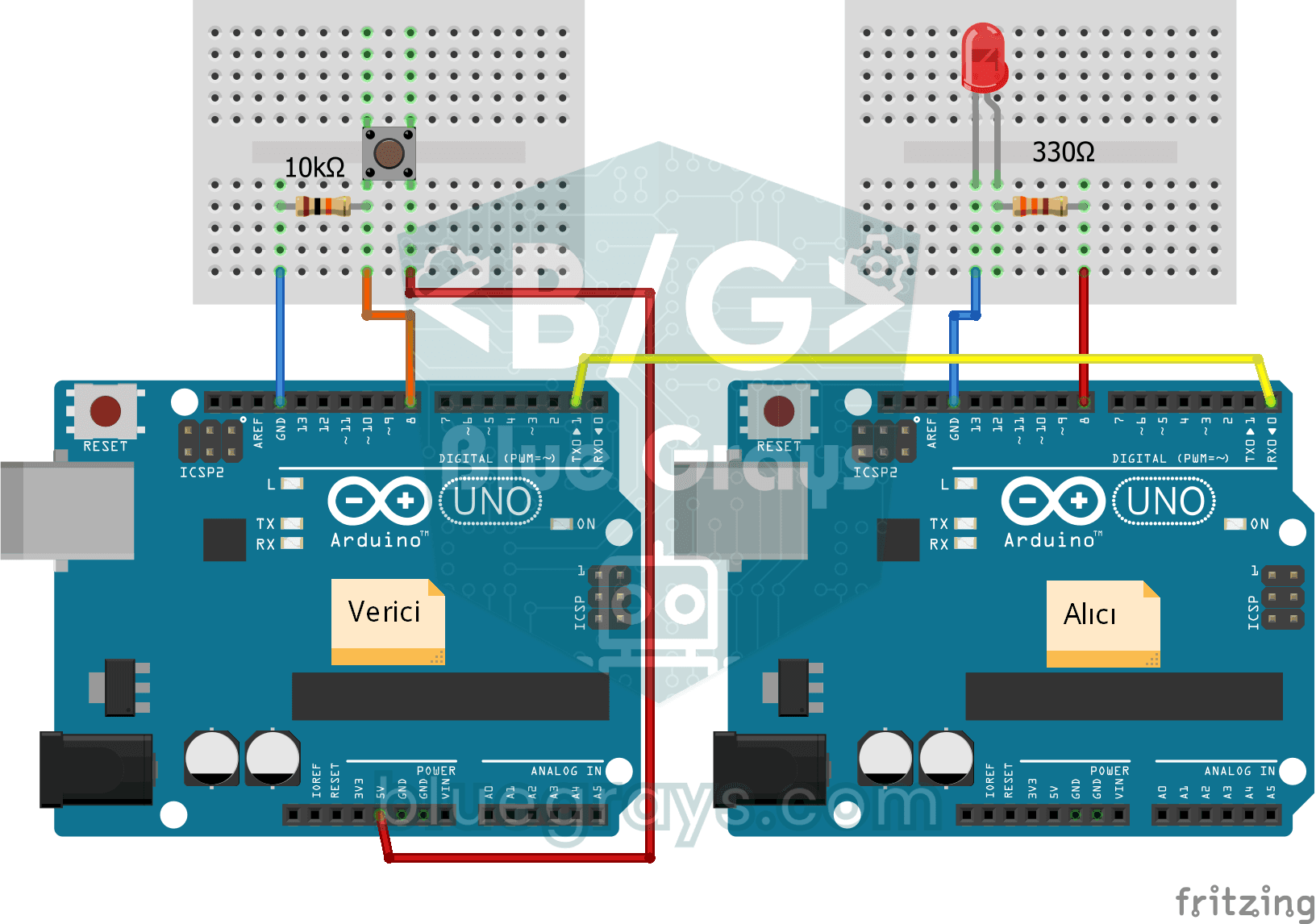
One-Way Communication Between 2 Arduinos
A project for one-way data transfer between two Arduinos via serial communication. It detects the button press on the transmitter side and teaches to control the LED on the receiver side.