
Arduino Project Ideas: 30 Projects from Beginner to Advanced
Arduino project ideas: 30 beginner, intermediate and advanced projects, each with a short description and parts list, plus bonus ESP32 and Pico ideas.
Looking for Arduino project ideas? You're in the right place: this list has 30 projects across beginner, intermediate and advanced levels, and the tables tell you what each one does, what it teaches you and which parts it needs. The ideas get gradually harder, from lighting an LED to an obstacle-avoiding robot, and each level builds on what you learned in the one before. At the end you'll also find six bonus ideas for the Wi-Fi-enabled ESP32 and the MicroPython-programmed Raspberry Pi Pico, plus a practical method for planning a project from start to finish.
The best way to use this list is to pick a project from the table for your level, build the basic version first and then improve it with small additions. Adding a buzzer to the night light or a display to the parking sensor, for example, often teaches you more than starting a brand-new project from scratch. Most of the projects in the tables are in the BlueGrays app with a step-by-step circuit diagram and code; the "In BlueGrays" column shows the matching projects.
Before you start: which parts do you need?
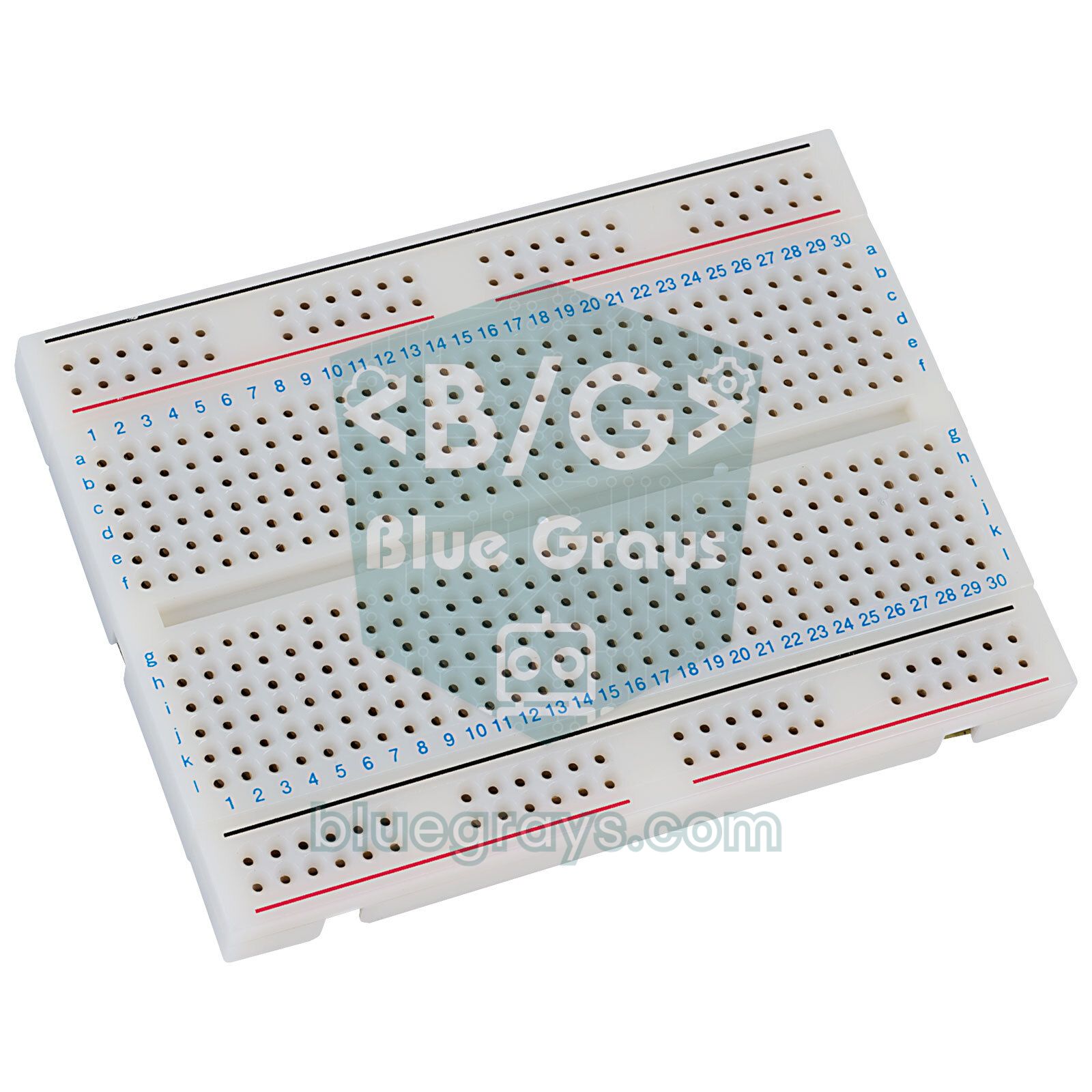
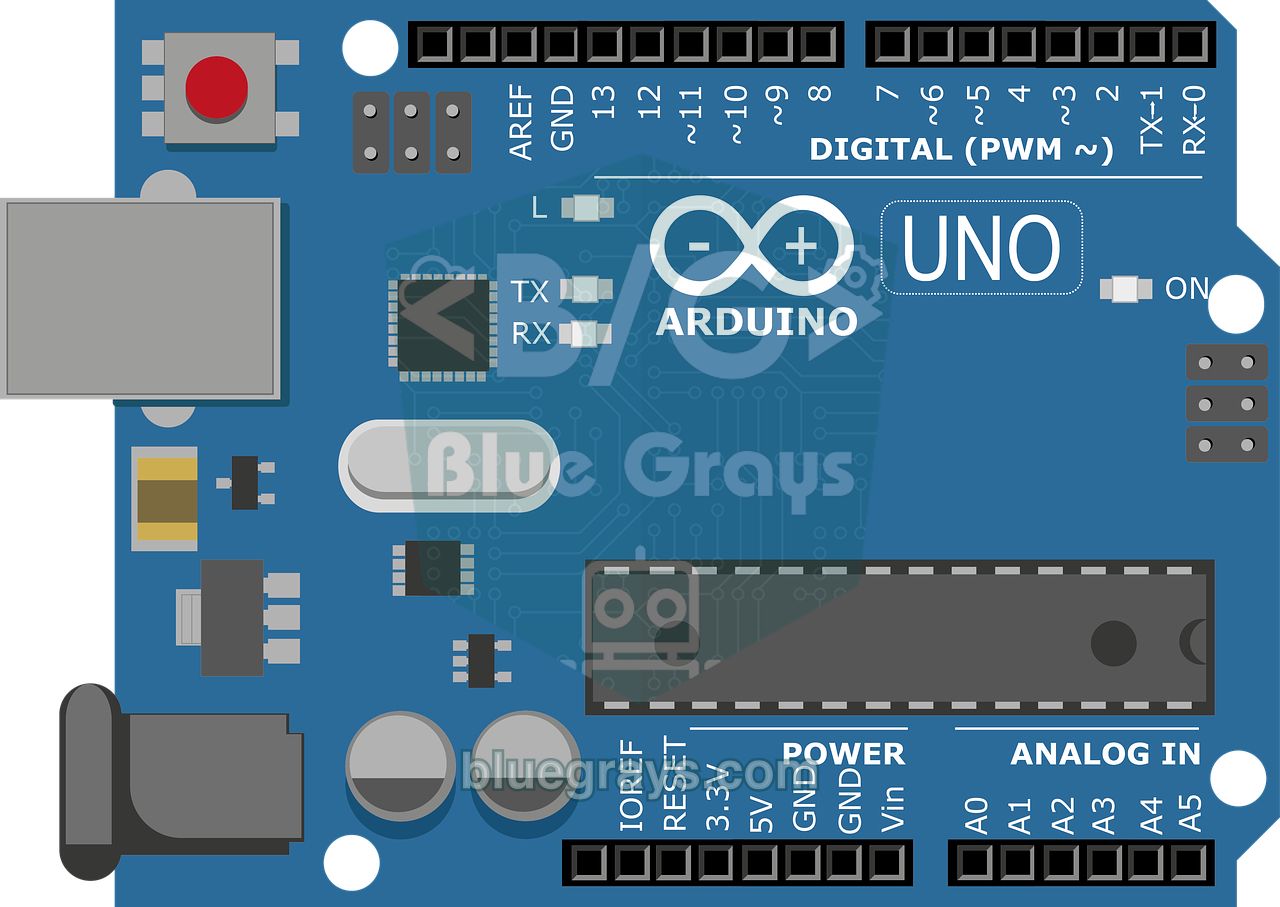
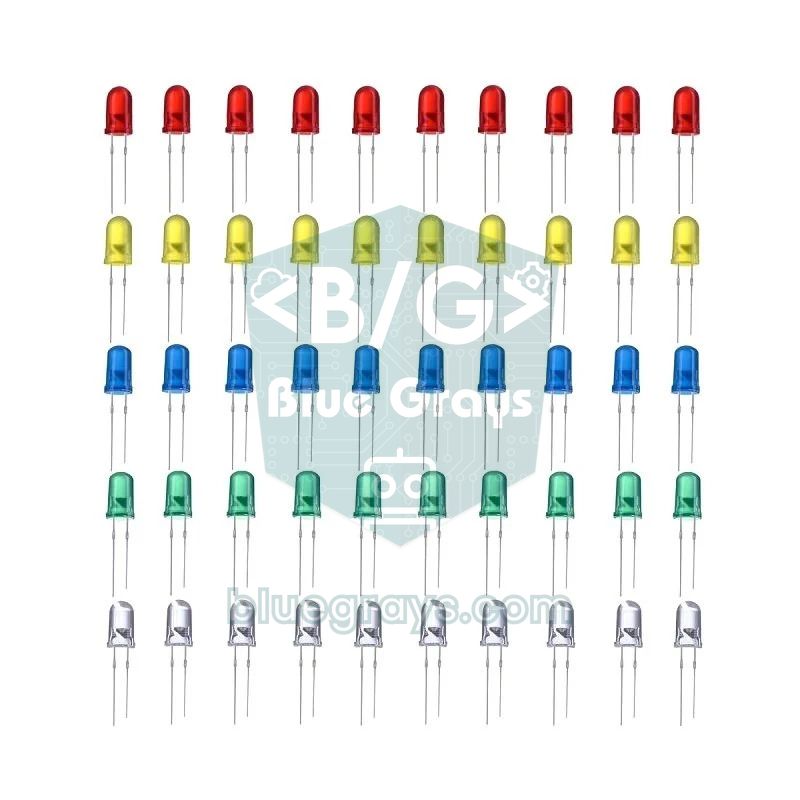
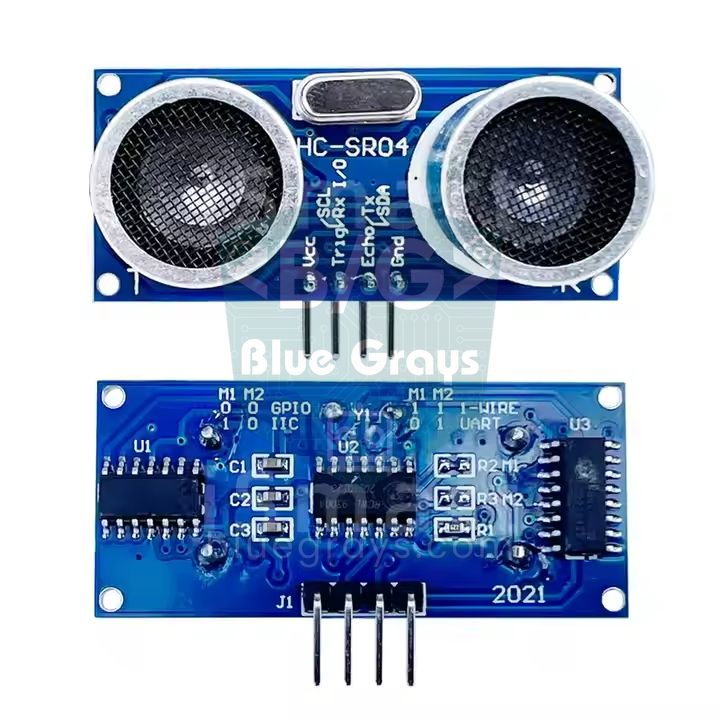
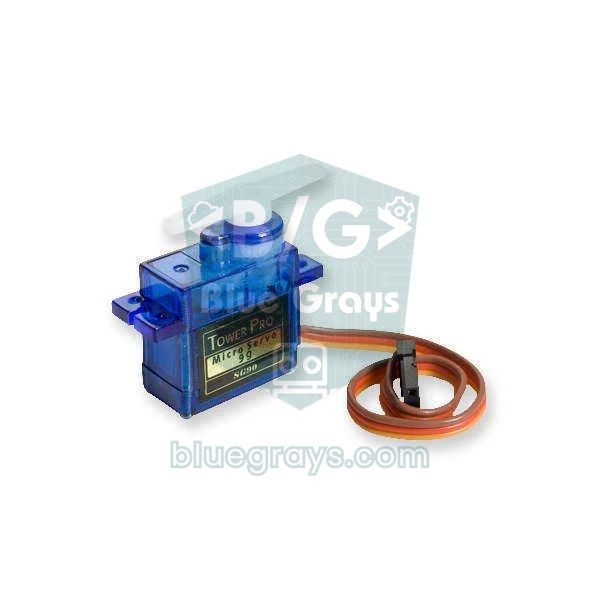
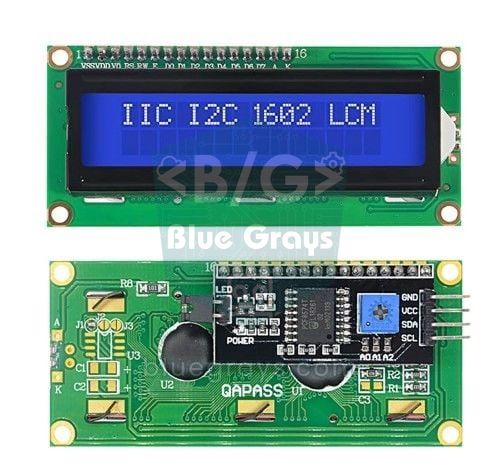
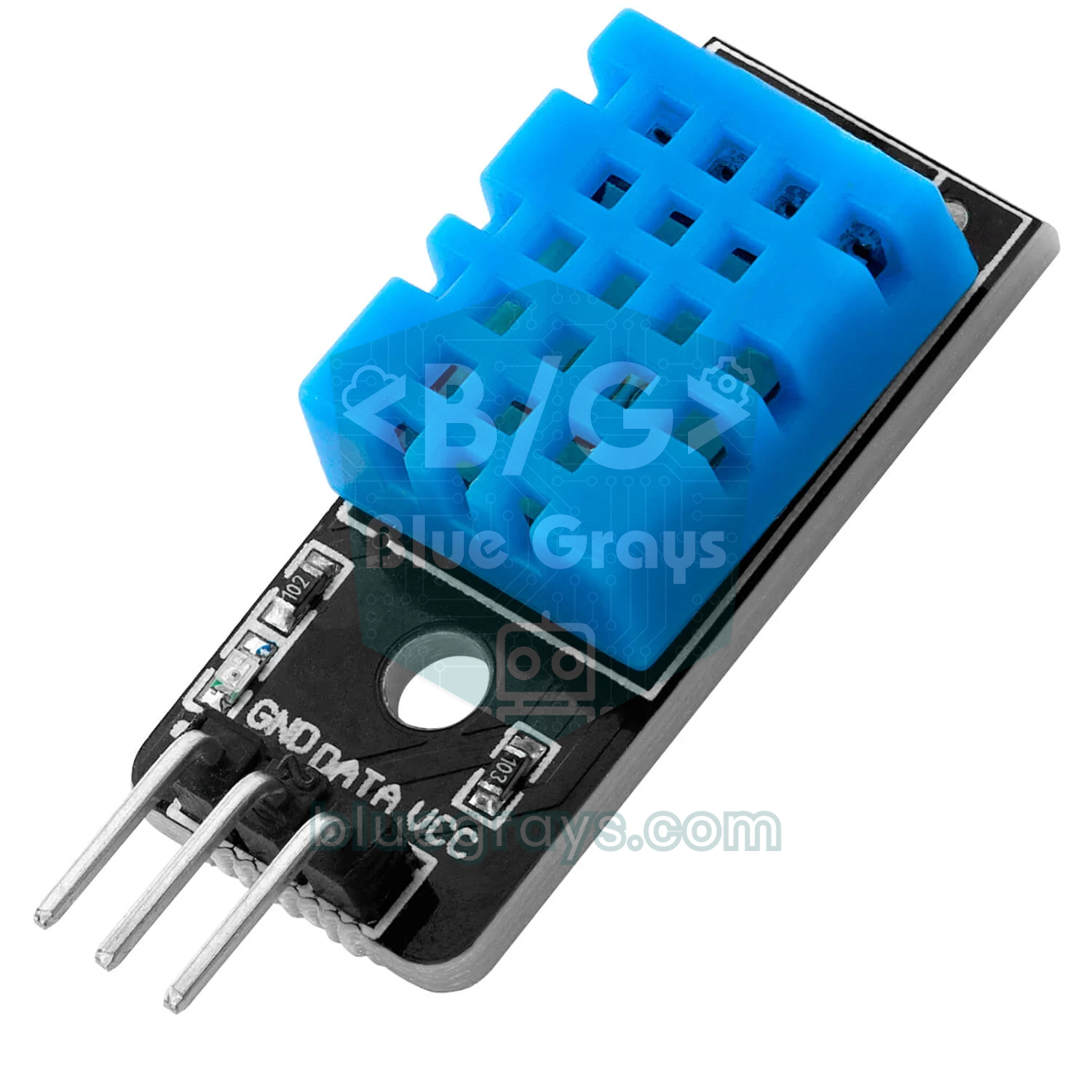
All of the first 7 projects can be built with one basic kit: an Arduino Uno (or Nano), a breadboard, male-to-male jumper wires, a few coloured LEDs plus an RGB LED, 220 Ω and 10 kΩ resistors, push buttons, a potentiometer, an LDR and a passive buzzer. For projects 8–10 you add an HC-SR04 distance sensor, an SG90 servo and a PIR motion sensor; most starter kits already include all three. At the intermediate level, modules such as the DHT11, an I2C LCD, an IR receiver and remote, a 7-segment display and a WS2812B LED strip come in. At the advanced level you need parts like motor drivers, relays and an external power supply. To decide which kit to buy, see the Arduino starter kit guide; for choosing a board, read Which Arduino Should I Buy?, and for the breadboard's internal connections, What Is a Breadboard?.
| Level | What you need to know | Typical parts | Time per project |
|---|---|---|---|
| Beginner | pinMode, digitalWrite, digitalRead, analogRead, delay | LED, resistor, button, LDR, buzzer, potentiometer | 30 minutes – 1 hour |
| Intermediate | Installing libraries, I2C, millis(), arrays, functions | HC-SR04, DHT11, LCD, IR receiver, servo, WS2812B | 2 – 4 hours |
| Advanced | State machines, motor drivers, external power, combining several modules | L298N, relay, keypad, RFID, OLED, pump | 1 – 3 days |
Beginner level: 10 easy Arduino projects
Projects at this level teach three basic skills: digital output (lighting an LED), digital input (reading a button) and analog input (reading a sensor). Always put a resistor in front of every LED; for a standard red LED running from 5 V, 220 Ω gives about 14 mA, which is safe. You can find the right value for other colours with the LED resistor calculator.
| # | Project | What it does and teaches | Parts needed | In BlueGrays |
|---|---|---|---|---|
| 1 | Blinking LED | Switches an LED on and off at set intervals; teaches digital output and timing | 1 LED, 220 Ω resistor | LED Blink |
| 2 | Traffic light | Lights red, yellow and green LEDs in the real order; teaches step-by-step flow | 3 LEDs, 3 × 220 Ω resistors | Traffic Light |
| 3 | Police lights | Flashes red and blue LEDs in quick bursts; teaches repeating patterns with for loops | Red and blue LED, 2 resistors | Police Strobe |
| 4 | Button LED toggle | Changes the LED's state on every press; teaches digital input and the pull-up resistor | Push button, LED, 220 Ω resistor | LED with Button (On/Off) |
| 5 | Automatic night light | Turns an LED on when it gets dark; teaches analog reading and thresholds | LDR, 10 kΩ resistor, LED | Night Light with LDR |
| 6 | Buzzer melody | Plays a song from note frequencies; teaches the tone() function | Passive buzzer | Turkish National Anthem with Buzzer |
| 7 | RGB LED colour fade | Mixes three colour channels for smooth colour transitions; teaches PWM | RGB LED, 3 resistors | Smooth Colour Fade with RGB LED |
| 8 | Distance meter | Prints the distance measured by an ultrasonic sensor to the serial monitor | HC-SR04 distance sensor | HC-SR04 Distance Measurement (Serial Monitor) |
| 9 | Servo with a potentiometer | Turns the servo arm from 0 to 180 degrees as you turn the knob | Potentiometer, SG90 servo | Servo Motor with Potentiometer |
| 10 | Motion detector | Lights an LED or sounds a buzzer when someone walks past | PIR sensor, LED or buzzer | Motion Detector with PIR Sensor |
- LED projects (1–3): the LED's long leg (anode) goes to positive and the short leg (cathode) to negative. You'll find details on the legs and choosing a resistor in What Is an LED? and What Is a Resistor?. Adjusting the yellow time and adding a pedestrian button to the traffic light makes a nice first upgrade.
- Button project (4): if you wire the button with INPUT_PULLUP you don't need an external resistor. Debouncing is a must so one press isn't counted several times; the button wiring article covers both methods.
- Night light (5): the LDR and the 10 kΩ resistor form a voltage divider, and analogRead returns a value between 0 and 1023. Set the threshold by measuring in your own room; details are in the LDR light sensor article.
- Melody (6): an active buzzer only produces a single tone; for a melody you need a passive buzzer. You can see the difference in What Is a Buzzer?.
- RGB LED (7): common-anode and common-cathode models use opposite logic; pick the wrong type and the colours come out inverted. The RGB LED guide explains both types.
- Sensor projects (8–10): the HC-SR04, the servo motor and the PIR sensor are the building blocks of the next level; getting each one working on its own first makes intermediate projects much easier.
Intermediate level: 10 Arduino projects
At the intermediate level you no longer use a single part but several modules together: you show a sensor reading on a display, switch an LED with a command from a remote, or speed up a buzzer based on a measurement. Two skills stand out here: installing libraries and timing with millis(). A parking sensor written with delay() can't make a proper sound while it measures; with millis() both happen at the same time.
| # | Project | What it does and teaches | Parts needed | In BlueGrays |
|---|---|---|---|---|
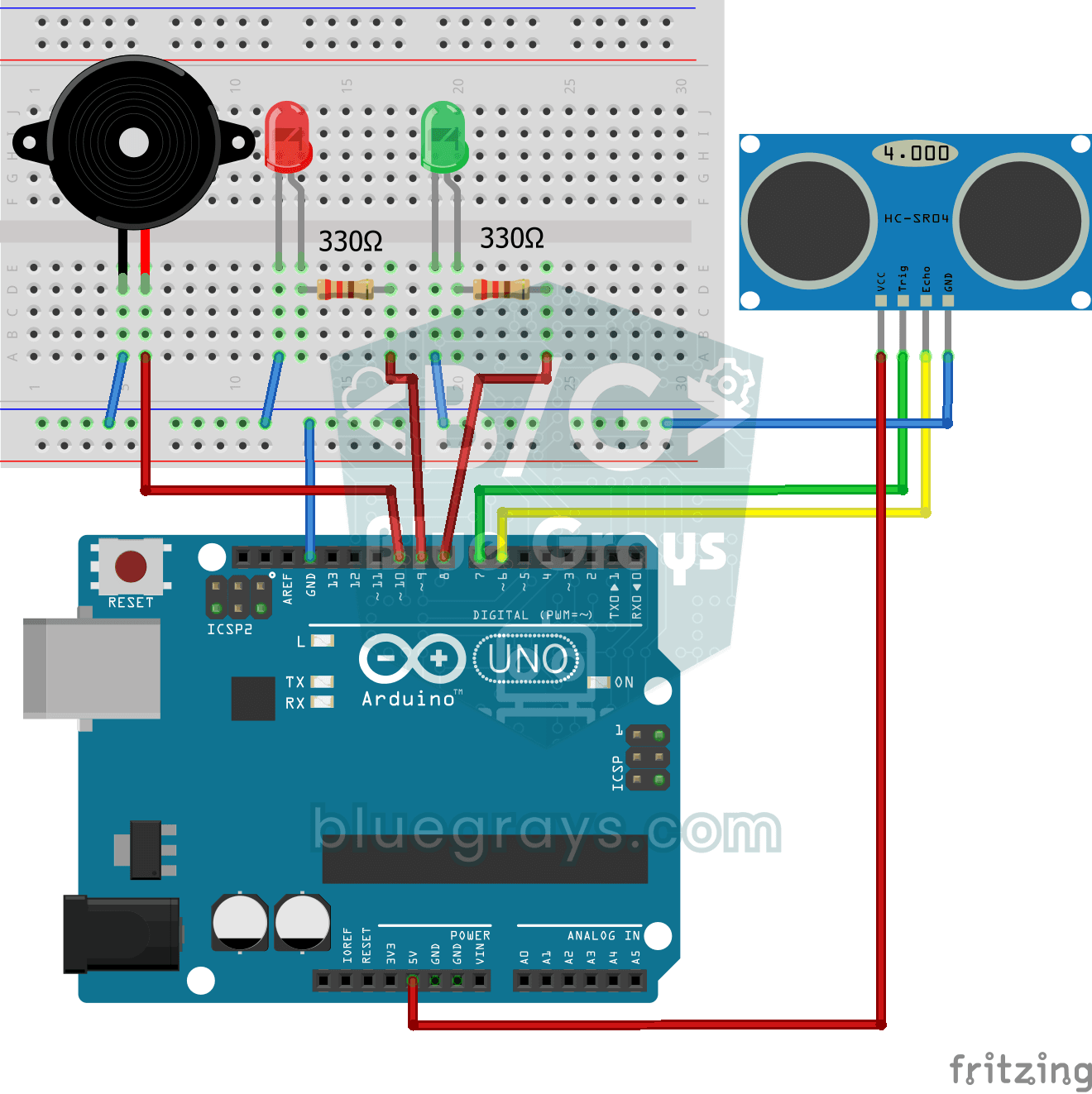
| 11 | Parking sensor | Beeps faster as an obstacle gets closer and sounds continuously when it's very close | HC-SR04, passive buzzer, LEDs | Parking Sensor with HC-SR04 |
| 12 | Temperature and humidity display | Shows the room's temperature and humidity on a display | DHT11, I2C 16x2 LCD | Temperature and Humidity with DHT11, I2C LCD Display |
| 13 | Speed-adjustable Knight Rider | LEDs sweep back and forth and a potentiometer sets the speed; combines arrays and analog reading | 6–8 LEDs, resistors, potentiometer | Speed-Adjustable Knight Rider LEDs |
| 14 | Digital clock | Shows the time on a 4-digit 7-segment display; add an RTC module and it keeps the time through power cuts | 4-digit 7-segment display, optional RTC module | Digital Clock with 4-Digit 7-Segment Display |
| 15 | Remote-controlled LEDs | Switches LEDs on and off with the buttons of a TV remote | IR receiver, remote control, LEDs | LED On/Off with IR Receiver and Remote |
| 16 | Reaction test | Measures in milliseconds how fast you press the button after the light comes on | Button, LED, buzzer | Arduino Reaction Test with Sound Alert |
| 17 | Electronic dice | Shows a random number from 1 to 6 when you press the button; teaches the random() function | 7-segment display or 7 LEDs, button | Dice Project |
| 18 | LED control from your phone | Lights an LED with a command sent from a Bluetooth app on your phone | HC-05 Bluetooth module, LED | LED Control from Phone via Bluetooth |
| 19 | Door alarm | When the door opens the magnet moves away and the alarm sounds | Reed switch, magnet, buzzer | Reed Switch Door Sensor |
| 20 | NeoPixel light show | Runs chaser and strobe animations on an addressable LED strip | WS2812B LED strip or ring, 5 V power supply | Using WS2812B, Police Strobe with WS2812B |
- Parking sensor (11): dividing the HC-SR04's echo time in microseconds by 58 gives the distance in centimetres. You'll find this project's non-blocking code in the planning section below; sensor details are in the HC-SR04 article.
- Temperature display (12): don't read the DHT11 more than once per second; the sensor produces at most one new value per second. Connecting the display over I2C takes only 4 wires; see DHT11 and I2C LCD display.
- Digital clock and dice (14, 17): with 7-segment displays the difference between common anode and common cathode is critical; the 7-segment display article gives the segment tables.
- Remote and Bluetooth (15, 18): every button on an IR remote has its own code, so you first need to read those codes on the serial monitor. Details are in the IR receiver and remote and HC-05 Bluetooth module articles.
- NeoPixel (20): each WS2812B LED can draw about 60 mA at full white, so a 30-LED strip can reach 1.8 A. Details are in the WS2812B NeoPixel article.
Advanced level: 10 Arduino projects
Advanced projects bring together several sensors, motors and real-world loads. Here power design and mechanics matter as much as code: powering the motors separately, wiring the relay safely, securing the cables firmly. In the code, thinking in state machines makes your life easier: for example, you define a lock's states such as "waiting, entering code, open, alarm" separately and in each state do only the work that belongs to it.
| # | Project | What it does and teaches | Parts needed | In BlueGrays |
|---|---|---|---|---|
| 21 | Keypad door lock | Opens the servo lock if the code entered on the keypad is correct and warns if it's wrong | 4x4 keypad, I2C LCD, SG90 servo, buzzer | 4x4 Keypad LCD Password App, Smart Electronic Safe |
| 22 | RFID card access | Opens the door when a registered card is scanned and raises an alarm for an unknown card | RC522 RFID module, cards, servo, LED | RFID Authentication |
| 23 | Obstacle-avoiding robot | Stops when it detects an obstacle ahead, changes direction and carries on | Robot chassis, 2 DC motors, L298N, HC-SR04, servo, battery | Obstacle-Avoiding Robot |
| 24 | Bluetooth-controlled car | Driven forwards, backwards, left and right from an app on your phone | 2 DC motors, L298N, HC-05, battery holder | Bluetooth-Controlled Car with L298N |
| 25 | Smart irrigation | Starts the pump when the soil dries out and stops it once it's wet enough | Soil moisture sensor, relay, mini submersible pump | Smart Irrigation Station |
| 26 | Gas and flame alarm | Raises an audible and visual alarm on a gas leak or a flame | MQ-2 gas sensor, flame sensor, buzzer, LED | Flame and Gas Sensor Alarm |
| 27 | Laser security system | Sounds the alarm when the laser beam is interrupted | Laser module, LDR, buzzer | Laser Security System |
| 28 | OLED games | Plays Pong or a dinosaur runner on a tiny OLED display | 0.96 inch SSD1306 OLED, buttons | Pong Game - SSD1306, OLED T-Rex Run |
| 29 | Simon memory game | Asks you to repeat an ever-longer sequence of colours and sounds | 4 LEDs, 4 buttons, buzzer | Simon Game - Arduino Memory Game |
| 30 | Dot matrix clock and weather station | Shows the time, date and temperature as scrolling text | MAX7219 8x32 dot matrix, DS1307 RTC, temperature sensor | Dot Matrix Clock, Calendar and Weather Station (MAX7219, DS1307) |
- Lock projects (21–22): saving the code in EEPROM instead of hard-coding it keeps your settings even when the board is switched off and on again. For wiring, see the Keypad and RFID RC522 articles; remember that the RC522 runs on 3.3 V.
- Robots (23–24): DC motors don't connect directly to an Arduino pin; you need a driver such as the L298N. The L298N drops 2 V or more, so power 6 V motors from a 7–9 V supply. Details are in the DC motor control with L298N article.
- Smart irrigation (25): cheap resistive soil sensors corrode if they're powered all the time; power the sensor from a pin only while measuring. Use a relay for the pump; see soil moisture sensor and relay module.
- Gas alarm (26): the MQ-2's heater needs a few minutes to warm up every time it's powered on; set the threshold by measuring in clean air after warm-up. Details are in the MQ-2 gas sensor article.
- Games (28–29): the OLED's 1 KB frame buffer takes up half of the Uno's 2 KB of RAM, so keep an eye on memory use in games. You can use a joystick instead of buttons for control; for the display, see the OLED SSD1306 article.
6 bonus ideas with the ESP32 and Raspberry Pi Pico
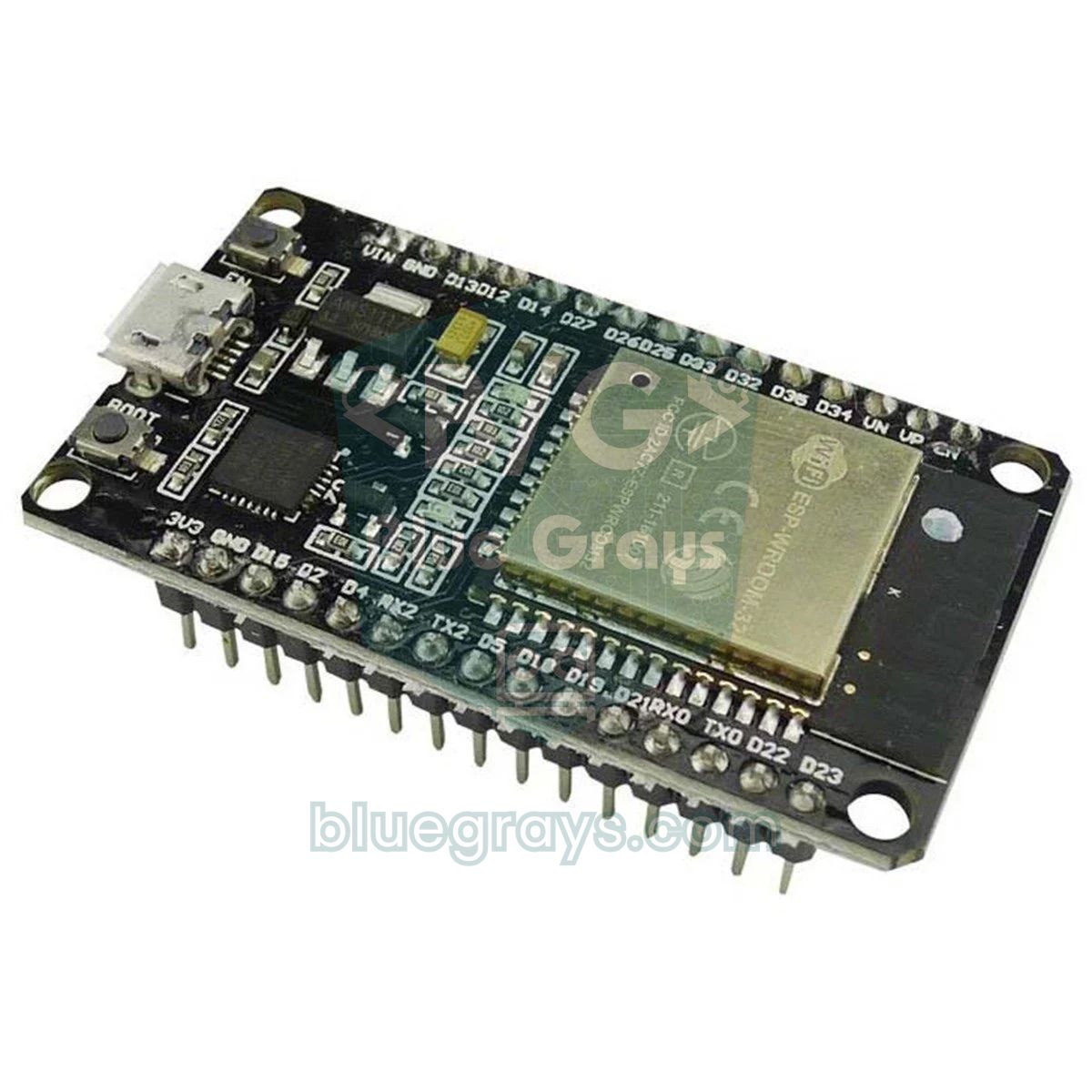
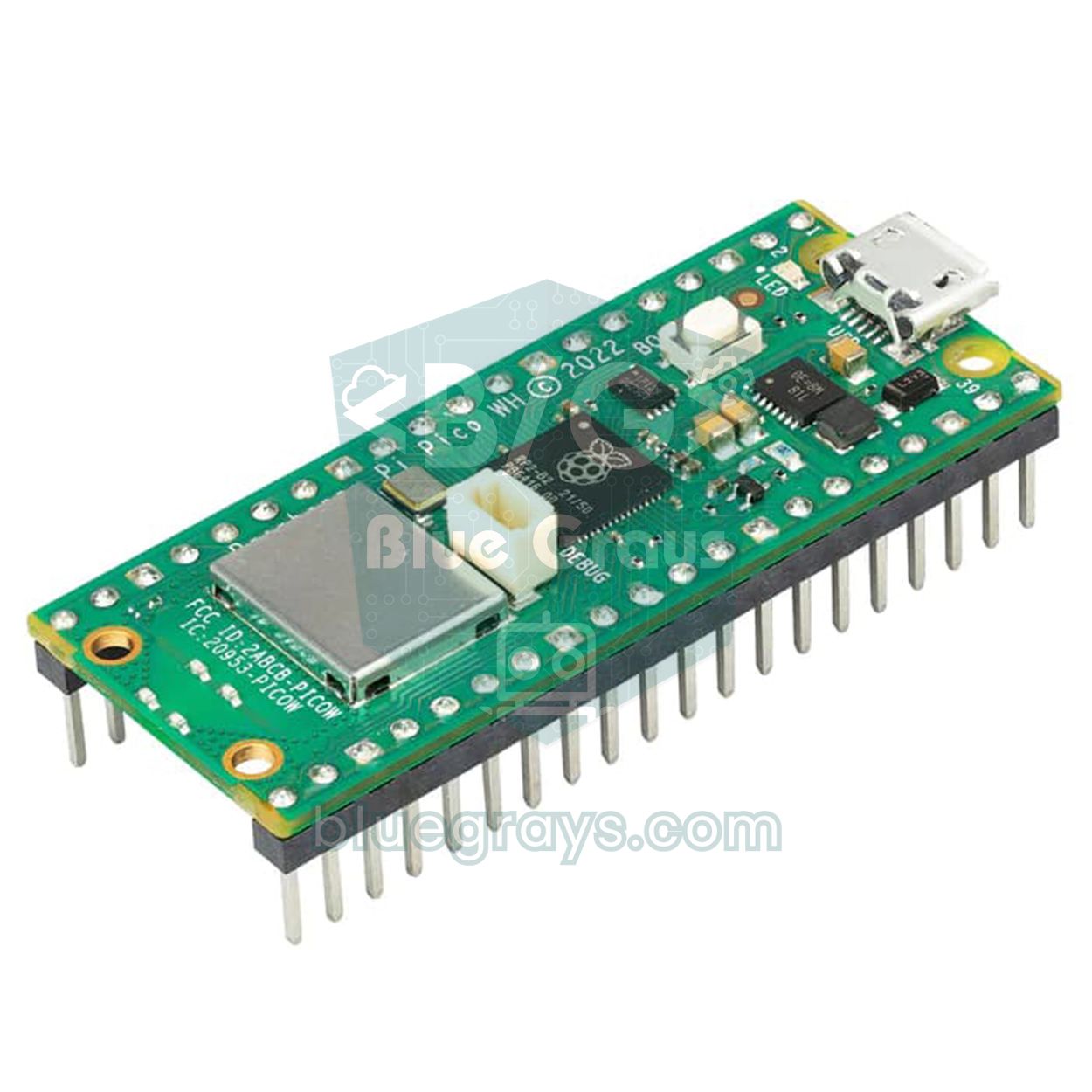
If your project needs to connect to the internet, be controlled from a phone or send data to a server, switching from the Arduino Uno to the ESP32 is the easiest route: Wi-Fi and Bluetooth are built in, and it's programmed with the same Arduino IDE. The Raspberry Pi Pico, on the other hand, is cheap and fast and can be programmed in MicroPython, which makes it great if you want to learn Python. You can decide between them with the Arduino or ESP32? comparison, and get started with the What Is the ESP32? and What Is the Raspberry Pi Pico? articles.
| Board | Project | What it does | In BlueGrays |
|---|---|---|---|
| ESP32 | Wi-Fi web server | Controls an LED or relay from a page opened in your phone's browser | ESP32 Async Web Server (IP Shown on LCD) |
| ESP32 | Internet clock | Gets the time from an NTP server and always shows it correctly with no setting needed | ESP32 Real Time from the Internet with NTP |
| ESP32 | Weather display | Shows weather data fetched from the internet on an OLED display | ESP32 HTTPClient + Weather API (SSD1306 OLED) |
| ESP32 | Telegram motion alarm | Sends a Telegram message to your phone when it detects motion | ESP32 Motion Alarm System (PIR + Buzzer + LED + Telegram) |
| Pico | 4-mode traffic light | Switches between four operating modes with a button; teaches state machines in MicroPython | Raspberry Pi Pico Traffic Light 4-Mode Button Selector |
| Pico | Breathing LED | Slowly raises and lowers an LED's brightness with PWM | Raspberry Pi Pico LED Fade with PWM (Breathing Effect, GP14) |
How do you plan a project from start to finish?
- Describe what it does in one sentence: "If an obstacle is closer than 50 cm, the beeping should speed up." If the sentence is clear, so is the project.
- List the inputs and outputs: inputs are sensors and buttons; outputs are LEDs, buzzers, motors and displays. Give each one a pin; you can see your board's pin map in the Pinout tool.
- Work out the power budget: add up the current each part draws. An Arduino Uno pin can supply 40 mA as an absolute maximum, and you shouldn't exceed 20 mA for safe operation; for more, use a transistor, relay or driver. The Ohm's law tool handles the calculations.
- Test each module on its own: read the sensor on the serial monitor first and play the buzzer with a separate sketch. If you wire everything at once and it doesn't work, finding the fault becomes much harder.
- Combine the parts: merge the code into a single loop() using millis() instead of delay(), so every task runs at its own time.
- Box it up and document it: photograph the working circuit and keep the wiring table and the code. You'll save a lot of time when you use the same parts in your next project.
Let's apply these steps to the intermediate parking sensor project. The input is the HC-SR04 (TRIG pin 9, ECHO pin 10) and the output is a passive buzzer (pin 8). The sensor draws about 15 mA and a small passive buzzer stays within the pin's limits, so the total current is easily covered by USB. The code below measures the distance about 16 times a second and, when an obstacle is closer than 50 cm, makes the beeps faster in proportion to the distance: each beep and the silence after it last 10 ms per centimetre, so 400 ms at 40 cm and 100 ms at 10 cm. Below 5 cm the tone becomes continuous.
1const int TRIG = 9;
2const int ECHO = 10;
3const int BUZZER = 8;                       // pasif buzzer / passive buzzer
4
5unsigned long olcumZaman = 0, bipZaman = 0;
6long mesafe = 400;                          // cm
7bool bipAcik = false, sesCaliyor = false;
8
9long mesafeOlc() {
10  digitalWrite(TRIG, LOW);
11  delayMicroseconds(2);
12  digitalWrite(TRIG, HIGH);
13  delayMicroseconds(10);                    // 10 µs tetik darbesi / 10 µs trigger pulse
14  digitalWrite(TRIG, LOW);
15  unsigned long sure = pulseIn(ECHO, HIGH, 30000UL);  // en fazla 30 ms bekle / wait at most 30 ms
16  if (sure == 0) return 400;                // yankı yok: engel uzakta / no echo: obstacle is far
17  return sure / 58;                         // µs -> cm
18}
19
20void setup() {
21  pinMode(TRIG, OUTPUT);
22  pinMode(ECHO, INPUT);
23  pinMode(BUZZER, OUTPUT);
24}
25
26void loop() {
27  unsigned long simdi = millis();
28  if (simdi - olcumZaman >= 60) {           // saniyede yaklaşık 16 ölçüm / about 16 readings per second
29    olcumZaman = simdi;
30    mesafe = mesafeOlc();
31  }
32
33  bool sesli = false;
34  if (mesafe < 5) {                         // çok yakın: sürekli ses / very close: continuous tone
35    sesli = true;
36  } else if (mesafe < 50) {                 // yaklaştıkça bipler sıklaşır / beeps speed up as it gets closer
37    if (simdi - bipZaman >= (unsigned long)mesafe * 10) {
38      bipZaman = simdi;
39      bipAcik = !bipAcik;
40    }
41    sesli = bipAcik;
42  }
43
44  if (sesli != sesCaliyor) {                // yalnızca değişince çal ya da sustur / switch only on change
45    sesCaliyor = sesli;
46    if (sesli) tone(BUZZER, 2000);
47    else noTone(BUZZER);
48  }
49}
There are two things to notice in the code. First, we gave pulseIn() a 30 ms timeout; if no echo comes back, the code doesn't wait forever and treats the distance as 400 cm. Second, tone() is only called when the sound state changes, so the buzzer isn't restarted on every pass and doesn't crackle. To take the project further, try showing the distance on an I2C LCD or OLED display and adding a warning bar of green, yellow and red LEDs.
Common mistakes when choosing and building projects
| Mistake | Result | Fix |
|---|---|---|
| Choosing a robot car as your first project | Motor, power and code problems all appear at once and motivation drops | Finish 4–5 projects without motors first |
| Connecting an LED without a resistor | The LED or the Arduino pin gets damaged | Put a 220–330 Ω series resistor on every LED |
| Powering servos and motors from the 5V pin | The board resets at random and the USB connection drops | Use an external 5 V supply and connect the GNDs together |
| Building the whole circuit at once | You can't tell where the fault is | Test each module separately, then combine them |
| Writing everything with delay() | Buttons react late and sensor events are missed | Write non-blocking code with millis() |
| Connecting a 3.3 V module to 5 V | Modules such as the RC522 can be damaged | Check the module's supply voltage and use a level shifter if needed |
| Copying and running code without understanding it | The project breaks with the smallest change | Read the code line by line, change values and watch the result |
Which project suits you? Quick picks by interest
| Interest | Beginner | Intermediate | Advanced |
|---|---|---|---|
| Light and colour | Traffic light, RGB LED | NeoPixel light show | Dot matrix clock |
| Sound and music | Buzzer melody | Parking sensor (audible warning) | Simon memory game |
| Home automation and security | Night light, motion detector | Door alarm, remote-controlled LEDs | Keypad lock, gas alarm, smart irrigation |
| Robotics and motion | Servo with a potentiometer | Bluetooth control from your phone | Obstacle-avoiding robot, Bluetooth car |
| Measurement and displays | Distance meter | Temperature and humidity display | Dot matrix weather station |
| Games | - | Electronic dice, reaction test | OLED games, Simon |
Once you've worked through all 30 projects in the list, you'll have used almost every basic building block of Arduino: digital and analog input and output, PWM, I2C, timing, motor control and state machines. To see what each sensor is for, take a look at the Arduino sensors guide as well. In the BlueGrays app you'll find most of these ideas, from LED Blink to the Obstacle-Avoiding Robot and from the Smart Irrigation Station to the ESP32 web server, with step-by-step circuit diagrams and ready-made code, so you can start right away with a project that matches your level.
Frequently asked questions
What is the easiest Arduino project for beginners?
The easiest project is blinking an LED (Blink); all you need is an LED and a 220 Ω resistor, and with the Uno's built-in LED on pin 13 you don't need any parts at all. Next come the traffic light, an LED controlled by a button and an LDR night light. These four projects teach the basics of digital output, digital input and analog reading.
What can you make with an Arduino?
With an Arduino you can build almost any project that reads a sensor and controls something, from light and sound effects to measuring instruments, home automation and robots. Typical examples are a parking sensor, a temperature display, a keypad door lock, a smart irrigation system or an obstacle-avoiding robot. For projects that need an internet connection, Wi-Fi boards such as the ESP32 are the usual choice.
Which kit should I buy for Arduino projects?
A kit with an Arduino Uno or Nano, a breadboard, jumper wires, LEDs (including an RGB LED), resistors, buttons, a potentiometer, an LDR and a passive buzzer covers the first 7 projects; add an HC-SR04, an SG90 servo and a PIR sensor and you can build all of the first 10. The most common additions for the intermediate level are a DHT11, an I2C LCD, an IR receiver with remote and a 7-segment display. You can buy parts like motor drivers and relays when you move on to advanced projects.
Do I need to know how to code to learn Arduino?
No, you can start with Arduino without any coding experience; the first projects only use a handful of commands (pinMode, digitalWrite, delay). The code is based on C/C++, and modifying ready-made examples is the fastest way to learn. Concepts such as variables, if, for and functions fall into place naturally as your projects progress.
What is a good Arduino project for school?
For school projects, ideas that solve a real problem stand out: a smart irrigation system, a gas and flame alarm, a parking sensor, a temperature and humidity display or a card access system. These projects look impressive when they run and clearly show the logic of sensing, deciding and acting. Showing the circuit diagram and your measurement results in the presentation makes the project stronger.
Should I start my project with an Arduino or an ESP32?
If you're new to electronics, the Arduino Uno is easier: it runs on 5 V, works directly with most modules and examples are easy to find. If your project needs Wi-Fi, Bluetooth or the internet, choose the ESP32; it's programmed with the same Arduino IDE, but because it runs on 3.3 V you need to take care with the wiring.
Projects to build after reading this
See all projects
Traffic Light
Project that simulates a real traffic light with red, yellow and green LEDs. Teaches timing and sequential control logic.

Night Light with Ldr
LDR based night light project that automatically turns on the LED when the environment gets dark. Teaches automatic control logic with analog threshold comparison.
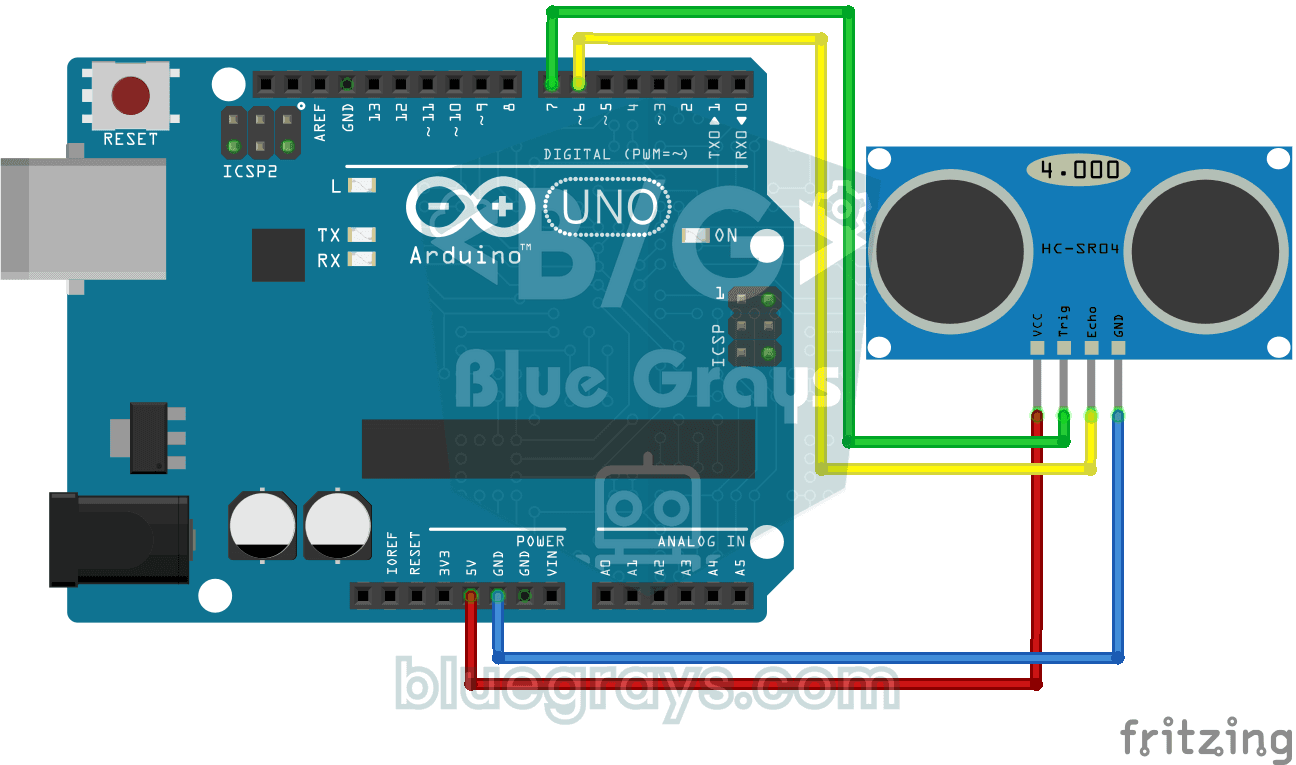
HC-SR04 Distance Measurement (Serial Display)
Project that measures distance with HC-SR04 ultrasonic sensor and displays the result in cm on Serial Monitor. It teaches the principle of distance calculation with sound wave.
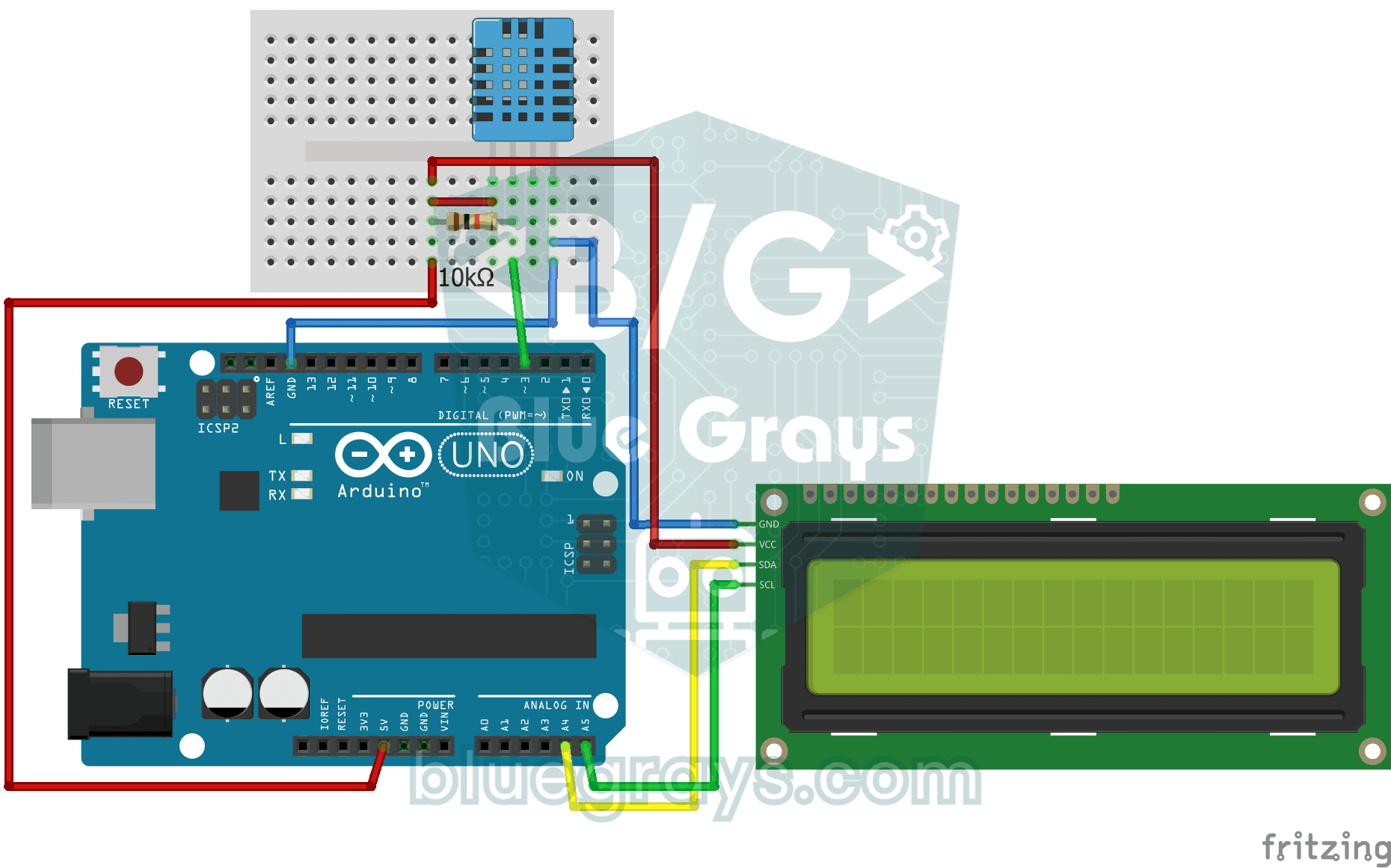
Temperature and Humidity with DHT11
Project that measures the ambient temperature and humidity value with the DHT11 sensor and displays it on the I2C LCD screen. Teaches the use of digital temperature/humidity sensor.
Parking Sensor with HC-SR04
Parking sensor project with HC-SR04 sensor that increases the buzzer beep rate as the object approaches and warns with LED. Teaches feedback logic proportional to distance.

Simon Game - Arduino Memory Game
We are making the classic Simon memory game with Arduino! A fun memory game project using 4 LEDs, 4 buttons, piezo speaker and I2C LCD display. The game randomly generates a sequence of LEDs and the p

Obstacle Avoidance Robot
How about building a smart vehicle that finds its own way? The Obstacle Avoidance Robot constantly scans its surroundings thanks to the ultrasonic sensor in front of it. When it encounters an obstacle

Smart Irrigation Station
Autonomous plant irrigation system that works 24/7 with two 18650 batteries and LM2596 regulator without tiring Arduino. It automatically manages the water motor by continuously measuring soil moistur
More articles
Explore 30 Arduino projects level by level with the parts each one needs, from LEDs and buttons to a robot car, a keypad lock and smart irrigation, plus bonus ideas for the ESP32 and Raspberry Pi Pico.