
Arduino Starter Kit: What to Buy First and What to Skip
What should an Arduino starter kit include? Board, breadboard, wires, LEDs, sensors, servo and LCD, Uno vs Nano, kit vs loose parts and a 10-project parts list.
When you buy an Arduino starter kit, the goal is to cover every project of your first few weeks in one order without paying for parts that will never leave the box. The core of a good first order is actually small: an Arduino Uno and its USB cable, a breadboard, jumper wires, LEDs and resistors, a few buttons, a potentiometer, a buzzer and two or three basic sensors. Add a servo motor and an LCD and you can build dozens of projects, enough to fill a beginner's first two months.
In this guide we explain, part by part, why you need it, how many to buy and which projects use it. You'll also find the difference between a ready-made kit and buying parts separately, the choice between Uno and Nano, purchases that waste your budget, and when to move on to an ESP32 or a Raspberry Pi Pico. Prices change constantly from seller to seller, so we don't quote numbers; instead we say which parts are affordable and which are relatively expensive. You'll also get a ready-made shopping table for your first 10 projects and a sketch that tests all your new parts in one go on day one.
Quick answer: your first shopping list
| Part | Suggested quantity | What it's for |
|---|---|---|
| Arduino Uno R3 (a clone is fine) + USB cable | 1 | The brain of your projects; you upload code from your computer and it's powered over USB |
| Breadboard (830 points) | 1 (ideally 2) | Building circuits without soldering; details: What Is a Breadboard? |
| Jumper wires | 65-piece male-to-male set + 20–40 female-to-male | Connections between the Arduino, the breadboard and modules |
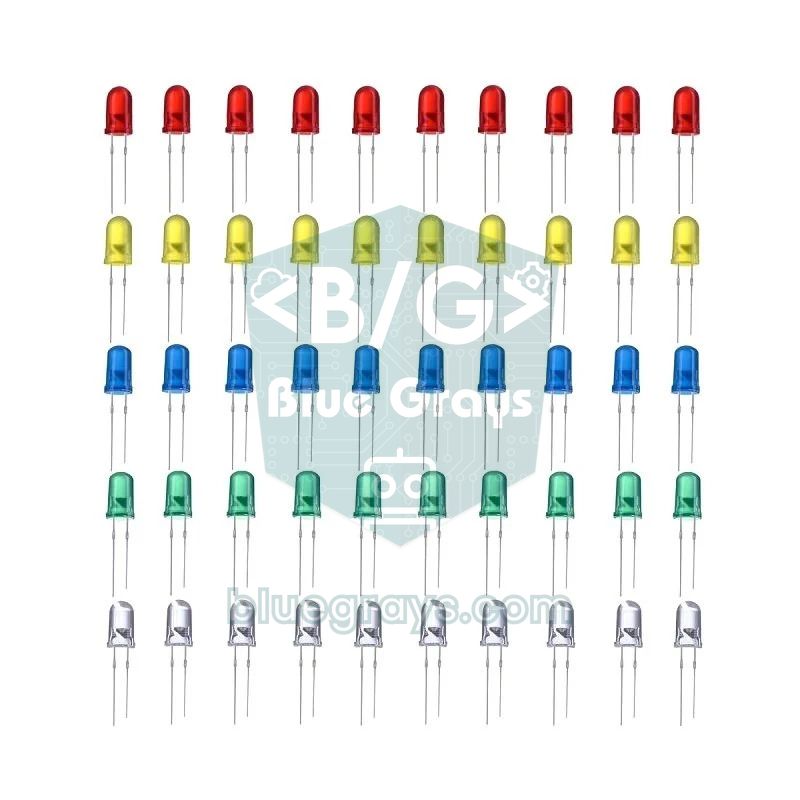
| 5 mm LEDs (red, yellow, green, white) | 20+ | Output experiments, indicators, traffic light; What Is an LED? |
| Resistor kit (mostly 220 Ω, 1 kΩ, 10 kΩ) | 10+ of each value | Limiting LED current, voltage dividers; What Is a Resistor? |
| Push buttons (6×6 mm, 4 legs) | 4–5 | Digital input; How to wire a button |
| 10 kΩ potentiometer | 2 | Analog input, speed and brightness control; What Is a Potentiometer? |
| Buzzer (1 active + 1 passive) | 2 | Beeps and melodies; Active vs passive buzzer |
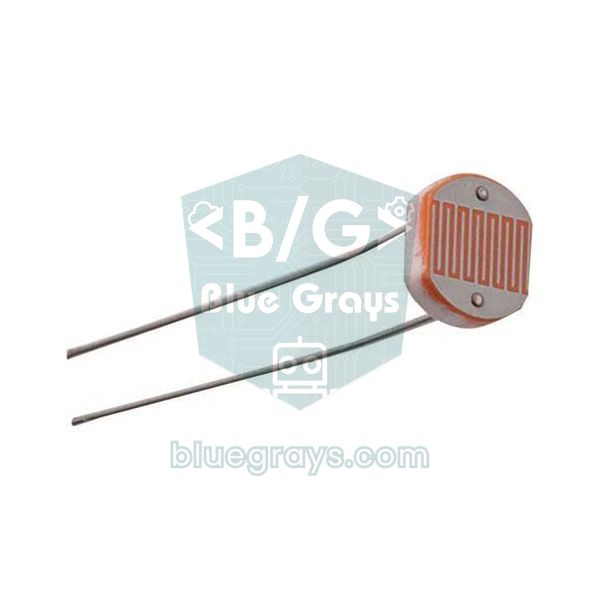
| LDR light sensor | 2 | Measuring light, night light; LDR Light Sensor |
| HC-SR04 distance sensor | 1 | Measuring distance, parking sensor; HC-SR04 |
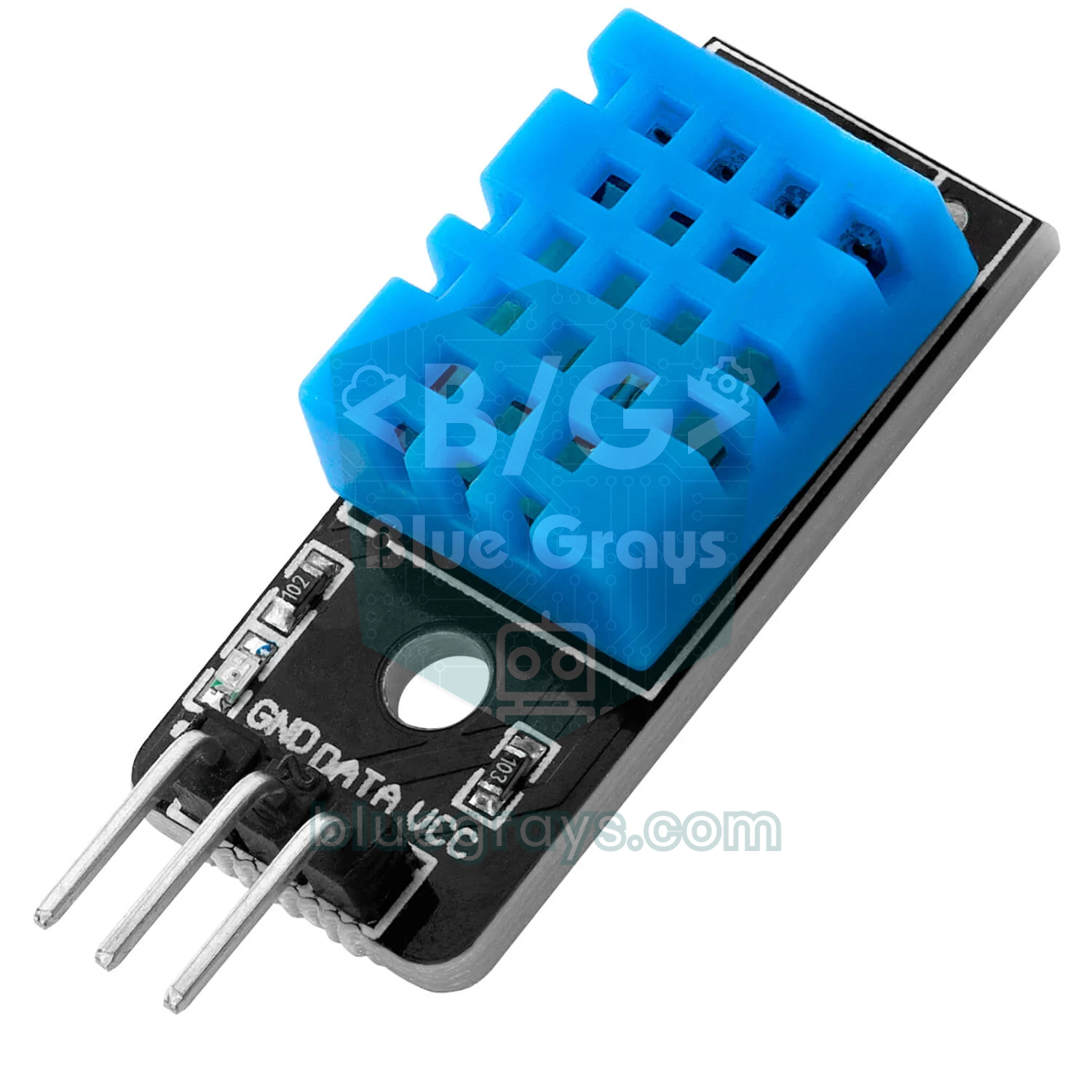
| DHT11 temperature and humidity sensor | 1 | Mini weather station; DHT11 |
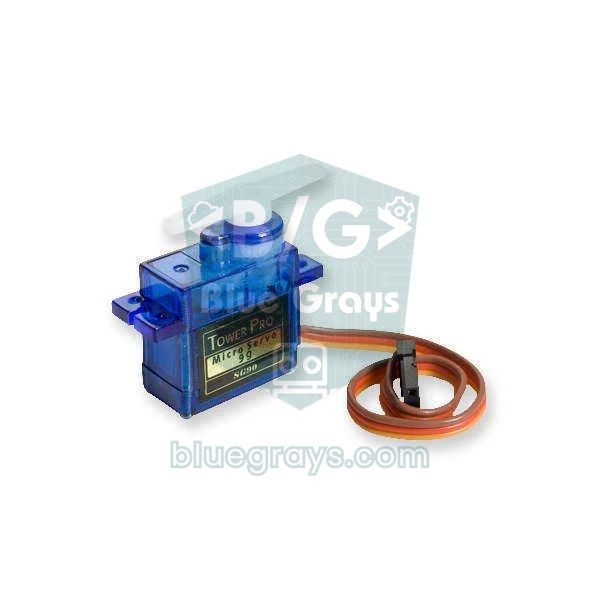
| SG90 servo motor | 1 | Moving to an angle, doors and barriers; What Is a Servo Motor? |
| 16x2 LCD + I2C module (or a 0.96" OLED) | 1 | Showing readings on a screen; I2C LCD Display |
| Digital multimeter | 1 | Checking voltage, resistance and broken wires |
Most of the parts on this list are quite affordable on their own; the biggest items in your budget are usually the board, the display, the servo and the multimeter. With consumables like LEDs, resistors and jumper wires it always pays to buy plenty: bending a leg, burning out an LED or losing a wire is completely normal in your first experiments, and a single missing resistor can stop your whole evening. The multimeter matters as much as the board; when a circuit doesn't work, measuring is the only way to tell whether the problem is in the code or in the wiring.
Choosing a board: Arduino Uno or Nano?
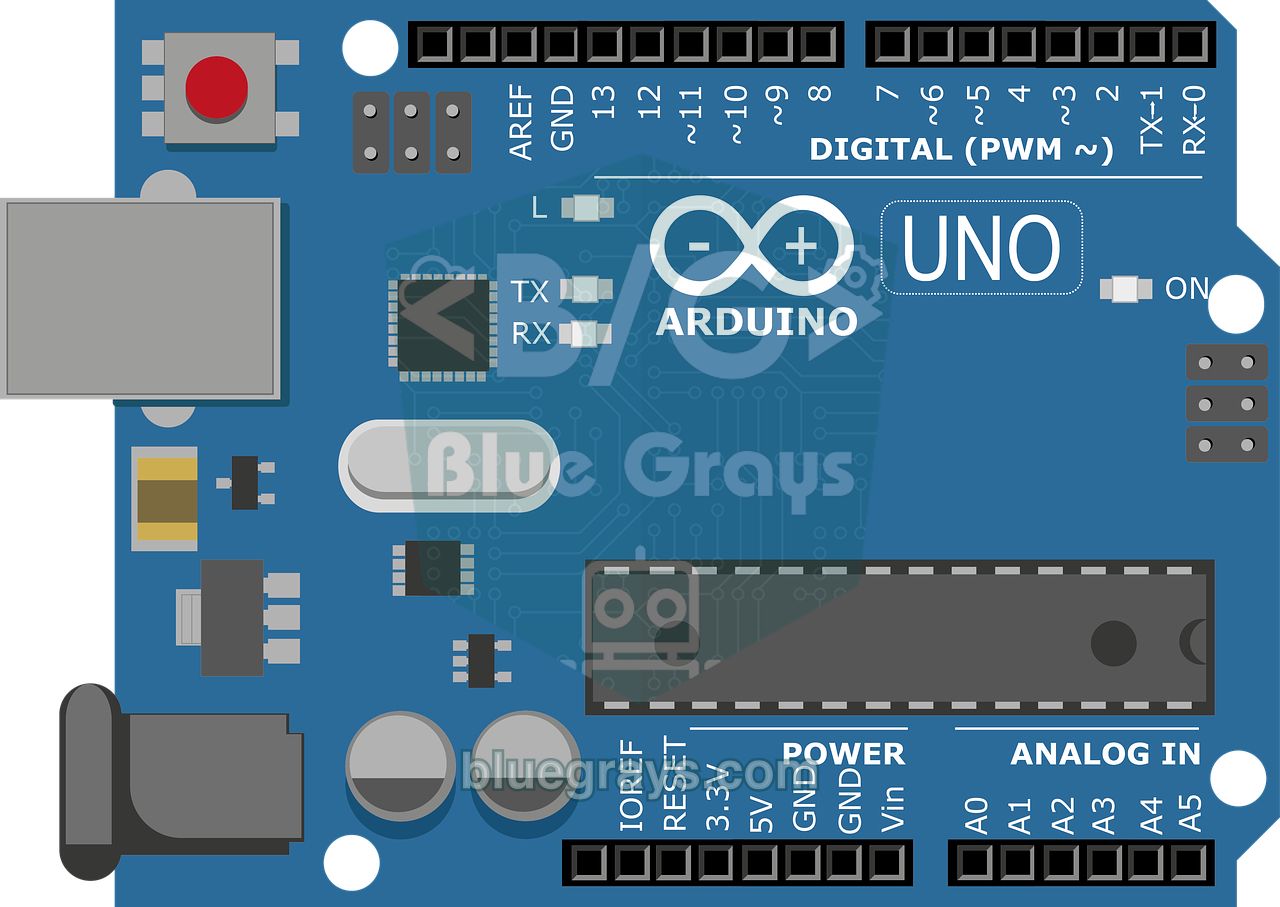
The safest choice for a first board is the Arduino Uno R3. Most examples, books and libraries online have been tested on the Uno; its female headers let you plug jumper wires in directly, and because it runs at 5 V it works directly with almost every beginner sensor. The Arduino Nano uses the same ATmega328P processor, so the code is exactly the same; the difference is that it's very small and plugs straight into a breadboard. We compare all the boards in detail in Which Arduino Should I Buy?
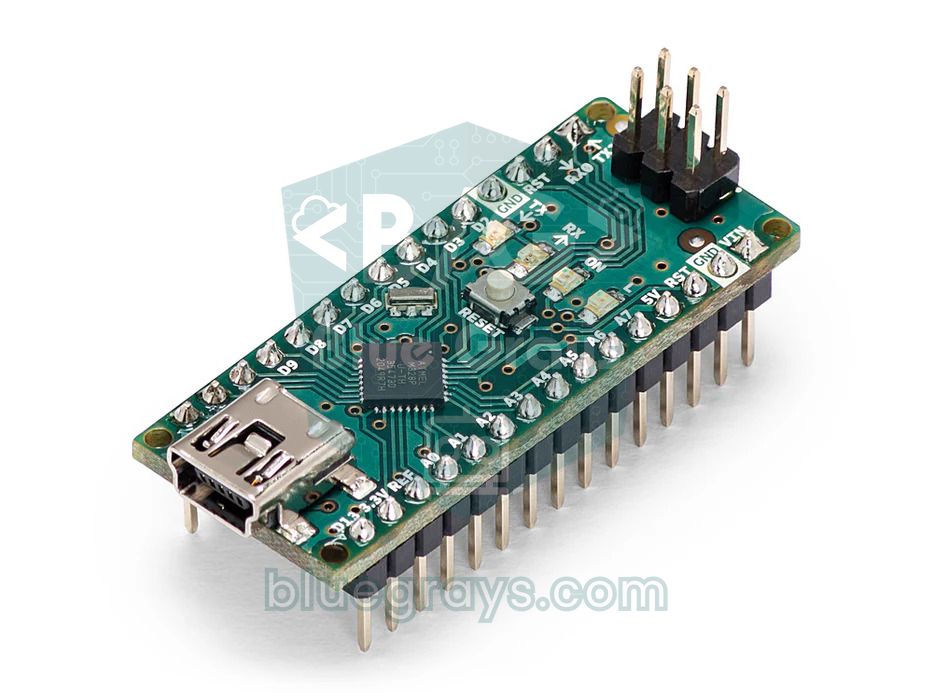
| Feature | Arduino Uno R3 | Arduino Nano |
|---|---|---|
| Processor | ATmega328P, 16 MHz | ATmega328P, 16 MHz |
| Operating voltage | 5 V | 5 V |
| Digital / analog pins | 14 / 6 | 14 / 8 (A6 and A7 are analog input only) |
| USB connection | USB-B (printer-style cable) | Mini USB, USB-C on newer clones |
| On a breadboard | Connected alongside with wires | Plugs straight into the breadboard |
| Shield compatibility | Yes | Uno shields don't fit |
| Best for | First board, learning and experimenting | Permanent and compact projects, second board |
There's no difference between an original Arduino and a clone when it comes to coding; they use the same IDE, the same libraries and the same pin layout. The original board costs more but comes with quality control and supports the Arduino project; clones are perfectly good for learning and hurt less when you burn out a pin. The newer Uno R4 Minima and Uno R4 WiFi are more powerful 32-bit boards with USB-C, and the R4 WiFi adds Wi-Fi and Bluetooth. Still, some older libraries were written only for the AVR processor on the R3, so an R3 gives you fewer surprises as a first board.
Breadboard and jumper wires: where most mistakes happen
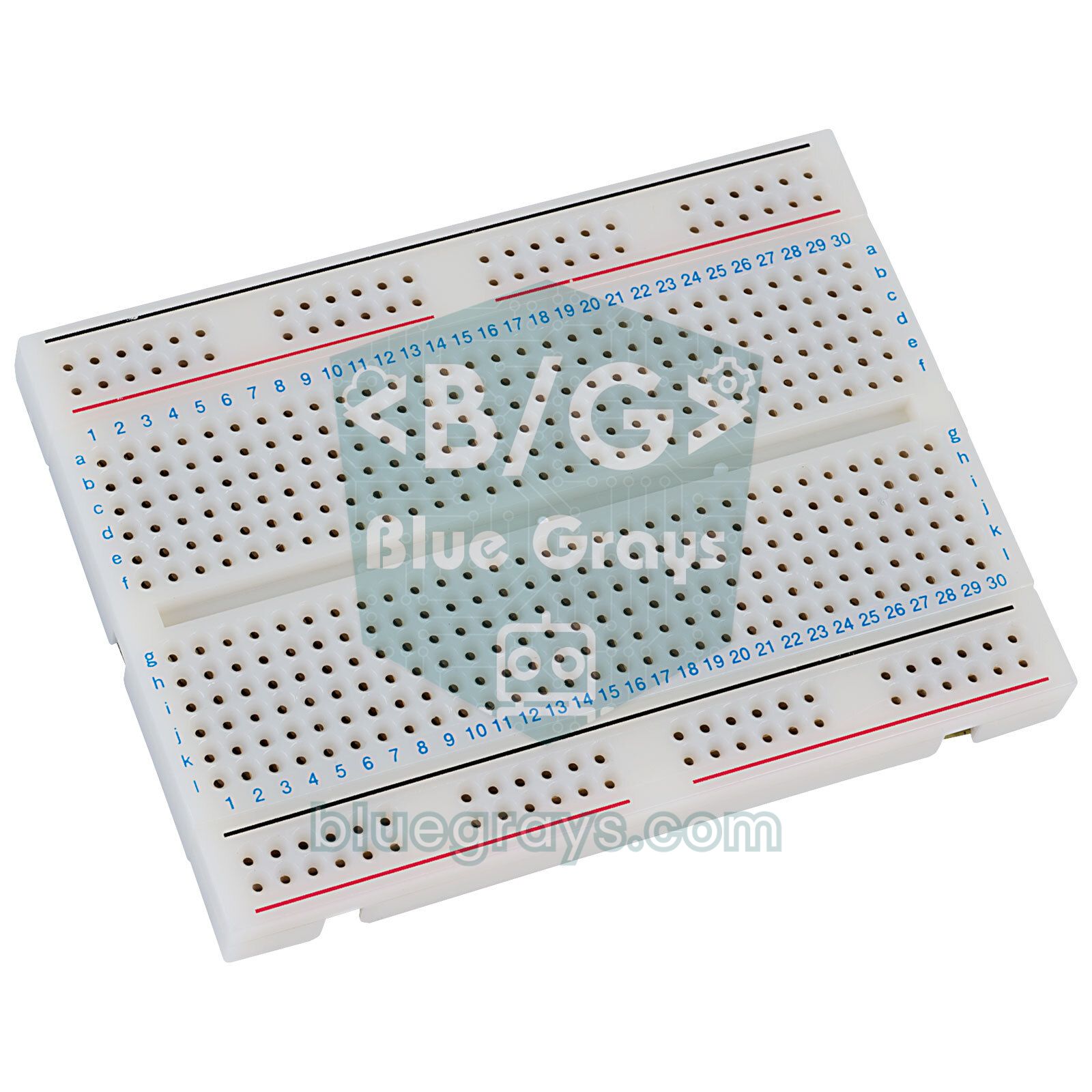
A breadboard is a board full of holes that lets you build circuits without soldering. For your first order, get a full-size 830-point breadboard; 400-point half-size boards fill up fast with one sensor and a display. Each row of five holes in the middle is connected internally, and the long red and blue lines along the edges are for power (5V and GND). On some long breadboards these power rails are split in the middle; if you see a gap in the line, half of your circuit won't get power unless you bridge the two halves with a short wire. Building circuits without knowing the internal connections is the number one cause of "the code is right but it doesn't work" complaints; see What Is a Breadboard? for details.
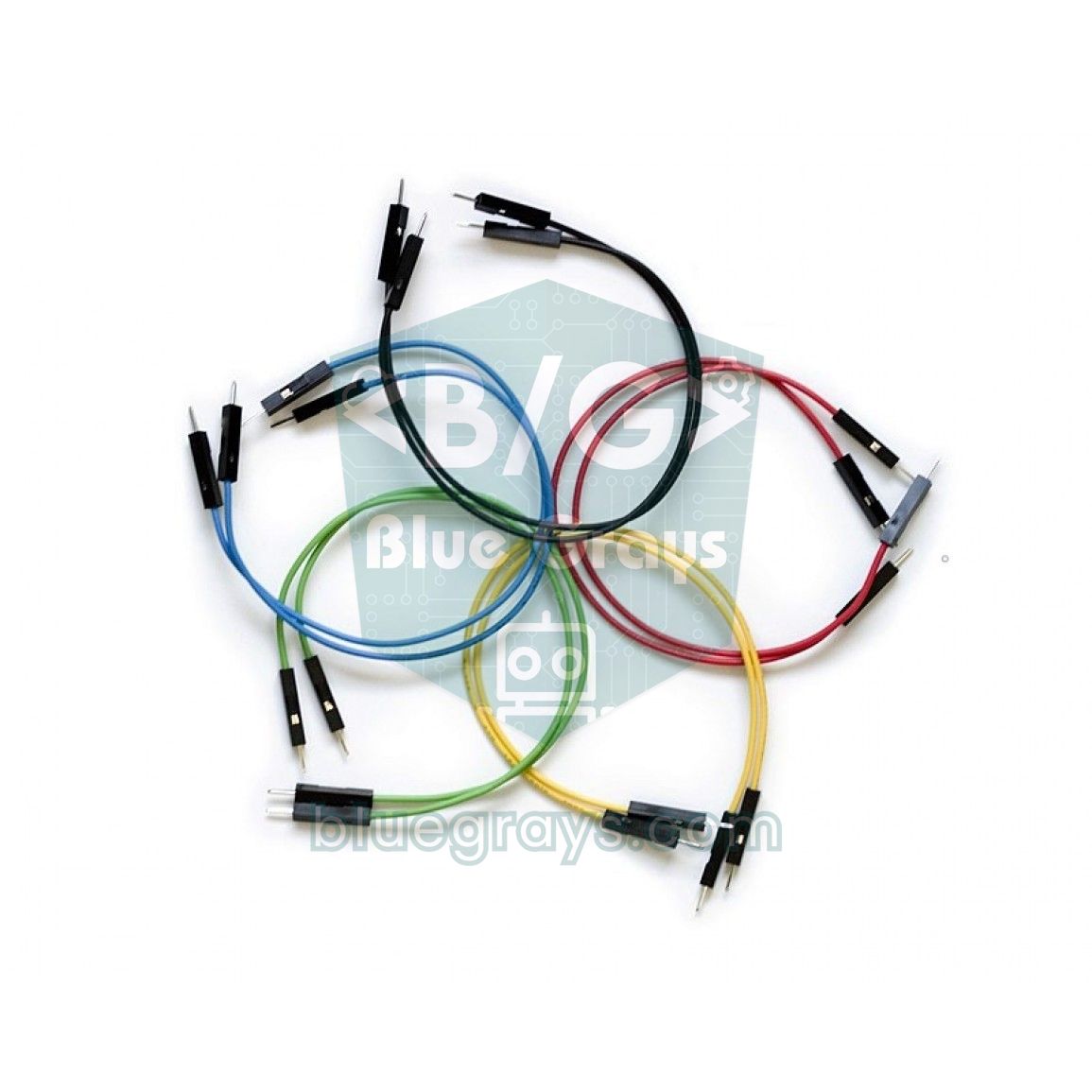
- Male-to-male (M-M): used on the breadboard and between the Arduino and the breadboard; you'll use these the most.
- Female-to-male (F-M): connects modules with exposed pins (DHT11 module, HC-SR04, the LCD's I2C module) directly to the breadboard or the Arduino.
- Female-to-female (F-F): for connecting two modules or boards with male pins such as the ESP32; a few are enough in a first kit.
- Pre-cut solid-core wire kit: makes neat, flat connections on the breadboard and reduces the tangle in permanent circuits.
- Length: 10–20 cm is enough; very long wires get tangled and pick up interference on lines such as I2C.
LEDs, resistors, buttons, potentiometers and buzzers
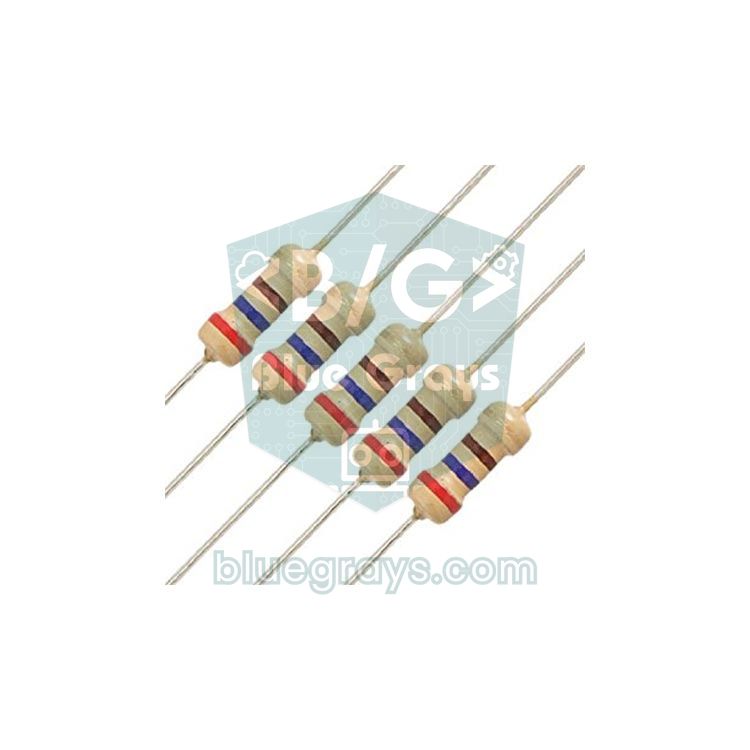
LEDs and resistors are the foundation of everything you'll do first with Arduino. You always connect an LED to a 5 V pin through a resistor: a red LED drops about 2 V, so with a 220 Ω resistor the current is (5 − 2) / 220 ≈ 13.6 mA, which is safe for both the LED and the Arduino pin. For other colours and currents use the LED resistor calculator, and to read the value of a resistor in your hand use the resistor colour code tool. Rather than buying resistors one by one, a mixed kit with 220 Ω, 330 Ω, 1 kΩ, 4.7 kΩ and 10 kΩ values is both cheaper and more practical.
- Push button: four-leg 6×6 mm buttons sit perfectly across the channel in the middle of the breadboard. If you use INPUT_PULLUP in your code you can wire them without an extra resistor; we explain why in wiring a button and debouncing.
- Potentiometer: a 10 kΩ linear (B10K) potentiometer teaches you to read values from 0 to 1023 with analogRead; it's used for LED brightness, servo angle and LCD contrast. Details: What Is a Potentiometer?
- Buzzer: an active buzzer makes its own beep when you apply voltage; a passive buzzer plays notes with the tone() command. If you want melodies, choose the passive one; the differences are in What Is a Buzzer?
- RGB LED: not essential, but an affordable extra for learning colour mixing and seeing PWM with your own eyes; see Using an RGB LED.
- Capacitors and transistors: not needed for your first projects; a few 100 µF capacitors and an NPN transistor such as the BC547 will come in handy later when you start driving motors and relays.
Which sensors belong in your first kit?
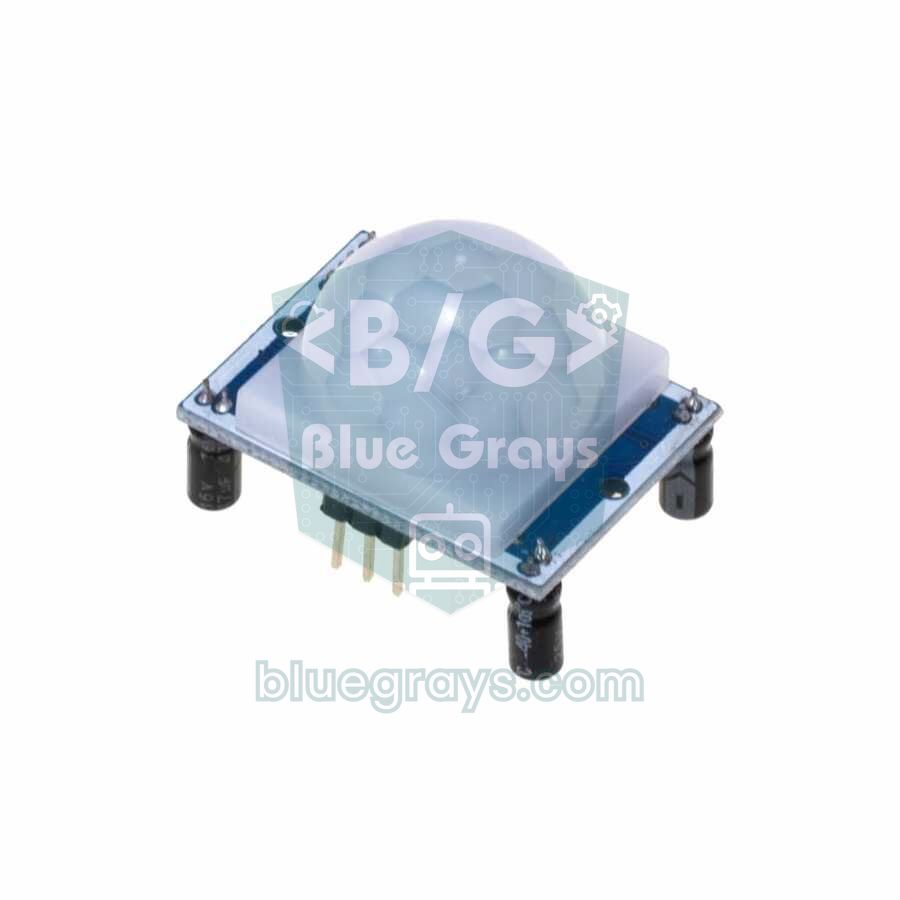
The rule for choosing sensors is simple: each one should teach you a different way of reading data. The LDR teaches analog reading, the HC-SR04 teaches measuring pulse length, the DHT11 teaches reading digital data with a ready-made library, and the PIR teaches a simple on/off signal. With these four sensors you get most of what big boxes with dozens of modules offer, at a much lower cost. If remote-controlled projects excite you, add an IR receiver and remote to the list. You'll find a detailed comparison of sensors in our Arduino Sensors Guide.
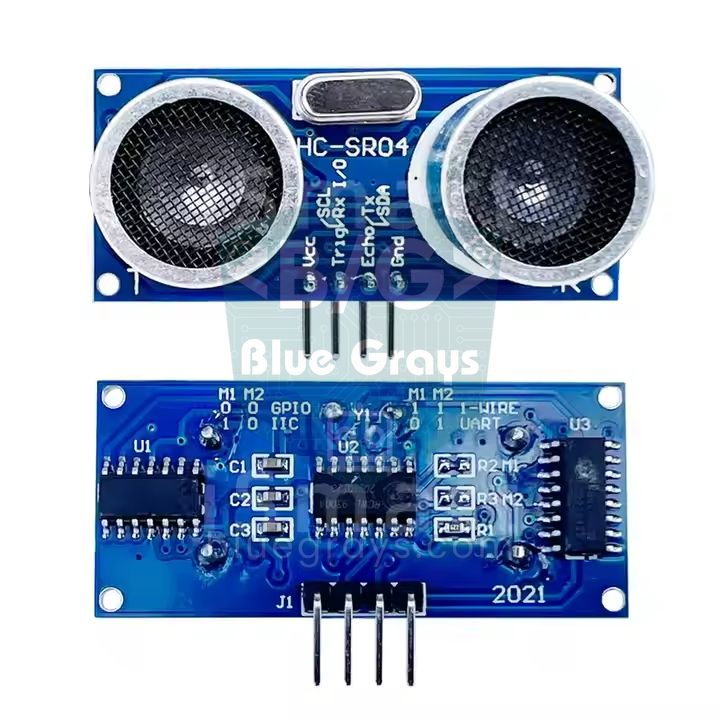
| Sensor | What it measures | What it teaches | Example project |
|---|---|---|---|
| LDR + 10 kΩ | Ambient light | analogRead, voltage divider | Automatic night light |
| HC-SR04 | Distance, 2–400 cm | pulseIn, calculating with the speed of sound | Parking sensor, height meter |
| DHT11 | Temperature 0–50 °C, humidity 20–90% | Using a library, digital data | Mini weather station |
| PIR (HC-SR501) | Human motion | Digital input, timing | Motion-activated light, alarm |
| IR receiver + remote | Remote button codes | Decoding, remote control | LED and melody controlled by remote |
Motion and displays: servo motor, LCD and OLED
The SG90 servo motor is a small motor that moves to any angle between 0 and 180 degrees and holds it there; controlling a servo with a potentiometer is the first project where you'll say "I made something move" with Arduino. Ideas like a remote-controlled barrier, an automatic door lock or a pan-tilt camera mount all start with a servo; you'll find how it works in What Is a Servo Motor? The plastic-gear SG90 is enough for a first kit; the metal-gear MG90S is tougher but a little more expensive.
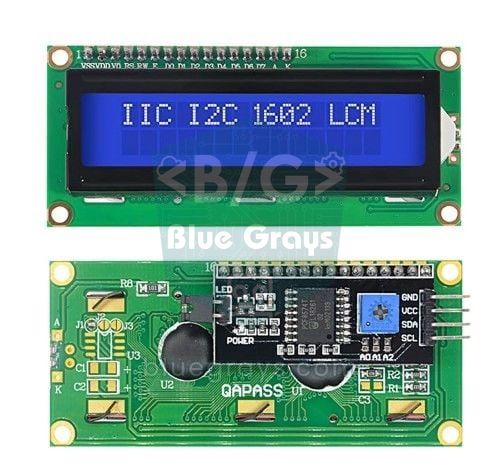
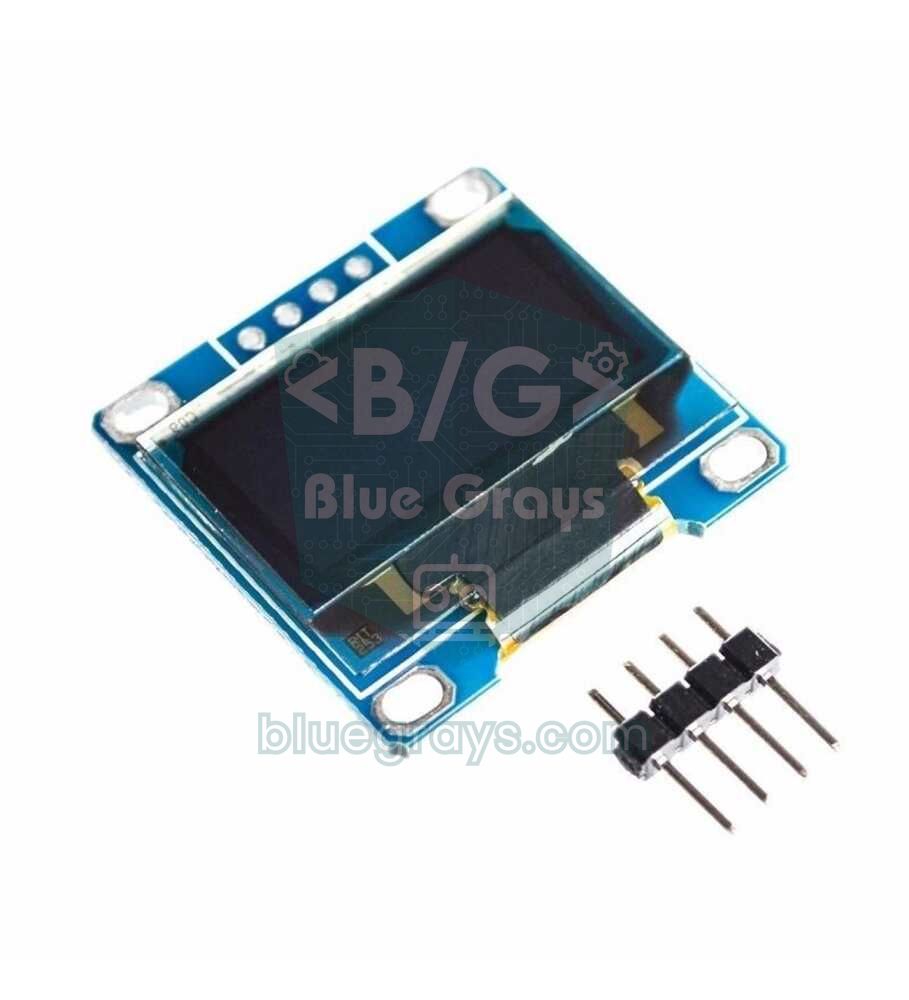
Make an I2C 16x2 LCD your first display: it connects with just four wires (GND, VCC, SDA, SCL), it uses only two data pins on the Arduino (A4 and A5 on the Uno), and showing 32 characters on two lines is enough for most sensor projects. A bare LCD without an I2C module needs more than ten wires plus a separate potentiometer for contrast, and fills up your breadboard; so when you buy one, make sure the module comes soldered on. If you want to draw graphics, icons or small games, a 0.96-inch OLED display is sharper and smaller. For setup and address settings, see Using an I2C LCD Display.
Ready-made kit or buying parts separately?
| Criterion | Ready-made starter kit | Buying separately |
|---|---|---|
| Total cost | Usually cheaper; bundle advantage | Can be lower if you know exactly what to buy |
| Compatibility | Parts are chosen to work together | Risk of the wrong model or a missing part |
| Unused parts | Parts like the 74HC595, 8x8 matrix or stepper may sit in the box for a long time | You only buy what you'll use |
| Consumables | Often too few LEDs, resistors and wires | You buy as many as you want |
| Organisation | Comes in a box with compartments | You need to buy a storage box separately |
| Who is it for? | Complete beginners, gifts | People who know what they need, second orders |
| Kit type | Usually includes | Enough for |
|---|---|---|
| Basic kit | Uno, USB cable, breadboard, wires, LEDs, resistors, buttons, buzzer, LDR, potentiometer | LED animations, traffic light, buttons, melodies, night light |
| Mid-size kit (super starter) | Basic kit + HC-SR04, DHT11, SG90 servo, 16x2 LCD, 7-segment display, IR receiver and remote | Parking sensor, weather station, remote-controlled projects, servo control |
| Large kit (with RFID) | Mid-size kit + RFID RC522, keypad, relay, joystick, stepper motor, 8x8 matrix, RTC clock module | Card door lock, code-protected safe, digital clock, simple games |
For most people the most sensible route is to buy a mid-size starter kit and fill in the gaps separately. When choosing a kit, read the parts list line by line: is the board an Uno R3, is there a USB cable, is the breadboard 830 points, is the I2C module fitted to the LCD, is there a servo and at least two sensors? If all of that is there, the rest of the details are secondary. Then buy plenty of extra LEDs, resistors and jumper wires; these consumables are the weakest point of most kits. Large kits are only worth it if you'll really use parts like the RFID reader, the keypad and the relay; if you pick one just because it has more parts, many of them will wait in the box for months.
Shopping table for your first 10 projects
The table below shows your first 10 projects, ordered from easiest to hardest, and the parts each one needs. All projects share the Arduino Uno, USB cable, breadboard and jumper wires; the table lists only the extra parts. The projects build on each other: the sequential outputs you learn with the traffic light come back in the parking sensor, and the analog reading you learn with the potentiometer comes back in servo control.
| # | Project | Extra parts | What it teaches |
|---|---|---|---|
| 1 | Blinking an LED (Blink) | 1 LED, 1 × 220 Ω | digitalWrite, delay |
| 2 | Traffic light | Red, yellow and green LED, 3 × 220 Ω | Sequential outputs, timing |
| 3 | Controlling an LED with a button | 1 button, 1 LED, 1 × 220 Ω | digitalRead, INPUT_PULLUP |
| 4 | LED brightness with a potentiometer | 10 kΩ potentiometer, 1 LED, 1 × 220 Ω | analogRead, PWM |
| 5 | Melody with a buzzer | Passive buzzer | tone(), frequency and notes |
| 6 | Night light with an LDR | LDR, 1 × 10 kΩ, 1 LED, 1 × 220 Ω | Voltage divider, threshold value |
| 7 | Distance meter and parking sensor | HC-SR04, buzzer, 3 LEDs, 3 × 220 Ω | pulseIn, distance calculation |
| 8 | Temperature and humidity meter | DHT11 | Installing a library, Serial Monitor |
| 9 | Servo control with a potentiometer | SG90 servo, 10 kΩ potentiometer | Servo library, map() |
| 10 | Live temperature and distance on an LCD | I2C 16x2 LCD, DHT11, HC-SR04 | I2C, writing data to a display |
Taken together, these ten projects boil down to this minimum shopping list: one red, one yellow and one green LED, three 220 Ω resistors and one 10 kΩ resistor, one button, one potentiometer, one passive buzzer, one LDR, one HC-SR04, one DHT11, one SG90 and one I2C LCD. That's the leanest version, where you never use more than three LEDs at once; for spares and your own ideas we recommend buying several times as many LEDs and resistors. If you check a kit's contents against this table, you'll never have a project stall because of a missing part.
Test your parts on day one: five parts, one sketch
The fastest way to make sure your new parts work is to try them all in one circuit. Make the connections below and upload the code: as you turn the potentiometer, the LED's brightness should change; when you press the button, the buzzer should beep; and the potentiometer and LDR values should scroll in the Serial Monitor (9600 baud). When you cover the LDR with your hand, the value should drop noticeably.
| Part | Arduino Uno connection | Note |
|---|---|---|
| LED + 220 Ω | Pin 9 → resistor → LED's long leg; short leg → GND | Pin 9 supports PWM (~ mark) |
| Button | One leg to pin 2, the diagonal leg to GND | Uses the internal pull-up, no resistor needed |
| Passive buzzer | + to pin 8, − to GND | An active buzzer also beeps, but at a fixed tone |
| Potentiometer | Outer legs to 5V and GND, middle leg to A0 | Gives values from 0 to 1023 |
| LDR + 10 kΩ | LDR between 5V and A1, 10 kΩ between A1 and GND | The value rises in bright light |
1// BlueGrays başlangıç seti test kodu / starter kit test sketch
2const int LED_PIN = 9;      // LED + 220 ohm (PWM pini) / LED + 220 ohm (PWM pin)
3const int BUTTON_PIN = 2;   // buton, diğer ucu GND / button, other leg to GND
4const int BUZZER_PIN = 8;   // pasif buzzer / passive buzzer
5const int POT_PIN = A0;     // potansiyometre orta bacak / potentiometer middle leg
6const int LDR_PIN = A1;     // LDR + 10k gerilim bölücü / LDR + 10k voltage divider
7
8void setup() {
9  pinMode(LED_PIN, OUTPUT);
10  pinMode(BUTTON_PIN, INPUT_PULLUP);   // basınca LOW okunur / reads LOW when pressed
11  Serial.begin(9600);
12}
13
14void loop() {
15  int pot = analogRead(POT_PIN);       // 0-1023 arası / range 0-1023
16  analogWrite(LED_PIN, pot / 4);       // 0-255 parlaklık / 0-255 brightness
17
18  if (digitalRead(BUTTON_PIN) == LOW) {
19    tone(BUZZER_PIN, 1000, 100);       // 1 kHz, 100 ms bip / 1 kHz, 100 ms beep
20  }
21
22  Serial.print("Pot: ");
23  Serial.print(pot);
24  Serial.print("  LDR: ");
25  Serial.println(analogRead(LDR_PIN)); // aydınlıkta artar / rises in light
26  delay(200);
27}Unnecessary purchases: what you can skip in your first order
- Arduino Mega: its 54 digital pins sit idle in your first projects; the Uno is enough until you genuinely run out of pins.
- Big sensor boxes with dozens of modules: some of the modules inside are near-duplicates (several different light and sound modules, for example); buying the four or five sensors you'll actually use separately is often cheaper.
- Powering from a 9 V battery: its capacity is low, the board's regulator turns the extra voltage into heat, and it can't power a servo or an LED strip. USB, a 5 V adapter or a suitable battery holder makes more sense.
- Shields: a motor or sensor shield seems to make things easier at first, but it stops you from learning the wiring; build it on a breadboard first.
- An expensive soldering station: breadboard projects don't need soldering; if you need it in the first months, a simple soldering iron is enough.
- Several boards: buy a second board once you've actually finished a project with the first one and need it for a permanent circuit.
When should you move on to the ESP32 and the Raspberry Pi Pico?
Once you're comfortable with digital input and output, analogRead, PWM and a few libraries on the Uno, roughly after your first 8–10 projects, it's time to look at a second board. If your project needs Wi-Fi, Bluetooth, phone control, or time and weather from the internet, the ESP32 is the right choice: it's dual-core, has far more memory and is still programmed with the Arduino IDE. If you want to learn Python or try MicroPython on an affordable, powerful board, the Raspberry Pi Pico is a good pick; if you need wireless, get the Pico W.
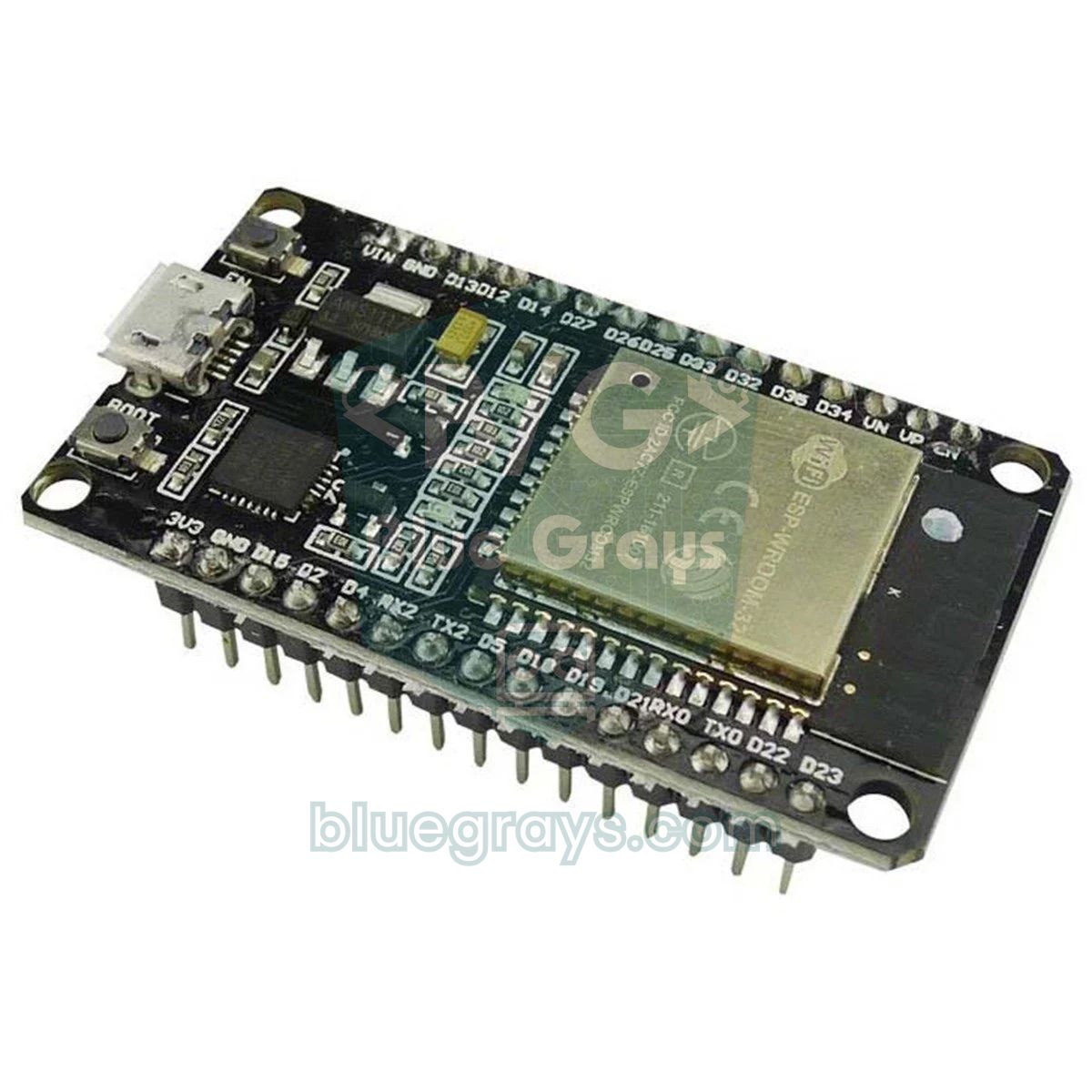
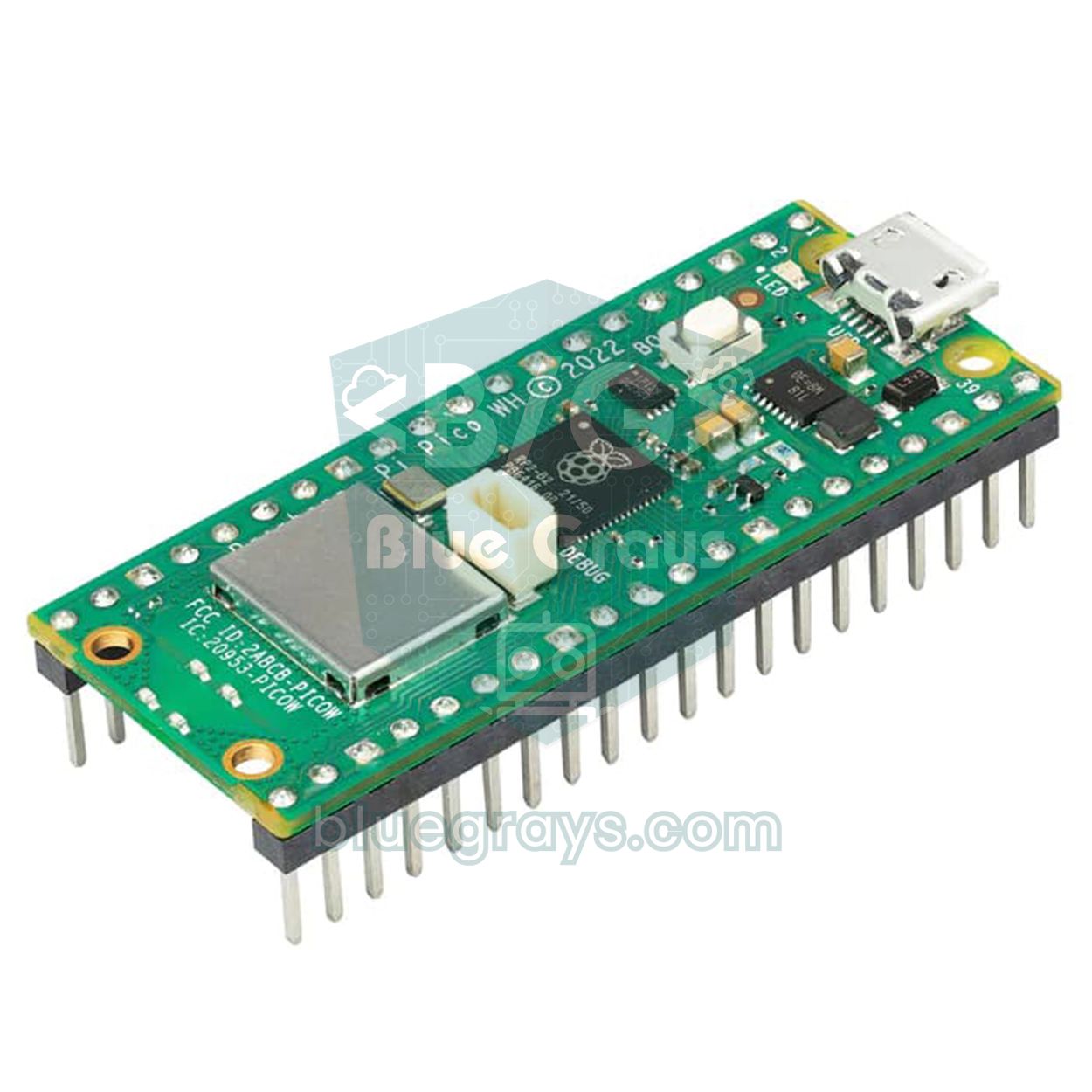
| Part | Arduino Uno (5 V) | ESP32 (3.3 V) | Raspberry Pi Pico (3.3 V) |
|---|---|---|---|
| LED, button, potentiometer, LDR | Direct | Direct; power the potentiometer and LDR from 3V3 | Direct; power the potentiometer and LDR from 3V3 |
| DHT11 | Direct | Works on 3V3 | Works on 3V3 |
| PIR (HC-SR501) | Direct | Power from 5V/VIN; its output is 3.3 V, so it's safe | Power from VBUS; its output is 3.3 V, so it's safe |
| HC-SR04 | Direct | A voltage divider on the ECHO pin is a must | A voltage divider on the ECHO pin is a must |
| SG90 servo | Direct (single servo) | 5 V supply, a 3.3 V signal is enough | 5 V supply, a 3.3 V signal is enough |
| I2C 16x2 LCD | Direct | Powered from 5 V; a level shifter on the I2C lines is recommended | Powered from 5 V; a level shifter on the I2C lines is recommended |
| OLED SSD1306 | Direct | Direct (3V3) | Direct (3V3) |
Common shopping mistakes
- Forgetting the USB cable or buying the wrong one: the Uno uses USB-B, the Nano mini USB or USB-C, and the ESP32 usually micro USB or USB-C; always choose a cable that carries data.
- Buying only a small or the cheapest breadboard: a 400-point board fills up once you add a sensor and a display, and on breadboards with weak contacts the wires wobble and the circuit works one minute and stops the next. Choose an 830-point model that grips wires firmly.
- Not buying resistors: connecting an LED without a resistor stresses both the LED and the Arduino pin; buy plenty of 220 Ω resistors.
- Buying an LCD without an I2C module: the number of wires triples; choose an LCD that comes with the I2C module soldered on.
- Mixing up bare sensors and modules: a bare DHT11 has 4 legs and needs a pull-up resistor (usually 10 kΩ) on its data line; on the 3-pin module version that resistor is already on the board. For your first kit, choose the module versions of sensors.
- Buying only male-to-male wires: female-to-male wires are essential for connecting modules with exposed pins.
- Putting off the multimeter: you could spend hours looking in your code for simple problems like a broken wire or a flat battery.
In short, a good Arduino starter kit is an Uno, an 830-point breadboard, plenty of jumper wires, LEDs and resistors, a few buttons, a potentiometer, a passive buzzer, an LDR, an HC-SR04, a DHT11, an SG90 servo and an I2C LCD. If you're completely new to Arduino, start with What Is Arduino?; once your foundation is solid, moving on to the internet with the ESP32 and to MicroPython with the Pico becomes much easier. The day your parts arrive, open the BlueGrays app and work through the LED, button, buzzer, LDR, distance sensor, DHT11, servo and LCD projects in order; each one comes with a circuit diagram, a parts list and step-by-step explained code.
Frequently asked questions
What should an Arduino starter kit include?
A good starter kit should include an Arduino Uno and USB cable, an 830-point breadboard, male-to-male and female-to-male jumper wires, LEDs, resistors (mostly 220 Ω and 10 kΩ), buttons, a potentiometer and a buzzer. Add a few sensors such as an LDR, HC-SR04 and DHT11, an SG90 servo and an I2C 16x2 LCD, and you can build all of your first 10 projects.
Should I buy an original Arduino or a clone?
There's no difference for coding: clone boards use the same processor, the same pin layout and the same Arduino IDE. Clones are more affordable and a sensible choice while you're learning and might burn out a pin; most use a CH340 USB chip, so you may need to install its driver. An original board goes through stricter quality control and supports the Arduino project.
Should I buy an Arduino Uno or a Nano?
The Uno is easier as a first board: you plug wires in directly, it's compatible with shields, and most examples are written for it. The Nano has the same processor but is small enough to plug into a breadboard, which makes it ideal for permanent, compact projects or as a second board.
Do I need to solder to use Arduino?
Beginner projects built with a breadboard and jumper wires need no soldering. Some modules and clone Nano boards come with their pin headers unsoldered, so check whether they're pre-soldered when you buy. You mainly need soldering when you want to turn a project into a permanent circuit.
Is an Arduino starter kit suitable for kids?
Because Arduino projects run on low voltages like 5 V, they're generally suitable for children aged 10 and up with an adult's guidance. Small parts are a choking hazard, so keep them out of reach of younger children. Relay projects that switch mains voltage must always be done with an adult.
What should I buy after an Arduino starter kit?
After your first 8–10 projects, follow your interests: an ESP32 for internet and phone control, or a Raspberry Pi Pico to learn Python, are good next steps. If you want to build robots, an L298N motor driver and a geared DC motor kit make sense; for home automation, a relay module and a PIR sensor.
Projects to build after reading this
See all projects
Led Lighting
Basic input project that turns a single LED on and off at regular intervals with Arduino. Teaches the use of digitalWrite and delay functions.

Traffic Lamp
Project that simulates a real traffic light with red, yellow and green LEDs. Teaches timing and sequential control logic.

Led Burning with Push Button (Push)
Push control project that turns on the LED when the button is pressed and turns it off when it is released. Teaches button reading and conditional expression usage with digitalRead.

Night Light with Ldr
LDR based night light project that automatically turns on the LED when the environment gets dark. Teaches automatic control logic with analog threshold comparison.
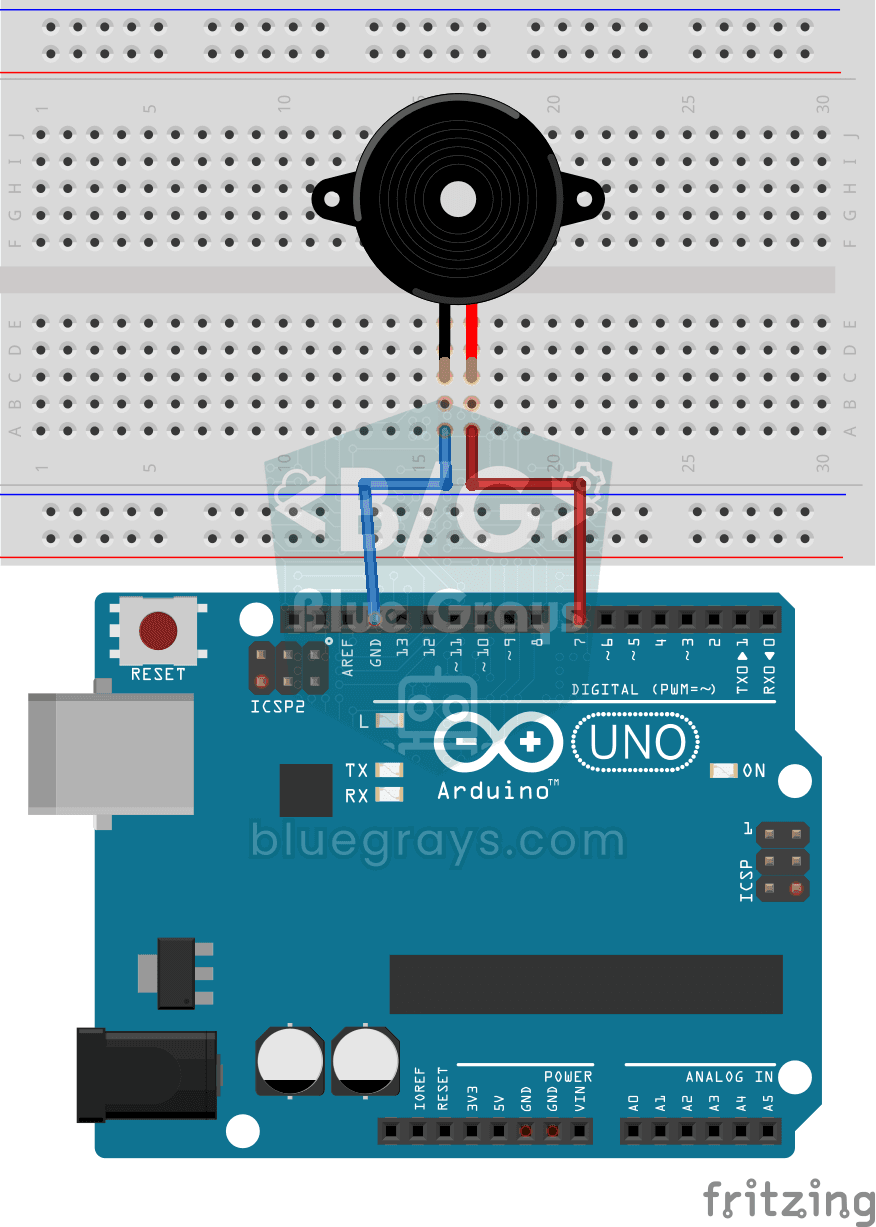
Buzzer Usage
Basic project that uses the buzzer to emit a sound at a specific frequency and interval. Teaches the use of tone() and noTone() functions.
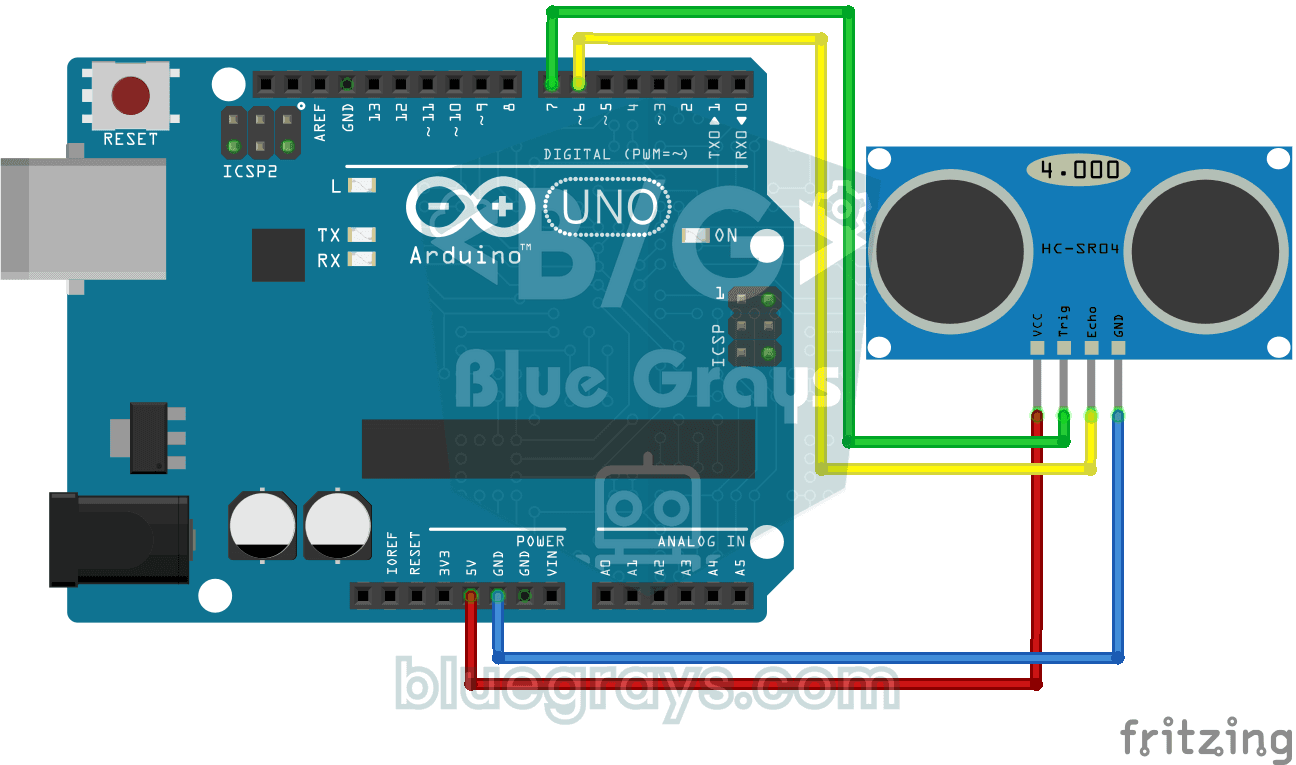
HC-SR04 Distance Measurement (Serial Display)
Project that measures distance with HC-SR04 ultrasonic sensor and displays the result in cm on Serial Monitor. It teaches the principle of distance calculation with sound wave.
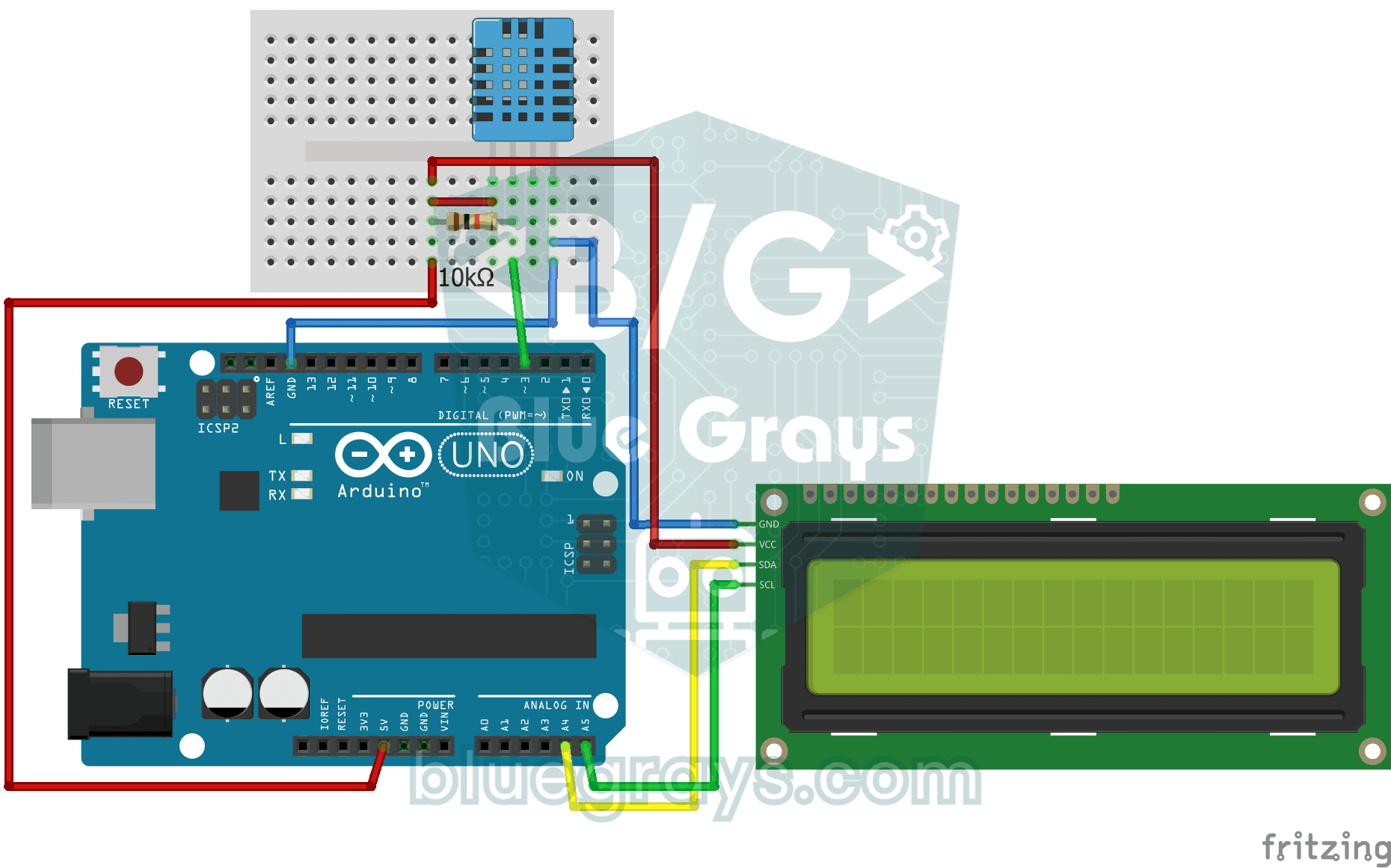
Temperature and Humidity with DHT11
Project that measures the ambient temperature and humidity value with the DHT11 sensor and displays it on the I2C LCD screen. Teaches the use of digital temperature/humidity sensor.
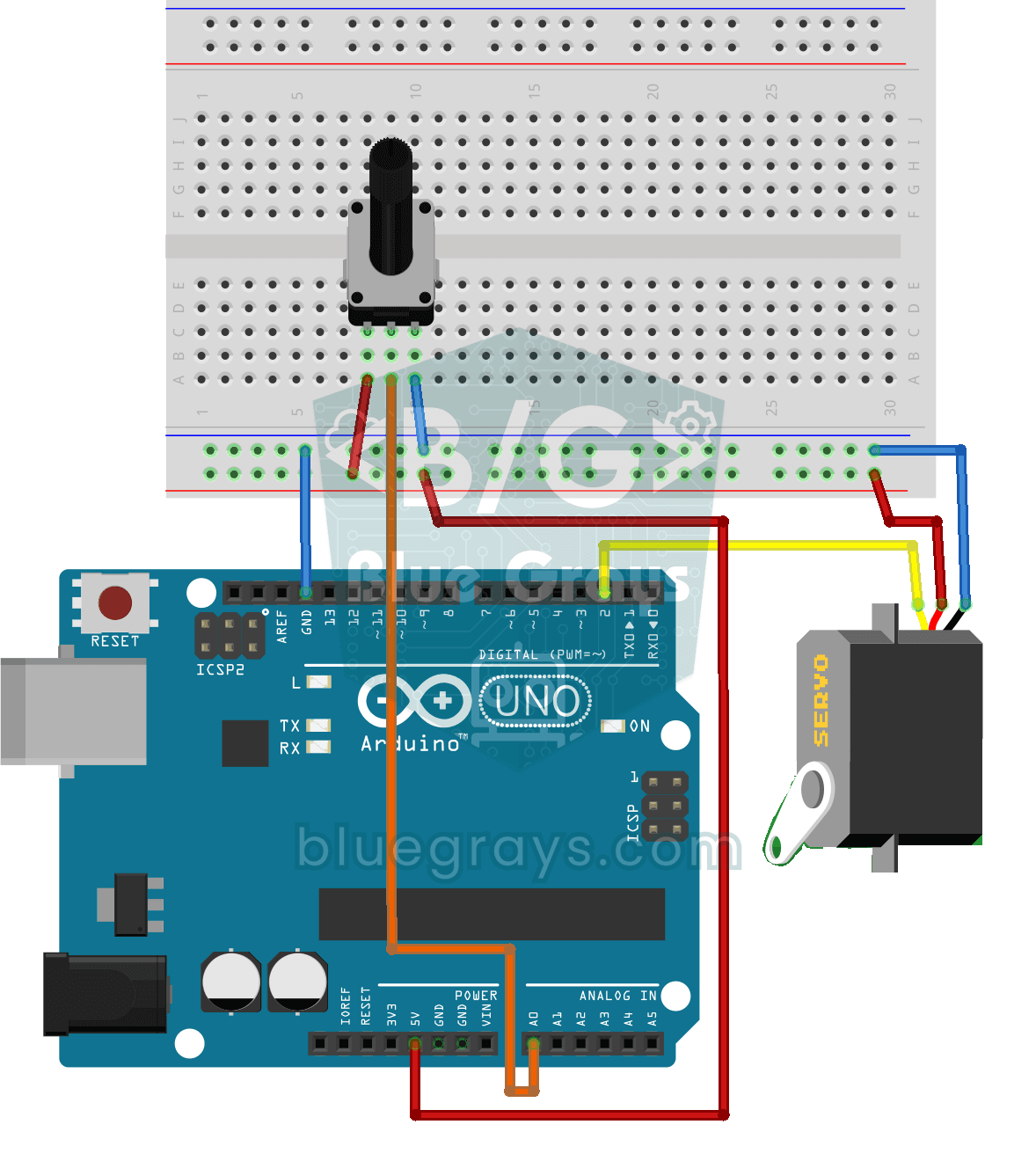
Servo Motor Operation with Potentiometer
Project that controls the servo motor in real time by converting the potentiometer value to the range 0-180°. teaches map() function and analog-servo integration.
More articles
We've gathered everything for your first Arduino shopping trip in one guide: which parts to buy and how many, kit versus loose parts, purchases you can skip, and a parts list for your first 10 projects.