
Line Follower Robot with Arduino: TCRT5000 Sensors and PID
Build a line follower robot with Arduino: TCRT5000 sensors, placement and calibration, if-else and PID code, Kp/Kd tuning, motor driver, battery and rules.
A line follower robot is an autonomous vehicle that detects a black (or white) line on the floor with infrared sensors and keeps adjusting the speed of its two wheels so it stays on that line. It's one of the first real robot projects people build with Arduino, because it combines reading sensors, making decisions and controlling motors in a single project. The autonomous carts (AGVs) that move materials around factories work on the same idea, and line following is one of the most crowded categories at school robotics competitions.
In this guide you'll learn how the TCRT5000 sensor works, how 2-, 3- and 5-sensor arrays differ, at what height and spacing to mount the sensors, and how to calibrate the threshold. First you'll get the robot moving with a simple if-else sketch, then you'll move on to a version with PID control that follows the line without zigzagging or leaving the track on curves. Along with working code for the Arduino Uno, ESP32 and Raspberry Pi Pico, you'll also find how to choose the motor driver and battery, typical competition rules and fixes for the most common problems.
How does a line follower robot work?
A white surface reflects most infrared light back, while a matte black surface absorbs most of it. The sensors under the robot measure this difference to work out where the line is relative to the robot. The robot has no steering; it turns with what's called differential drive: if the left wheel spins faster than the right one the robot curves to the right, and if it spins slower it curves to the left. The program runs the same loop hundreds of times a second: read the sensors, work out how far the line has drifted, and correct the speed of the two motors accordingly. The faster and more stable this closed loop runs, the smoother the robot moves.
| Part | Recommended | Note |
|---|---|---|
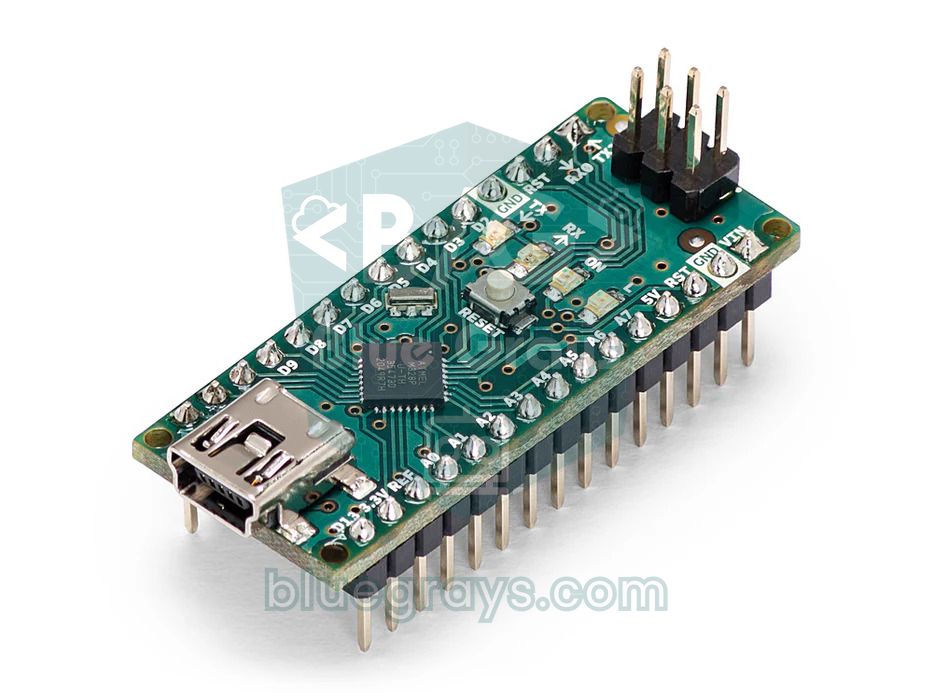
| Controller board | Arduino Uno or Nano | The Nano fits a small chassis more easily; an ESP32 or Pico works too |
| Line sensor | 3- or 5-channel TCRT5000 array, QTR-8A | An array with analog outputs gives better results with PID |
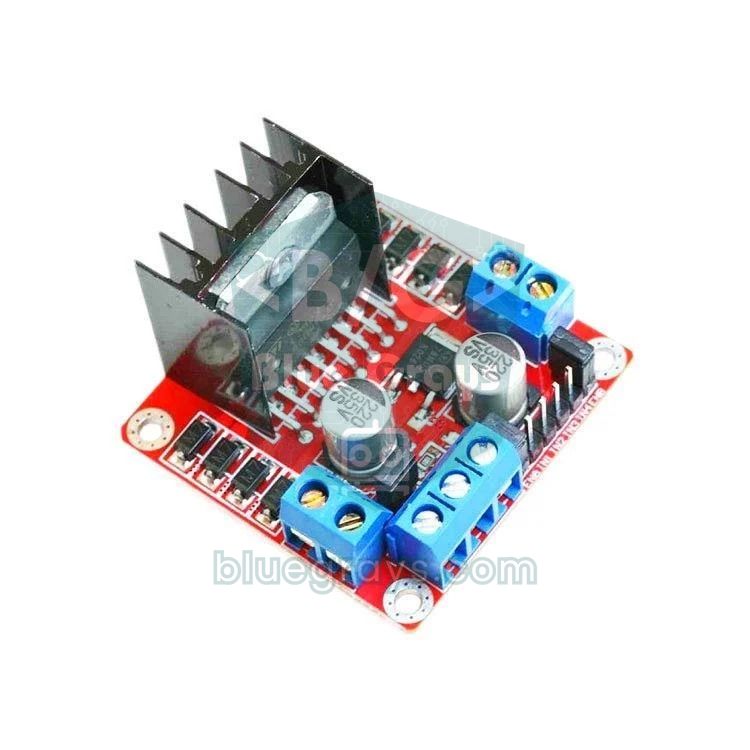
| Motor driver | L298N or TB6612FNG | The TB6612FNG is smaller and more efficient |
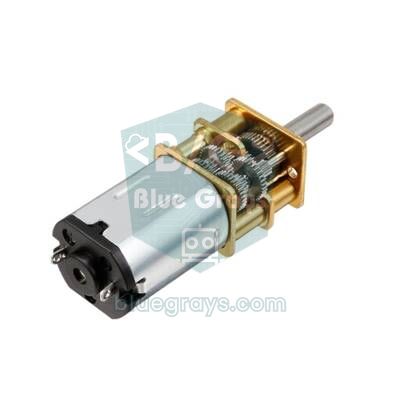
| Motors | 2 geared DC motors (TT 1:48 or N20) | Both motors should be the same model and speed |
| Wheels | 2 drive wheels and 1 caster wheel | 65 mm wheels are the most common |
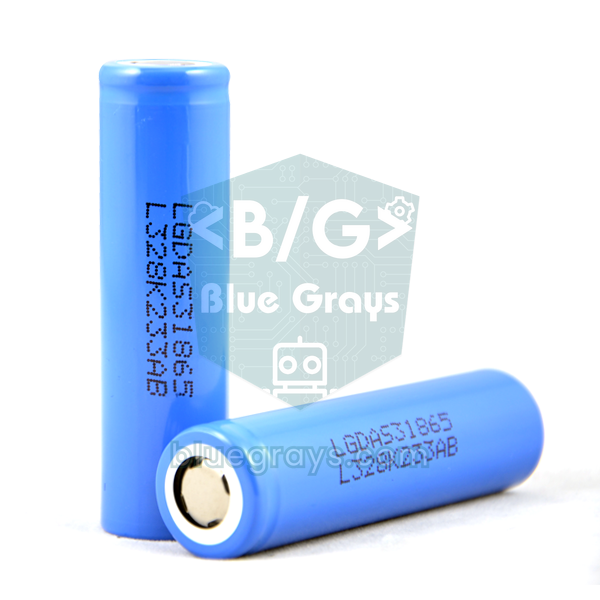
| Power | 2 × 18650 Li-ion cells (7.4 V) and a switch | A 9 V PP3 battery is too weak for motors |
| Other | Chassis, push button, jumper wires | A button makes calibration and starting easier |
The TCRT5000 sensor: 2-, 3- and 5-sensor arrays
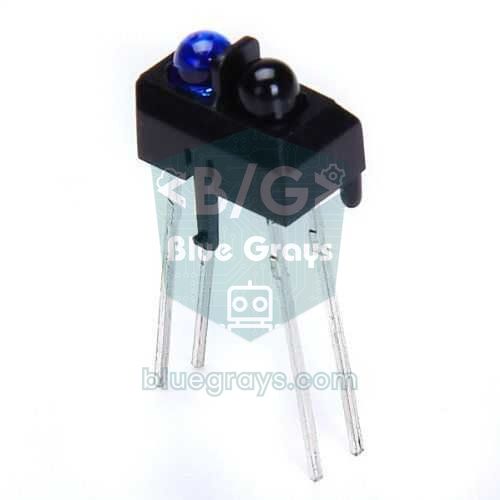
The TCRT5000 consists of an infrared LED (950 nm) and a phototransistor side by side in the same housing. The more of the LED's light bounces off the floor and reaches the phototransistor, the more the transistor conducts. The sensor works best at a distance of about 2.5 mm; above 1 cm the difference between black and white drops quickly. Ready-made modules include an LM393 comparator: on most modules the DO pin outputs HIGH over black and LOW over white, depending on the threshold set with the potentiometer, and the LED on the board lights up over a white surface. The AO pin gives the raw analog value: high over black, low over white. You'll find every detail about the sensor in TCRT5000 Infrared Sensor.
| Sensors | Placement | Algorithm | When to choose it |
|---|---|---|---|
| 2 | Either side of the line; both normally see white | if-else | First attempt, wide track with gentle curves |
| 3 | Middle one over the line, outer ones at its edges | if-else or simple PID | School projects, beginner-level competitions |
| 5 | Evenly spaced row, middle one over the line | PID (weighted average) | Fast, smooth line following |
| 8 | Wide row (like the QTR-8A) | PID plus junction detection | Competition tracks with sharp turns and junctions |
Sensor placement: height, spacing and distance ahead
However good your code is, the robot can't drive well if the sensors are in the wrong place. Mount the sensor bar in front of the wheel axle, parallel to the floor and symmetrical to the robot's centre line. These measurements are a good starting point:
- Height: Leave 3–5 mm between the underside of the sensor and the floor. Pololu gives 3 mm as the optimal and 6 mm as the maximum recommended distance for its QTR-8A array. Any higher and the difference between black and white shrinks, so the robot misses the line.
- Spacing: On analog arrays, keep the distance between two sensors between half and two thirds of the line width; 10–13 mm works well for a 20 mm line. That way the line usually sits under two sensors and the position is calculated smoothly.
- 3-sensor digital layout: Put the middle sensor right over the line and the side sensors just outside its edges; for a 20 mm line that's about 18–22 mm centre to centre.
- Distance ahead: Place the sensors 4–8 cm in front of the wheel axle. Too close and the robot notices curves late; too far and even a small turn swings the sensors a lot, making the robot wobble.
- Ambient light: Sunlight and halogen lamps also contain infrared light. Shielding the sensors with a black skirt or tape makes the readings much more stable.
Wiring: Arduino Uno, ESP32 and Pico
The table below matches the sensor test and PID sketches exactly; the wiring for the 3-sensor if-else example is described in its own section. Number the sensors from left to right as seen from behind the robot: the leftmost sensor is number 1. We use an L298N as the motor driver; what each pin does and how the H-bridge works are explained in detail in DC Motor Control with the L298N. The Pico only has three analog inputs, so on it we use sensors 1, 3 and 5.
| Connection | Arduino Uno | ESP32 | Raspberry Pi Pico |
|---|---|---|---|
| Sensor 1 (leftmost) AO | A0 | GPIO 36 | GP26 |
| Sensor 2 AO | A1 | GPIO 39 | - |
| Sensor 3 (middle) AO | A2 | GPIO 34 | GP27 |
| Sensor 4 AO | A3 | GPIO 35 | - |
| Sensor 5 (rightmost) AO | A4 | GPIO 32 | GP28 |
| Sensor VCC | 5V | 3V3 | 3V3 |
| L298N ENA (left motor speed) | D9 | GPIO 25 | GP15 |
| L298N IN1, IN2 | D8, D7 | GPIO 26, 27 | GP14, GP13 |
| L298N ENB (right motor speed) | D10 | GPIO 33 | GP10 |
| L298N IN3, IN4 | D5, D4 | GPIO 18, 19 | GP11, GP12 |
| Start button (other leg to GND) | D2 | GPIO 23 | GP16 |
| GND | GND | GND | GND (shared with battery and driver) |
Choosing the motor driver and battery
The L298N is cheap and tough, but its bipolar transistors swallow 1.5–3 V: from a 7.4 V battery pack only about 5–5.5 V reaches the motors. On small, fast robots a MOSFET-based TB6612FNG or DRV8833 works better. With the TB6612FNG the code stays the same: you wire the ENA, IN1 and IN2 connections to PWMA, AIN1 and AIN2 (PWMB, BIN1 and BIN2 on the B channel) and tie the STBY pin to VCC. The DRV8833 has no separate speed (enable) pin; the PWM signal goes straight to the IN pins, so you'll need to adapt the drive() function. For power, the most practical choice is two 18650 Li-ion cells in series: 8.4 V when full, 7.4 V nominal, and they deliver high current with ease. 9 V PP3 batteries can't handle motor current and run flat quickly. You can work out how long your battery will last with the Battery life tool.
| Driver | Motor voltage | Current per channel | Voltage drop | Verdict |
|---|---|---|---|---|
| L298N | 5–35 V | 2 A | 1.5–3 V | Tough, but large and inefficient |
| TB6612FNG | 4.5–13.5 V | 1.2 A (3.2 A peak) | Very low | Best value for a line follower |
| DRV8833 | 2.7–10.8 V | 1.5 A (2 A peak) | Very low | Small robots with N20 motors |
| L9110S | 2.5–12 V | 0.8 A | Low | Only light, slow robots |
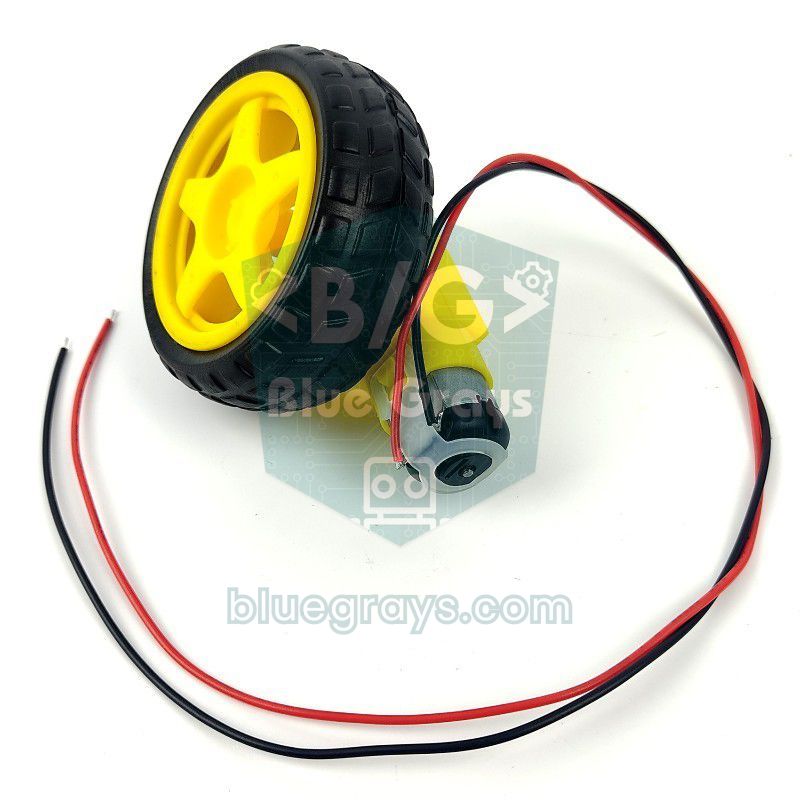
A quick speed example: yellow TT motors (1:48) spin at about 200 rpm with no load at 6 V. A 65 mm wheel has a circumference of π × 65 ≈ 204 mm, so the robot can travel at most 200 × 0.204 ≈ 41 m per minute, or roughly 0.7 m per second. That's more than enough for most school tracks; the real challenge is not losing the line at that speed. Faster robots use N20 micro gear motors and a light chassis. As the battery voltage drops the motors slow down and your tuned PID values drift; measuring the battery voltage with a voltage divider and scaling the speed to match is an advanced improvement.
Step 1: Test the sensors and find the threshold
Before connecting the motors, find out what the sensors see. The sketch below prints the raw analog value of all five sensors separated by tabs; open Tools > Serial Plotter in the Arduino IDE at 115200 baud and you'll see each sensor as its own line. Slowly move the robot across the line by hand and watch how the values change.
1// 5 sensörün ham değerlerini okur / reads the raw values of 5 sensors
2const int N = 5;
3const int SENSOR[N] = {A0, A1, A2, A3, A4};   // A0 en solda / A0 is the leftmost
4
5void setup() {
6  Serial.begin(115200);
7}
8
9void loop() {
10  for (int i = 0; i < N; i++) {
11    Serial.print(analogRead(SENSOR[i]));
12    Serial.print(i < N - 1 ? '\t' : '\n');    // Serial Plotter için sekme / tabs for the Serial Plotter
13  }
14  delay(50);
15}
At 5 V a typical TCRT5000 module reads 30–200 on a white surface and 600–1000 on a black line, but these numbers change with sensor height, floor material and ambient light. The simplest threshold is threshold = (white value + black value) / 2. For example, if you read 80 on white and 820 on black, the threshold is 450. Since every sensor reads a little differently, the PID sketch does this automatically: during calibration it records the lowest and highest value of each sensor, then scales every reading to between 0 (white) and 1000 (black) with (reading − min) × 1000 / (max − min). That makes the threshold 500 for every sensor.
Step 2: A simple if-else algorithm (3 sensors)
For a first working robot, the clearest approach is to pick from a few ready-made moves based on the state of three sensors. Connect the DO outputs of a 3-channel module to A0 (left), A1 (middle) and A2 (right); the Uno's analog pins also work as digital inputs. The logic is shown in this table (1 means the sensor sees the line):
| Left | Middle | Right | Meaning | Move |
|---|---|---|---|---|
| 0 | 1 | 0 | Line in the middle | Go straight |
| 1 | 1 | 0 | Line slightly to the left | Left wheel slows, gentle left |
| 1 | 0 | 0 | Line far to the left | Left wheel reverses, sharp left |
| 0 | 1 | 1 | Line slightly to the right | Right wheel slows, gentle right |
| 0 | 0 | 1 | Line far to the right | Right wheel reverses, sharp right |
| 1 | 1 | 1 | Junction or finish line | Go straight across |
| 0 | 0 | 0 | Line lost | Turn towards the last seen side |
1// 3 sensörlü basit çizgi izleyen / simple 3-sensor line follower
2const int ENA = 9, IN1 = 8, IN2 = 7;      // sol motor / left motor
3const int ENB = 10, IN3 = 5, IN4 = 4;     // sağ motor / right motor
4const int S_LEFT = A0, S_MID = A1, S_RIGHT = A2;   // sensörlerin DO çıkışları / sensor DO outputs
5const bool WHITE_LINE = false;            // siyah zemin + beyaz çizgi ise true / true for a white line on black
6
7const int SPEED = 150;                    // düz gidiş hızı / straight-line speed
8const int SOFT = 80;                      // hafif dönüşte iç teker / inner wheel on a soft turn
9const int BACK = -90;                     // sert dönüşte iç teker geri / inner wheel reverses on a sharp turn
10int lastSide = 0;                         // -1 sol, 1 sağ / -1 left, 1 right
11
12void drive(int left, int right) {         // her biri -255 … 255 / each -255 … 255
13  left = constrain(left, -255, 255);
14  right = constrain(right, -255, 255);
15  digitalWrite(IN1, left >= 0);  digitalWrite(IN2, left < 0);
16  digitalWrite(IN3, right >= 0); digitalWrite(IN4, right < 0);
17  analogWrite(ENA, abs(left));
18  analogWrite(ENB, abs(right));
19}
20
21void setup() {
22  int outputs[] = {ENA, IN1, IN2, ENB, IN3, IN4};
23  for (int p : outputs) pinMode(p, OUTPUT);
24  pinMode(S_LEFT, INPUT);
25  pinMode(S_MID, INPUT);
26  pinMode(S_RIGHT, INPUT);
27}
28
29void loop() {
30  bool l = digitalRead(S_LEFT) != WHITE_LINE;    // true = sensör çizgide / true = sensor on the line
31  bool m = digitalRead(S_MID) != WHITE_LINE;
32  bool r = digitalRead(S_RIGHT) != WHITE_LINE;
33
34  if (m && !l && !r) {                    // tam ortada: düz git / centered: go straight
35    drive(SPEED, SPEED);
36  } else if (l && r) {                    // kavşak ya da bitiş çizgisi: düz geç / junction or finish line: go straight
37    drive(SPEED, SPEED);
38  } else if (l && m) {                    // çizgi biraz solda / line slightly to the left
39    drive(SOFT, SPEED);  lastSide = -1;
40  } else if (r && m) {                    // çizgi biraz sağda / line slightly to the right
41    drive(SPEED, SOFT);  lastSide = 1;
42  } else if (l) {                         // çizgi çok solda / line far to the left
43    drive(BACK, SPEED);  lastSide = -1;
44  } else if (r) {                         // çizgi çok sağda / line far to the right
45    drive(SPEED, BACK);  lastSide = 1;
46  } else {                                // çizgi kayıp: son görülen tarafa dön / line lost: turn to the last seen side
47    if (lastSide < 0)      drive(BACK, SPEED);
48    else if (lastSide > 0) drive(SPEED, BACK);
49    else                   drive(SOFT, SOFT);
50  }
51}
The lastSide variable remembers on which side the robot last saw the line; if all three sensors miss the line in a sharp curve, the robot turns that way to find it again instead of wandering straight ahead. With two sensors the same logic is even simpler: the sensors sit either side of the line, the robot goes straight while both see white, turns left when the left one sees black and turns right when the right one does. The weakness of this method is that the moves come in steps: the robot only switches between a few fixed speeds, so it zigzags slightly even on straights and runs off the track on curves once you raise the speed.
Step 3: Smooth line following with PID
PID applies a correction that is proportional to how far the robot has drifted from the line. First, the line position is calculated from the five sensors as a weighted average: each sensor's 0–1000 value is multiplied by its own position (0, 1000, 2000, 3000, 4000), the results are added up and divided by the sum of the values. The result is a number between 0 and 4000, and 2000 when the line is exactly in the middle. For example, if the sensors read 0, 0, 300, 900, 0, the position is (300 × 2000 + 900 × 3000) / 1200 = 2750. The error = position − 2000: a positive value means the line is to the right, a negative one means it's to the left.
The correction is the sum of three terms: correction = Kp × error + Ki × sum of errors + Kd × (error − previous error). The P term steers harder the bigger the deviation gets. The D term looks at how fast the error is changing and brakes as the robot approaches the line, damping the oscillation. The I term fixes small errors that stay on one side for a long time, but on a line follower it's usually left at zero. Then the left motor runs at base speed + correction and the right motor at base speed − correction. For example, with an error of 800 and Kp = 0.06 the correction is 48; at a base speed of 140 the left motor runs at 188 and the right at 92, and the robot curves smoothly to the right.
1// PID çizgi izleyen: Arduino Uno + 5 analog sensör + L298N
2// PID line follower: Arduino Uno + 5 analog sensors + L298N
3const int ENA = 9, IN1 = 8, IN2 = 7;      // sol motor / left motor
4const int ENB = 10, IN3 = 5, IN4 = 4;     // sağ motor / right motor
5const int BUTTON = 2;                     // diğer bacağı GND'ye / other leg to GND
6const int N = 5;
7const int SENSOR[N] = {A0, A1, A2, A3, A4};   // A0 en solda / A0 is the leftmost
8const bool WHITE_LINE = false;            // siyah zemin + beyaz çizgi ise true / true for a white line on black
9const int CENTER = (N - 1) * 500;         // orta konum: 2000 / center position: 2000
10
11float Kp = 0.06, Ki = 0.0, Kd = 0.6;      // başlangıç değerleri / starting values
12int baseSpeed = 140;                      // düzlük hızı (0-255) / straight-line speed (0-255)
13const unsigned long PERIOD_MS = 5;        // sabit döngü süresi / fixed loop period
14
15int minVal[N], maxVal[N];
16int lastPosition = CENTER;
17float integral = 0, lastError = 0;
18unsigned long lastTime = 0;
19
20void drive(int left, int right) {         // her biri -255 … 255 / each -255 … 255
21  left = constrain(left, -255, 255);
22  right = constrain(right, -255, 255);
23  digitalWrite(IN1, left >= 0);  digitalWrite(IN2, left < 0);
24  digitalWrite(IN3, right >= 0); digitalWrite(IN4, right < 0);
25  analogWrite(ENA, abs(left));
26  analogWrite(ENB, abs(right));
27}
28
29void waitButton() {
30  while (digitalRead(BUTTON) == HIGH) {}  // basılmasını bekle / wait for a press
31  delay(30);
32  while (digitalRead(BUTTON) == LOW) {}   // bırakılmasını bekle / wait for the release
33  delay(30);
34}
35
36void calibrate() {                        // 5 sn: robotu çizginin üstünde sağa sola gezdir / 5 s: sweep the robot across the line
37  for (int i = 0; i < N; i++) { minVal[i] = 1023; maxVal[i] = 0; }
38  digitalWrite(LED_BUILTIN, HIGH);
39  unsigned long start = millis();
40  while (millis() - start < 5000) {
41    for (int i = 0; i < N; i++) {
42      int v = analogRead(SENSOR[i]);
43      if (v < minVal[i]) minVal[i] = v;
44      if (v > maxVal[i]) maxVal[i] = v;
45    }
46  }
47  digitalWrite(LED_BUILTIN, LOW);
48}
49
50int readPosition() {                      // 0 (en sol) … 4000 (en sağ) / 0 (leftmost) … 4000 (rightmost)
51  long sum = 0, weighted = 0;
52  bool onLine = false;
53  for (int i = 0; i < N; i++) {
54    int range = max(maxVal[i] - minVal[i], 1);
55    long v = (long)(analogRead(SENSOR[i]) - minVal[i]) * 1000 / range;
56    v = constrain(v, 0L, 1000L);          // 0 = beyaz, 1000 = siyah / 0 = white, 1000 = black
57    if (WHITE_LINE) v = 1000 - v;
58    if (v > 500) onLine = true;           // eşik: kalibrasyonun ortası / threshold: middle of the calibration
59    if (v > 50) {                         // küçük gürültüyü yok say / ignore small noise
60      weighted += v * (i * 1000L);
61      sum += v;
62    }
63  }
64  if (!onLine) {                          // çizgi kayıp: son görülen tarafa dön / line lost: turn to the last seen side
65    return (lastPosition < CENTER) ? 0 : (N - 1) * 1000;
66  }
67  lastPosition = weighted / sum;
68  return lastPosition;
69}
70
71void setup() {
72  int outputs[] = {ENA, IN1, IN2, ENB, IN3, IN4, LED_BUILTIN};
73  for (int p : outputs) pinMode(p, OUTPUT);
74  pinMode(BUTTON, INPUT_PULLUP);
75  drive(0, 0);
76  waitButton();                           // 1. basış: kalibrasyon / 1st press: calibration
77  calibrate();
78  waitButton();                           // 2. basış: yarış / 2nd press: race
79  lastTime = millis();
80}
81
82void loop() {
83  if (millis() - lastTime < PERIOD_MS) return;
84  lastTime += PERIOD_MS;
85
86  float error = readPosition() - CENTER;  // artı: çizgi sağda / positive: line is to the right
87  integral = constrain(integral + error, -20000.0f, 20000.0f);   // birikmeyi sınırla / anti-windup
88  float derivative = error - lastError;
89  lastError = error;
90
91  int correction = (int)(Kp * error + Ki * integral + Kd * derivative);
92  drive(baseSpeed + correction, baseSpeed - correction);
93}
After uploading, press the button once: the LED on the board lights up for 5 seconds. During that time, slide the robot left and right across the line by hand a few times so every sensor sees both black and white. When the LED goes out, place the robot on the line and press the button again. The loop runs every 5 ms using millis(); a fixed period keeps the D term on the same scale all the time. If the line disappears completely, readPosition() returns 0 or 4000 depending on the last side it was seen on, and the robot searches for it with the sharpest turn. For wiring the button see How to Connect a Button to Arduino, and for timing without delay see Arduino millis() and delay().
How to tune Kp and Kd
- Keep the base speed low (100, for example) and set Ki and Kd to zero.
- Start Kp small (0.02) and raise it step by step until the robot can take the curves. When the robot starts oscillating quickly and regularly around the line, you've reached the upper limit for Kp; stay a little below that value.
- Start Kd at about 10 times Kp and raise it until the oscillation dies out. If Kd gets too big, the robot jitters and the motors whine.
- Once the robot runs dead straight on straights and smoothly through curves, raise the base speed by 10–20 and repeat steps 2 and 3.
- Only try Ki, with a very small value (such as 0.0001), if the robot keeps drifting to one side on long straights.
- Write down the values you find and the battery voltage at the time; as the battery drains, the same values behave differently.
Line follower with the ESP32: tune the PID from your phone
The ESP32's big advantage is that you can change the PID values from your phone without re-uploading the code every time. The logic is the same as the Uno version; the differences are: the ESP32's analog input is 12-bit (0–4095), the sensors must go on ADC1 pins, GPIO 32–39 (ADC2 pins can't be read while Wi-Fi is on), and the sensors are powered from 3.3 V. analogWrite() works on both the 2.x and 3.x versions of the ESP32 Arduino core. Install an app such as Serial Bluetooth Terminal on your Android phone, connect to the "CizgiRobot" device and send commands like p0.07, d0.9 or s160; the robot uses the new value immediately and echoes it back. Classic Bluetooth only exists on the original ESP32 (not on the S3 or C3), and iPhones don't support this kind of serial connection. If you're new to the ESP32, read What Is the ESP32? first.
1// ESP32 PID çizgi izleyen + Bluetooth ile canlı ayar
2// ESP32 PID line follower + live tuning over Bluetooth
3#include "BluetoothSerial.h"
4
5BluetoothSerial SerialBT;
6
7const int ENA = 25, IN1 = 26, IN2 = 27;   // sol motor / left motor
8const int ENB = 33, IN3 = 18, IN4 = 19;   // sağ motor / right motor
9const int BUTTON = 23;                    // diğer bacağı GND'ye / other leg to GND
10const int LED_PIN = 2;                    // DevKit üzerindeki LED / onboard LED on the DevKit
11const int N = 5;
12const int SENSOR[N] = {36, 39, 34, 35, 32};   // yalnız ADC1 pinleri / ADC1 pins only
13const bool WHITE_LINE = false;            // siyah zemin + beyaz çizgi ise true / true for a white line on black
14const int CENTER = (N - 1) * 500;
15
16float Kp = 0.06, Ki = 0.0, Kd = 0.6;
17int baseSpeed = 140;
18const unsigned long PERIOD_MS = 5;
19
20int minVal[N], maxVal[N];
21int lastPosition = CENTER;
22float integral = 0, lastError = 0;
23unsigned long lastTime = 0;
24
25void drive(int left, int right) {         // her biri -255 … 255 / each -255 … 255
26  left = constrain(left, -255, 255);
27  right = constrain(right, -255, 255);
28  digitalWrite(IN1, left >= 0);  digitalWrite(IN2, left < 0);
29  digitalWrite(IN3, right >= 0); digitalWrite(IN4, right < 0);
30  analogWrite(ENA, abs(left));
31  analogWrite(ENB, abs(right));
32}
33
34void waitButton() {
35  while (digitalRead(BUTTON) == HIGH) {}
36  delay(30);
37  while (digitalRead(BUTTON) == LOW) {}
38  delay(30);
39}
40
41void calibrate() {                        // ESP32 ADC 12 bit: 0-4095 / ESP32 ADC is 12-bit: 0-4095
42  for (int i = 0; i < N; i++) { minVal[i] = 4095; maxVal[i] = 0; }
43  digitalWrite(LED_PIN, HIGH);
44  unsigned long start = millis();
45  while (millis() - start < 5000) {
46    for (int i = 0; i < N; i++) {
47      int v = analogRead(SENSOR[i]);
48      if (v < minVal[i]) minVal[i] = v;
49      if (v > maxVal[i]) maxVal[i] = v;
50    }
51  }
52  digitalWrite(LED_PIN, LOW);
53}
54
55int readPosition() {
56  long sum = 0, weighted = 0;
57  bool onLine = false;
58  for (int i = 0; i < N; i++) {
59    int range = max(maxVal[i] - minVal[i], 1);
60    long v = (long)(analogRead(SENSOR[i]) - minVal[i]) * 1000 / range;
61    v = constrain(v, 0L, 1000L);
62    if (WHITE_LINE) v = 1000 - v;
63    if (v > 500) onLine = true;
64    if (v > 50) {
65      weighted += v * (i * 1000L);
66      sum += v;
67    }
68  }
69  if (!onLine) {
70    return (lastPosition < CENTER) ? 0 : (N - 1) * 1000;
71  }
72  lastPosition = weighted / sum;
73  return lastPosition;
74}
75
76void readTuning() {                       // telefondan "p0.07", "d0.9", "s160" gibi komutlar / commands like "p0.07", "d0.9", "s160" from the phone
77  if (!SerialBT.available()) return;
78  char cmd = SerialBT.read();
79  if (cmd != 'p' && cmd != 'i' && cmd != 'd' && cmd != 's') return;   // satır sonlarını atla / skip line endings
80  float value = SerialBT.parseFloat();
81  if (cmd == 'p') Kp = value;
82  if (cmd == 'i') { Ki = value; integral = 0; }
83  if (cmd == 'd') Kd = value;
84  if (cmd == 's') baseSpeed = (int)value;
85  SerialBT.printf("Kp=%.3f Ki=%.4f Kd=%.3f speed=%d\n", Kp, Ki, Kd, baseSpeed);
86}
87
88void setup() {
89  int outputs[] = {ENA, IN1, IN2, ENB, IN3, IN4, LED_PIN};
90  for (int p : outputs) pinMode(p, OUTPUT);
91  pinMode(BUTTON, INPUT_PULLUP);
92  drive(0, 0);
93  SerialBT.begin("CizgiRobot");           // telefonda görünecek ad / name shown on the phone
94  SerialBT.setTimeout(20);                // parseFloat robotu bekletmesin / keep parseFloat from blocking
95  waitButton();
96  calibrate();
97  waitButton();
98  lastTime = millis();
99}
100
101void loop() {
102  readTuning();
103  if (millis() - lastTime < PERIOD_MS) return;
104  lastTime += PERIOD_MS;
105
106  float error = readPosition() - CENTER;
107  integral = constrain(integral + error, -20000.0f, 20000.0f);
108  float derivative = error - lastError;
109  lastError = error;
110
111  int correction = (int)(Kp * error + Ki * integral + Kd * derivative);
112  drive(baseSpeed + correction, baseSpeed - correction);
113}Line follower with the Raspberry Pi Pico and MicroPython
The Pico has only three analog inputs available to the user (GP26, GP27, GP28), so the code below works with three analog sensors and calculates the position between 0 and 2000. If you want five sensors, you can connect a 5-channel module with digital outputs to any five GPIOs and count each sensor as 0 or 1000; the weighted average gets coarser but still works. read_u16() returns a value from 0 to 65535, and the motor speed is given as a percentage (from -100 to 100). For setup and first steps, see What Is the Raspberry Pi Pico?.
1from machine import Pin, PWM, ADC
2import time
3
4ena = PWM(Pin(15)); ena.freq(1000)        # sol motor hızı / left motor speed
5in1 = Pin(14, Pin.OUT); in2 = Pin(13, Pin.OUT)
6enb = PWM(Pin(10)); enb.freq(1000)        # sağ motor hızı / right motor speed
7in3 = Pin(11, Pin.OUT); in4 = Pin(12, Pin.OUT)
8button = Pin(16, Pin.IN, Pin.PULL_UP)     # diğer bacağı GND'ye / other leg to GND
9led = Pin("LED", Pin.OUT)
10sensors = [ADC(26), ADC(27), ADC(28)]     # sol, orta, sağ / left, middle, right
11WHITE_LINE = False                        # siyah zemin + beyaz çizgi ise True / True for a white line on black
12
13N = len(sensors)
14CENTER = (N - 1) * 500                    # orta konum: 1000 / center position: 1000
15Kp, Ki, Kd = 0.05, 0.0, 0.4
16BASE = 45                                 # taban hız (%) / base speed (%)
17min_val = [65535] * N
18max_val = [0] * N
19last_pos = CENTER
20
21def drive(left, right):                   # her biri -100 … 100 / each -100 … 100
22    left = max(-100, min(100, left))
23    right = max(-100, min(100, right))
24    in1.value(left >= 0); in2.value(left < 0)
25    in3.value(right >= 0); in4.value(right < 0)
26    ena.duty_u16(int(abs(left) * 655.35))
27    enb.duty_u16(int(abs(right) * 655.35))
28
29def wait_button():
30    while button.value():                 # basılmasını bekle / wait for a press
31        time.sleep_ms(10)
32    time.sleep_ms(30)
33    while not button.value():             # bırakılmasını bekle / wait for the release
34        time.sleep_ms(10)
35    time.sleep_ms(30)
36
37def calibrate():                          # 5 sn sağa sola gezdir / sweep for 5 s
38    led.on()
39    start = time.ticks_ms()
40    while time.ticks_diff(time.ticks_ms(), start) < 5000:
41        for i, s in enumerate(sensors):
42            v = s.read_u16()
43            min_val[i] = min(min_val[i], v)
44            max_val[i] = max(max_val[i], v)
45    led.off()
46
47def read_position():                      # 0 (sol) … 2000 (sağ) / 0 (left) … 2000 (right)
48    global last_pos
49    total = weighted = 0
50    on_line = False
51    for i, s in enumerate(sensors):
52        rng = max(1, max_val[i] - min_val[i])
53        v = max(0, min(1000, (s.read_u16() - min_val[i]) * 1000 // rng))
54        if WHITE_LINE:
55            v = 1000 - v
56        if v > 500:
57            on_line = True
58        if v > 50:
59            weighted += v * i * 1000
60            total += v
61    if not on_line:                       # çizgi kayıp / line lost
62        return 0 if last_pos < CENTER else (N - 1) * 1000
63    last_pos = weighted // total
64    return last_pos
65
66drive(0, 0)
67wait_button()                             # 1. basış: kalibrasyon / 1st press: calibration
68calibrate()
69wait_button()                             # 2. basış: yarış / 2nd press: race
70integral = 0
71last_error = 0
72while True:
73    t0 = time.ticks_ms()
74    error = read_position() - CENTER
75    integral = max(-10000, min(10000, integral + error))
76    correction = Kp * error + Ki * integral + Kd * (error - last_error)
77    last_error = error
78    drive(BASE + correction, BASE - correction)
79    while time.ticks_diff(time.ticks_ms(), t0) < 5:   # 5 ms sabit döngü / fixed 5 ms loop
80        pass
Competition rules and the track
Line follower competition rules vary by organiser and by year, but the basic idea is the same: the robot must complete the track in the shortest time without leaving the line. For example, in the 2024 beginner-level line follower rulebook of Turkey's national MEB Robot Competition, the track is a 20 ± 2 mm white line on a black background. The robot may measure at most 280 × 180 mm including wheels and weigh at most 1 kg including batteries; the operating voltage can't exceed 12 V, and it must use two 6–12 V L-shaped DC gear motors with plastic gears, wheels no larger than 65 mm in diameter and a sensor array of up to 8 sensors. The track has a bridge with a 13-degree slope and a square section where cutting straight through the middle costs a 20-second penalty; a robot whose body ends up completely on the black background counts as off the track, and one that stands still on the line for more than 30 seconds is disqualified. Other school and regional contests use the opposite, a 20 ± 2 mm black line on a white background, and ask for smaller robots weighing no more than 500 grams. In short, always read that year's rulebook before you design your robot.
- Inverted track: For a white line on a black background, set the WHITE_LINE variable to true in the sketches. If the colours swap within the track, you can add a check that switches mode when the outer sensors start seeing black and the middle one white.
- 90-degree turns: Lower the base speed before the turn or let the inner wheel reverse; in the sketches in this article the inner wheel already reverses when the correction is larger than the base speed.
- Junctions: When all sensors see the line at once, go straight across; if you need to choose a direction, build a state machine that counts the junctions.
- Dashed lines: When the line disappears briefly, try carrying on straight for 100–200 ms instead of turning straight away.
- Ramps and bridges: On a slope the distance between sensor and floor changes; keep the sensor bar low and close to the wheels, and slow down a little on the ramp.
- Practice track: Stick 19 mm matte black electrical tape onto white matte card or foam board; on your first attempts, don't make curves tighter than a 15 cm radius.
Common problems and fixes
| Problem | Likely cause | Fix |
|---|---|---|
| Robot zigzags on straights | Kp too high, Kd too low or speed too high | Lower Kp by about 20%, raise Kd; lower the base speed if needed |
| Runs off the track on curves | Speed too high, sensor array too narrow or wrong reaction when the line is lost | Lower the base speed, let the inner wheel reverse, turn towards the last seen side when the line is lost |
| Robot always pulls to one side | Motors spin at different speeds or the sensor bar isn't centred | Centre the sensors, scale the faster motor down with a small factor (0.95, for example) |
| Sensors see black or white everywhere | No calibration, sensor too high or trimmer not set | Lower the height to 3–5 mm, repeat the calibration on the track |
| Arduino resets when the motors start | Battery voltage dips for a moment or the common GND is poor | Power the board separately or add a 470 µF capacitor to the supply, shorten the wires |
| Robot behaves differently as the battery drains | Motor speed drops with the voltage | Measure the battery voltage and scale the speed, or fit a full battery before every run |
| Works at home, fails at the venue | Ambient light or a glossy floor disturbs the infrared | Shield the sensors with a black skirt, calibrate under the competition lighting |
Next steps and project ideas
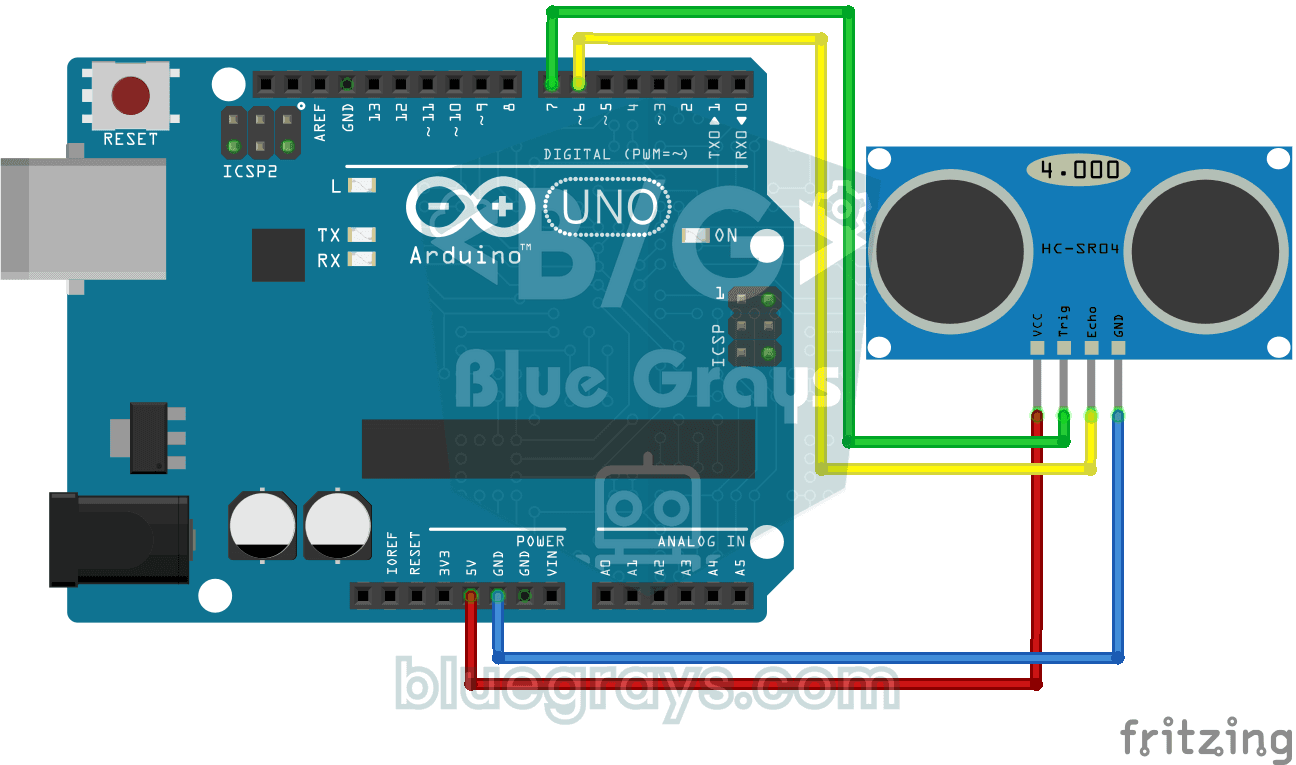
- Obstacle-avoiding line follower: Add an HC-SR04 at the front so the robot drives around obstacles on the track; the decision logic is in Obstacle-Avoiding Robot.
- Bluetooth mode: Switch from line following to phone control with a button; it's easy to add with the HC-05 Bluetooth Module.
- Lap timer: A robot that detects the start line and shows the lap time on an OLED display.
- Maze solver: A robot that counts and remembers the junctions and follows the shortest path on its second run.
- Warehouse robot: A small AGV model that stops at stations along the line and drops a load with a servo.
- A solid base: If you haven't assembled the chassis, motors and battery yet, start with the Arduino Robot Car guide.
A line follower robot teaches sensors, algorithms, motors and power all at once, and it gets a little faster with every round of tuning. Get the robot moving with the simple if-else version first, then switch to PID and tune the values patiently. If you're curious how PWM sets the motor speed, What Is PWM? is a good next read. In the BlueGrays app you'll find the TCRT5000 black-and-white surface detection, the Bluetooth-controlled L298N car and the obstacle-avoiding robot projects step by step, with circuit diagrams and code.
Frequently asked questions
How many sensors does a line follower robot need?
Two sensors are enough for a working robot, but three give much more stable results with a simple if-else sketch. For smooth, fast line following, 5 or 8 analog sensors with PID are recommended. Many competitions allow a maximum of 8 sensors.
Why does my line follower robot zigzag?
The most common reason is a Kp that's too high and a Kd that's too low: the robot over-corrects every deviation and crosses to the other side of the line. Lowering Kp a little, raising Kd, reducing the base speed and moving the sensors 4–8 cm ahead of the wheels all reduce the oscillation. With simple if-else code a slight zigzag is normal, because the robot switches between a few fixed speeds.
Can you build a line follower without PID?
Yes. With a simple if-else sketch and 2 or 3 sensors the robot follows the line, and that's often enough for school projects. As the speed increases, though, the robot misses the line on curves and wobbles on straights. If you're aiming for a good place in a competition, you'll need to switch to PID.
What battery is best for a line follower robot?
The most practical option is two 18650 Li-ion cells in series: they give 7.4 V nominal and easily supply the high current the motors draw. Light robots also use a 2S LiPo pack. A 9 V PP3 battery can't deliver the motor current and runs flat quickly.
How do I change the code for a white line on a black background?
You just need to invert the sensor values: in the sketches in this article, setting WHITE_LINE to true makes the normalised value 1000 − value, so the robot follows the white line. On digital modules the same variable inverts the DO reading. You should still calibrate on the track you'll be racing on.
How high should the TCRT5000 sensor be above the floor?
The TCRT5000 works best at about 2.5 mm; in practice, leaving 3–5 mm between sensor and floor gives good results. Above 1 cm the difference between black and white shrinks a lot and the robot misses the line. On tracks with ramps, keeping the sensor bar close to the wheels reduces how much the distance changes.
Projects to build after reading this
See all projects
TCRT5000 Black and White Surface Detection
Project that detects the color of the ground with the TCRT5000 sensor and lights red LED on black ground and green LED on white ground. It teaches the color threshold detection logic that forms the ba

TCRT5000 Distance Measurement
Project that measures the amount of light reflected from the surface with the TCRT5000 infrared sensor and displays it as an analog value on the I2C LCD screen. Teaches the basics of optical distance/

Bluetooth Controlled Car with L298N
4WD (four-motor, four-wheel-drive) robot car project that can be controlled from the phone with Arduino and HC-05 Bluetooth module. A total of four wheels are driven simultaneously by connecting two m

Obstacle Avoidance Robot
How about building a smart vehicle that finds its own way? The Obstacle Avoidance Robot constantly scans its surroundings thanks to the ultrasonic sensor in front of it. When it encounters an obstacle
HC-SR04 Distance Measurement (Serial Display)
Project that measures distance with HC-SR04 ultrasonic sensor and displays the result in cm on Serial Monitor. It teaches the principle of distance calculation with sound wave.

LED Control with a Push Button (Push)
Push control project that turns on the LED when the button is pressed and turns it off when it is released. Teaches button reading and conditional expression usage with digitalRead.

ESP32 LED Fade with PWM
Smoothly changing the brightness of the LED from 0 to max, from max to 0. We control PWM with analogWrite() as in Arduino - the same syntax as ESP32 Arduino Core 3.0+ works without problems. Pin definition + pinMode + analogWrite is enough.
Raspberry Pi Pico PWM LED Fade (Breathing Effect, GP14)
The LED no longer just blinks — it breathes! 🌬️ Using the Raspberry Pi Pico's **PWM** (Pulse Width Modulation), the LED brightness slowly rises and then slowly falls, like a sleeping MacBook's light. Learn the **machine.PWM class**, **duty_u16()** (16-bit brightness 0–65535), **PWM frequency** (`freq(1000)` — 1000 on/off cycles per second, no visible flicker), **range() step loops** (up and down) and **analog-like output** from a digital pin. PWM is a core embedded tool — RGB color mixing, motor