
How to Make an Arduino Robot Car: Bluetooth Control Step by Step
Build an Arduino robot car step by step: parts and cost, L298N and HC-05 wiring, 18650 batteries, drive code, phone control and fixes for drifting and resets.
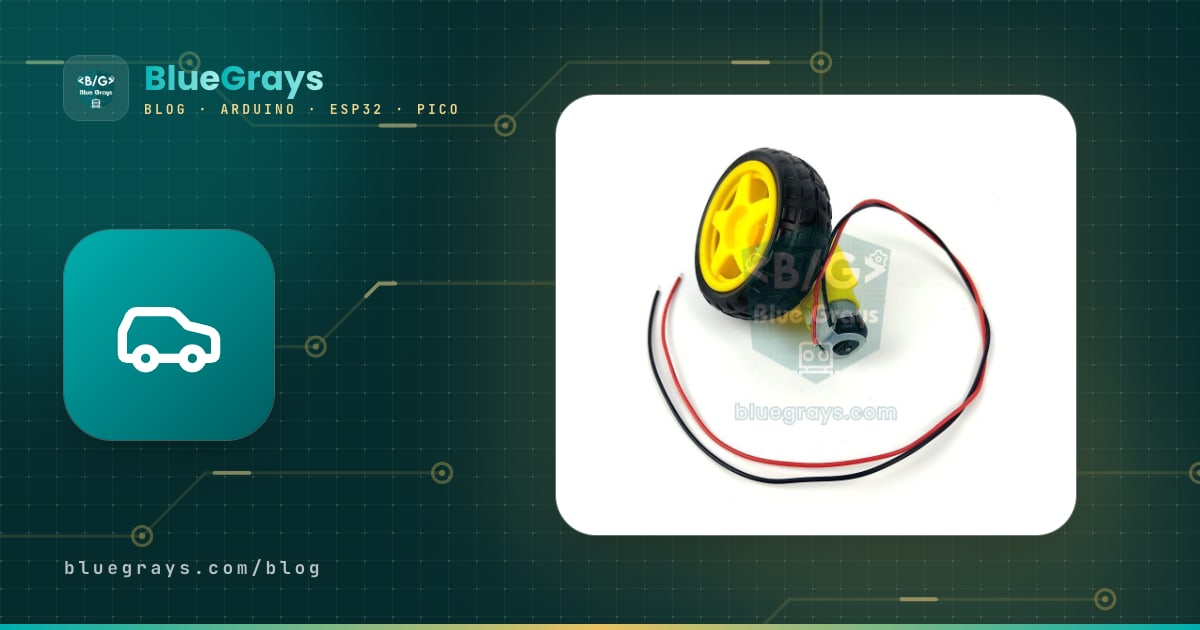
Building an Arduino car is one of the most enjoyable ways to learn electronics and coding in a single project. With two geared DC motors, an L298N motor driver, two 18650 batteries, an HC-05 Bluetooth module and an Arduino Uno, you can build a robot car you drive from your phone in one weekend. Along the way you'll see for yourself why motors can't be connected straight to an Arduino, why the choice of battery matters so much and how a few lines of code move a real vehicle.
In this guide we build a 2WD (two-motor) robot car together from start to finish: parts list and cost breakdown, chassis assembly, wiring tables, forward-backward-turn code and Bluetooth control from your phone. The two problems beginners struggle with most, the car not driving straight and the Arduino resetting when the motors start, each get their own section with measured, practical fixes. In the last sections you'll find how to drive the same car with an ESP32 or a Raspberry Pi Pico, and how to turn it into an obstacle-avoiding or line-following robot.
How does an Arduino robot car work?
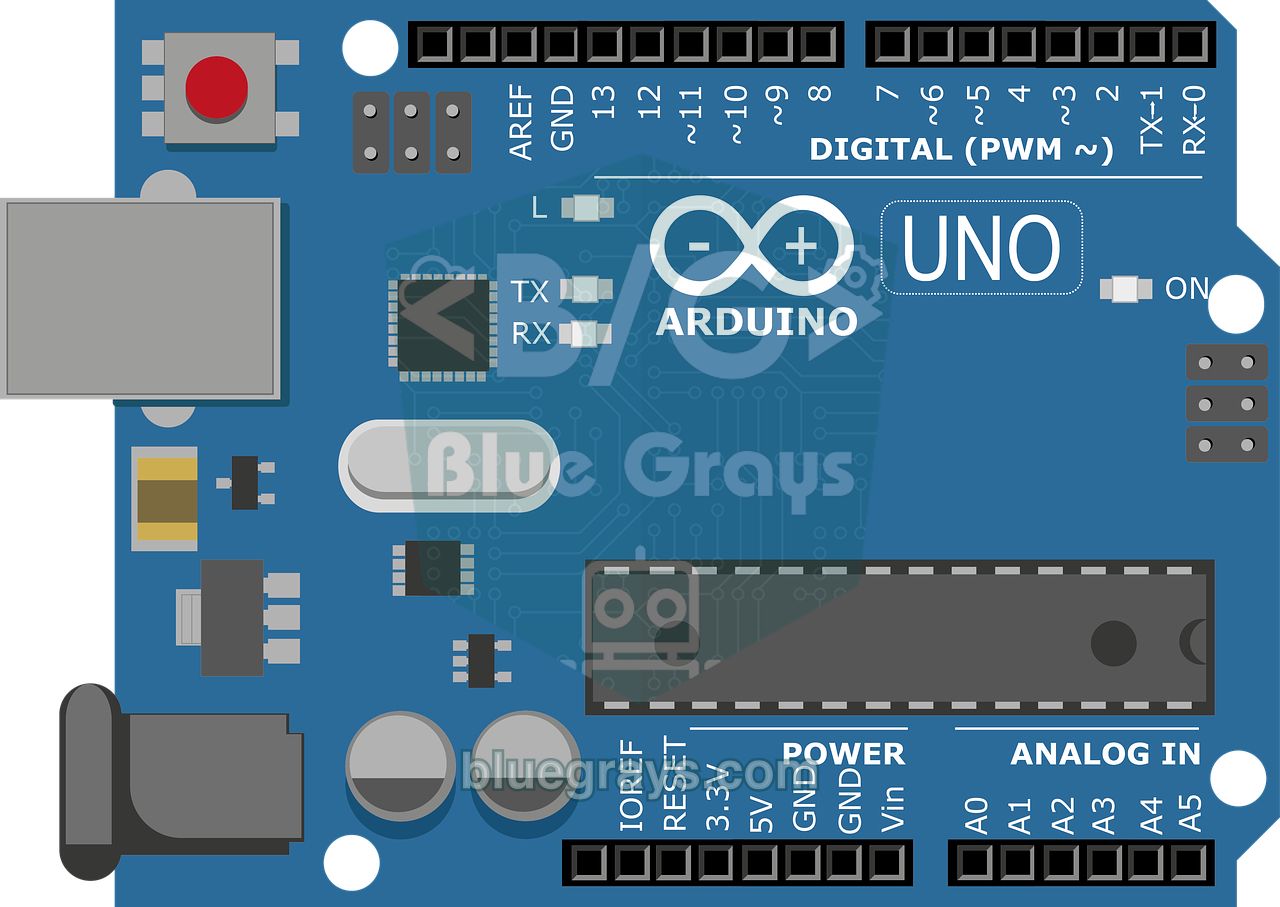
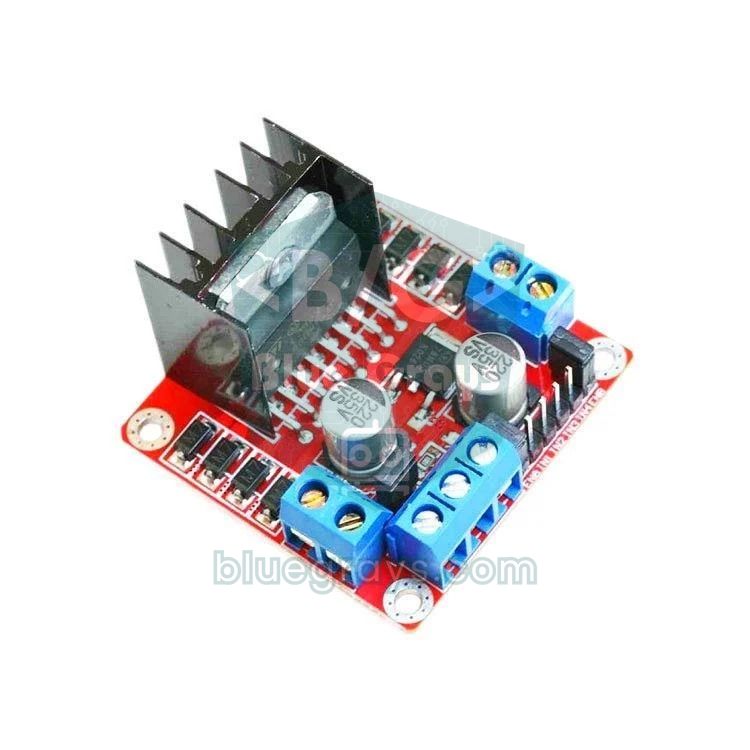
You can split a robot car into four parts. The Arduino is the brain: it reads the command from the phone and decides which motor turns in which direction and how fast. The L298N motor driver is the muscle: it turns the Arduino's weak 5 V signals into the high current the motors need. The geared motors turn the wheels and the battery pack powers everything. These cars have no steering; they turn by spinning the two wheels at different speeds or in different directions. This is called differential drive: if the left wheel turns forward and the right wheel backward, the car spins to the right on the spot. A small free-swivelling caster wheel at the front or back keeps the body balanced.
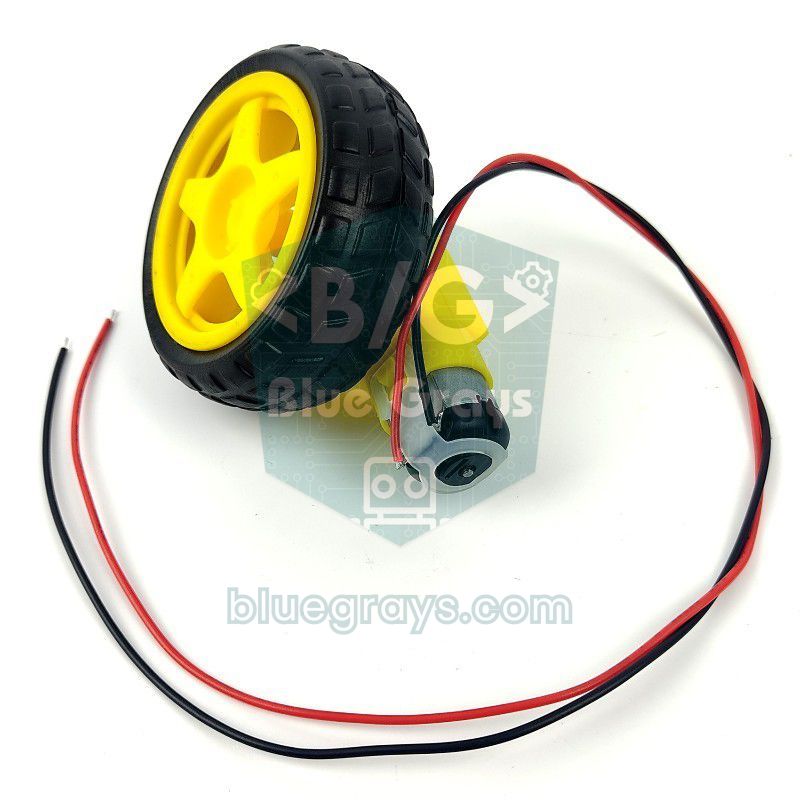
| Feature | Yellow TT motor (1:48) |
|---|---|
| Operating voltage | 3–6 V |
| Gear ratio | 1:48 (plastic gears) |
| No-load speed | About 90–120 RPM at 3 V, 200–250 RPM at 6 V |
| No-load current | About 150–160 mA |
| Stall current | About 1.1–1.5 A |
| Wheel diameter (in kits) | 65 mm |
| Car speed at 6 V | About 0.7 m/s (π × 0.065 m × 200 / 60) |
The most important row in the table is the stall current: when a wheel pushes against an obstacle or the car pulls away, each motor briefly draws more than 1 amp. An Arduino pin can supply 20–40 mA at most, so motors are always connected through a driver. While doing this job the L298N loses about 1.5–2.5 V; with a 7.4 V battery pack that leaves 5–6 V for the motors, which is exactly the ideal range for TT motors. We explain the driver's internals and the H-bridge idea in detail in DC Motor Control with the L298N.
Parts list
| Part | Qty | Note |
|---|---|---|
| 2WD acrylic robot car chassis kit | 1 | Usually includes 2 TT motors, 2 wheels, a caster wheel, a switch, motor brackets and screws |
| Arduino Uno R3 (a clone is fine) + USB cable | 1 | A Nano also works; the pin numbers are the same |
| L298N motor driver module | 1 | 2 A per channel; drives two motors independently |
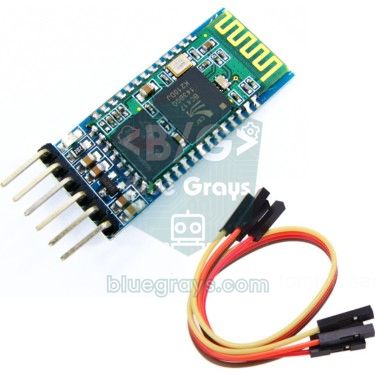
| HC-05 or HC-06 Bluetooth module | 1 | For talking to an Android phone |
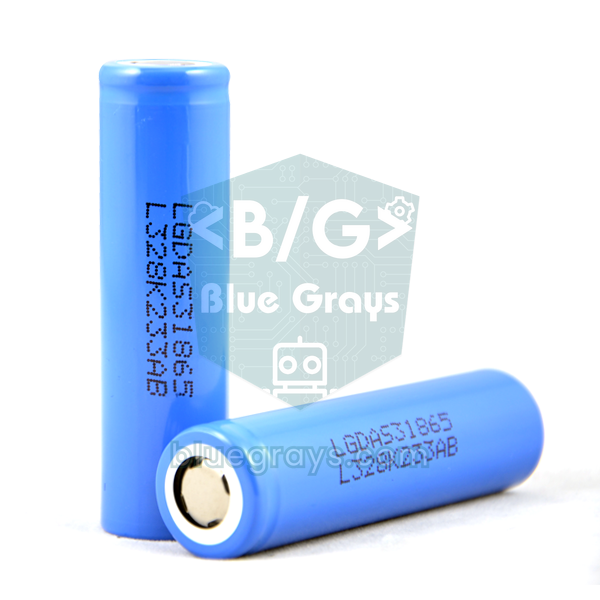
| 18650 Li-ion cell | 2 | Branded cells that can deliver at least 5 A |
| 2-slot 18650 battery holder (series) | 1 | Connects the two cells in series for 7.4 V |
| 18650 charger | 1 | A charger that charges each cell separately |
| Jumper wires (male-female and female-female) | 20+ | Between the Arduino, L298N and HC-05 |
| 1 kΩ and 2 kΩ resistors | 1 + 1 | Voltage divider for the HC-05 RXD input |
| 100 nF ceramic capacitor | 2–4 | Across the motor terminals to suppress noise |
| 470–1000 µF electrolytic capacitor (16 V or higher) | 1 | Recommended; on the L298N power input |
| Cable ties, double-sided tape, M3 standoffs | A few | To fix the boards and wires in place |
Most chassis kits also include a 4×AA battery holder; as you'll see shortly, that holder is too weak in combination with the L298N, which is why we added 18650 cells to the list. The HC-06 is the HC-05's simpler sibling that only works as a slave, and it's perfectly fine for controlling a car from a phone. The slotted plastic discs in the kit are encoder discs for a speed sensor that you can use later to make the car drive perfectly straight; don't throw them away, just put them aside for now.
Cost: where does the budget go?
Prices change all the time depending on the seller and the exchange rate, so we don't quote figures; instead we show which items take up the budget and where you can save. The general rule is: electronic modules (L298N, HC-05, resistors) are cheap, while most of the budget goes on the board, the chassis kit and above all the batteries and charger. The battery is the last place to save money: good 18650 cells can be recharged hundreds of times and reused in every robot project you build next.
| Item | Price level | Saving tip |
|---|---|---|
| Chassis kit (motors and wheels included) | Medium | A kit is usually cheaper than buying motors, wheels and the caster separately |
| Arduino Uno | Medium (clone) – high (original) | A clone board is fine for learning; you can also reuse the Uno or Nano you already have |
| L298N motor driver | Low | One module drives two motors; one is enough for 4WD too |
| HC-05 / HC-06 | Low – medium | If you only drive from a phone, an HC-06 is enough |
| 2× 18650 cells + charger | Biggest item | Very cheap cells labelled "9900 mAh" are usually fake; don't save here |
| Wires, resistors, capacitors, screws | Low | Most of these are already in starter kits |
2WD or 4WD?
| Feature | 2WD (2 motors + caster) | 4WD (4 motors) |
|---|---|---|
| Turning | Spins on the spot, sharply and easily | Turns by skidding the wheels sideways (skid steer); struggles on carpet |
| Current draw | About 0.3–0.6 A while driving | About twice as much |
| Battery life | Longer | Shorter |
| Rough ground | The caster can catch on edges | Better grip |
| Driving straight | The caster can push the car off course when it swivels | More stable |
| L298N connection | Each motor on its own channel | The two motors on each side in parallel on one channel |
| Best for | A first car, a line-following robot | Outdoors, heavier loads |
We recommend 2WD for your first car: it's cheaper, draws less current, spins easily on the spot and suits follow-up projects such as a line-following robot better. If you build a 4WD car, connect the two motors on each side in parallel to the same OUT terminals and check that both turn in the same direction. One L298N channel then carries the current of two motors; that's fine in normal driving, but when the wheels get stuck the 2 A per channel limit can be exceeded and the driver's thermal protection cuts the motors.
Power supply: why two 18650 cells?
Most robot car problems come from the wrong battery. The right source has to meet two conditions at once: it must leave enough voltage for the motors after the L298N's loss, and it must not collapse when the motors draw amps at start-up. Two 18650 Li-ion cells in series (2S) give 8.4 V when fully charged and 7.4 V on average, and they easily deliver several amps. The Arduino Uno recommends 7–12 V on its VIN input, so the same pack can power both the motors and the Arduino. With 2500 mAh cells, a 2WD car drawing an average of 0.8 A while driving (motors plus boards) runs for about 3 hours in theory; since you never drain the pack completely, 2–2.5 hours is a more realistic figure. To calculate with your own values, use the Battery life tool.
| Power source | Voltage | Current capability | For a robot car |
|---|---|---|---|
| 9 V PP3 battery | 9 V | Very low | Not suitable; the most common cause of resets |
| 4× AA alkaline | 6 V (drops quickly under load) | Medium | Weak; only about 4 V reaches the motors after the L298N |
| 4× AA NiMH (rechargeable) | 4.8 V | Good | Not enough voltage with the L298N |
| 2× 18650 Li-ion (2S) | 7.4 V (8.4 V full) | High (several amps) | Best choice |
| 3× 18650 Li-ion (3S) | 11.1 V (12.6 V full) | High | Too much for TT motors; exceeds the 12 V limit of the 5V jumper |
| USB power bank | 5 V | Good | Only for powering the Arduino separately |
Instead of guessing how much charge is left, you can measure it. Connect the battery plus (after the switch) to A0 through a voltage divider made of two 10 kΩ resistors: an 8.4 V pack appears as 4.2 V on A0, below the Arduino's 5 V reading limit. The divider only draws about 0.4 mA, so it doesn't affect battery life.
1// Pil + (anahtardan sonra) → 10 kΩ → A0 → 10 kΩ → GND / battery + (after the switch) → 10 kΩ → A0 → 10 kΩ → GND
2const float DIVIDER = 2.0;   // iki eşit direnç gerilimi yarıya böler / two equal resistors halve the voltage
3
4void setup() {
5  Serial.begin(9600);
6}
7
8void loop() {
9  float v = analogRead(A0) * 5.0 / 1023.0 * DIVIDER;
10  Serial.print(F("Pil / Battery: "));
11  Serial.print(v, 2);
12  Serial.println(F(" V"));
13  if (v < 6.6) Serial.println(F("Sarj et / Charge now"));   // hücre başına 3,3 V / 3.3 V per cell
14  delay(1000);
15}
Step-by-step assembly
- Peel the protective paper off the acrylic parts. If the motors came without wires, solder two wires to each motor and reinforce the solder joints with hot glue; a motor wire that breaks off from vibration is the most common fault.
- Fix the motors to the underside of the chassis with the T-shaped acrylic brackets and long M3 screws from the kit. The two motor shafts must be aligned, and the motors' wire terminals should face inwards.
- If you plan to use the encoder discs, fit them on the inner side of the motor shaft now; it's hard to do once the wheels are on.
- Mount the caster wheel in the middle of the other end of the chassis using standoffs. Choose a standoff height that keeps the chassis parallel to the floor.
- Push the wheels all the way on, lining them up with the D-shaped shaft; a loose wheel makes the car drift constantly.
- Place the battery holder with double-sided tape or Velcro where its weight sits close to the wheel axle. If most of the weight rests on the caster, the drive wheels will slip.
- Mount the Arduino and the L298N on the top deck with plastic standoffs. You should be able to reach the Arduino's USB port easily and the L298N's heatsink should be in the open air; make sure metal screws don't touch the solder joints under the boards.
- Wire the switch in series with the battery's positive lead so you can turn the car on and off without removing the cells.
- Twist each motor's two wires together on the way to the L298N, keep all wires short and bundle them with cable ties. Before inserting the cells, check with a multimeter that there's no short circuit between the battery terminals.
Wiring diagram
Think of the wiring in two parts: the power side (battery, switch, L298N, motors) and the signal side (the thin wires from the Arduino to the L298N and the HC-05). Remove the small jumpers on the L298N's ENA and ENB pins; we'll connect these pins to the Arduino's PWM outputs to set the speed in code. Leave the L298N's 5V jumper in place: since the pack is below 12 V, the board's own regulator powers the driver's logic.
| L298N terminal | Connection |
|---|---|
| OUT1, OUT2 | Left motor (on 4WD, the two left motors in parallel) |
| OUT3, OUT4 | Right motor (on 4WD, the two right motors in parallel) |
| 12V | Battery plus through the switch |
| GND | Battery minus and the Arduino's GND pin (common ground) |
| 5V | Left unconnected with the Arduino Uno; powers the board with the ESP32 and Pico |
| 5V jumper | Stays on (battery below 12 V) |
| ENA and ENB jumpers | Removed; the pins go to the Arduino's PWM outputs |
| Connection | Arduino Uno | ESP32 | Raspberry Pi Pico |
|---|---|---|---|
| L298N ENA (left motor speed) | D5 (PWM) | GPIO 25 | GP15 |
| L298N IN1 | D7 | GPIO 27 | GP14 |
| L298N IN2 | D8 | GPIO 33 | GP13 |
| L298N ENB (right motor speed) | D6 (PWM) | GPIO 26 | GP10 |
| L298N IN3 | D9 | GPIO 32 | GP12 |
| L298N IN4 | D4 | GPIO 4 | GP11 |
| HC-05 TXD | D10 (SoftwareSerial RX) | Not needed (built-in Bluetooth) | GP1 (UART0 RX) |
| HC-05 RXD | D11, through a 1 kΩ / 2 kΩ divider | Not needed | GP0 (UART0 TX), direct |
| HC-05 VCC | 5V | Not needed | L298N 5V output |
| Board power | VIN ← battery plus after the switch | 5V (VIN) ← L298N 5V output | VSYS ← L298N 5V output |
| GND | Shared with L298N GND and battery minus | Shared | Shared |
We chose D5 and D6 as speed pins on purpose. On the Uno, the Servo library disables PWM on pins 9 and 10, and the tone() function disables it on pins 3 and 11. With ENA and ENB on 5 and 6, your motor speed control keeps working when you add a servo or a buzzer later. D2 and D3 are reserved for encoders because they support interrupts. You can see your board's pin layout in the Pinout tool.
First sketch: forward, backward, left and right
Before moving on to Bluetooth, let's test the motors and the wiring on their own. The heart of the code is the drive(left, right) function: it takes the speed of each motor separately from -255 to 255, where a positive value means forward, a negative value backward and zero stop. We explain how the speed value turns into voltage in What Is PWM?. Before uploading, put the car on a box so that the wheels spin freely; the 3-second wait in setup() gives you time for that.
1// Sol motor / left motor: ENA=5, IN1=7, IN2=8 — Sağ motor / right motor: ENB=6, IN3=9, IN4=4
2const int ENA = 5, IN1 = 7, IN2 = 8;
3const int ENB = 6, IN3 = 9, IN4 = 4;
4
5const int SPEED = 180;   // temel hız 0-255 / base speed 0-255
6const int TRIM = 0;      // % düzeltme: + sol, - sağ motoru yavaşlatır / % trim: + slows left, - slows right
7
8void drive(int left, int right) {               // her biri -255 … 255 / each -255 … 255
9  if (TRIM > 0) left = left * (100 - TRIM) / 100;
10  if (TRIM < 0) right = right * (100 + TRIM) / 100;
11  digitalWrite(IN1, left > 0);  digitalWrite(IN2, left < 0);
12  digitalWrite(IN3, right > 0); digitalWrite(IN4, right < 0);
13  analogWrite(ENA, abs(left));
14  analogWrite(ENB, abs(right));
15}
16
17void forward()   { drive(SPEED, SPEED); }
18void backward()  { drive(-SPEED, -SPEED); }
19void turnLeft()  { drive(-SPEED, SPEED); }     // yerinde sola / spin left in place
20void turnRight() { drive(SPEED, -SPEED); }     // yerinde sağa / spin right in place
21void stopCar()   { drive(0, 0); }
22
23void setup() {
24  int pins[] = {ENA, IN1, IN2, ENB, IN3, IN4};
25  for (int p : pins) pinMode(p, OUTPUT);
26  stopCar();
27  delay(3000);             // tekerlekleri kaldırmak için zaman / time to lift the wheels
28}
29
30void loop() {
31  forward();   delay(1500);
32  stopCar();   delay(500);
33  backward();  delay(1500);
34  stopCar();   delay(500);
35  turnLeft();  delay(600);
36  stopCar();   delay(500);
37  turnRight(); delay(600);
38  stopCar();   delay(2000);
39}| Movement | Left motor | Right motor | Code |
|---|---|---|---|
| Forward | Forward | Forward | drive(180, 180) |
| Backward | Backward | Backward | drive(-180, -180) |
| Spin left on the spot | Backward | Forward | drive(-180, 180) |
| Spin right on the spot | Forward | Backward | drive(180, -180) |
| Wide left turn | Slow forward | Forward | drive(90, 180) |
| Stop | Stops | Stops | drive(0, 0) |
With the wheels in the air, the car should go forward, backward, left and right in turn. If one wheel turns the wrong way, don't change the code; swap that motor's two wires at the L298N's OUT terminals. If both wheels turn the wrong way, swap the wires of both motors. If the motors hum but don't turn, the SPEED value is too low: most TT motors need a PWM value of at least around 80–120 to start moving, and this threshold rises as the battery drains.
Bluetooth control from your phone (HC-05)
The HC-05 works like a wireless serial cable between the phone and the Arduino: the app on the phone sends a letter, the Arduino reads it and performs the matching movement. Most of the controller apps you find on the Play Store by searching for "Bluetooth RC Car" or "Bluetooth RC Controller" send F for forward, B for backward, L for left, R for right and S for stop when you release a button; some also use G, I, H and J for the diagonals and 0–9 plus q for speed. The module's pins, LED patterns and AT commands are covered in HC-05 Bluetooth Module.
- The car's switch can stay off while you upload the sketch below; the Arduino and HC-05 are powered over USB. If the HC-05's LED blinks quickly, the module is waiting for a connection.
- Find the HC-05 in your Android phone's Bluetooth settings and pair it with PIN 1234 (or 0000 if that fails).
- Open the controller app, grant the Bluetooth and nearby devices permissions and select the HC-05 from the device list. Once connected, the module's LED gives two short blinks every two seconds.
- Keep the Arduino connected over USB, open the Serial Monitor at 9600 baud and press the buttons in the app. The letter each button sends appears on screen; if your app sends different letters, change the case lines in the code to match.
- Unplug the USB cable, turn on the switch, put the car on the floor and drive.
1#include <SoftwareSerial.h>
2
3SoftwareSerial bt(10, 11);               // RX, TX → HC-05 TXD, RXD (RXD bölücüyle / RXD via divider)
4
5const int ENA = 5, IN1 = 7, IN2 = 8;     // sol motor / left motor
6const int ENB = 6, IN3 = 9, IN4 = 4;     // sağ motor / right motor
7const int TRIM = 0;                      // % düzeltme / % trim
8const unsigned long TIMEOUT = 600;       // ms; 0 = kapalı / 0 = disabled
9
10int speed = 200;                         // 0-255
11unsigned long lastCmd = 0;
12
13void drive(int left, int right) {
14  if (TRIM > 0) left = left * (100 - TRIM) / 100;
15  if (TRIM < 0) right = right * (100 + TRIM) / 100;
16  digitalWrite(IN1, left > 0);  digitalWrite(IN2, left < 0);
17  digitalWrite(IN3, right > 0); digitalWrite(IN4, right < 0);
18  analogWrite(ENA, abs(left));
19  analogWrite(ENB, abs(right));
20}
21
22void setup() {
23  int pins[] = {ENA, IN1, IN2, ENB, IN3, IN4};
24  for (int p : pins) pinMode(p, OUTPUT);
25  drive(0, 0);
26  Serial.begin(9600);                    // gelen harfleri görmek için / to see incoming letters
27  bt.begin(9600);                        // HC-05 veri modu hızı / HC-05 data mode baud rate
28}
29
30void loop() {
31  if (bt.available()) {
32    char c = bt.read();
33    Serial.println(c);
34    lastCmd = millis();
35    int half = speed / 2;
36    switch (c) {
37      case 'F': drive(speed, speed);   break;   // ileri / forward
38      case 'B': drive(-speed, -speed); break;   // geri / backward
39      case 'L': drive(-speed, speed);  break;   // yerinde sola / spin left
40      case 'R': drive(speed, -speed);  break;   // yerinde sağa / spin right
41      case 'G': drive(half, speed);    break;   // ileri-sol / forward-left
42      case 'I': drive(speed, half);    break;   // ileri-sağ / forward-right
43      case 'H': drive(-half, -speed);  break;   // geri-sol / back-left
44      case 'J': drive(-speed, -half);  break;   // geri-sağ / back-right
45      case 'S': drive(0, 0);           break;   // dur / stop
46      case 'q': speed = 255;           break;   // tam hız / full speed
47      default:
48        if (c >= '0' && c <= '9') speed = map(c - '0', 0, 9, 100, 240);   // hız kademesi / speed level
49    }
50  }
51  if (TIMEOUT > 0 && millis() - lastCmd > TIMEOUT) drive(0, 0);   // komut yoksa dur / no command: stop
52}| Letter | Movement | Left / right motor |
|---|---|---|
| F | Forward | +speed / +speed |
| B | Backward | −speed / −speed |
| L | Spin left | −speed / +speed |
| R | Spin right | +speed / −speed |
| G, I | Forward-left, forward-right | One side at half speed |
| H, J | Back-left, back-right | One side at half speed |
| S | Stop | 0 / 0 |
| 0–9, q | Speed level | 0 → 100, 9 → 240, q → 255 |
The TIMEOUT in the code is a safety feature: these apps keep sending the same letter as long as you hold a button, so if no letter arrives for 600 ms the code assumes the connection is lost and stops the car. That way the car doesn't keep heading for the wall when the phone goes out of range or the app closes. If your app sends the letter only once per button press, the car will stop after 600 ms; in that case set TIMEOUT to 0 to turn this feature off. We also didn't use delay() anywhere in loop(); long waits make commands lag, and you'll find out why in millis() vs delay().
The car doesn't drive straight: causes and fixes
If the car slowly drifts to one side even though you give both motors the same PWM value for "forward", don't worry; this is the most common robot car problem. Cheap geared motors turn at different speeds even at the same voltage: differences in gear friction, brushes and magnets make every motor a little different. Add a loose wheel, a caster that keeps swivelling or weight piled on one side, and a drift of 20–30 cm over 2 metres is perfectly normal. Fix the mechanical causes first, then correct the remaining difference in software.
| Symptom | Likely cause | Fix |
|---|---|---|
| Always drifts to the same side | The motors run at different speeds | Software correction with TRIM, or encoders |
| Swerves at start-up, then straightens | One motor starts later, or the caster swivels | Soft start; a ball caster instead of a swivel caster |
| Drift is different every time | Loose wheel, slipping tyre or bent motor bracket | Seat the wheel fully on the shaft, tighten the screws |
| Spins on the spot instead of going forward | One motor's wires are reversed | Swap that motor's wires at the OUT terminal |
| Drift grows as the battery drains | The difference between motors grows at low voltage | Charge the battery; set TRIM with a full battery |
| Pulls to one side as it speeds up | Weight is on one side | Move the battery and boards to the middle, close to the wheel axle |
Once the mechanical problems are fixed, fine-tune in software. The TRIM constant in the code slows the faster motor down by a percentage: a positive value slows the left motor, a negative value the right motor. Calibrate it like this:
- Fully charge the cells; calibrating with a full battery gives consistent results.
- Stick a straight 2-metre strip of tape on the floor and place the car at its start, pointing along the tape.
- In the first sketch's loop(), keep only forward() and a 3-second wait, then let the car drive.
- If the car drifts right, the left motor is faster: increase TRIM by 3; if it drifts left, decrease TRIM by 3.
- Repeat until the drift over 2 metres is down to a few centimetres, then copy the same TRIM value into the Bluetooth sketch.
- Calibrate at the speed you use most; the difference between motors changes slightly with speed.
The next level for perfectly straight driving and measuring distance is the encoder. You fit the 20-slot discs from the kit on the motor shafts and count each slot with an LM393-based slotted speed sensor. Connect the sensor outputs to the interrupt-capable D2 and D3 pins and compare the pulse counts of the two wheels: if the left side gets ahead, slow the left motor down a little. This simple proportional (P) control keeps the car straight regardless of the battery level and the floor. A 65 mm wheel covers about 20.4 cm per turn, so each pulse means roughly 1 cm of travel. We explain how interrupts work in Arduino Interrupts.
The Arduino resets when the motors start
If the Arduino restarts or the HC-05 loses its connection (the LED starts blinking quickly again) when the car pulls away, changes direction or hits an obstacle, the problem is almost always on the power side. At start-up two motors together can draw 2–3 A; a weak battery can't deliver that and its voltage collapses for a moment. The Uno's processor resets itself for safety when its supply drops below 2.7 V (brown-out). On top of that comes the electrical noise from the motor brushes and the voltage drop in thin wires. Here are the fixes, starting with the most effective:
- Change the battery: use two charged 18650 cells instead of a 9 V battery or tired AA cells; most problems end here.
- Use the right power path: power the Arduino from the battery through VIN; don't connect the L298N's 5V output to VIN.
- Motor capacitors: solder a 100 nF ceramic capacitor across the two terminals of each motor; it suppresses brush noise at the source.
- Reservoir capacitor: connect a 470–1000 µF electrolytic capacitor to the L298N's 12V and GND terminals (plus lead to 12V). It covers the brief current demand at start-up.
- Soft start: instead of jumping to 255, raise the speed step by step as shown below; the current surge gets smaller.
- Stop before reversing: switching straight from forward to reverse pushes the motor current to its peak; stop for 100–200 ms before changing direction.
- Thick, short power wires: don't use jumper wires or a breadboard between the battery and the L298N; use at least 0.5 mm² wire and screw terminals.
- Separate supplies: if the problem persists, power the Arduino from a power bank and the motors from the battery, and connect the two GNDs.
1// Yumuşak kalkış: ilk koddaki drive() ile kullan / soft start: use with drive() from the first sketch
2void rampTo(int target) {
3  for (int s = 60; s < target; s += 20) {
4    drive(s, s);
5    delay(15);              // yaklaşık 10 adımda tam hız / full speed in about 10 steps
6  }
7  drive(target, target);
8}
9
10// Kullanım: forward() yerine rampTo(SPEED) / usage: rampTo(SPEED) instead of forward()Robot car with an ESP32 and a Raspberry Pi Pico
The ESP32 has classic Bluetooth built in, so you don't need an HC-05: the BluetoothSerial library creates the same serial connection with the phone and the controller apps above work unchanged. The L298N's inputs treat anything above about 2.3 V as HIGH, so the ESP32's 3.3 V signals are enough. Power the ESP32 board from the L298N's 5V output into the board's 5V (VIN) pin; don't connect the battery straight to that pin. This code doesn't compile for the ESP32-S3 and ESP32-C3, because they only have BLE.
1#include "BluetoothSerial.h"
2
3BluetoothSerial bt;
4
5const int ENA = 25, IN1 = 27, IN2 = 33;   // sol motor / left motor
6const int ENB = 26, IN3 = 32, IN4 = 4;    // sağ motor / right motor
7
8int speed = 200;                          // 0-255
9unsigned long lastCmd = 0;
10
11void drive(int left, int right) {
12  digitalWrite(IN1, left > 0);  digitalWrite(IN2, left < 0);
13  digitalWrite(IN3, right > 0); digitalWrite(IN4, right < 0);
14  analogWrite(ENA, abs(left));
15  analogWrite(ENB, abs(right));
16}
17
18void setup() {
19  int pins[] = {ENA, IN1, IN2, ENB, IN3, IN4};
20  for (int p : pins) pinMode(p, OUTPUT);
21  drive(0, 0);
22  bt.begin("BlueGrays-Car");              // telefonda görünecek ad / name shown on the phone
23}
24
25void loop() {
26  if (bt.available()) {
27    char c = bt.read();
28    lastCmd = millis();
29    switch (c) {
30      case 'F': drive(speed, speed);   break;   // ileri / forward
31      case 'B': drive(-speed, -speed); break;   // geri / backward
32      case 'L': drive(-speed, speed);  break;   // yerinde sola / spin left
33      case 'R': drive(speed, -speed);  break;   // yerinde sağa / spin right
34      case 'S': drive(0, 0);           break;   // dur / stop
35      case 'q': speed = 255;           break;   // tam hız / full speed
36      default:
37        if (c >= '0' && c <= '9') speed = map(c - '0', 0, 9, 100, 240);
38    }
39  }
40  if (millis() - lastCmd > 600) drive(0, 0);    // komut yoksa dur / no command: stop
41}
The standard Raspberry Pi Pico has no Bluetooth, so you connect the HC-05 to the UART0 pins. Since the Pico runs at 3.3 V, no voltage divider is needed this time. Power the Pico through its VSYS pin and the HC-05 directly from the L298N's 5V output; when running on batteries without USB there is no voltage on the VBUS pin. In the Pico code the speed is given as a percentage from -100 to 100:
1from machine import Pin, PWM, UART
2import time
3
4bt = UART(0, baudrate=9600, tx=Pin(0), rx=Pin(1))   # GP0 → HC-05 RXD, GP1 ← HC-05 TXD
5
6ena = PWM(Pin(15)); ena.freq(1000)                  # sol motor hızı / left motor speed
7enb = PWM(Pin(10)); enb.freq(1000)                  # sağ motor hızı / right motor speed
8in1, in2 = Pin(14, Pin.OUT), Pin(13, Pin.OUT)
9in3, in4 = Pin(12, Pin.OUT), Pin(11, Pin.OUT)
10
11def drive(left, right):                             # -100 … 100 (%)
12    in1.value(left > 0); in2.value(left < 0)
13    in3.value(right > 0); in4.value(right < 0)
14    ena.duty_u16(int(abs(left) * 655))
15    enb.duty_u16(int(abs(right) * 655))
16
17speed = 80
18last = time.ticks_ms()
19drive(0, 0)
20
21while True:
22    if bt.any():
23        c = bt.read(1)
24        last = time.ticks_ms()
25        if c == b'F':   drive(speed, speed)          # ileri / forward
26        elif c == b'B': drive(-speed, -speed)        # geri / backward
27        elif c == b'L': drive(-speed, speed)         # yerinde sola / spin left
28        elif c == b'R': drive(speed, -speed)         # yerinde sağa / spin right
29        elif c == b'S': drive(0, 0)                  # dur / stop
30        elif c == b'q': speed = 100                  # tam hız / full speed
31        elif c and 48 <= c[0] <= 57:                 # '0'…'9' hız kademesi / speed level
32            speed = 40 + (c[0] - 48) * 6
33    if time.ticks_diff(time.ticks_ms(), last) > 600:
34        drive(0, 0)                                  # komut yoksa dur / no command: stop
Next steps: upgrade your car
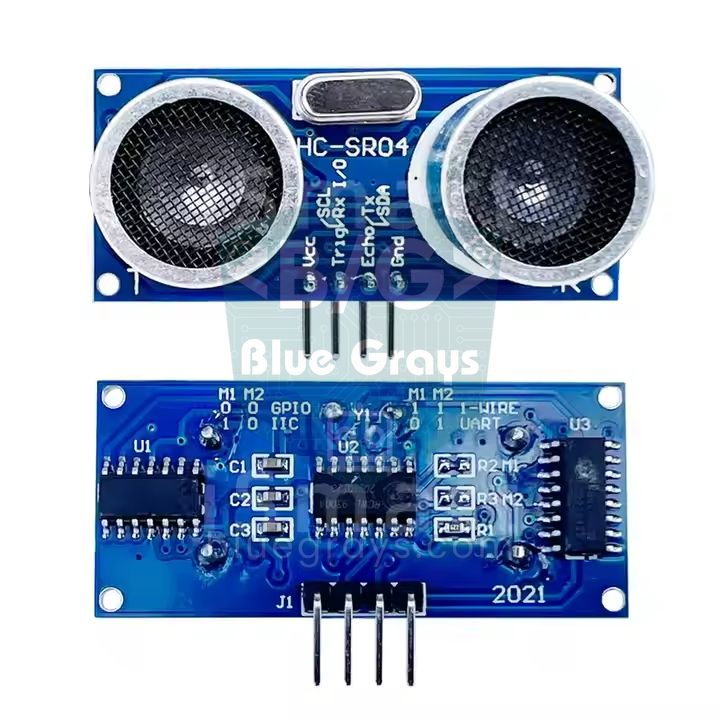
- Obstacle-avoiding robot: add an HC-SR04 distance sensor at the front and a servo motor that turns it left and right; details in the Obstacle-Avoiding Robot guide.
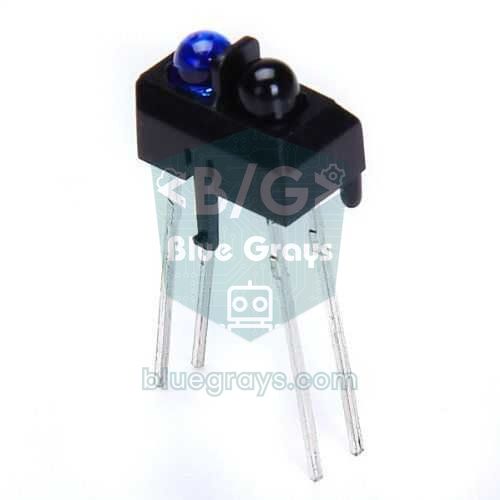
- Line-following robot: fit 2–3 TCRT5000 infrared sensors under the front and follow a black line on the floor; see Line-Following Robot.
- Joystick remote: build a real, phone-free remote with a second Arduino, a joystick module and an nRF24L01.
- Infrared remote: drive with the buttons of your TV remote; map the codes from IR Receiver and Remote to driving commands.
- Wi-Fi driving: use an ESP32 to serve a controller page that opens in your phone's browser; the ESP32 Web Server and WebSocket guide covers the basics.
- Encoders and distance: use speed sensors to drive exactly 1 metre and turn exactly 90 degrees; this is the basis of maze-solving robots.
- Robot arm: add a small servo-driven robot arm on top of the car to carry objects.
Common mistakes and fixes
- No motor turns: the GNDs aren't shared, the switch is off, the ENA and ENB jumpers were removed but the pins aren't connected, or the battery is flat.
- The L298N's LED is on but the motors only hum: the PWM value is below the motor's starting threshold or the battery voltage is low; increase the speed and charge the battery.
- The sketch won't upload: the wrong port or board may be selected; if you connected the HC-05 to pins 0 and 1, disconnect it while uploading. Other causes are in Arduino Sketch Won't Upload.
- The phone sees the HC-05 but won't connect: the module is connected to another phone, the app hasn't been granted the "nearby devices" permission, or the pairing PIN is wrong.
- The car reacts to commands late: there's a delay() in loop() or too much is being printed to the Serial Monitor; do your waiting with millis().
- The L298N's heatsink gets very hot: the wheels are jammed, or on a 4WD car the current per channel is too high; check for mechanical friction.
- The car twitches for a moment at power-on: the pins are undefined for a short time at start-up; set the pins as outputs and call drive(0, 0) in the very first lines of setup().
An Arduino robot car is a great starting point that teaches motor control, power management, wireless communication and debugging in a single project. When you finish, you'll have a chassis that gets a little smarter with every new sensor. In the BlueGrays app you'll find the L298N Bluetooth-controlled car, the obstacle-avoiding robot and the TCRT5000 black-and-white surface detection projects step by step, with circuit diagrams and code.
Frequently asked questions
What do you need to build an Arduino car, and how much does it cost?
For a basic Bluetooth car you need a 2WD chassis kit (2 TT motors, wheels, a caster), an Arduino Uno, an L298N motor driver, an HC-05 Bluetooth module, two 18650 cells with a holder and a few jumper wires. Prices vary by seller; the modules are cheap, and most of the budget goes on the board, the chassis kit and the batteries with a charger. If you already own a starter kit, the cost drops noticeably.
What battery should I use for an Arduino robot car?
The best option is two 18650 Li-ion cells in series: they give 7.4 V, leave 5–6 V for the motors after the L298N's roughly 2 V loss and supply the high current needed at start-up. A 9 V PP3 battery can't deliver enough current and causes resets, while 4 AA cells make the motors run slowly with an L298N.
Why doesn't my Arduino car drive straight?
Cheap geared motors turn at different speeds even at the same PWM value, and loose wheels, the caster and uneven weight add to the drift. Fix the mechanical problems first, then slow the faster motor slightly with a trim value in the code. For truly straight driving you need encoders to measure and match the speed of both wheels.
Why does my Arduino reset when the motors start?
The motors draw several amps at start-up and the voltage of a weak battery collapses for a moment; the Uno's processor resets itself when its supply drops. Use charged 18650 cells, add 100 nF capacitors across the motor terminals and a 470–1000 µF capacitor on the L298N input, and ramp the speed up gradually. If the problem persists, power the Arduino from a separate source and connect the GNDs.
Does an HC-05 Bluetooth car work with an iPhone?
No. The HC-05 and HC-06 use the serial port profile of classic Bluetooth, and iOS doesn't let ordinary apps open that kind of connection. To control the car from an iPhone, use a BLE module such as the HM-10 or an ESP32 with BLE; Android phones connect to the HC-05 without problems.
Can I use an L293D motor shield instead of the L298N?
Yes. The L293D motor shield plugs on top of the Arduino Uno and can drive four DC motors, which simplifies wiring on 4WD cars. However, its continuous current is only about 0.6 A per channel, so it struggles sooner than the L298N when the motors stall, and the shield uses many pins. If you want something more efficient, MOSFET drivers such as the TB6612FNG lose much less voltage.
Projects to build after reading this
See all projects
Bluetooth Controlled Car with L298N
4WD (four-motor, four-wheel-drive) robot car project that can be controlled from the phone with Arduino and HC-05 Bluetooth module. A total of four wheels are driven simultaneously by connecting two m

Obstacle Avoidance Robot
How about building a smart vehicle that finds its own way? The Obstacle Avoidance Robot constantly scans its surroundings thanks to the ultrasonic sensor in front of it. When it encounters an obstacle
Control an LED from Your Phone via Bluetooth
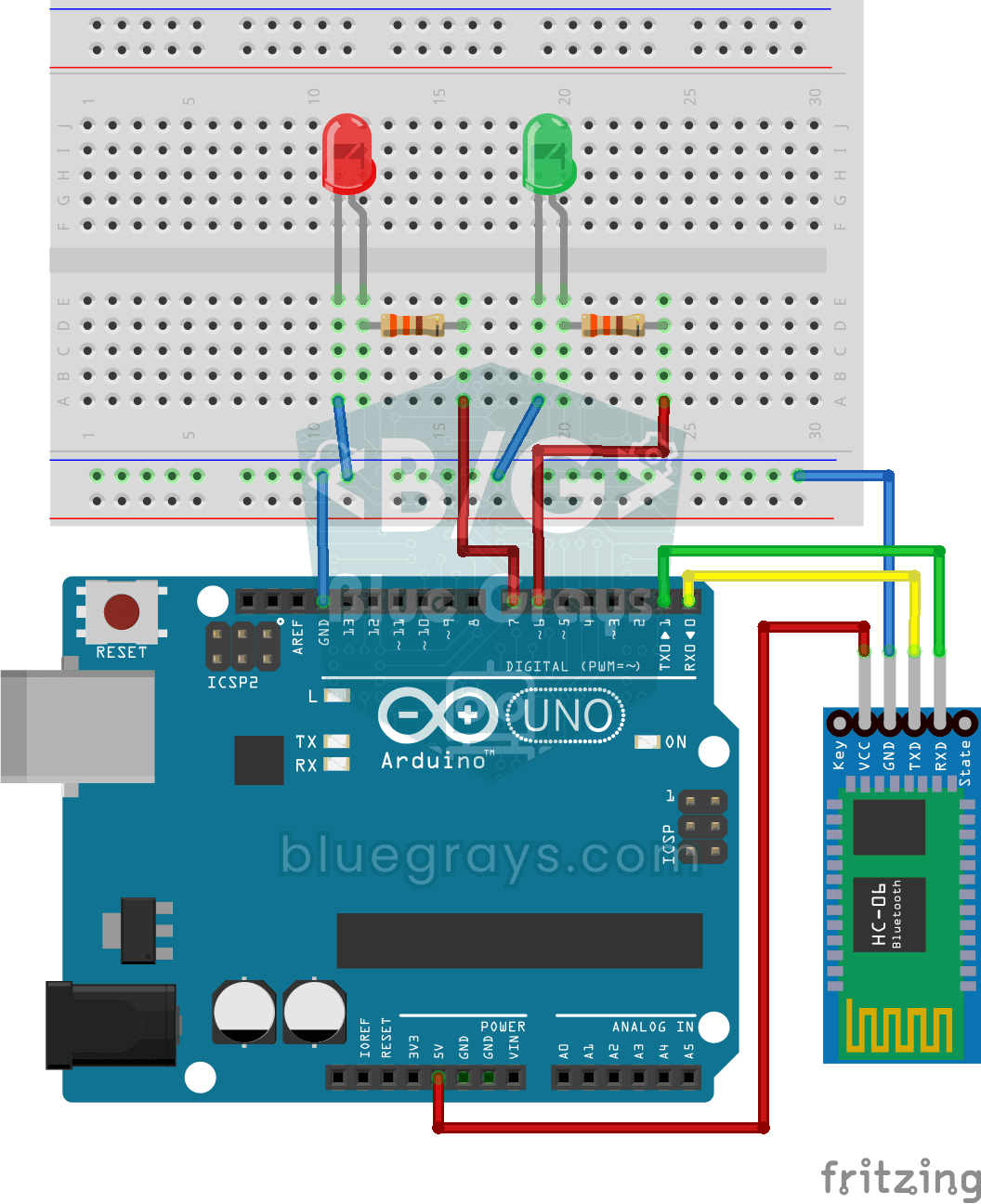
Wireless control project that turns LEDs on and off with commands sent from the phone with HC-06 Bluetooth module. Teaches Bluetooth data exchange over serial communication.

TCRT5000 Black and White Surface Detection
Project that detects the color of the ground with the TCRT5000 sensor and lights red LED on black ground and green LED on white ground. It teaches the color threshold detection logic that forms the ba

TCRT5000 Distance Measurement
Project that measures the amount of light reflected from the surface with the TCRT5000 infrared sensor and displays it as an analog value on the I2C LCD screen. Teaches the basics of optical distance/
HC-SR04 Distance Measurement (Serial Display)
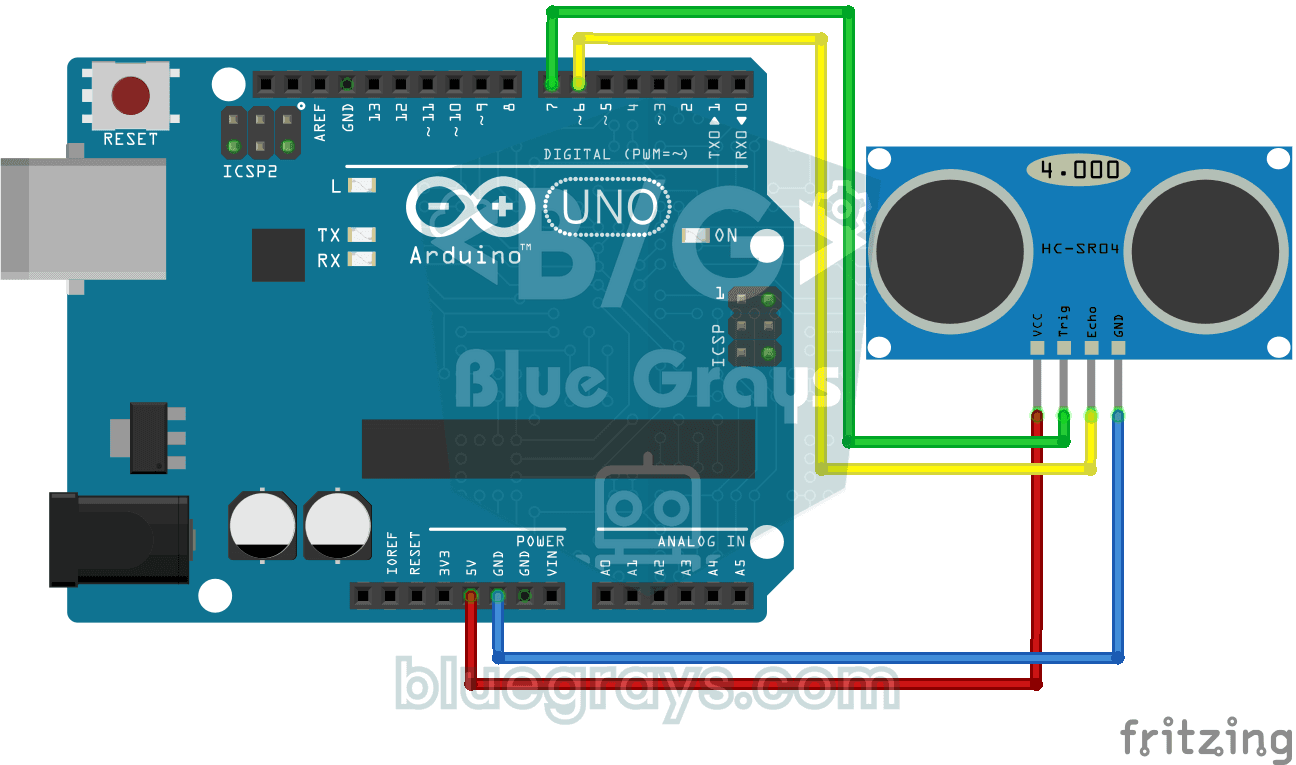
Project that measures distance with HC-SR04 ultrasonic sensor and displays the result in cm on Serial Monitor. It teaches the principle of distance calculation with sound wave.
Parking Sensor with HC-SR04
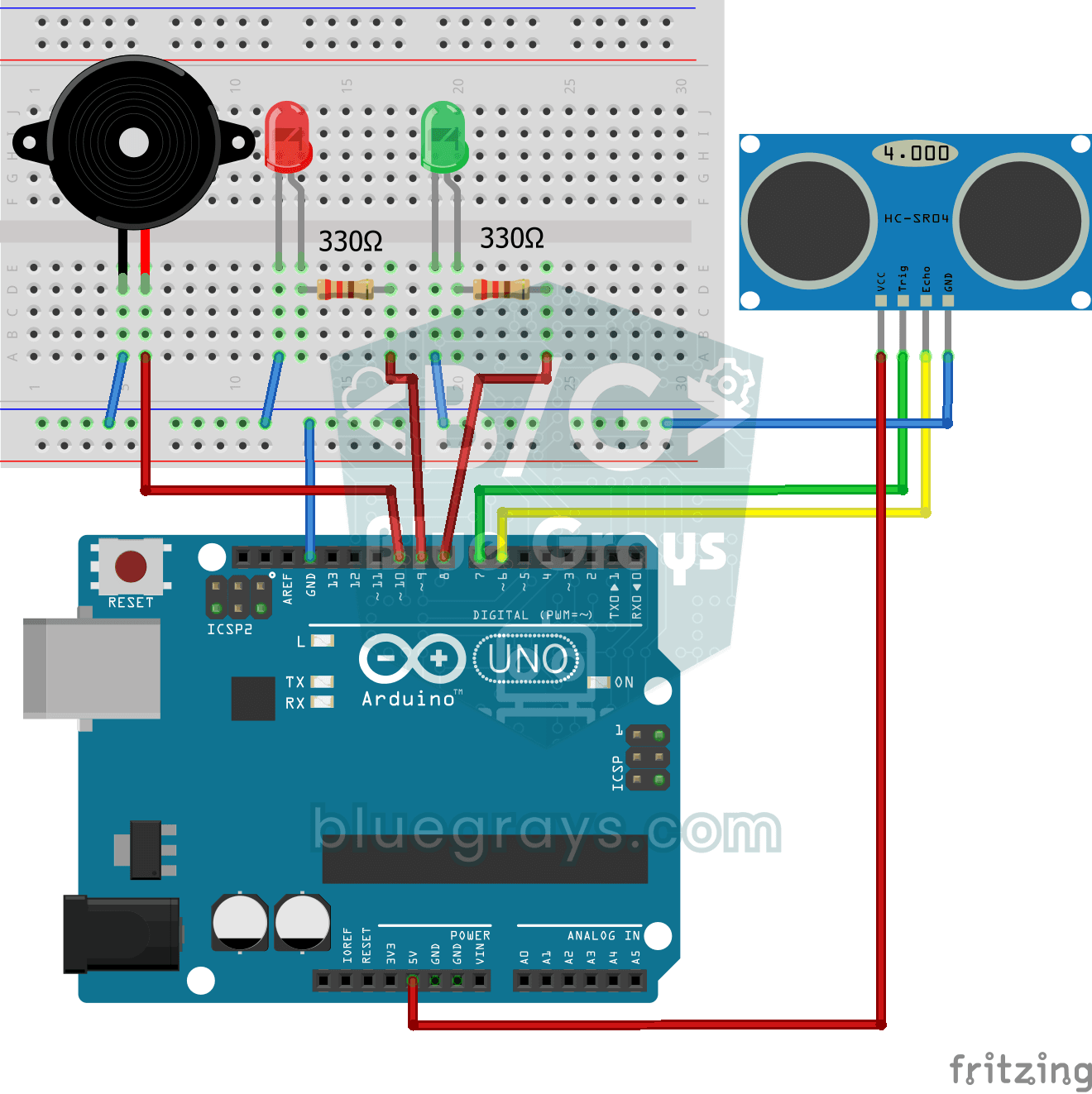
Parking sensor project with HC-SR04 sensor that increases the buzzer beep rate as the object approaches and warns with LED. Teaches feedback logic proportional to distance.
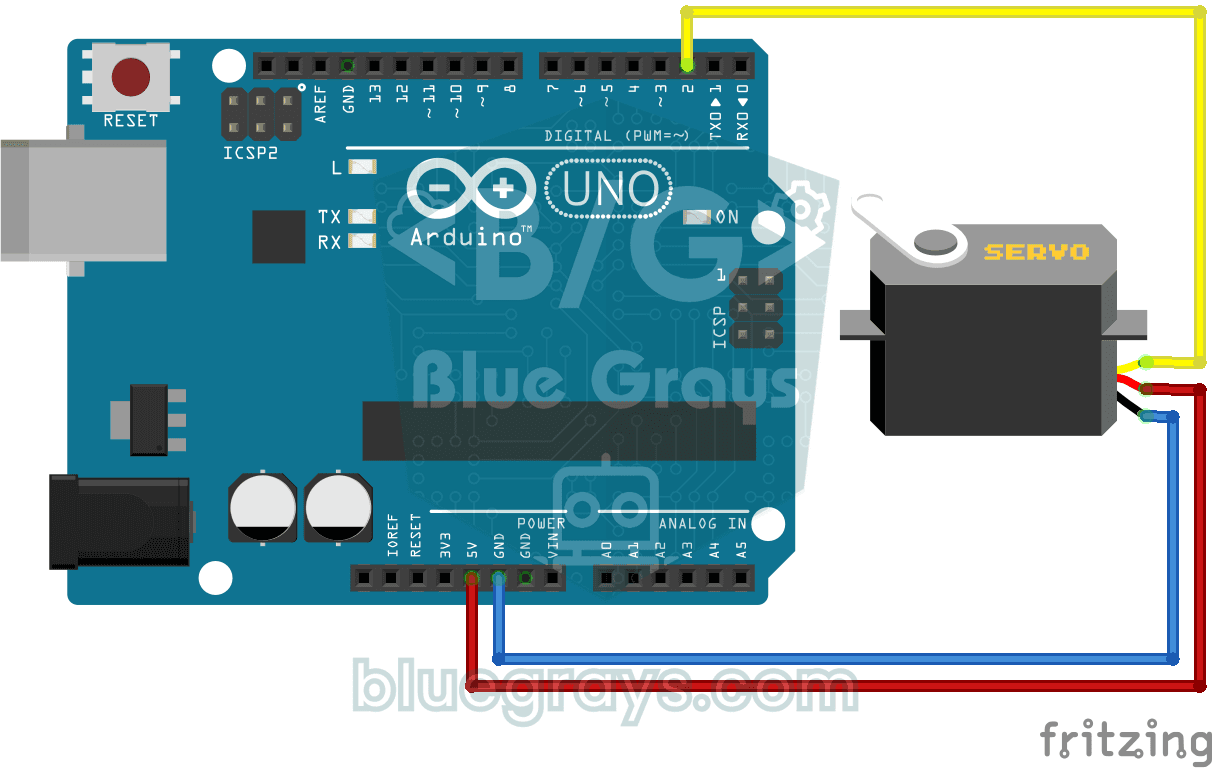
Using a Servo Motor
Basic usage project that positions the servo motor to 0°, 90° and 180° angles in sequence. Teaches servo library and angle control logic.