
Arduino Commands List: Syntax, Examples and Common Mistakes
Arduino commands explained: pinMode, digitalWrite, analogRead, analogWrite, millis, Serial, map, tone, pulseIn and attachInterrupt with examples and pitfalls.
Arduino commands are ready-made functions that tell the board what to do: pinMode() turns a pin into an output, digitalWrite() lights an LED, analogRead() reads a sensor and Serial.println() sends a message to your computer. Most Arduino sketches are really just twenty or so basic commands combined in different ways. Once you understand these commands and what they mean, you can read any code you come across, from blinking an LED to a robot car, and write your own project from scratch.
In this guide we have grouped the most used Arduino commands into four categories: input/output, time, math and communication. For each command you will find the syntax, what the parameters mean, a short example that compiles and runs on an Arduino Uno, and the mistake beginners make most often. In the last sections we will also look at how the same commands behave differently on the ESP32 and what their MicroPython equivalents are on the Raspberry Pi Pico.
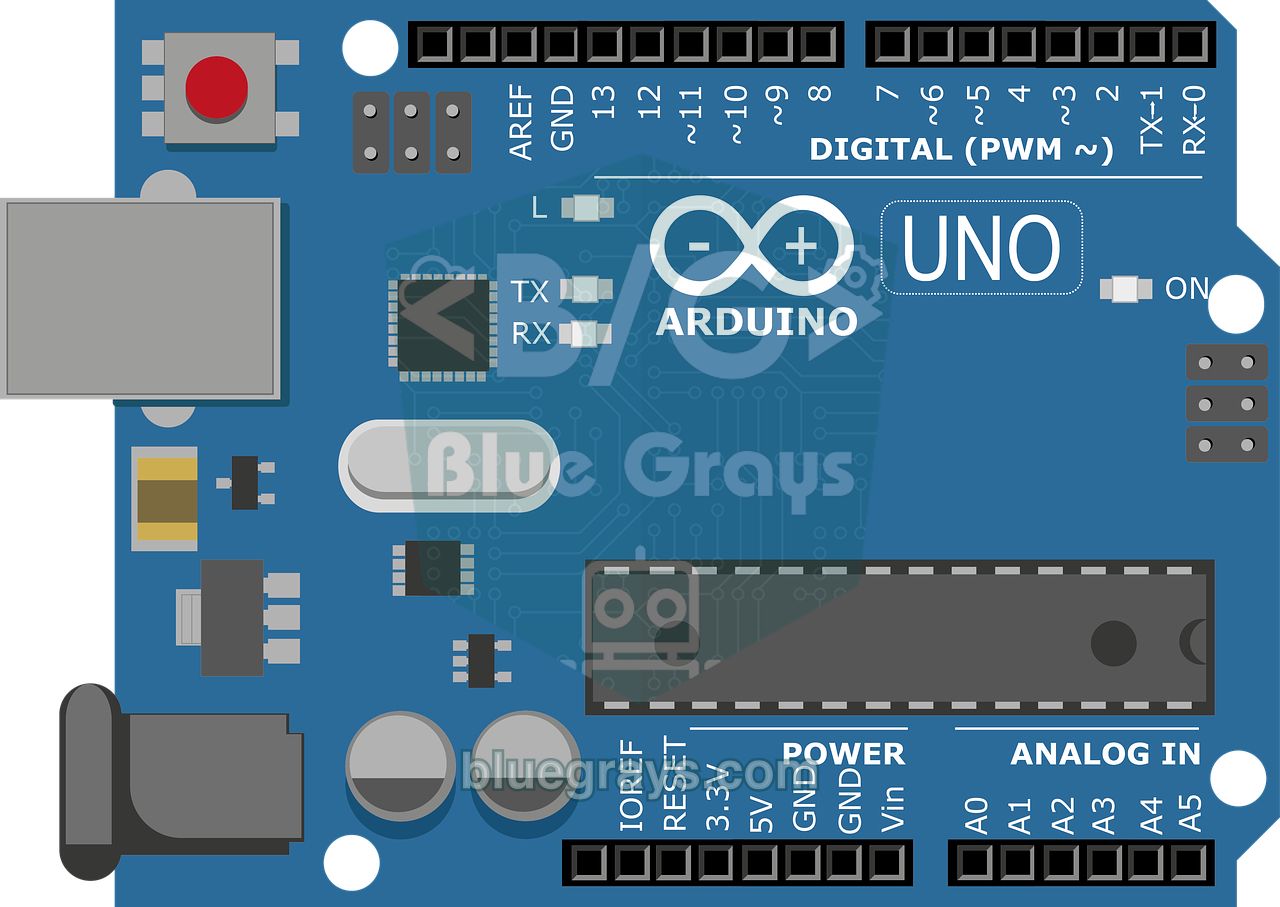
What is an Arduino command, and how does a sketch run?
Arduino code is built on top of C/C++; most of what we call "commands" are actually functions that the Arduino core provides for you. A function takes parameters in parentheses (for example a pin number and a value), and some of them return a result: digitalRead() gives you the state of a pin, millis() the elapsed time. Every Arduino sketch has two required functions: setup() runs only once when the board powers up or is reset, and loop() then repeats forever. Preparation such as pin settings and Serial.begin() goes in setup(), and the work that has to happen continuously goes in loop().
1// Her Arduino programı bu iki fonksiyondan oluşur / Every Arduino sketch has these two functions
2void setup() {
3  // Açılışta ya da resetten sonra bir kez çalışır / Runs once at power-up or after reset
4  pinMode(13, OUTPUT);      // dahili LED pini çıkış / built-in LED pin as output
5}
6
7void loop() {
8  // Sonsuza kadar tekrar eder / Repeats forever
9  digitalWrite(13, HIGH);   // LED'i yak / turn the LED on
10  delay(500);               // 500 ms bekle / wait 500 ms
11  digitalWrite(13, LOW);    // LED'i söndür / turn the LED off
12  delay(500);
13}
Keeping three rules in mind from the start saves you from many compile errors: commands are case-sensitive (if you type digitalwrite you get the error "'digitalwrite' was not declared in this scope"), every statement ends with a semicolon, and text goes in double quotes while single characters go in single quotes. For variable types and structures such as if and for, take a look at Arduino programming basics.
Arduino commands list: tables by category
The four tables below sum up almost every command you will use in everyday projects. The first group is the input/output commands; they set the role of a pin, put a voltage on it or read a value from it. You can see the pin numbers of your board in the Pinout tool.
| Command | Syntax | What it does | Example |
|---|---|---|---|
| pinMode | pinMode(pin, mode) | Makes a pin an input or an output | pinMode(13, OUTPUT); |
| digitalWrite | digitalWrite(pin, value) | Sets a pin HIGH (5 V) or LOW (0 V) | digitalWrite(13, HIGH); |
| digitalRead | digitalRead(pin) | Reads whether a pin is HIGH or LOW | int b = digitalRead(2); |
| analogRead | analogRead(pin) | Turns a 0–5 V voltage into a number from 0 to 1023 | int v = analogRead(A0); |
| analogWrite | analogWrite(pin, value) | Generates a PWM signal from 0 to 255 | analogWrite(9, 128); |
| analogReference | analogReference(type) | Selects the reference voltage for analogRead | analogReference(INTERNAL); |
| tone / noTone | tone(pin, frequency, duration) | Makes a sound with a square wave; noTone stops it | tone(8, 440, 500); |
| pulseIn | pulseIn(pin, value, timeout) | Measures the length of a pulse in µs | pulseIn(10, HIGH, 30000); |
| shiftOut | shiftOut(dataPin, clockPin, order, byte) | Sends a byte out bit by bit (e.g. to a 74HC595) | shiftOut(11, 12, MSBFIRST, 255); |
| attachInterrupt | attachInterrupt(interrupt, function, mode) | Calls a function the moment a pin changes | attachInterrupt(digitalPinToInterrupt(2), say, FALLING); |
The second group is the time commands. Understanding the difference between delay(), which waits, and millis() and micros(), which measure time, is the key to writing a sketch that runs smoothly.
| Command | Syntax | What it does | Watch out |
|---|---|---|---|
| delay | delay(ms) | Waits for the given number of milliseconds | The program stops during this time |
| delayMicroseconds | delayMicroseconds(us) | Waits for a number of microseconds | Accurate between 3 and 16383 µs |
| millis | millis() | Returns the milliseconds since start-up | unsigned long; rolls over after about 49.7 days |
| micros | micros() | Returns the microseconds since start-up | Steps of 4 µs on the Uno, rolls over after about 70 minutes |
The third group is the math commands; you use them to convert a sensor reading into another range, limit it or generate a random number. The fourth group, the communication commands, lets the board exchange data with your computer and other devices.
| Command | Syntax | What it does | Example result |
|---|---|---|---|
| map | map(x, fromLow, fromHigh, toLow, toHigh) | Rescales one range to another | map(512, 0, 1023, 0, 255) → 127 |
| constrain | constrain(x, low, high) | Keeps a value between two limits | constrain(300, 0, 255) → 255 |
| min / max | min(a, b) / max(a, b) | Returns the smaller or larger value | min(7, 3) → 3 |
| abs | abs(x) | Absolute value | abs(-12) → 12 |
| pow / sqrt / sq | pow(base, exponent), sqrt(x), sq(x) | Power, square root, square | pow(2, 10) → 1024.0 |
| random | random(min, max) | Random integer (max not included) | random(1, 7) → 1 to 6 |
| randomSeed | randomSeed(seed) | Changes the starting point of the random sequence | randomSeed(analogRead(A3)); |
| Command | What it does | Example |
|---|---|---|
| Serial.begin(speed) | Opens the serial port at the given baud rate | Serial.begin(9600); |
| Serial.print(data) | Prints data and stays on the same line | Serial.print(temperature); |
| Serial.println(data) | Prints data and moves to a new line | Serial.println("Hello"); |
| Serial.available() | Returns the number of bytes waiting to be read | if (Serial.available() > 0) |
| Serial.read() | Reads one byte, returns -1 if there is no data | char c = Serial.read(); |
| Serial.readStringUntil(c) | Reads text up to a given character | String s = Serial.readStringUntil('\n'); |
| Serial.parseInt() | Extracts an integer from incoming text | int n = Serial.parseInt(); |
| Serial.write(byte) | Sends a raw byte | Serial.write(65); // 'A' |
| Wire.begin() | Starts the I2C bus (Wire.h) | Wire.begin(); |
| SPI.begin() | Starts the SPI bus (SPI.h) | SPI.begin(); |
pinMode(): setting the role of a pin
pinMode(pin, mode) tells the board whether a digital pin is an input or an output, and you usually write it once in setup(). There are three modes: OUTPUT makes the pin an output (to drive an LED, a buzzer or a relay), INPUT makes it a high-impedance input (for circuits with an external pull-up or pull-down resistor), and INPUT_PULLUP makes it an input and connects an internal resistor of about 20–50 kΩ to 5 V. The analog pins (A0–A5) can also be used as digital pins with pinMode; for example, pinMode(A0, OUTPUT) is a valid command.
digitalWrite() and digitalRead(): digital output and input
digitalWrite(pin, HIGH) pulls an output pin to 5 V on the Uno, and digitalWrite(pin, LOW) pulls it to 0 V. Drawing up to 20 mA from a pin is safe (the absolute maximum is 40 mA); always connect an LED with a resistor, and you can find the right value with the LED resistor calculator. digitalRead(pin) looks at the voltage on the pin and returns HIGH or LOW; on the Uno, roughly anything above 3 V counts as HIGH and anything below 1.5 V as LOW. In the example below, the built-in LED lights up when you press the button connected to D2:
1const int BUTON_PIN = 2;   // buton: bir ucu D2, diğer ucu GND / button: one leg to D2, the other to GND
2const int LED_PIN = 13;    // dahili LED / built-in LED
3
4void setup() {
5  pinMode(BUTON_PIN, INPUT_PULLUP);   // dahili pull-up direnci açık / internal pull-up resistor enabled
6  pinMode(LED_PIN, OUTPUT);
7}
8
9void loop() {
10  int durum = digitalRead(BUTON_PIN); // HIGH ya da LOW döner / returns HIGH or LOW
11  if (durum == LOW) {                 // pull-up ile basılı = LOW / with pull-up, pressed = LOW
12    digitalWrite(LED_PIN, HIGH);
13  } else {
14    digitalWrite(LED_PIN, LOW);
15  }
16}
With INPUT_PULLUP the logic is inverted: when the button is released the pin reads HIGH thanks to the internal resistor, and when it is pressed it reads LOW because it is connected to GND. If you wire the button without a resistor in INPUT mode, the pin floats and digitalRead() returns random values; even bringing your hand close can change the result. For button bounce and the correct ways to wire a button, see How to connect a button to Arduino.
analogRead() and analogWrite(): analog input and PWM
analogRead(pin) uses a 10-bit converter (ADC) to turn a voltage between 0 and 5 V on pins A0–A5 into a number from 0 to 1023. One reading takes about 100 µs, so you can take roughly 10,000 readings per second. To convert the number into a voltage you use value × 5.0 / 1023; a reading of 512, for example, means about 2.5 V. The reference voltage can be changed with analogReference(): the INTERNAL option uses the Uno's 1.1 V internal reference and improves resolution for small voltages. You will find the details on resolution and reference in ADC and analog-to-digital conversion.
Despite its name, analogWrite(pin, value) does not produce a real analog voltage. It switches the pin on and off very quickly to create a PWM signal: 0 means always off, 255 always on and 127 roughly half on. That average is why an LED looks half bright to our eyes and a motor turns slowly. On the Uno only pins 3, 5, 6, 9, 10 and 11, marked with ~ on the board, provide PWM; the frequency is 490 Hz on most pins and 980 Hz on pins 5 and 6. analogWrite() sets the pin as an output itself, so pinMode is not required. The code below sets an LED's brightness with a potentiometer and prints the reading together with the voltage to the Serial Monitor; for the details on duty cycle and frequency, see What is PWM?.
1const int POT_PIN = A0;   // potansiyometrenin orta bacağı / potentiometer wiper
2const int LED_PIN = 9;    // ~9 PWM pini + 220 ohm direnç / ~9 PWM pin + 220 ohm resistor
3
4void setup() {
5  Serial.begin(9600);
6}
7
8void loop() {
9  int ham = analogRead(POT_PIN);         // 0-1023 arası / between 0 and 1023
10  float volt = ham * (5.0 / 1023.0);     // sayıyı gerilime çevir / convert the reading to volts
11  analogWrite(LED_PIN, ham / 4);         // 0-1023 -> 0-255 PWM parlaklığı / 0-1023 -> 0-255 PWM brightness
12
13  Serial.print(F("Ham / raw: "));
14  Serial.print(ham);
15  Serial.print(F("  Gerilim / voltage: "));
16  Serial.print(volt, 2);                 // 2 ondalık basamak / 2 decimal places
17  Serial.println(F(" V"));
18  delay(200);
19}delay(), millis() and micros(): time commands
delay(ms) waits for the given number of milliseconds, and during that time no other line in loop() runs; delay(1000) is a full one-second pause. For short waits in the microsecond range there is delayMicroseconds(), which is accurate between 3 and 16383 µs. millis(), on the other hand, does not wait; it returns the time since the board started, in milliseconds. Always store the result in an unsigned long variable: if you use int, on the Uno the value overflows as soon as it passes 32,767, after about 33 seconds, and your timing breaks. millis() rolls back to zero roughly every 49.7 days; the subtraction method below keeps working correctly even across that rollover.
1const int LED_PIN = 13;
2const unsigned long ARALIK = 500;   // yanıp sönme aralığı (ms) / blink interval (ms)
3unsigned long oncekiZaman = 0;      // son değişim anı / time of the last toggle
4
5void setup() {
6  pinMode(LED_PIN, OUTPUT);
7}
8
9void loop() {
10  unsigned long simdi = millis();
11  if (simdi - oncekiZaman >= ARALIK) {               // taşmada da doğru çalışır / safe across overflow
12    oncekiZaman = simdi;
13    digitalWrite(LED_PIN, !digitalRead(LED_PIN));    // LED'i tersine çevir / toggle the LED
14  }
15  // Burada buton, sensör ve ekran işleri de yapılabilir / button, sensor and display tasks can run here
16}
With this pattern loop() never stops; while the LED keeps blinking you can read a button, measure a sensor and update a display in the same loop. micros() works the same way in microseconds; on the Uno it advances in 4 µs steps and rolls over after about 70 minutes. We cover running several tasks at once in full detail in Arduino millis() vs delay().
Serial.begin(), Serial.print() and Serial.read(): serial communication
The Serial commands let the Arduino talk to your computer over the USB cable, and they are your most important debugging tool. Serial.begin(9600) opens the serial port at 9600 bits per second; if the speed in the Serial Monitor does not match, you will see garbage characters on the screen. Serial.print() prints data and stays on the same line, while Serial.println() moves to a new line after printing. A second parameter lets you choose the format: Serial.print(78, HEX) prints "4E", Serial.print(78, BIN) prints "1001110", and Serial.print(3.14159, 3) shows "3.142" (floats default to 2 decimal places). Putting fixed text inside F("...") saves space in the Uno's 2 KB of RAM.
To read data you first check with Serial.available() whether any bytes are waiting in the buffer; the Uno's receive buffer is 64 bytes. Serial.read() takes a single byte from that buffer and returns -1 if there is nothing to read. The code below switches the LED on and off with the characters 1 and 0 that you send from the Serial Monitor:
1const int LED_PIN = 13;
2
3void setup() {
4  Serial.begin(9600);                    // Seri Monitör de 9600 olmalı / Serial Monitor must be 9600 too
5  pinMode(LED_PIN, OUTPUT);
6  Serial.println(F("1: LED açık / on, 0: LED kapalı / off"));
7}
8
9void loop() {
10  if (Serial.available() > 0) {          // tamponda bayt var mı? / any bytes waiting?
11    char c = Serial.read();              // ilk baytı al / read the first byte
12    if (c == '1') {                      // '1' karakteri, 1 sayısı değil / the character '1', not the number 1
13      digitalWrite(LED_PIN, HIGH);
14      Serial.println(F("LED açık / on"));
15    } else if (c == '0') {
16      digitalWrite(LED_PIN, LOW);
17      Serial.println(F("LED kapalı / off"));
18    }
19    // '\n' ve '\r' gibi diğer karakterler atlanır / other characters such as '\n' and '\r' are ignored
20  }
21}
Notice that the comparison is made with '1' (single quotes, so a character): the 1 you type on the keyboard corresponds to the number 49 in the ASCII table, so the condition c == 1 is never true. For numbers with several digits you can use Serial.parseInt(), and to grab a whole line, Serial.readStringUntil('\n'). For the Serial Monitor's line ending settings, baud rate and plotter, see How to use the Arduino Serial Monitor.
map() and constrain(): scaling and limiting values
map(value, fromLow, fromHigh, toLow, toHigh) moves a number proportionally from one range into another. The formula behind it is: (x − fromLow) × (toHigh − toLow) / (fromHigh − fromLow) + toLow. For example, map(512, 0, 1023, 0, 255) returns 127 rather than 127.6, because map() works with integers only and drops the fraction. You can create an inverse relationship by swapping the target range: map(x, 0, 1023, 255, 0). map() does not limit the result; if the input goes outside the range you gave, the output goes outside too. That is why it is usually combined with constrain(x, low, high).
1const int LDR_PIN = A0;   // LDR + 10k gerilim bölücü / LDR + 10k voltage divider
2const int LED_PIN = 9;    // ~9 PWM pini / ~9 PWM pin
3
4void setup() {
5  pinMode(LED_PIN, OUTPUT);
6}
7
8void loop() {
9  int isik = analogRead(LDR_PIN);           // odada ölçülen aralık ~200-800 / measured range in the room ~200-800
10  int pwm = map(isik, 200, 800, 255, 0);    // karanlıkta parlak, aydınlıkta sönük / bright in the dark, dim in the light
11  pwm = constrain(pwm, 0, 255);             // aralık dışı değerleri kes / clip out-of-range values
12  analogWrite(LED_PIN, pwm);
13  delay(20);
14}
In this example the LDR gives values between 200 and 800 in the room. If the reading drops to 100 at night, map() calculates 297; without constrain(), analogWrite() would receive this value outside the 0–255 range. On the Uno such a value gives different, unexpected results depending on the pin: on pins 3, 5, 6 and 11, which use 8-bit timers, 297 overflows and behaves like 41, so the LED almost goes out in total darkness instead of glowing brightly. Because constrain(), min(), max() and abs() are defined as macros on the Uno, do not put x++ or another function call inside the parentheses; the expression may be evaluated more than once and give unexpected results. For the LDR wiring, see LDR light sensor.
tone() and noTone(): making sound with a buzzer
tone(pin, frequency, duration) generates a square wave with a 50% duty cycle on a pin and makes a passive buzzer or a small speaker sound at that frequency. The duration is in milliseconds and optional; without it the sound continues until you call noTone(pin). An important detail: tone() does not wait; it starts the sound and moves straight on to the next line. So when you play notes one after another, you need a delay() at least as long as the note after each tone() call, otherwise you only hear the last note.
1const int BUZZER_PIN = 8;   // pasif buzzer'ın + ucu / passive buzzer + leg
2
3void setup() {
4  int notalar[] = {262, 294, 330, 349, 392};   // Do Re Mi Fa Sol (Hz) / C D E F G (Hz)
5  for (int i = 0; i < 5; i++) {
6    tone(BUZZER_PIN, notalar[i], 200);         // 200 ms çal / play for 200 ms
7    delay(250);                                // tone() beklemez, sen bekle / tone() does not wait, so you do
8  }
9  noTone(BUZZER_PIN);                          // sesi kapat / stop the sound
10}
11
12void loop() {
13}- Frequency limits: On the Uno tones below 31 Hz cannot be generated and the upper limit is 65,535 Hz; the useful range with a buzzer is roughly 100–5000 Hz.
- One sound at a time: Only one pin can play a tone at a time; to make sound on another pin you first have to stop the previous one with noTone().
- PWM conflict: On the Uno tone() uses Timer2, so analogWrite() on pins 3 and 11 is disturbed while a sound is playing.
- Active buzzer: Because it has its own oscillator, its frequency cannot be changed with tone(); just switch an active buzzer on and off with digitalWrite(). For the differences, see What is a buzzer?.
pulseIn(): measuring pulse length
pulseIn(pin, HIGH) waits for the pin to go HIGH, measures how long it stays HIGH and returns the result in microseconds; it can measure pulses from 10 µs to 3 minutes long. Its best-known use is the HC-SR04 ultrasonic distance sensor: the sensor outputs a pulse as long as the sound takes to travel out and back. Sound travels through air at about 343 m/s, or 0.0343 cm/µs; since the path is a round trip, distance = duration × 0.0343 / 2.
1const int TRIG_PIN = 9;
2const int ECHO_PIN = 10;
3
4void setup() {
5  Serial.begin(9600);
6  pinMode(TRIG_PIN, OUTPUT);
7  pinMode(ECHO_PIN, INPUT);
8}
9
10void loop() {
11  digitalWrite(TRIG_PIN, LOW);
12  delayMicroseconds(2);
13  digitalWrite(TRIG_PIN, HIGH);            // 10 µs tetik darbesi / 10 µs trigger pulse
14  delayMicroseconds(10);
15  digitalWrite(TRIG_PIN, LOW);
16
17  unsigned long sure = pulseIn(ECHO_PIN, HIGH, 30000UL);   // en fazla 30 ms bekle / wait at most 30 ms
18  if (sure == 0) {
19    Serial.println(F("Menzil dışı / out of range"));
20  } else {
21    float mesafe = sure * 0.0343 / 2.0;    // ses hızı 343 m/s, gidiş-dönüş / speed of sound 343 m/s, round trip
22    Serial.print(mesafe, 1);
23    Serial.println(F(" cm"));
24  }
25  delay(100);
26}
The third parameter, the timeout, is very important. Without it, pulseIn() waits 1 second when no pulse arrives and returns 0; if the sensor wire comes loose, the whole program freezes for a second on every loop. A timeout of 30000 µs corresponds to about 5 metres, which is enough for the HC-SR04's 4-metre range. For the sensor's wiring and accuracy, see HC-SR04 distance sensor.
attachInterrupt(): reacting instantly with interrupts
attachInterrupt(digitalPinToInterrupt(pin), function, mode) runs the function you give it the moment a pin changes, no matter what loop() is doing at the time. This function is called an interrupt service routine (ISR). The mode can take four values: RISING triggers on a LOW-to-HIGH transition, FALLING on a HIGH-to-LOW transition, CHANGE on every change, and LOW for as long as the pin stays LOW. On the Uno and Nano only pins D2 and D3 can trigger interrupts this way; on the Mega you can use pins 2, 3, 18, 19, 20 and 21. It is ideal for not missing a fast-spinning encoder, the pulses of an anemometer or a very short button press.
1const int BUTON_PIN = 2;            // Uno'da kesme pinleri: 2 ve 3 / interrupt pins on the Uno: 2 and 3
2volatile unsigned long sayac = 0;   // ISR'de değişen değişken volatile olmalı / variables changed in an ISR must be volatile
3
4void say() {                        // kesme fonksiyonu (ISR): kısa tut / interrupt service routine: keep it short
5  sayac++;
6}
7
8void setup() {
9  Serial.begin(9600);
10  pinMode(BUTON_PIN, INPUT_PULLUP);
11  attachInterrupt(digitalPinToInterrupt(BUTON_PIN), say, FALLING);   // HIGH'dan LOW'a geçişte / on a HIGH-to-LOW edge
12}
13
14void loop() {
15  noInterrupts();                   // 4 baytlık değeri güvenle kopyala / copy the 4-byte value safely
16  unsigned long kopya = sayac;
17  interrupts();
18
19  Serial.print(F("Basma sayısı / presses: "));
20  Serial.println(kopya);
21  delay(500);
22}random() and randomSeed(): generating random numbers
random(max) returns a random integer between 0 and max−1, and random(min, max) one between min and max−1; the upper bound is not included in the result. That is why you write random(1, 7) for a die from 1 to 6. The Arduino does not produce true randomness; it calculates a sequence of numbers with a fixed formula, so if you do not call randomSeed(), you will see the same numbers in the same order every time the board starts. Using the noise of an unconnected analog pin as a seed solves this in practice:
1void setup() {
2  Serial.begin(9600);
3  randomSeed(analogRead(A3));     // boştaki A3 pininin gürültüsü / noise from the unconnected A3 pin
4}
5
6void loop() {
7  int zar = random(1, 7);         // 1-6 arası; üst sınır dahil değil / 1 to 6; the upper bound is exclusive
8  Serial.print(F("Zar / dice: "));
9  Serial.println(zar);
10  delay(1000);
11}
Arduino commands on the ESP32: what to watch out for
The ESP32 is programmed in the Arduino IDE with the same commands, and most of the code in this article runs directly once you change the pin numbers. Because the hardware is different, though, some commands behave differently. The most important difference is the voltage: the ESP32's pins run at 3.3 V, digitalWrite(pin, HIGH) outputs 3.3 V, and 5 V signals must not be connected to the pins directly. To get to know the board better, see What is the ESP32?.
| Command | Arduino Uno | ESP32 |
|---|---|---|
| digitalWrite(pin, HIGH) | 5 V | 3.3 V |
| analogRead() | 10-bit, 0–1023, A0–A5 | 12-bit, 0–4095; with Wi-Fi on, only the ADC1 pins (GPIO 32–39) |
| analogWrite() | Only the ~ pins (3, 5, 6, 9, 10, 11), 490/980 Hz | Almost any output-capable GPIO; set the frequency with ledcAttach(pin, freq, resolution) |
| attachInterrupt() | Only D2 and D3 | All GPIOs; add IRAM_ATTR to the ISR |
| tone() | Uses Timer2, disturbs PWM on 3 and 11 | Runs on the LEDC hardware |
| Serial.begin() | Usually 9600 | Usually 115200 (the boot messages use this speed too) |
| delay() | Keeps the processor completely busy waiting | Hands the time to FreeRTOS; Wi-Fi keeps running in the background |
1const int POT_PIN = 34;     // ADC1 pini, Wi-Fi açıkken de okur / ADC1 pin, works with Wi-Fi on
2const int LED_PIN = 2;      // çoğu DevKit'te dahili LED / onboard LED on most DevKits
3const int BUTON_PIN = 4;    // butonun diğer ucu GND / other button leg to GND
4
5volatile bool basildi = false;
6
7void IRAM_ATTR butonISR() { // ESP32'de ISR IRAM'e yerleşmeli / on the ESP32 the ISR should live in IRAM
8  basildi = true;
9}
10
11void setup() {
12  Serial.begin(115200);
13  pinMode(BUTON_PIN, INPUT_PULLUP);
14  attachInterrupt(digitalPinToInterrupt(BUTON_PIN), butonISR, FALLING);   // her GPIO kesme destekler / every GPIO supports interrupts
15}
16
17void loop() {
18  int ham = analogRead(POT_PIN);                     // 0-4095 (12 bit)
19  analogWrite(LED_PIN, map(ham, 0, 4095, 0, 255));   // 8 bit PWM / 8-bit PWM
20  if (basildi) {
21    basildi = false;
22    Serial.println("Butona basıldı / button pressed");
23  }
24  Serial.println(ham);
25  delay(200);
26}
Because analogRead() returns 0–4095 on the ESP32, the map() range changes accordingly. The IRAM_ATTR in front of the ISR places the code in fast internal memory; without it the board can, in some situations, reboot with a "Guru Meditation Error". The ESP32's analog readings are not linear near the ends of the range (around 0 V and 3.3 V); if you need a more accurate measurement, the analogReadMilliVolts() function returns a calibrated value in millivolts.
Raspberry Pi Pico: MicroPython equivalents of Arduino commands
If you program the Raspberry Pi Pico with the Arduino IDE (the arduino-pico core), every command in this article works under the same name; analogRead() returns 10 bits by default and analogWrite() produces 1 kHz PWM. Most people, however, use the Pico with MicroPython. There the commands are written with objects from the machine and time modules; the logic is the same, only the syntax changes. The Pico's pins are 3.3 V as well, and its analog inputs are pins GP26, GP27 and GP28. To get started, see What is the Raspberry Pi Pico?.
| Arduino command | MicroPython equivalent | Note |
|---|---|---|
| pinMode(15, OUTPUT) | led = Pin(15, Pin.OUT) | The Pin object is created once |
| pinMode(14, INPUT_PULLUP) | btn = Pin(14, Pin.IN, Pin.PULL_UP) | Internal pull-up resistor |
| digitalWrite(15, HIGH) | led.value(1) | led.on() works too |
| digitalRead(14) | btn.value() | Returns 0 or 1 |
| analogRead(A0) | ADC(26).read_u16() | Returns 0–65535 |
| analogWrite(15, 128) | PWM(Pin(15)).duty_u16(32768) | Duty from 0 to 65535 |
| delay(500) | time.sleep_ms(500) | time.sleep(0.5) works too |
| millis() | time.ticks_ms() | Use time.ticks_diff() for differences |
| Serial.println(x) | print(x) | Shows up in the Thonny shell |
| tone(pin, 440) | pwm.freq(440) and pwm.duty_u16(32768) | Silence it with duty_u16(0) |
| pulseIn(pin, HIGH, 30000) | machine.time_pulse_us(pin, 1, 30000) | Returns a negative value on timeout |
| attachInterrupt(...) | btn.irq(trigger=Pin.IRQ_FALLING, handler=f) | f receives the pin object as a parameter |
| random(1, 7) | random.randint(1, 6) | Upper bound is included |
| map() / constrain() | Not built in, you write them yourself | For constrain: min(max(x, 0), 255) |
1from machine import Pin, ADC, PWM
2import time
3
4led = PWM(Pin(15))                       # pinMode + analogWrite karşılığı / pinMode + analogWrite equivalent
5led.freq(1000)                           # 1 kHz PWM
6buton = Pin(14, Pin.IN, Pin.PULL_UP)     # INPUT_PULLUP karşılığı / INPUT_PULLUP equivalent
7pot = ADC(26)                            # GP26 = ADC0
8
9def map_deger(x, giris_min, giris_max, cikis_min, cikis_max):   # Arduino map() karşılığı / Arduino map() equivalent
10    return (x - giris_min) * (cikis_max - cikis_min) // (giris_max - giris_min) + cikis_min
11
12onceki = time.ticks_ms()                 # millis() karşılığı / millis() equivalent
13while True:
14    ham = pot.read_u16()                 # 0-65535 (analogRead)
15    led.duty_u16(ham)                    # parlaklık / brightness (analogWrite)
16    if buton.value() == 0:               # digitalRead; basılı = 0 / pressed = 0
17        print("Butona basıldı / button pressed")
18    if time.ticks_diff(time.ticks_ms(), onceki) >= 1000:   # saniyede bir / once a second
19        onceki = time.ticks_ms()
20        print("Yüzde / percent:", map_deger(ham, 0, 65535, 0, 100))
21    time.sleep_ms(50)                    # delay(50)
As the table shows, random.randint(1, 6) in MicroPython includes the upper bound and gives the same result as random(1, 7) on the Arduino; time.ticks_diff() provides the same rollover safety as the millis() subtraction. These small differences are what confuse people most when switching between the two platforms. For MicroPython's other basic commands, take a look at MicroPython basics.
Project ideas you can build with these commands
- Traffic light: Light three LEDs in sequence with pinMode(), digitalWrite() and delay(); we explain it step by step in Arduino traffic light.
- Digital dice: Generate a number from 1 to 6 with random() and, when the button is pressed, show the result with LEDs or on a 7-segment display.
- Parking sensor: Measure the distance with pulseIn(), turn it into a beep interval with map() and sound a warning with tone().
- Automatic night light: Read the light level with analogRead() and set the analogWrite() brightness with map() and constrain().
- Serial port remote: Control an LED, a relay or a servo motor with commands from your computer using Serial.read().
- Reaction test: Light an LED at a random moment with random() and measure your button reaction time to the millisecond with attachInterrupt() and millis().
Common mistakes and how to fix them
| Mistake | Symptom | Fix |
|---|---|---|
| pinMode() forgotten | The LED is very dim or does not light at all | Write pinMode(pin, OUTPUT) in setup() |
| Button without a resistor in INPUT mode | digitalRead() returns random 0s and 1s | Use INPUT_PULLUP; pressed reads LOW |
| Typo in a command name | 'digitalwrite' was not declared in this scope | Mind upper and lower case: digitalWrite |
| Baud rate mismatch | Garbage characters in the Serial Monitor | Match the Serial Monitor speed to Serial.begin() |
| analogWrite() on a non-PWM pin | The LED is only fully on or fully off | Use a pin marked ~ (3, 5, 6, 9, 10, 11) |
| millis() stored in an int | Timing breaks after about 33 seconds | Use unsigned long |
| Dice with random(1, 6) | A 6 never comes up | Write random(1, 7); the upper bound is excluded |
| Expecting decimals from map() | The result is always an integer, small changes are lost | Write your own float formula if needed |
| pulseIn() without a timeout | Every loop freezes for 1 second when the sensor is missing | Pass 30000 as the third parameter |
| delay() or Serial inside an ISR | The program locks up or behaves strangely | Only change a volatile flag in the ISR |
The commands in this article are the building blocks of most projects you will make with an Arduino; the rest are mostly extra functions provided by libraries. Trying each command once in its own small circuit and seeing the result in the Serial Monitor makes the learning stick far better than memorizing them. In the BlueGrays app you can find projects that use these commands, such as lighting an LED, controlling an LED with a button, measuring light with an LDR, setting a buzzer's frequency, measuring distance with an HC-SR04 and a dice project, step by step with circuit diagrams and commented code.
Frequently asked questions
What are the most used Arduino commands?
The most frequently used ones are pinMode(), digitalWrite(), digitalRead(), analogRead(), analogWrite(), delay(), millis(), Serial.begin() and Serial.println(). Add map() for scaling values, tone() for sound, pulseIn() for distance sensors and attachInterrupt() for interrupts, and you can write almost all of your beginner projects.
What language are Arduino commands written in?
Arduino code is built on C and C++; the Arduino core adds ready-made functions such as pinMode() and digitalWrite() to the language. The commands are in English, they are case-sensitive and every statement ends with a semicolon. The ESP32 and the Raspberry Pi Pico can also be programmed in MicroPython if you prefer.
What is the difference between digitalWrite and analogWrite?
digitalWrite() sets a pin to one of only two states: HIGH (5 V on the Uno) or LOW (0 V). analogWrite() switches the pin on and off very quickly to create a PWM signal from 0 to 255, so you can adjust an LED's brightness or a motor's speed. On the Uno, analogWrite() only works on the pins marked with ~.
What do void setup and void loop mean?
setup() is the function that runs once when the board powers up or is reset; preparation such as pinMode() and Serial.begin() goes here. loop() is the function that repeats forever after setup() has finished. The void in front of them means that these functions do not return a value.
What is the difference between Serial.print and Serial.println?
Serial.print() prints the data and leaves the cursor on the same line, so the next data is added right after it. Serial.println() sends the line ending characters (\r\n) after printing, so the next data starts on a new line. To show several values side by side on one line, use print() first and println() at the end.
What does the Arduino map function do?
map() converts a number from one range into another proportionally; for example, it turns the 0–1023 value from analogRead() into the 0–255 range for analogWrite() or into 0–180 degrees for a servo. It works with integers only and does not limit the result, so it is recommended to combine it with constrain() to handle out-of-range inputs.
Projects to build after reading this
See all projects
LED Blink
Basic input project that turns a single LED on and off at regular intervals with Arduino. Teaches the use of digitalWrite and delay functions.

LED Control with a Push Button (Push)
Push control project that turns on the LED when the button is pressed and turns it off when it is released. Teaches button reading and conditional expression usage with digitalRead.

Measuring Light Intensity with an LDR
Project that measures ambient light intensity with LDR sensor and displays it on Serial Monitor. Teaches the basics of analog sensor reading and serial communication.
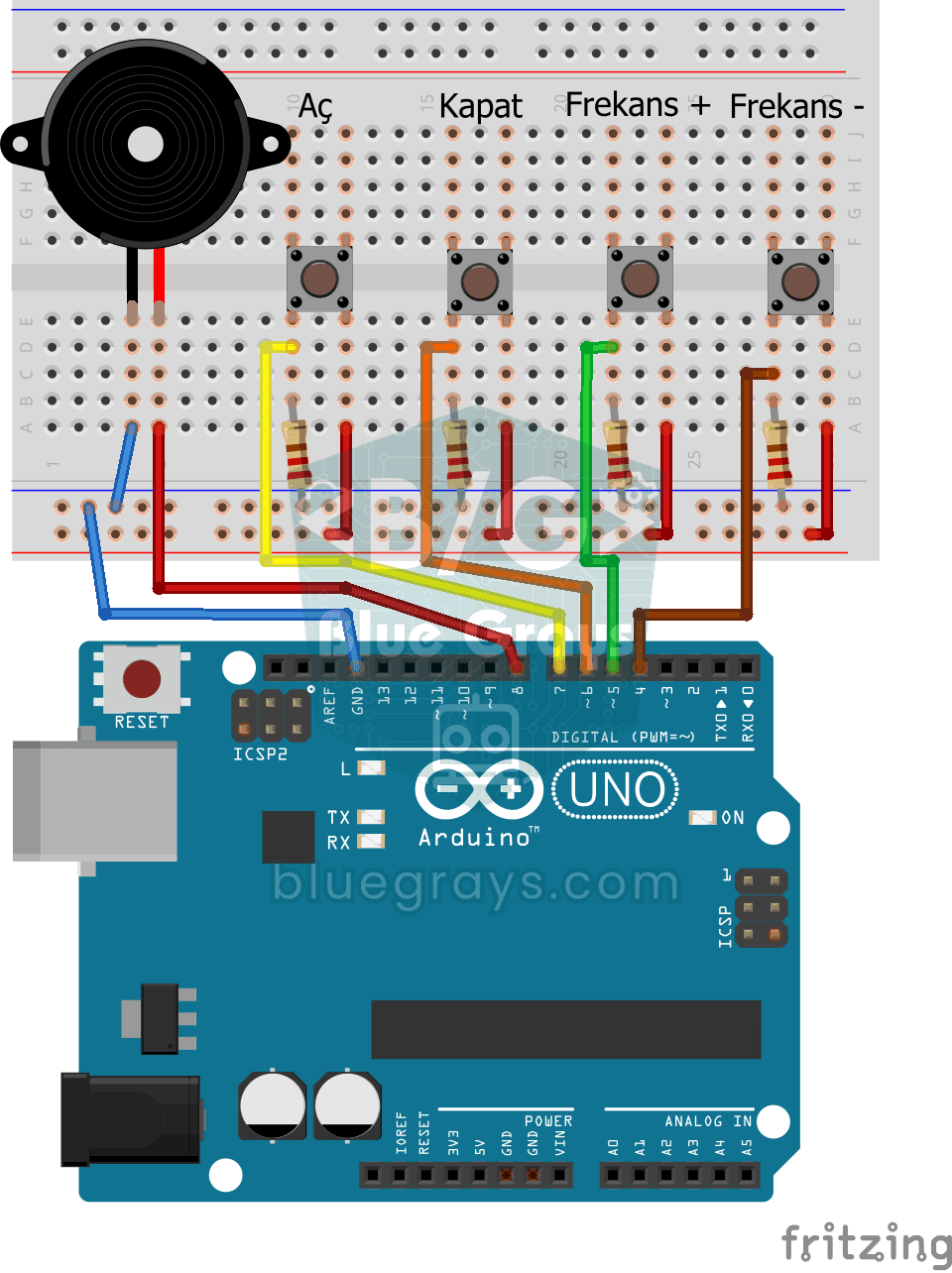
Frequency Setting with Buzzer
Interactive project with 4 buttons to increase and decrease the frequency of the buzzer, turn it on and off. Teaches multiple button reading and variable control.
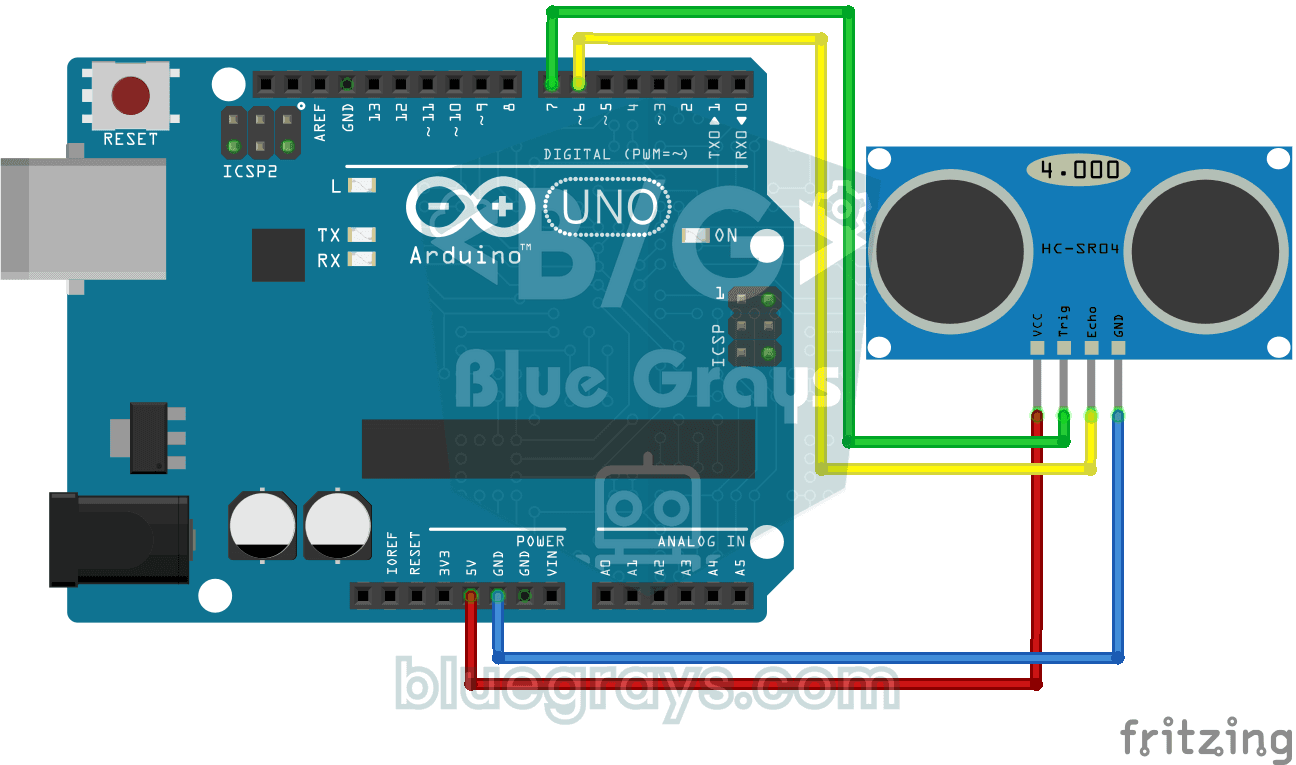
HC-SR04 Distance Measurement (Serial Display)
Project that measures distance with HC-SR04 ultrasonic sensor and displays the result in cm on Serial Monitor. It teaches the principle of distance calculation with sound wave.

Knight Rider LED Effect with Adjustable Speed
Project with potentiometer that can adjust the speed of the Knight Rider LED animation in real time. It combines analog input and bidirectional loop control.
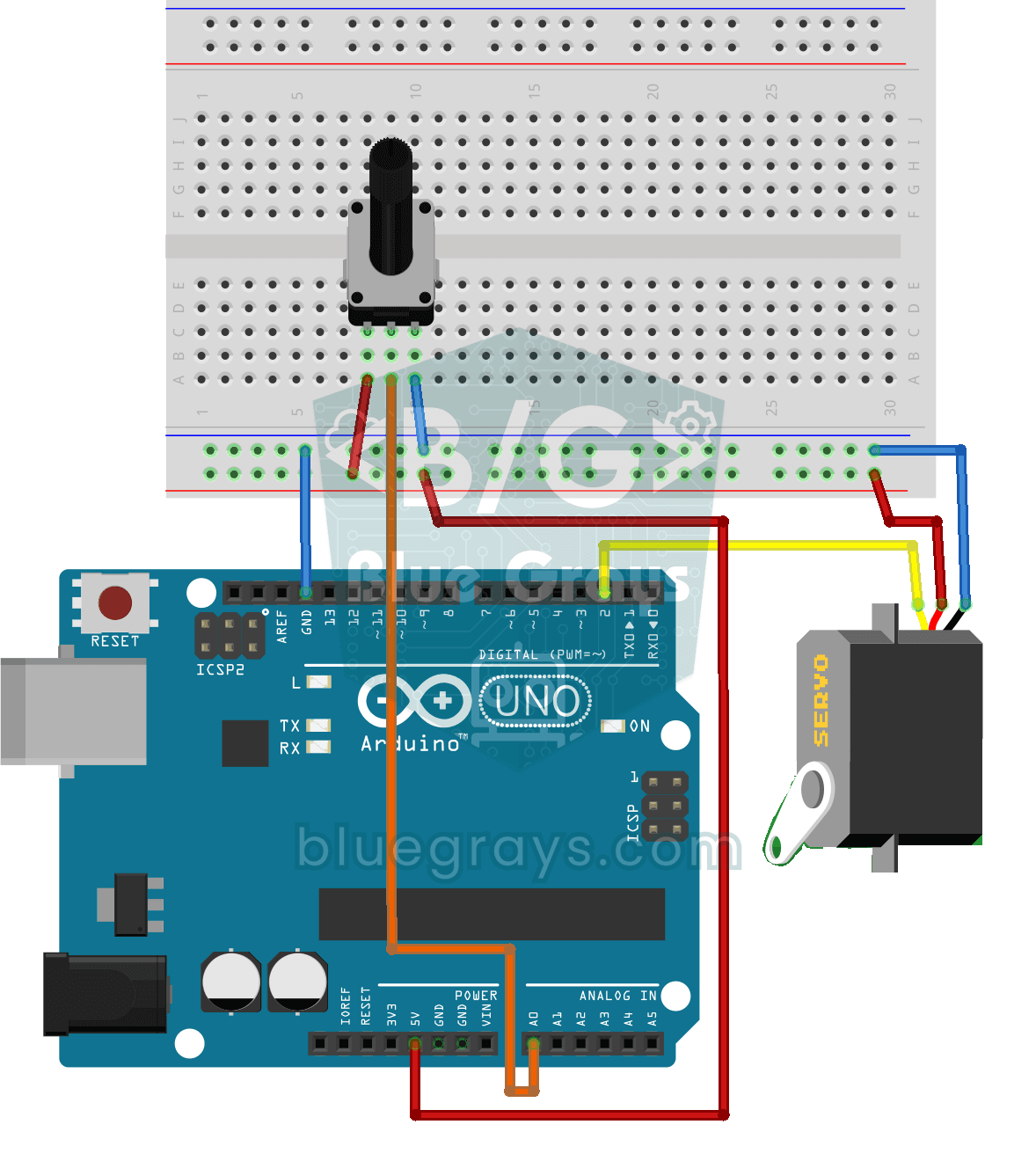
Servo Motor Operation with Potentiometer
Project that controls the servo motor in real time by converting the potentiometer value to the range 0-180°. teaches map() function and analog-servo integration.

Dice Project
A dice project that generates a random number between 1-6 at each button press and displays it on a 7 segment screen. Thanks to the debounce mechanism, a single result is produced in a single press.