
How to Install an Arduino Library: Library Manager, ZIP, Manual
How to install an Arduino library step by step: Library Manager, .ZIP and manual install, switching versions, and fixing No such file or directory errors.
Installing an Arduino library means adding a ready-made code package to the Arduino IDE so you can use a sensor, display or module in your sketch, and there are three ways to do it: the Library Manager (the easiest and recommended way), adding a downloaded .ZIP file to the IDE, or copying the library folder by hand into the libraries folder of your sketchbook. Once it's installed, you write #include <LibraryName.h> at the top of your sketch and all of the library's functions are ready to use. The right library takes a minute to install; the wrong library or the wrong version can turn into hours of bug hunting.
In this guide we walk through all three methods step by step in Arduino IDE 2. Then you'll see how to pick the right one among dozens of similarly named libraries, roll back to an older version, open a library's examples and fix the two most common messages: the No such file or directory error and the Multiple libraries were found warning. The last sections cover which libraries work on the ESP32 and the Raspberry Pi Pico, which ones need a replacement, and how to add libraries in MicroPython. If the IDE isn't installed yet, start with How to Install the Arduino IDE.
What is an Arduino library and what is it for?
A library is a set of code files that does one specific job, packaged so that others can reuse it: at least one header file (.h), usually one or more source files (.cpp) and almost always a few example sketches. For example, the DHT11 sensor sends its reading over a single wire as a 40-bit packet timed to the microsecond. Instead of writing that timing yourself, you install the DHT library and just write dht.readTemperature(); the library handles the hard part. Don't confuse a library with a board package: a board package installed from the Boards Manager teaches the IDE a new processor family such as the ESP32 or the Pico, while a library makes a specific piece of hardware or a task easier. Arduino libraries come from three different places:
| Library type | Where does it come from? | Where does it live? | Examples |
|---|---|---|---|
| Built-in libraries | The IDE installs them itself on first launch | The libraries folder inside Arduino15 | Servo, Stepper, LiquidCrystal, SD, Ethernet, Keyboard, Mouse |
| Board package libraries | They come with the package you install from the Boards Manager | The package's own libraries folder under Arduino15/packages | Wire, SPI, EEPROM, SoftwareSerial for the Uno; WiFi, WebServer, HTTPClient, Preferences for the ESP32 |
| Libraries you install | Library Manager, .ZIP or manual copy | The libraries folder in your sketchbook | DHT sensor library, LiquidCrystal I2C, Adafruit SSD1306, ESP32Servo |
You don't need to install libraries that come with the board package, such as Wire, SPI or the ESP32's WiFi library; writing the #include line is enough. The libraries you install yourself go into the libraries folder inside your sketchbook. These are the default locations for each operating system:
| Operating system | Libraries you install | Arduino15 (built-in libraries and board packages) |
|---|---|---|
| Windows | C:\Users\<user>\Documents\Arduino\libraries | C:\Users\<user>\AppData\Local\Arduino15 |
| macOS | /Users/<user>/Documents/Arduino/libraries | /Users/<user>/Library/Arduino15 |
| Linux | /home/<user>/Arduino/libraries | /home/<user>/.arduino15 |
Method 1: Install a library with the Library Manager
The Library Manager lets you search thousands of libraries in Arduino's official library index and install them with one click. Libraries in this index are packaged according to a fixed specification, so the folder structure is never broken, the other libraries they need (dependencies) are offered automatically, and the IDE tells you when a new version comes out. So if the library you need is in the list, always use this method. As an example, let's install Adafruit's library for the DHT11 and DHT22 sensors:
- Open Arduino IDE 2 and click the books icon in the left sidebar. You can also open the same panel from Sketch > Include Library > Manage Libraries or with the Ctrl+Shift+I shortcut (Cmd+Shift+I on macOS).
- Type DHT sensor library into the search box. Within a few seconds, every library with those words in its name or description appears as a list of cards.
- Each card shows the library's name and author at the top, a short description below and a More info link. You'll see several DHT libraries with similar names; pick the DHT sensor library card whose author is Adafruit.
- The version list at the bottom of the card shows the newest version. Unless you have a specific reason, leave it on the latest version and click Install.
- The IDE opens a window titled Install library dependencies and tells you the library needs another library called Adafruit Unified Sensor. Click Install All.
- Download lines scroll through the output panel and a notification such as Successfully installed library DHT sensor library:1.4.7 appears in the bottom right. The card now shows the installed version.
The choice you make in the dependency window matters. Install without dependencies installs only the main library; when you then compile, you get Adafruit_Sensor.h: No such file or directory, because one of the DHT library's files includes that header. Sometimes the dependency chain has several links: the Adafruit SSD1306 OLED library needs the Adafruit GFX Library, which in turn needs Adafruit BusIO. When you click Install All, the IDE installs the whole chain in one go; unless you're deliberately skipping a dependency, always use this option.
When the list gets crowded, the two filters above the search box make life easier:
| Filter | Options | What it's for |
|---|---|---|
| Type | All, Updatable, Installed, Arduino, Partner, Recommended, Contributed, Retired | Installed shows which libraries are installed and in which version, Updatable shows the ones with a newer release. Arduino lists the official libraries, Contributed the community libraries and Retired those that are no longer developed. |
| Topic | Display, Sensors, Communication, Device Control, Timing, Data Storage, Data Processing, Signal Input/Output, Other, Uncategorized | Narrows the results when you don't know a library's exact name; for example, under Display only LCD, OLED and TFT libraries remain. |
Choosing the right one among libraries with the same name
Type just DHT into the Library Manager and you get dozens of results; searching for LiquidCrystal I2C also shows several libraries with almost identical names. Even though they drive the same hardware, their function names, constructor parameters and examples differ. Code written for one library often won't compile with another library that has a similar name. To pick the right one, follow this order:
- Look at the #include line in your code: if the example you're following says #include <LiquidCrystal_I2C.h>, you need the library that contains that file. Well-written examples also name the library and its author.
- Check the author: well-known names such as Adafruit, SparkFun, Arduino and Espressif, or the part's manufacturer, usually publish the best-documented and longest-maintained libraries.
- Open the More info link: on the library's page, check the date of the last update, the open issues and which boards it supports. A library that hasn't been updated for years may cause trouble on an ESP32 or a Pico.
- Look at the version history: a long list of versions shows the library is developed regularly. Stay away from libraries with a single version and an empty description.
- Try the library's own example first: after installing, compile one of its examples. If the example compiles but your code doesn't, your code was most likely written for a different library.
| Part | Search the Library Manager for | Recommended library (author) and dependencies | #include line |
|---|---|---|---|
| DHT11 / DHT22 | DHT sensor library | DHT sensor library (Adafruit) + Adafruit Unified Sensor | #include <DHT.h> |
| 16x2 I2C LCD | LiquidCrystal I2C | LiquidCrystal I2C (Frank de Brabander) | #include <LiquidCrystal_I2C.h> |
| SSD1306 OLED | Adafruit SSD1306 | Adafruit SSD1306 + Adafruit GFX Library + Adafruit BusIO | #include <Adafruit_SSD1306.h> |
| DS18B20 | DallasTemperature | DallasTemperature (Miles Burton) + OneWire | #include <DallasTemperature.h> |
| RC522 RFID | MFRC522 | MFRC522 (GithubCommunity) | #include <MFRC522.h> |
| IR receiver and remote | IRremote | IRremote (shirriff, z3t0, ArminJo) | #include <IRremote.hpp> |
| WS2812B NeoPixel | Adafruit NeoPixel | Adafruit NeoPixel (Adafruit) | #include <Adafruit_NeoPixel.h> |
| DS1307 / DS3231 RTC | RTClib | RTClib (Adafruit) + Adafruit BusIO | #include <RTClib.h> |
| Servo (on the ESP32) | ESP32Servo | ESP32Servo (Kevin Harrington, John K. Bennett) | #include <ESP32Servo.h> |
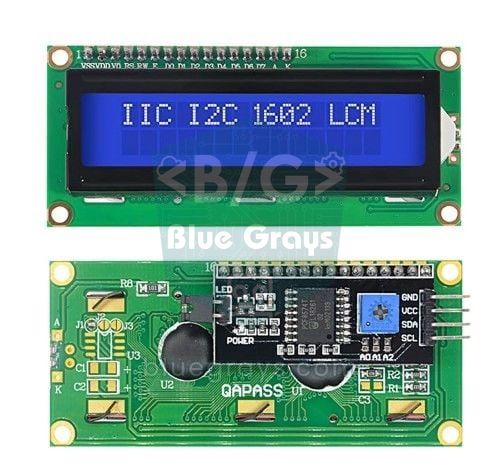
The best-known example of this confusion is the I2C LCD. LiquidCrystal I2C (Frank de Brabander) in the Library Manager starts the display with lcd.init(). Another version of the same library that circulates on GitHub uses lcd.begin() without parameters instead. If you compile code written for that version with the library from the Library Manager, you get no matching function for call to 'LiquidCrystal_I2C::begin()'. The fix is simple: either change lcd.begin() to lcd.init() or start from the examples of the library you installed. We cover the wiring and how to find the I2C address in detail in How to Use an I2C LCD Display.
Test the install: a temperature display with two libraries
The quickest way to check that your libraries are installed correctly is to compile a small sketch that uses them. The code below shows the temperature and humidity read from a DHT11 on a 16x2 I2C LCD. Install DHT sensor library (with its dependency) and LiquidCrystal I2C from the Library Manager; connect the DHT11 data pin to pin 2 of the Arduino Uno and the LCD's SDA and SCL pins to A4 and A5. You can see where those pins are on the board in the Pinout tool.
1// Gereken kütüphaneler / Required libraries (Kütüphane Yöneticisi / Library Manager):
2//   DHT sensor library (Adafruit) + Adafruit Unified Sensor
3//   LiquidCrystal I2C (Frank de Brabander)
4#include <Wire.h>                  // kart paketiyle gelir / bundled with the board package
5#include <DHT.h>                   // DHT sensor library
6#include <LiquidCrystal_I2C.h>     // LiquidCrystal I2C
7
8#define DHT_PIN 2                  // DHT11 veri pini / DHT11 data pin
9#define DHT_TYPE DHT11             // DHT22 için DHT22 yaz / write DHT22 for a DHT22
10
11DHT dht(DHT_PIN, DHT_TYPE);
12LiquidCrystal_I2C lcd(0x27, 16, 2);    // adres, sütun, satır / address, columns, rows
13
14void setup() {
15  Serial.begin(9600);
16  dht.begin();
17  lcd.init();                      // bu kütüphanede begin() değil init() / init(), not begin(), in this library
18  lcd.backlight();                 // arka ışığı aç / backlight on
19  lcd.print(F("Kutuphaneler OK"));
20  delay(1500);
21}
22
23void loop() {
24  float t = dht.readTemperature(); // santigrat / Celsius
25  float h = dht.readHumidity();    // bağıl nem % / relative humidity %
26
27  if (isnan(t) || isnan(h)) {      // sensör cevap vermedi / sensor did not respond
28    Serial.println(F("DHT okunamadi / DHT read failed"));
29    delay(2000);
30    return;
31  }
32
33  lcd.clear();
34  lcd.setCursor(0, 0);             // sütun 0, satır 0 / column 0, row 0
35  lcd.print(F("Sicaklik: "));
36  lcd.print(t, 1);
37  lcd.print(F(" C"));
38  lcd.setCursor(0, 1);             // ikinci satır / second row
39  lcd.print(F("Nem: %"));
40  lcd.print(h, 0);
41
42  Serial.print(t);
43  Serial.print(F(" C  "));
44  Serial.print(h);
45  Serial.println(F(" %"));
46  delay(2000);                     // DHT11 en fazla saniyede bir ölçer / DHT11 measures at most once per second
47}
The #include lines at the top tell the compiler which library files to add. Wire.h comes with the board package, so you don't install it separately; DHT.h and LiquidCrystal_I2C.h come from the libraries you just installed. If you click Verify and see the Sketch uses ... bytes line in the output panel, every library was found. If you see a red No such file or directory message, jump to the error section below. How the sensor works and how it differs from the DHT22 is covered in DHT11 Temperature and Humidity Sensor.
Method 2: Add a library from a .ZIP file
Some libraries aren't in the Library Manager: it might be a new library that hasn't been added to the index yet, a driver a sensor maker shares on its own site, or a custom library from a book, a course or your teacher. These are usually distributed through GitHub or as a plain .zip file. The Arduino IDE can unpack the archive and put it in the right folder by itself:
- On the library's GitHub page, click the green Code button and choose Download ZIP. If the page has a Releases section, downloading the zip of a stable release from there is safer.
- Leave the downloaded file as it is, without unzipping it. The IDE extracts the zip itself; this menu doesn't accept folders.
- In the Arduino IDE, open Sketch > Include Library > Add .ZIP Library....
- In the window that opens, select the .zip file you downloaded and click Open.
- If the install succeeds, a Successfully installed library from ... archive notification appears in the bottom right. If a library with the same name already exists, the IDE asks whether you want to overwrite it; confirm if you want to replace the installed version with the new one.
- Check that the library arrived by finding its name under File > Examples > Examples from Custom Libraries.
Method 3: Copy the library into the libraries folder by hand
Installing by hand is useful in a school lab with no internet connection, for a library folder a friend gives you on a USB stick, or for a zip file the IDE refuses. All you have to do is put the library folder in the right place, with the right structure:
- Close the Arduino IDE. It scans the library list at startup, so it may not see folders copied while it's running.
- Unzip the file and find the folder that contains a library.properties file or the library's .h file. That is the library's root folder.
- Copy this folder into the libraries folder of your sketchbook (usually Documents\Arduino\libraries on Windows). If there's no libraries folder, create it yourself; its name must be exactly libraries, in lowercase.
- Remove any -master or -main suffix from the folder name; for example, rename IRremote-master to IRremote. Library folder names must start with a letter or a number, contain only basic Latin letters, numbers, underscores, dots and dashes, and be at most 63 characters long; don't use spaces or accented characters.
- Open the IDE again and check that the library shows up in the File > Examples menu.
| Folder structure | Result |
|---|---|
| libraries/DHT_sensor_library/DHT.h | Correct: old (flat) layout, the IDE finds it |
| libraries/DHT_sensor_library/library.properties + src/DHT.h | Correct: current layout, the IDE finds it |
| libraries/DHT-master/DHT-sensor-library-master/DHT.h | Wrong: one folder level too many, the IDE can't find the library |
| libraries/DHT.h (file without a folder) | Wrong: every library must sit in its own folder |
| libraries/My Library/ | Risky: spaces and accented characters break the naming rules and can cause build problems |
| The IDE's installation folder (e.g. Program Files) | Wrong: Arduino IDE 2 never looks for libraries there; in the old IDE 1.8 they could be deleted when the IDE was updated or uninstalled |
Changing a library's version: updating and rolling back
Libraries evolve over time, and with major version changes some functions may be renamed or work differently. If an example you found online was written for a version from a few years ago, it may not compile with the latest version, or it may compile and then misbehave. In that case you either go back to the version the code was written for or adapt the code to the new version. The Library Manager switches versions in a few clicks:
- Search for the library's name in the Library Manager or set the Type filter to Installed. The card shows the installed version.
- Open the version list at the bottom of the card. All published versions of the library are listed under Other Versions.
- Select the version you want and click Install. The IDE removes the old version and installs the one you picked; a library has only one version in the libraries folder.
- At startup the IDE sometimes shows the notification Updates are available for some of your libraries. Before doing a bulk update from there, note which versions your working projects rely on; a bulk update can change the major version of many libraries at once.
- To remove a library completely, hover over its card and click Remove; the IDE asks for confirmation and deletes the folder from libraries.
| Library | Old code | New code | Symptom of a mismatch |
|---|---|---|---|
| IRremote | 2.x: IRrecv irrecv(11); irrecv.decode(&results); results.value | 3.x and 4.x: IrReceiver.begin(11); IrReceiver.decode(); IrReceiver.decodedIRData.command | Deprecated warnings in old code, empty or wrong key codes |
| ArduinoJson | 6.x: StaticJsonDocument<200> doc; | 7.x: JsonDocument doc; | 7.x compiles the old classes with deprecated warnings; 5.x code (StaticJsonBuffer) doesn't compile at all |
| LiquidCrystal I2C | GitHub version: lcd.begin(); | Library Manager version: lcd.init(); | no matching function for call to 'LiquidCrystal_I2C::begin()' |
| ESP32 board package and ESP32Servo | Board package 2.x: ledcSetup(), ledcAttachPin() | Board package 3.x: ledcAttach(); ESP32Servo 3.x | 'ledcSetup' was not declared in this scope |
The best way to record which version your code was written for is to put the library names and versions in a comment at the top of the file. Some libraries also report their version through a macro; ArduinoJson, for example, defines ARDUINOJSON_VERSION_MAJOR. The sketch below stops the build with a clear message if the wrong major version is installed; with the right version it builds a small JSON string and prints the library version to the Serial Monitor:
1// ArduinoJson 7.x (Benoit Blanchon) gerekir / requires ArduinoJson 7.x
2#include <ArduinoJson.h>
3
4#if ARDUINOJSON_VERSION_MAJOR < 7
5#error "Bu kod ArduinoJson 7 ister, Kutuphane Yoneticisinden surumu degistir / This sketch needs ArduinoJson 7"
6#endif
7
8void setup() {
9  Serial.begin(115200);
10  while (!Serial) {}                     // yerel USB'li kartlarda seri portu bekle / wait for native USB serial
11
12  JsonDocument doc;                      // 7.x: boyut vermek gerekmez / 7.x: no capacity needed
13  doc["sensor"] = "DHT11";
14  doc["sicaklik"] = 23.5;
15  doc["nem"] = 48;
16
17  serializeJson(doc, Serial);            // {"sensor":"DHT11","sicaklik":23.5,"nem":48}
18  Serial.println();
19  Serial.print(F("ArduinoJson: "));
20  Serial.println(ARDUINOJSON_VERSION);   // ör. / e.g. 7.4.2
21}
22
23void loop() {
24}
With this approach, when you share code with classmates or online, someone who installed the wrong version sees a single line telling them what to do instead of cryptic errors. If you like the command line, you can install a specific version directly with the Arduino CLI: arduino-cli lib install "DHT sensor [email protected]". To see which version of which library is actually used, turn on verbose output during compilation in Preferences; at the end of the build a Using library ... at version ... in folder: ... line is printed for every library.
The No such file or directory error and how to fix it
This is the error you'll see most often when adding libraries. If the compiler can't find the file requested by an #include line in any library folder, the output panel shows fatal error: DHT.h: No such file or directory and compilation terminated., and a Compilation error: DHT.h: No such file or directory notification appears in the bottom right. The file name in the message tells you which library is missing. Keep in mind that the file doesn't always come from a line you wrote; a library you installed may be including another library:
| File in the message | Cause | Fix |
|---|---|---|
| The file your code includes (DHT.h, LiquidCrystal_I2C.h) | The library was never installed | Search for it in the Library Manager and install it |
| Adafruit_Sensor.h (in DHT code) | Missing dependency: Install without dependencies was chosen during installation | Install the Adafruit Unified Sensor library |
| Adafruit_I2CDevice.h (in OLED or RTC code) | Adafruit BusIO is missing | Install the Adafruit BusIO library |
| OneWire.h (in DS18B20 code) | DallasTemperature didn't install OneWire automatically | Install the OneWire library separately |
| SoftwareSerial.h (on the ESP32) | This library comes with the AVR board package and doesn't exist in the ESP32 package | Use a hardware serial port (Serial2) or install the EspSoftwareSerial library |
| Dht.h, liquidcrystal_i2c.h | Wrong upper or lower case; the IDE looks up header names letter for letter, so this fails on Windows and macOS too | Write the #include line exactly as the file is named in the library |
| The library looks installed but the file isn't found | An extra folder level from a manual copy, or a different sketchbook from the one the IDE uses (OneDrive) | Check the folder structure and the sketchbook location in Preferences |
What does the Multiple libraries were found warning mean?
This message appears when more than one library could satisfy an #include line in your code. For example, if you installed an old Servo library from a previous project in your Documents folder, there are two candidates together with the IDE's built-in Servo library, and the output shows Multiple libraries were found for "Servo.h" followed by Used: C:\Users\<user>\Documents\Arduino\libraries\Servo and Not used: C:\Users\<user>\AppData\Local\Arduino15\libraries\Servo. It isn't an error but information; the build continues. There's only a problem if the library on the Used line isn't the one you want. The IDE chooses roughly in this order:
| Order | What the IDE checks | Example |
|---|---|---|
| 1 | Architecture compatibility | On an ESP32, a library whose library.properties says esp32 or * is preferred over one that says only avr |
| 2 | Name match | For Servo.h, a folder named exactly Servo wins over a Servo-master or MyServo folder |
| 3 | Board-specific optimisation | A library that lists the board's architecture explicitly (e.g. architectures=esp32) takes priority over one that says only * |
| 4 | Location | The libraries folder in your sketchbook comes before the board package's libraries, which come before the IDE's built-in libraries |
| 5 | Last resort | If everything else is equal, the library whose name is closest to the included file name is chosen |
- Read the Used line: is the folder being used the library you expected? If so, you don't need to do anything; you can ignore the message.
- Remove the extra copy: if the wrong library is picked, find it in the Library Manager and click Remove, or delete its folder from the libraries folder of your sketchbook while the IDE is closed.
- Watch out for leftovers from the old IDE: old libraries copied by hand in the Arduino IDE 1.8 days sit in your Documents folder and, thanks to location priority, override the IDE's up-to-date built-in libraries.
- Don't keep two copies of the same library: if the libraries folder holds two copies such as IRremote and IRremote-master, the Library Manager can't update that library and asks you to remove the duplicates by hand.
- Back up before deleting: instead of deleting a folder, move it to the desktop temporarily first; if everything works, delete it later.
Opening library examples and adding a library to your code
The fastest way to learn a library is through its example sketches. The examples come with the version you installed, so unlike code from the internet they always match the installed version. The File > Examples menu is built for the selected board and has these sections:
- Built-in examples: the IDE's basic examples, such as 01.Basics and 02.Digital, where Blink lives.
- The section named after your board (e.g. Examples for Arduino Uno): examples from the libraries that come with the IDE and with the selected board's package. With an Uno selected you'll find Servo, EEPROM and SoftwareSerial here; with an ESP32 selected, WiFi, WebServer and Preferences.
- Examples from Custom Libraries: examples from the libraries you installed yourself, for example DHT sensor library > DHTtester.
You can also reach an installed library's examples from the three-dot menu next to its card in the Library Manager. The example opens in a new window; when you change it and want to save, the IDE asks for a new name and location, because the example files are kept read-only in the library's folder. To add a library to your own sketch, just click the library's name in the Sketch > Include Library menu: the IDE writes the necessary #include lines at the top of your code. Some libraries contain several header files, so this menu may add several lines; you can delete the ones you don't use.
Library compatibility on the ESP32
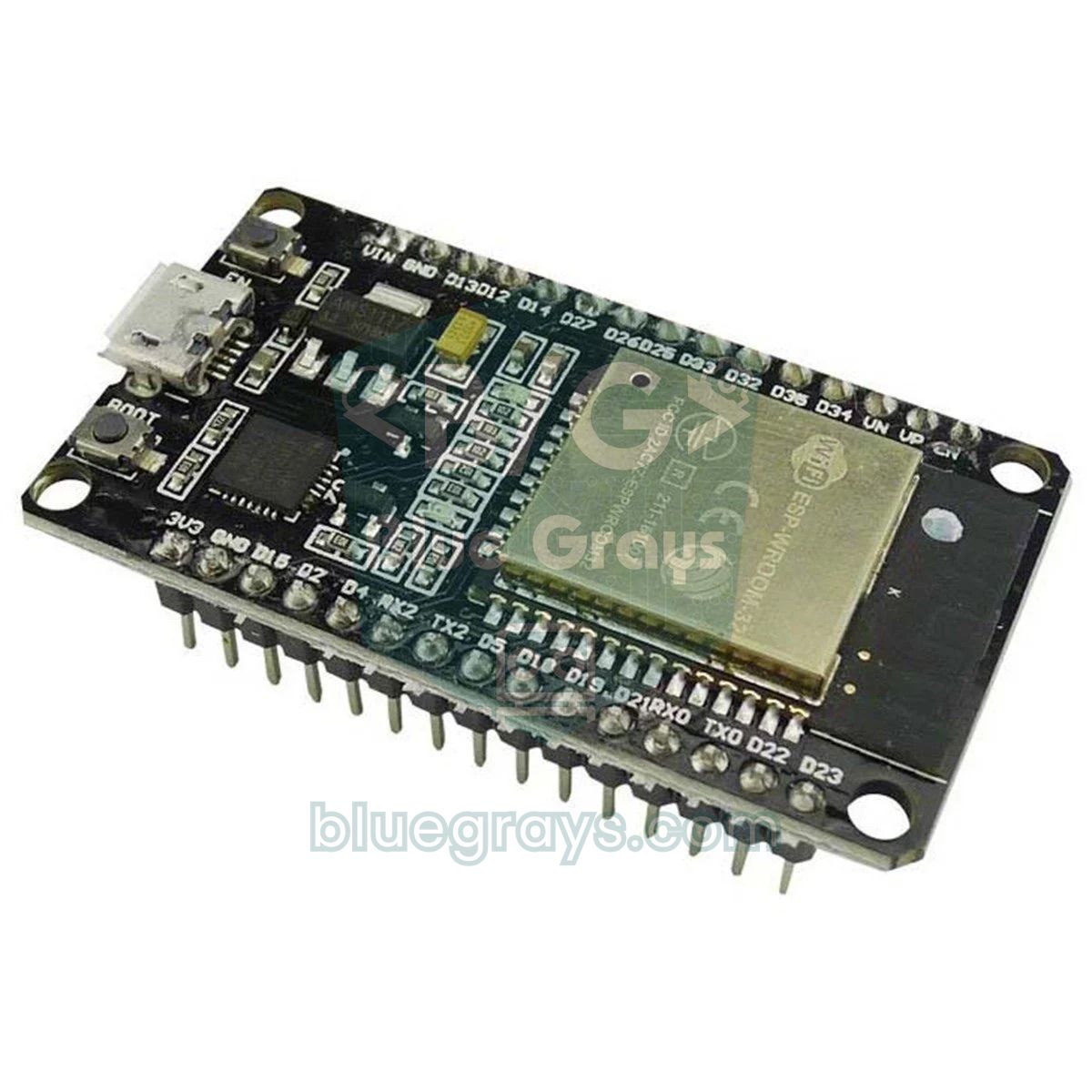
Because the ESP32 is also programmed with the Arduino IDE, most libraries, especially sensor and display libraries that talk over I2C, SPI or a single wire, work on the ESP32 without changes. The troublemakers are libraries that directly touch the timers and registers of the ATmega328P processor on the Arduino Uno. If the IDE doesn't see the ESP32 architecture in a library's library.properties file, it prints this warning at the start of the build: WARNING: library LiquidCrystal I2C claims to run on avr architecture(s) and may be incompatible with your current board which runs on esp32 architecture(s). It's only a warning: LiquidCrystal I2C uses nothing but the Wire library, so it works fine on the ESP32. The Servo library, on the other hand, deliberately stops the build with an #error message that starts with This library only supports boards with an AVR, SAM, SAMD, NRF52. Also, don't install the WiFi, WebServer, HTTPClient, Preferences and BluetoothSerial libraries that come with the ESP32 board package from the Library Manager; other libraries with the same names only cause confusion.
| What you use on the Uno | Use on the ESP32 | Why? |
|---|---|---|
| Servo | ESP32Servo (Library Manager) | The Servo library doesn't support the ESP32 and stops with #error |
| SoftwareSerial | Serial1, Serial2 (hardware UART) or EspSoftwareSerial | SoftwareSerial belongs to the AVR package; the ESP32 already has three hardware UARTs |
| EEPROM | Preferences (comes with the board package) | On the ESP32, EEPROM is emulated in flash; Preferences stores key-value data more safely and easily |
| TimerOne, MsTimer2 | Ticker (comes with the board package) | Libraries that access AVR timer registers don't compile on the ESP32 |
If you want to use the same sketch on the Uno, the ESP32 and the Pico, you can pick the right library for each board with the architecture macros that board packages define. The ESP32 package defines ARDUINO_ARCH_ESP32, the Pico's arduino-pico package ARDUINO_ARCH_RP2040, and AVR boards such as the Uno and Nano ARDUINO_ARCH_AVR. The servo sketch below compiles on all three boards; for the ESP32 you only need to install the ESP32Servo library:
1// Aynı kod Uno, ESP32 ve Pico'da / Same sketch on Uno, ESP32 and Pico
2#if defined(ARDUINO_ARCH_ESP32)
3  #include <ESP32Servo.h>            // Kütüphane Yöneticisi: ESP32Servo / Library Manager: ESP32Servo
4  const int SERVO_PIN = 18;          // güvenli bir GPIO / a safe GPIO
5#elif defined(ARDUINO_ARCH_RP2040)
6  #include <Servo.h>                 // arduino-pico paketiyle gelir / bundled with the arduino-pico core
7  const int SERVO_PIN = 15;          // GP15
8#else
9  #include <Servo.h>                 // IDE ile gelir (Uno, Nano, Mega) / bundled with the IDE
10  const int SERVO_PIN = 9;
11#endif
12
13Servo servo;
14
15void setup() {
16#if defined(ARDUINO_ARCH_ESP32)
17  servo.setPeriodHertz(50);          // yalnız ESP32: 50 Hz servo sinyali / ESP32 only: 50 Hz servo signal
18#endif
19  servo.attach(SERVO_PIN, 500, 2400); // darbe aralığı mikrosaniye / pulse range in microseconds
20}
21
22void loop() {
23  servo.write(0);    delay(1000);    // 0 derece / 0 degrees
24  servo.write(90);   delay(1000);    // orta konum / center
25  servo.write(180);  delay(1000);    // 180 derece / 180 degrees
26}
On the ESP32 it also matters that the library version matches the board package version. In the 3.x series of the ESP32 board package the PWM (LEDC) functions changed: ledcSetup() and ledcAttachPin() were removed and replaced by ledcAttach(). That's why library versions and examples that use the old functions fail on 3.x with 'ledcSetup' was not declared in this scope. Current versions of ESP32Servo are written for the 3.x board package. The fix is either to move to the library's current version or, if you need to build an old project unchanged, to downgrade the esp32 package in the Boards Manager to 2.0.17, the last 2.x release. You'll find the board's pins and a first Wi-Fi project in What Is the ESP32?, and servo wiring and power in What Is a Servo Motor?.
Libraries on the Raspberry Pi Pico: Arduino IDE and MicroPython
If you program the Pico with the Arduino IDE (Earle F. Philhower's Raspberry Pi Pico/RP2040/RP2350 board package), libraries are installed the same way as on the Uno and go into the same libraries folder. This package's architecture name is rp2040; the RP2350 chip on the Pico 2 uses the same name. Wire, SPI, Servo, EEPROM and a PIO-based SoftwareSerial come inside the board package, and on the Pico W the WiFi library is ready too. Most of Adafruit's sensor and display libraries work fine on the Pico; libraries that touch AVR registers don't work here either. On the Pico, EEPROM is emulated in flash, so you start it with EEPROM.begin() and save changes with EEPROM.commit().
In MicroPython, a library is a .py (or compiled .mpy) file in the Pico's file system, usually placed in the /lib folder. Modules such as machine, time, dht, onewire, ds18x20, neopixel and framebuf come with MicroPython; type help("modules") into Thonny's Shell to see the full list. You can add a driver that isn't on the list in four ways:
| Method | When? | How? |
|---|---|---|
| Thonny package manager | The easiest way, with the Pico connected over USB | Search in Tools > Manage packages; for ssd1306, for example, choose micropython-ssd1306 and install it. The file goes into the /lib folder on the Pico |
| mpremote | If you use the command line | On your computer, mpremote mip install ssd1306 downloads the library from micropython-lib and copies it to the Pico |
| mip (Pico W only) | With the Pico W on Wi-Fi, no computer needed | Run import mip and mip.install("ssd1306") on the Pico itself |
| Manual copy | If the library is a single .py file | In Thonny's Files panel, open the /lib folder on the Pico, right-click the file on your computer and upload it to the Pico |
1# Pico W: kütüphane yoksa karttan kur, sonra dene / Pico W: install the library from the board if missing, then test
2import time
3
4try:
5    import ssd1306                          # zaten kurulu mu? / already installed?
6except ImportError:
7    import network, mip
8    wlan = network.WLAN(network.STA_IF)
9    wlan.active(True)
10    wlan.connect("AG_ADI", "SIFRE")         # kendi Wi-Fi ağın / your own Wi-Fi network
11    for _ in range(40):                     # en fazla 20 sn bekle / wait up to 20 s
12        if wlan.isconnected():
13            break
14        time.sleep(0.5)
15    if not wlan.isconnected():              # ağa bağlanamadı / could not join the network
16        raise RuntimeError("Wi-Fi baglantisi yok / no Wi-Fi connection")
17    mip.install("ssd1306")                  # /lib klasörüne iner / lands in /lib
18    import ssd1306
19
20from machine import Pin, I2C
21
22i2c = I2C(0, sda=Pin(4), scl=Pin(5), freq=400000)   # GP4 = SDA, GP5 = SCL
23oled = ssd1306.SSD1306_I2C(128, 64, i2c)
24oled.fill(0)                                 # ekranı temizle / clear the screen
25oled.text("Kutuphane OK", 0, 0)
26oled.show()                                  # ekrana gönder / push to the screen
The first part of the code tries to import the ssd1306 module; if it's missing, it connects the Pico W to Wi-Fi, downloads the library from micropython-lib and then writes text on the display. On a Pico without Wi-Fi, you do the same job from your computer with Thonny or mpremote. OLED wiring and drawing commands are in How to Use an OLED Display (SSD1306), and MicroPython's basic commands and file system in MicroPython Basics. If you're setting up the Pico for the first time, start with What Is the Raspberry Pi Pico?.
Common mistakes when adding libraries
- Installing the library but forgetting the board package: installing a library for the ESP32 or the Pico doesn't teach the IDE the board; install the board package from the Boards Manager first, then the library.
- Skipping dependencies: Install without dependencies is the most common cause of missing-file errors such as Adafruit_Sensor.h or Adafruit_I2CDevice.h.
- Unzipping first and then using the .ZIP menu: that menu only accepts zip files; if you have a folder, copy it into the libraries folder by hand.
- Putting the library in the wrong place: a library copied into the sketch folder, onto the desktop or into the IDE's installation folder won't be found; the right place is the libraries folder of your sketchbook.
- Several copies of the same library: two folders such as IRremote and IRremote-master lead to the Multiple libraries warning and to the wrong version being used; delete one of them.
- Blindly updating everything: an update that jumps a major version can break a working project; glance at the library's release notes before updating.
- Accented characters or spaces in your own library: if you write your own library, use only basic Latin letters, numbers and underscores in folder and file names.
Once you've got the hang of installing Arduino libraries, every new sensor and display is a few minutes' work: find the library from the right author in the Library Manager, install it with its dependencies, try the library's own example first, then move on to your own code. In the BlueGrays app you'll find projects that use libraries, such as temperature and humidity with the DHT11, an I2C LCD, a servo motor, an RFID card reader, an IR remote, WS2812B LEDs and an OLED Pong game, with circuit diagrams and step-by-step explained code.
Frequently asked questions
Where are Arduino libraries installed?
Libraries you install with the Library Manager, a .ZIP file or by hand go into the libraries folder of your sketchbook; on Windows that's usually Documents\Arduino\libraries, on Linux ~/Arduino/libraries. You can see the exact location in the Sketchbook location field under File > Preferences. The built-in libraries that come with the IDE and the board packages' libraries live separately in the Arduino15 folder.
Why won't my downloaded ZIP library install in the Arduino IDE?
The most common reason is that the zip holds several folders instead of a single library folder, or that the library is buried in a subfolder; the IDE then reports "multiple files found in zip file top level" or "library not valid". Unzip it, find the folder that contains library.properties or a .h file and copy that folder into libraries by hand. If you already unzipped it, the .ZIP menu won't accept the folder.
How do I uninstall an Arduino library?
Find the library in the Library Manager, hover over its card and click Remove; the IDE deletes its folder from libraries. A library you installed by hand can be deleted from the libraries folder of your sketchbook while the IDE is closed. Don't touch the board package libraries in the Arduino15 folder.
How do I fix "No such file or directory" in Arduino?
Find out which library the .h file in the message belongs to and install that library from the Library Manager. If it's a header you didn't write yourself (e.g. Adafruit_Sensor.h), a dependency of a library you installed is missing. If the error persists even though the library is installed, check the upper and lower case in the #include line and the structure of any folder you copied by hand.
Can I install an Arduino library without internet?
Yes. Download the library's zip file on another computer that's online and carry it over on a USB stick. Add the zip with Add .ZIP Library, or copy the unzipped folder into the libraries folder of your sketchbook; don't forget to bring the library's dependencies the same way, one by one.
Do Arduino libraries work on the ESP32 and Raspberry Pi Pico?
Most sensor and display libraries that communicate over I2C, SPI or a single wire work unchanged on the ESP32 and on the Pico's Arduino package. Libraries such as Servo and TimerOne that access the AVR processor's timers directly are replaced on the ESP32 by ESP32Servo and Ticker, while the Pico's board package includes its own Servo library. The "claims to run on avr architecture(s)" warning alone doesn't mean the library won't work.
Projects to build after reading this
See all projects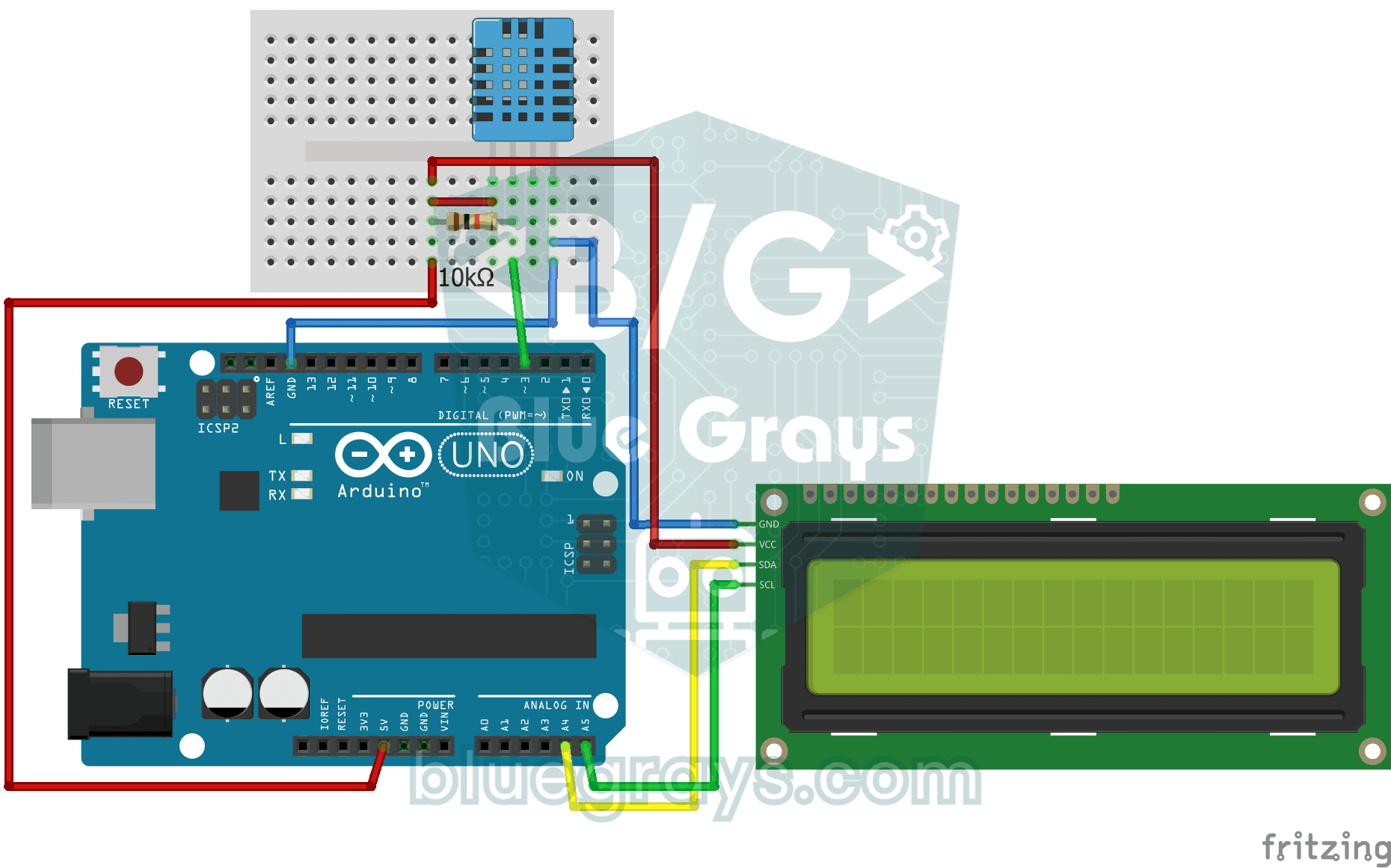
Temperature and Humidity with DHT11
How warm is your room, and is the air humid or dry? The DHT11 sensor measures temperature and humidity, and the Arduino writes the values on a two-line LCD screen, refreshing every couple of seconds.
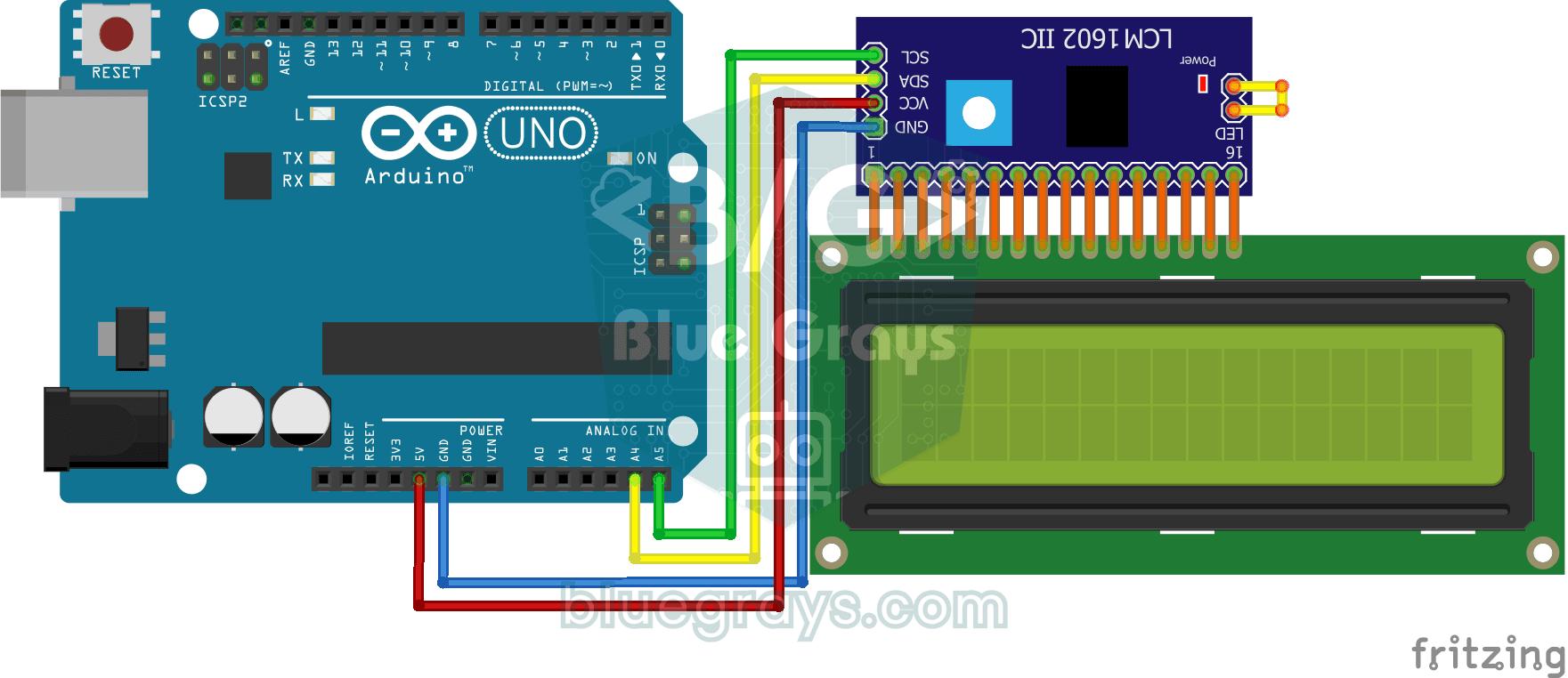
Using LCD Screen with I2C
Give your Arduino its own screen and make it write its first message. The two-line LCD screen hooks up with just a few wires; a greeting appears on the top line, then a second message on the bottom li
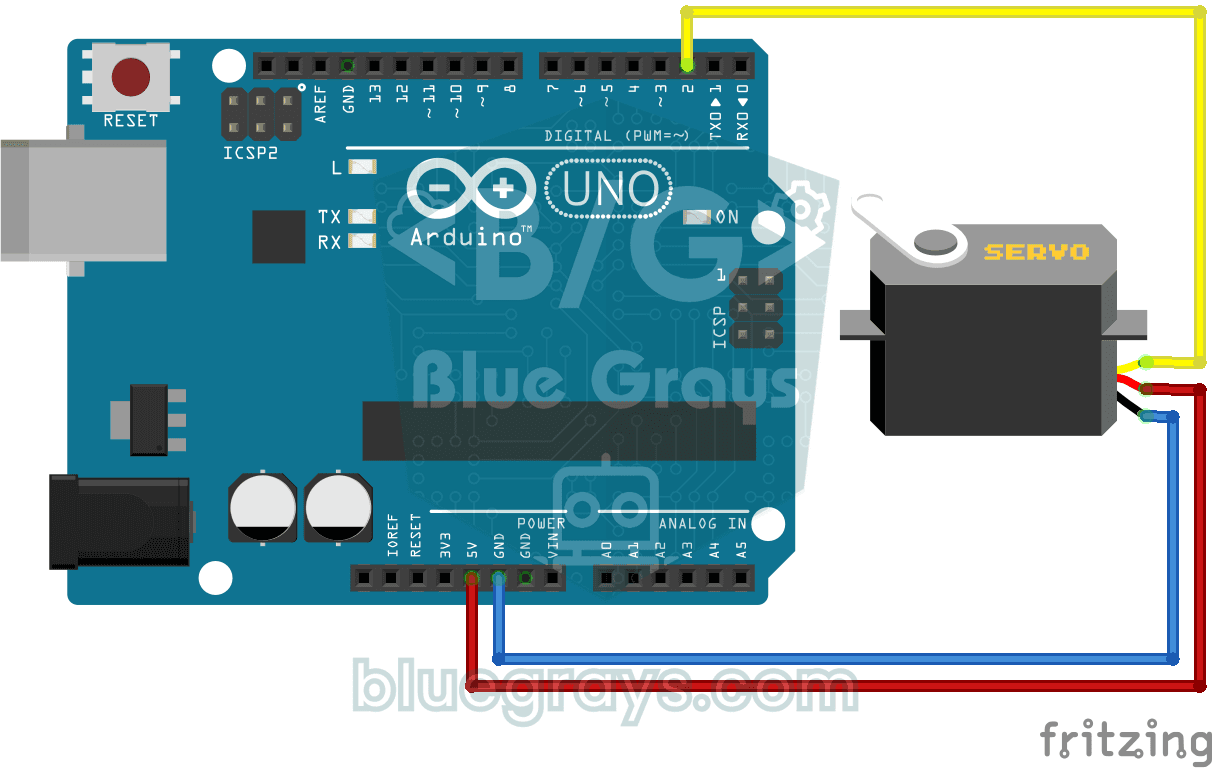
Using a Servo Motor
The arm of a small servo motor turns to three positions in turn: all the way to the start, right to the middle and all the way to the end, waiting two seconds at each stop. The Arduino tells the motor
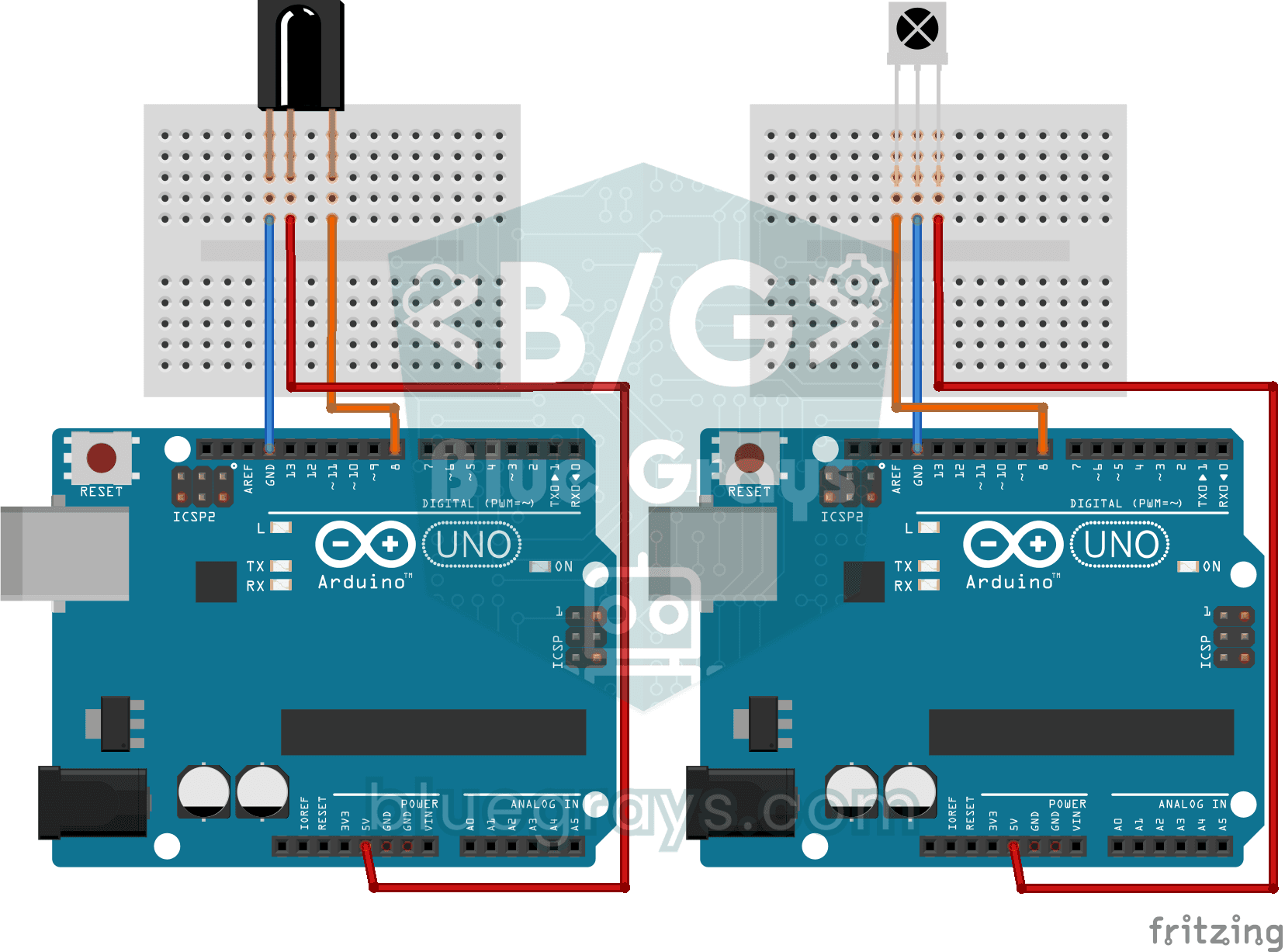
Reading IR Remote Control Codes
Every button on your TV remote sends a secret code using light you cannot see. The infrared receiver catches that light, and the Arduino writes the code of every button you press on your computer scre
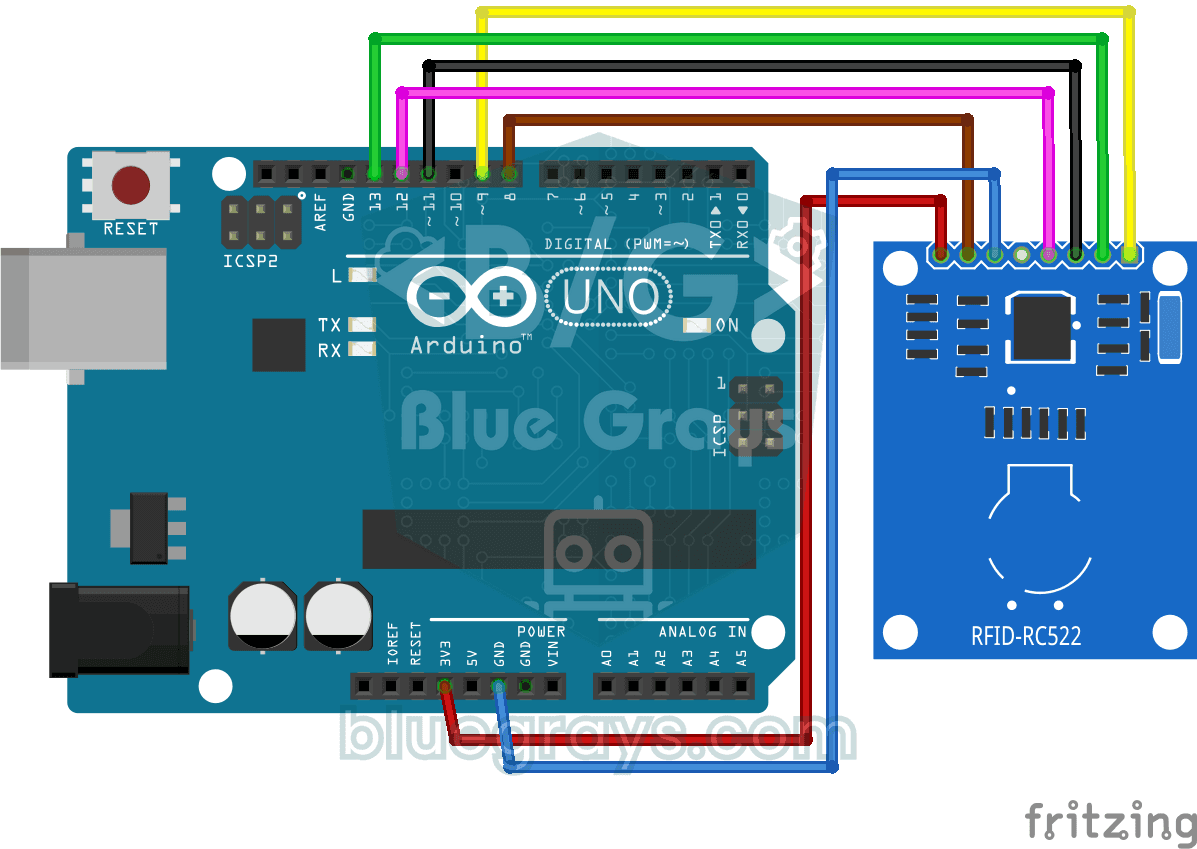
RFID Value Reading
Your building key fob or access card hides a secret ID number, and this project reads it. Hold the card near the RFID reader and the Arduino writes the card's number to your computer screen. The first
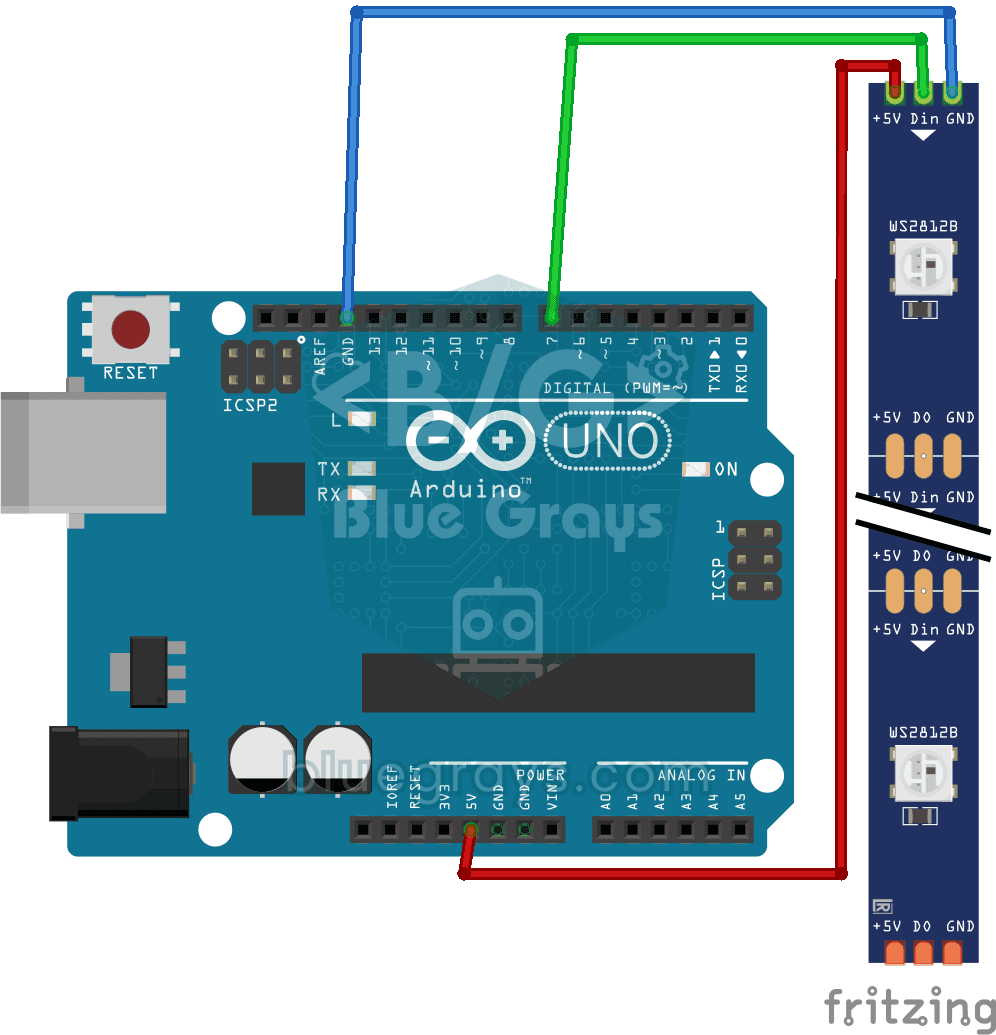
Using a WS2812B LED Strip
Meet a smart LED strip where you can colour every single light on its own. The Arduino first lights the first five LEDs red, a second later turns the other five blue, then switches them all off and st

Paddle Ball Game - SSD1306
A ball, two paddles and you: you play table tennis, one of the very first video games, on a small OLED screen. Two buttons move your paddle on the right up and down, while the computer controls the le
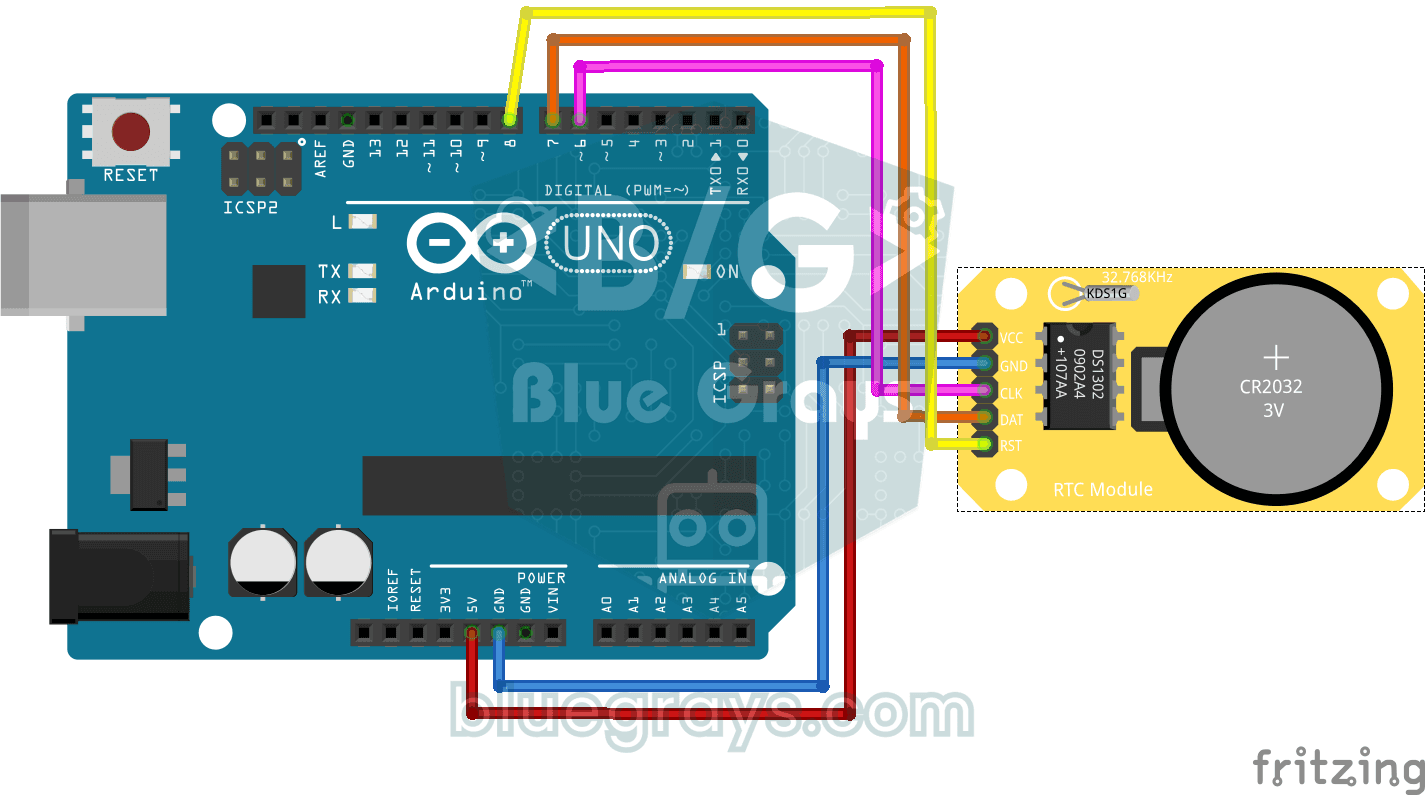
DS1302 RTC Clock Module Setup
You get a small clock module running that never forgets the time, even when the Arduino is switched off. The module has its own tiny battery, and once the clock is set, the date and time are printed o