
Arduino exit status 1 Error: How to Fix Compilation Errors
What does Arduino exit status 1 mean? Fix was not declared in this scope, expected ';', No such file, does not name a type and Sketch too big errors fast.
The Arduino exit status 1 error is a generic message telling you that your code could not be compiled, meaning the compiler could not turn your program into machine code the processor understands; the actual cause is never on this line. The cause is in the first line containing the word error: a few lines above it in the output panel: you mistyped a name, forgot a semicolon, a library isn't installed, or the code was written for a different board. The Compilation error: exit status 1 notification at the bottom right of Arduino IDE 2 and the Error compiling for board Arduino Uno. line in the old 1.8 version mean exactly the same thing.
In this guide you'll first see how compiling works behind the scenes and how to read an error message by splitting it into file, line and column. Then we'll go through the most common compilation errors one by one: was not declared in this scope, expected ';' before, No such file or directory, does not name a type, redefinition of and Sketch too big. For each one you'll find the situation that causes it, the real message the compiler prints, and a corrected example that compiles without errors. We've also added errors caused by choosing the wrong board, issues specific to the ESP32 and Raspberry Pi Pico, and an error-and-fix table at the end that puts everything together. If your code compiles fine but won't go onto the board, the problem is at a different stage; for that, see the Arduino Not Uploading guide.
What is Arduino exit status 1? Compiling vs uploading
When you press Verify (the tick) or Upload, the Arduino IDE runs several programs in the background. First it merges the .ino files in the sketch folder and turns them into an ordinary C++ file by adding the Arduino.h header and prototypes for your functions at the top. Then a compiler such as avr-g++ for the Uno or xtensa-esp32-elf-g++ for the ESP32 compiles that file and the libraries you use, the linker joins all the pieces into one program, and finally the IDE checks whether the program fits on the board. Every program returns an exit code when it finishes: 0 means success and 1 means failure. "exit status 1" says exactly that: one of the programs in the chain failed. That's why the same phrase also appears when avrdude fails during an upload; the message in front of it tells you which one it is.
| What you see in the output | Stage | What it means |
|---|---|---|
| error: ... and exit status 1 at the end | Compiling | There's a C++ error in your code or in a library; the real cause is on the error: line |
| fatal error: DHT.h: No such file or directory | Compiling (preprocessing) | The file requested with #include wasn't found; the library is missing or the name is wrong |
| undefined reference to ... and collect2: error: ld returned 1 exit status | Linking | A function is declared but its body doesn't exist anywhere |
| multiple definition of ... | Linking | The same variable or function is defined in two separate files |
| Sketch too big and text section exceeds available space in board | Size check | The program doesn't fit in the board's flash memory |
| Not enough memory and data section exceeds available space in board | Size check | Global variables don't fit in RAM |
| Failed uploading: uploading error: exit status 1 | Uploading | The code compiled but couldn't be written to the board; look at the avrdude or esptool lines |
How to read an Arduino error message
Every error line from the compiler follows the same pattern: first the file name, then the line and column numbers separated by colons, followed by the type of error and its description. Just above it there's often a line such as In function 'void loop()': that tells you which function the error is in; below it there's a copy of the faulty line and a small ^ marker pointing at the problem. error is a real error that stops compilation, warning is only a warning and the code still compiles, and note adds information to the previous message. The compiler often adds a suggestion too: in the example below it shows the correct spelling itself with suggested alternative: 'digitalWrite'.
| Part | Value in the example | Meaning |
|---|---|---|
| File | Blink.ino | The file containing the error; if you have several tabs, this tells you which one |
| Line | 6 | The line where the compiler noticed the error; sometimes the real mistake is on the line above |
| Column | 3 | Which character on the line it is; where the ^ marker points |
| Type | error | error stops compilation, warning warns, note adds information |
| Message | 'digitalwrite' was not declared in this scope | The part that describes the problem; this is the text to search for online |
| Suggestion | note: suggested alternative: 'digitalWrite' | The compiler's guess; it often shows the correct spelling |
- In File > Preferences, tick compile next to Show verbose output during. That way you'll also see which files and which library folders the compiler used.
- The board doesn't need to be plugged in: press the Verify button (the tick). Verify only compiles; if the error is in the compile stage, pressing Upload just wastes time.
- Scroll the output panel to the top and find the first line containing error:. Most of the errors after it are knock-on effects of that first one.
- Go to the line number in the message. IDE 2 underlines the character with the error in red, while version 1.8 colours the whole line red. If you can't see a problem on that line, look at the line above.
- Fix only that first error and press Verify again. If the number of errors suddenly drops, you're on the right track.
- If you search online, strip your own variable names and file paths from the message: searching for was not declared in this scope instead of 'counter' was not declared in this scope brings far more results. When you ask for help on a forum, on the other hand, copy the whole output.
The 'was not declared in this scope' error and how to fix it
This message means the compiler doesn't recognise a name you used at that point. The most common cause is a typo: Arduino is case-sensitive, so digitalwrite, Digitalwrite and digitalWrite are three different names. The second big cause is scope: if you declare a variable inside setup(), it only lives while setup() runs and loop() can't see it. If you'll use a variable in more than one function, declare it outside all functions at the top of the file. Declaring a variable after the line where you use it gives the same error, because the compiler reads the file from top to bottom. Finally, this error also appears when you use an object whose library you haven't included (Wire, Servo) or a feature the selected board doesn't have (Serial1 on the Uno).
1// Kapsam (scope) örneği / Scope example
2const int LED_PIN = 13;   // global: her fonksiyon görür / global: every function can see it
3int yanmaSayisi = 0;      // setup() içine taşırsan loop() göremez / move it into setup() and loop() can't see it
4
5void setup() {
6  pinMode(LED_PIN, OUTPUT);
7  Serial.begin(9600);
8}
9
10void loop() {
11  int sure = 500;                // yerel: yalnız loop() içinde / local: only inside loop()
12  digitalWrite(LED_PIN, HIGH);   // digitalwrite yazarsan: was not declared / typing digitalwrite: was not declared
13  delay(sure);
14  digitalWrite(LED_PIN, LOW);
15  delay(sure);
16  yanmaSayisi++;
17  Serial.println(yanmaSayisi);   // kaç kez yandı / how many times it blinked
18}| Cause | Wrong | Right |
|---|---|---|
| Upper and lower case | digitalwrite(13, HIGH); | digitalWrite(13, HIGH); |
| Misspelt constant | pinMode(13, OUPUT); | pinMode(13, OUTPUT); |
| Variable declared in another function | Declaring int led = 13; inside setup() and using led inside loop() | Move the int led = 13; line outside all functions, to the top |
| Variable declared after it's used | int counter = 0; coming after the counter++; line | Move the declaration above the place where it's used |
| Library not included | Wire.begin(); without an #include line | Add #include <Wire.h> at the top of the file |
| Feature the board doesn't have | Serial1.begin(9600); with the Uno selected | Select a board with several serial ports such as the Mega, or use SoftwareSerial |
| Order in an extra .cpp file | A function called before its definition in a .cpp tab | Write the prototype (void blink();) at the top of .cpp files; the IDE does this for you in .ino files |
'expected ';' before' and other syntax errors
In C++ every statement ends with a semicolon. When you forget the semicolon at the end of a line, the compiler only notices when it reads the next word. That's why, with the Uno's compiler, the line number in expected ';' before 'delay' points to the line below the mistake: the missing semicolon is at the end of the line before delay. The newer compilers in the ESP32 and Pico cores point straight to the end of the line where the semicolon is missing. If you forget it on the last line of a function, the message becomes expected ';' before '}' token. Bracket errors behave in a similar way. If you forget to close the curly brace of an if block or a function, the compiler reads on to the end of the file and only then says expected '}' at end of input. If the unclosed brace is inside setup(), you also get a function-definition is not allowed here before '{' token, because to the compiler loop() is now a function you're trying to define inside setup(). Using commas instead of semicolons inside the brackets of a for loop is another classic in this family.
| Message | Most likely cause | Where to look |
|---|---|---|
| expected ';' before 'delay' | No semicolon at the end of the previous line | On the Uno the line above the one in the message, on the ESP32 the end of the reported line |
| expected ';' before '}' token | No semicolon on the last line of the block | The line just before the closing brace |
| expected ';' before '<' token | Commas instead of semicolons in a for statement | Write it as for (int i = 0; i < 10; i++) |
| expected '}' at end of input | A curly brace was never closed | Check the indentation with Auto Format; every { needs a } |
| a function-definition is not allowed here before '{' token | The closing brace of the previous function is missing | The end of the function before the one in the message |
| expected ')' before ';' token | An opening round bracket was never closed | Count the brackets in if conditions and function calls |
| expected primary-expression before ')' token | A value is missing inside the brackets | An empty argument such as digitalWrite(13, ) |
| expected constructor, destructor, or type conversion before '(' token | A command was written outside any function | Move commands such as pinMode() into setup() |
| expected unqualified-id before '{' token | A semicolon after a function header | Write void loop() { instead of void loop(); { |
'No such file or directory': library not found
The lines fatal error: DHT.h: No such file or directory and the compilation terminated. that follows say that the file requested by an #include line in your code couldn't be found on your computer. The word "fatal" means compilation stopped completely at that point, so you won't see errors in the rest of your code until you fix this one. The cause is almost always a library that isn't installed. When you open a project from the internet, read the #include lines at the top one by one and install the library for each from Tools > Manage Libraries. If you don't choose Install All in the window that asks about dependencies, the main library gets installed but the second library it needs stays missing; in that case the file name in the message isn't one you wrote but a file called from inside the library (for example Adafruit_Sensor.h). Upper and lower case in the file name matter too: on Linux dht.h and DHT.h are different files. For the three ways to install a library and ZIP problems, see the How to Install an Arduino Library guide.
| File in the message | Search in the Library Manager | Note |
|---|---|---|
| DHT.h | DHT sensor library (Adafruit) | Choose Install All; Adafruit Unified Sensor comes with it |
| Adafruit_Sensor.h | Adafruit Unified Sensor | The missing dependency of another Adafruit library |
| LiquidCrystal_I2C.h | LiquidCrystal I2C (Frank de Brabander) | Don't install several libraries with the same name; see the warning below |
| Adafruit_SSD1306.h | Adafruit SSD1306 | Installed together with Adafruit GFX and Adafruit BusIO |
| MFRC522.h | MFRC522 (GithubCommunity) | For the RC522 RFID module |
| IRremote.h | IRremote | Newer versions use IrReceiver.begin(); old examples may give warnings or errors |
| SoftwareSerial.h (with ESP32 selected) | Don't install it; the ESP32 core doesn't include it | Use the ESP32's hardware serial port Serial2 or install the EspSoftwareSerial library |
The 'does not name a type' error
does not name a type means the compiler expected a data type (such as int, float, Servo or LiquidCrystal_I2C) at the start of a line but didn't recognise the word you wrote. There are three common causes. The first is forgetting the library's #include line: if Servo lid; is compiled without Servo.h, you get 'Servo' does not name a type. The second is misspelling the type: String is correct, not string, and int, not Int, and the compiler often helps with did you mean 'String'?. The third, and the most surprising, is writing a command outside a function. Outside functions you can only declare things: int angle = 0; is valid, but if you write angle = 90; on its own on a later line, the compiler takes angle for a type name and reports 'angle' does not name a type. There's one more Arduino-specific trap: the IDE automatically adds prototypes of your functions just before the first function. If you wrote a function that returns your own struct type and declared the struct below setup(), the prototype ends up before the struct and you get the same error. The fix is to move struct definitions to the top of the file, before the first function.
1#include <Servo.h>   // bu satır yoksa: 'Servo' does not name a type / without it: 'Servo' does not name a type
2
3struct Olcum {       // struct'ı ilk fonksiyondan önce tanımla / define structs before the first function
4  int ham;
5  float volt;
6};
7
8Servo kapak;         // tür adı büyük harfle başlar / the type name starts with a capital letter
9int aci = 0;         // dışarıda tanım ve ilk değer serbest / declaring with a value outside is fine
10// aci = 90;         // dışarıda tek başına atama: 'aci' does not name a type / bare assignment outside: error
11
12Olcum potOku() {
13  Olcum o;
14  o.ham = analogRead(A0);           // potansiyometre A0'da / potentiometer on A0
15  o.volt = o.ham * 5.0 / 1023.0;    // 0-1023 değerini volta çevir / convert 0-1023 to volts
16  return o;
17}
18
19void setup() {
20  Serial.begin(9600);
21  kapak.attach(9);   // servo sinyali D9 / servo signal on D9
22}
23
24void loop() {
25  Olcum o = potOku();
26  aci = map(o.ham, 0, 1023, 0, 180);   // atama fonksiyonun içinde / assignment inside a function
27  kapak.write(aci);
28  Serial.println(o.volt);
29  delay(20);
30}
The 'redefinition of' error: defining the same thing twice
The redefinition of 'void setup()' error says there are two definitions with the same name; the note: 'void setup()' previously defined here line right below it shows where the first one is. For beginners the most common cause is pasting two example sketches one after the other into a single file: you end up with two setup() and two loop() functions. The second cause is tabs. Before compiling, the Arduino IDE merges all .ino files in the sketch folder into one. An old backup you copied into the folder (for example project_old.ino) or a second tab with its own setup() and loop() causes this error even if you never open that tab; the fix is to move that file out of the folder. Declaring the same variable twice produces a similar message: redefinition of 'int led'. This error's sibling in the linker is multiple definition of; it appears when a variable given a value in a header (.h) file is included in two separate .cpp files. Its opposite, undefined reference to, points to a function whose prototype you wrote but whose body you never wrote, or whose name you spelt differently.
1// İki örneği birleştirmek: tek setup(), tek loop() / Merging two sketches: one setup(), one loop()
2const int LED_PIN = 13;          // 1. örnek: Blink / sketch 1: Blink
3const int POT_PIN = A0;          // 2. örnek: potansiyometre / sketch 2: potentiometer
4unsigned long oncekiZaman = 0;   // millis() zamanlayıcısı / millis() timer
5bool ledDurum = false;
6
7void setup() {
8  pinMode(LED_PIN, OUTPUT);      // 1. örneğin setup içeriği / setup body of sketch 1
9  Serial.begin(9600);            // 2. örneğin setup içeriği / setup body of sketch 2
10}
11
12void loop() {
13  // 1. örnek: delay yerine millis ile yanıp sönme / sketch 1: blink with millis instead of delay
14  if (millis() - oncekiZaman >= 500) {
15    oncekiZaman = millis();
16    ledDurum = !ledDurum;
17    digitalWrite(LED_PIN, ledDurum);
18  }
19  // 2. örnek: potansiyometreyi oku ve yaz / sketch 2: read and print the potentiometer
20  int deger = analogRead(POT_PIN);   // 0-1023 arası / between 0 and 1023
21  Serial.println(deger);
22  delay(50);
23}
Follow this order when merging: first gather the #include lines from both sketches at the top without duplicates, then add the global variables and constants; if the same name exists in both, rename one of them. Next, put the contents of both setup() functions into a single setup() and the contents of both loop() functions into a single loop(). If one of the sketches uses a long delay(), it holds the other one up; you can solve that with the millis() instead of delay() timing technique. Finally, check whether the two sketches use the same pin: the compiler won't notice, but your circuit won't work as expected.
'Sketch too big' and not enough memory errors
At the end of every successful compile you'll see two lines. When you compile the scope example above for the Uno, the line Sketch uses 2212 bytes (6%) of program storage space. Maximum is 32256 bytes. tells you how much flash memory the program takes, and Global variables use 190 bytes (9%) of dynamic memory tells you how much of the RAM the global variables use. If the program doesn't fit in flash, it goes over 100 percent, followed by the Sketch too big warning and the text section exceeds available space in board error. If the global variables don't fit in RAM, you'll see Not enough memory and data section exceeds available space in board instead. When RAM usage goes over 75 percent, the IDE may print the warning Low memory available, stability problems may occur.: the code compiles, but because there's no room left for local variables while it runs, the board can freeze at random or restart by itself. On the Uno the bootloader uses 0.5 KB of the 32 KB flash, which is why the limit is 32256 bytes.
| Board | Program memory limit | RAM (dynamic memory) | Note |
|---|---|---|---|
| Arduino Uno R3 | 32256 bytes | 2048 bytes | 0.5 KB is reserved for the bootloader |
| Arduino Nano (ATmega328P) | 30720 bytes | 2048 bytes | The IDE reserves 2 KB for both bootloader options |
| Arduino Leonardo | 28672 bytes | 2560 bytes | 4 KB bootloader; the USB code also takes space |
| Arduino Mega 2560 | 253952 bytes | 8192 bytes | An easy step up for projects that don't fit on the Uno |
| ESP32 (default partition scheme) | 1310720 bytes | 327680 bytes | Rises to 3145728 bytes with Huge APP |
| Raspberry Pi Pico (arduino-pico, 2MB no FS) | 2093056 bytes | 262144 bytes | Reserving space for a file system shrinks the program area |
1// RAM tasarrufu: F() ve PROGMEM / Saving RAM: F() and PROGMEM
2const char mesaj[] PROGMEM = "Bu uzun metin RAM yerine flasta durur"; // flaşta saklanır / stored in flash
3const byte notalar[] PROGMEM = {60, 62, 64, 65, 67, 69, 71, 72}; // byte: int'in yarısı / byte: half of an int
4
5void setup() {
6 Serial.begin(9600);
7 Serial.println(F("Merhaba! Bu metin de flastan okunur")); // F(): RAM harcamaz / F(): uses no RAM
8 char tampon[48]; // geçici RAM tamponu / temporary RAM buffer
9 strcpy_P(tampon, mesaj); // flaştan RAM'e kopyala / copy from flash to RAM
10 Serial.println(tampon);
11 for (byte i = 0; i < sizeof(notalar); i++) {
12 Serial.print(pgm_read_byte(¬alar[i])); // flaştan bir bayt oku / read one byte from flash
13 Serial.print(' ');
14 }
15 Serial.println();
16}
17
18void loop() {
19}- Wrap fixed text in F(): Serial.println(F("System ready")); reads the text straight from flash without copying it into RAM. The same goes for fixed text you print on LCD and OLED displays.
- Move large arrays to PROGMEM: If note tables, display bitmaps and long texts never change, they don't need to sit in RAM. For more detailed techniques, see the Arduino out of memory article.
- Choose the right data type: For a value between 0 and 255, byte (1 byte) is enough; on the Uno an int takes 2 bytes, while long and float take 4.
- Cut down on the String class: String objects that are constantly joined together fragment the RAM; fixed-length char arrays are more predictable.
- Know the hidden needs of display libraries: Adafruit SSD1306 allocates a 1 KB buffer at run time for a 128×64 OLED display. This memory doesn't show up in the compile report, so the display may fail to start even when the report says 70 percent.
- Move to a bigger board: A project you can't squeeze onto the Uno runs comfortably on the Mega or the ESP32. On the ESP32 you can raise the program area from 1.25 MB to 3 MB by choosing Huge APP (3MB No OTA/1MB SPIFFS) under Tools > Partition Scheme; with this option over-the-air updates (OTA) aren't available.
Errors caused by choosing the wrong board
The compiler always compiles your code for the processor of the board selected under Tools > Board (in IDE 2, in the board selector at the top). The same code can compile cleanly for the Mega and fail with the Uno selected, because every board has different hardware, pin names and libraries that come with its board package. When you open a project you found online, first check which board it was written for: code written for the ESP32 won't compile with the Uno selected, and code written for the Uno that accesses the processor's registers directly won't compile with the ESP32 selected. If you can't see your board in the list at all, its board package isn't installed; you need to install the ESP32 and Raspberry Pi Pico packages from the Boards Manager. For the steps, see the How to Install the Arduino IDE guide.
| Error message | What happened? | Fix |
|---|---|---|
| 'Serial1' was not declared in this scope | The code was written for the Mega or Leonardo but the Uno is selected; the Uno has only one hardware serial port | Select the right board or use SoftwareSerial on the Uno |
| SoftwareSerial.h: No such file or directory | The ESP32 is selected; this library isn't part of the ESP32 core | Use the ESP32's hardware serial ports (Serial2) |
| 'LED_BUILTIN' was not declared in this scope | Some board definitions such as ESP32 Dev Module don't define the onboard LED constant | Write the pin number directly (GPIO 2 on many DevKit boards) |
| 'D5' was not declared in this scope | Names like D0–D8 exist on ESP8266 boards such as the NodeMCU and Wemos and on some other boards, but not on the Uno or the ESP32 Dev Module | Use the GPIO number on the Uno and ESP32, or select the right board |
| 'TCCR1A' was not declared in this scope | Code that accesses AVR timer registers directly is being compiled for the ESP32 | Use the ESP32's LEDC and timer functions |
| WiFi.h: No such file or directory or 'WIFI_STA' was not declared in this scope | ESP32 code is being compiled for the Uno; the Uno has no Wi-Fi | Select ESP32 Dev Module under Tools > Board |
| 'ledcSetup' was not declared in this scope | The ESP32 core is version 3.x but the code was written for 2.x | Use ledcAttach() and ledcWrite() with the pin number |
Compilation errors on the ESP32
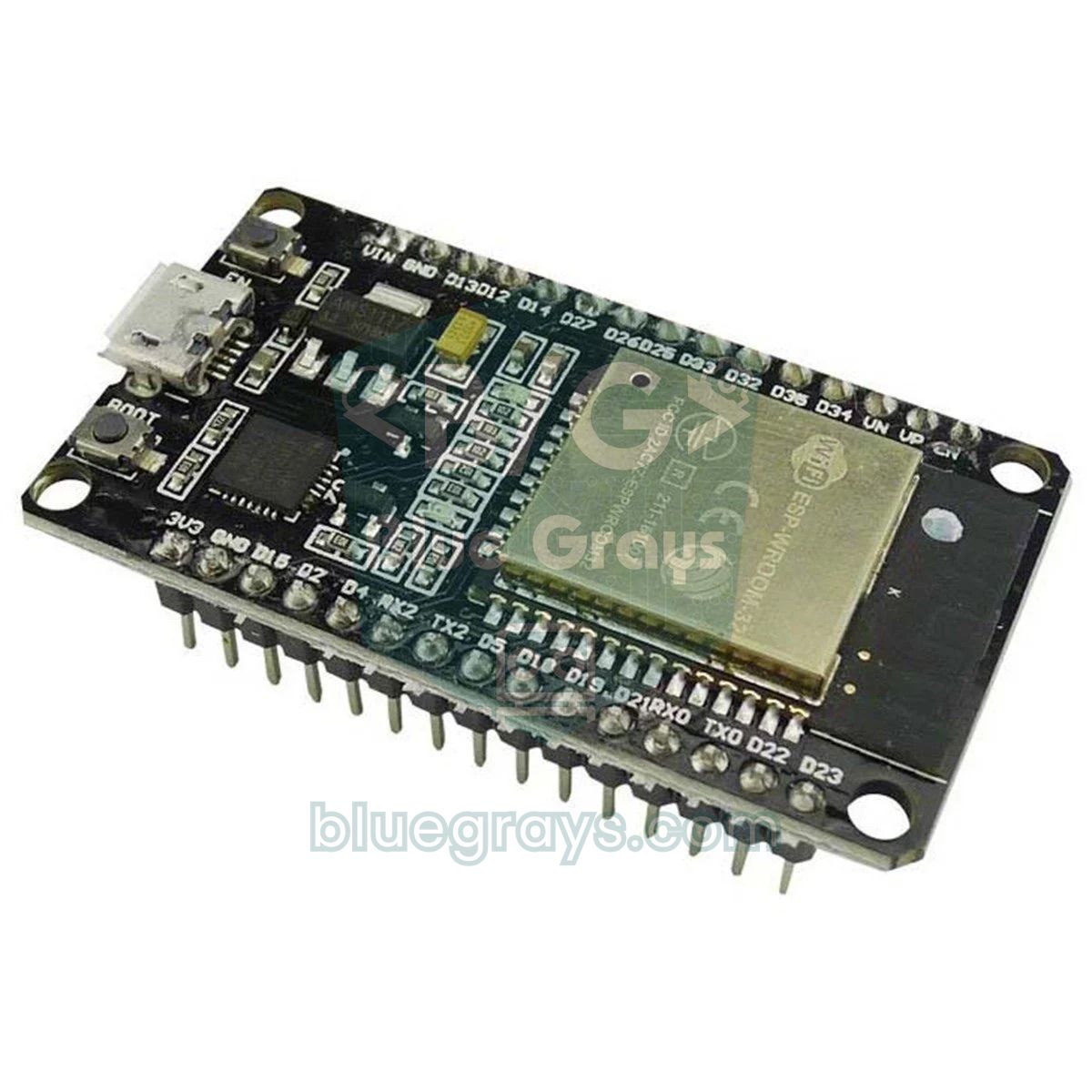
The ESP32 is also programmed in the Arduino language, but because its compiler and board package are different, code that compiles cleanly on the Uno can get stuck on the ESP32. The most common reason is the core version: in version 3.x of the ESP32 Arduino core the PWM functions changed; ledcSetup() and ledcAttachPin() were removed and replaced by ledcAttach() and ledcWrite(), which work with the pin number instead of a channel number. That's why older examples online give 'ledcSetup' was not declared in this scope; either convert the code to the new functions or install version 2.0.17 from the Boards Manager. The second difference is the compiler settings. The Uno's core compiles code with the -fpermissive option, which turns some errors into mere warnings; the ESP32 doesn't use it. For example, declaring a variable inside a switch without curly braces compiles on the Uno but gives a jump to case label error on the ESP32. Current ESP32 cores also compile with -Werror=return-type: if you forget the return in a function that must return a value, you get no return statement in function returning non-void whenever Compiler warnings is set to anything other than None. In version 2.x, setting Compiler warnings to More or All turns most warnings into errors. For the board's basic setup, take a look at the What is the ESP32 article.
1// ESP32 Arduino paketi 3.x / ESP32 Arduino core 3.x
2const int LED_PIN = 2;        // birçok DevKit kartında dahili LED / onboard LED on many DevKit boards
3const int FREKANS = 5000;     // PWM frekansı 5 kHz / PWM frequency 5 kHz
4const int COZUNURLUK = 8;     // 8 bit: 0-255 arası / 8 bits: range 0-255
5
6int parlaklik(int adim) {
7  return (adim % 32) * 8;     // return unutulursa 3.x'te derleme hatası olabilir / a missing return can fail to compile on 3.x
8}
9
10void setup() {
11  Serial.begin(115200);
12  // eski 2.x kodu / old 2.x code: ledcSetup(0, FREKANS, COZUNURLUK); ledcAttachPin(LED_PIN, 0);
13  ledcAttach(LED_PIN, FREKANS, COZUNURLUK);   // 3.x: kanal otomatik seçilir / channel is picked automatically
14}
15
16void loop() {
17  for (int adim = 0; adim < 32; adim++) {
18    ledcWrite(LED_PIN, parlaklik(adim));      // 3.x: pin numarasıyla yaz / write using the pin number
19    delay(30);
20  }
21  if (Serial.available()) {
22    switch (Serial.read()) {
23      case 'h': {                             // case içinde değişken varsa süslü parantez şart / braces needed if a case declares a variable
24        int deger = ledcRead(LED_PIN);
25        Serial.println(deger);
26        break;
27      }
28      default:
29        break;
30    }
31  }
32}
Raspberry Pi Pico: Arduino IDE and MicroPython errors
If you program the Pico with the Arduino IDE, that is with Earle Philhower's arduino-pico core, the compiler is still GCC and every message in this article applies as is. MicroPython is different: there's no separate compile step beforehand; the Pico turns the file into bytecode when it starts and runs it line by line. That's why errors show up in the Shell pane at the bottom of Thonny, in a message that starts with Traceback (most recent call last):. Read this message from the bottom up: the last line tells you the type of error and its description, and the line 7 part above it tells you which line it's on. Syntax errors (SyntaxError, IndentationError) are reported before the program even starts; other errors only appear when the program reaches that line, so your code may run fine for a while and then stop. For installing MicroPython and the first steps, see the What is the Raspberry Pi Pico article.
| MicroPython error | What it means | Fix |
|---|---|---|
| SyntaxError: invalid syntax | Broken syntax: a missing colon at the end of an if, while or def line, or an unclosed bracket | Add : at the end of the line and count the brackets |
| IndentationError: unexpected indent | Inconsistent indentation; spaces and tabs are mixed | Use 4 spaces in every block |
| NameError: name 'led' isn't defined | The name is misspelt or used before it's defined | Check the upper and lower case and where it's defined |
| ImportError: no module named 'ssd1306' | The driver file isn't on the Pico | Save ssd1306.py to the Pico with Thonny |
| AttributeError: 'Pin' object has no attribute 'toggel' | The object has no such function | Correct the function name: toggle() |
| TypeError: can't convert 'int' object to str implicitly | Text and a number joined with + | Use str(number) or pass the values to print separated by commas |
| OSError: [Errno 5] EIO | The I2C device isn't answering | Check the wiring, the address and the SDA and SCL pins |
1from machine import Pin
2import time
3
4led = Pin("LED", Pin.OUT)     # Pico ve Pico W dahili LED / onboard LED on Pico and Pico W
5sayac = 0
6
7while True:                   # iki nokta unutulursa SyntaxError / a missing colon gives SyntaxError
8    led.toggle()              # blok içinde 4 boşluk girinti / 4-space indent inside the block
9    sayac += 1
10    print("Sayac:", sayac)    # "Sayac: " + sayac yazmak TypeError verir / "Sayac: " + sayac raises TypeError
11    time.sleep(0.5)
Table of Arduino compilation errors and fixes
| Error message | Cause | Fix |
|---|---|---|
| exit status 1 / Compilation error: exit status 1 | A program in the compile or upload chain failed | Scroll up and read the first line containing error: |
| 'x' was not declared in this scope | Typo, upper and lower case, scope or a missing #include | Fix the name, make the variable global, include the library |
| expected ';' before ... | A semicolon is missing on the previous line | Check the line above the reported one (Uno) or the end of the reported line (ESP32) |
| expected '}' at end of input | A curly brace was never closed | Match the braces with Auto Format (Ctrl+T) |
| X.h: No such file or directory | The library isn't installed or the file name is wrong | Install it from the Library Manager together with its dependencies |
| 'X' does not name a type | Missing #include, wrong type name or a command outside a function | Include the library, check the spelling of String and int, move the command into a function |
| redefinition of 'void setup()' | Two setup() functions or an extra .ino file in the folder | Merge the sketches, move the old file out of the folder |
| stray '\342' in program | A copied curly quote or dash, or an accented letter in a variable name | Retype the quotes, use plain English letters in names |
| 'class X' has no member named 'y' | Wrong function name or a different library version | Look at the library's own examples, install the right version |
| too few arguments to function / too many arguments to function | Too few or too many values passed to a function | Compare with the definition on the note: declared here line |
| lvalue required as left operand of assignment | Assignment instead of comparison: if (digitalRead(2) = HIGH) | Use == for comparisons |
| jump to case label | A variable declared in a case without curly braces (an error on the ESP32) | Wrap the case block in { } |
| undefined reference to `blink()' | The function only has a prototype, no body | Write the function or correct its name |
| Sketch too big / text section exceeds available space in board | The program doesn't fit in flash | Shrink the code, pick a bigger board, Partition Scheme on the ESP32 |
| data section exceeds available space in board | Global variables don't fit in RAM | F() macro, smaller data types, move arrays to PROGMEM |
| #error This library only supports boards with ... | The library doesn't support the selected board's architecture | Install a library made for your board or change the board |
Next steps for writing error-free code
- Strengthen the basics: The Arduino programming basics article explains variables, scope, functions and loops; most of the errors in this article come from these topics.
- Learn the correct spelling of commands: The Arduino commands list shows the syntax and parameters of every command with examples.
- Install libraries properly: The How to install an Arduino library guide covers the No such file or directory and Multiple libraries were found messages in detail.
- See what your code does while it runs: For code that compiles but doesn't behave as you expect, printing variables with the Serial Monitor is the quickest way to diagnose it.
- Try it without a board: In the Wokwi or Tinkercad simulators you can compile your code and run it together with the circuit.
- Check code written by AI: Code produced by chatbots is often written for old library versions or for a different board; the Arduino code with AI article explains how to catch these problems.
Compilation errors may look scary at first, but the compiler actually tells you where the problem is and often how to fix it: file, line, column and a short description. Read the first error, fix only that one, compile again and repeat the loop; after a few projects you'll find yourself solving errors in seconds. Once your code compiles and uploads, you can carry on with the LED, button, sensor and display projects in the BlueGrays app: every project for Arduino, ESP32 and Raspberry Pi Pico comes with a circuit diagram and code that compiles cleanly, step by step.
Frequently asked questions
What does exit status 1 mean in Arduino?
exit status 1 is a generic message saying that one of the programs run during compiling or uploading ended with an error, and it doesn't tell you the cause itself. Scroll up in the output panel and find the first line containing error:; the file name, line number and description are there. Once you fix that error and compile again, exit status 1 disappears too.
How do I fix 'was not declared in this scope' in Arduino?
It means the compiler doesn't recognise a variable, function or constant you used at that point. The most common causes are a case mistake (digitalwrite), a variable declared inside another function and a library that hasn't been included. Checking the spelling and declaring shared variables outside all functions is usually enough.
What does "expected ';' before" mean in Arduino?
This error says a semicolon is missing. Because the Uno's compiler only notices when it reads the next word, the line in its message is usually one line too low, so add the semicolon at the end of the line just above. On the ESP32 and Pico the message points straight at the line that is missing the semicolon. Using commas instead of semicolons inside a for loop's brackets gives the same message.
Why do I get 'does not name a type' in Arduino?
The compiler expects a data type at the start of the line but doesn't recognise the word you wrote. Forgetting the library's #include line (Servo, for example), writing string instead of String and putting a bare assignment such as angle = 90; outside a function are the three most common causes. If you use your own struct type in Arduino, define it before the first function.
How do I fix 'Sketch too big' in Arduino?
This message means the program doesn't fit in the board's flash memory; on the Uno the limit is 32256 bytes. Remove libraries and debug lines you don't use, move large constant arrays to PROGMEM, or move to a board with more memory such as the Mega or the ESP32. On the ESP32, choosing Huge APP from the Partition Scheme menu raises the program area to about 3 MB.
Why does my code compile but not upload to Arduino?
If compiling succeeds, you'll see the Sketch uses line showing how many bytes the program takes; errors after that belong to the upload stage and have to do with the cable, driver, port or board selection rather than the code. Lines starting with avrdude point to an upload problem on the Uno and Nano, and esptool lines on the ESP32. In that case, follow the steps in the Arduino not uploading guide in order.
Projects to build after reading this
See all projects
LED Blink
The very first hello of electronics: switching a single LED on and off. The Arduino turns the LED on and off at short intervals, so the light blinks quickly. You see in the simplest way how the board

LED Control with a Push Button (Push)
Just like a doorbell: the light stays on as long as you press, and goes off when you let go. The Arduino keeps listening to the button; while it's pressed the LED is on, and the moment you lift your f
HC-SR04 Distance Measurement (Serial Display)
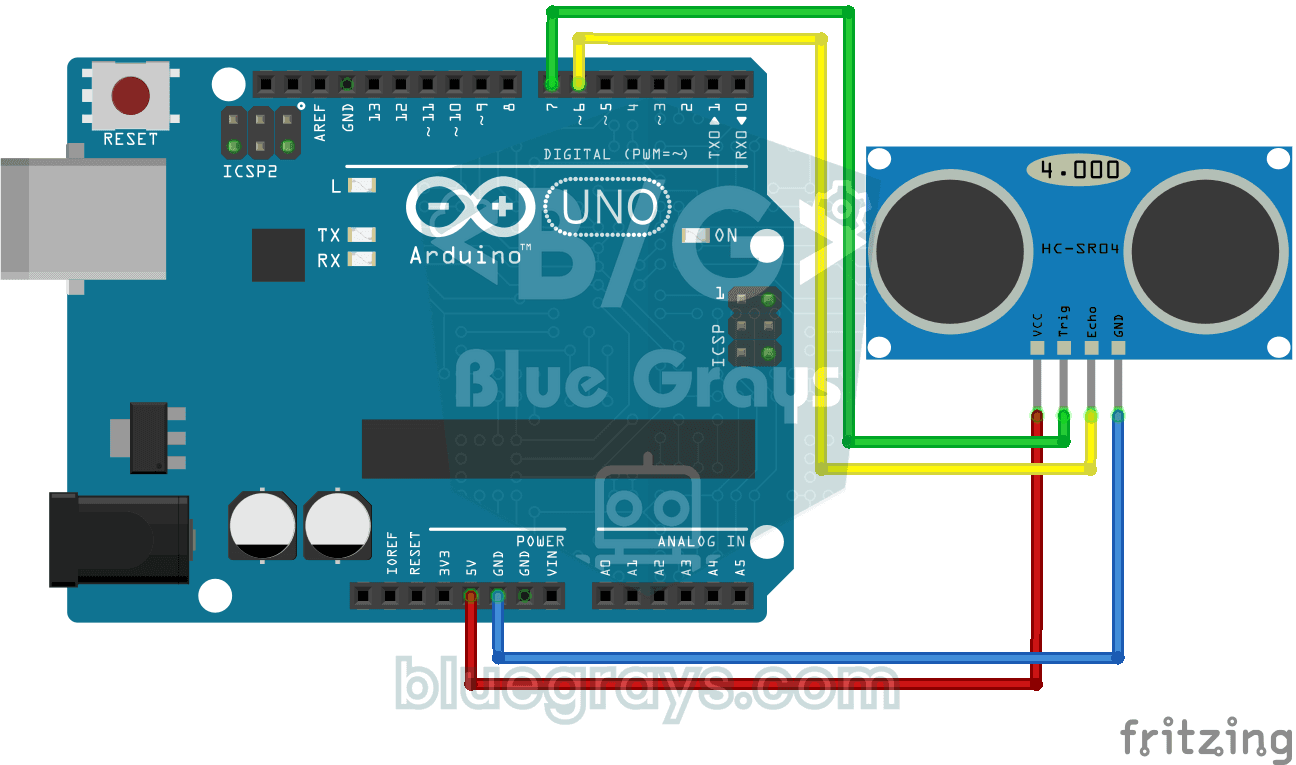
The HC-SR04 sensor works just like a bat finding its way in the dark: it sends out a sound you cannot hear, listens for the echo and measures how far away the object in front of it is. The Arduino wri
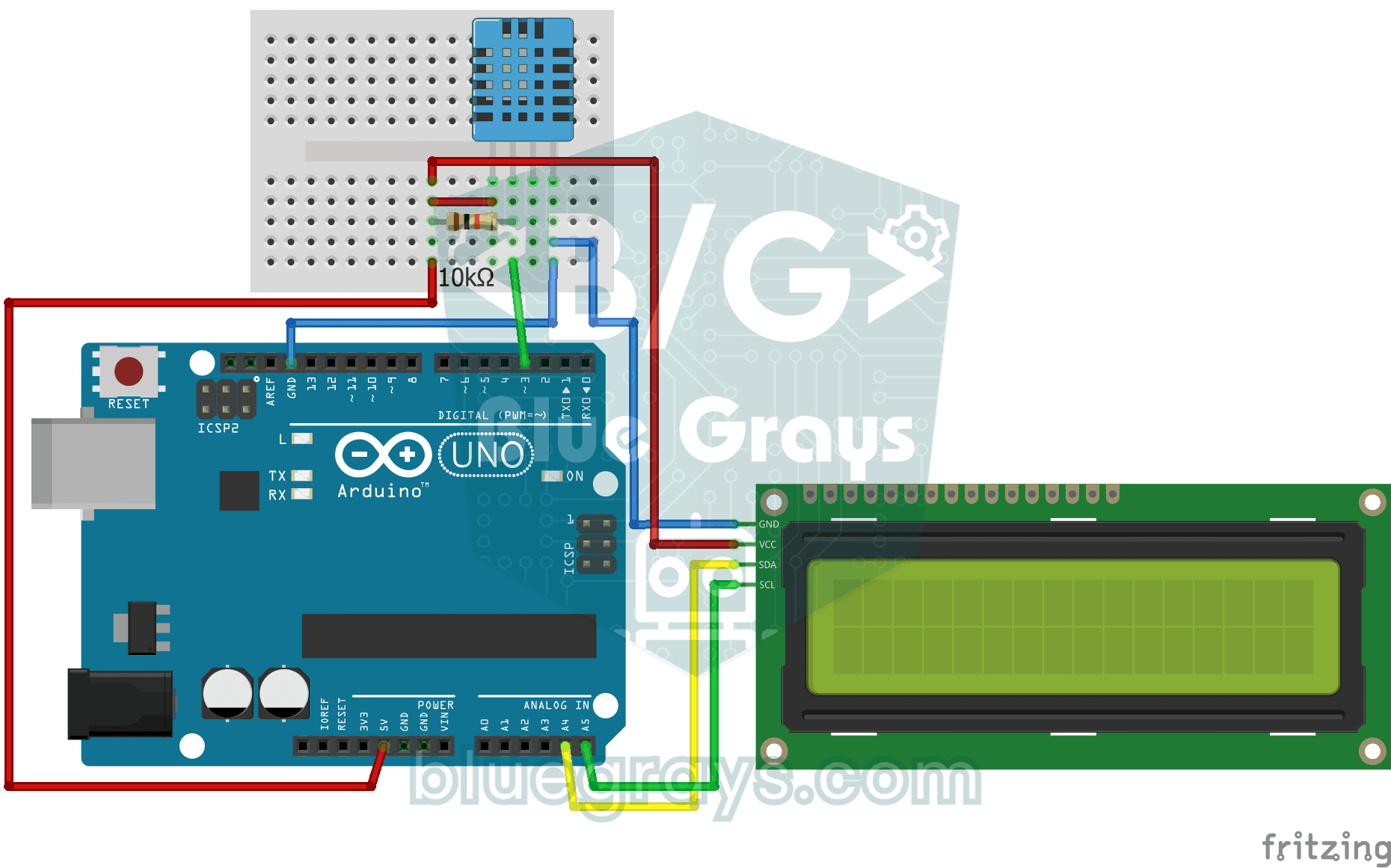
Temperature and Humidity with DHT11
How warm is your room, and is the air humid or dry? The DHT11 sensor measures temperature and humidity, and the Arduino writes the values on a two-line LCD screen, refreshing every couple of seconds.

LED Blink with ESP32
Teaches basic GPIO output usage with ESP32. We achieve a blinking effect by turning an LED on and off from a digital pin. ESP32 version of the classic blink project on Arduino UNO; the basic blink commands in the Arduino environment are the same, but the ESP32's pin layout and 3.3 V GPIO levels differ from those of the Arduino UNO.
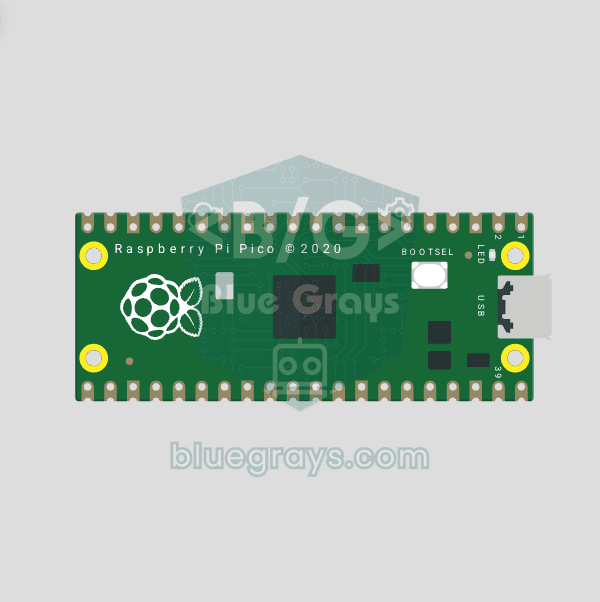
Raspberry Pi Pico Onboard LED Blink (GP25 Built-in LED)
The opening project of the Raspberry Pi Pico series! We blink the onboard LED (green LED connected to GP25) to verify the board works — a classic "Hello World" first experiment. NO external components, just Pico and USB cable. Code is written in **MicroPython** (the official language backed by Raspberry Pi Foundation). Learn `machine.Pin` class, `Pin.OUT` mode, `led.on()/off()` methods, and `time.sleep()` in Thonny IDE. Follow every toggle live in the Serial (REPL) output. Also perfect to verify
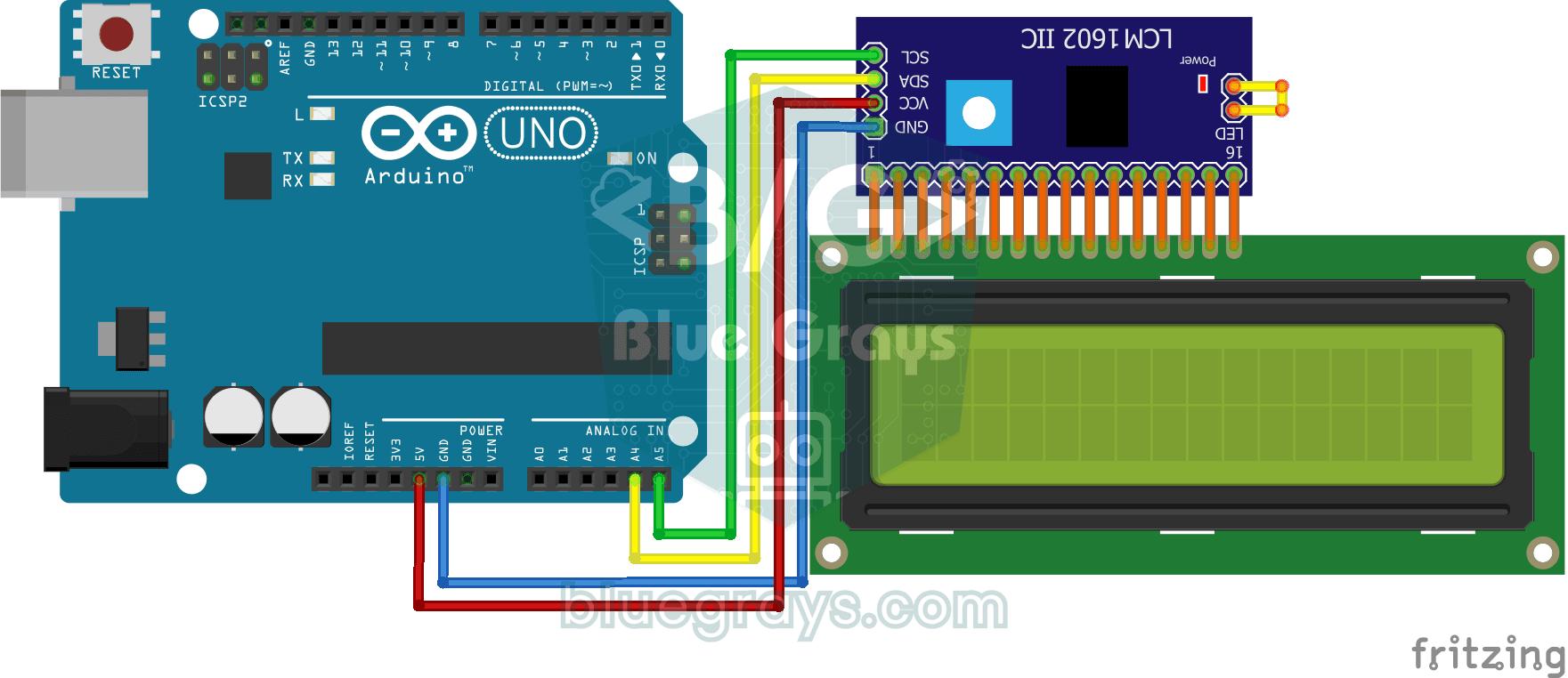
Using LCD Screen with I2C
Give your Arduino its own screen and make it write its first message. The two-line LCD screen hooks up with just a few wires; a greeting appears on the top line, then a second message on the bottom li
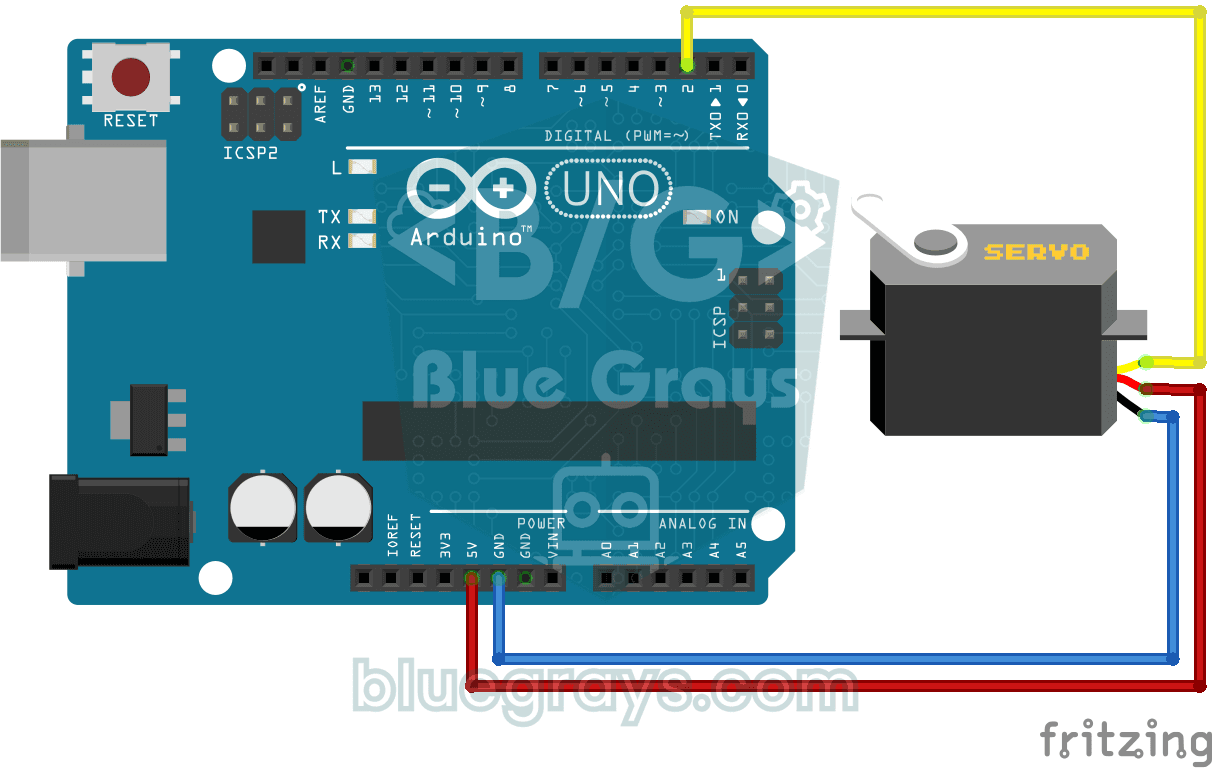
Using a Servo Motor
The arm of a small servo motor turns to three positions in turn: all the way to the start, right to the middle and all the way to the end, waiting two seconds at each stop. The Arduino tells the motor