
How to Use a Multimeter: Voltage, Current, Resistance, Continuity
How to use a multimeter: choosing the range, DC/AC voltage, current in series, resistance, continuity, diode and transistor tests and Arduino troubleshooting.
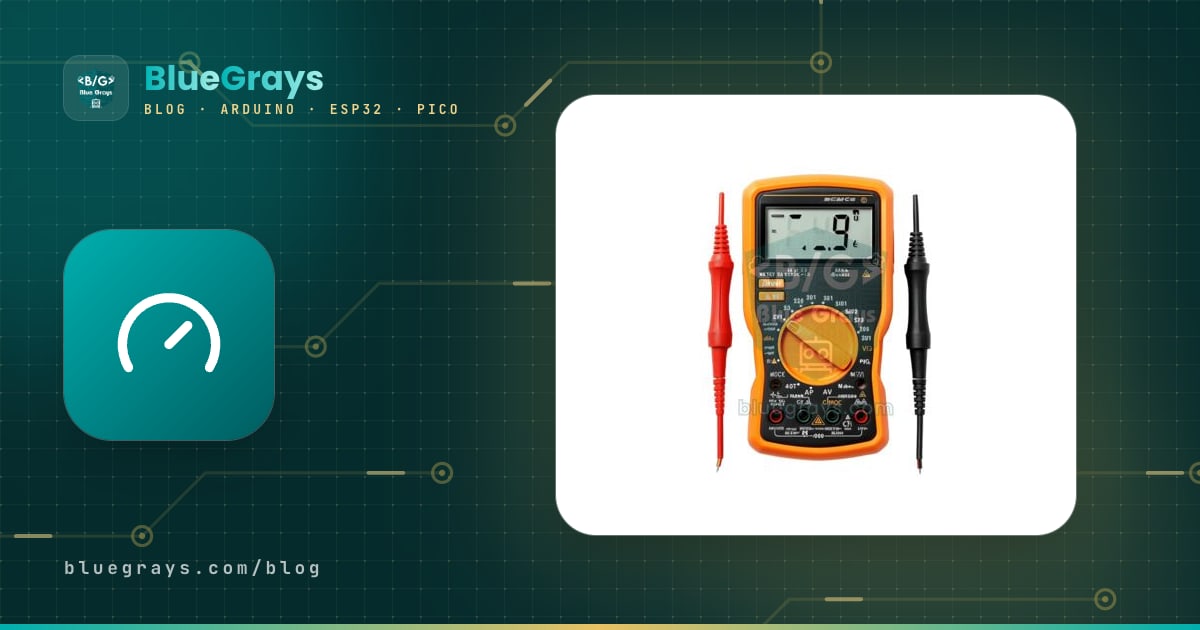
The short answer to how to use a multimeter is this: the black probe always goes into the COM socket, the red probe goes into the right socket for what you want to measure, you turn the rotary switch to the right range, and you connect the probes in parallel with a part to measure voltage and in series with the circuit to measure current. A multimeter measures voltage (volts), current (amps) and resistance (ohms) in a single device, and it's the first tool anyone getting into electronics should buy. When a circuit you've built with an Arduino, ESP32 or Raspberry Pi Pico doesn't behave the way you expect, measuring is the only way to tell whether the problem is in the code or in the wiring.
In this guide you'll get to know the ranges and sockets of a multimeter and learn step by step how to measure DC and AC voltage, how to put the meter in series to measure current and what the 10A jack is for, how to do resistance and continuity (beep) tests, and how to test diodes and transistors. After that you'll see how to track down the most common faults in Arduino projects, such as a broken jumper wire, a loose breadboard contact or a weak battery, along with short sketches that test your pins and the safety rules that protect both you and your meter.
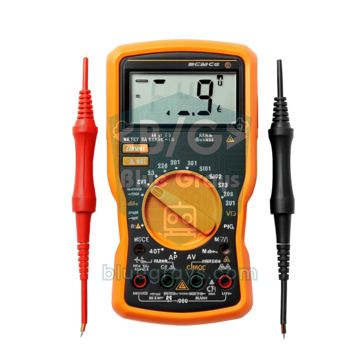
What is a multimeter and what can it measure?
As the name suggests, a multimeter combines several measuring instruments in one: a voltmeter, an ammeter and an ohmmeter. Almost every multimeter in use today is digital; analog needle meters are still loved for watching slowly changing values, but a digital multimeter is easier to read for a beginner. The resolution of a digital meter is described in counts: a 2000-count (3½-digit) meter can display at most 1999, while a 6000-count model goes up to 5999. In practice, a 2000-count meter shows 5 V as 5.00 V on the 20 V range, while a 6000-count meter shows it as 5.000 V on the 6 V range. The quantities you can measure are marked with symbols on the front panel:
| Symbol | What it measures | Typical use with Arduino |
|---|---|---|
| V⎓ (V with a straight line) | DC voltage | 5V and 3.3V pins, batteries, adapters, sensor outputs |
| V~ (V with a wave) | AC voltage | Transformer output; mains only if you're trained |
| A⎓, mA, µA | DC current | Current drawn by an LED, a motor or the board |
| Ω | Resistance | Resistors, potentiometers, LDRs, NTCs |
| Diode symbol (triangle and bar) | Diode forward voltage | Diodes, LEDs, transistor junctions |
| Sound wave symbol | Continuity (beep) | Broken wires, short circuits, breadboard rails |
| hFE | Transistor gain | Small transistors such as the BC547 or 2N2222 |
| F (capacitor symbol) | Capacitance | Electrolytic and ceramic capacitors |
Sockets, buttons and choosing the range
| Socket / button | What it does | Watch out |
|---|---|---|
| COM | Socket for the black probe; the common (negative) lead in every measurement | The black probe never leaves this socket |
| VΩ (VΩmA on some models) | Normal place for the red probe: voltage, resistance, diode, continuity | Most measurements are made with this socket |
| mA / µA | Separate socket for small currents (shared with VΩ on some models) | Usually contains a 200–500 mA fuse |
| 10A (or 20A) | Large currents: motors, pumps, LED strips | May be unfused on cheap models; use it only briefly |
| HOLD | Freezes the reading on the display | To read the value after removing the probes |
| REL (Δ) | Treats the current reading as zero | To subtract the resistance of the probe leads |
| RANGE / SELECT | Selects the range manually / switches to the second function at the same position | Found on auto-ranging models |
On a manual-ranging multimeter you'll see values such as 200m, 2, 20, 200 and 600 around the rotary switch; each one is the largest value that range can measure. The rule is simple: pick the smallest range that is larger than the value you expect. For an Arduino's 5 V rail choose 20 V, for an AA battery 2 V (2000m), for a 10 mA LED current 20 mA and for a 10 kΩ resistor 20k. If you have no idea what to expect, start from the highest range and step down. If you see a lone 1 on the left of the display (OL on auto-ranging models), the value is over the range; move up one range. Auto-ranging multimeters find the right range themselves and you only choose V, A or Ω; the price is that the display takes about half a second to settle when the value changes.
Measuring DC voltage with a multimeter
- Plug the black probe into COM and the red probe into the VΩ socket.
- Turn the rotary switch to the V⎓ (DC volts) section; on a manual model pick the first range above the value you expect.
- Power the circuit: voltage can only be measured in a working circuit.
- Touch the black probe to the circuit's GND or clip it there with an alligator lead.
- Touch the red probe to the point you want to measure. The probe sits in parallel with the part, so you don't need to open the circuit.
- Read the value. A minus sign in front means you've swapped the probes; with DC voltage this is harmless and simply shows the polarity.
| Measuring point (black probe on GND) | Expected value | If it's low |
|---|---|---|
| Arduino Uno 5V pin (on USB) | 4.8–5.1 V | Weak USB cable or port, or the circuit draws too much current |
| Arduino Uno 3.3V pin | 3.3 V | Too much load on the 3.3 V rail |
| Arduino Uno VIN pin (with a 9 V adapter) | About 8–8.5 V | Weak adapter or battery; below 7 V the 5 V can't be held |
| Uno pin set HIGH | 4.8–5.0 V, almost the same as the 5V pin (no load) | The pin is overloaded or damaged |
| ESP32 3V3 pin and HIGH pin | 3.3 V | The power supply isn't enough or the regulator is overheating |
| Raspberry Pi Pico VSYS (on USB) | About 4.7–4.8 V | Weak USB cable or port (VBUS should be 5 V) |
| Raspberry Pi Pico 3V3(OUT) and HIGH pin | 3.3 V | Too much current drawn from the 3V3 rail |
| Any pin set LOW | 0 V | Short circuit, or the pin number in the code is wrong |
Keep a few details in mind when reading this table. On the Pico it's normal for VSYS to read around 4.7 V rather than 5 V, because VBUS from USB passes through a Schottky diode. On the Uno, VIN is about 0.7–1 V lower than the adapter voltage; the protection diode in between drops that much. When you measure a PWM signal the multimeter shows the average: on an Uno pin driven with analogWrite(127) you'll see about 2.5 V, because the pin is at 5 V half of the time and at 0 V the other half. Finally, the multimeter's input resistance isn't infinite: most digital models have 10 MΩ, while the cheapest DT830-type meters have about 1 MΩ. At the midpoint of a circuit that divides 5 V with two 1 MΩ resistors you'd expect 2.5 V, but a 10 MΩ meter shows about 2.38 V and a 1 MΩ meter shows 1.67 V. With high-value voltage dividers, the measurement changes the circuit you're measuring.
Measuring AC voltage and a warning about mains
AC (alternating) voltage changes direction dozens of times a second; wall sockets in Europe and Turkey carry 230 V at 50 Hz (120 V at 60 Hz in North America). When you set the multimeter to V~, the display shows the RMS (effective) value of the wave; the peak of 230 V mains is actually about 325 V. In Arduino projects you'll mostly need AC measurements to check a transformer's output: a 12 V transformer usually reads 13–14 V with no load and drops towards its rated value under load. Cheap multimeters only measure a clean sine wave correctly; if you measure a dimmer or motor driver output with a meter that isn't True RMS, you'll get misleading results. To measure DC pulses such as PWM, use the DC range, not AC.
Measuring current with a multimeter: series connection and the 10A jack
Measuring current is where most multimeter mistakes happen, because the logic is the exact opposite of measuring voltage. An ammeter is an instrument the current has to flow through: you open the circuit at one point and place the multimeter in series in that gap. On a current range the inside of the meter is almost a short circuit; it contains a very small resistor (shunt) that it uses to measure the current. This resistor adds a small voltage drop to the circuit too: about 200 mV at full scale on a typical 2000-count meter. For example, in a circuit made of 5 V, 220 Ω and a red LED, the calculated current is (5 − 2) / 220 ≈ 13.6 mA; add the roughly 10 Ω shunt of the 20 mA range and you'll see about 13 mA on the display. Knowing about this small difference keeps you from getting confused when you compare your measurement with an Ohm's law calculation.
- Switch off the circuit's power.
- Move the red probe to the mA socket (to the 10A socket if the current may exceed 200 mA); the black probe stays in COM.
- Turn the rotary switch to a suitable range in the A⎓ section; if you're unsure, start with 10A.
- Open the circuit at one point: for example, remove the jumper between the Arduino pin and the LED's resistor.
- Touch the red probe to the side the current comes from (the pin) and the black probe to the side it goes to (the resistor); now the current flows through the meter.
- Switch the power on and read the value. When you're done, put the red probe straight back into the VΩ socket.
A few reference values help you interpret your readings: an Arduino Uno powered by USB draws about 40–50 mA on its own, and a Raspberry Pi Pico 20–25 mA. An ESP32 averages 80–150 mA with Wi-Fi on but makes short peaks above 200 mA while transmitting; the multimeter can't catch these millisecond peaks and only shows the average. When you switch to the µA range to measure sleep current, the shunt resistance rises to hundreds of ohms; the moment the board wakes up, the voltage drops across that resistance and the board may reset. To avoid this, bridge the meter's two leads with a jumper while the board starts up and remove the bridge once it's asleep. If the current range always reads 0 even in a working circuit, the fuse may have blown: take it out and check it on the continuity range, and replace it if there's no beep.
Measuring resistance with a multimeter
To measure resistance, the multimeter sends a small current through the probes and calculates the resistance from the resulting voltage. That's why the first rule is: the circuit must be unpowered. Resistance measured in a powered circuit is wrong and can also damage the meter's ohms circuit. The second rule is to take the part out of the circuit if you can; when you measure a resistor that's still connected, the other paths in parallel with it are included in the measurement and you'll see a smaller value. Don't hold the metal tips of both probes with your fingers: your body's resistance, between hundreds of kΩ and a few MΩ, makes values above 100 kΩ in particular read lower than they are. Before measuring very small resistances, touch the probes together; the 0.2–0.5 Ω on the display is the resistance of the leads, so subtract it or zero it with REL. To compare your reading with the colour bands on the body, you can use the resistor colour code tool.
| What you measure | Expected value | Note |
|---|---|---|
| 220 Ω resistor (gold band, 5%) | 209–231 Ω | Any value in this range is normal |
| 10 kΩ potentiometer, two outer pins | About 10 kΩ | Between the middle and an outer pin it varies 0–10 kΩ as you turn the shaft |
| LDR | A few kΩ in light, hundreds of kΩ or more in the dark | The value should rise when you cover it with your hand |
| 10 kΩ NTC thermistor | About 10 kΩ at 25 °C | Drops as you warm it with your fingers |
| 5 V relay coil | About 70 Ω | OL means the coil is broken |
| 8 Ω speaker | About 6–7 Ω | Its DC resistance is a bit lower than the rated impedance |
| Good jumper wire | Below 1 Ω | OL or a jumping value: the wire is broken inside |
Continuity (beep) test
A continuity test tells you with a sound whether there's an electrical path between two points: if the resistance is below a certain threshold, the multimeter beeps. The threshold varies by model and is a few tens of ohms on most handheld meters. This lets you check dozens of connections quickly without looking at the display, keeping your eyes on the circuit. The range is marked with a sound wave symbol; on many meters it shares a position with the diode range and you switch to it with the SELECT button. Its most common uses in Arduino projects: finding a jumper wire that's broken inside, checking whether the breadboard's power rail is split in the middle, verifying a solder joint, finding which legs of a 4-pin push button are connected internally, and making sure there's no short circuit between 5V and GND. Like resistance measurements, continuity tests are only done on an unpowered circuit.
Diode and transistor testing
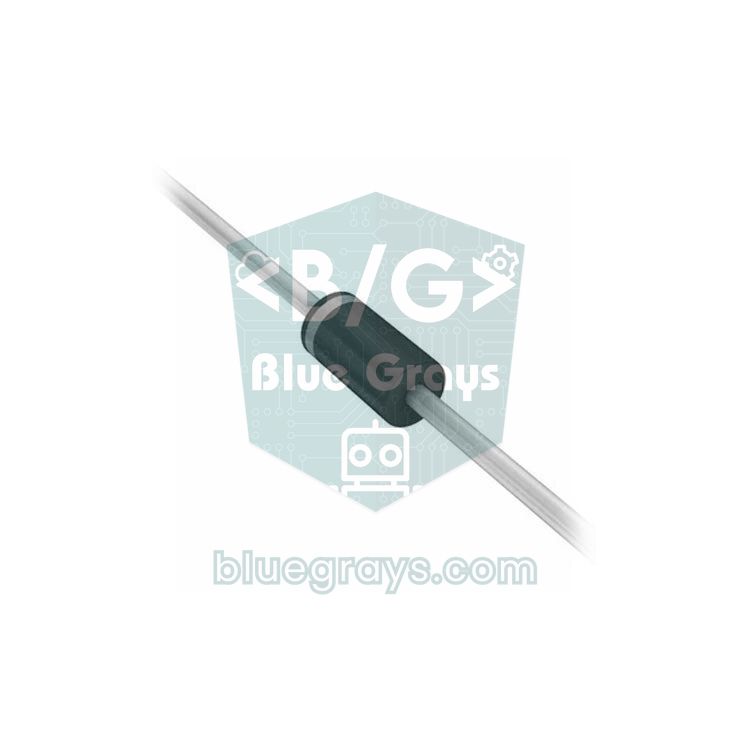
On the diode range, the multimeter sends a small current of about 1 mA through the probes and, instead of ohms, displays the forward voltage across the part (for example 0.580 V or 580 mV depending on the model). With the red probe on the anode and the black probe on the cathode (the end with the stripe), a good silicon diode reads 0.5–0.7 V and a Schottky diode 0.15–0.35 V; in reverse the display should show OL or 1. A value close to zero in both directions means the diode is shorted, and OL in both directions means it's open inside. This range is also ideal for an LED: a red LED reads around 1.6–1.9 V and often lights up faintly, so you find out whether it works and which leg is which at the same time. Blue and white LEDs have a higher forward voltage, so some multimeters can't light them and show OL; that doesn't mean the LED is faulty. For more details, see the What Is a Diode? article.
| Test | Red → black probe | Reverse | If faulty |
|---|---|---|---|
| Silicon diode (1N4007, 1N4148) | 0.5–0.7 V | OL | ~0 V both ways (shorted) or OL both ways (open) |
| Schottky diode (1N5819) | 0.15–0.35 V | OL | Same symptoms as a silicon diode |
| Red LED | 1.6–1.9 V, the LED glows faintly | OL | OL in both directions |
| NPN transistor: base → emitter and base → collector | 0.5–0.8 V | OL | ~0 V or OL on one of the junctions |
| NPN transistor: collector ↔ emitter | OL | OL | A value near zero: the transistor is shorted |
For measuring purposes, a transistor behaves like two diodes connected back to back. On an NPN transistor, put the red probe on the base and touch the other two legs with the black probe, and you'll see 0.5–0.8 V on both junctions; on a PNP you get the same result with the black probe on the base. The base–emitter value is usually a few millivolts higher than base–collector, which lets you tell the emitter apart. If your multimeter has an hFE socket, you can also read the gain by plugging the transistor into the holes for the right type (NPN or PNP); for a BC547, values from 110 to 800 are normal depending on its gain group. You can check the pin order with the Transistor Pinouts tool, and the What Is a Transistor? article walks you through finding the legs step by step.
Troubleshooting an Arduino circuit with a multimeter
Instead of swapping wires at random in a circuit that doesn't work, work systematically: clip the black probe to the board's GND and follow the voltage step by step from the source to the load. First measure the power supply output, then the board's 5V or 3.3V pin, then the breadboard's power rail, and finally the VCC pin of the sensor or module. The first point where the voltage disappears or drops noticeably is the connection just before the fault. The second powerful method is the voltage drop test: with the circuit running, touch the probes to both ends of the same wire. Across a good wire or contact you should see almost 0 V; anything above 0.1 V means there's resistance in that connection, in other words a bad contact. These are the three most common faults in Arduino projects:
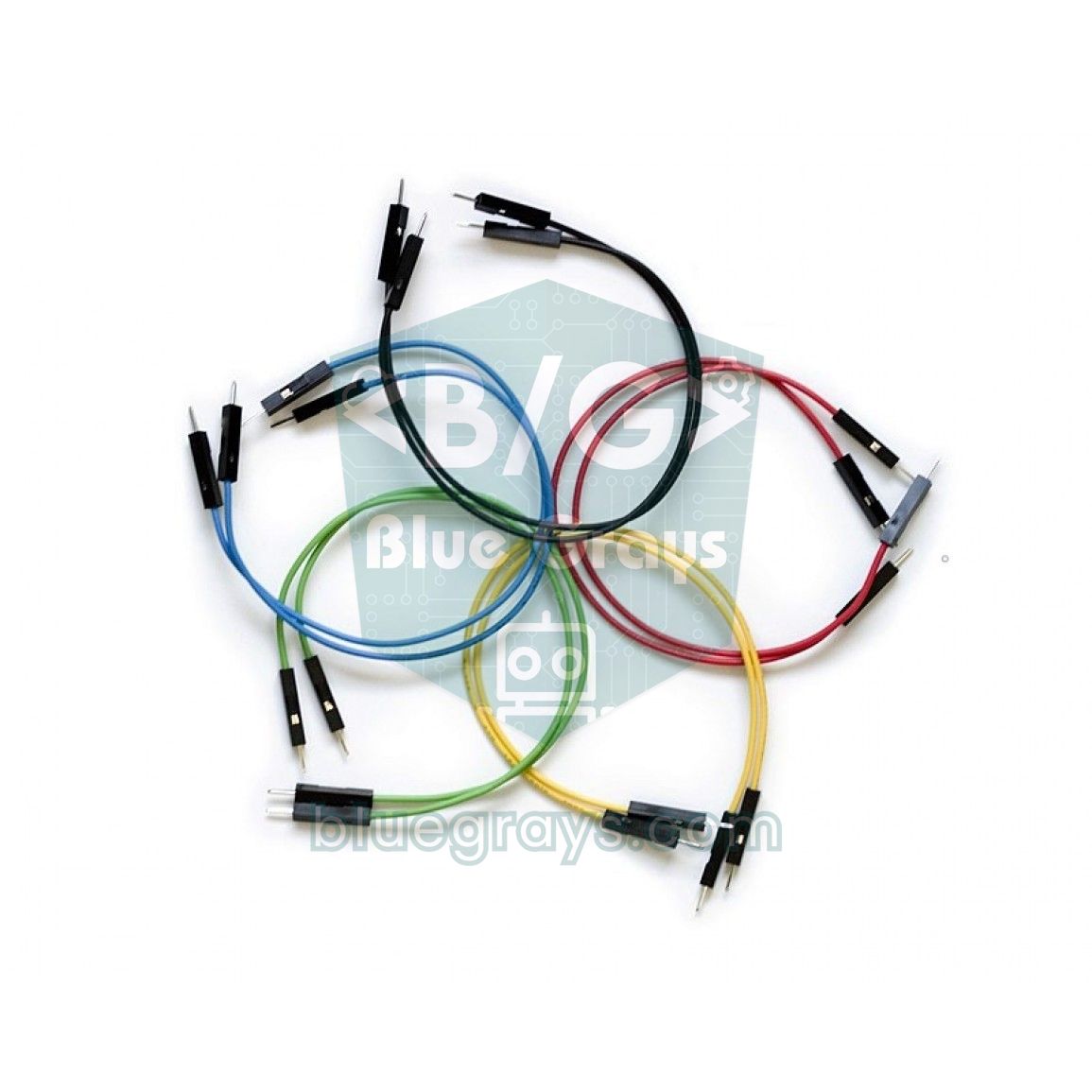
- Broken jumper wire: if a sensor sometimes works and cuts out when you touch the wire, the jumper is the first suspect. The thin strands of cheap wires break inside the plastic insulation or where the metal pin at the end is crimped, with no visible sign from outside. Take the wire out of the circuit, set the multimeter to continuity and touch both ends; while holding the probes, bend and wiggle the wire. If the beep cuts in and out, or on the resistance range the value jumps above 1 Ω, throw the wire away. Spending a few minutes scanning a new bundle of wires like this before using them saves you hours of hunting for bugs in your code.
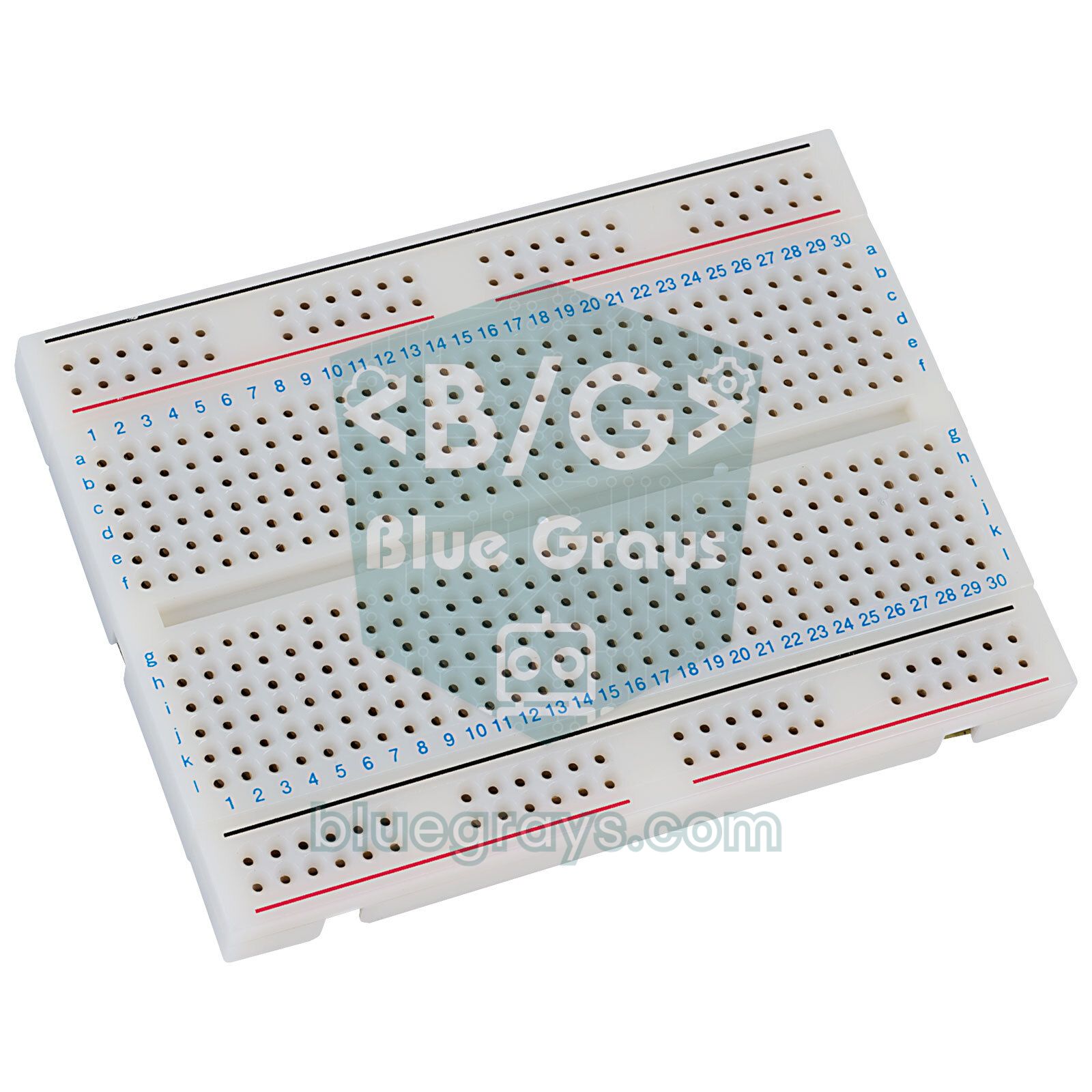
- Breadboard contact and a split power rail: if an LED or module doesn't respond at all, follow the voltage across the breadboard while the circuit is running. If the Arduino's 5V pin has 5 V but you see 0 V on the breadboard rail, the wire or hole in between isn't making contact. On some long 830-point breadboards the power rails are split in the middle; a gap in the red and blue lines is the sign. You can make sure with a continuity test between the two halves of the rail and join them with a short jumper if needed. Worn-out spring clips are common too: a leg may look like it's in the hole but not actually sit in the clip, so touch the probe to the leg itself, not the hole. For more details, see the What Is a Breadboard? article.
- Weak battery: if a battery-powered project resets on its own after a while, the display goes dark when the motor runs or the servo jitters, the battery is getting weak. The trap here is measuring the battery with no load: a weak 9 V battery can read 8.5 V with no load and collapse to 6 V under load. Measure the voltage while the circuit is running, ideally at the moment the motor or servo moves. If you power an Uno through VIN or the DC jack, the on-board regulator can't hold 5 V once this voltage drops below 7 V. A 9 V battery is also a poor choice for an Arduino: with about 500 mAh of capacity it runs an Uno drawing 50 mA for only 8–10 hours. To choose the right battery, see the powering an Arduino from batteries article.
| Battery | New / full (no load) | Replace or recharge (under load) |
|---|---|---|
| AA / AAA alkaline | 1.55–1.65 V | Below 1.1 V |
| 4 × AA pack | 6.2–6.5 V | Below 4.6 V |
| 9 V alkaline | 9.3–9.6 V | Below 7 V |
| AA NiMH (rechargeable) | 1.35–1.45 V | 1.0–1.1 V |
| 18650 Li-ion | 4.2 V | 3.2–3.3 V; don't go below 3.0 V |
Arduino sketch for testing pins with a multimeter
The surest way to find out whether a pin is damaged is to put it in a known state and measure it. The sketch below sets pins 2–19 of an Arduino Uno HIGH one after another for four seconds each (A0–A5 are numbered 14–19 as digital pins) and prints which pin is active to the Serial Monitor. Pins 0 and 1 are left out because they're used for serial communication. Clip the black probe to GND, open the Serial Monitor at 9600 baud and touch the red probe to the pin that's printed.
1// Pin testi: pinleri sırayla HIGH yapar / Pin test: sets the pins HIGH one by one
2// Siyah prob GND'de, kırmızı prob yazan pinde / Black probe on GND, red probe on the printed pin
3const int FIRST_PIN = 2;               // 0 ve 1 seri port için boş / 0 and 1 stay free for Serial
4const int LAST_PIN = 19;               // A0-A5 dijitalde 14-19 / A0-A5 are 14-19 as digital pins
5const unsigned long STEP_MS = 4000;    // her pinde bekleme / time on each pin
6
7void setup() {
8  Serial.begin(9600);
9  for (int pin = FIRST_PIN; pin <= LAST_PIN; pin++) {
10    pinMode(pin, OUTPUT);
11    digitalWrite(pin, LOW);            // hepsi 0 V başlar / all start at 0 V
12  }
13  Serial.println(F("Pin testi / Pin test"));
14}
15
16void loop() {
17  for (int pin = FIRST_PIN; pin <= LAST_PIN; pin++) {
18    digitalWrite(pin, HIGH);           // yalnız bu pin 5 V / only this pin at 5 V
19    Serial.print(F("Pin "));
20    Serial.print(pin);
21    Serial.println(F(": HIGH -> ~5 V"));
22    delay(STEP_MS);
23    digitalWrite(pin, LOW);            // tekrar 0 V / back to 0 V
24  }
25}
On a good pin with no load you should see almost the same voltage as on the 5V pin (4.8–5.0 V), and 0 V once the sketch moves on to the next pin. If a pin reads 0 V or an unstable value between 1 and 3 V while it's HIGH, it has most likely been damaged by overcurrent; move your project to another pin. On pin 13 you'll also see the board's L LED light up. You can use the same method on the ESP32 and the Pico; on these boards HIGH is 3.3 V.
A multimeter is also useful for calibrating the measurements you make with an Arduino. The Uno's analog readings use the 5V rail as their reference, so when the USB voltage drops to 4.8 V every result shifts by about 4%. The sketch below measures the supply voltage using the chip's internal 1.1 V reference and calculates the voltage of a battery connected to A0 from that real value. The internal reference can vary between 1.0 and 1.2 V from chip to chip; measure the 5V pin with your multimeter, compare it with what the sketch shows and correct INTERNAL_REF (if the multimeter reads 4.95 V and the sketch 5.05 V, enter 1.1 × 4.95 / 5.05 ≈ 1.078). A0 can take at most 5 V; to measure a 9 V battery, bring it down first with a voltage divider.
1// Pil ölçer: 5V hattını dahili 1,1 V referansla ölçer / Battery meter: measures the 5V rail with the internal 1.1 V reference
2// Pil (+) -> A0, pil (-) -> GND, en fazla 5 V / Battery (+) -> A0, (-) -> GND, 5 V max
3const float INTERNAL_REF = 1.1;        // multimetreyle düzelt / correct it with your multimeter
4
5float readVcc() {
6  // Giriş: 1,1 V bandgap, referans: AVcc / Input: 1.1 V bandgap, reference: AVcc
7  ADMUX = _BV(REFS0) | _BV(MUX3) | _BV(MUX2) | _BV(MUX1);
8  delay(2);                            // referans otursun / let the reference settle
9  ADCSRA |= _BV(ADSC);                 // dönüşümü başlat / start the conversion
10  while (bit_is_set(ADCSRA, ADSC));    // bitmesini bekle / wait until it finishes
11  return INTERNAL_REF * 1023.0 / ADC;  // gerçek 5V hattı / real 5V rail
12}
13
14void setup() {
15  Serial.begin(9600);
16}
17
18void loop() {
19  float vcc = readVcc();
20  analogRead(A0);                      // kanal değişti, ilk okumayı at / channel changed, discard first reading
21  float vbat = analogRead(A0) * vcc / 1023.0;
22  Serial.print(F("5V: "));
23  Serial.print(vcc, 2);
24  Serial.print(F(" V   Pil / Battery: "));
25  Serial.print(vbat, 2);
26  Serial.println(F(" V"));
27  delay(1000);
28}
Measuring with the ESP32 and Raspberry Pi Pico
On 3.3 V boards you measure the same way; only the expected values change: a HIGH pin is 3.3 V, a LOW pin 0 V, and the GPIOs aren't 5 V tolerant. So be careful that the probe tip never touches the 5V pin and a neighbouring GPIO at the same time; a probe tip bridging two pins can kill a pin in an instant. The ESP32's ADC isn't linear and can't read correctly above about 3.1 V; instead of converting the raw value yourself, use the analogReadMilliVolts() function and compare the result with your multimeter to see the error easily. The Raspberry Pi Pico has a handy feature for measuring its own supply: pin GP29 feeds one third of the VSYS voltage to the ADC. The MicroPython code below toggles GP15 every two seconds and measures the voltage on GP26 and VSYS. On the Pico W, GP29 is shared with the Wi-Fi chip, so reading VSYS this way isn't reliable.
1from machine import Pin, ADC
2import time
3
4test_pin = Pin(15, Pin.OUT)              # multimetreyle ölçülecek pin / pin to check with the multimeter
5adc0 = ADC(26)                           # GP26 = ADC0, ölçülen gerilim / voltage being measured
6vsys = ADC(29)                           # GP29 = VSYS / 3 (Pico W'da değil) / VSYS / 3 (not on Pico W)
7CONV = 3.3 / 65535                       # ham değerden volta / raw value to volts
8
9while True:
10    test_pin.value(not test_pin.value()) # GP15: 0 V <-> 3,3 V / 0 V <-> 3.3 V
11    v_in = adc0.read_u16() * CONV
12    v_sys = vsys.read_u16() * CONV * 3   # bölücüyü geri çarp / undo the divider
13    print("GP15:", test_pin.value(), " ADC0: %.2f V  VSYS: %.2f V" % (v_in, v_sys))
14    time.sleep(2)
To check the result, touch the black probe to pin 38 of the Pico (GND) and the red probe to pin 39 (VSYS). A difference of 2–3% between the code and the multimeter is normal, because the Pico's ADC reference is the 3.3 V rail, which isn't perfect either. To test GP26, connect the middle pin of a potentiometer and watch the code and the multimeter follow the same value as you turn the shaft.
Multimeter safety rules
- Choose the range before measuring: don't turn the rotary switch while the probes are in the circuit; passing through a current or resistance range while measuring voltage stresses the meter.
- Check where the red probe is every time: after measuring current, put the probe straight back into the VΩ socket. Some models beep a warning if another function is selected while the probe is in the A socket.
- Do resistance, continuity and diode tests only on unpowered circuits: discharge large capacitors through a resistor before measuring.
- Start from the highest range for unknown values: on manual-ranging meters work your way down step by step.
- Inspect your probes: don't use leads with cracked insulation or exposed wire; keep your fingers behind the finger guards on the probes.
- Respect the category and voltage limit: never exceed the CAT rating and maximum voltage on the front panel; wall sockets need at least CAT II, fuse boxes CAT III.
- Replace the fuse with an identical one: never put wire, foil or a higher-rated fuse in place of a blown fuse; that fuse is there to protect you.
- Take the battery warning seriously: when the battery symbol appears, replace the multimeter's battery; with a weak battery the meter can show wrong values.
Common mistakes and how to fix them
| Mistake | Symptom | Fix |
|---|---|---|
| Connecting the meter in parallel to measure current | The fuse blows, the source is shorted | Open the circuit and connect the meter in series |
| Measuring voltage with the red probe in the A socket | Sparks, blown fuse, hot battery | For voltage the red probe must always be in VΩ |
| Choosing the AC range on a DC circuit | 0 or a meaningless value | Use the V⎓ range for DC sources |
| Measuring resistance in a powered circuit | The value keeps changing or makes no sense | Switch off the power first and remove the part if possible |
| Thinking 1 or OL on the display is a fault | The range is too small for the value | Move up one range |
| Putting the black probe somewhere other than GND | Meaningless or negative values | Clip the black probe to the board's GND |
| Measuring a battery with no load and assuming it's fine | The battery looks good but the project resets | Measure the voltage under load, with the circuit running |
| Not replacing the multimeter's own battery | Unstable and wrong readings | Replace it as soon as the battery symbol appears |
Project ideas to practise with your multimeter
- Measure LED current: see how the current changes with a 220 Ω and a 1 kΩ resistor and compare the result with the Ohm's law calculator.
- Voltage divider: bring 5 V down to 3.3 V with two resistors and verify the formula by measuring the midpoint; details in the Voltage Divider article.
- Light-dependent resistance: measure an LDR in light and in the dark, then read the same change with analogRead.
- Arduino voltmeter: build your own voltmeter and calibrate it with your multimeter: building a voltmeter with Arduino.
- Current sensor: measure the current a motor draws with both the multimeter and an ACS712 current sensor and compare.
- PWM average: raise the analogWrite value from 0 to 255 and watch the average voltage on the pin rise linearly from 0 to 5 V.
A multimeter is like your eyes and ears in electronics: once you get used to measuring instead of guessing, you'll find most faults within minutes. To get the maths behind your readings straight, read Ohm's Law, and to get to know circuit components, read What Is a Resistor?. In the BlueGrays app you'll find projects such as lighting an LED, push buttons, measuring light with an LDR, measuring temperature with an NTC and a digital voltmeter with an LCD, each with a step-by-step circuit diagram and code, and you can reinforce every step by measuring it with your multimeter.
Frequently asked questions
How do you test a battery with a multimeter?
Set the multimeter to DC voltage (V⎓); on a manual model choose the 2 V range for an AA battery and 20 V for a 9 V battery. Touch the red probe to the positive terminal and the black probe to the negative. A new AA alkaline battery reads 1.55–1.65 V; for the most accurate result, measure while the battery is powering the circuit, in other words under load.
How do you measure current with a multimeter?
You open the circuit at one point and connect the multimeter in series in that gap, with the red probe in the mA or 10A socket and the black probe in COM. That way all of the current flows through the meter. Touching the probes across a battery or adapter while on a current range creates a short circuit and blows the fuse.
What does OL or 1 mean on a multimeter?
OL (overload), or a lone 1 on the left of the display, means the value is above the selected range; for voltage and current, move up one range. In resistance and continuity measurements, OL means an open circuit, in other words a broken connection or a very high resistance.
How do I know if my multimeter fuse is blown?
If the current range always reads 0, even in a circuit you know is working, the fuse may have blown. Open the back cover, take the fuse out and check it on the continuity range; if there's no beep, it's blown. Replace it with a fast-acting fuse of the same current and voltage rating.
How do you check a wire for a break with a multimeter?
Take the wire out of the circuit, set the multimeter to continuity (beep) and touch the probes to both ends. A good wire beeps and reads below 1 Ω. If there's no sound at all, or the beep cuts in and out when you bend the wire, it's broken inside.
What multimeter should a beginner buy?
For low-voltage work such as Arduino projects, a digital multimeter with at least 2000 counts, an audible continuity test, a diode range and fused current inputs is enough. Auto-ranging makes it easier to use. If you'll measure mains, choose an independently tested model rated CAT III 600 V.
Projects to build after reading this
See all projects
LED Blink
The very first hello of electronics: switching a single LED on and off. The Arduino turns the LED on and off at short intervals, so the light blinks quickly. You see in the simplest way how the board

LED Control with a Push Button (Push)
Just like a doorbell: the light stays on as long as you press, and goes off when you let go. The Arduino keeps listening to the button; while it's pressed the LED is on, and the moment you lift your f

Measuring Light Intensity with an LDR
Want to see how bright your room is as a number? The LDR, a small part that reacts to light, measures the light around it, and the Arduino writes the value to your computer screen every half second. C

LED Blink with ESP32
Teaches basic GPIO output usage with ESP32. We achieve a blinking effect by turning an LED on and off from a digital pin. ESP32 version of the classic blink project on Arduino UNO; the basic blink commands in the Arduino environment are the same, but the ESP32's pin layout and 3.3 V GPIO levels differ from those of the Arduino UNO.
Raspberry Pi Pico: Controlling an External LED (GP14 + Breadboard)
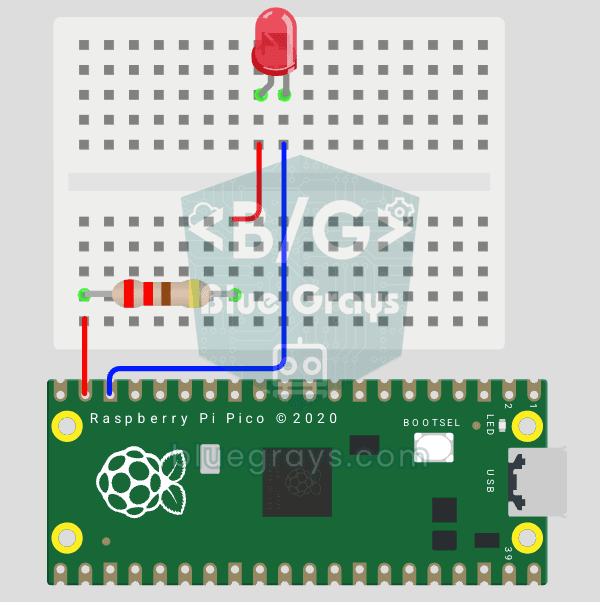
The next step after Pico’s built-in LED: connecting an external LED to the breadboard and controlling it via the GP14 pin. In this project, you’ll learn how to use any of the Pico’s general-purpose GPIO pins as an output, the LED’s polarity (long leg = anode/+, short leg = cathode/–), and why a current-limiting resistor (220Ω) is required. If you don’t include the resistor, excessive current will flow through the LED and it may burn out. The circuit is very simple: Pico GP14 → 220Ω resistor → LE
Digital Voltmeter with LCD Display
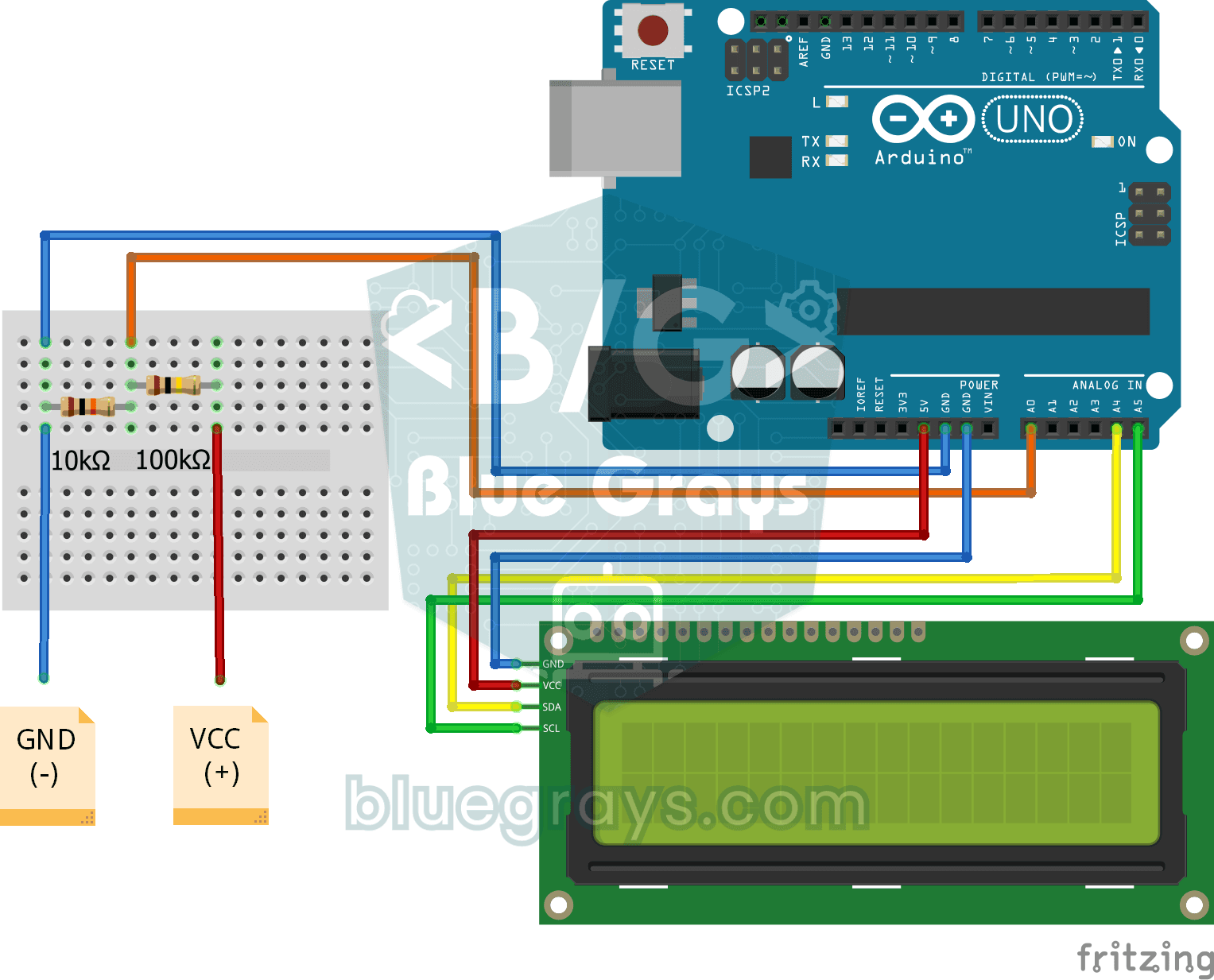
Find out how much voltage a battery or power adapter gives with a meter you built yourself. A divider made of two resistors brings high voltage down to a level the board can read, and the Arduino calc
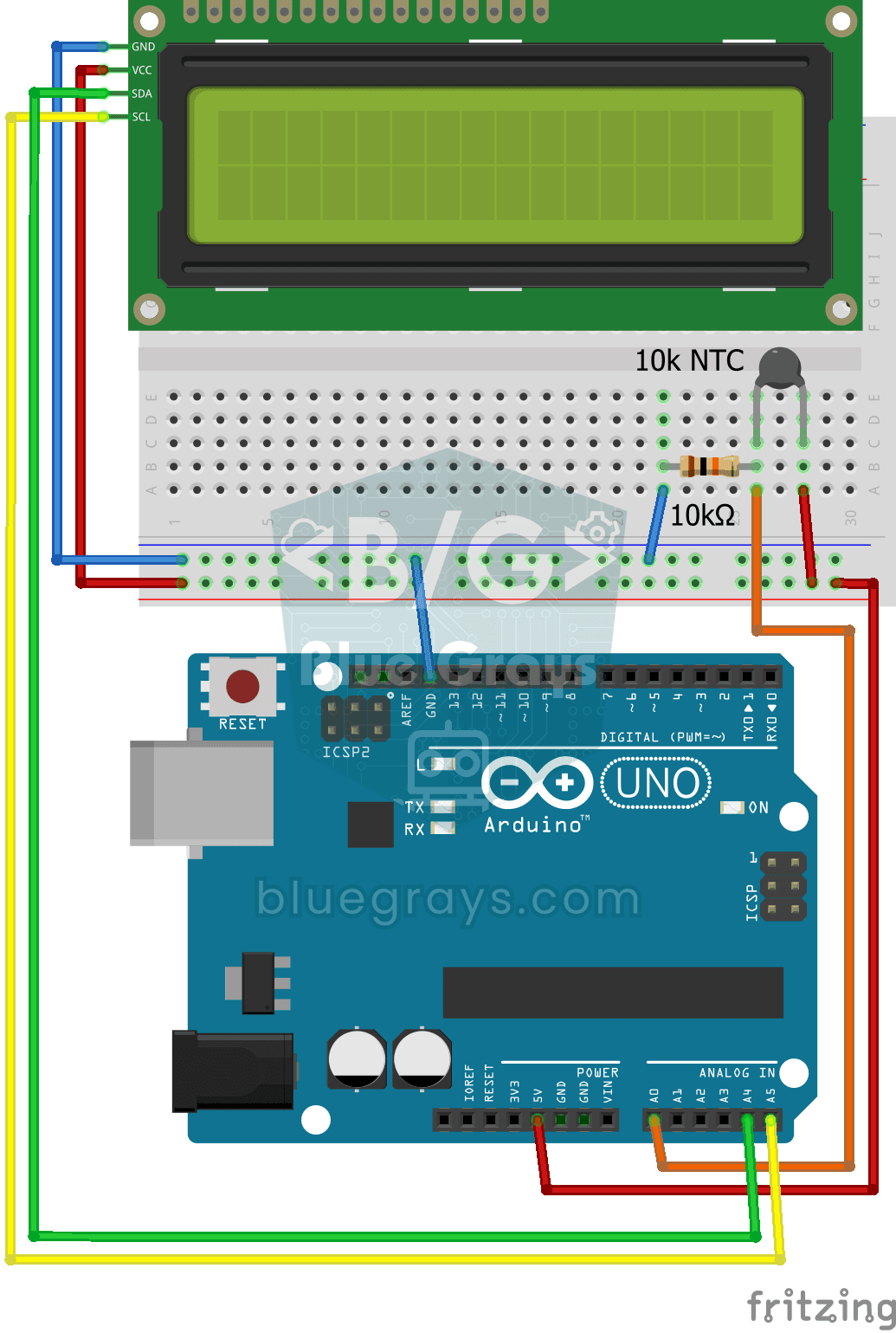
Temperature Measurement with NTC and 2x16 Lcd Display
Measure the temperature around you with a sensor that looks like a tiny bead. This part, called an NTC, lets electricity through more easily as it warms up; the Arduino reads that change, turns it int

ESP32 LED Brightness Control with a Potentiometer (Analog → PWM)
In this project, we control the brightness of an LED analogically using a potentiometer. The ESP32's ADC pin reads the 0-3.3V voltage from the potentiometer, and this value is then converted into a PWM (Pulse Width Modulation) signal and sent to the LED. As a result, as you turn the potentiometer, the LED gradually brightens and dims. With Arduino Core 3.0+, `analogWrite()` can be used directly; on the ESP32-S2/S3, the ADC resolution is fixed at 12-bit.