
Jingle Bells Arduino Code: 4 Christmas Songs for a Buzzer
Jingle Bells Arduino code plus We Wish You a Merry Christmas, Silent Night and Deck the Halls on a passive buzzer: note table, tempo and a millis LED player.
To play Jingle Bells on an Arduino all you need is a passive buzzer and the tone() function: you write each note's frequency and length into an array, and the Arduino sends them to the buzzer one by one. In this post you'll find accurate note-and-duration arrays for Jingle Bells, We Wish You a Merry Christmas, Silent Night and Deck the Halls, taken from sheet music rather than guessed by ear. All four melodies are traditional pieces well over a hundred years old, so you can use them in any project without copyright worries.
We'll start with a short single-song sketch, then move on to a music box that plays all four songs in turn, flashes two LEDs with the notes and switches songs with a button. That second sketch uses millis() instead of delay(), so while the song plays it can keep handling other jobs such as buttons, sensors or an LED strip. At the end we port the same melodies to an ESP32 touch-activated Christmas card and to MicroPython on a Raspberry Pi Pico.
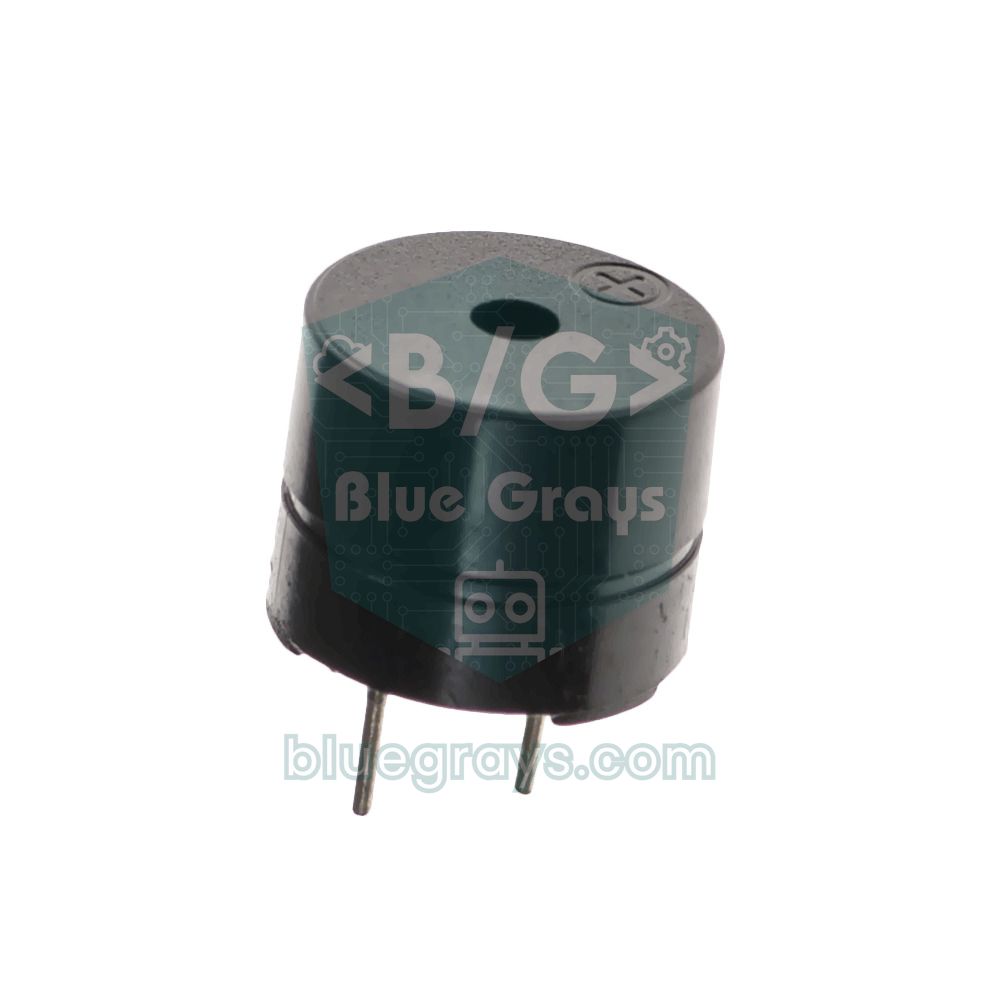
Which buzzer do you need: active or passive?
An active buzzer has its own oscillator inside; give it 5 V and it always beeps at the same pitch, so it can't play a melody. A passive buzzer works like a tiny speaker: it sounds at whatever frequency the Arduino pin switches on and off. The easy way to tell them apart is to touch the buzzer to a 3–5 V battery for a moment: a continuous beep means active, a single click means passive. Active models usually carry a white sticker and have a sealed bottom, while passive ones show a green circuit board underneath. For the details, see What Is a Buzzer?.
| Feature | Active buzzer | Passive buzzer |
|---|---|---|
| Built-in oscillator | Yes | No |
| Plays melodies? | No, one tone only | Yes, any note with tone() |
| Drive command | digitalWrite() | tone(pin, frequency, duration) |
| Touched to a battery | Continuous beep | Single click |
| Loudest range | Fixed (usually 2–2.5 kHz) | About 2–4 kHz (resonance) |
Wiring: buzzer, two LEDs and a button
| Part | Arduino Uno | ESP32 | Raspberry Pi Pico |
|---|---|---|---|
| Passive buzzer + | D8 | GPIO 25 | GP15 |
| Passive buzzer − | GND | GND | GND |
| LED 1 (with 220 Ω) | D6 | GPIO 26 | GP14 |
| LED 2 (with 220 Ω) | D7 | GPIO 27 | GP13 |
| Button (other leg to GND) | D2 | GPIO 4 | GP2 |
| Touch foil | - | GPIO 32 (T9) | - |
Note frequencies: the 14 notes used in these Christmas songs
In Western music every octave is split into 12 semitones, and going up one semitone multiplies the frequency by the 12th root of 2, about 1.0595. The reference note A4 is 440 Hz; a note with MIDI number n has the frequency f = 440 × 2^((n − 69) / 12). For example C5 is MIDI 72: 440 × 2^(3/12) = 523.25 Hz. Going up an octave exactly doubles the frequency, which is why C6 is 1047 Hz. Small passive buzzers sound weak below 500 Hz, so we moved all four songs into the 5th and 6th octaves; the table lists every note the code uses.
| Note | Name | Frequency (Hz) | Code constant |
|---|---|---|---|
| B4 | B | 494 | NOTE_B4 |
| C5 | C | 523 | NOTE_C5 |
| D5 | D | 587 | NOTE_D5 |
| E5 | E | 659 | NOTE_E5 |
| F5 | F | 698 | NOTE_F5 |
| F#5 | F sharp | 740 | NOTE_FS5 |
| G5 | G | 784 | NOTE_G5 |
| A5 | A | 880 | NOTE_A5 |
| A#5 / Bb5 | B flat | 932 | NOTE_AS5 |
| B5 | B | 988 | NOTE_B5 |
| C6 | C | 1047 | NOTE_C6 |
| D6 | D | 1175 | NOTE_D6 |
| E6 | E | 1319 | NOTE_E6 |
| F6 | F | 1397 | NOTE_F6 |
Tempo and note lengths
Instead of writing every length in milliseconds, we used the shortest note, the eighth note, as the unit: 1 is an eighth, 2 a quarter, 3 a dotted quarter, 4 a half, 6 a dotted half and 8 a whole note. Tempo is the number of quarter notes per minute (BPM); a quarter lasts 60000 / BPM milliseconds and an eighth is half of that. At 120 BPM a quarter is 500 ms and an eighth 250 ms. To change a song's speed you only change the eighth-note length and leave the arrays alone. Each note sounds for 90% of its length and the last 10% is silent, so repeated notes (like the three Es in Jingle Bells) don't blur into one long tone.
| Song | Time | Tempo | Eighth (ms) | Quarter (ms) | Notes |
|---|---|---|---|---|---|
| Jingle Bells (chorus) | 4/4 | 120 BPM | 250 | 500 | 51 |
| We Wish You a Merry Christmas | 3/4 | 150 BPM | 200 | 400 | 30 |
| Silent Night | 3/4 | 75 BPM | 400 | 800 | 46 |
| Deck the Halls | 4/4 | about 130 BPM | 230 | 460 | 68 |
First sketch: the Jingle Bells chorus
- Connect the passive buzzer's + lead to D8 and the other lead to GND.
- Open the Arduino IDE, paste the code below and select Arduino Uno as the board.
- Upload it; the chorus plays once as soon as the board starts. Press the reset button to hear it again.
- If it sounds too slow or too fast, change EIGHTH_MS: 200 plays faster, 300 slower.
1// Jingle Bells nakaratı - pasif buzzer D8 / Jingle Bells chorus - passive buzzer on D8
2#define NOTE_C5 523
3#define NOTE_D5 587
4#define NOTE_E5 659
5#define NOTE_F5 698
6#define NOTE_G5 784
7
8const int BUZZER_PIN = 8;      // pasif buzzer + ucu / passive buzzer + lead
9const int EIGHTH_MS = 250;     // 120 BPM: dörtlük 500 ms, sekizlik 250 ms / quarter 500 ms, eighth 250 ms
10
11const int melody[] = {
12  NOTE_E5, NOTE_E5, NOTE_E5,   NOTE_E5, NOTE_E5, NOTE_E5,
13  NOTE_E5, NOTE_G5, NOTE_C5, NOTE_D5,   NOTE_E5,
14  NOTE_F5, NOTE_F5, NOTE_F5, NOTE_F5,   NOTE_F5, NOTE_E5, NOTE_E5, NOTE_E5, NOTE_E5,
15  NOTE_E5, NOTE_D5, NOTE_D5, NOTE_E5,   NOTE_D5, NOTE_G5,
16  NOTE_E5, NOTE_E5, NOTE_E5,   NOTE_E5, NOTE_E5, NOTE_E5,
17  NOTE_E5, NOTE_G5, NOTE_C5, NOTE_D5,   NOTE_E5,
18  NOTE_F5, NOTE_F5, NOTE_F5, NOTE_F5,   NOTE_F5, NOTE_E5, NOTE_E5, NOTE_E5, NOTE_E5,
19  NOTE_G5, NOTE_G5, NOTE_F5, NOTE_D5,   NOTE_C5
20};
21// süreler sekizlik cinsinden: 1 = sekizlik, 2 = dörtlük, 3 = noktalı dörtlük, 4 = ikilik, 8 = birlik
22// lengths in eighths: 1 = eighth, 2 = quarter, 3 = dotted quarter, 4 = half, 8 = whole
23const byte beats[] = {
24  2, 2, 4,   2, 2, 4,
25  2, 2, 3, 1,   8,
26  2, 2, 3, 1,   2, 2, 2, 1, 1,
27  2, 2, 2, 2,   4, 4,
28  2, 2, 4,   2, 2, 4,
29  2, 2, 3, 1,   8,
30  2, 2, 3, 1,   2, 2, 2, 1, 1,
31  2, 2, 2, 2,   8
32};
33
34void setup() {
35  int count = sizeof(melody) / sizeof(melody[0]);   // 51 nota / 51 notes
36  for (int i = 0; i < count; i++) {
37    int duration = beats[i] * EIGHTH_MS;
38    tone(BUZZER_PIN, melody[i], duration * 9 / 10);  // notalar arasında %10 boşluk / 10% gap between notes
39    delay(duration);
40  }
41  noTone(BUZZER_PIN);
42}
43
44void loop() {
45  // bir kez çalar; tekrar için reset tuşuna bas / plays once, press reset to replay
46}
The sketch keeps two parallel arrays: melody holds the note frequencies and beats the length of each note, in eighths, in the same order. For every note the loop starts the sound with tone() and waits the full note length with delay(). When tone() gets a duration as its third argument it stops the sound by itself; because we pass 90% of the note length, there's a short breath between notes. Both arrays must have the same number of elements; add a note to one and forget the length in the other, and the melody drifts and random memory past the end of the array gets played. The gaps in the arrays line up with bar lines, which makes it easy to compare the notes with the sheet music.
Note arrays for all four songs
The table below shows the key of each song and the notes of its first line; it helps when you check the code by ear. A dash (–) is a bar line and a dot (.) a dotted note. We Wish You a Merry Christmas starts with a pickup (anacrusis): the first C5 is a single quarter note before bar one. Silent Night is slow and broad, so we held the final C5 for 12 eighths, two full bars. The only sharp in Deck the Halls is the F sharp (F#5) in the rising "fa-la-la" run.
| Song | Key | Notes of the first line | Watch out for |
|---|---|---|---|
| Jingle Bells | C major | E E E – E E E – E G C. D – E | Dotted quarter + eighth on "all the way" |
| We Wish You a Merry Christmas | F major | C – F F G F E – D D D | 3/4 time, uses B flat (A#5) |
| Silent Night | C major (one octave up) | G. A G – E – G. A G – E | Slow tempo, dotted halves |
| Deck the Halls | C major | G. F E D – C D E C | "Fa-la-la" eighths, F sharp (F#5) |
A millis-based Christmas song player with LEDs (4 songs + button)
Now we put all four songs into one sketch. Notes live in a Note struct of {frequency, length} pairs and are stored in flash with PROGMEM; the Uno has only 2 KB of RAM, so reading 195 notes from flash instead of keeping them in RAM is a good habit. The LEDs swap on every note, the button on D2 uses the internal pull-up, and a press jumps to the next song. When a song ends there's 1.5 seconds of silence before the next one starts.
1// 4 Noel şarkısı: millis ile çalar, LED'ler notaya göre yanar, buton sonraki şarkıya geçer
2// 4 Christmas songs: millis-based player, LEDs follow the notes, button skips to the next song
3#define REST     0
4#define NOTE_B4  494
5#define NOTE_C5  523
6#define NOTE_D5  587
7#define NOTE_E5  659
8#define NOTE_F5  698
9#define NOTE_FS5 740
10#define NOTE_G5  784
11#define NOTE_A5  880
12#define NOTE_AS5 932
13#define NOTE_B5  988
14#define NOTE_C6  1047
15#define NOTE_D6  1175
16#define NOTE_E6  1319
17#define NOTE_F6  1397
18
19#if defined(ESP32)
20const int BUZZER_PIN = 25;               // ESP32 pinleri / ESP32 pins
21const int LED_PINS[2] = {26, 27};
22const int BUTTON_PIN = 4;
23#else
24const int BUZZER_PIN = 8;                // Arduino Uno pinleri / Arduino Uno pins
25const int LED_PINS[2] = {6, 7};
26const int BUTTON_PIN = 2;
27#endif
28
29struct Note { uint16_t freq; uint8_t len; };   // len: sekizlik sayısı / length in eighths
30
31// Jingle Bells (Do majör, 4/4) / (C major, 4/4)
32const Note JINGLE[] PROGMEM = {
33  {NOTE_E5,2},{NOTE_E5,2},{NOTE_E5,4}, {NOTE_E5,2},{NOTE_E5,2},{NOTE_E5,4},
34  {NOTE_E5,2},{NOTE_G5,2},{NOTE_C5,3},{NOTE_D5,1}, {NOTE_E5,8},
35  {NOTE_F5,2},{NOTE_F5,2},{NOTE_F5,3},{NOTE_F5,1}, {NOTE_F5,2},{NOTE_E5,2},{NOTE_E5,2},{NOTE_E5,1},{NOTE_E5,1},
36  {NOTE_E5,2},{NOTE_D5,2},{NOTE_D5,2},{NOTE_E5,2}, {NOTE_D5,4},{NOTE_G5,4},
37  {NOTE_E5,2},{NOTE_E5,2},{NOTE_E5,4}, {NOTE_E5,2},{NOTE_E5,2},{NOTE_E5,4},
38  {NOTE_E5,2},{NOTE_G5,2},{NOTE_C5,3},{NOTE_D5,1}, {NOTE_E5,8},
39  {NOTE_F5,2},{NOTE_F5,2},{NOTE_F5,3},{NOTE_F5,1}, {NOTE_F5,2},{NOTE_E5,2},{NOTE_E5,2},{NOTE_E5,1},{NOTE_E5,1},
40  {NOTE_G5,2},{NOTE_G5,2},{NOTE_F5,2},{NOTE_D5,2}, {NOTE_C5,8}
41};
42
43// We Wish You a Merry Christmas (Fa majör, 3/4) / (F major, 3/4)
44const Note WE_WISH[] PROGMEM = {
45  {NOTE_C5,2},
46  {NOTE_F5,2},{NOTE_F5,1},{NOTE_G5,1},{NOTE_F5,1},{NOTE_E5,1}, {NOTE_D5,2},{NOTE_D5,2},{NOTE_D5,2},
47  {NOTE_G5,2},{NOTE_G5,1},{NOTE_A5,1},{NOTE_G5,1},{NOTE_F5,1}, {NOTE_E5,2},{NOTE_C5,2},{NOTE_C5,2},
48  {NOTE_A5,2},{NOTE_A5,1},{NOTE_AS5,1},{NOTE_A5,1},{NOTE_G5,1}, {NOTE_F5,2},{NOTE_D5,2},{NOTE_C5,1},{NOTE_C5,1},
49  {NOTE_D5,2},{NOTE_G5,2},{NOTE_E5,2}, {NOTE_F5,6}
50};
51
52// Silent Night (Do majör, 3/4, bir oktav yukarı) / (C major, 3/4, one octave up)
53const Note SILENT[] PROGMEM = {
54  {NOTE_G5,3},{NOTE_A5,1},{NOTE_G5,2}, {NOTE_E5,6}, {NOTE_G5,3},{NOTE_A5,1},{NOTE_G5,2}, {NOTE_E5,6},
55  {NOTE_D6,4},{NOTE_D6,2}, {NOTE_B5,6}, {NOTE_C6,4},{NOTE_C6,2}, {NOTE_G5,6},
56  {NOTE_A5,4},{NOTE_A5,2}, {NOTE_C6,3},{NOTE_B5,1},{NOTE_A5,2}, {NOTE_G5,3},{NOTE_A5,1},{NOTE_G5,2}, {NOTE_E5,6},
57  {NOTE_A5,4},{NOTE_A5,2}, {NOTE_C6,3},{NOTE_B5,1},{NOTE_A5,2}, {NOTE_G5,3},{NOTE_A5,1},{NOTE_G5,2}, {NOTE_E5,6},
58  {NOTE_D6,4},{NOTE_D6,2}, {NOTE_F6,3},{NOTE_D6,1},{NOTE_B5,2}, {NOTE_C6,6}, {NOTE_E6,6},
59  {NOTE_C6,2},{NOTE_G5,2},{NOTE_E5,2}, {NOTE_G5,3},{NOTE_F5,1},{NOTE_D5,2}, {NOTE_C5,12}
60};
61
62// Deck the Halls (Do majör, 4/4) / (C major, 4/4)
63const Note DECK[] PROGMEM = {
64  {NOTE_G5,3},{NOTE_F5,1},{NOTE_E5,2},{NOTE_D5,2}, {NOTE_C5,2},{NOTE_D5,2},{NOTE_E5,2},{NOTE_C5,2},
65  {NOTE_D5,1},{NOTE_E5,1},{NOTE_F5,1},{NOTE_D5,1},{NOTE_E5,3},{NOTE_D5,1}, {NOTE_C5,2},{NOTE_B4,2},{NOTE_C5,4},
66  {NOTE_G5,3},{NOTE_F5,1},{NOTE_E5,2},{NOTE_D5,2}, {NOTE_C5,2},{NOTE_D5,2},{NOTE_E5,2},{NOTE_C5,2},
67  {NOTE_D5,1},{NOTE_E5,1},{NOTE_F5,1},{NOTE_D5,1},{NOTE_E5,3},{NOTE_D5,1}, {NOTE_C5,2},{NOTE_B4,2},{NOTE_C5,4},
68  {NOTE_D5,3},{NOTE_E5,1},{NOTE_F5,2},{NOTE_D5,2}, {NOTE_E5,3},{NOTE_F5,1},{NOTE_G5,2},{NOTE_D5,2},
69  {NOTE_E5,1},{NOTE_FS5,1},{NOTE_G5,2},{NOTE_A5,1},{NOTE_B5,1},{NOTE_C6,2}, {NOTE_B5,2},{NOTE_A5,2},{NOTE_G5,4},
70  {NOTE_G5,3},{NOTE_F5,1},{NOTE_E5,2},{NOTE_D5,2}, {NOTE_C5,2},{NOTE_D5,2},{NOTE_E5,2},{NOTE_C5,2},
71  {NOTE_A5,1},{NOTE_A5,1},{NOTE_A5,1},{NOTE_A5,1},{NOTE_G5,3},{NOTE_F5,1}, {NOTE_E5,2},{NOTE_D5,2},{NOTE_C5,4}
72};
73
74struct Song { const Note* notes; uint8_t count; uint16_t eighthMs; };
75const Song SONGS[] = {
76  {JINGLE,  sizeof(JINGLE)  / sizeof(Note), 250},   // 120 BPM
77  {WE_WISH, sizeof(WE_WISH) / sizeof(Note), 200},   // 150 BPM
78  {SILENT,  sizeof(SILENT)  / sizeof(Note), 400},   // 75 BPM
79  {DECK,    sizeof(DECK)    / sizeof(Note), 230}    // yaklaşık 130 BPM / about 130 BPM
80};
81const uint8_t SONG_COUNT = sizeof(SONGS) / sizeof(Song);
82const unsigned long SONG_GAP_MS = 1500;   // şarkılar arası sessizlik / silence between songs
83
84uint8_t song = 0;
85int noteIndex = -1;                       // -1: şarkı başlamadı / song not started
86unsigned long noteStart = 0;
87unsigned long noteLength = 0;
88bool lastButton = HIGH;
89unsigned long lastPress = 0;
90
91void ledsOff() {
92  digitalWrite(LED_PINS[0], LOW);
93  digitalWrite(LED_PINS[1], LOW);
94}
95
96void startNote() {
97  Note n;
98  memcpy_P(&n, &SONGS[song].notes[noteIndex], sizeof(Note));   // flash'tan oku / read from flash
99  noteLength = (unsigned long)n.len * SONGS[song].eighthMs;
100  if (n.freq != REST) {
101    tone(BUZZER_PIN, n.freq, noteLength * 9 / 10);              // %10 boşluk / 10% gap
102    digitalWrite(LED_PINS[noteIndex % 2], HIGH);                // LED'ler sırayla / LEDs alternate
103    digitalWrite(LED_PINS[(noteIndex + 1) % 2], LOW);
104  } else {
105    noTone(BUZZER_PIN);
106    ledsOff();
107  }
108  noteStart = millis();
109}
110
111void nextSong() {
112  noTone(BUZZER_PIN);
113  ledsOff();
114  song = (song + 1) % SONG_COUNT;
115  noteIndex = 0;
116  startNote();
117}
118
119void setup() {
120  pinMode(LED_PINS[0], OUTPUT);
121  pinMode(LED_PINS[1], OUTPUT);
122  pinMode(BUTTON_PIN, INPUT_PULLUP);      // buton GND'ye / button to GND
123  noteIndex = 0;
124  startNote();
125}
126
127void loop() {
128  unsigned long now = millis();
129
130  // Buton: düşen kenar + 250 ms kilit / button: falling edge + 250 ms lockout
131  bool button = digitalRead(BUTTON_PIN);
132  if (lastButton == HIGH && button == LOW && now - lastPress > 250) {
133    lastPress = now;
134    nextSong();
135  }
136  lastButton = button;
137
138  // Nota süresi doldu mu? / has the note finished?
139  if (now - noteStart >= noteLength) {
140    noteIndex++;
141    if (noteIndex < SONGS[song].count) {
142      startNote();
143    } else if (noteIndex == SONGS[song].count) {   // şarkı bitti: ara ver / song over: pause
144      ledsOff();
145      noteLength = SONG_GAP_MS;
146      noteStart = now;
147    } else {
148      nextSong();                                  // aradan sonra sıradaki şarkı / next song after the pause
149    }
150  }
151}
The heart of the code is the timing check inside loop(): if millis() − noteStart has passed the note's length, the next note starts; if not, loop carries on without waiting. That way the button is read on every pass and no press is missed; with delay(), the button wouldn't react at all during the 4.8-second final note of Silent Night. memcpy_P() copies a note from flash into a temporary variable in RAM. When a song ends, noteIndex equals the note count and that value is used as a "pause" state; once the pause is over, nextSong() is called. The compiled sketch uses about 3.9 KB of flash and 67 bytes of RAM on an Uno. For more on why we chose millis() over delay(), read millis vs delay.
Christmas songs on the ESP32: a touch-activated Christmas card
The player sketch above also compiles unchanged on an ESP32: the #if defined(ESP32) block switches the pins to GPIO 25, 26, 27 and 4 automatically. Versions 2.x and 3.x of the ESP32 core include tone(), which uses the LEDC PWM unit behind the scenes. Because ESP32 pins output 3.3 V, the sound is a little quieter than on an Uno. The short sketch below uses the ESP32's touch pins: touch an aluminium-foil star wired to GPIO 32 and the first line of Jingle Bells plays while the LED lights up. The code measures the untouched value at start-up and sets the threshold itself; you'll find more about touch pins in ESP32 touch pins.
1// ESP32 dokunmatik Noel kartı: folyo yıldıza dokununca Jingle Bells çalar
2// ESP32 touch Christmas card: touch the foil star and Jingle Bells plays
3const int BUZZER_PIN = 25;     // pasif buzzer / passive buzzer
4const int LED_PIN = 26;        // yıldızın LED'i / star LED
5const int TOUCH_PIN = 32;      // T9: folyoya giden kablo / T9: wire to the foil
6
7const int EIGHTH_MS = 250;
8const int melody[] = {659, 659, 659, 659, 659, 659, 659, 784, 523, 587, 659};   // E E E, E E E, E G C D E
9const byte beats[] = {2, 2, 4, 2, 2, 4, 2, 2, 3, 1, 8};
10int threshold = 0;
11
12void setup() {
13  Serial.begin(115200);
14  pinMode(LED_PIN, OUTPUT);
15  long sum = 0;
16  for (int i = 0; i < 20; i++) {           // dokunmadan ortalama al / average while untouched
17    sum += touchRead(TOUCH_PIN);
18    delay(20);
19  }
20  threshold = (sum / 20) * 7 / 10;         // eşik: ortalamanın %70'i / threshold: 70% of the average
21  Serial.printf("Esik / threshold: %d\n", threshold);
22}
23
24void loop() {
25  if (touchRead(TOUCH_PIN) < threshold) {  // dokununca değer düşer / the value drops when touched
26    digitalWrite(LED_PIN, HIGH);
27    for (int i = 0; i < 11; i++) {
28      int duration = beats[i] * EIGHTH_MS;
29      tone(BUZZER_PIN, melody[i], duration * 9 / 10);
30      delay(duration);
31    }
32    noTone(BUZZER_PIN);
33    digitalWrite(LED_PIN, LOW);
34    delay(1000);                           // art arda tetiklenmesin / avoid instant retrigger
35  }
36}
Christmas songs on the Raspberry Pi Pico with MicroPython
The Pico has no tone(), but machine.PWM does the same job: freq() sets the note frequency and duty_u16(32768) sets a 50% duty cycle, which gives a buzzer its loudest sound. duty_u16(0) silences it. The script plays two songs in turn; press the button on GP2 and the current song stops and the next one starts. You can add the other two songs in the same format using the numbers from the Arduino sketch; frequencies and lengths are identical. If you're new to MicroPython, start with the Thonny setup in What Is the Raspberry Pi Pico?.
1# Raspberry Pi Pico (MicroPython): Jingle Bells + We Wish You a Merry Christmas
2from machine import Pin, PWM
3import time
4
5buzzer = PWM(Pin(15))                 # pasif buzzer GP15 / passive buzzer on GP15
6leds = [Pin(14, Pin.OUT), Pin(13, Pin.OUT)]
7button = Pin(2, Pin.IN, Pin.PULL_UP)  # buton GP2 -> GND / button GP2 -> GND
8
9C5, D5, E5, F5, G5, A5, AS5 = 523, 587, 659, 698, 784, 880, 932
10
11JINGLE = [(E5,2),(E5,2),(E5,4),(E5,2),(E5,2),(E5,4),(E5,2),(G5,2),(C5,3),(D5,1),(E5,8),
12          (F5,2),(F5,2),(F5,3),(F5,1),(F5,2),(E5,2),(E5,2),(E5,1),(E5,1),
13          (E5,2),(D5,2),(D5,2),(E5,2),(D5,4),(G5,4),
14          (E5,2),(E5,2),(E5,4),(E5,2),(E5,2),(E5,4),(E5,2),(G5,2),(C5,3),(D5,1),(E5,8),
15          (F5,2),(F5,2),(F5,3),(F5,1),(F5,2),(E5,2),(E5,2),(E5,1),(E5,1),
16          (G5,2),(G5,2),(F5,2),(D5,2),(C5,8)]
17WE_WISH = [(C5,2),(F5,2),(F5,1),(G5,1),(F5,1),(E5,1),(D5,2),(D5,2),(D5,2),
18           (G5,2),(G5,1),(A5,1),(G5,1),(F5,1),(E5,2),(C5,2),(C5,2),
19           (A5,2),(A5,1),(AS5,1),(A5,1),(G5,1),(F5,2),(D5,2),(C5,1),(C5,1),
20           (D5,2),(G5,2),(E5,2),(F5,6)]
21SONGS = [(JINGLE, 250), (WE_WISH, 200)]   # (notalar, sekizlik ms) / (notes, eighth ms)
22
23def play(notes, eighth_ms):
24    for i, (freq, length) in enumerate(notes):
25        duration = length * eighth_ms
26        leds[i % 2].on()
27        leds[(i + 1) % 2].off()
28        if freq:
29            buzzer.freq(freq)
30            buzzer.duty_u16(32768)        # %50 doluluk = en yüksek ses / 50% duty = loudest
31        time.sleep_ms(duration * 9 // 10)
32        buzzer.duty_u16(0)                # %10 sessizlik / 10% silence
33        time.sleep_ms(duration // 10)
34        if button.value() == 0:           # basılırsa şarkıyı kes / stop the song on press
35            break
36    for led in leds:
37        led.off()
38
39song = 0
40while True:
41    play(*SONGS[song])
42    song = (song + 1) % len(SONGS)
43    time.sleep_ms(1500)
Making it louder and sound better
- Transistor and speaker: Go from the pin through a 1 kΩ resistor to the base of an NPN transistor (2N2222, BC337), connect the speaker between 5 V and the collector, and the emitter to GND. A small 8 Ω speaker sounds much fuller than a buzzer; a 47–100 Ω series resistor limits the current.
- Resonance range: Small piezo buzzers are loudest around 2–4 kHz. Moving the melody up an octave makes it clearly louder, though not as much as a transistor does.
- Enclosure effect: Placing the buzzer inside a cardboard box or a bauble, with its hole facing out, naturally boosts the sound.
- To make it quieter: For a project that runs at night, add a 100–470 Ω resistor in series with the buzzer; the volume drops and the melody stays intact.
- One voice only: On the Uno, tone() produces sound on only one pin at a time. For chords or two-part music an MP3 module like the DFPlayer Mini is a better fit; we compare the options in Arduino music projects.
Common problems and fixes
| Problem | Cause | Fix |
|---|---|---|
| Always the same beep | You're using an active buzzer | Fit a passive buzzer; it should click when touched to a battery |
| Melody unrecognisable, notes shifted | melody and beats arrays have different lengths | Match the element counts and check bar by bar |
| Repeated notes sound like one long tone | No silence between notes | Make the tone() duration 90% of the note |
| LED on D3 or D11 flickers | tone() uses Timer2 | Move the LED to another pin such as D6 or D7 |
| One press skips several songs | Button bounce | Catch the falling edge and add a 250 ms lockout |
| 'tone' was not declared on ESP32 | Very old ESP32 core (1.x) | Update to 2.x or 3.x in the Boards Manager |
| Sound doesn't stop after the song on the Pico | duty_u16(0) not called | Call duty_u16(0) after each note and at the end |
Project ideas with Christmas songs
- Santa detector: When a PIR sensor sees movement in front of the fireplace, play Jingle Bells; the build is in Santa detector.
- Musical Christmas tree: Change the colours on a WS2812B strip with the notes while the song plays; for the tree itself see Christmas tree LEDs.
- Midnight melody: Play We Wish You a Merry Christmas when the New Year countdown timer reaches zero.
- Doorbell: Throughout December, play the first line of Deck the Halls instead of the usual ding-dong when the doorbell button is pressed.
- Button piano: Play these notes yourself with eight buttons; the circuit and code are in Arduino piano. For more seasonal ideas, browse the Arduino Christmas projects list.
If you want to play your first melody on a buzzer, the free buzzer projects in the BlueGrays app take you from a first beep to frequency control and a full national-anthem melody; each comes with a circuit diagram, step-by-step wiring and ready-to-run code. With the habits you pick up there, you can easily add the four Christmas songs from this post to your own music box or Christmas card.
Frequently asked questions
How do you play Jingle Bells on an Arduino?
Connect the passive buzzer's + lead to D8 and the other lead to GND, then write the note frequencies into one array and their lengths into another. In the loop, call tone(8, frequency, duration) for each note and wait with delay(duration). The chorus starts E E E, E E E, E G C D E, and at 120 BPM an eighth note lasts 250 ms.
Can an active buzzer play Christmas songs?
No. An active buzzer has a fixed-frequency oscillator inside and beeps at the same pitch whatever you send it. For melodies you need a passive buzzer, a piezo disc or a small speaker driven through a transistor.
How do you use the Arduino tone() function?
tone(pin, frequency) produces a 50% duty square wave on the pin and keeps playing until noTone(pin) is called. If you pass milliseconds as a third argument, the sound stops by itself at the end of that time. On the Uno, tone() uses Timer2, so PWM on D3 and D11 stops working while it plays.
How can I make a buzzer louder?
The most effective way is to drive an NPN transistor from the pin through a 1 kΩ resistor and power a small speaker from 5 V through the transistor. Without a transistor, moving the melody up an octave also helps, because piezo buzzers are loudest around 2–4 kHz. Putting the buzzer in an enclosed space such as a box boosts the sound too.
Can the Arduino do other things while a song plays?
While a melody written with delay() is playing, the Arduino can't do anything else. If you check when each note ends with millis(), loop() returns without waiting, so reading buttons, lighting LEDs or taking sensor readings keep working while the song continues.
Does the Raspberry Pi Pico have tone()?
MicroPython has no tone(), but machine.PWM does the same job. On a PWM(Pin(15)) object you set the note with freq(frequency) and a 50% duty cycle with duty_u16(32768); duty_u16(0) silences it. The note frequencies are exactly the same as on the Arduino.
Projects to build after reading this
See all projects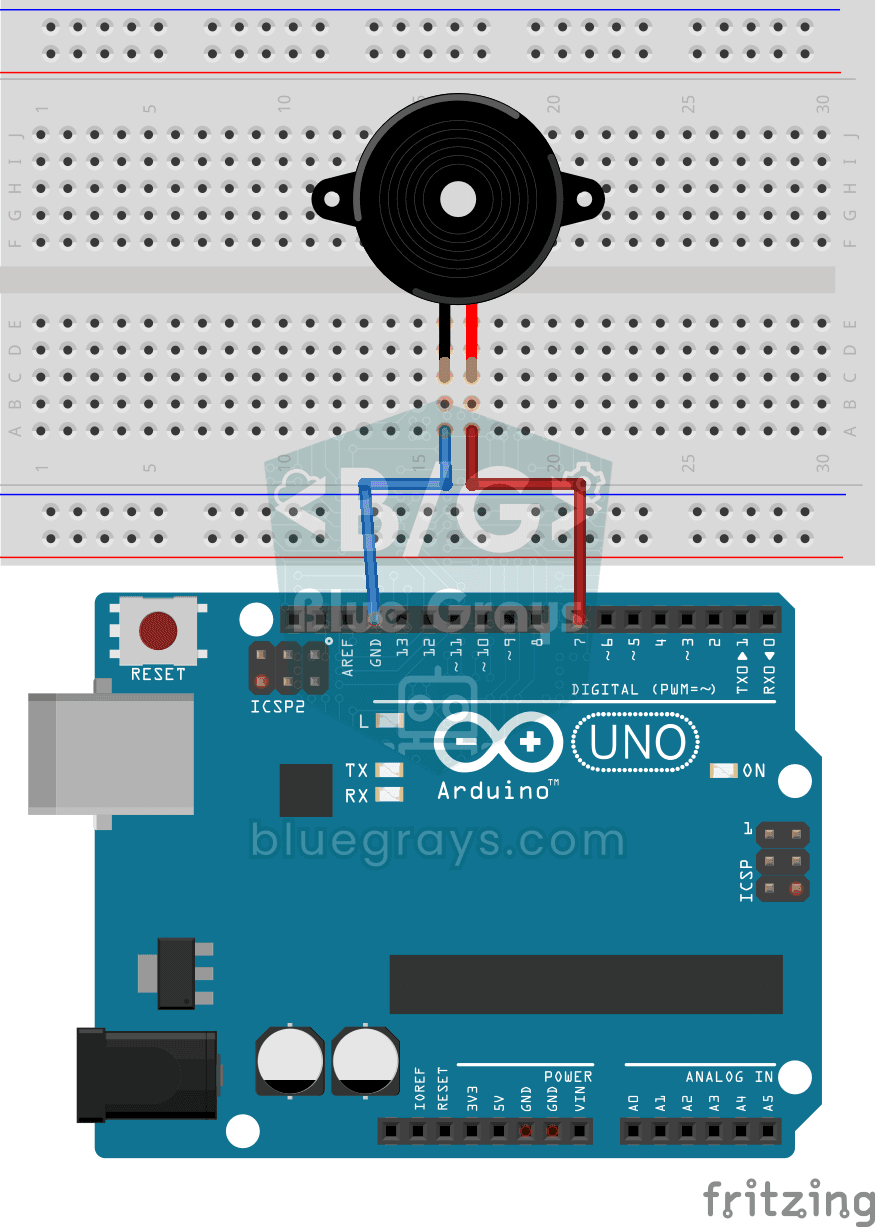
Using a Buzzer
Ever wondered how a doorbell or an alarm makes its sound? The Arduino makes a small buzzer beep at short intervals: beep, pause, beep, pause. You see how sound is made with electricity and take the fi
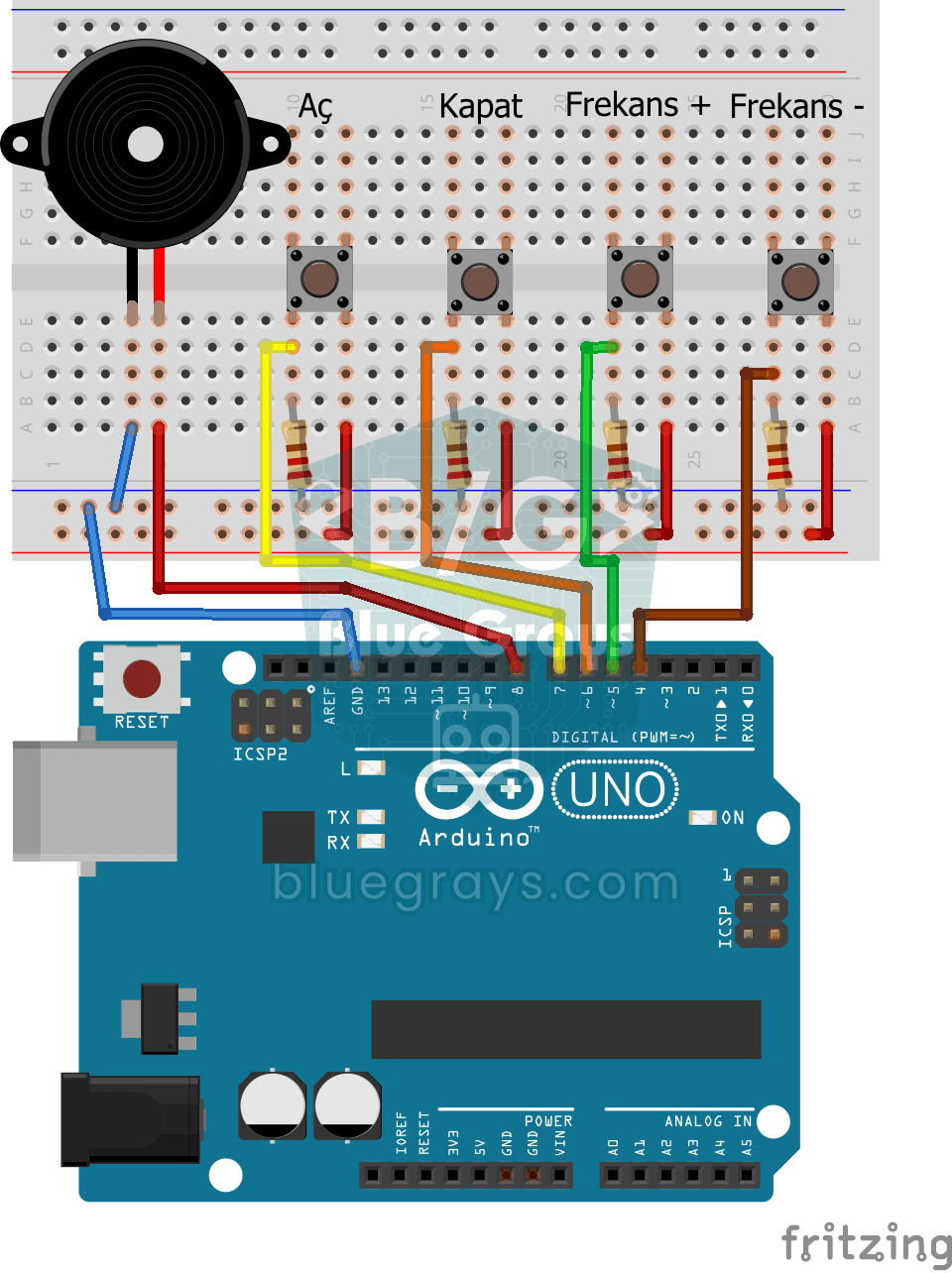
Frequency Setting with Buzzer
You control the sound of a buzzer with four buttons: one starts the sound, one silences it, and the other two make it higher or lower. Hold the up or down button and the pitch changes step by step, sl
Turkish National Anthem with Buzzer
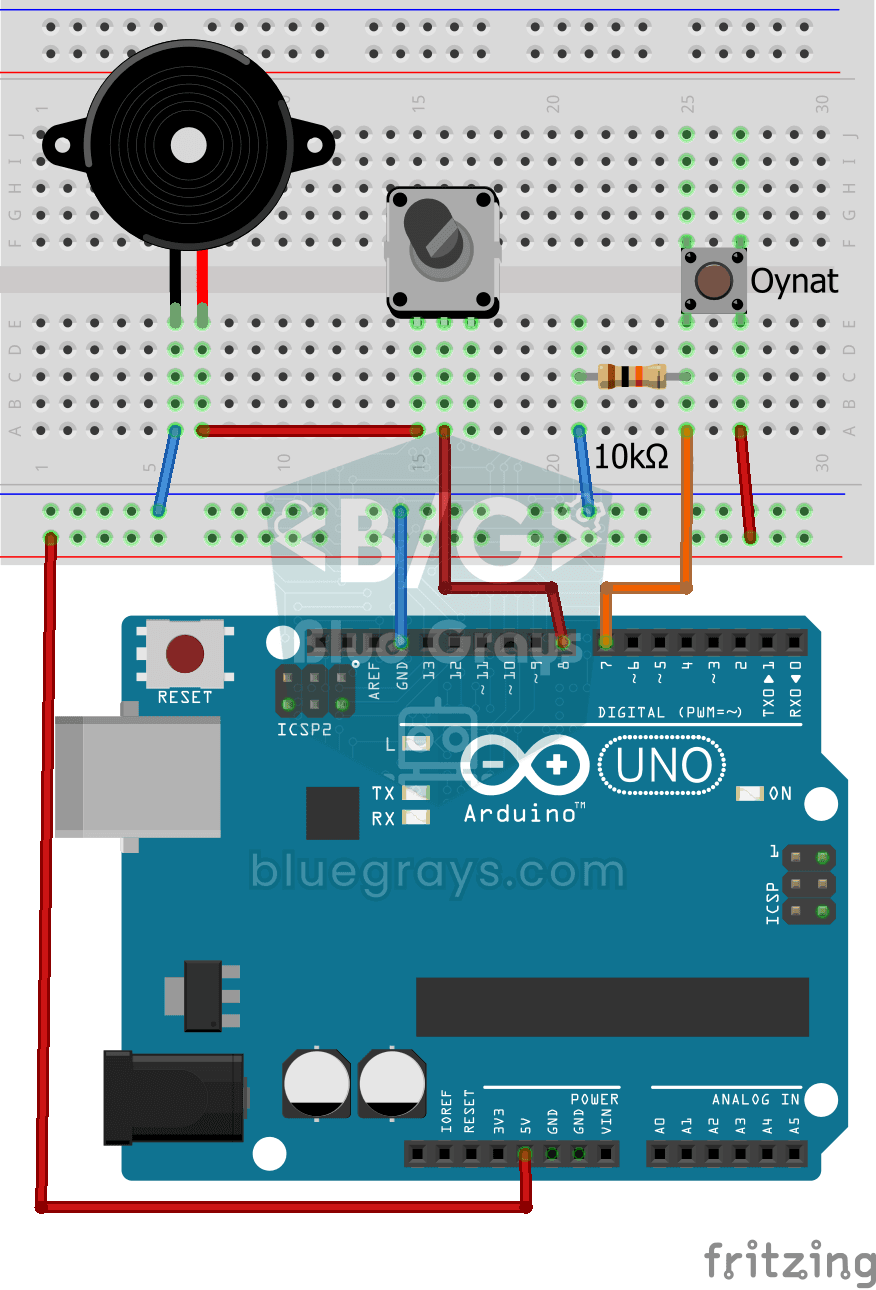
Press the button and a small buzzer starts playing the Turkish National Anthem, note by note. The Arduino plays every note at the right pitch and for the right length, performing two verses of the ant
Playing Melodies with an IR Remote and Buzzer
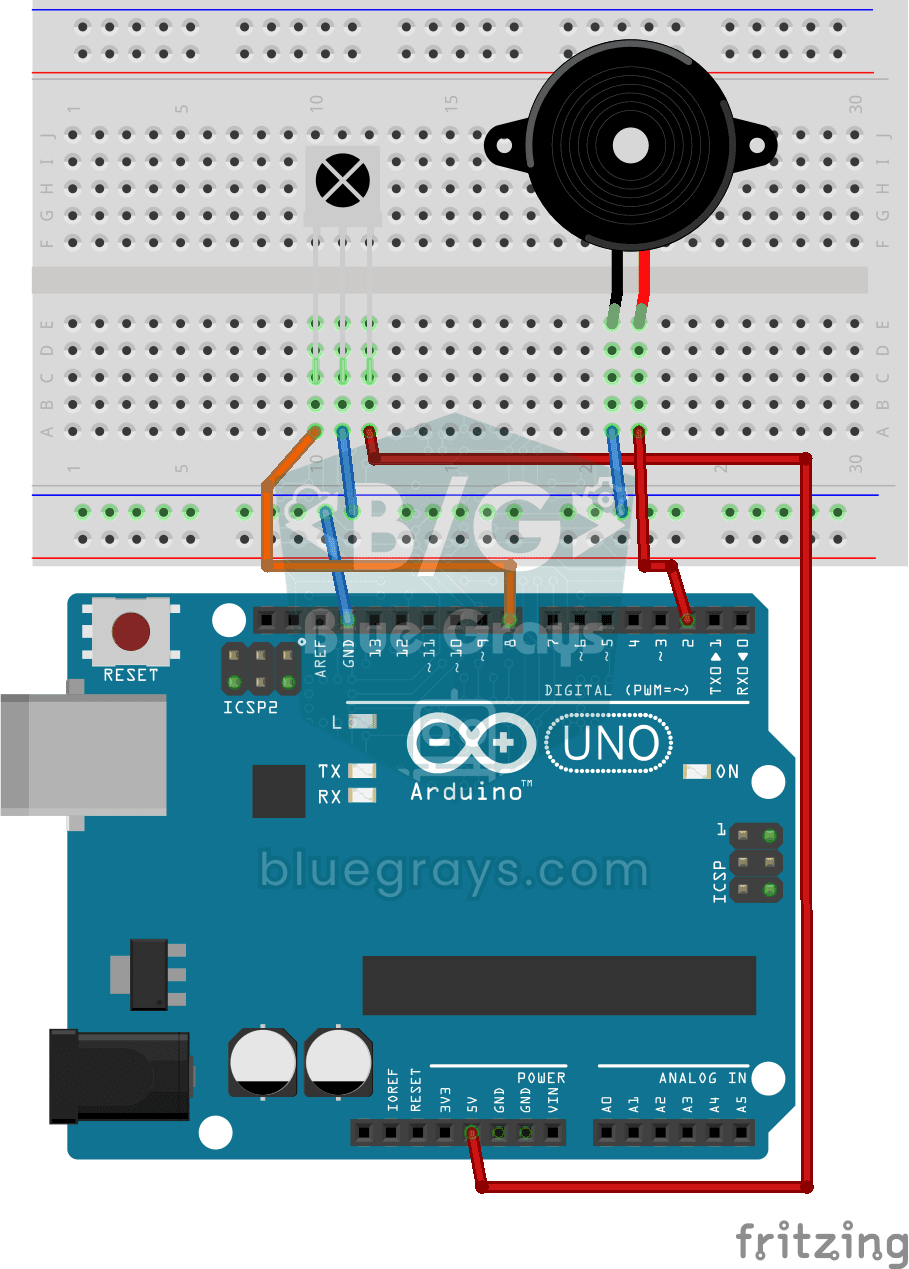
Build a music box that plays tunes with the buttons of a TV remote. An infrared receiver catches the remote's signal; one button plays a lively video game tune through the buzzer, another a familiar c
Simple Piano with Buzzer and Button
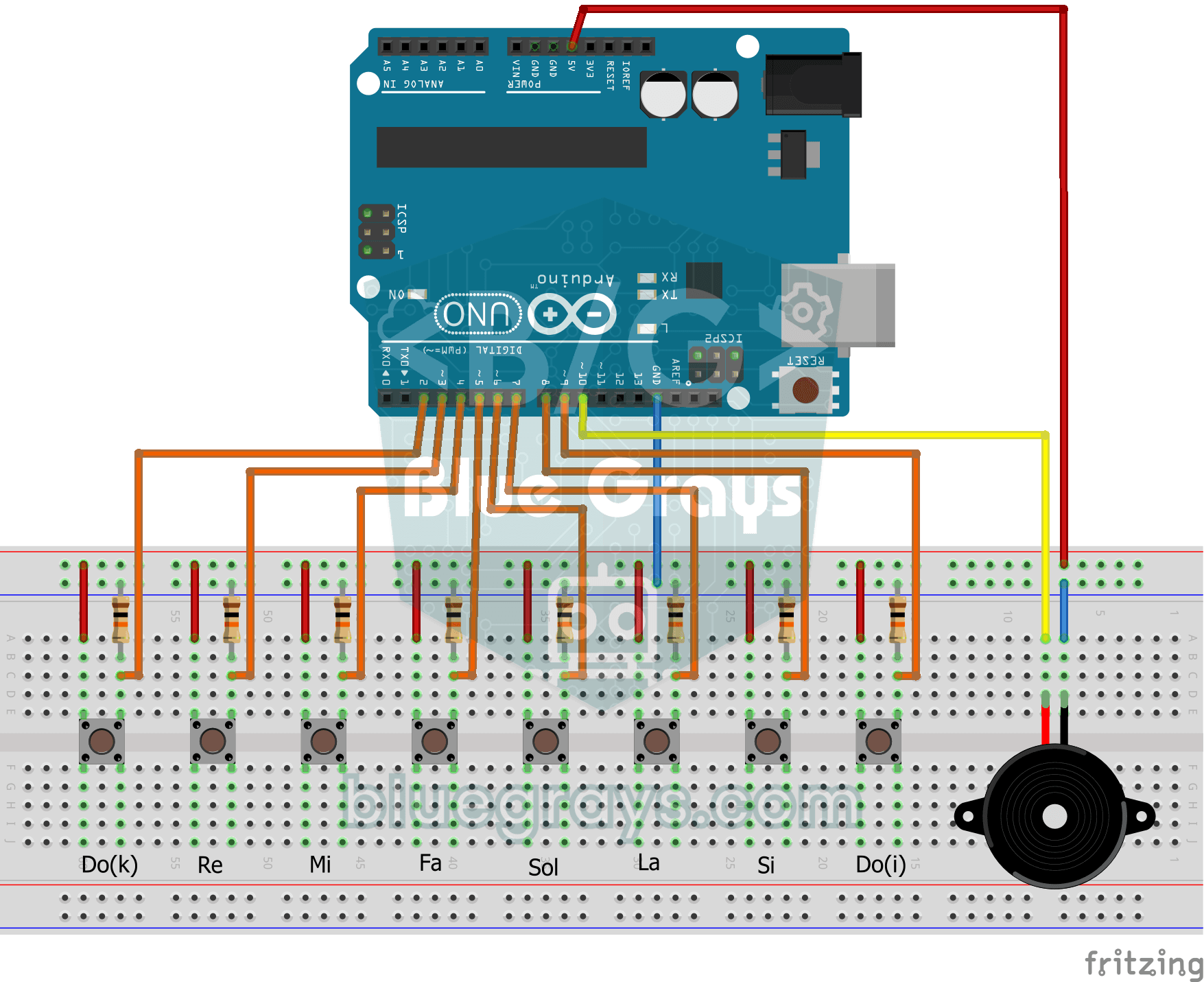
Build your own little piano with eight buttons. Each button is one note, from low to high: do, re, mi, fa, sol, la, ti and high do. The note plays through the buzzer as long as you hold the button and

ESP32 Melody Playback with Buzzer
Playing a simple melody (Twinkle Twinkle Little Star) with a passive buzzer. We play notes with tone() and noTone() functions like in Arduino - ESP32 works with the same syntax as Arduino Core 3.0+. Passive buzzer must be used (active buzzer does not play melody).
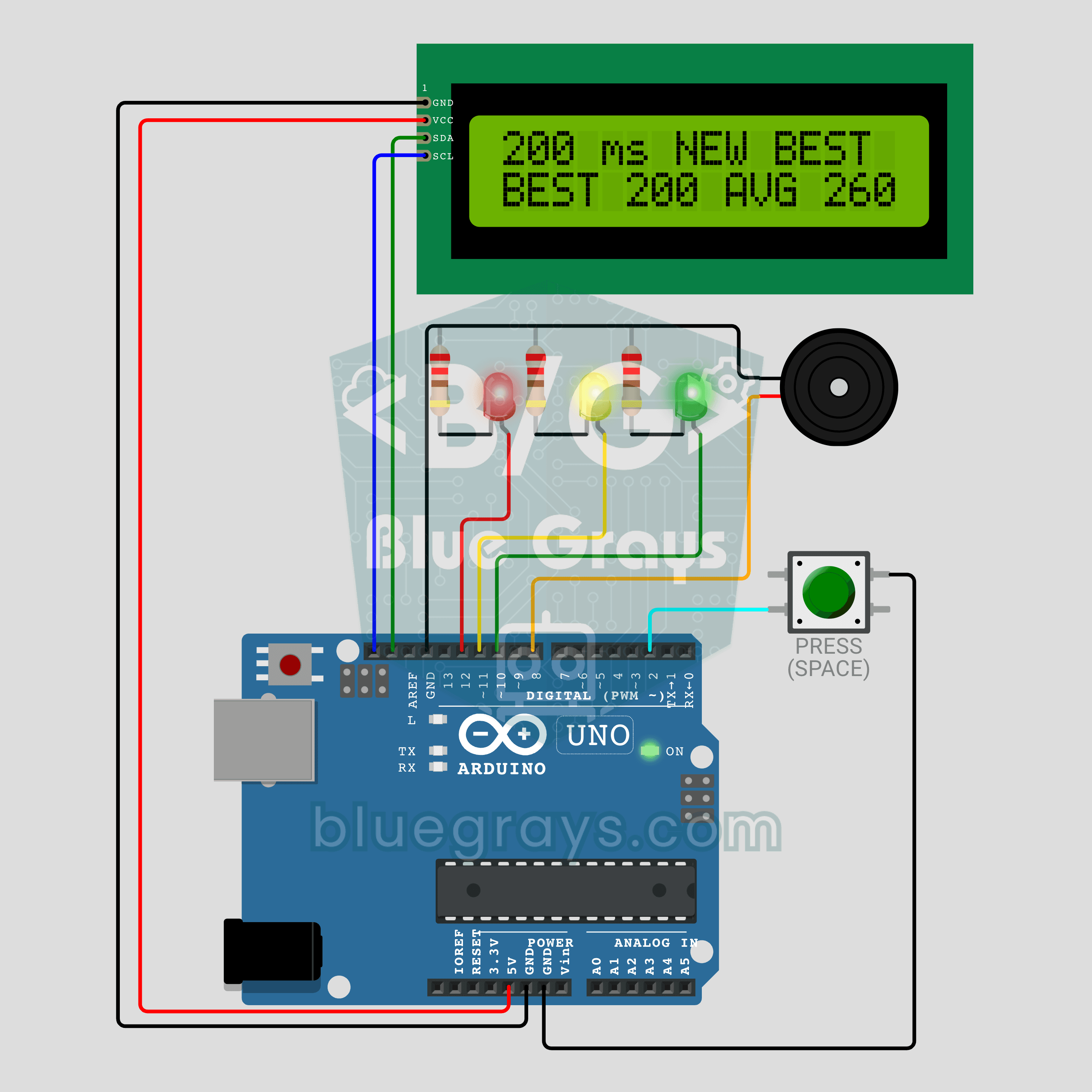
Arduino Reaction Time Test with Sound Cue: Measure Your Reflexes in Milliseconds (LCD + Buzzer + 3 LEDs)
How fast are your reflexes? Press the button: the red LED says get ready, the yellow LED says steady and a random wait of 1.5 to 3.5 seconds begins. The moment the green LED lights up and the buzzer beeps, press again; your reaction time appears on the I2C LCD in milliseconds, with your session best and average below it. Press before green and the screen shows TOO EARLY! with a losing sound. Hold the button for a new player, so everyone races the same wait order.