
Arduino Traffic Light: Circuit, Code, Pedestrian Button, Junction
Build an Arduino traffic light: 3 LEDs and 220 Ω wiring, delay and millis code, pedestrian button, two-way junction, Tinkercad, ESP32 and Pico versions.
An Arduino traffic light is the classic first project in electronics: three LEDs, red, yellow and green, switch on and off in sequence just like a real traffic signal. All you need is an Arduino Uno, three LEDs, three 220 Ω resistors and a few jumper wires, and your first working version is done in half an hour. Yet this simple project teaches a lot: digital outputs, LED and resistor maths, timing, reading a button and the state machine, the cleanest way to organise your code, all fit into these few LEDs.
In this guide you will first see in what order and for how long real traffic lights switch, then build the circuit and write the simplest code with delay(). Next you will add a pedestrian push button, rewrite the same logic with millis() and a state machine so it never blocks, and control a two-way junction. The final sections show how to try the project in Tinkercad without installing anything, the ESP32 and Raspberry Pi Pico (MicroPython) versions, and tips for writing a school report on the project.
How does a real traffic light work?
A traffic light is a timer that gives each stream of traffic its turn. In the UK, Germany and Turkey the cycle is red → red + yellow (amber) → green → yellow → red. Red and yellow together mean "green is coming, get ready, but don't go yet", while yellow on its own means "the light is turning red, prepare to stop". In the USA, France, Italy and Spain there is no red + yellow phase: the light goes straight from red to green. The yellow time is not random either: German rules set 3 seconds of yellow on roads with a 50 km/h limit, 4 seconds at 60 km/h and 5 seconds at 70 km/h, because a driver who is too close to stop when yellow appears must still be able to clear the junction safely.
| Phase | Lamp(s) on | Meaning | Time in this guide |
|---|---|---|---|
| 1 | Red | Stop | 5 s |
| 2 | Red + yellow | Green is coming, get ready | 1 s |
| 3 | Green | Go | 5 s |
| 4 | Yellow | Red is coming, stop | 3 s |
| At a junction | All directions red | Safety gap to clear the junction | 1 s |
Parts list and the 220 Ω resistor calculation
| Part | Qty | Note |
|---|---|---|
| Arduino Uno (or Nano) | 1 | An ESP32 or Raspberry Pi Pico works too |
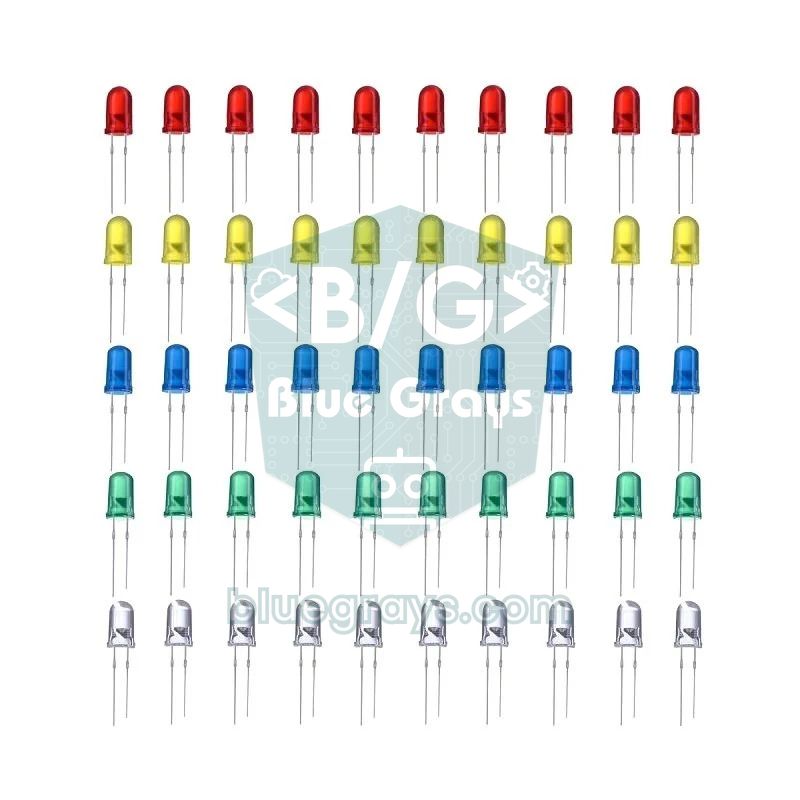
| 5 mm LEDs: red, yellow, green | 1 of each | +1 red and +1 green for the pedestrian light, +1 set for the junction |
| 220 Ω resistor | 3 | One per LED; 8 for all versions |
| Push button (6×6 mm) | 1 | Pedestrian version only |
| Breadboard | 1 | Half size (400 holes) is enough |
| Jumper wires | 10–20 | Male to male |
| USB cable | 1 | To upload the code and power the board |
LEDs do not limit their own current; an LED connected straight to 5 V draws more current than it and the pin can handle. That is why every LED gets a series resistor. You find its value with Ohm's law: R = (supply voltage − LED forward voltage) / current. For a red LED, (5 V − 2.0 V) / 0.015 A ≈ 200 Ω; with the nearest standard value, 220 Ω, the current is about 13.6 mA. That lights the LED brightly enough and stays below the 20 mA recommended for an Arduino pin. A 220 Ω resistor is marked red-red-brown-gold on four-band parts and red-red-black-black-brown on five-band parts; to be sure, use the resistor colour code tool, and for other colours and voltages the LED resistor calculator.
| LED colour | Forward voltage (approx.) | Current at 5 V (220 Ω) | Current at 3.3 V (220 Ω) |
|---|---|---|---|
| Red | 1.8–2.2 V | ≈ 13.6 mA | ≈ 5.9 mA |
| Yellow | 1.9–2.2 V | ≈ 13.2 mA | ≈ 5.5 mA |
| Green (yellowish green) | 2.0–2.4 V | ≈ 13.2 mA | ≈ 5.5 mA |
| Green (bright, pure green) | 2.8–3.4 V | ≈ 9.1 mA | ≈ 1.4 mA (very dim) |
Wiring the circuit and the pin table
Each LED's long leg (anode, +) goes through a resistor to an Arduino digital pin, and its short leg (cathode, −) goes to GND. It does not matter whether the resistor sits on the anode or the cathode side, as long as it is in series. On a breadboard the tidiest way is to connect the Arduino GND pin to the blue (−) rail and bring the short legs of all three LEDs to that rail. The table below lists the pins used by every sketch in this guide; the first sketch only uses the first three rows. You can see your board's pin layout in the Pinout tool.
| Function | Arduino Uno | ESP32 | Raspberry Pi Pico |
|---|---|---|---|
| Vehicle red (direction A) | D10 | GPIO 5 | GP13 |
| Vehicle yellow (direction A) | D9 | GPIO 18 | GP12 |
| Vehicle green (direction A) | D8 | GPIO 19 | GP11 |
| Pedestrian red | D7 | GPIO 21 | GP15 |
| Pedestrian green | D6 | GPIO 22 | GP14 |
| Pedestrian button (other leg to GND) | D2 | GPIO 23 | GP4 |
| Direction B red / yellow / green | D5 / D4 / D3 | GPIO 25 / 26 / 27 | GP8 / GP7 / GP6 |
| LED cathodes and button | GND | GND | GND |
Step 1: the simplest traffic light code with delay()
1// Arduino trafik lambası: delay() ile en basit sürüm / simplest version with delay()
2const int KIRMIZI = 10;  // kırmızı LED / red LED
3const int SARI = 9;      // sarı LED / yellow LED
4const int YESIL = 8;     // yeşil LED / green LED
5
6// Üç LED'i tek satırda ayarla / set all three LEDs in one line
7void lambalar(int k, int s, int y) {
8  digitalWrite(KIRMIZI, k);
9  digitalWrite(SARI, s);
10  digitalWrite(YESIL, y);
11}
12
13void setup() {
14  pinMode(KIRMIZI, OUTPUT);
15  pinMode(SARI, OUTPUT);
16  pinMode(YESIL, OUTPUT);
17}
18
19void loop() {
20  lambalar(HIGH, LOW, LOW);   // DUR: kırmızı / STOP: red
21  delay(5000);
22  lambalar(HIGH, HIGH, LOW);  // HAZIRLAN: kırmızı + sarı / GET READY: red + yellow
23  delay(1000);
24  lambalar(LOW, LOW, HIGH);   // GEÇ: yeşil / GO: green
25  delay(5000);
26  lambalar(LOW, HIGH, LOW);   // YAVAŞLA: sarı / SLOW DOWN: yellow
27  delay(3000);
28}
The sketch sets the three pins as outputs in setup() and runs the four phases in order inside loop(). Instead of writing three digitalWrite lines over and over, we use a small function called lambalar() ("lamps"), so each phase reads as a single line and a mistake is easy to spot. To upload, choose Arduino Uno as the board and the right port in the Tools menu, then click Upload. If the upload fails, go through the checklist in Arduino code won't upload. To change the timing, just edit the millisecond values inside delay(): 5000 means 5 seconds.
Step 2: traffic light with a pedestrian push button
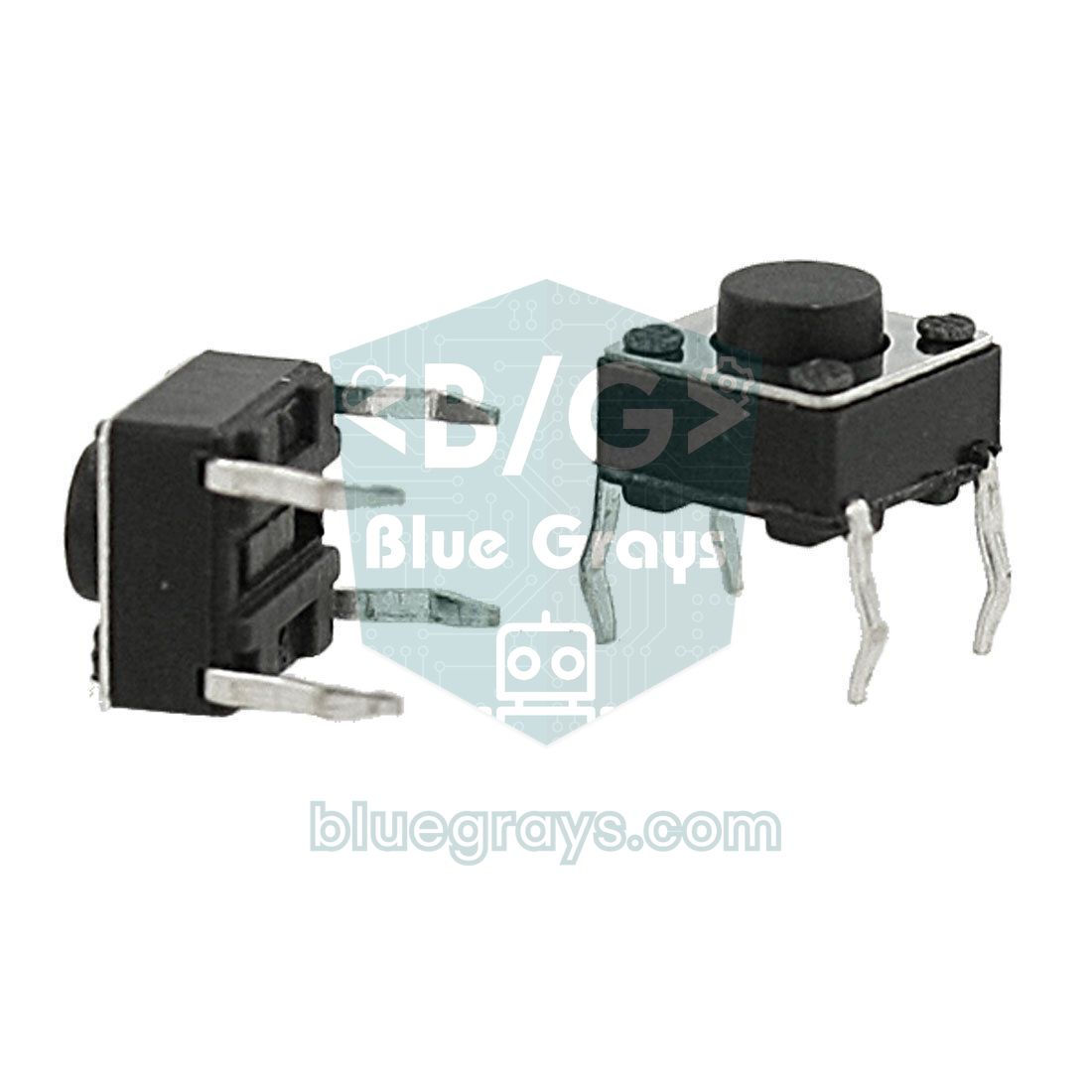
The push-button crossings you see in town keep the cars on green and only give pedestrians their turn when someone presses the button. In this version we add a two-LED pedestrian light (red and green) and a button on D2 to the vehicle light. One leg of the button goes to D2 and the diagonally opposite leg to GND; because the code uses INPUT_PULLUP, no external resistor is needed and the pin reads LOW while the button is pressed. You can read more about the internal connections of a four-leg button and about debouncing in How to connect a push button to Arduino.
1// Yaya butonlu trafik lambası (delay ile) / pedestrian push-button light (with delay)
2const int KIRMIZI = 10, SARI = 9, YESIL = 8;  // araç lambası / vehicle light
3const int YAYA_KIRMIZI = 7, YAYA_YESIL = 6;   // yaya lambası / pedestrian light
4const int BUTON = 2;                          // diğer ucu GND / other leg to GND
5
6void setup() {
7  pinMode(KIRMIZI, OUTPUT);
8  pinMode(SARI, OUTPUT);
9  pinMode(YESIL, OUTPUT);
10  pinMode(YAYA_KIRMIZI, OUTPUT);
11  pinMode(YAYA_YESIL, OUTPUT);
12  pinMode(BUTON, INPUT_PULLUP);               // basılınca LOW okunur / reads LOW when pressed
13  digitalWrite(YESIL, HIGH);                  // araçlar geçer / cars go
14  digitalWrite(YAYA_KIRMIZI, HIGH);           // yayalar bekler / pedestrians wait
15}
16
17void loop() {
18  if (digitalRead(BUTON) == LOW) {            // yaya butona bastı / pedestrian pressed
19    delay(2000);                              // araçlara kısa süre tanı / short grace time for cars
20    digitalWrite(YESIL, LOW);
21    digitalWrite(SARI, HIGH);                 // sarı / yellow
22    delay(3000);
23    digitalWrite(SARI, LOW);
24    digitalWrite(KIRMIZI, HIGH);              // araçlar durur / cars stop
25    delay(1000);                              // tüm kırmızı güvenlik payı / all-red safety gap
26    digitalWrite(YAYA_KIRMIZI, LOW);
27    digitalWrite(YAYA_YESIL, HIGH);           // yayalar geçer / pedestrians cross
28    delay(6000);
29    for (int i = 0; i < 6; i++) {             // yaya yeşili 3 kez yanıp söner / green man flashes 3 times
30      digitalWrite(YAYA_YESIL, i % 2 == 0 ? LOW : HIGH);
31      delay(500);
32    }
33    digitalWrite(YAYA_YESIL, LOW);
34    digitalWrite(YAYA_KIRMIZI, HIGH);
35    delay(1000);                              // tüm kırmızı / all red
36    digitalWrite(SARI, HIGH);                 // kırmızı + sarı / red + yellow
37    delay(1000);
38    digitalWrite(KIRMIZI, LOW);
39    digitalWrite(SARI, LOW);
40    digitalWrite(YESIL, HIGH);                // araçlar yeniden geçer / cars go again
41    delay(8000);                              // en kısa yeşil süresi / minimum green time
42  }
43}
This sketch works, but it has a serious weakness: once the button is pressed, the Arduino spends about 25 seconds stuck in delay() lines. A second press during that time goes unnoticed, nothing can be read from the serial port and no display can be updated. Presses during the 8-second wait at the end are lost completely: the pedestrian presses and releases, nothing happens and they have to press again. Adding sound or a countdown makes this structure even harder to work with. The fix is to stop waiting and start measuring time.
Step 3: non-blocking code with millis() and a state machine
A state machine is a design in which the system is always in exactly one state and moves to the next state when certain conditions are met. A traffic light is a perfect example: "green for cars", "yellow for cars" and "pedestrians crossing" are each a state. The code no longer waits with delay(); on every pass loop() asks just two questions: which state am I in, and how long have I been in it? The elapsed time is measured with millis() - durumBaslangic (the moment the state started), and when the time is up the code moves on. If millis() is new to you, read Arduino millis() vs delay() first. Writing the states into a table before coding makes the job much easier:
| State | Vehicle light | Pedestrian light | Duration | Next state |
|---|---|---|---|---|
| ARAC_YESIL | Green | Red | At least 8 s, until a request arrives | ARAC_SARI |
| ARAC_SARI | Yellow | Red | 3 s | YAYA_BEKLE |
| YAYA_BEKLE | Red | Red | 1 s | YAYA_GECER |
| YAYA_GECER | Red | Green | 6 s | YAYA_FLAS |
| YAYA_FLAS | Red | Green flashing | 3 s | YAYA_BITTI |
| YAYA_BITTI | Red | Red | 1 s | KIRMIZI_SARI |
| KIRMIZI_SARI | Red + yellow | Red | 1 s | ARAC_YESIL |
1// Yaya butonlu trafik lambası: millis() + durum makinesi / pedestrian light: millis() + state machine
2const int KIRMIZI = 10, SARI = 9, YESIL = 8;  // araç lambası / vehicle light
3const int YAYA_KIRMIZI = 7, YAYA_YESIL = 6;   // yaya lambası / pedestrian light
4const int BUTON = 2;                          // diğer ucu GND / other leg to GND
5
6enum Durum { ARAC_YESIL, ARAC_SARI, YAYA_BEKLE, YAYA_GECER, YAYA_FLAS, YAYA_BITTI, KIRMIZI_SARI };
7const char* const ISIM[] = { "ARAC_YESIL", "ARAC_SARI", "YAYA_BEKLE", "YAYA_GECER",
8                             "YAYA_FLAS", "YAYA_BITTI", "KIRMIZI_SARI" };
9
10// Süreler (ms) / durations (ms)
11const unsigned long MIN_YESIL = 8000;   // araçlara en az yeşil / minimum green for cars
12const unsigned long SARI_SURE = 3000;   // sarı / yellow
13const unsigned long GUVENLIK = 1000;    // tüm kırmızı / all red
14const unsigned long YAYA_SURE = 6000;   // yaya yeşili / pedestrian green
15const unsigned long FLAS_SURE = 3000;   // yanıp sönen yaya yeşili / flashing green man
16const unsigned long KS_SURE = 1000;     // kırmızı + sarı / red + yellow
17
18Durum durum = ARAC_YESIL;
19unsigned long durumBaslangic = 0;       // durumun başladığı an / when the state started
20bool yayaTalebi = false;                // butona basıldı mı? / was the button pressed?
21
22void aracLamba(bool k, bool s, bool y) {
23  digitalWrite(KIRMIZI, k);
24  digitalWrite(SARI, s);
25  digitalWrite(YESIL, y);
26}
27
28void yayaLamba(bool k, bool y) {
29  digitalWrite(YAYA_KIRMIZI, k);
30  digitalWrite(YAYA_YESIL, y);
31}
32
33// Yeni duruma geç: lambaları ayarla, saati başlat / enter a state: set the lamps, restart the clock
34void gec(Durum yeni) {
35  durum = yeni;
36  durumBaslangic = millis();
37  switch (yeni) {
38    case ARAC_YESIL:   aracLamba(0, 0, 1); yayaLamba(1, 0); break;
39    case ARAC_SARI:    aracLamba(0, 1, 0); yayaLamba(1, 0); break;
40    case YAYA_BEKLE:   aracLamba(1, 0, 0); yayaLamba(1, 0); break;
41    case YAYA_GECER:   aracLamba(1, 0, 0); yayaLamba(0, 1); yayaTalebi = false; break;
42    case YAYA_FLAS:    aracLamba(1, 0, 0); yayaLamba(0, 1); break;
43    case YAYA_BITTI:   aracLamba(1, 0, 0); yayaLamba(1, 0); break;
44    case KIRMIZI_SARI: aracLamba(1, 1, 0); yayaLamba(1, 0); break;
45  }
46  Serial.println(ISIM[yeni]);           // durum günlüğü / state log
47}
48
49void setup() {
50  Serial.begin(9600);
51  pinMode(KIRMIZI, OUTPUT);
52  pinMode(SARI, OUTPUT);
53  pinMode(YESIL, OUTPUT);
54  pinMode(YAYA_KIRMIZI, OUTPUT);
55  pinMode(YAYA_YESIL, OUTPUT);
56  pinMode(BUTON, INPUT_PULLUP);
57  gec(ARAC_YESIL);
58}
59
60void loop() {
61  unsigned long gecen = millis() - durumBaslangic;  // bu durumda geçen süre / time spent in this state
62
63  // yaya yeşili yanarken basış yok sayılır / presses during the green man are ignored
64  if (digitalRead(BUTON) == LOW && durum != YAYA_GECER) {
65    yayaTalebi = true;                  // talebi hatırla / remember the request
66  }
67
68  switch (durum) {
69    case ARAC_YESIL:
70      if (yayaTalebi && gecen >= MIN_YESIL) gec(ARAC_SARI);
71      break;
72    case ARAC_SARI:
73      if (gecen >= SARI_SURE) gec(YAYA_BEKLE);
74      break;
75    case YAYA_BEKLE:
76      if (gecen >= GUVENLIK) gec(YAYA_GECER);
77      break;
78    case YAYA_GECER:
79      if (gecen >= YAYA_SURE) gec(YAYA_FLAS);
80      break;
81    case YAYA_FLAS:
82      digitalWrite(YAYA_YESIL, (gecen / 250) % 2 == 0);  // 250 ms'de bir yanıp söner / toggles every 250 ms
83      if (gecen >= FLAS_SURE) gec(YAYA_BITTI);
84      break;
85    case YAYA_BITTI:
86      if (gecen >= GUVENLIK) gec(KIRMIZI_SARI);
87      break;
88    case KIRMIZI_SARI:
89      if (gecen >= KS_SURE) gec(ARAC_YESIL);
90      break;
91  }
92}
The heart of the sketch is the gec() ("go to") function: it stores the new state, restarts the timer, sets the lamps for that state and prints the state name to the Serial Monitor. The switch inside loop() only checks whether the time is up. Pressing the button does not trigger anything immediately; it raises the yayaTalebi (pedestrian request) flag, and the cycle starts once the cars have had at least 8 seconds of green. Presses are never lost now, and because the button only changes a flag, contact bounce causes no trouble either. Presses while the green man is already lit are ignored; otherwise a new, unnecessary cycle would start right after the pedestrians have crossed. Open the Serial Monitor at 9600 baud to see the name of every transition; this output helps both with debugging and in your school report.
Step 4: a two-way junction
At a real junction the lights of the two roads are linked: while road A is green, road B must be red. This version uses six LEDs: D10, D9 and D8 for direction A, and D5, D4 and D3 for direction B. An important detail is the short all-red clearance interval: when one direction turns red, the other does not turn green immediately; the controller waits 1 second so that vehicles still inside the junction can leave. This time the states go into a table (an array) instead of a switch; for each step, the lamps that are on are stored as bits in a single byte and the duration in milliseconds.
1// İki yönlü kavşak: tablo tabanlı durum makinesi / two-way junction: table-driven state machine
2const byte A_KIRMIZI = 10, A_SARI = 9, A_YESIL = 8;  // A yönü (ana yol) / direction A (main road)
3const byte B_KIRMIZI = 5,  B_SARI = 4, B_YESIL = 3;  // B yönü (ara yol) / direction B (side road)
4const byte PINLER[6] = { A_KIRMIZI, A_SARI, A_YESIL, B_KIRMIZI, B_SARI, B_YESIL };
5
6struct Adim {
7  byte maske;            // bit sırası: A_K A_S A_Y B_K B_S B_Y / bit order: A_R A_Y A_G B_R B_Y B_G
8  unsigned long sure;    // ms
9};
10
11const Adim PLAN[] = {
12  { 0b001100, 8000 },   // A yeşil, B kırmızı / A green, B red
13  { 0b010100, 3000 },   // A sarı, B kırmızı / A yellow, B red
14  { 0b100100, 1000 },   // tüm yönler kırmızı / all red
15  { 0b100110, 1000 },   // A kırmızı, B kırmızı + sarı / A red, B red + yellow
16  { 0b100001, 5000 },   // A kırmızı, B yeşil / A red, B green
17  { 0b100010, 3000 },   // A kırmızı, B sarı / A red, B yellow
18  { 0b100100, 1000 },   // tüm yönler kırmızı / all red
19  { 0b110100, 1000 },   // A kırmızı + sarı, B kırmızı / A red + yellow, B red
20};
21const byte ADIM_SAYISI = sizeof(PLAN) / sizeof(PLAN[0]);
22
23byte adim = 0;
24unsigned long adimBaslangic = 0;
25
26void uygula(byte maske) {
27  if ((maske & 0b001000) && (maske & 0b000001)) {  // iki yeşil aynı anda yanamaz / never two greens
28    maske = 0b100100;                              // güvenli durum: tüm kırmızı / fail-safe: all red
29  }
30  for (byte i = 0; i < 6; i++) {
31    digitalWrite(PINLER[i], (maske >> (5 - i)) & 1);  // soldaki bit A_KIRMIZI / leftmost bit is A_RED
32  }
33}
34
35void setup() {
36  for (byte i = 0; i < 6; i++) pinMode(PINLER[i], OUTPUT);
37  uygula(PLAN[0].maske);
38  adimBaslangic = millis();
39}
40
41void loop() {
42  if (millis() - adimBaslangic >= PLAN[adim].sure) {
43    adimBaslangic += PLAN[adim].sure;   // kaymasız zamanlama / drift-free timing
44    adim = (adim + 1) % ADIM_SAYISI;
45    uygula(PLAN[adim].maske);
46  }
47  // Burada buton, sensör ya da ekran işleri çalışabilir / buttons, sensors or a display can run here
48}
Each row of the PLAN array is one step. In binary numbers such as 0b001100, the bits from left to right stand for A red, A yellow, A green, B red, B yellow and B green; 1 means on and 0 means off. The uygula() ("apply") function writes these six bits to the pins in order. The check at the start of the function stops a typo from showing green in both directions at once and puts the junction into all red instead. Real junction controllers also have a separate safety circuit that catches conflicting greens. To change timings or add steps you only edit the table and never touch the rest of the code. If you run out of pins as the number of LEDs grows, a 74HC595 shift register gives you eight outputs from three pins.
Try it in Tinkercad: simulation without any parts
- Create a free account at tinkercad.com and start a new circuit in the Circuits section.
- Drag an Arduino Uno R3, a breadboard, three LEDs and three resistors from the component list on the right. Click an LED to choose its colour and a resistor to set its value to 220 Ω.
- Draw the wires: LED anodes through the resistors to D10, D9 and D8, cathodes to GND. Setting wire colours (black for GND, for example) makes the schematic easy to read.
- Click Code, choose Text from the drop-down menu, delete the sample code and paste the sketch from this guide.
- Click Start Simulation; the LEDs start switching in sequence. Serial output appears in the Serial Monitor at the bottom of the code panel.
Tinkercad is the easiest way to test wiring and code before building with real parts; if you forget a resistor, the simulator shows a warning on the LED that the current is too high. To test the pedestrian version, just click the button with the mouse while the simulation runs. On a slow computer the simulation can run slower than real time, so the timings may look a little long. For a school assignment you can hand in Tinkercad's share link or a screenshot of the circuit. For detailed instructions see Tinkercad Arduino simulation, and for an alternative that also supports the ESP32 and Pico, see Wokwi.
ESP32 traffic light with night mode
The Arduino sketches in this guide also run on the ESP32: select ESP32 Dev Module as the board in the Arduino IDE and change the pin constants as shown in the table. The version below adds one feature: night mode. At quiet hours many junctions switch to flashing yellow. ESP32 DevKit boards have a BOOT button wired to GPIO 0, so you do not even need an extra button: once the board has started, it can be read like a normal input. Each press toggles between normal mode and night mode.
1// ESP32 trafik lambası + gece modu (BOOT düğmesi) / ESP32 traffic light + night mode (BOOT button)
2const int KIRMIZI = 5;      // GPIO 5
3const int SARI = 18;        // GPIO 18
4const int YESIL = 19;       // GPIO 19
5const int BOOT_BUTON = 0;   // kart üzerindeki BOOT düğmesi / on-board BOOT button
6
7struct Adim { bool k, s, y; unsigned long sure; };
8const Adim PLAN[] = {
9  { true,  false, false, 5000 },   // kırmızı / red
10  { true,  true,  false, 1000 },   // kırmızı + sarı / red + yellow
11  { false, false, true,  5000 },   // yeşil / green
12  { false, true,  false, 3000 },   // sarı / yellow
13};
14const int ADIM_SAYISI = sizeof(PLAN) / sizeof(PLAN[0]);
15
16int adim = 0;
17unsigned long adimBaslangic = 0;
18bool geceModu = false;
19int sonOkuma = HIGH, kararli = HIGH;     // debounce için / for debouncing
20unsigned long degisimZamani = 0;
21
22void lambalar(bool k, bool s, bool y) {
23  digitalWrite(KIRMIZI, k);
24  digitalWrite(SARI, s);
25  digitalWrite(YESIL, y);
26}
27
28void setup() {
29  Serial.begin(115200);
30  pinMode(KIRMIZI, OUTPUT);
31  pinMode(SARI, OUTPUT);
32  pinMode(YESIL, OUTPUT);
33  pinMode(BOOT_BUTON, INPUT_PULLUP);
34  lambalar(PLAN[0].k, PLAN[0].s, PLAN[0].y);
35  adimBaslangic = millis();
36}
37
38void loop() {
39  unsigned long simdi = millis();
40
41  // 50 ms kararlı kalan basışı kabul et / accept a press that stays stable for 50 ms
42  int okuma = digitalRead(BOOT_BUTON);
43  if (okuma != sonOkuma) {
44    sonOkuma = okuma;
45    degisimZamani = simdi;
46  }
47  if (simdi - degisimZamani >= 50 && okuma != kararli) {
48    kararli = okuma;
49    if (kararli == LOW) {                  // yeni basış / new press
50      geceModu = !geceModu;
51      Serial.println(geceModu ? "Gece modu / Night mode" : "Normal mod / Normal mode");
52      adim = 0;                            // normal mod kırmızıdan başlar / normal mode restarts on red
53      adimBaslangic = simdi;
54      lambalar(PLAN[0].k, PLAN[0].s, PLAN[0].y);
55    }
56  }
57
58  if (geceModu) {
59    lambalar(false, (simdi / 500) % 2 == 0, false);  // yanıp sönen sarı / flashing yellow
60    return;
61  }
62
63  if (simdi - adimBaslangic >= PLAN[adim].sure) {
64    adimBaslangic = simdi;
65    adim = (adim + 1) % ADIM_SAYISI;
66    lambalar(PLAN[adim].k, PLAN[adim].s, PLAN[adim].y);
67  }
68}
The button reading includes a simple debounce: a press only counts if the reading stays unchanged for 50 ms. The PLAN table holding the lamp states is a more readable form of the idea used in the junction sketch. Because the ESP32 pins output 3.3 V, the LEDs draw less current than on the Arduino and look a little dimmer. Red and yellow LEDs are bright enough with 220 Ω, but a bright green LED with a forward voltage around 3 V can stay very dim; in that case drop the green resistor to 100 Ω. If you are new to the ESP32, What is the ESP32? is a good place to start for installation and safe pins.
Pedestrian traffic light with Raspberry Pi Pico (MicroPython)
On the Raspberry Pi Pico we write the same state machine in MicroPython. This time the states live in a list: each row holds the state name, the values of the five lamps and the duration. The button uses an interrupt: when GP4 falls to LOW, the buton_kesmesi() ("button interrupt") function runs and only raises the request flag. If you save the code to the Pico as main.py with Thonny, it starts automatically every time the board powers up.
1# Raspberry Pi Pico (MicroPython): yaya butonlu trafik lambası / pedestrian traffic light
2from machine import Pin
3import time
4
5yesil = Pin(11, Pin.OUT)              # araç yeşil / vehicle green
6sari = Pin(12, Pin.OUT)               # araç sarı / vehicle yellow
7kirmizi = Pin(13, Pin.OUT)            # araç kırmızı / vehicle red
8yaya_yesil = Pin(14, Pin.OUT)         # yaya yeşil / pedestrian green
9yaya_kirmizi = Pin(15, Pin.OUT)       # yaya kırmızı / pedestrian red
10buton = Pin(4, Pin.IN, Pin.PULL_UP)   # GP4, diğer ucu GND / other leg to GND
11
12# (durum, kırmızı, sarı, yeşil, yaya kırmızı, yaya yeşil, süre ms)
13# (state, red, yellow, green, ped red, ped green, duration ms)
14DURUMLAR = [
15    ("ARAC_YESIL",   0, 0, 1, 1, 0, 8000),   # en az yeşil süresi / minimum green
16    ("ARAC_SARI",    0, 1, 0, 1, 0, 3000),
17    ("YAYA_BEKLE",   1, 0, 0, 1, 0, 1000),   # tüm kırmızı / all red
18    ("YAYA_GECER",   1, 0, 0, 0, 1, 6000),
19    ("YAYA_FLAS",    1, 0, 0, 0, 1, 3000),
20    ("YAYA_BITTI",   1, 0, 0, 1, 0, 1000),   # tüm kırmızı / all red
21    ("KIRMIZI_SARI", 1, 1, 0, 1, 0, 1000),
22]
23
24talep = False
25adim = 0                              # şu anki durumun sırası / index of the current state
26
27def buton_kesmesi(pin):               # kesmede yalnız bayrak kaldır / only set a flag in the IRQ
28    global talep
29    if DURUMLAR[adim][0] != "YAYA_GECER":   # yaya yeşilinde basış yok sayılır / ignored during the green man
30        talep = True
31
32buton.irq(trigger=Pin.IRQ_FALLING, handler=buton_kesmesi)
33
34def uygula(i):
35    global talep
36    ad, k, s, y, yk, yy, _ = DURUMLAR[i]
37    kirmizi.value(k)
38    sari.value(s)
39    yesil.value(y)
40    yaya_kirmizi.value(yk)
41    yaya_yesil.value(yy)
42    if ad == "YAYA_GECER":
43        talep = False                 # talep karşılandı / request served
44    print("Durum / state:", ad)
45
46uygula(adim)
47baslangic = time.ticks_ms()
48
49while True:
50    gecen = time.ticks_diff(time.ticks_ms(), baslangic)   # taşmaya karşı güvenli / wrap-safe
51    ad = DURUMLAR[adim][0]
52
53    if ad == "YAYA_FLAS":
54        yaya_yesil.value((gecen // 250) % 2 == 0)          # yanıp sönen yaya yeşili / flashing green man
55
56    if gecen >= DURUMLAR[adim][6] and (ad != "ARAC_YESIL" or talep):
57        adim = (adim + 1) % len(DURUMLAR)                   # yeşil, talep gelene kadar sürer / green lasts until a request
58        uygula(adim)
59        baslangic = time.ticks_ms()
60
61    time.sleep_ms(10)
In MicroPython you use time.ticks_ms() instead of millis() and time.ticks_diff() instead of plain subtraction; the ticks counter wraps around after a certain value, so subtracting two readings directly can give wrong results. Keep the interrupt handler short: no print, no sleep and no long calculations, just change a flag. The Pico's pins also run at 3.3 V, so the green LED note from the ESP32 section applies here too. You will find how to install MicroPython and the pin numbering in What is the Raspberry Pi Pico?, and the language basics in MicroPython basics.
Common mistakes and how to fix them
| Symptom | Likely cause | Fix |
|---|---|---|
| No LED lights up | GND not connected, or the breadboard power rail is split in the middle | Connect Arduino GND to the blue rail; bridge the two halves on a long breadboard |
| One LED stays dark | LED reversed or wired to the wrong pin | Long leg (anode) through the resistor to the pin, short leg to GND; compare the pin number with the code |
| The wrong colour lights up | The red and green pins are swapped in the code | Fix the wires or the constants according to the pin table |
| LED very bright and getting warm | No resistor fitted | Add a 220 Ω series resistor to every LED |
| Button does nothing or always seems pressed | Button fitted across two legs that are already connected inside, or INPUT_PULLUP forgotten | Use diagonal legs and write pinMode(BUTON, INPUT_PULLUP) |
| No immediate reaction to the button | The cars' minimum green time has not run out yet | Not a bug; reduce MIN_YESIL |
| The program goes haywire after a while | A time variable is declared as int | Declare every variable used with millis() as unsigned long |
Tips for your school assignment and project report
The traffic light is one of the most common Arduino assignments in science, technology and robotics classes. Your teacher usually wants to see not just a working circuit but that you understand it and can explain it. If you structure your report with the following sections, it will look organised and you will not miss anything important:
- Aim: Describe in one or two sentences what the project demonstrates, for example "timing a traffic light with digital outputs".
- Parts list: Give the name, quantity and value (220 Ω) of every part, as in the table above.
- Circuit diagram: Add a Tinkercad or Fritzing screenshot; if you draw it by hand, use the correct symbols. How to read a circuit diagram helps with this.
- Resistor calculation: Show R = (5 − 2) / 0.015 ≈ 200 Ω and explain why you chose 220 Ω.
- State table or flowchart: Include the table of states, durations and transitions; it is the strongest proof that you understand the code.
- Code and explanation: Include the full code and explain the important lines in your own words.
- Tests and observations: Time the phases with a stopwatch, measure one LED's current with a multimeter and compare it with your calculation.
- Conclusion and improvements: Describe the problems you met, how you solved them and features you could add (pedestrian button, sound, night mode).
Ideas to take your traffic light further
- Countdown display: Show the seconds left until green ends on a 7-segment display.
- Audible signal for visually impaired pedestrians: While the pedestrian light is green, beep fast with a buzzer, and slowly while it is red.
- Smart junction: Detect a car waiting on the side road with an HC-SR04 distance sensor and give direction B green only when a car is there.
- Automatic night mode: Use an LDR to switch to flashing yellow when it gets dark.
- Remote control: Build a web page on the ESP32 and change the mode and timings from your phone.
- Level crossing: Use the same logic for railway crossing lights with two red LEDs flashing alternately; the Knight Rider and running LED projects use similar timing ideas.
A traffic light looks like a small project, but the ideas in it, state machines, non-blocking timing and safe transitions, are also the foundation of the robots, alarm systems and smart home devices you will build later. To choose what to build next, browse the Arduino project ideas list. In the BlueGrays app you will find traffic light projects for Arduino, ESP32 and Raspberry Pi Pico, plus follow-ups such as the Pico four-mode traffic light and LED level crossing warning lights, each with a step-by-step circuit diagram and ready-to-use code to try on your own board.
Frequently asked questions
How do you make a traffic light with Arduino?
Connect the long legs of a red, a yellow and a green LED to Arduino digital pins (for example D10, D9 and D8) through 220 Ω resistors and the short legs to GND. In the code, set those pins as OUTPUT and switch the LEDs on and off in order inside loop(). delay() is enough for a first version; for buttons and extra features you need millis().
What resistor do I need for a traffic light LED?
On a 5 V Arduino Uno, 220 Ω per LED is a common and safe choice; a red LED then draws about 13–14 mA. 330 Ω gives a dimmer but still clearly visible light. 220 Ω also works on the 3.3 V ESP32 and Pico; only if a bright green LED stays dim should you go down to 100 Ω.
Why do red and yellow light up together on a traffic light?
In countries such as the UK, Germany and Turkey, red and yellow together announce that green is about to come on: drivers get ready but do not move until green appears. The USA, France, Italy and Spain do not use this phase and go straight from red to green. In your Arduino project you can include or leave out this phase as you like.
Should I use delay or millis for an Arduino traffic light?
If you only switch the LEDs in sequence, delay() is the simplest option and works fine. As soon as you add a button, sensor, display or sound, delay() pauses the program and those inputs are missed. Code written with millis() and a state machine never waits and can keep track of everything at once.
Can I build the traffic light project in Tinkercad?
Yes. Tinkercad Circuits includes the Arduino Uno, LEDs, resistors and push buttons as ready-made components; draw the circuit, paste the code into the Text editor and start the simulation. It is ideal for testing the circuit and code without real parts and for getting a screenshot or share link for your assignment.
How does a pedestrian push-button traffic light work?
Cars normally have green, and pressing the button registers a request. Once the cars' minimum green time is over, the light turns yellow, then red, and after a short safety gap the pedestrian light turns green. In this guide's code the green man flashes before it ends, and then the cycle returns to the cars.
Projects to build after reading this
See all projects
Traffic Light
Project that simulates a real traffic light with red, yellow and green LEDs. Teaches timing and sequential control logic.

ESP32 Traffic Light
Real traffic light simulation with 3 LEDs red-yellow-green. Timings close to real traffic logic: red long, yellow short, green long. Classic example of sequential GPIO control.
Raspberry Pi Pico Traffic Light Simulator (3 LEDs Sequential, GP11/GP12/GP13)
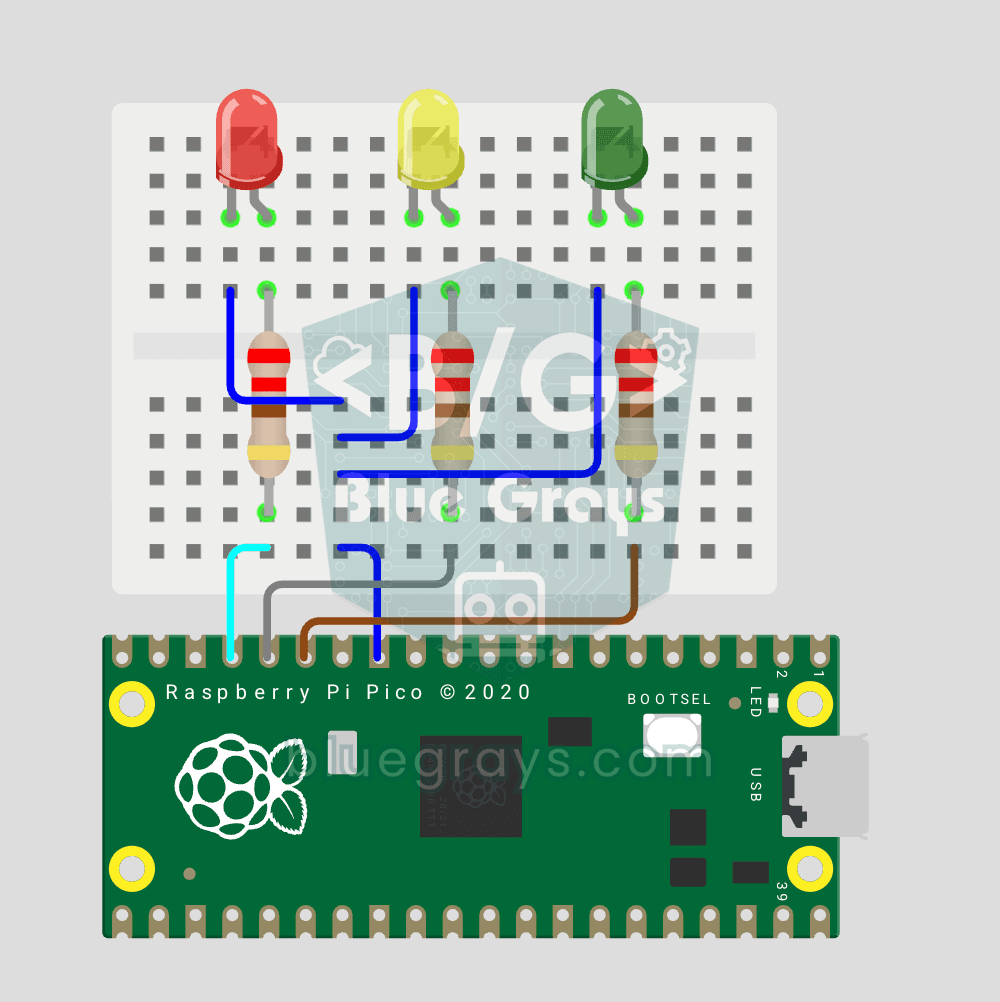
We simulate a real traffic light with red, yellow and green LEDs — the first 3-LED project of the Pico series! Green 4 sec "go", yellow 1.5 sec "ready", red 3 sec "stop" and red+yellow 1 sec "starting" (European traffic light pattern). Learn **function definition** (`def all_off()`), **state machine logic** (sequence) and **multi-GPIO synchronization**. Very simple circuit: 3 LEDs on GP11 (Green), GP12 (Yellow), GP13 (Red), each with a 220Ω current-limiting resistor. GP11-GP12-GP13 are ad

Two LEDs Blinking Alternately
Project that creates a flip-flop effect by sequentially turning on and off two LEDs. Teaches how to control multiple output pins.

LED Control with a Push Button (Push)
Push control project that turns on the LED when the button is pressed and turns it off when it is released. Teaches button reading and conditional expression usage with digitalRead.

LED Police Lights
Project that creates a police strobe light effect by flashing two LEDs at fast intervals. Teaches for loop and timing control.
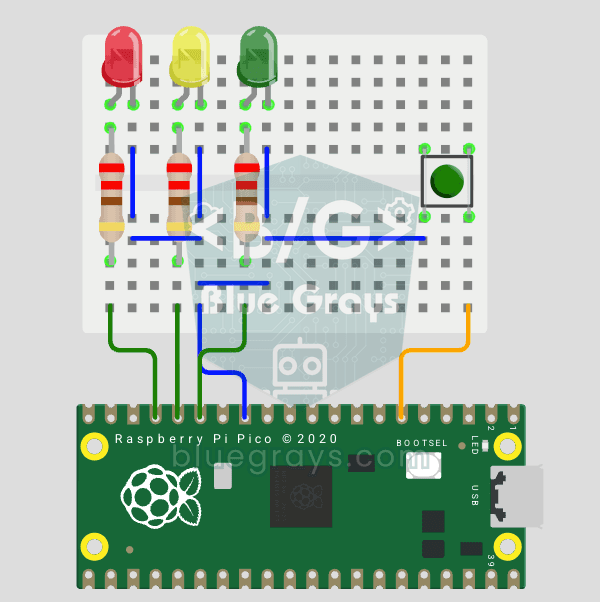
Raspberry Pi Pico Traffic Light with 4-Mode Button Selector (State Machine, GP11-13 + GP4)
4 different traffic light modes with just 1 button! The mode changes with each press of the button: **Normal cycle** (red → yellow → green in sequence), **Red Only** (stop signal), **Yellow Flash** (caution/night mode), **Off** (maintenance). Concepts: **state machine** (the `mode` variable determines which behavior runs), **modulo mode cycling** (`(mode + 1) % 4` → 0→1→2→3→0 infinite loop), **non-blocking timing** (LED phases are timed with `time.ticks_ms()` + `time.ticks_diff()`; however, the

LED Railroad Crossing Warning Lights
LED Railroad Crossing Warning Lights.