
Arduino Programming Basics: Variables, Loops and Functions
Learn Arduino programming from scratch: setup and loop, int, long, byte, overflow, const, #define, if-else, switch-case, loops, arrays and functions with LEDs.
Arduino programming means telling an Arduino board what to do in the C/C++ language: you write which LED lights up when, what happens when a button is pressed and how a number coming from a sensor is interpreted, and the board repeats those instructions thousands of times per second. The good news is that almost every sketch you'll see, from blinking an LED to a robot car, is built from the same ten or so building blocks. They are setup() and loop(), variables, constants, operators, if-else, switch-case, for and while loops, arrays and functions.
In this guide you'll learn these building blocks one by one, each with a real LED or button example. All the examples run on the same simple circuit and have been compiled and tested for the Arduino Uno. The spots where beginners get stuck most often, namely variable overflow, mixing up = and ==, a forgotten break and a counter that resets on every pass, are explained separately. In the last sections you'll also see how the same logic works on the ESP32 and what it looks like in MicroPython on the Raspberry Pi Pico.
What is Arduino programming and which language does it use?
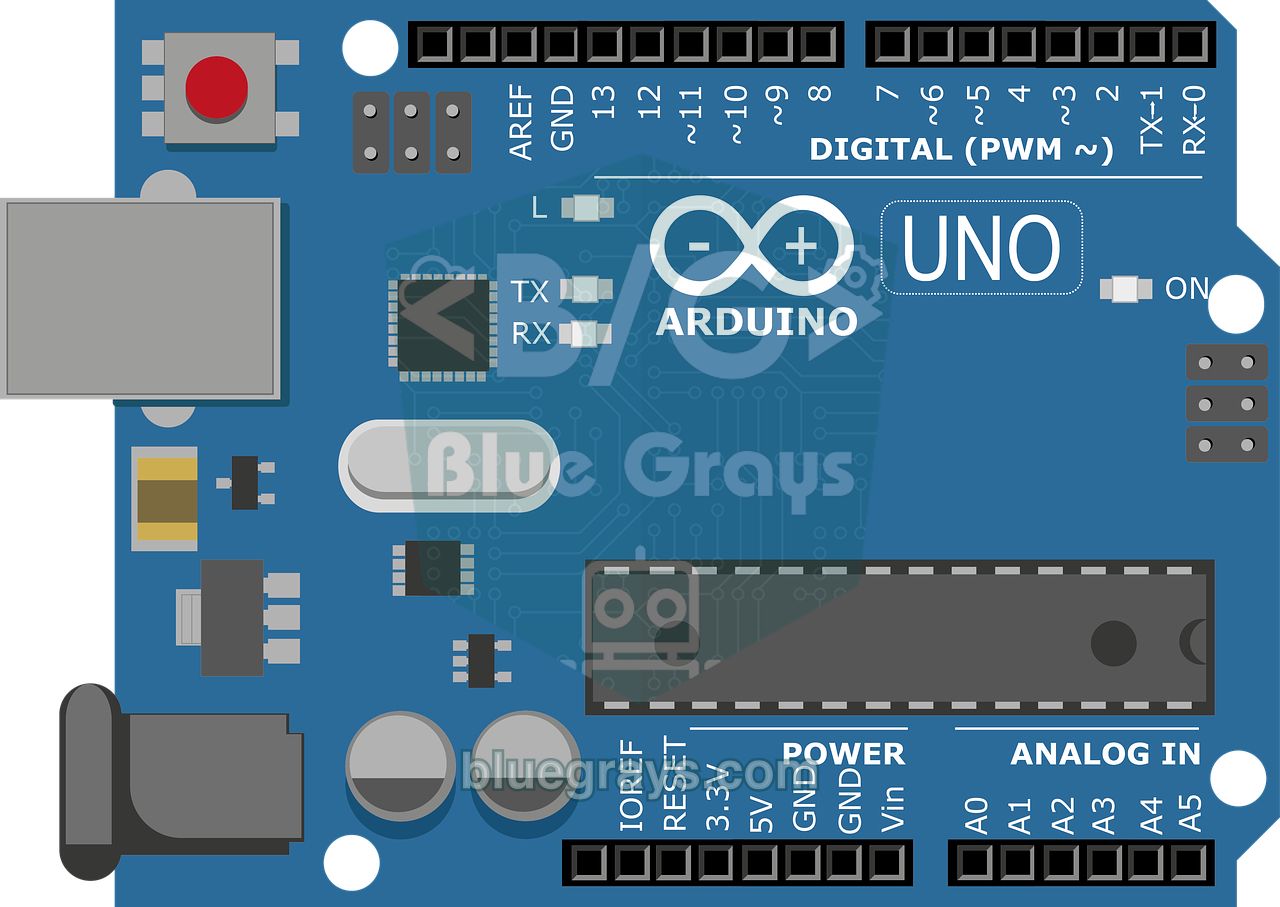
Arduino code is built on C++; there's no separate "Arduino language". The Arduino core adds ready-made functions such as pinMode(), digitalWrite() and delay() to C++. The file you write is called a sketch and has the .ino extension. When you click Verify, the Arduino IDE adds the Arduino.h header to the top of the file and generates the function declarations for you, and the compiler turns the code into machine code the processor understands. The Upload button then sends that output over USB to the board's bootloader. If you haven't installed the IDE yet, start with the Arduino IDE installation guide.
There are a few basic rules to follow when writing code. Learning them up front gets rid of half the compile errors you'd otherwise see in your first days:
| Rule | Correct | If you break it |
|---|---|---|
| Every statement ends with a semicolon | digitalWrite(13, HIGH); | expected ';' before '}' token |
| Upper and lower case matter | pinMode(13, OUTPUT); | 'pinmode' was not declared in this scope |
| Code blocks go inside curly braces | void loop() { ... } | Every { needs a matching } |
| Single-line comment | // this line doesn't run | Comments aren't compiled, they're for explanation |
| Multi-line comment | /* ... */ | If you don't close it, everything below becomes a comment |
| Text in double quotes, a single character in single quotes | "Hello" and 'A' | Mixing up the quote types gives a wrong value or an error |
The circuit used in the examples
All the examples run on one circuit. Connect six LEDs to pins D8–D13, each through a 220 Ω resistor; the short leg (cathode) of each LED goes to GND. You can check the resistor value for your own LED with the LED resistor calculator. Connect one leg of the button to D2 and the diagonally opposite leg to GND. Because the code uses INPUT_PULLUP, no external resistor is needed: the pin reads HIGH when the button is released and LOW when it's pressed. For details, see How to connect a push button to Arduino and What is an LED?.
| Part | Arduino Uno | ESP32 | Raspberry Pi Pico |
|---|---|---|---|
| 6 LEDs (each with 220 Ω, cathode to GND) | D8, D9, D10, D11, D12, D13 | GPIO 18, 19, 21, 22, 23, 25 | GP14, GP13, GP12, GP11, GP10, GP9 |
| Button (other leg to GND) | D2 | GPIO 4 | GP2 |
| On-board LED | D13 (the LED marked L) | GPIO 2 (most DevKits) | GP25 ("LED" on the Pico W) |
| Serial speed | 9600 baud | 115200 baud | Thonny Shell |
setup() and loop(): the skeleton of every sketch
Every Arduino sketch has two required functions. setup() runs only once, when the board powers up or the reset button is pressed; preparations such as pin settings and Serial.begin() go here. loop() then repeats forever after setup() finishes. Behind the scenes the Arduino core has a hidden main() function: it first prepares the hardware, then calls setup() once and calls loop() over and over inside an endless loop. The area at the top of the file, outside these two functions, is the global area; constants and variables that need to be reachable from everywhere are defined there.
1// 1) Global alan: sabitler ve değişkenler / Global area: constants and variables
2const int LED_PIN = 13;        // dahili LED / built-in LED
3unsigned long passCount = 0;   // loop() kaç kez döndü / how many times loop() has run
4
5// 2) setup(): açılışta bir kez çalışır / runs once at power-up or reset
6void setup() {
7  pinMode(LED_PIN, OUTPUT);
8  Serial.begin(9600);
9  Serial.println("setup() bitti / setup() done");
10}
11
12// 3) loop(): sonsuza kadar tekrar eder / repeats forever
13void loop() {
14  passCount++;                       // her turda 1 artır / add 1 on every pass
15  Serial.print("Tur / Pass: ");
16  Serial.println(passCount);
17
18  digitalWrite(LED_PIN, HIGH);       // LED'i yak / LED on
19  delay(500);                        // 500 ms bekle / wait 500 ms
20  digitalWrite(LED_PIN, LOW);        // LED'i söndür / LED off
21  delay(500);
22}
Upload the code and open the Serial Monitor at 9600 baud: you'll see "setup() done" once, followed by a pass number that goes up every second, while the built-in LED blinks at the same rhythm. The two delay(500) calls inside loop() stretch each pass to about one second; a loop() with no waiting and no serial printing can run hundreds of thousands of times per second on an Uno. To get the most out of the Serial Monitor, have a look at the Arduino Serial Monitor guide.
Variables and data types: int, long, float, bool, byte
A variable is a named box in memory that stores a value. When you define one, you write its type first, then its name, and optionally a starting value, for example int counter = 0;. The type decides how many bytes the box takes up and which range of numbers it can hold. The Arduino Uno has only 2 KB of RAM, so picking the right type matters. Variable names start with a letter or an underscore and can't contain spaces or accented letters such as é, ü or ç.
| Type | Size on Uno | Range | Typical use |
|---|---|---|---|
| bool | 1 byte | true or false | Is the LED on, was the button pressed |
| byte | 1 byte | 0 – 255 | Pin number, PWM brightness |
| char | 1 byte | -128 – 127 | A single character: 'A' |
| int | 2 bytes | -32,768 – 32,767 | Counters, analogRead() results |
| unsigned int | 2 bytes | 0 – 65,535 | Positive numbers only |
| long | 4 bytes | -2,147,483,648 – 2,147,483,647 | Large whole numbers |
| unsigned long | 4 bytes | 0 – 4,294,967,295 | Measuring time with millis() |
| float | 4 bytes | About ±3.4 × 10^38, 6–7 digits of precision | Temperature, voltage, averages |
| double | 4 bytes (same as float on the Uno) | Same as float | 8 bytes on the ESP32 |
A few practical rules will save you a lot of trouble. analogRead() returns a number from 0 to 1023, so an int is enough. millis(), on the other hand, returns an unsigned long; if you keep the time in an int variable, the value overflows after 32.7 seconds and your timing breaks. On the Uno, float math is done in software, so it's slower than whole-number math, and anything beyond 6–7 digits isn't reliable; that's why you shouldn't compare two floats with ==. If you want a type whose size stays the same on every board, use types with the size in their name, such as uint8_t, int16_t and uint32_t.
Overflow: what happens when a variable goes past its limit?
If you try to store a number larger than its type can hold, the Arduino doesn't report an error; the number rolls over like a car's odometer. On the Uno an int holds at most 32,767, and adding 1 turns it into -32,768. A byte wraps from 255 to 0. A sneakier trap is arithmetic with constants: an expression like 60 * 1000 is calculated as an int first and overflows, even if the result is stored in a long variable. The sketch below prints all of these cases to the Serial Monitor, and its loop() shows a byte overflow on an LED:
1const int LED_PIN = 9;        // PWM destekli pin (~9) / PWM-capable pin (~9)
2byte brightness = 0;          // byte: 0-255
3
4void setup() {
5  pinMode(LED_PIN, OUTPUT);
6  Serial.begin(9600);
7
8  int a = 32767;              // Uno'da int'in en büyük değeri / largest int on an Uno
9  a = a + 1;                  // taşma: -32768 olur / overflow: becomes -32768
10  Serial.println(a);
11
12  long wrong = 60 * 1000;     // int ile hesaplanır, taşar: -5536 / computed as int, overflows: -5536
13  long right = 60 * 1000L;    // L eki hesabı long yapar: 60000 / the L suffix makes it long math: 60000
14  Serial.println(wrong);
15  Serial.println(right);
16
17  float half = 5 / 2;         // tam sayı bölmesi: 2.00 / integer division: 2.00
18  float half2 = 5 / 2.0;      // ondalıklı bölme: 2.50 / floating-point division: 2.50
19  Serial.println(half);
20  Serial.println(half2);
21}
22
23void loop() {
24  analogWrite(LED_PIN, brightness);   // parlaklığı uygula / apply the brightness
25  brightness++;                       // 255'ten sonra 0'a döner / wraps to 0 after 255
26  delay(10);
27}| Line of code | Output on Uno | Output on ESP32 and Pico | Why? |
|---|---|---|---|
| a = 32767 + 1 | -32768 | 32768 | int is 2 bytes on the Uno, 4 bytes on the others |
| 60 * 1000 | -5536 | 60000 | Constants are calculated as int first |
| 60 * 1000L | 60000 | 60000 | The L suffix makes the math long |
| 5 / 2 | 2.00 | 2.00 | Dividing two whole numbers gives a whole number |
| 5 / 2.0 | 2.50 | 2.50 | If one number has a decimal point, so does the result |
Watch the LED on D9: its brightness rises slowly from 0 to 255, then the brightness++ line turns the value into 0 instead of 256 and the LED suddenly goes dark. That's the easiest way to see overflow with your own eyes. D9 is one of the Uno's PWM pins marked with ~, so analogWrite() works there; PWM is covered in detail in What is PWM?. millis() rolling over after about 49.7 days is also an overflow, and it causes no problems in correctly written code; you'll see how to write it in the millis() vs delay() guide.
const and #define: values that never change
There are two ways to give a name to numbers that won't change while the program runs, such as pin numbers and thresholds. A constant defined with const has a type, follows scope rules, and if you accidentally try to change it, the compiler stops you with assignment of read-only variable 'LED_PIN'. #define, on the other hand, is a preprocessor directive: before compilation starts, it replaces every BUTTON_PIN in the code with 2. It has no type, and the line takes neither a semicolon nor an equals sign. For simple numbers neither one uses RAM, because the compiler puts the value straight into the code. Today const is preferred, and writing constant names in UPPER_CASE is a common habit. The example below uses both: the LED stays on while the button is held down.
1#define BUTTON_PIN 2          // önişlemci: derlemeden önce metin değişimi / preprocessor: text swap before compiling
2const int LED_PIN = 13;       // tipi olan, salt okunur sabit / typed, read-only constant
3
4void setup() {
5  pinMode(LED_PIN, OUTPUT);
6  pinMode(BUTTON_PIN, INPUT_PULLUP);   // dahili pull-up: basılınca LOW / internal pull-up: LOW when pressed
7}
8
9void loop() {
10  if (digitalRead(BUTTON_PIN) == LOW) {   // buton basılı mı? / is the button pressed?
11    digitalWrite(LED_PIN, HIGH);          // evet: LED yanar / yes: LED on
12  } else {
13    digitalWrite(LED_PIN, LOW);           // hayır: LED söner / no: LED off
14  }
15}Operators: arithmetic, comparison and logic
Operators let you calculate with variables, compare them and combine conditions. Almost every operator you'll use in everyday projects is in this table:
| Group | Operator | Meaning | Example |
|---|---|---|---|
| Arithmetic | + - * / | The four basic operations | x = a * 2; |
| Remainder | % | Remainder of a division (whole numbers only) | 7 % 3 gives 1 |
| Assignment | = += -= *= /= | Set, add to, subtract from… | total += 5; |
| Increment, decrement | ++ -- | Add 1 or subtract 1 | i++; |
| Comparison | == != < > <= >= | The result is true or false | if (x >= 10) |
| Logic | && || ! | AND, OR, NOT | if (a && !b) |
| Conditional | ? : | Short if-else | x > 0 ? HIGH : LOW |
| Bitwise | & | ^ ~ << >> | Works on the bits of a number | 1 << 3 gives 8 |
The two pairs that get mixed up most are = and == and & and &&. A single equals sign assigns a value, a double one compares. A single & works on the bits of numbers, while && asks whether both conditions are true. You can try the truth tables of AND, OR and NOT in the Logic gates tool, and bitwise operators are explained in detail in the number systems and bitwise operations guide. The example below counts how many times the button has been pressed and lights the LED after an odd number of presses:
1const int LED_PIN = 13;
2const int BUTTON_PIN = 2;
3
4int presses = 0;               // toplam basış sayısı / total number of presses
5bool lastPressed = false;      // önceki turdaki durum / state on the previous pass
6
7void setup() {
8  pinMode(LED_PIN, OUTPUT);
9  pinMode(BUTTON_PIN, INPUT_PULLUP);
10  Serial.begin(9600);
11}
12
13void loop() {
14  bool pressed = (digitalRead(BUTTON_PIN) == LOW);   // karşılaştırma: true ya da false / comparison: true or false
15
16  if (pressed && !lastPressed) {     // şimdi basılı VE önceden değildi: yeni basış / pressed now AND not before: new press
17    presses++;                       // 1 artır / increment by 1
18    Serial.print("Basış / Presses: ");
19    Serial.println(presses);
20    delay(50);                       // basit debounce / simple debounce
21  }
22  lastPressed = pressed;
23
24  // Kalan (%) ile tek mi çift mi? / odd or even using the remainder (%)
25  digitalWrite(LED_PIN, (presses % 2 == 1) ? HIGH : LOW);
26}
The key here is the condition pressed && !lastPressed: it means "pressed now AND not pressed on the previous pass". That way the number doesn't keep rising while you hold the button, and every press is counted only once. presses % 2 gives the remainder of dividing the number by 2: 1 for odd numbers, 0 for even ones. The ? : operator on the last line then picks HIGH or LOW based on that result.
if, else if and else: making decisions
if runs the code in the curly braces when the condition in parentheses is true. If the condition is false, the else block runs, if there is one. When you need more options, you add else if in between. Conditions are checked from top to bottom, and once the block of the first true one has run, the rest are skipped. In C++ every non-zero value counts as true, so if (counter) means "if the counter isn't zero". We already saw a simple if-else example in the const section. Now let's write one that tells a short press from a long press:
1const int LED_PIN = 13;
2const int BUTTON_PIN = 2;
3
4void setup() {
5  pinMode(LED_PIN, OUTPUT);
6  pinMode(BUTTON_PIN, INPUT_PULLUP);
7  Serial.begin(9600);
8}
9
10void loop() {
11  if (digitalRead(BUTTON_PIN) == LOW) {             // basıldı / pressed
12    unsigned long start = millis();
13    while (digitalRead(BUTTON_PIN) == LOW) {         // bırakılana kadar bekle / wait until released
14    }
15    unsigned long held = millis() - start;          // basılı kalma süresi (ms) / hold time (ms)
16
17    if (held < 50) {
18      return;                                       // 50 ms'den kısa: parazit, yok say / under 50 ms: bounce, ignore
19    } else if (held < 1000) {
20      digitalWrite(LED_PIN, HIGH);                  // kısa basış: LED yak / short press: LED on
21      Serial.println("Kısa basış / Short press");
22    } else {
23      digitalWrite(LED_PIN, LOW);                   // uzun basış: LED söndür / long press: LED off
24      Serial.println("Uzun basış / Long press");
25    }
26  }
27}
The moment the button is pressed, the code records the time with millis(), waits in a while loop until the button is released and calculates the time in between. Presses shorter than 50 ms are treated as noise from the button's mechanical bounce, and return ends that pass of loop() early. A press shorter than 1 second turns the LED on, a longer one turns it off. The order of the conditions matters: if you had put the held < 1000 check first, a 30 ms glitch would also count as a "short press".
switch-case: choosing between many cases
If you need to do many different things depending on a variable's value, switch-case is more readable than a long else if chain. switch compares the value in its parentheses with each case label and starts running from the one that matches. You should end every case with break; otherwise the program carries on into the next case's code. If no case matches, the default block runs. switch only works with whole-number types such as int, byte, char and enum; for String, float or ranges like "between 10 and 20" you need if. In the example below every press moves the lamp to the next mode: off, on, slow blink, fast blink.
1const int LED_PIN = 13;
2const int BUTTON_PIN = 2;
3
4byte mode = 0;                 // 0 kapalı, 1 açık, 2 yavaş, 3 hızlı / 0 off, 1 on, 2 slow, 3 fast
5bool lastPressed = false;
6
7void setup() {
8  pinMode(LED_PIN, OUTPUT);
9  pinMode(BUTTON_PIN, INPUT_PULLUP);
10}
11
12void loop() {
13  bool pressed = (digitalRead(BUTTON_PIN) == LOW);
14  if (pressed && !lastPressed) {
15    mode = (mode + 1) % 4;      // 0 → 1 → 2 → 3 → 0
16    delay(50);                  // basit debounce / simple debounce
17  }
18  lastPressed = pressed;
19
20  switch (mode) {
21    case 0:                                        // kapalı / off
22      digitalWrite(LED_PIN, LOW);
23      break;
24    case 1:                                        // sürekli açık / always on
25      digitalWrite(LED_PIN, HIGH);
26      break;
27    case 2:                                        // 500 ms'de bir değiş / toggle every 500 ms
28      digitalWrite(LED_PIN, (millis() / 500) % 2 ? HIGH : LOW);
29      break;
30    case 3:                                        // 100 ms'de bir değiş / toggle every 100 ms
31      digitalWrite(LED_PIN, (millis() / 100) % 2 ? HIGH : LOW);
32      break;
33    default:                                       // beklenmeyen değer: başa dön / unexpected value: reset
34      mode = 0;
35      break;
36  }
37}
The line mode = (mode + 1) % 4 steps the mode through 0, 1, 2, 3 and, thanks to the % operator, back to 0 when it reaches 4. Notice that we don't use delay() for blinking: the expression (millis() / 500) % 2 switches between 0 and 1 every 500 ms, so the button responds instantly while the LED blinks. The grown-up version of this "mode" approach is called a state machine; you can see how it's used in projects such as traffic lights and menus in the Arduino state machine guide.
for, while and do-while loops
Loops run a block of code again and again. The parentheses of a for loop have three parts: the start (int i = 0), the condition to keep going (i < 6) and the step after each pass (i++). for is ideal when you know how many times to repeat. while keeps going as long as its condition is true and checks the condition before each pass, so it suits waits whose length you don't know in advance. do-while checks the condition at the end, so it always runs at least once. Inside a loop, break leaves the loop immediately and continue skips the rest of the current pass and moves on to the next one. Since loop() is already an endless loop, you usually don't need to write while (true) inside it.
| Loop | When is the condition checked? | When to use it | Example |
|---|---|---|---|
| for | Before each pass | When the number of repeats is known | for (int i = 0; i < 6; i++) |
| while | Before each pass | While waiting for something to happen | while (digitalRead(2) == HIGH) |
| do-while | After each pass | When it must run at least once | do { ... } while (x < 10); |
The example below creates a Knight Rider effect with six LEDs. The for loop in setup() makes all six pins outputs in a single line, and the while loop in loop() waits until the button is pressed. As long as you hold the button, the light runs from D8 to D13 and back:
1const int FIRST_LED = 8;       // ilk LED pini / first LED pin
2const int LAST_LED = 13;       // son LED pini / last LED pin
3const int BUTTON_PIN = 2;
4
5void setup() {
6  for (int pin = FIRST_LED; pin <= LAST_LED; pin++) {
7    pinMode(pin, OUTPUT);      // 6 pini tek döngüyle çıkış yap / make 6 pins outputs with one loop
8  }
9  pinMode(BUTTON_PIN, INPUT_PULLUP);
10}
11
12void loop() {
13  while (digitalRead(BUTTON_PIN) == HIGH) {
14    // butona basılana kadar burada bekle / wait here until the button is pressed
15  }
16
17  for (int pin = FIRST_LED; pin <= LAST_LED; pin++) {      // ileri: 8 → 13 / forward: 8 → 13
18    digitalWrite(pin, HIGH);
19    delay(80);
20    digitalWrite(pin, LOW);
21  }
22  for (int pin = LAST_LED - 1; pin > FIRST_LED; pin--) {   // geri: 12 → 9 / back: 12 → 9
23    digitalWrite(pin, HIGH);
24    delay(80);
25    digitalWrite(pin, LOW);
26  }
27}
Starting the return loop at LAST_LED - 1 and running it only while the pin is greater than FIRST_LED is a deliberate choice: the LEDs at the ends don't light up twice in a row, so the movement looks smooth. For speed control, a filling-up effect and more patterns, see the Arduino Knight Rider and running LED guide.
Arrays: keeping many values under one name
An array holds several values of the same type in order under a single name. The line const byte LEDS[] = {8, 9, 10, 11, 12, 13}; creates an array with six elements. You reach the elements with square brackets, and counting starts at 0: LEDS[0] is 8 and LEDS[5] is 13. An array's length can't change after it's defined. If you let sizeof(LEDS) / sizeof(LEDS[0]) calculate the number of elements instead of typing it by hand, your loops adapt automatically when you add a new pin to the array. An index outside the array, such as LEDS[6], doesn't cause an error; it reads or corrupts some other variable in memory. That's why you need to make sure the index stays between 0 and one less than the number of elements. The example below turns the six LEDs into an electronic dice:
1const byte LEDS[] = {8, 9, 10, 11, 12, 13};               // LED pinleri / LED pins
2const byte LED_COUNT = sizeof(LEDS) / sizeof(LEDS[0]);    // eleman sayısı: 6 / number of elements: 6
3const byte BUTTON_PIN = 2;
4
5void setup() {
6  for (byte i = 0; i < LED_COUNT; i++) {     // indeks 0'dan başlar / index starts at 0
7    pinMode(LEDS[i], OUTPUT);
8  }
9  pinMode(BUTTON_PIN, INPUT_PULLUP);
10  randomSeed(analogRead(A0));                // boştaki A0'ın gürültüsüyle tohumla / seed from noise on the unconnected A0
11}
12
13void loop() {
14  if (digitalRead(BUTTON_PIN) == LOW) {
15    byte dice = random(1, 7);                // 1 ile 6 arası / between 1 and 6
16    for (byte i = 0; i < LED_COUNT; i++) {
17      digitalWrite(LEDS[i], (i < dice) ? HIGH : LOW);   // ilk 'dice' kadar LED yanar / the first 'dice' LEDs light up
18    }
19    delay(300);                              // basılı tutarsan zar dönmeye devam eder / keeps rolling while held
20  }
21}
random(1, 7) produces a number from 1 to 6, because the upper limit isn't included in the result. That many LEDs light up: if the dice shows 4, the four LEDs from LEDS[0] to LEDS[3] turn on. The line randomSeed(analogRead(A0)) uses the electrical noise on the unconnected A0 pin as a starting value; without it the board would produce the same sequence of numbers every time it powers up. Another nice thing about arrays: if you move the LEDs to other pins, you only need to change the first line.
Writing functions: splitting code into pieces
If you do the same job in several places in your program, turn that job into a function. A function consists of a return type, a name, parameters in parentheses and a body in curly braces. Functions that don't return a value have the type void; those that do hand back their result with return. Parameters are passed as copies, so changing a parameter inside the function doesn't change the variable at the place where it was called. The Arduino IDE generates the declarations for functions in .ino files itself, so you can also write a function below loop(). In .cpp files or in PlatformIO, however, you have to declare a function before you use it. Give your functions names that say what they do, such as blinkLed or isPressed.
1const byte LED_PIN = 13;
2const byte BUTTON_PIN = 2;
3
4// Değer döndürmeyen (void) fonksiyon / function that returns nothing (void)
5void blinkLed(byte pin, byte times, int ms) {
6  for (byte i = 0; i < times; i++) {
7    digitalWrite(pin, HIGH);
8    delay(ms);
9    digitalWrite(pin, LOW);
10    delay(ms);
11  }
12}
13
14// bool döndüren fonksiyon / function that returns a bool
15bool isPressed(byte pin) {
16  return digitalRead(pin) == LOW;      // INPUT_PULLUP: basılı = LOW / pressed = LOW
17}
18
19void setup() {
20  pinMode(LED_PIN, OUTPUT);
21  pinMode(BUTTON_PIN, INPUT_PULLUP);
22  blinkLed(LED_PIN, 3, 100);           // açılışta 3 hızlı yanıp sönme / 3 quick blinks at start-up
23}
24
25void loop() {
26  if (isPressed(BUTTON_PIN)) {
27    blinkLed(LED_PIN, 2, 250);         // basınca 2 yavaş yanıp sönme / 2 slow blinks per press
28  }
29}
blinkLed() takes the pin, the number of blinks and the speed as parameters, so you can reuse the same function for another LED and another speed. isPressed() returns a bool and keeps the "pressed = LOW" logic of INPUT_PULLUP in a single place; if you ever wire the button the other way, you only change this line. The delay() inside the function still stops the program, though. For functions that do several things at once, you need millis()-based timing.
Global, local and static variables
Where a variable can be seen is called its scope. Global variables, defined outside the functions, live for the whole program and can be read and changed from anywhere. Local variables, defined inside a function or a block of curly braces, are created again every time that block runs and disappear when it ends. This is where the most common beginner complaint, "my counter always stays at 1", comes from. If you put static in front of a local variable, it gets its starting value only the first time and keeps its value between passes, but it's still visible only inside that function.
1const byte LED_PIN = 13;
2const byte BUTTON_PIN = 2;
3
4int globalCount = 0;            // global: her yerden görünür, değerini korur / global: visible everywhere, keeps its value
5
6void setup() {
7  pinMode(LED_PIN, OUTPUT);
8  pinMode(BUTTON_PIN, INPUT_PULLUP);
9  Serial.begin(9600);
10}
11
12void loop() {
13  int localCount = 0;           // yerel: her turda yeniden 0 olur / local: back to 0 on every pass
14  static int staticCount = 0;   // static yerel: değerini korur, yalnız burada görünür / static local: keeps its value, visible only here
15
16  if (digitalRead(BUTTON_PIN) == LOW) {
17    globalCount++;
18    localCount++;
19    staticCount++;
20    Serial.print(globalCount);
21    Serial.print(' ');
22    Serial.print(localCount);
23    Serial.print(' ');
24    Serial.println(staticCount);                   // 3. basışta: 3 1 3 / on the 3rd press: 3 1 3
25    digitalWrite(LED_PIN, (staticCount % 2) ? HIGH : LOW);
26    delay(300);
27  }
28}
When you press the button three times, the Serial Monitor shows the lines 1 1 1, 2 1 2 and 3 1 3: the global and static counters keep rising, while the local counter always stays at 1 because it starts again from 0 on every pass of loop(). If you define a local variable with the same name as a global one, the local one shadows the global, and inside that function you never touch the global variable at all. Global variables that are changed by an interrupt function (ISR) must also be declared volatile; you'll find the details in the Arduino interrupts guide.
Arduino programming on the ESP32: same language, different sizes
When you program the ESP32 with the Arduino IDE, you use the same C++ language and the same commands, but there are a few differences. Because the ESP32 is a 32-bit processor, int is 4 bytes and holds values from -2,147,483,648 to 2,147,483,647, so 32767 + 1 in the overflow example gives 32768. double is 8 bytes, analogRead() returns values from 0 to 4095 and the pins run at 3.3 V. You can do formatted printing with Serial.printf(). random() uses the hardware random number generator by default, so the randomSeed() line isn't needed. The program below combines everything you've learned in this article: an array, a function, switch-case and a mode-changing button. For the board's general features, see What is the ESP32?.
1// ESP32: aynı dil, farklı pinler / ESP32: same language, different pins
2const byte LEDS[] = {18, 19, 21, 22, 23, 25};            // güvenli GPIO'lar / safe GPIOs
3const byte LED_COUNT = sizeof(LEDS) / sizeof(LEDS[0]);
4const byte BUTTON_PIN = 4;                                // diğer bacağı GND'ye / other leg to GND
5
6byte mode = 0;                  // 0 kapalı, 1 yürüyen ışık, 2 hepsi yanıp söner / 0 off, 1 chaser, 2 all blink
7bool lastPressed = false;
8
9void setAll(bool on) {
10  for (byte i = 0; i < LED_COUNT; i++) {
11    digitalWrite(LEDS[i], on ? HIGH : LOW);
12  }
13}
14
15void setup() {
16  Serial.begin(115200);
17  for (byte i = 0; i < LED_COUNT; i++) {
18    pinMode(LEDS[i], OUTPUT);
19  }
20  pinMode(BUTTON_PIN, INPUT_PULLUP);
21  Serial.printf("int = %d bayt / bytes\n", (int)sizeof(int));   // ESP32'de 4 / 4 on the ESP32
22
23  int a = 32767;
24  a = a + 1;
25  Serial.println(a);                                          // ESP32'de 32768, taşma yok / 32768 on the ESP32, no overflow
26}
27
28void loop() {
29  bool pressed = (digitalRead(BUTTON_PIN) == LOW);
30  if (pressed && !lastPressed) {
31    mode = (mode + 1) % 3;      // 0 → 1 → 2 → 0
32    delay(50);
33  }
34  lastPressed = pressed;
35
36  switch (mode) {
37    case 0:
38      setAll(false);
39      break;
40    case 1: {                                                 // case içinde değişken için süslü parantez / braces for a variable inside a case
41      byte step = (millis() / 120) % LED_COUNT;               // sıradaki LED / LED whose turn it is
42      for (byte i = 0; i < LED_COUNT; i++) {
43        digitalWrite(LEDS[i], (i == step) ? HIGH : LOW);
44      }
45      break;
46    }
47    case 2:
48      setAll((millis() / 300) % 2);                           // 300 ms'de bir hepsi / all of them every 300 ms
49      break;
50  }
51}
To run this program on an Uno, you only need to change the LEDS array to {8, 9, 10, 11, 12, 13}, set BUTTON_PIN to 2 and replace the Serial.printf() line, which the Uno doesn't support, with Serial.print(). That's exactly the benefit of defining pin numbers as constants and arrays at the top. Also notice that the case 1 block is inside curly braces; because the step variable is defined inside it, those braces are mandatory on the ESP32.
Raspberry Pi Pico: the same logic in MicroPython
You can program the Raspberry Pi Pico in C++ by adding the RP2040 board package to the Arduino IDE; in that case the code in this article works once you change the pin numbers, and int is again 4 bytes. The most common way to use the Pico, though, is MicroPython. In Python you don't write variable types, blocks are defined by indentation instead of curly braces, there's no semicolon at the end of a line, and whole numbers don't overflow but grow as large as needed. The code below is the MicroPython version of the electronic dice example. For setup, see What is the Raspberry Pi Pico?, and for the language details, MicroPython basics.
1from machine import Pin
2import time, random
3
4leds = [Pin(n, Pin.OUT) for n in (14, 13, 12, 11, 10, 9)]   # liste = dizi / list = array
5button = Pin(2, Pin.IN, Pin.PULL_UP)                        # basılınca 0 / reads 0 when pressed
6
7def show(count):                                            # fonksiyon / function
8    for i, led in enumerate(leds):                          # for döngüsü / for loop
9        led.value(1 if i < count else 0)
10
11show(0)                                                     # setup() karşılığı: bir kez çalışır / like setup(): runs once
12while True:                                                 # loop() karşılığı / like loop()
13    if button.value() == 0:                                 # buton basılı mı? / is the button pressed?
14        show(random.randint(1, 6))                          # 1-6 arası zar at / roll a number from 1 to 6
15 time.sleep_ms(300)| Concept | Arduino (C++) | MicroPython |
|---|---|---|
| Part that runs once | setup() | The code before the while True: line |
| Part that repeats forever | loop() | while True: |
| Variable | int x = 5; | x = 5 |
| Constant | const int PIN = 2; | PIN = const(2) (from micropython import const) |
| Condition | if / else if / else | if / elif / else |
| Multiple choice | switch-case | if / elif chain |
| Counting loop | for (int i = 0; i < 6; i++) | for i in range(6): |
| Array | byte a[] = {1, 2, 3}; | a = [1, 2, 3] |
| Function | void blink(int pin) { ... } | def blink(pin): |
| Logic | && || ! | and or not |
| Comment | // comment | # comment |
Project ideas you can build with these basics
- Traffic light: build a crossing with a pedestrian button using const values, delay() and if; the step-by-step guide is in Arduino traffic light.
- Knight Rider and running LEDs: create dozens of different light patterns with a for loop and an array.
- Electronic dice: move the 6-LED dice to a 7-segment display with an array, random() and a function; see the 7-segment display guide for that.
- Reaction test: light an LED at a random moment and measure how quickly you press the button using an unsigned long and millis().
- Multi-mode lamp: off, steady, breathing and flash modes from a single button with switch-case; for a colour version, have a look at Using an RGB LED.
- Code lock: collect the pressed keys in an array and compare them with the stored code; details are in the keypad guide.
Common mistakes and how to fix them
| Mistake | Symptom | Fix |
|---|---|---|
| Using = in a comparison | The if block always runs | Use == to compare |
| A ; or = on a #define line | expected ')' before ';' token | Write it as #define LED_PIN 13 |
| Wrong capitalisation of a command | 'pinmode' was not declared in this scope | Watch upper and lower case, as in pinMode |
| Accented letter in a variable name | stray '\303' in program | Use only English letters, digits and _ in names |
| Calculating 60 * 1000 as int | The result is -5536 | Write 60 * 1000L or 60000UL |
| Storing millis() in an int | Timing breaks after 32 seconds | Use unsigned long |
| Integer division | 5 / 2 gives 2 | Write 5 / 2.0 or convert to float |
| Forgetting break at the end of a case | The next case runs too | End every case with break |
| Writing outside an array | Random values, freezes | Keep the index between 0 and the number of elements - 1 |
| Making a counter local | The counter always stays at 1 | Make it global or static |
Once you've learned these building blocks, the next step is getting to know the most used commands: the Arduino commands list covers everything from pinMode() to attachInterrupt() with examples. In the BlueGrays app you'll also find projects such as blinking an LED, controlling an LED with a button, Knight Rider, a traffic light and a dice, step by step with circuit diagrams and ready-made code, so you can try every structure you learned here on a real circuit.
Frequently asked questions
What programming language does Arduino use?
Arduino code is built on C++. The Arduino core adds ready-made functions such as pinMode(), digitalWrite() and delay() to the language, and the code is written in files with the .ino extension. Boards like the ESP32 and the Raspberry Pi Pico can also be programmed in MicroPython if you prefer.
Where should I start learning Arduino programming?
First install the Arduino IDE and upload the Blink example, which blinks the built-in LED. Then try setup() and loop(), variables, if-else, loops, arrays and functions in that order, each with an LED or button circuit. Using every new topic in a small project makes it stick far better than just reading about it.
What is the difference between int and long in Arduino?
On the Arduino Uno, an int is 2 bytes and holds numbers from -32,768 to 32,767, while a long is 4 bytes and goes up to about ±2.1 billion. A number that goes past this limit rolls over without any error, so long or unsigned long is used for large values like millis(). On the ESP32 and the Pico, int is also 4 bytes.
What is the difference between const and #define in Arduino?
A constant defined with const has a type, follows scope rules, and the compiler reports an error if you try to change it. #define is a text replacement done before compilation; it has no type and causes unexpected errors if you end it with a semicolon. Neither uses RAM for simple numbers, but const is usually preferred because it's safer.
What is the difference between a for loop and a while loop in Arduino?
A for loop puts the start, the condition and the step on one line and is used when you know how many times to repeat, for example to light six LEDs one after another. A while loop only checks a condition and keeps running as long as it's true, which suits situations of unknown length such as waiting for a button press.
Can Arduino be programmed in Python?
8-bit boards like the Arduino Uno can't run Python, so they're programmed in C++. The ESP32 and the Raspberry Pi Pico, however, can be programmed in MicroPython. A Python program running on your computer can also control an Uno indirectly by talking to it over the serial port.
Projects to build after reading this
See all projects
LED Blink
The very first hello of electronics: switching a single LED on and off. The Arduino turns the LED on and off at short intervals, so the light blinks quickly. You see in the simplest way how the board

LED Control with a Push Button (Push)
Just like a doorbell: the light stays on as long as you press, and goes off when you let go. The Arduino keeps listening to the button; while it's pressed the LED is on, and the moment you lift your f

Toggle an LED with a Button (On/Off)
Press the button once and the light comes on, press it again and it goes off, just like the light switch in your room. The Arduino notices every press and flips the LED to the opposite state, waiting

Knight Rider LED Effect
The classic scanner light: a dot of light slides from one end of six LEDs to the other and then comes back. The Arduino lights each LED for a tenth of a second before moving on, turns around at each e

Traffic Light
A tiny copy of the traffic light you see on the road every day. Red stays on for two seconds, yellow flashes for a moment, green stays on for two seconds, then it goes back to red through yellow again

ESP32 LED Control with Push Button (Push)
The LED lights up when the button is pressed and turns off when released. Shows how the ESP32's digital input pin and internal pull-up resistor are used. The INPUT_PULLUP mode eliminates the need for an external resistor.
Raspberry Pi Pico Button Toggle LED (GP14 + GP2)
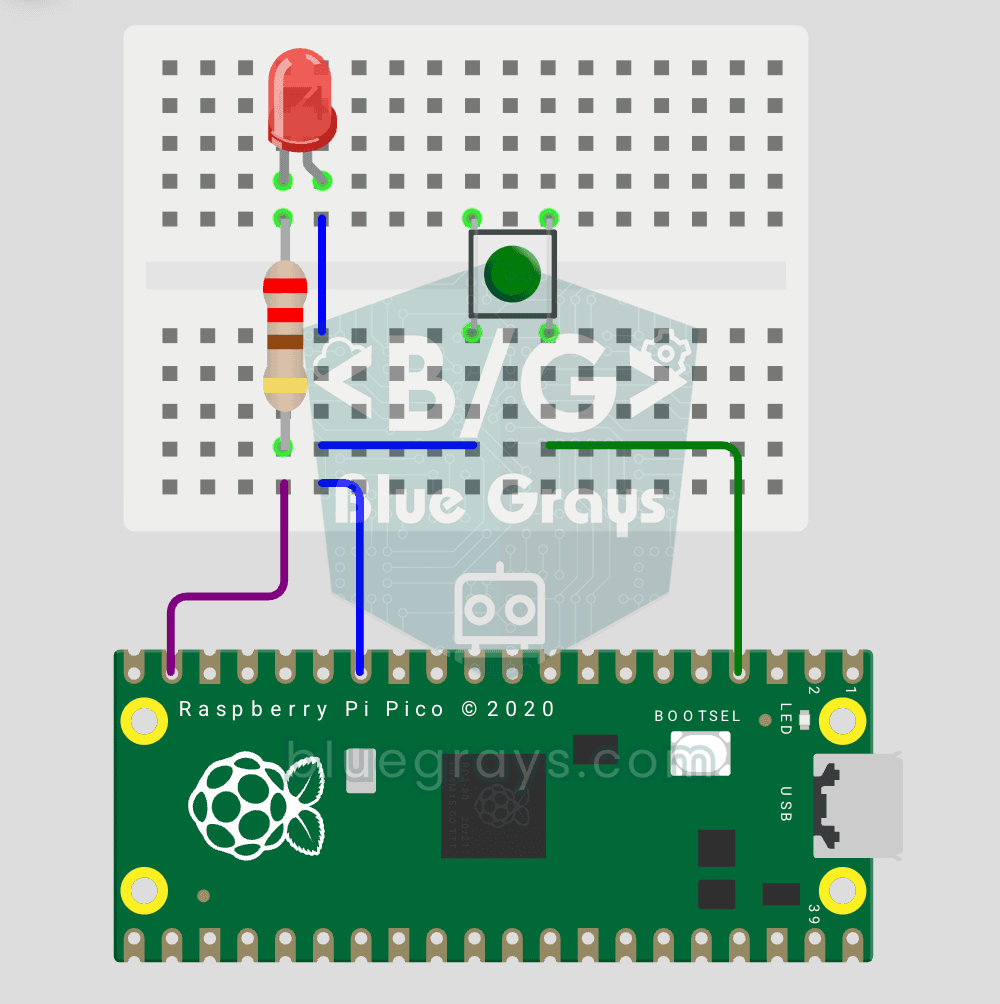
Button + LED — next level! 🔁 Unlike #155, no need to hold the button. Press and release → LED on. Press and release again → LED off (toggle). Same circuit as #155 (LED GP14, Button GP2), but big code difference. Learn **edge detection** (capturing the 1→0 falling moment), **state tracking**, **debounce** (mechanical bounce filter). MicroPython's `led.toggle()` swaps state in one line. Foundation of all interactive button projects (mode switcher, IRQ, double-click).

Dice Project
No more lost dice during board games: every time you press the button, a random number from 1 to 6 appears on the 7-segment display. Each press gives exactly one result, and the result is also written