
HX711 Arduino: Load Cell Wiring, Calibration and Digital Scale
HX711 Arduino wiring, load cell wire colours, four 50 kg cells, tare and calibration factor, fixing unstable readings, plus LCD, OLED, ESP32 and Pico code.
The HX711 and Arduino combination is the most popular and cheapest way to read the microvolt-level signal from a load cell and turn it into a weight in grams. Kitchen scales, bathroom scales, beehive scales, pet food bowl monitors and motor thrust stands all share the same idea: the load cell bends by an invisible amount under weight, the HX711 turns that tiny change into a 24-bit number, and the Arduino converts that number into grams with a calibration factor.
In this guide you'll learn how the Wheatstone bridge inside a load cell works, what the wire colours mean (E+, E-, A+, A-), how to wire four 50 kg half-bridge cells taken from a bathroom scale, and how to tare and find the calibration factor step by step with the HX711 library. Then you'll build a digital scale with an LCD and a tare button, see why the readings jitter and how to steady them, and finally do the same with an ESP32 and OLED display and with a Raspberry Pi Pico (MicroPython).
What is a load cell and how does it work?
A load cell is a piece of aluminium or steel with strain gauges glued onto it. A strain gauge is a resistor etched in a zigzag pattern on a thin foil: when the metal is stretched, the track gets longer and thinner and its resistance rises; when it's compressed, the resistance drops. The change is incredibly small. A gauge with a gauge factor of about 2 changes its resistance by only 0.2 percent at a strain of one part per thousand; for a 1000 Ω gauge that's 2 Ω, which a normal analogRead() could never detect.
To make this tiny change measurable, four strain gauges are wired as a Wheatstone bridge. A bridge is simply two voltage dividers side by side: the supply goes between E+ and E-, while A+ and A- are the midpoints of the two dividers. With no load, all four resistors are equal, so both midpoints sit at the same voltage and the output is zero. When a load is applied, two gauges stretch and two compress; one midpoint rises while the other falls. If R1 and R2 are the top and bottom resistors of the left divider and R3 and R4 those of the right one, the output is Vout = Vexc × (R4/(R3+R4) − R2/(R1+R2)), and it grows in proportion to the weight. You can play with the divider idea in the voltage divider calculator.
A figure such as 1 mV/V on a load cell's label is its sensitivity: at full capacity the cell outputs 1 mV for every volt of excitation. Because the HX711 module drives the bridge with about 4.3 V, a 5 kg cell produces only 4.3 mV at 5 kg and just 0.86 µV per gram. That's why you need a dedicated 24-bit ADC with a gain of 128.
| Load (5 kg, 1 mV/V cell) | Bridge output | HX711 raw value (gain 128) |
|---|---|---|
| 0 g | 0 mV | 0 (after tare) |
| 100 g | 0.086 mV | ≈ 43,000 |
| 1 kg | 0.86 mV | ≈ 429,500 |
| 5 kg (full capacity) | 4.3 mV | ≈ 2,147,000 |
There's a detail worth noticing in the table: the raw value doesn't depend on the supply voltage. The HX711 uses the voltage that feeds the bridge (AVDD) as its measurement reference too, so if the supply drops a little, the bridge output drops by the same ratio and the result stays the same. This is called ratiometric measurement. As a rough rule, full capacity on a 1 mV/V cell equals about 2,147,000 counts. Divide that by the cell's capacity in grams and you get an approximate calibration factor: ≈ 2150 for 1 kg, ≈ 430 for 5 kg and ≈ 107 for 20 kg.
What is the HX711 module? Specifications
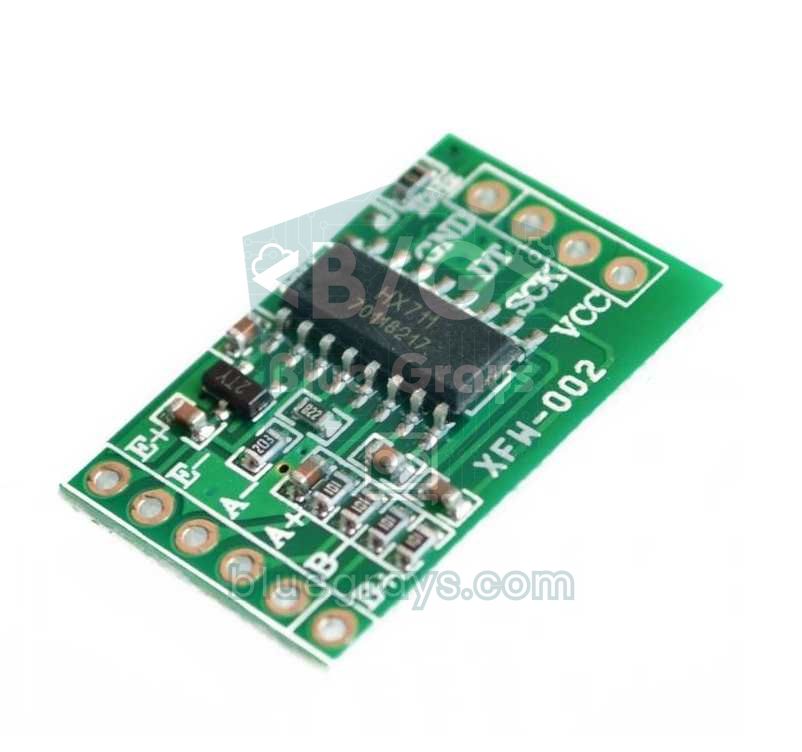
The HX711 is a 24-bit sigma-delta ADC made by Avia Semiconductor for weighing applications. It contains a programmable gain amplifier (PGA), a regulator that powers the bridge and an internal oscillator, and it talks to the outside world over just two wires with its own simple serial protocol. That protocol is not I2C: when the DT (DOUT) line goes LOW, data is ready, and the Arduino reads the 24 bits one by one by sending 25–27 pulses on the SCK line. The number of pulses selects the channel and gain for the next reading: 25 pulses mean channel A with gain 128, 26 pulses channel B with gain 32, and 27 pulses channel A with gain 64.
| Feature | Value |
|---|---|
| Resolution | 24 bits, two's complement (0x800000 – 0x7FFFFF) |
| Channel A | Gain 128 (±20 mV) or 64 (±40 mV), with 5 V AVDD |
| Channel B | Fixed gain of 32 (±80 mV) |
| Sample rate | 10 SPS (RATE = GND) or 80 SPS (RATE = VCC) |
| Supply | 2.6–5.5 V |
| Current | Under 1.5 mA; under 1 µA in power-down |
| Bridge excitation (E+) | About 4.3 V on the common green module with a 5 V input |
| Settling time | 400 ms after power-up, wake-up or a gain change (10 SPS) |
| Interface | 2 wires: DT (data) and SCK (clock + power-down control) |
On most cheap green modules the RATE pin is tied to GND on the board, so the module takes 10 readings per second. 10 SPS is less noisy and also rejects 50/60 Hz mains interference, which makes it the best choice for weighing in most cases. If the SCK line stays HIGH for more than 60 µs, the HX711 enters power-down mode and also cuts power to the bridge. In battery-powered projects this is handy through the power_down() and power_up() functions.
Types of load cell: which capacity should you choose?
| Type | Capacity | Wires | Typical use | Approx. factor (counts/g) |
|---|---|---|---|---|
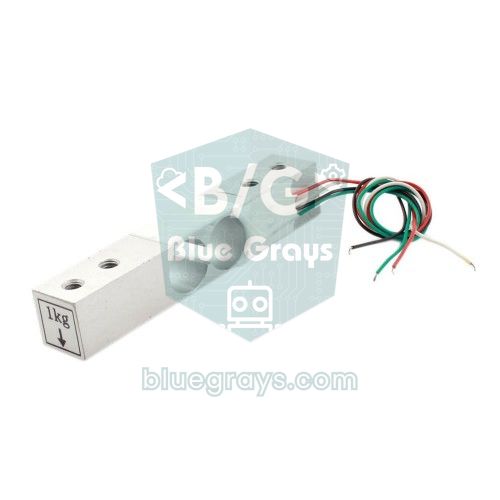
| Bar, full bridge | 1 kg | 4 | Jewellery, letters, precise kitchen scale | ≈ 2150 |
| Bar, full bridge | 5 kg | 4 | Kitchen scale, pet food bowl | ≈ 430 |
| Bar, full bridge | 20 kg | 4 | Parcels, luggage, plant pot scale | ≈ 107 |
| Half bridge (bathroom scale cell) | 50 kg (200 kg with 4) | 3 | Body scale, beehive | Find by measuring |
| S-type | 50 kg – 1 t | 4 | Hanging scale, pulling force | Depends on the mV/V on the label |
Pick a capacity of about 1.5 times the heaviest load you'll measure. An oversized cell lowers the resolution: you can weigh a 50 g letter on a 20 kg cell, but the reading will be four times coarser than on a 5 kg cell. Overloading a small cell is worse, though; bar cells usually handle about 120 percent of their capacity safely, but above 150 percent the metal can bend permanently and the cell will never return to zero. Total capacity also depends on how many cells share the weight: four 50 kg cells at the corners carry 200 kg together.
Wire colours and HX711 wiring
| Load cell wire | HX711 terminal | Function |
|---|---|---|
| Red | E+ | Bridge excitation (+) |
| Black | E- | Bridge excitation (−) |
| White | A- | Signal (−) |
| Green | A+ | Signal (+) |
| HX711 pin | Arduino Uno | ESP32 | Raspberry Pi Pico |
|---|---|---|---|
| VCC | 5V | 3V3 | 3V3(OUT), pin 36 |
| GND | GND | GND | GND, pin 38 |
| DT (DOUT) | D2 | GPIO 25 | GP15, pin 20 |
| SCK (PD_SCK) | D3 | GPIO 26 | GP14, pin 19 |
Colours can vary between manufacturers; some cells use yellow instead of black or blue instead of green, or swap the roles of white and green. To be sure, set your multimeter to ohms: the excitation pair (E+, E-) and the signal pair (A+, A-) usually read around 1000 Ω, while the cross pairs read about three quarters of that. Swapping the signal wires doesn't damage anything; the value simply goes down as you add weight. You fix it by swapping the wires or by making the calibration factor negative. B+ and B- belong to the second channel and stay unused in single-cell projects.
Wiring four 50 kg half-bridge load cells (body scale)
The 50 kg cells from bathroom scales, the ones with an E-shaped middle, contain only two strain gauges and 3 wires, so each one is half a bridge. The wires are usually red, white and black, but always find the centre tap by measuring: the two outer wires read about 2 kΩ between them, and the centre wire reads about 1 kΩ to each outer wire. On most cells the centre tap is red. When you connect four cells together like a ring, you get a full Wheatstone bridge.
- Place the cells at the four corners of the platform and number the corners 1 (front left), 2 (front right), 3 (back right) and 4 (back left).
- Join the same-coloured outer wires of neighbouring cells: the whites of 1 and 2, the blacks of 2 and 3, the whites of 3 and 4, and the blacks of 4 and 1.
- Connect the red wires of the diagonal cells 1 and 3 to E+ and E-.
- Connect the red wires of the other diagonal, cells 2 and 4, to A+ and A-.
- Measure before soldering: E+ to E- and A+ to A- should both read about 2 kΩ. If the value is very different, one of the joints is wrong.
- If the value goes down when you add weight, swap the A+ and A- wires or use a negative factor.
| Cell (corner) | White wire | Black wire | Red wire |
|---|---|---|---|
| 1 – front left | to the white of 2 | to the black of 4 | E+ |
| 2 – front right | to the white of 1 | to the black of 3 | A+ |
| 3 – back right | to the white of 4 | to the black of 2 | E- |
| 4 – back left | to the white of 3 | to the black of 1 | A- |
Installing the HX711 library
- In the Arduino IDE, open Tools > Manage Libraries and type HX711 in the search box.
- Install HX711 Arduino Library by Bogdan Necula. If this is your first time installing a library, have a look at the adding Arduino libraries guide.
- After installing, you'll find the HX711_basic_example and HX711_full_example sketches under File > Examples > HX711 Arduino Library; the code below uses the same functions.
| Function | What it does |
|---|---|
| begin(dt, sck, gain) | Sets up the pins; gain defaults to 128 (channel A) |
| is_ready() / wait_ready_timeout(ms) | Is a new reading ready? The timeout version won't lock up the program if the module is missing |
| read() / read_average(n) | Returns the raw 24-bit value or the average of n readings |
| tare(n) | Stores the average of n readings as the zero point (offset) |
| get_value(n) | Average minus offset: the tared raw value |
| set_scale(factor) / get_units(n) | Sets the factor; get_units returns the weight (get_value / factor) |
| set_offset() / get_offset() | Writes or reads the tare value manually (to save it) |
| power_down() / power_up() | Puts the HX711 and the bridge to sleep and wakes them up |
| set_gain(128, 64 or 32) | Selects channel and gain (32 = channel B) |
How do you tare and find the calibration factor?
The HX711 doesn't give you grams, it gives you a raw number. To turn that number into weight you need two values: the offset (tare) that the empty scale reads, and the number of counts per gram, the calibration factor. The formula is simple: weight = (raw value − offset) / factor. The tare() function finds the offset; you work out the factor once, using an object whose weight you know. For example, if the empty scale reads 84,120 and the value becomes 298,870 when you place a 500 g weight on it, the difference is 214,750 and the factor is 214,750 / 500 = 429.5.
- Mount the cell firmly on the platform; calibration should be done with the scale in its final form.
- Upload the code below, open the Serial Monitor at 9600 baud and wait for the tare while the scale is empty.
- Place an object of known weight in the middle. A water bottle weighed on another scale works fine; a weight of around half the capacity gives the best result.
- Type the object's weight in grams into the Serial Monitor (e.g. 500) and press Enter. The code calculates and prints the factor and immediately takes a check reading.
- Write the factor down and put it in your scale code. Repeating with different weights a few times and averaging improves accuracy.
1#include "HX711.h"
2
3const int DT_PIN = 2;                      // HX711 DT (DOUT)
4const int SCK_PIN = 3;                     // HX711 SCK (PD_SCK)
5
6HX711 scale;
7
8void setup() {
9  Serial.begin(9600);
10  scale.begin(DT_PIN, SCK_PIN);            // kanal A, kazanç 128 / channel A, gain 128
11  if (!scale.wait_ready_timeout(1000)) {   // modül cevap vermiyor / module not answering
12    Serial.println("HX711 bulunamadi / HX711 not found");
13    while (true) {}
14  }
15  scale.set_scale();                       // faktör 1: ham sayı / factor 1: raw counts
16  Serial.println("Tarti bos olsun, dara aliniyor... / Keep it empty, taring...");
17  delay(2000);
18  scale.tare(20);                          // 20 ölçümün ortalaması sıfır / average of 20 readings = zero
19  Serial.println("Bilinen agirligi koy, gramini yaz (or. 500) / Place a known weight, type its grams (e.g. 500)");
20}
21
22void loop() {
23  if (Serial.available()) {
24    float bilinen = Serial.parseFloat();   // Seri Monitör'den gram / grams from Serial Monitor
25    if (bilinen > 0) {
26      double fark = scale.get_value(20);   // dara düşülmüş ham fark / tared raw difference
27      float faktor = fark / bilinen;
28      Serial.print("Ham fark / raw difference: ");
29      Serial.println(fark, 0);
30      Serial.print("Kalibrasyon faktoru / calibration factor: ");
31      Serial.println(faktor, 2);
32      scale.set_scale(faktor);             // hemen kontrol et / check right away
33      Serial.print("Kontrol / check: ");
34      Serial.print(scale.get_units(10), 1);
35      Serial.println(" g");
36    }
37  }
38}
The code treats the average of 20 readings as zero with tare(20); at 10 SPS that takes about 2 seconds. When you add the weight, get_value(20) returns the tared raw difference, and dividing it by the known grams gives the factor. Don't worry if the factor comes out negative: it just means the signal wires are reversed, and the scale still works correctly with a negative factor. To avoid entering the factor at every start-up, you can write it to the Arduino's permanent memory with EEPROM.put() and read it back with EEPROM.get(); details are in the Arduino EEPROM article.
Arduino digital scale: showing grams on an LCD with a tare button
Now let's build a real scale using your factor. The weight is shown on a 16x2 I2C LCD, and a button on D4 tares at any time, so you can put a container on first, tare, and then weigh only what's inside. The LCD connects to A4 (SDA) and A5 (SCL); see the I2C LCD display article for details and the button wiring article for using the internal pull-up.
1#include <Wire.h>
2#include <LiquidCrystal_I2C.h>
3#include "HX711.h"
4
5const int DT_PIN = 2;                      // HX711 DT
6const int SCK_PIN = 3;                     // HX711 SCK
7const int DARA_BUTON = 4;                  // dara butonu, diğer ucu GND / tare button, other leg to GND
8const float FAKTOR = 429.5;                // kendi faktörünü yaz / use your own factor
9
10HX711 scale;
11LiquidCrystal_I2C lcd(0x27, 16, 2);       // adres, sütun, satır / address, columns, rows
12float filtreli = 0;                        // filtrelenmiş ağırlık / filtered weight
13
14void setup() {
15  pinMode(DARA_BUTON, INPUT_PULLUP);
16  lcd.init();
17  lcd.backlight();
18  lcd.print("Dara aliniyor...");
19  scale.begin(DT_PIN, SCK_PIN);
20  scale.set_scale(FAKTOR);
21  scale.tare(20);                          // açılışta terazi boş olmalı / scale must be empty at start
22  lcd.clear();
23  lcd.print("Agirlik:");
24}
25
26void loop() {
27  if (digitalRead(DARA_BUTON) == LOW) {    // butona basıldı / button pressed
28    lcd.setCursor(0, 1);
29    lcd.print("Dara...         ");
30    scale.tare(20);
31    filtreli = 0;
32    while (digitalRead(DARA_BUTON) == LOW) {}   // bırakılmasını bekle / wait for release
33    delay(50);                             // kontak sıçramasını atla / skip contact bounce
34  }
35
36  if (scale.is_ready()) {
37    float w = scale.get_units(4);          // 4 ölçümün ortalaması / average of 4 readings
38    if (fabs(w - filtreli) > 5.0) {
39      filtreli = w;                        // büyük değişim: filtreyi atla / big change: skip the filter
40    } else {
41      filtreli = 0.7 * filtreli + 0.3 * w; // üstel ortalama (EMA) / exponential moving average
42    }
43    float goster = filtreli;
44    if (fabs(goster) < 0.5) goster = 0;    // sıfırdaki titremeyi gizle / hide jitter around zero
45
46    char yazi[12];
47    dtostrf(goster, 8, 1, yazi);           // 8 karakter, 1 ondalık / 8 chars, 1 decimal
48    lcd.setCursor(0, 1);
49    lcd.print(yazi);
50    lcd.print(" g");
51  }
52}
The code uses three small tricks. The first is an exponential moving average (EMA): each new reading contributes only 30 percent to the result, which smooths out the jitter. Second, if the weight suddenly changes by more than 5 g the filter is skipped and the display jumps straight to the new value; the filter only kicks in with a steady load. Third, a dead band: values below ±0.5 g are shown as 0, so dancing digits like 0.3, -0.2, 0.1 disappear on an empty scale. Because get_units(4) waits for four readings on every call, at 10 SPS the display refreshes about 2.5 times a second.
Unstable readings: jitter, drift and how to fix them
Most problems in HX711 projects come from the mechanics, not the code. A bar load cell works like a cantilever beam: one end is screwed to the base and the other to the top plate, with a spacer of a few millimetres (washers or a 3D-printed block) at each end. That way the cell sits in a Z shape and its middle can bend freely. If the middle of the cell touches the base or the plate, if the screws are overtightened or if the plate flexes, the readings will keep drifting. Make sure the arrow on the cell points in the direction of the force (down), and never let anything touch the middle section where the strain gauges are.
- Rigid base: The base and the plate must not flex; use thick plywood, MDF or an aluminium sheet. Vibrations from the table also show up in the reading.
- Short, secured wires: Keep the cell wires short, twist them together and fix them in place. A dangling cable pushes on the cell and changes the value.
- Clean power: A laptop's USB port can be noisy. Adding 100 nF and 10 µF capacitors across the module's VCC and GND and keeping away from motors, relays and the Wi-Fi antenna helps.
- Warm-up time: During the first few minutes after power-up, while the cell and module warm up, the zero point can drift by a few grams; wait before precise measurements, then tare.
- Average: get_units(10) cuts the noise by about three times but takes 1 second at 10 SPS. Balance speed and stability; for other filtering methods, see the sensor data filtering article.
- Creep: Under a load that stays on for a long time, the value can change by a few grams over minutes. This is in the nature of the cell and is more noticeable on cheap cells.
- Realistic expectations: 0.5–1 g of stability with a well-mounted 5 kg cell, and 50–100 g on a body scale built from four 50 kg cells, are good results.
Scale with the ESP32: OLED display and permanent calibration
The same library runs unchanged on the ESP32. The example below shows the weight in large digits on a 0.96-inch SSD1306 OLED, tares with a button on GPIO 27 and saves the calibration factor to flash with the Preferences library. Just type the known weight in grams into the Serial Monitor and the new factor is calculated and stored permanently. For OLED wiring (SDA GPIO 21, SCL GPIO 22) and libraries, see the OLED display article.
1#include <Wire.h>
2#include <Adafruit_GFX.h>
3#include <Adafruit_SSD1306.h>
4#include <Preferences.h>
5#include "HX711.h"
6
7const int DT_PIN = 25;                     // HX711 DT
8const int SCK_PIN = 26;                    // HX711 SCK
9const int DARA_BUTON = 27;                 // dara butonu, diğer ucu GND / tare button, other leg to GND
10
11HX711 scale;
12Adafruit_SSD1306 display(128, 64, &Wire, -1);
13Preferences ayar;
14float faktor;
15
16void agirlikGoster(float g) {
17  display.clearDisplay();
18  display.setTextSize(1);
19  display.setCursor(0, 0);
20  display.print(F("BlueGrays Terazi"));
21  display.setTextSize(2);                  // büyük rakamlar / big digits
22  display.setCursor(0, 28);
23  if (fabs(g) < 1000) {
24    display.print(g, 1);
25    display.print(F(" g"));
26  } else {
27    display.print(g / 1000.0, 3);          // 1 kg üstü kilogram / kilograms above 1 kg
28    display.print(F(" kg"));
29  }
30  display.display();
31}
32
33void setup() {
34  Serial.begin(115200);
35  pinMode(DARA_BUTON, INPUT_PULLUP);
36  display.begin(SSD1306_SWITCHCAPVCC, 0x3C);   // SDA 21, SCL 22
37  display.setTextColor(SSD1306_WHITE);
38
39  ayar.begin("terazi", false);             // flash'ta ayar alanı / settings namespace in flash
40  faktor = ayar.getFloat("faktor", 429.5); // kayıt yoksa varsayılan / default if nothing saved
41
42  scale.begin(DT_PIN, SCK_PIN);
43  scale.set_scale(faktor);
44  scale.tare(20);
45  Serial.println("Kalibrasyon: agirligi koy, gramini yaz / Calibrate: place a weight, type its grams");
46}
47
48void loop() {
49  if (digitalRead(DARA_BUTON) == LOW) {
50    scale.tare(20);
51    while (digitalRead(DARA_BUTON) == LOW) delay(10);   // bırakılmasını bekle / wait for release
52    delay(50);                             // kontak sıçramasını atla / skip contact bounce
53  }
54
55  if (Serial.available()) {
56    float bilinen = Serial.parseFloat();
57    if (bilinen > 0) {
58      faktor = scale.get_value(20) / bilinen;  // yeni faktör / new factor
59      scale.set_scale(faktor);
60      ayar.putFloat("faktor", faktor);     // elektrik kesilse de kalır / survives power loss
61      Serial.printf("Yeni faktor / new factor: %.2f\n", faktor);
62    }
63  }
64
65  if (scale.wait_ready_timeout(200)) {
66    agirlikGoster(scale.get_units(5));
67  }
68}
When you power the HX711 from the ESP32's 3V3 pin, the module's regulator can't reach 4.3 V and the bridge runs on a little under 3.3 V. Because the measurement is ratiometric, the factor barely changes; only the noise increases slightly. The ESP32 is also ready for Wi-Fi: showing the weight on a web page or sending a notification to your phone when the food bowl is empty takes just a few extra lines. To get started, read What is the ESP32?. On a battery-powered beehive scale, you put the HX711 to sleep between readings with scale.power_down() and the ESP32 with deep sleep. To keep SCK HIGH while the ESP32 sleeps, latch the pin with gpio_hold_en(); otherwise it floats and the HX711 may wake up on its own. Also remember to discard the readings from the first 400 ms after waking up.
HX711 with the Raspberry Pi Pico (MicroPython)
MicroPython doesn't ship with an HX711 module, but the protocol is so simple that you can write the driver yourself in a few lines. The class below waits for the DT line to go LOW, reads the data by sending 24 pulses on SCK, sends 1–3 extra pulses to select the gain and converts the result from two's complement to a signed number. Interrupts are disabled briefly during the read, so the SCK line never stays HIGH for more than 60 µs and the HX711 doesn't accidentally go to sleep. For MicroPython setup, see What is the Raspberry Pi Pico?.
1from machine import Pin
2import machine
3import time
4
5class HX711:
6    def __init__(self, dt, sck, gain=128):
7        self.dt = Pin(dt, Pin.IN)
8        self.sck = Pin(sck, Pin.OUT, value=0)
9        self.extra = {128: 1, 64: 3, 32: 2}[gain]   # toplam 25, 27, 26 darbe / 25, 27, 26 pulses in total
10        self.offset = 0
11        self.scale = 1.0
12        self.read()                                 # kazancı ayarla / set the gain
13
14    def read(self, timeout_ms=1000):
15        start = time.ticks_ms()
16        while self.dt.value() == 1:                 # DT LOW ise veri hazır / data ready when DT is LOW
17            if time.ticks_diff(time.ticks_ms(), start) > timeout_ms:
18                raise OSError("HX711 yanit vermiyor / not responding")
19        irq = machine.disable_irq()                 # SCK 60 µs'den uzun HIGH kalmasın / keep SCK HIGH under 60 µs
20        value = 0
21        for _ in range(24):
22            self.sck.value(1)
23            value = (value << 1) | self.dt.value()
24            self.sck.value(0)
25        for _ in range(self.extra):                 # sonraki ölçümün kanalı ve kazancı / next channel and gain
26            self.sck.value(1)
27            self.sck.value(0)
28        machine.enable_irq(irq)
29        if value & 0x800000:                        # ikiye tümleyen / two's complement
30            value -= 0x1000000
31        return value
32
33    def read_average(self, times=10):
34        return sum(self.read() for _ in range(times)) / times
35
36    def tare(self, times=15):
37        self.offset = self.read_average(times)
38
39    def get_units(self, times=5):
40        return (self.read_average(times) - self.offset) / self.scale
41
42
43hx = HX711(dt=15, sck=14)                           # DT -> GP15, SCK -> GP14
44print("Tarti bos, dara aliniyor... / Scale empty, taring...")
45hx.tare()
46hx.scale = 429.5                                    # kendi faktörün / your own factor
47
48while True:
49    print("{:.1f} g".format(hx.get_units()))
50    time.sleep_ms(200)
The calibration logic is the same as on the Arduino: with hx.scale = 1.0, place the known weight and divide the get_units() result by its weight in grams to get the factor. On the Pico, power the HX711 from the 3V3(OUT) pin as well. If you want to show the weight on a screen, add an OLED with the ssd1306.py driver and print the value with oled.text().
Project ideas with the HX711 and a load cell
- Kitchen scale: A 5 kg cell, a tare button and an OLED display for a scale with 1 g resolution.
- Body scale: The four cells from an old bathroom scale, an HX711 and an I2C LCD showing kilograms.
- Smart pet feeder: When the bowl's weight drops below a set value, the ESP32 sends a notification and a servo motor opens a flap to drop food.
- Plant pot scale: Work out how much water a plant needs as the pot gets lighter, and compare the result with a soil moisture sensor.
- Beehive monitor: Put 4 cells under the hive, follow the honey flow through the daily weight gain and log the data over Wi-Fi.
- Parts counter: Teach it the weight of a single screw and work out how many screws are in the box from the total weight.
- Data logging: Send the readings to your computer over the serial port and chart them using the sending data to Excel method.
Common mistakes and how to fix them
| Symptom | Likely cause | Fix |
|---|---|---|
| The program freezes on the read() line | DT or SCK not connected, or wrong pin number in the code | Check the wires and use wait_ready_timeout() |
| The value is always 8388607 or -8388608 | Input saturated: A+/A- broken, or E and A wires mixed up | Check the wire colours with a multimeter |
| The value is always 0 | DT line stuck LOW, module not powered | Measure the VCC, GND and DT connections |
| The value drops when you add weight | A+ and A- reversed | Swap the wires or use a negative factor |
| The reading drifts slowly all the time | Warm-up, creep, missing E- to GND link, stressed mounting | Wait for warm-up, measure E- to GND, fix the mounting |
| Values jump by a few grams | Long wires, noisy power, flexing plate | Shorten the wires, add capacitors, average |
| Weight differs depending on position | The plate flexes or one of the 4 cells carries no load | Make the plate rigid and bring the cells to the same height |
| Small weights are right, large ones are wrong | The factor was found with a very small weight | Recalibrate with a weight of around half the capacity |
Once a load cell with an HX711 is mounted and calibrated properly, you have a device that measures to the gram with cheap parts. Save your calibration factor, build solid mechanics and tune the filter to your project's speed; the rest is up to your imagination. For a broader view of measuring things, take a look at the Arduino sensors guide. In the BlueGrays app you'll find projects for reading sensors, showing values on LCD and OLED displays and logging data with the ESP32, with step-by-step circuit diagrams and code, so you can combine your scale with them.
Frequently asked questions
How much weight can the HX711 measure?
The HX711 itself has no kilogram limit; the maximum weight is set by the capacity of the load cell. With a 1 kg cell you can measure 1 kg, and with four 50 kg cells 200 kg. The HX711 only converts the bridge's microvolt-level output into a 24-bit number.
How do you calculate the HX711 calibration factor?
First tare the empty scale with tare(), then place an object of known weight and read the tared raw value with get_value(). Divide that value by the object's weight in grams to get the factor; for example, if 500 g reads 214,750, the factor is 429.5. Once you pass the factor to set_scale(), get_units() returns grams directly.
Why do my HX711 readings keep fluctuating?
The most common causes are a flexing or badly mounted plate, long and loose wires, a noisy USB supply and warm-up. Mount the cell with spacers so its middle is free, shorten the wires, let it warm up for a few minutes and use averaging or a software filter. On some cheap boards, an E- terminal that isn't connected to GND also causes constant drift.
What do the load cell wire colours mean?
On common bar load cells, red goes to E+, black to E-, white to A- and green to A+. Since colours can vary between manufacturers, measuring with a multimeter is the safest way: the excitation pair and the signal pair each read about 1000 Ω. If the value drops when you add weight, just swap the A+ and A- wires.
Does the HX711 work with 3.3 V?
Yes, the HX711 works from 2.6 to 5.5 V, and on the ESP32 and Pico you should power the module from 3.3 V; otherwise the DT line runs at 5 V. At 3.3 V the bridge gets a lower excitation voltage, but because the measurement is ratiometric the calibration factor barely changes; only the noise increases a little.
Can I use a single 50 kg load cell with the HX711?
Yes, but to complete the 3-wire half-bridge cell into a full bridge you need two 1 kΩ resistors whose values are very close to each other. The outer wires go to E+ and E-, the centre wire to A+, and the midpoint of the two resistors to A-. For more stable results, it's better to use two or four cells together.
Projects to build after reading this
See all projects
HC-SR04 Distance Measurement (Serial Display)
The HC-SR04 sensor works just like a bat finding its way in the dark: it sends out a sound you cannot hear, listens for the echo and measures how far away the object in front of it is. The Arduino wri
Temperature and Humidity with DHT11
How warm is your room, and is the air humid or dry? The DHT11 sensor measures temperature and humidity, and the Arduino writes the values on a two-line LCD screen, refreshing every couple of seconds.
Digital Voltmeter with LCD Display
Find out how much voltage a battery or power adapter gives with a meter you built yourself. A divider made of two resistors brings high voltage down to a level the board can read, and the Arduino calc
Using LCD Screen with I2C
Give your Arduino its own screen and make it write its first message. The two-line LCD screen hooks up with just a few wires; a greeting appears on the top line, then a second message on the bottom li
Height Measurement Project
A height meter that hangs from a door frame and tells you, in centimetres, how tall the person standing under it is. First you press the first button with nobody underneath, and the distance sensor me
Temperature Measurement with NTC and 2x16 Lcd Display
Measure the temperature around you with a sensor that looks like a tiny bead. This part, called an NTC, lets electricity through more easily as it warms up; the Arduino reads that change, turns it int

ESP32 I2C LCD Display (16x2)
In this project, we display text by connecting a 16x2 character LCD screen to the ESP32 via the I2C protocol. Thanks to I2C, we can control the screen using just two data pins (SDA and SCL), eliminating the waste of 6+ pins associated with a classic parallel connection. The code prints a fixed message on the first line and a counter that increments every second on the second line. Additionally, we run an I2C scanner at the start to print the display’s address to the Serial Monitor (typically 0x2
ESP32 Temperature Data Logger (DHT22 + DS1307 RTC + microSD + OLED)
Build a timestamped temperature logger with ESP32! Read DHT22 temperature/humidity every minute, get real-world time from DS1307 RTC, and log to microSD card as CSV. The OLED displays live temperature (large font), humidity percentage, timestamp, and log counter. The `/temp_log.csv` file on the SD card opens in Excel, Google Sheets, or Python pandas for analysis — perfect for greenhouse monitoring, home/room temperature tracking, laboratory data collection, food storage conditions, or beehiv