
MIT App Inventor Arduino Bluetooth: Build an HC-05 Android App
Control Arduino over Bluetooth with MIT App Inventor: HC-05 wiring, ListPicker, button and slider blocks, LED, relay, servo, sensor data, APK, Android 12 fix.
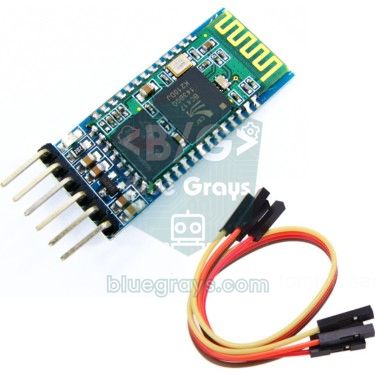
Controlling Arduino over Bluetooth with App Inventor is the fastest way to build your own Android app without writing a single line of Java or Kotlin. In MIT's free, browser-based MIT App Inventor, you drag buttons, sliders and text labels onto the screen and define what they do with blocks that snap together like puzzle pieces. The phone connects to an HC-05 Bluetooth module wired to the Arduino; every tap in the app travels to the Arduino as a short text command, and the Arduino sends its sensor readings back to the phone the same way.
By the end of this guide you'll have a remote-control app that really works: a ListPicker that connects to the HC-05 from a list, buttons that switch an LED and a relay on and off, two sliders that set the LED brightness and the servo angle, and labels that show live temperature and humidity from a DHT11. You'll go through the Arduino code, every App Inventor block, building the APK and the fix for the Bluetooth permission problem introduced in Android 12, step by step. If you've never used the HC-05 before, take a quick look at the HC-05 Bluetooth Module guide first.
What is App Inventor, and how does it talk to Arduino?
MIT App Inventor is a free app development environment created by the Massachusetts Institute of Technology (MIT); you sign in with your Google account and use it in the browser. It has two views: in the Designer you lay out the app by dragging components, and in the Blocks editor you write rules such as "when the button is clicked, do this" with colourful blocks. To try the app without installing it, you use the MIT AI2 Companion app from the Play Store; when you're done, a single click produces an installable APK file.
On the Bluetooth side, the BluetoothClient component does the work. It uses classic Bluetooth's SPP (Serial Port Profile), which is exactly what the HC-05 speaks. The result is an invisible serial cable between phone and Arduino: when the app sends "L1" with the SendText block, the Arduino reads those two characters with bt.read(), just as if you'd typed them into the Serial Monitor. Everything the Arduino sends with bt.print() arrives at the phone's ReceiveText block. No Bluetooth-specific library is needed on the Arduino side.
| Layer | Job | In this project |
|---|---|---|
| Interface (Designer) | Components shown on screen | ListPicker, 5 Buttons, 2 Sliders, Labels |
| Logic (Blocks) | Blocks that react to events | Click, PositionChanged and Timer events |
| BluetoothClient | SPP connection, sending and receiving data | Connect, SendText, ReceiveText |
| HC-05 | Bridge between Bluetooth and UART | 9600 baud, PIN 1234 |
| Arduino | Interprets commands, drives outputs, reads the sensor | LED, relay, servo, DHT11 |
What you'll need
| Part | Qty | Note |
|---|---|---|
| Arduino Uno (or Nano) | 1 | Same code and pins on both |
| HC-05 or HC-06 Bluetooth module | 1 | Classic Bluetooth; the HM-10 (BLE) won't work this way |
| 1 kΩ and 2 kΩ resistors | 1 each | Voltage divider for the HC-05 RXD pin (2.2 kΩ also works) |
| LED and 220 Ω resistor | 1 each | Dimmable LED (D5, PWM) |
| 5 V relay module | 1 | To switch loads such as a lamp or a fan |
| SG90 servo motor | 1 | 0–180° control with a slider |
| DHT11 temperature and humidity sensor | 1 | Data to show on the phone |
| Android phone | 1 | The HC-05 doesn't work with an iPhone |
| Breadboard and jumper wires | — | A common GND is a must |
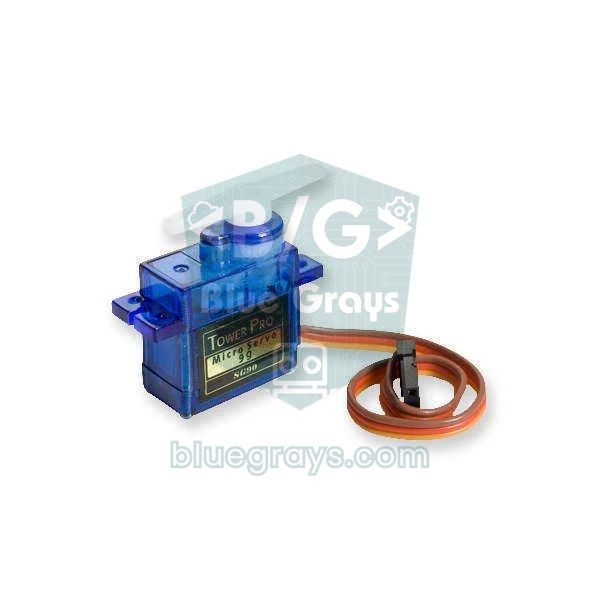
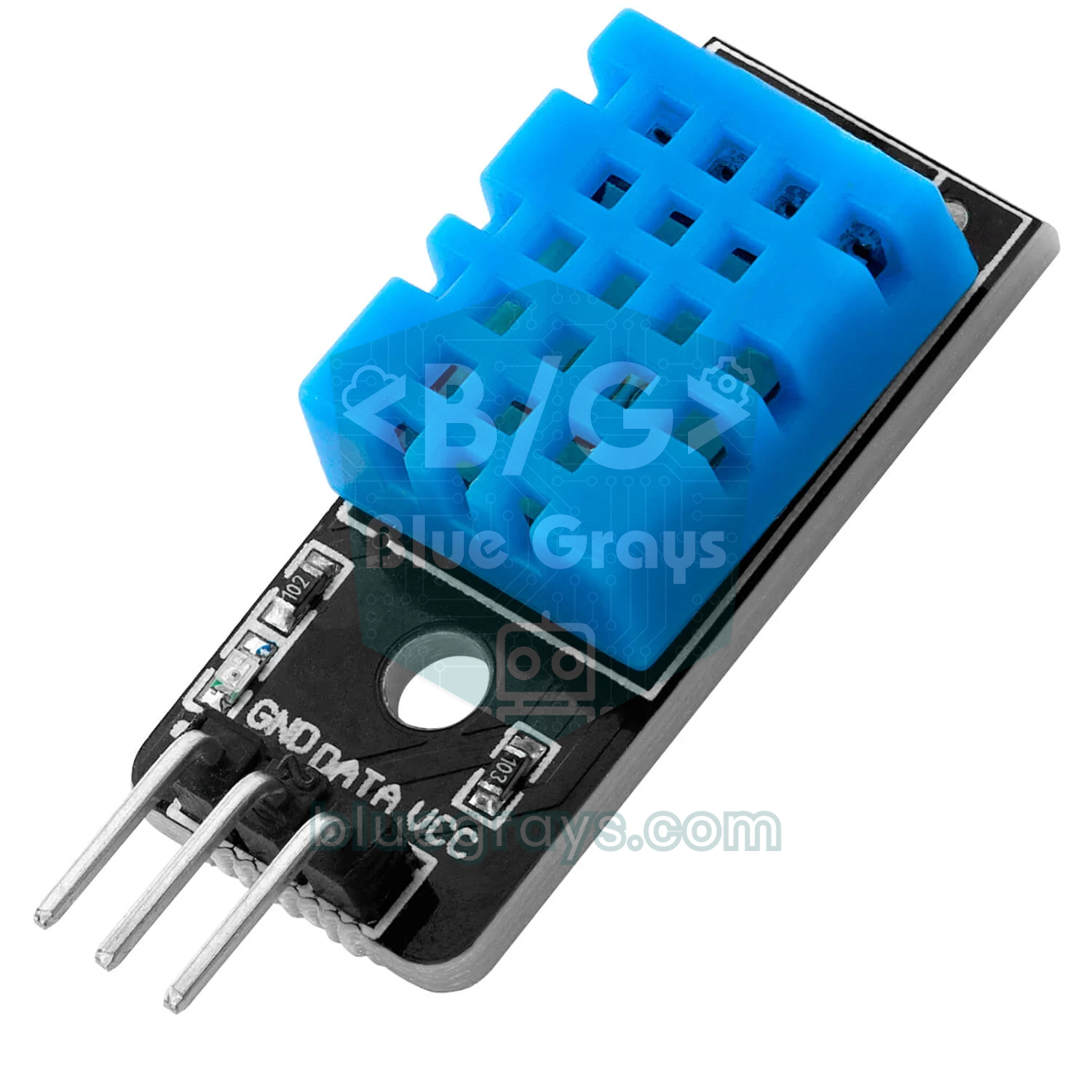
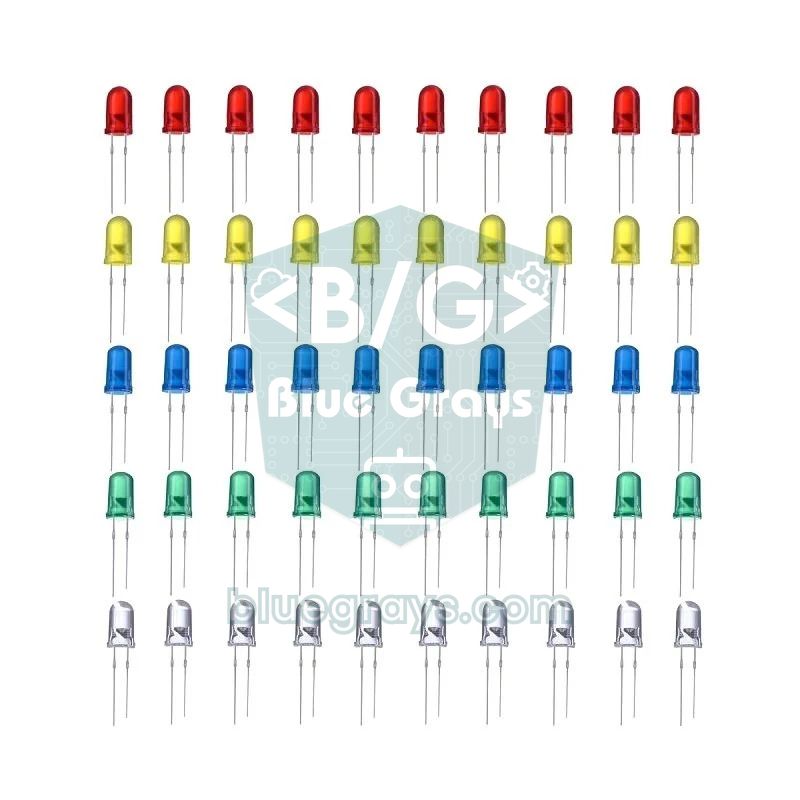
Wiring: HC-05, LED, relay, servo and DHT11
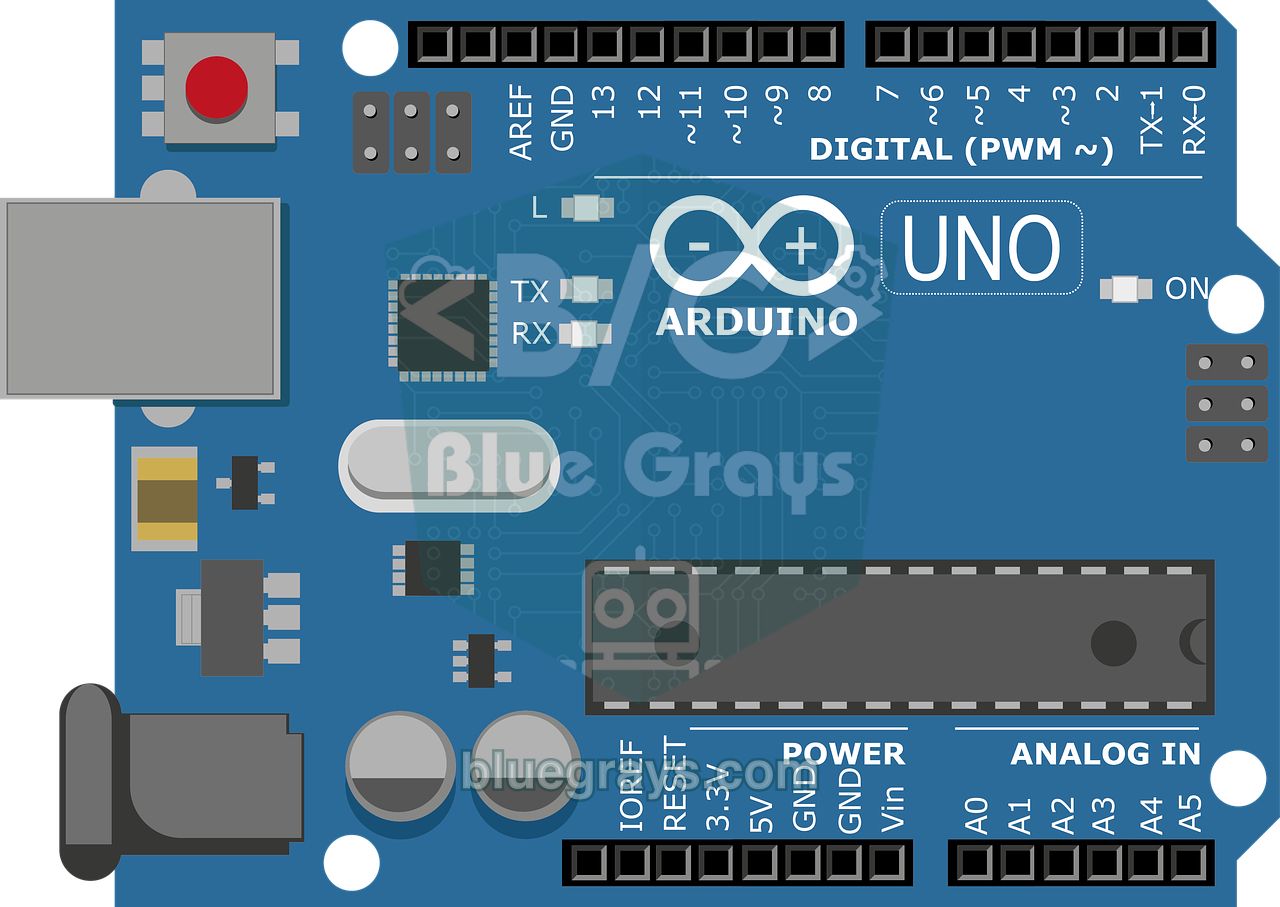
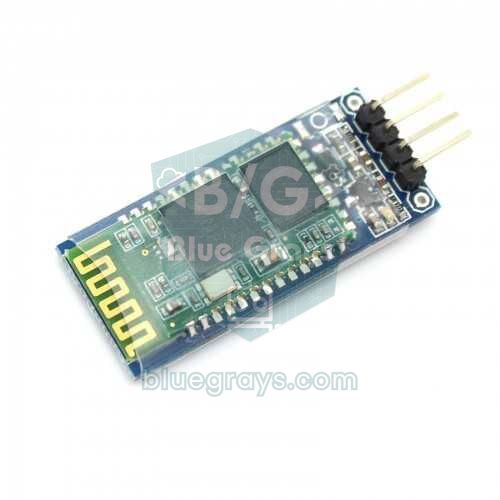
The HC-05 board has a regulator, so its VCC pin takes 5 V, but its data pins use 3.3 V logic. The Arduino reads the 3.3 V signal from the module's TXD pin without trouble; the Arduino's 5 V TX signal, however, should reach the RXD pin through a voltage divider: D11 → 1 kΩ → RXD, RXD → 2 kΩ → GND. That puts 5 × 2 / 3 ≈ 3.3 V on RXD. We connect the HC-05 to D10 and D11 with SoftwareSerial instead of the Uno's hardware serial pins (0 and 1), so you can upload code with the module attached and still use the Serial Monitor for debugging. You can check the LED's resistor with the LED resistor calculator.
| Connection | Arduino Uno | ESP32 | Raspberry Pi Pico |
|---|---|---|---|
| HC-05 VCC | 5V | Not needed (built-in Bluetooth) | VBUS (5 V) |
| HC-05 GND | GND | — | GND |
| HC-05 TXD | D10 (SoftwareSerial RX) | — | GP1 (UART0 RX) |
| HC-05 RXD | D11, via 1 kΩ / 2 kΩ divider | — | GP0 (UART0 TX), no divider |
| LED (+ 220 Ω) | D5 (PWM) | GPIO 2 (onboard LED) | GP15 |
| Relay module IN | D7 | GPIO 26 | GP14 |
| Servo signal (orange) | D9 | — (can be added with ESP32Servo) | GP13 |
| DHT11 data | D2 | GPIO 4 | GP16 |
Communication protocol: what will the phone send?
Before writing code, decide which "language" the phone and the Arduino will speak. In this project every command is a letter, followed by a number and finally a newline character (\n, ASCII 10). The newline matters a lot: Bluetooth data can arrive in pieces, and when "S1" and "35" arrive separately, the Arduino waits for the newline and handles "S135" as one command. Because the commands are readable text, you can also try them by hand with any Bluetooth terminal app.
| Command | Direction | Meaning |
|---|---|---|
| L1 / L0 | Phone → Arduino | Turn the LED fully on / off |
| P0 … P255 | Phone → Arduino | LED brightness (analogWrite value) |
| R1 / R0 | Phone → Arduino | Energise / release the relay |
| S0 … S180 | Phone → Arduino | Servo angle (degrees) |
| 24.5;41 | Arduino → phone | Temperature (°C) and humidity (%), separated by a semicolon |
Instead of text, App Inventor can also send a single byte (0–255) with the Send1ByteNumber block, which the Arduino reads directly as a number. It's short and fast, but only suits a single slider: if two sliders and four buttons all send bytes, the Arduino can't tell whether an incoming 90 is a servo angle or a brightness level. The letter + number + newline format costs a few more bytes, but at 9600 baud roughly 960 characters go through per second, so you'll never notice the difference.
The Arduino code
The Servo and SoftwareSerial libraries come with the Arduino IDE. For the DHT11, install DHT sensor library (Adafruit) from the Library Manager; when it asks about dependencies, choose Install all to add Adafruit Unified Sensor too. Since we don't use pins 0 and 1, there's no need to unplug the HC-05 while uploading.
1#include <SoftwareSerial.h>
2#include <Servo.h>
3#include <DHT.h>
4
5SoftwareSerial bt(10, 11);       // RX, TX → HC-05 TXD, RXD (bölücü üzerinden / via divider)
6Servo servo;
7DHT dht(2, DHT11);               // DHT11 veri pini D2 / data pin D2
8
9const int LED_PIN = 5;           // PWM destekli pin / PWM-capable pin
10const int ROLE_PIN = 7;
11const int SERVO_PIN = 9;
12const int ROLE_ACIK = LOW;       // çoğu röle modülü LOW ile çeker / most relay modules are active LOW
13const int ROLE_KAPALI = HIGH;
14
15String komut = "";               // gelen satırın tamponu / buffer for the incoming line
16unsigned long sonGonderim = 0;
17
18void komutIsle(String k) {
19  k.trim();                                  // boşluk ve \r temizle / strip spaces and \r
20  if (k.length() == 0) return;
21  Serial.println(k);                         // hata ayıklama / debugging
22  char tur = k.charAt(0);                    // komut harfi / command letter
23  int deger = k.substring(1).toInt();        // harften sonraki sayı / number after the letter
24
25  switch (tur) {
26    case 'L':                                // L1 / L0 → LED aç, kapat / LED on, off
27      analogWrite(LED_PIN, deger == 1 ? 255 : 0);
28      break;
29    case 'P':                                // P0..P255 → parlaklık / brightness
30      analogWrite(LED_PIN, constrain(deger, 0, 255));
31      break;
32    case 'R':                                // R1 / R0 → röle / relay
33      digitalWrite(ROLE_PIN, deger == 1 ? ROLE_ACIK : ROLE_KAPALI);
34      break;
35    case 'S':                                // S0..S180 → servo açısı / servo angle
36      servo.write(constrain(deger, 0, 180));
37      break;
38  }
39}
40
41void setup() {
42  pinMode(LED_PIN, OUTPUT);
43  pinMode(ROLE_PIN, OUTPUT);
44  digitalWrite(ROLE_PIN, ROLE_KAPALI);       // açılışta röle kapalı / relay off at start
45  servo.attach(SERVO_PIN);
46  servo.write(90);                           // orta konum / centre position
47  dht.begin();
48  Serial.begin(9600);                        // Seri Monitör / Serial Monitor
49  bt.begin(9600);                            // HC-05 veri modu hızı / HC-05 data mode baud rate
50}
51
52void loop() {
53  // 1) Telefondan gelen komutları satır satır oku / read commands from the phone line by line
54  while (bt.available()) {
55    char c = bt.read();
56    if (c == '\n') {                         // satır bitti / line complete
57      komutIsle(komut);
58      komut = "";
59    } else if (komut.length() < 16) {        // aşırı uzun satırı kes / cap overlong lines
60      komut += c;
61    }
62  }
63
64  // 2) 2 saniyede bir sensör verisini gönder / send sensor data every 2 seconds
65  if (millis() - sonGonderim >= 2000) {
66    sonGonderim = millis();
67    float t = dht.readTemperature();
68    float h = dht.readHumidity();
69    if (!isnan(t) && !isnan(h)) {
70      bt.print(t, 1);                        // örnek / example: 24.5
71      bt.print(';');
72      bt.print(h, 0);                        // örnek / example: 41
73      bt.print('\n');                        // println değil, \r gitmesin / not println, no \r
74    }
75  }
76}- Line buffer: loop() appends every incoming character to the komut (command) variable; when \n arrives it passes the line to komutIsle() and clears the buffer. Anything beyond 16 characters is dropped, so garbage data can't fill the memory.
- trim(): Some terminal apps add \r at the end of the line as well; trim() removes it along with spaces, so "L1\r" is still recognised as "L1".
- Letter and number: charAt(0) gives the command letter and substring(1).toInt() the number after it. constrain() clamps the value to a safe range; even if the phone accidentally sends 300, the servo is never pushed beyond 180°.
- Non-blocking sending: The sensor is read every 2 seconds using millis(). Because there's no delay(), commands arriving in the meantime are handled without lag; see millis vs delay for details.
- print('\n') instead of println: println() ends the line with \r\n. App Inventor only uses \n as the delimiter, so the \r would stick to the end of the humidity value; sending \n alone keeps parsing on the phone clean.
- Active-LOW relay: Most relay modules switch on when IN goes LOW. If yours switches on with HIGH, just swap the values of the ROLE_ACIK (on) and ROLE_KAPALI (off) constants.
Designing the interface in App Inventor (Designer)
- Go to ai2.appinventor.mit.edu in your browser, sign in with your Google account and create a project called BlueGraysRemote with Projects > Start new project.
- From the Layout group in the Palette, drag in a HorizontalArrangement; put a ListPicker (Text: Connect), a Button (Text: Disconnect) and a Label (Text: Not connected) inside it.
- Add two more HorizontalArrangements below: put LED On and LED Off buttons in the first, Relay On and Relay Off buttons in the second. Setting the buttons' Width to Fill parent makes them easier to tap.
- Add two Sliders: for brightness MinValue 0, MaxValue 255, ThumbPosition 0; for the servo MinValue 0, MaxValue 180, ThumbPosition 90. Put a Label above each one saying what it does.
- Add two more Labels for temperature and humidity and raise their FontSize to about 20.
- From the Connectivity group add a BluetoothClient; in the Properties panel set DelimiterByte to 10 and tick NoLocationNeeded.
- From the Sensors group add a Clock; set TimerInterval to 200 and untick TimerEnabled. We'll switch the timer on with blocks once the connection is up.
| Component | Name (Rename) | Key setting |
|---|---|---|
| ListPicker | LP_Connect | Text: Connect |
| Button × 5 | BTN_Disconnect, BTN_LedOn, BTN_LedOff, BTN_RelayOn, BTN_RelayOff | Width: Fill parent |
| Slider | SLD_Brightness | MinValue 0, MaxValue 255 |
| Slider | SLD_Servo | MinValue 0, MaxValue 180, ThumbPosition 90 |
| Label | LBL_Status, LBL_Temp, LBL_Hum | FontSize 20 (for the values) |
| BluetoothClient | BluetoothClient1 | DelimiterByte 10, NoLocationNeeded ticked |
| Clock | Clock1 | TimerInterval 200, TimerEnabled off |
Connecting to the HC-05 with a ListPicker
First pair the HC-05 in the phone's Bluetooth settings (the PIN is usually 1234, otherwise 0000). This step is essential: BluetoothClient1.AddressesAndNames only lists paired devices and doesn't scan for new ones nearby. Each entry is a text with the MAC address first and the device name after it, like "98:D3:31:F5:2A:10 HC-05". You can pass the whole text to the Connect block; App Inventor drops everything after the first space by itself. The block returns true if the connection succeeds and false if it fails.
- In the when LP_Connect.BeforePicking event, place set LP_Connect.Elements to BluetoothClient1.AddressesAndNames. The list refills with paired devices every time it opens.
- In the when LP_Connect.AfterPicking event, add an if block and plug call BluetoothClient1.Connect address: LP_Connect.Selection into its condition.
- In the then part of the if, set LBL_Status.Text to "Connected" and start reading data with set Clock1.TimerEnabled to true; in the else part, write "Connection failed".
- In the when BTN_Disconnect.Click event, first set Clock1.TimerEnabled to false, then call BluetoothClient1.Disconnect, and finally set LBL_Status.Text to "Not connected". Stopping the timer first prevents a read and an error message after the link is closed.
Sending data: buttons and sliders
Sending takes a single block: call BluetoothClient1.SendText text. When you type "L1\n" into a text block, App Inventor turns the trailing \n into a newline character. Sending while not connected causes error 515, so wrapping every send in an if BluetoothClient1.IsConnected check is a good habit. For a slider, you attach the number to the letter and the newline with a join block: join("S", round(thumbPosition), "\n").
| Event | Text sent | Result on the Arduino |
|---|---|---|
| BTN_LedOn.Click | L1\n | LED lights at full brightness |
| BTN_LedOff.Click | L0\n | LED turns off |
| BTN_RelayOn.Click | R1\n | Relay clicks on, the connected lamp lights |
| BTN_RelayOff.Click | R0\n | Relay releases |
| SLD_Brightness.PositionChanged | join("P", round(thumbPosition), "\n") | analogWrite(5, value) |
| SLD_Servo.PositionChanged | join("S", round(thumbPosition), "\n") | servo.write(angle) |
While you drag a slider with your finger, the PositionChanged event fires dozens of times per second and thumbPosition returns fractional values like 87.4. If you send on every event, the same angle goes out again and again, the HC-05's buffer fills up and the servo moves jerkily and late. The fix is simple: create a variable called global lastAngle; send only if the value rounded with round(thumbPosition) differs from it, then update the variable. That way data only goes out when the angle really changes. Apply the same trick to the brightness slider with global lastBrightness.
Receiving data: showing sensor values on the phone
The Arduino sends a "24.5;41" line every 2 seconds. App Inventor has no event that fires by itself when data arrives, so we use the Clock component to check "is there new data?" at regular intervals. Because we set DelimiterByte to 10 in the Designer, giving the ReceiveText block -1 as numberOfBytes makes it read up to the newline character and return the line without the \n. A 200 ms timer checks far more often than the data arrives (every 2000 ms), so nothing piles up in the buffer.
- Put an if BluetoothClient1.IsConnected condition inside when Clock1.Timer.
- Add a second condition inside it: call BluetoothClient1.BytesAvailableToReceive > 0.
- Store the incoming line in a local variable with initialize local line to call BluetoothClient1.ReceiveText numberOfBytes: -1.
- Turn the line into a list with the split text line at ";" block: "24.5;41" becomes the two-item list [24.5, 41]. Keep the result in a local variable called parts.
- if length of list parts = 2, set LBL_Temp.Text to join("Temperature: ", select list item parts index 1, " °C") and LBL_Hum.Text to join("Humidity: ", select list item parts index 2, " %"). Checking the item count stops half-received or corrupted lines from causing errors.
The Bluetooth permission problem on Android 12 and later
Bluetooth permissions changed with Android 12 (API 31). The old BLUETOOTH permission, granted automatically at install time, was replaced by BLUETOOTH_CONNECT and BLUETOOTH_SCAN, which the user must approve while the app is running; in the phone's settings they appear as the Nearby devices permission. If it hasn't been granted, App Inventor opens the permission dialog on the first attempt but stops the block that was running. The result is a set of familiar symptoms: the list opens empty the first time you tap Connect, an "Error 908: The permission ... has been denied" message appears (naming BLUETOOTH_CONNECT or BLUETOOTH_SCAN), or, if the user refused once, the app never asks again.
- In the when Screen1.Initialize event, check the Android version: if select list item (split Screen1.PlatformVersion at ".") index 1 ≥ 12, give call Screen1.AskForPermission the BluetoothConnect value from the Permission list. These permissions don't exist on Android 11 and earlier, and asking for them there also triggers error 908, so the version check matters.
- In the when Screen1.PermissionGranted event, if the granted permission is BLUETOOTH_CONNECT (contains text: permissionName, piece: "CONNECT"), ask for BluetoothScan next. AskForPermission only takes one permission at a time, so you chain them like this.
- In the when Screen1.PermissionDenied event, use a Notifier to show a message with the path "Settings > Apps > BlueGraysRemote > Permissions > Nearby devices > Allow". Handling this event shows the user a clear explanation instead of a raw error box.
- Keep NoLocationNeeded ticked on the BluetoothClient in the Designer; it tells Android that the app doesn't use Bluetooth to work out the user's location.
- Always test with the APK as well: the AI2 Companion's permissions belong to the Companion app, while your APK asks for its own permissions after installation.
| Error | Meaning | Fix |
|---|---|---|
| Error 507: Unable to connect. Is the device turned on? | Couldn't connect to the module | Check the HC-05's power, that it isn't connected to another phone, and the pairing; if it still fails, untick Secure on the BluetoothClient and try again |
| Error 515: Not connected to a Bluetooth device. | Sending or reading without a connection | Wrap the send and Clock blocks in an IsConnected check |
| Error 516: Unable to write: Broken pipe | The link dropped mid-way (power lost, out of range) | Stop the Clock, call Disconnect and reconnect; give the servo and relay their own supply |
| Error 908: The permission … has been denied | No Nearby devices permission on Android 12+ | Ask for it with blocks or grant it manually in Settings |
| The list opens empty | Module not paired, or the permission was only just requested | Pair the HC-05 in the phone's settings; after granting the permission, tap Connect again |
Testing the app and building the APK
You don't need to install an APK after every change while developing. Install the MIT AI2 Companion app from the Play Store; with your computer and phone on the same Wi-Fi network, choose Connect > AI Companion in App Inventor and scan the QR code or enter the 6-character code shown on screen. Every change you make in the Designer or the blocks shows up on the phone instantly. When the app is finished, build the installable file like this:
- Select Screen1 in the Designer and fill in AppName (the name shown on the phone), Icon (a square PNG), VersionCode and VersionName.
- From the top menu choose Build > Android App (.apk). The build usually takes a minute or two.
- When it's done, a window with a QR code and a download button appears. You can scan the QR code with your phone to download the file directly, or save the APK to your computer and copy it to the phone over USB. The QR link is only valid for a short time (about 2 hours).
- When you open the APK on the phone, Android asks you to allow your browser or file manager to install unknown apps. If Play Protect shows a warning, you can continue with the install-anyway option in the details; this warning is common for apps from outside the Play Store with an unfamiliar signature.
- On the app's first launch, approve the Nearby devices permission, tap Connect and pick the HC-05 from the list.
The same app with an ESP32, no HC-05 needed
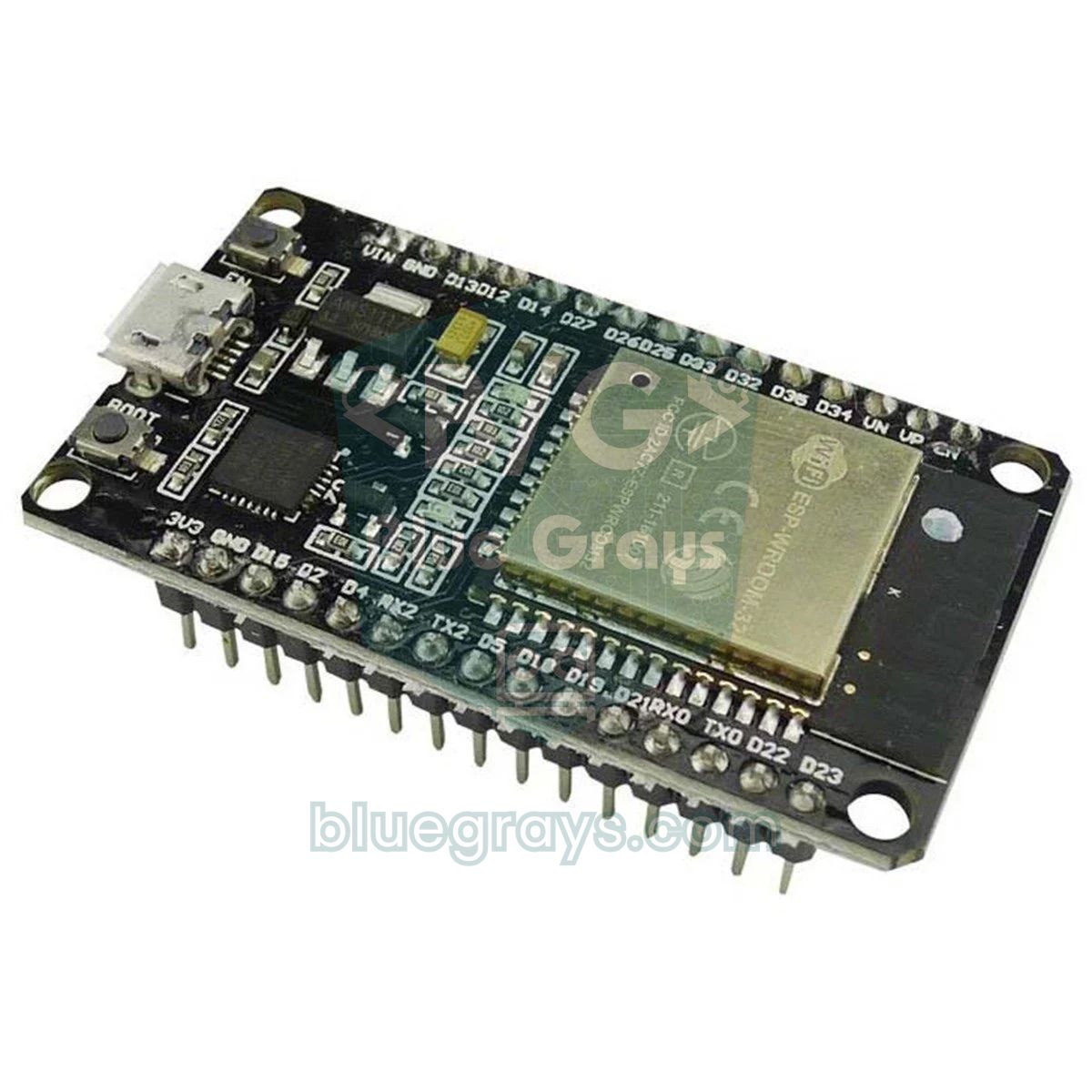
The classic ESP32 has both classic Bluetooth and BLE built in. The BluetoothSerial library presents the ESP32 to the phone as an SPP device, so you can use the app you just built without changing anything. Pair the device called "BlueGrays-ESP32" in the phone's Bluetooth settings, pick it from the list in the app, and that's it. Watch out: the ESP32-S3, ESP32-C3 and ESP32-C6 only support BLE; they have no BluetoothSerial, and on the App Inventor side you need the BluetoothLE extension. For working with BLE, see the ESP32 Bluetooth and BLE guide.
1#include "BluetoothSerial.h"
2#include <DHT.h>
3
4BluetoothSerial SerialBT;
5DHT dht(4, DHT11);               // DHT11 veri pini GPIO 4 / data pin GPIO 4
6
7const int LED_PIN = 2;           // çoğu DevKit'te kart üstü LED / onboard LED on most DevKits
8const int ROLE_PIN = 26;
9
10String komut = "";
11unsigned long sonGonderim = 0;
12
13void setup() {
14  pinMode(ROLE_PIN, OUTPUT);
15  digitalWrite(ROLE_PIN, HIGH);              // aktif LOW röle kapalı / active-LOW relay off
16  dht.begin();
17  SerialBT.begin("BlueGrays-ESP32");         // telefonda görünecek ad / name shown on the phone
18}
19
20void loop() {
21  while (SerialBT.available()) {
22    char c = SerialBT.read();
23    if (c == '\n') {
24      komut.trim();
25      int deger = komut.substring(1).toInt();
26      if (komut.startsWith("L")) {
27        analogWrite(LED_PIN, deger == 1 ? 255 : 0);              // LED aç, kapat / LED on, off
28      } else if (komut.startsWith("P")) {
29        analogWrite(LED_PIN, constrain(deger, 0, 255));          // parlaklık / brightness
30      } else if (komut.startsWith("R")) {
31        digitalWrite(ROLE_PIN, deger == 1 ? LOW : HIGH);         // röle / relay
32      }
33      komut = "";
34    } else if (komut.length() < 16) {
35      komut += c;
36    }
37  }
38
39  if (millis() - sonGonderim >= 2000) {      // Uno koduyla aynı biçim / same format as the Uno
40    sonGonderim = millis();
41    float t = dht.readTemperature();
42    float h = dht.readHumidity();
43    if (!isnan(t) && !isnan(h)) {
44      SerialBT.print(t, 1);
45      SerialBT.print(';');
46      SerialBT.print(h, 0);
47      SerialBT.print('\n');
48    }
49  }
50}
The code understands the same commands as the Uno version and sends data in the same "temperature;humidity" format; it ignores S commands because no servo is attached. The Arduino Servo library doesn't work on the ESP32; to add a servo, install the ESP32Servo library and use the same attach() and write() calls on, say, GPIO 13. Power the relay module from the VIN (5 V) pin; if its IN input doesn't switch reliably with the ESP32's 3.3 V signal, choose a 3.3 V-compatible relay module. For details, see What Is a Relay Module?
With the Raspberry Pi Pico and MicroPython
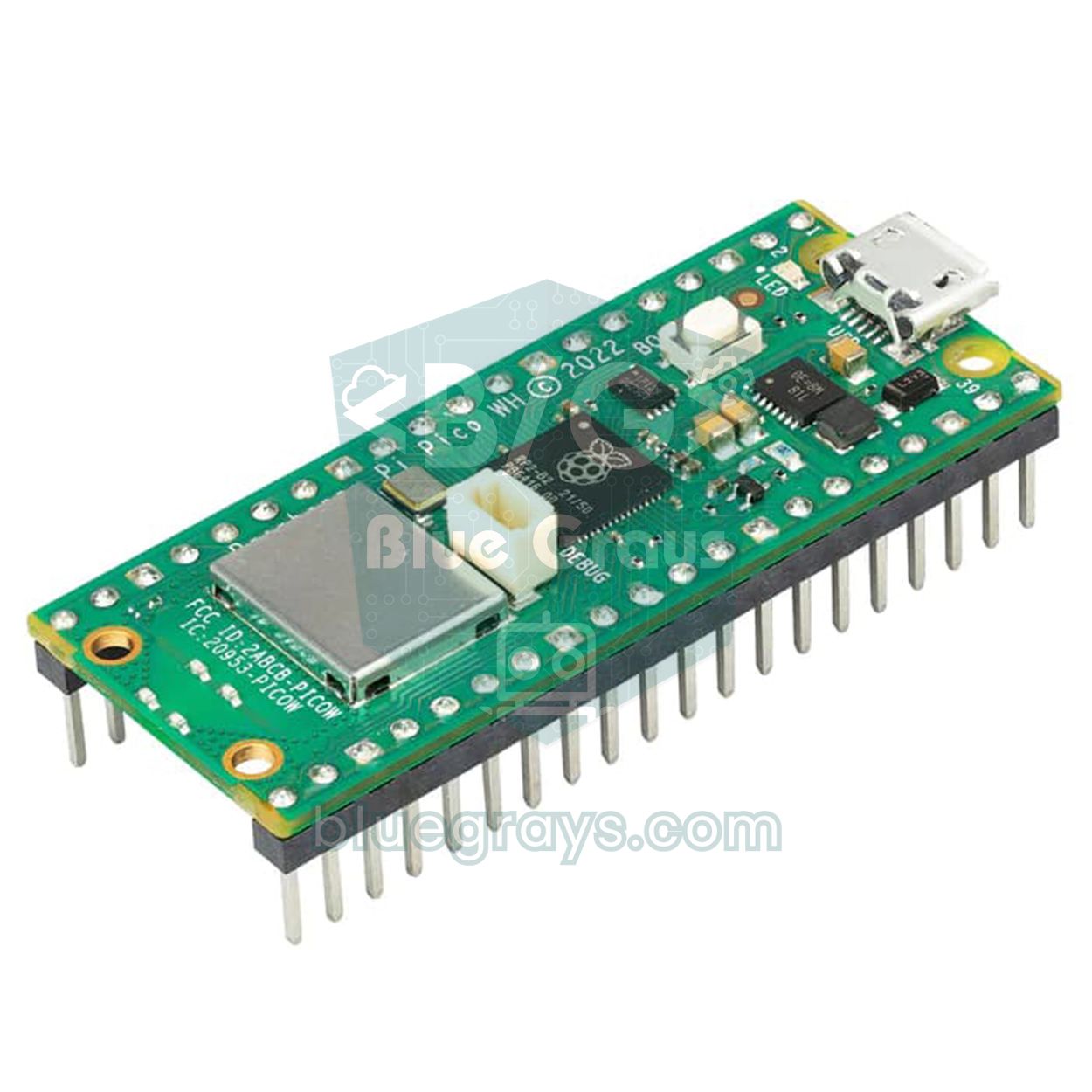
The standard Raspberry Pi Pico has no Bluetooth, so you connect the HC-05 to the UART0 pins (GP0 and GP1). Because the Pico's pins run at 3.3 V, this time no voltage divider is needed; power the module from the VBUS pin, which carries the 5 V from USB. The Pico W and Pico 2 W have built-in Bluetooth, but MicroPython only supports BLE on them; to talk to App Inventor's classic BluetoothClient, the HC-05 is still the easiest route. The code below understands the same commands, drives the servo with 50 Hz PWM and sends data in the same format; the dht module comes built into the Pico's MicroPython firmware.
1from machine import UART, Pin, PWM
2import dht
3import time
4
5bt = UART(0, baudrate=9600, tx=Pin(0), rx=Pin(1))   # GP0 → HC-05 RXD, GP1 ← HC-05 TXD
6led = PWM(Pin(15))
7led.freq(1000)
8role = Pin(14, Pin.OUT, value=1)                    # aktif LOW röle kapalı / active-LOW relay off
9servo = PWM(Pin(13))
10servo.freq(50)                                      # servo 50 Hz ister / servos need 50 Hz
11sensor = dht.DHT11(Pin(16))
12
13def komut_isle(k):
14    if not k:
15        return
16    tur, deger = k[0], int(k[1:] or 0)              # harf + sayı / letter + number
17    if tur == 'L':
18        led.duty_u16(65535 if deger == 1 else 0)
19    elif tur == 'P':
20        led.duty_u16(min(max(deger, 0), 255) * 257) # 0-255 → 0-65535
21    elif tur == 'R':
22        role.value(0 if deger == 1 else 1)
23    elif tur == 'S':
24        aci = min(max(deger, 0), 180)
25        servo.duty_ns(544000 + aci * 1856000 // 180)  # 544-2400 µs darbe / pulse
26
27tampon = b''
28son = time.ticks_ms()
29while True:
30    if bt.any():
31        tampon += bt.read()
32        while b'\n' in tampon:                      # tam satır geldi mi? / full line received?
33            satir, tampon = tampon.split(b'\n', 1)
34            try:
35                komut_isle(satir.decode().strip())
36            except ValueError:
37                pass                                # bozuk komutu atla / skip malformed command
38        if len(tampon) > 32:
39            tampon = b''                            # satır sonu hiç gelmedi / no newline arrived
40    if time.ticks_diff(time.ticks_ms(), son) >= 2000:
41        son = time.ticks_ms()
42        try:
43            sensor.measure()
44            bt.write('{:.1f};{}\n'.format(sensor.temperature(), sensor.humidity()))
45        except OSError:
46            pass                                    # sensör okunamadı / sensor read failed
47    time.sleep_ms(10)
Project ideas with App Inventor and Arduino
- Bluetooth-controlled car: Map the direction buttons to the letters F, B, L and R and drive the motors with an L298N; every step is in the Arduino robot car guide.
- Smart home panel: Control a lamp, a socket and a fan from one screen with a four-channel relay module; for ideas, see the Arduino smart home project.
- Colour picker lamp: Set the red, green and blue values of an RGB LED separately with three sliders.
- Robot arm: Add one slider per joint and steer the servo motors from your phone.
- Greenhouse monitor: Show DHT11 and soil moisture sensor readings on the phone and add a button that starts the pump when the soil gets dry.
- Voice control: Use App Inventor's SpeechRecognizer component to build an app that sends L1 when you say "lights on".
Common mistakes and how to fix them
- The app connects but the LED won't light: The HC-05's TXD and RXD wires are swapped, or the SoftwareSerial pins in the code don't match the circuit. The module's TXD must go to the Arduino's RX (D10).
- Commands are ignored: The \n is missing from the text block; the Arduino waits for the newline. Check whether incoming commands show up in the Serial Monitor.
- Garbled characters: The HC-05's baud rate differs from bt.begin(). The module ships at 9600 baud; if it was changed with AT commands, adjust the code to match.
- The servo jitters or the connection drops: The servo is dragging down the Arduino's 5 V rail; power it from a separate 5 V supply and join the GNDs. Slight jitter can also come from SoftwareSerial briefly blocking interrupts while it receives; for a permanent fix, use an Arduino Mega or an ESP32, which have spare hardware serial ports. Now and then the servo may also jump to a wrong angle for a moment: the DHT library switches interrupts off for about 5 ms on every reading, and a command arriving right then can get corrupted; the slider's next command puts it right.
- Values on the phone lag behind: The Clock interval is longer than the Arduino's sending interval, so lines pile up. Keep TimerInterval shorter than the sending interval.
- The app freezes: DelimiterByte is still 0, or the Arduino doesn't end its lines with \n; ReceiveText(-1) waits for a delimiter that never comes.
- It doesn't work on iPhone: The HC-05 uses classic Bluetooth, which iOS doesn't allow. An iPhone needs a BLE module (HM-10) or an ESP32.
Combining App Inventor and Arduino is the most fun way to learn mobile app development and electronics in one project. Once you've set up the connection and the protocol, the same skeleton can become a car, a smart home or a greenhouse remote; the only thing that changes is which letters the buttons send. In the BlueGrays app you'll find the Bluetooth LED control and the L298N Bluetooth-controlled car projects step by step, with circuit diagrams and code.
Frequently asked questions
Does an App Inventor Bluetooth app work on iPhone?
Not with an HC-05 or HC-06. These modules use classic Bluetooth (SPP), and iOS doesn't let ordinary apps open this kind of serial connection. To talk to an iPhone you need to switch to a BLE module such as the HM-10 or to an ESP32; for HC-05 projects, an Android phone is the most trouble-free choice.
Why is the Bluetooth device list empty in App Inventor?
AddressesAndNames only lists devices already paired with the phone, so pair the HC-05 in the Bluetooth settings first using PIN 1234. On Android 12 and later, the list also opens empty the first time if the Nearby devices permission hasn't been granted; grant it and tap Connect again. Make sure Bluetooth is switched on, too.
How do I fix App Inventor error 507?
Error 507 means "Unable to connect. Is the device turned on?": the phone couldn't open a connection to the module. Check that the HC-05 has power, that its LED is blinking fast and that it isn't connected to another phone. If the problem persists, remove the pairing and pair again, or try turning off the BluetoothClient's Secure property.
How do I build an APK in App Inventor?
Open the project and click Build > Android App (.apk) in the top menu. When the build finishes, scan the QR code with your phone or download the APK to your computer and copy it over. During installation you'll need to allow installing unknown apps.
Can App Inventor connect to an ESP32 over Bluetooth?
Yes. With the BluetoothSerial library, the classic ESP32 behaves like an SPP device, and App Inventor's BluetoothClient connects to it just as it does to an HC-05. The ESP32-S3 and ESP32-C3 only support BLE, so on those boards you need the BluetoothLE extension.
Can I publish my App Inventor app on Google Play?
Yes. The Android App Bundle (.aab) option in the Build menu produces a file you can upload to Google Play; you'll need a Google Play developer account. Updates must be signed with the same key, so back up your keystore with Projects > Export keystore.
Projects to build after reading this
See all projects
LED Blink
The very first hello of electronics: switching a single LED on and off. The Arduino turns the LED on and off at short intervals, so the light blinks quickly. You see in the simplest way how the board
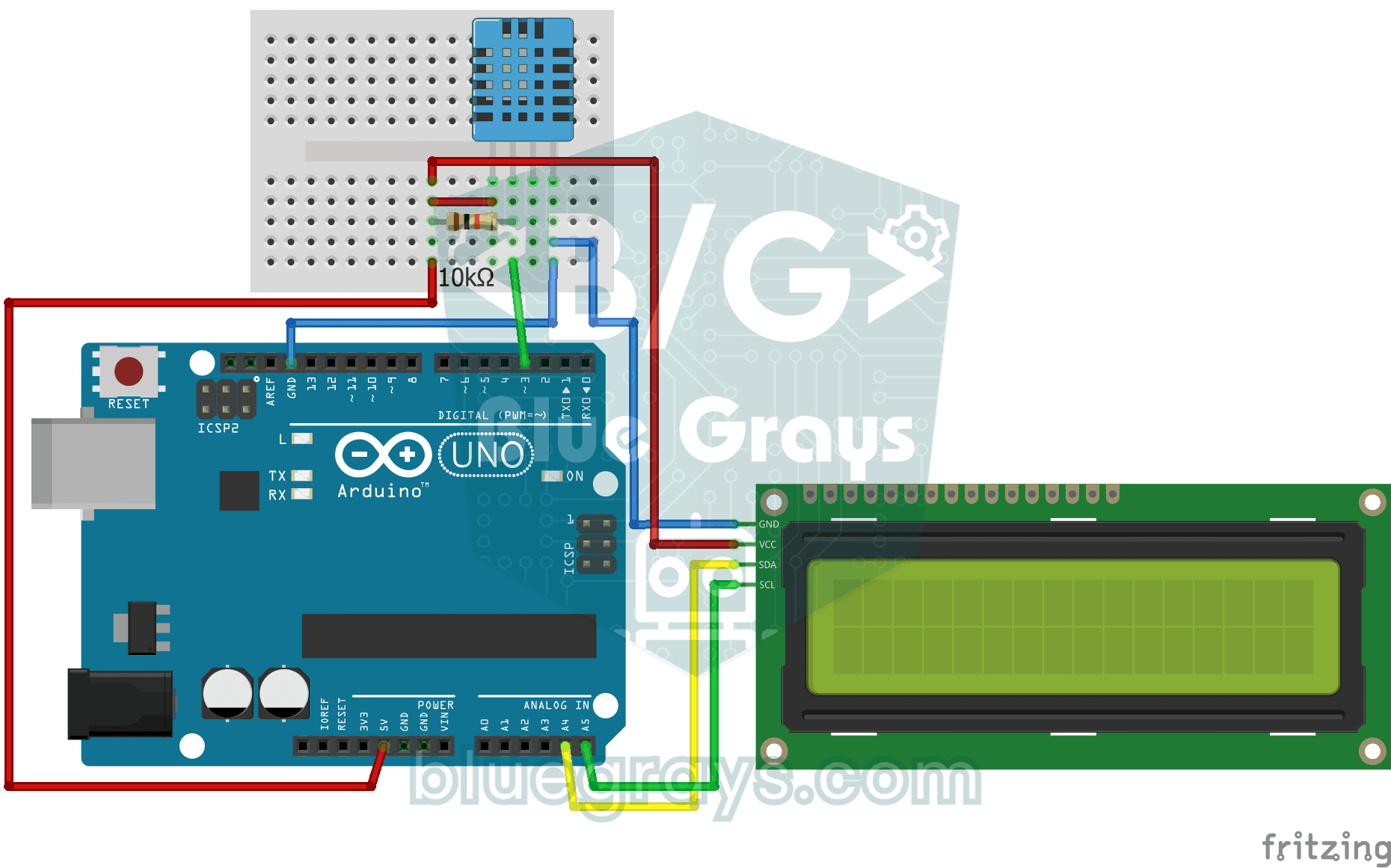
Temperature and Humidity with DHT11
How warm is your room, and is the air humid or dry? The DHT11 sensor measures temperature and humidity, and the Arduino writes the values on a two-line LCD screen, refreshing every couple of seconds.
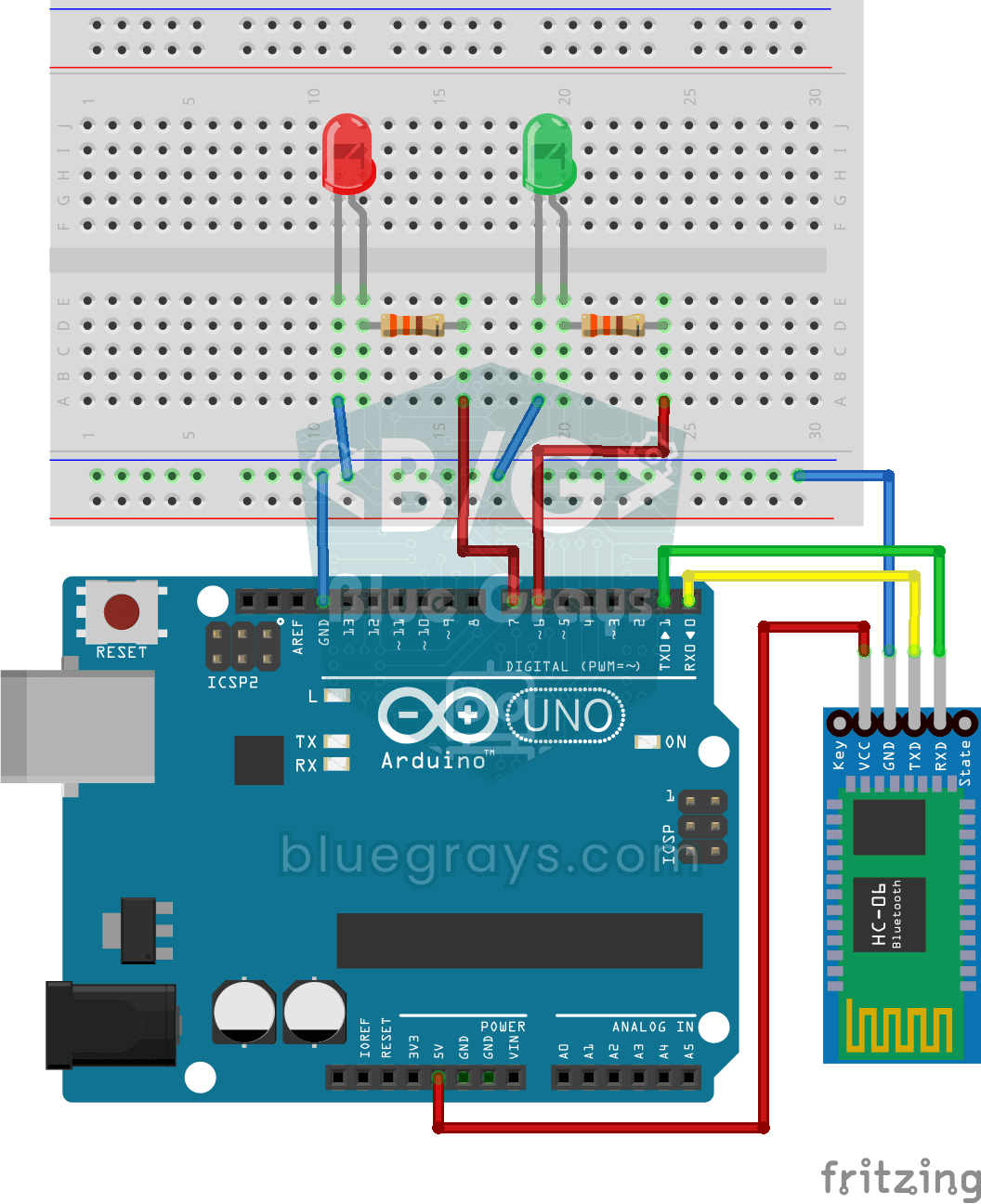
Control an LED from Your Phone via Bluetooth
A small rehearsal for switching the lights in your room on and off from your phone. The Bluetooth module passes the letters sent from your phone to the Arduino; one letter turns on the red LED, anothe

Bluetooth Controlled Car with L298N
Turn your phone into a remote and drive your own robot car. The Arduino receives commands from a remote-control app on your phone through a Bluetooth module and spins the wheels with a motor driver; t
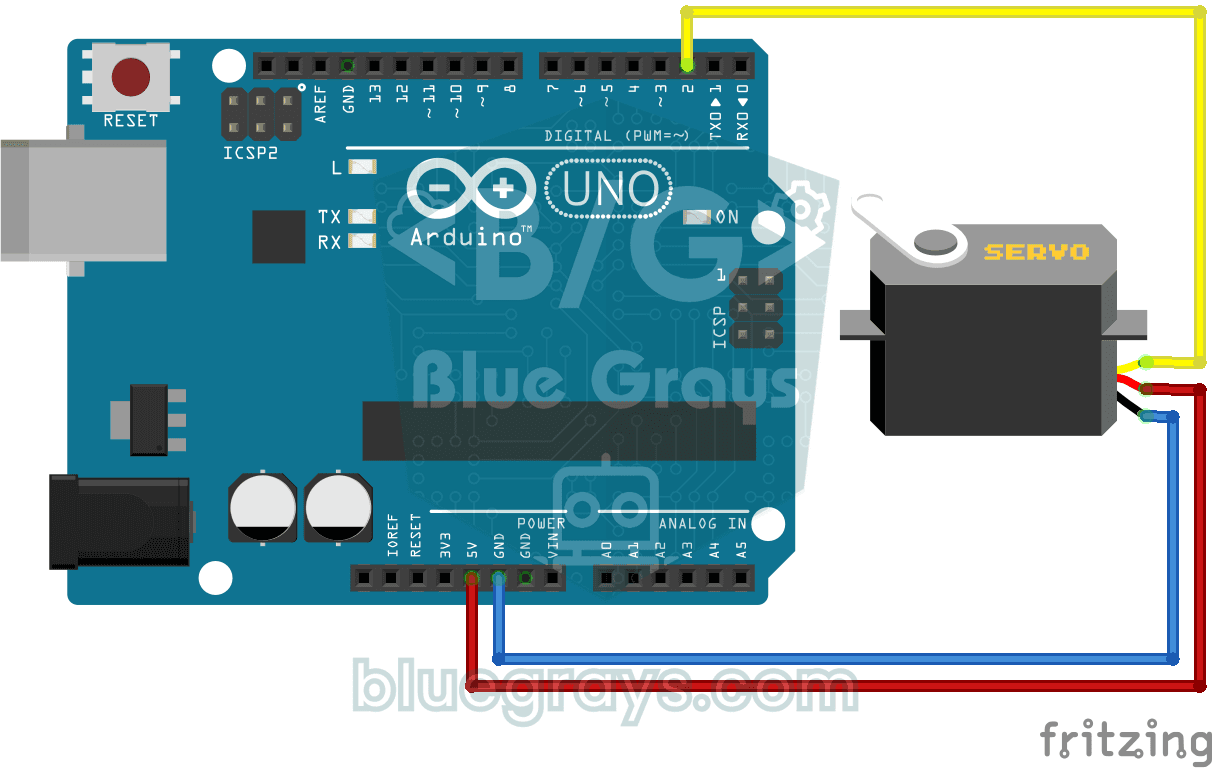
Using a Servo Motor
The arm of a small servo motor turns to three positions in turn: all the way to the start, right to the middle and all the way to the end, waiting two seconds at each stop. The Arduino tells the motor
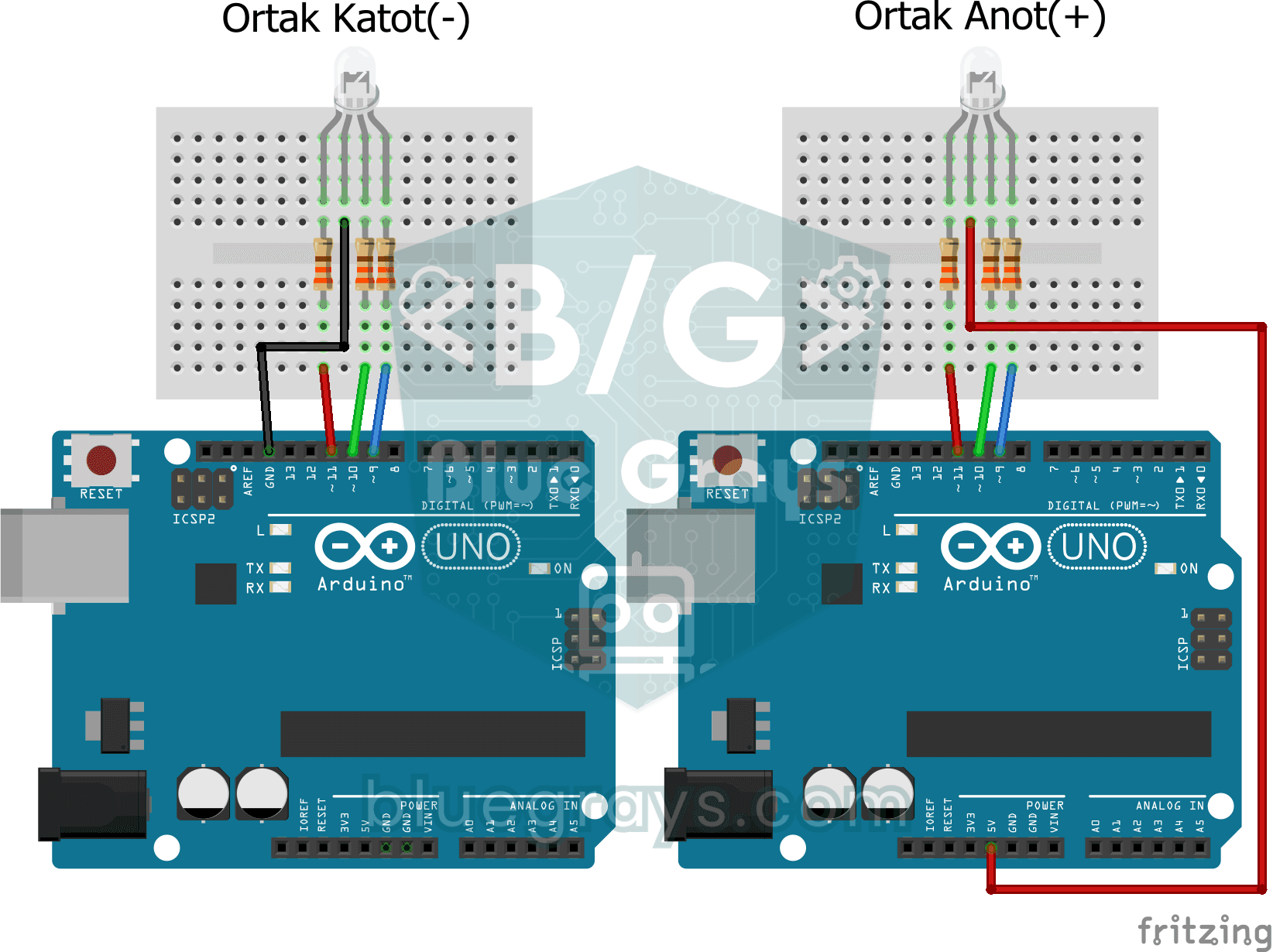
Using an RGB LED
Three colours hide inside a single LED: the RGB LED lights up red, then green, then blue, each colour on for half a second and off for half a second, before the cycle starts again. All you need is one
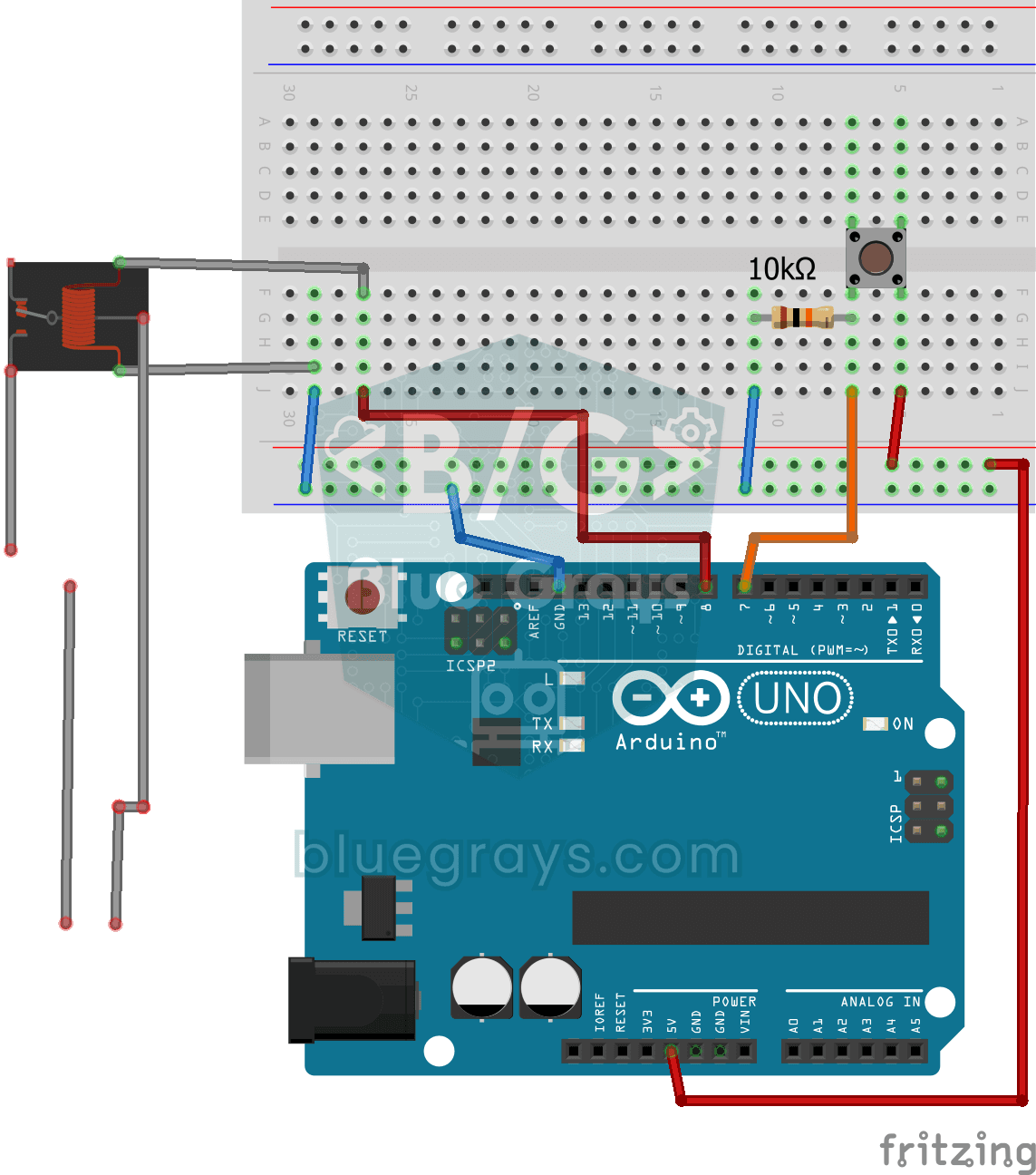
Lighting 220V Bulb with Push Button
As long as you hold the button, a real 220-volt bulb stays lit, and it goes out the moment you let go. The Arduino's tiny signal cannot light the bulb directly, so a relay, an electrically controlled
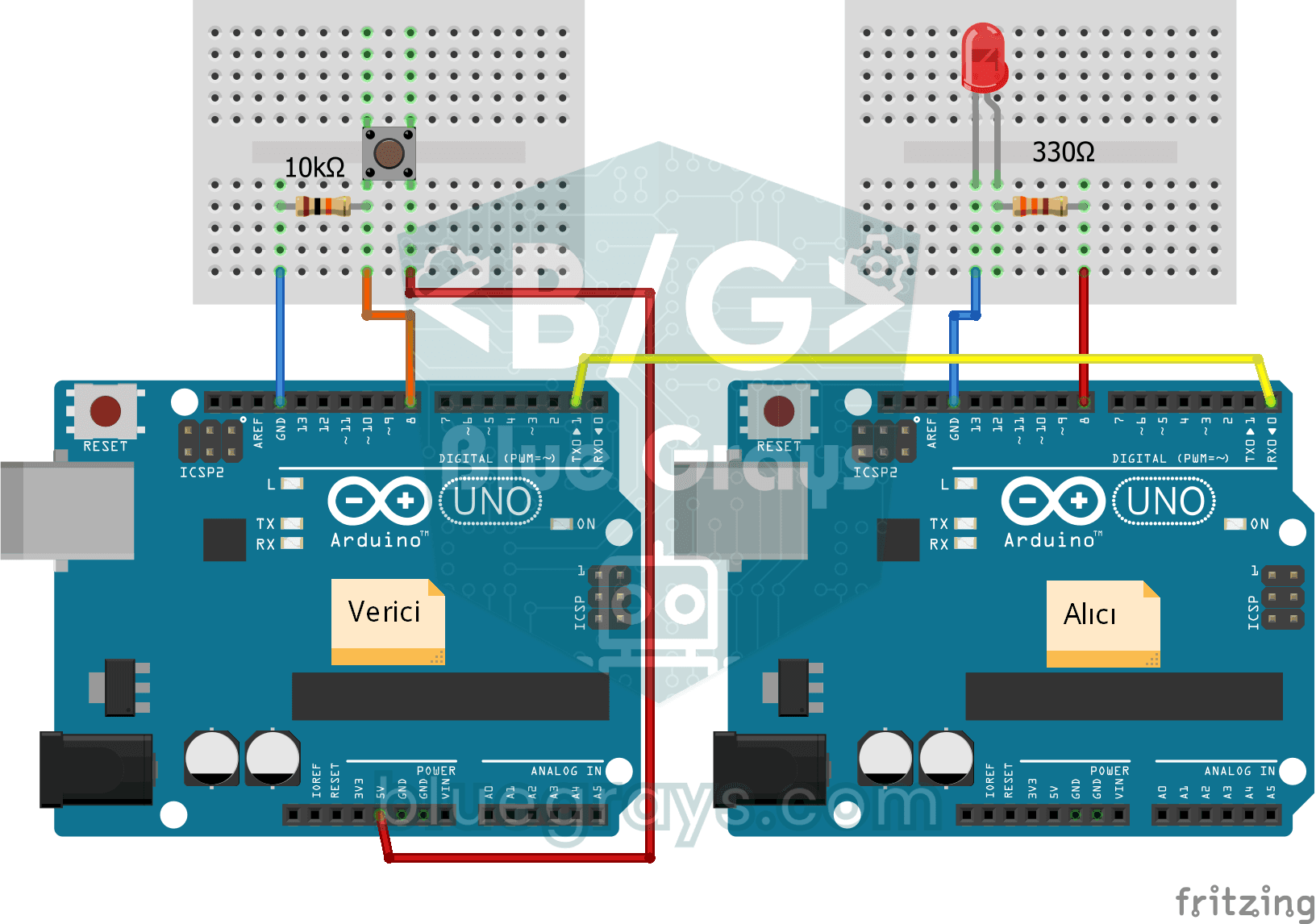
One-Way Communication Between 2 Arduinos
You get two Arduinos talking over a single wire: press the button on one and the LED on the other lights up, press it again and it goes off. The sending board reports the button press with a short mes