
Arduino Smart Home Project: Model House, Sensors, Code and App
Build an Arduino smart home project step by step: model house plan, PIR lights, gas and fire alarm, RFID door, relay lamp, ESP32 phone control and full code.
An Arduino smart home project turns the lights, door, window and alarms of a model house into a system that runs itself on sensors, and you can control all of it from your phone too if you like. It's one of the most popular school projects for good reason. A hallway light that switches on when it detects motion, an alarm that sounds when gas leaks, a fan that starts when it gets warm and a door that opens with a card add up to a small but working copy of a real smart home system. With an Arduino Uno or an ESP32, about ten modules and a weekend, you can build one too.
In this guide we start with the plan of the model house: which module goes in which room, where the budget goes, how to plan the power and how to assign the pins. Then we build and test each module one by one and write the complete Arduino sketch that runs them all at the same time without using delay(). In the final sections you'll learn how to control the house from your phone with an ESP32 web server or Blynk, how to fix the most common mistakes and how to impress the judges at your school presentation.
How does a smart home system work?
Every smart home runs on the same three-part loop. Sensors measure the surroundings: is anyone moving, is it dark, how warm is it, is there gas or a flame in the kitchen, which card was held up to the door? The controller, meaning the Arduino or ESP32, compares this information with rules: "if it's dark and there's motion, turn on the light", "if the temperature goes above 28 °C, start the fan". Actuators carry out the decision: a relay switches the lamp and fan, a servo turns the door and window, the buzzer sounds and the display shows the status. Phone control simply adds another input to this loop; this time your tap makes the decision instead of a rule.
| Room / area | Module | What it does |
|---|---|---|
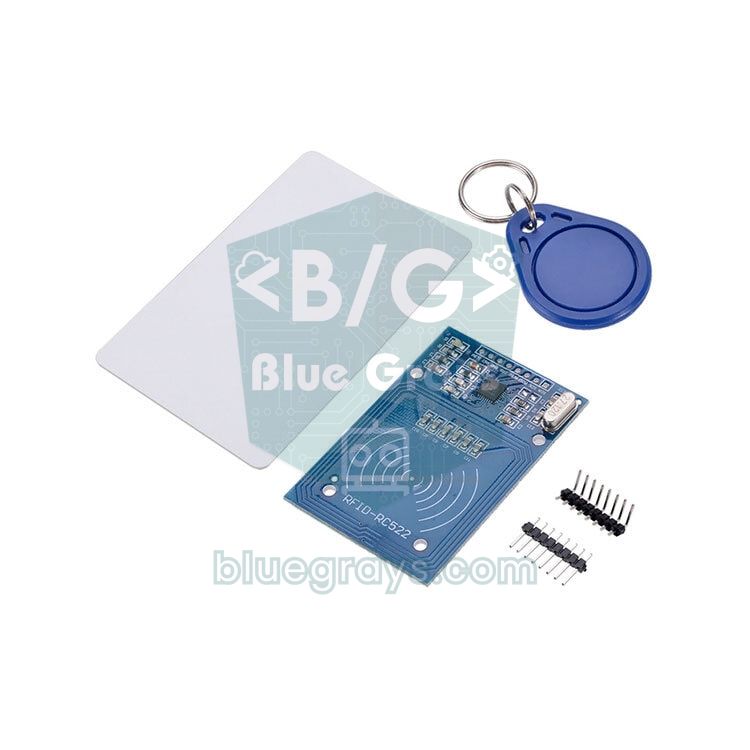
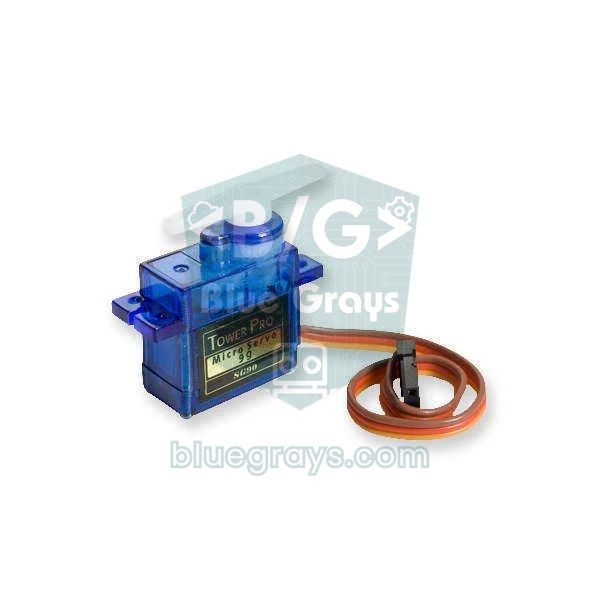
| Front door | RC522 RFID + SG90 servo | Opens the door when an authorised card is scanned and closes it 5 seconds later |
| Hallway / living room | HC-SR501 PIR + LDR + relay | Turns on the lamp when it detects motion in the dark and switches it off after 20 seconds without motion |
| Kitchen | MQ-2 gas sensor + flame sensor + buzzer | Sounds a beeping alarm when it detects gas or a flame |
| Window | SG90 servo | Opens the window for ventilation when gas is detected |
| Bedroom | DHT11 + relay + fan | Starts the fan when it reaches 28 °C and stops it at 26 °C |
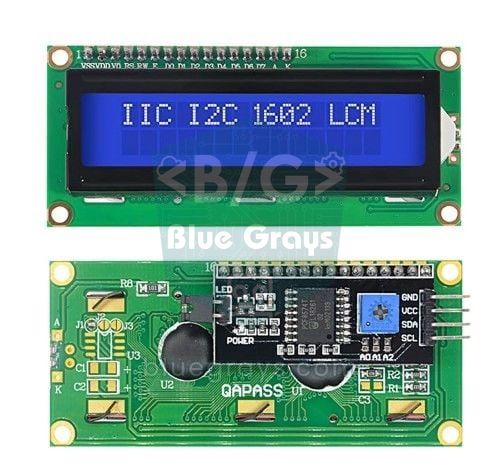
| Technical room | Arduino, I2C LCD, power supply | Shows temperature, humidity, the gas reading and status messages |
Planning the model house
Design the model around the electronics; don't try to squeeze the electronics in afterwards. A base of about 50×40 cm is enough for two or three rooms and an entrance. For the walls, 5 mm foam board or PVC foam board (such as Forex) cuts easily with a craft knife; 3–4 mm MDF is sturdier but needs a saw or a laser cutter. A 1:20 scale is a good starting point: a 2.6 m ceiling becomes a 13 cm wall and a 90 cm door becomes 4.5 cm wide. Make the roof removable or leave it off altogether; the judges will want to see inside the rooms.
- Technical room or double floor: put the Arduino, breadboard, relay module and power input in a compartment at the back of the house or under a double floor 3–4 cm high. If you cover it with clear acrylic, the circuit is both protected and visible.
- Cable channels: drill a 6–8 mm hole under each sensor and run the cables under the base to the technical room. Rather than joining short wires together, choose sensor wires that are long enough from the start.
- Door: fix the door to the wall with a small hinge or tape and connect the SG90's horn to the door with a wire bent from a paper clip. Glue the RC522 to the inside of the outer wall; the reader usually reads the card through 5 mm board as well.
- Kitchen: in real homes, a detector for natural gas (methane) goes near the ceiling because it's lighter than air, while one for LPG goes near the floor because LPG is heavier; for a model, a spot near the ceiling is fine. Point the flame sensor at the stove.
- Other sensors: put the PIR in a corner that sees the entrance path from the side, the LDR on an outside wall or window where it can't see the lamp's light, and the DHT11 away from the lamp and the warm body of the MQ-2.
Parts list and cost
| Part | Qty | Purpose | Price level |
|---|---|---|---|
| Arduino Uno R3 (a clone is fine) or ESP32 DevKit | 1 | The brain of the house | Medium |
| Breadboard and jumper wire set (male-male, male-female) | 1 set | Connections | Low |
| HC-SR501 PIR motion sensor | 1 | Hallway light | Low |
| LDR and 10 kΩ resistor | 1 + 1 | Darkness detection | Very low |
| MQ-2 gas sensor module | 1 | Gas and smoke alarm | Low |
| Flame sensor module (LM393) | 1 | Fire alarm | Low |
| DHT11 temperature and humidity module | 1 | Fan control | Low |
| RC522 RFID module (with card and key fob) | 1 | Card-operated door | Low |
| SG90 servo motor | 2 | Door and window | Low |
| 2-channel 5 V relay module | 1 | Lamp and fan | Low |
| Active buzzer | 1 | Alarm sound | Very low |
| I2C 16x2 LCD display | 1 | Status display | Low – medium |
| 5 V mini fan and 5 V LED lamp or LED strip | 1 + 1 | Loads for the relays | Low |
| 5 V 2–3 A power adapter and DC jack or terminal block | 1 | Power for servos, relays and sensors | Medium |
| Foam board or PVC foam board, craft knife, hot glue | – | Body of the house | Medium |
Prices change often depending on the seller and over time, so we don't give figures; the table shows how much weight each part carries in the budget. The sensors and modules are all cheap on their own; most of the budget goes on the board, the LCD, the power adapter and the model materials. If you have an Arduino starter kit, the board, breadboard, wires, LDR, buzzer and often a servo and an LCD are already covered. On a tight budget you can drop the LCD and the second servo: use the Serial Monitor instead of a display and leave the window for a later stage. A more accurate DHT22 instead of the DHT11 costs a little more but makes your measurements more convincing at the presentation.
Power plan: why a separate 5 V adapter?
In smart home models, almost every complaint like "it resets now and then", "the servo jitters" or "strange characters appear on the LCD" comes down to power. A computer's USB port supplies about 500 mA, and when the board runs from USB the Uno's 5V pin sits behind that limit too. Add up the values below and you'll see the total current easily goes over 1 A when both servos move at once.
| Part | Approximate current at 5 V |
|---|---|
| Arduino Uno | 45–50 mA |
| MQ-2 (heater always on) | About 150 mA |
| Relay module (per channel, relay energised) | 70–80 mA |
| SG90 servo (moving / under load) | 100–250 mA / up to 0.5–0.7 A |
| I2C LCD (backlight on) | 20–30 mA |
| RC522 (from the 3.3 V pin) | 13–26 mA |
| Active buzzer, DHT11, PIR and flame sensor | 30–40 mA in total |
| 5 V mini fan and LED lamp | 100–400 mA depending on the model |
Pin plan: Arduino Uno and ESP32
This many modules almost use up the Uno's pins, so you need to plan them from the start. The RC522 uses hardware SPI, so its MOSI, MISO and SCK lines are tied to D11, D12 and D13. The LCD uses only A4 and A5 over I2C, which is why we chose a display with an I2C module rather than a parallel LCD. Analog pins also work as digital pins when needed, which is how we can connect the window servo to A2. Leave D0 and D1 free: this serial line is used when you upload code and when you read card numbers in the Serial Monitor. You can see your board's pin layout in the Pinout tool.
| Module pin | Arduino Uno | ESP32 |
|---|---|---|
| PIR OUT | D2 | GPIO 16 |
| Flame sensor DO | D3 | GPIO 17 |
| DHT11 DATA | D4 | GPIO 13 |
| Active buzzer (+) | D5 | GPIO 25 |
| Door servo (signal) | D6 | GPIO 32 |
| Relay IN1 (lamp) | D7 | GPIO 26 |
| Relay IN2 (fan) | D8 | GPIO 27 |
| RC522 RST | D9 | GPIO 4 |
| RC522 SDA (SS) | D10 | GPIO 5 |
| RC522 MOSI / MISO / SCK | D11 / D12 / D13 | GPIO 23 / 19 / 18 |
| MQ-2 AO | A0 | GPIO 34 (through a voltage divider) |
| LDR divider midpoint | A1 | GPIO 35 (divider fed from 3V3) |
| Window servo (signal) | A2 | GPIO 33 |
| I2C LCD SDA / SCL | A4 / A5 | GPIO 21 / 22 |
Putting it together step by step
- Build the body of the model and prepare the module positions and cable holes; fit the electronics last.
- Set up the power line: connect the 5 V adapter to the breadboard's power rails, join the adapter's GND to the Arduino's GND and check the 5 V with a multimeter.
- Connect the I2C LCD and print some text on it. If you can't find the display's address, use the scanner sketch from the I2C LCD article.
- Add the sensors one at a time: DHT11, LDR, PIR, MQ-2 and flame sensor. Try each one with a short test sketch in the Serial Monitor and note the readings in clean air, in the dark and in the light.
- Add the actuators: first test the relays without a load by watching their click and LED, then the servos on external power, and finally connect the RC522. Scan your cards and note their numbers.
- Upload the main sketch and set the GAS_LIMIT, DARK_LIMIT and FAN_ON thresholds based on your notes.
- Secure the wires with hot glue and labels, then leave the system on for half an hour and watch for resets, overheating or false alarms.
Automatic light with a PIR and an LDR
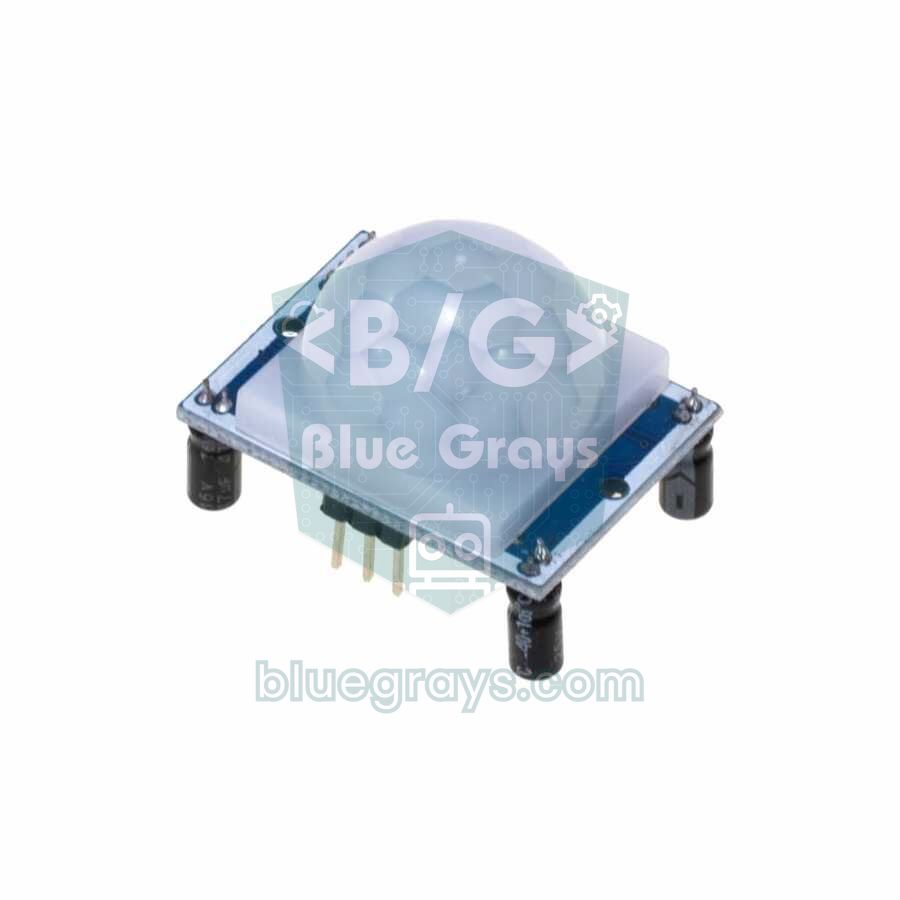
The HC-SR501 PIR sensor detects changes in the infrared radiation given off by the human body and sets its output HIGH when it sees movement. With a PIR alone the lamp would come on during the day as well, so our rule has two conditions: turn it on if there's motion and it's dark. The LDR is wired as a voltage divider with a 10 kΩ resistor (5V → LDR → A1 → 10 kΩ → GND), and the reading on A1 drops as it gets darker. The code stores the time of the last motion and switches the lamp off after 20 seconds without new movement; as long as someone is walking around, the timer restarts each time. Set the sensor's jumper to H (repeat trigger) and its Tx pot to the shortest time, and let the code decide the timing. More details in the PIR motion sensor and LDR light sensor articles.
Gas and fire alarm
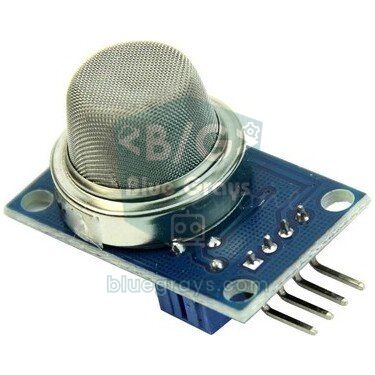
Inside the MQ-2 is a tin dioxide layer kept hot by a heater; LPG, methane, butane, hydrogen, alcohol and smoke change the resistance of this layer. The module's AO pin outputs a voltage that rises as the gas level rises. The sensor needs to warm up every time it's switched on, so the code ignores gas alarms for the first 60 seconds. The flame sensor detects the 760–1100 nm infrared light given off by a fire; on most modules the DO output goes LOW and a second LED on the board lights up when a flame is seen, but always check your own module with a lighter held at a distance. When gas is detected the alarm sounds and the window opens for ventilation; when a flame is detected the window stays shut, because fresh air feeds a fire. Setting the threshold and the other MQ sensors are covered in the MQ-2 gas sensor article.
Temperature, humidity and an automatic fan
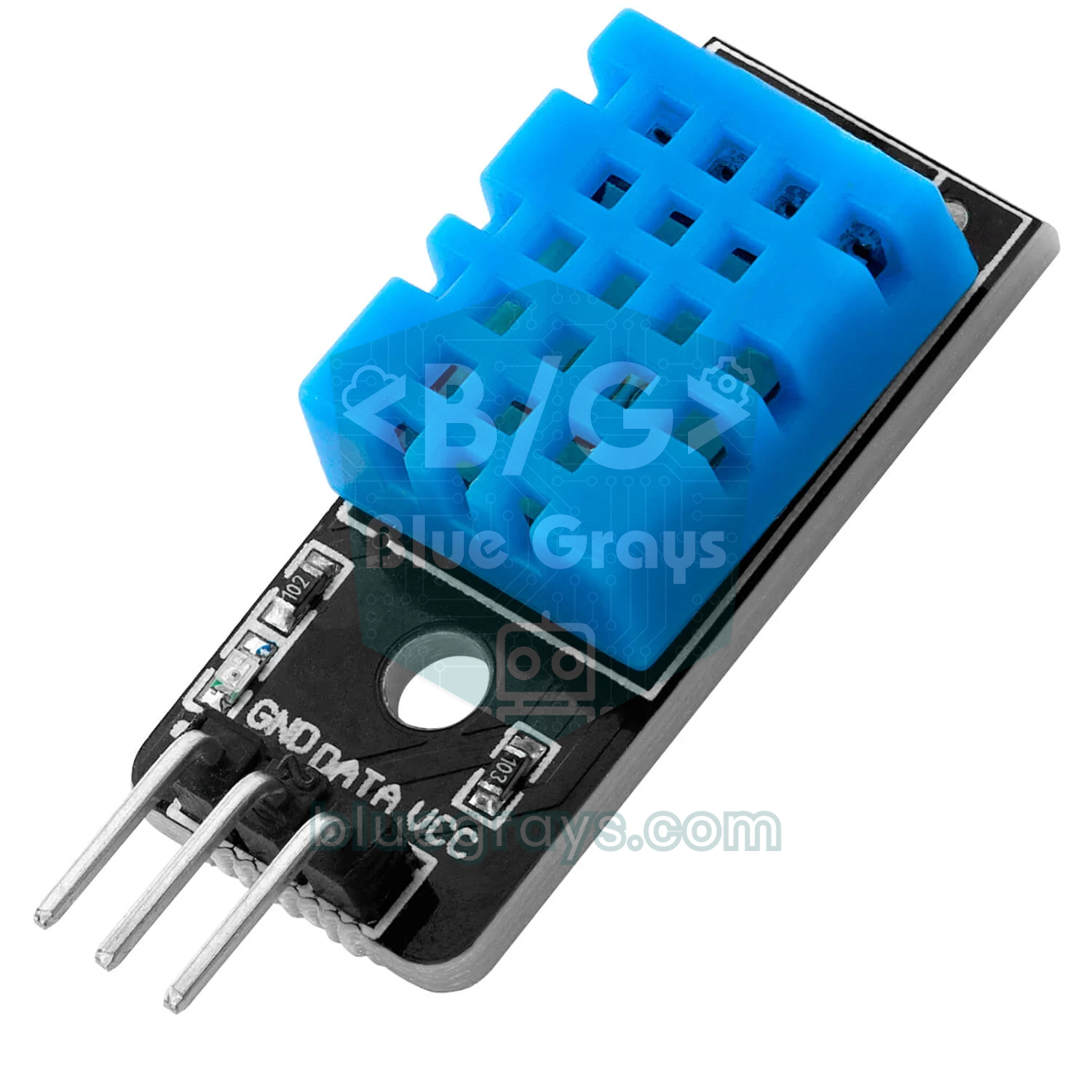
The DHT11 measures temperature from 0 to 50 °C with ±2 °C accuracy and humidity from 20 to 90 % with ±5 % accuracy, and it can be read at most once per second; the code reads it every two seconds. Instead of a single threshold for the fan we use hysteresis: the fan starts at 28 °C but only stops when the temperature drops to 26 °C. With a single threshold, the relay would keep clicking as the temperature wavered between 27 and 28 °C, wearing out both itself and the fan. If the sensor fails a reading and returns "nan", the code skips that measurement and keeps the last valid value. For more accurate measurements the DHT22 works with the same code; just write DHT22 instead of DHT11. More details in the DHT11 temperature and humidity sensor article.
RFID card door with a servo
The RC522 reads 13.56 MHz MIFARE cards and key fobs from 3–5 cm away. Every card has its own identification number (UID), and the code compares the UID it reads with a list of authorised cards. If there's a match, the servo swings the door to 90 degrees, you hear a short beep and the LCD shows "Hos geldin!" (Turkish for "Welcome!"); 5 seconds later the door closes by itself. An unknown card gets a long beep. To find your own cards' UIDs, upload the code, open the Serial Monitor at 9600 baud and scan a card: you'll see a line like "UID: A1 B2 C3 D4". Write these bytes into the CARDS list in the form 0xA1, adding a leading zero to any byte shown as a single digit (0x05 instead of 5). A lock that only checks the UID is fine for learning but gives no real security; we explain why in the RFID RC522 article.
Window and curtain
A second SG90 is enough for the window: connect a small hinged acrylic window to the servo horn with a wire, where 0 degrees means closed and 90 degrees means open. Calling write(0) before attach() stops the servo from jumping to 90 degrees at power-up and slamming the window. A curtain needs more travel: you wind the fabric onto a thin rod and turn the rod. A 28BYJ-48 stepper motor with a ULN2003 driver is quiet and precise for this, but it needs 4 pins; since the Uno has none left, it makes sense to leave the curtain for the ESP32 version or an Arduino Mega. If one pin has to do, an FS90R continuous rotation servo also works, but because it doesn't know its position you open and close the curtain by timing. Adding a rain sensor to close the window automatically when it rains is a nice extension too.
Lamp and fan with a relay
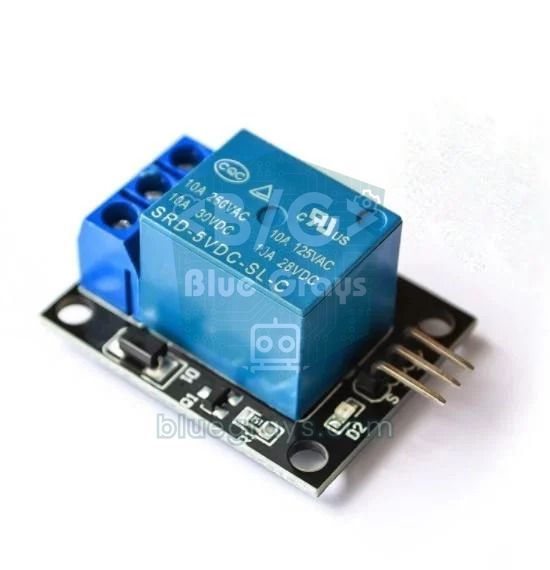
An Arduino pin can safely supply only about 20 mA (the absolute limit is 40 mA), while a fan or lamp needs much more. That's why a relay module sits in between: the signal on its IN pin energises an electromagnet that closes contacts in a separate circuit. Connect the load to the COM and NO terminals so that the lamp stays off while the Arduino is off or restarting. Most of these modules are active LOW, meaning the relay switches on when you write LOW; that's what the RELAY_ON and RELAY_OFF constants in the code are for. In setup(), the code writes HIGH before making the pin an output, so the relay doesn't click on even for a moment as the Arduino starts. We used hysteresis so the fan doesn't switch on and off too often, while the lamp stays on until the PIR timer runs out.
The complete sketch (Arduino Uno)
The most important rule in smart home code is that no module waits for another. If you kept the door open for 5 seconds with delay(5000), the gas alarm wouldn't work and the PIR wouldn't be read during that time. That's why we put each module in its own function, and loop() calls these functions one after another hundreds of times a second. Anything involving time is measured with millis(), and the state of each module is kept in variables such as lightOn, fanOn, doorOpen and alarmOn. All the settings sit at the top of the code as constants, so you don't have to dig through the code to change a threshold. You'll find the logic behind this approach in the millis() vs delay() article. To compile the code, install the MFRC522 library, Adafruit's DHT sensor library and Frank de Brabander's LiquidCrystal I2C from the Library Manager, and install all dependencies when asked. Servo, SPI and Wire come with the Arduino IDE.
1#include <SPI.h>
2#include <MFRC522.h>
3#include <Servo.h>
4#include <DHT.h>
5#include <Wire.h>
6#include <LiquidCrystal_I2C.h>
7
8// Pinler / Pins
9const byte PIR_PIN = 2, FLAME_PIN = 3, DHT_PIN = 4, BUZZER_PIN = 5, DOOR_PIN = 6;
10const byte LAMP_RELAY = 7, FAN_RELAY = 8, RST_PIN = 9, SS_PIN = 10;
11const byte GAS_PIN = A0, LDR_PIN = A1, WINDOW_PIN = A2;
12
13// Ayarlar / Settings
14const byte RELAY_ON = LOW, RELAY_OFF = HIGH;     // aktif LOW röle / active-LOW relay
15const byte FLAME_ACTIVE = LOW;                   // alev görünce DO LOW olur / DO goes LOW on flame
16const int GAS_LIMIT = 400;                       // temiz havaya göre ayarla / tune in clean air
17const int DARK_LIMIT = 300;                      // bunun altı karanlık / below this is dark
18const float FAN_ON = 28.0, FAN_OFF = 26.0;       // fan histerezisi (°C) / fan hysteresis (°C)
19const unsigned long LIGHT_MS = 20000;            // son hareketten sonra ışık / light after last motion
20const unsigned long DOOR_MS = 5000;              // kapı açık kalma süresi / door open time
21const unsigned long WARMUP_MS = 60000;           // MQ-2 ve PIR ısınması / MQ-2 and PIR warm-up
22
23const byte CARDS[][4] = {                        // yetkili kart UID'leri / authorised card UIDs
24  {0xA1, 0xB2, 0xC3, 0xD4},
25  {0x12, 0x34, 0x56, 0x78}
26};
27
28MFRC522 rfid(SS_PIN, RST_PIN);
29Servo door, window;
30DHT dht(DHT_PIN, DHT11);
31LiquidCrystal_I2C lcd(0x27, 16, 2);
32
33float tempC = 0, hum = 0;
34int gas = 0;
35bool lightOn = false, fanOn = false, doorOpen = false, alarmOn = false;
36unsigned long lastMotion = 0, doorAt = 0, lastDht = 0, lastLcd = 0, beepUntil = 0;
37
38void setup() {
39  Serial.begin(9600);
40  digitalWrite(LAMP_RELAY, RELAY_OFF); pinMode(LAMP_RELAY, OUTPUT);  // açılışta kapalı / off at boot
41  digitalWrite(FAN_RELAY, RELAY_OFF);  pinMode(FAN_RELAY, OUTPUT);
42  pinMode(PIR_PIN, INPUT);
43  pinMode(FLAME_PIN, INPUT);
44  pinMode(BUZZER_PIN, OUTPUT);
45  door.write(0);   door.attach(DOOR_PIN);        // önce açı, sonra attach / angle first, then attach
46  window.write(0); window.attach(WINDOW_PIN);
47  dht.begin();
48  SPI.begin();
49  rfid.PCD_Init();
50  lcd.init();
51  lcd.backlight();
52  lcd.print(F("BlueGrays Ev"));
53}
54
55void loop() {
56  unsigned long now = millis();
57  handleLight(now);
58  handleClimate(now);
59  handleSafety(now);
60  handleDoor(now);
61  bool beep = (long)(beepUntil - now) > 0;
62  digitalWrite(BUZZER_PIN, beep || (alarmOn && (now / 250) % 2));   // alarmda kesik bip / pulsed beep on alarm
63  updateLcd(now);
64}
65
66// 1) Hareketle ışık / motion light
67void handleLight(unsigned long now) {
68  if (now < WARMUP_MS) return;                   // PIR ısınıyor / PIR warming up
69  if (digitalRead(PIR_PIN) == HIGH) {
70    lastMotion = now;
71    if (analogRead(LDR_PIN) < DARK_LIMIT) lightOn = true;   // yalnız karanlıkta yak / only when dark
72  }
73  if (lightOn && now - lastMotion > LIGHT_MS) lightOn = false;
74  digitalWrite(LAMP_RELAY, lightOn ? RELAY_ON : RELAY_OFF);
75}
76
77// 2) Sıcaklık ve fan / temperature and fan
78void handleClimate(unsigned long now) {
79  if (now - lastDht < 2000) return;              // DHT11'i sık okuma / don't read DHT11 too often
80  lastDht = now;
81  float t = dht.readTemperature();
82  float h = dht.readHumidity();
83  if (isnan(t) || isnan(h)) return;              // okuma hatası / read error
84  tempC = t;
85  hum = h;
86  if (tempC >= FAN_ON) fanOn = true;
87  if (tempC <= FAN_OFF) fanOn = false;
88  digitalWrite(FAN_RELAY, fanOn ? RELAY_ON : RELAY_OFF);
89}
90
91// 3) Gaz ve yangın / gas and fire
92void handleSafety(unsigned long now) {
93  gas = analogRead(GAS_PIN);
94  bool gasAlarm = now > WARMUP_MS && gas > GAS_LIMIT;
95  bool fire = digitalRead(FLAME_PIN) == FLAME_ACTIVE;
96  alarmOn = gasAlarm || fire;
97  window.write(gasAlarm && !fire ? 90 : 0);      // gazda aç, yangında kapalı tut / open on gas, shut on fire
98}
99
100// 4) RFID kapı / RFID door
101void handleDoor(unsigned long now) {
102  if (doorOpen && now - doorAt > DOOR_MS) {
103    door.write(0);                               // süre dolunca kapat / close when time is up
104    doorOpen = false;
105  }
106  if (!rfid.PICC_IsNewCardPresent() || !rfid.PICC_ReadCardSerial()) return;
107  Serial.print(F("UID:"));                       // yeni kartın UID'sini öğren / learn a new card's UID
108  for (byte i = 0; i < rfid.uid.size; i++) {
109    Serial.print(' ');
110    Serial.print(rfid.uid.uidByte[i], HEX);
111  }
112  Serial.println();
113  if (isAllowed(rfid.uid.uidByte)) {
114    door.write(90);
115    doorOpen = true;
116    doorAt = now;
117    beepUntil = now + 100;                       // kısa bip: hoş geldin / short beep: welcome
118  } else {
119    beepUntil = now + 800;                       // uzun bip: yetkisiz kart / long beep: unknown card
120  }
121  rfid.PICC_HaltA();
122}
123
124bool isAllowed(const byte *uid) {
125  for (byte i = 0; i < sizeof(CARDS) / 4; i++) {
126    if (memcmp(uid, CARDS[i], 4) == 0) return true;
127  }
128  return false;
129}
130
131// 5) Ekran / display
132void updateLcd(unsigned long now) {
133  if (now - lastLcd < 1000) return;
134  lastLcd = now;
135  lcd.setCursor(0, 0);
136  lcd.print(F("T:"));
137  lcd.print(tempC, 0);
138  lcd.print(F("C Nem:%"));
139  lcd.print(hum, 0);
140  lcd.print(F("   "));
141  lcd.setCursor(0, 1);
142  if (alarmOn) {
143    lcd.print(F("!! ALARM !!     "));
144  } else if (doorOpen) {
145    lcd.print(F("Hos geldin!     "));
146  } else {
147    lcd.print(F("Gaz:"));
148    lcd.print(gas);
149    lcd.print(F("        "));
150  }
151}| Function | Job | How often? |
|---|---|---|
| handleLight() | Switches the lamp relay on based on the PIR and LDR, and off after 20 seconds without motion | Every loop (except the first 60 seconds) |
| handleClimate() | Reads the DHT11 and drives the fan with 28/26 °C hysteresis | Every 2 seconds |
| handleSafety() | Reads the MQ-2 and flame sensor and manages the alarm and window | Every loop |
| handleDoor() | Reads the card, prints the UID to the Serial Monitor, opens and closes the door | Every loop |
| updateLcd() | Shows temperature, humidity, the gas reading or a status message | Once a second |
| Buzzer line inside loop() | Produces the card beep and the pulsing alarm sound | Every loop |
When compiled, this code uses about 38 % of the Uno's program memory and 28 % of its RAM, so there's room left in memory, but only A3 remains free among the pins. You can connect a button or a rain sensor to A3; for anything more you'll need to move to an Arduino Mega or an ESP32. Putting fixed text inside F() is the easiest way to keep RAM usage low.
Phone control: ESP32 web server
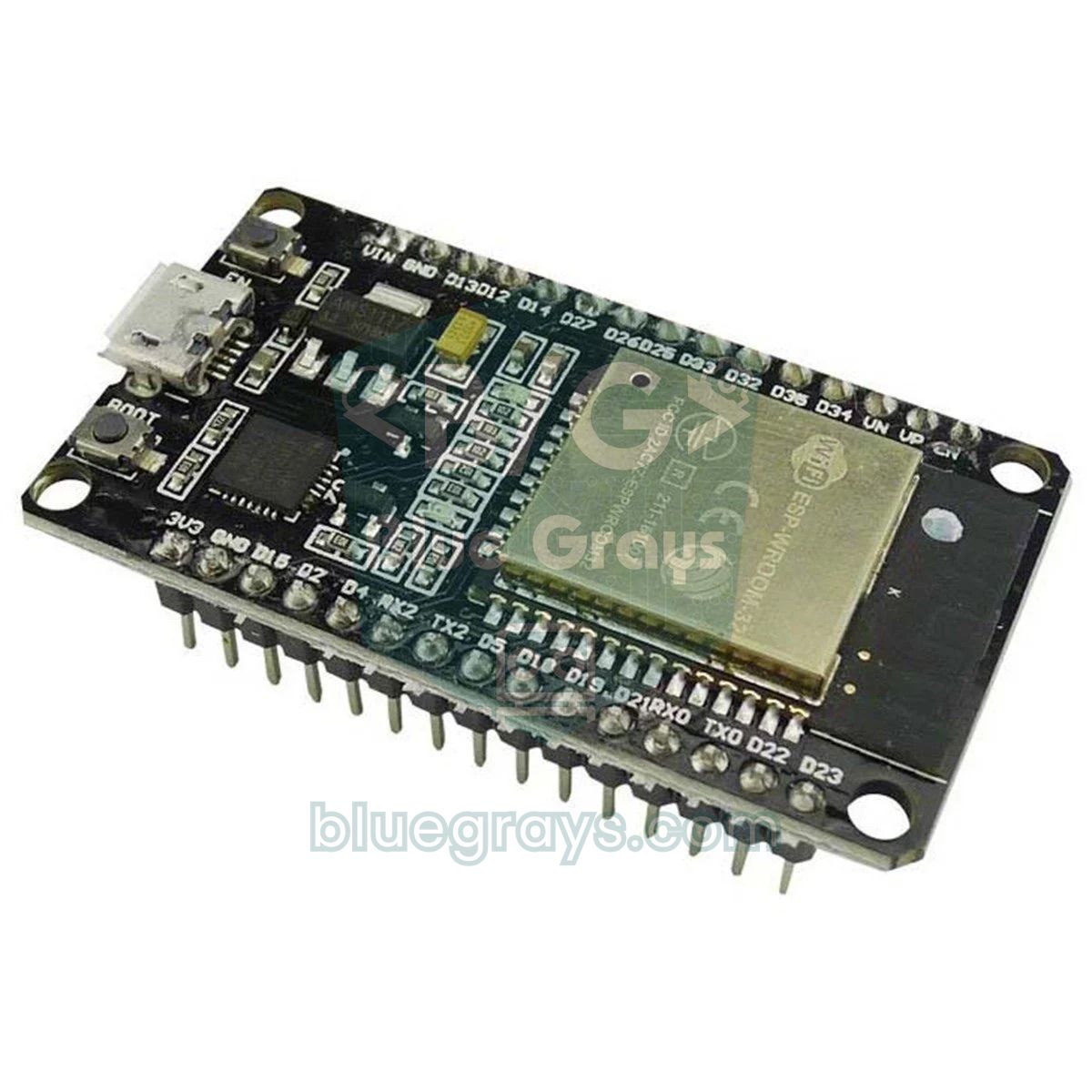
The Uno has no Wi-Fi; the easiest way to control the smart home from your phone is to swap the brain for an ESP32. The code below connects the ESP32 to your home network and starts a small web server. With your phone on the same Wi-Fi network, open the IP address shown in the Serial Monitor in the browser and you'll see four big buttons for the lamp, fan, door and window plus the current temperature, humidity and gas reading; the page refreshes itself every 10 seconds. Each button sends the ESP32 a short request saying which device to switch; the ESP32 changes the state and redirects you back to the main page. For the servos, install the ESP32Servo library from the Library Manager, because the standard Servo library doesn't work on the ESP32.
1#include <WiFi.h>
2#include <WebServer.h>
3#include <ESP32Servo.h>
4#include <DHT.h>
5
6const char* ssid = "AgAdi";                 // Wi-Fi adın / your Wi-Fi name
7const char* password = "Sifre123";          // Wi-Fi şifren / your Wi-Fi password
8
9const int LAMP_RELAY = 26, FAN_RELAY = 27;
10const int DOOR_PIN = 32, WINDOW_PIN = 33;
11const int DHT_PIN = 13, GAS_PIN = 34;       // GPIO 34: ADC1, bölücüyle / ADC1, through a divider
12const int RELAY_ON = LOW, RELAY_OFF = HIGH; // aktif LOW röle / active-LOW relay
13
14WebServer server(80);
15Servo door, window;
16DHT dht(DHT_PIN, DHT11);
17
18bool lamp = false, fan = false, doorOpen = false, windowOpen = false;
19float tempC = NAN, hum = NAN;
20unsigned long lastDht = 0;
21
22void apply() {                              // durumu donanıma uygula / push the state to the hardware
23  digitalWrite(LAMP_RELAY, lamp ? RELAY_ON : RELAY_OFF);
24  digitalWrite(FAN_RELAY, fan ? RELAY_ON : RELAY_OFF);
25  door.write(doorOpen ? 90 : 0);
26  window.write(windowOpen ? 90 : 0);
27}
28
29String button(const char* id, const char* label, bool on) {
30  return String("<a class='b ") + (on ? "on" : "off") + "' href='/set?d=" + id +
31         "&v=" + (on ? "0" : "1") + "'>" + label + (on ? ": ON" : ": OFF") + "</a>";
32}
33
34void handleRoot() {
35  String html = "<!DOCTYPE html><html><head><meta charset='utf-8'>"
36                "<meta name='viewport' content='width=device-width,initial-scale=1'>"
37                "<meta http-equiv='refresh' content='10'><title>BlueGrays Ev</title>"
38                "<style>body{font-family:sans-serif;text-align:center}"
39                ".b{display:block;margin:12px auto;padding:18px;max-width:320px;border-radius:10px;"
40                "color:#fff;text-decoration:none;font-size:20px}"
41                ".on{background:#2e7d32}.off{background:#607d8b}</style></head><body>"
42                "<h2>BlueGrays Akıllı Ev</h2>";
43  html += "<p>" + String(tempC, 1) + " °C | %" + String(hum, 0) +
44          " | Gaz/Gas: " + String(analogRead(GAS_PIN)) + "</p>";
45  html += button("lamp", "Lamba / Lamp", lamp);
46  html += button("fan", "Fan", fan);
47  html += button("door", "Kapı / Door", doorOpen);
48  html += button("window", "Pencere / Window", windowOpen);
49  html += "</body></html>";
50  server.send(200, "text/html", html);
51}
52
53void handleSet() {                          // /set?d=lamp&v=1
54  String d = server.arg("d");
55  bool v = server.arg("v") == "1";
56  if (d == "lamp") lamp = v;
57  else if (d == "fan") fan = v;
58  else if (d == "door") doorOpen = v;
59  else if (d == "window") windowOpen = v;
60  apply();
61  server.sendHeader("Location", "/");       // ana sayfaya dön / back to the main page
62  server.send(303);
63}
64
65void setup() {
66  Serial.begin(115200);
67  door.attach(DOOR_PIN, 500, 2400);
68  window.attach(WINDOW_PIN, 500, 2400);
69  pinMode(LAMP_RELAY, OUTPUT);
70  pinMode(FAN_RELAY, OUTPUT);
71  apply();                                  // her şey kapalı başlar / everything starts off
72  dht.begin();
73  WiFi.begin(ssid, password);
74  while (WiFi.status() != WL_CONNECTED) {
75    delay(500);
76    Serial.print('.');
77  }
78  Serial.println();
79  Serial.println(WiFi.localIP());           // bu adresi telefonda aç / open this address on your phone
80  server.on("/", handleRoot);
81  server.on("/set", handleSet);
82  server.begin();
83}
84
85void loop() {
86  server.handleClient();
87  if (millis() - lastDht > 2000) {          // 2 sn'de bir ölç / measure every 2 s
88    lastDht = millis();
89    float t = dht.readTemperature();
90    float h = dht.readHumidity();
91    if (!isnan(t) && !isnan(h)) {
92      tempC = t;
93      hum = h;
94    }
95  }
96}
This code only includes the parts you control remotely. You can also move the handleLight(), handleSafety() and handleDoor() functions from the Uno sketch here: change the pin numbers to match the ESP32 column in the table, use ESP32Servo instead of Servo, and re-measure the GAS_LIMIT and DARK_LIMIT thresholds because the ESP32's ADC returns values from 0 to 4095. The page has no password, so anyone on your home network could open the door; adding a simple password with the WebServer library's authenticate() function is a good habit. For a panel that updates in real time, see the ESP32 WebSocket article.
Control from anywhere with Blynk
You can only reach the ESP32 web server from the same network. If you also want control from outside the house over mobile data, a cloud platform like Blynk IoT makes it easy: you build the interface by drag and drop in the phone app, and the ESP32 connects to the Blynk server. Create a template in Blynk.Cloud, add three datastreams called V0 (integer, 0–1, lamp), V1 (double, temperature) and V2 (double, humidity), add a device and paste the Template ID, Template Name and Auth Token you're given at the top of the code. In the app, just link a Switch to V0 and a Gauge each to V1 and V2. The free plan limits the number of devices, datastreams and messages per month, which is why we send the sensor data every five seconds rather than every second. The full setup is in the Blynk IoT with ESP32 guide.
1#define BLYNK_TEMPLATE_ID "TMPLxxxxxxx"     // Blynk konsolundan kopyala / copy from the Blynk console
2#define BLYNK_TEMPLATE_NAME "Akilli Ev"
3#define BLYNK_AUTH_TOKEN "TokenBuraya"
4
5#include <WiFi.h>
6#include <BlynkSimpleEsp32.h>
7#include <DHT.h>
8
9const int LAMP_RELAY = 26;                  // aktif LOW röle / active-LOW relay
10DHT dht(13, DHT11);
11BlynkTimer timer;
12
13BLYNK_WRITE(V0) {                           // uygulamadaki anahtar / switch widget in the app
14  digitalWrite(LAMP_RELAY, param.asInt() ? LOW : HIGH);
15}
16
17BLYNK_CONNECTED() {
18  Blynk.syncVirtual(V0);                    // bağlanınca son durumu al / restore the last state
19}
20
21void sendSensors() {
22  float t = dht.readTemperature();
23  float h = dht.readHumidity();
24  if (isnan(t) || isnan(h)) return;
25  Blynk.virtualWrite(V1, t);                // sıcaklık / temperature
26  Blynk.virtualWrite(V2, h);                // nem / humidity
27}
28
29void setup() {
30  pinMode(LAMP_RELAY, OUTPUT);
31  digitalWrite(LAMP_RELAY, HIGH);           // açılışta kapalı / off at boot
32  dht.begin();
33  Blynk.begin(BLYNK_AUTH_TOKEN, "AgAdi", "Sifre123");
34  timer.setInterval(5000L, sendSensors);    // 5 sn'de bir: mesaj kotasını korur / every 5 s saves quota
35}
36
37void loop() {
38  Blynk.run();
39  timer.run();
40}
Which control method should you choose?
| Method | What you need | From outside the house | Difficulty | Best for |
|---|---|---|---|---|
| ESP32 web server | ESP32 and home Wi-Fi | No, same network only | Medium | School presentations, demos without internet, fully your own code |
| Blynk IoT | ESP32, internet and a Blynk account | Yes | Easy | Ready-made interface, charts and notifications |
| Bluetooth (HC-05) | Uno, HC-05 and an Android app | No, about 10 m | Easy | Staying with the Uno (doesn't work with iPhone) |
| Telegram bot | ESP32 and internet | Yes | Medium | Alarm notifications and short commands |
| MQTT + Home Assistant | ESP32 and a local server (e.g. Raspberry Pi) | Yes, needs setting up | Advanced | Real home automation |
For a school presentation, the ESP32 web server is the safest choice: it doesn't depend on the internet or a cloud and works on its own network even if there's no Wi-Fi in the hall. If you want to stay with the Uno and just add Bluetooth, you can make your own Android app with App Inventor; but since the Uno has no pins left, you'll have to give up the LCD or the window servo to make room for the HC-05. You can get a message on your phone when the alarm goes off with an ESP32 Telegram bot, and connect the house to real devices with MQTT and Home Assistant.
Smart home with the Raspberry Pi Pico
You can also build the same system in MicroPython with a Raspberry Pi Pico, and the Pico W with Wi-Fi can be controlled from your phone just like the ESP32 (see the Pico W web server). Because the Pico runs at 3.3 V, the ESP32 rules apply here too: feed the LDR divider from 3V3, bring 5 V analog outputs down with a divider and choose a relay module that can be triggered at 3.3 V. The only analog inputs are GP26, GP27 and GP28. The code below is the MicroPython version of the motion-activated light module:
1from machine import Pin, ADC
2import time
3
4pir = Pin(15, Pin.IN)                  # PIR OUT (3,3 V çıkış / 3.3 V output)
5ldr = ADC(26)                          # GP26: bölücü 3V3'ten / divider fed from 3V3
6relay = Pin(14, Pin.OUT, value=1)      # aktif LOW röle, kapalı başla / active-LOW relay, start off
7
8LIGHT_MS = 20000                       # son hareketten sonra ışık / light after last motion
9DARK = 20000                           # bunun altı karanlık / below this is dark
10last = time.ticks_ms()
11on = False
12
13while True:
14    now = time.ticks_ms()
15    if pir.value():
16        last = now
17        if ldr.read_u16() < DARK:      # yalnız karanlıkta yak / only when dark
18            on = True
19    if on and time.ticks_diff(now, last) > LIGHT_MS:
20        on = False
21    relay.value(0 if on else 1)
22    time.sleep_ms(50)
Tips for your school presentation
- Start with a problem: describe a real issue in one sentence, such as "lights left on in an empty house, a gas leak nobody notices, elderly people who lose their keys", then show how your model answers it.
- Prepare a block diagram: sensors on the left, the Arduino in the middle and actuators on the right; label the arrows with the rules ("dark + motion → lamp"). The judges won't read your code, but they'll remember this diagram.
- Script a live demo: scan the card and show the door opening, wave your hand in front of the PIR, bring a cotton pad soaked in rubbing alcohol near the MQ-2 (alcohol triggers the sensor too) and warm the DHT11 with your fingers. Keep each demo to 10–20 seconds.
- No open flames: don't light a lighter or candle inside a cardboard model. Most flame sensors also react to the infrared light of a TV remote held close; test it beforehand and use that in the demo.
- Adjust thresholds for the room: if the hall is 22 °C on the day, waiting for 28 °C will ruin the fan demo; set FAN_ON 2–3 degrees above room temperature so the fan starts when you warm the sensor with your fingers.
- Measure and use numbers: for example, log how many minutes the lamp is on in a day with and without the PIR and give the saving as a percentage. A result with numbers is much stronger than saying "it works".
- Have a backup plan: record a video of the working system, bring spare wires, a servo and an adapter, and write the card numbers and Wi-Fi settings on a piece of paper.
- Prepare for the judges' questions: for "How would it work in a real house?", have short answers ready on mains safety, certified detectors, RFID security and what the door does in a power cut.
Common mistakes and how to fix them
| Symptom | Likely cause | Fix |
|---|---|---|
| The Arduino resets or the LCD goes haywire when a servo moves | Servos and relays are powered from the Arduino's 5V pin | Separate 5 V 2–3 A adapter, common GND, 470–1000 µF capacitor on the servo supply |
| The relay works the wrong way round and is on at power-up | The module is active LOW | Swap the RELAY_ON and RELAY_OFF values |
| The alarm goes off every time it's switched on | The MQ-2 is warming up and the PIR is learning its surroundings | Keep the WARMUP_MS delay; leave the MQ-2 on for a long time before first use |
| The lamp comes on in daylight or switches off and straight back on | DARK_LIMIT is wrong or the LDR sees the lamp's light | Set the threshold from the Serial Monitor readings and move the LDR to an outside wall |
| Cards aren't read | The RC522 wiring is wrong or the module is connected to 5 V | Check the SPI pins and test the module with the DumpInfo example |
| The DHT11 returns nan | The DATA wire is on the wrong pin or a bare sensor has no pull-up resistor | Check the pin, use a module or add 10 kΩ between DATA and VCC |
| The servo jitters now and then | Weak power supply; interrupts pause briefly while the DHT11 is read | Improve the power supply; if needed, detach() the servo once it has finished moving |
| On the ESP32 the gas reading is always 0 or 4095 | An ADC2 pin clashes with Wi-Fi or there's no divider | Use an ADC1 pin such as GPIO 34 or 35 and a voltage divider |
| The phone won't open the ESP32's page | The phone is on a guest network or mobile data, or the network is 5 GHz | Join the same 2.4 GHz network and get the IP address from the Serial Monitor |
An Arduino smart home project brings together reading sensors, making decisions, driving motors and relays, planning power and wireless control in a single build, which makes it a great topic both to learn from and to present. Start with one module, test every step and grow the system bit by bit. In the BlueGrays app you'll find the smart stair lighting, smart lighting with a PIR and LDR, flame and gas alarm, RFID door lock and ESP32 web server projects step by step, with circuit diagrams and code.
Frequently asked questions
What do I need to build an Arduino smart home project?
For a basic model, an Arduino Uno or ESP32, a PIR motion sensor, an LDR, an MQ-2 gas sensor, a flame sensor, a DHT11, an RC522 RFID module, two SG90 servos, a 2-channel relay module, a buzzer and an I2C LCD are enough. Add a breadboard, jumper wires, a 5 V 2–3 A power adapter and model-making materials. Most modules are cheap; the board, display, adapter and the model itself make up most of the budget.
Is Arduino or ESP32 better for a smart home project?
If you don't need phone control, the Arduino Uno is easier: it works directly with 5 V modules and most examples are written for it. Choose the ESP32 if you need Wi-Fi control from your phone, notifications or more pins, but because its pins run at 3.3 V you'll need to take extra care with relay modules and 5 V analog sensors.
How do I control an Arduino smart home from my phone?
The easiest way is to use an ESP32 and set up a web server; you then control the lamp, fan and door with buttons in the browser of a phone on the same Wi-Fi network. For access from outside the house you can use a cloud app such as Blynk IoT, or if you want to stay with the Arduino Uno, an HC-05 Bluetooth module and an Android app.
What is the best material for a smart home model?
The most practical material is 5 mm foam board or PVC foam board; it cuts with a craft knife and sticks with hot glue. For a sturdier body you can use 3–4 mm MDF. A base of about 50×40 cm, a removable roof and a separate technical compartment for the electronics make the job much easier.
Can an Arduino switch a mains lamp on and off?
Yes, with a 5 V relay module, which keeps the mains circuit electrically separate from the Arduino. But mains voltage can kill: make connections only with the plug pulled out, put the circuit in a closed, insulated box and never work on it in a student project without adult supervision. For a model, 5 V or 12 V lamps are all you need.
Is an Arduino smart home a good science fair project?
Smart homes are a very common topic, so a working model on its own is often not enough. If you link the project to a measurable research question, for example how much energy motion-activated lighting saves or how quickly the gas alarm responds, it becomes far stronger in the eyes of the judges.
Projects to build after reading this
See all projects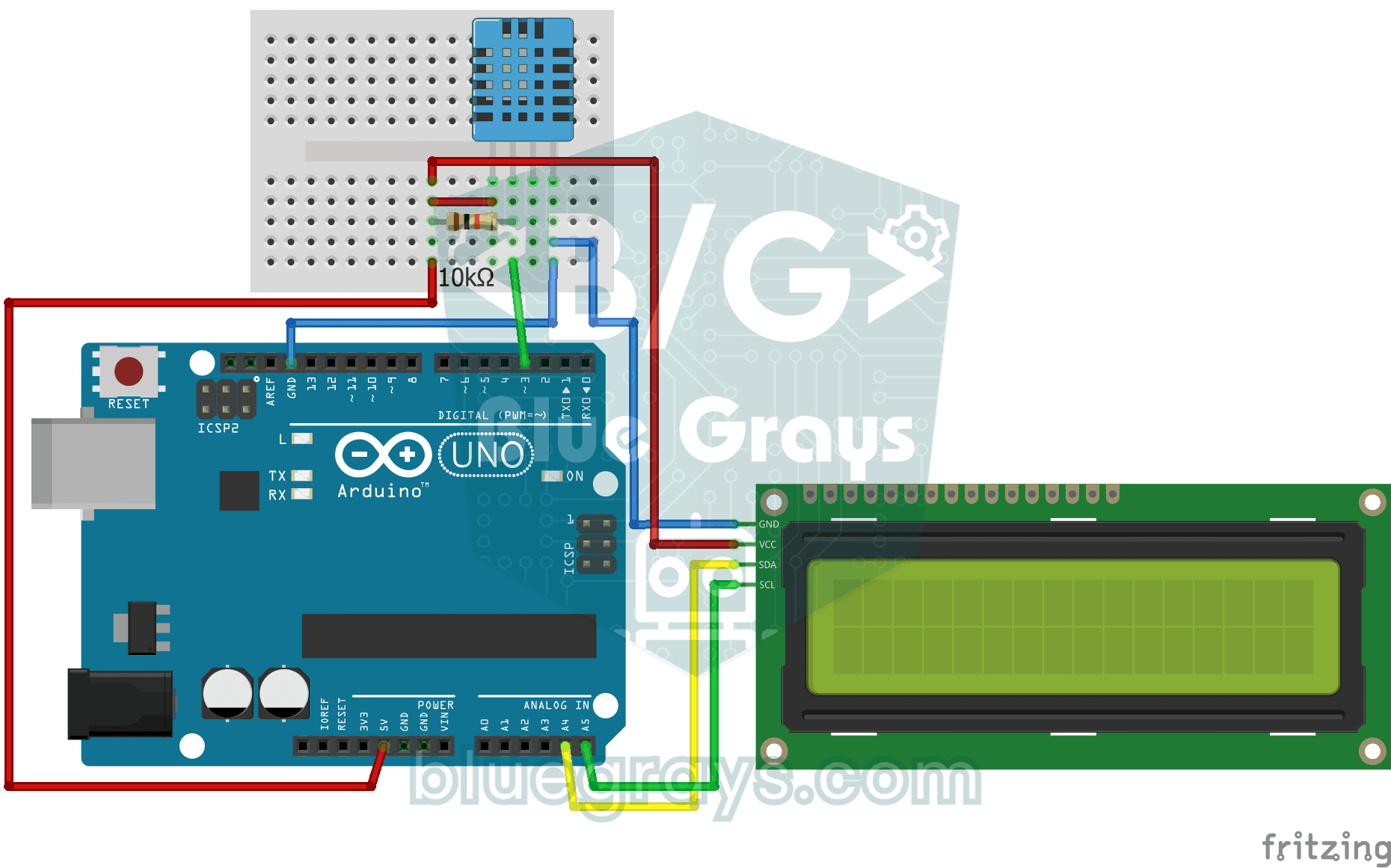
Temperature and Humidity with DHT11
How warm is your room, and is the air humid or dry? The DHT11 sensor measures temperature and humidity, and the Arduino writes the values on a two-line LCD screen, refreshing every couple of seconds.

Smart Stair and Corridor Lighting
Step onto the stairs or into the hallway and the lights come on one step at a time in the direction you are walking. There is a distance sensor at each end; whichever one you pass, the eight LEDs ligh

ESP32 Smart Lighting (PIR + LDR + Relay + OLED)
Turn your hallway, bathroom, or pantry into smart lighting with ESP32! Using a PIR motion sensor, LDR light sensor, and a relay module, we build the classic "light turns on when motion is detected in the dark" scenario — if the environment is already bright, motion does NOT trigger the light, saving energy during the day. The light stays on for 30 seconds; if motion continues, the timer resets and the light stays on longer. The SSD1306 OLED shows large-font status (ON / DAYTIME / WAITING), a cou
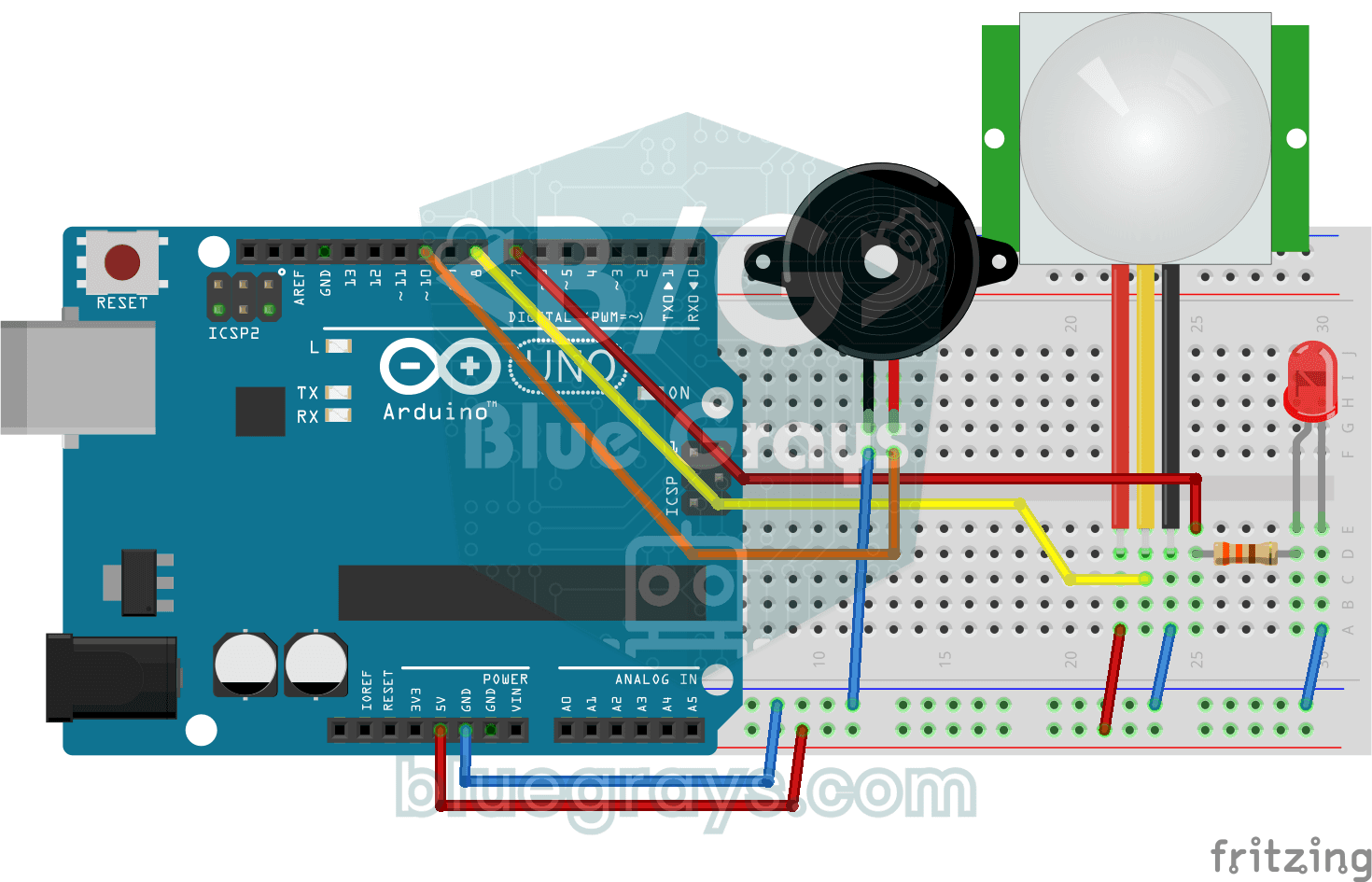
Doorbell and Light with Motion Sensor
When someone comes up to your door, you know before they even ring. As soon as the motion sensor spots someone, the LED lights up and the buzzer plays a three-note chime from high to low; when the tun
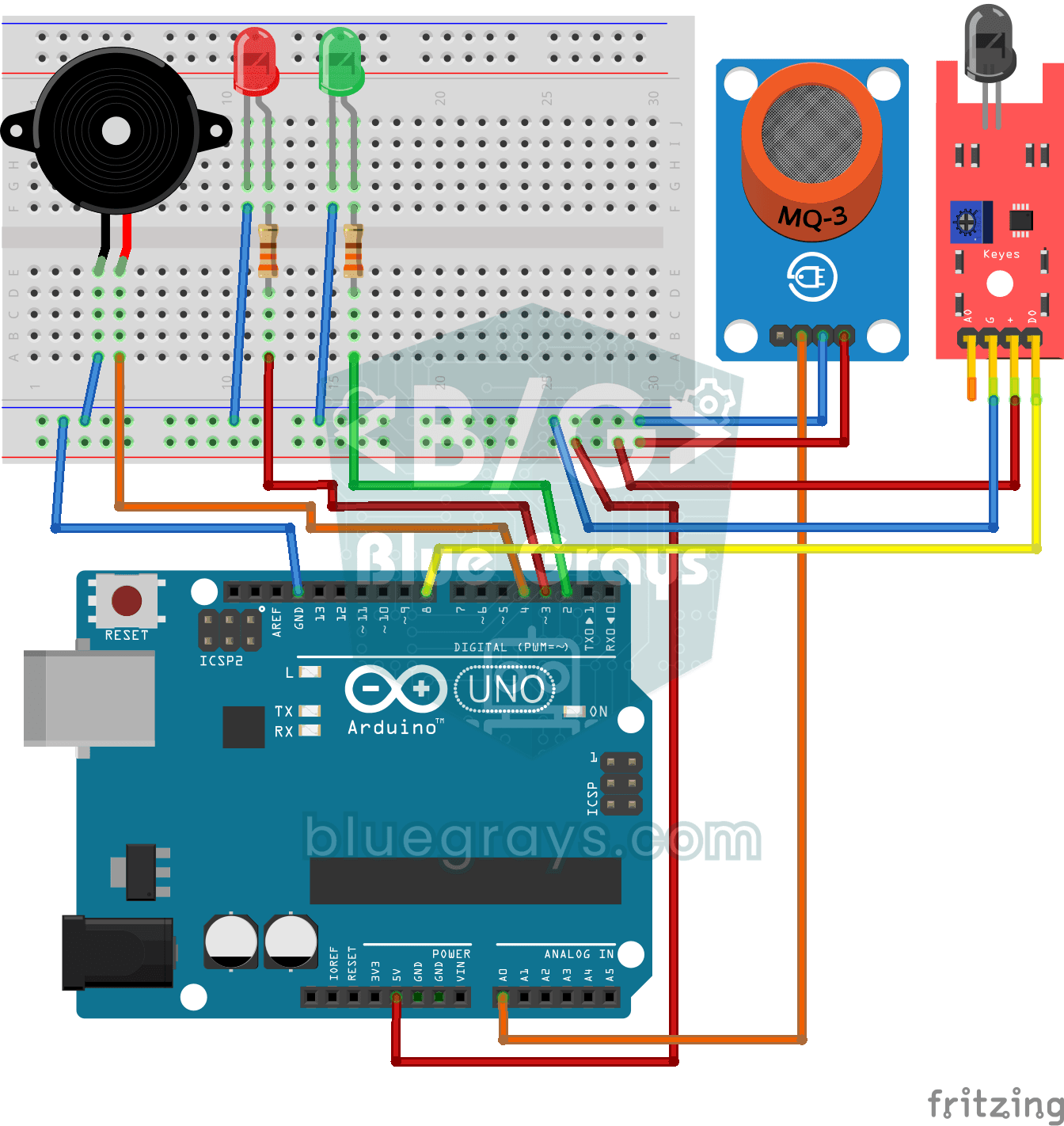
Flame and Gas Sensor Alarm
A little guard that warns you right away when gas leaks or a flame appears somewhere. The gas sensor watches the air for gas and the flame sensor watches for the light of a fire; while everything is f

ESP32 RFID Door Lock (RC522 + Servo + OLED + Buzzer + LED)
We’re building a smart door lock using an ESP32, an RC522 RFID module, an SG90 servo motor, an SSD1306 OLED display, an active buzzer, and 2 LEDs. When a card is scanned, its UID is compared to the list of authorized cards stored in the code—if authorized, the servo motor rotates to unlock the door (green LED + 2 short beeps), and the door automatically locks again after 5 seconds. For an unauthorized card, the red LED lights up, a warning is given with 3 rapid beeps, and the captured UID is dis
Lighting 220V Bulb with Remote Control
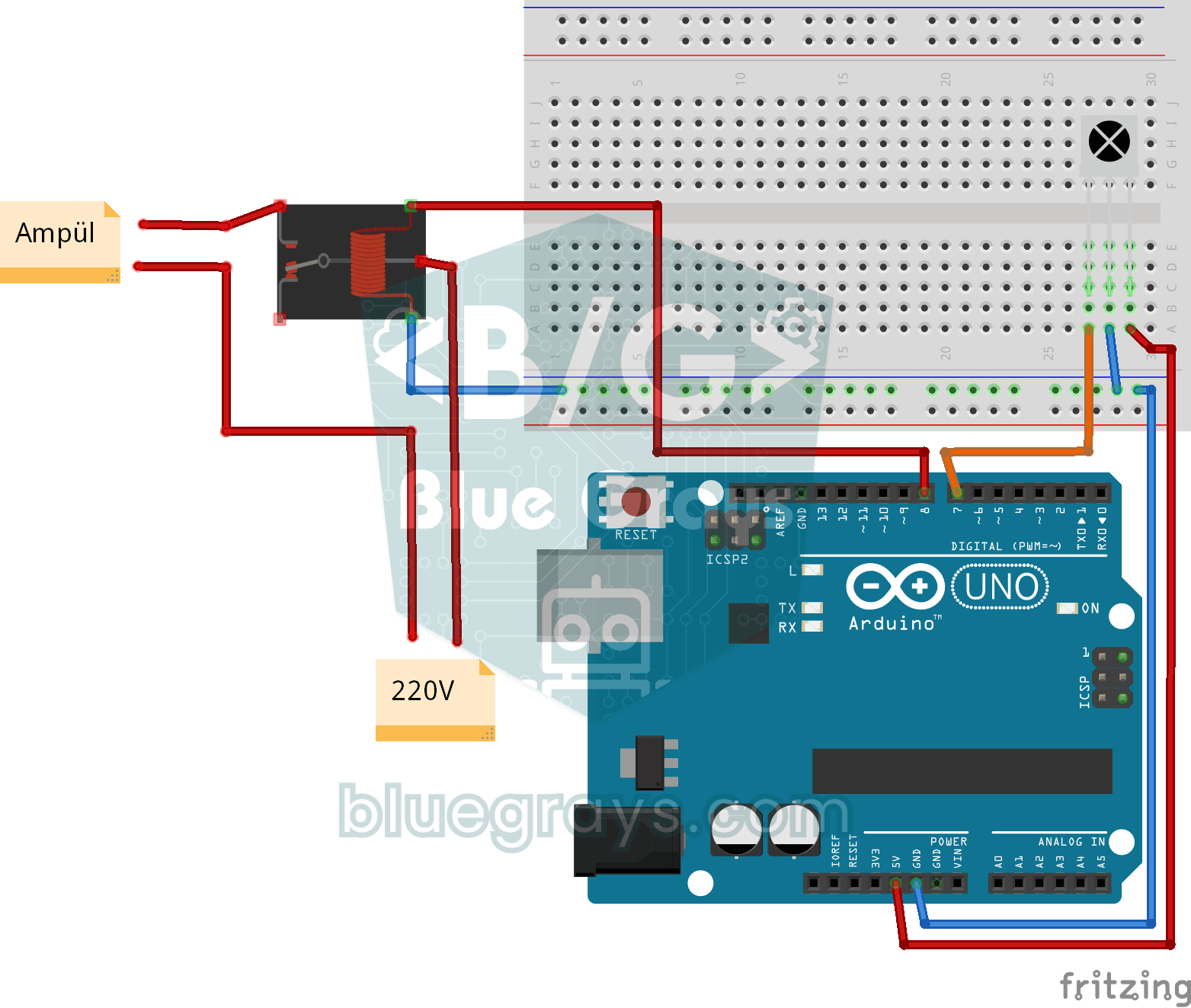
Switch a real light bulb in your home on and off with a TV remote, without getting up from the sofa. The Arduino reads the invisible light signal from the remote; the power button clicks the relay and

ESP32 Asynchronous Web Server (with IP Display on LCD)
In this project, we’re turning the ESP32 into an **asynchronous web server** that you can control from your phone or computer on the same Wi-Fi network. Thanks to the ESPAsyncWebServer library, the server can process multiple requests simultaneously (unlike the classic `WebServer.h`, which blocks on a single request). You’ll be able to open the ESP32’s IP address in a browser and click the ON/OFF buttons (the `/on` and `/off` routes) to turn the LED connected to GPIO 5 on and off.