
TCRT5000 Arduino Guide: IR Sensor Wiring, Code and Tachometer
Use the TCRT5000 with Arduino: IR LED and phototransistor, black/white surface detection, AO/DO outputs, threshold, 1–15 mm range, FC-51 vs TCRT5000, RPM code.
The TCRT5000 is a small infrared reflective sensor used in Arduino projects to detect a black line on the floor, a mark on a spinning shaft or a surface a few millimetres in front of it. Using the TCRT5000 with Arduino is easy: you connect the ready-made module to 5V, GND and a single signal pin; no library is needed, analogRead() or digitalRead() is enough. Because one package holds both an infrared LED that sends light and a phototransistor that measures the reflected light, it is the shared eye of line follower robots, printers that detect paper and tachometers that measure speed.
In this article you'll learn how the IR LED and phototransistor inside the TCRT5000 work together, why it tells black and white surfaces apart so easily, the difference between the module's analog (AO) and digital (DO) outputs, and how to set the threshold with the potentiometer and in software. You'll also see, step by step with Arduino Uno, ESP32 and Raspberry Pi Pico code, the sensor's 1–15 mm working distance, the effect of ambient light and a measuring technique that removes it, how it differs from the FC-51 obstacle sensor, and how to build a tachometer (RPM meter) with the TCRT5000.
What is the TCRT5000 and how does it work?
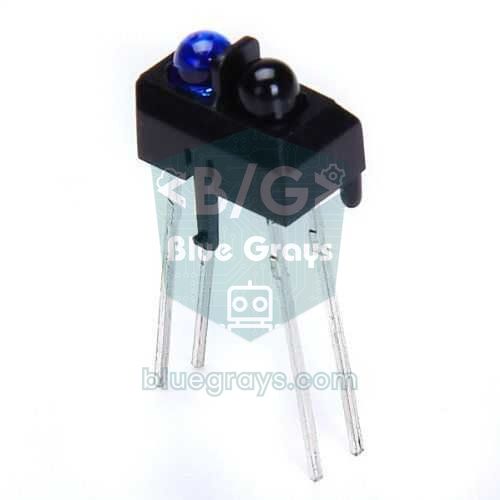
The TCRT5000 is a reflective optical sensor developed by Vishay. One side of the housing holds an LED that emits infrared light, the other side a light-sensitive phototransistor, and both face the same direction, towards the front of the sensor. The plastic wall between them stops the LED's light from reaching the phototransistor directly; light is only detected when it hits a surface in front and bounces back. A phototransistor is a transistor that lets more current through its collector as more light falls on its base region: the more light a surface reflects, the larger the collector current. The black lens is a daylight filter; it blocks most visible light and only lets wavelengths close to infrared through.
| Feature | Value (Vishay datasheet) |
|---|---|
| Construction | Infrared LED + phototransistor, housing that blocks visible light |
| LED wavelength | 950 nm (invisible infrared) |
| Best operating distance | 2.5 mm |
| Operating range | 0.2–15 mm (signal above 20% of its peak) |
| LED forward voltage | Typically 1.25 V, max 1.5 V (at 60 mA) |
| LED max continuous current | 60 mA |
| Phototransistor | VCEO 70 V, max 100 mA collector current |
| Dark current | Typically 10 nA, max 200 nA |
| Size | 10.2 × 5.8 × 7 mm; the TCRT5000L is the long-lead (15 mm) version |
| Operating temperature | −25 to +85 °C |
An Arduino can't read the phototransistor's current directly; to turn the current into a voltage, a load resistor is connected to the collector. On ready-made modules this is usually 10 kΩ and pulls the collector up to VCC. The collector voltage is given by V = VCC − Ic × R. If a white surface lets about 0.4 mA flow through the phototransistor, the drop across 10 kΩ is 4 V and the output falls to 1 V. If the current drops to 20 µA over a black surface, the drop is only 0.2 V and the output stays at 4.8 V. So on a TCRT5000 module white gives a low voltage and black a high one; this inverted logic is confusing at first, but it's simply how the circuit works. A larger load resistor makes the sensor more sensitive but slower; a smaller one makes it faster but unable to tell weak reflections apart.
How does the TCRT5000 tell black from white?
White paper scatters most of the infrared light that hits it back in every direction; matte black paint, toner or tape absorbs most of the light and turns it into heat. The TCRT5000 turns this difference into a big difference in phototransistor current. But the sensor doesn't see colours like the human eye; what matters to it is how much the surface reflects at 950 nm. That leads to some surprises: some inkjet prints look jet black to the eye but are almost transparent in infrared, so the sensor takes them for white. Glossy black electrical tape can bounce light straight back like a mirror when the sensor looks at it head-on. Red, orange and yellow surfaces often read close to white. So always test your line and floor material with the sensor before you commit to it. The table below shows example values taken at 5 V and a height of about 3 mm; your own readings may differ depending on the sensor and surroundings.
| Surface | Infrared reflection | AO (Uno, 0–1023) | DO (most modules) |
|---|---|---|---|
| White paper | Very high | About 30–200 | LOW, status LED on |
| Light wood or desk | High | About 100–400 | Usually LOW |
| Matte black tape or laser print | Very low | About 600–1000 | HIGH, status LED off |
| Glossy black electrical tape | Depends on the angle | Unstable | Unstable |
| No surface below (more than 2 cm) | No reflection | Close to 1000 | HIGH, like black |
The TCRT5000 module: analog (AO) and digital (DO) output
Most of the time a ready-made module is used instead of a bare TCRT5000. Next to the sensor, the module board carries an LM393 comparator, a blue adjustment potentiometer, a resistor that limits the IR LED current, the phototransistor's 10 kΩ load resistor and two small LEDs: one is the power LED, the other a status LED that shows the DO output. The AO pin is connected directly to the phototransistor's collector and gives the raw voltage you calculated above. The LM393 compares this voltage with the voltage on the potentiometer's wiper and writes the result to the DO pin. On common modules DO goes LOW over a white surface and the status LED lights up; over black, or with nothing in front, it goes HIGH and the LED turns off. Because the logic is reversed on some boards, check your own module's behaviour in the Serial Monitor first. Most single-channel modules have 4 pins (VCC, GND, DO, AO); there are also 3-pin versions with only DO, plus 3- and 5-channel line sensor arrays. One module draws roughly 15–40 mA at 5 V, depending on its IR LED resistor.
| Feature | AO (analog) | DO (digital) |
|---|---|---|
| What it tells you | How much light is reflected | Whether it's above or below the threshold |
| Reading on the Uno | analogRead(): 0–1023 | digitalRead(): HIGH or LOW |
| Threshold | You set it in code | Potentiometer on the board |
| Over white | Low (about 30–200) | LOW |
| Over black | High (about 600–1000) | HIGH |
| Best for | Distance estimation, PID line following, calibration | RPM counting with interrupts, simple yes/no decisions |
Working distance: making the most of the 1–15 mm range
According to the TCRT5000 datasheet, the signal peaks at 2.5 mm and stays above 20% of that peak between 0.2 and 15 mm. In practice the sensor is usable from 1 to 15 mm, but the difference between black and white shrinks quickly as the distance grows. The distance-signal curve isn't one-way either: below 2 mm the signal drops again, because the LED's cone of light and the phototransistor's field of view only overlap on the surface beyond a certain distance. Press the sensor against a surface and even white paper reads dark. So the same analog value can appear at both 1 mm and 5 mm; if you want to estimate distance, only use the one-way region beyond 3 mm.
| Distance | What happens? | Good for |
|---|---|---|
| 0–1 mm | Light cone and field of view don't overlap, even white reads weakly | Avoid; don't let the sensor drag on the floor |
| 2–3 mm | Strongest signal, biggest black-white difference | Line following, paper and mark detection |
| 3–8 mm | Signal drops but the difference is still clear | Safe mounting under a robot, tachometer |
| 8–15 mm | Only white and shiny surfaces are noticed | Proximity detection, object present/absent |
| Beyond 15 mm | Signal gets lost in ambient noise | Choose another sensor such as the FC-51 or HC-SR04 |
You can also measure short distances with the TCRT5000: because the analog value changes steadily with distance on the same surface, you can take readings at a few points such as 3, 5, 8 and 12 mm, build a table and interpolate linearly between them. But this measurement depends on the colour of the surface: a sensor calibrated on white paper will think a grey surface is further away than it really is. So think of the TCRT5000 not as a ruler but as a proximity sensor that answers "is it getting closer or further away?" on the same surface. For measuring centimetres, the HC-SR04 distance sensor is a much better fit.
Wiring the TCRT5000 module: Arduino Uno, ESP32 and Pico
| Module pin | Arduino Uno | ESP32 | Raspberry Pi Pico |
|---|---|---|---|
| VCC | 5V | 3V3 | 3V3(OUT), pin 36 |
| GND | GND | GND | GND, pin 38 |
| DO | D2 (interrupt pin) | GPIO 27 | GP15, pin 20 |
| AO | A0 | GPIO 34 (ADC1) | GP26 / ADC0, pin 31 |
How do you wire a bare TCRT5000 without a module?
The bare sensor has four legs: the two on the blue side are the IR LED's anode and cathode, the two on the black side are the phototransistor's collector and emitter. The easiest way to tell them apart is your multimeter's diode mode: on the two legs of the blue side you'll read about 1.0–1.2 V in one direction only; the leg touched by the red probe at that moment is the anode. Connecting the phototransistor backwards won't damage it, because the 10 kΩ resistor limits the current; it simply won't work. If the reading doesn't change with light, swap the two legs on the black side.
You need to limit the IR LED's current with a resistor. You calculate it with R = (VCC − VF) / I: for 5 V, a 1.2 V forward voltage and 20 mA you get (5 − 1.2) / 0.02 = 190 Ω; the nearest standard value, 220 Ω, gives about 17 mA, a current an Arduino pin can supply comfortably. You can also do this calculation with the LED resistor tool. Connect the phototransistor's emitter to GND and its collector to 5V through a 10 kΩ resistor, and run the collector to A0. To tell more distant or darker surfaces apart, you can raise the load resistor to 47 kΩ; white surfaces then saturate quickly, but small differences in the dark range get bigger.
| TCRT5000 leg | Connection (Arduino Uno) |
|---|---|
| Anode (blue side) | To 5V through 220 Ω; to D7 instead of 5V for the ambient light measurement |
| Cathode (blue side) | GND |
| Collector (black side) | To A0, and to 5V through 10 kΩ |
| Emitter (black side) | GND |
Step by step: detecting black and white surfaces with Arduino
- Connect the module's VCC pin to the Arduino's 5V pin and GND to GND.
- Connect the AO pin to A0 and the DO pin to D2.
- For testing, stick a 2 cm wide strip of matte black tape on a sheet of white paper.
- Hold or fix the sensor about 3 mm above the surface, perpendicular to it.
- Upload the code below and open the Serial Monitor at 9600 baud.
- During the first 5 seconds, sweep the sensor back and forth over the black tape and the white paper a few times; the code finds the lowest and highest values and works out the threshold itself.
- Move the sensor between black and white; the board's L LED should light over black and turn off over white.
1// TCRT5000 ile siyah-beyaz zemin algılama / Black-white surface detection with TCRT5000
2const int SENSOR_AO = A0;      // modülün AO pini / module AO pin
3const int SENSOR_DO = 2;       // modülün DO pini / module DO pin
4const int LED_PIN = 13;        // kart üzerindeki L LED'i / onboard L LED
5const int HYST = 40;           // histerezis payı / hysteresis margin
6
7int threshold = 450;           // varsayılan eşik / default threshold
8bool onBlack = false;
9
10void setup() {
11  Serial.begin(9600);
12  pinMode(SENSOR_DO, INPUT);   // modülde çekme direnci var / the module has its own pull-up
13  pinMode(LED_PIN, OUTPUT);
14
15  Serial.println(F("5 sn: sensoru siyah ve beyazin uzerinden gecir / sweep over black and white"));
16  digitalWrite(LED_PIN, HIGH);                // kalibrasyon sürüyor / calibrating
17  int lo = 1023, hi = 0;
18  unsigned long start = millis();
19  while (millis() - start < 5000) {
20    int v = analogRead(SENSOR_AO);
21    if (v < lo) lo = v;                       // en beyaz / whitest
22    if (v > hi) hi = v;                       // en siyah / blackest
23  }
24  digitalWrite(LED_PIN, LOW);
25  if (hi - lo >= 100) {
26    threshold = (lo + hi) / 2;                // eşik = (beyaz + siyah) / 2 / threshold = (white + black) / 2
27  } else {
28    Serial.println(F("Fark cok az, varsayilan esik / Too little contrast, default threshold"));
29  }
30  Serial.print(F("Beyaz/White: ")); Serial.print(lo);
31  Serial.print(F("  Siyah/Black: ")); Serial.print(hi);
32  Serial.print(F("  Esik/Threshold: ")); Serial.println(threshold);
33}
34
35void loop() {
36  int raw = analogRead(SENSOR_AO);            // beyazda düşük, siyahta yüksek / low on white, high on black
37  bool doBlack = digitalRead(SENSOR_DO) == HIGH;   // çoğu modülde siyahta HIGH / HIGH on black on most modules
38
39  if (!onBlack && raw > threshold + HYST) onBlack = true;    // siyaha geçti / moved onto black
40  if (onBlack && raw < threshold - HYST) onBlack = false;    // beyaza geçti / moved onto white
41
42  digitalWrite(LED_PIN, onBlack ? HIGH : LOW);
43  Serial.print(F("AO: ")); Serial.print(raw);
44  Serial.print(F("  DO: ")); Serial.print(doBlack ? F("SIYAH/BLACK") : F("BEYAZ/WHITE"));
45  Serial.print(F("  Kod/Code: ")); Serial.println(onBlack ? F("SIYAH/BLACK") : F("BEYAZ/WHITE"));
46  delay(100);
47}
The code calculates the threshold as (lowest + highest) / 2: if you read 80 on white and 820 on black, the threshold is 450. Instead of a single threshold it uses two limits: it switches to black once the value rises above 490 and back to white once it falls below 410. Thanks to this hysteresis, the output doesn't flicker when the sensor sits right on the edge of the line. If the difference stays below 100 during calibration, the code falls back to a default threshold of 450 and warns you; this usually means the sensor is too high or was only moved over one colour. The DO column shows the same decision made by the module's potentiometer; seeing both side by side is a good way to check the potentiometer setting.
Setting the threshold: potentiometer or software?
If you use the DO output, the threshold is set by the potentiometer on the board. The voltage on the potentiometer's wiper is the comparator's reference; the moment the AO voltage crosses it, DO changes state. Follow these steps for a good setting:
- Place the sensor over a white surface at the height you'll use it and turn the potentiometer until the status LED lights up.
- Slide the sensor over the black line and check that the LED turns off; if it doesn't, turn the potentiometer back a little.
- Find the two end positions where the LED is clearly on over white and clearly off over black, and set the potentiometer halfway between them.
- For a finer setting, measure AO over white and over black with a multimeter and set the voltage on the potentiometer's wiper halfway between the two values; for example, about 2.4 V for 0.6 V and 4.2 V.
- Always do the adjustment where the robot or setup will run, under the same lighting.
The effect of ambient light and how to fix it
The daylight filter in the black lens blocks visible light, but it can't block infrared, because the sensor itself works with infrared. Sunlight and incandescent and halogen bulbs emit strong infrared around 950 nm; when this light reaches the phototransistor, even a black surface reads like white. In direct sunlight the phototransistor can saturate completely and the sensor can't tell anything apart. LED and fluorescent lamps, on the other hand, give off very little infrared, which is why the same robot can run perfectly in the classroom and get confused next to a window. Here are the fixes, from simplest to hardest:
- Shade it: Add a black skirt, heat-shrink tubing or black foam around the sensor; it blocks light coming from the side.
- Keep it low: Bring the sensor 2–4 mm from the surface; the reflected light gets stronger and the share of ambient light gets smaller.
- Calibrate on site: Always set the threshold in the real environment, and measure again at start-up if the lighting changes.
- Measure the difference: With a bare sensor, drive the IR LED from an Arduino pin and take two readings, one with the LED off and one with it on. Ambient light is the same in both readings, so the difference is only the LED's reflection.
1// Ortam ışığını çıkaran ölçüm (çıplak TCRT5000) / Ambient-light-cancelling reading (bare TCRT5000)
2const int IR_LED = 7;          // 220 Ω üzerinden IR LED anoduna / to the IR LED anode via 220 Ω
3const int SENSOR = A0;         // kolektör, 10 kΩ ile 5V'a / collector, 10 kΩ pull-up to 5V
4const int SETTLE_US = 500;     // fototransistörün oturma süresi / phototransistor settling time
5
6int readReflection() {
7  digitalWrite(IR_LED, LOW);
8  delayMicroseconds(SETTLE_US);
9  int ambient = analogRead(SENSOR);           // yalnız ortam ışığı / ambient light only
10  digitalWrite(IR_LED, HIGH);
11  delayMicroseconds(SETTLE_US);
12  int lit = analogRead(SENSOR);               // ortam + yansıma / ambient + reflection
13  digitalWrite(IR_LED, LOW);
14  return ambient - lit;                       // ışık arttıkça gerilim düşer / voltage drops as light rises
15}
16
17void setup() {
18  Serial.begin(115200);
19  pinMode(IR_LED, OUTPUT);
20}
21
22void loop() {
23  long sum = 0;
24  for (int i = 0; i < 8; i++) sum += readReflection();   // 8 ölçümün ortalaması / average of 8 readings
25  int reflection = sum / 8;
26  Serial.println(reflection);                 // büyük değer = beyaz ya da yakın / large = white or near
27  delay(50);
28}
A phototransistor doesn't respond instantly; with a 10 kΩ load resistor it can take hundreds of microseconds to settle at its new value, so the code waits 500 µs before each reading. If the readings are unstable, raise SETTLE_US to 1000. The bigger the difference, the whiter or closer the surface. This method can't fully beat the sun: if ambient light has already saturated the phototransistor, switching the LED on changes nothing and the difference drops to zero; then the only fix is to shade the sensor. TV remotes apply the same idea much faster by sending light in 38 kHz bursts, and the receiver only listens to that frequency; you'll find this explained in the IR receiver and remote article.
TCRT5000 vs FC-51 obstacle sensor: what's the difference?
They're often confused because both consist of an infrared LED and a receiver that measures reflected light, and both have an LM393 comparator. The difference lies in what they're designed for: the TCRT5000 combines emitter and receiver in a single housing, aimed at a small spot a few millimetres in front of them. The FC-51, on the other hand, uses a separate IR LED and a separate receiver side by side and looks for light coming back from an obstacle several centimetres away. That's why the FC-51 can't reliably pick out a thin line on the floor, and the TCRT5000 can't see a wall 10 cm away.
| Feature | TCRT5000 module | FC-51 obstacle sensor |
|---|---|---|
| Construction | LED and phototransistor in one housing, with a wall between them | Separate IR LED and separate receiver, side by side |
| Detection distance | About 1–15 mm (best at 2.5 mm) | About 2–30 cm (adjustable) |
| Detection area | A narrow spot | Cone of about 35° |
| Outputs | Usually AO + DO | DO only (LOW when an obstacle is present) |
| Typical use | Line following, tachometer, paper and mark detection | Obstacle-avoiding robot, hand or object detection |
| Ambient light | More robust thanks to the short distance | Range drops noticeably in sunlight |
Counting RPM with the TCRT5000 (tachometer)
One of the TCRT5000's most useful but lesser-known jobs is measuring how fast something spins; even Vishay's datasheet puts position sensor for shaft encoders at the top of its application list. The idea is simple: you stick a white mark on a disc or shaft painted black; each time the mark passes the sensor, the DO output goes LOW once. By counting these pulses you can calculate the speed in two ways:
- Counting method: rpm = number of pulses × 60 / (number of marks × measuring time in seconds). If 25 pulses were counted in 1 second and the disc has 1 mark, the result is 25 × 60 = 1500 rpm. It's very accurate at high speeds, but with a 1-second window and a single mark its resolution is 60 rpm.
- Period method: rpm = 60,000,000 / (microseconds between two pulses × number of marks). If 40,000 µs (40 ms) pass between two pulses, the result is 60,000,000 / 40,000 = 1500 rpm. It gives a fresh, precise result on every pulse, even at low speeds.
- Number of marks: Putting 2 or 4 evenly spaced marks on the disc improves the resolution of the counting method; don't forget to change the number of marks in the formula.
- Paint the shaft or wheel you want to measure matte black, or cover it with matte black tape.
- Stick a white paper label of about 5 × 5 mm on it; the mark should be wider than the spot the sensor looks at.
- Mount the sensor 3–5 mm from the mark so that it can't vibrate.
- Turn the shaft slowly by hand and check that the DO LED blinks each time the mark passes; adjust the potentiometer if needed.
- Connect the DO pin to one of the Uno's interrupt pins (D2 or D3) and upload the code below.
1// TCRT5000 ile takometre (devir ölçer) / Tachometer with TCRT5000
2const byte SENSOR_DO = 2;                // DO -> D2 (kesme pini / interrupt pin)
3const byte MARKS = 1;                    // diskteki beyaz işaret sayısı / white marks on the disc
4const unsigned long MIN_GAP_US = 500;    // daha sık darbeler titreşimdir / closer pulses are glitches
5
6volatile unsigned long pulseCount = 0;
7volatile unsigned long lastPulseUs = 0;
8volatile unsigned long periodUs = 0;
9
10void onPulse() {
11  unsigned long now = micros();
12  unsigned long gap = now - lastPulseUs;
13  if (gap < MIN_GAP_US) return;          // sınırdaki titreşimi ele / filter edge chatter
14  if (lastPulseUs != 0) periodUs = gap;  // iki darbe arası süre / time between pulses
15  lastPulseUs = now;
16  pulseCount++;
17}
18
19void setup() {
20  Serial.begin(115200);
21  pinMode(SENSOR_DO, INPUT);
22  attachInterrupt(digitalPinToInterrupt(SENSOR_DO), onPulse, FALLING);   // beyaz işarette LOW olur / goes LOW on the white mark
23}
24
25void loop() {
26  static unsigned long lastPrint = 0;
27  if (millis() - lastPrint < 1000) return;   // saniyede bir hesapla / calculate once per second
28  lastPrint = millis();
29
30  noInterrupts();                        // paylaşılan değişkenleri güvenle kopyala / copy shared variables safely
31  unsigned long count = pulseCount;
32  pulseCount = 0;
33  unsigned long period = periodUs;
34  unsigned long last = lastPulseUs;
35  interrupts();
36
37  float rpmCount = count * 60.0 / MARKS;                 // sayma yöntemi / counting method
38  float rpmPeriod = 0;
39  if (period > 0 && micros() - last < 2000000UL) {       // 2 sn darbe yoksa durmuş say / stopped after 2 s without pulses
40    rpmPeriod = 60000000.0 / (period * (float)MARKS);    // periyot yöntemi / period method
41  }
42  Serial.print(F("Sayma/Count: "));
43  Serial.print(rpmCount, 0);
44  Serial.print(F(" rpm   Periyot/Period: "));
45  Serial.print(rpmPeriod, 1);
46  Serial.println(F(" rpm"));
47}
The pulses are caught with attachInterrupt(): whatever the processor is doing in loop(), onPulse() runs the moment DO falls, so no pulse is missed. Variables shared between the interrupt routine and loop() are declared volatile, and loop() copies them between noInterrupts() and interrupts(); otherwise the interrupt could fire while a 4-byte number is being read and you'd get a half-updated value. The LM393's output can chatter a few times at the black-white edge; MIN_GAP_US filters this out by ignoring pulses that arrive less than 500 µs apart. With a single mark this filter allows readings up to 120,000 rpm, so in practice it sets no limit for hobby motors. For more on interrupts, see the Arduino interrupts article.
Using the TCRT5000 with the ESP32
The same logic works on the ESP32, but watch out for three differences. First, the module is powered from 3V3. Second, the analog input is 12-bit and gives values from 0 to 4095; only connect AO to ADC1 pins (GPIO 32–39), because ADC2 pins can't be read while Wi-Fi is on. Third, the interrupt routine is marked with IRAM_ATTR, and because the ESP32 has two cores, shared variables are protected with a portMUX critical section. The code below counts the two marks on the disc and prints the RPM and the analog value every half second. If you're new to the ESP32, have a look at What is the ESP32? first.
1// ESP32 + TCRT5000: devir ölçer ve analog okuma / tachometer and analog reading
2const int SENSOR_DO = 27;                // DO -> GPIO 27
3const int SENSOR_AO = 34;                // AO -> GPIO 34 (ADC1)
4const int MARKS = 2;                     // diskteki beyaz işaret sayısı / white marks on the disc
5const uint32_t MIN_GAP_US = 300;         // daha sık darbeler titreşimdir / closer pulses are glitches
6
7volatile uint32_t pulseCount = 0;
8volatile uint32_t lastPulseUs = 0;
9portMUX_TYPE mux = portMUX_INITIALIZER_UNLOCKED;
10
11void IRAM_ATTR onPulse() {               // kesme kodu IRAM'de durur / ISR lives in IRAM
12  uint32_t now = micros();
13  portENTER_CRITICAL_ISR(&mux);
14  if (now - lastPulseUs >= MIN_GAP_US) {
15    lastPulseUs = now;
16    pulseCount++;
17  }
18  portEXIT_CRITICAL_ISR(&mux);
19}
20
21void setup() {
22  Serial.begin(115200);
23  pinMode(SENSOR_DO, INPUT);
24  analogReadResolution(12);              // 0-4095
25  attachInterrupt(digitalPinToInterrupt(SENSOR_DO), onPulse, FALLING);
26}
27
28void loop() {
29  static uint32_t lastMs = 0;
30  uint32_t nowMs = millis();
31  if (nowMs - lastMs < 500) return;      // yarım saniyede bir / every half second
32  uint32_t elapsed = nowMs - lastMs;
33  lastMs = nowMs;
34
35  portENTER_CRITICAL(&mux);              // iki çekirdeğe karşı koruma / protection across both cores
36  uint32_t pulses = pulseCount;
37  pulseCount = 0;
38  portEXIT_CRITICAL(&mux);
39
40  float rpm = pulses * 60000.0 / (elapsed * (float)MARKS);   // dev/dk / revolutions per minute
41  int raw = analogRead(SENSOR_AO);       // siyahta yüksek, beyazda düşük / high on black, low on white
42  Serial.printf("RPM: %.0f   AO: %d\n", rpm, raw);
43}
Because the measuring window is half a second, the code measures the elapsed time exactly with millis() and uses it in the formula: rpm = pulses × 60,000 / (elapsed ms × number of marks). Showing the speed on a web page over Wi-Fi, or sending a notification to your phone when it drops below a certain value, is what the ESP32 really adds to this project. Since the analog value is read at the same time, you can also watch whether the disc's distance to the sensor changes, in other words whether the shaft wobbles.
Using the TCRT5000 with the Raspberry Pi Pico and MicroPython
On the Pico, power the module from the 3V3(OUT) pin, connect AO to GP26 (ADC0) and DO to GP15. read_u16() returns a value from 0 to 65535; it reads low over white and high over black. The code below detects the surface and also calculates the RPM by counting the pulses on the DO line with an interrupt. MicroPython interrupts aren't as fast as in C; they work reliably up to a few hundred pulses per second, so prefer an Arduino or ESP32 for very fast motors. For setup and first steps, see What is the Raspberry Pi Pico?.
1# Raspberry Pi Pico: TCRT5000 ile zemin algılama ve devir sayma
2# Raspberry Pi Pico: surface detection and RPM counting with TCRT5000
3from machine import Pin, ADC
4import machine
5import time
6
7ao = ADC(26)                     # AO -> GP26 (ADC0)
8do = Pin(15, Pin.IN)             # DO -> GP15
9led = Pin("LED", Pin.OUT)        # kart üzerindeki LED / onboard LED
10
11MARKS = 1                        # diskteki beyaz işaret sayısı / white marks on the disc
12MIN_GAP_US = 500                 # daha sık darbeler titreşimdir / closer pulses are glitches
13count = 0
14last_us = time.ticks_us()
15
16def on_pulse(pin):
17    global count, last_us
18    now = time.ticks_us()
19    if time.ticks_diff(now, last_us) < MIN_GAP_US:
20        return                   # sınırdaki titreşimi ele / filter edge chatter
21    last_us = now
22    count += 1
23
24do.irq(trigger=Pin.IRQ_FALLING, handler=on_pulse)   # beyaz işarette DO LOW olur / DO goes LOW on white
25
26while True:
27    time.sleep(1)
28    state = machine.disable_irq()   # sayacı güvenle oku / read the counter safely
29    pulses = count
30    count = 0
31    machine.enable_irq(state)
32
33    raw = ao.read_u16()             # 0-65535: beyazda düşük, siyahta yüksek / low on white, high on black
34    on_white = do.value() == 0      # çoğu modülde beyazda LOW / LOW on white on most modules
35    led.value(on_white)
36    rpm = pulses * 60 / MARKS
37    print("AO:", raw, "Zemin/Surface:", "BEYAZ/WHITE" if on_white else "SIYAH/BLACK", "RPM:", rpm)
TCRT5000 project ideas
- Line follower robot: A robot that follows a black line with an array of 2, 3 or 5 sensors; sensor placement and PID tuning are covered in the Line Follower Robot article.
- Robot that spots the table edge: Put a downward-facing TCRT5000 at the front of the robot; at the edge of the table the signal turns "black" and the robot stops before it falls. For the chassis and motors, see the Arduino Robot Car Build guide.
- Motor speed display: Combine the tachometer code with an OLED display and show the RPM in large digits.
- Wheel encoder and odometer: Stick 8–20 black and white segments on the inside of a wheel, count the pulses, divide by the number of segments and multiply by the wheel circumference to get the distance travelled. If you need the direction too, place two sensors half a segment apart, as with a rotary encoder.
- Item counter: Count white boxes or sheets of paper passing on a small conveyor and show the total on a display.
- Out-of-paper alarm: Point the sensor at the back of a label or printer roll; the moment the paper runs out, the reflection disappears and a buzzer sounds.
- The same principle, sealed: Compare the TCRT5000 with an optocoupler, where an LED and a phototransistor are sealed together in one light-tight package, to better understand how signals travel by light.
Common mistakes and how to fix them
| Symptom | Likely cause | Fix |
|---|---|---|
| AO stays around 1000 and doesn't change | Sensor too far from the surface, IR LED not lit or AO on the wrong pin | Bring the sensor to 3 mm, check the IR LED with a phone camera, go over the wiring |
| Black surfaces read as white | Sunlight or incandescent light, glossy tape or ink that lets infrared through | Shade the sensor, use matte tape or a laser print, set the threshold on site |
| DO LED never changes | Potentiometer turned to one end | Find the point where the LED switches and set the potentiometer accordingly |
| Tachometer shows twice the real RPM | A second shiny spot on the disc or chatter at the edge | Make the disc fully matte, raise MIN_GAP_US, check the MARKS value |
| On the ESP32 the analog value is always 0 or unstable | AO is on an ADC2 pin and Wi-Fi is on | Move AO to an ADC1 pin between GPIO 32 and 39 |
| Motors keep spinning when the robot is lifted | With no surface below, the sensor reads black | Add a safety rule that stops the motors when every sensor sees black at once |
The TCRT5000 is a cheap, small and very instructive sensor: with a single part you learn about phototransistors, comparators, thresholds and hysteresis, interrupts and dealing with ambient light. Start by getting to know your own sensor's values with the surface detection code, then measure speed with the tachometer, and finally combine several sensors under a robot. If you're curious about another simple way to measure with light, have a look at the LDR light sensor article too. In the BlueGrays app you'll find the TCRT5000 black and white surface detection and TCRT5000 distance measurement projects, along with the Bluetooth-controlled car with L298N and the obstacle-avoiding robot, each with step-by-step circuit diagrams and code.
Frequently asked questions
What is the TCRT5000 sensor used for?
The TCRT5000 is a reflective sensor that combines an infrared LED and a phototransistor in one housing. It measures how much infrared light a surface a few millimetres in front of it reflects, so it can tell black from white, count marks on a spinning disc or notice a very close object. It's mostly used in line follower robots, tachometers and paper detection.
What is the detection range of the TCRT5000?
The TCRT5000 works on a scale of millimetres, not centimetres. According to its datasheet the strongest signal is at 2.5 mm and the sensor is usable from about 0.2 to 15 mm; in practice the most reliable range is 2–8 mm. For longer distances, choose an FC-51 infrared obstacle sensor or an HC-SR04 ultrasonic distance sensor.
Does the TCRT5000 output HIGH or LOW on black?
On common TCRT5000 modules the DO output goes LOW over white and the status LED lights up; over black, or with no surface in front, it goes HIGH. The AO output likewise gives a low value over white and a high value over black. Because the logic is reversed on some boards, it's best to check your own module in the Serial Monitor.
What is the difference between the TCRT5000 and the FC-51?
The TCRT5000 is a reflective sensor with emitter and receiver in one housing that works at very short distances of about 1–15 mm; it's ideal for line following and counting RPM. The FC-51 uses a separate IR LED and receiver, detects obstacles about 2–30 cm away and only has a digital output. In short, the TCRT5000 looks at the floor and the FC-51 looks ahead.
Can the TCRT5000 detect colours?
No, the TCRT5000 only measures how much infrared light around 950 nm is reflected; it can't know the colour. Some colours behave unexpectedly in infrared: red and yellow surfaces often read close to white, while some black inkjet prints are almost transparent. To tell colours apart, use a colour sensor such as the TCS3200 or TCS34725.
Does the TCRT5000 work with the ESP32 and 3.3 V?
Yes, TCRT5000 modules work between 3.3 and 5 V, and on the ESP32 and Raspberry Pi Pico they should be powered from the 3V3 pin. That way the AO and DO outputs never exceed 3.3 V and the board's pins stay safe. At 3.3 V the IR LED draws less current, so the detection distance gets a little shorter; on the ESP32, remember to connect AO to an ADC1 pin.
Projects to build after reading this
See all projects
TCRT5000 Black and White Surface Detection
With the little sensor that acts as the eye of line-following robots, you can tell whether the floor is black or white. The TCRT5000 shines invisible light at the floor and checks how much of it bounc

Reading Reflection (Proximity) with TCRT5000
With a small sensor that sends out invisible light and measures how much bounces back, you can detect the surface in front of it. The closer an object or a light-coloured surface gets, the more light

Measuring Light Intensity with an LDR
Want to see how bright your room is as a number? The LDR, a small part that reacts to light, measures the light around it, and the Arduino writes the value to your computer screen every half second. C
HC-SR04 Distance Measurement (Serial Display)
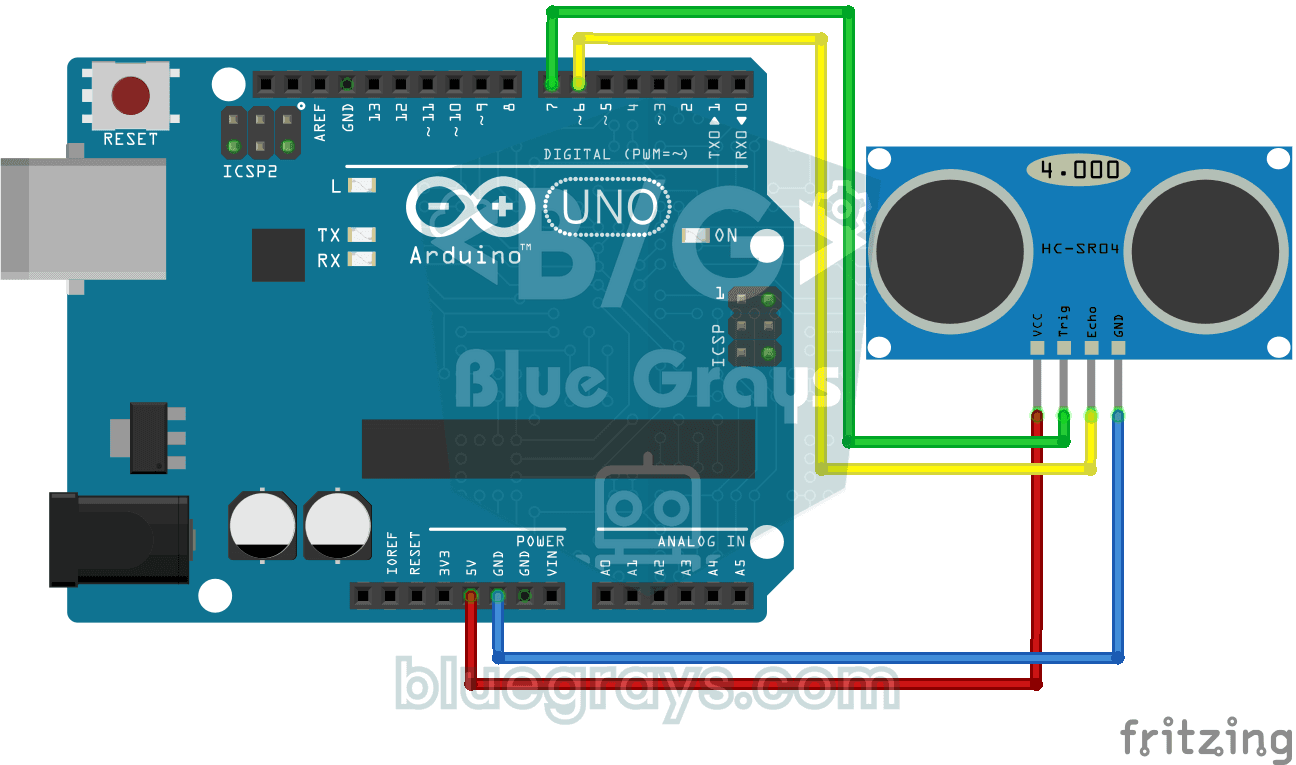
The HC-SR04 sensor works just like a bat finding its way in the dark: it sends out a sound you cannot hear, listens for the echo and measures how far away the object in front of it is. The Arduino wri

Bluetooth Controlled Car with L298N
Turn your phone into a remote and drive your own robot car. The Arduino receives commands from a remote-control app on your phone through a Bluetooth module and spins the wheels with a motor driver; t

Obstacle Avoidance Robot
How about building a smart vehicle that finds its own way? The Obstacle Avoidance Robot constantly scans its surroundings thanks to the ultrasonic sensor in front of it. When it encounters an obstacle
Laser Warning System
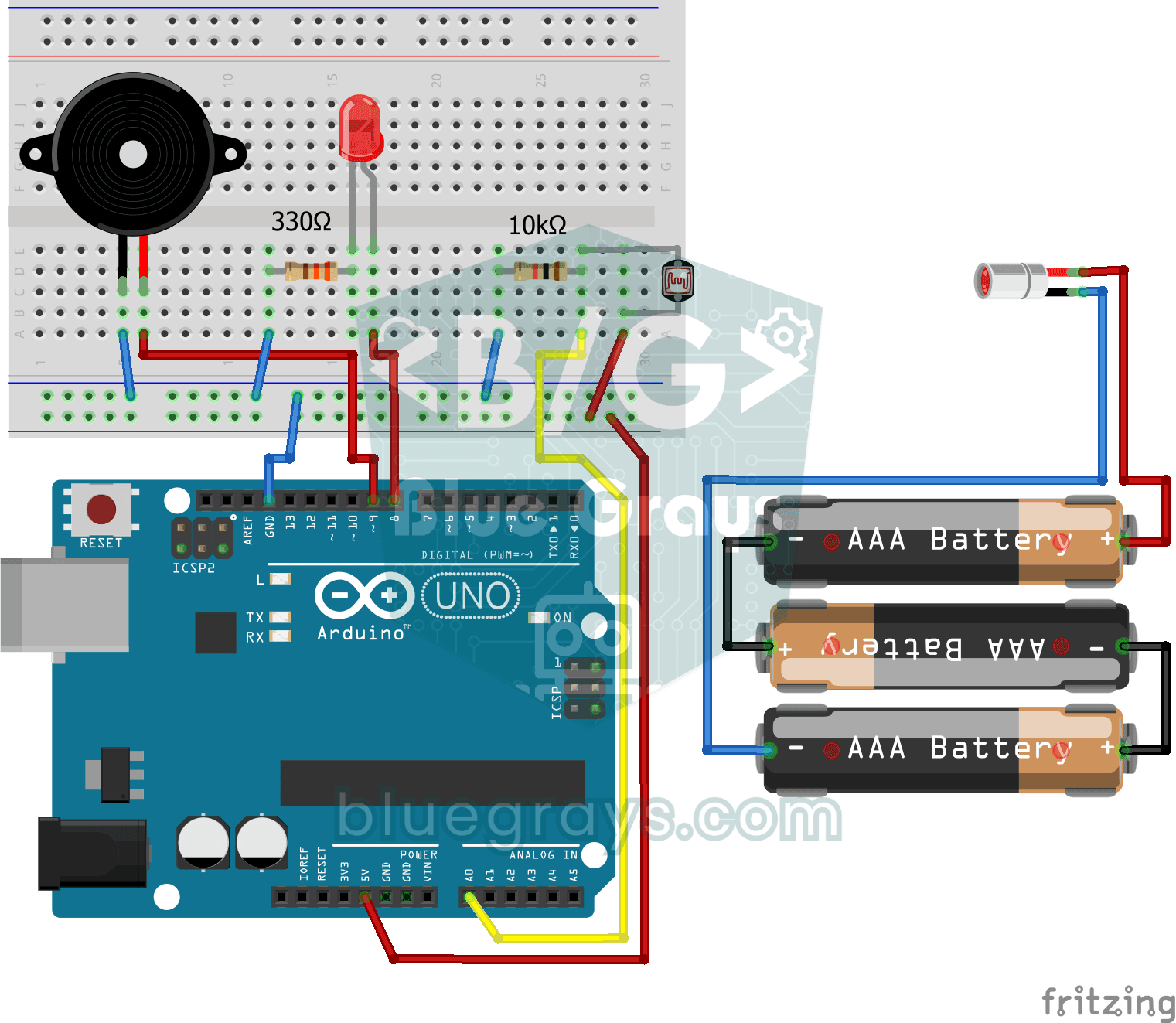
You set up an invisible beam fence, just like in the movies. A laser shines onto a light sensor on the other side; the moment someone walks through and breaks the beam, the LED lights up and the buzze
Counter with 7-Segment Display and Buttons
A simple counter with three buttons: press one and the digit on the display goes up by one, press another and it goes down by one, and the third sends it back to zero. The single-digit 7-segment displ