
Rotary Encoder Arduino: KY-040 Wiring, Interrupts and Menu Code
How to use a rotary encoder with Arduino: KY-040 wiring, A/B quadrature decoding, interrupts without missed steps, debounce, LCD menu, ESP32 PCNT and Pico.
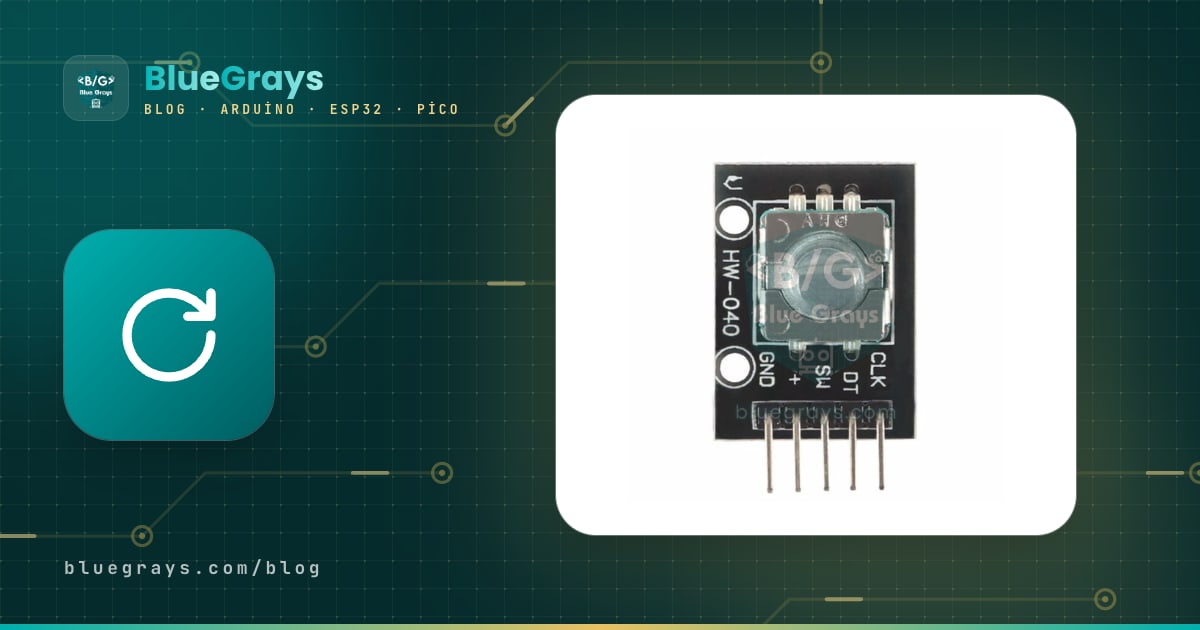
A rotary encoder is a digital control knob for Arduino projects that turns endlessly, counts one step per click and works as a push button when you press its shaft. Connected to an Arduino, a rotary encoder behaves like the menu knob on a 3D printer, the adjustment dial on an oscilloscope or the volume knob in a car: it knows how many clicks you turned and in which direction, and it never hits an end stop. The model you'll find in most hobby kits is the five-pin KY-040 module.
In this guide you'll learn how the KY-040 differs from a potentiometer, how the direction is decoded from the A and B phases (quadrature), how to filter contact bounce in hardware and software, and how to count every single click with interrupts. Then we'll build the shortcut with the Encoder library, menu navigation on an LCD and an OLED, the ESP32's hardware counter PCNT and MicroPython code for the Raspberry Pi Pico, step by step.
What is a rotary encoder and how does it work?
Inside a mechanical encoder like the KY-040 there's a toothed contact disc that turns with the shaft and two small switches that slide over it. As the shaft turns, the two switches open and close one after the other, producing square-wave pulses on the CLK (A) and DT (B) pins. The two waves are shifted by a quarter period, or 90 degrees; this is called a quadrature signal. The microcontroller finds the direction by checking which wave changes first, and the amount of rotation by counting the changes. The encoder doesn't remember its position, it only reports movement. That's why the KY-040 is an incremental encoder: the position is zero at power-up and the counting is entirely up to your code.
| Feature | KY-040 value |
|---|---|
| Type | Mechanical, incremental, A/B outputs |
| Detents | 20 clicks per turn (30 on some encoders) |
| Pulses | 20 full A/B cycles per turn, i.e. 80 edges |
| Angular resolution | 18 degrees per click |
| Pins | CLK (A), DT (B), SW (button), + (supply), GND |
| Supply | 3.3–5 V (only feeds the pull-up resistors) |
| Built-in resistors | 10 kΩ pull-ups on CLK and DT; the SW resistor isn't fitted on every module |
| Button | Normally open; pressing the shaft connects SW to GND (active LOW) |
| Rotation | Unlimited, no end stop |
Rotary encoder vs potentiometer: what's the difference?
At first glance an encoder looks a lot like a potentiometer: both have a rotating shaft and both are used to adjust a value. But they work in completely different ways. A potentiometer is a voltage divider; it outputs an analog voltage between 0 and 5 V depending on the shaft position, and you read it with analogRead. An encoder produces pulses instead of a voltage; it tells you about change, not position.
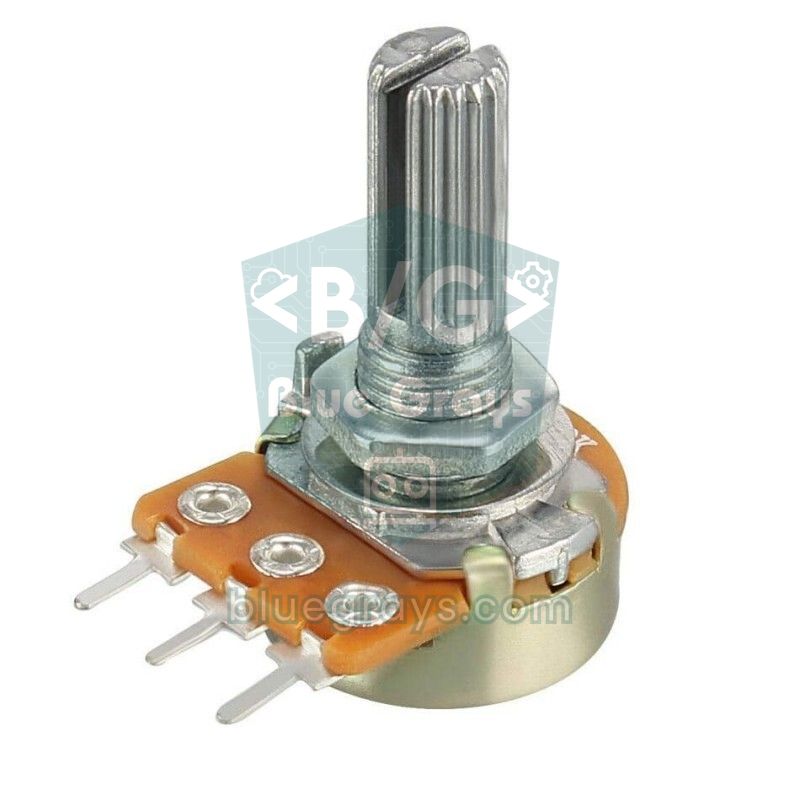
| Feature | Potentiometer | Rotary encoder (KY-040) |
|---|---|---|
| Rotation | About 270–300 degrees, limited | Unlimited, continuous 360 degrees |
| Output | Analog voltage (0–5 V) | Digital pulses (A and B) |
| Reading | analogRead (ADC) | digitalRead or counting with interrupts |
| Position | Absolute; the shaft position gives the value even after a power cut | Relative; position is unknown at power-up |
| Click feel | None, turns smoothly | Yes, usually 20 clicks per turn |
| Button | No | Yes (press the shaft) |
| Typical problem | Crackling and drifting values over time | Contact bounce (solved in software) |
| Typical use | Volume, servo angle, analog adjustment | Menu navigation, stepped numeric settings, device panels |
In short, if the value must match the physical shaft position one to one (steering a servo arm by hand or a simple volume control), a potentiometer is simpler. If you want to move through a menu, raise and lower a number in precise steps, change several settings with one knob or also change the value from software, an encoder is far more flexible. For example, if a value showing 50 is set to 80 from your phone, turning the encoder simply continues from 80; with a potentiometer the knob position and the value on screen no longer match.
A and B phases: how quadrature decoding works
When the KY-040 rests in a detent, both switches are open and, thanks to the pull-up resistors, CLK and DT both read HIGH (1). When you turn the knob by one click, the two lines drop to LOW one after the other and then return to HIGH one after the other. Clockwise, CLK drops first; counter-clockwise, DT drops first. This four-state sequence is a Gray code: only one bit changes at each step. The table below shows what the two pins read during one click of movement:
| Step | Clockwise (CLK, DT) | Counter-clockwise (CLK, DT) |
|---|---|---|
| Resting in a detent | 1, 1 | 1, 1 |
| 1st transition | 0, 1 | 1, 0 |
| 2nd transition | 0, 0 | 0, 0 |
| 3rd transition | 1, 0 | 0, 1 |
| 4th transition (next click) | 1, 1 | 1, 1 |
Two simple rules follow from the table. First: if DT is still HIGH when CLK falls, the knob is turning clockwise; if DT is already LOW, it's turning counter-clockwise. Second: one click has four transitions, so 20 clicks per turn means 80 transitions. Simple code only uses the first rule and counts once per click. Robust code tracks all four transitions, so it can filter out bouncing or half-finished movements. Which direction counts as clockwise can vary with the module and the wiring; if your counter runs the wrong way, just swap the CLK and DT pins in the code.
KY-040 pinout and wiring
| KY-040 pin | Function | Arduino Uno | ESP32 | Raspberry Pi Pico |
|---|---|---|---|---|
| CLK | Phase A | D2 | GPIO 25 | GP16 |
| DT | Phase B | D3 | GPIO 26 | GP17 |
| SW | Button (LOW when pressed) | D4 | GPIO 27 | GP18 |
| + | Supply | 5V | 3V3 | 3V3(OUT) |
| GND | Ground | GND | GND | GND |
On the Arduino Uno and Nano, hardware interrupts are only available on pins D2 and D3, so connecting CLK and DT to these two pins is best. On the Mega the interrupt pins are 2, 3, 18, 19, 20 and 21; on the Leonardo they're 0, 1, 2, 3 and 7. On the ESP32 and Pico almost every GPIO can trigger an interrupt. You can check your board's pin map in the Pinout tool. Use INPUT_PULLUP for the SW pin in your code: some modules have no resistor on this line, and a floating pin reads as if it were randomly pressed. On the ESP32, GPIO 34–39 are input-only and have no internal pull-up, so don't use them for SW.
Step by step first test: reading by polling
- Connect the KY-040's CLK pin to D2, DT to D3 and SW to D4.
- Connect the + pin to 5V and GND to the Arduino's GND.
- Paste the code below into the Arduino IDE and upload it to the board.
- Open the Serial Monitor and set the speed to 115200 baud.
- Turn the knob a few clicks in both directions, then press the shaft to reset the counter.
1// KY-040: CLK -> D2, DT -> D3, SW -> D4, + -> 5V, GND -> GND
2const byte PIN_CLK = 2;
3const byte PIN_DT  = 3;
4const byte PIN_SW  = 4;
5
6int counter = 0;
7int lastClk;
8
9void setup() {
10  pinMode(PIN_CLK, INPUT_PULLUP);   // modülde 10k pull-up zaten var / the module already has 10k pull-ups
11  pinMode(PIN_DT, INPUT_PULLUP);
12  pinMode(PIN_SW, INPUT_PULLUP);    // basınca LOW okunur / reads LOW when pressed
13  Serial.begin(115200);
14  lastClk = digitalRead(PIN_CLK);
15}
16
17void loop() {
18  int clk = digitalRead(PIN_CLK);
19  if (clk != lastClk && clk == LOW) {      // CLK düşen kenar / CLK falling edge
20    if (digitalRead(PIN_DT) == HIGH) {     // DT hâlâ HIGH: saat yönü / DT still HIGH: clockwise
21      counter++;
22      Serial.print("CW  ");
23    } else {                               // DT zaten LOW: ters yön / DT already LOW: counter-clockwise
24      counter--;
25      Serial.print("CCW ");
26    }
27    Serial.println(counter);
28  }
29  lastClk = clk;
30
31  if (digitalRead(PIN_SW) == LOW) {        // mile basıldı / shaft pressed
32    delay(20);                             // buton sıçramasını bekle / wait out the button bounce
33    if (digitalRead(PIN_SW) == LOW) {
34      counter = 0;
35      Serial.println("Sifirlandi / reset");
36      while (digitalRead(PIN_SW) == LOW) {}   // bırakılmasını bekle / wait for release
37    }
38  }
39}
On every pass through loop the code reads CLK and only catches the moment CLK falls from HIGH to LOW. If DT is still HIGH at that moment, the knob has turned clockwise; if it's LOW, counter-clockwise. This is the easiest method to understand, but it has two weak points. First, pulses that arrive while loop is busy with other work (updating a display, delay, reading sensors) are missed, and the counter falls behind when you turn quickly. Second, mechanical contacts bounce: CLK can go LOW-HIGH several times while falling once, and the code may count a single click as two or three. The next two sections solve both problems.
Contact bounce (debounce): hardware and software fixes
The metal springs inside the encoder bounce a few times when they touch the contact before they settle. Manufacturer datasheets usually give this time as a few milliseconds (for example 2 ms maximum). With push buttons you fix bounce by saying "wait 20–50 ms after the last change", but that doesn't work for an encoder: when it's turned quickly there are only a few milliseconds between two edges, and a long wait swallows real steps too. These methods are used instead:
- Hardware filter: Put a 10–100 nF capacitor between CLK and GND and another between DT and GND. Together with the module's 10 kΩ pull-ups they form an RC filter; the time constant is between 10 kΩ × 10 nF = 0.1 ms and 10 kΩ × 100 nF = 1 ms, which swallows short bounces. You can calculate it with the RC time constant tool and decode a capacitor marked 103 or 104 with the capacitor code tool.
- State table: On every edge of both lines, the old and new AB states are compared. Bouncing means jumping back and forth between the same two states, which produces +1 and −1 in turn, and they cancel out. Transitions where both bits change at once are treated as invalid and skipped.
- Decide only at a detent: Quarter steps are accumulated and the counter is only increased or decreased when the encoder settles into a detent (both lines HIGH). That way, a contact jittering on a click doesn't make the menu cursor jump.
- Lockout for the button: The SW pin behaves like an ordinary push button; a 30 ms lockout with millis() is enough.
Reading with interrupts so you never miss a step
An interrupt makes the processor drop what it's doing the moment a pin changes and run a short function (ISR). Once the encoder lines are attached to interrupts, no edge is lost even if loop contains a 50 ms delay or the display updates slowly. The code below runs on both edges of CLK and DT, uses the state table described above and only counts when the knob settles into a detent. For the basics, see the Arduino interrupt article as well.
1// KY-040: CLK -> D2 (INT0), DT -> D3 (INT1), SW -> D4, + -> 5V
2const byte PIN_CLK = 2;
3const byte PIN_DT  = 3;
4const byte PIN_SW  = 4;
5
6// İndeks: (eski AB << 2) | yeni AB / Index: (old AB << 2) | new AB
7const int8_t QEM[16] = {0, -1, 1, 0, 1, 0, 0, -1, -1, 0, 0, 1, 0, 1, -1, 0};
8
9volatile long position = 0;   // tık sayısı, ISR ile loop paylaşır / detent count shared by ISR and loop
10uint8_t lastAB = 3;           // son durum, 3 = ikisi de HIGH / last state, 3 = both HIGH
11int8_t quarter = 0;           // iki tık arası çeyrek adımlar / quarter steps between detents
12
13void readEncoder() {
14  uint8_t ab = (digitalRead(PIN_CLK) << 1) | digitalRead(PIN_DT);
15  quarter += QEM[(lastAB << 2) | ab];
16  lastAB = ab;
17  if (ab == 3) {                          // tıka oturdu / settled in a detent
18    if (quarter > 1) position++;          // saat yönü / clockwise
19    else if (quarter < -1) position--;    // ters yön / counter-clockwise
20    quarter = 0;
21  }
22}
23
24bool buttonPressed() {
25  static bool lastState = HIGH;
26  static unsigned long lastChange = 0;
27  bool state = digitalRead(PIN_SW);
28  if (state != lastState && millis() - lastChange > 30) {   // 30 ms kilit / 30 ms lockout
29    lastChange = millis();
30    lastState = state;
31    return state == LOW;                  // yalnızca basış anı / only the moment of pressing
32  }
33  return false;
34}
35
36void setup() {
37  pinMode(PIN_CLK, INPUT_PULLUP);
38  pinMode(PIN_DT, INPUT_PULLUP);
39  pinMode(PIN_SW, INPUT_PULLUP);
40  Serial.begin(115200);
41  lastAB = (digitalRead(PIN_CLK) << 1) | digitalRead(PIN_DT);
42  attachInterrupt(digitalPinToInterrupt(PIN_CLK), readEncoder, CHANGE);   // her iki kenar / both edges
43  attachInterrupt(digitalPinToInterrupt(PIN_DT), readEncoder, CHANGE);
44}
45
46long lastPosition = 0;
47
48void loop() {
49  noInterrupts();                         // 4 baytı güvenle kopyala / copy the 4 bytes safely
50  long pos = position;
51  interrupts();
52
53  if (pos != lastPosition) {
54    Serial.print(pos > lastPosition ? "CW  " : "CCW ");
55    Serial.println(pos);
56    lastPosition = pos;
57  }
58
59  if (buttonPressed()) {
60    noInterrupts();
61    position = 0;
62    interrupts();
63    Serial.println("Sifirlandi / reset");
64  }
65
66  delay(50);   // loop yavaş olsa da tık kaçmaz / no detent is lost even with a slow loop
67}| Code part | What does it do? |
|---|---|
| QEM[16] table | Turns the old and new AB state into +1, −1 or 0; invalid transitions where both lines change at once count as 0 |
| attachInterrupt(..., CHANGE) | Runs readEncoder() on both the rising and falling edges of CLK and DT |
| quarter | Accumulates the quarter steps between two clicks; +1 and −1 pairs caused by bounce cancel out |
| if (ab == 3) | The decision is made only when the encoder settles into a detent (both lines HIGH); an accumulated value of +2 or more counts as one click |
| volatile long position | The variable shared by the ISR and loop; volatile stops the compiler from using a stale copy |
| noInterrupts() / interrupts() | Prevents the ISR from cutting in while the 4-byte long is being copied |
| buttonPressed() | Debounces SW with a 30 ms lockout and returns true only once, at the moment of pressing |
The shortcut: the Encoder library
If you don't want to write your own ISR, Paul Stoffregen's Encoder library does the same job with optimized code. Open the Library Manager in the Arduino IDE, search for "Encoder" and install Paul Stoffregen's library; for the installation steps, have a look at the how to add an Arduino library guide. The library gives the best performance when both pins are interrupt pins, good performance when only the first pin passed to the constructor is, and low performance when neither is. Because it counts every edge, the value changes by 4 per click; divide by 4 to get the number of clicks.
1#include <Encoder.h>
2
3// Önce DT (3), sonra CLK (2): saat yönü artı sayılır / DT (3) first, then CLK (2): clockwise counts up
4Encoder knob(3, 2);
5const byte PIN_SW = 4;
6long lastDetent = 0;
7
8void setup() {
9  pinMode(PIN_SW, INPUT_PULLUP);
10  Serial.begin(115200);
11}
12
13void loop() {
14  long detent = knob.read() / 4;          // 4 kenar = 1 tık / 4 edges = 1 detent
15  if (detent != lastDetent) {
16    lastDetent = detent;
17    Serial.println(detent);
18  }
19  if (digitalRead(PIN_SW) == LOW) {       // basınca sıfırla / reset on press
20    knob.write(0);
21  }
22}
read() returns the total number of edges so far, write(0) resets the counter, and readAndReset() reads and resets in one go. We pass DT first and CLK second to the constructor because of the sign of the direction: in this order clockwise counts as positive. If it's reversed for you, swap 2 and 3. The library also enables the pins' internal pull-up resistors by itself.
Menu navigation with a rotary encoder on an LCD
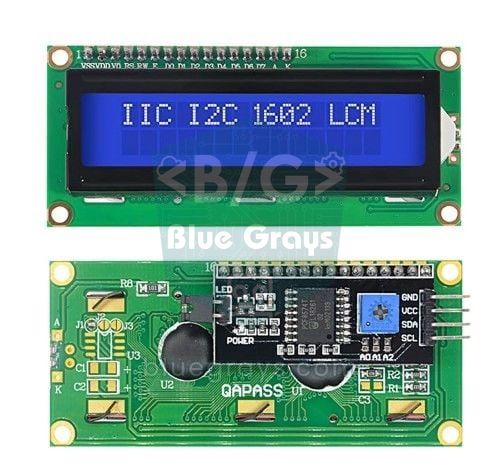
Menus are where encoders are used most: you turn the knob to move between lines, press it to put the selected setting into edit mode, turn it to change the value and press once more to return to the menu. The example below adjusts the red, green and blue channels of an RGB LED between 0 and 255 and shows the values on an I2C LCD display. Connect the LCD to A4 (SDA) and A5 (SCL), and the colour legs of a common-cathode RGB LED to D9, D10 and D11 through 220 Ω resistors.
1#include <Wire.h>
2#include <LiquidCrystal_I2C.h>
3
4LiquidCrystal_I2C lcd(0x27, 16, 2);           // adres 0x27 ya da 0x3F / address 0x27 or 0x3F
5
6const byte PIN_CLK = 2, PIN_DT = 3, PIN_SW = 4;
7const byte COUNT = 3;
8const byte LED_PINS[COUNT] = {9, 10, 11};     // RGB LED, PWM pinleri / PWM pins
9const char* NAMES[COUNT] = {"Kirmizi/Red", "Yesil/Green", "Mavi/Blue"};
10int values[COUNT] = {0, 0, 0};                // 0-255 parlaklık / brightness
11
12const int8_t QEM[16] = {0, -1, 1, 0, 1, 0, 0, -1, -1, 0, 0, 1, 0, 1, -1, 0};
13volatile int steps = 0;                       // loop'un işlemediği tıklar / detents not yet handled by loop
14uint8_t lastAB = 3;
15int8_t quarter = 0;
16
17int selected = 0;                             // seçili satır / selected item
18bool editing = false;                         // değer düzenleme modu / value edit mode
19
20void readEncoder() {
21  uint8_t ab = (digitalRead(PIN_CLK) << 1) | digitalRead(PIN_DT);
22  quarter += QEM[(lastAB << 2) | ab];
23  lastAB = ab;
24  if (ab == 3) {
25    if (quarter > 1) steps++;
26    else if (quarter < -1) steps--;
27    quarter = 0;
28  }
29}
30
31bool buttonPressed() {
32  static bool lastState = HIGH;
33  static unsigned long lastChange = 0;
34  bool state = digitalRead(PIN_SW);
35  if (state != lastState && millis() - lastChange > 30) {
36    lastChange = millis();
37    lastState = state;
38    return state == LOW;
39  }
40  return false;
41}
42
43void drawMenu() {
44  int top = selected > COUNT - 2 ? COUNT - 2 : selected;   // görünen ilk satır / first visible row
45  for (byte row = 0; row < 2; row++) {
46    int i = top + row;
47    char mark = ' ';
48    if (i == selected) mark = editing ? '*' : '>';
49    char line[17];
50    snprintf(line, sizeof(line), "%c%-11s%4d", mark, NAMES[i], values[i]);
51    lcd.setCursor(0, row);
52    lcd.print(line);
53  }
54}
55
56void setup() {
57  pinMode(PIN_CLK, INPUT_PULLUP);
58  pinMode(PIN_DT, INPUT_PULLUP);
59  pinMode(PIN_SW, INPUT_PULLUP);
60  for (byte i = 0; i < COUNT; i++) pinMode(LED_PINS[i], OUTPUT);
61  lcd.init();
62  lcd.backlight();
63  lastAB = (digitalRead(PIN_CLK) << 1) | digitalRead(PIN_DT);
64  attachInterrupt(digitalPinToInterrupt(PIN_CLK), readEncoder, CHANGE);
65  attachInterrupt(digitalPinToInterrupt(PIN_DT), readEncoder, CHANGE);
66  drawMenu();
67}
68
69void loop() {
70  noInterrupts();
71  int s = steps;                              // biriken tıkları al / take the pending detents
72  steps = 0;
73  interrupts();
74
75  if (s != 0) {
76    if (editing) {
77      values[selected] = constrain(values[selected] + s * 5, 0, 255);   // tık başına 5 / 5 per detent
78      analogWrite(LED_PINS[selected], values[selected]);
79    } else {
80      selected = constrain(selected + s, 0, COUNT - 1);
81    }
82    drawMenu();
83  }
84
85  if (buttonPressed()) {                      // bas: düzenle ya da bitir / press: edit or finish
86    editing = !editing;
87    drawMenu();
88  }
89}
A > sign appears at the start of the selected line, and a * sign in edit mode. The encoder code is the same as in the previous example; the only difference is that the ISR accumulates the number of unprocessed clicks (steps) instead of a position, and loop reads and clears it. So even if loop stays busy for a while, no click is lost; the accumulated ones are handled together on the next pass. In edit mode each click changes the value by 5; for finer control you can reduce the step to 1 or add acceleration that increases the step when the knob is turned quickly.
To show the same menu on an OLED display, you only need to change the drawMenu() function. The version below draws the selected line in inverted colours on a white bar. Add the Adafruit SSD1306 and Adafruit GFX libraries instead of the LCD library, delete the lcd object and call display.begin() instead of lcd.init() in setup().
1// LCD menü kodunda değişecek kısımlar / parts to change in the LCD menu sketch
2#include <Adafruit_GFX.h>
3#include <Adafruit_SSD1306.h>
4
5Adafruit_SSD1306 display(128, 64, &Wire, -1);
6// setup() içinde lcd.init() ve lcd.backlight() yerine / in setup() instead of lcd.init() and lcd.backlight():
7//   display.begin(SSD1306_SWITCHCAPVCC, 0x3C);
8
9void drawMenu() {
10  display.clearDisplay();
11  display.setTextSize(1);
12  for (byte i = 0; i < COUNT; i++) {
13    int y = i * 16;
14    if (i == selected) {
15      display.fillRect(0, y, 128, 14, SSD1306_WHITE);   // seçili satır çubuğu / highlight bar
16      display.setTextColor(SSD1306_BLACK);
17    } else {
18      display.setTextColor(SSD1306_WHITE);
19    }
20    display.setCursor(4, y + 3);
21    display.print(NAMES[i]);
22    display.setCursor(98, y + 3);
23    display.print(values[i]);
24    if (i == selected && editing) display.print('*');   // düzenleme işareti / edit marker
25  }
26  display.display();
27}Rotary encoder with the ESP32: the PCNT hardware counter
The ESP32 has a hardware block called PCNT (Pulse Counter) that counts pulses without keeping the processor busy at all. Each unit has two channels, so it can decode the A/B signal directly; the classic ESP32 has 8 PCNT units, and the ESP32-S2 and S3 have 4. The counter is 16 bits wide and includes a glitch filter that removes short noise. This filter can be set to at most about 12.8 microseconds, so it only swallows very short spikes, not the whole contact bounce. Four-edge counting balances out the rest of the bounce by itself: back-and-forth bounces cancel each other as +1 and −1. The code below uses the ESP-IDF driver that comes with version 3.x of the Arduino ESP32 core.
1#include "driver/pulse_cnt.h"
2#include "driver/gpio.h"
3
4// KY-040: CLK -> GPIO 25, DT -> GPIO 26, SW -> GPIO 27, + -> 3V3
5const int PIN_CLK = 25;
6const int PIN_DT  = 26;
7const int PIN_SW  = 27;
8
9pcnt_unit_handle_t unit = NULL;
10
11void setup() {
12  Serial.begin(115200);
13  pinMode(PIN_SW, INPUT_PULLUP);
14
15  pcnt_unit_config_t unitCfg = {};
16  unitCfg.low_limit = -10000;                 // sınıra varınca sayaç 0'a döner / the counter returns to 0 at a limit
17  unitCfg.high_limit = 10000;
18  ESP_ERROR_CHECK(pcnt_new_unit(&unitCfg, &unit));
19
20  pcnt_glitch_filter_config_t filterCfg = {};
21  filterCfg.max_glitch_ns = 1000;             // 1 µs'den kısa iğneleri yok say / ignore spikes shorter than 1 µs
22  ESP_ERROR_CHECK(pcnt_unit_set_glitch_filter(unit, &filterCfg));
23
24  pcnt_chan_config_t aCfg = {};
25  aCfg.edge_gpio_num = PIN_CLK;               // A kanalı: CLK kenarları, DT seviyesi / channel A: CLK edges, DT level
26  aCfg.level_gpio_num = PIN_DT;
27  pcnt_channel_handle_t chA = NULL;
28  ESP_ERROR_CHECK(pcnt_new_channel(unit, &aCfg, &chA));
29
30  pcnt_chan_config_t bCfg = {};
31  bCfg.edge_gpio_num = PIN_DT;                // B kanalı: DT kenarları, CLK seviyesi / channel B: DT edges, CLK level
32  bCfg.level_gpio_num = PIN_CLK;
33  pcnt_channel_handle_t chB = NULL;
34  ESP_ERROR_CHECK(pcnt_new_channel(unit, &bCfg, &chB));
35
36  // 4x çözme: iki hattın tüm kenarları sayılır / 4x decoding: every edge of both lines is counted
37  ESP_ERROR_CHECK(pcnt_channel_set_edge_action(chA, PCNT_CHANNEL_EDGE_ACTION_DECREASE, PCNT_CHANNEL_EDGE_ACTION_INCREASE));
38  ESP_ERROR_CHECK(pcnt_channel_set_level_action(chA, PCNT_CHANNEL_LEVEL_ACTION_KEEP, PCNT_CHANNEL_LEVEL_ACTION_INVERSE));
39  ESP_ERROR_CHECK(pcnt_channel_set_edge_action(chB, PCNT_CHANNEL_EDGE_ACTION_INCREASE, PCNT_CHANNEL_EDGE_ACTION_DECREASE));
40  ESP_ERROR_CHECK(pcnt_channel_set_level_action(chB, PCNT_CHANNEL_LEVEL_ACTION_KEEP, PCNT_CHANNEL_LEVEL_ACTION_INVERSE));
41
42  gpio_pullup_en((gpio_num_t)PIN_CLK);        // çıplak encoder için iç pull-up / internal pull-up for a bare encoder
43  gpio_pullup_en((gpio_num_t)PIN_DT);
44
45  ESP_ERROR_CHECK(pcnt_unit_enable(unit));
46  ESP_ERROR_CHECK(pcnt_unit_clear_count(unit));
47  ESP_ERROR_CHECK(pcnt_unit_start(unit));
48}
49
50int lastDetent = 0;
51
52void loop() {
53  int count = 0;
54  pcnt_unit_get_count(unit, &count);
55  int detent = count / 4;                     // 4 kenar = 1 tık / 4 edges = 1 detent
56  if (detent != lastDetent) {
57    lastDetent = detent;
58    Serial.printf("Tik / detent: %d  (ham / raw: %d)\n", detent, count);
59  }
60  if (digitalRead(PIN_SW) == LOW) {           // basınca sıfırla / reset on press
61    pcnt_unit_clear_count(unit);
62  }
63  delay(20);
64}
The two channels are set up as mirror images of each other: channel A counts the edges of CLK and flips the direction according to the level of DT, while channel B counts the edges of DT relative to CLK. As a result the counter changes by 4 per click. When it reaches the ±10000 limit it returns to zero; if you need a wider range, you can accumulate overflows with the flags.accum_count option and watch points. The ESP32-C3 has no PCNT unit; on that board use the interrupt-based Arduino code. If you're on version 2.x of the Arduino ESP32 core or want shorter code, the ESP32Encoder library uses the same hardware and does the job with its attachFullQuad() and getCount() functions. If you use MicroPython on the ESP32, the machine.Encoder class in recent versions (e.g. 1.27) also uses PCNT behind the scenes. If you're new to the ESP32, read What is the ESP32 first.
Rotary encoder with the Raspberry Pi Pico and MicroPython
Every GPIO pin on the Pico can trigger an interrupt, so reading an encoder in MicroPython with Pin.irq() is easy. The code below uses exactly the same state table as the Arduino example and turns the encoder into an LED dimmer: each click changes the brightness by 5 percent and pressing the shaft switches the LED on and off. Connect CLK to GP16, DT to GP17, SW to GP18 and an LED through a 220 Ω resistor to GP15. For setting up MicroPython, see the What is the Raspberry Pi Pico article.
1from machine import Pin, PWM
2import time
3
4clk = Pin(16, Pin.IN, Pin.PULL_UP)     # A fazı / phase A
5dt = Pin(17, Pin.IN, Pin.PULL_UP)      # B fazı / phase B
6sw = Pin(18, Pin.IN, Pin.PULL_UP)      # buton, basınca 0 / button, 0 when pressed
7led = PWM(Pin(15))                     # LED + 220 ohm
8led.freq(1000)
9
10# İndeks: (eski AB << 2) | yeni AB / Index: (old AB << 2) | new AB
11QEM = (0, -1, 1, 0, 1, 0, 0, -1, -1, 0, 0, 1, 0, 1, -1, 0)
12last_ab = (clk.value() << 1) | dt.value()
13quarter = 0
14position = 10                          # 0-20 tık, başlangıç %50 / 0-20 detents, start at 50 %
15
16def on_edge(pin):
17    global last_ab, quarter, position
18    ab = (clk.value() << 1) | dt.value()
19    quarter += QEM[(last_ab << 2) | ab]
20    last_ab = ab
21    if ab == 3:                        # tıka oturdu / settled in a detent
22        if quarter > 1 and position < 20:
23            position += 1
24        elif quarter < -1 and position > 0:
25            position -= 1
26        quarter = 0
27
28clk.irq(trigger=Pin.IRQ_RISING | Pin.IRQ_FALLING, handler=on_edge)
29dt.irq(trigger=Pin.IRQ_RISING | Pin.IRQ_FALLING, handler=on_edge)
30
31on = True
32shown = -1
33while True:
34    if sw.value() == 0:                # mile basıldı / shaft pressed
35        time.sleep_ms(20)              # sıçramayı bekle / wait out the bounce
36        if sw.value() == 0:
37            on = not on
38            shown = -1                 # yeniden yaz / force an update
39            while sw.value() == 0:     # bırakılmasını bekle / wait for release
40                time.sleep_ms(10)
41    if position != shown:
42        shown = position
43        led.duty_u16(shown * 65535 // 20 if on else 0)
44        print("Parlaklik / brightness: %d%%" % (shown * 5), "acik / on" if on else "kapali / off")
45    time.sleep_ms(10)
We check the limits of the value (0–20 clicks) inside the interrupt function, so the main loop only reads the variable and there's no race condition where both sides write at the same time. You'll find how LED brightness is controlled in the What is PWM article. If you prefer a ready-made solution, the rotary_irq_rp2 module from the micropython-rotary project comes with limits, wrap-around and direction reversal. For very fast motor encoders, the Pico's PIO block can count without loading the processor at all. If you're new to MicroPython, the MicroPython basics article is a good place to start.
Types of rotary encoder: mechanical, optical and magnetic
| Type | How does it work? | Typical resolution | Where is it used? |
|---|---|---|---|
| Mechanical (KY-040, EC11) | Contact disc and two switches | 12–30 clicks per turn | Menu knobs, volume controls, device front panels |
| Optical | Slotted disc, LED and phototransistor | Hundreds to thousands of pulses per turn | CNC machines, robot joints, industrial motors |
| Magnetic (Hall effect) | Magnetic disc and Hall sensors | A few pulses per motor shaft turn (e.g. 7 or 11) | N20 and geared DC motors with encoders |
| Absolute | Outputs a unique code for every position | For example 12 bits (4096 positions) on the AS5600 | Robot arms, angle measurement; knows its position at power-up |
The code in this article also works with other incremental encoders that have A/B outputs. For example, on a geared DC motor with an encoder, a Hall encoder giving 11 pulses per motor shaft turn, four-edge counting and a 1:30 gear ratio produce 11 × 4 × 30 = 1320 counts per turn of the output shaft. When the pulse rate climbs into the thousands per second, interrupt-based code takes a noticeable share of the processor's time, whereas the ESP32's PCNT unit does this counting effortlessly. Industrial optical encoders mostly run on 5–24 V and have open-collector or differential outputs; always check the output type and voltage in the datasheet before connecting one.
Rotary encoder project ideas
- Digital volume knob: Set the volume of music playing on a DFPlayer Mini with the encoder and press the shaft to skip to the next track.
- Colour picker lamp: Rotate the hue of a WS2812B LED ring with the encoder and press to switch to brightness mode.
- Precise positioning: Make each click move a stepper motor by a set number of steps; build a camera slider or a turntable.
- Kitchen timer: Set the time with the encoder, press to start the countdown and sound a buzzer when time is up.
- Game controller: Use the encoder as the paddle in Pong; in Arduino game projects it gives finer control than a joystick.
- Clock and alarm setting: Set the time and alarm of an RTC clock module with a single knob.
- Test instrument panel: Change a PWM frequency, a signal generator value or the target temperature of a soldering station in fine steps.
Common mistakes and how to fix them
| Problem | Likely cause | Solution |
|---|---|---|
| Counts 2 or 4 per click | Every edge is counted separately or the contacts bounce | Divide the edge count by 4, use a state table, add 10–100 nF capacitors to CLK and DT |
| Counts only every second click | 30-click / 15-pulse encoder; each click is half a cycle | Divide the library value by 2 instead of 4; in the table code change if (ab == 3) to if (ab == 3 || ab == 0) |
| Direction is reversed | CLK and DT are swapped or the module is different | Swap the CLK and DT pin numbers in the code |
| Steps are missed when turning fast | Polling is used, there's a delay in loop | Use interrupts or the ESP32 PCNT, keep the ISR short |
| The button presses itself | SW pin is floating, no pull-up | Use pinMode(SW, INPUT_PULLUP) |
| The counter jumps randomly | No common GND, long or loose wires | Share GND, shorten the wires, check the breadboard contacts |
| fatal error: driver/pulse_cnt.h: No such file or directory / undefined reference to 'pcnt_new_unit' | Arduino ESP32 core 2.x (first error) or an ESP32-C3, which has no PCNT unit (second error) | Update the core to 3.x in the Boards Manager or use the ESP32Encoder library; on the C3 use the interrupt code |
| The LCD only shows blocks | Wrong contrast setting or I2C address | Turn the trimmer on the back, try address 0x3F instead of 0x27 |
A rotary encoder is one of the cheapest ways to give a project a professional user interface: a single knob and a display can handle dozens of settings. Start with the polling code to understand the logic, then move to the interrupt or PCNT version and adapt the menu example to your own project. In the BlueGrays app you'll find potentiometer servo control, I2C LCD, push button and 7-segment counter projects with circuit diagrams and step-by-step code, and you can easily upgrade them by replacing the potentiometer or button with an encoder.
Frequently asked questions
What is the difference between a rotary encoder and a potentiometer?
A potentiometer outputs an analog voltage that depends on the shaft position, its rotation is limited to about 270–300 degrees, and you read it with analogRead. A rotary encoder turns endlessly and produces digital pulses on every click; it reports the direction and amount of movement, not the position. An encoder is better for menu navigation and stepped settings, a potentiometer for simple position-based adjustments.
Why does my rotary encoder count two steps per click or skip steps?
Counting too much is usually caused by contact bounce or by counting every edge separately; dividing the 4 edges per click by 4 and using a state table fixes it. Skipped steps happen when pulses arrive while loop is busy. Connect CLK and DT to interrupt pins and read them with interrupts, and add 10–100 nF capacitors if needed, and the problem goes away.
Does the KY-040 rotary encoder work at 3.3 V?
Yes. The KY-040 consists only of mechanical switches and pull-up resistors, so it works perfectly at 3.3 V too. On the ESP32 and Raspberry Pi Pico, always connect the + pin to 3V3; if you power it from 5 V, the pull-up resistors pull CLK and DT up to 5 V and the limit of the 3.3 V inputs is exceeded.
How many pulses per revolution does the KY-040 give?
Common KY-040 modules have 20 clicks per turn, and the A and B lines complete one full cycle per click. Each cycle has four edges, so you count 80 edges per turn, and each click is 18 degrees. Some encoders have 30 clicks and 15 pulses; on those, each click corresponds to half a cycle.
Can a rotary encoder be read without interrupts?
Yes, it can be read by polling, checking the CLK pin constantly inside loop, and that's often enough for a menu knob turned slowly. But if loop contains delay, display updates or long calculations, quickly turned clicks will be missed. For reliable results, interrupts are recommended, and on the ESP32 the PCNT hardware counter.
Can I connect more than one rotary encoder to an Arduino?
Yes. Since only D2 and D3 provide hardware interrupts on the Uno, you can connect the first pin of each encoder (the one passed first to the constructor) to an interrupt pin and the other to a normal pin using the Encoder library, or use pin change interrupts. The Mega has six interrupt pins, the classic ESP32 can count 8 encoders in hardware with its 8 PCNT units, and on the Pico every GPIO can trigger an interrupt.
Projects to build after reading this
See all projects
Toggle an LED with a Button (On/Off)
Press the button once and the light comes on, press it again and it goes off, just like the light switch in your room. The Arduino notices every press and flips the LED to the opposite state, waiting

ESP32 LED Control with Pushbutton (Toggle)
Each time the button is pressed the state of the LED changes: if it is on it turns off, if it is off it turns on. Classic toggle pattern. With debounce we clean up the mechanical noise of the pushbutton to ensure a single toggle with a single press.
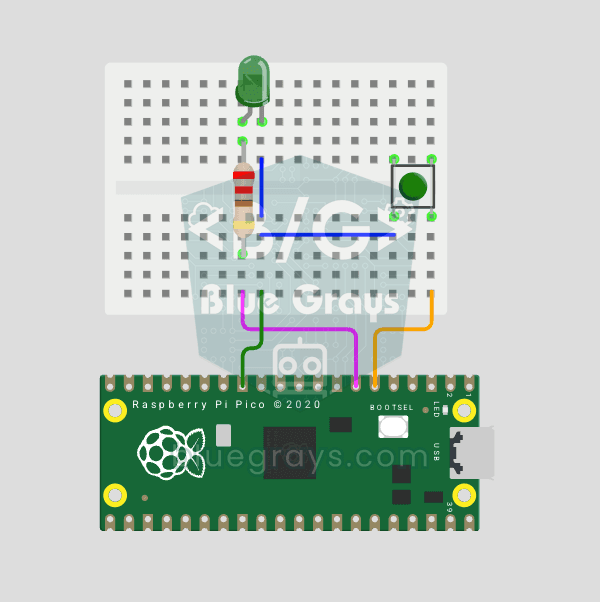
Raspberry Pi Pico Button Debounce: IRQ vs Software Polling (GP5 + GP4)
Press a button once, code counts 3-4? That is **contact bounce** — metal contacts oscillate for microseconds! 🔁 Compare 2 counting methods side-by-side in Serial: **RAW polling** (catches bounce, over-counts) vs **IRQ + software debounce** (accurate). Learn contact bounce physics, software debounce (`ticks_diff() > 50ms`), **Pin.irq()** interrupt registration, **IRQ_FALLING** trigger, ISR handlers, `global` + ISR safety. LED toggles via IRQ (visual feedback). Serial shows both counters per press
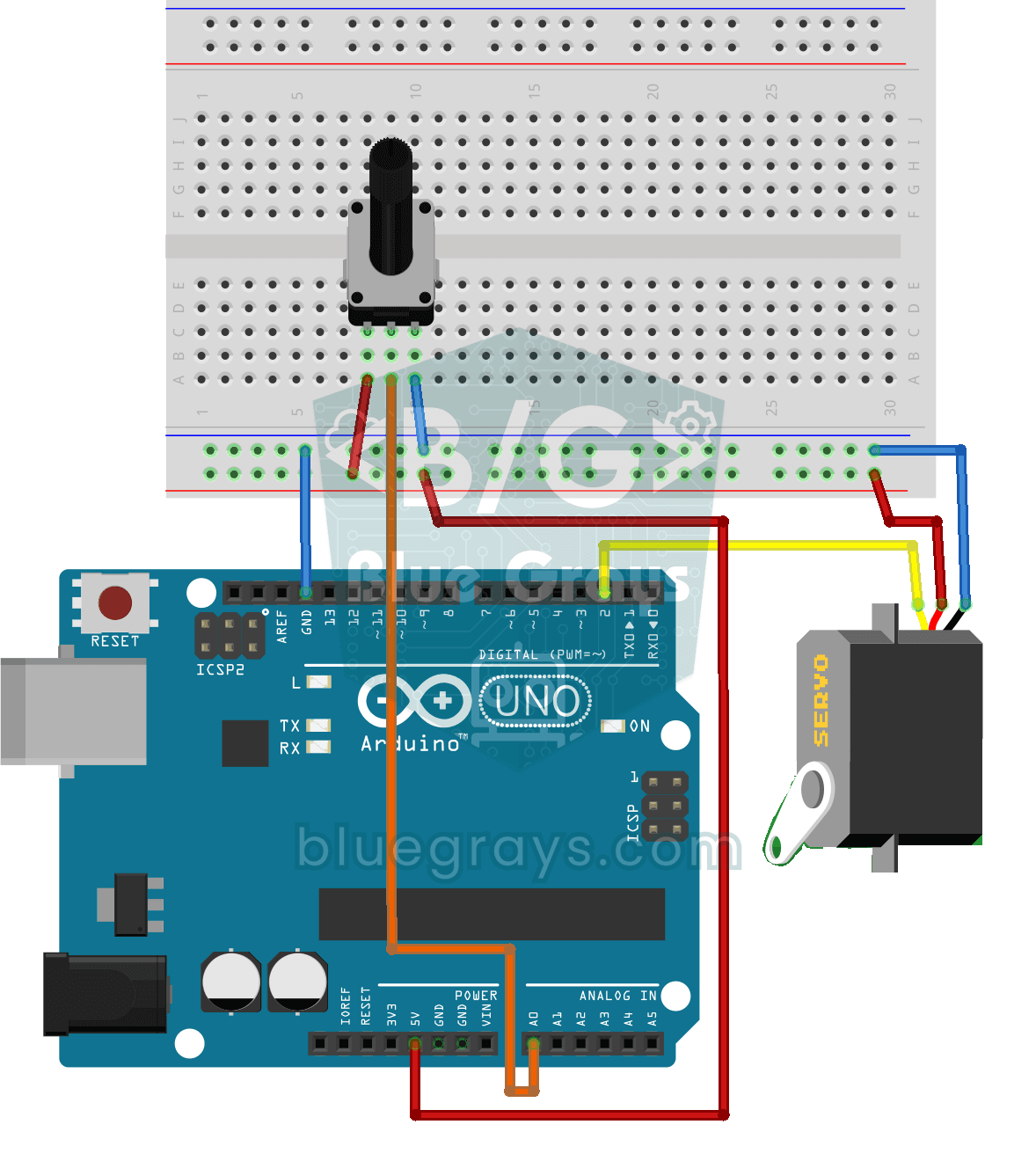
Servo Motor Operation with Potentiometer
As you turn the potentiometer knob, the servo motor's arm turns right along with it: one end of the knob means zero degrees, the other end means half a turn. The Arduino keeps reading the knob's posit

ESP32 LED Brightness Control with a Potentiometer (Analog → PWM)
In this project, we control the brightness of an LED analogically using a potentiometer. The ESP32's ADC pin reads the 0-3.3V voltage from the potentiometer, and this value is then converted into a PWM (Pulse Width Modulation) signal and sent to the LED. As a result, as you turn the potentiometer, the LED gradually brightens and dims. With Arduino Core 3.0+, `analogWrite()` can be used directly; on the ESP32-S2/S3, the ADC resolution is fixed at 12-bit.
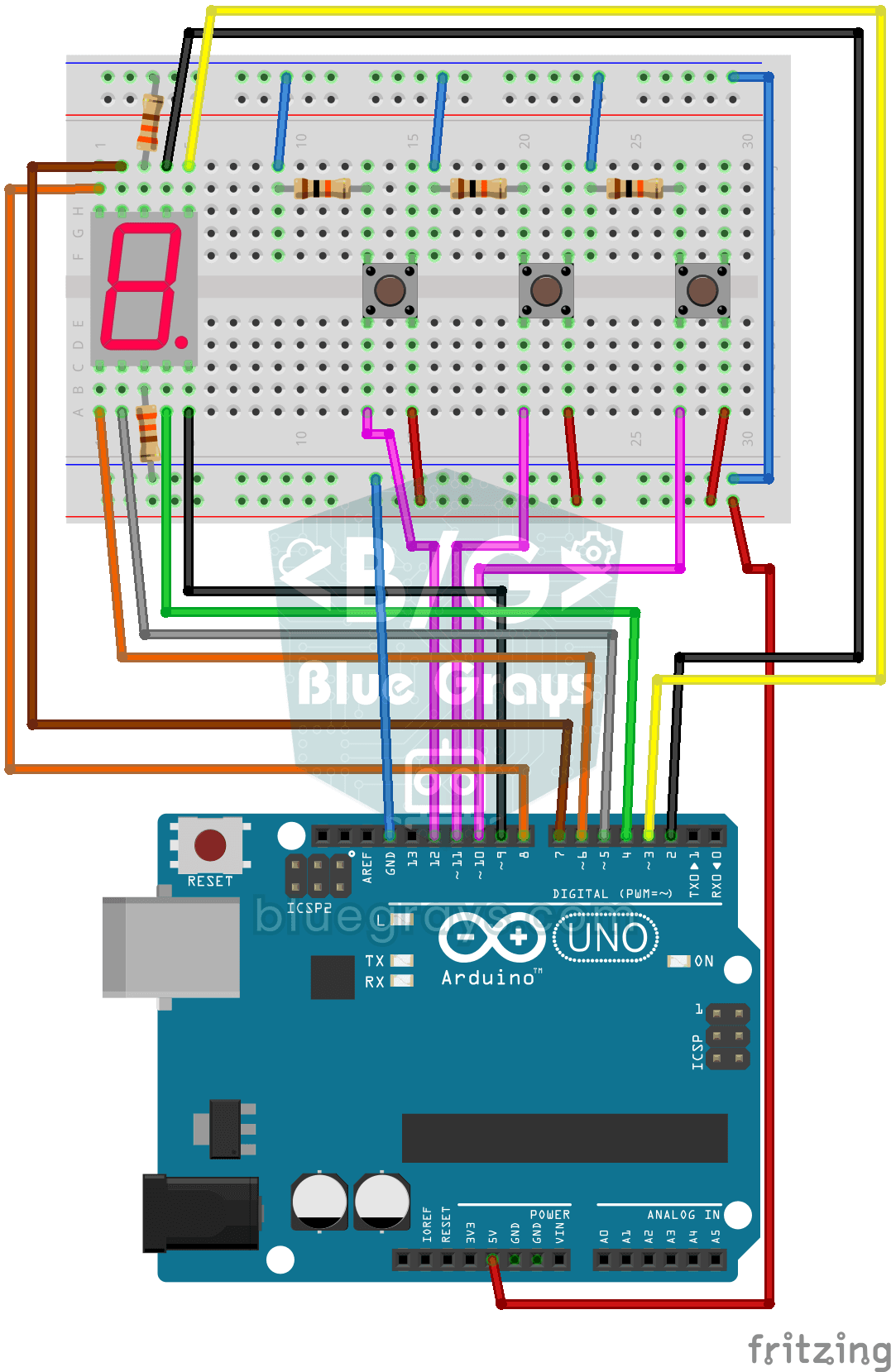
Counter with 7-Segment Display and Buttons
A simple counter with three buttons: press one and the digit on the display goes up by one, press another and it goes down by one, and the third sends it back to zero. The single-digit 7-segment displ
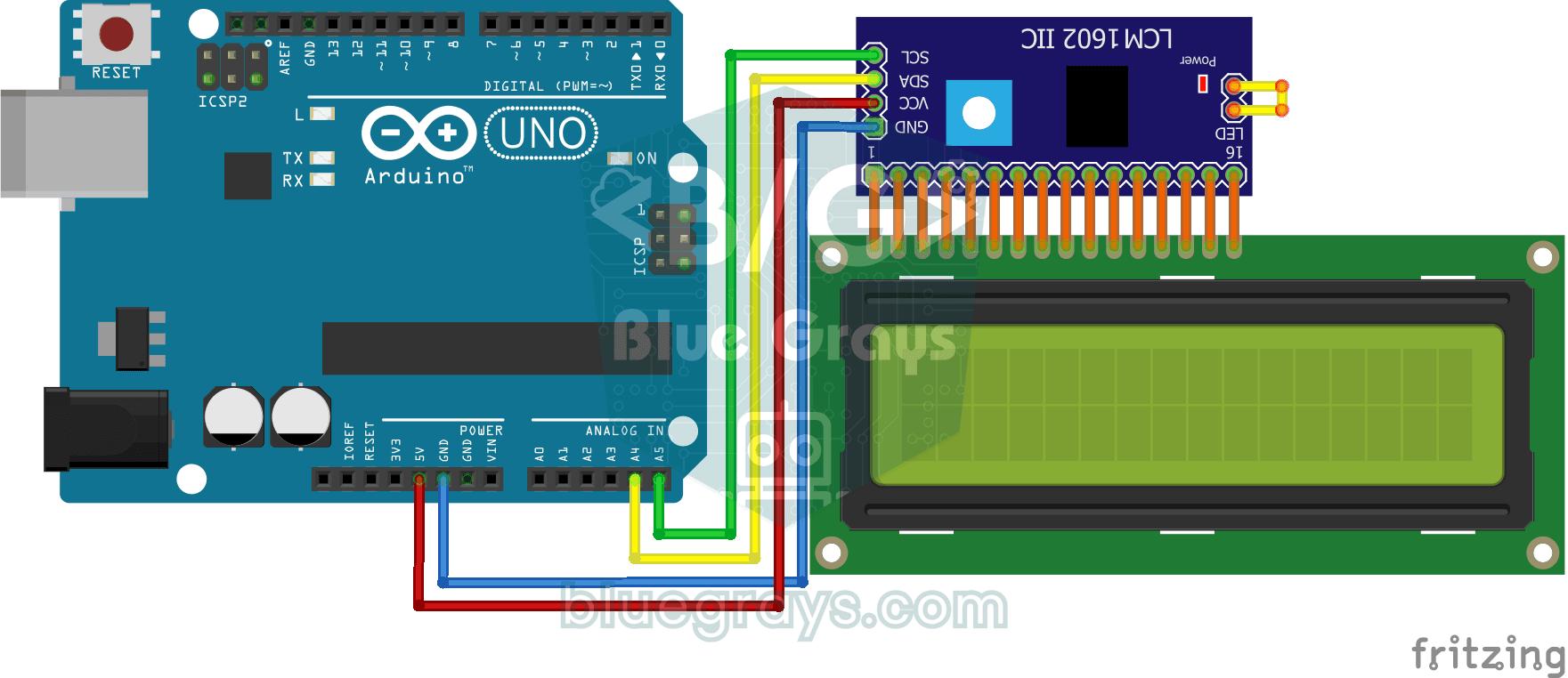
Using LCD Screen with I2C
Give your Arduino its own screen and make it write its first message. The two-line LCD screen hooks up with just a few wires; a greeting appears on the top line, then a second message on the bottom li

Paddle Ball Game - SSD1306
A ball, two paddles and you: you play table tennis, one of the very first video games, on a small OLED screen. Two buttons move your paddle on the right up and down, while the computer controls the le