
Arduino Radar Project: HC-SR04, SG90 Servo and Processing Guide
Arduino radar project step by step: HC-SR04 and SG90 servo wiring, angle and distance code, a green Processing radar screen, OLED mini radar and common fixes.
An Arduino radar is a project that mounts an HC-SR04 ultrasonic distance sensor on an SG90 servo motor, sweeps it between 0 and 180 degrees to measure both the direction and the distance of nearby objects, and shows the result on your computer as a green, movie-style radar screen. At every angle the Arduino takes a reading and sends an "angle,distance" line over the serial port; a small Processing program running on the computer reads those numbers and draws the rotating sweep line and the detected objects as red lines.
In this guide you'll find every step explained, from the parts list and wiring diagram to the Arduino code and the Processing radar screen. We also cover a mini radar on an OLED display that needs no computer, ESP32 and Raspberry Pi Pico versions, how to tune the sweep speed and measurement accuracy, and how to fix the most common serial port errors. It's cheap, can be finished in an afternoon and is one of the Arduino projects that draws the most attention at school presentations.
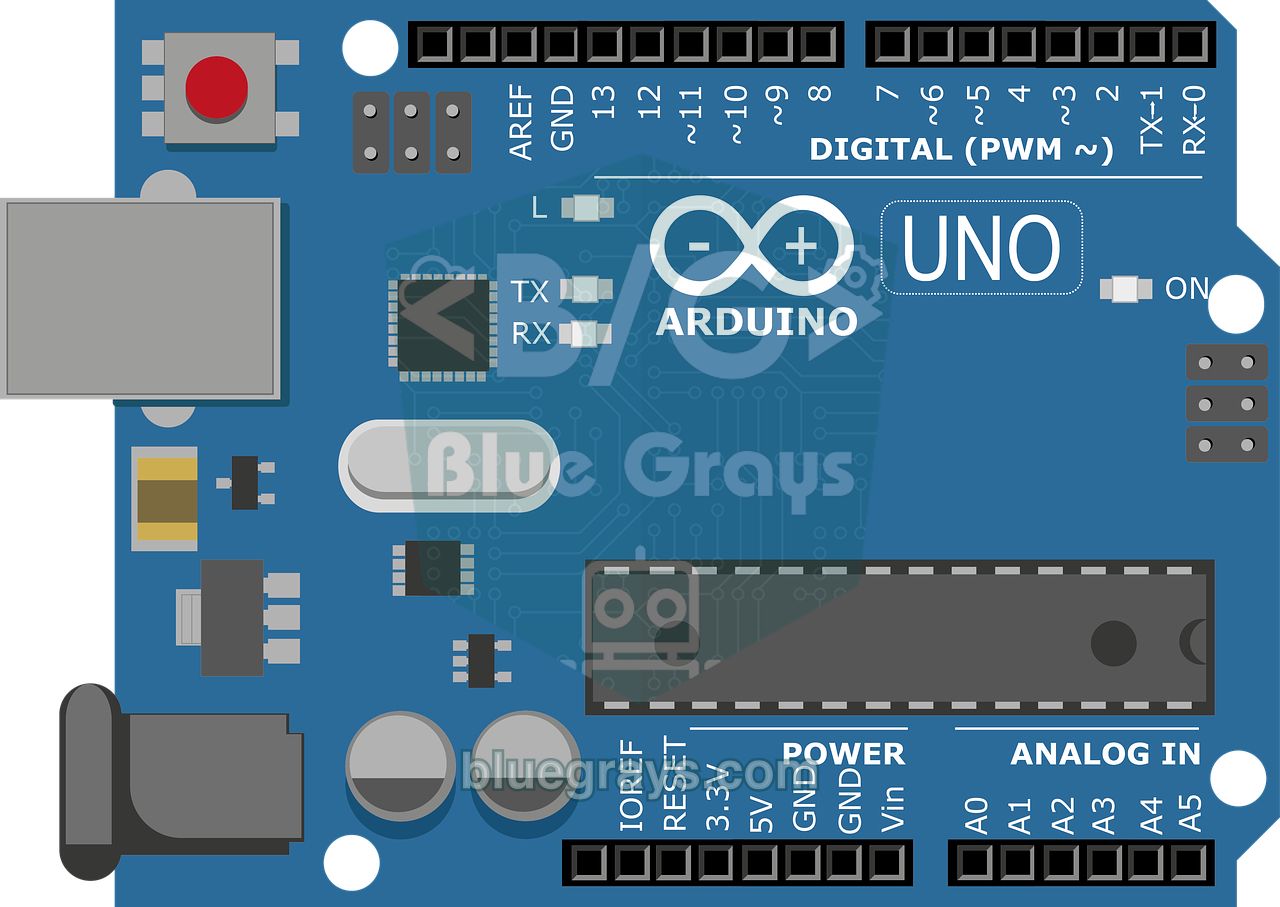
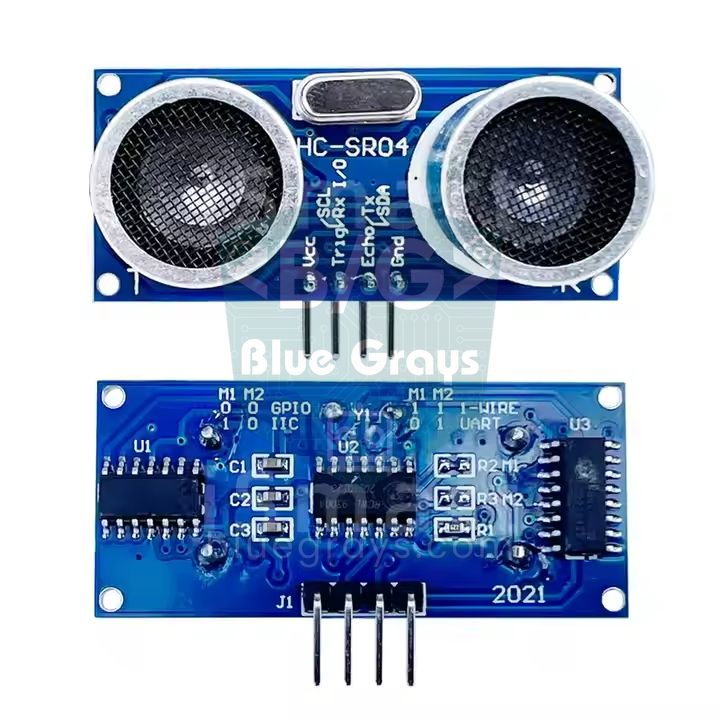
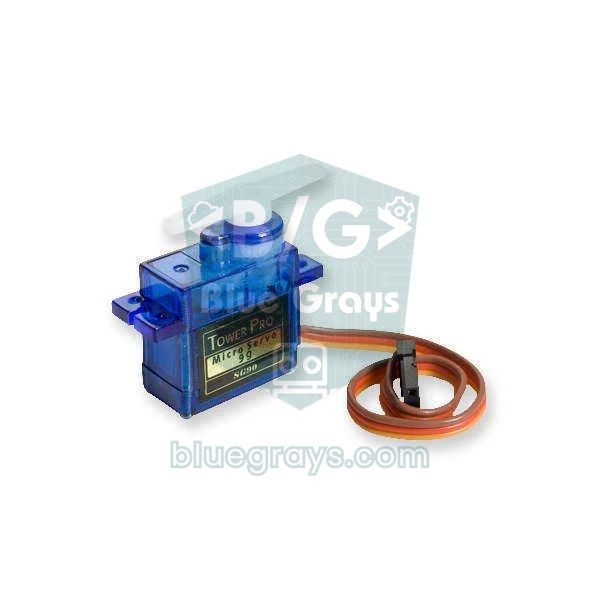
How does an Arduino radar work?
The heart of the system is the HC-SR04. One of the two cylinders on the sensor (T) sends a short 40 kHz burst of sound that humans can't hear; when the sound hits an object and bounces back, the other one (R) picks up the echo. The Arduino measures this round-trip time in microseconds. Sound travels through air at about 343 m/s, so it needs about 29 microseconds to cover one centimetre; because the path is travelled twice, out and back, the formula becomes distance (cm) = time (µs) / 58. The servo turns the sensor step by step and the measurement is repeated at each step. The result is "something at this angle, this many centimetres away", which is a polar coordinate. To draw it on screen, angle and distance are converted to a pixel position with x = distance × cos(angle) and y = distance × sin(angle).
| Part | Job | Key values |
|---|---|---|
| HC-SR04 | Ultrasonic distance measurement | 40 kHz, 2–400 cm, about 15° measuring angle, 5 V, 15 mA |
| SG90 servo | Turns the sensor 0–180° | 0.1 s/60° (4.8 V), 1.8 kg·cm torque, 4.8–6 V, 9 g |
| Arduino Uno | Measures, drives the servo, sends the data | 16 MHz, 5 V logic level, USB serial port |
| Processing | Draws the radar screen on the computer | Free, Java-based, Serial library included |
| OLED SSD1306 (optional) | Mini radar screen without a computer | 128×64 pixels, I2C, address 0x3C |
Arduino radar parts list
- Arduino Uno or Nano and a USB cable that carries data (charge-only cables don't show up as a port on the computer).
- HC-SR04 ultrasonic distance sensor.
- SG90 micro servo and the plastic horns that come in its bag.
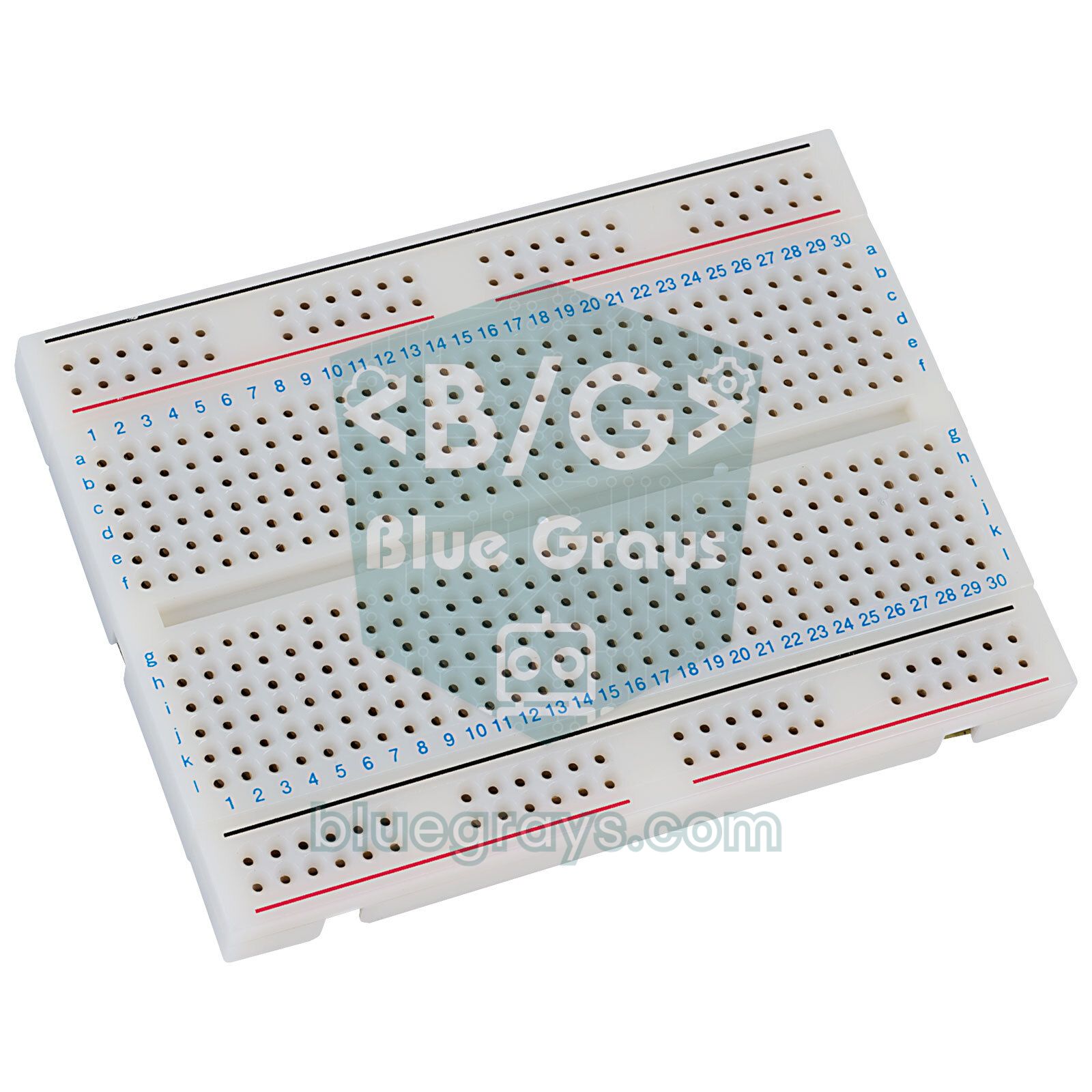
- A breadboard and 8–10 male-to-male and male-to-female jumper wires.
- A 470 µF (at least 10 V) electrolytic capacitor: it stops the supply voltage from sagging when the servo moves.
- Double-sided tape, hot glue or a small 3D-printed bracket to fix the sensor to the servo.
- Optional: a 0.96-inch I2C OLED display (for the computer-free version) and an external 5 V 2 A adapter.
Arduino radar wiring diagram
| Connection | Arduino Uno | ESP32 | Raspberry Pi Pico |
|---|---|---|---|
| HC-SR04 VCC | 5V | VIN (5 V) | VBUS (pin 40) |
| HC-SR04 GND | GND | GND | GND |
| HC-SR04 Trig | D10 | GPIO 26 | GP14 |
| HC-SR04 Echo | D11 | GPIO 27 (via divider) | GP13 (via divider) |
| SG90 brown (GND) | GND | GND | GND |
| SG90 red (+5 V) | 5V | VIN (5 V) | VBUS (pin 40) |
| SG90 orange (signal) | D9 | GPIO 13 | GP15 |
On the Uno, wiring is tidier if you connect the 5 V and GND leads of the sensor and the servo to the breadboard's plus and minus rails, and those rails to the Arduino's 5V and GND pins. Plug the 470 µF capacitor into the same rails with the long leg (+) on 5 V and the short leg, marked by the stripe on its body, on GND. On some servos the wires are black, red and white; in that case black is GND and white is the signal. To double-check where the pins are on your board, use the pinout tool.
Mounting the sensor on the servo
Before fitting the horn, set the servo to 90 degrees: just upload a short test sketch containing radarServo.write(90) and leave the servo in that position. Then attach the horn so the sensor faces straight ahead. That way 0° points right, 90° straight ahead and 180° left, and the directions on the Processing screen match the real world exactly. When you stick the HC-SR04 to the horn with double-sided tape or hot glue, make sure the two cylinders are parallel to the ground; if the sensor tilts downwards, it will mistake the table surface for an object. Leave the wires enough slack so they aren't pulled tight during the 180-degree turn, and fix the servo to a heavy base or a box; a body that shakes at every step ruins the readings.
Building the Arduino radar step by step
- Wire up the parts according to the table above, don't forget the capacitor, and mount the sensor on the servo.
- Open the Arduino IDE; the Servo library comes with the IDE, so there's nothing extra to install.
- Upload the radar code below. If you have trouble choosing the board or port, see Arduino code won't upload.
- Open the Serial Monitor at 9600 baud; if angle and distance lines such as "30,45" are scrolling by, the Arduino side is ready. Then be sure to close the Serial Monitor.
- Install Processing 4 on your computer, open a new sketch and paste in the radar screen code.
- Press Run; the port list appears in the console at the bottom and the radar window opens. When you move your hand in front of the sensor, red lines should appear.
Arduino radar code
1#include <Servo.h>
2
3const byte SERVO_PIN  = 9;     // SG90 turuncu kablo / SG90 orange wire
4const byte TRIG_PIN   = 10;    // HC-SR04 Trig
5const byte ECHO_PIN   = 11;    // HC-SR04 Echo
6const int  MIN_ANGLE  = 0;     // tarama başlangıcı / sweep start
7const int  MAX_ANGLE  = 180;   // tarama sonu / sweep end
8const int  STEP       = 2;     // adım başına derece / degrees per step
9const int  STEP_DELAY = 40;    // ölçümden önce bekleme (ms) / wait before measuring (ms)
10
11Servo radarServo;
12int angle = MIN_ANGLE;
13int dir = STEP;
14
15int measureCm() {
16  digitalWrite(TRIG_PIN, LOW);
17  delayMicroseconds(2);
18  digitalWrite(TRIG_PIN, HIGH);                         // 10 µs tetik darbesi / 10 µs trigger pulse
19  delayMicroseconds(10);
20  digitalWrite(TRIG_PIN, LOW);
21  unsigned long us = pulseIn(ECHO_PIN, HIGH, 30000UL);  // en çok 30 ms bekle / wait at most 30 ms
22  if (us == 0) return 0;                                // yankı yok = menzil dışı / no echo = out of range
23  return us / 58;                                       // gidiş-dönüş süresi → cm / round-trip time → cm
24}
25
26void setup() {
27  Serial.begin(9600);
28  pinMode(TRIG_PIN, OUTPUT);
29  pinMode(ECHO_PIN, INPUT);
30  radarServo.attach(SERVO_PIN);
31  radarServo.write(angle);
32  delay(500);                                           // başlangıç konumuna gitsin / reach the start position
33}
34
35void loop() {
36  radarServo.write(angle);                              // servoyu yeni açıya döndür / move the servo to the new angle
37  delay(STEP_DELAY);                                    // titreşim geçsin / let the vibration settle
38  int distance = measureCm();
39
40  Serial.print(angle);                                  // biçim: açı,mesafe / format: angle,distance
41  Serial.print(',');
42  Serial.println(distance);
43
44  if (angle + dir > MAX_ANGLE || angle + dir < MIN_ANGLE) dir = -dir;  // uçta yön değiştir / reverse at the ends
45  angle += dir;
46}
How the code works
| Code section | What it does |
|---|---|
| STEP and STEP_DELAY | Set how many degrees the servo turns per step and how long to wait before measuring; you tune the sweep speed with these two constants. |
| measureCm() | Sends a 10 µs pulse to the Trig pin, uses pulseIn to measure how long the Echo pin stays HIGH and divides by 58 to get centimetres. |
| pulseIn(..., 30000UL) | Waits at most 30 ms and returns 0 if no echo arrives. Without this timeout, the function could hang for up to 1 second while pointing at empty space. |
| radarServo.write(angle) | Moves the servo to the requested angle; the library turns the 0–180 value into a 544–2400 µs pulse. |
| Serial.print ... println | Sends each reading as a single "angle,distance" line; the line ending tells Processing "data complete". |
| dir = -dir | Reverses the direction when the angle reaches 180 or 0, so the servo sweeps back and forth non-stop. |
There's a reason the data is kept this simple: a single comma-separated line is easy to read in the Serial Monitor and can be parsed with one line of code in Processing, Python or Excel. A distance of 0 means "nothing within range at this angle", and Processing doesn't draw those values. If you open the same data in the Arduino IDE's Serial Plotter, you'll see the angle rise and fall like a sawtooth and the distance jump whenever the sensor passes an object. Using delay is fine for this project; if you want to read a button or light an LED while the radar is running, rewrite the loop with millis().
The green radar screen in Processing
Processing is a free, Java-based program made for visual programming, and its interface is very similar to the Arduino IDE: you write the code and press Run. The Serial library needed for serial communication ships with Processing; you can add it from the Sketch > Import Library menu, or simply rely on the import line at the top of the code. The code below goes into Processing, not into the Arduino IDE.
1// Processing 4 çizimi: Arduino IDE'ye değil, Processing'e yapıştır / Processing 4 sketch: paste into Processing, not the Arduino IDE
2import processing.serial.*;                       // Serial kütüphanesi / Serial library
3
4Serial port;
5int angle = 0;                                    // son açı / last angle
6int distance = 0;                                 // son mesafe (cm) / last distance (cm)
7final int MAX_CM = 100;                           // ekrandaki en uzak mesafe / farthest distance on screen
8float R;                                          // radar yarıçapı (piksel) / radar radius (pixels)
9
10void setup() {
11  size(1200, 700);
12  R = width * 0.45;
13  printArray(Serial.list());                      // portları konsola yaz / print the ports to the console
14  String portName = Serial.list()[0];             // gerekirse [1] ya da "COM4" yaz / use [1] or "COM4" if needed
15  port = new Serial(this, portName, 9600);        // Arduino ile aynı baud / same baud as the Arduino
16  port.bufferUntil('\n');                         // satır sonunu bekle / wait for the end of a line
17  background(0);
18}
19
20void draw() {
21  noStroke();
22  fill(0, 12);                                    // yarı saydam siyah: solan iz / translucent black: fading trail
23  rect(0, 0, width, height);
24  translate(width / 2, height - 60);              // radar merkezi alt ortada / radar centre at the bottom middle
25  drawGrid();
26  drawSweep();
27  drawObject();
28  drawLabels();
29}
30
31void drawGrid() {
32  noFill();
33  strokeWeight(2);
34  stroke(98, 245, 31);
35  for (int i = 1; i <= 4; i++) {
36    float d = 2 * R * i / 4;
37    arc(0, 0, d, d, PI, TWO_PI);                  // 25-50-75-100 cm yayları / 25-50-75-100 cm arcs
38  }
39  for (int a = 0; a <= 180; a += 30) {
40    line(0, 0, R * cos(radians(a)), -R * sin(radians(a)));   // 30 derecelik çizgiler / 30-degree lines
41  }
42}
43
44void drawSweep() {
45  strokeWeight(5);
46  stroke(30, 250, 60);
47  line(0, 0, R * cos(radians(angle)), -R * sin(radians(angle)));   // tarama çizgisi / sweep line
48}
49
50void drawObject() {
51  if (distance <= 0 || distance > MAX_CM) return;  // menzil dışı / out of range
52  float p = R * distance / MAX_CM;                 // cm → piksel / cm → pixels
53  float c = cos(radians(angle));
54  float s = sin(radians(angle));
55  strokeWeight(7);
56  stroke(255, 10, 10);
57  line(p * c, -p * s, R * c, -R * s);              // nesneden dışa kırmızı çizgi / red line from the object outwards
58}
59
60void drawLabels() {
61  resetMatrix();
62  noStroke();
63  fill(0);
64  rect(0, height - 40, width, 40);                 // yazı şeridi / text strip
65  fill(98, 245, 31);
66  textSize(20);
67  for (int i = 1; i <= 4; i++) {
68    text(MAX_CM * i / 4 + " cm", width / 2 + R * i / 4 + 4, height - 66);   // yay etiketleri / arc labels
69  }
70  String d = (distance > 0 && distance <= MAX_CM) ? distance + " cm" : "-";
71  text("Açı / Angle: " + angle + "°", 40, height - 12);
72  text("Mesafe / Distance: " + d, width / 2, height - 12);
73}
74
75void serialEvent(Serial p) {
76  String msg = p.readStringUntil('\n');            // "açı,mesafe" satırı / "angle,distance" line
77  if (msg == null) return;
78  String[] parts = split(trim(msg), ',');
79  if (parts.length == 2) {
80    angle = int(parts[0]);
81    distance = int(parts[1]);
82  }
83}
The most important part of the code is the serialEvent() function. Thanks to bufferUntil('\n'), Processing collects incoming data until a line ending arrives and then calls this function automatically with a complete line. The line is cleaned of spaces and the \r character with trim(), split in two at the comma with split() and converted to numbers with int(). draw(), meanwhile, runs about 60 times a second: first it paints a translucent black rectangle over the screen (fill(0, 12)), then it redraws the grid, the sweep line and the object. Because old lines get a little darker with every frame, the fading trail you see on real radar screens appears by itself.
| Setting | Where? | What it does |
|---|---|---|
| MAX_CM = 100 | Processing | The farthest distance the screen covers; the outer arc is 100 cm and the inner arcs show 25, 50 and 75 cm. |
| Serial.list()[0] | Processing | Picks the first serial port on the computer; if your Arduino is further down the list, change the index or type the name directly, such as "COM4". |
| 9600 | Both | Baud rate; the value in the Arduino's Serial.begin and in Processing must match. |
| fill(0, 12) | Processing | Fade speed; 5 gives a long trail, 30 an almost trail-free image. |
| size(1200, 700) | Processing | Window size; shrink it if it doesn't fit your screen. The radius follows the width, so keep the height above half the width. |
Adjusting servo speed and sweep time
According to its datasheet, the SG90 turns 60 degrees in 0.1 seconds at 4.8 V, so it finishes a 2-degree step in a few milliseconds. What really sets the sweep time isn't the servo but the wait and measurement time at each step. After the servo stops, the horn and sensor wobble briefly; measuring during that moment makes the distances jump. The HC-SR04 maker also recommends leaving about 60 ms between two measurements, because echoes of the previous pulse bouncing around the room can leak into the next reading. In practice a total of 50–60 ms per step (wait + measurement) is a good balance. A full sweep takes roughly (180 / step + 1) × step time.
| Step | STEP_DELAY | One sweep (0→180°) | Result |
|---|---|---|---|
| 1° | 20 ms | about 7 s | Smoothest image but slow; the same object is measured many times. |
| 2° | 40 ms | about 5 s | Recommended setting: smooth and stable. |
| 3° | 50 ms | about 4 s | Faster; thanks to the sensor's 15° beam, no object is missed. |
| 5° | 70 ms | about 3.5 s | The screen looks choppy; bigger steps cause more wobble, so the wait must be longer. |
To smooth the motion, keep the step small and the wait short; if you want speed, increase the step and lengthen the wait a little. Limiting the sweep to the area you care about (for example 45–135°) also halves the time. If the servo twitches on its own, the Arduino restarts now and then and Processing loses the connection, the problem isn't speed but power: the SG90 can draw around 100–250 mA while moving and up to 600 mA under load. Add the capacitor and, if needed, power the servo from an external 5 V supply that shares GND with the Arduino.
Improving measurement accuracy
Although the HC-SR04 promises 3 mm resolution on paper, three things decide the accuracy of a radar: beam width, speed of sound and surface type. The sensor's sound beam spreads out like a cone of about 15 degrees. That's why a thin pen 50 cm away appears on screen not as a dot but as an arc 15–20 degrees wide; the radar's angular resolution is set by this beam, not by the servo step, and the object's real direction is the middle of the arc. The speed of sound changes with temperature and is calculated with v = 331.3 + 0.606 × T (m/s, T in °C). The number 58 in the code corresponds to about 22 °C; in a cold garage the readings come out a few percent too long.
| Temperature | Speed of sound | Round trip per 1 cm | Object at 100 cm (with /58) |
|---|---|---|---|
| 0 °C | 331.3 m/s | 60.4 µs | about 104 cm |
| 10 °C | 337.4 m/s | 59.3 µs | about 102 cm |
| 20 °C | 343.4 m/s | 58.2 µs | about 100 cm |
| 30 °C | 349.5 m/s | 57.2 µs | about 99 cm |
| 40 °C | 355.5 m/s | 56.3 µs | about 97 cm |
You can measure the room temperature with a DHT11 or DS18B20 and take the speed of sound into account, and you can throw out one-off bad readings by taking the median of three. Just add the two functions below to the main code and replace the measureCm() call in loop() with one of them. Because the median filter takes three readings per step, it slows the sweep down a little.
1// Ana radar koduna eklenecek fonksiyonlar / functions to add to the main radar sketch
2
3// Sıcaklığa göre düzeltilmiş ölçüm / temperature-compensated reading
4int measureCmTemp(float tempC) {
5  digitalWrite(TRIG_PIN, LOW);
6  delayMicroseconds(2);
7  digitalWrite(TRIG_PIN, HIGH);
8  delayMicroseconds(10);
9  digitalWrite(TRIG_PIN, LOW);
10  unsigned long us = pulseIn(ECHO_PIN, HIGH, 30000UL);
11  if (us == 0) return 0;                                // yankı yok / no echo
12  float v = 331.3 + 0.606 * tempC;                      // ses hızı (m/s) / speed of sound (m/s)
13  return (int)(us * v / 20000.0 + 0.5);                 // µs × (m/s) / 20000 = cm
14}
15
16// Üç ölçümün ortancası: tek seferlik sıçramaları atar / median of three: drops one-off spikes
17int medianCm() {
18  int a = measureCm(); delay(20);
19  int b = measureCm(); delay(20);
20  int c = measureCm();
21  return max(min(a, b), min(max(a, b), c));
22}
23
24// loop() içinde kullanım / use inside loop():
25// int distance = medianCm();
26// int distance = measureCmTemp(18.5); // sıcaklık DHT11'den gelebilir / temperature can come from a DHT11- Soft surfaces (curtains, fabric, foam) absorb sound; an object may not show up where it is.
- Angled surfaces reflect sound elsewhere; a flat box turned more than 45° away from the sensor can read as empty space.
- Objects closer than 2 cm can't be measured; in practice treat anything under 3–4 cm as unreliable.
- Room corners cause multiple reflections and can create distant "ghosts" that aren't really there; test in an empty, open area.
- Range: the datasheet says 400 cm, but stable readings on small objects usually reach about 2 metres; choose MAX_CM accordingly.
Mini radar on an OLED display (no computer)
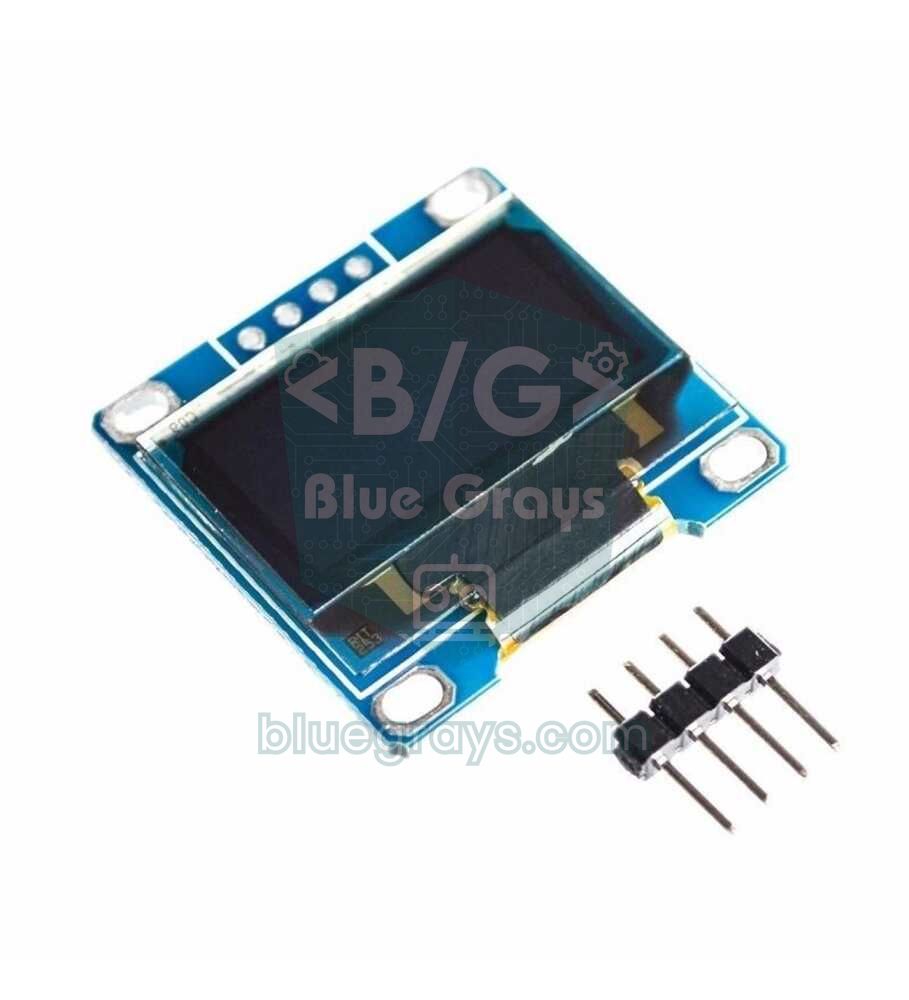
If you want the radar to be a portable, battery-powered device that doesn't need a computer, you can use a 0.96-inch OLED display instead of Processing. The bottom centre of the 128×64 SSD1306 screen becomes the centre of the radar; a semicircle with a 60-pixel radius, the sweep line and dots showing the last object measured at each angle are drawn on it. For the display wiring (SDA → A4, SCL → A5) and library installation, see the SSD1306 OLED display guide; the HC-SR04 and the servo are wired the same as above.
1#include <Wire.h>
2#include <Adafruit_GFX.h>
3#include <Adafruit_SSD1306.h>
4#include <Servo.h>
5
6const byte SERVO_PIN = 9;                 // SG90 sinyal / SG90 signal
7const byte TRIG_PIN  = 10;                // HC-SR04 Trig
8const byte ECHO_PIN  = 11;                // HC-SR04 Echo
9const int  MAX_CM    = 50;                // ekrandaki en uzak mesafe / farthest distance on screen
10const int  STEP      = 3;                 // adım başına derece / degrees per step
11const int  CX = 64, CY = 63, R = 60;      // radar merkezi ve yarıçapı (piksel) / radar centre and radius (px)
12
13Adafruit_SSD1306 display(128, 64, &Wire, -1);
14Servo radarServo;
15uint8_t dist[180 / STEP + 1];             // her açının son ölçümü (cm) / last reading per angle (cm)
16int angle = 0;
17int dir = STEP;
18
19int measureCm() {
20  digitalWrite(TRIG_PIN, LOW);
21  delayMicroseconds(2);
22  digitalWrite(TRIG_PIN, HIGH);
23  delayMicroseconds(10);
24  digitalWrite(TRIG_PIN, LOW);
25  unsigned long us = pulseIn(ECHO_PIN, HIGH, 30000UL);
26  if (us == 0) return 0;                  // yankı yok / no echo
27  return us / 58;
28}
29
30void setup() {
31  pinMode(TRIG_PIN, OUTPUT);
32  pinMode(ECHO_PIN, INPUT);
33  radarServo.attach(SERVO_PIN);
34  if (!display.begin(SSD1306_SWITCHCAPVCC, 0x3C)) {
35    for (;;);                             // ekran bulunamadı / display not found
36  }
37  display.setTextColor(SSD1306_WHITE);
38}
39
40void loop() {
41  radarServo.write(angle);
42  delay(20);                              // çizim de zaman aldığı için kısa / short, drawing takes time too
43  int d = measureCm();
44  dist[angle / STEP] = (d > 255) ? 255 : d;   // byte'a sığdır / fit into a byte
45
46  display.clearDisplay();
47  display.drawCircle(CX, CY, R, SSD1306_WHITE);       // dış yay, alt yarısı ekran dışında / outer arc, lower half off-screen
48  display.drawCircle(CX, CY, R / 2, SSD1306_WHITE);   // orta yay = MAX_CM / 2 / middle arc = MAX_CM / 2
49  for (int i = 0; i <= 180 / STEP; i++) {
50    if (dist[i] > 0 && dist[i] <= MAX_CM) {
51      float rad = radians(i * STEP);
52      int r = map(dist[i], 0, MAX_CM, 0, R);          // cm → piksel / cm → pixels
53      display.fillCircle(CX + r * cos(rad), CY - r * sin(rad), 1, SSD1306_WHITE);
54    }
55  }
56  float rad = radians(angle);
57  display.drawLine(CX, CY, CX + R * cos(rad), CY - R * sin(rad), SSD1306_WHITE);  // tarama çizgisi / sweep line
58  display.setCursor(0, 0);
59  display.print(angle);                   // açı / angle
60  display.setCursor(98, 0);
61  display.print(d);                       // mesafe / distance
62  display.print(F("cm"));
63  display.display();
64
65  if (angle + dir > 180 || angle + dir < 0) dir = -dir;   // uçta yön değiştir / reverse at the ends
66  angle += dir;
67}
In this version the distances are stored by angle in the dist array, so the dots stay on screen after the sweep line has passed and are updated on the next pass. The circle's centre sits on the bottom edge of the screen, so its lower half falls outside the display and the library doesn't draw it, leaving a neat semicircle. Sending one frame to the screen takes about 25 ms at 400 kHz I2C, so the wait was cut to 20 ms and the step raised to 3 degrees; a sweep takes about 4–5 seconds. A 50 cm scale is easier to read on a small screen, so MAX_CM is set to 50. Half of the Uno's 2 KB of memory goes to the display buffer, which is why it matters to keep the array as bytes (uint8_t).
Arduino radar with the ESP32
The Arduino Servo library doesn't work on the ESP32; install the ESP32Servo library from the Library Manager instead. The rest of the code is almost the same. Because the ESP32 runs at 3.3 V, don't forget the voltage divider on the HC-SR04's Echo line; the 3.3 V pulse on the Trig line, on the other hand, is enough to trigger most sensors. This code uses 115200 baud, so change the 9600 in the Processing code to 115200 as well. Thanks to the ESP32's Wi-Fi, you could later send the radar data to a web page on your phone instead of a computer; if you're new to the ESP32, start with What is the ESP32.
1#include <ESP32Servo.h>                // Kütüphane Yöneticisi: ESP32Servo / Library Manager: ESP32Servo
2
3const int SERVO_PIN  = 13;             // SG90 sinyal / SG90 signal
4const int TRIG_PIN   = 26;             // HC-SR04 Trig
5const int ECHO_PIN   = 27;             // 1k/2k bölücüden / through the 1k/2k divider
6const int STEP       = 2;              // adım başına derece / degrees per step
7const int STEP_DELAY = 40;             // ölçümden önce bekleme (ms) / wait before measuring (ms)
8
9Servo radarServo;
10int angle = 0;
11int dir = STEP;
12
13int measureCm() {
14  digitalWrite(TRIG_PIN, LOW);
15  delayMicroseconds(2);
16  digitalWrite(TRIG_PIN, HIGH);
17  delayMicroseconds(10);
18  digitalWrite(TRIG_PIN, LOW);
19  unsigned long us = pulseIn(ECHO_PIN, HIGH, 30000UL);
20  if (us == 0) return 0;               // yankı yok / no echo
21  return us / 58;
22}
23
24void setup() {
25  Serial.begin(115200);                       // Processing'de de 115200 / 115200 in Processing too
26  pinMode(TRIG_PIN, OUTPUT);
27  pinMode(ECHO_PIN, INPUT);
28  radarServo.setPeriodHertz(50);              // standart servo 50 Hz / standard servo 50 Hz
29  radarServo.attach(SERVO_PIN, 500, 2400);    // SG90 darbe aralığı (µs) / SG90 pulse range (µs)
30  radarServo.write(angle);
31  delay(500);
32}
33
34void loop() {
35  radarServo.write(angle);
36  delay(STEP_DELAY);
37  int distance = measureCm();
38  Serial.printf("%d,%d\n", angle, distance);  // açı,mesafe / angle,distance
39  if (angle + dir > 180 || angle + dir < 0) dir = -dir;   // uçta yön değiştir / reverse at the ends
40  angle += dir;
41}
Radar with the Raspberry Pi Pico and MicroPython
On the Pico you don't need a separate servo library: setting the pulse width of a 50 Hz PWM signal with duty_ns() is enough. The echo time is measured with machine.time_pulse_us(), which returns a negative number on timeout. The Pico's pins are 3.3 V too, so the divider on the Echo line is a must. Save the code to the Pico as main.py with Thonny, then close Thonny; otherwise the port stays busy and Processing can't connect. Because the Pico opens a virtual serial port over USB, the baud value in Processing doesn't matter; the same radar screen works without any changes.
1from machine import Pin, PWM, time_pulse_us
2import time
3
4servo = PWM(Pin(15))                     # SG90 sinyal / SG90 signal
5servo.freq(50)                           # standart servo 50 Hz / standard servo 50 Hz
6trig = Pin(14, Pin.OUT)
7echo = Pin(13, Pin.IN)                   # bölücüden gelir / comes through the divider
8
9def set_angle(a):
10    # 0° = 500 µs, 180° = 2400 µs darbe / pulse
11    servo.duty_ns(500000 + a * 1900000 // 180)
12
13def measure_cm():
14    trig.value(0)
15    time.sleep_us(2)
16    trig.value(1)                        # 10 µs tetik / 10 µs trigger
17    time.sleep_us(10)
18    trig.value(0)
19    t = time_pulse_us(echo, 1, 30000)    # en çok 30 ms bekle / wait at most 30 ms
20    if t < 0:
21        return 0                         # yankı yok / no echo
22    return t // 58
23
24angle, step = 0, 2
25set_angle(angle)
26time.sleep_ms(500)
27
28while True:
29    set_angle(angle)
30    time.sleep_ms(40)                    # servo otursun / let the servo settle
31    print("{},{}".format(angle, measure_cm()))   # açı,mesafe / angle,distance
32    if angle + step > 180 or angle + step < 0:
33        step = -step                     # uçta yön değiştir / reverse at the ends
34    angle += step
Common mistakes and fixes
| Symptom or error message | Cause | Fix |
|---|---|---|
| Error opening serial port COM3: Port busy | The Arduino IDE's Serial Monitor or Serial Plotter, Thonny or a second Processing window is holding the port. | Close the Serial Monitor and the other programs and run the Processing sketch again; if needed, unplug and replug the USB cable. |
| ArrayIndexOutOfBoundsException: Index 0 out of bounds for length 0 | Serial.list() is empty: the board isn't connected, the cable is charge-only or the CH340 driver isn't installed. | Use a data cable and install the driver; if the Arduino IDE sees the port, Processing will too. |
| The window opens but the sweep line doesn't move | The wrong port is selected (on Windows, COM1 is often first in the list) or the baud rates differ. | Find the Arduino's position in the console list, change it to Serial.list()[1] or similar, and use the same baud rate on both sides. |
| The package “processing.serial” does not exist. You might be missing a library. | The Serial library can't be found; the Processing 4.4.8 installer shipped without it. | Update Processing to a newer version or use 4.4.7, and check that the import line is typed correctly. |
| Error opening serial port /dev/ttyACM0: Permission denied | On Linux your user isn't allowed to access the serial port. | Add your user to the dialout group (sudo usermod -a -G dialout $USER), then log out and back in. |
| Code won't upload to the Arduino while Processing is open | The port is being used by Processing. | Stop the Processing sketch with the Stop button before uploading. |
| Distance is always 0 or nonsense | Trig and Echo are swapped, the sensor has no power or the object is out of range. | Check the wiring against the table and test first with a simple sketch that only measures distance. |
| The servo jitters and the Arduino resets itself | The USB port can't supply the servo's current and the voltage drops. | Add a 470 µF capacitor or power the servo from an external 5 V supply with a shared GND. |
| Left and right are swapped on the radar screen | The servo or the sensor is mounted the other way round. | In Processing write angle = 180 - int(parts[0]); or take the horn off and refit it turned round. |
Ideas for taking the radar project further
- Security radar with an alarm: when an object comes closer than 30 cm, sound a buzzer and light a red LED; combine it with the ideas in Arduino alarm system.
- Obstacle-avoiding robot: put the radar at the front of a robot; when the robot stops, it scans left and right and turns towards the clearest direction. Details in obstacle-avoiding robot.
- Room map: save the sweep data to an SD card module and plot it as a point cloud on the computer.
- Wireless radar: send the readings from an ESP32 over Wi-Fi to a web page on your phone; with an ESP32 web server you can draw in real time.
- Sharper map: use a narrow-beam laser (ToF) sensor instead of the HC-SR04; you'll find the options in the distance sensor comparison.
- Smart cane: build a cane that warns visually impaired people about obstacles using a distance sensor and a vibration motor: smart cane project.
Because it combines a distance sensor, servo control, serial communication and drawing graphics on a computer in a single build, the Arduino radar project is a great next step for beginners. To strengthen the basics, have a look at the HC-SR04 distance sensor and servo motor guides too. In the BlueGrays app you'll find step-by-step projects for distance measurement with the HC-SR04, a parking sensor, using a servo motor and an obstacle-avoiding robot, each with circuit diagrams and annotated code.
Frequently asked questions
Is an Arduino radar a real radar?
Technically no, it's a sonar. Real radars send radio waves, while this project uses 40 kHz sound waves from the HC-SR04. It's known as an "Arduino radar" because the working principle is the same (send a wave, time the echo, draw it with its direction) and the display looks like a radar screen.
How far can an Arduino radar detect?
The HC-SR04's datasheet range is 2–400 cm. Large flat surfaces such as walls can be measured up to 3–4 metres, but for objects like chair legs or people the reliable range is usually 1.5–2 metres. Setting MAX_CM in the Processing code to match this range gives the clearest picture.
What do I need to build an Arduino radar?
An Arduino Uno or Nano, an HC-SR04 ultrasonic sensor, an SG90 servo, a breadboard, a few jumper wires and a 470 µF capacitor for the servo are enough. The free Processing program draws the radar screen on your computer; for a computer-free version you add a 0.96-inch OLED display.
Can you make an Arduino radar without Processing?
Yes. With an SSD1306 OLED display you can draw the radar directly on the Arduino and turn it into a portable, battery-powered device. Even without a display, you can watch the angle and distance values as a graph in the Arduino IDE's Serial Plotter.
How do I fix the "Port busy" error in Processing?
This error means another program is using the serial port. Close the Serial Monitor and Serial Plotter in the Arduino IDE, Thonny or any other Processing sketch left open, and try again. If it persists, unplug the USB cable and plug it back in.
Why does the servo jitter and the Arduino reset?
The SG90 draws short bursts of high current when it moves, and the 5 V line of a USB-powered Arduino dips for a moment. A 470 µF capacitor across the servo supply usually solves it; if not, power the servo from an external 5 V supply that shares GND with the Arduino.
Projects to build after reading this
See all projects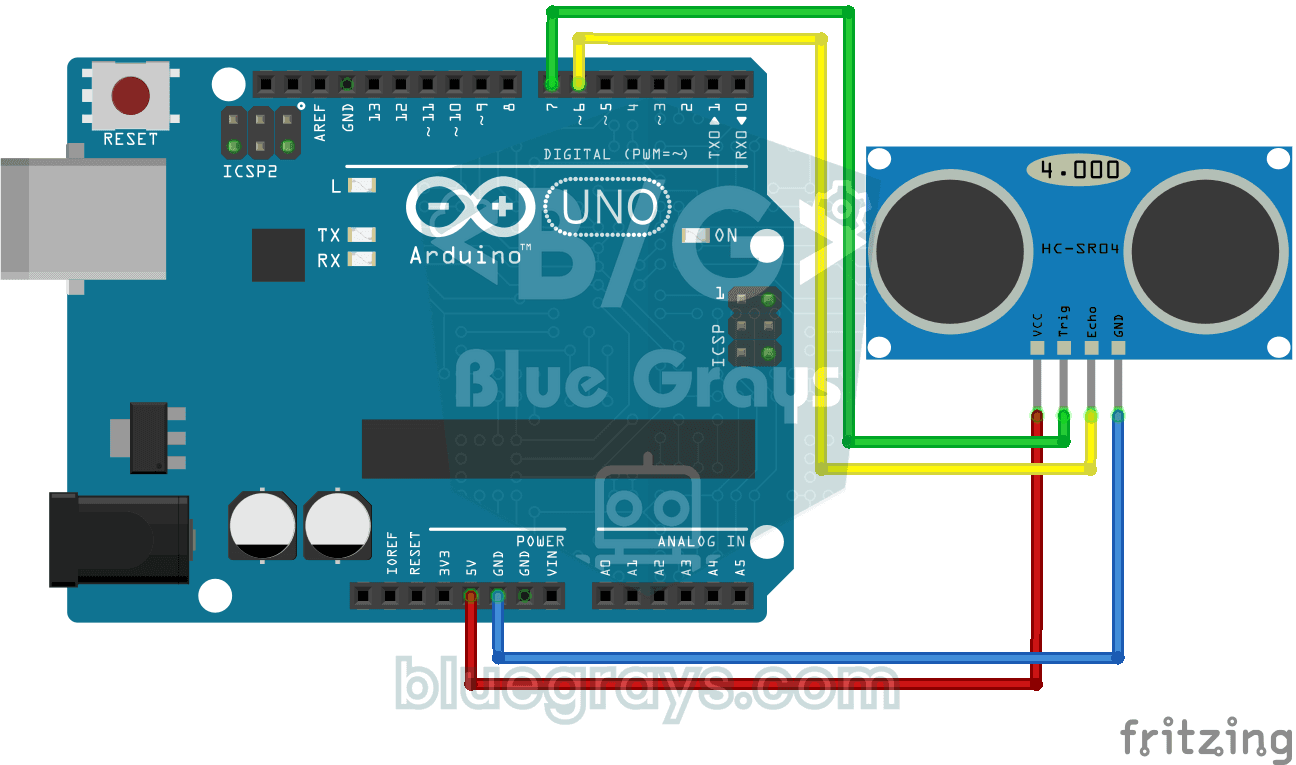
HC-SR04 Distance Measurement (Serial Display)
The HC-SR04 sensor works just like a bat finding its way in the dark: it sends out a sound you cannot hear, listens for the echo and measures how far away the object in front of it is. The Arduino wri
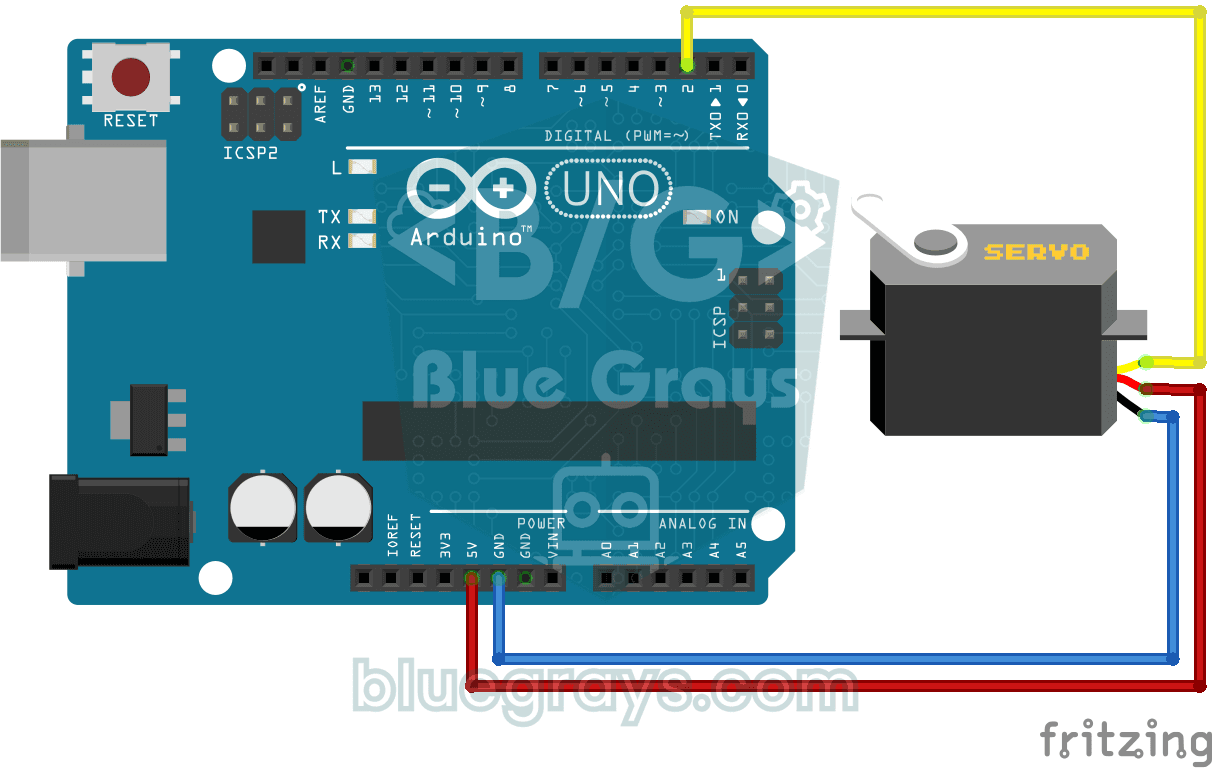
Using a Servo Motor
The arm of a small servo motor turns to three positions in turn: all the way to the start, right to the middle and all the way to the end, waiting two seconds at each stop. The Arduino tells the motor

SG90 Servo Angle Control with Pot
Servo Motor (SG90) Control with Potentiometer The main objective of this project is to precisely control the angular position of a servo motor in real time using an analog input unit, the potentiometer. The project is a basic engineering example to grasp the logic of analog-to-digital conversion (ADC) and signal mapping. Operation Logic: Analog Data Reading: When the user turns the potentiometer, the resistance change results in a voltage signal between 0V and 5V on the A0 analog pin of the Ard
Parking Sensor with HC-SR04
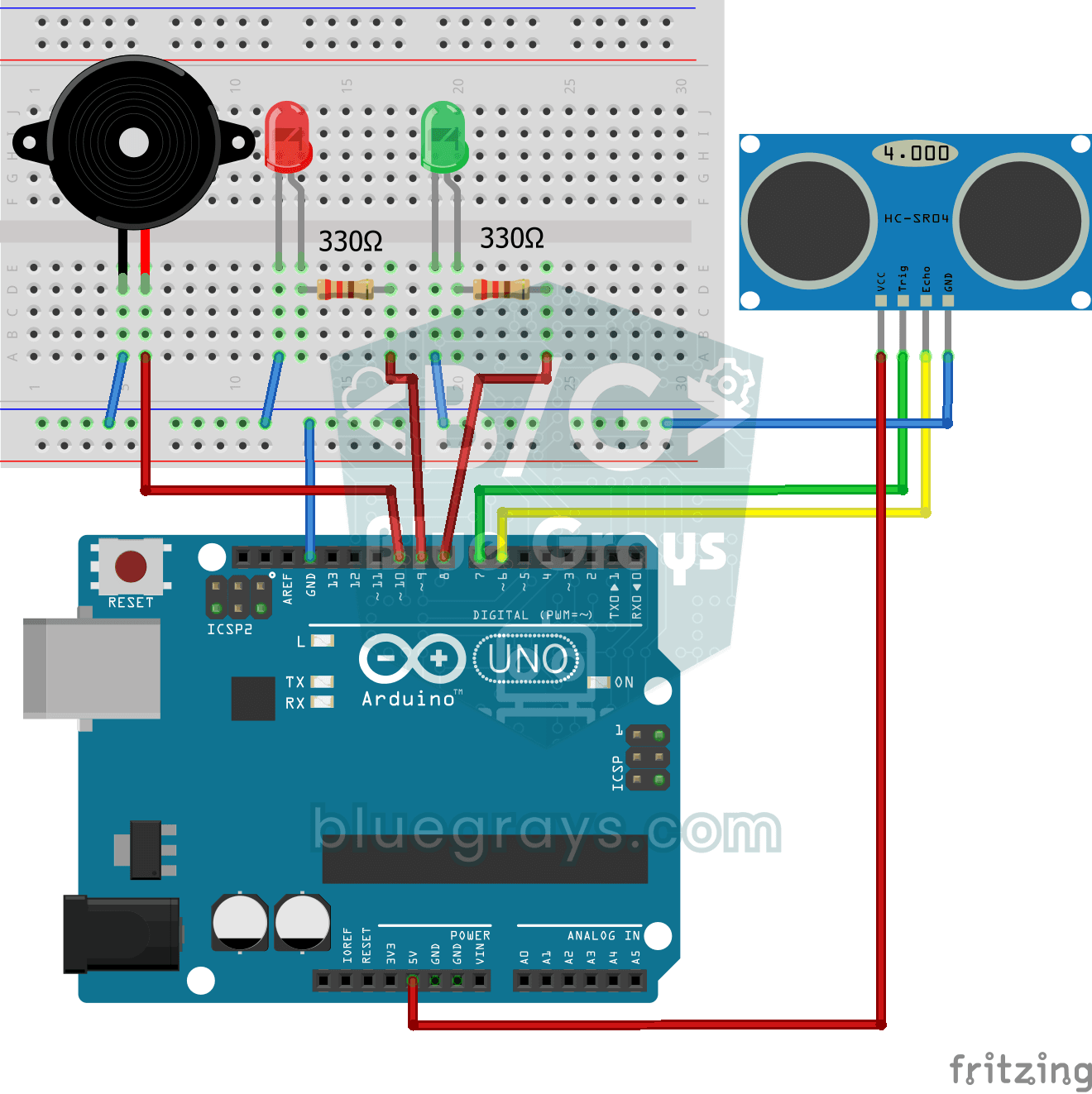
A mini version of a car's parking sensor: the closer something gets, the faster the beeps. The distance sensor measures the object in front of it; if it is more than 20 centimetres away the green LED

Obstacle Avoidance Robot
How about building a smart vehicle that finds its own way? The Obstacle Avoidance Robot constantly scans its surroundings thanks to the ultrasonic sensor in front of it. When it encounters an obstacle

ESP32 HC-SR04 Ultrasonic Distance Sensor
The HC-SR04 ultrasonic sensor calculates distance by measuring the time it takes for the sound wave it emits to bounce off an object and return (Time of Flight). In this project, we will send a 10-microsecond pulse from the ESP32 to the sensor's TRIG pin and read the echo duration from the ECHO pin using `pulseIn()`. We will display the calculated distance in centimeters on a 16x2 I2C LCD. Since the HC-SR04 operates at 5V, a **voltage divider** is required on the ECHO pin—otherwise, the ESP32’s

ESP32 Parking Sensor (HC-SR04 + 5-LED Bar + Buzzer + OLED)
The ESP32 version of the car parking sensor! We use the HC-SR04 ultrasonic sensor to measure the distance to the object in front of it. As the distance decreases, the 5-LED bar fills up (green → yellow → red) and the buzzer beep interval shortens. When the object gets very close (under 10 cm), a continuous alarm sounds and all LEDs light up. The SSD1306 OLED display shows the current distance in cm in large font, a status message (STOP / CAUTION / CLOSE / STOP! / DANGER), and a simulation of the
Measuring Distance Using LCD Display
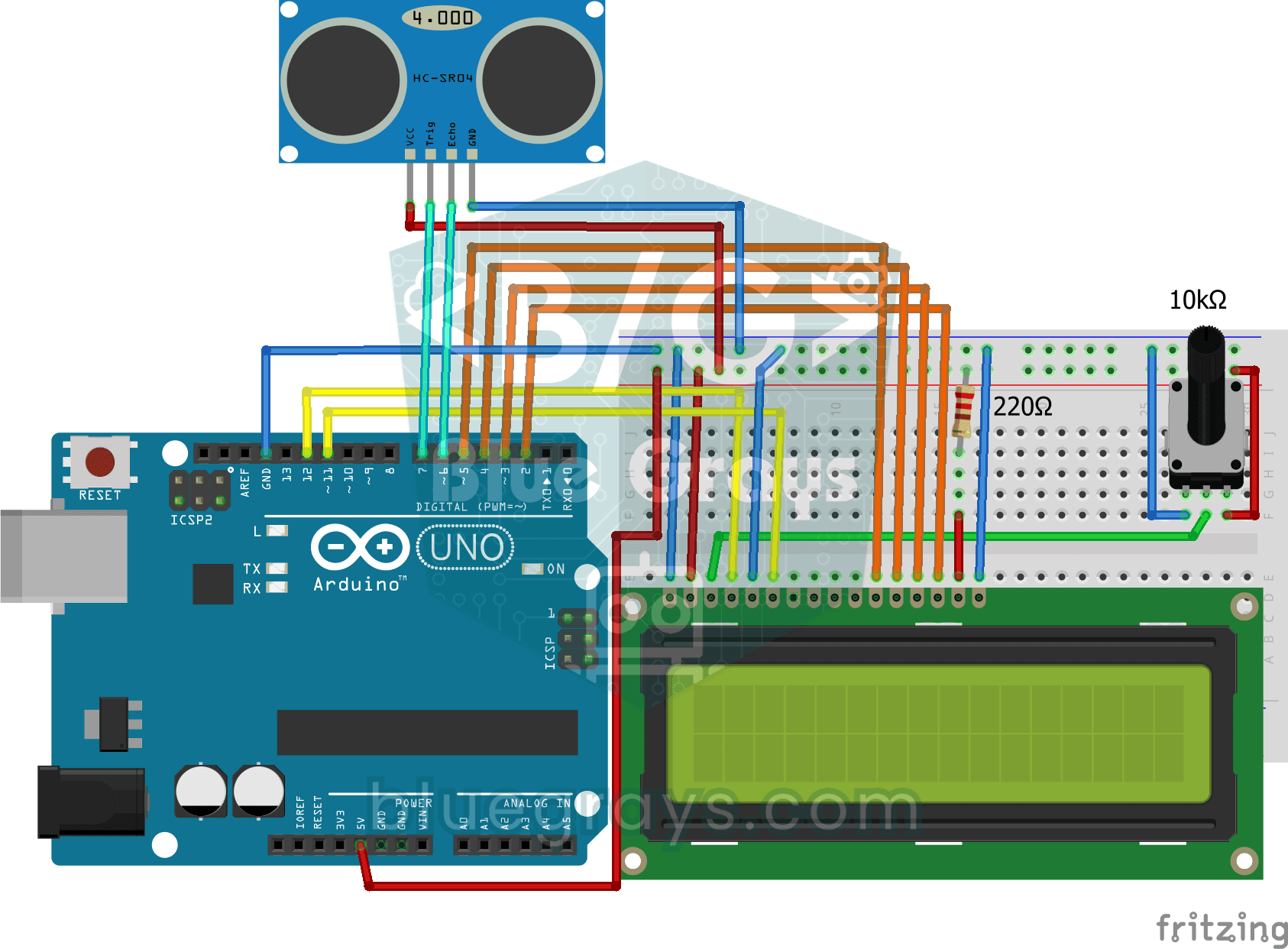
A tool that measures distance without a ruler: move your hand back and forth in front of the sensor and watch the number change. The HC-SR04 sends out a sound wave and listens for its echo, and the Ar