
Obstacle Avoiding Robot with Arduino: HC-SR04 and Servo Guide
Build an obstacle avoiding robot with Arduino: HC-SR04 scanning on a servo, L298N or L293D wiring, stop-back-turn logic, IR sensors and Bluetooth manual mode.
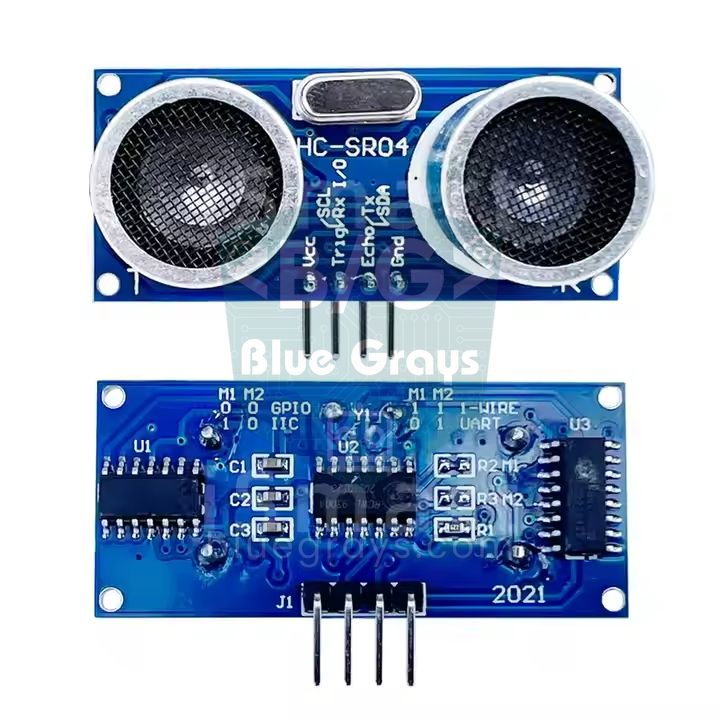
An obstacle avoiding robot is a self-driving robot car that notices a wall, chair or box in front of it without hitting it and finds a new way around. The most common build uses an Arduino Uno, an HC-SR04 ultrasonic distance sensor, an SG90 servo motor that turns the sensor left and right, two geared DC motors and an L298N (or L293D) motor driver. The robot drives straight, stops when it gets close to an obstacle, backs off a little, turns its head to both sides to take measurements and then carries on in the most open direction.
In this guide we turn the 2WD car from our Arduino robot car article into an autonomous robot while keeping the same pinout. Step by step we cover the wiring tables, how the distance thresholds are calculated, code that grows in three stages, the surfaces the sensor can't see and how to cover those gaps with infrared sensors, and finally switching to manual mode over Bluetooth from your phone. The code for driving the same robot with an ESP32 or a Raspberry Pi Pico is at the end of the article.
How does an obstacle avoiding robot work?
Every autonomous robot repeats the same three-step loop dozens of times a second: sense, decide, act. The HC-SR04 does the sensing: it sends a short 40 kHz sound your ear can't hear and measures how long the echo takes to come back; divide that time in microseconds by 58 and you get the distance in centimetres. The Arduino does the deciding by comparing the measured distance with the thresholds you set. The L298N and the motors take care of the acting. Because the sensor sits on a servo, the robot can "look" left and right without turning its body, which lets it make much better turning decisions than a robot with a fixed sensor. You'll find the details of how the sensor works in the HC-SR04 Distance Sensor article.
| Part | Job | Note |
|---|---|---|
| Arduino Uno (or Nano) | Brain: measures, decides and commands the motors | An ESP32 or Pico works too |
| HC-SR04 | Eye: measures the distance to the obstacle ahead | Runs on 5 V, 2–400 cm |
| SG90 servo | Neck: turns the sensor left and right | The sensor is fixed to the servo horn with a plastic bracket |
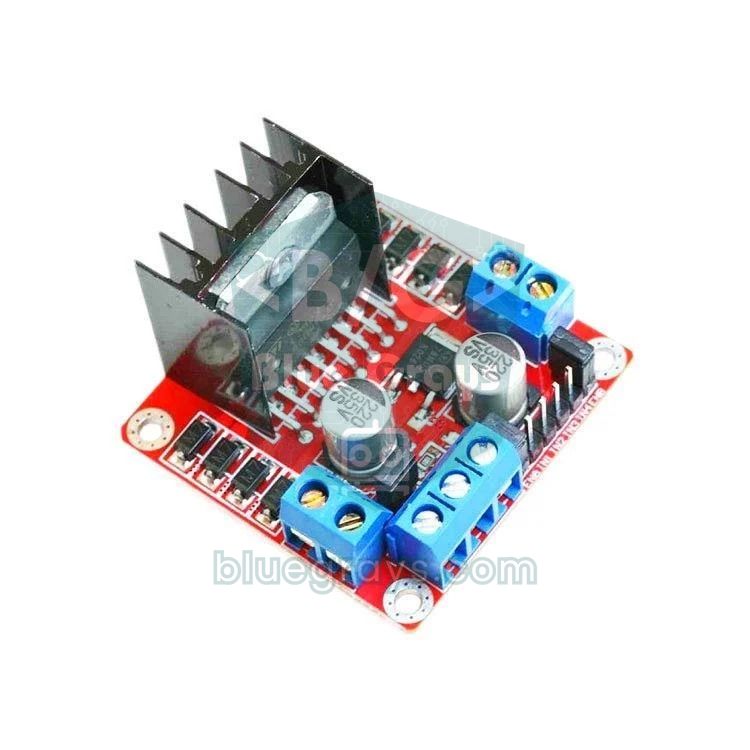
| L298N or L293D shield | Muscle: gives the motors direction and speed | An Arduino pin can't supply motor current |
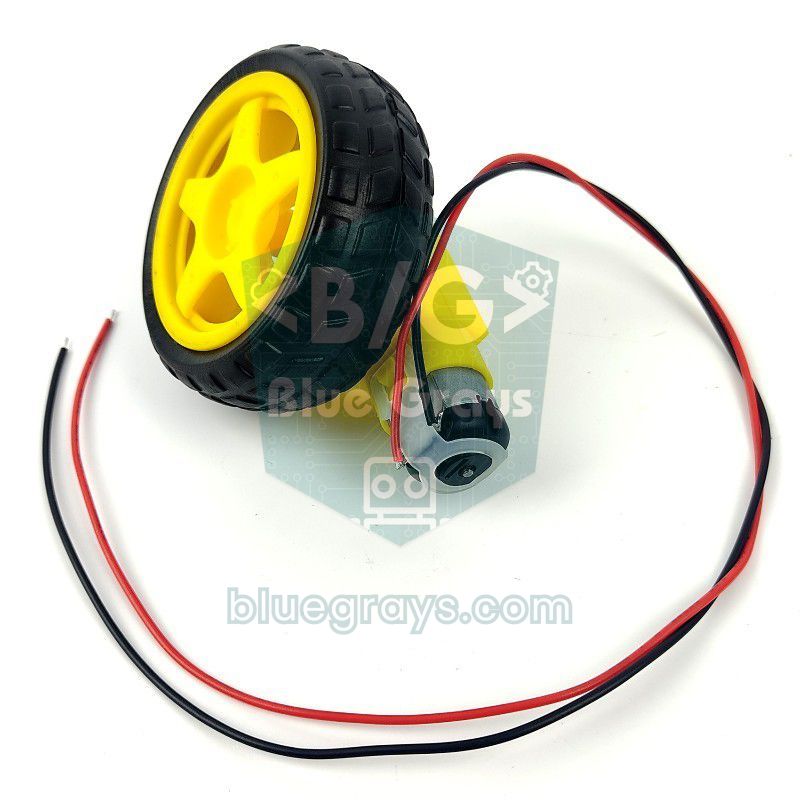
| 2 geared TT motors and a caster wheel | Differential drive | Turning is done by spinning the two wheels in opposite directions |
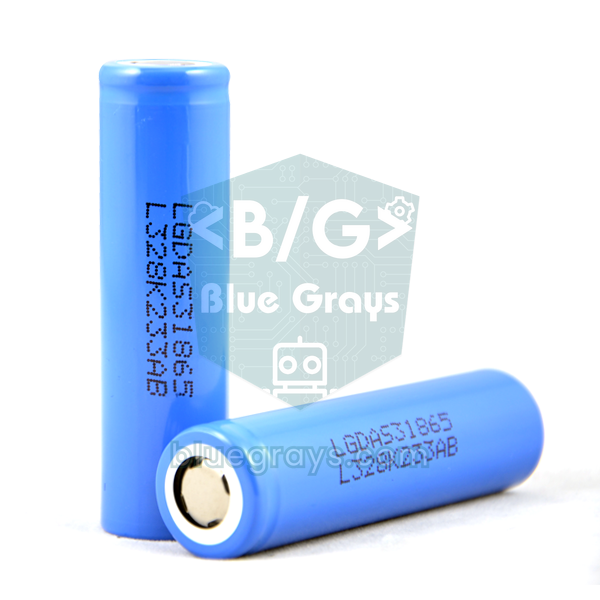
| 2 × 18650 cells (7.4 V) | Power | A 9 V battery isn't enough |
| 2 IR obstacle sensors (optional) | Catch obstacles at the corners and sides | LM393-based modules such as the FC-51 |
| HC-05 (optional) | Manual control from your phone | Works with Android only |
Power supply: don't let the servo reset the robot
Because an obstacle avoiding robot adds a servo to the motors, power distribution matters more than on an ordinary robot car. An SG90 draws about 10 mA at rest; the moment it starts moving it jumps to 100–250 mA, and when it's strained it approaches half an amp. If that surge coincides with the motors' start-up current, the Arduino's 5 V rail collapses for an instant and the board restarts. The fix is simple: the motors run from the battery through the L298N, the Arduino runs from the battery through VIN, and the servo, HC-SR04, IR sensors and HC-05 share the Arduino's 5V pin, with a 470 µF capacitor placed next to the servo's supply leads. Even while the servo moves, the total load on the 5 V rail stays below half an amp, and because it's brief the Uno's regulator can handle it. To work out battery life with your own numbers, use the Battery life tool.
| Section | Powered from | Typical current |
|---|---|---|
| 2 TT motors | L298N 12V terminal ← 2 × 18650 (7.4 V) | 0.3–0.6 A while driving, up to 2 A at start-up |
| Arduino Uno | VIN ← battery positive (after the switch) | About 50 mA |
| SG90 servo | Arduino 5V + 470 µF capacitor | ~10 mA at rest, 100–250 mA while moving |
| HC-SR04 | Arduino 5V | About 15 mA |
| 2 IR sensors | Arduino 5V | 20–40 mA each |
| HC-05 | Arduino 5V | 30–40 mA while pairing, about 10 mA when connected |
Wiring diagram: Arduino Uno, ESP32 and Pico
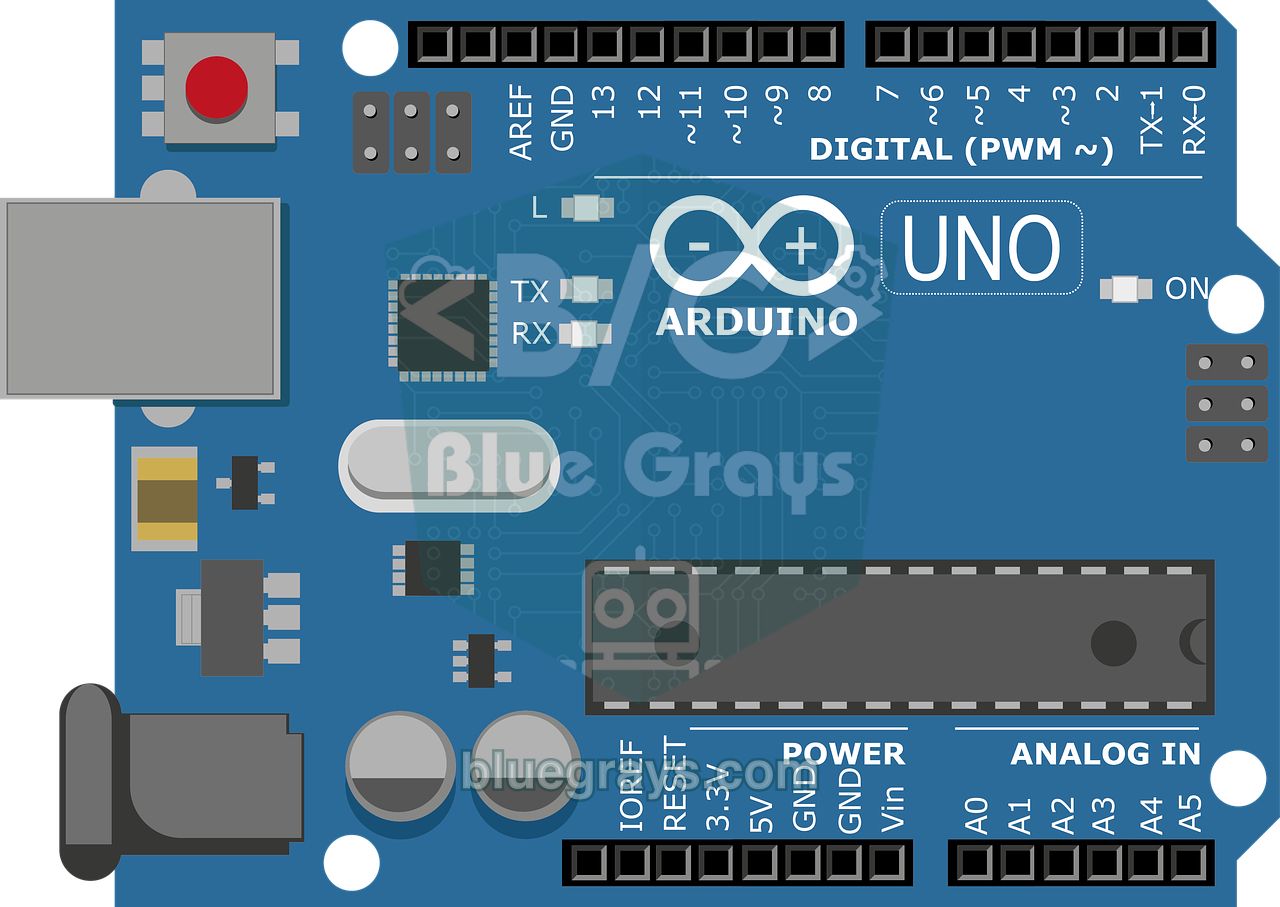
The motor pins are the same as in the robot car guide, so you can move on to this project by simply adding the sensor head without taking your car apart. Putting the speed pins on 5 and 6 is deliberate: on the Uno the Servo library uses Timer1 and therefore disables PWM on pins 9 and 10; if the motor speeds were on those pins, speed control would break as soon as the servo was attached. The HC-SR04 and the IR sensors go on A0–A3. The Uno's analog pins can also act as digital pins 14–19 when needed, and this choice makes it easy to use the same code with an L293D shield, because the shield doesn't touch these pins. You can see your board's pin layout in the Pinout tool.
| Connection | Arduino Uno | ESP32 | Raspberry Pi Pico |
|---|---|---|---|
| L298N ENA (left motor speed) | D5 | GPIO 25 | GP15 |
| L298N IN1, IN2 | D7, D8 | GPIO 27, 33 | GP14, GP13 |
| L298N ENB (right motor speed) | D6 | GPIO 26 | GP10 |
| L298N IN3, IN4 | D9, D4 | GPIO 32, 4 | GP12, GP11 |
| Servo signal (orange) | D3 | GPIO 13 | GP16 |
| Servo + (red), − (brown) | 5V, GND | L298N 5V, GND | L298N 5V, GND |
| HC-SR04 TRIG | A0 | GPIO 18 | GP17 |
| HC-SR04 ECHO | A1 (direct) | GPIO 19, via a 1 kΩ / 2 kΩ divider | GP18, via a 1 kΩ / 2 kΩ divider |
| HC-SR04 VCC | 5V | L298N 5V | L298N 5V |
| Left IR OUT, right IR OUT | A2, A3 | GPIO 23, 22 | GP19, GP20 |
| IR sensor VCC | 5V | 3V3 | 3V3 |
| HC-05 TXD, RXD | D10, D11 (RXD via divider) | Not needed (built-in Bluetooth) | GP1, GP0 (UART0) |
| Board power | VIN ← battery (after the switch) | 5V (VIN) ← L298N 5V | VSYS ← L298N 5V |
Mount and test the sensor head
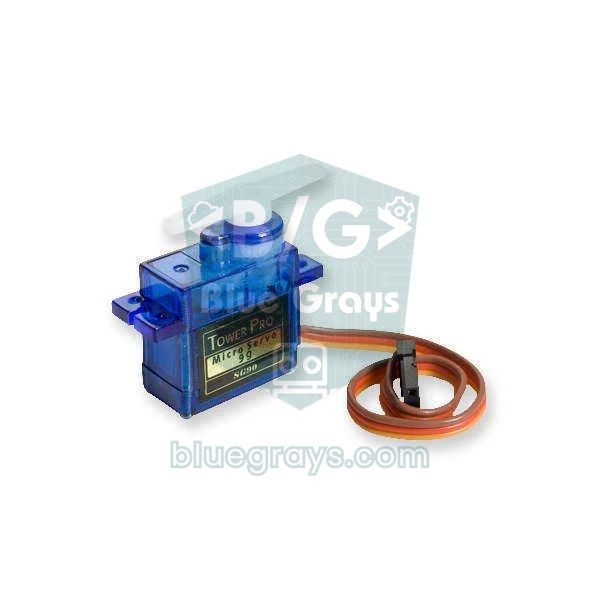
- Connect the servo without its horn and upload the test sketch below. At the end of each sweep the code moves the servo to 90 degrees and waits 2 seconds; unplug the USB cable during that pause and the servo stays where it is. Fit the horn onto the shaft so the sensor faces straight ahead; that way 90 degrees means "straight forward".
- Fix the HC-SR04 to the horn with a plastic bracket or hot glue. The sensor wires must be long enough not to pull tight as the servo turns; a cable snagging on the chassis during the 140-degree sweep is a common fault.
- Mount the sensor 8–12 cm above the floor and close to the frontmost point of the body. Too low and it picks up echoes from the floor and the carpet texture; too high and it can't see low obstacles.
- Tilt the sensor upwards by 3–5 degrees. A sensor that sits perfectly level and low can mistake an echo from the floor for an obstacle, especially on rough floors.
- Open the Serial Monitor at 9600 baud. If you see small values on the 125 and 160-degree lines when you hold your hand to the left of the sensor, the left side is the large angles; if it's the other way round, set SERVO_DIR to -1 in the advanced sketch and swap the LEFT_ANGLE and RIGHT_ANGLE values in the first sketch.
1#include <Servo.h>
2
3const int SERVO_PIN = 3;
4const int TRIG = A0, ECHO = A1;        // analog pinler dijital pin olarak / analog pins used as digital pins
5Servo head;
6
7int pingCm() {
8  digitalWrite(TRIG, LOW);  delayMicroseconds(2);
9  digitalWrite(TRIG, HIGH); delayMicroseconds(10);   // 10 µs tetik darbesi / 10 µs trigger pulse
10  digitalWrite(TRIG, LOW);
11  unsigned long t = pulseIn(ECHO, HIGH, 25000UL);    // en fazla 25 ms bekle (~4,3 m) / wait at most 25 ms (~4.3 m)
12  return t / 58;                                     // 0 = yankı yok / 0 = no echo
13}
14
15void setup() {
16  Serial.begin(9600);
17  pinMode(TRIG, OUTPUT);
18  pinMode(ECHO, INPUT);
19  head.attach(SERVO_PIN);
20  head.write(90);                                    // önce ortala / center first
21  delay(1000);
22}
23
24void loop() {
25  const int angles[] = {20, 55, 90, 125, 160};
26  for (int a : angles) {
27    head.write(a);
28    delay(400);                                      // servo yerine otursun / let the servo settle
29    Serial.print(a);
30    Serial.print(F(" derece / degrees: "));
31    Serial.print(pingCm());
32    Serial.println(F(" cm"));
33  }
34  Serial.println();
35  head.write(90);
36  delay(2000);
37}
Each line shows an angle and the distance in that direction. If there's nothing within about 4 metres of the sensor, you'll read 0 cm: pulseIn() returns 0 when no echo arrives within 25 ms. In the main code we'll treat 0 as "path clear", but a sensor with a loose wire or with TRIG and ECHO swapped usually reads 0 too. So before putting the robot on the floor, hold your hand at 10, 30 and 60 cm and check that the values really change; a robot run without this test drives into the wall without slowing down.
The decision algorithm: stop, back off, turn to the most open direction
Splitting the robot's behaviour into zones by distance keeps the code both simple and reliable. With no obstacle ahead it drives at full speed, it slows down as an obstacle gets closer, and when it reaches the stop threshold it stops and scans. During the scan the sensor looks 70 and 35 degrees to the left and 35 and 70 degrees to the right; three readings are taken in each direction and their median is used. The robot turns toward the direction with the longest distance, by that angle. If no direction is open, for example when it has driven into a corner, it backs up a little and turns 180 degrees.
| Measured distance | Zone | What the robot does |
|---|---|---|
| Over 60 cm (or no echo) | Clear | Full speed ahead (PWM 200) |
| 25–60 cm | Approach | Slows down in proportion to distance (PWM 200 down to 130) |
| 12–25 cm | Obstacle | Stops, confirms the reading, scans both ways, turns to the most open direction |
| Under 12 cm | Too close | First backs off for 350 ms, then scans |
| Every direction under 35 cm | Dead end | Backs up and turns 180 degrees |
These thresholds weren't picked at random. The stopping distance is the sum of three margins: the reaction margin (distance covered between two readings), the braking margin (how far the robot coasts after the motors are cut) and the turning margin (so its nose doesn't touch the obstacle while it spins on the spot). A car with TT motors on 6 V travels at about 0.5–0.7 m/s and covers 3–4 cm in a 60 ms measuring interval. The braking margin is about 5 cm, and for a 15 cm wide body that spins in place the turning margin is around 10 cm. That adds up to about 18–20 cm; with a few centimetres of safety margin on top, STOP_CM = 25 is a good starting point. If your robot is faster or the floor is slippery, raise the threshold to 30–35 cm. In narrow corridors, on the other hand, a very large threshold makes the robot stop and scan all the time, so do the final tuning on your own course.
Step-by-step code 1: your first obstacle avoiding robot
The first version is the skeleton of the algorithm: go forward, stop at 25 cm, back off, look left and right, turn toward the more open side. The motor function drive(left, right) is the same as in the robot car guide and takes values from -255 to 255; positive means forward, negative means backward. After uploading the code, first put the car on a box with its wheels off the ground and watch how it stops and turns as you bring your hand toward the sensor; if everything looks right, put the robot on the floor.
1#include <Servo.h>
2
3const int ENA = 5, IN1 = 7, IN2 = 8;            // sol motor / left motor
4const int ENB = 6, IN3 = 9, IN4 = 4;            // sağ motor / right motor
5const int SERVO_PIN = 3;
6const int TRIG = A0, ECHO = A1;
7
8const int STOP_CM = 25;                         // bu mesafede dur / stop at this distance
9const int SPEED = 170;                          // düz gidiş hızı / cruising speed
10const int TURN = 170;                           // dönüş hızı / turning speed
11const int LEFT_ANGLE = 160, RIGHT_ANGLE = 20;   // ters ise yer değiştir / swap if reversed
12
13Servo head;
14
15void drive(int left, int right) {               // her biri -255 … 255 / each -255 … 255
16  digitalWrite(IN1, left > 0);  digitalWrite(IN2, left < 0);
17  digitalWrite(IN3, right > 0); digitalWrite(IN4, right < 0);
18  analogWrite(ENA, abs(left));
19  analogWrite(ENB, abs(right));
20}
21
22int pingCm() {
23  digitalWrite(TRIG, LOW);  delayMicroseconds(2);
24  digitalWrite(TRIG, HIGH); delayMicroseconds(10);
25  digitalWrite(TRIG, LOW);
26  unsigned long t = pulseIn(ECHO, HIGH, 25000UL);
27  if (t == 0) return 400;                       // yankı yok: önü açık say / no echo: treat as open
28  return t / 58;
29}
30
31int lookAt(int angle) {
32  head.write(angle);
33  delay(400);                                   // servo dönsün ve dursun / let the servo turn and settle
34  return pingCm();
35}
36
37void setup() {
38  int pins[] = {ENA, IN1, IN2, ENB, IN3, IN4, TRIG};
39  for (int p : pins) pinMode(p, OUTPUT);
40  pinMode(ECHO, INPUT);
41  drive(0, 0);
42  head.attach(SERVO_PIN);
43  head.write(90);
44  delay(3000);                                  // yere koyman için süre / time to put it on the floor
45}
46
47void loop() {
48  int front = pingCm();
49  if (front > STOP_CM) {
50    drive(SPEED, SPEED);                        // yol açık: ileri / path clear: forward
51    delay(60);                                  // ölçümler arası 60 ms / 60 ms between readings
52    return;
53  }
54
55  drive(0, 0);                                  // 1) dur / 1) stop
56  delay(150);
57  drive(-SPEED, -SPEED);                        // 2) biraz geri çekil / 2) back off a little
58  delay(300);
59  drive(0, 0);
60
61  int left = lookAt(LEFT_ANGLE);                // 3) iki yana bak / 3) look both ways
62  int right = lookAt(RIGHT_ANGLE);
63  head.write(90);
64  delay(300);
65
66  if (left < STOP_CM && right < STOP_CM) {      // iki yan kapalı: geri dön / both blocked: turn around
67    drive(-TURN, TURN);
68    delay(700);
69  } else if (left > right) {                    // 4) daha açık tarafa dön / 4) turn to the more open side
70    drive(-TURN, TURN);
71    delay(350);
72  } else {
73    drive(TURN, -TURN);
74    delay(350);
75  }
76  drive(0, 0);
77  delay(100);
78}
This code does the job, but it has a few weaknesses: a single bad reading stops the robot for nothing, it always approaches obstacles at the same speed, it only looks in two directions and its turn times don't depend on the angle. And because it waits with delay(), it can't react to anything during a scan. The details of the waiting logic are in the millis() and delay() article; the next version fixes most of these problems.
Step-by-step code 2: filtering, gradual slowdown, IR and Bluetooth
The advanced version works with the same wiring, and it's fine if you haven't fitted the IR sensors and the HC-05 yet. Because the IR inputs are set up with INPUT_PULLUP, a sensor that isn't connected reads "no obstacle" (HIGH); without an HC-05 the robot simply starts in auto mode. The table below explains what each part of the code does.
1#include <Servo.h>
2#include <SoftwareSerial.h>
3
4// Pinler / Pins
5const int ENA = 5, IN1 = 7, IN2 = 8;     // sol motor / left motor
6const int ENB = 6, IN3 = 9, IN4 = 4;     // sağ motor / right motor
7const int SERVO_PIN = 3;
8const int TRIG = A0, ECHO = A1;
9const int IR_LEFT = A2, IR_RIGHT = A3;   // LOW = engel (takılı değilse HIGH) / LOW = obstacle (HIGH if not fitted)
10SoftwareSerial bt(10, 11);               // RX, TX → HC-05 TXD, RXD (RXD bölücüyle / RXD via divider)
11
12// Ayarlar / Settings
13const int BACK_CM = 12;                  // daha yakınsa geri çekil / closer: back off first
14const int STOP_CM = 25;                  // dur ve tara / stop and scan
15const int SLOW_CM = 60;                  // yavaşlamaya başla / start slowing down
16const int GUARD_CM = 15;                 // manuel modda çarpışma koruması / collision guard in manual mode
17const int MAX_CM = 400;
18const int CRUISE = 200, SLOW = 130, TURN = 170;   // PWM hızları / PWM speeds
19const int SERVO_CENTER = 90;             // sensör öne bakmıyorsa düzelt / adjust if not facing ahead
20const int SERVO_DIR = 1;                 // +70 sola bakmıyorsa -1 yap / set to -1 if +70 doesn't look left
21const float MS_PER_DEG = 4.0;            // derece başına ms, kalibre et / ms per degree, calibrate
22const unsigned long BT_TIMEOUT = 600;    // manuelde komut kesilirse dur / stop if commands stop
23
24Servo head;
25bool autoMode = true;
26int manualLeft = 0, manualRight = 0, manualSpeed = 200;
27unsigned long lastCmd = 0, lastPing = 0;
28
29void drive(int left, int right) {        // her biri -255 … 255 / each -255 … 255
30  left = constrain(left, -255, 255);
31  right = constrain(right, -255, 255);
32  digitalWrite(IN1, left > 0);  digitalWrite(IN2, left < 0);
33  digitalWrite(IN3, right > 0); digitalWrite(IN4, right < 0);
34  analogWrite(ENA, abs(left));
35  analogWrite(ENB, abs(right));
36}
37
38int pingCm() {
39  digitalWrite(TRIG, LOW);  delayMicroseconds(2);
40  digitalWrite(TRIG, HIGH); delayMicroseconds(10);
41  digitalWrite(TRIG, LOW);
42  unsigned long t = pulseIn(ECHO, HIGH, 25000UL);  // ~4,3 m zaman aşımı / ~4.3 m timeout
43  return t == 0 ? MAX_CM : (int)(t / 58);          // yankı yok = açık alan / no echo = open space
44}
45
46int distanceCm() {                       // 3 ölçümün ortancası / median of 3 readings
47  int a = pingCm(); delay(60);
48  int b = pingCm(); delay(60);
49  int c = pingCm();
50  return max(min(a, b), min(max(a, b), c));
51}
52
53bool irBlocked(int pin) {
54  return digitalRead(pin) == LOW;
55}
56
57int lookAt(int offset) {                 // + sol, - sağ (derece) / + left, - right (degrees)
58  head.write(SERVO_CENTER + SERVO_DIR * offset);
59  delay(300);                            // servo yerine otursun / let the servo settle
60  return distanceCm();
61}
62
63void turnBy(int deg) {                   // + sola, - sağa / + left, - right
64  if (deg > 0) drive(-TURN, TURN);
65  else drive(TURN, -TURN);
66  delay((unsigned long)(abs(deg) * MS_PER_DEG));
67  drive(0, 0);
68  delay(100);
69}
70
71void avoid() {
72  drive(0, 0);                           // 1) dur / 1) stop
73  delay(120);
74  int front = distanceCm();              // ortancayla doğrula / confirm with the median
75  bool sides = irBlocked(IR_LEFT) || irBlocked(IR_RIGHT);
76  if (front >= STOP_CM && !sides) return;          // yanlış alarm / false alarm
77
78  if (front < BACK_CM || sides) {        // 2) çok yakın: geri çekil / 2) too close: back off
79    drive(-TURN, -TURN);
80    delay(350);
81    drive(0, 0);
82  }
83
84  const int offsets[] = {70, 35, -35, -70};        // 3) tara / 3) scan
85  int bestOffset = 0, bestCm = 0;
86  for (int off : offsets) {
87    int cm = lookAt(off);
88    if (cm > bestCm) { bestCm = cm; bestOffset = off; }
89  }
90  head.write(SERVO_CENTER);
91  delay(200);
92
93  if (bestCm < STOP_CM + 10) {           // her yön kapalı: çıkmaz / every way blocked: dead end
94    drive(-TURN, -TURN);
95    delay(400);
96    turnBy(180);
97  } else {
98    turnBy(bestOffset);                  // 4) en açık yöne dön / 4) turn to the most open direction
99  }
100}
101
102void autoStep() {
103  if (millis() - lastPing < 60) return;  // 60 ms'de bir ölç / measure every 60 ms
104  lastPing = millis();
105  int d = pingCm();
106  bool l = irBlocked(IR_LEFT), r = irBlocked(IR_RIGHT);
107
108  if (d < STOP_CM || (l && r)) {
109    avoid();
110  } else if (l) {                        // sol köşede engel: sağa kaç / front-left: dodge right
111    drive(TURN, -TURN);
112    delay(150);
113  } else if (r) {                        // sağ köşede engel: sola kaç / front-right: dodge left
114    drive(-TURN, TURN);
115    delay(150);
116  } else if (d < SLOW_CM) {
117    int s = map(d, STOP_CM, SLOW_CM, SLOW, CRUISE);   // yaklaştıkça yavaşla / slow down as you get closer
118    drive(s, s);
119  } else {
120    drive(CRUISE, CRUISE);
121  }
122}
123
124void manualStep() {
125  if (millis() - lastCmd > BT_TIMEOUT) {           // komut yok: dur / no commands: stop
126    manualLeft = 0;
127    manualRight = 0;
128  }
129  static int front = MAX_CM;
130  if (millis() - lastPing >= 60) {
131    lastPing = millis();
132    front = pingCm();
133  }
134  bool forward = manualLeft > 0 && manualRight > 0;
135  if (forward && front < GUARD_CM) drive(0, 0);    // çarpışma koruması / collision guard
136  else drive(manualLeft, manualRight);
137}
138
139void handleBluetooth() {
140  while (bt.available()) {
141    char c = bt.read();
142    Serial.println(c);                   // gelen harfi göster / show the incoming letter
143    lastCmd = millis();
144    if (c == 'A') {                      // otomatik mod / auto mode
145      autoMode = true;
146      continue;
147    }
148    if (c == 'M') {                      // manuel mod / manual mode
149      autoMode = false;
150      manualLeft = manualRight = 0;
151      drive(0, 0);
152      head.write(SERVO_CENTER);
153      continue;
154    }
155    if (autoMode) continue;              // otomatikte yön harflerini yok say / ignore in auto mode
156    int s = manualSpeed;
157    switch (c) {
158      case 'F': manualLeft = s;  manualRight = s;  break;   // ileri / forward
159      case 'B': manualLeft = -s; manualRight = -s; break;   // geri / backward
160      case 'L': manualLeft = -s; manualRight = s;  break;   // yerinde sola / spin left
161      case 'R': manualLeft = s;  manualRight = -s; break;   // yerinde sağa / spin right
162      case 'S': manualLeft = 0;  manualRight = 0;  break;   // dur / stop
163      default:
164        if (c >= '0' && c <= '9') manualSpeed = map(c - '0', 0, 9, 100, 240);   // hız kademesi / speed level
165    }
166  }
167}
168
169void setup() {
170  int outs[] = {ENA, IN1, IN2, ENB, IN3, IN4, TRIG};
171  for (int p : outs) pinMode(p, OUTPUT);
172  drive(0, 0);
173  pinMode(ECHO, INPUT);
174  pinMode(IR_LEFT, INPUT_PULLUP);
175  pinMode(IR_RIGHT, INPUT_PULLUP);
176  Serial.begin(9600);
177  bt.begin(9600);                        // HC-05 veri modu hızı / HC-05 data mode baud rate
178  head.attach(SERVO_PIN);
179  head.write(SERVO_CENTER);
180  delay(3000);                           // yere koyman için süre / time to put it on the floor
181}
182
183void loop() {
184  handleBluetooth();
185  if (autoMode) autoStep();
186  else manualStep();
187}| Function or setting | What it does |
|---|---|
| pingCm() | Takes one reading; returns 400 cm (open space) if no echo arrives within 25 ms |
| distanceCm() | Takes 3 readings 60 ms apart and returns the median; throws out a single outlier |
| autoStep() | Measures every 60 ms; based on distance and the IR sensors it drives on, slows down, dodges or calls avoid() |
| avoid() | Stops, confirms the reading, backs off if needed, looks in 4 directions and turns to the most open one |
| turnBy(degrees) | Spins the robot in place by the given angle; the time is calculated with MS_PER_DEG |
| manualStep() | Applies the direction sent from the phone; stops at 15 cm when driving forward, stops if no command arrives for 600 ms |
| SERVO_CENTER, SERVO_DIR | The angle at which the sensor faces straight ahead and which way is left |
| STOP_CM, SLOW_CM, BACK_CM | The stop, slow-down and back-off thresholds |
For an obstacle avoiding robot a median filter beats an average: for three readings such as 24, 26 and 400 cm the average comes out at 150 cm and misleads the robot, while the median picks 26 cm. If you want to dig deeper, see the sensor data filtering article. The split between auto and manual mode is really a small state machine too; we explain this approach in detail in the Arduino state machine guide. After uploading the code, tune the robot to your own room in this order:
- Servo centre: With the robot square to a flat wall, if the sensor doesn't point straight at it, change SERVO_CENTER in small steps such as 85 or 95.
- Turn time: Temporarily add a turnBy(360); line to the end of setup() and watch whether the robot makes a full turn. If it turns 300 degrees instead of 360, set MS_PER_DEG to 4.0 × 360 / 300 = 4.8. Because this value changes with the battery and the floor, tune it with a full battery on the floor the robot will drive on.
- Stop threshold: Send the robot toward a wall and measure how far its nose is from the wall where it stops. If it's less than 10 cm, increase STOP_CM by 5 cm.
- Slow speed: If SLOW is below the motors' start-up threshold, the robot stalls in the approach zone; in that case raise SLOW to 150.
HC-SR04 blind spots: soft surfaces, angled walls and thin obstacles
An ultrasonic sensor sees surfaces that reflect sound well, but not every obstacle sends the sound back to the sensor. The manufacturer recommends a target of at least 0.5 m² that is as flat as possible for good results. In a real room, though, the robot runs into curtains, sofas, chair legs and wall corners. Sound bounces off at the angle it arrives, like a billiard ball: a sensor facing a wall square-on gets a strong echo, but if its line of sight deviates by more than about 30–40 degrees from perpendicular, the sound glances off in another direction and never returns. In that case pulseIn() returns 0 and the code thinks the way is clear. This is the most common reason robots scrape into walls.
| Obstacle or surface | Why it isn't seen | Fix |
|---|---|---|
| Curtains, sofas, cushions, clothes, pet fur | Soft, porous surfaces absorb sound and the echo comes back very weak | Add an IR sensor for short range and drive the robot slowly |
| Approaching a wall at an angle | The sound reflects away and the echo doesn't reach the sensor | Add outward-angled IR sensors at the front corners and scan at closer angles |
| Chair and table legs, thin posts | The reflecting surface is tiny and the echo is weak | Lower the speed, use the median filter, add IR sensors at the sides |
| Low obstacles below the sensor (cables, door sills, slippers) | They stay under the sound cone | Add a downward-facing IR sensor or a microswitch to the front bumper |
| Table edges, stairwells | The ultrasonic sensor faces forward and can't see a gap in the floor | Drop detection with a floor-facing TCRT5000 |
| Objects closer than 2 cm | The sensor's dead zone: the echo returns before the sound burst has finished | Set the robot to back off at 12 cm |
| Corners and narrow corridors | Sound bounces between two walls and returns late, so the distance looks longer | Median filter and readings from several angles |
Adding IR sensors
Ultrasonic and infrared (IR) sensors make up for each other's weaknesses. IR obstacle sensors such as the FC-51 consist of an infrared LED and a receiver; when the reflected light is strong enough, the LM393 comparator pulls the output LOW and the LED on the board lights up. The range is adjustable with a trimpot from about 2 to 30 cm, but it doesn't measure distance, it only says "obstacle" or "no obstacle". If you place two IR sensors at the robot's front corners, angled 30–45 degrees outward, they catch chair legs and angled walls that fall outside the ultrasonic sensor's narrow cone. In the advanced code the robot briefly dodges right when the left IR triggers and left when the right IR triggers; if both trigger at once, it stops and scans as if there were an obstacle ahead.
| Feature | HC-SR04 (ultrasonic) | FC-51 (IR obstacle) | TCRT5000 (IR reflective) |
|---|---|---|---|
| Output | Distance (cm) | Yes / no (digital) | Analog value and digital output |
| Range | 2–400 cm | About 2–30 cm (adjustable) | About 1–15 mm |
| Detection angle | About 15° | About 35° | Very narrow |
| Weak spot | Soft, angled and thin surfaces | Black, matte surfaces, sunlight | Height changes, sunlight |
| Sees well | Glass, black objects, large flat surfaces | Fabric, corners, close obstacles | Floor colour and table edges |
| Place on the robot | Main eye, swept by the servo | Front corners | Under the front bumper, facing the floor |
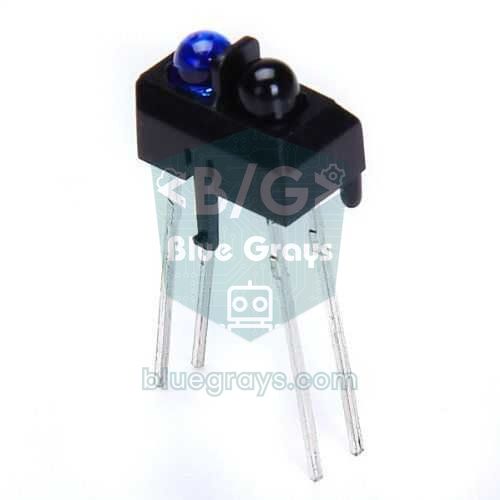
For robots that roam on a table, the most dangerous obstacle is actually a drop. If you fit a floor-facing TCRT5000 module under the front bumper, you'll know the moment the floor disappears beneath it. Connect the module's digital output to D2, which is still free on the Uno; first check in the Serial Monitor which level the output goes to when there's no floor, then read this pin at the very start of autoStep() and, if the floor is gone, stop the motors immediately and back the robot off. This check must come before the distance measurement; falling is always more costly than bumping.
Switching to manual mode over Bluetooth
Sometimes you'll want to drive the autonomous robot by hand: to take it from one room to another, to bring it in front of an obstacle and test its reaction, or just to play. The HC-05 connection in the advanced code makes that possible. When the phone sends the letter A, the robot switches to auto mode; when it sends M, it switches to manual mode. In manual mode the control letters from the robot car guide (F, B, L, R, S) are used, with one difference: if the robot sees an obstacle closer than 15 cm while driving forward, it stops despite your command. This collision guard lets you benefit from the autonomous robot's sensors in manual driving too. The HC-05 pairing steps and AT commands are in the HC-05 Bluetooth Module article.
| Letter | Action | In which mode? |
|---|---|---|
| A | Switch to auto mode | Both modes |
| M | Switch to manual mode, stop the robot | Both modes |
| F / B | Forward / backward | Manual |
| L / R | Spin left / right in place | Manual |
| S | Stop | Manual |
| 0–9 | Speed level (PWM 100–240) | Manual |
- Connect the HC-05's TXD pin to D10, its RXD pin to D11 through a 1 kΩ / 2 kΩ divider, VCC to 5V and GND to GND.
- Pair the HC-05 in your Android phone's Bluetooth settings with the PIN 1234 (or 0000 if that fails).
- Install a Bluetooth car remote app from the Play Store and connect it to the HC-05. If you keep the Arduino on USB and open the Serial Monitor at 9600 baud, the code prints every letter that arrives from the phone.
- Most remote apps have extra buttons such as lights or horn, and each sends its own letter. Look these letters up in the Serial Monitor and put them in place of 'A' and 'M' in the code; if you'd rather define the buttons yourself, you can build your own remote with the App Inventor Arduino Bluetooth guide.
- Unplug the USB cable and flip the switch; after 3 seconds the robot sets off in auto mode. Switch to manual mode and drive it from your phone.
Building it with an L293D motor shield
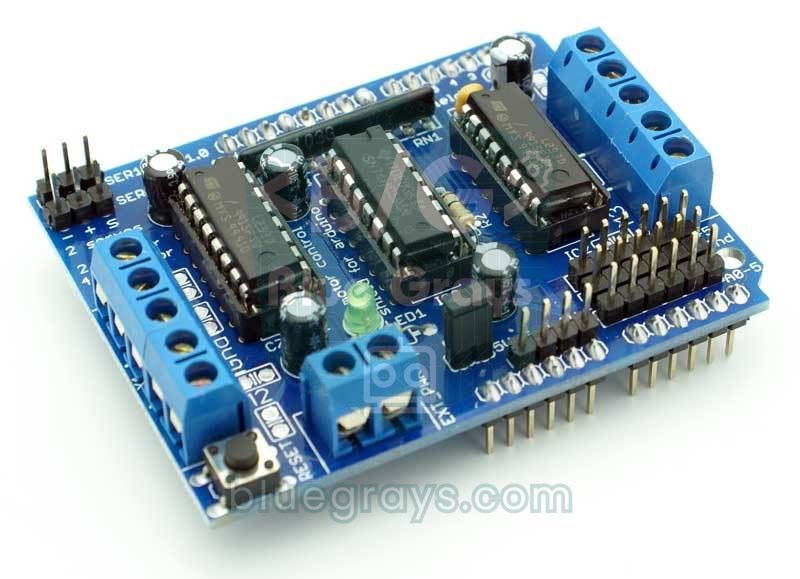
If you don't like a tangle of wires, you can use an L293D motor shield (the Adafruit Motor Shield V1 and its clones) that plugs straight onto the Arduino Uno instead of the L298N. The shield can drive four DC motors, has two servo headers and powers the servos from the Arduino's 5 V rail. The motors aren't wired to the Arduino pins directly but through the 74HC595 shift register on the board, so you drive them with the Adafruit Motor Shield library (the one for V1, not V2), i.e. AFMotor, installed from the Library Manager. The shield uses D3, D4, D5, D6, D7, D8, D11 and D12 for the motors and D9 and D10 for the servos; A0–A5, D2 and D13 stay free. Since the HC-SR04 and IR sensors are already on A0–A3, you only need to change the motor code, the servo pin and the HC-05 pins.
| Setting | With the L298N | With the L293D shield |
|---|---|---|
| Motor connection | OUT1–OUT4 terminals | M1 (left) and M2 (right) terminals |
| Motor code | digitalWrite and analogWrite inside drive() | AFMotor inside drive() |
| SERVO_PIN | 3 | 9 or 10, depending on the header you plug the servo into |
| HC-05 | D10, D11 | A4 (RX) and A5 (TX): SoftwareSerial bt(A4, A5) |
| Current per channel | 2 A continuous | 0.6 A continuous, 1.2 A peak |
| Motor power | 12V terminal | EXT_PWR terminal; with the PWR jumper fitted the Arduino runs from the same supply |
1// L293D shield: ENA–IN4 tanımlarını ve setup()'taki pinMode listesinden bu pinleri sil, drive() fonksiyonunu aşağıdakiyle değiştir
2// L293D shield: delete the ENA–IN4 definitions, remove them from the pinMode list in setup() and replace drive() with the one below
3// Ayrıca / Also: SERVO_PIN = 9 ya da / or 10, SoftwareSerial bt(A4, A5)
4#include <AFMotor.h>                     // Adafruit Motor Shield V1 kütüphanesi / library
5
6AF_DCMotor leftMotor(1);                 // M1 klemensi / M1 terminal
7AF_DCMotor rightMotor(2);                // M2 klemensi / M2 terminal
8
9void drive(int left, int right) {        // her biri -255 … 255 / each -255 … 255
10  leftMotor.setSpeed(min(abs(left), 255));
11  rightMotor.setSpeed(min(abs(right), 255));
12  leftMotor.run(left > 0 ? FORWARD : (left < 0 ? BACKWARD : RELEASE));
13  rightMotor.run(right > 0 ? FORWARD : (right < 0 ? BACKWARD : RELEASE));
14}
The L293D's 0.6 A per channel limit is enough for normal driving of a 2WD robot with TT motors, but when a wheel pushes against an obstacle and stalls, the motor can draw more than 1 A and the chip heats up quickly. That's why a scanning algorithm that stops the robot before it presses against an obstacle also extends the shield's life. The shield's jumper settings and a four-motor car sketch are in the L293D Motor Shield article, and the inner workings of the L298N in the DC Motor Control with the L298N guide.
Obstacle avoiding robot with an ESP32
There are two important differences on the ESP32. First, Arduino's Servo library doesn't work on the ESP32, so we generate the servo signal directly with LEDC, the board's PWM unit: in a 50 Hz signal a 0.544–2.4 ms pulse corresponds to 0–180 degrees. Since the motors run at 1 kHz and the servo at 50 Hz, the motor channels are set up first and the servo channel after them, so the servo gets its own timer. Second, the ESP32 has classic Bluetooth built in, so there's no need for an HC-05; the robot shows up on the phone as "BlueGrays-Robot" and the direction and mode letters are the same as in the Uno version. The code is for version 3.x of the ESP32 Arduino core (ledcAttach and ledcWrite work with pin numbers), and because it needs classic Bluetooth it won't compile for the ESP32-S3 or ESP32-C3.
1// ESP32 Arduino çekirdeği 3.x / ESP32 Arduino core 3.x
2#include "BluetoothSerial.h"
3
4const int ENA = 25, IN1 = 27, IN2 = 33;   // sol motor / left motor
5const int ENB = 26, IN3 = 32, IN4 = 4;    // sağ motor / right motor
6const int SERVO_PIN = 13;
7const int TRIG = 18, ECHO = 19;           // ECHO 1 kΩ / 2 kΩ bölücüyle / ECHO via a 1 kΩ / 2 kΩ divider
8const int IR_LEFT = 23, IR_RIGHT = 22;    // LOW = engel / LOW = obstacle
9
10const int BACK_CM = 12, STOP_CM = 25, SLOW_CM = 60, GUARD_CM = 15, MAX_CM = 400;
11const int CRUISE = 200, SLOW = 130, TURN = 170;
12const int SERVO_CENTER = 90, SERVO_DIR = 1;
13const float MS_PER_DEG = 4.0;             // kalibre et / calibrate
14
15BluetoothSerial bt;
16bool autoMode = true;
17int manualLeft = 0, manualRight = 0;
18unsigned long lastCmd = 0, lastPing = 0;
19
20void drive(int left, int right) {         // her biri -255 … 255 / each -255 … 255
21  left = constrain(left, -255, 255);
22  right = constrain(right, -255, 255);
23  digitalWrite(IN1, left > 0);  digitalWrite(IN2, left < 0);
24  digitalWrite(IN3, right > 0); digitalWrite(IN4, right < 0);
25  ledcWrite(ENA, abs(left));
26  ledcWrite(ENB, abs(right));
27}
28
29void servoWrite(int angle) {              // 0–180° → 544–2400 µs
30  angle = constrain(angle, 0, 180);
31  uint32_t us = map(angle, 0, 180, 544, 2400);
32  ledcWrite(SERVO_PIN, us * 16384 / 20000);   // 14 bit, 20 ms periyot / 14-bit, 20 ms period
33}
34
35int pingCm() {
36  digitalWrite(TRIG, LOW);  delayMicroseconds(2);
37  digitalWrite(TRIG, HIGH); delayMicroseconds(10);
38  digitalWrite(TRIG, LOW);
39  unsigned long t = pulseIn(ECHO, HIGH, 25000UL);
40  return t == 0 ? MAX_CM : (int)(t / 58);
41}
42
43int distanceCm() {                        // 3 ölçümün ortancası / median of 3 readings
44  int a = pingCm(); delay(60);
45  int b = pingCm(); delay(60);
46  int c = pingCm();
47  return max(min(a, b), min(max(a, b), c));
48}
49
50bool irBlocked(int pin) { return digitalRead(pin) == LOW; }
51
52void turnBy(int deg) {                    // + sola, - sağa / + left, - right
53  if (deg > 0) drive(-TURN, TURN);
54  else drive(TURN, -TURN);
55  delay((unsigned long)(abs(deg) * MS_PER_DEG));
56  drive(0, 0);
57  delay(100);
58}
59
60void avoid() {
61  drive(0, 0);
62  delay(120);
63  int front = distanceCm();
64  bool sides = irBlocked(IR_LEFT) || irBlocked(IR_RIGHT);
65  if (front >= STOP_CM && !sides) return;            // yanlış alarm / false alarm
66  if (front < BACK_CM || sides) {                    // geri çekil / back off
67    drive(-TURN, -TURN);
68    delay(350);
69    drive(0, 0);
70  }
71  const int offsets[] = {70, 35, -35, -70};
72  int bestOffset = 0, bestCm = 0;
73  for (int off : offsets) {
74    servoWrite(SERVO_CENTER + SERVO_DIR * off);
75    delay(300);
76    int cm = distanceCm();
77    if (cm > bestCm) { bestCm = cm; bestOffset = off; }
78  }
79  servoWrite(SERVO_CENTER);
80  delay(200);
81  if (bestCm < STOP_CM + 10) {                       // çıkmaz / dead end
82    drive(-TURN, -TURN);
83    delay(400);
84    turnBy(180);
85  } else {
86    turnBy(bestOffset);
87  }
88}
89
90void setup() {
91  int outs[] = {IN1, IN2, IN3, IN4, TRIG};
92  for (int p : outs) pinMode(p, OUTPUT);
93  pinMode(ECHO, INPUT);
94  pinMode(IR_LEFT, INPUT_PULLUP);
95  pinMode(IR_RIGHT, INPUT_PULLUP);
96  ledcAttach(ENA, 1000, 8);               // motor PWM: 1 kHz, 8 bit
97  ledcAttach(ENB, 1000, 8);
98  ledcAttach(SERVO_PIN, 50, 14);          // servo: 50 Hz, 14 bit
99  drive(0, 0);
100  servoWrite(SERVO_CENTER);
101  bt.begin("BlueGrays-Robot");            // telefonda görünecek ad / name shown on the phone
102  delay(3000);
103}
104
105void loop() {
106  while (bt.available()) {
107    char c = bt.read();
108    lastCmd = millis();
109    if (c == 'A') autoMode = true;                                  // otomatik / auto
110    else if (c == 'M') {                                            // manuel / manual
111      autoMode = false;
112      manualLeft = manualRight = 0;
113      servoWrite(SERVO_CENTER);
114    }
115    else if (!autoMode) {
116      if (c == 'F')      { manualLeft = 200;  manualRight = 200; }  // ileri / forward
117      else if (c == 'B') { manualLeft = -200; manualRight = -200; } // geri / backward
118      else if (c == 'L') { manualLeft = -200; manualRight = 200; }  // sola / left
119      else if (c == 'R') { manualLeft = 200;  manualRight = -200; } // sağa / right
120      else if (c == 'S') { manualLeft = 0;    manualRight = 0; }    // dur / stop
121    }
122  }
123
124  if (millis() - lastPing < 60) return;               // 60 ms'de bir / every 60 ms
125  lastPing = millis();
126  int d = pingCm();
127
128  if (!autoMode) {
129    if (millis() - lastCmd > 600) manualLeft = manualRight = 0;     // komut yok: dur / no command: stop
130    bool forward = manualLeft > 0 && manualRight > 0;
131    if (forward && d < GUARD_CM) drive(0, 0);                       // çarpışma koruması / collision guard
132    else drive(manualLeft, manualRight);
133    return;
134  }
135
136  bool l = irBlocked(IR_LEFT), r = irBlocked(IR_RIGHT);
137  if (d < STOP_CM || (l && r)) avoid();
138  else if (l) { drive(TURN, -TURN); delay(150); }
139  else if (r) { drive(-TURN, TURN); delay(150); }
140  else if (d < SLOW_CM) { int s = map(d, STOP_CM, SLOW_CM, SLOW, CRUISE); drive(s, s); }
141  else drive(CRUISE, CRUISE);
142}
Obstacle avoiding robot with a Raspberry Pi Pico (MicroPython)
On the Raspberry Pi Pico, MicroPython's time_pulse_us() function works like Arduino's pulseIn(); it returns a negative value when no echo arrives, so we treat that as 400 cm, i.e. open space. For the servo we use 50 Hz PWM and duty_ns(), which takes the pulse width in nanoseconds. The servo on GP16 and the motor speed pins on GP15 and GP10 are on different PWM slices, so they don't upset each other's frequency. This time the speeds are given as percentages. The Pico has no Bluetooth, so if you want manual mode you can connect an HC-05 to UART0 (GP0, GP1) as in the robot car guide.
1from machine import Pin, PWM, time_pulse_us
2import time
3
4ena = PWM(Pin(15)); ena.freq(1000)          # sol motor hızı / left motor speed
5enb = PWM(Pin(10)); enb.freq(1000)          # sağ motor hızı / right motor speed
6in1, in2 = Pin(14, Pin.OUT), Pin(13, Pin.OUT)
7in3, in4 = Pin(12, Pin.OUT), Pin(11, Pin.OUT)
8servo = PWM(Pin(16)); servo.freq(50)        # servo sinyali, 50 Hz / servo signal, 50 Hz
9trig = Pin(17, Pin.OUT, value=0)
10echo = Pin(18, Pin.IN)                      # 1 kΩ / 2 kΩ bölücü üzerinden / via a 1 kΩ / 2 kΩ divider
11ir_left = Pin(19, Pin.IN, Pin.PULL_UP)      # 0 = engel / 0 = obstacle
12ir_right = Pin(20, Pin.IN, Pin.PULL_UP)
13
14STOP_CM, BACK_CM = 25, 12
15CRUISE, TURN = 75, 65                       # hız yüzdesi / speed in percent
16MS_PER_DEG = 4                              # kalibre et / calibrate
17SERVO_CENTER = 90                           # öne bakmıyorsa düzelt / adjust if not facing ahead
18
19def drive(left, right):                     # -100 … 100 (%)
20    in1.value(left > 0); in2.value(left < 0)
21    in3.value(right > 0); in4.value(right < 0)
22    ena.duty_u16(int(min(abs(left), 100) * 655))
23    enb.duty_u16(int(min(abs(right), 100) * 655))
24
25def head(offset):                           # + sol, - sağ / + left, - right
26    angle = max(0, min(180, SERVO_CENTER + offset))
27    servo.duty_ns((544 + angle * 1856 // 180) * 1000)   # 0,544–2,4 ms darbe / 0.544–2.4 ms pulse
28
29def ping_cm():
30    trig.value(1); time.sleep_us(10); trig.value(0)     # 10 µs tetik / 10 µs trigger
31    t = time_pulse_us(echo, 1, 25000)
32    return 400 if t < 0 else t // 58                    # negatif = yankı yok / negative = no echo
33
34def distance_cm():                          # 3 ölçümün ortancası / median of 3 readings
35    r = []
36    for _ in range(3):
37        r.append(ping_cm())
38        time.sleep_ms(60)
39    return sorted(r)[1]
40
41def turn_by(deg):                           # + sola, - sağa / + left, - right
42    if deg > 0:
43        drive(-TURN, TURN)
44    else:
45        drive(TURN, -TURN)
46    time.sleep_ms(int(abs(deg) * MS_PER_DEG))
47    drive(0, 0)
48    time.sleep_ms(100)
49
50def avoid():
51    drive(0, 0)
52    time.sleep_ms(120)
53    front = distance_cm()
54    sides = not ir_left.value() or not ir_right.value()
55    if front >= STOP_CM and not sides:
56        return                              # yanlış alarm / false alarm
57    if front < BACK_CM or sides:            # geri çekil / back off
58        drive(-TURN, -TURN); time.sleep_ms(350); drive(0, 0)
59    best_off, best_cm = 0, 0
60    for off in (70, 35, -35, -70):          # tara / scan
61        head(off)
62        time.sleep_ms(300)
63        cm = distance_cm()
64        if cm > best_cm:
65            best_off, best_cm = off, cm
66    head(0)
67    time.sleep_ms(200)
68    if best_cm < STOP_CM + 10:              # çıkmaz / dead end
69        drive(-TURN, -TURN); time.sleep_ms(400)
70        turn_by(180)
71    else:
72        turn_by(best_off)
73
74drive(0, 0)
75head(0)
76time.sleep(3)                               # yere koyman için süre / time to put it down
77while True:
78    d = ping_cm()
79    left_hit, right_hit = not ir_left.value(), not ir_right.value()
80    if d < STOP_CM or (left_hit and right_hit):
81        avoid()
82    elif left_hit:
83        drive(TURN, -TURN); time.sleep_ms(150)   # sağa kaç / dodge right
84    elif right_hit:
85        drive(-TURN, TURN); time.sleep_ms(150)   # sola kaç / dodge left
86    else:
87        drive(CRUISE, CRUISE)
88    time.sleep_ms(60)                        # ölçümler arası / between readings
Project ideas with an obstacle avoiding robot
- Radar display: Send the angles and distances from the scan over the serial port and draw a green radar screen on your computer; details in the Arduino Radar Project article.
- Line plus obstacle: Have the robot drive around a box in its path while following a track like a line following robot, then return to the line; it's a common competition task.
- Wall-following robot: Keep the sensor turned 60 degrees to the right and drive at a constant 20 cm from the wall; it's the first step toward solving mazes.
- Robot with a display: Show the distance and mode on a small OLED display; debugging becomes much easier.
- Robot vacuum prototype: Sketch out a cleaning robot that roams the house with random direction choices, bump switches and a drop sensor.
- Smart cane: Turn the same distance-measuring logic into a vibrating warning for visually impaired people; see Arduino Smart Cane.
- School or competition project: Present it with an obstacle course, timing and a demo of auto and manual modes; for ideas, have a look at the Arduino science fair project ideas article.
Common mistakes and how to fix them
| Problem | Likely cause | Fix |
|---|---|---|
| The robot crashes into the wall without stopping | The sensor reads 0 (broken wire, TRIG and ECHO swapped) and the code treats it as open space | Run the test sketch, try 10–60 cm with your hand, check the TRIG and ECHO pins |
| It scrapes the wall when approaching at an angle | The sound reflects off the angled surface in another direction | Add IR sensors at the front corners and lower the speed |
| The Arduino resets when it stops to scan | Servo and motor current collapse the 5 V rail | 470 µF capacitor on the servo, fully charged 18650 cells; if needed, power the servo from a separate 5 V source |
| The robot stops and scans for no reason | A single bad reading or an echo from the floor | Raise the sensor to 8–12 cm and tilt it up slightly; use the median confirmation |
| The robot turns toward the blocked side | The servo is mounted the other way round, left and right are mixed up | Set SERVO_DIR to -1 |
| Turns are far too short or too long | MS_PER_DEG isn't calibrated or the battery is low | Measure with turnBy(360) and retune with a full battery |
| It keeps turning left and right in a corner | Both sides are close to the threshold and the decision keeps flipping | Increase the dead-end threshold (STOP_CM + 10) or make it prefer the last turn direction |
| The sensor head twitches | Weak servo supply or SoftwareSerial interrupts | Shorten the servo cable, add a capacitor, avoid sending Bluetooth commands more often than needed |
Because it combines reading sensors, filtering, decision-making and motor control in a single project, an obstacle avoiding robot is the best way into robotics. First watch the basic behaviour with the first sketch, then tune the thresholds to your room with the advanced version, and finally strengthen your robot with IR sensors and Bluetooth. In the BlueGrays app you'll find the obstacle avoiding robot, the Bluetooth-controlled car with the L298N, HC-SR04 distance measurement and parking sensor projects step by step, with circuit diagrams and code.
Frequently asked questions
What do you need to build an obstacle avoiding robot?
A basic obstacle avoiding robot needs an Arduino Uno, an HC-SR04 ultrasonic sensor, an SG90 servo, an L298N or L293D motor driver, a 2WD chassis kit with two geared DC motors and two 18650 cells. You can add two IR obstacle sensors to see the corners and an HC-05 Bluetooth module to drive it from your phone.
Can you build an obstacle avoiding robot without a servo?
Yes. The sensor points straight ahead; when the robot sees an obstacle it first turns one way and measures again, and if the path is still blocked it turns the other way. This is cheaper, but the robot decides more slowly because it has to turn its whole body for each attempt; a servo lets it find the most open direction before turning.
Why doesn't the HC-SR04 see some obstacles?
An ultrasonic sensor measures by echo. Soft surfaces such as curtains and sofas absorb sound, angled walls reflect it in another direction and thin objects like chair legs give a very weak echo. The sensor also can't see obstacles outside or below its cone of about 15 degrees; you can cover these gaps with IR sensors.
At what distance should an obstacle avoiding robot stop?
25 cm is a good starting value: the distance covered between two readings, the braking distance and the margin needed to spin in place add up to about 20 cm, plus a small safety margin. For faster robots and slippery floors raise it to 30–35 cm; with an obstacle closer than 12 cm the robot should back off first.
Which is better for a robot, the L298N or an L293D shield?
The L298N can supply 2 A per channel, so it's more robust and lets you choose the pins freely. The L293D shield plugs onto the Uno, so it cuts down on wiring and can drive four motors, but its continuous current is 0.6 A per channel and it takes up many pins. For a small 2WD robot with TT motors, either will do.
Can an obstacle avoiding robot be controlled from a phone?
Yes. Add an HC-05 Bluetooth module and send letters from a remote app on an Android phone to switch between auto and manual mode. Using the ultrasonic sensor as a collision guard in manual mode stops you from driving the robot into a wall. With an ESP32 you don't need a separate module thanks to its built-in Bluetooth.
Projects to build after reading this
See all projects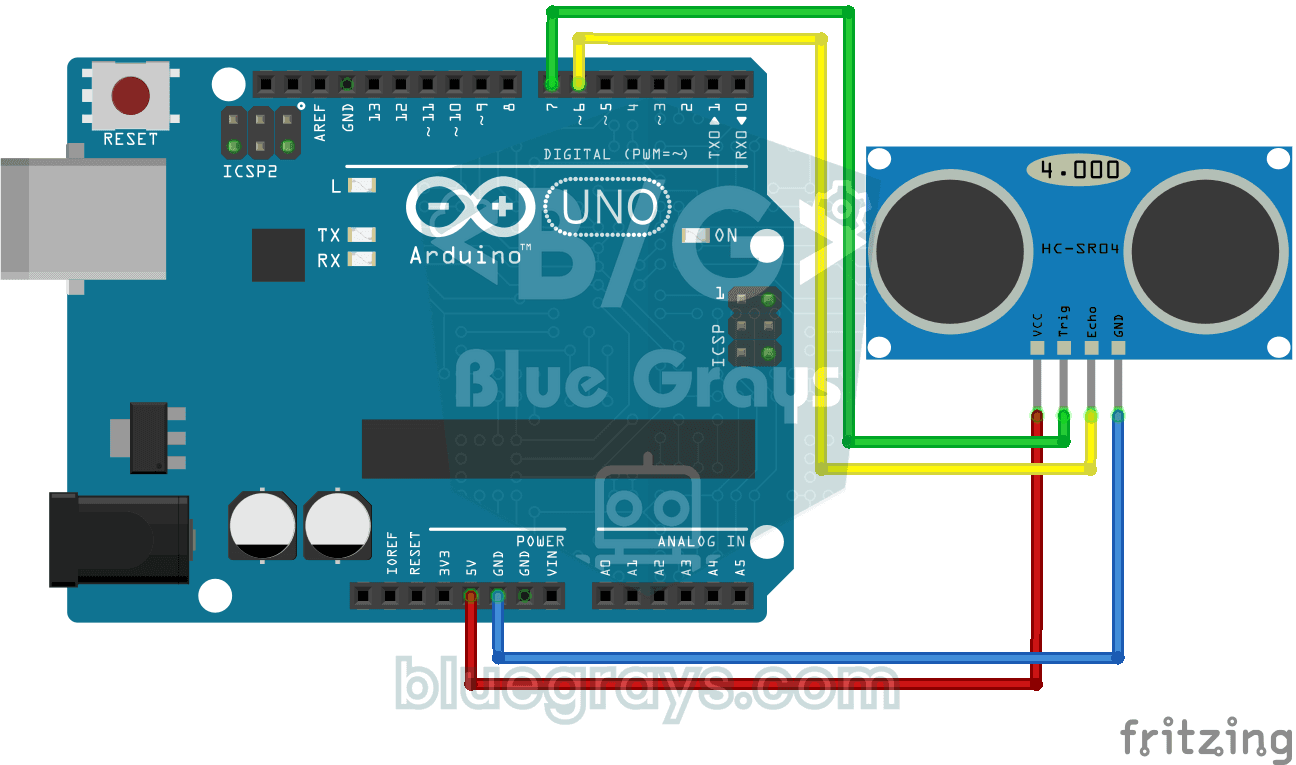
HC-SR04 Distance Measurement (Serial Display)
The HC-SR04 sensor works just like a bat finding its way in the dark: it sends out a sound you cannot hear, listens for the echo and measures how far away the object in front of it is. The Arduino wri

Obstacle Avoidance Robot
How about building a smart vehicle that finds its own way? The Obstacle Avoidance Robot constantly scans its surroundings thanks to the ultrasonic sensor in front of it. When it encounters an obstacle

Bluetooth Controlled Car with L298N
Turn your phone into a remote and drive your own robot car. The Arduino receives commands from a remote-control app on your phone through a Bluetooth module and spins the wheels with a motor driver; t
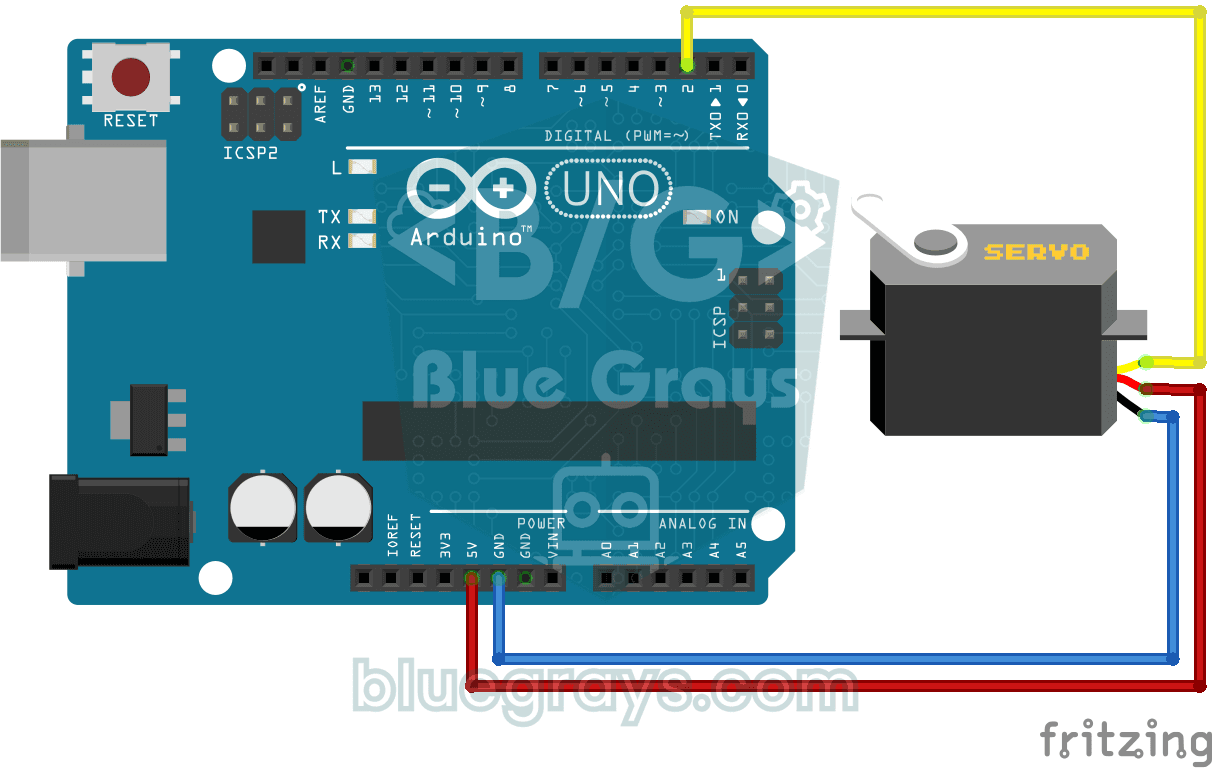
Using a Servo Motor
The arm of a small servo motor turns to three positions in turn: all the way to the start, right to the middle and all the way to the end, waiting two seconds at each stop. The Arduino tells the motor
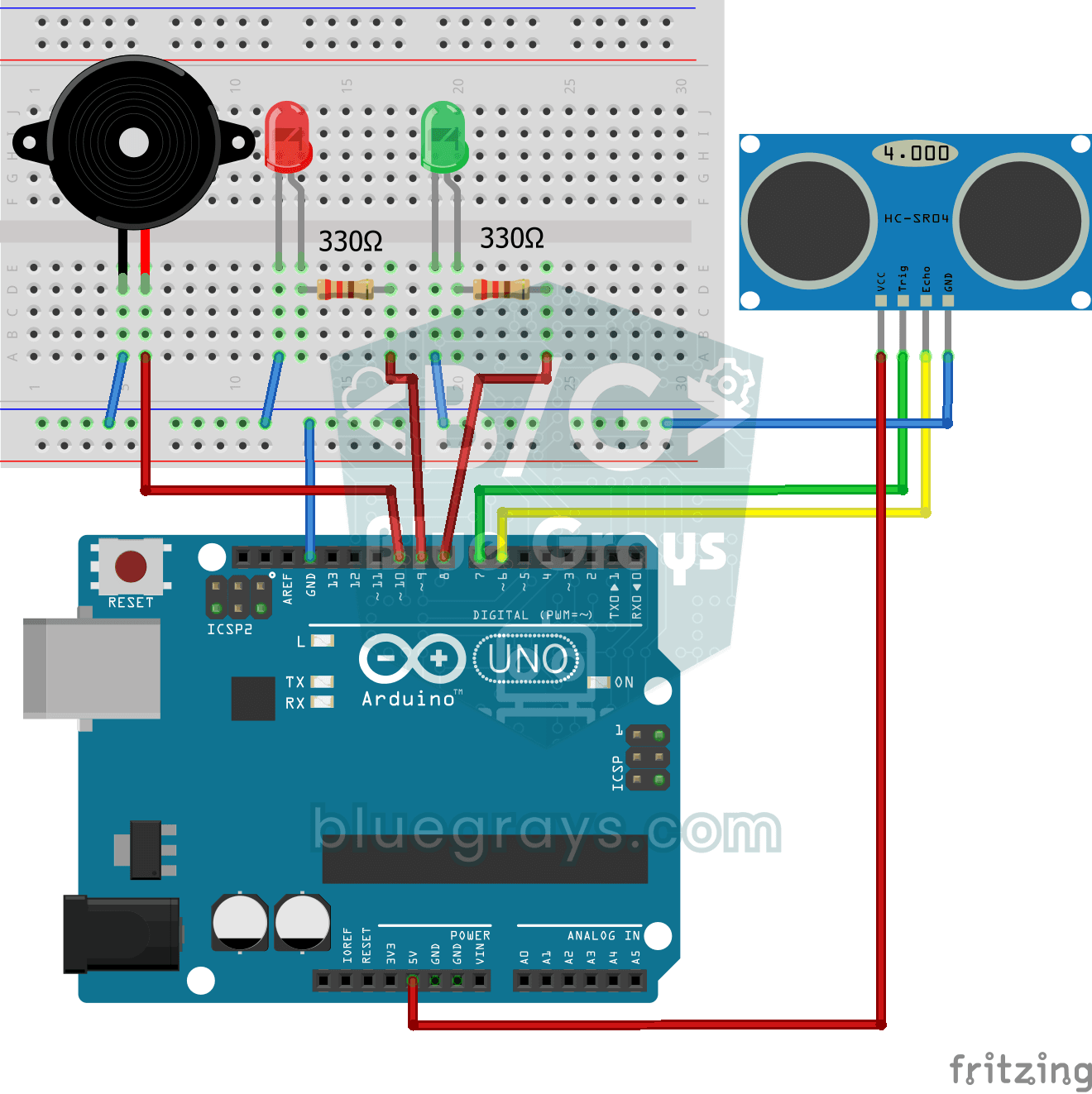
Parking Sensor with HC-SR04
A mini version of a car's parking sensor: the closer something gets, the faster the beeps. The distance sensor measures the object in front of it; if it is more than 20 centimetres away the green LED

Reading Reflection (Proximity) with TCRT5000
With a small sensor that sends out invisible light and measures how much bounces back, you can detect the surface in front of it. The closer an object or a light-coloured surface gets, the more light

TCRT5000 Black and White Surface Detection
With the little sensor that acts as the eye of line-following robots, you can tell whether the floor is black or white. The TCRT5000 shines invisible light at the floor and checks how much of it bounc

ESP32 HC-SR04 Ultrasonic Distance Sensor
The HC-SR04 ultrasonic sensor calculates distance by measuring the time it takes for the sound wave it emits to bounce off an object and return (Time of Flight). In this project, we will send a 10-microsecond pulse from the ESP32 to the sensor's TRIG pin and read the echo duration from the ECHO pin using `pulseIn()`. We will display the calculated distance in centimeters on a 16x2 I2C LCD. Since the HC-SR04 operates at 5V, a **voltage divider** is required on the ECHO pin—otherwise, the ESP32’s