
Arduino SD Card Module: CSV Data Logger with RTC Timestamps
Arduino SD card module guide: SPI wiring, FAT32 formatting, CSV sensor logging with RTC timestamps, ESP32 SD_MMC, Pico and fixing initialization failed.
An Arduino SD card module is a small, cheap board that lets you save the temperature, humidity, distance or location readings from your sensors as files on a micro SD card. It's the easiest way to build a data logger that measures for days or even months without a computer attached: the Arduino takes the readings, the module writes each one as a new line in a CSV file on the card, and you plug the card into your computer and chart the data in Excel. The module connects over SPI and works with just a few lines of code using the SD library that ships with the Arduino IDE.
In this guide you'll learn step by step how the module works, the difference between 5V and 3.3V modules, the SPI wiring for Arduino Uno, Mega, ESP32 and Raspberry Pi Pico, how to format the card as FAT32, how to write and read files, and how to keep a date- and time-stamped CSV log with an RTC module. We also cover the ESP32's fast SD_MMC interface, using an SD card on the Pico with MicroPython, and how to fix the all-too-common "initialization failed" error.
What is an SD card module and how does it work?
SD cards run on 3.3 V and can communicate in two ways: the fast native SD mode and the simpler SPI mode. Microcontrollers like the Arduino talk to the card over SPI. The module's job is to make the two electrically compatible: its regulator drops 5 V to the 3.3 V the card needs, and a level shifter chip (usually a 74LVC125A) converts the Arduino's 5 V signals to 3.3 V the card can handle. Inside, the card is made of 512-byte blocks, while ideas like files, folders and file names are handled by the FAT file system. The SD library does all this heavy lifting for you; you just open a file, write to it and close it.
| Feature | Value |
|---|---|
| Interface | SPI (MISO, MOSI, SCK, CS) |
| Supply (micro SD module with regulator) | 4.5–5.5 V, 3.3 V regulator on board |
| Signal level | 3.3 V and 5 V compatible (thanks to the level shifter) |
| Supported cards | micro SD (up to 2 GB) and micro SDHC (4–32 GB) |
| File system | FAT16 or FAT32 |
| Current | A few mA when idle, up to 100 mA while writing |
| File name (Arduino SD library) | 8.3 format: up to 8 characters for the name + 3 for the extension |
5V vs 3.3V SD card modules: which one should you buy?
| Module type | Supply | Signal level | Best for |
|---|---|---|---|
| Micro SD module with regulator (74LVC125A) | 5 V | 3.3 V and 5 V | Uno, Nano, Mega; ESP32 and Pico when powered from 5 V |
| Full-size SD card module (+5 and +3.3 pins) | 5 V or 3.3 V | Most have no real level shifter | 3.3 V boards; unreliable with 5 V signals |
| Micro SD module without regulator (bare slot) | 3.3 V only | 3.3 V only | ESP32, Raspberry Pi Pico |
| Boards with a built-in slot (like the ESP32-CAM) | From the board | 3.3 V | Used directly with SD_MMC |
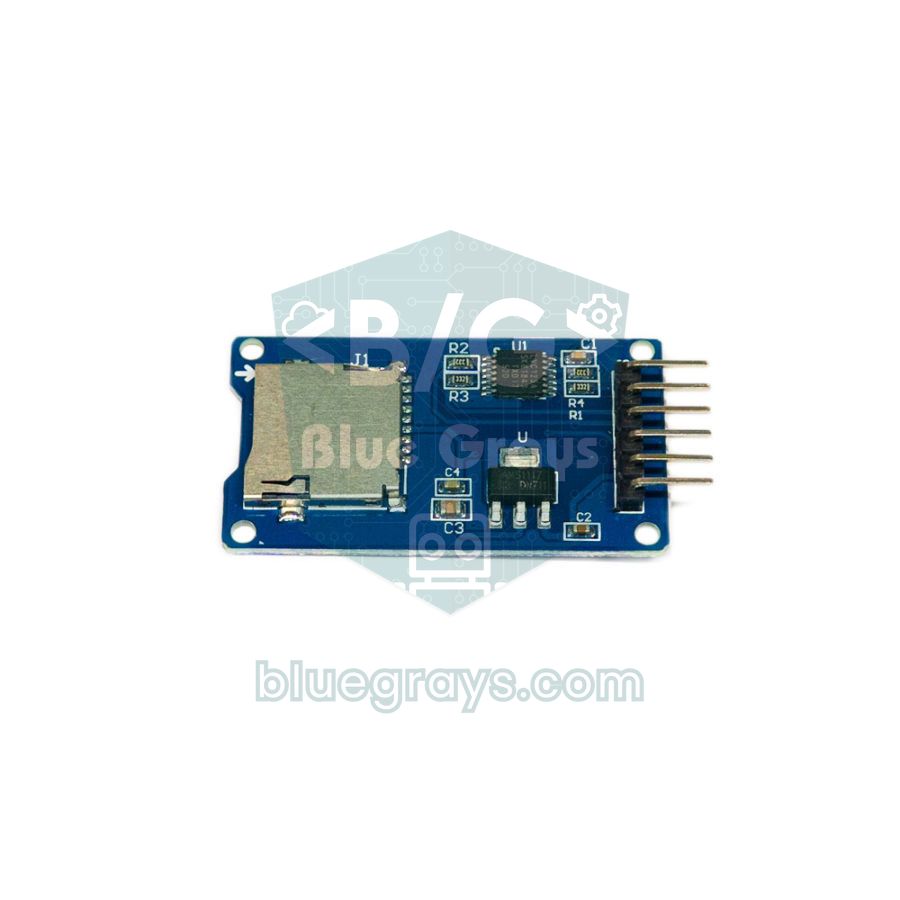
If you're using an Arduino Uno, Nano or Mega, choose a micro SD module with a regulator and level shifter like the one in the photo, and connect VCC to the 5V pin. The ESP32 and Pico run on 3.3 V; you can use the same module with them too, but you should still power it from 5 V (VIN on the ESP32, VBUS on the Pico when it's powered over USB). Because the level shifter is powered at 3.3 V, the MISO signal going back to the microcontroller is already 3.3 V. Modules without a regulator connect straight to the 3V3 pin; if you have to use one with a 5 V Arduino, put a 1 kΩ + 2 kΩ voltage divider on each of the MOSI, SCK and CS lines, or use a logic level converter. You can check the resistor values with the voltage divider calculator.
SD card module wiring: SPI pins
| Module pin | Arduino Uno / Nano | Arduino Mega | ESP32 | Raspberry Pi Pico |
|---|---|---|---|---|
| GND | GND | GND | GND | GND |
| VCC | 5V | 5V | VIN (5 V) | VBUS (5 V) |
| MISO | D12 | D50 | GPIO 19 | GP16 |
| MOSI | D11 | D51 | GPIO 23 | GP19 |
| SCK | D13 | D52 | GPIO 18 | GP18 |
| CS | D10 | D53 | GPIO 5 | GP17 |
MISO, MOSI and SCK must go to the hardware SPI pins on every board; CS (chip select) can be any digital pin, as long as you pass the same number to SD.begin() in your code. On ready-made shields CS is usually D4 or D10. You can connect several devices to the same SPI bus: they all share MISO, MOSI and SCK, and each one gets its own CS pin. We explain how SPI works in detail in SPI communication. To see where the pins are on your board, use the pinout tool.
Preparing the SD card: formatting as FAT32
- Card size: pick a micro SDHC card between 4 and 32 GB. The Arduino SD library supports SDSC (up to 2 GB) and SDHC cards; SDXC cards of 64 GB and above come formatted as exFAT, which this library can't read.
- File system: format the card as FAT32 (FAT16 also works on cards of 2 GB or less). NTFS and exFAT won't work.
- Windows: right-click the card in File Explorer, choose Format, then select FAT32 as the file system and the default allocation unit size. Windows doesn't offer FAT32 for cards larger than 32 GB.
- macOS: select the card in Disk Utility, click Erase, and choose MS-DOS (FAT) as the format and Master Boot Record as the scheme.
- The safest option: the free SD Card Formatter tool from the SD Association formats the card to the official standard and clears up most strange errors.
- Single partition: the card should have just one partition. Cards previously used in a Raspberry Pi or a camera may still have several partitions; delete them before formatting.
Step-by-step first test: writing to and reading from the SD card
- Insert the formatted card into the module and wire the module to the Arduino using the table above.
- The SD library comes with the Arduino IDE, so there's nothing to install; you only add SPI.h and SD.h at the top of the sketch.
- Upload the code below and open the Serial Monitor at 9600 baud.
- If you see "tamam" (OK) and the file's contents, the card and wiring are fine. A new line is added to TEST.TXT every time the board starts.
- When you take the card out and plug it into your computer, you can open TEST.TXT in any text editor.
1#include <SPI.h>
2#include <SD.h>
3
4const int CS_PIN = 10;                           // modülün CS pini / module CS pin
5
6void setup() {
7  Serial.begin(9600);
8  Serial.print(F("SD kart baslatiliyor... "));
9  if (!SD.begin(CS_PIN)) {                       // kart başlatılamadı / card init failed
10    Serial.println(F("initialization failed"));
11    while (true);                                // burada dur / stop here
12  }
13  Serial.println(F("tamam"));
14
15  File dosya = SD.open("TEST.TXT", FILE_WRITE);  // yoksa oluşturur, sona ekler / creates it, appends
16  if (dosya) {
17    dosya.println(F("Merhaba BlueGrays!"));
18    dosya.close();                               // tamponu karta yazar / flushes the buffer to the card
19    Serial.println(F("TEST.TXT yazildi"));
20  } else {
21    Serial.println(F("TEST.TXT acilamadi"));     // dosya açılamadı / could not open file
22  }
23
24  dosya = SD.open("TEST.TXT");                   // okumak için aç / open for reading
25  if (dosya) {
26    Serial.print(F("Boyut (bayt): "));
27    Serial.println(dosya.size());
28    while (dosya.available()) {
29      Serial.write(dosya.read());                // içeriği seri porta yaz / print contents to serial
30    }
31    dosya.close();
32  }
33}
34
35void loop() {
36}| Function | What it does |
|---|---|
| SD.begin(cs) | Initialises the card; returns true on success |
| SD.open("NAME.TXT", FILE_WRITE) | Opens the file for writing; creates it if missing, appends to the end if it exists |
| SD.open("NAME.TXT") | Opens the file for reading (FILE_READ) |
| file.print() / println() | Writes text or a number to the file |
| file.flush() | Writes the buffered data to the card without closing the file |
| file.close() | Writes any remaining data to the card and closes the file |
| file.available() / read() | Checks whether there are bytes left to read / reads one byte |
| SD.exists() / SD.remove() / SD.mkdir() | Checks whether a file exists / deletes a file / creates a folder |
Logging sensor data to CSV with RTC timestamps
The most practical file format for a data logger is CSV (comma-separated values): each line is one measurement, each column is one value, and the first line holds the column headings. To know when each reading was taken, you should add the date and time to every line. millis() only tells you how long the Arduino has been running and resets every time it restarts, so we use an RTC (real-time clock) module with a coin cell. The RTC keeps counting even while the Arduino is switched off. The DS1307 is cheap but can drift a few seconds a day, while the DS3231 drifts only about a minute a year thanks to its temperature-compensated crystal. We compare them in RTC clock modules.
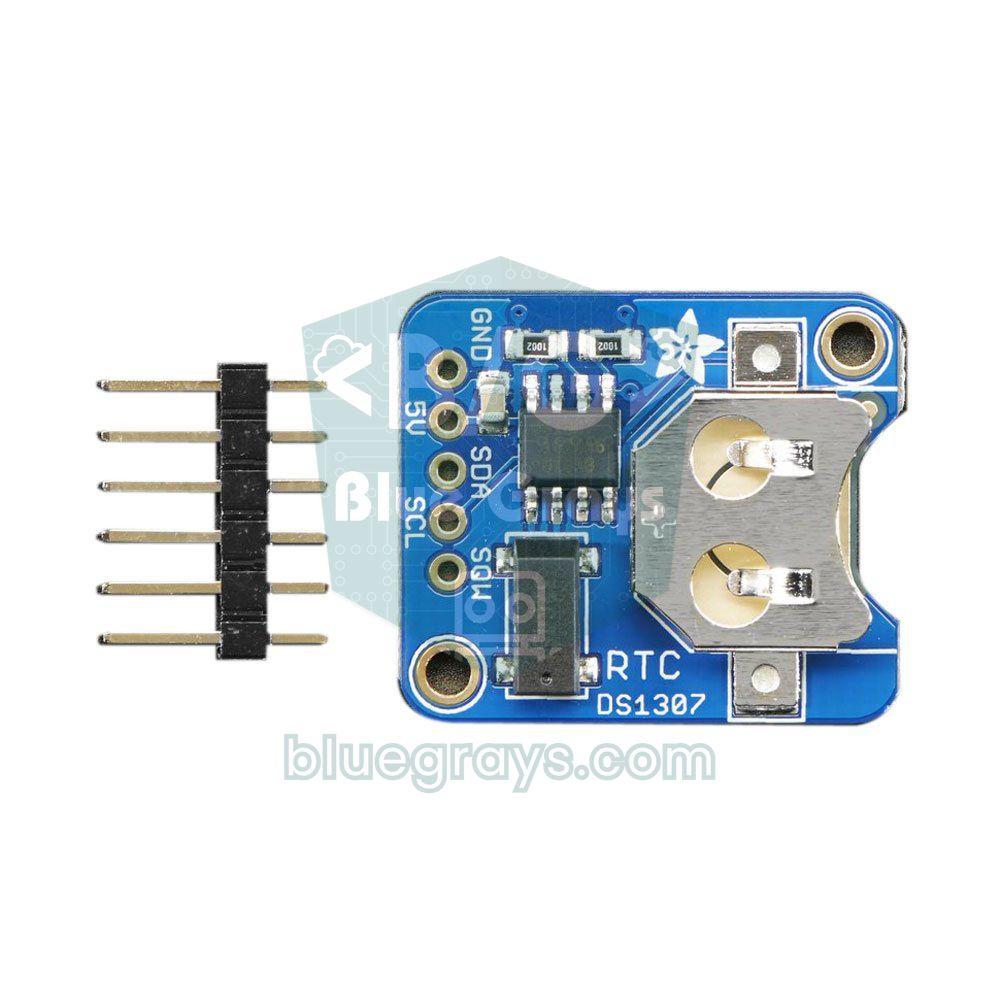
The circuit: the SD module goes to the SPI pins as in the table above, the RTC module to the I2C bus (on the Uno SDA = A4, SCL = A5, VCC = 5V), and the data pin of the DHT22 sensor to D2; if you're using a bare sensor, add a 10 kΩ resistor between the data pin and VCC. Install the RTClib (Adafruit) and DHT sensor library libraries from the Library Manager. For details on wiring the sensor, see DHT11 and DHT22 temperature and humidity sensor.
1#include <SPI.h>
2#include <SD.h>
3#include <Wire.h>
4#include <RTClib.h>
5#include <DHT.h>
6
7const int CS_PIN = 10;                           // SD modülü CS / SD module CS
8const unsigned long ARALIK = 10000;              // 10 saniyede bir kayıt / log every 10 seconds
9
10RTC_DS1307 rtc;                                  // DS3231 için RTC_DS3231 / RTC_DS3231 for a DS3231
11DHT dht(2, DHT22);                               // veri pini D2, DHT11 de olur / data pin D2, DHT11 also works
12unsigned long sonKayit = 0;
13
14void setup() {
15  Serial.begin(9600);
16  dht.begin();
17  if (!rtc.begin()) {
18    Serial.println(F("RTC bulunamadi"));         // RTC yok / RTC not found
19    while (true);
20  }
21  if (!rtc.isrunning()) {                        // saat hiç kurulmamış / clock never set
22    rtc.adjust(DateTime(F(__DATE__), F(__TIME__)));  // derleme anına kur / set to compile time
23  }
24  if (!SD.begin(CS_PIN)) {
25    Serial.println(F("SD kart hatasi"));         // SD başlatılamadı / SD init failed
26    while (true);
27  }
28  if (!SD.exists("VERI.CSV")) {                  // yeni dosyaya başlık satırı / header row for a new file
29    File f = SD.open("VERI.CSV", FILE_WRITE);
30    if (f) {
31      f.println(F("tarih,saat,sicaklik_C,nem_yuzde"));
32      f.close();
33    }
34  }
35}
36
37void loop() {
38  if (millis() - sonKayit < ARALIK) return;      // zamanı gelmedi / not time yet
39  sonKayit = millis();
40
41  float t = dht.readTemperature();
42  float h = dht.readHumidity();
43  if (isnan(t) || isnan(h)) {                    // sensör okunamadı / sensor read failed
44    Serial.println(F("DHT okuma hatasi"));
45    return;
46  }
47
48  DateTime simdi = rtc.now();
49  char ts[8], hs[8], satir[48];
50  dtostrf(t, 1, 1, ts);                          // AVR'de sprintf %f desteklemez / AVR sprintf has no %f
51  dtostrf(h, 1, 1, hs);
52  snprintf(satir, sizeof(satir), "%04d-%02d-%02d,%02d:%02d:%02d,%s,%s",
53           simdi.year(), simdi.month(), simdi.day(),
54           simdi.hour(), simdi.minute(), simdi.second(), ts, hs);
55
56  File f = SD.open("VERI.CSV", FILE_WRITE);      // sona ekle / append
57  if (f) {
58    f.println(satir);
59    f.close();                                   // her kayıtta kapat: güç kesilse de veri kalır / close every time so data survives a power cut
60    Serial.println(satir);
61  } else {
62    Serial.println(F("VERI.CSV acilamadi"));
63  }
64}
Every 10 seconds the code reads temperature and humidity, gets the date and time from the RTC and appends a line like 2026-11-04,14:05:30,23.5,45.2 to the end of VERI.CSV. Because the file is closed after every entry, the data recorded so far survives even a power cut. On AVR boards sprintf() doesn't support floating-point numbers (%f), so the values are first converted to text with dtostrf(). Since the timing uses millis() instead of delay(), you can do other things in loop() as well. If the RTC has never been set, the clock is set to the moment the code was compiled. If you're using a DS3231, just write RTC_DS3231 instead of RTC_DS1307 and check lostPower() instead of isrunning().
How much space does it take? One line is about 31 bytes. Logging every 10 seconds gives 8,640 lines a day, or about 260 KB; over a year that's roughly 95 MB. So at this rate an 8 GB card lasts for decades. The real limit isn't the card but the power supply: if you'll run the project on batteries, work out how long they'll last beforehand with the battery life calculator.
Opening the SD card data in Excel
- Disconnect the Arduino's power, take the card out of the module and plug it into your computer.
- Copy VERI.CSV to your computer; working on a copy is safer than working directly on the card.
- Open a blank workbook in Excel and choose the file via Data > From Text/CSV.
- In the preview window select Comma as the delimiter and click Load; the columns are split into date, time, temperature and humidity.
- Select the temperature and humidity columns and add a line chart from the Insert tab to see how they change over time.
1// Excel'de ondalık ayırıcı virgülse / if Excel uses a decimal comma
2// Bu iki fonksiyonu kayıt kodunda loop()'un üstüne ekle / add these two functions above loop() in the logging sketch
3void noktayiVirgulYap(char *s) {
4  for (; *s; s++) {
5    if (*s == '.') *s = ',';                     // 23.5 -> 23,5
6  }
7}
8
9void excelSatiri(char *satir, size_t boyut, const DateTime &simdi, char *ts, char *hs) {
10  noktayiVirgulYap(ts);
11  noktayiVirgulYap(hs);
12  snprintf(satir, boyut, "%04d-%02d-%02d;%02d:%02d:%02d;%s;%s",   // ayırıcı ; / separator ;
13           simdi.year(), simdi.month(), simdi.day(),
14           simdi.hour(), simdi.minute(), simdi.second(), ts, hs);
15}
16
17// loop() içinde snprintf satırının yerine / in loop(), replace the snprintf line with:
18//   excelSatiri(satir, sizeof(satir), simdi, ts, hs);
19// Başlık satırı da / header row too: tarih;saat;sicaklik_C;nem_yuzde
If you'd rather stream readings live into Excel while the Arduino is connected to your computer, without removing the card, take a look at the Data Streamer and PLX-DAQ methods in sending Arduino data to Excel. An SD card, on the other hand, is essential for projects that run out in the field, far from any computer.
Using an SD card with the ESP32 (SPI)
The ESP32 Arduino core comes with its own SD library and it works almost the same way, but there are three important differences: file paths start with / ("/olcumler.csv"), long file names are allowed, and FILE_WRITE overwrites the file from scratch. To append you must use FILE_APPEND; if you port the Uno code unchanged, your old data is wiped every time the board starts. The default SPI pins are SCK 18, MISO 19 and MOSI 23, and GPIO 5 is usually used for CS. You can also read the card type and size with a single line:
1#include <SPI.h>
2#include <SD.h>
3
4const int CS_PIN = 5;                            // VSPI: SCK 18, MISO 19, MOSI 23 / default VSPI pins
5const char *DOSYA = "/olcumler.csv";             // yol / ile başlar / path starts with /
6
7void setup() {
8  Serial.begin(115200);
9  if (!SD.begin(CS_PIN)) {                       // varsayılan SPI hızı 4 MHz / default SPI clock 4 MHz
10    Serial.println("Card Mount Failed");
11    return;
12  }
13  uint8_t tur = SD.cardType();
14  if (tur == CARD_NONE) {
15    Serial.println("Kart takili degil");         // kart yok / no card inserted
16    return;
17  }
18  Serial.printf("Kart tipi: %s\n", tur == CARD_SDHC ? "SDHC" : (tur == CARD_SD ? "SDSC" : "MMC"));
19  Serial.printf("Boyut: %llu MB\n", SD.cardSize() / (1024 * 1024));
20
21  if (!SD.exists(DOSYA)) {                       // uzun dosya adı serbest / long file names are fine
22    File f = SD.open(DOSYA, FILE_WRITE);         // FILE_WRITE dosyayı sıfırlar / FILE_WRITE truncates
23    if (f) {
24      f.println("sure_s,isik_ham");
25      f.close();
26    }
27  }
28}
29
30void loop() {
31  File f = SD.open(DOSYA, FILE_APPEND);          // ESP32'de sona ekleme / append on ESP32
32  if (f) {
33    f.printf("%lu,%d\n", millis() / 1000, analogRead(34));   // GPIO34'teki LDR / LDR on GPIO34
34    f.close();
35  }
36  delay(5000);
37}
The code logs the raw value (0–4095) of an LDR connected to GPIO 34 every 5 seconds. On the ESP32 you don't even need an RTC module for real time: you can connect to Wi-Fi, get the time from an NTP server and add a timestamp to every line with getLocalTime(). If your wires are long or the card is unreliable, lower the SPI speed: SD.begin(5, SPI, 1000000) starts the card at 1 MHz. In a battery-powered logger, using deep sleep between readings multiplies battery life.
ESP32 SD_MMC: the fast SD interface and the ESP32-CAM
Besides SPI, the ESP32 also has an SDMMC controller that speaks the card's own fast protocol. In 4-bit mode the SD_MMC library is several times faster than SPI, which makes it ideal for large files such as photos or audio. On the classic ESP32 the pins are fixed: CLK GPIO 14, CMD GPIO 15, D0 GPIO 2, D1 GPIO 4, D2 GPIO 12, D3 GPIO 13, and these lines need 10 kΩ pull-up resistors. In 1-bit mode only CLK, CMD and D0 are used; it's slower, but GPIO 4, 12 and 13 are freed up. The micro SD slot on the ESP32-CAM board is wired to these pins, and using 1-bit mode stops the flash LED on GPIO 4 from blinking every time the card is accessed.
1#include "FS.h"
2#include "SD_MMC.h"
3
4void setup() {
5  Serial.begin(115200);
6  // 1-bit mod: yalnız CLK 14, CMD 15, D0 2 / 1-bit mode: only CLK 14, CMD 15, D0 2
7  if (!SD_MMC.begin("/sdcard", true)) {
8    Serial.println("SD_MMC baglanamadi");        // kart bağlanamadı / mount failed
9    return;
10  }
11  Serial.printf("Bos alan: %llu MB\n", (SD_MMC.totalBytes() - SD_MMC.usedBytes()) / (1024 * 1024));
12
13  File f = SD_MMC.open("/gunluk.txt", FILE_APPEND);
14  if (f) {
15    f.println("ESP32-CAM acildi");               // açılış kaydı / boot log line
16    f.close();
17  }
18}
19
20void loop() {
21}SD card with the Raspberry Pi Pico (MicroPython)
In MicroPython, SD cards are handled by the sdcard.py driver from micropython-lib. If you have mpremote on your computer, install it with mpremote mip install sdcard, or copy the file to the Pico with Thonny. The card is mounted as the /sd folder with os.mount(), and after that you use it with ordinary Python file commands (open, write). The code below reads the Pico's built-in temperature sensor and writes a CSV line every 10 seconds. If you're new to the Pico, read What is the Raspberry Pi Pico? first.
1from machine import Pin, SPI, ADC
2import os, time
3import sdcard                                    # micropython-lib sürücüsü / micropython-lib driver
4
5spi = SPI(0, baudrate=1000000, sck=Pin(18), mosi=Pin(19), miso=Pin(16))
6sd = sdcard.SDCard(spi, Pin(17, Pin.OUT))        # CS = GP17; kart yoksa OSError / OSError if no card
7os.mount(os.VfsFat(sd), "/sd")                   # kart artık /sd klasörü / the card is now the /sd folder
8
9sensor = ADC(4)                                  # dahili sıcaklık sensörü / internal temperature sensor
10DOSYA = "/sd/pico_log.csv"
11
12if "pico_log.csv" not in os.listdir("/sd"):      # yeni dosyaya başlık / header for a new file
13    with open(DOSYA, "w") as f:
14        f.write("tarih,saat,sicaklik_C\n")
15
16while True:
17    v = sensor.read_u16() * 3.3 / 65535
18    t = 27 - (v - 0.706) / 0.001721              # RP2040 veri sayfası formülü / RP2040 datasheet formula
19    y, ay, g, sa, dk, sn = time.localtime()[:6]
20    with open(DOSYA, "a") as f:                  # "a" = sona ekle / append
21        f.write("{:04d}-{:02d}-{:02d},{:02d}:{:02d}:{:02d},{:.1f}\n".format(y, ay, g, sa, dk, sn, t))
22    print(sa, dk, sn, t)
23    time.sleep(10)                               # 10 saniye bekle / wait 10 seconds
The Pico has no battery-backed clock: when it's connected to Thonny its clock is set automatically from your computer, but running on its own it starts from 1 January 2021. For accurate timestamps you can add a DS3231 module, or on a Pico W get the time from the internet via NTP. If no card is inserted or the wiring is wrong, the driver raises OSError: no SD card. If you program the Pico with the Arduino IDE (the arduino-pico core), you can use the same SD library approach; the default SPI0 pins match the table, and you just write SD.begin(17) for CS.
Preventing data loss: power, write frequency and card lifespan
- Nothing reaches the card without close() or flush(): the library first collects data in a 512-byte buffer. If you keep the file open all the time, call flush() every few lines.
- Don't remove the card while it's writing: pulling the card or cutting the power mid-write can corrupt the file system. Adding a button that stops logging and an LED that shows logging is active is a good habit.
- Keep the power supply solid: the card draws up to 100 mA while writing. A 10–100 µF capacitor between the module's VCC and GND reduces voltage dips and random write errors.
- Don't open and close too often: if you take dozens of readings per second, opening and closing the file for every line is slow; buffer the readings in RAM and write them in batches of 10–20 lines.
- Card lifespan: SD cards spread writes across different cells internally (wear leveling), so a logger writing a few lines a minute won't wear out the card for years. Still, choose a card from a well-known brand.
- Split the file: opening a separate file for each day (e.g. 20261104.CSV) keeps files small, and if something goes wrong you only lose that day's data.
SD card module project ideas
- Weather station logger: record temperature, humidity and pressure every hour with a BME280 and chart a whole season.
- Plant watering log: record soil moisture sensor readings and the moments the pump runs to study your watering pattern.
- GPS route logger: save your cycling or hiking route as CSV with a NEO-6M GPS, then show it on a map.
- Card-based entry log: write every card scanned with an RFID RC522 to a file along with the date and time.
- Energy use tracker: measure and log the current a device draws throughout the day with an ACS712 current sensor.
- MP3 player: the DFPlayer Mini plays audio files from its own micro SD slot; the Arduino just sends commands.
Common mistakes and how to fix them
| Symptom | Likely cause | Fix |
|---|---|---|
| "initialization failed" | No card inserted, wrong wiring, or the CS pin doesn't match the code | Check that MISO, MOSI and SCK are on the hardware SPI pins and that the CS number in SD.begin() is correct |
| "initialization failed" (wiring is correct) | A module with a regulator is powered from 3.3 V, or the supply is weak | Power the module from 5 V, shorten the wires, add a capacitor between VCC and GND |
| "Could not find FAT16/FAT32 partition" | The card is formatted as exFAT or NTFS; an SDXC card of 64 GB or more | Format a card of up to 32 GB as FAT32 |
| The file won't open ("error opening") | The file name breaks the 8.3 rule, or the previous file wasn't closed | Use a short name like VERI.CSV and close every file with close() |
| The file is empty or the last lines are missing | Power was cut before close() or flush() was called | Close the file after every entry or call flush() regularly |
| The SD card stops working when another SPI device is added | The other device's CS is floating, or the module doesn't release the MISO line | Set every CS pin to OUTPUT and HIGH at the start of setup(); if needed, use a module that releases MISO |
| The Uno freezes or behaves strangely | Out of RAM: the SD library uses about 650 bytes and an OLED display buffer 1 KB | Wrap text in F(); if needed, move to a Mega or an ESP32 |
| On the ESP32, old data is erased at every boot | The file is opened with FILE_WRITE | Use FILE_APPEND to add to the end |
| "Card Mount Failed" on the ESP32 | Power, wiring, a high SPI speed, or missing pull-ups with SD_MMC | Lower the SPI speed to 1 MHz; try 1-bit mode with SD_MMC |
An SD card module turns a project that only measures into a device that keeps records, and a few days of real data tell you far more than a single reading ever could. In the BlueGrays app you'll find the ESP32 temperature logger with DHT22, DS1307 RTC, micro SD and OLED, RTC-based digital clocks and temperature and humidity projects, all with step-by-step circuit diagrams and code.
Frequently asked questions
What size SD card can an Arduino use?
The standard Arduino SD library supports SDSC and SDHC cards formatted as FAT16 or FAT32, which means cards up to 32 GB. SDXC cards of 64 GB and above come with exFAT and can't be read by this library. For a data logger, a 4–16 GB card is more than enough.
Why does my SD card say "initialization failed"?
The most common causes are a wrong CS pin, MISO, MOSI or SCK not connected to the hardware SPI pins, a card formatted as something other than FAT32, and a regulated module powered from 3.3 V. Run the CardInfo example first, then try shorter wires and powering the module from 5 V.
Does an SD card module work with 3.3V?
Modules without a regulator run directly on 3.3 V and suit the ESP32 or Pico. Micro SD modules with a regulator and level shifter need 4.5–5.5 V; powered from 3.3 V, the card doesn't get enough voltage. You can power these modules from VIN on the ESP32 or VBUS on the Pico.
How do I open an Arduino CSV file from the SD card in Excel?
Copy the file to your computer and import it in Excel with Data > From Text/CSV, choosing comma as the delimiter. If your Excel uses a decimal comma, the numbers may look wrong; in that case convert the columns using the English (United States) locale or use a semicolon as the separator in your code.
How often can an Arduino write to an SD card?
Writing a few lines per second is no problem, but opening and closing the file for every line takes time. For fast measurements, buffer the data in RAM and write it in batches, or keep the file open and call flush() regularly. For slow rates like one entry a minute, open-write-close every time is the safest method.
Can I use an SD card module with RFID or a TFT display at the same time?
Yes. SPI devices share the MISO, MOSI and SCK lines and each uses its own CS pin. If you run into trouble, set every CS pin to OUTPUT and HIGH at the start of setup(). The level shifter on some cheap micro SD modules never releases the MISO line; in that case use a module that does, or a second SPI bus on the ESP32.
Projects to build after reading this
See all projects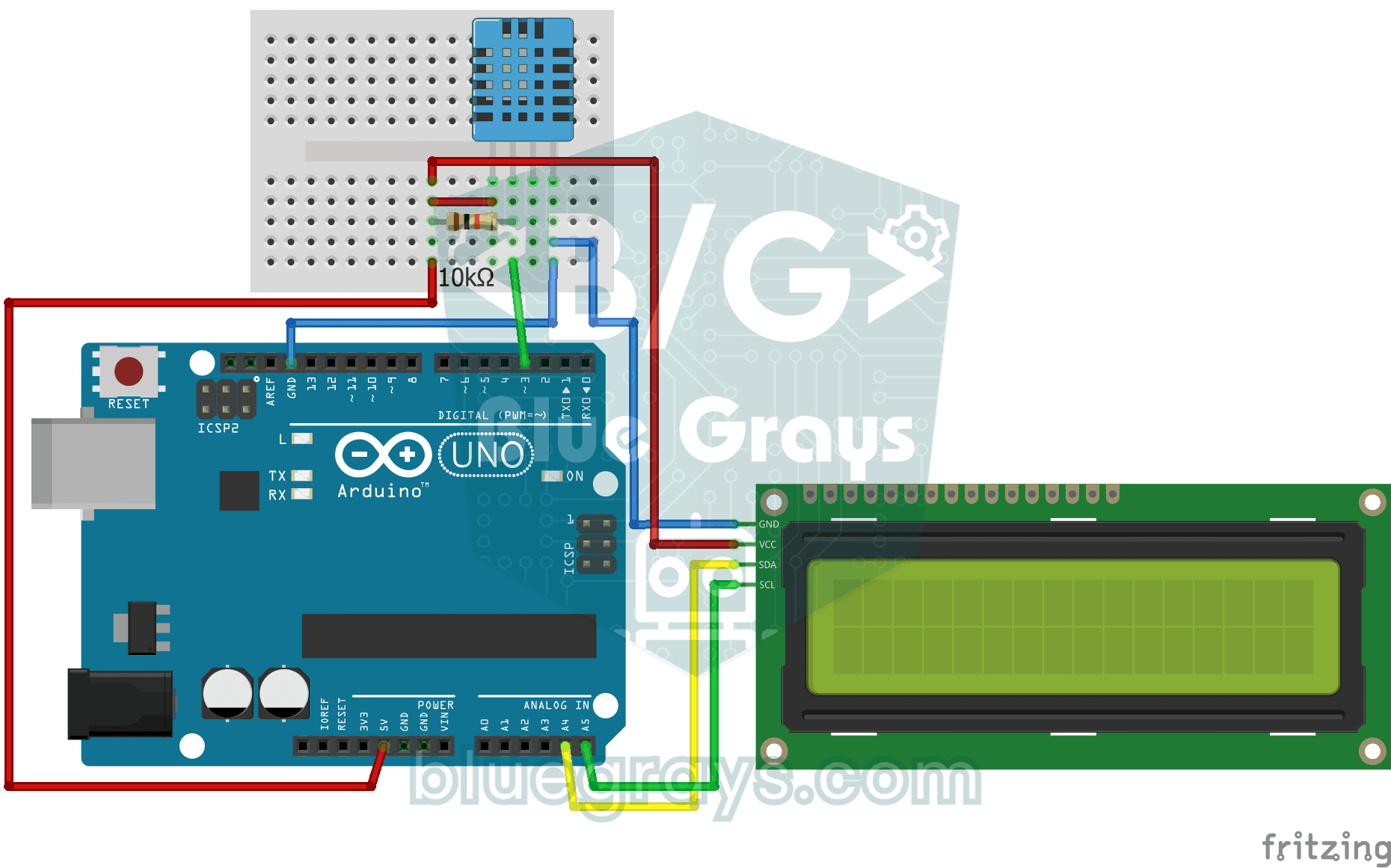
Temperature and Humidity with DHT11
How warm is your room, and is the air humid or dry? The DHT11 sensor measures temperature and humidity, and the Arduino writes the values on a two-line LCD screen, refreshing every couple of seconds.
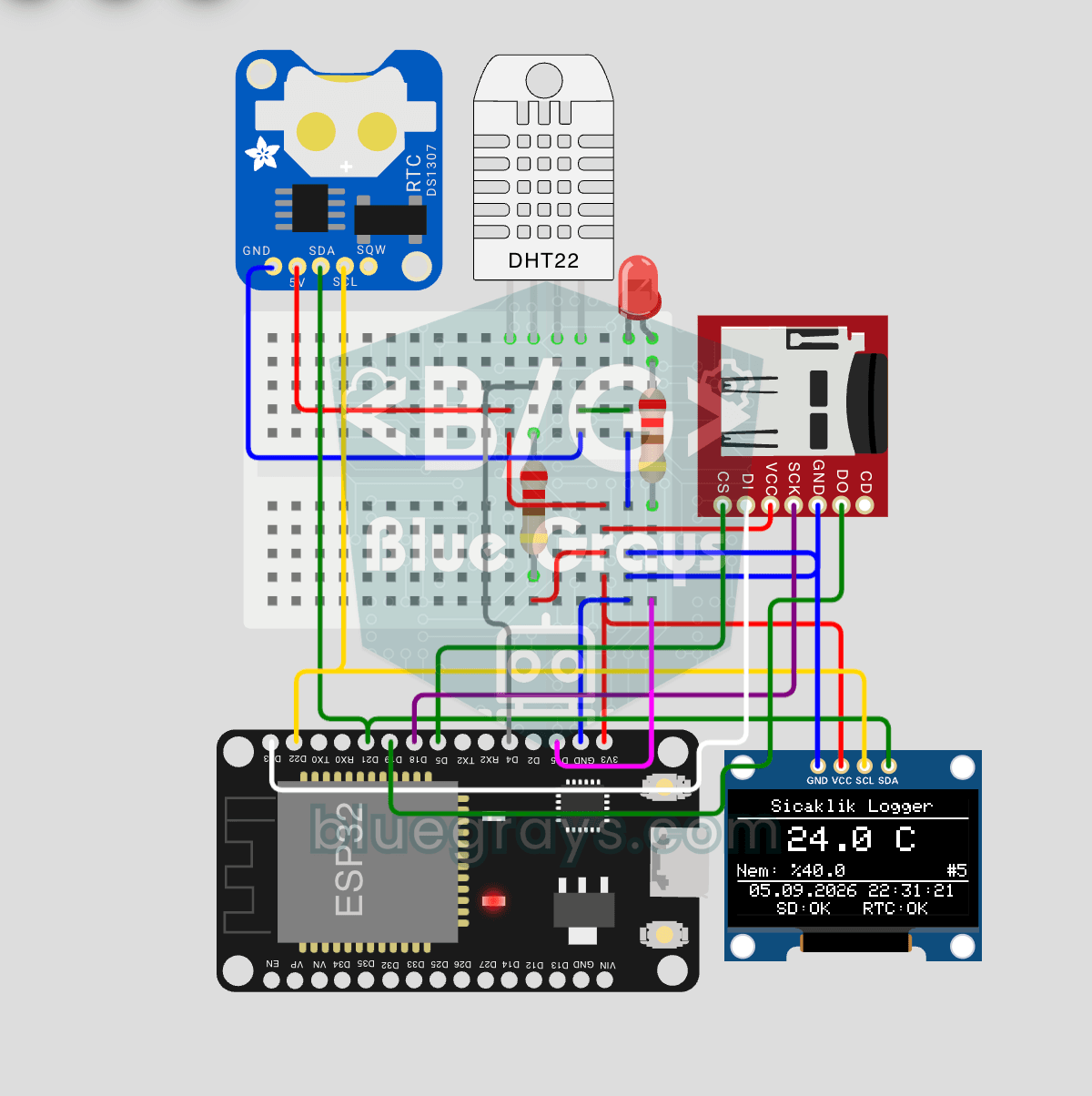
ESP32 Temperature Data Logger (DHT22 + DS1307 RTC + microSD + OLED)
Build a timestamped temperature logger with ESP32! Read DHT22 temperature/humidity every minute, get real-world time from DS1307 RTC, and log to microSD card as CSV. The OLED displays live temperature (large font), humidity percentage, timestamp, and log counter. The `/temp_log.csv` file on the SD card opens in Excel, Google Sheets, or Python pandas for analysis — perfect for greenhouse monitoring, home/room temperature tracking, laboratory data collection, food storage conditions, or beehiv

Digital Clock with ESP32 and DS1307 RTC (I2C + LCD)
In this project, we display the time and date on a 16x2 I2C LCD screen using the DS1307 real-time clock (RTC) module. The DS1307 is a battery-backed RTC that maintains the time even if the ESP32 is powered off. Both modules share the same I2C bus (SDA/SCL), allowing us to learn how to control multiple devices using just two signal wires. Through this project, you will gain practical knowledge of the I2C communication protocol, RTC module operation, and dynamic data display on an LCD screen.

ESP32 DHT22 Temperature and Humidity (with LCD Display)
This project measures ambient temperature and humidity using a DHT22 sensor and displays the data in real time on a 16x2 I2C LCD. Data is read from the sensor using the one-wire protocol via the Adafruit DHT library. This project serves as the foundation for IoT weather stations, smart home automation, or environmental monitoring systems in greenhouses. Communication with the DHT22 is established via the ESP32's GPIO 4 pin.

ESP32 Deep Sleep — Battery Saving (OLED + RTC RAM Counter)
The ESP32's Deep Sleep mode reduces current consumption to ~10 µA by shutting down the CPU and most peripherals, making it critical for battery-powered IoT devices. In this project, we use three different wake-up sources: a timer (15 seconds), an external pin (EXT0 — button GPIO 33), and touch (T0/GPIO 4). Variables marked with `RTC_DATA_ATTR` are preserved during deep sleep—the boot counter, timer wake counter, and button wake counter are continuously tracked. On each wake-up, the SSD1306 OLED

Real-Time Clock from the Internet via ESP32 NTP
The ESP32 connects to Wi-Fi and retrieves real time with millisecond precision from NTP (Network Time Protocol) servers. Thanks to the `configTzTime()` function, the Turkey time zone (TRT, UTC+3) is automatically applied, and DST transitions in countries that observe daylight saving time are automatically managed using a POSIX TZ string. The time is displayed both on the Serial Monitor and on an optional I2C LCD. `configTzTime()` starts the SNTP service; periodic resynchronization takes place wh

Dot Matrix Clock, Calendar and Weather Station (MAX7219, DS1307)
A scrolling-text board for your desk or wall that shows the time, the date and the room's weather in turn. On the 8x32 LED display you first see the temperature in both Celsius and Fahrenheit, then th
DS1302 RTC Clock with LCD Display
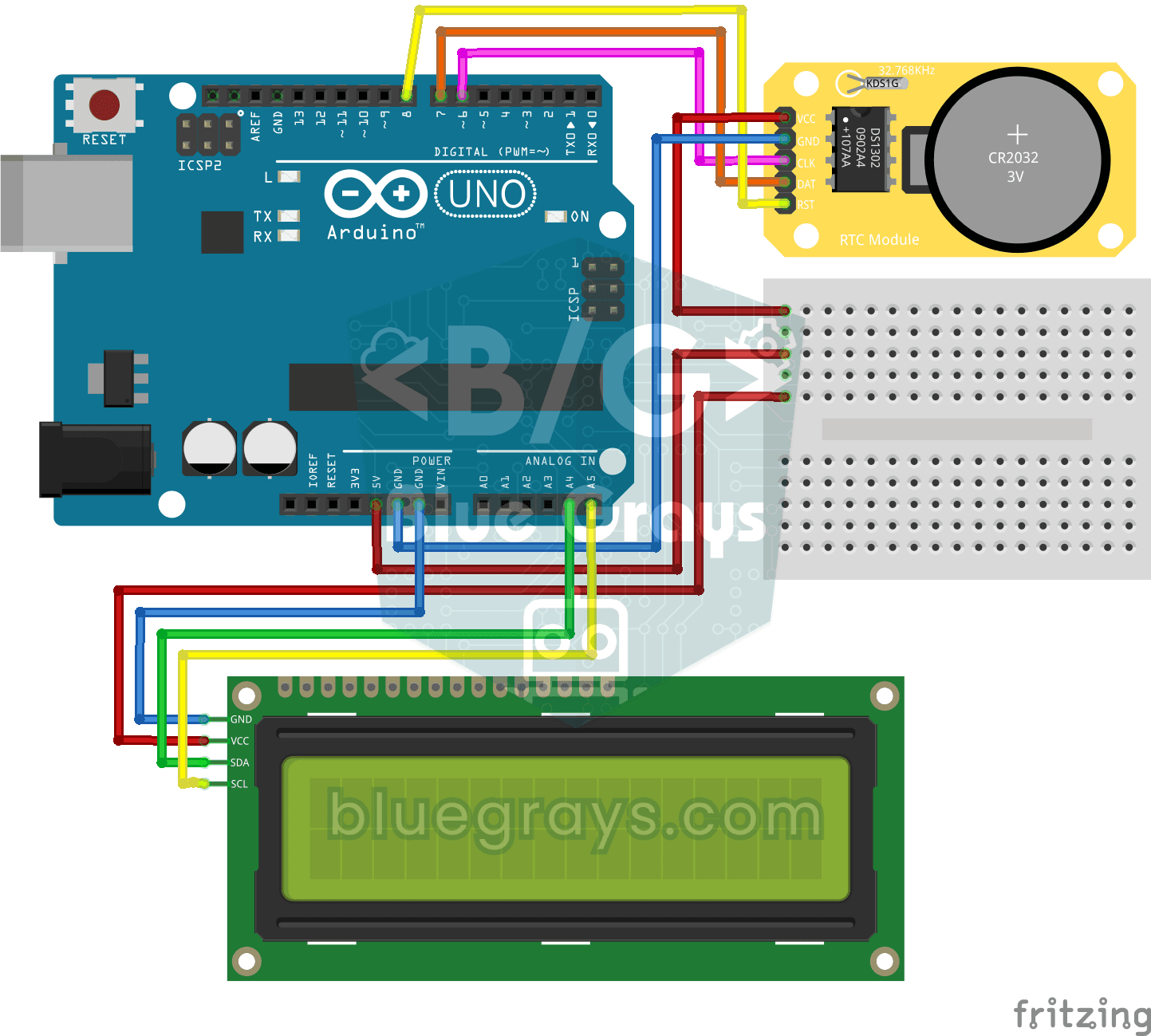
A little desk clock that keeps the time even when the power goes out. The DS1302 clock module keeps time thanks to its own tiny battery; every second the Arduino reads it and writes the time and date